How to turn a Claude Artifact into a real website

Blue gradient background showcasing website design process with mockups, wireframes, code editor, and finished website examples

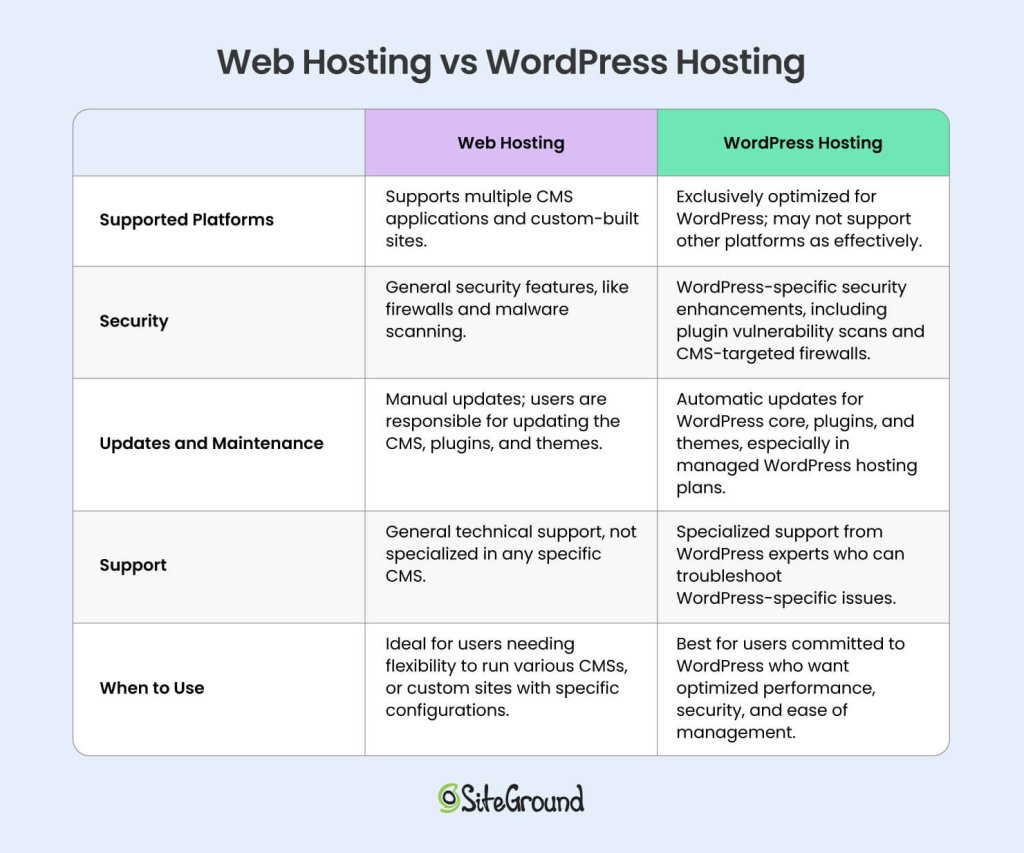
Claude Artifacts live on claude.ai by default. To put one on your own domain, pick a production path: Coderick AI for managed hosting, Claude Code for developer control, or manual deployment.

A Claude Artifact runs on a claude.ai URL with no way to add a custom domain, no control of SEO metadata, no place to store form submissions, and no path for ongoing edits outside Claude. Adding those things is what makes a site production-grade. 

You have three practical paths for going live: publish the artifact from Claude for demos and sharing, use Claude Code and a developer deployment workflow, or hand the artifact files and production brief to Coderick AI, which can accept the artifact’s source files directly and rebuild them as a hosted site on SiteGround’s infrastructure.

Key takeaways:

  • A Claude Artifact becomes a real website only after you add the production layer: a custom domain, SSL, SEO control, forms or database handling, analytics, and ongoing maintenance.
  • Claude’s built-in publishing generates a public link on Free, Pro, and Max plans and supports embedding, which is enough for demos, internal sharing, and feedback but not for a production site.
  • Coderick AI accepts file uploads of up to 30 text-based files (.html, .css, .scss, .js, .jsx, .ts, .tsx, .md) totaling 500 KB, plus up to 10 images, so the artifact’s exported code becomes the literal starting point for a live project.
  • Coderick AI projects go live on SiteGround’s hosting the moment you publish, and SSL installs automatically once a custom domain points to SiteGround nameservers.
  • Claude Code is the developer-control path: it turns artifact logic into an owned, versioned codebase you deploy through platforms such as Vercel, Netlify, or Cloudflare Pages.
  • The single most important handoff asset is the artifact’s saved code plus a short brief describing what should happen after the site goes live.

What is a Claude Artifact?

A Claude Artifact is a standalone output that Claude creates in a side panel during a conversation. It can be a small web page, React component, SVG, chart, dashboard, calculator, form, game, or interactive prototype. Artifacts are useful because you build and refine the result visually while you chat, so instead of receiving only code in the conversation, you see how the artifact looks and behaves.

Claude interface showing an artifact in the side panel: a photography portfolio website (Northlight Photography) with hero section and booking buttons

Many artifacts use the same building blocks as websites: HTML, CSS, and JavaScript which live inside Claude’s environment. When you publish an artifact, it is served from Claude’s infrastructure, usually on a claude.ai URL. That is enough for a prototype, but not always enough for a public website.

That distinction is the core of the workflow: Claude helps you validate the idea, while the production path turns that idea into a website people can actually use. This is one version of the broader AI prototype to published website workflow.

Can you publish a Claude Artifact directly?

Yes. Claude includes built-in artifact publishing for sharing and demos. On Free, Pro, and Max plans, you can publish an artifact and share it via a public link. Anyone with the link can open it in a browser. On Team and Enterprise plans, artifact sharing may be limited to your organization, depending on the workspace settings.

Share artifact modal dialog showing sharing options with "Unshared" status and "Share & copy link" button

Claude also supports embedding published artifacts into another website. When embedding, you define which domains are allowed to load the artifact. You can also unpublish the artifact later to revoke access.

Claude publishing vs. a real website

Publishing the artifact directly works well when the goal is to share, test, or demo a prototype, not launch a production website. In such cases, the artifact works like a live mockup. It proves the interaction and helps people understand the idea faster than a static screenshot.

A published artifact stops being enough when the project needs to operate as a public business asset. At that point, you are no longer asking how to share a Claude Artifact. You are asking how to turn it into a real website.

When Claude publishing is enoughWhen you need a real website
Sharing or demoing a prototypeRunning a public business asset
A claude.ai URL worksBranded custom domain + SSL
Stakeholders or a small teamPublic visitors and search traffic
Form flow just needs to look realForms must store or route data
You’ll re-edit it in ClaudeSomeone owns and maintains it long-term

How to turn a Claude Artifact into a real website

Turning a Claude Artifact into a real website is a five-step process: finalize the artifact, save its code, write a short handoff brief, choose a production path, then build, publish, and test the live site.

1. Finalize the artifact in Claude

Keep iterating until the artifact reflects the site you want to launch. Review the design, functionality, copy, and user flow, and treat the final artifact as the visual and functional source of truth for the production version.

Claude chat interface with conversation about redesigning a LaunchForge AI landing page, showing design refinement discussion

2. Save the code and document the behavior

Open the artifact’s code view and download and save the relevant source files before starting the production handoff. Depending on the artifact, this is typically an .html file plus separate .css and .js files, or .jsx and .tsx files for React components. 
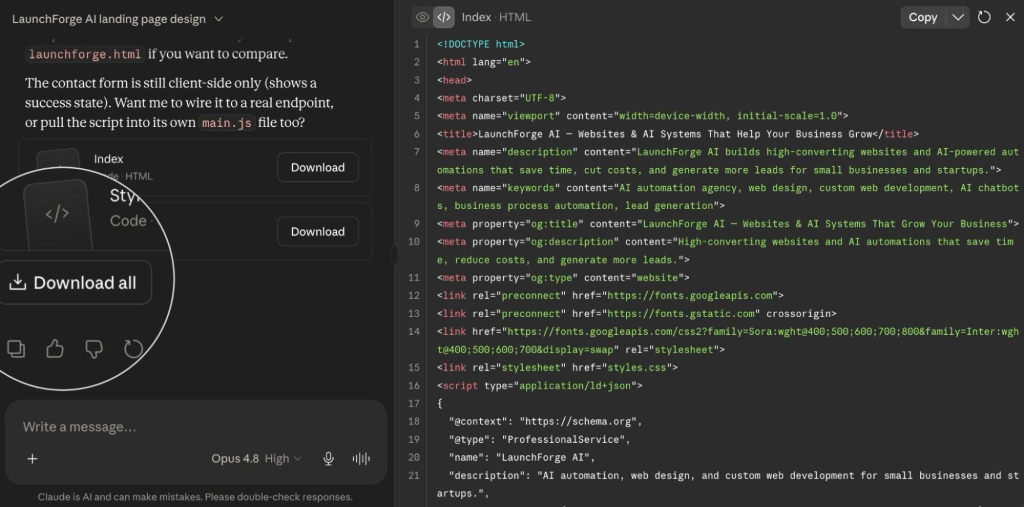
Code view of an artifact showing HTML file structure and Download all button to export source files

These are exactly the file types the production path can read directly, so save them individually rather than as a single screenshot or PDF.

Also take screenshots of important states, such as:

  • Default view
  • Mobile view
  • Empty state
  • Error state
  • Success state
  • Form validation state
  • Any modal, dropdown, or multi-step interaction

Screenshots and short notes help the production tool or developer understand intended behavior that static code does not make obvious.

3. Create a production handoff brief

Write a short brief that explains what the live website needs beyond the Claude Artifact.

Include:

  • Artifact purpose and target audience
  • Published artifact link
  • Screenshots of key screens and states
  • Saved artifact code
  • Page structure and navigation
  • Final copy and calls to action
  • Form fields and data-routing requirements
  • Domain and SSL requirements
  • Analytics or marketing integrations
  • Launch deadline
  • Ongoing maintenance owner

This step is easy to skip, but it’s what prevents the production build from making decisions that aren’t explained in the artifact. A clear handoff brief keeps production focused on building the site, not rediscovering decisions already made during prototyping.

Tip: You can ask Claude to help you generate the handoff brief, using the above as a prompt base.

4. Choose the right production path

Choose the production path based on who will own, update, and maintain the site after launch. 

  • Use Coderick AI for a managed production handoff where the site is built, hosted, published, and edited inside one SiteGround workflow, especially if you want to build without a Claude Code workflow. 
  • Use Claude Code if a developer needs to turn the artifact into a real codebase, manage it in Git, and deploy it through a technical pipeline. 
  • Keep the published Claude Artifact if the goal is only to share a working prototype.

Our pick: Coderick AI

The hard part isn’t launching. It’s editing the site six months later when the artifact is forgotten and the deployment setup is somebody else’s problem. Coderick AI keeps the build, the domain, and the edits in one place.

5. Build, publish, test, and maintain the live site

Once you choose a path, rebuild or import the artifact into the production environment, connect the domain, enable SSL, test the site, and define how future edits will happen. A website is not finished when it launches: it needs a clear owner, an update process, and a maintenance plan. The specific publishing and domain steps for the managed path are below.

How to hand off a Claude Artifact to Coderick AI

Instead of re-explaining your design in three paragraphs of prose, you give Coderick AI the supported artifact files, screenshots, and a short prompt and tell it where each file belongs. The sequence is:

  1. In your finalized Claude Artifact, open the code view and save the source files (for example, an .html file and its .css file, or the .jsx and .tsx files for a React component).
  2. In Coderick AI, drop those files directly into the chat. 
  3. Prompt Coderick AI with the role each file plays: “Apply this HTML as the homepage” works far better than “use this file,” because Coderick AI needs to know where the file goes and what it does.
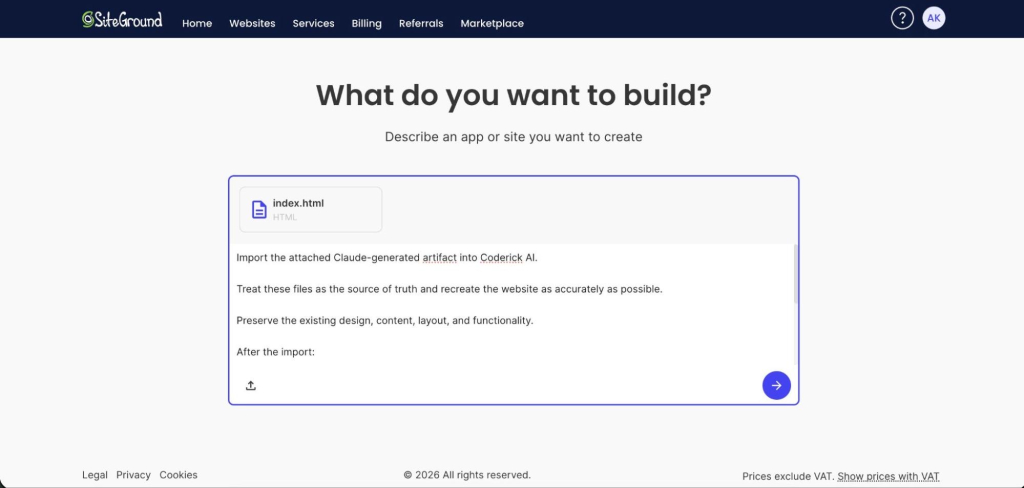
SiteGround Coderick AI interface with file upload area, showing index.html and instructions to import Claude-generated artifact
  1. Coderick AI reads the source and rebuilds it inside your project, keeping your structure, your styles, and the specific elements you uploaded, then builds on top to add pages, wire up functionality, or extend the layout.
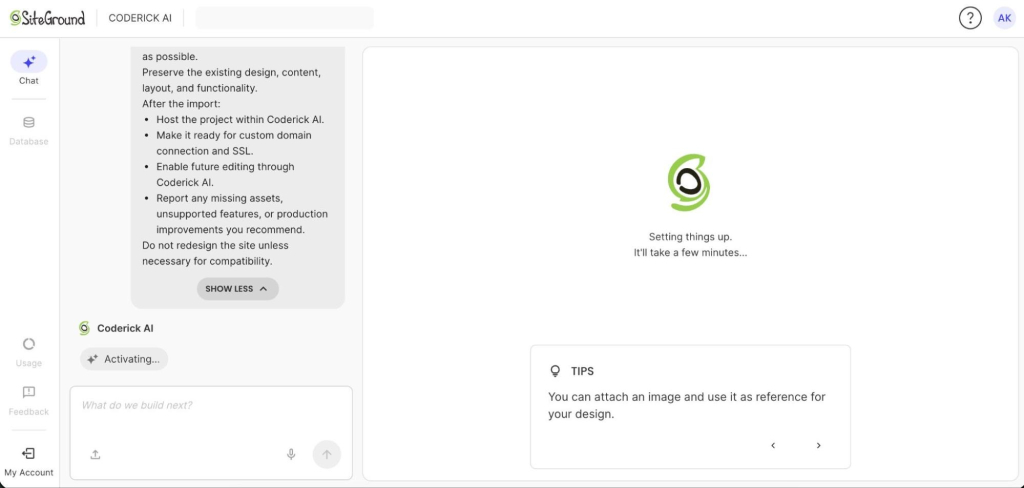
Coderick AI project initialization screen with loading spinner and "Setting things up..." message

What Coderick AI handles after the handoff

After the handoff, Coderick AI covers the managed production layer: building the website or web app from your files and prompts, applying edits through chat, publishing and hosting on SiteGround’s infrastructure, applying SSL, creating responsive layouts, and supporting backend needs such as databases and user authentication. 

It also includes built-in version control, so you can experiment and roll back to an earlier version at any time, and the backend is auto-generated, so you never touch server-side logic unless you want to. For the user, this turns the artifact-to-website process into one guided managed workflow instead of a chain of disconnected tools.

How to publish and connect a custom domain

Publishing in Coderick AI puts your project live on SiteGround’’s hosting immediately; there is no separate hosting setup to arrange. 

To put it on a custom domain, go to Client Area > Websites > Coderick Projects, open the chosen project’s Actions menu, and select Change Primary Domain. 
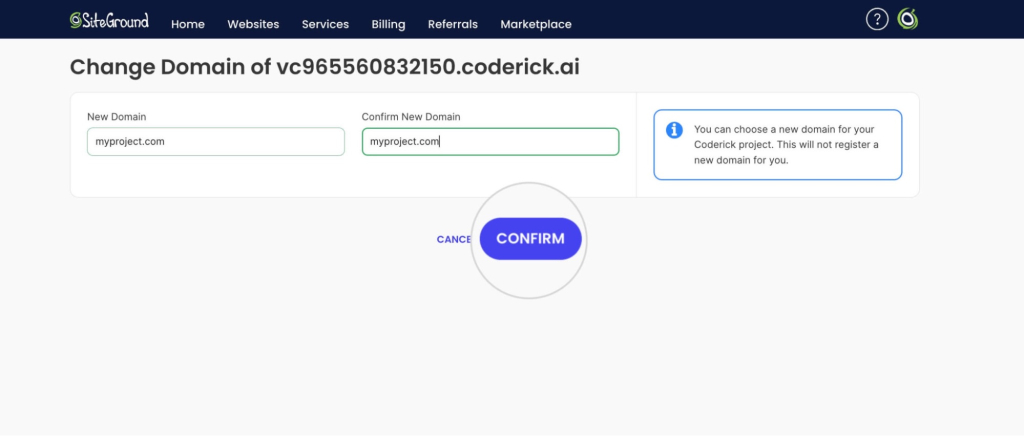
SiteGround domain change form with input fields for new domain and confirmation button

Enter the new domain and confirm. 

Please note that using a custom domain for a Coderick project requires a paid Coderick plan. 

If the domain is registered with SiteGround, it is pointed automatically. If it is registered elsewhere, point it to the SiteGround DNS records shown on that screen. 
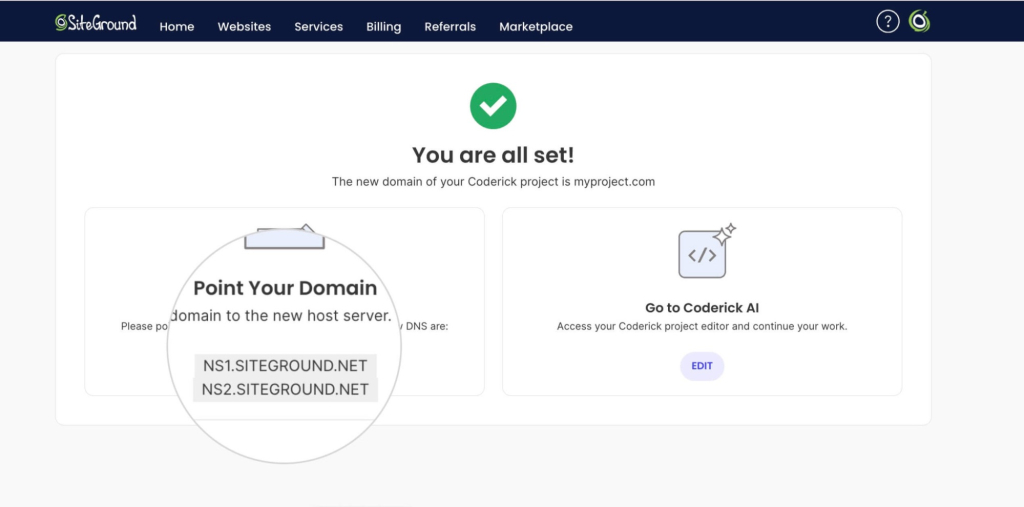
Success confirmation screen showing "You are all set!" with SiteGround DNS records (NS1.SITEGROUND.NET, NS2.SITEGROUND.NET) and instructions to point domain

SSL installs automatically once the domain points to SiteGround’s DNS. 

When Coderick AI is not the right path

Coderick AI is not the best fit when the project needs full source-code ownership, external infrastructure, Git branches and pull requests, or a custom CI/CD pipeline; in those cases Claude Code with a developer deployment workflow is more appropriate. Before choosing that route, factor in Claude Code pricing and deployment costs.

It may also be the wrong fit for projects that require bespoke API integrations, background jobs, or direct server-level configuration. Coderick AI is strongest when the priority is managed publishing: moving from a validated prototype to a hosted site without handling infrastructure separately. 

What to test after the artifact becomes a live website

Once the site is live, run a focused pre-launch check before sending visitors to it.

  • Custom domain and SSL – Confirm the site loads on the custom domain over HTTPS, check for mixed-content warnings in the browser console, and make sure redirects are in place if the site replaces an older URL.
  • Mobile layout – Open the site on a phone and tablet and check the header, navigation, hero section, forms, buttons, embedded media, and interactive elements. Mobile is where prototype-to-production issues show up first.
  • Forms and database actions – Submit every form, confirm the data reaches the correct destination, and confirm the visitor sees a clear success message. If the site includes accounts, test sign-up, login, logout, and password reset.
  • Page speed and accessibility – Run a basic performance check and look at Largest Contentful Paint and Cumulative Layout Shift, not only the overall score. Check that images have alt text, headings follow a logical order, links are descriptive, and the site works with a keyboard.
  • Ongoing edits and maintenance – Decide who owns the site and how future edits happen. On Coderick AI, updates happen through chat; in a developer workflow, updates happen in the codebase and redeploy through the pipeline. Without an owner and update process, even a successful launch can become outdated quickly.
.post-page__colored-blocks.post-page__colored-blocks–update p { margin: 15px 0px; }

Related workflows: Google Stitch and Claude Design

This article focuses on Claude Artifacts. If your starting point is a visual UI prototype from Google Stitch, or an Anthropic design project rather than an artifact, the production logic is similar but the handoff details differ. For exact workflow steps, see:

How to turn a Claude Design project into a real website
How to turn a Google Stitch design into a real website

Take the validated artifact into production with Coderick AI

The hardest part of taking an artifact live is not the artifact. It is everything that happens after you close the Claude tab. Coderick AI is the answer to “I’d rather not deal with the rest.”

[96]


FAQs

1. Can you turn a Claude Artifact into a real website?

Yes. A Claude Artifact can become a real website once you move beyond the prototype stage and set up production needs such as hosting, a custom domain, SSL, responsive testing, SEO metadata, and ongoing maintenance. You can publish or embed artifacts from Claude, use Claude Code for a code-based build, or use a managed path such as Coderick AI.

2. Is Coderick AI a replacement for Claude?

No. Coderick AI is not a replacement for Claude. Claude is useful for creating, testing, and refining the artifact, while Coderick AI can serve as the managed production path to turn a validated idea into a live website. You can also create a website or a web app from scratch in Coderick AI by describing what you want, then refining and publishing it through its managed website-building environment.

3. Can Coderick AI directly import Claude Artifact code?

Coderick AI is a managed production path rather than a direct Claude Artifact code importer. You can use the finished artifact, screenshots, copy, layout, and functionality notes as a clear blueprint, then recreate and publish the website inside Coderick AI’s managed building environment.

4. When should I use Claude Code instead of Coderick AI?

Use Claude Code when you need developer control, repository ownership, raw source-code editing, custom integrations, tests, or a GitHub-based deployment workflow. 

5. Can a Claude Artifact have a custom domain?

Claude’s artifact publishing is mainly for sharing and embedding artifacts. If the goal is a branded production website with a custom domain, users should move the artifact into a website deployment path. Coderick AI supports custom domains.

6. What is the best workflow for non-technical users?

For non-technical users, the best workflow is: build and refine the artifact in Claude, document the final version, then use Coderick AI as the managed production path. This avoids manual hosting, deployment, domain, SSL, backend, and maintenance tasks while keeping Claude as the creative and validation layer.

WordPress backups: Why daily backups may not be enough for your live site

Hero image of a laptop displaying a website dashboard with performance and security metrics, surrounded by floating icons representing cloud backups, data protection, alerts, bug detection, and password security.
.post-page__post-content figure figcaption { color: #666 !important; font-size: 0.875rem !important; line-height: 1.5 !important; text-align: left !important; background: none !important; position: static !important; padding: 8px 0 0 !important; } .post-page__post-content figure figcaption a { color: #4343F0 !important; }

Most websites have some form of backup system in place. A hosting provider runs daily snapshots, or a backup plugin handles scheduled exports. The box is checked, and the assumption is that if something breaks, there’s a recent copy to fall back on.

But “having backups” and “being protected” aren’t the same thing. 

Key takeaways:

  • Having backups doesn’t equal protection. What matters is how recent and complete your last backup is, and how easily you can restore it.
  • Daily backups can still mean hours of lost data (orders, forms, content) on active sites.
  • A full backup must include both files and the database, captured at the same time.
  • The data loss window (time since the last backup) determines how much you lose during a restore.
  • Backup reliability also depends on off-site storage, retention, and ease of use—not just frequency.
  • Sites with frequent changes (ecommerce, user data, active content) often need hourly backups.

This article breaks down:

  • what a WordPress backup actually covers,
  • how the gap between your most recent backup timestamp and the present creates real exposure,
  • and how to evaluate whether your current setup matches the risk your site carries.
.post-page__colored-blocks.post-page__colored-blocks–important p { margin: 15px 0px; }

The backup principles covered here apply to any database-driven site or CMS, not just WordPress. 

We’re using WordPress as the framework because it powers over 40% of the web and is the most common context where these decisions come up.

What happens when your backup isn’t recent enough

Let’s imagine the following scenario:

.post-page__colored-blocks.post-page__colored-blocks–update p { margin: 15px 0px; }

It’s 4 PM on a Tuesday. A plugin update on your WooCommerce store goes wrong and the checkout flow breaks. You catch it within the hour and decide to restore from backup.

Your last backup was created at 6 AM. That’s 10 hours ago.

The restore works and the site is back online. But everything that happened between 6 AM and 4 PM is gone. 

Every order, every form submission, every customer account created, every content edit your team made. All of it rolled back to the state your site was in before the workday started.

The backup didn’t fail. It restored your site to the most recent snapshot available. The problem is that the snapshot was 10 hours old, and your site didn’t stand still during those 10 hours.

This is the gap most site owners don’t think about. Daily backups are standard with good hosting providers, and they work well as a safety net for a wide range of situations. 

But for sites that process transactions, collect user data, or publish content throughout the day, the distance between the last backup and the moment something breaks is the difference between a clean recovery and hours of data loss. These can be orders that exist only in a customer’s email confirmation, form submissions with no other record, or any other content that has to be recreated from memory.

The question worth asking isn’t whether you have backups. It’s whether your backup frequency matches the pace at which your site actually changes.

What a WordPress backup actually includes

A WordPress site is made up of two distinct layers, and both are required for a working restore.

  • Site files: everything stored in the website root directory on your web server. This includes WordPress core files (wp-admin, wp-includes), themes and plugins inside the wp-content folder, uploaded media files, and configuration files like wp-config.php and .htaccess.
  • The database: where your actual content lives. Posts, pages, comments, WooCommerce orders, user accounts, plugin settings, and site configuration. Every piece of dynamic data your site generates is stored here.

These two layers are separate. Your WordPress files sit on the hosting server’s filesystem; your database runs on a database server. Backing up one without the other leaves you with an incomplete recovery path:
– Files without the database give you a shell: your theme, plugins, and uploads, but no content, no settings, no user data.
– The database without files gives you all your content and data, but no theme to render it, no plugins to extend functionality, and no media to display.

A complete backup requires both your website files and the database, captured at the same point in time. A file backup from Monday paired with a database backup from Wednesday creates inconsistencies that can break a site just as effectively as the problem you’re trying to recover from.

How automatic backups work on a live site

Most hosting providers run automatic backups on a schedule, typically once per day during off-peak hours. The backup process creates a snapshot of your entire site at that moment: every file and the full database, captured as a single restore point.

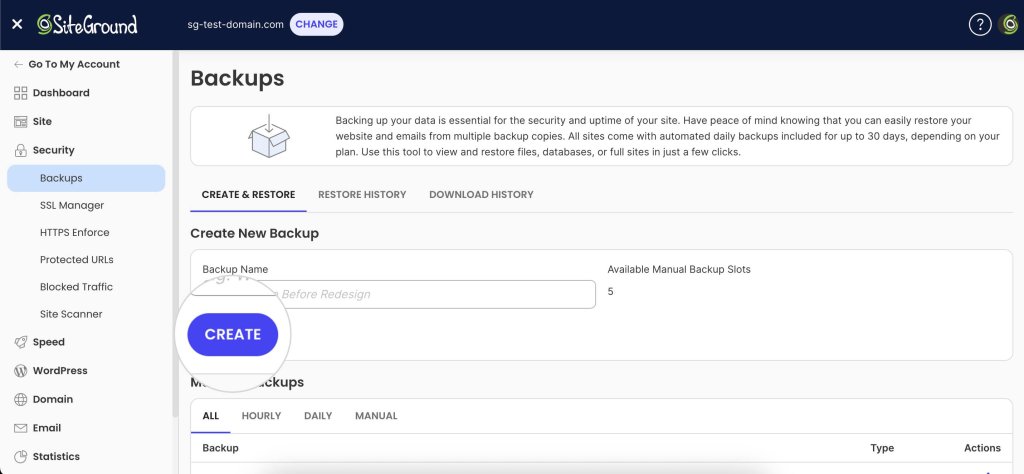
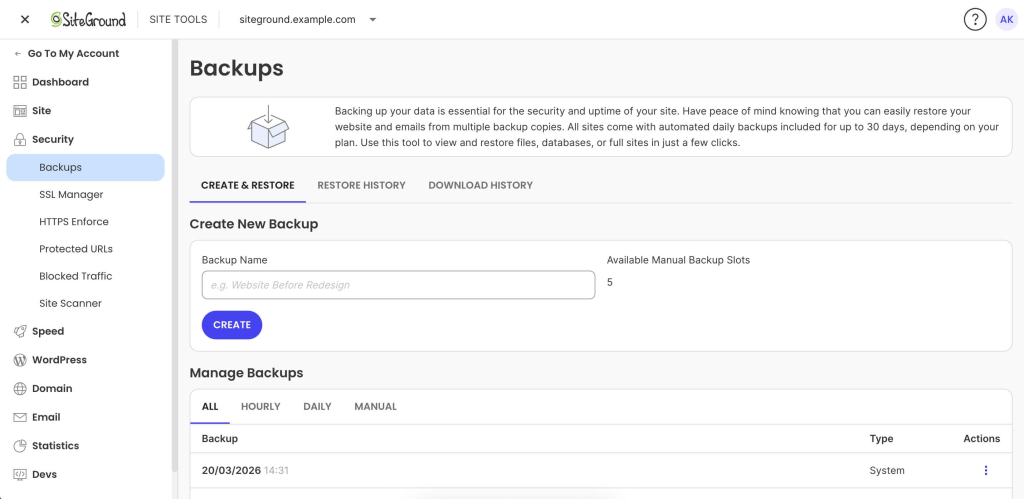
SiteGround Site Tools Backups page showing options to create a new backup and manage existing backups with restore actions.
Screenshot of SiteGround’s backups page in Site Tools.

If you are running a simple brochure-site that does not get updated often, and has no dynamic elements, this may be sufficient. 

However, if you are running a high-traffic, dynamic site, it most likely keeps changing between snapshots. New orders, published content, plugin updates, form submissions, account registrations are not going to be saved in your last backup. It only gets captured when the next scheduled run completes.

This creates what’s sometimes called a data loss window. This is the gap between your most recent backup and the present moment. If you restore right now, everything that changed since the last snapshot is gone. On a quiet site, that gap might not matter. On a site with active traffic and transactions, it can represent hours of irrecoverable data. 

Keep reading to understand how to evaluate your current backup system for such risks.

What changes between backups on a live site

The size of your data loss window depends entirely on how active your site is. On a live WordPress site, here’s what can accumulate between one backup and the next:

– Blog posts published, edited, or scheduled
– WooCommerce orders processed and inventory levels updated
– Form submissions: contact forms, quote requests, lead generation
– Plugin or theme updates applied (manually or via auto-updates)
– New customer account registrations and profile changes
– Comment activity across the site

A portfolio site updated once a week has a narrow gap. A WooCommerce store processing dozens of orders per day has a wide one. The more active the site, the more the question shifts from “do I have backups?” to “how recent is my last backup?”

The data loss window: real restore scenarios

The following scenarios aren’t hypothetical edge cases. They’re common failure patterns on live websites.

A broken plugin update on an ecommerce site

Similar to the example we gave above and very common: a WooCommerce plugin pushes an update at 2 PM. It introduces a conflict that crashes the checkout flow. You catch the issue by 3 PM and decide to restore.

With a daily backup from 6 AM, you roll back 8–9 hours. Every order placed that day is gone. Inventory levels revert. Customer accounts created during that window vanish. You’re left reconciling lost transactions from payment gateway records and accepting that some data no longer exists.

Malware injected and discovered late

Your site gets infected through a vulnerability in an outdated plugin. The malware is subtle: redirecting a small percentage of visitors to a phishing page, injecting spam links only search engines see, or adding a backdoor. You were on vacation and did not notice it for a week. 

This is where retention depth matters as much as frequency.

Let’s assume you are on a hosting plan where you have seven restore points, going seven days back. If the infection is older than a week, every available backup is compromised and you’re facing a manual cleanup with no clean baseline.

With 30 days of retention (standard on SiteGround shared hosting), you can step back through the last month to find a clean snapshot from before the infection, even if you didn’t catch the problem quickly. 

Accidental content deletion on a high-traffic site

This happens more often than you’d think. For example, a team member reorganizes pages in the dashboard mid-morning and accidentally deletes a high-performing landing page. Nobody notices until end-of-day traffic reports show an unexplained drop.

With a daily backup from the previous night, the page is recoverable. But restoring a full site backup to get one page back means rolling back everything else: new content, updated products, orders, form submissions. You recover the page but lose a day’s worth of work across the rest of the site.

This is where the ability to restore specific components matters. 

SiteGround’s restore process allows restoring specific files, databases, or both independently, so you can do a partial restore without forcing a full-site rollback.

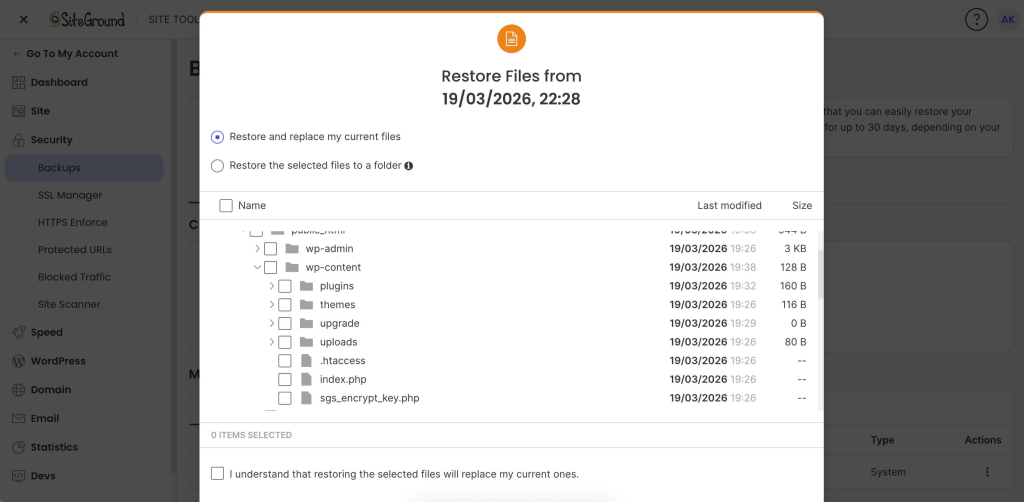
Restore interface showing file selection options, including replacing current files or restoring selected files to a folder.
The partial restore dialog window in Site Tools where SiteGround users can choose which files they wish to restore.

Daily vs. hourly WordPress backups: which do you need?

There’s no universal backup frequency that works for every site. The right answer depends on how your website is used, how often it changes, and how much data you can afford to lose.

When daily backups are enough

For relatively static sites like portfolios, brochure sites, blogs that publish once or twice a week, daily backups provide solid coverage. The data between scheduled backups is small and easy to recreate.

Daily backups are generally sufficient when:

– There are no ecommerce transactions or user-generated content to protect
– Content changes are infrequent and can be manually recreated if needed
– The acceptable data loss window is a full 24 hours

If this is your site, the priority shifts to making sure backups are stored off-site and that retention depth is sufficient for issues that aren’t caught immediately.

When you may need more frequent backups 

This changes quickly when your site generates data that can’t be recreated:

– The site processes transactions: orders, membership signups, bookings, or payments
– Multiple contributors are making content changes throughout the day
– The site collects form submissions, user registrations, or comments at volume
– Any amount of downtime or data loss has a direct revenue impact

In these cases, the acceptable window shrinks from 24 hours to a few hours or less. Hourly backups become a practical necessity.

.post-page__colored-blocks.post-page__colored-blocks–tip p { margin: 15px 0px; }

Questions to ask yourself

– If my site broke right now, when was my last backup?
– How much data would I lose between that backup and this moment?
– Could I manually recreate what’s lost, or is it gone forever?
– How long can my site be down before it costs me money or erodes trust?

The answers don’t require a technical background. They require an honest look at how your site is used and what is at stake.

What SiteGround covers by default, and when to upgrade

SiteGround shared hosting includes 30 daily automatic backups, stored in a geographically separate location, with easy partial restores and one-click full rollback through Site Tools. For many websites, this provides strong baseline coverage with enough retention to handle most recovery scenarios.

For active ecommerce stores, agencies managing client sites, or high-traffic content operations, Premium Backups adds hourly snapshots retained for 48 hours alongside the existing daily retention, plus downloadable backup copies for an independent recovery path.

A promotional banner for the SiteGround Premium Backups service.

The upgrade decision maps directly to the framework above: 

If your acceptable data loss window is measured in hours rather than days → hourly backups are a straightforward, risk-based investment.

What makes a backup strategy actually reliable

How often you back up your site gets most of the attention, but it’s only one dimension. 

Storage location

If your backup files sit on the same server as your live site, a single server failure destroys both. Backups hosted in the same datacenter, while better than same-server backups, also involve risk: a datacenter-level incident can still take out everything.

Off-site storage is the baseline. Storing backups on geo-distributed infrastructure, in a physically separate location from your hosting server, is the gold standard. 

SiteGround’s backup system is entirely geo-distributed and included without any additional charges for all sites, on all hosting plans. 

Retention depth 

Frequency decides how recent your latest restore point is. Retention decides how far back you can go.

This distinction matters most when problems aren’t immediately obvious: malware that sits undetected for days, a configuration change that causes subtle issues over time, or content deleted and only noticed later. In each case, you need to step back through multiple restore points. Shallow retention eliminates that option.

SiteGround shared hosting retains 30 daily copies. Premium Backups adds hourly snapshots retained for 48 hours on top of that. The combination gives you granularity for recent issues and depth for problems that surface later.

Restore speed and simplicity

A backup is only as useful as your ability to restore from it under pressure. When your site is down and customers can’t complete purchases, the restore process needs to be fast, not a multi-step manual operation involving FTP clients, database imports, and file permission fixes.

Trying to manually restore a WordPress site can take hours, requires technical confidence, and introduces the risk of human error at exactly the moment you can least afford it. 

A hosting-level restore that takes a few clicks and runs in minutes changes the recovery experience entirely. For example, SiteGround’s restore in Site Tools lets you select a restore point, choose files, database, or both, and the system handles the rest.

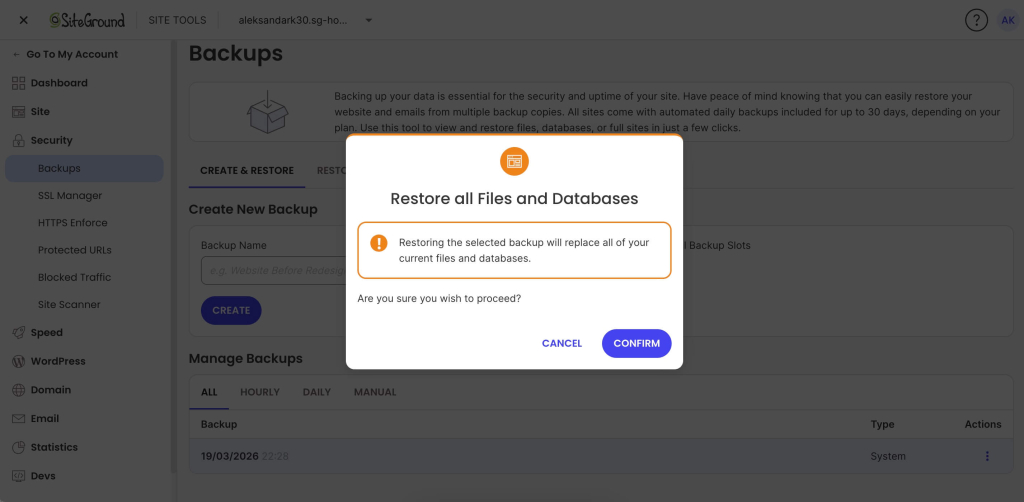
Confirmation dialog warning that restoring a backup will replace all current files and databases, with Cancel and Confirm options.
One-click confirm in Site Tools for restoring a full backup, which replaces all current website files and databases.

Downloadable backups

Hosting-level site backups cover the vast majority of recovery scenarios. But a downloadable copy gives you independence: a backup file that exists entirely outside your hosting environment. This is useful for:

– Migration to a new hosting provider
– Local development and testing with a production copy
– Redundancy for users who want a copy they fully control

SiteGround’s Premium Backup service includes full backups as a single-click download inside Site Tools. You can get a full copy of your website on your device at any time, without paid third-party WordPress plugins or manual export processes.

Popup confirmation showing “Backup ready for download” with a notice about 24-hour availability and a Download button.
Site Tools notification confirming a backup is ready for download.

How to evaluate your current backup setup

Everything above is practical only if you know where your own site stands. This is a self-assessment you can run in a few minutes, no technical expertise required.

Do a quick backup audit

Go to your hosting account and find the backup section. (If there isn’t one or you can’t find it easily, switch to another provider NOW.)

The main things you should check are: 

  • How many hours of data sit between your last backup and now?
  • If you restored that backup right now, what would you lose — and can any of it be recreated?
  • Are your backups stored on the same server as your live site, or in a separate location?
  • How many restore points do you have access to? (One recent backup isn’t the same as 30 days of daily snapshots.)
  • Have you ever tested a restore?

That last point is the most overlooked step in any backup strategy. Backups can fail silently: corrupted snapshots, incomplete captures, storage issues that go unnoticed until the moment you need to restore. 

Consider restoring to a staging site to verify the backup process works before you need it under real pressure. A backup you’ve never tested is a backup you’re trusting on faith.

What to do based on what you find

If your daily backup coverage matches your site’s risk profile (low activity, no transactions, easy-to-recreate content), you’re in a solid position. Make sure to verify your host is using off-site storage and also offers sufficient retention depth.

If the gap between your last backup and right now represents hours of data you can’t afford to lose, it’s worth considering hourly backups.

Either way, the single most valuable step is testing a restore at least once. Know the process before it’s urgent. Understand how long it takes, what options you have, and what the result looks like. That knowledge turns a backup from a line item on a features list into an actual recovery plan.

The bottom line

Having backups is not the same as being protected. The distance between your last backup and the present moment is where data disappears, and for active dynamic sites, that distance is measured in hours, not days. 

Evaluate your site based on what you’d actually lose if you had to restore right now, not on whether backups exist somewhere in the background. 

Test your restores, understand your retention, and make sure your backup frequency matches the real pace of change on your site. That’s the difference between a checkbox and a recovery plan. 

If that audit reveals gaps your current host can’t close (shallow retention, no off-site storage, no granular restore options), it may be worth evaluating a hosting provider where backups are built into the infrastructure from the start.


FAQ

Does WordPress have a built-in backup?

WordPress does not include a built-in backup system. Its autosave feature periodically saves post and page drafts while you’re editing, but that only covers individual content items. It doesn’t capture your WordPress database, plugins, themes, uploaded media files, or site configuration.

For site-level backups, you need either a hosting provider that includes automatic backups, a dedicated backup plugin or manual exports. 

Where do I find my WordPress backups?

It depends on how your backups are created.

If your hosting provider handles backups, you’ll find them in your hosting control panel. On SiteGround, that’s Site Tools → Security → Backups, where you can manage all backup features.

If you use a backup plugin like UpdraftPlus or Duplicator, backups are managed from the plugin settings inside your WordPress dashboard. If you’ve configured remote storage, such as Google Drive, Dropbox, or a cloud storage service like Amazon S3, your backup files will also be stored in whichever service you connected during setup.

How do I back up my entire WordPress site?

A full backup requires both your site files and your database. The file layer includes WordPress core files, themes, plugins, and everything inside the wp-content folder, including all uploaded media. The WordPress database contains posts, pages, comments, orders, user accounts, plugin settings, and site configuration.

Good hosting providers handle this automatically. SiteGround creates full site backups daily, capturing both files and database in a single snapshot. Paid third-party plugins can also create a complete backup and store it in a remote storage location of your choice.

Website migration guide: how to safely move a live site

Header illustration showing a stylized website editor interface with a product image being uploaded, a hand placing a plant photo into the page layout, floating icons representing email, performance optimization, security, and database services, and an analytics chart overlay indicating website growth and performance monitoring.

Moving a live site is fundamentally different from launching a new project. A website migration carries real operational risk: DNS changes propagate unpredictably, email can break silently, and third-party integrations can fail without warning.

Even a few minutes of downtime can mean lost revenue, damaged trust, and a drop in search visibility that takes weeks to recover from.

Most website migration guides treat moving a site as a simple checklist: copy files, update DNS, done. That works for a staging site. It doesn’t work when real visitors are hitting your existing site every second.

This guide walks you through a structured site migration process designed to protect uptime, email continuity, SEO performance, and critical integrations, before, during, and after the DNS switch. Whether you’re moving to a new hosting provider, changing domains, doing a site redesign, or restructuring your infrastructure, the goal is the same: move with control, and move safely.

Key takeaways:

  • Live site migrations are risky because traffic, email, payments, and search indexing must keep working during the move.
  • Most downtime happens when DNS is switched before the new environment is fully tested.
  • Lowering DNS TTL 24–48 hours before the switch shortens propagation time and reduces split-traffic risk.
  • Email is often overlooked—MX records can be overwritten during a nameserver change, causing messages to disappear silently.
  • The safest migrations follow a staged process: audit, build and test the new environment, switch DNS, then monitor.
  • For hosting-only moves, updating the A record is usually safer than switching nameservers.

What makes live site migration risky?

A live site has active dependencies, and all of them need to keep working while everything underneath changes. Visitors are loading pages. Customers are completing transactions. Email is flowing. Search engines are crawling and indexing your website’s content. Any gap in service is immediately felt.

How downtime actually happens

Most migration-related downtime comes from the DNS cutover, the moment traffic redirects from the old site to the new site. If the new environment isn’t fully tested, visitors land on a broken or incomplete page.

The propagation window

DNS propagation adds unpredictability: when you update nameservers or A records, the change doesn’t take effect instantly. During propagation, some visitors reach the new server while others still hit the old one. This split-traffic window can last from minutes to 48 hours, depending on TTL settings and ISP caching.

Example:

A customer in New York loads your checkout page on the new server, where the product catalog is current. Meanwhile, a customer in London still hits the old server, where the database hasn’t been updated in six hours. One sees correct pricing; the other sees stale data. Neither knows they’re on different servers, and you have no control over who lands where.

The cost of even brief outages

For content-driven sites, downtime disrupts crawl schedules and affects search engine traffic. Search engines that encounter errors may temporarily drop pages from google search results or delay re-indexing. For ecommerce or SaaS sites, the stakes are more immediate: failed transactions, abandoned carts, and support tickets.

A site receiving 10,000 daily visits that goes down for two hours doesn’t just lose two hours of traffic. It risks a ripple effect, including lost conversions, damaged trust, and organic traffic dips that take days to stabilize.

Email disruption during DNS changes

MX records, the DNS entries that route email, can be overwritten or misconfigured during a DNS switch. When that happens, inbound email silently fails. Messages don’t bounce; they never arrive. If your email is hosted on the same server as your website, changing hosting providers without preserving MX records can reroute email to a server that isn’t configured to handle it.

Example: 

You switch nameservers on Tuesday morning but forget to recreate MX records at the new DNS provider. A client sends a signed proposal to your business email at 10 a.m. The message doesn’t bounce. No error is generated. The client assumes you received it. You have no idea it was sent. By the time you notice the gap on Wednesday, the proposal deadline has passed.

Broken integrations and third-party services

Many sites depend on external services tied to the domain or server IP: CDNs, payment gateways, CRM platforms, analytics software, and API endpoints. These integrations often rely on IP whitelists, domain verification, or webhook URLs. A migration that changes the server IP without updating these dependencies can silently break critical workflows.

DNS misconceptions that increase risk

DNS changes aren’t instant or binary. Since DNS is a distributed caching system, changes propagate at different speeds across networks. Pointing DNS to the new server isn’t the final step; it’s the most sensitive step, and should come only after the new environment is fully built, configured, and tested.

Pre-migration planning

The work before the DNS switch determines whether the migration process goes smoothly. This phase is about understanding exactly what you’re moving, where it’s connected, and what could break if something is missed. The goal: eliminate surprises before they become outages.

Audit your current hosting and DNS setup

Start with a thorough site audit. Document your server environment:

  • OS, PHP version, database version, and server-level modules
  • All DNS records: A, CNAME, MX, TXT (including SPF and DKIM)
  • Current IP addresses and nameservers
  • CDN configuration and caching rules
  • SSL certificate type: Let’s Encrypt auto-renewal, provider-issued, or custom

Watch for these common audit gaps:

  • PHP version mismatch (such as moving from PHP 8.1 to 7.4) → errors surface only after the switch, when real visitors are already hitting the new server
  • Missing DNS record → silent failure of the service that depends on it
  • Missing or expired SSL → browser security warnings the moment DNS resolves to the new IP

Confirm the new hosting service supports your SSL setup and plan for provisioning a new certificate before switching traffic.

Inventory email and third-party integrations

This step catches dependencies most checklists overlook:

  • Email hosting — If it runs on the same server as your website, migrating without preserving MX records will break delivery. If email is external (Google Workspace, Microsoft 365), verify MX, SPF, DKIM, and DMARC records are documented.
  • Payment gateways — Webhook URLs tied to your domain (Stripe, PayPal).
  • CRM and marketing tools — Domain-based authentication, API keys linked to endpoints.
  • Analytics tracking — Scripts like Google Analytics, tracking pixels, tag managers.
  • API connections — Services using IP-based whitelisting need updating before the switch.

Document everything in a spreadsheet: each service, its connection method, and what needs updating. This is your migration plan for dependencies.

Lower DNS TTL in advance

TTL (Time to Live) tells resolvers how long to cache a DNS record. A default TTL of 86400 means resolvers may serve the old IP for up to 24 hours after a change.

Recommended TTL: 300 seconds (five minutes), set at least 24–48 hours before the planned DNS switch.

This preparatory window lets the old TTL expire across networks, so when you make the actual change, most resolvers pick up the new IP quickly.

Example: 

You lower TTL to 300 on Monday and switch DNS on Wednesday. The old 24-hour TTL has long expired, so resolvers worldwide pick up the new IP within minutes. Compare that to lowering TTL and switching DNS on the same day: most resolvers are still caching the old value, and propagation drags on for hours with traffic splitting unpredictably between servers.

Create a full backup

Always create a complete backup, this is your rollback safety net:

  • All website files via SFTP or SSH, including hidden directories and configuration files
  • Full MySQL database dump
  • Mailboxes, if email is hosted on the same server
  • Store everything independently of both old and new hosting environments

For WordPress or any content management system, verify the export is complete by checking file size and table counts.

Technical migration steps

Nothing in this phase should affect your current site. DNS still points to the old server. Visitors, search engines, and email all continue operating normally. The goal is to build a fully functional copy of your site on the new environment and verify it works before touching DNS.

1. Transfer website files

Upload the entire site to the new host. You can do this via the File Manager, SFTP or SSH. Preserve the original site structure exactly; changing paths or renaming folders breaks internal references and hardcoded paths.

After upload, verify the transfer:

  • Compare file counts and directory sizes between source and destination
  • Confirm hidden files (like .htaccess) transferred correctly
  • Check that file permissions were preserved

A missing configuration file or an incomplete upload is easy to catch now and painful to troubleshoot after DNS has switched.

2. Export and import the database

Export using a full MySQL dump that captures all tables, views, and stored procedures. On the new server, create a fresh database and user with correct privileges, then import. For large databases, command-line import via SSH is usually more reliable than browser tools.

Verify data integrity: check that table counts match, that key content is present, and that no import errors were logged. A partial import produces a site that loads but fails silently on checkout, login, or content rendering.

3. Update configuration files

Connect files and database by updating the configuration file (wp-config.php for WordPress):

  • Database name, username, password, and host → new server’s credentials
  • File paths, temporary directories, caching configurations → new environment
  • .env file or multi-environment profile → new server’s resources
  • Secondary config files → check for hardcoded paths or server-specific variables

4. Update URLs (if needed)

If domain changes are involved, moving from an old domain to a new domain, update all URLs stored in the database. For WordPress and similar platforms, internal links, image paths, and serialized data store the full domain.

Even if the domain stays the same, check for hardcoded server IPs or CDN paths in templates and plugin settings. The new site should be entirely self-contained, with no lingering dependencies on the old host.

5. Test before the DNS switch

This is the most important step. Preview the site using a temporary URL from your hosting company, or modify your local hosts file to point the domain to the new server’s IP (more accurate, since it tests SSL validation and cookie handling).

Test everything:

  • Submit forms and confirm delivery
  • Log in to admin areas and verify access
  • Walk through checkout end to end
  • Load media-heavy pages and verify all assets render
  • Remove any password protection used during setup
  • Confirm SSL shows a valid certificate with no mixed content warnings

When you change DNS, the only thing that should change for visitors is which server responds.

How to change DNS without downtime

DNS is where most migration risk concentrates. Every step up to this point has been preparation: building and verifying the new environment while the live site continues running untouched. Now, traffic needs to move from one server to the other.

Nameserver switch vs. A record update

Nameserver switchA record update
What changesDNS authority for the entire domain. All records (A, MX, CNAME, TXT) move to the new provider.Only the IP address the domain points to. All other records stay at the current DNS provider.
Risk levelHigher: every record transitions at once. Any missing record breaks its associated service.Lower: isolates the change to the web server. Email and other services remain unaffected.
Best forFull infrastructure moves where DNS management is also migrating.Hosting-only migrations where DNS provider, email, and third-party services stay the same.
PrerequisiteEvery DNS record must be correctly recreated at the new provider before switching.Only the new server IP is needed.

If your migration only involves changing hosting providers, and DNS, email, and third-party services stay the same, an A record update is the safer choice.

Choosing the right cutover method

  • Hosting-only migration: Update the A record (and AAAA for IPv6) to the new server’s IP. Most contained change.
  • Full infrastructure move: Nameserver switch required. Recreate all records at the destination, verify MX, SPF, DKIM, CNAME, and TXT records before switching.
  • Domain change: Beyond DNS, you need 301 redirects from old URLs to corresponding new URLs, updates to Google Search Console, analytics tracking, and external links. The old domain should remain active and redirecting to preserve ranking signals and search engine trust.

Example:

An agency migrating a client’s WordPress site from one host to another, with the same domain and external email, only needs an A record update. A business moving its entire infrastructure to a new provider, including DNS management, requires a nameserver switch with every record rebuilt first. A company rebranding under a new domain needs both a DNS change and a full 301 redirect map, plus updates to Google Search Console, analytics, and directory listings.

Sequencing the change

Execute during your lowest-traffic window. If you lowered TTL in advance, most resolvers pick up the change within minutes to hours.

Keep the old server running; don’t cancel the current hosting provider or delete anything until propagation is confirmed complete. Keep the old environment available for at least 48–72 hours.

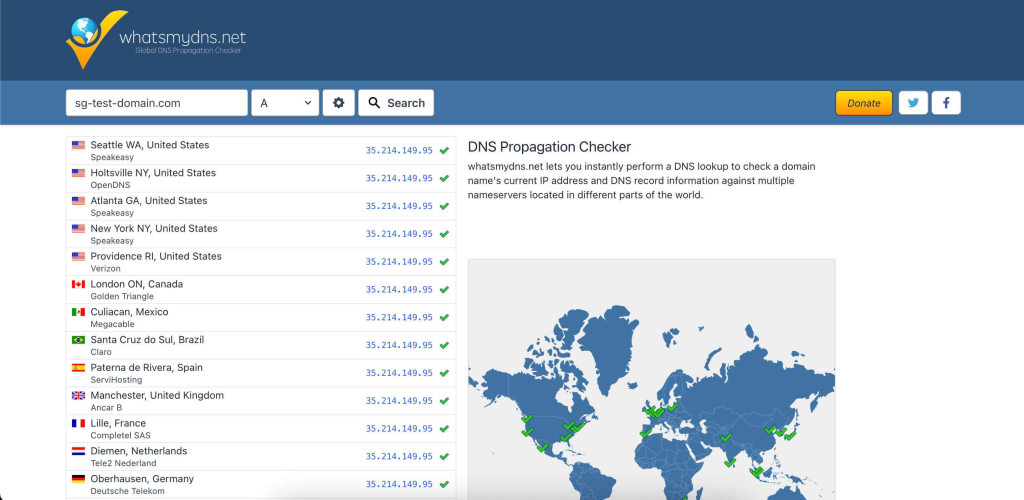
Monitor incoming traffic on the new server. If it shows zero traffic while analytics still reports visitors, something is wrong. Use a DNS propagation checker to see which regions have resolved to the new IP.

Screenshot of the whatsmydns.net DNS propagation checker showing an A record lookup for a test domain, with multiple global locations (United States, Canada, Europe, and others) resolving to the same IP address and green check marks indicating successful DNS propagation, alongside a world map highlighting the responding DNS servers.
Example of a DNS propagation check using whatsmydns.net, showing how a domain’s A record resolves across multiple DNS servers worldwide after a DNS change.

Protecting email and critical services

DNS changes don’t just affect your website. They affect every service that depends on your domain’s DNS records, and email is the most common casualty. Payment gateways, CDN configurations, and API integrations are close behind.

MX records and email continuity

When MX records are misconfigured during a nameserver switch, inbound messages disappear without a bounce or error. This can go undetected for days.

  • If you’re updating only the A record, MX records stay untouched.
  • If a nameserver change is necessary, verify MX records at the new provider before switching: same priority values, same mail server hostnames.

After the DNS change, test email in both directions:

  • Inbound: Send a message to your domain from an external address → confirm it arrives
  • Outbound: Send a message from your domain → verify delivery, check it doesn’t land in spam
  • Authentication: Inspect message headers for SPF, DKIM, and DMARC → confirm all resolve correctly

Consider separating email from web hosting entirely to eliminate this risk for future migrations.

CDN, payment gateways, and API integrations

  • CDN — Update the origin IP to the new server and purge the cache entirely.
  • Payment gateways — Verify webhooks still process. A failed webhook may let orders appear complete on the frontend while the backend never receives confirmation.
  • CRM and API services — Update IP whitelists and domain verification.

Example:

A WooCommerce store migrates to a new server. The site loads perfectly. A customer adds a product to their cart, checks out, and sees “Order confirmed.” But the Stripe webhook URL still points to the old server’s IP, which is no longer processing requests. Stripe never confirms the payment on the backend. No shipping notification is triggered. The store owner doesn’t notice until the customer emails support two days later asking where their order is.

These failures are quiet. They surface in transaction logs, missed notifications, and customer complaints, often well after the migration is considered complete. Proactive verification before and immediately after the DNS change is the only reliable way to catch them.

Post-migration monitoring

Once DNS changes are live, the migration enters its most critical observation window. The new server is now receiving real traffic, handling real transactions, and serving real visitors. Active monitoring in the first 24 to 72 hours is what separates a successful migration from one that creates problems that compound silently.

Uptime and error monitoring

Set up uptime monitoring before the DNS switch, with checks every one to five minutes. Watch server logs for:

  • 500-series errors — server-side failures, misconfigured settings, missing dependencies
  • 404s on key pages — broken links, missing files, redirect rules that didn’t transfer

Monitor the old server in parallel: declining traffic there and increasing traffic on the new one confirms propagation is progressing.

Functional testing

Walk through every critical path on the production domain, not the temporary URL or local hosts file:

  • Submit forms and confirm delivery to the correct inbox
  • Log in / log out of user accounts and admin areas
  • Complete a transaction end to end: cart, checkout, payment, order confirmation
  • Verify transactional emails fire: password resets, order confirmations, shipping notifications
  • If you use an SMTP relay (SendGrid, Mailgun), confirm the connection is intact
  • Test across devices and browsers

SEO signals to verify

  • 301 redirects — Every old URL should reach its final destination URL, not the homepage or a 404. Avoid redirect chains; collapse them into single hops.
  • XML sitemap — Resubmit through Google Search Console (add and verify the new domain property if the domain changed). Monitor Index Coverage for errors across all the pages and all the URLs.
  • Canonical tags — Confirm key pages reference the correct URLs on the migrated site.
  • Google Analytics — Verify it fires correctly. Compare real-time data with your pre-migration baseline. A drop in sessions may indicate a tracking code issue.
  • Crawler activity — Review server logs to ensure search engines access your pages and receive 200 responses. Check that meta descriptions and other on-page elements render correctly.

Post-migration monitoring isn’t a one-day task. Keep watching search console, analytics, and your site’s performance for at least 30 days. SEO recovery, even from a successful website migration, takes time as search engines recrawl, reindex, and recalculate your site’s rankings.

Don’t want to handle the migration yourself?

Get a free website migration from SiteGround and let our experts move your site for you.

A promotional banner inviting users to try SiteGround's plans, with a button to get hosting.

Common website migration mistakes

MistakeWhy it causes damage
Changing DNS before testingOnce DNS points to the new server, real visitors land there immediately. If the site is broken, every minute spent troubleshooting is a minute of downtime. Always test on the new website before touching DNS.
Overwriting MX recordsA nameserver switch replaces your entire DNS zone. If MX records weren’t recreated, email stops silently with no bounce or error notification.
Migrating during peak hoursMaximum visitors affected during propagation delays. Maximum pressure to fix issues quickly, increasing the chance of compounding one mistake with another.
Ignoring third-party integrationsA site that loads doesn’t mean every service behind it works. Payment gateways, CRM webhooks, CDN origins, and API connections can all fail silently when the server IP changes.
Skipping post-migration testingForms, checkout, transactional emails, and analytics all need active verification. A migration is complete when every service is confirmed working, not when the page loads.
Forgetting to lower TTLHigh TTL means slow, unpredictable propagation with split traffic across two environments. How many URLs resolve to which server becomes uncontrollable.
Deleting the old server too earlySome resolvers hold cached records longer than expected. Keep the old environment running 48–72 hours minimum as a fallback.

Website migration checklist

Pre-migration

  • Audit hosting and DNS: document server environment, all DNS records, IPs, SSL, CDN config. Run a site audit to baseline site speed and page speed.
  • Inventory email and integrations: confirm hosting, list services, note dependencies. Check for broken links and update links to other sites where possible.
  • Lower TTL to 300s, 24–48 hours before the switch.
  • Back up files, database, email, and store off-server. Confirm all your pages, including new pages and existing content, are captured. Verify how many URLs and website’s URLs need migrating. Review URL structure and website architecture of the existing site.

Migration

  • Transfer files. Preserve structure and permissions.
  • Import database. Verify integrity.
  • Update config files for the new server.
  • Run serialization-safe search-and-replace if changing domains. Handle old URLs mapping to new URLs.
  • Test on new server: forms, login, checkout, media, SSL. Verify the staging site matches the existing website. Check internal links, incoming links, and that the entire site functions. Confirm technical SEO elements are intact.

DNS cutover

  • Execute during low-traffic window.
  • Verify all records, especially MX and TXT.
  • Confirm the solid plan for domain changes or URL changes is in place.

Post-migration

  • Monitor uptime, server logs, traffic distribution.
  • Test all critical functions on production: forms, transactions, login, emails.
  • Verify email delivery including SPF, DKIM, DMARC.
  • Confirm SEO signals: 301 redirects (with the same page mapping correctly), XML sitemap resubmission via search console, canonical tags, analytics tracking. Verify google search indexing and that search engines access all the URLs.
  • Review site’s performance, page speed, and search engine traffic recovery.
  • Keep the old server running 48–72 hours minimum. A successful site migration, and truly successful migration, means every service confirmed working.

Final thoughts

A website migration doesn’t have to be high-risk. The downtime and broken email people associate with migrations result from skipped steps and poor sequencing, not inherent complexity.

When the website migration process is staged correctly (audit, build, test, switch, verify), each phase reduces risk. DNS isn’t a leap of faith. It’s a controlled handoff after the destination is confirmed ready.

The core principle: never send live traffic to an environment you haven’t tested. The planning phase eliminates unknowns. The migration phase builds a verified copy. The DNS switch moves traffic only when ready. And post-migration monitoring catches anything that slipped through.

Whether you’re moving to a new hosting service, changing domains, or consolidating infrastructure, the steps should always be the same: map dependencies, prepare the destination, control the cutover, and verify the result. That’s how you achieve a smooth site migration and protect uptime, search visibility, and the services your site depends on.

Migration is a process, not a moment. Treat it that way, and the risk drops to nearly zero.

Managed vs Unmanaged Hosting: Key Differences Explained

Illustration comparing managed vs. unmanaged hosting. On the left, a server icon is connected to a network of nodes, a gear, and a performance dashboard—representing managed hosting with automation and monitoring. On the right, a plain server icon represents unmanaged hosting. The background features a gradient of green and purple tones.

Choosing the right hosting service can make a big difference in your website performance and how much effort you need to invest in server management. So one of the most important decisions you’ll face when it comes to hosting is whether to choose a managed or an unmanaged solution. Both have their advantages—but which one fits your needs best?

In this guide, we’ll break down what each option offers, compare their key differences, and help you decide which server hosting type is right for you. 

Key Takeaways

  • Managed and unmanaged hosting are two distinct approaches to server management. They mainly differ in who handles the technical tasks.
  • Managed hosting means your provider takes care of maintenance, security, updates, and expert support.
  • Unmanaged hosting gives you full control, but also the responsibility to maintain a stable, secure hosting environment.
  • Choose managed hosting if you want peace of mind and time savings; choose unmanaged if you need flexibility and have the technical skills.

What Is Managed Hosting?

Managed hosting is a type of web hosting service where the hosting company takes care of all the technical aspects for you. This includes server maintenance, security, operating system updates, backups, and more.

It’s a hands-off hosting solution ideal for users who don’t want to handle server management or lack the technical skills to do so. With managed hosting servers, your provider acts like your tech partner and ensures smooth operation and optimal performance.

This means:

  • Initial server setup and ongoing maintenance
  • Security monitoring and threat protection
  • Automated software and operating system updates
  • Regular backups and disaster recovery
  • Performance optimization with dedicated resources
  • Access to an experienced team for 24/7 customer support

It’s a great choice for business websites, blogs, and any WordPress site that needs reliable performance without technical headaches. Whether you’re launching a site solo or as part of a team, managed web hosting helps you focus on your content or business while a managed hosting team takes care of the backend.

What Is Unmanaged Hosting?

Unmanaged hosting gives you a bare-bones server with full control. You’re responsible for installing software, configuring the server, managing updates, and handling website security.

This type of hosting infrastructure is better suited for developers or experienced users who want customization and have the skills (or a team) to manage everything themselves.

It gives you full control over your server—but with that control comes responsibility.

You’ll need to handle:

  • Server setup and configuration
  • Software installation and updates
  • Security hardening and firewall setup
  • System patches and maintenance
  • Troubleshooting, logs, and performance optimization

Unmanaged hosting plans can be flexible, but require more time, effort, and technical know-how. They’re often used when hosting a custom application, or when full root access is required for advanced configuration. Unlike a fully managed server, you’ll be entirely responsible for your own server resources and security protocols.

Differences Between Managed and Unmanaged Hosting

The biggest difference between managed and unmanaged hosting comes down to who handles the technical tasks.

FeatureManaged HostingUnmanaged Hosting
Support24/7 expert customer support includedMinimal support; limited to hardware issues
Server ControlLimited; the managed hosting team handles setup and changesFull root access and complete control
Security & UpdatesManaged by the web hosting provider, including operating system updates and monitoringYour responsibility
PerformanceOptimized server performance with dedicated resourcesYou handle tuning and optimization manually
CostHigher; includes built-in services and expert managementLower upfront, but may cost more in time and third-party tools
Ease of UseBeginner-friendly, ideal for most website ownersRequires technical knowledge or a developer team

With managed hosting services, the hosting provider takes care of everything behind the scenes—like updates, backups, and security. It’s designed to give you peace of mind and save time.

A promotional SiteGround banner with web hosting icons, a main heading that says "Unleash your website potential with SiteGround", text that says "Begin your online journey with a trusted web hosting partner that will provide your website with ultrafast speed, top-notch security, and dedicated support", and a button with text - "Get SiteGround Hosting"

Unmanaged hosting, on the other hand, gives you complete freedom but also full responsibility. You’ll need to install and configure everything manually, keep the server secure, and monitor its performance.

Support is another major factor. Managed hosting clients typically benefit from having an experienced hosting IT team available 24/7. In contrast, unmanaged services usually offer limited support—mainly for physical server or network issues.

Pros and Cons

Both managed and unmanaged hosting have their strengths and weaknesses. Choosing the right one depends on your technical skills, available time, and what kind of experience you’re looking for.

Managed Hosting

The main benefit of managed hosting lies in what you don’t have to do. You won’t need to configure the server, monitor performance, or worry about backups and updates. That peace of mind is worth the higher price for many site owners, especially those focused on content, and business operations.

The trade-off? Less flexibility and a reliance on your hosting provider to make system-level changes on your behalf.

Unmanaged Hosting

Unmanaged hosting gives you complete control—ideal if your project demands a specific tech stack or setup.

You’ll need time, skills, and a solid understanding of server administration. It can be cost-efficient, but the hidden cost is the expertise it demands. 

If you’re building something custom, or have an internal team ready to manage a server environment, this route offers maximum freedom—at the price of greater complexity.

How to Choose: Managed vs. Unmanaged Hosting

The right option depends on your goals, technical ability, and how hands-on you want to be. 

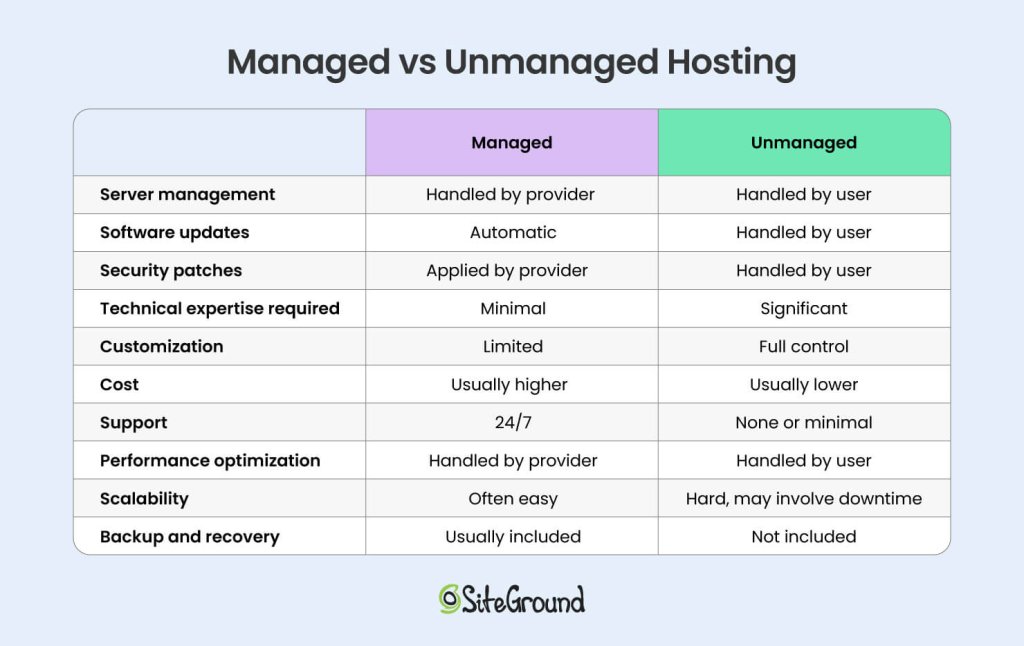
A visual image of the above comparison table Managed vs Unmanaged Hosting.

1. Cost

Managed hosting plans usually cost more, but they include expert support, backups, optimizations, and peace of mind. For most website owners, the investment in fully managed hosting is worthwhile for the convenience and time savings.

Looking for a hosting provider that takes care of performance, security, and support? 

SiteGround’s managed hosting includes built-in caching, a custom CDN, daily backups, and expert support—so you can focus on growing your site.

If budget is your primary concern and you have the skills to manage a server, unmanaged hosting may work—especially if you’re setting up a custom project or testing new environments.

2. Technical Expertise

Server maintenance and performance tuning can be overwhelming if you’re not technically skilled. Keeping up with patches, configuration changes, and server resources requires knowledge and constant attention.

That’s why managed cloud hosting or a fully managed shared server is the best option for most users. With managed hosting solutions, you get a professional team that handles everything for you—so your focus stays on growing your site or business.

3. Custom Requirements

Some custom-built applications may have specific software requirements that are not available on managed setups. In such cases, unmanaged hosting offers the flexibility you need—at the cost of doing everything yourself.

However, if you’re hosting a WordPress site, an online store, or a business site, most managed hosting providers already offer optimized environments. 

Even if you have custom requirements, managed services may still be the better option. Managed dedicated hosting clients, for example, benefit from having the entire physical server managed and configured for them.

Managed or Unmanaged Hosting—Which Option Is Best for You?

To summarize, if you want a worry-free experience and prefer to focus on your business—not server configuration—managed hosting services are the way to go. It’s perfect for business owners, bloggers, and non-technical users who want their site to just work.

On the other hand, if you’re experienced, enjoy customizing your tech stack, and need total control, unmanaged hosting gives you that freedom. It’s best suited for developers, sysadmins, or those with the time and knowledge to manage a server hosting environment on their own.

At the end of the day, choosing the right hosting service is about balancing cost, control, and convenience. 

For most website owners, managed hosting is the smarter, stress-free choice. You get expert support, built-in security, and top performance—without the technical headaches. If you want a reliable solution that just works, try managed hosting with SiteGround and grow your website!

How to Choose a Web Hosting Partner?

Smiling young man holding a laptop, surrounded by website interface elements and eCommerce icons, representing online business and hosting performance.

Your hosting provider is more than just a place to upload your website files — it’s the foundation your entire online presence depends on. 

Whether you’re launching a new project or looking to scale, choosing the right web hosting service largely defines your site’s speed, security, and your peace of mind. It is one of the most important decisions for any website owner. 

But with so many options out there, how do you know which one fits your business best?

In this article, we’ll walk you through how to choose web hosting—what really matters and how to find the right partner for your site. Let’s dive in!

Why Your Hosting Choice Matters

Your web hosting provider plays a crucial role in your website’s success. It affects:

  • How fast your site loads 
  • How often it’s available 
  • How well it ranks on search engines
  • How likely visitors are to convert into customers

A reliable web hosting company gives your business a strong technical backbone – one that supports your growth instead of holding it back. Fast speeds, secure infrastructure, and high uptime help keep your audience happy and your business online.

On the flip side, choosing the wrong web hosting service can lead to slow performance, frequent downtime, and security issues. That means lost traffic, missed opportunities, and hours of troubleshooting you shouldn’t have to deal with.

Key Factors to Consider When Choosing a Hosting Partner

Not all hosts are created equal. Whether you’re choosing shared hosting, Cloud hosting, or managed WordPress hosting, your needs will determine the best web hosting provider for you. 

The right choice depends on your business — but there are some essential features every reliable provider should offer. Let’s walk through the most important ones.

1. Reliability and Uptime

Your website is your digital storefront — and just like a physical store, it needs to be open when people show up. That’s where uptime comes in.

Uptime refers to the percentage of time your site is live and accessible. Most hosting providers claim to guarantee around 99.9% uptime, which roughly translates into about 40 minutes of total potential downtime per month. Don’t rely on marketing claims alone. Uptime is one of the clearest indicators of a web host’s reliability. Reputable hosts publish a Service Level Agreement (SLA) that clearly outlines their uptime commitment — and whether they offer compensation if that promise isn’t met. 

✅ Tip: Look for 99.9% or higher uptime, a transparent SLA, and a global network of data centers with built-in redundancy.

2. Speed and Performance

Website speed isn’t just a technical metric — it’s a competitive advantage. A few extra milliseconds of load time might not sound like much, but for your visitors, it is the difference between staying or bouncing, converting or abandoning.

Let’s look at why speed matters so much — and what hosting features actually move the needle.

2.1. How a Fast Website Drives Better Business Results

A faster website leads to better results across the board — from traffic and conversions to long-term customer satisfaction. Here’s how:

  • Higher Search Rankings
    Google uses speed as a ranking factor. Sites that load faster get prioritized in search results, especially on mobile.
  • Better User Experience
    Today’s users expect instant access. If your site takes more than a couple of seconds to load, many visitors will leave before they even see your content.
  • Lower Bounce Rates
    Slow pages cause visitors to leave quickly. Faster sites encourage browsing, increase time on site, and reduce bounce rates.
  • Increased Conversions
    Whether you’re selling products, generating leads, or booking consultations, speed has a direct impact on your website conversion rate. Even beyond cached pages, critical conversion actions — like adding a product to the cart or completing a checkout — rely on real-time server responses. These actions aren’t cached, so they depend entirely on the speed of your hosting platform – right when you need it most.
  • Trust and Professionalism
    Users associate speed with quality. A fast, responsive site builds trust and shows that your business is reliable and well-managed.

📊 Industry insight:

According to Google research, as page load time increases from 1 second to 3 seconds, the probability of a visitor bouncing increases by 32%. At 5 seconds, that jumps to 90%.

Other studies found that improving site speed by just 0.1 seconds can increase conversion rates by up to 8% for eCommerce websites.

2.2. What Makes a Host Fast — Features That Matter

Your hosting provider is the engine behind your site’s performance. The right setup can cut seconds off load time and offer consistent speed, even during traffic spikes. Here’s what to look for:

  • Modern server infrastructure
  • Server-Side Caching
  • Content Delivery Network (CDN)
  • Optimized Server Stack

Let’s take a closer look at what these features actually mean in practice — and why they matter so much for real-world performance.

Speed starts at the infrastructure level. At SiteGround, we host all websites on the Google Cloud Platform, known for its ultra-fast network, SSD-based persistent storage, and global data center footprint. This means your website runs on cutting-edge infrastructure — not just fast drives, but an entire ecosystem built for performance, scalability, and low latency worldwide.

Server-side caching
stores pre-built versions of your pages, so visitors get content instantly — without waiting for the server to generate it from scratch. SiteGround includes multiple layers of caching (static, dynamic, and object) that are automatically configured for most popular platforms.

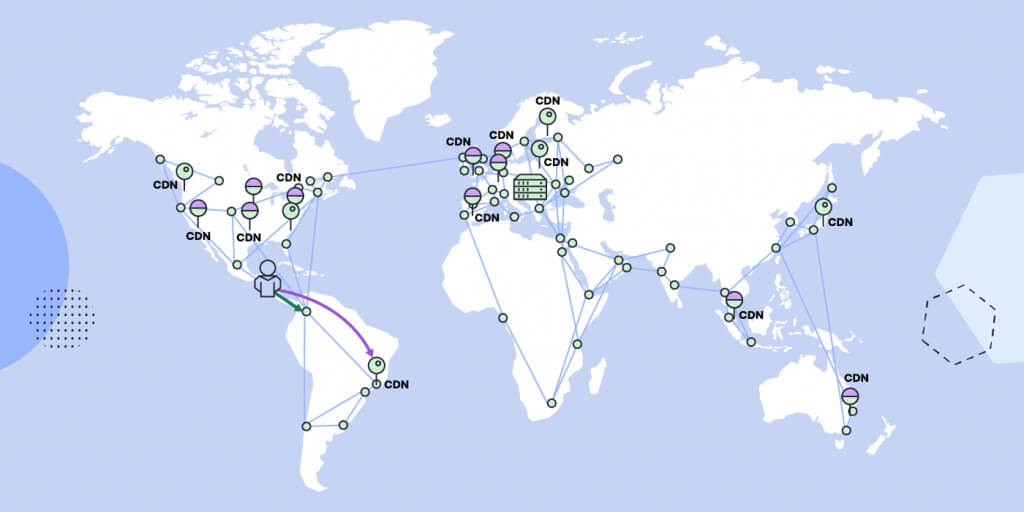
Content Delivery Networks (CDNs) reduce latency for global visitors by delivering your content from the server nearest to them. SiteGround’s custom, in‑house CDN delivers content from multiple global locations seamlessly—no manual setup required.

World map displaying SiteGround’s global CDN network, showing multiple interconnected server locations across North America, Europe, Asia, and Oceania.

An optimized server stack makes sure all layers — from your web server to your PHP engine and database — are running as efficiently as possible.

For example, SiteGround doesn’t just use standard software like NGINX or PHP — we write our own custom solutions to fine-tune them. Our custom MySQL setup and proprietary Ultrafast PHP are engineered from our expert in-house team to reduce server response times and handle traffic spikes much more efficiently than the default configurations you would normally get.

✅ Pro Tip: Don’t just rely on specs — test them. Use tools like Google PageSpeed Insights or GTmetrix to measure how different hosts perform in real-world conditions.

Google PageSpeed Insights report for a SiteGround-hosted website showing strong performance scores: 94 performance, 97 accessibility, 100 best practices, and 92 SEO.

3. Security and Data Protection

Security isn’t just a technical detail — it’s the foundation of trust between your website and your visitors. Whether you run a blog, an online store, or a client portal, your hosting partner should be proactive in protecting your data and your users.

One of the first layers of protection is an SSL, which encrypts the connection between your site and its visitors. Your hosting provider should offer a free SSL certificate (like Let’s Encrypt) and make installation effortless.

At SiteGround, we automatically install an SSL certificate as soon as your domain is pointed to our servers.

But that’s just the beginning.

A robust web hosting platform also includes a Web Application Firewall (WAF). This system filters out malicious traffic, blocking common attacks like SQL injections and cross-site scripting (XSS) before they can reach your website.

Another crucial line of defense is DDoS protection. Distributed Denial of Service attacks flood a site with traffic to take it offline. A good host uses automated systems to detect and mitigate these attacks in real time — often with tiered protections based on the severity and scale. 

Some providers even offer Always Online modes to keep a cached version of your site available during disruptions.

Malware protection is also an important layer of security. Hosting providers should scan for malicious code regularly and notify you if a threat is found. It’s even better if additional tools and services are available for more advanced malware scanning and removal — especially useful for high-traffic or business-critical websites.

Another important factor, especially in shared hosting environments, is account isolation. One vulnerable site can put others at risk — unless proper safeguards are in place. 

With the right setup, each website on a shared server operates in its own secure space. This prevents malware or exploits from spreading between accounts on the same server. 

SiteGround was one of the first companies to implement technologies such as chroot isolation and suEXEC, which set the standard for secure shared hosting. 

Today, account isolation remains a best practice for reducing cross-site risk and maintaining a safe, stable environment for everyone on the server.

At SiteGround, a dedicated security team actively monitors for emerging threats and zero-day vulnerabilities. When issues arise, we apply custom security patches across our infrastructure and software — often way before official vulnerability fixes are widely available. This proactive approach helps keep your site safe, even from the latest and most dangerous exploits.

Additional safeguards like Two-Factor Authentication (2FA) for your hosting dashboard, automatic patching for system vulnerabilities, and 24/7 threat monitoring all contribute to a strong security stack.

List of essential hosting security features from SiteGround including free SSL, WAF, DDoS protection, malware scanning, account isolation, updates, and 24/7 monitoring.

4. Backups

No matter how careful you are, things can go wrong — a plugin update that breaks your site, an accidental file deletion, human error, or even a malware infection. That’s why backups are non-negotiable. Your hosting provider should make it easy to recover your site quickly, with minimal stress or downtime.

A solid backup system includes automated daily backups stored securely, preferably on a separate server. Ideally, these backups should be kept for a minimum of 7–30 days, giving you a comfortable window to roll back changes if needed.

However, even when automatic backups are provided, many hosts store them on the same account or server. This isn’t ideal, as it consumes your website’s resources and creates a single point of failure. If your account or server experiences an issue, your backup stored in the same location would also be compromised.

That’s why at SiteGround, we take a more resilient approach. Instead of utilizing the same server, or another server in the same data center, we store backups across geographically separate data centers — a method known as geo-distributed backups. 

This adds an essential layer of protection against events that affect more than just your server — including full data center outages caused by natural disasters or other large-scale failures. SiteGround is one, if not the only, provider that offers daily geo-distributed backups at no extra cost – an essential reliability feature the majority of the hosting companies simply do not have because it’s costly and technically complex to execute — but we consider it a must for keeping your data truly secure.

And then, automation isn’t everything. You should also be able to create manual backups on demand — for example, before making major updates or experimenting with new features. The process should be quick and require zero technical know-how.

Screenshot of SiteGround’s backup interface, showing options to create and restore backups, with available manual slots and daily backup history tabs.

Flexibility matters too. Whether you want to restore your entire site or just a specific file, folder, or database, your hosting partner should give you control over what gets restored and when.

One last thing: restore access. Some hosts limit how often you can restore your backups, or charge extra for it. Others include free backup restores as part of their service — no strings attached.

SiteGround checks all the boxes when it comes to dependable backups — daily automated copies, easy manual triggers, fast restores, and secure geographically-distributed storage are included in all plans. 

5. Support and Customer Service

No matter how intuitive a web hosting platform is, there will come a time when you need help — fast. Whether it’s a sudden technical issue or just a quick question about settings, reliable customer support can save you time, stress, and even lost revenue. 

Great hosting support isn’t just about being available 24/7 (though that’s important). It’s about getting help from real people who actually know what they’re doing — not just reading from a script. 

For business owners without a technical background, access to expert human support is often the difference between resolving an issue in minutes or spending hours searching forums.

Here’s what to look for in a quality support experience:

  • 24/7 Availability – Issues don’t follow business hours. Your host’s support shouldn’t either.
  • Multiple Contact Channels – Live chat is ideal for quick questions, while support tickets are better for in-depth technical problems.
  • Fast Response Times – It’s not just about getting a reply — it’s about getting a useful, timely solution.
  • Knowledgeable Staff – Real hosting expertise makes troubleshooting smoother and less frustrating.

Tip: Before you commit, check third-party review platforms like Trustpilot, G2, or Reddit for honest feedback on the host’s support quality.

Fact: SiteGround is often recognized for top-rated support — our team combines technical expertise with a personal touch across chat, ticket and phone. This makes us a favorite among SMBs and agencies.

6. Scalability

Your hosting needs today may not be the same a year from now — and a good hosting partner makes sure you don’t outgrow their platform.

Scalability means being able to upgrade your hosting as your site traffic, functionality, or business complexity grows. 

Maybe you start with a simple shared plan, but eventually need the power of cloud hosting. The transition should be smooth, fast, and — most importantly — without downtime.

A scalable host offers:

  • Clear upgrade paths, like moving from shared to cloud.
  • Flexible limits, so you can add more resources as needed.
  • Staging environments to safely test changes before deploying them live.

This flexibility is especially useful for seasonal businesses, growing agencies, or eCommerce sites preparing for big traffic spikes.

A scalable host grows with your business — without painful migrations, or need to start over. At SiteGround you can easily upgrade or downgrade your plan any time, and pay pro-rated whenever needed.

7. Ease of Use and Tools for Business Owners

Not every business owner has a web developer on call — and they shouldn’t need one just to manage hosting. That’s why ease of use is a key factor when choosing a hosting partner.

Your host should provide a clean, intuitive dashboard where you can manage your website, domains, email accounts, and backups without digging through complex menus. 

Whether you’re updating DNS records or creating a staging copy of your site, the process should be clear and guided.

Dashboard view of SiteGround’s Site Tools with pinned tools like backups, SuperCacher, staging, WordPress manager, FTP accounts, SSL, and CDN.

Beyond the basics, look for tools and services that help you run your business more efficiently, such as:

  • Email hosting so you can create branded addresses like you@yourdomain.com.
  • Free domain registration so you can easily manage your services in one place.
  • Website builders for quick and easy site creation without coding.
  • eCommerce and analytics integrations to help you sell products and track performance.
  • Email marketing tools so you can engage your target audience.

These save time and reduce the need to juggle third-party services.

8. Pricing Transparency and Value

Hosting prices can be tricky. What looks like a great deal up front may come with hidden fees, unexpected renewal rates, or missing features that cost extra later. That’s why transparent pricing matters just as much as the price itself.

Many hosting providers charge extra for essentials like site migration, backups, SSL certificates, or even support.

When comparing providers, go beyond the sticker price. Ask:

  • What features are included by default?
  • What types of hosting are available?
  • Are backups, security features, or email hosting extra?
  • How much is the renewal rate, and is it stated on the website?

A trustworthy host makes this information easy to find. They focus on delivering long-term value, not just short-term discounts. Choose based on what you’re getting — not just what you’re paying. Quality infrastructure, support, and tools pay off over time.

How to Research and Compare Hosting Providers

Choosing a hosting partner isn’t something you want to rush. Even if all providers look similar on the surface, what you get behind the scenes can vary a lot. Taking a bit of time to compare your options can save you money, downtime, and future headaches.

Here’s how to make a smart, informed decision:

1. Read Trusted Reviews

Don’t rely solely on testimonials on the host’s own site — check independent platforms like Trustpilot, G2 or Reddit. 

SiteGround’s Trustpilot profile showing a 4.8-star rating from over 22,000 reviews, with highlighted user feedback praising customer support and usability.

Look for patterns in reviews: Are there frequent complaints about speed, support, or billing? Or do users praise the provider’s reliability and customer service?

To help you compare, here’s how leading hosting providers are rated on Trustpilot based on thousands of customer reviews.

Comparison table showing Trustpilot ratings of hosting providers as of June 2025. SiteGround leads with a 4.8 rating, followed by Hostinger (4.7), GoDaddy (4.6), and Bluehost (4.4).

2. Ask Around

Talk to your network — business owners, developers, or agency partners. People with real-world experience can offer valuable insight into what a host is really like to work with day to day.

3. Try Before You Buy

Many providers offer money-back guarantees, trial periods or a demo. Take advantage of these to test the dashboard, run a speed check, or contact support with a few basic questions.

SiteGround landing page promoting Site Tools panel with a demo access CTA and visuals of the interface highlighting site management features.

4. Evaluate Transparency

Trustworthy hosts are upfront about what’s included and what’s not. Check their website for clear policies on pricing, uptime, support access, and terms of service. You should be able to understand what you’re paying for — without squinting at the fine print.

Website Hosting Speed Comparison – Real-website Performance Before and After Transferring to SiteGround

Speed isn’t just a feature — it’s a foundational part of your website’s success. At SiteGround, we continuously monitor performance metrics like Time to First Byte (TTFB) across thousands of real websites that migrate from other hosting providers to our platform.

The table below shows aggregated performance results for websites that migrated to SiteGround in 2025. In nearly every case, the majority of sites saw significantly faster load times — particularly when it comes to server responsiveness (TTFB).

Note: This data is based on SiteGround’s internal analysis of real customer migrations and reflects average performance across comparable site setups.

TTFB (Time to First Byte) comparison between SiteGround and other hosting providers in 2025. SiteGround delivers significantly lower TTFB than GoDaddy, Hostinger, and Bluehost, with improvements ranging from 34% to 68%.

While it is a key performance metric, TTFB only tells part of the story. It only captures the time until the first byte of data is received from your server. From there on, depending on your website size, setup, and configuration, there are multiple elements that need to load – so the actual loading time for your whole website to be displayed varies enormously.

That’s why it’s important to look at real-time speed results. The stats below represent real website data of websites migrated to SiteGround from other hosting providers.

Here is a comparison of real page load times of all actual websites we have confirmed are migrated from these providers to all companies part of the SiteGround group between January 1st  2025 and June 1st 2025 using the automated SiteGround WordPress Migrator plugin.

Table showing real-world speed results after migrating to SiteGround in 2025. SiteGround outperforms GoDaddy, Hostinger, Bluehost, and WP Engine, with up to 95.23% average speed increase and over 83% of sites performing faster after migration.

These results reflect what many users already report: after moving to SiteGround, their websites load faster, feel more responsive, and perform better — both for visitors and for search engines.

For a detailed side-by-side view, check out our in-depth comparisons with other hosting providers:

SiteGround vs. Hostinger
SiteGround vs. GoDaddy
SiteGround vs. Bluehost

Power Your Growth with the Right Host

Choosing the right web hosting provider is key to your online success. Focus on reliability, security, support, and scalability — not just price. 

Take your time to research, compare, and test providers to find the one that fits your business needs best.

Remember, a good host doesn’t just store your website — it helps your business grow.

Ready to find a hosting partner that checks all the boxes?

The Ins and Outs of Managed Hosting

website-surrounded-by-the-benefits-of-managed-hosting

Choosing a hosting plan can be overwhelming. Every server type comes with its own pros and cons—and on top of that, there’s the choice between managed and unmanaged hosting.

This guide breaks down what managed hosting is, how it works, and how to decide if it’s right for you.

What Is Managed Hosting?

Managed hosting is a type of web hosting service where the provider handles the technical management of your website’s server. Unlike unmanaged hosting, where you take on most of the responsibilities, managed hosting allows you to focus on your business while experts handle the backend.

Reputable managed providers offer support, make sure backups are taken regularly, and optimize your server for better performance. This means the hosting company takes care of your server’s security, speed, and hardware.

Managed hosting services can be perfect for businesses that want to save time and resources without having to hire an in-house IT team. 

[80]

Types of Managed Hosting

When it comes to managed hosting, there isn’t a one-size-fits-all solution. Depending on your needs, different types of managed hosting can offer specialized services to support your project. Here’s a breakdown of the main types: 

1. Fully Managed Hosting

In a fully managed hosting plan, the hosting provider handles all aspects of your server, from updates to security, backups, and performance monitoring. You won’t need to worry about server management—the provider takes care of the entire infrastructure. 

This is a great option for businesses that want a hassle-free experience and don’t have the resources to manage technical details. 

2. Partially or Semi-Managed Hosting 

Partially managed hosting is a hybrid approach. While the hosting provider manages critical server functions like security updates, you still have more control over other aspects. 

This can include installing software or managing certain server configurations. It’s ideal for businesses that need some support but still want a level of customization. 

.post-page__colored-blocks.post-page__colored-blocks–update p { margin: 15px 0px; }

❗ IMPORTANT

Managed hosting refers to the level of support your hosting provider offers to simplify server management and ease your workload. 

On the other hand, cloud, VPS, shared, and dedicated hosting determine the server type and how server resources are allocated. Each of these four types of hosting can be either fully managed, semi-managed or unmanaged, depending on the provider and your needs.

3. Specialized Managed Hosting Solutions

Specialized managed hosting solutions are designed for specific use cases. For example, if you run a WordPress site, you might opt for a managed WordPress hosting plan where the provider handles everything and also offers built-in tools for WordPress. 

Similarly, if you’re hosting ecommerce sites or resource-intensive applications, you might need a solution tailored to those needs. 

  • Managed WordPress hosting

When using WordPress, no matter whether it’s on managed or unmanaged hosting, you benefit from its abundance of resources. This includes templates, plugins, tools, and its supportive community. 

What managed WordPress hosting does is enhance these advantages by handling different technical tasks such as core updates, server-level caching, and automated daily backups. 

Additionally, your hosting provider may develop exclusive in-house tools to improve your WordPress site’s performance. 

At SiteGround, we offer ultrafast, full-featured managed WordPress hosting, designed for seamless WordPress management.

  • Managed WooCommerce hosting

We also offer a robust and user-friendly managed WooCommerce hosting, where you can enjoy the same features as with our managed WordPress hosting while focusing on what matters most—increasing sales.

Benefits of Managed Hosting

Understanding the benefits of managed hosting is important, especially if you are just starting a new project.

1. Cost-Effective in the Long Run

While managed hosting services may have higher upfront costs compared to unmanaged hosting, they can be more cost-effective in the long run. With managed hosting, you save on hiring in-house IT teams and avoid unexpected repair or downtime costs. 

Plus, providers typically include services like backups and security updates, which can further reduce overall expenses.

  • No hidden costs – with unmanaged hosting, managing hardware, updates, and security on your own requires additional resources that aren’t always budget-friendly. Moreover, without expert oversight, this can lead to mistakes, increasing unexpected expenses.
  • Reduced need for additional expertise – managed hosting services include technical support, security updates, and performance optimization, reducing the need to hire IT staff or outsource server management, thus saving on significant labor costs.
  • Time savings – with managed hosting, you’re not responsible for any technical aspect of your hosting, freeing up time to focus on what will really drive you profit: growing your business or planning your website.
  • Scalability – managed hosting providers often offer scalable solutions that adapt to your needs without requiring costly hardware upgrades or additional IT resources.   

2. Enhanced Security and Monitoring

One of the primary benefits of managed web hosting is its enhanced security. Hosting providers take on the responsibility of protecting your website from cyber threats. This includes implementing regular updates, monitoring for vulnerabilities, and managing firewalls. 

They also provide proactive measures, such as malware and spam protection, which are essential for maintaining a secure online presence. 

Here are some of the most important security measures a managed provider maintains: 

  • Firewalls that aim to block unauthorized access by monitoring and regulating data traffic.
  • Brute-force prevention that implements CAPTCHAs, or uses two-factor authentication.
  • Denial-of-service attack (DDoS) protection ensures that legitimate users can still access your services during a cyber attack.
  • Data encryption is used to protect sensitive information.
  • Patch management ensures that all server components are up-to-date and secure via regularly software updates 
  • Security audits assess the effectiveness of security measures.

Keep in mind that the level of security varies between providers. At SiteGround we’re constantly updating our security arsenal with out-of-the-box technology and additional features to keep your website safe.

3. Consistent and Optimal Performance

Running servers optimally demands ongoing attention and technical know-how. Managed hosting assumes this responsibility—it includes continuous monitoring and maintenance to make sure your systems perform efficiently around the clock.

Here are some typical server maintenance tasks that your managed hosting provider handles for you:

  • Hardware and software updates. The latest software versions, such as the default PHP 8.2 and the latest MySQL 8 that are used on all SiteGround servers.
  • Server backups. SiteGround provides automatic daily backups for all hosting plans, storing each for up to 30 days in a separate data center location different from the one hosting the live account, for added security. Additional features are available through our Premium Backup service.
  • Proactive issue resolution. SiteGround’s 24/7 monitoring checks servers every 0.5 seconds, detecting, fixing, and preventing issues automatically.
  • Load balancing. SiteGround’s in-house CDN 2.0, included for free in all plans, features cross-region load balancing and automatic multi-region failover.

4. Streamlined Website Management

Managing a website doesn’t have to be complicated. In the past, building and maintaining a site meant dealing with code like HTML, CSS, or PHP—a challenge for anyone without technical skills. Today, content management systems (CMS) like WordPress make it easy to create and update your site through visual editors and simple interfaces.

Managed hosting makes it even easier. Features like one-click CMS installations, staging, and search and replace tools eliminate a lot of headaches. Already have a site elsewhere? Managed hosting often includes hassle-free migration services.

🔥 With SiteGround, you can launch your site with WordPress or another CMS in just a few clicks—or migrate your existing site at no extra cost. 

5. Access to Expert Support

As a website owner, encountering a worst-case scenario without knowing what to do can be incredibly stressful and damaging to your reputation. Issues like data breaches, extended downtime, or being locked out of your systems can lead to losing customer trust and, ultimately, revenue.

This is where managed hosting providers can be invaluable. A good managed hosting plan includes dedicated, around-the-clock support through various channels such as live chat, support tickets, and phone. 

In contrast, unmanaged hosting typically provides minimal support, focusing primarily on hardware or network-related issues, with little to no help for application-level concerns.

Potential Drawbacks of Managed Hosting

Using a managed hosting provider means no backend work, however, it also comes with some limitations. 

1. Limited Control and Customization

Unlike unmanaged hosting, where you can customize freely and have access to the server, managed hosting limits users to the functionalities, apps, and tools provided by the host. This may not suit those seeking extensive customization. 

However, keep in mind that such flexibility is necessary only for highly technical users with very specific needs, such as developing custom server configurations or running niche applications. 

For most users, managed hosting not only simplifies the process but also offers optimal performance, security, and support without the hassle of managing everything yourself. 

2. Dependency on the Hosting Provider

With managed hosting, users typically do not have control over when scheduled server maintenance and system updates occur, as these are handled by the hosting provider. 

Additionally, if an issue arises with the hosting environment, the managed provider’s dedicated support team is responsible for resolving it, with minimal impact on your website’s availability and performance.

This is why it is crucial to opt for a provider offering 24/7 monitoring and a rapid response.

How to Choose a Managed Hosting Provider

No two companies offer the same managed hosting services. The level of security, support and speed can vary significantly across providers, so we’ll explore the most important factors to consider when choosing one.

1. Security Practices and Backups

Security should be a top priority when choosing a managed hosting provider. A reliable provider will include up-to-date security protocols, virus and spam protection, and regular malware scans as part of their core hosting services.

Additionally, look for automated daily backups and easy restoration options. These are vital against data loss caused by cyberattacks, accidental file deletion or data breach due to phishing. If a provider doesn’t include backups, it’s a red flag. 

Finally, strong firewalls, SSL support, and basic security measures like two-factor authentication should come standard with any robust hosting plan.

A visual highlighting SiteGround's security-first approach for hosting. It shows Smart WAF, AI anti bot, 24/7 Server Monitoring, distributed backups, WordPress security and free SSLs as pillars of a secure hosting platform.

2. Support Availability and Expertise

When something goes wrong, having access to an experienced managed hosting team can make all the difference. Choose a managed hosting company that offers 24/7 support with fast response times and multiple contact channels—live chat, tickets, and phone.

More importantly, make sure that the support staff has deep technical expertise. Whether it’s troubleshooting a server issue, optimizing performance, or helping with website and application administration, knowledgeable support can save you time, money, and stress.

Great customer service benefits aren’t just about responsiveness—they’re about resolution. Look for companies with a proven hosting provider’s success rate and positive customer feedback.

3. Performance Technologies

A reliable managed hosting provider should use cutting-edge technology for optimal website performance. This includes modern server hosting infrastructure like SSD or NVMe storage, built-in caching, HTTP/3 support, and a powerful CDN.

Some managed hosting services also offer custom in-house software that help with server performance tuning, traffic scaling, and uptime monitoring. These features are crucial for maintaining reliable site performance, especially for high-traffic or resource-intensive sites like a growing WordPress site or online store.

A banner highlighting the premium technology used in SiteGround's infrastructure.

In short, advanced performance tech isn’t just a nice-to-have—it’s a critical part of a robust hosting plan that supports your business as it grows.

4. Scalability and Upgrade Options

As your business grows, so do your hosting needs. A good managed hosting provider makes it easy to scale. Whether you’re adding more hosting resources, launching new projects, or handling traffic spikes, your hosting company should offer seamless upgrade paths.

Look for hosting solutions that support vertical and horizontal scaling—such as moving up to a higher plan or expanding into multiple environments. This flexibility means your site won’t suffer from bottlenecks or affect server performance during peak times.

Also, check if your provider allows you to increase storage, bandwidth, or memory without downtime. This kind of adaptability helps you stay focused on your business operations without worrying about the backend.

Screenshot of SiteGround's options to adjust Cloud Hosting CPU, RAM and SSD resources.

5. User-Friendly Tools and Dashboard

A smooth control panel experience can make a big difference, especially for users who don’t have deep technical expertise. The best managed hosting providers offer intuitive dashboards where you can monitor server performance, manage domains, access backups, and install apps—all in a few clicks.

Screenshot of SiteGround's hosting dashboard and pinned tools.

Whether you’re managing a WordPress site, updating DNS settings, or reviewing hosting plan details, a clean interface saves time and reduces the chance of errors. Features like one-click staging, automatic updates, and integrated analytics empower both developers and beginners.

Ultimately, your hosting company should simplify administration, not add to your to-do list. A well-designed dashboard helps you get more out of your managed hosting services—without needing to rely on support for every task.

Make Your Business Thrive with SiteGround

Choosing the right hosting provider will take a load off your shoulders. From handling hardware management and server hosting to keeping websites safe with up-to-date security, a reliable partner does the heavy lifting so managed hosting customers can focus on growing their business.

Whether you’re running a WordPress site, an online store, or a custom app, managed hosting lets you tap into expert support, robust hosting technology, and a fully maintained network. You don’t need your own infrastructure or an experienced hosting IT team—your provider takes care of it all.

In the end, the right managed hosting services aren’t just about convenience—they’re about enabling business success. So when you’re ready to move beyond the limitations of unmanaged hosting, choose a hosting company that offers not only the right tools, but also a proven hosting provider’s success rate and commitment to excellence.

SiteGround is managing over 3,000,000 domains globally, with 98% satisfied customers, and is renowned for its 5-star support services. So, why not give us a try?

A promotional banner inviting users to try SiteGround's plans, with a button to get hosting.

How to Secure a Website in 2026: 15 Critical Tactics

how to secure a website

The question “how to secure a website” might seem daunting at first. With terms like HTTPS, SSL, and firewalls flying around, it’s easy to feel overwhelmed. But the truth is that securing your website doesn’t have to be complicated if you know the right steps to take. 

In this article, we’ll walk you through the 15 most critical tactics to protect your site, your visitors, and your peace of mind.

Why Is Securing Your Website More Important Than Ever in 2025?

Securing a website isn’t just a technical best practice—it’s a necessity. As a website owner, staying ahead of evolving cyber threats is crucial.

Hacking attempts have become more advanced, and attackers now use AI-driven tools to target websites of all sizes. 

Whether you run a personal blog or manage an online store, failing to secure your site can lead to data breaches, downtime, search engine penalties, and a loss of customer trust.

Here’s why web security matters more than ever:

  • AI-powered attacks are on the rise – Hackers can now automate complex cyber attacks at scale, probing for weak spots 24/7.
  • Regulations are tightening – Laws like the GDPR, CCPA, and new regional frameworks demand stronger protections for user data.
  • Trust is everything – Visitors quickly leave insecure sites. HTTPS, a clean UX, and visible security features all boost credibility.
  • Business continuity depends on it – Downtime due to hacks or malware can cost you leads, customers, and revenue.

Securing your website today means safeguarding your brand’s reputation, your users, and your future.

Essential Tactics to Secure Your Website

Let’s dive into the most effective, up-to-date strategies for protecting your website in 2025. These tactics are actionable, proven, and scalable—no matter your website size or platform.

1. Use HTTPS with a Valid SSL/TLS Certificate

Let’s start here because the “Connection Is Not Private” error is still common in 2025—but thankfully, it’s also easy to fix.

This warning shows up when a site doesn’t use encryption to protect data. Modern browsers flag these sites to alert users that their information could be at risk. If you’re running a website—especially one that handles logins, forms, or payments—encrypting that data is essential.

The most reliable way to do this is by using an SSL (Secure Sockets Layer) certificate, which enables HTTPS. It encrypts the communication between your site and its visitors, preventing data like passwords and credit card details from being intercepted by attackers.

Good news: installing an SSL certificate is simple.

  • SiteGround includes free standard and wildcard SSL certificates in all hosting plans. To install one, go to Websites > Site Tools > Security > SSL Manager.
A screenshot of SiteGround's Site Tools dashboard, showing the SSL manager page where a user can install an SSL certificate.
  • If your host doesn’t provide one, services like Let’s Encrypt offer free SSL certificates that are widely trusted.
  • After installation, make sure your site redirects all traffic to HTTPS to enforce secure connections through all URLs.

A valid SSL certificate not only keeps your users safe—it also helps your SEO and builds trust with your audience.

2. Set Up Regular, Automated Website Backups (With a Clear Schedule)

Even with top-tier security, no site is completely immune to threats. That’s why automated backups are your best safety net—they let you restore your site quickly after hacks, server failures, or human error.

Backups should be:

  • Automatic – Manual backups are easy to forget. Automating the process means your data is protected 24/7.
  • Frequent – How often your site is updated should guide your backup frequency. Daily backups are a must, but hourly backups are ideal for high-traffic or ecommerce sites.
  • Securely stored – Your backups should be kept off-site or in a secure cloud environment, separate from your live site.

📅 Scheduling matters. Choose a backup schedule based on how often your content or data changes. For example:

  • Blogs or portfolio sites: Daily
  • Online stores or client portals: Hourly + on-demand

Many hosting providers include automated backup tools. At SiteGround, we back up sites daily and store them securely for 30 days. For advanced needs, our Premium Backup adds:

  • Hourly automatic backups
  • Up to five on-demand backups
  • Extra daily copies for added redundancy
A promotional banner for the SiteGround Premium Backups service.

Having a reliable, up-to-date backup means you’re always just a few clicks away from recovery—no panic, no downtime.

3. Create Strong Passwords and Use Two-Factor Authentication (2FA)

Weak or reused passwords are one of the easiest ways for hackers to gain access to your website. Brute-force attacks can crack simple passwords in seconds—so using a strong, unique username and a secure password is a must.

Here’s how to tighten your login security:

  • Use complex passwords that mix uppercase and lowercase letters, numbers, and special characters.
  • Avoid using the same password across multiple accounts.
  • Change passwords regularly, especially for administrative access users.

Even better? Add two-factor authentication (2FA).

2FA requires both your password and a secondary code (usually from your phone) to log in. That way, even if your password is stolen, your account stays protected.

If you’re using WordPress, you can enable 2FA in seconds with the SiteGround Security Optimizer plugin. If you have a different CMS (content management system) or a custom-built site, services like Google Authenticator or Authy can help you enable it easily.

This one-two combo of strong passwords plus 2FA can block most unauthorized login attempts.

4. Keep All Software, Plugins, and Themes Up-to-Date

Outdated software is a hacker’s playground. When security patches or bug fixes are released, it’s crucial to update as soon as possible. Each unpatched vulnerability is a potential entry point for attackers, which can compromise your entire site.

Here’s how to stay protected:

  • Update your core software regularly. For WordPress sites, make sure that both the core application and plugins are up to date. Ignoring updates can leave your site vulnerable to known exploits.
  • Remove unused plugins and themes. These can create unnecessary security risks, even if they aren’t active on your site.
  • Enable automatic updates wherever possible, especially for security patches.

At SiteGround, automatic updates are on by default for the WordPress core and can be enabled for plugins as well.

A screenshot of SiteGround's Site Tools dashboard, showing the Autoupdate page where users can manage the autoupdate settings of their WordPress core and plugins.

By keeping software up to date, you close off known security vulnerabilities and maintain the integrity of your website. 

5. Choose a Secure, Reputable Hosting Provider

Your hosting provider plays a crucial role in your website’s security. A reliable, secure hosting environment is the foundation of a safe website, and choosing the wrong host can leave you exposed to threats.

When selecting a hosting provider, consider these factors:

  • Security measures in place: Look for features like firewalls, DDoS protection, and malware scanning. A strong server security stack can prevent a range of attacks from even reaching your site.
  • Regular backups: Does your hosting provider back up your site regularly? Automated backups are essential to recover quickly in case of a hack.
  • SSL certificates: Check if they offer free SSL certificates (like SiteGround does). HTTPS is crucial for security and SEO.
  • Support availability: A good host offers 24/7 support with knowledgeable security experts who can assist if something goes wrong.
  • Reputation: Research reviews and testimonials to check if the provider has a history of secure service and good customer support.

Your hosting provider’s security should be your first line of defense—so choose wisely!

A promotional banner for SiteGround's web hosting plans, highlighting the reliability and security of SiteGround's platform.

6. Use a Secure DNS

Your Domain Name System (DNS) is responsible for translating human-friendly domain names (like yourwebsite.com) into IP addresses that computers use to identify each other on the network. 

If your DNS is compromised, attackers can redirect visitors to malicious sites, steal sensitive data, or perform phishing attacks.

To protect your site and visitors, consider the following:

  • Opt for a secure DNS provider: Good DNS providers offer advanced security features, such as DDoS protection and DNS filtering, to block malicious traffic before it reaches your site.
  • Use an anycast DNS network: A global DNS network, like SiteGround’s, increases redundancy and reduces the chances of DNS attacks or downtime.

By securing your DNS, you can protect your site from a variety of DNS-related attacks and improve its overall availability.

7. Use a Web Application Firewall (WAF)

A Web Application Firewall (WAF) acts as a shield between your website and potential threats from the internet. It filters and monitors incoming traffic, blocking malicious requests that could exploit vulnerabilities in your site’s software or code.

Here’s why you need one:

  • Protection from common attacks: WAFs block attacks like database SQL injection, cross-site scripting (XSS), and cross-site request forgery (CSRF)—all of which are commonly used by hackers to exploit site weaknesses.
  • Real-time traffic analysis: A WAF can detect and respond to suspicious activity in real-time, preventing damage before it occurs.
  • Customizable rules: Many WAFs allow you to set up custom rules tailored to your website’s needs, giving you more control over the security strategy.
  • Layered defense: A WAF complements other security measures, like SSL/TLS encryption and firewalls, adding an extra layer of defense.

At SiteGround, we offer a managed WAF as part of our hosting service, designed to protect your site against the latest threats with minimal configuration.

8. Firewall Layering

A strong website security setup doesn’t rely on a single firewall. Instead, it uses multiple layers that work together to stop threats at different points—before they can do harm.

Here are the three main layers you should look into:

  • Hosting-Level Firewall – This server-side firewall blocks common web attacks like SQL injections, XSS, and known malicious IPs before requests reach your website.
  • Application-Level Firewall – Running inside your site (e.g., via the SiteGround Security Optimizer plugin), this firewall protects against things like brute-force login attempts, suspicious behavior, or region-based access.
  • CDN-Level Firewall – Located at the network edge, this layer filters traffic even earlier — helping block bots, reduce DDoS impact, and enforce rules before requests hit your server.

When used together, these layers provide broad, overlapping protection. 

At SiteGround, this approach is built into our platform—from our AI Web Application Firewall and security plugin, to CDN-level filtering and DDoS protection. 

You don’t need to set up complex configurations—we handle it for you.

9. Do Regular Malware Scanning

Malware can silently infect your website, compromise sensitive data, damage your reputation, and ultimately—lead to downtime. That’s why regular malware scanning is essential for detecting and removing harmful files before they cause damage.

There are two primary types of scanning you should implement:

Server-Side Scanning

Server-side scans analyze the website files stored on your server to detect malicious code, hidden backdoors, or suspicious scripts. These scans can identify threats that could potentially take over your site or steal sensitive data.

  • Automate the scanning process to ensure it’s done regularly without relying on manual checks.
  • Use a reputable security tool to scan your entire website server for malware. 
A promotional banner for the SiteGround Site Scanner.

Client-Side Scanning

Client-side scanning targets vulnerabilities in the code and scripts running in your visitors’ browsers. For example, some malware attempts to exploit weaknesses in third-party JavaScript or plugins loaded on your site. Scanning for client-side issues can help detect harmful activity on the visitor’s end and block it before it spreads.

  • Monitor for suspicious requests or abnormal traffic patterns that may indicate an attack.
  • Use a WAF and security tools to keep client-side scripts safe from exploits.

Regular scanning is a critical step in identifying threats, and keeping your website clean and operational.

10. Implement CAPTCHA and Bot Mitigation

Bots are one of the biggest threats to websites, often used for activities like brute-force attacks, data scraping, and spamming. 

CAPTCHA (Completely Automated Public Turing test to tell Computers and Humans Apart) and bot mitigation strategies are effective tools to keep these malicious bots at bay.

Screenshot of the "I am not a robot" captcha by Google reCAPTCHA.

Why Use CAPTCHA?

CAPTCHA challenges users to prove they are human by completing tasks that are easy for people but difficult for automated bots, such as identifying images or solving puzzles. This helps prevent bots from:

  • Brute-forcing login credentials (especially if you’ve enabled rate-limiting).
  • Submitting fake comments or spam through forms.
  • Stealing data by scraping your content or product listings.

Bot Mitigation Techniques

While CAPTCHA is a powerful tool, it’s just one part of a broader bot defense strategy. Here are additional ways to mitigate bot traffic:

  • Rate Limiting: Limit the number of requests a user or bot can make in a set time frame, preventing abuse.
  • IP Blocking: Identify and block suspicious IP addresses or those with a history of malicious behavior.
  • Behavioral Analytics: Use advanced analytics to identify unusual patterns of behavior, such as rapid form submissions or login attempts, that suggest bot activity.
  • Browser Fingerprinting: This technique tracks characteristics of browsers to differentiate between real users and bots, blocking the latter.

Modern WAFs (including SiteGround’s managed solution) have built-in bot mitigation features.

By combining CAPTCHA with additional bot mitigation measures, you can greatly reduce the impact of automated attacks on your website.

11. Enforce Content Security Policies (CSP)

A Content Security Policy (CSP) is becoming an essential security measure that helps prevent a variety of attacks, such as Cross-Site Scripting (XSS) and data injection attacks. 

It acts as a whitelist for your site’s resources, so that only trusted content is executed.

How to Set Up a CSP

Setting up a CSP is relatively straightforward. Here’s how you can implement it:

  1. Define your trusted content sources. Specify domains that can load content on your site (e.g., https://trusted-cdn.com for external JavaScript files).
  2. Configure your policy header. You’ll need to modify your .htaccess file (or use a plugin if you’re on a platform like WordPress) to add a Content-Security-Policy header to your HTTP responses.
  3. Test your policy. Before enforcing the policy, test it in staging mode to make sure legitimate content isn’t blocked.
  4. Monitor and update your policy. As your website evolves, update your CSP to reflect new trusted resources and adjust for any changes.

Here’s an example of a basic CSP header:

Content-Security-Policy: default-src 'self'; script-src 'self' https://trusted-cdn.com; object-src 'none';

This policy allows only resources from the same domain (‘self’) and from https://trusted-cdn.com, while blocking the use of plugins or embedded objects.

Key Benefits of CSP

  • Prevents XSS attacks by blocking unauthorized script execution.
  • Minimizes data injection risks by controlling where resources can be loaded from.
  • Increases user trust by enhancing the overall security of your site.

Enforcing a CSP is a step that strengthens your site’s defenses against a range of web-based attacks.

12. Adopt Zero Trust Principles: Limit Access Intelligently

The Zero Trust model assumes that no user or system should be trusted by default—even if they’re inside your network. It’s a proactive approach to security that limits the potential damage from compromised accounts or insider threats.

A visual list of the 6 core principles of zero trust - continuous verification, least privilege access, micro-segmentation, strict access controls, real-time risk assessment and dynamic policy enforcement.

The key idea is “least privilege access.” A practical way to apply this is with role-based access control (RBAC). This means not everyone has full control—you assign specific roles like Editor, Contributor, or Developer, each with the appropriate permissions.

For example, a content writer doesn’t need access to your site’s plugin settings, and a developer doesn’t need to edit blog posts. Keeping access tightly scoped reduces your risk surface and limits what an attacker can do if an account is compromised.

Many platforms, including WordPress, support RBAC out of the box. Hosting dashboards and FTP tools often let you create separate users with limited access as well. If you implement multi-factor authentication on top of that, you will prevent most security issues. 

13. Apply Rate Limiting and Throttling to Prevent Abuse

Rate limiting and throttling are essential techniques to control the amount of traffic or requests made to your website. These methods help protect your site from various types of attacks, including brute-force attacks, DDoS attacks, and scraping.

How Rate Limiting Works

Rate limiting involves setting a limit on the number of requests a user or IP address can make to your site within a certain time period. Once the limit is exceeded, the system will either block further requests or return an error message.

For example:

  • A user can only attempt to log in 5 times within 10 minutes.
  • An API can only be called 100 times per hour from a single IP address.

How Throttling Works

Throttling is a more flexible approach that slows down the rate of requests after a user exceeds a certain threshold. Rather than blocking further requests entirely, throttling will delay or slow down subsequent requests to prevent overload.

For example:

  • A user might be allowed to continue making requests, but their actions are slowed down to prevent abuse.
  • Slowing down the rate of requests can mitigate attacks like DDoS while allowing genuine users to continue interacting with the site.

Rate limiting and throttling are effective ways to prevent bots and attackers from overwhelming your website, ensuring that resources are available for genuine users.

14. Use a CDN for High Availability and DDoS Protection

A Content Delivery Network (CDN) is a network of geographically distributed servers that work together to deliver content to users more efficiently. By caching copies of your website’s static content (like images, videos, and stylesheets) at various locations around the world, a CDN can improve both the speed and security of your site.

Why Use a CDN for High Availability?

A CDN improves your website’s availability by distributing traffic across multiple servers.

If one server becomes unavailable or experiences high traffic, the CDN can automatically redirect visitors to another nearby server. This way your site remains accessible without downtime.

DDoS Protection with a CDN

Distributed Denial of Service (DDoS) attacks involve overwhelming your website with an excessive amount of traffic, and may cause downtime. 

A CDN can help protect your site from DDoS attacks by absorbing and distributing the malicious traffic, so it does not reach your origin web server.

  • Traffic filtering: A CDN can offer built-in DDoS protection features that analyze incoming traffic in real-time, and filter out suspicious requests before they reach your site.
  • Traffic load balancing: CDNs can evenly distribute the load from both legitimate and malicious traffic, reducing the impact of a DDoS attack.

SiteGround’s CDN takes this a step further with an “Always Online” feature. It keeps your website available even if the origin server experiences an issue. 

If your site goes offline, the CDN continues to serve cached versions of your pages to visitors.

By using a CDN, you’ll not only speed up your website’s load times but also enhance its resilience against traffic spikes and malicious attacks.

15. Secure Your Email Against Phishing and Spoofing Attacks

Email is one of the most common ways that cybercriminals target individuals and organizations. Phishing and spoofing attacks are designed to deceive users into revealing sensitive information such as login credentials, financial data, or personal details. 

Securing your email system against these common threats is critical for both protecting your website and maintaining your users’ trust.

What Are Phishing and Spoofing?

  • Phishing involves sending fraudulent emails that appear to come from legitimate sources (such as banks, online stores, or even your own company) in an attempt to trick website users into clicking malicious links or downloading harmful attachments.
  • Spoofing occurs when an attacker impersonates a trusted sender by forging the sender’s email address, often making it appear like the email is coming from someone within your organization or from a well-known service.

How to Protect Your Email

  1. Enable SPF (Sender Policy Framework) – SPF is an email authentication technique that helps to verify whether an email message comes from an authorized mail server.
  2. Implement DKIM (DomainKeys Identified Mail) – DKIM adds a digital signature to your email headers, allowing recipients to verify that the email was sent by the owner of the domain.
  3. Use DMARC (Domain-based Message Authentication, Reporting, and Conformance) – DMARC builds on SPF and DKIM, providing a mechanism for email senders to specify how email providers should handle messages that fail authentication checks.
  4. Educate Users on Phishing and Security Best Practices – The best technical protections are still not enough if your users aren’t aware of the risks. Regularly educate your team or users about phishing tactics, how to recognize suspicious emails, and the importance of verifying unfamiliar requests for sensitive information.
  5. Use Email Filtering and Spam Protection – Reputable email providers offer advanced email filtering services that help to identify and block spam and potential phishing attempts.

Securing your email system is a vital step in your overall strategy, safeguarding not only your communications but also your customers’ sensitive data.

Summary – Make Your Website Secure in 2025 and Beyond

This easy-to-follow recap summarizes all the critical tactics we’ve discussed in this article. It will give you a clear roadmap for improving your site’s security.

  • SSL/TLS Certificate: Make sure your website uses HTTPS and has a valid SSL certificate.
  • Automated Backups: Set up regular automated backups with a clear schedule.
  • Strong Passwords & 2FA: Use strong, unique passwords and enable two-factor authentication (2FA) for all users.
  • Software, Plugins, & Themes Updates: Keep your website’s software and extensions up-to-date.
  • Reputable Hosting Provider: Choose a hosting provider that prioritizes security.
  • Secure DNS: Implement a secure DNS service to prevent DNS hijacking.
  • WAF: Use a web application firewall (WAF).
  • Malware Scanning: Set up regular malware scanning.
  • CAPTCHA & Bot Mitigation: Implement CAPTCHA and bot protection to block malicious bots.
  • CSP: Enforce a content security policy (CSP) to prevent cross-site scripting (XSS) attacks.
  • Zero Trust & Role-Based Access Control: Apply Zero Trust principles and limit access by user roles.
  • Rate Limiting & Throttling: Implement rate limiting and throttling to prevent abuse.
  • CDN & DDoS Protection: Use a CDN for high availability and DDoS protection.
  • Email Security: Protect your email system with SPF, DKIM, and DMARC to prevent phishing and spoofing.

We’ll keep this list updated as security technologies evolve!

By following these best practices and staying vigilant, you can have the peace of mind that your website remains secure in 2025 and beyond.

Note: This article was originally published on January 7, 2025. It was updated on May 8, 2025, to improve clarity, include up-to-date security best practices, and reflect changes in the tools and technologies mentioned.

How To Eliminate Render-blocking Resources

Why and how to eliminate render-blocking resources

This article was originally written and published on March 28th, 2022, by Cal Evans. It has been updated on March 20th, 2025, to reflect the latest developments in techniques for eliminating render-blocking resources.

In the early days of the web, the first web pages were built in a simplified version of XML called HTML. White with black text. If you saw a phrase with a blue underline, you knew you could click it. If it were purple, you knew you had already clicked it.

Life was simple.

These days the HTML is usually the smallest part of any web page. When a browser requests a page, it gets the HTML but then has to parse it and download the resources.

  • CSS
  • JavaScript
  • Images
  • Fonts
  • …and other external files needed to provide the user experience

Not all resources are created equal. Some resources that have to be loaded can actually slow down the display of the web page.

These resources are called “Render Blocking Resources” and this article will show you a few tactics you can use to reduce the number of render blocking resources on your website and how to apply them manually or using the SiteGround Speed Optimizer plugin.

What are Render-Blocking Resources?

“Render” is the technical term for “display”. In this article, whenever we talk about rendering, we mean the process of displaying your website on a screen. 

Every resource that is loaded into your website has the potential to be a render-blocking resource. This includes:

  • Large images
  • JavaScript code that has to execute in the <head> of your page
  • Large CSS that your page can’t display until it is all loaded
  • Any resource from another site that is slower than yours
  • Plugins that each have their own CSS and JavaScript files

In short, anything that you have in your HTML to be loaded is potentially a render-blocking resource.

Why Should You Eliminate Render-Blocking Resources?

When a visitor lands on your website, their browser wants to show them the page as quickly as possible. But if there are too many render-blocking resources, the browser has to hit the brakes and wait for those files to download and process before showing anything useful.

This creates what we call a “slow first paint” – that awkward pause where users stare at a blank or half-loaded page. Not ideal, right?

Here’s why it matters:

  • Better User Experience – Fast-loading pages feel smooth and polished. A slow-loading page, on the other hand, can frustrate visitors and make them leave before they even see your content.
  • Improved SEO – Google and other search engines consider page speed as a primary ranking factor. If your pages are slow because of render-blocking resources, it will hurt your position in search results.
  • Higher Conversions – Whether you’re running an online store, a blog, or a portfolio site, faster-loading pages often mean higher conversion rates. A snappy page helps keep people engaged.
  • More Efficient Use of Resources – Eliminating unnecessary or poorly optimized assets reduces bandwidth usage and server load, which can save you money and reduce strain on your hosting environment.
.post-page__colored-blocks.post-page__colored-blocks–update p { margin: 15px 0px; }

With Interaction to Next Paint (INP) replacing First Input Delay (FID) as a core web vitals metric, it’s even more important to reduce render-blocking resources. 

Optimizing how quickly users can interact with your page will not only improve perceived performance but also positively impact your web vitals score.

At the end of the day, your website’s goal is to communicate something quickly and clearly. Render-blocking resources get in the way of that by delaying when visitors can actually start interacting with your content.

Now that you know the “why,” let’s dig into how to spot these slowpokes and streamline your website’s loading process.

How To Identify Render-Blocking Resources on Your Website?

There are plenty of tools to help you see how your website loads. We suggest these options for identifying render-blocking resources:

Using Browser DevTools

This is one of the tools that can show you a “waterfall” view of how a page loads. All modern browsers include this feature.

Right-click anywhere on your webpage, select “Inspect”, then head to the “Network” tab.

Reload the page, and you’ll see something like this:

Inspect element network tab to eliminate render-blocking resources

On the right side, you’ll spot the waterfall chart. The colored bars show how long each resource takes to load. The thin blue line marks when the page starts rendering.

If you notice a lot of resources loading before that line, it could mean there’s room for improvement. 

This built-in view is great for quick checks, but it only tells you how the page performs on your current setup. If you’re developing locally, results might be faster than real-world conditions.

For deeper insights, you can turn to online tools like WebPageTest.

WebPageTest & Other Performance Testing Tools

WebPageTest gives you a clearer picture of how your site performs globally. Plus, you can customize tests to match real-world conditions.

Pro tip: If you want a quicker overview, tools like PageSpeedInsights also flag render-blocking resources.

The typical method is:

  • Start with a desktop test
  • Pick a server location that’s distant from your website’s host
  • Stick with Chrome unless you have a reason to choose another browser

You can adjust these under the “Advanced Configuration” tab.

WebpageTest Tool to eliminate render-blocking resources

Hit “Start Test” and review the results.

WebPageTest results to eliminate render blocking resources

You’ll now see a more detailed waterfall chart. Clicking it opens a full-sized version where you can spot render-blocking JavaScript and CSS files.

waterfall display from WebPageTest to eliminate render blocking resources

In this example, there are 32 render-blocking resources—mostly CSS files, with a few JavaScript files mixed in.

It’s easy to see why JavaScript can block rendering, but CSS can do the same. The browser can’t fully display the page until it has all the styles it needs. If an important CSS rule loads late, your page might pause until it’s ready.

This is why streamlining CSS and JS delivery is key, and exactly what we’ll cover next.

How To Eliminate Render-Blocking Resources

Over time, web developers have experimented with various methods to reduce or eliminate render-blocking resources. Today, there are several reliable techniques you can use to speed up page rendering.

1. Optimizing JavaScript Loading

JavaScript is one of the most common culprits when it comes to render-blocking. Luckily, there are several techniques to control how and when your scripts load, so your page can display faster.

1.1. Understanding Async vs. Defer

To prevent JavaScript files from blocking page rendering, you should use the DEFER or ASYNC attributes in your script tags.

<script defer src="https://example.com/script.js"></script>
  • DEFER downloads the script while the page is rendering and executes it only after the HTML is fully parsed. It preserves the order of scripts.
  • ASYNC downloads and executes the script as soon as it’s ready, regardless of the page’s rendering state. This can cause scripts to execute out of order.

Generally, DEFER is the better choice, especially when your scripts depend on each other or on the DOM. It allows the browser to focus on painting the page before running scripts.

1.2. Handling Third-Party Scripts Efficiently

Third-party scripts, like analytics or social sharing widgets, are common render-blockers. If possible, load these scripts using DEFER or ASYNC. 

Some non-essential third-party scripts can also be moved to load after the page has finished rendering entirely, using event listeners like window.onload.

1.3. Lazy Loading Non-Critical Scripts with IntersectionObserver

For scripts that are only needed once a user interacts or scrolls to a certain section (e.g., chat widgets or embedded videos), you can lazy-load them using the IntersectionObserver API. 

const observer = new IntersectionObserver((entries) => {
  if (entries[0].isIntersecting) {
    // Dynamically load script here
  }
});
observer.observe(document.querySelector('#lazy-element'));

This tells the browser to load these scripts only when the related elements come into view, reducing the upfront workload for the browser.

2. Optimizing CSS for Faster Rendering

CSS tells your browser how to style your page, but it can also slow down how fast that page shows up. Let’s look at how to make your CSS work with you, not against you, when it comes to performance.

2.1. Inlining Critical CSS for Above-the-Fold Content

Browsers block rendering until they’ve processed CSS. To speed up the first paint, Google suggests identifying your “critical CSS” (the styles needed for the above-the-fold content) and inlining it directly into your HTML.

<style>/* Critical CSS goes here */</style>

This eliminates the need for the browser to wait for external stylesheets before displaying content above the fold. 

The easiest way to identify and inline critical CSS is by using tools like the Chrome Coverage Tool to see what styles load during initial rendering.

Chrome coverage tool to Eliminate Render-Blocking CSS

It will show you the CSS that you are loading which is non-critical (red bar) and critical (green bar).

By pulling the critical CSS out and placing it inline, you can remove the CSS as a render-blocking resource.

2.2. Deferring Non-Critical CSS

For non-essential styles, such as those affecting the footer or elements below the fold, you can defer loading by using the media attribute with a value like print and switching it back to all after the page loads:

<link rel="stylesheet" href="non-critical.css" media="print" onload="this.media='all'">

This trick allows the browser to prioritize critical resources and load the rest after the page is visually complete.

2.3. Preloading Key CSS Files

Another tactic is preloading CSS files you know are crucial but don’t want to inline. Preloading helps the browser discover these resources earlier in the rendering process:

<link rel="preload" href="important.css" as="style" onload="this.rel='stylesheet'">

It’s useful for important stylesheets that impact the look and feel of above-the-fold content but are too large or complex to be inlined.

3. Progressive Rendering Techniques

Beyond scripts and stylesheets, there are some additional strategies you can use to progressively load content and speed up your website’s first paint.

3.1. Server-Side Rendering (SSR) and Static Generation

Server-Side Rendering (SSR) and static generation can help deliver fully-formed HTML to the browser, reducing the reliance on client-side scripts for initial rendering. 

This means content becomes visible sooner because the browser doesn’t have to wait for JavaScript to build the page structure.

Frameworks like Next.js or Gatsby make SSR and static generation easier to implement.

3.2. Optimizing Fonts and Images to Improve Load Times

Fonts and images can also block rendering if not handled correctly. To optimize them:

  • Use the font-display: swap CSS property to prevent font files from blocking the first paint.
  • Lazy-load images below the fold using the loading=”lazy” attribute.
  • Preload key fonts or hero images with the <link rel=”preload”> tag to prioritize them.

Together, these strategies improve your site’s performance by letting browsers display content as early as possible while loading non-essential assets in the background.

How to Reduce Render-Blocking Resources in WordPress with SiteGround Speed Optimizer

If you’re using WordPress, the SiteGround Speed Optimizer plugin offers an easy way to reduce render-blocking resources without touching your code.

Even if you don’t host with SiteGround, this plugin can still help optimize your website’s performance.

.post-page__colored-blocks.post-page__colored-blocks–update p { margin: 15px 0px; }

Warning: 

When making these changes, it’s important to proceed carefully. We recommend adjusting one setting at a time and then checking your site in a different browser to make sure everything is still working correctly. 

This way, you can identify any potential issues and fix them immediately before moving on to the next optimization.

1. Optimizing JavaScript

First, go to the JavaScript settings in the plugin. Here are the key optimizations:

Screenshot of the Speed Optimizer Frontend JavaScript settings, listing the toggle options to minify, combine and defer JavaScript files, and additional options to exclude specific files from optimization.
  • Minify JavaScript Files: This removes unnecessary characters from your JavaScript code. This makes it smaller and faster to load.
  • Combine JavaScript Files: Combining JavaScript files reduces the number of requests the browser needs to make, speeding up the load time.
  • Defer Render-blocking JavaScript: This important option adds the DEFER attribute to your JavaScript files, allowing the page to render before executing JavaScript.

2. Optimizing CSS

Next, head to the CSS settings:

Screenshot of the Speed Optimizer Frontend CSS settings, listing the toggle options to minify, combine and preload CSS files, and additional options to exclude specific files from optimization.
  • Preload Combined CSS: This setting makes sure that your combined CSS file is loaded early in the process, so it’s available when the page starts rendering.
  • Minify CSS Files: This removes spaces, new lines, and comments from your CSS, shrinking the file size and improving load times.
  • Combine CSS Files: Combining CSS files helps reduce render-blocking by lowering the number of HTTP requests.

By applying these optimizations, you can significantly reduce render-blocking resources on your WordPress site and make it faster.

If you want to dive deeper into WordPress optimizations, check out our video on How to Speed up Your WordPress Website Like a Pro.

After going through all these steps on our test site, we are down to 24 render-blocking resources from 32. That’s a really good start.

The next step is to locate all critical CSS and inline it. Then, defer all other CSS and apply the other optimization techniques we discussed above. That will remove almost all of the remaining render-blockers. 

Now, let’s go over a final checklist of all the techniques we’ve explored.

Checklist for Eliminating Render-Blocking Resources

By now, you’ve learned that render-blocking resources don’t just slow things down—they can directly impact user experience, SEO, and conversions. 

To help you put everything into action, here’s a checklist you can follow:

  • ✅ Identify render-blocking resources using browser DevTools or tools like WebPageTest.
  • ✅ Add defer or async attributes to non-critical JavaScript files.
  • ✅ Optimize third-party scripts by loading them asynchronously or deferring them when possible.
  • ✅ Use IntersectionObserver to lazy load scripts that aren’t needed immediately.
  • ✅ Inline your critical CSS (above-the-fold styles) directly into your HTML.
  • ✅ Defer non-critical CSS or load it asynchronously, and remove unused CSS.
  • ✅ Preload important CSS files to give the browser a head start.
  • ✅ Implement progressive rendering techniques like Server-Side Rendering (SSR) or static generation where it makes sense.
  • ✅ Optimize fonts and images to remove hidden bottlenecks.
  • ✅ Use performance optimization plugins like the SiteGround Speed Optimizer to automate many of these tasks easily.

Eliminating render-blocking resources may feel like fine-tuning. Each of these steps chips away at those frustrating pauses during page loads. Apply them consistently, and you’ll create a faster, smoother experience for your visitors.

From improving user experience to boosting SEO, every optimization counts. When your pages load quickly, visitors stick around longer and search engines take notice of that. 

The best part? With а tool like the SiteGround Speed Optimizer, you can automate a lot of these steps and get faster results without much hassle and coding knowledge.

In the long run, every little improvement adds up—and that’s what keeps your website fast, reliable, and ready to perform.

VPS vs. Cloud Hosting: Key Differences, Pros & Cons Explained

Comparison of VPS and cloud hosting with a stylized cloud, a server, and a website interface, illustrating flexible and secure web hosting solutions.

When choosing a hosting solution for your website, two popular options stand out: VPS (Virtual Private Server) hosting and cloud hosting. 

At first glance, they may seem similar, since both give you a set of allocated resources (CPU, RAM, and storage). However, there are important distinctions you should consider before choosing a plan for your website. 

In this article, we’ll explore their differences, benefits, and drawbacks to help you decide which is the right choice for your project.


VPS vs. Cloud Hosting

The main difference is the method of virtualization and the utilization of the available system resources. This makes cloud hosting more scalable, flexible, and reliable, while VPS hosting is better suited for stable, smaller websites.

  • VPS Hosting: Offers dedicated resources on a single server, providing stable performance but limited scalability compared to Cloud. Best for sites with predictable traffic.
  • Cloud Hosting: Uses a network of servers to provide scalable, highly reliable performance with real-time resource adjustments. Ideal for growing businesses or websites with fluctuating traffic.

1. What is VPS Hosting?

VPS hosting uses virtualization technology to divide a single physical server into multiple smaller “virtual” servers. Each virtual server operates independently, with its own allocated resources like CPU, RAM, and storage. 

While shared hosting users share the total amount of a single server’s resources, VPS users benefit from dedicated portions of these resources.

An infographic showing how VPS technology works, illustrating how a hypervisor divides resources across multiple virtual machines.

1.1. Pros of VPS Hosting

There are certain advantages of VPS hosting, especially compared to shared or dedicated hosting servers: 

  • Cost-effective: VPS hosting is generally more affordable than having a dedicated server.
  • Root access: Many VPS plans offer root access, giving you the ability to install and configure software as needed.
  • Customization: With a VPS, you can choose your operating system and customize server settings.

1.2. Cons of VPS Hosting

  • Scalability: While VPS can handle more traffic compared to shared hosting, resources are tied to a single physical server, so scaling up may require moving to a new VPS plan or physical machine. 
  • Technical expertise required: Using a VPS involves knowledge of server management and troubleshooting.
  • Downtime risks: If the physical server hosting your VPS has issues, it can affect all virtual servers on it.

1.3. When to Choose VPS Hosting

  • Predictable traffic: For websites with steady traffic patterns, VPS hosting provides sufficient resources.
  • Technical expertise: If you’re comfortable managing servers, VPS gives you more control over configurations.

While a VPS server is ideal for tech-savvy users, most website owners prefer a managed shared hosting plan. It provides all the essential features without the hassle of configurations or the need for technical expertise. This allows them to focus entirely on what really matters: running their business.

2. What is Cloud Hosting

Cloud hosting services leverage a network of interconnected servers to host your website. Instead of relying on a single server, your data is distributed across multiple servers in a “cloud.” This means if one cloud server fails, others pick up the slack.

This allows cloud hosting providers to offer a high uptime guarantee and significantly higher redundancy rates compared to other types of hosting. 

An infographic showing how cloud hosting works, illustrating how website resources are pooled from a network of multiple servers.

2.1. Pros of Cloud Hosting

  • Scalability: You can scale resources like CPU and RAM up or down instantly based on demand.
  • Reliability: With data spread across multiple servers, there’s no single point of failure. If one server goes down, others keep your site running.
  • Global reach: Cloud hosting often includes content delivery networks (CDNs), which help with faster load times worldwide.

2.2. Cons of Cloud Hosting

  • Learning curve: Understanding how to manage resources and costs in a cloud environment can take time.
  • Potentially higher costs: For small, static websites, cloud hosting is more expensive compared to shared hosting.

2.3. When to Choose Cloud Hosting

Cloud hosting is the next step if your project is growing and you need more resources to handle increasing traffic. For most website owners, a managed cloud hosting plan is the best choice for expanding one’s business!

  • Growing businesses: Cloud hosting is perfect for scaling quickly without downtime.
  • Unpredictable traffic: If your site experiences traffic spikes, cloud hosting adjusts resources in real time.
  • Global reach: Businesses targeting international audiences benefit from the speed and reach of cloud hosting.
  • Critical uptime needs: For ecommerce or SaaS platforms, where downtime equals lost revenue, cloud hosting offers unmatched reliability.

Our Cloud Hosting services are fully managed and come with built-in speed and security features, auto-scaling, and an uptime guarantee of 99.99%!

Illustration showing scalable cloud hosting with interconnected cloud, firewall, and a laptop, highlighting managed and auto-scalable cloud solutions for business growth.

Differences Between VPS and Cloud Hosting

Comparison Chart: VPS vs. Cloud Hosting

FeatureVPS HostingCloud Hosting 👑
PerformanceStable performance due to dedicated resources but dependent on a single server. Performance dips if the server is overloaded or encounters issues.Distributed infrastructure results in high performance. Traffic spikes and hardware issues are mitigated with multiple servers supporting your site.
ScalabilityLimited by the physical server. Scaling requires migrating to a larger plan, which can lead to downtime.Real-time scalability with instant resource adjustments. Ideal for handling unpredictable or seasonal traffic.
PricingFixed monthly pricing based on allocated resources. Pay-as-you-go model based on usage. Fixed but flexible prices for managed cloud hosting due to seamless upgrades/downgrade options.
FlexibilityAllows some customization but is constrained by physical server limits.Ultimate flexibility with dynamic resource adjustments, wide application support, and seamless third-party integrations.
ReliabilityDependent on the physical server. Downtime occurs if the server fails unless backups and redundancy are in place.Highly reliable with data redundancy across multiple servers. Automated failover ensures minimal disruption during hardware issues.
SecurityStrong isolation between users. Additional security depends heavily on the host’s infrastructure and user management.Enterprise-grade security with features like firewalls, encryption, and DDoS protection. Compliance with industry standards offers additional assurance.
  1. Performance

VPS hosting provides stable performance, as resources are allocated specifically to your server. However, performance can dip if the physical server is overloaded or faces technical issues.

Cloud hosting outshines VPS in performance, thanks to its distributed architecture. With multiple servers supporting your site, traffic spikes and hardware issues don’t slow you down.

  1. Scalability

VPS hosting has fixed resource limits tied to a single server. To scale up, you often need to migrate to a larger VPS plan.

Cloud hosting offers unparalleled scalability. Resources can be added or removed in real time, making it ideal for businesses with unpredictable or seasonal traffic.

  1. Pricing

VPS hosting typically involves fixed monthly pricing based on the allocated resources. It’s predictable but can result in paying for unused capacity.

Cloud hosting operates on a usage-based pricing model. This flexibility can save costs, especially for sites with variable traffic.

  1. Flexibility

VPS hosting provides some flexibility, allowing you to customize the server environment. However, it’s limited by the hardware it resides on.

Cloud hosting offers ultimate flexibility. You can configure scaling, deploy apps, and integrate third-party tools without any concern for resource limitation.

  1. Reliability

VPS hosting can experience downtime if the physical server fails. Backups and redundancy depend on your hosting provider. 

Cloud hosting is inherently reliable. Data redundancy across servers makes sure your site remains live, even during hardware issues. 

  1. Security

Both VPS and cloud hosting provide robust security. However, VPS hosting depends heavily on the host’s measures, while cloud hosting inherently includes additional layers like firewalls, data encryption, and DDoS protection.

Final Verdict on Cloud Hosting vs. VPS

As shown above, cloud hosting beats VPS hosting in all categories. 

A comparison table showing the differences between VPS and Cloud hosting when it comes to performance, scalability, and security.

While VPS hosting still meets the needs of many users, cloud hosting is the future of web hosting. 

Its scalability, performance, and reliability make it the preferred choice for growing websites. Are you ready to elevate your online presence? Explore SiteGround’s premium cloud hosting solutions and experience the difference!

Cloud hosting concept with a cloud, firewall, and laptop interconnected, alongside a 'Get Started' call-to-action promoting a hosting provider's money-back guarantee.


FAQs

Which Is Better, VPS or cloud?

Cloud hosting generally outperforms VPS hosting in scalability, reliability, and flexibility. It’s ideal for dynamic websites and growing businesses. VPS hosting is a great choice for small, stable sites with fixed budgets and tech-savvy owners.

Is Cloud Hosting Better for SEO?

Yes, cloud hosting can boost SEO. Fast load times, reliable uptime, and global server locations mean a better user experience, which Google rewards with higher rankings.

Can I Use Both VPS and Cloud Hosting?

While uncommon, some businesses use VPS for basic needs and cloud hosting for critical or high-traffic applications. However, cloud hosting often eliminates the need for VPS altogether.


WordPress Hosting vs. Web Hosting – Everything You Need to Know

Creating a successful website starts with choosing the right hosting solution. When choosing between WordPress hosting and general web hosting, many users struggle to understand the differences and determine which option best suits their needs.

Each type of hosting comes with unique features and is better suited for specific types of websites. This blog post will explain the different web hosting options and clarify any confusion around choosing the right one for your website.

What Is Web Hosting?

Web hosting is a broad term that refers to all services designed to make websites accessible on the Internet. 

All web hosting providers offer server space to store a website’s files, images, databases, and other assets.

There are various types of web hosting. The most common way to classify them is in four main categories:

  • Shared Hosting: Multiple websites share a single server’s resources, making it a cost-effective option for small sites.
  • VPS Hosting: Users share a physical server, but each website operates in its isolated environment. It provides more control and scalability than shared hosting.
  • Dedicated Hosting: Users have access to an entire server for their website, giving them full control over performance and security. This is suitable for large or high-traffic websites that are maintained by experienced web developers.
  • Cloud Hosting: Websites are hosted across a network of virtual servers, providing high reliability, scalability, and flexibility.

As you can see, this distinction refers to the technology that web hosting providers use to distribute their services. 

An illustration depicting the main types of web hosting: Shared Hosting, Cloud Hosting, VPS Hosting, and Dedicated Hosting, represented by stylized buildings with distinct labels and colors.

Web hosting is an umbrella term that can also refer to specialized web hosting services, such as WordPress hosting. 

Hosting can be specifically configured for content management applications like WordPress, Joomla, Drupal, Moodle, etc. This means that the hosting environment is optimized to support the technical requirements and performance needs of the chosen application.

With managed hosting for specific applications, you’re getting a hosting environment designed to help your chosen platform thrive. Whether you’re using WordPress, Joomla, or another platform, specialized managed hosting offers convenience, reliability, and performance optimized for your content management system (CMS).

Whether it’s shared, cloud, VPS, or dedicated hosting, all the main types mentioned above can be considered WordPress hosting if they’re tailored for WordPress websites.

What Is WordPress Hosting?

WordPress hosting refers to web hosting that is specifically optimized for WordPress websites. These hosting environments are configured to enhance WordPress performance, security, and compatibility. 

This specialized hosting option often includes features like pre-installed WordPress, automatic updates, and built-in caching mechanisms. All these features are designed to make WordPress websites faster and more secure.

Frequently Asked Questions

1. Is WordPress a Web Host?

No, WordPress itself is not a web host. WordPress is a content management system (CMS) used to create and manage websites. It is open-source and free to use. 

WordPress users need to choose a hosting provider, whether it’s general web hosting or a specialized WordPress hosting provider, to make their website accessible on the internet.

2. Does WordPress Include Hosting?

No, WordPress.org doesn’t include hosting and you will need a hosting service for it.

That said, there is an important distinction between WordPress.org and WordPress.com. 

WordPress.org is the official site where anyone can download the free, open-source WordPress software.

On the other hand, WordPress.com is a hosted platform managed by Automattic (the main company behind WordPress). It includes a custom site builder that is based on the free, open-source WordPress.org project.

If you use WordPress.com, hosting is included as part of the platform. If you choose to use WordPress.org, the self-hosted version, you will need to arrange for hosting separately. 

There are certain benefits of using WordPress.com, such as ease of use and access to additional proprietary features and tools. However, WordPress.org is significantly more popular due to its flexibility and open-source nature, powering over 40% of today’s internet. 

3. Do I Need WordPress Hosting? Is WordPress Hosting Worth It?

WordPress hosting is worth it if you’re running a WordPress site and want the best possible performance, speed, and security. 

Managed WordPress hosting offers benefits such as automatic updates, staging environments, and enhanced support, which can be a significant advantage. This is especially true for non-technical users or businesses aiming for scalability.


Key Differences Between WordPress Hosting and Web Hosting

Understanding the key distinctions between WordPress hosting and general web hosting is essential to choosing the right service for your website.

1. Infrastructure and Server Environment

The server infrastructure in WordPress hosting is specifically designed to support WordPress. 

This includes server configurations, caching mechanisms, and sometimes even specific hardware optimized for running WordPress smoothly. 

General web hosting servers, on the other hand, have a more versatile setup to support various types of websites and CMS applications. However, this also means they lack the performance and security of specialized hosting plans. 

2. Tools

WordPress hosting dashboards are optimized for managing WordPress websites. 

A good WordPress hosting service includes additional features such as automated updates, WordPress plugins, and migration services. 

For example, our custom Site Tools dashboard has a site-centric design and offers multiple tools to make your WordPress site management easier.

A screenshot of SiteGround's custom Site Tools dashboard with pinned WordPress management tools.

With regular web hosting, users have access to a more generic dashboard and need more technical expertise to manage their website.

Differences Between Web Hosting and WordPress Hosting

FeatureWeb HostingWordPress Hosting
DefinitionAn umbrella term for various hosting types (shared, VPS, dedicated, cloud) supporting all website types.A specialized hosting type optimized exclusively for WordPress sites.
Supported PlatformsDifferent CMS applications and custom-built sites.Optimized for WordPress.
Server OptimizationGeneral optimizations suitable for different CMSs; may require manual setup for caching and performance.Specifically optimized for WordPress, with built-in caching and faster database connections.
SecurityGeneral security features, like firewalls and malware scanning.WordPress-specific security enhancements, including plugin vulnerability scans and CMS-targeted firewalls.
Updates and MaintenanceManual updates.Automatic updates for WordPress. 
SupportGeneral technical support.Specialized WordPress support.
Performance ToolsBasic performance tools; additional caching or performance optimizations may need to be installed manually.Often includes advanced performance tools like server-side caching controllers and image optimization.
Ease of UseManual setup and configuration based on the site.Pre-configured settings optimized for WordPress.
CostAffordable.Can be more costly due to additional specialized features.
Staging EnvironmentsRarely included; usually available only on higher-end plans.Frequently included in managed WordPress plans for testing changes safely.
When to UseIf you need to host a different CMS or a custom-coded site.If you have WordPress and want to optimize for speed and security.

Advantages of WordPress Hosting 

WordPress hosting offers distinct advantages. Here are some of the most notable benefits:

  • Enhanced Security: WordPress hosting environments often come with WordPress-specific security features, such as web application firewalls, malware scanning, and protection against vulnerabilities commonly associated with WordPress plugins and themes.
  • Faster Loading Times: Performance optimizations like server-side caching, content delivery networks (CDNs), and PHP enhancements lead to quicker loading times for WordPress sites.
  • Simplified Management: Managed WordPress hosting often includes automated tasks like updates, backups, and maintenance, which is a relief for website owners focused on content and growth.
  • Dedicated Support: WordPress hosting providers frequently offer support teams specialized in WordPress, which means faster, more accurate help when technical issues arise.
  • One-Click Tools: Many WordPress hosting providers offer tools such as a staging environment, one-click WordPress installations, and built-in search and replace, which are specifically designed to make WordPress site management easier. 

Essential Considerations for WordPress Sites

If you’re planning to host a WordPress website, there are several important considerations to keep in mind when choosing a hosting plan.

1. Security

WordPress is popular, which unfortunately makes it a common target for malicious attacks. 

WordPress hosting providers often incorporate extra security measures tailored to WordPress-specific vulnerabilities, making it safer for WordPress sites than standard hosting options that lack these focused protections.

It’s also important to improve your website security, regardless of where you’re hosting your site. Our free Security Optimizer for WordPress is an all-in-one tool to protect your website on an application level.

2. Performance

Optimizing your speed performance is essential, especially for high-traffic sites. With WordPress hosting, optimizations for caching, image compression, and faster database connections are often pre-configured to enhance speed. 

General web hosting users may need to manually set up caching and other speed optimizations. This requires technical knowledge and usually does not offer the same results as a specialized hosting service.

SiteGround’s Speed Optimizer is a free plugin specifically designed to improve WordPress performance. It acts as a cache controller for SiteGround-hosted websites, including multiple frontend, media and environment optimizations to boost your site’s speed!

3. Auto-Updates

WordPress frequently releases updates to improve security, add new features, and enhance performance. 

WordPress hosting often includes automatic updates for the core software, themes, and plugins. This ensures your site remains secure and up-to-date without the need for daily manual maintenance.

4. Staging

A staging environment allows users to test changes to their website before implementing them on the live site. 

This feature is highly beneficial for WordPress sites, especially those with complex designs or plugins. 

While some web hosting providers also offer staging, it’s a more common feature in managed WordPress hosting.

5. Migration Options

Migrating a website to a new host can be challenging, particularly for WordPress sites with complex configurations. 

Many WordPress hosting providers offer free migration services, simplifying the process of transferring an existing WordPress site.

Besides free manual migration, SiteGround offers a free migration plugin that allows you to easily move your WordPress site with just a few clicks!


WordPress Hosting vs. Web Hosting – Which One is Right For You?

When it comes to choosing between WordPress hosting and general web hosting, your decision should be based on your website’s specific needs, your budget, and your technical expertise. 

Here’s a breakdown of when each option is most likely to be the best fit:

1. When to Choose WordPress Hosting

  • You’re Running a WordPress Site: If you’re already committed to using WordPress, choosing WordPress hosting is best. The environment is tailored to support WordPress, and offers improved performance, security, and support.
  • You Want Simplified Management: Managed WordPress hosting reduces the burden of managing technical aspects like updates, security, and backups, allowing you to focus on creating content.
  • You Need WordPress-Specific Features: WordPress hosting often includes features like staging environments, auto-updates, and specialized support, which are valuable for WordPress users.

[106]

2. When to Choose Web Hosting

  • You’re Using a Different CMS or have a custom-coded website: If you plan to use a CMS other than WordPress, or build a custom-coded site from the ground up, a general web hosting service is a better option, as it supports various platforms.
  • You’re Looking for Budget-Friendly Options: Shared web hosting tends to be more affordable than managed WordPress hosting, making it a suitable choice for smaller websites with limited budgets.

You Prefer More Control Over Server Configurations: General web hosting allows for more control over server configurations, making it ideal for users with technical knowledge who want to customize their environment to meet specific needs.

A comparison table showing the differences between web hosting and WordPress hosting, including features like supported platforms, security, updates and maintenance, support, and recommended use cases. Web hosting supports multiple CMSs and custom-built sites, while WordPress hosting is optimized specifically for WordPress.

Final Thoughts on the Difference between WordPress Hosting and Web Hosting

To sum up, WordPress hosting is a sub-type of web hosting that includes specific optimizations, features, and tools to make your WordPress site faster, more secure, and easier to manage. 

If your website is not WordPress – going with a general web hosting solution is the right choice. 

If you are building your site on WordPress – go for managed WordPress hosting, as it will help you significantly optimize your website and boost your online presence

Check out our Managed WordPress plans with free migration if you wish to start your WordPress journey today!