AI Agent for WordPress vs WordPress bulk editors: When bulk edit stops being enough

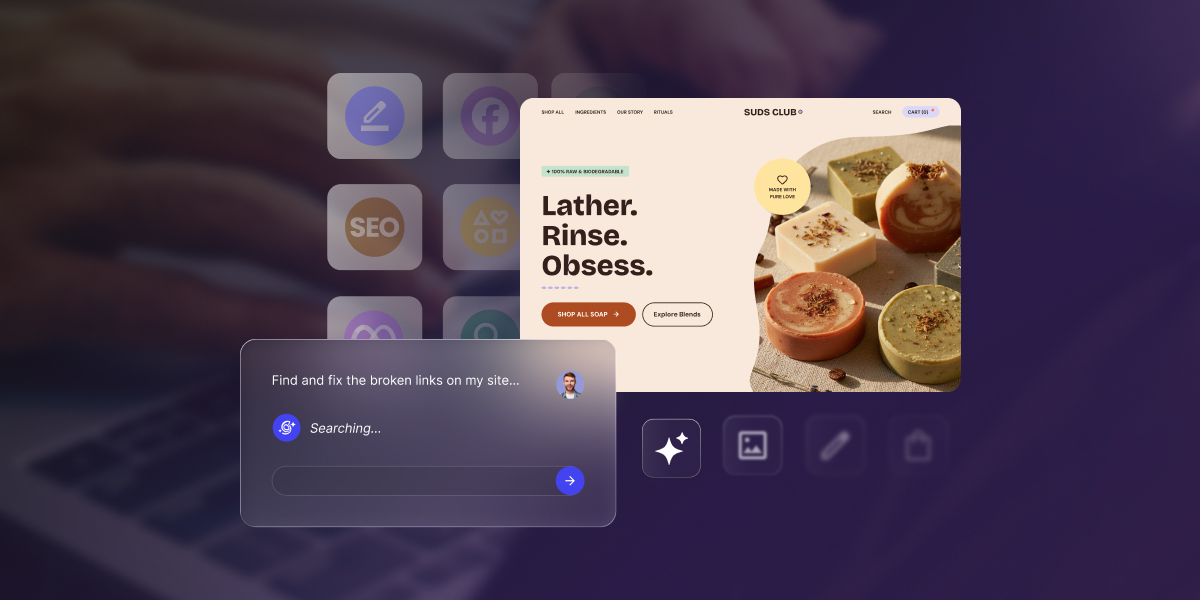
AI Agent for WordPress chat putting a product collection on sale next to a bulk editor spreadsheet filling sale prices

WordPress’s Bulk Edit is great when you know exactly which posts need changing and which field to change. Tick the boxes, type or paste the new values, and click Update. It stops helping when the job also means creating that category, adding it to your menu, and changing how many posts your blog shows. So when is WordPress Bulk Edit not enough, and what should you use instead?

AI Agent for WordPress vs WordPress bulk editors hinges on whether you’re editing fields or handing off a whole admin job. A WordPress bulk editor changes the same fields across many posts, products, or users you select. SiteGround’s AI Agent for WordPress takes instructions in your own words and carries out the task, even when it spans posts, categories, menus, and settings.

Key takeaways:

  • AI Agent for WordPress vs WordPress bulk editors is decided by the kind of job, not by how many posts or products you need to change. A bulk editor works through one list of records, while AI Agent for WordPress handles tasks that reach across your admin.
  • Bulk editors let you see every new value before you save. That grid view, plus bulk editing of SEO plugin fields and product variations, is where they’re genuinely stronger.
  • AI Agent for WordPress works from instructions in your own words. It works out the steps, carries them out across posts, categories, users, menus, and settings, and tells you what it changed.
  • Both handle bulk product edits in WooCommerce. If you need to update variations or SEO fields, look at a bulk editor. If your changes reach across your whole site, AI Agent for WordPress is the better tool.

What bulk editors and AI Agent for WordPress are built for

Both tools spare you from editing posts one by one, and they overlap on simple bulk changes. They part ways as soon as a job leaves one list of records.

WordPress bulk editors change details such as status, category, price, or stock on many posts, products, or users in one go. WordPress bulk editing tools come in three forms:

  • Bulk Actions in WordPress itself. On the Posts screen, you select posts and choose Edit to change categories, tags, author, status, and a few other fields at once. The Users screen lets you change roles in bulk, and WooCommerce adds price and stock fields for products.
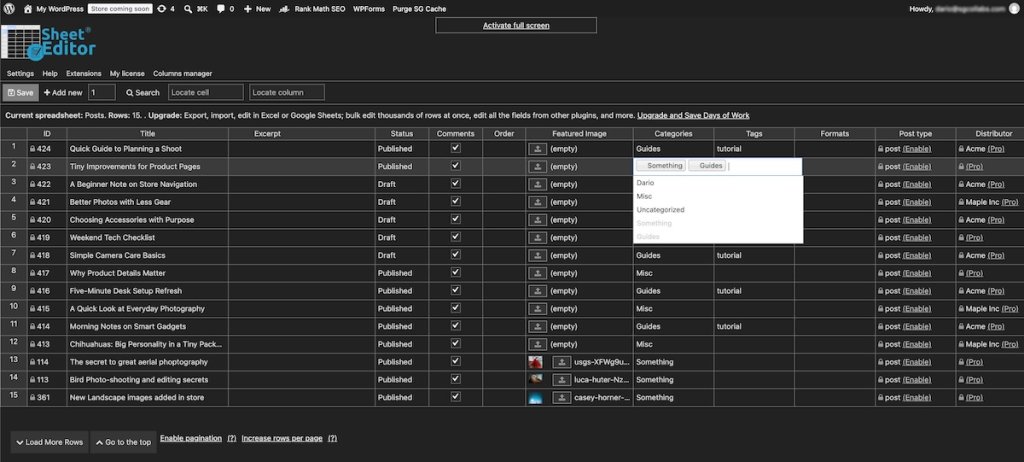
  • Spreadsheet-style editors. A WordPress spreadsheet editor such as WP Sheet Editor or WOLF shows your posts as rows and their fields as columns, so you edit them much like a spreadsheet inside the admin.
  • Export and import. WP All Import describes a round trip: export your records to a spreadsheet, edit them offline, and import the changes back.
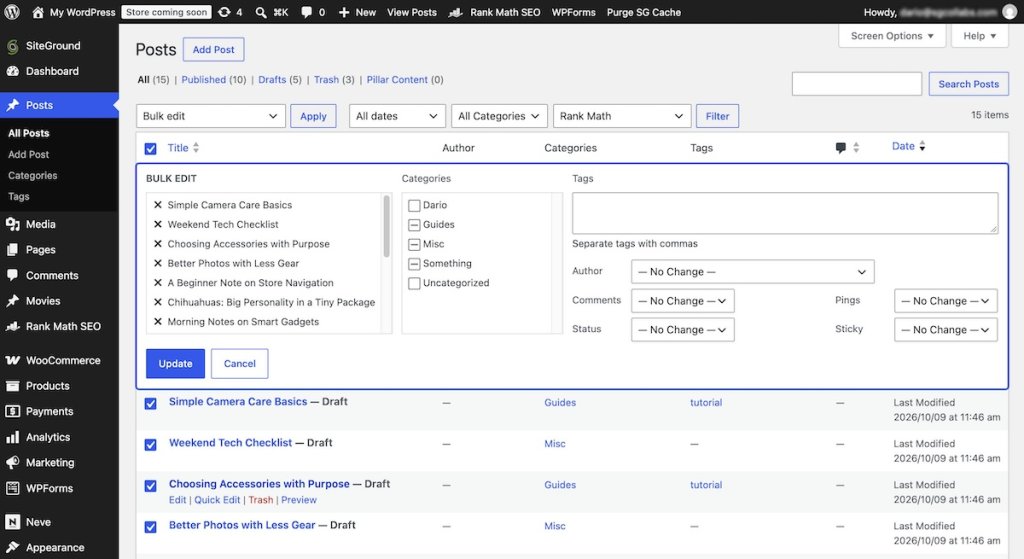
We installed the free version of WP Sheet Editor on a test site. A WordPress bulk edit plugin like this one covers posts, pages, custom post types, and simple WooCommerce products, and free add-ons bring in categories, tags, users, and Yoast SEO fields. Each of these tools does one job, editing records, which is typical of plugins and a big part of how AI plugins and AI agents differ.
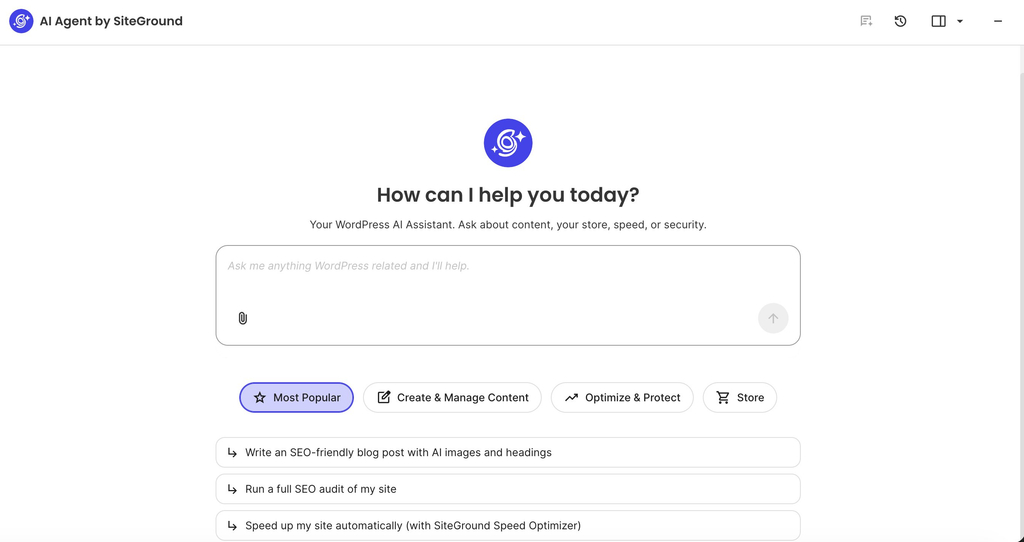
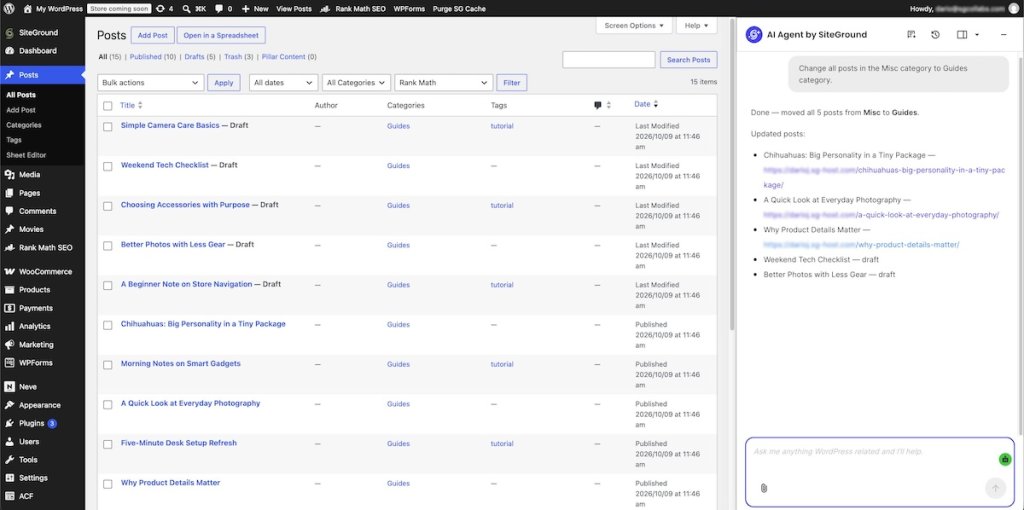
With AI Agent for WordPress, you manage your site from a chat inside your WordPress admin, or from the SiteGround AI Studio dashboard when you work across several sites. You write what you want done, in as much detail as you like, and it works out the steps, carries them out, and tells you what it changed. Instead of picking rows and fields, you describe the outcome, and it reaches everything AI Agent for WordPress handles in the admin, from posts and products to users, menus, and settings.
If you’re still deciding whether you need an agent at all, start with choosing between an AI agent, plugins, and manual admin.

AI Agent for WordPress vs WordPress bulk editors: how they compare

The two approaches line up like this across common WordPress bulk editing tasks:

DimensionWordPress bulk editorsAI Agent for WordPress
Who it helpsHelp site owners and editors change the same fields across many recordsHelps site owners and agencies run WordPress admin work from chat
Where you use itWork in the Posts, Products, or Users screen, or in a spreadsheet-style grid in the adminWorks in a chat pop-up in the WordPress admin, or in the AI Studio dashboard
How you make a changeSelect rows, pick a field, and set a new valueTakes instructions in your own words, works out the steps, and carries them out
Changes across admin areasChange one record type at a timeCarries out a task that spans posts, categories, menus, and settings from one set of instructions
Checking before savingShow every new value in the grid before you saveLists the items it will change when asked, and asks you to confirm impactful actions
Undoing changesVaries by plugin: WOLF keeps a history you can roll back, while WP Sheet Editor’s free version undoes edits only while you stay on the screenReverses its last change when you ask, including a bulk change
SEO plugin field editingEdit Yoast SEO titles, descriptions, and keywords in bulk through plugins like WP Sheet EditorCan’t edit SEO plugin fields
WooCommerce product editingEdit prices, sale prices, stock, and other product data across many products; some, such as PW WooCommerce Bulk Edit, also edit variationsEdits prices, sale prices, stock, and other product data across many products, creates new products, and imports or updates products from a spreadsheet you upload; can’t edit variable products
User managementLet you change user roles in bulk, and in some plugins edit user profilesChanges user roles in bulk and adds users
Working from a spreadsheetEdit records in a spreadsheet-style grid inside the admin, or export them to a CSV file and import it backUpdates posts, users, and products from a spreadsheet you prepare in Excel and upload
Site settingsCan’t change site settingsChanges site settings, such as setting the blog to show 12 posts per page
Several sitesWork inside the site they’re installed onActs on all connected sites from one instruction
CostWordPress’s built-in Bulk Actions come with every site at no cost; plugins such as WP Sheet Editor and WP All Import have free versions, with paid versions or extensions for more featuresRuns on AI Studio tokens; SiteGround hosting customers get 20,000 free monthly tokens, others can start a 14-day free trial with 20,000 tokens

The differences that decide it

Three differences matter more than the rest: how you describe a change, how you check it before it lands, and how each tool handles a product catalog.

Fields you pick versus an outcome you describe

A bulk editor asks you to think in records, columns, and fields, while AI Agent for WordPress asks only what you want done. That gap is small for one field on a list of posts and larger when a task spans admin areas.

Say you want a new Guides category for your tutorials, with a link in your main menu and 12 posts per page on your blog. With bulk editing tools, that’s four stops, and two of them are manual:

  • Create the category under Posts > Categories.
  • Filter by the tutorial tag and bulk edit those posts to add the category.
  • Add the category to your main menu by hand under Appearance > Menus.
  • Change the posts-per-page number by hand under Settings > Reading.

A spreadsheet editor speeds up the second step, but the menu and the reading setting are still yours to change by hand. With AI Agent for WordPress, it’s one request:

“Create a Guides category, add every post tagged tutorial to it, add Guides to the main menu, and set the blog to show 12 posts per page.”

AI Agent for WordPress does exactly that, all four changes in one go. It then lists each one, down to the old and new posts-per-page values, so you can check the result without opening four screens.
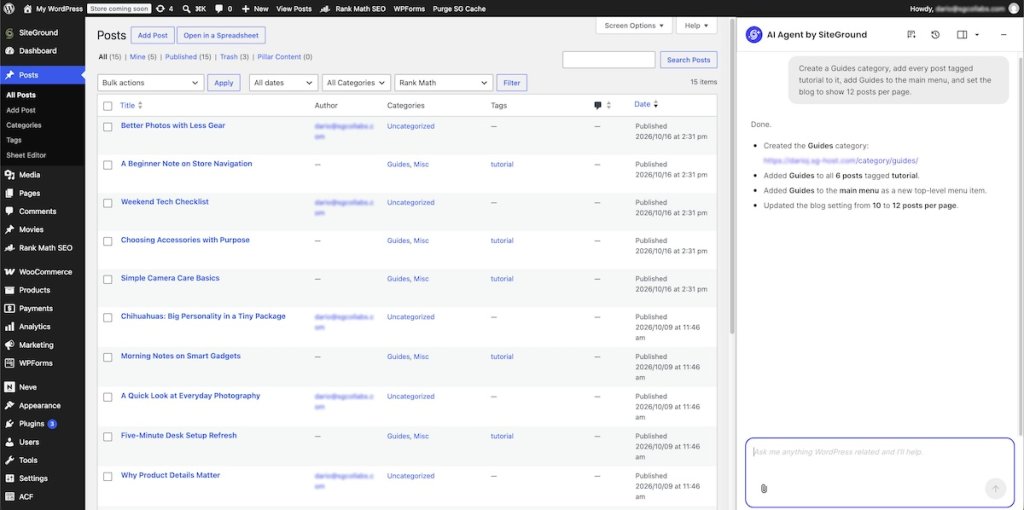
The same goes for jobs that are awkward in a bulk editor, such as replacing a phrase wherever it appears in your posts. AI Agent for WordPress finds every post that contains it, makes the change, and lists what it updated. Our guide has more prompts for everyday WordPress tasks.

Pro tip: Write the job down the way you’d explain it to a colleague. If it names more than one admin screen, such as posts and a menu, hand it to AI Agent for WordPress. If it’s one field across many rows, a bulk editor is just as fast.

Seeing a change before it happens

Bulk editors are stronger here: you see every new value in the grid before you save. In our test of WP Sheet Editor’s free version, edited cells stayed visible until we clicked Save, and the undo shortcut reversed edits as long as we stayed on the screen. PW WooCommerce Bulk Edit states that it previews changes before you save, and WOLF lists a history of bulk operations you can roll back.

AI Agent for WordPress doesn’t preview final values. Instead, it answers the question “what will this touch?” before it acts. Ask it to list the posts in a category and what it would change, and it returns a table of IDs, titles, and current status without changing anything.
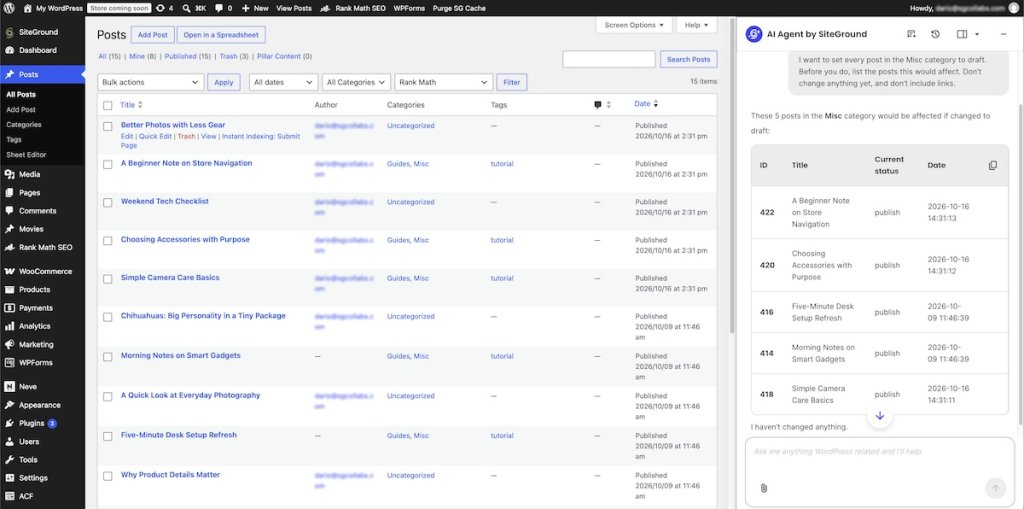
Interface of AI Agent for WordPress displaying a list of posts in a category with their IDs, titles, and status, before any change

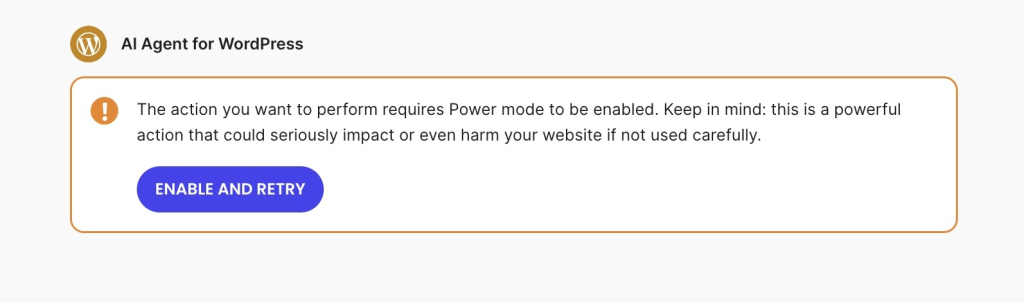
It also asks you to confirm impactful actions. Deletions and product changes need Power Mode turned on, an extra safeguard explained in how Power Mode protects bulk changes. If a result isn’t what you wanted, ask AI Agent for WordPress to undo its last change. It reverses bulk changes too, such as moving a batch of posts back to the category they came from.

Good to know: Neither a grid preview nor an undo replaces a backup. Before any large change, with either tool, check that your host has a recent backup of your site.

Bulk editing WooCommerce product catalogs

Product catalogs are where bulk editors earn their place, because store data fits neatly into rows and columns. WooCommerce itself lets you bulk edit prices, sale prices, stock, shipping class, and visibility from the Products screen. Dedicated editors go further:

  • WP Sheet Editor’s paid extension adds variable products and price formulas, such as raising prices by 10%.
  • PW WooCommerce Bulk Edit states that its free version edits variations and changes prices by an amount or a percentage.

AI Agent for WordPress handles the same everyday catalog work from chat. It edits prices, sale prices, stock, and other product data across many products, creates new products, and imports or updates products from a spreadsheet you prepare in Excel. It can’t edit variable products, so a catalog built on sizes and colors is still a job for a bulk editor.

The deciding question is whether the job stays inside the product list. A single request to AI Agent for WordPress can create a coupon, add a homepage section announcing it, build a Sale page listing the products on sale, and add that page to the main menu. A bulk editor stops at the products themselves.

Can you use a WordPress bulk editor and AI Agent for WordPress together?

Yes, and on many stores and content sites the split is natural. You don’t have to pick one, since each is strongest where the other stops.

Keep a bulk editor for the jobs that belong in a grid: Yoast SEO titles and descriptions, product variations, and any change you want to check value by value. If bulk SEO updates are a regular task, a spreadsheet editor with SEO columns is the faster route.

Hand AI Agent for WordPress the jobs that cross screens: restructuring categories, updating menus and settings, replacing text across many posts, or applying changes from a spreadsheet of posts, users, or products.

Which should you choose?

Choose by the shape of the job: one field across one list of records, or a task that runs through your admin.

When to choose a bulk editor

A bulk editor makes sense when you know the records and the fields, and you want to see every value before it goes live. Choose one if:

  • You want to check every value before you save. A grid shows each new price, title, or status in place, so mistakes are easy to spot.
  • You edit SEO plugin fields in bulk. Spreadsheet editors such as WP Sheet Editor put SEO titles, descriptions, and focus keywords in columns.
  • Your catalog relies on variable products. Editors that support variations let you change size and color prices side by side.
  • Your change stays inside one list of records. Updating one field on many posts or products is exactly what a grid does fastest.

When to choose AI Agent for WordPress

AI Agent for WordPress fits when you’d rather say what needs doing and let it handle the steps. Choose it if:

  • Your job crosses posts, categories, users, menus, or settings. One set of instructions covers all of them, and you get a list of what changed.
  • You’d rather describe the result than set up columns and filters. Write instructions as detailed as you like, and it works out which records to change.
  • You prepare changes in Excel. Upload a spreadsheet of posts, users, or products, and it applies the changes for you.
  • You look after multiple sites. One instruction can act on every connected site, which makes managing many client sites from one chat practical.

Pick the tool that fits the job, not the length of the list

AI Agent for WordPress vs WordPress bulk editors isn’t about which tool can change more posts or products. Bulk editors are the right tool when the job is one list of records: you see every value, you edit SEO fields and variations in a grid, and nothing changes until you save.

AI Agent for WordPress is the right tool when your site management work spans multiple admin areas. You write what you want in your own words, and it handles the posts, categories, users, menus, and settings involved, then tells you what it did. If you spend more time moving between screens than editing fields, that’s your sign to try it.

FAQs

AI Agent for WordPress vs WordPress bulk editors: which should you use?

Choosing AI Agent for WordPress vs WordPress bulk editors depends on whether you’re changing fields or need to run a complete admin job. A bulk editor is the better pick for changing the same fields across many records you can check in a grid, such as SEO titles or product prices. AI Agent for WordPress is the better pick when you’d rather say what you want done and leave the execution to it: you describe the task in your own words, and it works out which posts, categories, users, menus, or settings to change, carries out every step, and tells you what it did.

What does bulk edit mean in WordPress?

Bulk edit in WordPress means changing the same details on many posts, pages, products, or users at once instead of one by one, such as assigning a category to 20 posts in a single step. WordPress includes basic Bulk Actions, and plugins such as WP Sheet Editor add a spreadsheet-style grid with more fields.

How can I bulk edit multiple WordPress posts at once?

You can bulk edit multiple WordPress posts at once from Posts > All Posts: select the posts, choose Edit from Bulk actions, and click Apply. In the panel that appears, you can change categories, tags, author, comments, pings, status, and whether a post is sticky. For other fields, use a bulk editor plugin, or ask AI Agent for WordPress to make the change in plain words.

Can AI Agent for WordPress bulk edit multiple posts?

Yes. AI Agent for WordPress bulk edits multiple posts from one request, such as setting every post in a category to draft, changing their author, or replacing a phrase in every post that contains it. Ask it to list the posts first, and it shows what it will change without changing anything.

Can a WordPress bulk editor manage users and settings?

WordPress bulk editors can often manage users, such as changing roles or editing profiles in bulk, but they can’t change site settings, like how many posts your blog page shows. AI Agent for WordPress handles both, from instructions you write in your own words.

Can AI Agent for WordPress replace a bulk editing plugin?

No, not completely. AI Agent for WordPress handles many bulk changes from chat and adds changes across admin areas. A bulk editor stays the better tool for SEO plugin fields, WooCommerce variations, and checking every value in a grid before you save.

Is there a WooCommerce plugin that allows for bulk product editing?

Yes. Several bulk editor plugins, such as WP Sheet Editor and PW WooCommerce Bulk Edit, edit WooCommerce products in bulk, and some also edit variable products. WooCommerce itself lets you bulk edit prices, sale prices, stock, and other product data from the Products screen. AI Agent for WordPress bulk edits products too, from prices and stock to creating or updating products from a spreadsheet you upload, but it can’t edit variable products.

Is a WordPress spreadsheet editor better than an AI agent for large bulk changes?

A WordPress spreadsheet editor is better when you want to check every value in a grid before you save. AI Agent for WordPress handles large bulk changes too: you can prepare a spreadsheet of posts, users, or products in Excel and upload it, or write detailed instructions covering as many conditions as you need, and it carries out the whole job, including parts that reach beyond one list of records.

Can I undo a change made by AI Agent for WordPress?

Yes. Ask AI Agent for WordPress to undo its last change and it reverses it, for example moving a batch of posts back to the category they were in. For larger recoveries, rely on backups at the hosting level, since AI Agent for WordPress doesn’t create or restore backups.

Do WordPress bulk editors have AI features?

Yes. Some WordPress bulk editors offer AI features. WP Sheet Editor offers a paid AI add-on that generates content in the spreadsheet through OpenAI or another OpenAI-compatible provider, using an API key you get and pay for separately. It fills cells in a grid, while AI Agent for WordPress carries out a whole request across the site and needs no API key.

Website builder vs. WordPress: cost, upkeep & how to choose

Abstract of a website builder versus WordPress

A website builder gets you online fast and handles most of the upkeep. WordPress lets you build nearly anything, as long as you, or someone you pay, keeps it running. In the website builder vs WordPress debate, neither wins outright. The right pick depends on how much of your site you want to run yourself, and how many weekends you’re willing to give it.

Key takeaways:

  • A website builder is usually one subscription, though which features come standard, and which need a higher plan, varies by builder. WordPress software is free, but hosting, a domain, and yearly renewals for premium themes and plugins add up.
  • A builder can get a simple site live in a few hours. WordPress basics take a weekend, but a polished, customized design takes far longer, or a developer’s help.
  • Builders usually handle updates and security for you. Self-hosted WordPress needs weekly updates and monthly checks, and even managed hosting leaves plugin conflicts and premium plugin compatibility with you.
  • Pick a builder if speed and simplicity matter most. Pick WordPress if you need custom functionality, a large content library, or full control over your site and where it’s hosted.

What’s the difference between a website builder and WordPress?

A website builder is a hosted platform that runs your site for you, while WordPress is a CMS (content management system), software you install and run yourself on hosting you choose. That one difference shapes everything else in this comparison: who pays for what, who fixes what, and ultimately how far the site can stretch.

What is a website builder?

A website builder usually combines a visual editor, ready-made designs and templates, and hosting in one subscription. Most also handle security and updates, and many include support, though what’s covered varies by provider. You pick a design, add your own content, and publish.

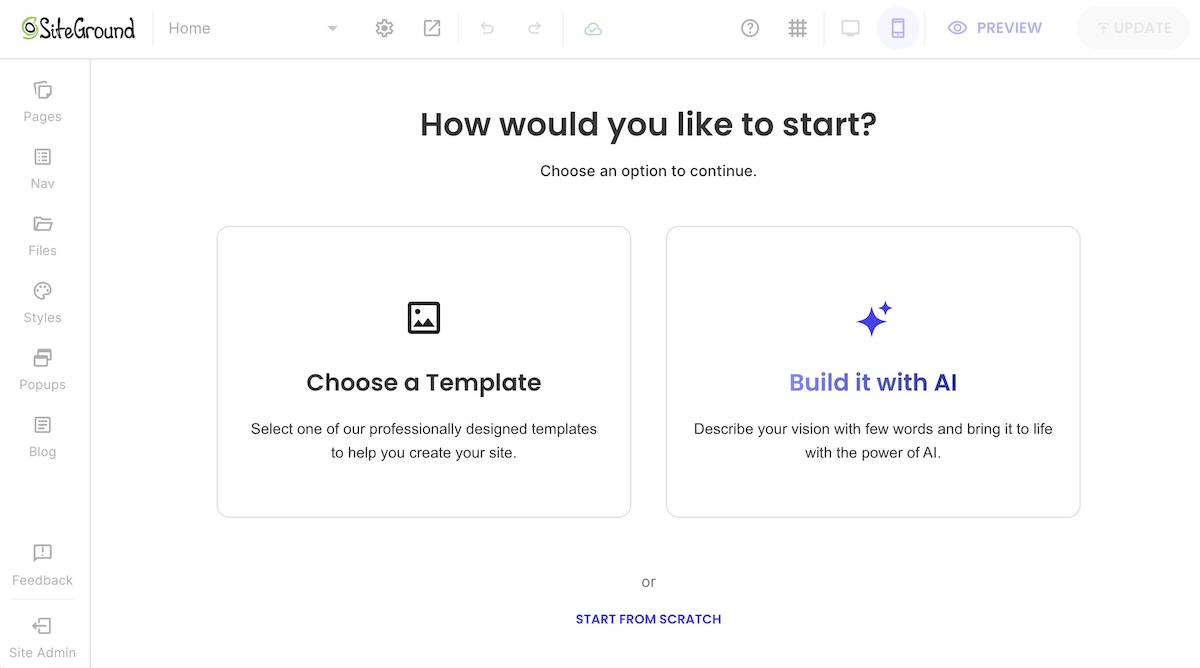
staring a website from a template via SiteGround

Pros

  • Fast setup, with simple and professional sites often live within a few hours.
  • One bill usually covers hosting and updates.
  • Common features like forms, a blog, and basic SEO tools are usually built in.

Cons

  • Design flexibility varies by builder, and some limit how far you can move beyond the built-in layouts.
  • Features come from the platform, so a very niche need may have no built-in answer.
  • Your site usually lives on that platform, so switching later means rebuilding the design.

What is WordPress?

WordPress is free, open-source CMS software. You install it on the hosting provider you choose, shape the design with a ready-made theme or one you code yourself, and add plugins for features like contact forms, SEO settings, or bookings. In exchange for that freedom, hosting and upkeep are on you.

Pros

  • More than 60,000 free plugins in the WordPress.org plugin directory for adding features.
  • Full access to the code, so you can modify your site to your heart’s content, as long as you know how or are happy to pay someone who does.
  • You own your site, files and database included, and can move it to any host that supports WordPress.
  • A huge community means most problems already have a documented fix.

Cons

  • Hosting, a domain, and premium add-ons are separate costs.
  • Updates, backups, and security are your responsibility, or partly your host’s if it’s managed.
  • Troubleshooting is on you. When something breaks, the cause could be a plugin, the theme, a core update, or the server, and there’s no single place to check.

This comparison covers self-hosted WordPress from WordPress.org. WordPress.com is a hosted service built on the same software, and it behaves more like a builder.

Where do AI website builders fit in?

AI website builders vary more than traditional builders do. Most generate a starting site from a prompt or a few questions, then let you refine it in a visual editor or by giving the AI more instructions. Some host and maintain the site for you like a regular builder, while others generate code you host elsewhere, and some produce WordPress sites.

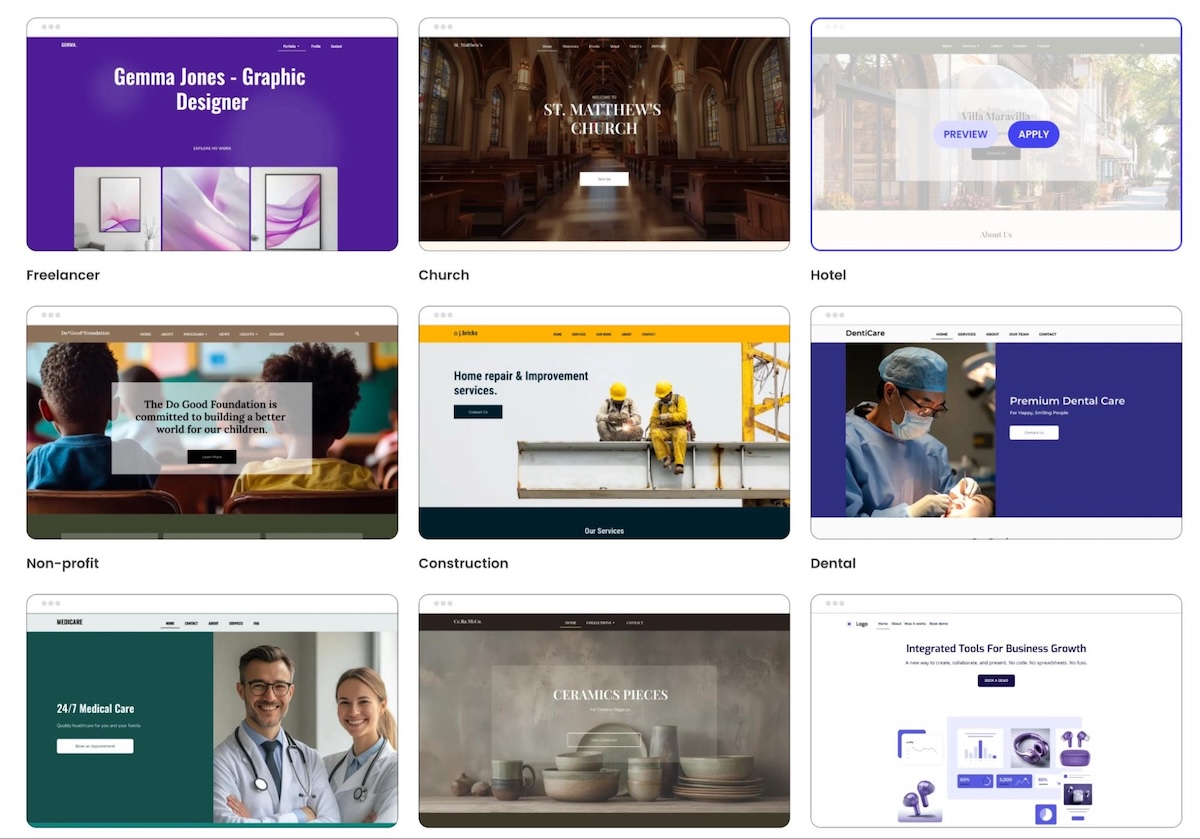
Building a website using AI or a template via the SiteGround Website Builder

WordPress is adding AI features too, both in the core software and through plugins. AI speeds up the first draft on either side, but the basic tradeoff between convenience and control doesn’t change.

How they compare where it counts

FactorWebsite builderWordPress (self-hosted)
Setup timeA few hours for a simple siteA weekend or more, plus learning time
Learning curveLow: visual editing, often drag-and-dropModerate: themes, plugins, and settings
CostUsually one subscriptionHosting and a domain, plus premium themes, plugins, or developer help
Design freedomVaries by builder, from template-based to highly flexibleNear-unlimited with themes and custom code
FeaturesBuilt in, but some may need a higher plan or paid add-onAdded through plugins
MaintenanceUsually handled by the platformHandled by you, or partly by a managed host
SupportVaries by provider, often covering the whole siteSplit up: your host covers hosting, each plugin’s developer or forum covers that plugin, and WordPress itself has community support only
SEO controlEssentials built inGranular, through plugins
PortabilityUsually tied to the platformMoves to any host that supports WordPress (files and database)

Ease of use and setup

Getting a site live and getting it to look right are two different timelines, and they differ more on WordPress.

Website builder

  • A visual editor and pre-designed layouts mean a simple five-page site can often go live in a few hours.
  • Many setup decisions are made for you, so there’s less to learn before you publish.

WordPress

  • Many hosts install it in one click, but you still set up the design, usually by choosing and configuring a theme, then pick plugins for things a builder includes by default, like contact forms or SEO tools.
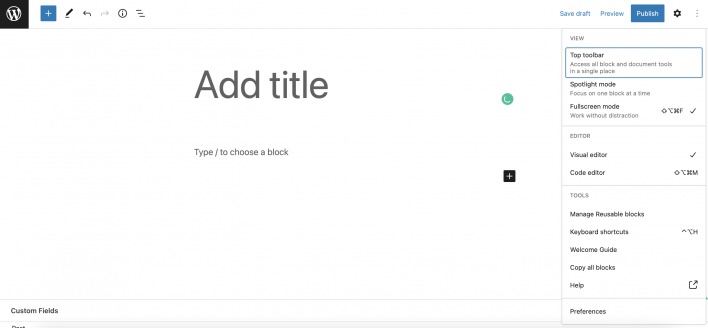
  • You can learn the basics of the block editor in a weekend.
  • Customizing the design is where the steeper learning curve sits. A polished, on-brand site usually means wrestling with theme settings, plugin options, and sometimes CSS.
Adding a blog post via WordPress

Is WordPress hard to learn? The basics aren’t. A site that looks and works exactly the way you want is a different project, and it takes far more time than that first weekend suggests.

Cost

The sticker price is misleading in both directions.

Website builder

  • Usually one subscription that covers hosting and maintenance, and often support.
  • Standard features vary by builder. Things like an online store, bookings, or advanced SEO tools may require a higher plan or, where available, a paid add-on, so compare plans against the features you actually need.
  • Upgrades and extras like a custom domain raise the bill, but they usually stay with one provider instead of spreading across several.

WordPress

The software is free, but a working site comes with its own line items:

  • Hosting: prices range from a few dollars a month to much more for high-traffic sites, and many hosts include managed WordPress features even on entry-level plans.
  • Domain: usually $10 to $20 a year for a .com.
  • Premium theme: often $50 to $100. Many are annual subscriptions that tie updates and support to renewal, and skipping it means missing security fixes. Free themes exist too.
  • Premium plugins: single-site licenses for things like advanced forms, backups, or SEO plugins commonly start around $60 to $120 a year each, and higher tiers can top $300. Like themes, updates and support usually stop when the license lapses.
  • Developer help: billed by the hour when something breaks or needs building.

Those line items are why the total cost of a website varies so much. Then there’s your time: every hour spent updating plugins is an hour not spent on the business, and that cost never shows up on an invoice.

Design and customization

Both can produce a good-looking site. The difference is how much of the design you control, and how much work that control takes.

Website builder

  • Flexibility varies a lot. Some builders stick closely to their templates, while others let you rearrange sections and fine-tune styling freely without touching code.
  • Built-in design rules help non-designers keep spacing, fonts, and mobile layouts consistent.
  • Where a builder runs out of room depends on the tool. When it happens, it tends to be with highly custom layouts or interactive elements.
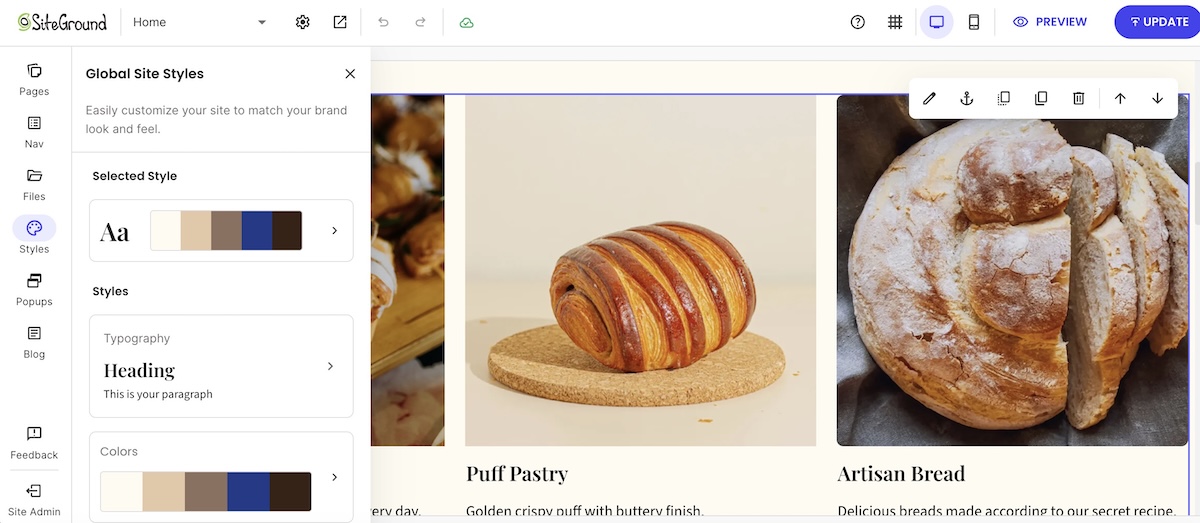
The SiteGround Website Builder with custom design elements

WordPress

  • Thousands of WordPress themes plus custom code mean there’s very little you can’t build.
  • That freedom costs time or money. Fine-tuning a theme to match your brand often means digging into settings or CSS, or hiring someone who can.

Features and add-ons

Builders typically include common features out of the box, while WordPress adds them through plugins.

Website builder

  • Common features such as forms, a blog, galleries, and basic SEO tools are usually built in. You switch them on rather than install them.
  • Built in doesn’t always mean included. Bigger features like a store may only unlock on higher plans.
  • Some builders extend features through an app market or third-party integrations, often at extra cost. Others build more into the platform itself, so key features come included, but you can’t add what the platform doesn’t offer. Either way, check that the features you need are covered before you commit.
  • Built-in ecommerce usually suits stores of many sizes.

WordPress

  • If a feature exists, there’s probably a plugin for it, from must-have plugins like backups and caching to very niche tools.
  • Plugins come from different developers and update on their own schedules. An update to a plugin, theme, or WordPress core can create a conflict that breaks a feature, scrambles a layout, or in the worst case takes the whole site down with a critical error.
  • For selling online, WordPress typically uses WooCommerce, a free ecommerce plugin that turns a WordPress site into a store.

Maintenance, security & support

This is where the two options differ most from day to day.

Website builder

  • With most builders, the platform handles updates, security patches, and backups.
  • Support varies by provider, but when it’s included, it usually covers the whole site, so there’s one place to ask when something breaks.

WordPress

  • WordPress itself has no vendor support, only community forums and documentation, so your host decides how much upkeep you carry.
  • Managed WordPress hosting takes on a large share. SiteGround’s Hosting for WordPress, for example, includes automatic core and free-plugin updates, the SiteGround Speed Optimizer and Security Optimizer plugins, 24/7 support, and staging on higher plans. 
  • Even on managed hosting, some jobs stay with you: keeping premium plugins and themes compatible, choosing plugins, and sorting out conflicts between them.

Here’s what that routine looks like for a typical WordPress site in 2026. Managed hosting can automate part of it, like core and free-plugin updates and daily backups, but checking the results still falls to you.

Every week

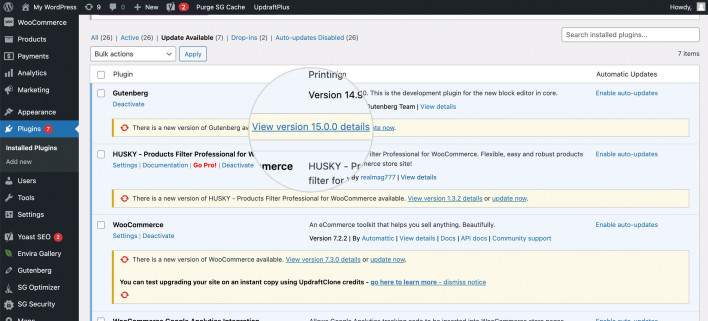
  • Update plugins and themes, starting with anything flagged as a security fix.
  • Confirm the latest backup actually ran.
  • Click through key pages and forms after updates to catch anything that broke.
Updating plugins on the WordPress backend

Every month

  • Check plugin and theme compatibility after WordPress core releases, ideally on a staging copy first.
  • Test-restore a backup so you know it works before you need it.
  • Delete plugins and themes you no longer use. Deactivated code still sits on your server, and if it has a known vulnerability, attackers can sometimes exploit it even while it’s switched off.

None of it is hard. It just never stops.

SEO and performance

Both can rank. Search engines look at content quality, speed, and structure, and they don’t reward one platform over another.

Website builder

  • Most builders cover the essentials out of the box, such as sitemaps, SEO-friendly URLs, and meta fields.
  • Speed depends mostly on the platform, so there’s less to tune, but also less you can change.
SEO tools on the backend of the SiteGround Website Builder

WordPress

  • Plugins may offer more granular control, which matters most for content-heavy sites or technical work like custom schema markup. If WordPress SEO is where you’re headed, expect to configure more yourself.
  • Speed depends on your hosting, your theme, and how many plugins you stack.

Growing or moving your site later

Both options can grow with a business, in different ways.

Website builder

  • Growing usually means upgrading your plan and switching on built-in features, with no extra upkeep.
  • Most small business sites never outgrow that.

WordPress

  • It can stretch further for sites that need custom functionality, membership areas, or thousands of pages of content.
  • Complexity grows with it: more plugins, more updates, and eventually more developer time.

Switching later is possible. Leaving a builder, on the other hand, is usually the bigger job, since export options are often limited, so expect to copy content over and rebuild the design. WordPress is easier to move, though any switch needs redirects so old URLs keep working.

Where the SiteGround Website Builder fits
If the builder side of this comparison sounds like your speed, the SiteGround Website Builder runs on SiteGround’s own hosting infrastructure, with 24/7 support. You can start from a template or with AI tools, then adjust the design freely without touching code. Built-in SEO tools cover sitemaps, SEO-friendly URLs, and meta fields, and ecommerce is there when you’re ready to sell.
Start building your website now>>

Which one should you choose?

Match your situation to one of the two lists below. Whichever describes you better is your answer. 

Choose a website builder if…

  • You want your site live this week, not this quarter.
  • You’d rather not manage updates, backups, or security.
  • You’re building a brochure site, portfolio, or small store.
  • You prefer one predictable bill over several.
  • You don’t have a developer on call.
  • You want one place to ask for help when something breaks.

Choose WordPress if…

  • You’re running a content-heavy site or a blog with hundreds of posts.
  • You need functionality no builder offers, which is when a custom site starts to make sense.
  • You want full ownership of your site and the freedom to change hosts.
  • You have the time, or a developer, to handle ongoing upkeep.
  • You expect the site to grow into something much bigger, like a membership site or a large store.

[79]

Pick the tool that fits you best

In the end, the website builder vs WordPress choice is a trade between control and upkeep. WordPress gives you the most control, as long as you’re ready for the updates, troubleshooting, and renewals that come with it, and managed hosting can take a good share of that off your plate. A builder hands most of the upkeep to the platform, so your main job is making sure the plan you pick covers the features you need.

If you’d rather spend your time on the business than on the backend, the SiteGround Website Builder lets you start from a template or AI, with built-in SEO tools, ecommerce when you’re ready to sell, and 24/7 support behind the whole site. You can build everything free for 14 days with no credit card and only pay when you’re ready to publish. That way, your weekends stay free for something other than plugin updates.

Frequently asked questions

Is WordPress a website builder?

Technically, WordPress is a CMS (content management system) rather than a website builder. You can build a site with it, but you supply the hosting, theme, and plugins yourself, while a website builder typically bundles most of that into one hosted service.

Is WordPress outdated in 2026?

WordPress isn’t outdated in 2026. It still runs about 42% of all websites, according to W3Techs, and it keeps shipping updates, including built-in AI foundations in WordPress 7.0. The perception comes from simpler tools catching up and from site owners growing tired of maintenance.

Why are people moving away from WordPress?

The most common reasons people move away from WordPress are maintenance load and plugin complexity, especially on small sites that don’t need its flexibility. Simpler builders now cover what a typical business site needs. Traffic goes the other way too, as some sites that outgrow a builder move to WordPress for more control.

Is there a better website builder than WordPress?

It depends on what you’re building, because the two solve different problems. If you want speed and low upkeep, a builder fits better. If you need custom functionality and full control, WordPress does. The two checklists above will tell you which describes you.

Is WordPress hard to learn?

WordPress is easy to start with but harder to master. You can learn to publish pages with the block editor in a weekend, but customizing the design and getting the site exactly how you want it takes much longer, especially without coding experience.

AI Agent for WordPress vs StoreAgent: Which fits WooCommerce management better?

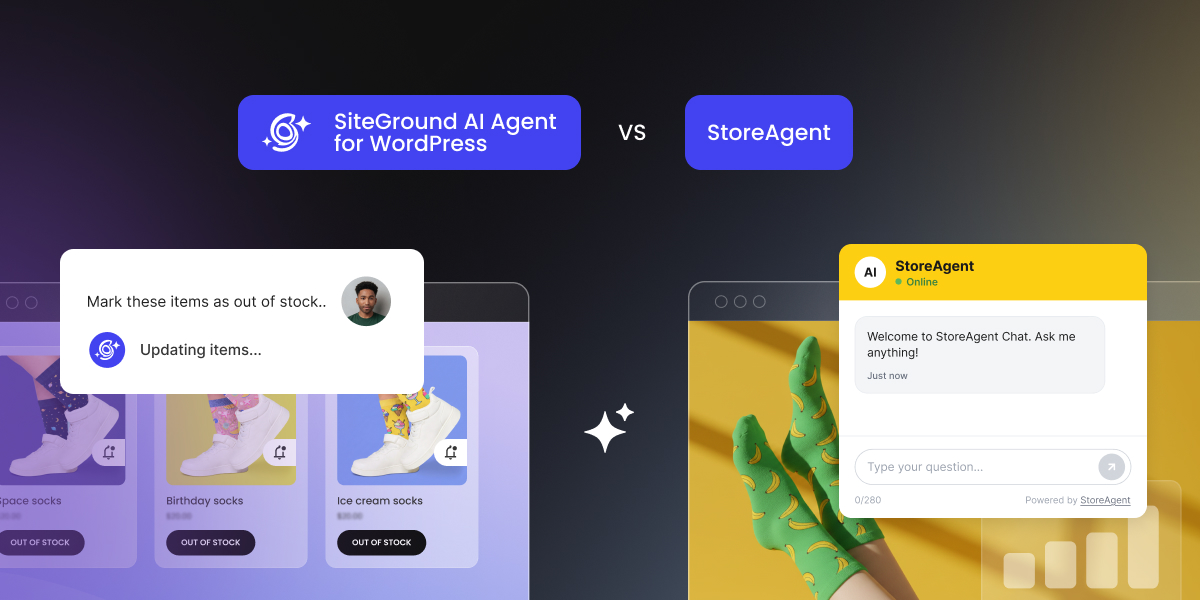
A comparison graphic between SiteGround AI Agent for WordPress and StoreAgent, showing interface examples for both e-commerce AI tools.

StoreAgent and SiteGround’s AI Agent for WordPress are both AI assistants for WooCommerce management, but the question is: do you need a suite of tools for your storefront or a WordPress AI assistant to manage your entire website?

AI Agent for WordPress vs StoreAgent sets a dedicated WordPress management agent against a specialized WooCommerce AI suite. StoreAgent combines a customer-facing chatbot for shoppers, content generation, store analytics, and an external connection that lets outside apps like ChatGPT or Claude edit your store remotely. SiteGround’s AI Agent for WordPress handles complete website administration and online store operations directly inside its own built-in chat window, with zero outside accounts or external connections required.

Key takeaways:

  • AI Agent for WordPress vs StoreAgent starts with who each one works for. StoreAgent’s chatbot talks to your shoppers while its content tools and insights serve you, and the AI Agent for WordPress works only for you, in the WordPress dashboard.
  • StoreAgent connects to third-party apps like Claude or ChatGPT to adjust basic prices, stock, and order statuses for simple products, while the AI Agent for WordPress handles broader WooCommerce store operations directly in chat.
  • The AI Agent for WordPress also manages the WordPress site around the store, including plugins, users and settings, in the same chat as your products and orders.
  • Many online stores can benefit from both tools: StoreAgent for assisting shoppers, and the AI Agent for WordPress in the dashboard to handle daily site maintenance and WooCommerce management.

AI Agent for WordPress vs StoreAgent at a glance

Here is how SiteGround’s AI Agent for WordPress and StoreAgent compare side by side:

DimensionStoreAgentAI Agent for WordPress
What it isA WooCommerce AI suite: a storefront chatbot, content tools, insights and an MCP connectionA unified WordPress and WooCommerce management agent
Who it servesShoppers on the storefront, and the owner in the dashboardStore owners, managers, and site administrators directly inside their workspace
Where the owner worksStoreAgent’s screens in the WordPress dashboard and the StoreAgent.ai account, or inside Claude or ChatGPT for store changesInside the WordPress admin chat pop-up or the SiteGround AI Studio workspace
AI accessIncluded in StoreAgent plans, with no API keys. Store changes use your own Claude or ChatGPT accountIncluded automatically via SiteGround’s managed AI connection with no third-party API keys or separate provider billing needed
Shopper conversationsA storefront chatbot with live prices and stock, order lookups, coupon offers, escalation to the owner, and replies in the shopper’s languageOperates exclusively inside your administration control panel for site management rather than on public visitor pages
Product contentDescriptions, short and category descriptions, tags, alt text, review summaries, Q&A and upsell suggestions, in bulkCreates product descriptions, translates entire store catalogs, and manages site content across posts and pages on demand
Changing store dataThrough a connected assistant: prices, sale prices and stock on simple products, plus order status and notes, one product per requestManages complete e-commerce operations, including bulk catalog edits from spreadsheets, storewide price changes, coupons, category restructuring, and order processing
Store analyticsA chat-to-sale funnel, revenue from chat-assisted orders and listing-quality insightsProvides store sales reports and general performance summaries directly in chat
The site around the storeOutside StoreAgent’s own abilitiesManages your broader website alongside your store, including plugins, themes, user roles, permissions, and core settings
Several storesPaid plans cover unlimited websites, and each store connects to your assistant separatelyExecutes bulk administrative and store management tasks across all connected websites on any hosting provider from a single chat
SafetyContent saved as drafts for approval. The connection starts read-only, changes stay off until you allow them, every change is confirmed, and a 30-day activity log records each onePower Mode (a setting that stays off until you allow high-impact changes) gates deletions, bulk changes, user changes and order edits, with every high-impact action confirmed
CostA free Lite plan with 200 AI tasks and 50 chat replies that don’t renew, then $19, $49 or $249 a month20,000 free AI tokens to start on any website, whoever hosts it, then top up or subscribe monthly. Included with SiteGround hosting plans, which add free monthly AI tokens

Where StoreAgent and AI Agent for WordPress differ

Choosing between StoreAgent and SiteGround’s AI Agent for WordPress comes down to who the tool interacts with and how much of your website it actually manages. It’s also a difference between a specialist plugin and site-wide AI agent.

StoreAgent for shoppers or AI Agent for WordPress for store owners

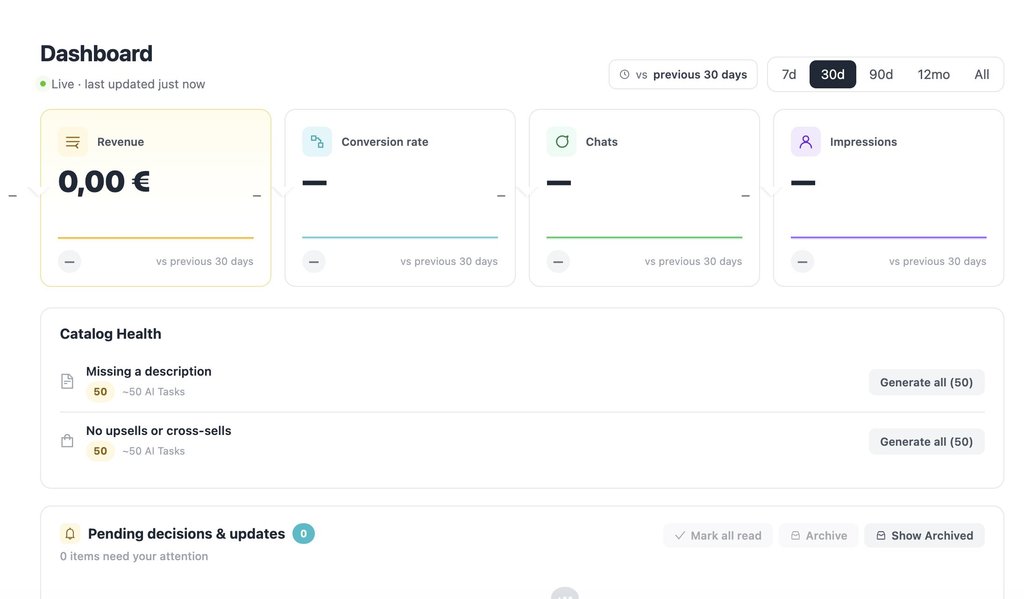
StoreAgent focuses heavily on customer service. Its chatbot sits directly on your public online storefront to assist shoppers in real time, checking live prices, verifying stock for specific sizes or colors, helping logged-in customers track orders, and offering discount coupons to hesitant buyers. Unresolved customer chats are emailed directly to your inbox. For store owners, it also provides dashboard tools to write product copy and track sales analytics from first chat to final order.

An e-commerce dashboard displaying performance metrics like revenue, conversion rate, and chats, alongside catalog health action items.

The AI Agent for WordPress works exclusively for you. Operating privately inside your WordPress control panel or AI Studio workspace, it doesn’t interact with your public website visitors. Instead, it acts as your personal store manager, executing administrative and store tasks on demand whenever you type a request.

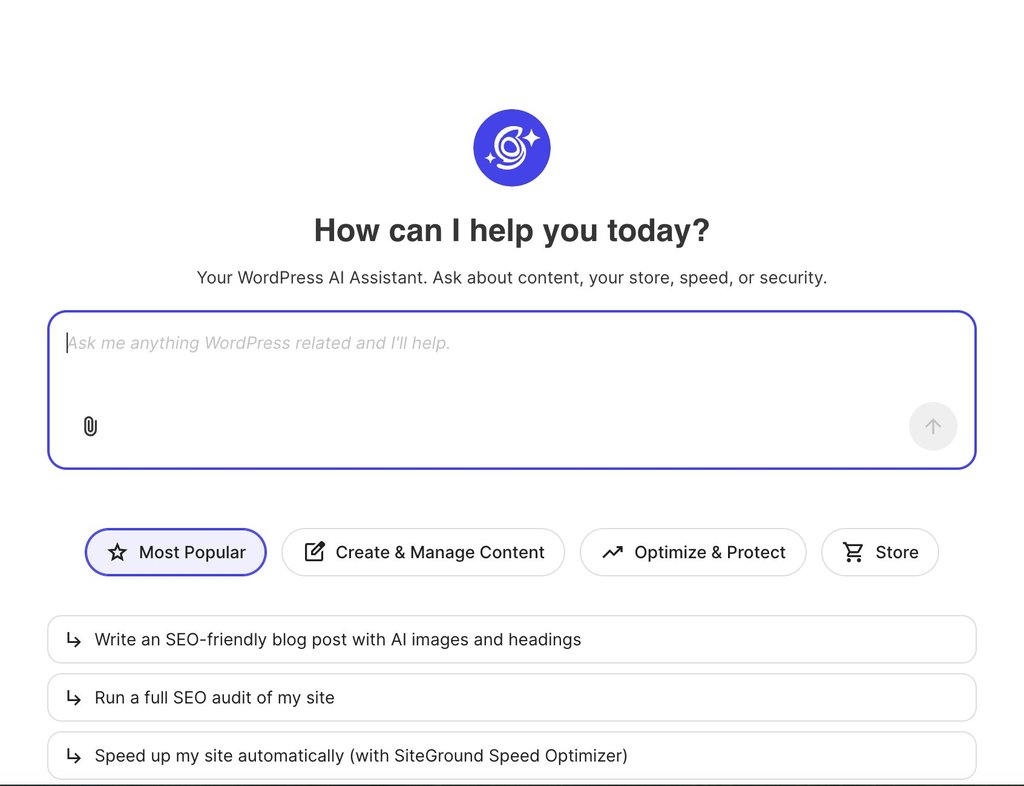
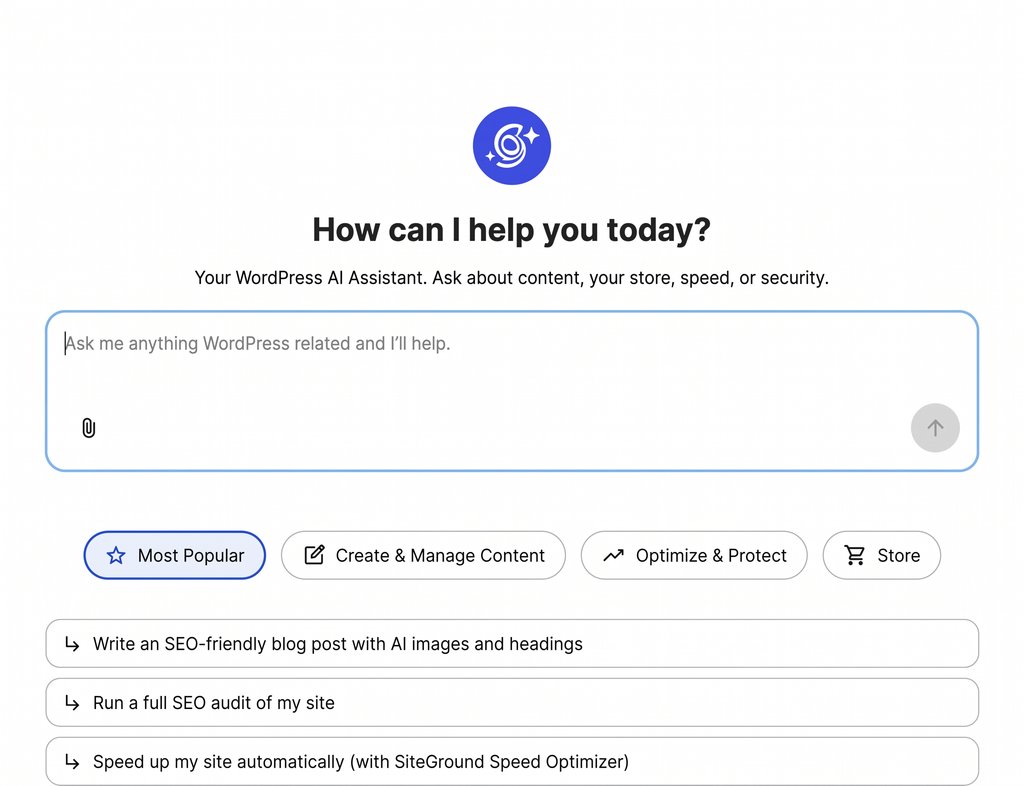
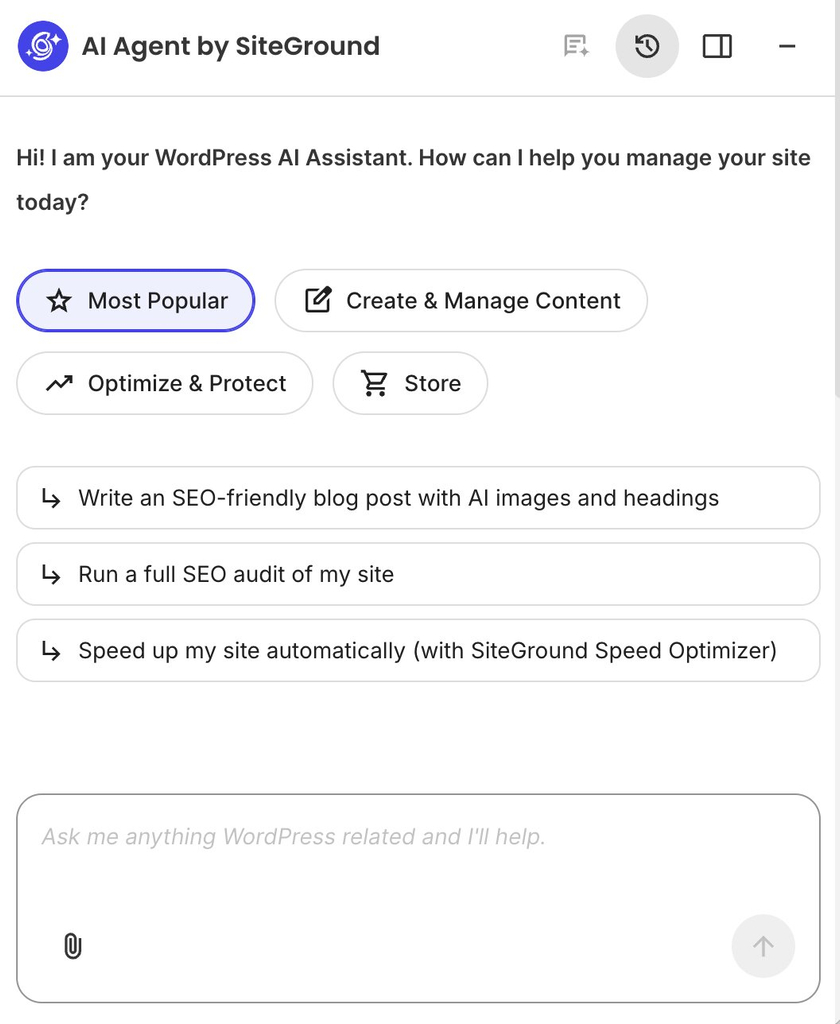
Screenshot of the AI Agent by SiteGround welcome screen featuring a prompt input box and suggested quick actions.

WooCommerce alone, or WooCommerce and WordPress

StoreAgent is built strictly for WooCommerce, meaning its capabilities start and stop with your product catalog and store operations. 

SiteGround’s AI Agent for WordPress manages both your online store and the broader website hosting it within a single conversation. In the exact same chat window where you manage store inventory and pricing, you can also:

  • Maintain site health: update plugins before big sales to ensure your website handles peak shopping traffic.
  • Manage team access: add seasonal staff with store manager permissions to help run day-to-day fulfillment.
  • Update content & settings: revise essential policy pages, such as shipping, privacy, or returns, and adjust general site settings.

The gap widens further when managing multiple websites and online stores. While StoreAgent covers unlimited websites on paid plans, each store connects to your assistant individually. With the AI Agent for WordPress, agencies and store owners can run bulk operations across an entire portfolio at once, executing store updates, plugin checks, and settings changes across multiple connected websites on any hosting provider from a single chat prompt.

How StoreAgent MCP and AI Agent for WordPress change your store

StoreAgent and SiteGround’s AI Agent for WordPress take different routes to WooCommerce management. While StoreAgent splits tasks between its built-in modules and external AI models connected via MCP (Model Context Protocol, an open standard that lets an assistant like Claude or ChatGPT act on other software), the AI Agent for WordPress handles all requests natively within its own chat interface.

What StoreAgent can change: product content, simple-product prices and stock, and order status

StoreAgent operates through two distinct mechanics (neither of which requires pasting API keys):

  • Built-in StoreAgent tools: Its included AI powers automated background tasks such as storefront chatbot interactions, product tagging, and draft creation. You toggle each tool on in your settings, where each run consumes an AI task credit, saving descriptions as drafts for your approval.
  • External MCP connection for direct control: To direct store actions yourself (like changing prices or updating order statuses) you type instructions into your own Claude or ChatGPT session. StoreAgent MCP bridges that external assistant to your store once you approve the connection in your WordPress dashboard. (Note: Using custom MCP connections requires a paid subscription from those providers, such as Claude Pro/Team or ChatGPT Plus/Pro).

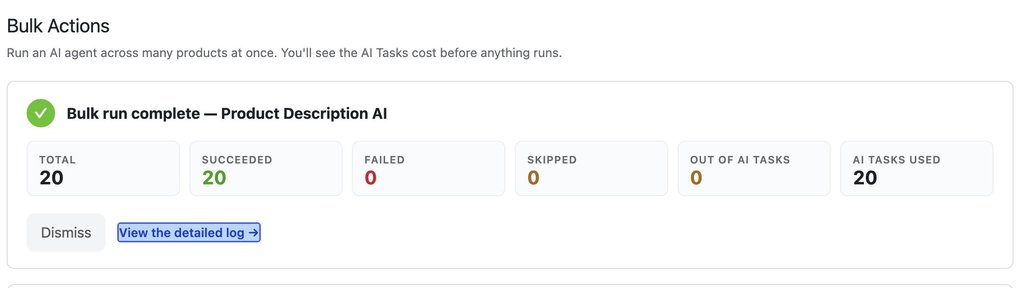
When running bulk content jobs with StoreAgent, you select a specific AI agent for the task (applying one agent per bulk run, though you can launch multiple bulk runs simultaneously). Pricing is calculated strictly per processed item, so any skipped products will not consume your AI Task credits.

For example, you can choose the Product Description AI Agent, select the specific items in your catalog that need updating, and run the batch. In the example below, the agent generated product descriptions for 20 products in a single bulk operation:

A Bulk Actions interface showing a completed Product Description AI run with 20 successful tasks.

What an external assistant can do depends on what’s called abilities, the pre-approved action triggers provided either by StoreAgent or directly by WooCommerce (version 10.9+):

  • Product content: Generates descriptions, product tags, image alt text, and captions using StoreAgent’s content abilities.
  • Simple products: Adjusts regular prices, sale prices, and inventory stock on single-option items using WooCommerce’s built-in abilities.
  • Order management: Searches orders by status, date, or customer, updates order fulfillment stages, and appends order notes.
  • Catalog edits: Creates new simple products or moves items to the trash.

Good to know: StoreAgent’s MCP settings show a warning that text an assistant reads from your store, such as product descriptions, reviews or order notes, may contain instructions written to mislead it. Connect only assistants you trust, and read what an assistant proposes before you approve it, especially for anything that changes prices or orders.

What StoreAgent can’t change yet: categories and refunds

Currently, an assistant connected through StoreAgent cannot touch:

  • Catalog metadata & settings: Categories, image galleries, attributes (such as material or brand), weight, dimensions, and shipping rules cannot be modified.
  • Refunds & financial reports: There are no abilities for processing refunds, managing customer accounts, or running built-in sales reports (though an assistant can tally orders from search results).
  • Bulk operations: Each edit targets a single product per request, meaning updating prices for forty items requires forty individual approvals.

WooCommerce considers these its initial set of abilities and plans to expand them over time. Furthermore, third-party plugins can register custom abilities of their own, which StoreAgent allows you to toggle on, so stores running compatible plugins may unlock some of these tasks sooner.

What AI Agent for WordPress can change: products in bulk, categories, prices and orders

The AI Agent for WordPress executes store changes directly within its own chat window in the WordPress dashboard or AI Studio workspace, with no external assistant accounts or third-party connection protocols required. The exact same chat window used to manage your website infrastructure also handles your WooCommerce store:

  • Product & catalog management: Creates and updates products individually or in bulk (including importing data from uploaded spreadsheets), manages product descriptions, translates catalogs, and restructures product categories.
  • Bulk pricing updates: Adjusts regular and sale prices across groups of products in a single prompt, such as discounting an entire product category or catalog.
  • Order management and sales analytics: Searches, updates, and processes WooCommerce orders, and pulls detailed sales reports—including period-based revenue (weekly, monthly, annual, or custom date ranges), top-selling items, order totals, and customer statistics.
  • Safety with Power Mode: Power Mode acts as a safeguard (disabled by default) that protects sensitive or high-impact actions (such as bulk product updates, mass deletions, user account changes, and order edits) requiring explicit confirmation before execution.

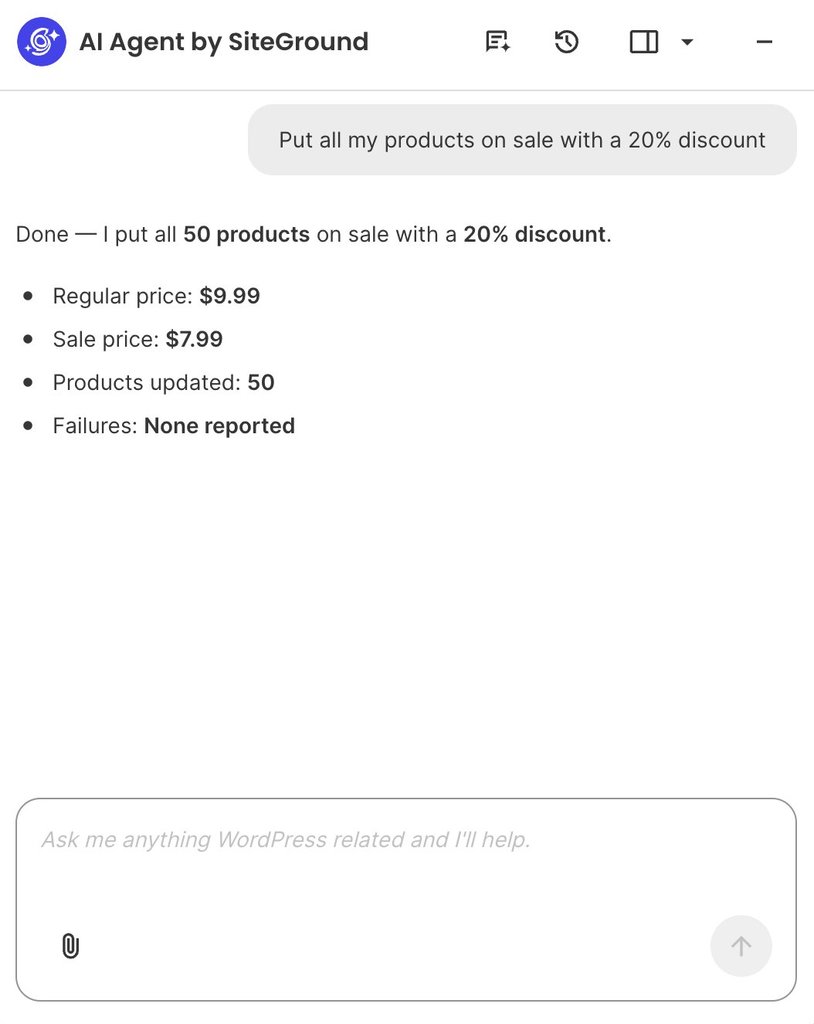
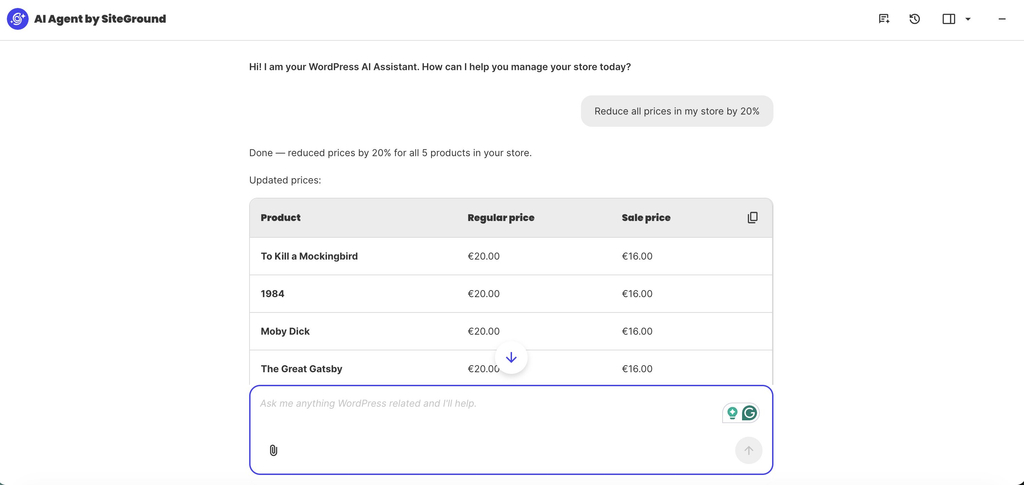
For example, running a storewide promotion takes a single natural-language prompt instead of hours of manually updating individual product pages. You simply ask the assistant to apply a discount across your catalog, and it automatically calculates the sale prices, updates your items in bulk, and confirms the exact changes right in the chat:

Screenshot of the AI Agent by SiteGround interface confirming a 20% discount applied to 50 products.

The bottom line: where is your store’s bottleneck?

AI Agent for WordPress vs StoreAgent comes down to which part of your e-commerce business demands the most time and attention.

If your daily workload centers on answering customer questions and improving product listings, StoreAgent excels as a storefront assistant. Its public-facing chatbot checks live stock in real time, assists shoppers directly, and provides insights that connect customer conversations to actual revenue. Conversely, if your primary challenge is managing the store and the website hosting it, SiteGround’s AI Agent for WordPress handles WordPress and WooCommerce administration from a single chat window, from bulk category price updates and order processing to plugin updates, security checks, and team access roles.

However, AI Agent for WordPress vs StoreAgent doesn’t have to be an either-or decision. Because their capabilities complement each other without overlapping, many online stores run StoreAgent on the storefront to engage shoppers while using the AI Agent for WordPress in the backend dashboard to manage daily site operations.

FAQs

AI Agent for WordPress vs StoreAgent: what is the difference?

The difference between AI Agent for WordPress and StoreAgent is who each one serves and how far it reaches. StoreAgent is a WooCommerce AI suite with a storefront chatbot for shoppers, product content tools, insights and a connection for your own AI assistant. AI Agent for WordPress is an owner-facing agent that runs store operations and the wider WordPress site from one chat.

Can StoreAgent manage a WooCommerce store, or is it mainly a chatbot and content tool?

StoreAgent can manage parts of a WooCommerce store. Beyond its chatbot and content tools, it connects Claude, ChatGPT or another assistant to the store, which can then change prices and stock on simple products and update order status once you allow it. Categories and refunds sit outside what that connection covers.

Can StoreAgent update prices, stock and orders through AI?

Yes. StoreAgent can update prices, stock and orders through a connected assistant, using the abilities in WooCommerce 10.9 and later. It covers prices, sale prices and stock on simple products, and order status and notes, one product at a time with each change confirmed.

What can AI Agent for WordPress do that StoreAgent cannot?

AI Agent for WordPress restructures product categories, reprices whole groups of products in one request, and manages plugins, users and settings, all from its own chat inside WordPress. StoreAgent’s own abilities stop at the store, and its store changes run through a separate assistant you connect.

Which is better for WooCommerce: StoreAgent or AI Agent for WordPress?

StoreAgent is better for shopper conversations, product content and conversion insight. AI Agent for WordPress is better for WooCommerce management and the WordPress site around the store. Stores that need both can use StoreAgent on the storefront and AI Agent for WordPress in the dashboard.

Do I need ChatGPT or Claude to manage WooCommerce with StoreAgent?

You need ChatGPT or Claude only for store changes you direct yourself with StoreAgent. Its chatbot, content tools and insights run on StoreAgent’s own AI, while owner-directed changes to prices, stock and orders go through an assistant you connect, on a plan that supports custom connectors.

How does StoreAgent MCP differ from AI Agent for WordPress?

StoreAgent MCP for WooCommerce links Claude, ChatGPT or another assistant you already use to your WooCommerce store, so you manage it from that assistant’s app. AI Agent for WordPress is its own agent with its own chat inside WordPress, covering the store and the site around it.

Can I use StoreAgent and AI Agent for WordPress together?

Yes. StoreAgent and AI Agent for WordPress can be used together, since they serve different people: StoreAgent answers shoppers and writes catalog content, while AI Agent for WordPress helps the owner run the store and the site.

AI Agent for WordPress vs AI Puffer: Management agent or all-in-one AI plugin?

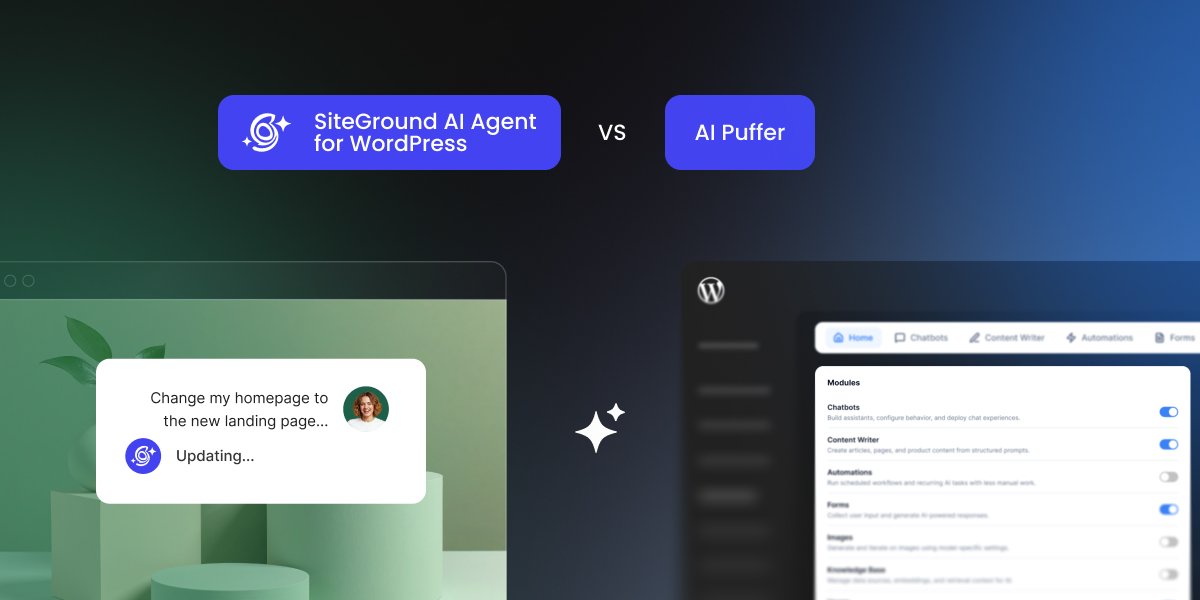
A visual comparison graphic contrasting the SiteGround AI Agent for WordPress interface with the AI Puffer module dashboard.

Two WordPress AI assistants describe themselves as all-in-one AI solutions, but they do very different jobs on your site. AI Puffer (formerly known as AI Power) is a modular toolkit that packs a visitor chatbot, content generator, AI forms, and scheduled tasks into a single plugin. SiteGround’s AI Agent for WordPress acts as a personal site manager that you talk to directly inside your WordPress control panel to handle your daily website chores.

AI Agent for WordPress vs AI Puffer comes down to choosing between a dedicated manager that runs your website and a toolkit that adds AI features for your visitors. While AI Puffer requires you to sign up with outside AI companies and set up API keys before anything works, the AI Agent for WordPress comes ready to use out of the box with built-in access.

Key takeaways:

  • AI Agent for WordPress vs AI Puffer comes down to functionality: AI Puffer adds a collection of individual AI tools and modules, whereas the AI Agent for WordPress provides a single conversational assistant that helps you manage WordPress itself.
  • AI Puffer relies on scheduled background automations that you set up in advance for repeatable content pipelines, while the AI Agent for WordPress carries out administrative tasks on demand whenever you ask in live chat with zero advance setup.
  • AI Puffer requires you to create outside accounts and manage your own API keys (which bill you separately), while the AI Agent for WordPress includes built-in access to top AI models out of the box without third-party keys or separate provider billing.
  • Many websites can benefit from using both tools together: AI Puffer for customer-facing chatbots and forms for visitors, and the AI Agent for WordPress for daily site maintenance and WooCommerce administration.

Two kinds of all-in-one: an AI toolkit and a management agent

AI Puffer adds a set of AI tools to your site and admin area. As an all-in-one AI plugin, it’s built from modules (separate features you switch on or off), which reach your site through pages, shortcodes (short snippets you paste into a page to show a feature), blocks and scheduled tasks. 

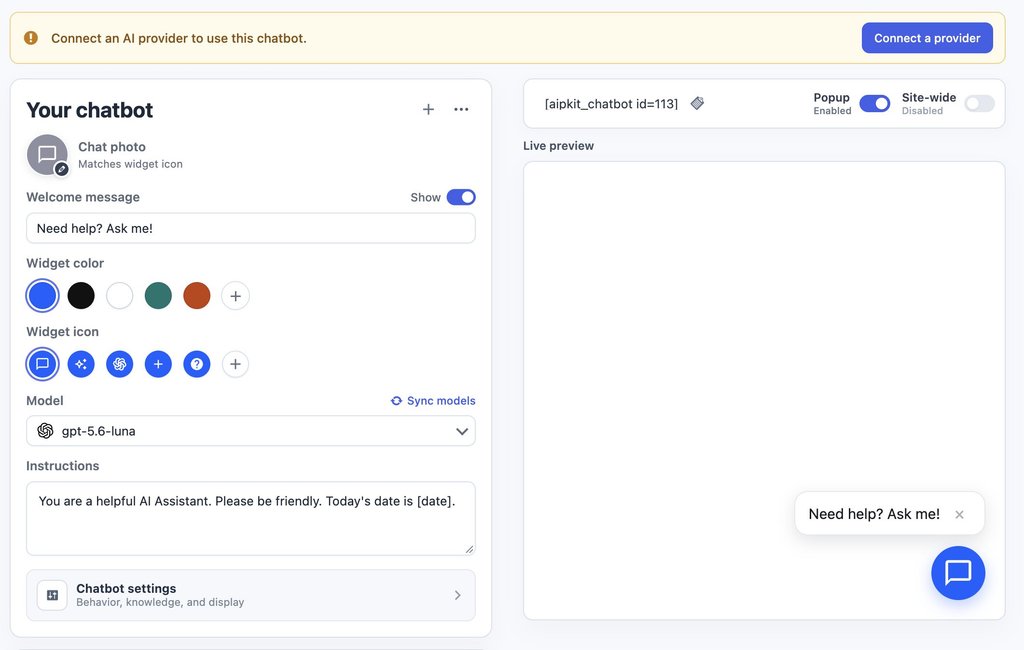
Some modules are for your visitors: a chatbot, AI forms and an image generator they use on your pages. Others are for you: the Content Writer for articles and product copy, and automations that produce or rewrite content on a schedule. The AI Puffer WordPress plugin shows these modules as soon as you install it, and setting up any of them, a chatbot included, starts with connecting an AI provider using your own key.

A chatbot builder interface showing widget customization settings, model selection, and a live preview.

SiteGround’s AI Agent for WordPress manages your entire site through a single chat. You open the chat directly in your WordPress control panel or SiteGround AI Studio, type what you need done, and the assistant carries out all your WordPress tasks: publishing posts, updating plugins, changing user permissions, adjusting settings, and managing WooCommerce online store orders and stock. 

Under the hood, the agent automatically selects and pairs the best AI model for your specific request. Whether you need quick text, a custom image, or something more complex, it routes the task behind the scenes to top models from Google (like Gemini) or OpenAI’s ChatGPT. 

This intelligent model selection ensures you always get the highest quality result for the job at hand without ever having to sign up for outside AI accounts, enter connection codes, or choose models yourself.

Screenshot of the AI Agent by SiteGround welcome screen featuring a prompt input box and suggested quick actions.

AI Agent for WordPress vs AI Puffer, side by side

To see how SiteGround’s AI Agent for WordPress and AI Puffer compare across daily website workflows, the table below breaks down their main features, setup requirements, and capabilities:

DimensionAI PufferAI Agent for WordPress
What it isA toolkit of AI modules inside WordPressA conversational agent for WordPress site management
How you use itConfigure each module, and set up tasks with sources, prompts and schedulesAsk in a chat inside the WordPress admin, or from SiteGround AI Studio
Who supplies the AIYour own API keys from OpenAI, Anthropic, Google and others, billed by each providerIncludes managed AI access automatically with no third-party API keys or separate billing needed
Before first useConnect an AI provider: an account with billing, an API key added to AI Puffer, and a model sync. Setting up a chatbot or any other module needs itPre-connected on SiteGround. Elsewhere, install the plugin and paste a connection key from SiteGround AI Studio
What decides which features workThe providers you connect: image generation and the knowledge base need a provider that offers those kinds of modelsAvailable without choosing providers
ContentArticle and product generation, bulk rewrites, and SEO fields for Yoast, Rank Math, All in One SEO and The SEO Framework, in both the block and Classic editorsPosts, pages, media and SEO metadata (the titles and descriptions search engines show), created and edited on request
Visitor-facing AIA chatbot trained on your site content, with web search, voice and lead forms, plus AI forms and an image generator for visitorsOperates inside your administration area for site management rather than public visitor pages
Plugins, users, settings and menusNot coveredManages plugins, themes, user permissions, and core settings, with high-impact changes protected by Power Mode (a setting that stays off until you allow high-impact changes)
WooCommerceBulk product titles, descriptions, tags and SEO fields. Doesn’t change price, SKU, stock, categories or attributes. Sells AI credits as productsManages complete store catalog tasks, bulk price changes, inventory, sales reports, and customer orders
AutomationScheduled tasks for creating and rewriting content, keeping the knowledge base current and replying to commentsExecutes tasks on demand whenever you request them in chat
WordPress AI connectorsCan route other plugins’ AI requests through your keys, logs and pricing rulesConnects your website(s) to SiteGround AI Studio via the Connectors screen, providing built-in AI access without third-party API keys
Multi-site managementA separate copy per site, each with its own settings and keys, under 2-, 5- or 10-site licensesRuns administrative tasks simultaneously across multiple connected websites from one chat
SafetyNew content can be reviewed before saving or saved as a draft, while rewrites of existing content apply directly. Module access can be limited by user roleKeeps Power Mode off by default to guard deletions, user edits, settings, and orders until explicitly confirmed
CostFree, or Pro from $9.99 a month for one site, plus your AI provider’s usage charges20,000 free AI tokens to start on any website, whoever hosts it, then top up or subscribe monthly. Included with SiteGround hosting plans, which add free monthly AI tokens

Managing the AI versus managing the site

Both products come with management features, and they manage different layers. AI Puffer’s settings run its own AI: which provider answers, which modules appear, who can use them and how much they can use. The AI Agent for WordPress manages WordPress itself: the content, plugins, users, settings and store behind your site.

Keys, models and the features each one allows

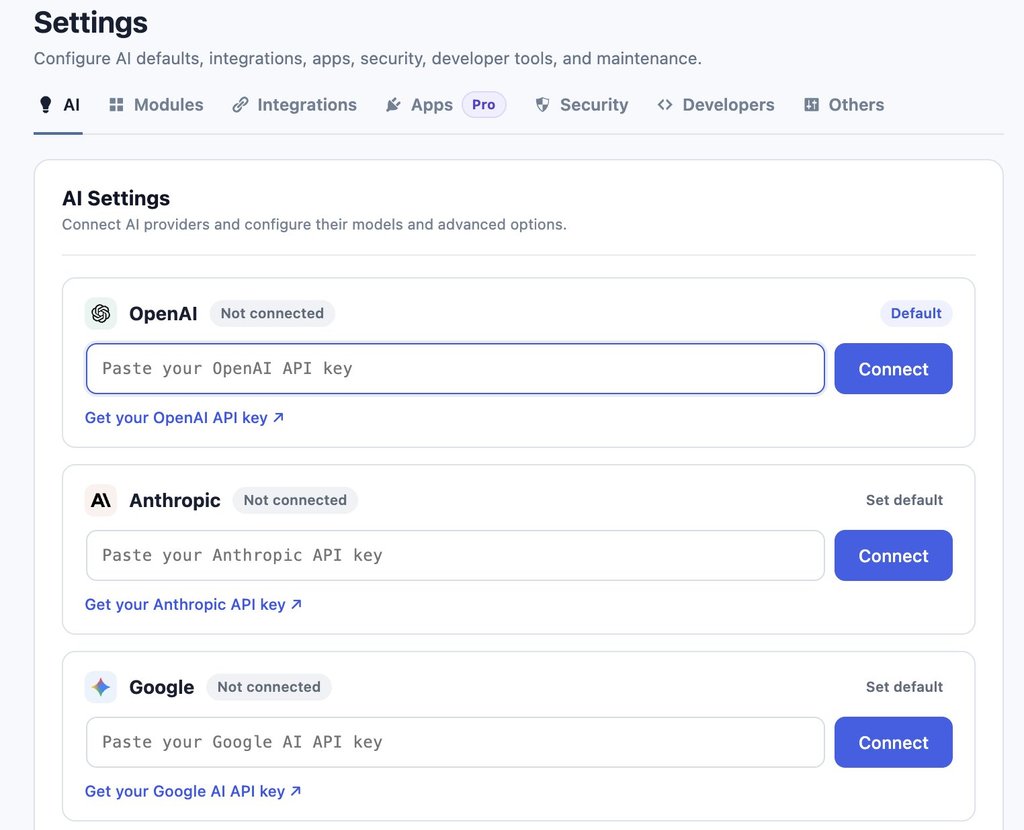
Connecting a provider to AI Puffer takes three steps:

  1. You create an account with an AI company such as OpenAI, Anthropic or Google and add billing details, since it charges for each request.
  2. You copy the API key from that account into AI Puffer’s settings.
  3. You sync the model list, so AI Puffer knows which AI models your account can use.

Once the AI Puffer API key is in place, the providers you’ve connected decide which features work. OpenAI covers the widest range, including images, speech and the embedding models (the kind of AI model that turns your content into something a chatbot can search) that the knowledge base depends on. Anthropic, the company behind Claude, covers text and web search only, so a site that connects only Anthropic gets a chatbot and a writer, and no image generation or knowledge base. On Pro, Ollama runs free AI models on a server you manage yourself.

An AI settings interface displaying API key connection options for OpenAI, Anthropic, and Google AI providers.

AI Puffer Pro includes no AI credits, so a Pro site pays twice: once for the plugin and once for each provider it connects. The upkeep is yours too, from topping up an exhausted provider account to replacing a revoked key. 

In the meantime, the AI Agent for WordPress includes its AI access, so there’s no provider account to top up and no key to replace, which is the practical side of choosing managed AI access over your own keys.

Pro tip: Set a spending limit with your AI provider. OpenAI, Anthropic and Google all let you set a monthly budget or usage alert in the billing section of your account. If you connect your own key to any WordPress plugin, a limit keeps a busy chatbot or a large automation from running up a bill you didn’t expect.

What AI Puffer’s connector and access controls do

On WordPress 7.0 or later, AI Puffer can take over WordPress’s AI connector layer (the shared system that lets plugins ask for AI through one set of settings). AI requests from other plugins and WordPress features then run through AI Puffer’s provider keys, model defaults, logs and pricing rules, so AI Puffer decides which AI account answers them.

Its access controls work the same way. The Role Manager sets which WordPress user roles, such as editors or shop managers, can use each AI Puffer module, and usage limits cap how much AI a guest, a user or a whole role can use. All of these govern AI use, and none of them can change your site’s plugins, user accounts or settings.

AI Puffer automation versus asking a WordPress AI agent

AI Puffer’s WordPress automation is set up in advance. You create a task by choosing what it does, the source it draws from, and the prompts, images, SEO fields and schedule it uses. Sources include a simple list or a CSV file (a spreadsheet saved as plain text), and on Pro an RSS feed (the automatic list of new posts a website publishes), web addresses or a Google Sheet. It then runs by itself, five items at a time, which suits a content pipeline you repeat every week.

Those tasks run on WordPress cron (WordPress’s scheduled-task system), which checks for due tasks only when someone visits your site, so on a quiet site a task can run late unless your host sets up a server cron, a timer that runs on the server itself. Rewrite tasks change published content directly once they run.

Pro tip: Run a rewrite task on one post first. Because AI Puffer’s rewrite tasks change published content directly, its own documentation advises testing a new task on a single item before pointing it at a whole category. Check the result on the live page, then widen the task once the prompt produces what you want.

SiteGround’s AI Agent for WordPress works on demand directly inside your chat window with zero advance setup. Instead of configuring feeds, prompts, or timers beforehand, you tell the agent what you need whenever you are ready (whether that is drafting an announcement, updating plugins, or managing online store inventory) and it carries out the work immediately in live chat.

The same week on four kinds of sites

A blog that publishes every day

Running a daily blog highlights the core difference between these two tools: AI Puffer focuses on building an automated content pipeline, while the AI Agent for WordPress handles the active management of the website surrounding that content.

AI Puffer excels at setting up automated background publishing. It can turn plain text lists, CSV files, RSS web feeds, or Google Sheets into scheduled blog posts complete with generated images, search engine details, and automated comment replies. On its Pro plan, a “Smart SEO” feature evaluates each draft against popular plugins (like Yoast or Rank Math) and can revise a post up to three times (though each rewrite counts as a separate request to your outside AI provider). Connecting a Google Sheet also requires setting up a technical connection key inside Google Cloud so the plugin can access your spreadsheet.

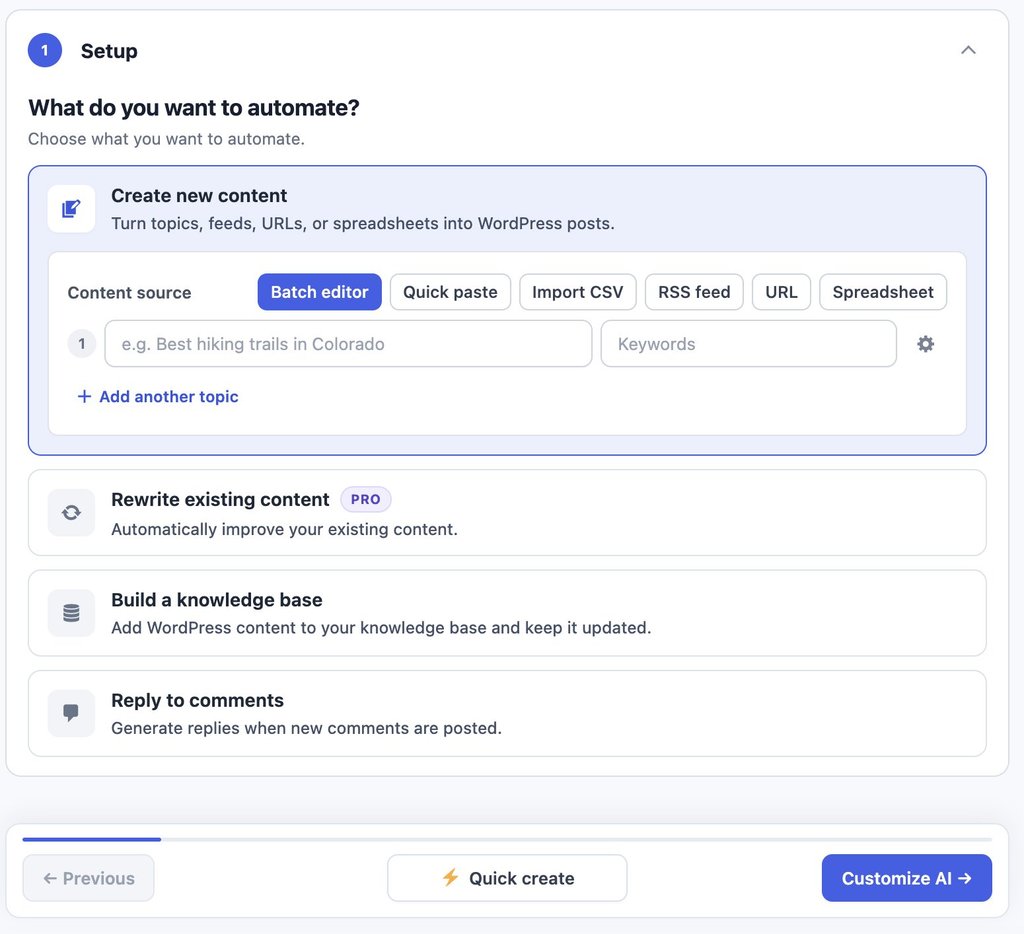
A content automation setup interface displaying options to create content, rewrite existing posts, build a knowledge base, or reply to comments.   
JPG

SiteGround’s AI Agent for WordPress handles the ongoing maintenance and administration of the blog itself. Instead of configuring background feeds or spreadsheet connections beforehand, you use live chat to publish and reorganize articles on demand, clean up categories and tags, update plugins, and maintain site configurations. 

A WooCommerce store with a growing catalog

When running an online shop, the difference between these two tools comes down to whether you need help writing product text or managing your store’s daily operations.

AI Puffer focuses primarily on product copywriting and SEO. As a Pro feature, it can rewrite product titles, descriptions, short descriptions, tags, web addresses (slugs), and search engine fields in bulk. However, core store details (such as prices, stock levels, SKUs (product identification codes), categories, and product attributes) are only read as background context for the AI and remain completely unchanged. Additionally, store owners can use AI Puffer to sell AI credit packages to their site visitors as WooCommerce products.

Good to know: AI credits you sell aren’t credits from your AI provider. The credit packages AI Puffer sells to visitors are its own units, priced by rules you set, such as per 1,000 tokens or per image. Your AI provider still bills you for every request those visitors make, so set your credit prices above what each request costs you. Credits also reach a buyer only when the order completes and only on a logged-in customer account, not a guest checkout.

By contrast, SiteGround’s AI Agent for WordPress handles WooCommerce management across both your product pages and your store’s underlying operations. Beyond drafting product details, it carries out live e-commerce tasks directly through chat, including updating prices across multiple items at once, managing customer orders, tracking inventory stock, and generating sales reports.

For example, running a storewide promotion takes a single plain-language request instead of hours of manually editing individual product pages. You can simply instruct the assistant to apply a discount across your entire catalog, and it automatically calculates the new prices, updates every item at once, and confirms the exact changes right in the chat:

Screenshot of the AI Agent by SiteGround interface confirming a 20% discount applied to 50 products.

A service business that wants a chatbot

For a business that wins clients through its website, AI Puffer’s chatbot captures leads as well as answering questions, drawing on your site content and uploaded files. On Pro, chatbot rules can show a quote form when a visitor asks about pricing, save what they submit, and send it to HubSpot or Pipedrive (CRM tools, which businesses use to track leads and customers). AI forms can run guided intakes, and a feature AI Puffer calls its Realtime Voice Agent adds live voice to the chatbot, rather than being an agent that manages the site.

The AI Agent for WordPress works in the WordPress admin, not on your public pages, so this is the case where running both makes sense: AI Puffer for the chatbot and forms visitors see, and the AI Agent for WordPress for running the site behind them. 

An agency with client sites on different hosts

AI Puffer operates independently on each website, requiring separate license keys (sold in 2-, 5-, or 10-site tiers), API keys, and settings for every client. Making a single configuration change across ten client sites requires logging into ten separate WordPress dashboards to update each one individually.

SiteGround’s AI Agent for WordPress enables centralized multi-site management from a single chat workspace, regardless of where each website is hosted. Agencies can run bulk administrative tasks (such as checking user permissions, updating plugins, or reviewing core security updates) across their entire portfolio with a single prompt.

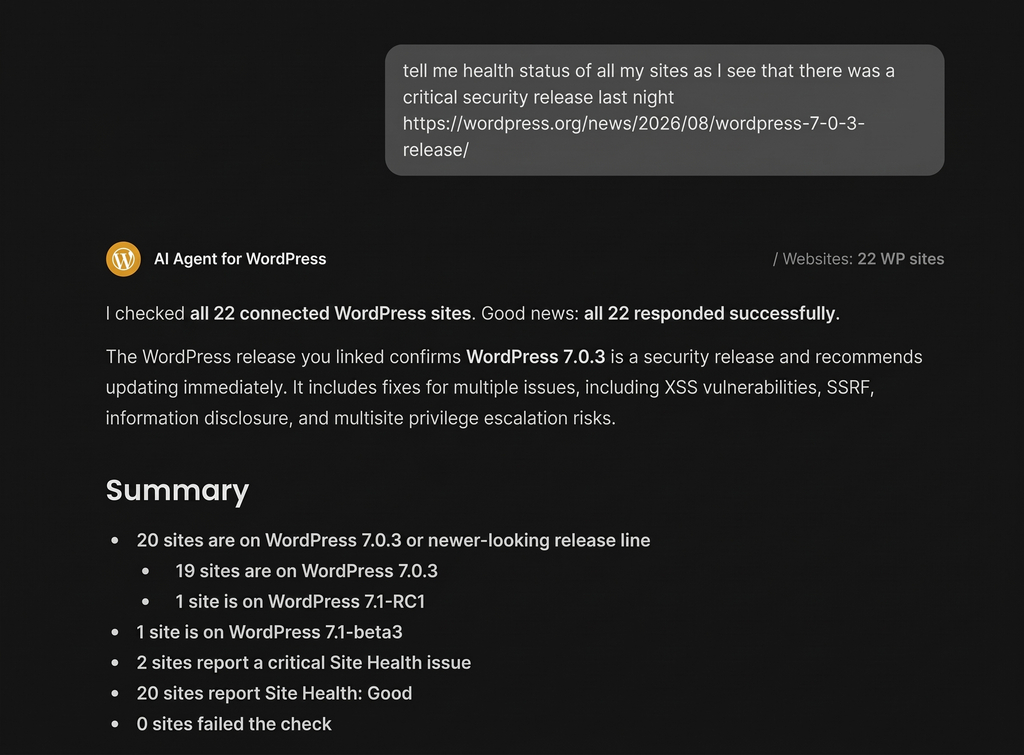
For example, when a critical WordPress security patch is released, confirming update status across 22 client sites would traditionally require logging into 22 separate admin areas. With the AI Agent for WordPress, you can check and confirm update statuses across all 22 sites at once in a single prompt:

An AI Agent for WordPress chat interface displaying a site health and security status summary for 22 connected websites.

The bottom line: AI Puffer or AI Agent for WordPress?

AI Agent for WordPress vs AI Puffer comes down to one question: do you want to add individual AI features to your website, or do you want an assistant to help you run it?

AI Puffer provides a toolkit of AI features for your visitors, such as customer chatbots and smart web forms, along with background content schedules, all running on third-party API keys you set up and manage yourself. SiteGround’s AI Agent for WordPress acts as a personal site manager that handles your daily website operations, from updating plugins and managing user permissions to adjusting store prices and processing customer orders, with built-in AI access ready right out of the box. 

FAQs

AI Agent for WordPress vs AI Puffer: what is the difference?

The difference between AI Agent for WordPress and AI Puffer is what each one works on. AI Puffer adds AI features to your site, including a visitor chatbot, AI forms, content generation and scheduled tasks, using your own AI provider keys. AI Agent for WordPress manages the site itself from a conversation, including plugins, users, settings and WooCommerce operations, with AI access included.

Is AI Puffer an AI agent or an all-in-one AI plugin?

AI Puffer is an all-in-one WordPress AI plugin. It combines a chatbot, content writer, AI forms, image generator, knowledge base and automations in one toolkit. Its Realtime Voice Agent is a voice mode for the visitor chatbot, not an agent that manages the site.

Can AI Puffer manage an entire WordPress site through chat?

No. AI Puffer cannot manage an entire WordPress site through chat. Its chatbot answers visitors from your content, and its tools cover content, forms, images and scheduled tasks. It doesn’t update plugins, change users or settings, or handle store operations.

What can AI Agent for WordPress do that AI Puffer cannot?

AI Agent for WordPress updates plugins, changes users and settings, raises prices across many products, handles WooCommerce orders and runs changes across several sites, all from a conversation. AI Puffer’s product tools write and rewrite product content, and don’t change prices, stock or categories.

Does AI Puffer require my own AI provider API keys?

Yes. AI Puffer requires your own API key from at least one provider, such as OpenAI, Anthropic or Google, and you need one connected before you can set up a chatbot or any other module. The provider bills you directly for usage, including on AI Puffer’s free version. AI Agent for WordPress includes AI access, so there’s no key to create or manage.

Does AI Puffer Pro include AI credits?

No. AI Puffer Pro doesn’t include AI credits. Pro adds plugin features, and your AI provider bills you separately for usage, so a Pro site pays for the plugin and for each provider it connects.

Can AI Puffer update WordPress plugins, users and settings?

No. AI Puffer can’t update WordPress plugins, users or settings. Its settings manage its own AI features, such as provider keys, which roles can use each module, and usage limits.

AI Agent for WordPress vs AI Puffer for WooCommerce: which is better?

AI Agent for WordPress handles more of WooCommerce management. AI Puffer writes and rewrites product titles, descriptions and tags in bulk, while AI Agent for WordPress also changes prices across the catalog, handles orders and pulls sales reports.

Can I use AI Puffer and AI Agent for WordPress together?

Yes. AI Puffer and AI Agent for WordPress do different jobs, so a site can use AI Puffer for a visitor chatbot or AI forms and AI Agent for WordPress to manage the site and store.

Is AI Puffer the same as AI Power?

Yes. AI Puffer is the plugin’s current name, so an AI Agent for WordPress vs AI Power comparison covers the same plugin. Its WordPress.org listing still uses the older address, gpt3-ai-content-generator.

AI Agent for WordPress vs Jetpack AI: Which should manage your WordPress site?

A comparison graphic between SiteGround AI Agent for WordPress and Jetpack AI, displaying interface examples for both tools. JPG

Managing a WordPress site with AI may sound simple, but the experience depends entirely on where that AI lives and how deeply it reaches into your site. Evaluating AI Agent for WordPress vs Jetpack AI comes down to choosing between a dedicated WordPress management agent and Jetpack’s hybrid AI model.

SiteGround’s AI Agent for WordPress provides a ready-to-use WordPress management agent that handles content publishing, plugin maintenance, user roles, and full WooCommerce store operations. Automattic’s Jetpack AI takes a split approach: offering a writing assistant inside the standard block editor alongside an external connection that lets third-party apps like ChatGPT or Claude manage site tasks.

Key takeaways:

  • AI Agent for WordPress vs Jetpack AI comes down to management model and workspace. The AI Agent for WordPress operates inside a native chat in your WordPress dashboard, whereas Jetpack AI manages site operations through connected assistants like ChatGPT or Claude.
  • Both edit WooCommerce product copy, but the AI Agent for WordPress also handles core store operations such as orders, inventory stock, and sales reports.
  • Jetpack AI requires a separate paid plan for every individual site, whereas the AI Agent for WordPress manages multiple connected sites under a single account token pool.
  • Most websites only need one AI assistant, but you can keep core Jetpack security or backup modules running while using the AI Agent for WordPress for site management.

A dedicated WordPress agent vs Jetpack’s hybrid AI model

SiteGround’s AI Agent for WordPress provides a single, unified assistant accessible directly inside your WordPress admin dashboard. You describe what you need in plain language, and the agent executes WordPress management tasks by chat: from publishing posts and updating plugins to managing user roles, configuring site settings, and administering a WooCommerce store.

It comes pre-connected for SiteGround-hosted sites and connects to externally hosted websites via a lightweight plugin. And because the underlying AI models are supplied directly through SiteGround’s managed infrastructure, there are no third-party API keys to set up or pay for separately.

The welcome screen of the AI Agent by SiteGround interface featuring a prompt input box and suggested task categories.

By contrast, Jetpack AI takes a hybrid, split-tool approach. You reach both by installing the Jetpack plugin and opening Jetpack → Jetpack AI in your WordPress dashboard, where you switch features on and connect an outside assistant. Inside the standard block editor, the Jetpack AI Assistant for WordPress drafts, rewrites, and translates text, generates images and alt text, and suggests post titles or excerpts. 

However, for administrative management beyond the editor, Jetpack’s paid plan connects external assistants (such as ChatGPT or Claude) through MCP (Model Context Protocol, an open standard that lets AI assistants act on other software). You then manage the site from inside that assistant’s own app, and each change waits for your confirmation before it runs.

Screenshot of the Jetpack AI dashboard displaying request usage and options to connect ChatGPT or Claude.

That connection runs through WordPress.com (Automattic’s own service for hosting WordPress sites) even when your site is hosted somewhere else. Jetpack AI needs a WordPress.com account, and on a site with several users, each person who uses the AI connects their own. A connected assistant reaches your site through WordPress.com’s own MCP connection and gets the same set of tools as a site hosted on WordPress.com.

Good to know: The assistant you connect is a second account to set up. In Claude, the connection is a WordPress.com connector you sign in to. On a Claude account run by a company, an administrator has to add that connector before anyone on the team can use it. Check too whether your ChatGPT or Claude plan supports connectors at all, since the assistant is billed separately from Jetpack.

AI Agent for WordPress vs Jetpack AI: how they compare

Jetpack AI’s two tools share one column below, and a row names the built-in assistant or the connected assistant where the two differ.

DimensionJetpack AIAI Agent for WordPress
Where you workIn the block editor for writing, and inside ChatGPT, Claude or another assistant for site management.In a chat inside the WordPress admin, or from SiteGround AI Studio.
Who supplies the AIThe built-in assistant for writing. For site management, the assistant you connect, which has its own account.Integrated out of the box via SiteGround’s managed infrastructure, no API keys needed.
Content and mediaPosts, pages, media, comments and categories.Posts, pages, media, comments and categories.
Site structureTemplates (the layouts WordPress uses for each type of page), navigation menus and global styles (site-wide colors and fonts).Manages page hierarchies, navigation menus, and core site configurations.
PluginsSearch, install, update, activate and remove, one plugin per update request.Search, install, update, activate and remove, individually or in bulk.
Users and settingsSettings can be read, and neither users nor settings appear among the areas a connected assistant can be given permission to change.Manages user profiles, roles, and core WordPress settings safely behind Power Mode.
WooCommerceProducts as content: create, edit and describe them, and manage their categories and tags. Orders, customers, stock and sales reports aren’t among the connected assistant’s tools.Executes bulk product/price updates, manages customer orders, updates inventory, and generates sales reports.
Several sitesOne connection reaches every site where you’ve switched access on, with one plan per site.Executes single administrative requests simultaneously across multiple connected sites on any host.
SafetyOff by default, with separate read and write permissions for each area, every change confirmed, new content saved as a draft, and an activity log of each action.Power Mode off by default, gating deletions, bulk changes, user changes and order edits, with every high-impact action confirmed.
Cost20 one-time free requests. Jetpack AI costs $4.95 a month in the first year and $9.95 after, billed yearly, per site. The connected assistant may need its own paid plan.20,000 free AI tokens to start on any website, whoever hosts it, then top up or subscribe monthly. Included with SiteGround hosting plans, which add free monthly AI tokens.

Executing a simple task with AI Agent for WordPress vs Jetpack AI 

To see the differences in the two WordPress management approaches, consider a routine scenario: a café publishing a blog post to announce its new autumn menu and installing a plugin for table booking. The table below follows this workflow from first draft to plugin maintenance:

StepJetpack AI: Built-in AssistantJetpack AI: Connected AssistantAI Agent for WordPress (SiteGround)
Primary WorkspaceInside the Block Editor (one block at a time).External ChatGPT or Claude apps (outside WordPress).In a chat inside the WordPress admin.
Drafting Post & Setting ToneAdd the AI Assistant block and prompt it block-by-block (each prompt uses 1 request).Prompt the assistant in the app; it creates and saves a draft to your site upon confirmation.Describe the post in natural language; the agent creates the structured draft directly on your site.
Featured Image & Alt TextGenerated block-by-block via post settings (uses 1 request each).Writes alt text and attaches media library files (image creation depends on whether the connected LLM supports it, like ChatGPT).Generates the featured image and alt text simultaneously in the same chat thread.
SEO Title & Meta DescriptionSuggested via Jetpack SEO Tools (requires a plan that includes SEO extensions).Writes SEO metadata directly to the post draft upon confirmation.Generates and sets SEO titles and meta descriptions directly within the same chat conversation.
Publishing, Categories & TagsPerformed manually by the user within the editor sidebar.Executed via chat commands with individual user confirmations (publishing is a separate step).Executed entirely within chat, handling category tags and moving from draft to published status.
Updating Booking Form PluginPerformed manually by the user on the WordPress Plugins screen.Executes plugin updates one at a time via chat, requiring separate approval for each plugin.Finds, installs and updates single or multiple repository plugins simultaneously in a single chat request.

For a single blog post, all three approaches reach a published article: the difference lies in how many separate tools and tabs you must navigate. For example, the built-in Jetpack assistant speeds up writing inside the block editor but leaves publishing and plugin maintenance to manual admin clicks. 

A WordPress block editor interface displaying AI-generated draft content for a café's autumn menu.

In the meantime, the AI Agent for WordPress completes the entire content-to-maintenance lifecycle in one continuous conversation inside WordPress, running full operational workflows from start to finish. For instance, you can give it a single multi-step prompt:

“Publish a short post announcing our café’s autumn menu, from October 1. Add a featured image, alt text, an SEO title and meta description, and file it under News. Install and activate a free, well-reviewed table booking plugin, and tell me which one you chose.”

The AI Agent for WordPress executes the entire workflow in one response. It drafts and publishes the post, automatically creates the missing “News” category, generates a featured image with detailed alt text, and sets the SEO metadata directly on the post. In the same turn, it searches the repository to find, install, and activate the Five Star Restaurant Reservations plugin, explaining its choice so the site owner completes both content publishing and site maintenance without ever leaving the chat.

Screenshot of the AI Agent by SiteGround interface displaying confirmation details for a published WordPress post and plugin installation.

Writing a product description versus running a catalog

Jetpack AI treats WooCommerce products primarily as individual content items rather than an active store inventory. While its connected assistant can draft product descriptions and organize categories or tags, new items are created as drafts, and Jetpack’s built-in writing assistant can’t function directly on WooCommerce’s standard product management screen (which relies on the classic editor layout).

Furthermore, core store operations, such as processing customer orders, adjusting stock levels, managing customer records, and generating sales reports, fall outside Jetpack AI’s toolset. While WooCommerce provides a separate, native connection for AI assistants to handle basic store actions, implementing it requires configuring and maintaining a second setup alongside Jetpack.

By contrast, SiteGround’s AI Agent for WordPress unifies store management with routine website administration inside a single chat window. Beyond writing individual product details, it handles full catalog management: importing and updating entire product batches from spreadsheets, executing bulk price adjustments across categories, translating product catalogs, managing customer orders, and generating sales reports, all without leaving your primary WordPress workspace.

How each manages multiple WordPress sites

Jetpack AI links each website individually through a single account connection, enabling a single conversation in external apps like ChatGPT or Claude to interact across your connected sites. Recurring administrative tasks can also be scheduled using those external assistants’ native automation features, though Automattic’s multi-site monitoring dashboard, Jetpack Manage, does not include integrated AI. Licensing is strictly per-site, requiring a separate Jetpack AI or Jetpack Complete plan for every domain. 

Meanwhile, SiteGround’s AI Agent for WordPress orchestrates portfolio-wide changes simultaneously from a single chat request. Agencies and freelancers can manage client sites across different hosting providers from one workspace, connecting external domains using the SiteGround AI Studio plugin. Usage is managed under a single unified token pool rather than charging per domain.

Do you need AI Agent for WordPress if you already use Jetpack AI?

For most websites, running both assistants is unnecessary. Because a paid Jetpack AI plan and the AI Agent for WordPress overlap across standard site management tasks, paying for both means paying twice for the same administrative coverage.

The main exception is when a site relies on Jetpack’s core non-AI features, such as security scanning, automated backups, or site analytics. Because those core utilities function independently of Jetpack’s AI subscription, you can keep your existing Jetpack security or backup modules active while using the AI Agent for WordPress to handle site operations. This combination is especially practical for store owners, as the AI Agent manages the customer orders and inventory tracking that Jetpack AI can’t reach.

Which WordPress management approach should you choose?

Picking between AI Agent for WordPress vs Jetpack AI rests on two things: where you’d rather do your work, and whether your site runs a store.

When to choose Jetpack AI

Jetpack AI suits you when:

  • You prefer to work in ChatGPT or Claude. Connecting that assistant lets it reach your sites from the app you use all day, including on a schedule for recurring jobs.
  • You want to choose the AI. Claude, ChatGPT and other MCP-compatible assistants can all connect, so you can keep the one you prefer.
  • Your site shows rather than sells. Posts, pages, media, menus and plugins are all within a connected assistant’s reach.
  • You want Jetpack’s editor tools and security in one place. Jetpack Complete bundles Jetpack AI with backups, security scanning and the rest of the suite.

When to choose AI Agent for WordPress

The AI Agent for WordPress suits you when:

  • You’d rather not set up a second assistant. The agent and its chat are part of WordPress, and on SiteGround hosting, it’s connected before you start.
  • You run a WooCommerce store. Orders, stock, price changes across many products and sales reports sit alongside everything else it handles.
  • You manage people and settings as well as content. Changing a team member’s role or a site setting is a prompt like any other.
  • You look after several sites. One request reaches all of them, wherever each one is hosted.

The bottom line

Deciding between AI Agent for WordPress vs Jetpack AI comes down to where you want your AI assistant to live and how much of your site’s operational backend you need to manage. 

If your focus is primarily on writing inside the editor or controlling site content through external apps like ChatGPT and Claude, Jetpack AI offers a flexible bridge. 

However, if you run an active website or WooCommerce store and want a unified, native assistant that handles publishing, plugin upkeep, store orders, and multi-site administration safely from a single chat, SiteGround’s AI Agent for WordPress delivers complete, end-to-end management directly inside your dashboard.

FAQ

AI Agent for WordPress vs Jetpack AI: what is the difference?

The difference between AI Agent for WordPress and Jetpack AI is who supplies the agent and how far it reaches. The AI Agent for WordPress includes its own agent and chat inside WordPress and runs WooCommerce store operations. Jetpack AI offers a writing assistant in the editor and, on its paid plan, lets you connect an assistant such as ChatGPT or Claude to manage your site.

Is Jetpack AI a WordPress management agent or a content assistant?

Jetpack AI is both, through two separate tools. Its built-in assistant handles writing and images in the block editor, while an outside assistant you connect on the paid plan, such as Claude or ChatGPT, manages content, site structure and plugins.

What can AI Agent for WordPress do that Jetpack AI cannot?

The AI Agent for WordPress can manage WooCommerce orders, stock and sales reports, which aren’t among the tools a Jetpack-connected assistant can use. It also works as a WordPress management agent built into WordPress, so there’s no second assistant to connect or pay for.

Do I need AI Agent for WordPress if I already use Jetpack AI?

You need the AI Agent for WordPress if you run a WooCommerce store and want AI help with orders and stock, or if you want an agent inside WordPress without connecting a separate assistant. If you only write in the editor, or you already manage your site from ChatGPT or Claude, Jetpack AI may cover what you need.

Which should I use for WordPress management: Jetpack AI or AI Agent for WordPress?

Use Jetpack AI if your work already happens in ChatGPT or Claude and your site publishes content rather than sells. Use the AI Agent for WordPress if you want the agent built into WordPress, run a WooCommerce store, or manage users and settings as well as content.

Can Jetpack AI manage multiple WordPress sites?

Yes. Jetpack AI can manage multiple WordPress sites through one connected assistant, which reaches every site on your WordPress.com account where you’ve switched access on. Each site needs its own Jetpack AI or Jetpack Complete plan.

Can I use Jetpack AI and AI Agent for WordPress together?

Yes, but most sites need only one of them, since the paid Jetpack AI plan and the AI Agent for WordPress overlap on site management. A site that uses Jetpack for security, backups or stats can keep those tools and use the AI Agent for WordPress without the Jetpack AI plan.

Which is better for WooCommerce: AI Agent for WordPress or Jetpack AI?

The AI Agent for WordPress covers more of a store owner’s work. Jetpack AI’s connected assistant can create and edit products and their descriptions, while the AI Agent for WordPress also handles orders, stock, price changes across many products and sales reports.

AI Agent for WordPress vs Angie: WordPress administration or design and development?

An infographic comparing the SiteGround AI Agent for WordPress on the left with an AI assistant named Angie on the right.

Managing a WordPress site often means losing hours to routine dashboard navigation and technical chores. Modern WordPress AI assistants solve this by turning plain-language prompts into instant actions directly inside your dashboard. Two prominent tools leading this space are SiteGround’s AI Agent for WordPress and Elementor’s WordPress AI agent, Angie, though each was built for a very different job.

AI Agent for WordPress vs Angie comes down to where they go beyond shared WordPress administration. Angie functions as an interactive design partner that generates page layouts and custom code on demand. By contrast, the AI Agent for WordPress acts as an operational manager, safely handling routine administrative chores, WooCommerce tasks, and multi-site maintenance.

Key takeaways:

  • AI Agent for WordPress vs Angie comes down to operational management versus design. The AI Agent for WordPress handles recurring site administration and WooCommerce tasks, whereas Angie is more focused on layout, styling, and custom code.
  • The AI Agent for WordPress is purpose-built for non-technical small business owners. Instead of generating custom code that requires technical expertise to audit, it manages site tasks through chat.
  • Angie excels at visual page building: it builds complete, styled web page layouts directly from text descriptions or uploaded files, and generates custom Elementor widgets.
  • The AI Agent for WordPress can manage multiple WordPress sites by applying a single request across an entire portfolio of connected, standalone websites simultaneously, whereas Angie operates on one site workspace at a time.

What each WordPress AI agent is built for

Both agents share a lot of everyday work, from editing posts to updating plugins, and each was built around a different job:

  • Angie is built more like a design agent. It’s engineered by Elementor as a creation partner. Describe a page concept, and Angie generates the layout, picks matching brand colors and typography, writes the copy, and creates custom interactive features like calculators, quizzes, and Elementor widgets (including the code behind them).
  • The AI Agent for WordPress is built more like an operations agent. It takes on the WordPress management tasks a site needs every week once it’s live. Rather than building page layouts or generating code, it manages your day-to-day operational workflows: publishing blog posts, managing media, updating repository plugins (free plugins from the official WordPress.org directory) and themes, administering WooCommerce products and orders, and executing bulk administrative changes across connected sites.

AI Agent for WordPress vs Angie: how they compare

Here’s how the two line up across the areas a site owner is most likely to weigh.

DimensionAngie (Elementor)AI Agent for WordPress (SiteGround)
Everyday administrationCreates pages, drafts/formats posts, adjusts plugin settings, and audits site configurations.Manages the full content lifecycle, media library, plugin/theme updates, user roles, site structure, and SEO metadata.
DesignBuilds pages from a written description, creates design systems from a screenshot, and makes custom Elementor widgets (ready-made building blocks you drag onto a page),Assembles pages using existing theme blocks and styling; executes bulk administrative changes and site restructuring.
CodeWrites CSS (code that controls how a page looks), JavaScript (code that makes a page respond to visitors, such as changing when you hover or click) and PHP (the programming language WordPress runs on) and previews it before it goes live.Works through standard WordPress operations and established plugins, with no custom code to maintain
WooCommerceExtends store design with custom code, layout adjustments, and product/price updates.Updates products in bulk including from a spreadsheet, restructures categories, changes prices, and handles orders, reports and catalog translation.
Several sitesWorks on one site at a time, with sections saved to the cloud for reuse elsewhere.Applies single administrative commands simultaneously across multiple connected standalone sites on any web host.
Most powerful modeSuper Admin Mode: Runs PHP directly on the server; uses action previews and confirmation prompts for high-risk actions.Power Mode: Off by default; acts as a circuit breaker to block high-risk commands (deletions, user edits, order modifications).
SafetySuper Admin Mode sits behind a risk warning, and each destructive action asks for confirmation.Power Mode is off until you turn it on, and each high-impact action waits for your approval.
CostFree to install, with AI credits that reset daily and can’t be bought separately. Elementor One, $228 a year for one site, adds 25,000 monthly credits. 20,000 free AI tokens to start on any website, whoever hosts it, then top up or subscribe monthly. Included with SiteGround hosting plans, which add free monthly AI tokens.

The differences that decide it

Three things separate these agents once you set the shared work aside: how each handles a request for something new, whether either can change several sites at once, and how far each goes when you give it the most access.

Good to know: Hosting portability (whether an AI tool is locked to a specific web host or capable of running on any server) is not a deciding factor here. While portability is often the single biggest hurdle when evaluating host-locked solutions like GoDaddy Airo or Hostinger AI, both Angie and the AI Agent for WordPress install as standard plugins and offer full hosting portability regardless of where your site is hosted.

How far each one goes into design and development

Angie is strongest when you want something designed or built from scratch. It creates complete pages from a description, turns a screenshot of a site you like into matching colors, fonts and spacing, and writes the CSS, JavaScript and PHP (the code that controls how a page looks and behaves) for custom features.

Say you run a travel business and want a full-screen menu where the background changes to a photo of each destination as a visitor hovers over its name. A prompt for Angie could look like this:

“Create a custom Image Reveal Menu widget using a full-screen Elementor container with a vertical text menu on the left side (items: England, Brazil, France, Japan, Italy). Add custom CSS and JavaScript so that when I hover over each menu item, the parent container’s background image changes to a specific image for that country, and the text gets a bottom border (underline) on hover.”

Angie builds the widget, writes the code behind it, and publishes it when you ask. The widget now lives on your site as custom code, stored in Angie’s own Snippet Library.

A code snippet management interface displaying PHP code for registering an "Image Reveal Menu" widget.
Screenshot

Any later change runs through Angie’s Test Mode first (a preview space where edits are tried before they reach your live site), and using the widget on another site means opening the snippet and saving it to Cloud Library from there.

From the prompt’s containers and hover effects to the snippet library the result is stored in, the whole workflow is built for someone who is comfortable with coding, which is the audience Angie serves best.

In contrast, the AI Agent for WordPress doesn’t build custom widgets or write code. It works with your theme and established plugins, so there’s no custom code on your site to keep track of if you’re not into coding or you don’t have the budget to hire a developer.

Multi-site management versus reusing assets across sites

Both agents offer something for people who look after more than one site, and the two offers solve different problems.

Angie’s Cloud Library lets you save something you’ve built, such as a widget or a code snippet, and deploy it to other sites connected to your Elementor account. That speeds up building similar sites. Everything else you ask Angie happens on the site you have open, so checking or changing something across several sites means opening Angie on each one in turn.

The AI Agent for WordPress runs one request across every site connected to it and reports back on each. For example, when WordPress 7.0.3 came out with fixes for several security vulnerabilities, we used it to check 22 WordPress sites at once. SiteGround’s automatic updates had already applied the release, but confirming that would have meant opening 22 WordPress dashboards. Instead, we asked the AI Agent for WordPress to do it: 

An AI Agent for WordPress chat interface displaying a site health and security status summary for 22 connected websites.

The same approach works for plugin updates, content changes and checks on who has administrator access, and you can manage several WordPress sites from one place even when each sits with a different hosting company.

SiteGround Power Mode vs Angie Super Admin Mode

Both agents keep their most powerful actions behind a setting you switch on yourself, and both ask for confirmation before each high-impact change. They differ in what that setting opens up.

Angie Super Admin ModeSiteGround Power Mode
What it allowsRuns PHP directly on the live server, reads and edits files, queries the database (where WordPress stores your content and settings), reads logs, and handles tasks that would otherwise need server access.Unlocks high-impact WordPress operations, including mass deletions, general site settings updates, user creation/updates, and WooCommerce order modifications.
How you turn it onChoose it in the Angie sidebar, then accept a warning about the risks.Disabled by default; turned on manually in settings or enabled right inside the chat when a specific task requires it.
Each actionEvery destructive action shows what it will do and asks for confirmation.The agent pauses, explains the exact impact of the requested change, and waits for your explicit approval before running.
Who it’s forAgency developers, experienced freelancers, and people comfortable editing wp-config.php, the file holding a site’s core settings.Business owners, site administrators, and non-technical managers running a live site.
How far it goesDeclines only requests outside WordPress, such as calling an outside service the server can’t reach, and attempts anything WordPress-related.Standard WordPress and WooCommerce operations, no custom code is executed on the server.

The execution ceiling of each mode determines what happens if something goes wrong during a task. Because Super Admin Mode executes code directly on your live server, an unhandled error can crash your site or produce a fatal error that requires manual FTP (a way to reach your site’s files directly on the server) or hosting control panel access to fix. For this reason, Elementor recommends creating a full site backup and testing actions on a staging environment (a private copy of your site hidden from visitors) before using Super Admin Mode.

By contrast, SiteGround’s Power Mode operates strictly within standard WordPress administrative workflows. If the agent deletes a post or a page, WordPress moves the item to the Trash by default, allowing you to easily restore it from your standard admin screen.

Keep in mind: An agent with an open-ended server ceiling (able to read and change your site’s files, database and code directly on the server), like Angie in Super Admin Mode, is better suited to a more technical person who can judge what a server-level change will do. For a busy small business owner, a bounded mode (one limited to standard WordPress actions) like the AI Agent for WordPress’ Power Mode keeps every change you approve within operations you’d recognize from your own dashboard.

Which WordPress AI agent should you choose?

The choice between AI Agent for WordPress vs Angie turns on whether your time goes mostly into building pages or into keeping a business site running.

When to choose Elementor Angie

Angie fits web creators, agencies, and designers who build and customize WordPress sites as their primary service. It makes the most sense when:

  • You design sites for clients and want complete web pages, layouts, and brand styling generated directly from written descriptions or uploaded files.
  • You need bespoke interactive features, such as calculators, quizzes, or custom Elementor widgets, that require generating custom CSS, JavaScript, or PHP code.
  • You are comfortable auditing code, as its high-authority Super Admin Mode executes PHP directly on the live server.

When to choose AI Agent for WordPress

The AI Agent for WordPress fits business owners, store managers, and administrators who want to spend less time clicking through /wp-admin and more time growing their business. It operates directly within your existing theme and plugin stack without requiring structural site modifications.It makes the most sense when:

  • Your site is live and you want to manage it, including its content, media libraries, plugins, themes, user roles, and SEO metadata simply by asking in plain language.
  • You run a WooCommerce store and frequently update product listings, adjust prices, manage stock, or process customer orders.
  • You manage a portfolio of sites, allowing you to execute single administrative commands across multiple connected websites regardless of where they are hosted.
  • You prioritize pre-action safety, relying on Power Mode to block high-stakes or destructive changes until you explicitly grant permission.

Pick the agent that matches your week

AI Agent for WordPress vs Angie is ultimately settled by what fills your workday. While both tools comfortably handle routine administrative chores, the decision rests on what each assistant brings to the table beyond basic maintenance.

Angie expands into visual design and software creation, building complete page layouts from plain-language prompts, crafting custom widgets, and writing code that runs directly on your server. 

By contrast, the AI Agent for WordPress focuses on site operations: configuring maintained repository plugins instead of generating custom code, coordinating tasks across multiple connected sites simultaneously. For a small business owner who wants a reliable website without having to become a web developer, that operational focus is what turns AI into real hours saved every single week.

FAQs

AI Agent for WordPress vs Angie: which is better for WordPress management?

AI Agent for WordPress vs Angie depends on what you want help with. Both handle routine WordPress administration. The AI Agent for WordPress is better for keeping a business site running across one site or several, and Angie is better if you also design pages or build custom features.

What is the difference between AI Agent for WordPress and Angie?

The difference between AI Agent for WordPress and Angie is the kind of work each is built around. Angie concentrates on creating pages and features, including designing layouts and writing code. The AI Agent for WordPress concentrates on running a site once it exists, handling content, plugins, products and settings across one site or several.

What can Angie do that AI Agent for WordPress does not?

Angie designs pages from a written description, creates design systems from a screenshot, builds custom Elementor widgets and front-end tools, and in Super Admin Mode runs PHP and works with files and the database. The AI Agent for WordPress uses your theme and established plugins instead.

What does AI Agent for WordPress do differently from Angie?

The AI Agent for WordPress applies one request to several connected sites at once, on any host. Angie works on one site at a time and saves sections to the cloud so you can reuse them, which speeds up building rather than running many sites together.

What is the difference between SiteGround Power Mode and Angie Super Admin Mode?

Both are settings you switch on yourself, and both ask for confirmation before each high-impact action. Super Admin Mode lets Angie run PHP on the server and work with files and the database. Power Mode allows deletions, bulk changes, user changes and order edits within standard WordPress operations.

Which is better for multiple WordPress sites?

The AI Agent for WordPress is better for multiple WordPress sites, since it applies one request to every connected site regardless of host. Angie reuses saved sections across sites but works on each one separately.

Which is better for WooCommerce management: AI Agent for WordPress or Angie?

Both handle bulk store work. Angie updates prices, stock and product details at scale and can extend WooCommerce with code. The AI Agent for WordPress updates products in bulk including from a spreadsheet, restructures categories, and handles orders, reports and catalog translation.

Which is better for agencies: AI Agent for WordPress or Angie?

Agencies that build and customize sites get more from Angie’s design tools. Agencies maintaining client sites across different hosts get more from the AI Agent for WordPress, which makes the same change on all of them in one request.

Do I need Elementor to use Angie?

No. Angie is a WordPress AI agent that works on WordPress sites generally, including ones built with WordPress’s own block editor. Its design tools are strongest inside Elementor, while its administration and code features work on any WordPress site.

AI Agent for WordPress vs Genwave: WordPress operations or deeper technical control?

Conceptual graphic of a laptop displaying a WordPress dashboard with an AI chat overlay processing a request to remove unused plugins.

How much power do you want a WordPress AI assistant to have over your site? That is the question if you’re comparing SiteGround’s AI Agent for WordPress vs Genwave Agent, two AI assistants that can make changes to your WordPress site from a chat. 

AI Agent for WordPress vs Genwave Agent is a juxtaposition between an operations agent and a development one. The AI Agent for WordPress is SiteGround’s conversational management agent for content, WooCommerce, media, plugins, themes, users, settings and WordPress site administration. Genwave Agent extends into custom PHP (the programming language WordPress itself is built in), plugin creation, debugging, and broader technical work. 

Key takeaways:

  • AI Agent for WordPress vs Genwave is a scope decision. The AI Agent for WordPress focuses on WordPress and WooCommerce administration, while the Genwave Agent also writes code.
  • The AI Agent for WordPress fits non-technical small business owners better. Its operational boundaries keep the assistant focused on standard administrative tasks you can easily follow.
  • Genwave has the development-depth advantage. Its agent generates custom PHP scripts and constructs plugins, giving technical users conversational control deeper inside the software stack.
  • The two agents differ in their approach to safety. Genwave manages risk primarily after changes occur on your server, while the AI Agent for WordPress focuses on pre-action prevention through its Power Mode.

An operations agent and a development agent

Both the AI Agent for WordPress and Genwave Agent are WordPress AI assistants you talk to, and they belong to two different categories.

  • The AI Agent for WordPress is an operations agent. Operations means the running of the site: the WordPress workflows that come back every week. The full AI Agent for WordPress capabilities include creating and updating content, managing images, installing and updating plugins, adjusting themes, handling users, reorganizing WooCommerce product catalogs, working with orders and coupons, checking reports, and making bulk changes to many items at once.
  • Genwave Agent sits closer to a development agent, focused on building and repairing core software. Rather than just managing existing site features, a development agent aims to write custom code, fix broken PHP, create database tables, and construct custom plugins from scratch through conversation.

AI Agent for WordPress vs Genwave: how they compare

Use this table to compare the work each assistant is designed to handle, the limits each one sets, and the safeguards each one puts between a chat request and a live-site change.

DimensionGenwave AgentAI Agent for WordPress
ScopeHandles WordPress actions across content, plugins, SEO, WooCommerce and site management.Complete WordPress and WooCommerce administration, including posts, pages, media, plugins, themes, user profiles, site architecture, products, orders, coupons, and reports.
Custom codeGenerates shortcodes, code snippets, and custom PHP functions with built-in version control and rollback.Doesn’t write or deploy custom code. Operates through structured REST API endpoints (the standard routes WordPress already provides for changing content and settings) rather than writing or deploying custom PHP code to your site.
Building pluginsBuilds production-ready plugins with database tables, admin settings, frontend forms and security validation.Searches, installs, configures, updates, activates, deactivates, and removes existing repository plugins.
DebuggingScans error logs, identifies root causes, and repairs fatal PHP errors, syntax issues, and plugin conflicts prior to deployment.Focuses on administrative tasks and site management rather than code repair or PHP debugging. If you have code issues, they go to a developer or to support.
Plugin ecosystemWorks with repository plugins, including installation, configuration, schema setup, and conflict resolution.Searches, installs, activates, updates, deactivates and deletes plugins individually or in bulk, checked against the existing stack.
WooCommerceSupports bulk management including product generation, descriptions, categories, prices, featured images, orders, coupons and inventory.Product creation and editing, category restructuring, bulk price changes, inventory updates, orders, coupons, reports and catalog translation.
Several sitesOffers one dashboard across connected sites, with credits shared between them.Manages multiple WordPress sites simultaneously with bulk actions across separately connected sites on any web host.
Safety modelShows a plan before changes, requires confirmation, offers 30-day undo, and uses validation layers, backups, encryption, command signing and audit logging.Preview and confirmation, plus Power Mode disabled by default so high-impact actions need a deliberate permission step first.
Model accessOffers managed access with model switching across providers including OpenAI, Anthropic, Google, xAI, Perplexity, Mistral and Meta, with no personal API keysUses an integrated multi-model engine (Google Vertex AI, Gemini, ChatGPT) routed through the SiteGround connector without requiring site-level API keys, automatically selecting the best model for each specific task.
Host requirementPlugin-based, host-independent deployment model.Manages multiple WordPress sites simultaneously on any host, connecting automatically on SiteGround and via a simple connection key elsewhere

The differences that actually decide it

So at first glance, capabilities like WooCommerce management, content generation, and multi-site support appear very similar between the two tools. Furthermore, hosting portability (whether an AI tool is locked to a specific web hosting provider or capable of running on any server) is not a deciding factor here. While this is often the single biggest issue when comparing host-locked tools like GoDaddy Airo or Hostinger AI, both of these agents offer full hosting portability. 

So what decides the AI Agent for WordPress vs Genwave Agent comparison is how deeply each agent interacts with underlying code, whether it builds custom software, how it handles technical error repairs, and where its default safety boundaries sit.

How far each WordPress AI agent goes into custom code and plugin development.

Genwave focuses on development capabilities, offering to generate custom PHP, create shortcodes, build plugins, and repair code errors through chat. For agencies and developers, this reach can be attractive. A technical team might use such an agent to draft internal plugin scaffolds, create frontend forms, or automate repetitive coding tasks, accepting the need for manual code reviews in exchange for development speed.

For example, say you want a content dashboard widget (a small information box on the main screen of your WordPress admin area that summarizes your site’s posts and pages at a glance). You could ask Genwave to build one from scratch in PHP by adding custom code to your theme’s functions.php file (a theme file that holds extra code WordPress runs on every page load). A prompt for that could look like this:

“Add code to my theme’s functions.php that creates a dashboard widget called ‘Content Overview.’ It should show the number of published posts, draft posts, pending posts, and published pages, each linking to the matching filtered list in wp-admin. It should only be visible to administrators.”

Genwave answers by writing the PHP code for the widget itself:

Screenshot of the Genwave Agent dark-mode interface displaying AI-generated PHP code for a custom WordPress dashboard widget.

Pro tip: Before code like this goes live, someone who reads PHP should check it. A single mistake in functions.php can make the whole site stop loading, and a theme update can overwrite the file and erase the widget unless the code sits in a child theme (a separate theme layer that keeps your customizations safe from updates).

SiteGround’s AI Agent for WordPress takes the opposite WordPress management approach by focusing on site operations. It searches, installs, updates, configures, and removes existing repository plugins rather than generating custom PHP scripts. While this makes it unsuitable for custom software creation, it provides a far safer, more predictable environment for small business owners who don’t have the time or expertise to review AI-generated code.

Given the same goal, you would ask the AI Agent for WordPress something like this:

“Find a free plugin that adds a dashboard widget showing how many published posts, draft posts, pending posts, and published pages my site has. Compare the top options by rating and last update, install and activate the best fit, and if it has a setting that controls who can see the widget, limit it to administrators. Then tell me which plugin you chose and why.”

The agent looks for a ready-made plugin in the official WordPress plugin directory, weighs the options, and installs the one that fits.

Screenshot of the AI Agent by SiteGround interface displaying a WordPress plugin comparison table and an installation confirmation message.

And because the widget comes from a plugin that its developer maintains, it gets updated through the normal WordPress update screen and survives theme changes, with no custom code for you to review.

Which has safer controls for live-site changes?

Both assistants implement safety mechanisms, but they place their strongest controls in fundamentally different areas.

Genwave’s agent previews planned actions, requests user confirmation, offers a 30-day undo feature, and relies on validation layers, automated backups, command signing, encryption, and audit logs.

SiteGround’s AI Agent for WordPress also previews and confirms meaningful changes. Its defining distinction, however, is Power Mode, a built-in safeguard that is disabled by default. Because Power Mode is turned off out of the box, high-impact or destructive actions such as deleting plugins, creating or managing user roles, changing core WordPress settings, or modifying WooCommerce orders cannot execute at all until you explicitly grant permission. The agent begins in a strictly restricted state and only gains elevated authority when you decide a specific task justifies enabling it.

This creates a contrast between being capable by default with confirmation and undo, versus being restricted by default with required permission escalation.

Consider a non-technical site owner requesting a batch price change, a plugin cleanup, a category restructure, or an order-status update. While plan previews and confirmations assist in both products, an off-by-default permission toggle enforces a hard pause before high-stakes operations can even be attempted.

Good to know: Genwave’s 30-day undo feature suits teams seeking broader technical agency from a tool that requires post-action recovery options. By contrast, SiteGround’s permission model suits teams that prefer to keep high-risk mistakes completely out of reach during standard administration tasks.

What each agent will not do, and why that is a choice

A WordPress AI management agent is defined as much by its operational boundaries as by its feature list. While the Genwave Agent accepts a broad technical mandate, SiteGround’s AI Agent for WordPress takes a strictly operational position, managing your site through standard WordPress administration. It deliberately avoids actions like writing custom PHP code for your site, building custom plugins from scratch, editing theme files directly, and repairing PHP errors through chat.

This is because any code deployed to a live WordPress site requires technical review to ensure proper security maintenance, plugin compatibility, and long-term stability. If no one on your team writes code (as it’s the case with many small businesses), an agent that generates custom PHP hands you scripts you can’t independently evaluate. Leaving code authoring to qualified developers keeps your production environment safe and predictable.

Operating strictly at the administrative level also protects your site architecture. Rather than making direct file edits, SiteGround’s agent executes standard administrative tasks, ensuring that every modification creates a clear entry in your local activity log and stays within familiar WordPress dashboard concepts.

Automated error repair follows the same logic. While repairing fatal PHP errors through chat appeals to technical users who can audit the fix, non-technical site owners can’t verify whether an automated script actually solved the underlying problem. 

Which WordPress AI agent should you choose?

Deciding between AI Agent for WordPress vs Genwave Agent ultimately comes down to whether your primary challenge is technical software development or recurring website administration. 

When to choose Genwave

Genwave Agent is designed for technical users who want custom software development central to their AI experience. It suits developers, agencies, and advanced site operators who need an assistant capable of building custom features and modifying underlying server files through code-level tasks like:

  • Custom code and plugin generation: Writing custom PHP functions, shortcodes, and building bespoke plugins from scratch through conversation.
  • Automated debugging and error repair: Scanning server error logs, identifying root causes, and repairing broken PHP code or plugin conflicts to bring sites back online.
  • Direct file and database control: Working directly with theme files, server scripts, and custom database structures to modify site functionality.

However, as mentioned, broader technical capabilities carry a larger operational tradeoff. Generating custom code introduces potential security and stability risks to a live site, which means you must be prepared to inspect generated scripts and test custom plugins in staging environments before trusting them on production.

When to choose AI Agent for WordPress

For site owners looking for a Genwave alternative focused on routine administration, the AI Agent for WordPress is built specifically around WordPress and WooCommerce administration, especially where the stability of your WordPress site matters more than custom coding. It suits business owners, site administrators, and non-technical users who need an assistant capable of offloading day-to-day operational management through safe administrative tasks like:

  • Routine WordPress management: Creating blog posts, organizing media libraries, updating existing plugins and themes, and revising SEO metadata (the titles and descriptions search engines display).
  • WooCommerce management: Managing WooCommerce products, executing bulk price updates, tracking inventory, processing customer orders, managing coupons, and generating sales reports.
  • Multi-host portfolio support: Coordinating separately connected standalone websites across any web host through a single central dashboard. 
  • Safe operational safeguards: Executing commands via structured API requests with Power Mode safeguards turned off by default, returning hours back to your business without risking unverified code on your site.

How much authority do you want an agent to hold?

AI Agent for WordPress vs Genwave comes down to that question rather than to which product sounds more ambitious. 

By generating custom PHP code, constructing database-backed plugins, and attempting automated error repairs, the Genwave Agent functions as an on-demand development partner. If you have technical developers on your team and want an AI coding tool to write custom scripts and troubleshoot server errors, Genwave Agent gives them more code-level tools to work with.  

However, if your website exists to run your business and you want an AI assistant to handle weekly store chores, content updates, and routine site management without risk, SiteGround’s AI Agent for WordPress is the choice that gives you hours back every single week. Ultimately, delegating routine administration to an operations-focused assistant allows you to focus on growing your business rather than spending too much time managing your website.

FAQs

AI Agent for WordPress vs Genwave: which WordPress AI agent is better?

AI Agent for WordPress vs Genwave depends on how much power you want an agent to have. Genwave states that it goes further into custom code, plugin creation and error patching. The AI Agent for WordPress stays within standard WordPress and WooCommerce administration and requires explicit permission before high-impact changes.

Which WordPress AI agent can build custom plugins?

Genwave can build production-ready plugins with database tables, admin settings, frontend forms and security validation. The AI Agent for WordPress installs and manages existing plugins rather than authoring new ones.

Which can edit WordPress files or databases?

Genwave generates custom PHP and builds plugins with database tables, which implies file and database-level access. The AI Agent for WordPress works through standard WordPress operations rather than direct file or database editing, which keeps actions reviewable.

Which has safer controls for live-site changes?

Both have safer controls for live-site changes. Genwave states it previews changes, asks for confirmation, offers 30-day undo across actions, and uses validation layers, backups and audit logging. The AI Agent for WordPress previews and confirms changes too, and adds Power Mode as an off-by-default permission before high-impact actions can run.

Do Genwave and SiteGround require API keys?

No. Neither Genwave nor the AI Agent for WordPress requires you to supply your own OpenAI, Anthropic or Google credentials. Both handle AI access on your behalf, so there’s no separate provider account to create and no model-provider key to manage on the site.

Which WordPress AI agent is better for multiple websites?

Both manage several websites. Genwave states it offers one dashboard across connected sites with shared credits. The AI Agent for WordPress supports operations across separately connected sites on any host. It works with standalone WordPress installations rather than WordPress Multisite networks.

Which is better for a non-technical business owner?

The AI Agent for WordPress generally suits a non-technical business owner better, because its scope covers the administration such an owner usually needs and its permission model makes high-impact changes harder to trigger accidentally. Genwave’s development capabilities are most valuable when someone can judge whether generated code is correct, secure and maintainable.

How do Genwave and AI Agent for WordPress compare for WooCommerce?

Genwave WooCommerce management includes products, descriptions, categories, prices, featured images, orders, coupons, and inventory. The AI Agent for WordPress manages WooCommerce operations including products, bulk price changes, catalog structure, inventory, orders, coupons, reports, and translation.

Can either agent manage sites hosted elsewhere?

Yes. Genwave describes a plugin-based, host-independent approach. The AI Agent for WordPress works on any host, with SiteGround sites pre-connected and externally hosted sites connected through the plugin and a connection key.

Can Genwave replace a developer?

Genwave may be useful as an AI-assisted development tool if its code and plugin-building claims hold up in your environment. Treat it as an assistant rather than a replacement for developer review on production sites. Generated PHP, plugin logic, database changes, payments, forms, and security-sensitive code should be tested and inspected before deployment.

AI Agent for WordPress vs GoDaddy Airo: Which fits ongoing WordPress management better?

Graphic showing an e-commerce website preview alongside an AI assistant prompt window reading "Find and fix the broken links on my site..."

If you are looking for AI to help you with the cumbersome job of running your WordPress site, you have likely come across two of the most popular options available today: SiteGround’s AI Agent for WordPress and GoDaddy’s Airo for WordPress (GoDaddy’s AI-powered WordPress service). 

AI Agent for WordPress vs GoDaddy Airo comes down to where each one sits in the life of a site. Airo for WordPress creates sites and keeps improving them on GoDaddy’s managed hosting, while the AI Agent for WordPress attaches to sites that already exist, no matter where it’s hosted, and runs deeper into the most time-consuming WordPress tasks.

Key takeaways:

  • AI Agent for WordPress vs GoDaddy Airo is mainly a lifecycle decision: Airo for WordPress is site creation-first and extends forward into post-launch work, while the AI Agent for WordPress is operations-first and attaches to existing sites.
  • Airo for WordPress requires GoDaddy hosting. It comes with GoDaddy’s managed WordPress plans rather than as a plugin, so a site hosted with another company can’t use it.
  • The AI Agent for WordPress can work on any host. It’s already connected to SiteGround-hosted sites, and reaches sites on other providers through a lightweight plugin and a connection key.
  • On WooCommerce, the split is between setting a store up and keeping it going. Airo can build a complete storefront from a single conversation, while the AI Agent for WordPress can handle bulk product updates, price changes, categories, and orders on a whole catalog.

Where each product sits in the life of a site

A WordPress site has a life: it gets built, it gets designed, then it settles into years of being updated, added to, corrected, and occasionally rescued. The most useful way to compare Airo for WordPress and the AI Agent for WordPress is not by counting their features (both can make changes on your site through WordPress’ own Abilities API, the system that lets an AI assistant call WordPress functions directly rather than clicking through the dashboard like a person would), but by asking where each one enters the life of your site. 

StageGoDaddy Airo for WordPressThe AI Agent for WordPress
Creating a new siteCore strength. A full site from a conversation, including a complete WooCommerce storefront. Enters after the site exists. The AI Agent for WordPress is designed for the work that starts once there is already a WordPress site to improve, organize, and maintain.
Designing and redesigningStrong. Editing happens in the native WordPress dashboard, with design styles, section patterns, and a point-and-click selector. More useful where redesign overlaps with site structure and content. The AI Agent for WordPress helps refine pages, reorganize content, update site information, and keep existing WordPress material intact rather than replacing the design workflow.
Attaching to a site you already haveRequires GoDaddy managed WordPress hosting.Connects to any WordPress site on any host through a plugin and a connection key.
Routine content workSingle-prompt blog posts, product updates and page refreshes, plus post scheduling and deleting pages from the chat.Covers the full content lifecycle: posts, pages, categories, tags, media, comment moderation, and metadata work such as updating meta descriptions across a batch of pages at once.
Store operationsGenerates the storefront. Running the shop, from adding products to handling orders, is listed on GoDaddy’s roadmapBulk WooCommerce store management including spreadsheet import, category restructuring, price changes across many items, orders, reports and catalog translation.
Plugin and theme managementRecommends, installs and configures plugins based on what your business needs, and works with them through WordPress’ own standards.Extends into ongoing WordPress security maintenance. It can help search, install, activate, update, deactivate, and delete plugins individually or in bulk, with additional controls around consequential changes.
Several sites at onceAgency workflows are part of the offer, and each managed plan hosts one website.Better aligned with portfolio work. AI Agent for WordPress can work across separately connected WordPress sites on different hosts.

For example, Airo’s interface opens from the question of creation: what kind of site should AI build for you, and how quickly can it turn a prompt into a working WordPress starting point? 

Interface of Airo for WordPress featuring a prompt box reading "Build me a photography portfolio..." under the headline "Create a WordPress site in minutes."

The AI Agent for WordPress starts from a different assumption. The site is already there, and the next question is what needs to be managed today. Its interface surfaces the recurring work of an active WordPress site: creating and improving content, optimizing performance, protecting the site, or supporting store operations. 

Interface of the AI Agent by SiteGround displaying the prompt "How can I help you today?" above a chat input box and quick action categories.

AI Agent for WordPress vs GoDaddy Airo: how they compare

These are the things you’d only find out after committing to one of the AI assistants: where the site has to be hosted, what happens if you leave, and what either one can change without asking you first.

DimensionGoDaddy Airo for WordPressThe AI Agent for WordPress
Host requirementGoDaddy managed WordPress only. It comes with those plans and isn’t a plugin you can install elsewhere.Any host. Pre-connected on SiteGround, and connects elsewhere through a plugin and a connection key.
Where you use itA sidebar inside the native WordPress dashboard.Available from the place that fits the task: inside WordPress admin for site-level work, or from SiteGround’s AI Studio when managing connected sites and broader workflows.
Ownership and portabilityGoDaddy emphasizes WordPress ownership, access to more than 60,000 plugins, and control over site and data inside its Managed WordPress environment.Keeps the site in standard WordPress. The connection layer can be removed without changing the underlying site, so the site remains portable and operational outside the AI assistant.
Controls on consequential changesAiro explains larger changes in plain language, waits for approval, works on drafts for bigger edits, and lets users undo changes with one click.Uses Power Mode as an explicit opt-in layer for higher-impact work, including deletions, bulk operations, user changes, and WooCommerce order edits. Deactivating a plugin across every connected site is the kind of request that triggers it. It is off by default, so routine assistance and elevated actions stay clearly separated.
What it comes withIncluded with GoDaddy’s managed WordPress plans, with a free trial at launch.Included for SiteGround clients and available to external WordPress sites through AI Studio and the AI Agent by SiteGround plugin, making the same assistant usable beyond one hosting plan.

So Airo for WordPress belongs to GoDaddy’s managed WordPress, and it isn’t offered as a portable AI assistant you can add to any installation on any host. That makes sense for someone who’s creating a new site there and wants the hosting, AI assistant, dashboard experience, and launch workflow to come together from the start.

The AI Agent for WordPress starts from the assumption that your site already exists. It may already have content, plugins, customers, rankings, products, and a hosting setup the owner does not want to change. Instead of asking the site to begin inside a specific platform flow, the AI assistant connects to the WordPress installation as it is.

This portability factor decides who each product is naturally for. A new site can start wherever the owner chooses. A site that is already live, already indexed, already earning, or already serving customers carries a cost to move. In that situation, the more useful assistant is often the one that can join the existing workflow without turning adoption into a rebuild or migration decision.

The safety row follows the same logic. Airo’s approach centers on explaining larger changes, working in drafts, asking for approval, and offering undo. The AI Agent separates everyday help from higher-impact work through Power Mode, an opt-in layer that’s off by default, because an assistant working across live content, bulk changes, users, plugins, and WooCommerce orders needs permission boundaries built into the workflow rather than added to it.

AI Agent for WordPress warning message stating that the requested action requires Power mode to be enabled, cautioning it could harm the website, with an "Enable and Retry" button.

Good to know: Neither assistant is the right tool if your main goal is drag-and-drop design inside a page builder. Elementor, Divi, and similar tools store and control layouts in their own systems, so neither product should be treated as a replacement for editing those layouts directly. Airo for WordPress checks for page builders and stops before taking on that kind of layout work. The AI Agent for WordPress also avoids page-builder layouts, but can still help with the surrounding WordPress operations: plugins, users, products, store tasks, posts, media, and supported content work. 

The three differences that actually decide it

In practice, three questions can settle the decision almost immediately: whether the assistant can work with the WordPress site you already have, whether your WooCommerce need is store creation or store operations, and whether you manage one site or several.

Whether it works with your existing WordPress site

The AI Agent for WordPress is the best fit for an existing WordPress site no matter where it’s hosted, while Airo for WordPress is tied to GoDaddy Managed WordPress and works best when your site is already inside that environment.

This detail is the most important decision factor for people who aren’t starting from a blank install and already have pages, posts, plugins, rankings, customers, products and years of content history. Their first question should be whether an AI tool can help you with the site if you already depend on.

Generating a store versus running one

WooCommerce is also where the difference is easiest to see. Airo can generate a complete WooCommerce storefront from a single conversation with no manual configuration, which removes the hardest part of opening a shop: getting from an idea to something customers can actually buy from.

Running that shop afterward is different work. Once a store is live, the requests change to updating prices across a product group, reorganizing categories, changing stock status, improving descriptions without breaking the formatting, translating a catalog while keeping technical specifications intact, creating coupons for a campaign, checking recent orders, or applying bulk changes from a spreadsheet you’ve been handed.

The AI Agent for WordPress is built for that side of it, and it can work across a catalog that already has products, orders, and categories. Its value is less about producing the first version of the store and more about reducing the recurring work required to keep the store organized. 

Instead of opening every WooCommerce product one by one, you can ask AI Agent for WordPress to update the whole catalog in a single prompt, for example, by reducing all prices by 20% or applying a campaign discount to a specific product group. The result is the kind of store maintenance task that normally takes an afternoon of repetitive admin work.

Interface of AI Agent by SiteGround confirming a 20% price reduction across store products alongside a table displaying updated prices.

Managing several sites at once

Freelancers, agencies and anyone with several WordPress installations maintain sites at different stages of maturity, often on different hosts, with different plugin stacks, different content needs and different update schedules. GoDaddy has agency-friendly workflows for Airo, and its managed WordPress plans each host a single website, so it doesn’t set out a way of operating across sites in bulk.

The AI Agent for WordPress connects separately to WordPress sites on different hosts, which matches how client work actually looks. Tasks like updating WooCommerce on eleven client sites or auditing who holds admin access across a portfolio happens once rather than site by site. 

Which should you choose?

The easiest way to choose a WordPress AI management assistant is to ask whether you need AI to help create the WordPress site you are about to launch, or to help manage the WordPress site your business already depends on.

When to choose GoDaddy Airo

Airo for WordPress makes sense when you’re bringing a site into existence on GoDaddy. Choose it if:

  • You’re starting a new site or store. Generating a working WordPress site, including a WooCommerce storefront, from one conversation is the fastest route from idea to something live.
  • You’re already on GoDaddy, or moving there anyway. It comes with the managed WordPress plans, so there’s nothing separate to buy or connect.
  • You want creation and upkeep in the same place. Everything happens in the native WordPress dashboard rather than in a separate builder you’d have to learn.
  • Your existing GoDaddy site needs a redesign. Airo’s Site Refresh option rebuilds it around the content you already have, which is a real answer for a site that works but looks dated.

When to choose AI Agent for WordPress

The AI Agent for WordPress makes the most sense when the site already exists, and the real work is keeping it current, secure, organized, and commercially useful. Choose it if:

  • Your site is hosted somewhere you intend to stay. It connects to WordPress wherever it lives, so the assistant fits around your hosting rather than the other way round.
  • Your store needs running rather than building. Bulk catalog work, price changes across many items, orders and reports are the daily reality of a shop that already has customers.
  • You look after more than one site. The same request runs across every connected site, which is where the hours go when you manage a portfolio.
  • The work that eats your week is maintenance. Plugins, users, settings, SEO metadata and content updates are recurring jobs rather than one-off decisions.

The bottom line 

AI Agent for WordPress vs GoDaddy Airo is a question of where you are in the life of your site. Airo for WordPress makes the strongest case when WordPress starts inside GoDaddy. It’s built for the creation path: launching a new site or store, shaping it through conversation, editing in the native dashboard, and continuing to improve it after launch. 

The AI Agent for WordPress becomes the better fit when the site already exists. It connects to WordPress as it is, whether the site is hosted on SiteGround, GoDaddy, or elsewhere, and focuses on the recurring work that defines ongoing management: content updates, WooCommerce operations, plugins, users, media, settings, and multi-site workflows.

FAQs

AI Agent for WordPress vs GoDaddy Airo: which fits ongoing WordPress management better?

AI Agent for WordPress vs GoDaddy Airo comes down to where your site is in its life. The AI Agent for WordPress fits better for ongoing management of a site that already exists, especially on another host or with a store to run. Airo fits better when you’re creating a site on GoDaddy and want creation and upkeep in one place.

Can Airo for WordPress manage an existing site?

Yes, with two conditions. The site has to be on GoDaddy’s managed WordPress hosting, and Airo’s strength with an existing site is redesign rather than daily operations. GoDaddy’s Site Refresh reads an existing site’s content and rebuilds it with a new design, and Airo can also edit content, configure plugins and change settings.

Which is better for ongoing WordPress management?

The AI Agent for WordPress is better for ongoing WordPress management, because it’s built for sites that already exist and covers recurring work such as plugins, users, settings, SEO metadata and bulk content changes across one site or several.

Does SiteGround’s AI Agent work on GoDaddy-hosted WordPress?

Yes. The AI Agent for WordPress works on WordPress sites hosted anywhere, including GoDaddy. You add the site in AI Studio, install the plugin, and paste in a connection key to link the two.

Does GoDaddy Airo work on WordPress sites hosted elsewhere?

No. Airo for WordPress comes with GoDaddy’s managed WordPress hosting, so a site hosted with another company can’t use it. Moving hosts is the only route to it.

Which tool is better for WooCommerce management?

The AI Agent for WordPress is better for WooCommerce management, covering bulk product updates including spreadsheet imports, category restructuring, price changes across many items, orders and reports. Airo generates a complete WooCommerce storefront from a conversation, while GoDaddy lists ongoing shop management on its roadmap.

Which can manage several WordPress sites?

The AI Agent for WordPress can manage several WordPress sites, applying the same request across every connected site regardless of host. GoDaddy’s managed WordPress plans host one website each.

AI Agent for WordPress vs Hostinger Agent: Which is better for WordPress management?

Comparison graphic showing AI agent prompts for updating e-commerce prices across multiple sites on the left and updating the PHP version on the right.

Updating your plugins, changing prices on a batch of products, writing meta descriptions: the work of keeping a WordPress site running can be a never-ending chore. Two AI assistants now promise to collapse that into just one chat, but which one should you choose?

AI Agent for WordPress vs Hostinger Agent comes down to where each draws its boundary. The SiteGround AI Agent for WordPress can work inside WordPress and WooCommerce on a site hosted with any company, while the Hostinger Agent (which now includes the former Kodee experience) can work only across your Hostinger account, reaching the domains, servers and support around your site.

Key takeaways:

  • AI Agent for WordPress vs Hostinger Agent is a question of scope. The Hostinger Agent covers more of the Hostinger ecosystem, while the AI Agent for WordPress goes deeper into WordPress and WooCommerce.
  • The Hostinger Agent requires Hostinger hosting. Its WordPress actions run on Hostinger’s Business Web and Cloud plans, and a site hosted with another company can’t use it at all.
  • The AI Agent for WordPress can work on any host. It’s already connected on SiteGround-hosted sites, and reaches sites on other providers through one plugin and a simple one-time setup.
  • Don’t choose a host only because of an AI assistant. Use the assistant as a tiebreaker after you compare hosting performance, support, pricing, backups, and the tools your business needs.

What Hostinger Agent and AI Agent for WordPress are each built for

These two WordPress AI management assistants look similar in a feature list and behave differently in practice, because each was designed around a different center of gravity.

Hostinger Agent is a Hostinger ecosystem assistant that reaches into WordPress. Its home is hPanel, Hostinger’s control panel, and its scope is your whole account there: domains, DNS (the system that points your domain name at the server your site lives on), servers, billing and support tickets, alongside the website itself. It can both advise and take direct action on the account, which is what separates it from a support chat. Its reach widened in August 2026, when Hostinger merged Kodee, its technical support assistant, with a set of specialists into the single product it now calls Hostinger Agent.

Interface of Hostinger Agent featuring the prompt "What are you looking to create?" with options for website building, web hosting, domain search, and business email.

The AI Agent for WordPress takes a more WordPress-focused management approach. Its home is your WordPress admin, and its scope is the site rather than the hosting account around it. The full AI Agent for WordPress capabilities include content, plugins, themes, users, settings, media and WooCommerce store operations. What it won’t do is touch your hosting account, your domains, or your DNS records, since none of those are WordPress.

Interface of the AI Agent by SiteGround displaying category options and quick prompt suggestions for managing a WordPress site.
Screenshot

AI Agent for WordPress vs Hostinger Agent: how they compare across eight dimensions

Here is where the two assistants stand on the eight questions that come up most often when people choose between them.

DimensionHostinger Agent (formerly Kodee)AI Agent for WordPress
Host requirementHostinger hosting only. WordPress actions run on Business Web and Cloud plansWorks on any WordPress host. It is pre-connected for SiteGround-hosted sites and can also connect external WordPress sites through the AI Agent by SiteGround plugin and AI Studio setup.
Scope beyond WordPressThe hosting account: domains, DNS, VPS, payments, billing and support ticketsThe website itself, in more depth. No access to your hosting account
Where you use itThe hPanel sidebar or the Ask AI button, and as a right-hand panel inside WordPress. Also on mobile and through WhatsAppIn a chat inside WordPress admin and from the SiteGround AI Studio dashboard. This lets you manage one site from WordPress or manage connected sites from AI Studio.
WordPress operationsContent edits, plugin and theme management, user roles, migrations, backups and server health checks. Hostinger states its agent performs over 500 admin-level actionsCovers day-to-day WordPress management in more depth: creating, editing, publishing, and organizing posts and pages; managing categories, tags, menus, media, comments, plugins, themes, users, roles, site settings, SEO metadata, and full workflows such as site architecture or taxonomy restructuring.
WooCommerceProduct creation, inventory updates, price changes and order managementProducts individually or in bulk including from spreadsheets, category hierarchies, orders, price changes across many items, sales reports and catalog translation
Several sites at onceNo cross-site bulk operation. Hostinger’s own multi-site tutorial points readers to third-party tools such as WP Umbrella, MainWP and InfiniteWPBuilt for bulk work across separately connected WordPress installations, even when they are hosted with different providers
Controls on consequential changesDrafts the change and asks you to confirm before publishingPower Mode, an opt-in permission layer switched off by default, covering deletions, bulk operations, user changes and WooCommerce order edits
What it comes withIncluded with qualifying Hostinger plansIncluded for SiteGround clients and also available for external WordPress sites through AI Studio and the AI Agent by SiteGround plugin

Pro tip: Before comparing feature lists, write down the last ten things you actually did in your admin. Most small business owners find the list splits cleanly down the middle. Either it’s mostly posts, products, plugins and user accounts, which is WordPress work, or it’s mostly domains, email, DNS records and support tickets, which is hosting work. Whichever column has more entries tells you which assistant would have saved you more time last month, and that’s a better answer than any comparison table, including the one above.

The three differences that actually decide it

Three of those dimensions can rule an assistant out for you completely, while the rest only make one slightly better than the other.

Which hosts each one works on

Hostinger Agent runs on Hostinger, and its WordPress actions are available on Hostinger’s Business Web and Cloud hosting plans, where the assistant opens as a panel on the right side of your WordPress screen. If your site lives with another company, there’s no plan you can buy that gives you access, because the assistant is part of the hosting rather than a plugin you install on top of it.

The AI Agent for WordPress goes in the opposite direction. On SiteGround-hosted sites, it’s already connected and waiting. You can use it on sites hosted anywhere else, including Hostinger, and the connection takes about a minute.

Managing several sites at once

The AI Agent for WordPress runs the same WordPress workflows across every site you’ve connected to it, from one chat. 

Updating a plugin everywhere, adding an editor to all of them, checking who still holds admin access across the lot, or pushing the same content change through a batch of sites are all single requests, and it makes no difference which company hosts each one. Anyone looking after client sites or scaling client site management without hiring more people knows how much of the week disappears into logging in and out of installations to make the same small change.  

Hostinger Agent works one Hostinger site at a time, and Hostinger’s own tutorial on managing multiple WordPress sites points readers toward third-party tools including WP Umbrella, MainWP and InfiniteWP.

Using either as an AI agent for WooCommerce: how they compare

Both assistants cover the everyday work of running a WooCommerce store. The Hostinger Agent creates products, updates inventory, changes prices and manages orders, which is most of what a shop owner does in a normal week.

They separate on volume, because alongside that everyday work the AI Agent for WordPress also handles:

  • Bulk product creation and updates, including from a spreadsheet you upload rather than one product at a time.
  • Category restructuring across a catalog that already exists, without rebuilding it by hand.
  • Price changes across hundreds of items from a single request, which is where seasonal sales and supplier changes usually go wrong.
  • Sales reports and top sellers on request, so you don’t have to build a report to answer a simple question.
  • Catalog translation that keeps technical specifications and formatting intact, rather than flattening your product data.

A shop with a few dozen products may never run into that difference, while a catalog in the hundreds turns it into the difference between a morning’s work and one sentence.

Pro tip: Check your WooCommerce work against your busiest week. Whichever assistant you’re weighing, the best test is what you’ll need it for when a sale is running or a supplier changes prices, since that’s when the difference between doing something once and doing it four hundred times actually costs you a day. On an ordinary week, both handle a store perfectly well, and you’d struggle to tell them apart. Look at what your last busy period actually involved and you’ll know quickly whether bulk work is a feature you’d use.

Should your AI assistant decide where you host?

The answer depends entirely on whether you already have a site somewhere.

If you do, an assistant is probably not a good reason to move it. Migrating a WordPress site means DNS changes, email considerations, some risk of downtime, and a stretch of weeks where everything behaves slightly differently while you learn a new control panel. Weigh that against a tool that manages plugins by chat and the arithmetic rarely works out, particularly when a host-independent assistant can reach the site you already have without moving anything.

If you’re picking a host anyway, for a new site or because your current one has been frustrating you, then the assistant is a fair thing to weigh alongside everything else. It belongs in the tiebreaker column rather than the decision column, though, since hosting still turns on uptime, speed, backups and what happens when you need help at two in the morning, and no AI assistant changes any of those.

Which WordPress AI management assistant should you choose?

Both assistants are good at the job they were built for, and the two situations are easy to tell apart once you know what to look for.

When to choose Hostinger Agent

Hostinger Agent makes sense when Hostinger already runs your hosting and you’d rather not keep two things open. The same conversation that edits a post can also sort out a DNS record, check a domain renewal, look into a billing question or raise a support ticket, which is work that lives outside WordPress and outside the reach of any WordPress-only assistant. Choose it if:

  • Your sites are on Hostinger and likely to stay there. The assistant comes with the hosting, so there’s nothing separate to set up or connect.
  • Your admin time goes on hosting as much as WordPress. Domains, DNS, email and support tickets are all inside its reach, and outside a WordPress-only assistant’s.
  • Support is part of how you work. Raising and following up a ticket happens in the same place as everything else, rather than in a separate system.
  • Your store work is the everyday kind. Adding products, updating stock and handling orders one at a time is well covered.

When to choose AI Agent for WordPress

The AI Agent for WordPress makes sense when WordPress and WooCommerce management is the job itself rather than one part of a wider hosting relationship. Choose it if:

  • WordPress management is where your time goes. Content, plugins, users, media and settings are its whole focus, so it reaches further into each of them than an assistant splitting attention across a hosting account.
  • You look after several sites across different hosting companies. Bulk work runs across all of them from one chat, which is the position agencies and busy freelancers find themselves in.
  • Your store is big enough that bulk work matters. Spreadsheet imports, catalog-wide price changes and category restructuring save hours rather than minutes once you’re past a few dozen products.
  • You’d rather your tools didn’t tie you to one host. An assistant that moves with you removes one reason to stay somewhere that stops suiting you.

Pick the assistant that matches what you manage

The AI Agent for WordPress vs Hostinger Agent turns on what you’re responsible for rather than which product lists more capabilities. If what you manage is a Hostinger account, with hosting, domains and a website sitting inside it, Hostinger Agent reaches more of that account than anything else can. If what you manage is WordPress itself, on one site or twenty, with one hosting company or five, then an assistant that works wherever your sites are is the one that fits.

FAQs

AI Agent for WordPress vs Hostinger Agent: which is better for WordPress management?

AI Agent for WordPress vs Hostinger Agent comes down to what you manage. The AI Agent for WordPress is better when WordPress and WooCommerce operations are the job, or when your sites sit with several different hosting companies. Hostinger Agent is better when Hostinger already runs your hosting and you want the hosting account and the website handled in one conversation.

Is Kodee now Hostinger Agent?

Yes. Kodee is now part of Hostinger Agent. Hostinger merged Kodee, its technical support assistant, with its specialized AI agents into a single Hostinger Agent experience in August 2026, reachable in hPanel from the sidebar or the Ask AI button.

What is the difference between Hostinger Agent and AI Agent for WordPress?

The difference between Hostinger Agent and AI Agent for WordPress is scope and reach. Hostinger Agent covers the hosting account for Hostinger customers, including domains, DNS, servers, billing and support. The AI Agent for WordPress focuses on WordPress and WooCommerce management and works on sites hosted anywhere.

Can Hostinger Agent manage WordPress sites hosted outside Hostinger?

No. Hostinger Agent works only on Hostinger-hosted sites, and its WordPress actions require Business Web or Cloud hosting plans, so a site hosted with another company can’t use it.

Can AI Agent for WordPress work on a Hostinger-hosted site?

Yes. The AI Agent for WordPress works on sites hosted with any provider, including Hostinger. It’s already connected on SiteGround-hosted sites, and elsewhere you add the site in AI Studio, install the plugin, and paste in a connection key.

Can Hostinger Agent manage WordPress plugins, users, and WooCommerce?

Yes. Hostinger Agent handles plugin and theme management, user roles, and WooCommerce work including products, inventory, price changes and orders. Hostinger states its agent performs over 500 admin-level actions.

Can Hostinger Agent manage several WordPress sites at once?

Not as a bulk operation. Hostinger’s own tutorial on managing multiple WordPress sites points readers to third-party tools such as WP Umbrella, MainWP and InfiniteWP rather than its own assistant, so cross-site work isn’t currently its strength.

Which is better for WooCommerce: Hostinger Agent or AI Agent for WordPress?

The AI Agent for WordPress is better for WooCommerce depth. Both create and edit products and handle orders, but it also does bulk work from spreadsheets, category restructuring, price changes across many items and catalog translation.

What safety controls do Hostinger Agent and AI Agent for WordPress use?

Hostinger Agent drafts changes and asks you to confirm before publishing. The AI Agent for WordPress uses Power Mode, an opt-in permission layer switched off by default that covers deletions, bulk operations, user changes and WooCommerce order edits.

Should Hostinger Agent influence which WordPress host I choose?

Hostinger Agent shouldn’t influence which WordPress host you choose if you already have a site elsewhere, since migrating for an assistant rarely pays off and a host-independent agent can reach your existing site. If you’re picking a host anyway, it belongs in the tiebreaker column alongside uptime, speed and support.

WordPress AI without API keys: AI Agent for WordPress vs BYO-key plugins

A comparison graphic split down the center against a dark background, contrasting manual API configuration on the left with automated AI integration on the right. The left side shows complex setup forms with fields for user permissions and an API Key, alongside error alerts for "Billing expired" and "Quota exceeded." The right side shows a simplified setup featuring a SiteGround AI card marked "CONNECTED" next to a green checkmark badge reading "Managed for you."

Most WordPress AI plugins arrive with the same hidden requirement: bring your own key. You’re sent off to open a developer account with an AI provider, add a payment method, and generate an API key, which is a long password that lets your site talk to that company’s AI. But did you know you can skip that entire errand?

Running WordPress AI without API keys means a managed service handles the connection to the AI models, so nothing on your site stores a credential and you never open a provider account at all. This is in contrast to the dominant bring-your-own-key (BYO-key) described above, where the plugin supplies the features, and you supply the account, the key, the billing, the limits, and the maintenance that follows.

Key takeaways:

  • Running WordPress AI without API keys means you do not need separate model-provider credentials from OpenAI, Anthropic, Google, or similar services.
  • A managed connector can let a WordPress AI plugin work without an API key, so nothing on your site stores a credential and no developer account is needed.
  • BYO-key WordPress AI plugins can give you more direct control over models, pricing, provider accounts, and portability.
  • One provider is rarely enough. Text and images often need different providers, so a BYO-key setup usually means several accounts, several keys, and several bills.

What BYO-key WordPress AI and managed access actually mean

Every AI feature on a WordPress site needs a route to an AI model. A writing assistant, chatbot, image generator, SEO tool, or WooCommerce helper cannot work on its own. It has to send a request to a model provider, identify who is allowed to use it, and decide who pays for the request. That route can be supplied in several ways.

Access modelHow it worksWho it suits
Direct BYO-key pluginYou create provider accounts yourself and paste the credentials into the plugin or the Connectors screen. For example, the official WordPress AI plugin works this waySite owners who want to choose their own models and hold the provider relationship deliberately
Managed AI accessThe service holds the provider relationships, and no key is stored on your site. For example, SiteGround’s AI Agent for WordPress works this waySite owners who want to use AI in WordPress without the administration

The most common model today is BYO-key. Many AI plugins for WordPress are built around it because it’s straightforward for the plugin developer: the plugin provides the interface, and the user pays the AI provider. For more technical users, this option gives direct control over the model provider, the selected model, the billing account, and usage policies. 

But it also means someone has to manage every provider account, key, quota, billing dashboard, and model retirement notice. With managed WordPress AI access, more of that work is handled for you. You still use AI in WordPress, but you don’t need to open separate accounts with multiple AI providers or keep track of several keys and billing dashboards. That is where comparing managed AI vs BYO-key becomes a business decision, not just a setup preference. 

How AI connects to your WordPress site

There are two main WordPress AI provider setup models, and both take about the same time.

Connecting WordPress AI with your own API key

In a BYO-key setup, you create an account with a provider such as OpenAI, Anthropic, or Google. Then you install the relevant provider connector or plugin, generate a key in the provider dashboard, and paste that key into the plugin settings or, if you’re on WordPress 7.0 or above, into WordPress’s Settings > Connectors screen.

A screenshot of the WordPress admin dashboard with a red oval highlighting the Connectors option in the expanded Settings navigation menu on the left sidebar. A top notification banner reads "2 plugins or themes are requesting access to AI connectors," situated above a central welcome panel featuring the headline "Welcome to WordPress!" and a link to learn more about version 7.1.

If you want to use ChatGPT, Claude, and Gemini in WordPress, you usually repeat that process for each provider. One key doesn’t normally cover every model family.

A screenshot of an AI connector configuration page featuring cards for Anthropic, Google, and OpenAI. The Anthropic section is expanded, showing an API KEY input field with the placeholder "Enter your API key," a link reading "Get your API key at platform.claude.com," a blue "Save" button, and a "Cancel" link. Below, cards for Google ("Text and image generation with Gemini and Imagen.") and OpenAI ("Text and image generation with GPT and Dall-E.") display outline "Install" buttons. A footer message at the bottom reads, "If the connector you need is not listed, search the plugin directory to see if a connector is available."

Pro tip: Set a spending cap the same day you create the key. Every provider lets you set one, and it takes about a minute, but almost nobody does it at setup because nothing prompts you to. Do it before you paste the key into WordPress, while you’re still in the provider’s dashboard. Without a cap, a plugin making background calls or one busy month of content can multiply the bill before anything appears on a statement. Worth knowing: OpenAI and Anthropic both offer a hard monthly limit that stops requests, while Google’s billing runs through Google Cloud where the default is an alert that emails you and lets spending continue.

WordPress 7 improved this with the Connectors screen by giving WordPress a centralized place for AI provider connections, including OpenAI, Anthropic, and Google, so compatible plugins can reuse configured connections. However, the standard connector model still uses provider credentials, so WordPress Connectors API keys don’t eliminate provider administration, but rather reduce repeated setup. 

Using AI Agent for WordPress without API keys

With an AI Agent for WordPress without API keys, the access model changes. For instance, in the case of SiteGround’s AI Agent for WordPress, you install the AI Agent by SiteGround plugin, create a free SiteGround AI Studio account, and the SiteGround AI connector activates without requiring a separate model-provider API key on the site.

That means no OpenAI key to paste, no Anthropic key to rotate, and no separate Google Gemini billing account just to start using WordPress AI features. Moreover, SiteGround AI is a multi-model connector that can route tasks across models such as Gemini, ChatGPT, GPT-Image, and Claude, with no API key needed to activate the connector.

This means that rather than requiring you to know which model to use, SiteGround AI automatically routes each request to the most appropriate one for the job. For example: 

  • General inquiries about your WordPress setup are routed to fast, efficient models like Gemini Flash for near-instant responses.
  • Complex WordPress site management tasks are automatically escalated to advanced reasoning models like Gemini Pro or GPT 5.6.
  • Visual assets are handled by dedicated image-generation models such as GPT-Image.

If your website is hosted on SiteGround, the process is even more seamless: SiteGround AI is already connected as a provider, and the SiteGround AI Studio plugin comes pre-installed and automatically authenticated for all new and migrated sites, meaning the agent arrives connected and ready to work right out of the box with zero setup. 

A screenshot of the WordPress Connectors settings page showing a list of AI integration connectors. At the top, the SiteGround AI card features a red circle highlighting its green Connected status badge, alongside a note explaining that no API key is required when using the AI Agent by SiteGround plugin. Below, additional service cards are listed for Akismet Anti-spam with an Activate button, Anthropic with a Set up button, and Google and OpenAI both displaying Install buttons. The left admin menu shows Connectors selected under the Settings menu.

What happens after you connect

The easiest WordPress AI setup for beginners is not only about the setup. A beginner-friendly setup should stay manageable after the first week, when a few of these might happen:

What happensWith your own API keysWith managed access
You need a second providerAnother account, another key, another billing relationship, another dashboard. Common, since one provider rarely covers both text and imagesNothing. Model routing happens behind the connection
A new administrator joinsDecide whether to share a key, issue a second one, or hold credentials centrally. Every option has a downsideThey use the site. No credential decision at all
You want to know what you’re spendingOne provider dashboard per account, each in its own format and billing cycleOne balance, in one place
A card failsAI features stop, often without an obvious reason, and it looks like a plugin bug until you check the providerHandled through your existing SiteGround relationship
A key is exposedRotate it at the provider, update everywhere it’s stored, and absorb whatever was spent in the meantimeNo key on the site to expose
A model is retiredTrack notices across every provider you use and migrate before the cutoffThe service moves to the replacement
Provider pricing changesYours to absorb, on their scheduleAbsorbed by the service, which is also the trade-off: you didn’t choose
Something breaksWork out whether the plugin, the connector, the key, the quota, or the provider failed. Four support surfaces, none of which owns the whole pathOne place to ask

Let’s look at perhaps the most common issue: the failed-card example. If your Gemini account uses a prepaid balance and that balance hits zero, Google says all API keys in all linked projects under that billing account stop working. To the person inside WordPress, that can look like the WordPress AI plugin API key suddenly broke, even though the real issue is billing.

Retired models are another common lifecycle issue. OpenAI states that it regularly retires older models and that software relying on those models may need updates to keep working. Its notice periods vary by model type, with generally available models receiving longer notice than preview models. Anthropic uses a similar lifecycle language: active, legacy, deprecated, and retired, and says requests to retired models fail. It also tells customers to audit usage by API key and model before retirement dates.

That is the operational work hidden behind BYO-key WordPress AI plugins. Someone has to notice the email, understand whether the WordPress site is affected, test the replacement model, and update the configuration before the feature fails.

What each model costs you

Whichever route you take, something goes. One costs you control over the AI, the other costs you time you’ll spend maintaining it, so the question is which cost you’d rather pay.

What you give up with managed access

You give up model choice. The service decides which model handles each request, and you don’t get a say in it. You give up the direct provider relationship too, so you can’t negotiate, can’t watch provider-level pricing, and can’t move the same setup into tools outside WordPress. And you can’t switch providers on your own schedule, because that decision belongs to the service.

For a business with specific model requirements, or one already using the same provider across other systems, those can be more than technicalities. For example, you may need a specific OpenAI model for a workflow, a direct Anthropic account for procurement reasons, or a Google Cloud billing relationship for compliance.

What you give up with your own keys

Time, mostly, and it recurs. Every row in the table above is work that lands on whoever manages the site, and on a small business that’s usually the person also handling marketing, customers, and everything else.

A BYO-key setup with a single OpenAI account is more exposed to one company’s decisions, not less. If that provider changes its pricing, retires the model you use, or has an outage, you have no alternative route and no way to move quickly. The fair managed AI vs BYO-key comparison isn’t managed access against one key, but rather managed access against a genuinely multi-provider setup, and that’s where the administrative burden actually lives.

WordPress AI without API keys: which model fits your business

The right BYO-key vs managed WordPress AI choice depends on who owns the work after setup.

When to choose your own API keys

Choose your own API keys if you want specific models for specific jobs. That might include using one model for long-form content, another for code, another for image generation, and another for embeddings or search. It also makes sense if you already have provider accounts, already monitor AI spend, or already use the same provider relationship in tools outside WordPress.

BYO-key is also a good fit when:

  • You have someone who will actually do monthly maintenance.
  • You need direct provider invoices for procurement.
  • You need provider-level logs or controls.
  • You are comfortable diagnosing quota, billing, authentication, and model errors.

When to choose managed access

Choose managed WordPress AI when nobody on the team wants to own provider administration. That is quite normal for small business owners. The same person managing WordPress may also be managing content, customer emails, products, bookings, social media, invoices, and support. Adding OpenAI, Anthropic, Google, and image-model billing dashboards to that workload is not a small ask.

Managed access is usually the better fit when:

  • You would rather have one AI relationship than several provider accounts.
  • You want one usage view instead of multiple dashboards.
  • You care more about completing WordPress tasks than choosing exact models.
  • You want a simpler WordPress AI provider setup.

The bottom line

WordPress AI without API keys reduces the number of accounts, keys, dashboards, billing relationships,and provider lifecycle issues. That makes it a better fit for owners and teams that want AI as a business tool, not another technical system to administer. 

In contrast, BYO-key plugins are the right choice when direct model control, provider ownership, and technical configuration matter more than simplicity. 

So the real question is not whether your setup takes five minutes or fifteen, but who handles the administration for the next two years.

FAQs

Can I use WordPress AI without an API key?

Yes. You can use WordPress AI without an API key through a managed connector that holds the provider relationship for you. The AI Agent by SiteGround plugin activates the SiteGround AI connector automatically once you create an AI Studio account, so no credential is stored on your site.

What does BYO-key mean for a WordPress plugin?

BYO-key means bring your own key. The plugin provides the AI features, and you provide the provider account, the API key, the billing setup, the usage limits, and the ongoing maintenance. WordPress’ AI plugin and AI Engine both work this way.

Do I need separate keys for ChatGPT, Claude, and Gemini?

Yes, if you connect each provider yourself. Every provider needs its own account, its own API key, and its own billing relationship. This comes up more often than people expect, because one provider rarely covers both text and image generation.

Can WordPress 7 reuse one provider connection across plugins?

Yes. WordPress 7’s Connectors screen stores provider credentials centrally so compatible plugins can share one connection instead of each asking for its own key. It centralizes where the key lives, but it doesn’t remove the need for a provider account or a key.

Is managed WordPress AI better for small businesses?

Managed WordPress AI, such as AI Agent for WordPress, is usually better for small businesses, because the administration it removes is work that a small team rarely has anyone to do. If your business has a developer or agency already managing provider accounts, your own keys give you more control and that control becomes usable.

What happens when an AI model is retired?

When an AI model is retired, requests to it start failing. With your own keys, you track notices across every provider and migrate before the cutoff. OpenAI gives at least six months for generally available models and around two weeks for previews, while Anthropic gives at least 60 days. With managed access, the service handles the move.

Is AI Agent for WordPress easier to set up than AI Engine?

Yes. AI Agent for WordPress is easier to set up than AI Engine because it needs no provider account and no API key. AI Engine is a BYO-key plugin, so you create an account with a provider, generate a key, and paste it in before any feature works.
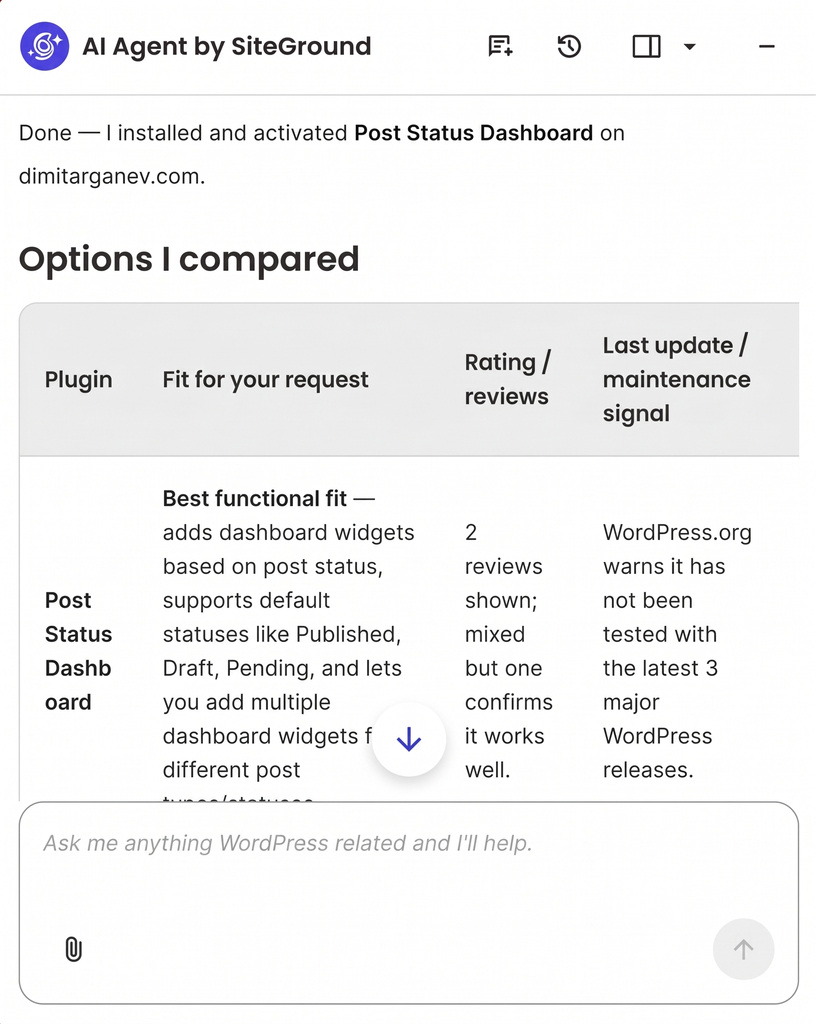
What happens if my card fails at the AI provider?

If your card fails at the AI provider, your WordPress AI features stop working, and nothing in WordPress explains why. It usually looks like a plugin problem until you check the provider’s billing dashboard. With managed access, billing runs through your existing account instead.