Vibe coder–developer collaboration: How to build an AI app together

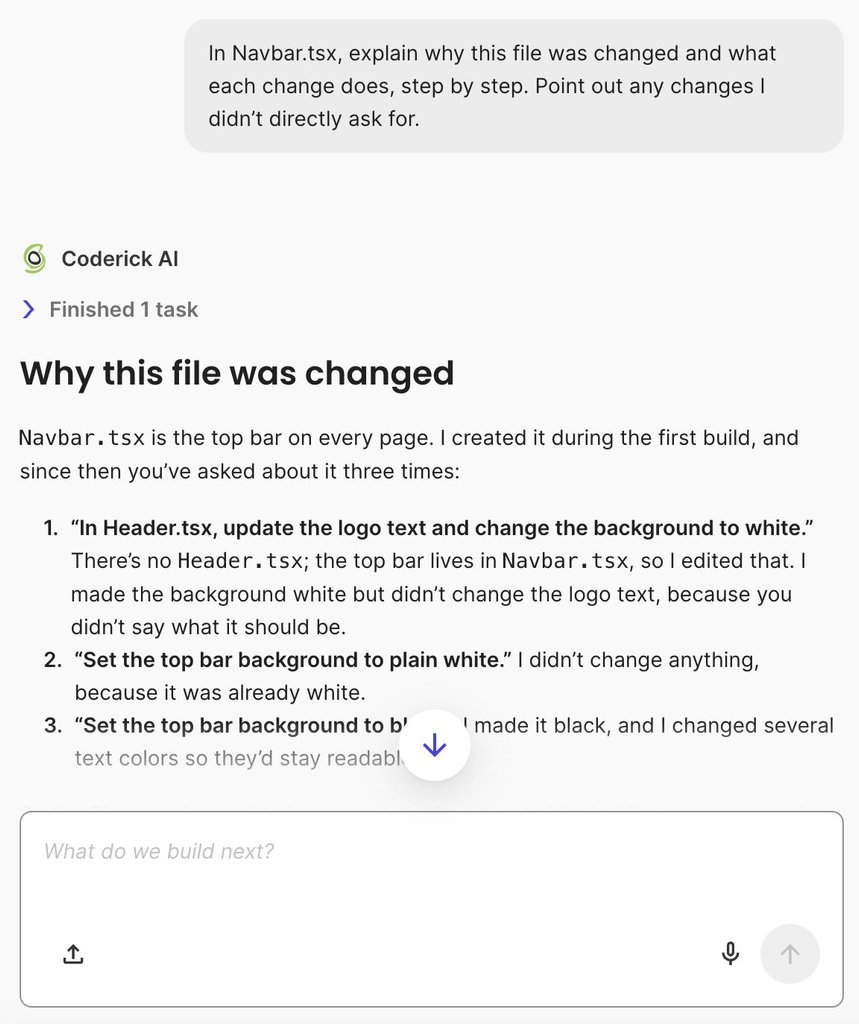
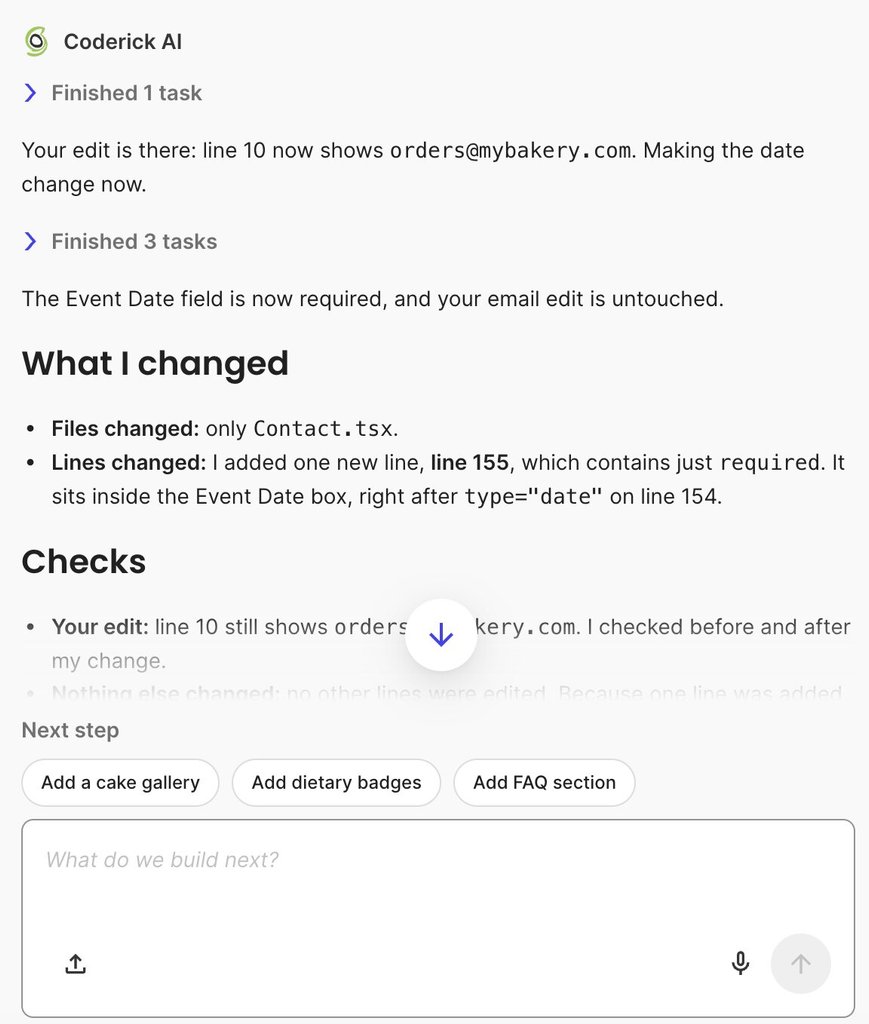
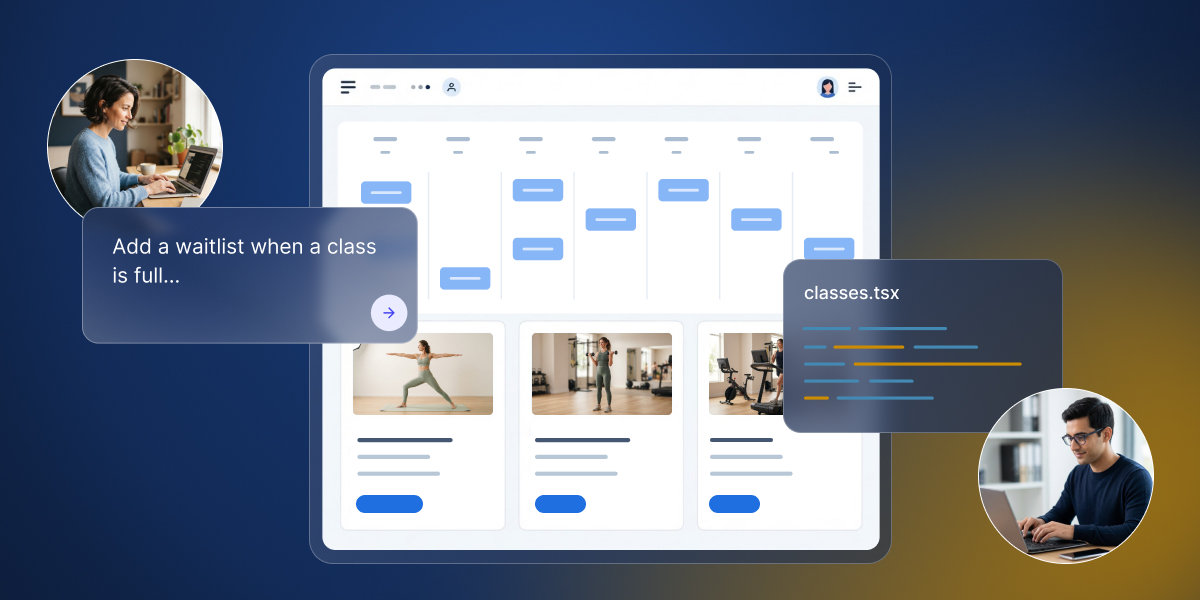
An illustration of two people collaborating on a fitness app dashboard, with one writing an AI prompt and the other editing the source code file.

If you vibe-coded an app with an AI app builder like Coderick AI and it starts gaining real traction, bringing on a developer can be a natural next step. This is when two very different perspectives meet: you know why every workflow exists, and the developer knows how software should be built. Crucially, neither of you wants the other to scrap progress and start over. 

A vibe coder–developer collaboration is a way of building an AI-generated app together in which the vibe coder keeps product authority and keeps contributing, and the developer takes technical authority, with agreed rules for who changes what and how changes are accepted.

Key takeaways:

  • A vibe coder–developer collaboration shifts your responsibilities: you keep building while bringing in technical expertise where needed.
  • Divide work by authority: you hold product authority (what to build), while your developer holds technical authority (how to build it).
  • Define change tiers: agree upfront on edits you handle solo, those requiring joint review, and those reserved strictly for developers.
  • Validate every change twice (for product behavior and code quality) and save version checkpoints as you go.

Vibe coder–developer collaboration: what changes when a developer joins

Many small businesses and entrepreneurs invite a developer once their AI-coded minimum viable product (MVP) gains real traction, especially when adding more complex features or third-party integrations.

And when a developer joins your vibe-coded app, you have to bring domain context no one else possesses: why each workflow exists, how users interact with the app, and which features have been validated in production. Your developer brings technical expertise: how data is structured and secured, how architecture scales, and how to maintain the codebase as user demand grows.

That’s how a vibe coder can work with a developer without stepping back: you retain product authority (deciding what gets built and continuing to make changes in designated areas), while your developer assumes technical authority (deciding how it is built and structured). Neither role overrides the other: validated user workflows carry proven product value, while technical refactoring ensures long-term stability and security.

Good to know: Your developer is not required to keep the exact code the AI generated. What must survive is the validated user behavior (such as allowing members to book up to three classes per week). If a developer refactors the booking logic for performance or security, that core business rule must remain untouched.

How vibe coders and developers divide responsibilities

How vibe coders and developers work together starts with deciding who has the final say on what. Dividing responsibilities by domain keeps work moving smoothly without bottlenecks, conflicting edits, or waiting on approval for routine tasks.

Decision domainFinal sayRationale
Feature scope & target audienceYou (Vibe coder)You understand customer pain points, business goals, and validated product workflows.
Copy, user experience flows, & feature prioritiesYou (Vibe coder)Messaging and roadmap prioritization stem from direct user feedback, which source code alone does not record.
Data schema & database designDeveloperSchema mistakes impact all live users and are costly to fix once real production records exist.
Authentication, payments, & integrationsDeveloperSecurity boundaries, environment keys, and third-party webhooks require technical governance outside the app interface.
Code structure & architectureDeveloperClean architecture allows both developers and AI agents to make ongoing updates without breaking existing features.
Change acceptance & approvalBoth (Separately)You evaluate and approve the change for product behavior; your developer evaluates and approves it for code quality and security.

Dividing authority doesn’t restrict who can actually write or prompt code. You can still prompt an AI agent to draft a new form field or page layout. However, authority determines who makes the final call. Before starting a new task, check where the decision belongs. If it touches your developer’s technical domain, align on the approach before committing changes.

Agree which changes need the developer

Without a shared agreement on workflow tiers (simple categories that divide tasks by technical risk and required oversight), every update either stalls while waiting for developer approval or gets published blindly, risking surprise bugs and broken features. Clear tiers are what let you collaborate with a developer on an AI-built app without slowing each other down: you iterate on design and content, and the parts that keep the app running stay with your developer.

Think of it like running a restaurant: you can freely rewrite the menu or rearrange the dining room, but you leave the electrical wiring and kitchen plumbing to the professionals.

Tier 1: Changes you make on your own (vibe coder solo)

You don’t stop building just because a developer joined your team. Tier 1 covers low-risk visual and copy adjustments that live entirely in the “front of house”, such as rewriting headline text, updating descriptions, swapping images, or tweaking color schemes.

The quick rule of thumb: Ask yourself, “Does this change only affect what a user reads or sees on screen, without changing how information is saved, calculated, or retrieved?” If yes, you can safely prompt or edit this on your own.

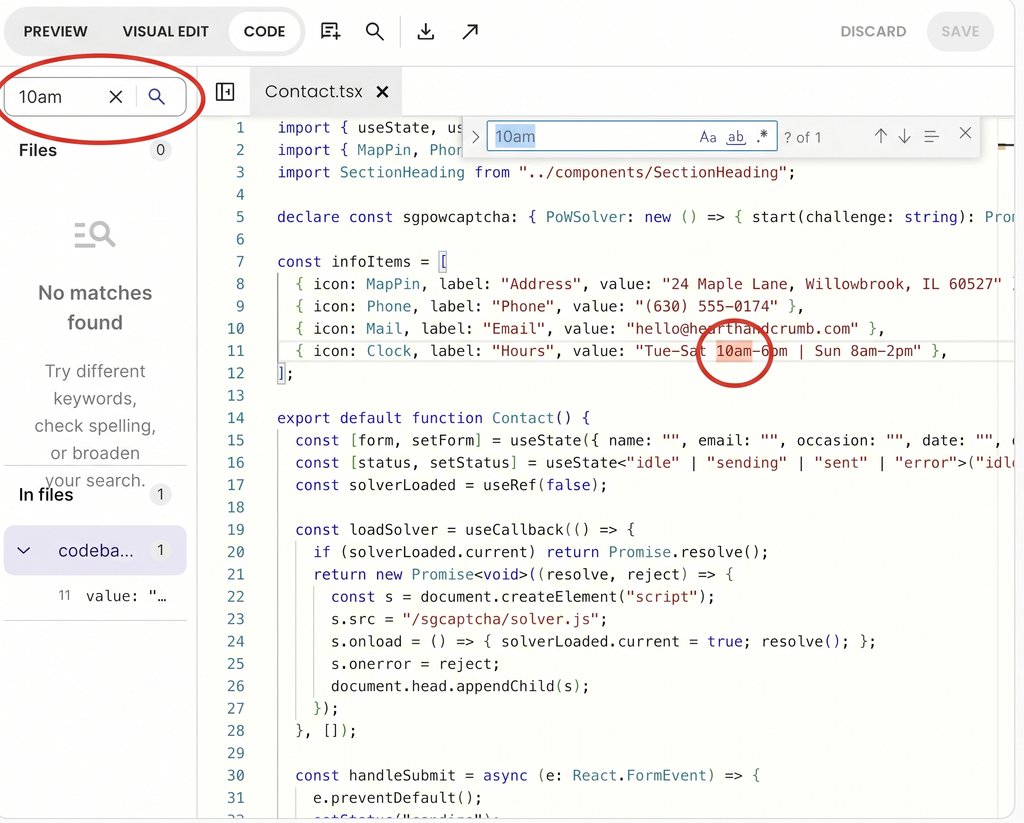
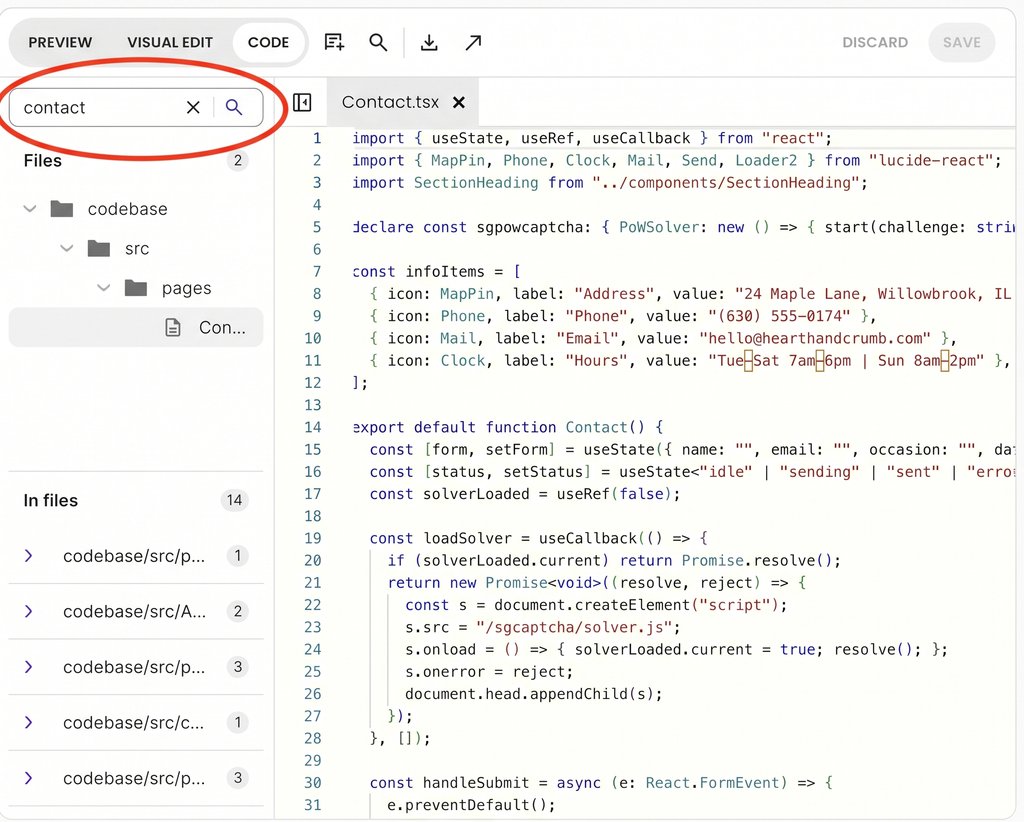
For example, suppose you want to update your email on your contact page. It’s a simple fix you can easily do without your developer. And while you could prompt the AI to make the change, if you work in an AI app builder where you can edit the code directly, like Coderick AI, there’s no need to spend AI credits on such a tweak. You can simply open the Code tab, search the project for “email”, enter your new email address, and click save. The edit takes a few seconds, requires no developer review, and costs zero credits.
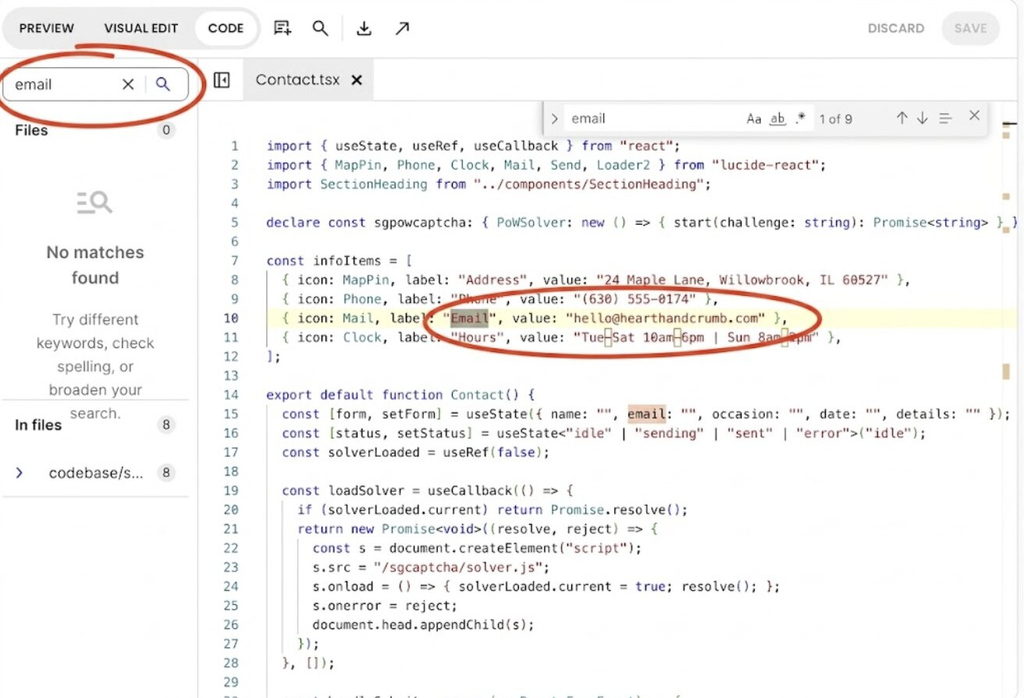
Screenshot of a code editor displaying the Contact.tsx file, with red circles highlighting the search bar and the email line in the code.

Tier 2: Changes you draft for developer review (vibe coder + dev review)

This tier covers new page screens and edits to shared components—elements reused in multiple places across your app, like a primary booking button or header menu. You use AI to draft the visual layout and user flow, but your developer inspects the generated code before it goes live to ensure it connects cleanly to existing features.

Real-world example: You prompt the AI to build a new waitlist screen. You generate the layout and buttons yourself, but your developer reviews the code before merging it into production to verify that waitlisted members are properly saved in the database without messing up active bookings.

Tier 3: Changes only your developer handles (developer solo)

This tier includes the essential “plumbing” of your app: database schemas (how user accounts and records are linked), user login security, payment processing, and third-party integrations (connecting your app to external services like complex accounting software).

Because errors here can crash your app, these high-risk areas belong to your developer. Giving them technical authority over Tier 3 prevents security vulnerabilities and ensures your application stays fast and stable as user traffic grows.

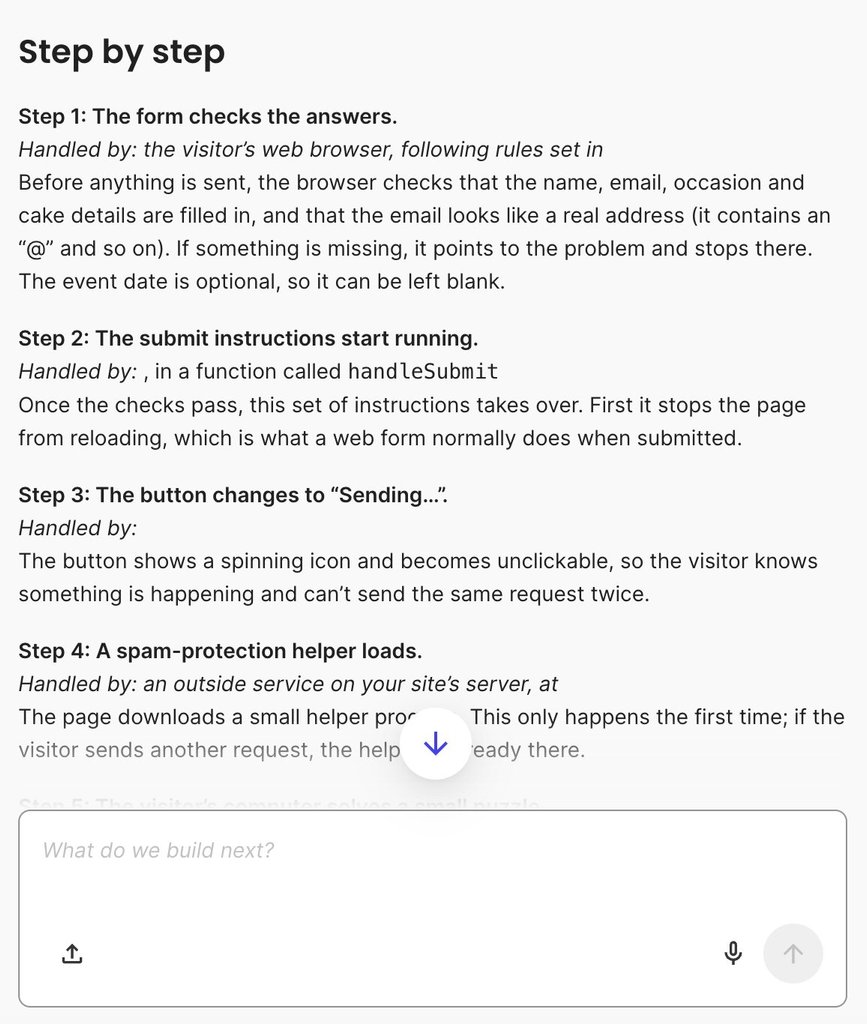
For example, while you are in a file like Contact.tsx updating your email, you might spot surrounding code for anti-spam checks or automated email service calls. Recognizing those complex backend mechanisms as Tier 3 elements allows you to leave them untouched for your developer to maintain, test, and secure.
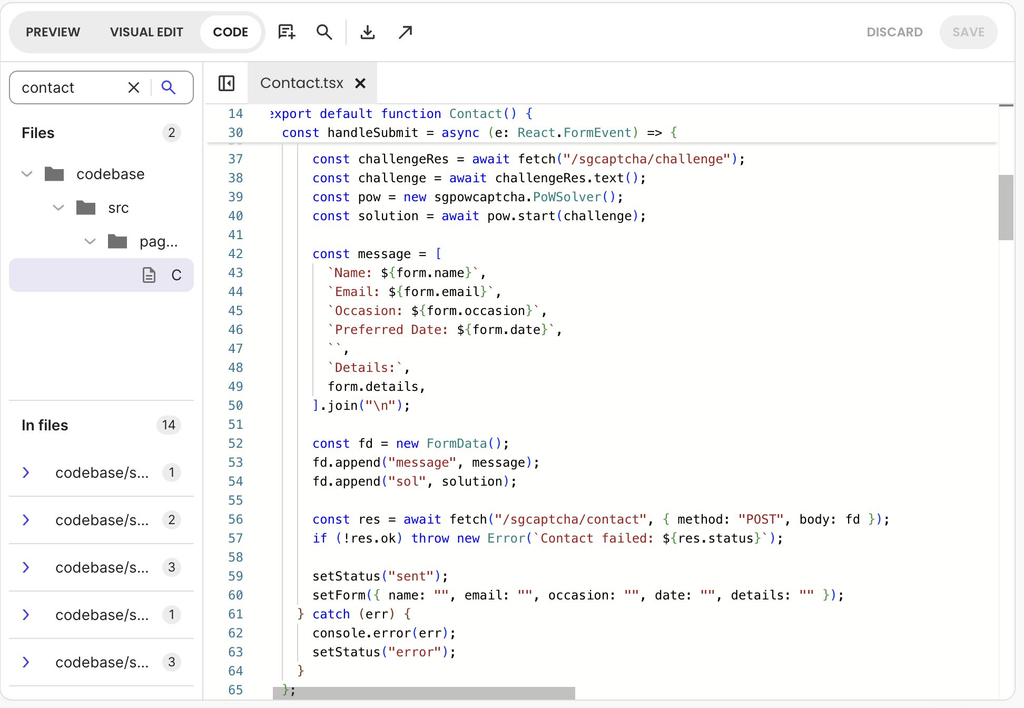
Screenshot of the Coderick AI code editor displaying the Contact.tsx file with anti-spam captcha verification logic inside the handleSubmit function.
Screenshot

Pro tip: Keep your agreed boundaries in a simple, accessible document so both of you know who owns what from day one. Explain your responsibilities: for instance, noting that text edits and page layouts are your solo domain, new feature screens require draft and review, and database structures, login systems, and payment integrations are developer-only. As you build trust and smooth out your workflow, you can periodically revisit the note together and shift specific tasks between categories.

Share context in both directions

In vibe coder and developer collaboration, each of you needs what the other knows. To collaborate on AI-generated code, you each need what the code can’t show: why a feature exists, and how your developer expects future updates to be handled. Exchanging context ensures your developer understands your product vision while you gain the technical guardrails needed to keep prompting safely.

What you bring to your developer: product context

A brief product context document gives your developer essential background that source code alone cannot convey:

  • Workflow intent: Explain why key features exist and who uses them (e.g., “The waitlist feature exists because popular evening classes fill up within minutes”).
  • Validated rules: Outline core business constraints discovered through user feedback (e.g., “Instructors requested a hard limit of three class bookings per week per member”).
  • Rejected alternatives: Document discarded ideas so your developer doesn’t accidentally re-introduce them (e.g., “We dropped credit packs because members found the conversion rate confusing”).
  • Key prompt history: Point to the main prompts or chat threads that generated core components so your developer can see how features were originally specified.

Sharing and grounding this product context becomes much easier when working in AI app builders that let both creators and developers inspect project files alongside their prompt history. For example, in Coderick AI, as shown above, both you and your developer can open the Code tab to view, search, and inspect source files.

Referencing specific files while discussing your product context ensures you are both examining the exact same codebase when mapping out workflow intents or reviewing original build prompts.

What your developer brings back to you: technical guardrails

Your developer provides the technical conventions that keep your future AI prompts on track:

  • Fragile areas: Flagging complex files or backend logic best left to manual coding.
  • Data conventions: Setting rules for how information should be structured (such as standardizing date and time formats across the database).
  • Architecture updates: Explaining structural changes made during refactoring so you understand where features now live.
  • Under-construction zones: Outlining temporary “no-prompt” zones while backend re-architecting is in progress.

A short walkthrough of where the important behavior lives, such as which file handles bookings, helps you find your way around the generated code. Your developer can also download single files or the full project to review and refactor using their own local development tools before pushing updates back to your app.

How vibe coders and developers avoid conflicting changes

When you work with a developer on a vibe-coded app, one of you can undo the other’s work by accident. If one partner saves a change while the other continues prompting from a stale copy of the project, the first update disappears the moment the second set of edits is saved. Establishing four simple habits eliminates conflicting edits and forms the core of a reliable vibe coder–developer workflow.

1. Before you start: announce where you are working

Send a quick, one-line message in your team chat before starting (for example, “I’m working in Contact.tsx this afternoon”), If your developer is already active in that file, wait for them to finish or focus on a different part of the project.

2. While you work: enforce one person per file

Restrict edits in any given area to one person at a time, whether those updates happen through AI prompts, point-and-click visual editing tools, or direct code edits. As long as you stay in separate files or components, both of you can build at the same time without friction.

3. When a change is accepted: mark it with a version checkpoint

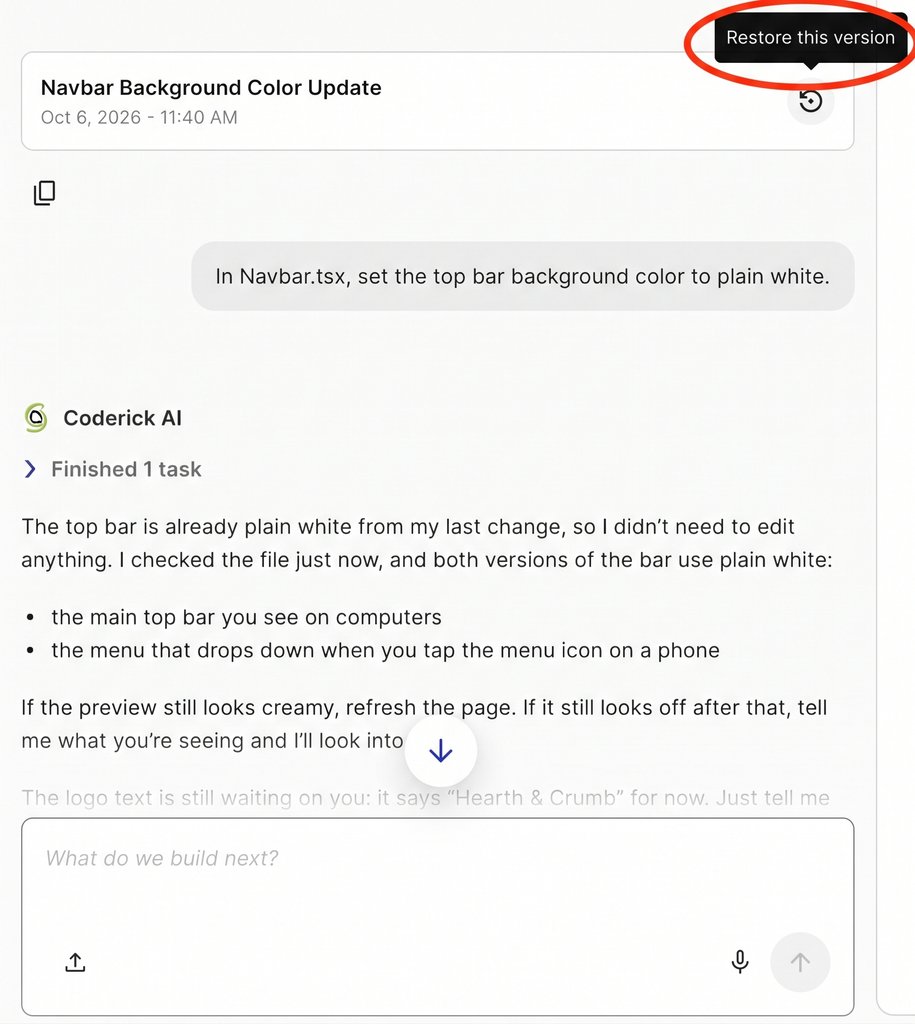
Most modern AI app builders generate version checkpoints or restore points whenever a prompt runs or files are saved. Once a set of changes is tested and accepted by both of you, note that specific version so you have a verified, stable baseline to return to if a later prompt goes wrong. For example, in Coderick AI, both AI prompt generations and manual changes in the Code tab create distinct version cards in your project history, making it easy to mark and return to accepted milestones.

4. Before editing where your partner worked: catch up on context

Review what changed and why before touching a file your collaborator modified. Then, brief the AI at the start of your next prompt by describing your partner’s recent changes, ensuring the AI’s project context stays fresh and doesn’t overwrite completed work.

In practice: Work under separate user accounts rather than a shared login so every edit and version checkpoint remains clearly attributed. When a developer refactors files or works in local development tools, ensure those updated files are saved back to your AI builder (for instance, using the live Code tab in Coderick AI) so the AI agent always reads the latest codebase for future prompts.

Accept changes together

Before either of you builds on a new update, it requires two distinct “yeses”: one for product behavior and one for code quality. A change is only fully accepted when both conditions are met, establishing a clean, reliable milestone for future work.

1. Product acceptance (vibe coder)

You test the feature from an end-user perspective to verify that it functions smoothly in real-world scenarios, follows the correct user flow, and displays the agreed copy. For instance, if you added an automated notification feature, test it on a mobile browser exactly as a real user would experience it.

2. Technical acceptance (Developer)

Your developer inspects the underlying code to ensure it is secure, performant, and structured cleanly before it becomes part of your core codebase. Once both of you sign off, mark this accepted state as a new version checkpoint in your AI app builder (such as saving a version card in Coderick AI) giving you a verified baseline to return to if a later prompt goes wrong.

When your developer rebuilds or refactors a feature

Sometimes your developer will need to completely rewrite an AI-generated feature behind the scenes, such as rebuilding how your database saves information so the app stays fast as more people use it. Before any technical rework begins, write down a non-negotiable list of core rules that must stay true no matter how the code changes.

For example, if your developer is rewriting how user forms and sign-ups work behind the scenes, your list of essential rules to preserve might look like this:

  • A user must receive an email confirmation immediately after submitting a form.
  • Submitting a form must automatically create a new record in your account dashboard.
  • Required fields, such as a user’s name and email address, cannot be submitted blank.

Your developer has complete freedom to replace, clean up, and optimize the underlying code, but the rebuilt feature must still pass product acceptance against your list of rules before either of you moves on to building new features.

How the split looks with agencies, freelancers and advisors

Developer collaboration on an AI-built app can take several different forms depending on your project’s stage and budget, whether you hire a full-service agency, engage an independent freelancer, or work with a technical advisor. Regardless of which model you choose, the foundational principles of vibe coder–developer collaboration remain the same: establishing clear authority, maintaining transparent boundaries, and agreeing on handoff rules before making changes.

For a vibe coder working with developers, what changes across these setups is who holds each type of authority and which specific operational details you must define upfront:

Collaboration modelProduct authorityTechnical authorityUpfront agreements
Agency Developer & ClientClientAgencyReview turnaround SLAs, designated client prompting zones, and deployment sign-off permissions.
Freelance Developer & Vibe CoderVibe CoderFreelancerWorkflow tier assignments, weekly code review hourly allocation, and publishing ownership.
Technical Advisor & BuilderBuilderAdvisor (Reviewer)Mandatory review triggers prior to change acceptance, and who executes developer-only tasks if the advisor does not write code.

Align on these operational points during your first kick-off conversation, before any code is written or prompted, and add them directly to your shared workflow document alongside your tier definitions.

An app you keep shaping together

Vibe coder–developer collaboration ensures your application stays in the hands of the person who best understands its purpose, enriched by a developer’s engineering judgment right where the software needs it most. AI-built app co-development relies on a few core agreements: dividing authority between product and technical domains, tiering changes by technical risk, exchanging context in both directions, and accepting updates together.

These agreements do far more than prevent overwritten code. They establish a sustainable, long-term framework that allows non-technical creators and professional developers to maintain and scale an AI-built app over the long term.

[96]

FAQs

How does vibe coder–developer collaboration work?

Vibe coder–developer collaboration works by splitting authority: the vibe coder keeps deciding what the app should do and keeps making agreed changes, while the developer decides how it’s built and reviews or makes the technical changes. Both accept a change before anyone builds on it.

What should the vibe coder own and what should the developer own?

The vibe coder should own what the app does, who it serves, its flows and its copy. The developer should own the data model, sign-in, payments, integrations and the app’s structure.

Can a non-developer keep building after a developer joins?

Yes. A non-developer can keep making changes after a developer joins, within areas both agree on, such as copy, layout and small adjustments. Changes to stored data, sign-in, payments or shared parts go through the developer.

How do developers and vibe coders avoid conflicting changes?

Developers and vibe coders avoid conflicting changes by working in one area at a time each, saying where they’re working before they start, and marking every accepted change with a saved version to return to.

How do you preserve product context when a developer joins?

You preserve product context when a developer joins by writing down what each workflow is for, what users have validated and which decisions were made, and by staying involved so the context keeps growing.

Does the developer have to keep the AI-generated code?

No. The developer doesn’t have to keep the AI-generated code. What must survive is the behavior the vibe coder validated, which the rebuilt part is checked against.
From platform choice to first commission: build a successful affiliate marketing website

Laptop showing a website editor beside steps to register a domain, set up hosting, add affiliate links, and earn commissions

You’ve decided you want to earn through affiliate marketing, but you haven’t picked a website building platform yet, and every option online promises it’s the easiest, fastest, or cheapest way to get started. It’s tempting to just sign up for whatever’s out there and figure out the rest later. But the platform is only one piece of the puzzle: several other steps come before and after it that shape whether your affiliate site will succeed.

This guide walks you through the full process of creating a website for affiliate marketing, so you can make the right call at each step.

Key takeaways:

  • The domain, platform, and hosting you choose all affect your rankings, so treat speed, security, and a memorable domain name as priorities from day one, not afterthoughts.
  • Website structure and navigation work together: a clear hierarchy of homepage, categories, and posts helps search engines understand your site, while a well-organized menu and footer help visitors actually move through it.
  • Organize your content around pillar posts that link to narrower cluster posts; broad topics are harder to rank for early on, so cluster posts are your realistic starting point.
  • Place affiliate links naturally, since adding too many can look spammy to both readers and Google.
  • Backlinks and a connected website, email, and social presence compound your traffic over time, giving a website an edge no other channel can match.

Benefits of having a website for affiliate marketing 

Affiliates find success on different marketing channels, but a website gives you advantages that others can’t quite match:

  • Full control over your content: no platform can ban your account or decide who gets to see your posts. You own the site and everything on it, and if something goes wrong, you can restore it from a backup instead of waiting on a platform’s support team. Search updates can still shift your traffic, but you can see what changed and adjust. 
  • Long-term earning: a blog post that ranks can keep bringing in visitors and commissions for months or years after you publish it. It still needs occasional updates, like refreshing prices, fixing broken links, and checking that your recommendations hold up, but that’s far less work than producing new social posts every day. 

How to create a website for affiliate marketing in 8 steps

While there are many examples of affiliate marketing websites, most take the form of a blog. That’s because blogging gives you the space to demonstrate real knowledge and hands-on experience: content based on personal use, real screenshots, and first-hand observations builds the kind of trust that makes readers more likely to act on your recommendations and click your affiliate links.

Whether you build a dedicated blog or add one as a section of a broader site, the steps in this guide apply the same way.

Step 1: Figure out your niche

Before doing anything else, you need to choose your niche, or your site’s focus. Everything that follows like your content, target audience, and the affiliate programs you join flows from this choice. If you haven’t selected one yet, these questions will help you brainstorm potential niches:

  1. Do people already follow you somewhere, and do you know what draws them in?
  2. Are you an expert in a particular field? 
  3. Do you have a hobby or passion you want to monetize?
  4. Is there a product or service you really like? 

Once you have a few ideas in mind, you can narrow them down by checking whether people are actively searching for those topics. Free tools like Google Ads Keyword Planner provide search volume, competition levels, and keyword ideas directly from Google’s database to help you assess real demand before committing.

Step 2: Buy a domain name for your website

Choosing a domain name is the next important step when launching a website. It’s your address on the web and as such it shapes how search engines understand your site and determines whether someone can recall your name after closing the tab.

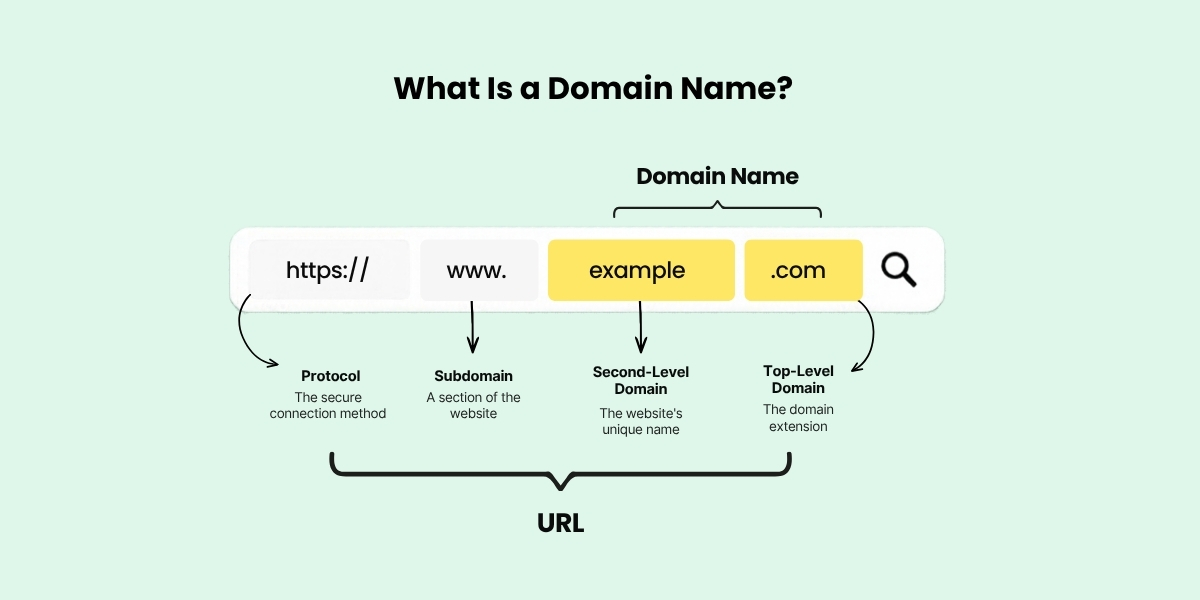
A detailed breakdown of a URL (https://www.example.com), labeling the protocol (https://), subdomain (www.), second-level domain (example), and top-level domain (.com), explaining how each component functions as an address on the web.

First, pick the name itself

If you already have an established social media account, using your @handle is a natural starting point. People searching for you will find all your platforms in one place, and the trust you’ve already built carries over to your website. Alternatively, you could pick a name that directly matches the keywords you want to rank for like “hostingpick” for a web hosting review site or “fitgearlab” for a fitness equipment site.

Second, choose your domain extension

A domain name isn’t complete without an extension, the part that comes right after the final dot. Google treats generic extensions like .com, .net, and .blog the same way in search rankings, so your choice mostly comes down to trust and memorability. The .com extension is still the one people recognize and type by default, while .blog is a good fit for content-heavy sites. Country-code extensions like .ca, .uk, or .de work differently though: Google reads them as a sign your site targets that country, which helps if your audience is local but can hold you back if you want readers worldwide.

Lastly, register it

Once you have a domain name picked out, the next step is to register it, as good domains go fast. Domain registration is generally inexpensive, but it’s important to remember that domains are not purchased indefinitely. You must renew your registration periodically (typically every year) and pay a renewal fee to keep your domain active.

Step 3: Choose your website building platform

While some affiliates still prefer a content management system (CMS) like WordPress to build their site, those just starting out often opt for the more modern approach of a website builder.

WordPressWebsite builder
Best forThose who want full control and flexibilityThose who want to get started quickly with no technical setup
Ease of useSteeper learning curveBeginner-friendly, no coding required
CustomizationAdvanced (themes, plugins, and custom code)Depends on the type of the builder
SEO toolsRequires an SEO pluginBuilt-in SEO features
AnalyticsRequires an analytics pluginIntegrated analytics

WordPress

Even though WordPress expanded far beyond blogging software long ago, it remains the most popular choice for affiliate publishers for several key reasons:

  • Limitless customization: Thousands of themes give you a starting point for the design, visual page builders let you customize it without touching code, and if you ever need something more specific, the source code is open for you to modify however you like.
  • Full control over your SEO: WordPress has a clean code structure that search engines handle well, and plugins like Yoast or AIOSEO let you manage every on-page element, including meta titles, descriptions, schema markup, sitemaps directly from your dashboard.

Compared to a website builder, WordPress has a steeper learning curve, mainly due to its sheer number of themes and plugins. Some of these come at a cost, which can add up over time, and installing too many can also slow down your site.

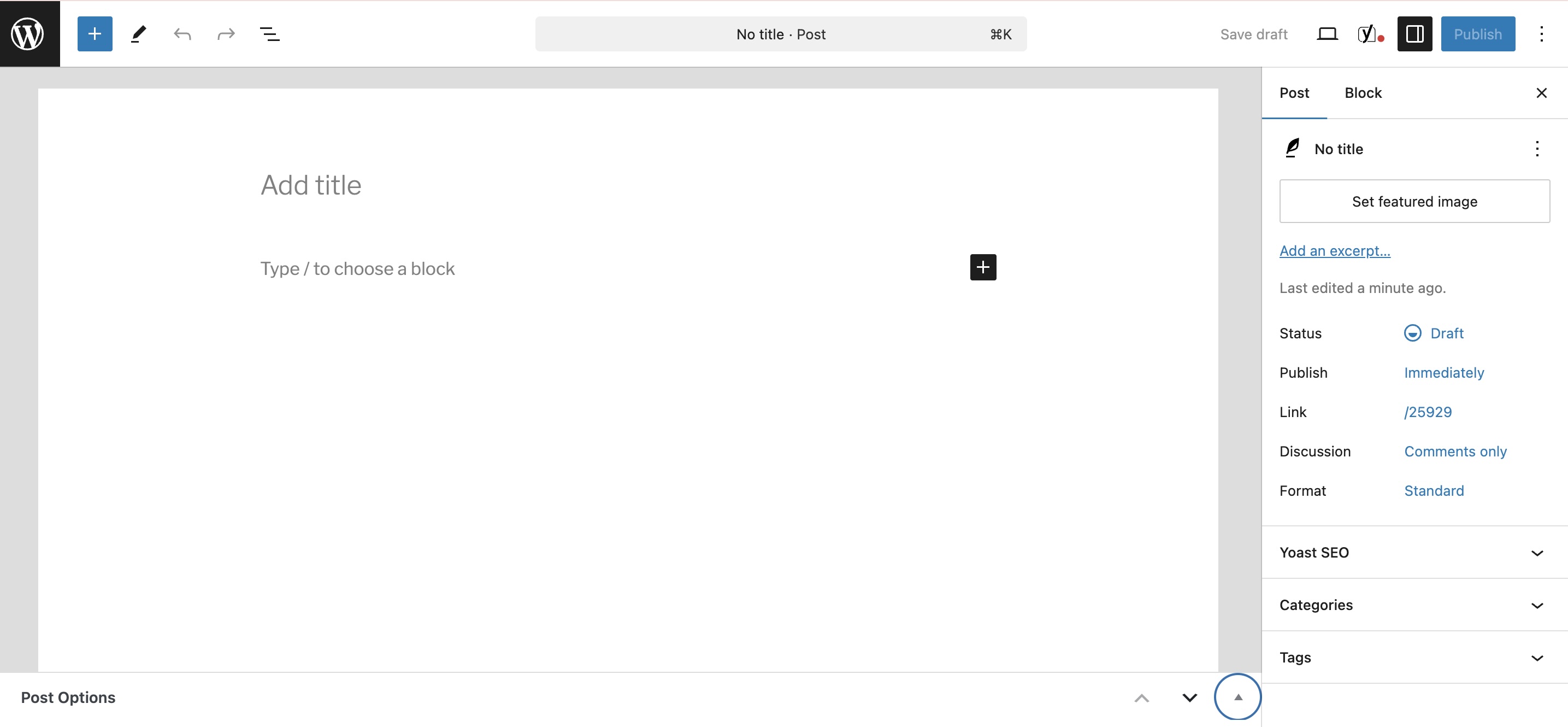
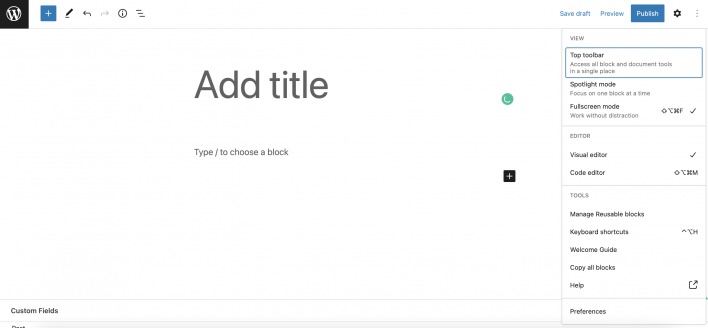
A screenshot of the WordPress post creation interface, showing the "Add title" field, main text editing canvas, and the right-hand sidebar with publishing settings, categories, tags, and Yoast SEO options.

This is how the blog post functionality looks inside WordPress.

Website builder 

A website builder offers a faster and simpler way to get a professional-looking site live, since you do not need to assemble third-party add-ons or themes from different marketplaces. Everything comes in one place and you can get straight into building. 

Most builders offer some combination of the following features:

  • Template-based: you start with a pre-built layouts and customize it with your own text, images, and colors.
  • Drag-and-drop: you design your site visually by clicking and dragging elements onto a page and positioning them wherever you want.
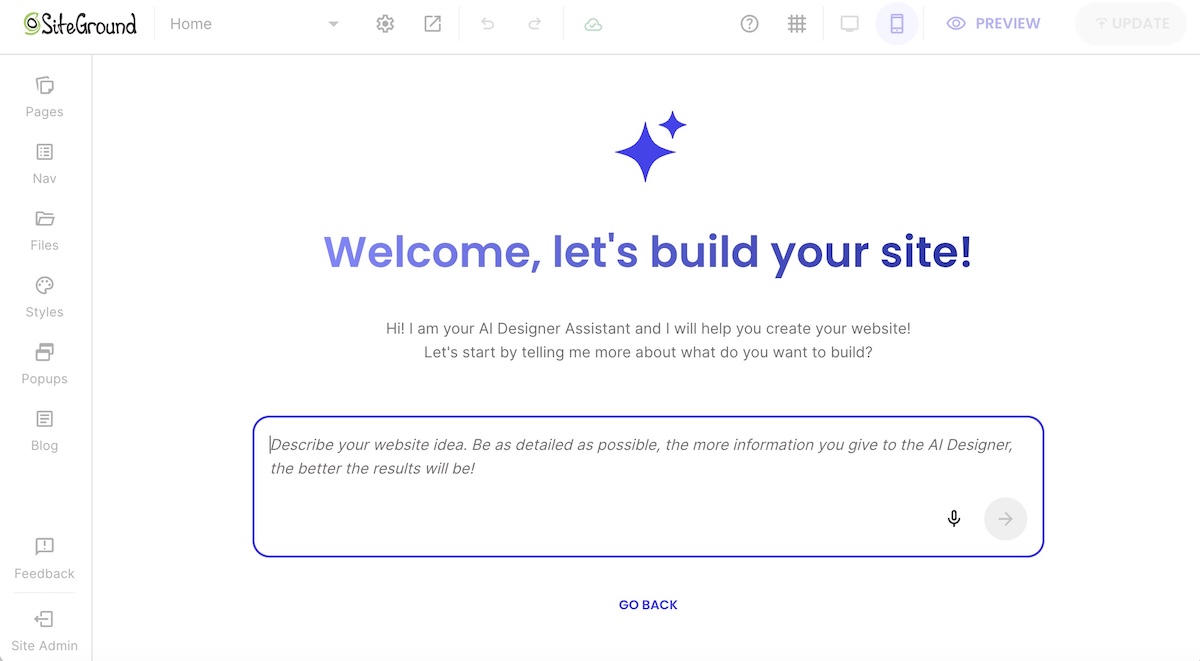
  • AI-assisted: instead of starting from a blank canvas, you answer a few questions or describe what you need, and the builder generates a personalized layout for you.

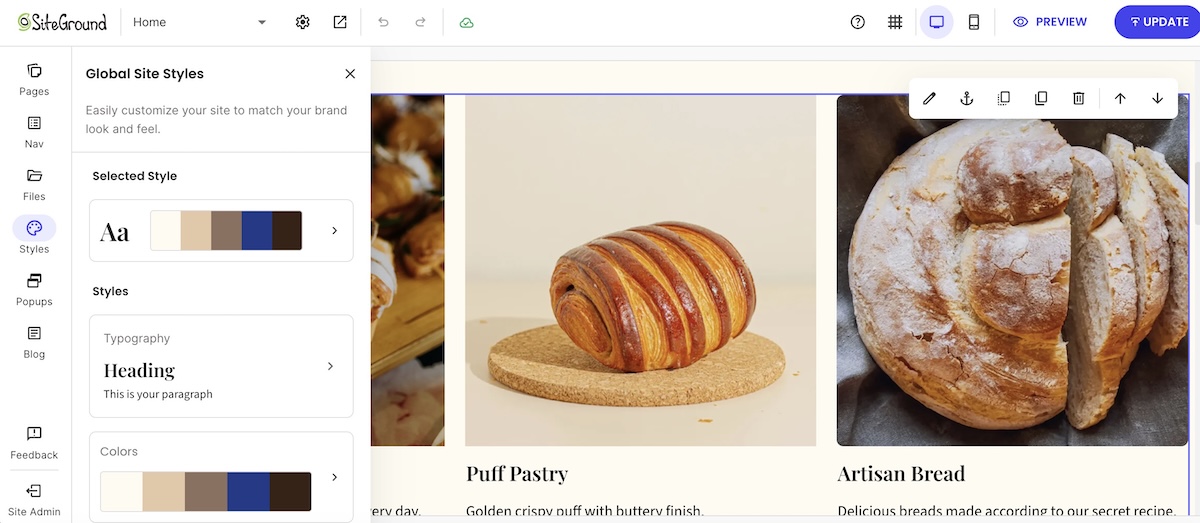
While these features simplify design and layout, not all website builders offer built-in blog functionality like WordPress, some might even sell it separately. SiteGround’s Website Builder, for example, includes it at no extra cost: you can customize how your blog listing page looks, choose what details to show (featured images, categories, reading time), and give each post its own SEO title, description, and social sharing image so every share looks intentional rather than generic.

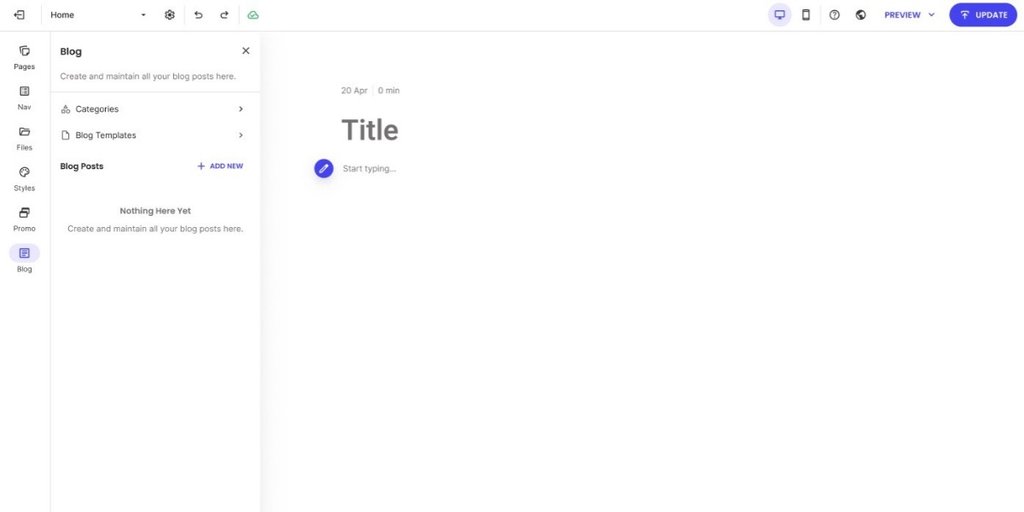
Screenshot of the SiteGround Website Builder dashboard showing the blog management interface, including categories, blog templates, and an option to add a new post.

This is how the blog post functionality looks inside SiteGround’s Website Builder.

Step 4: Find a reliable hosting provider

Next, you need to find a web hosting provider to make your site accessible online. If your host is slow, your pages will load slowly, which will frustrate your visitors and also hurt your search rankings. Constant downtime costs you traffic and trust, while poor security leaves your site vulnerable to cyberattacks, data loss, or blacklisting. 

To avoid such bad scenarios, here’s what to look for when choosing your web hosting partner: 

  • Uptime: a minimum of 99.9% uptime guarantee is the industry standard.
  • Security: check if the SSL certificate, a WAF, and automatic daily backups are included in the plan, not as add-ons. 
  • Support: 24/7 real, human support with multiple contact channels is a must-have.
  • That it’s managed (particularly important for WordPress): look for a provider that handles server maintenance, security patches, and updates for you, so you can focus on content rather than server management. Some providers even go a step further and an AI agent for WordPress in their plans. This extra feature  can help you save time and money when it comes to generating content, creating images, and managing routine site tasks directly inside your dashboard.

SiteGround checks all the boxes, with managed web hosting starting from $2.99/month. It includes free SSL, daily backups, a WAF, 24/7 expert support, and native AI functionalities.

Step 5: Structure your site for visitors and search engines 

While a reliable host keeps your site live, its structure and navigation are what keep it running. They let search engines crawl the site more easily and help visitors find what they need once they land on it. In practice, this means setting up your homepage, your categories, and your footer.

Homepage

Your homepage sits at the top of your site’s hierarchy and is typically the most authoritative page on your site. Links from it pass authority to your key category pages and pillar posts, helping those pages rank better as a result. It’s also the one most likely to attract backlinks from other sites (more on why that’s important in a later section). And since it’s the first stop for your visitors, it should clearly communicate what your site is about and guide them toward your most important content.

The example below does these three things well. Not only does it immediately communicate what the site is about (WordPress tutorials for beginners), but it also organizes everything around what the visitor is trying to do like starting a blog, WordPress SEO, building an online store, and more. 

A screenshot of the "Beginner's Guide to WordPress" homepage, featuring a large orange banner highlighting expert WordPress tutorials, quick links to core topics (Starting a Blog, SEO, Performance, Security), an email subscription form, and a portrait of the founder.

Category pages

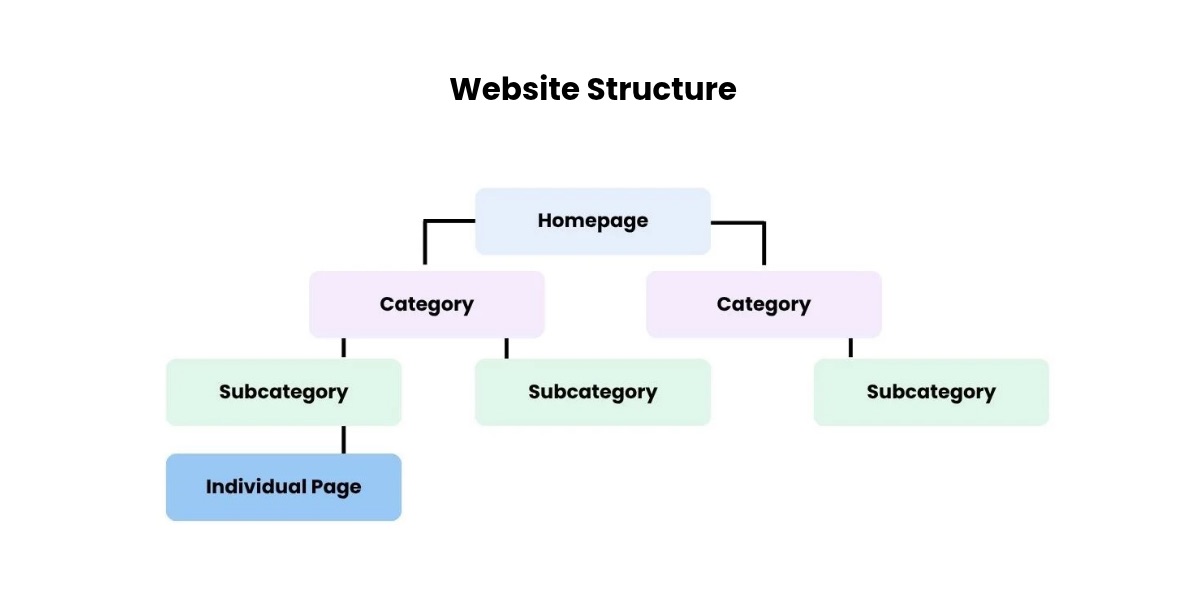
Below your homepage sit your main categories or pillar content, the pages that group related posts together and typically make up your header menu.

A hierarchical flowchart illustrating optimal site architecture, starting from the Homepage at the top, branching down into Category pages and Subcategory pages, and leading to Individual Pages at the base.

The number of categories you need depends on what your site covers. A pure blog might only need a handful of topic categories like “Tutorials” and “Reviews,” plus an About and Contact page, but if you also offer an online course or want a dedicated place for all your affiliate recommendations, those deserve their own tab in the navigation too.

For a newly created website, it’s best to keep the category count low. Managing too many makes it difficult to organize content properly, increasing the risk of creating orphan pages – articles with zero internal links pointing to them. Without those internal links, it’s nearly impossible for Google to surface your content, no matter how good it is.

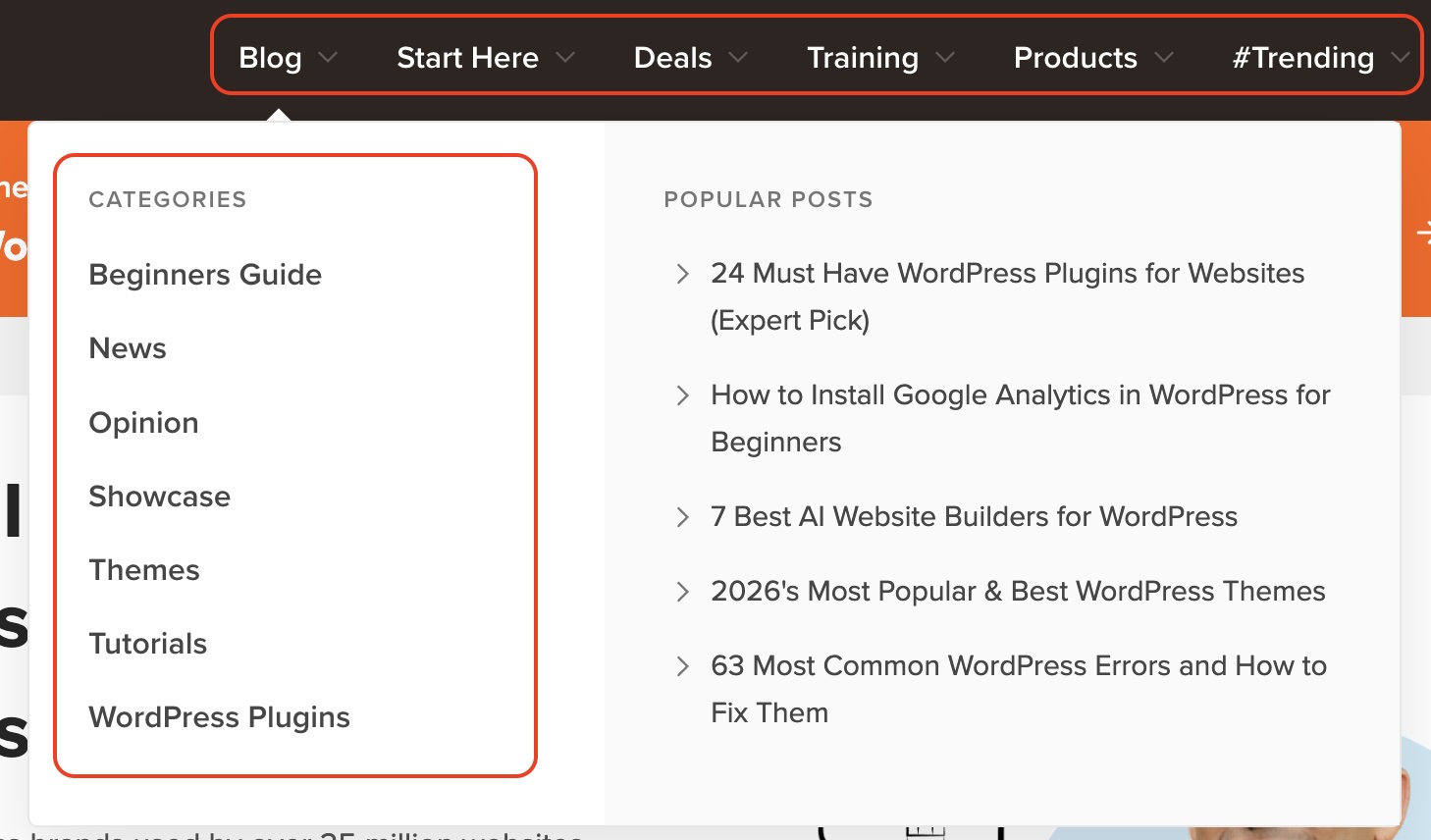
Beyond that, your header navigation should tell visitors where to go, not just what kind of content exists. The example below shows six tabs serving visitors at different stages: someone just starting out, someone ready to buy, someone looking to learn, and someone browsing what’s popular. Notice also how the Blog dropdown combines categories on the left with popular posts on the right, giving visitors two ways to find what they need without having to dig.

A screenshot of an expanded website navigation menu, showing a left-hand column listing content categories (Beginners Guide, News, Opinion, Tutorials) and a right-hand column displaying popular articles.

Your footer is where visitors expect to find links to your legal pages. Some are required by law, while others are strongly recommended. 

Legal pageWhat it isWhy it matters
Cookie policyA page explaining the cookies your site uses, such as analytics and advertising cookies, and what each one doesIn the EU, the ePrivacy Directive and GDPR require visitors’ consent before you set non-essential cookies, which usually means a cookie banner with a clear opt-in, plus this policy
Terms of serviceThe rules governing how visitors can use your siteProtects you legally if a visitor misuses your content or services
Copyright noticeA statement asserting ownership over your content and graphicsMakes your ownership clear and discourages copying. Your content is protected by copyright automatically, but a visible notice removes any doubt
Privacy policyA page explaining how you collect, store, and use visitor dataRequired by law in both the EU and US. Without one, you risk fines and your site could get flagged
FTC disclosureA short statement telling visitors your content contains affiliate linksA footer disclosure page is a good backup, but it isn’t enough on its own. Every post with affiliate links also needs a short disclosure near the top, before the first link, such as: “This post contains affiliate links. If you buy through them, I may earn a commission”

The footer is also a good place to link back to some of your main categories, so visitors can jump anywhere without scrolling back to the top. You can also add links to your social media channels, so visitors can follow you where you’re already active. 

A screenshot of a website footer, displaying organized columns of links for site navigation, legal policies, free tools, and resources, accompanied by social media icons (Facebook, Twitter/X, Instagram, YouTube, LinkedIn, and Email).

Step 6: Join affiliate programs

By now, you’ve registered your domain, set up hosting, and structured your site, which together count as a live online presence for many affiliate programs to approve you.

You can find and apply to affiliate programs in one of two ways:

  • Affiliate networks: marketplaces housing thousands of brands. You create one account, then apply to individual programs from there, which makes it convenient if you want to compare and join several programs quickly.
  • A direct search: visit the website of any brand you want to promote and check the footer for a link labeled “affiliates,” “partners,” or “affiliate program.” You can also type “[niche] affiliate program” directly into your browser and the companies that have a dedicated landing page for it, will show up. 

Some of the programs you find by direct search are run directly by the company rather than through a network, meaning they run the program on their in-house software. The SiteGround Affiliate Program is one example: affiliates get a dedicated account manager who can help with everything from content ideas to account questions, rather than going through a third-party network. You can also benefit from both one-time and recurring commissions, 60-day cookies, and weekly payouts.

Step 7: Plan and write your first batch of content

With AI tools generating content at scale, the bar for what counts as useful has gone up. Readers and search engines are getting better at telling real experience from recycled information. The sections below walk you through finding topics worth writing about, organizing them to build authority over time, and getting the basics right so your posts have a real chance of not only ranking, but also being cited by AI. 

Find keywords to write about

Before you write anything, you need to know what people are really searching for. Keyword research is how you find the exact phrases your audience types into Google, so every post targets a real question rather than one you made up.

The first thing to understand is search intent, or what the searcher actually wants. “Best web hosting for small business” signals someone weighing providers before a purchase, a natural fit for a product recommendation. “What is web hosting” is someone still researching, with no clear plan to buy, so forcing an affiliate link in there feels unnatural and won’t convert.

There are five keyword types you should be aware:

Keyword typeExampleWhat it’s for
General comparisons“best [brand/product] for [use case/audience]”High search volume and competition, but easy to recommend products since the searcher expects a comparison
Branded comparisons“[brand] vs [competitor’s name]”Lower volume, but converts well since the searcher has already narrowed down their options
In-depth reviews“[brand/product] review”Lower volume, but targets readers who are close to buying and want a final opinion
Tutorials and educational content“how to [action] with [brand/product]”Non-commercial, but builds backlinks and trust, which supports your commercial content’s rankings
Competitor alternatives“[product/brand] alternatives”High purchase intent query from users looking to switch products or compare final options, making them easy to convert

Keep in mind that purely informational content has taken the biggest hit in traffic, since a quick AI summary can satisfy that kind of search without a click. Commercial content, comparisons, reviews, and “best of” lists, has held up better, since people weighing a purchase still want the reasoning behind a recommendation, not just a quick answer. That’s one more reason to prioritize the first three keyword types above as your foundation, and treat trust and authority content as the supporting layer around them.

To find these, start with a few broad seed terms related to your niche and run them through a keyword tool. Free options like Ahrefs’ keyword generator or Google’s Keyword Planner will show you search volume and competition, so you’re not guessing whether a topic is worth writing about. As a rule, don’t chase only the highest-volume keywords: they’re the hardest to rank for early on, so mixing in lower-competition terms gives your site a realistic way to start gaining traction.

Organize around pillars and clusters

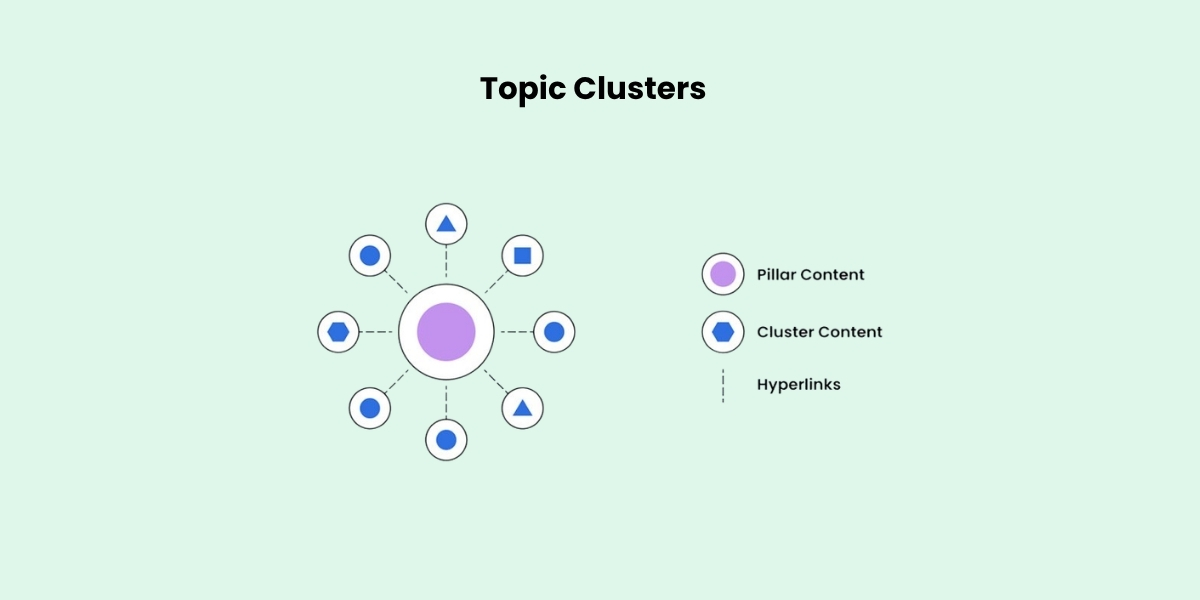
While researching keywords, it’s worth paying attention to how they connect to each other, since grouping related keywords under a shared topic gives your content a clear structure you could follow. This is what SEOs call a pillar and cluster model.

A diagram illustrating the pillar-and-cluster SEO content strategy, showing a central purple circle labeled “Pillar Content” surrounded by smaller blue circles for the connected “Cluster Content” nodes, linked through internal hyperlinks.

A pillar post covers a broad topic in depth, something like “The best web hosting for small businesses.” It then links out to narrower cluster posts that each cover one piece of that topic, like “Shared vs. VPS hosting” or “How to migrate your site to a new host.”

The reason this works is about competition. Broad pillar topics usually have high search volume, but that also means high competition, so a brand-new site has little chance of ranking for one right away. Cluster topics are narrower and easier to rank for, which makes them your realistic starting point. As each cluster post earns links and traffic, it passes some of that authority back to the pillar through the internal link, so over time the pillar becomes strong enough to compete too.

Optimize each piece of content for SEO 

Up until now, we’ve touched on SEO several times, and how important it is for your website to rank in search engines to get traffic. While writing your first blog post, there are a few SEO basics worth getting right, so the post has a better chance of ranking:

  • Put your keyword in the slug: the part of the URL after the domain should contain your primary keyword, with words separated by dashes.
  • Keep your title under 60 characters: check how top results have written theirs for a pattern.
  • Use subheadings to break up the content: H2s for broad sections, H3s for specific points.
  • Add original research or data where you can, such as your own testing or a small reader poll, since it outweighs a generic summary.
  • Add alt text to images: a short description helps both search engines and visually impaired visitors.
  • Utilize an FAQ section to work in long-tail keywords and increase your odds of appearing in Google’s “People also ask.”

Add affiliate links to your post as you write it, rather than treating it as a separate step afterward. The goal is not to sprinkle them through every paragraph so you don’t annoy your reader, but to include them where they feel like a natural part of the recommendation and where readers are most likely to click:

  • Near the top: grab attention early by adding a link right after introducing the product (for example, “SiteGround is our top pick for beginners, here’s why” with the anchor link on the brand name).
  • In the middle: reinforce your call to action after a value section, such as placing a “Visit SiteGround” button right after a pros and cons list or features overview.
  • At the bottom: catch readers who scroll all the way down with a closing call to action, such as “Ready to build your site? Try SiteGround.”
  • In sidebar or footer banners: use passive promotion like a “Save up to 83% on SiteGround hosting” banner without cluttering your article text with extra links.

Whichever placement you choose, mark every affiliate link with the rel=”sponsored” attribute. This tells Google the link is paid, which is what its guidelines ask for and protects your site from being seen as manipulating rankings. On WordPress, affiliate link management plugins can add the attribute automatically and turn long tracking URLs into short, readable links on your own domain, which also makes updating a link across every post a one-step job. 

Step 8: Drive traffic to your website

Ranking in search and getting cited by AI tools takes time. While your content works its way up, there are two things you can do in parallel to accelerate the process.

A backlink is a link from another site pointing to yours, and it’s one of the strongest signals search engines use to judge a site’s authority. Rather than cold outreach with a low success rate, focus on proven link building strategies that earn links through useful content rather than asking for them directly.

Get your other channels working together

Your website, email list, and social channels work best when they reinforce each other rather than running as separate efforts. This is what’s known as integrated marketing: a social post drives traffic to your site, your site captures emails, and your emails bring readers back to new content, so every channel does more than it would alone. 

If you haven’t set up an email list or a social channel yet, there’s no rush. It’s better to focus on your content for the first few months, then bring in these supporting channels once you have enough pieces to populate.

Launch checklist to gain traction quickly

You’ve covered a lot of ground. Use this as a quick reference to make sure every one of the steps is checked before the site goes live.

Foundation

  • Picked a niche you can commit to long-term
  • Registered a domain name 
  • Chosen a website building platform
  • Chosen a hosting provider with strong uptime, security, and support

Structure

  • Set up a homepage that explains your site and links to key content
  • Added a contact page and an about page
  • Built out header categories that match visitor intent
  • Created your legal pages and added them to the footer 

Programs and content

  • Built a starter list of keywords 
  • Mapped your first pillar topic and its supporting cluster posts
  • Published your first post with on-page SEO covered
  • Placed affiliate links naturally throughout your content

Traffic

  • Identified two or three realistic ways to earn backlinks
  • Set up an email list or social media channel for additional promotion

Your affiliate site doesn’t have to be perfect to start earning

The steps in this guide aren’t just a checklist to rush through, they’re decisions that build on each other. Choosing the right niche makes your content much easier to write, picking a platform that reflects your skills keeps setup manageable, structuring your site well maintains effective SEO, and creating content that reflects real experience is what improves both your search rankings and your visibility in AI-generated answers.

If you built your site with SiteGround, you’ve already used the product firsthand, which puts you in a great position to recommend it. Whether you choose WordPress or SiteGround’s Website Builder, both fall under the same affiliate program. You get a dedicated account manager, a 60-day cookie window, and high-reward weekly payouts. 

 FAQs about how to create a website for affiliate marketing

Can I start affiliate marketing without a website?

Yes, you can start affiliate marketing without a website, though most affiliates eventually create one. Some of the main benefits are that you have full control over your content (no host can ban your account, limit your reach, or decide who sees your posts), and if something goes wrong you can restore it from a backup instead of waiting on a support team. There are affiliate programs, particularly in the SaaS space, that require proof of an established website before approving your application.

What website do I need for affiliate marketing?

Most affiliate marketing websites take the form of a blog, because blogging gives you the space to demonstrate real knowledge and hands-on experience. Content based on personal use, real screenshots, and first-hand observations builds the kind of trust that makes readers more likely to act on your recommendations and click your affiliate links. 

Can I create a website for affiliate marketing for free?

Yes, you can. One option is using WordPress.com, which is the free version of WordPress. While it lets you build a site at no cost, it comes with some trade-offs: your site will use a subdomain (like yourwebsiteaddress.wordpress.com), feature the WordPress header, and display ads that you don’t have control over. Other free site building tools exist, but they impose similar restrictions that you can only avoid with a paid hosting plan.

How much does it cost to start an affiliate marketing website? 

Your main costs consist of a domain name (about $10–20 per year) and hosting. With SiteGround, hosting plans start at $2.99 per month and give you the choice between WordPress and SiteGround’s Website Builder, both of which include a built-in CDN, free SSL, and daily backups. You also get a one-year .com domain for free, so your starting cost is just $2.99.

How long until my affiliate website starts earning?

Most affiliate sites take 3 to 6 months to earn their first commissions. By the end of year one, consistent site owners usually see $200 to $500 a month, though your exact timeline depends on your niche, content quality, and posting schedule.

Which is the best website builder for affiliate marketing?

The best website builder depends on your specific goals, technical skills, and budget. Key factors to consider include ease of use, customization, built-in SEO tools, scalability, and pricing. Ultimately, choose the platform that best supports your content workflow and long-term affiliate strategy.

Website builder vs. WordPress: cost, upkeep & how to choose

Abstract of a website builder versus WordPress

A website builder gets you online fast and handles most of the upkeep. WordPress lets you build nearly anything, as long as you, or someone you pay, keeps it running. In the website builder vs WordPress debate, neither wins outright. The right pick depends on how much of your site you want to run yourself, and how many weekends you’re willing to give it.

Key takeaways:

  • A website builder is usually one subscription, though which features come standard, and which need a higher plan, varies by builder. WordPress software is free, but hosting, a domain, and yearly renewals for premium themes and plugins add up.
  • A builder can get a simple site live in a few hours. WordPress basics take a weekend, but a polished, customized design takes far longer, or a developer’s help.
  • Builders usually handle updates and security for you. Self-hosted WordPress needs weekly updates and monthly checks, and even managed hosting leaves plugin conflicts and premium plugin compatibility with you.
  • Pick a builder if speed and simplicity matter most. Pick WordPress if you need custom functionality, a large content library, or full control over your site and where it’s hosted.

What’s the difference between a website builder and WordPress?

A website builder is a hosted platform that runs your site for you, while WordPress is a CMS (content management system), software you install and run yourself on hosting you choose. That one difference shapes everything else in this comparison: who pays for what, who fixes what, and ultimately how far the site can stretch.

What is a website builder?

A website builder usually combines a visual editor, ready-made designs and templates, and hosting in one subscription. Most also handle security and updates, and many include support, though what’s covered varies by provider. You pick a design, add your own content, and publish.

staring a website from a template via SiteGround

Pros

  • Fast setup, with simple and professional sites often live within a few hours.
  • One bill usually covers hosting and updates.
  • Common features like forms, a blog, and basic SEO tools are usually built in.

Cons

  • Design flexibility varies by builder, and some limit how far you can move beyond the built-in layouts.
  • Features come from the platform, so a very niche need may have no built-in answer.
  • Your site usually lives on that platform, so switching later means rebuilding the design.

What is WordPress?

WordPress is free, open-source CMS software. You install it on the hosting provider you choose, shape the design with a ready-made theme or one you code yourself, and add plugins for features like contact forms, SEO settings, or bookings. In exchange for that freedom, hosting and upkeep are on you.

Pros

  • More than 60,000 free plugins in the WordPress.org plugin directory for adding features.
  • Full access to the code, so you can modify your site to your heart’s content, as long as you know how or are happy to pay someone who does.
  • You own your site, files and database included, and can move it to any host that supports WordPress.
  • A huge community means most problems already have a documented fix.

Cons

  • Hosting, a domain, and premium add-ons are separate costs.
  • Updates, backups, and security are your responsibility, or partly your host’s if it’s managed.
  • Troubleshooting is on you. When something breaks, the cause could be a plugin, the theme, a core update, or the server, and there’s no single place to check.

This comparison covers self-hosted WordPress from WordPress.org. WordPress.com is a hosted service built on the same software, and it behaves more like a builder.

Where do AI website builders fit in?

AI website builders vary more than traditional builders do. Most generate a starting site from a prompt or a few questions, then let you refine it in a visual editor or by giving the AI more instructions. Some host and maintain the site for you like a regular builder, while others generate code you host elsewhere, and some produce WordPress sites.

Building a website using AI or a template via the SiteGround Website Builder

WordPress is adding AI features too, both in the core software and through plugins. AI speeds up the first draft on either side, but the basic tradeoff between convenience and control doesn’t change.

How they compare where it counts

FactorWebsite builderWordPress (self-hosted)
Setup timeA few hours for a simple siteA weekend or more, plus learning time
Learning curveLow: visual editing, often drag-and-dropModerate: themes, plugins, and settings
CostUsually one subscriptionHosting and a domain, plus premium themes, plugins, or developer help
Design freedomVaries by builder, from template-based to highly flexibleNear-unlimited with themes and custom code
FeaturesBuilt in, but some may need a higher plan or paid add-onAdded through plugins
MaintenanceUsually handled by the platformHandled by you, or partly by a managed host
SupportVaries by provider, often covering the whole siteSplit up: your host covers hosting, each plugin’s developer or forum covers that plugin, and WordPress itself has community support only
SEO controlEssentials built inGranular, through plugins
PortabilityUsually tied to the platformMoves to any host that supports WordPress (files and database)

Ease of use and setup

Getting a site live and getting it to look right are two different timelines, and they differ more on WordPress.

Website builder

  • A visual editor and pre-designed layouts mean a simple five-page site can often go live in a few hours.
  • Many setup decisions are made for you, so there’s less to learn before you publish.

WordPress

  • Many hosts install it in one click, but you still set up the design, usually by choosing and configuring a theme, then pick plugins for things a builder includes by default, like contact forms or SEO tools.
  • You can learn the basics of the block editor in a weekend.
  • Customizing the design is where the steeper learning curve sits. A polished, on-brand site usually means wrestling with theme settings, plugin options, and sometimes CSS.
Adding a blog post via WordPress

Is WordPress hard to learn? The basics aren’t. A site that looks and works exactly the way you want is a different project, and it takes far more time than that first weekend suggests.

Cost

The sticker price is misleading in both directions.

Website builder

  • Usually one subscription that covers hosting and maintenance, and often support.
  • Standard features vary by builder. Things like an online store, bookings, or advanced SEO tools may require a higher plan or, where available, a paid add-on, so compare plans against the features you actually need.
  • Upgrades and extras like a custom domain raise the bill, but they usually stay with one provider instead of spreading across several.

WordPress

The software is free, but a working site comes with its own line items:

  • Hosting: prices range from a few dollars a month to much more for high-traffic sites, and many hosts include managed WordPress features even on entry-level plans.
  • Domain: usually $10 to $20 a year for a .com.
  • Premium theme: often $50 to $100. Many are annual subscriptions that tie updates and support to renewal, and skipping it means missing security fixes. Free themes exist too.
  • Premium plugins: single-site licenses for things like advanced forms, backups, or SEO plugins commonly start around $60 to $120 a year each, and higher tiers can top $300. Like themes, updates and support usually stop when the license lapses.
  • Developer help: billed by the hour when something breaks or needs building.

Those line items are why the total cost of a website varies so much. Then there’s your time: every hour spent updating plugins is an hour not spent on the business, and that cost never shows up on an invoice.

Design and customization

Both can produce a good-looking site. The difference is how much of the design you control, and how much work that control takes.

Website builder

  • Flexibility varies a lot. Some builders stick closely to their templates, while others let you rearrange sections and fine-tune styling freely without touching code.
  • Built-in design rules help non-designers keep spacing, fonts, and mobile layouts consistent.
  • Where a builder runs out of room depends on the tool. When it happens, it tends to be with highly custom layouts or interactive elements.
The SiteGround Website Builder with custom design elements

WordPress

  • Thousands of WordPress themes plus custom code mean there’s very little you can’t build.
  • That freedom costs time or money. Fine-tuning a theme to match your brand often means digging into settings or CSS, or hiring someone who can.

Features and add-ons

Builders typically include common features out of the box, while WordPress adds them through plugins.

Website builder

  • Common features such as forms, a blog, galleries, and basic SEO tools are usually built in. You switch them on rather than install them.
  • Built in doesn’t always mean included. Bigger features like a store may only unlock on higher plans.
  • Some builders extend features through an app market or third-party integrations, often at extra cost. Others build more into the platform itself, so key features come included, but you can’t add what the platform doesn’t offer. Either way, check that the features you need are covered before you commit.
  • Built-in ecommerce usually suits stores of many sizes.

WordPress

  • If a feature exists, there’s probably a plugin for it, from must-have plugins like backups and caching to very niche tools.
  • Plugins come from different developers and update on their own schedules. An update to a plugin, theme, or WordPress core can create a conflict that breaks a feature, scrambles a layout, or in the worst case takes the whole site down with a critical error.
  • For selling online, WordPress typically uses WooCommerce, a free ecommerce plugin that turns a WordPress site into a store.

Maintenance, security & support

This is where the two options differ most from day to day.

Website builder

  • With most builders, the platform handles updates, security patches, and backups.
  • Support varies by provider, but when it’s included, it usually covers the whole site, so there’s one place to ask when something breaks.

WordPress

  • WordPress itself has no vendor support, only community forums and documentation, so your host decides how much upkeep you carry.
  • Managed WordPress hosting takes on a large share. SiteGround’s Hosting for WordPress, for example, includes automatic core and free-plugin updates, the SiteGround Speed Optimizer and Security Optimizer plugins, 24/7 support, and staging on higher plans. 
  • Even on managed hosting, some jobs stay with you: keeping premium plugins and themes compatible, choosing plugins, and sorting out conflicts between them.

Here’s what that routine looks like for a typical WordPress site in 2026. Managed hosting can automate part of it, like core and free-plugin updates and daily backups, but checking the results still falls to you.

Every week

  • Update plugins and themes, starting with anything flagged as a security fix.
  • Confirm the latest backup actually ran.
  • Click through key pages and forms after updates to catch anything that broke.
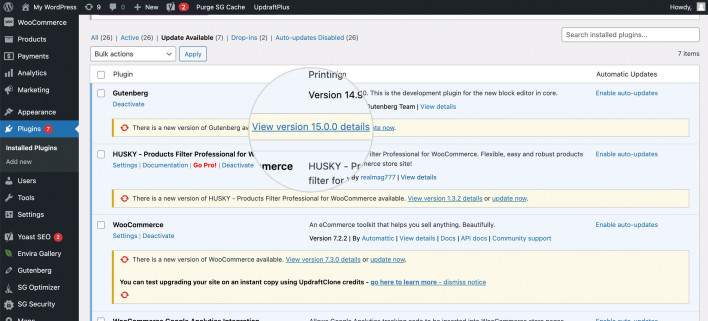
Updating plugins on the WordPress backend

Every month

  • Check plugin and theme compatibility after WordPress core releases, ideally on a staging copy first.
  • Test-restore a backup so you know it works before you need it.
  • Delete plugins and themes you no longer use. Deactivated code still sits on your server, and if it has a known vulnerability, attackers can sometimes exploit it even while it’s switched off.

None of it is hard. It just never stops.

SEO and performance

Both can rank. Search engines look at content quality, speed, and structure, and they don’t reward one platform over another.

Website builder

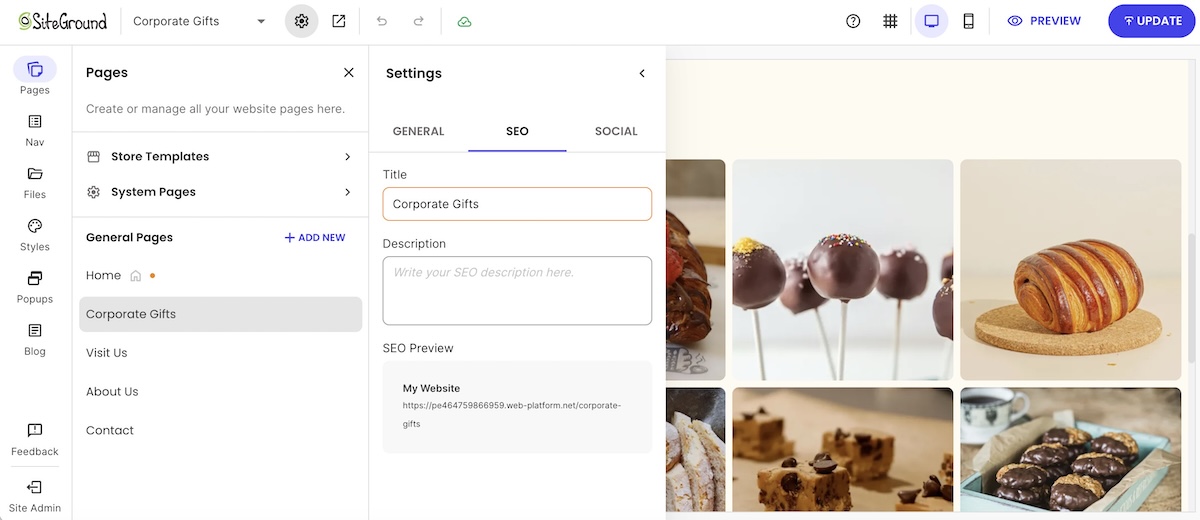
  • Most builders cover the essentials out of the box, such as sitemaps, SEO-friendly URLs, and meta fields.
  • Speed depends mostly on the platform, so there’s less to tune, but also less you can change.
SEO tools on the backend of the SiteGround Website Builder

WordPress

  • Plugins may offer more granular control, which matters most for content-heavy sites or technical work like custom schema markup. If WordPress SEO is where you’re headed, expect to configure more yourself.
  • Speed depends on your hosting, your theme, and how many plugins you stack.

Growing or moving your site later

Both options can grow with a business, in different ways.

Website builder

  • Growing usually means upgrading your plan and switching on built-in features, with no extra upkeep.
  • Most small business sites never outgrow that.

WordPress

  • It can stretch further for sites that need custom functionality, membership areas, or thousands of pages of content.
  • Complexity grows with it: more plugins, more updates, and eventually more developer time.

Switching later is possible. Leaving a builder, on the other hand, is usually the bigger job, since export options are often limited, so expect to copy content over and rebuild the design. WordPress is easier to move, though any switch needs redirects so old URLs keep working.

Where the SiteGround Website Builder fits
If the builder side of this comparison sounds like your speed, the SiteGround Website Builder runs on SiteGround’s own hosting infrastructure, with 24/7 support. You can start from a template or with AI tools, then adjust the design freely without touching code. Built-in SEO tools cover sitemaps, SEO-friendly URLs, and meta fields, and ecommerce is there when you’re ready to sell.
Start building your website now>>

Which one should you choose?

Match your situation to one of the two lists below. Whichever describes you better is your answer. 

Choose a website builder if…

  • You want your site live this week, not this quarter.
  • You’d rather not manage updates, backups, or security.
  • You’re building a brochure site, portfolio, or small store.
  • You prefer one predictable bill over several.
  • You don’t have a developer on call.
  • You want one place to ask for help when something breaks.

Choose WordPress if…

  • You’re running a content-heavy site or a blog with hundreds of posts.
  • You need functionality no builder offers, which is when a custom site starts to make sense.
  • You want full ownership of your site and the freedom to change hosts.
  • You have the time, or a developer, to handle ongoing upkeep.
  • You expect the site to grow into something much bigger, like a membership site or a large store.

[79]

Pick the tool that fits you best

In the end, the website builder vs WordPress choice is a trade between control and upkeep. WordPress gives you the most control, as long as you’re ready for the updates, troubleshooting, and renewals that come with it, and managed hosting can take a good share of that off your plate. A builder hands most of the upkeep to the platform, so your main job is making sure the plan you pick covers the features you need.

If you’d rather spend your time on the business than on the backend, the SiteGround Website Builder lets you start from a template or AI, with built-in SEO tools, ecommerce when you’re ready to sell, and 24/7 support behind the whole site. You can build everything free for 14 days with no credit card and only pay when you’re ready to publish. That way, your weekends stay free for something other than plugin updates.

Frequently asked questions

Is WordPress a website builder?

Technically, WordPress is a CMS (content management system) rather than a website builder. You can build a site with it, but you supply the hosting, theme, and plugins yourself, while a website builder typically bundles most of that into one hosted service.

Is WordPress outdated in 2026?

WordPress isn’t outdated in 2026. It still runs about 42% of all websites, according to W3Techs, and it keeps shipping updates, including built-in AI foundations in WordPress 7.0. The perception comes from simpler tools catching up and from site owners growing tired of maintenance.

Why are people moving away from WordPress?

The most common reasons people move away from WordPress are maintenance load and plugin complexity, especially on small sites that don’t need its flexibility. Simpler builders now cover what a typical business site needs. Traffic goes the other way too, as some sites that outgrow a builder move to WordPress for more control.

Is there a better website builder than WordPress?

It depends on what you’re building, because the two solve different problems. If you want speed and low upkeep, a builder fits better. If you need custom functionality and full control, WordPress does. The two checklists above will tell you which describes you.

Is WordPress hard to learn?

WordPress is easy to start with but harder to master. You can learn to publish pages with the block editor in a weekend, but customizing the design and getting the site exactly how you want it takes much longer, especially without coding experience.

Wix alternatives: 6 website builders that give you more design freedom (2026)

abstract of wix alternatives

Wix is easy to start and awkward to change your mind about. Pick a template in the Wix Editor and you’re committed: swapping it later means starting a new site. The Wix alternatives below take different routes, from builders that let you swap templates after launch, to AI that builds your site from a chat, to tools that hand you full control over your design.

Key takeaways:

  • Only two of the six Wix alternatives here, SiteGround Website Builder and WordPress, let you swap templates after launch. Squarespace, Hostinger, and Webflow share the Wix Editor’s limit, and GoDaddy’s Airo AI Builder has no templates.
  • The classic Wix Editor makes you adjust your phone layout in a separate mobile editor, and edits made there don’t carry back to desktop. Wix’s newer Harmony editor handles phones automatically, but existing sites can’t be moved into it.
  • Wix competitors build in very different ways: SiteGround lets you start with AI, a template, or from scratch, GoDaddy’s Airo works almost entirely by chat, and Webflow lets you design for four screen sizes separately.
  • AI shows up differently on each platform: SiteGround, Hostinger, and GoDaddy’s Airo can build a first draft from a description, Hostinger’s credits are a one-time allowance while GoDaddy’s renew monthly, and WordPress adds AI through plugins.
  • Support differs in what you can actually use: Squarespace has no phone support and live chat on weekdays only, while SiteGround offers 24/7 chat, phone, and tickets, and GoDaddy offers 24/7 phone and chat on paid plans.
  • Moving off Wix means rebuilding your design.

Why people look beyond Wix

Three limits come up when people look beyond Wix, and each one surfaces the moment someone wants to change something they’ve already built.

First, a quick guide to Wix’s editors, since they behave differently. The Wix Editor is its original drag-and-drop builder. Wix Harmony, launched in January 2026, is the newest: it blends drag-and-drop with built-in AI. Here’s what you’ll run into on both:

  • Templates are permanent. In the Wix Editor, the template you pick is the template you keep. Wix’s help center says changing a site’s template isn’t currently possible, even if you haven’t added any content yet. You can restyle everything on it, but a different template means a new site and reassigning your Premium plan and domain. Wix says the same about Harmony sites created with AI.
  • Your editor is a one-way street. A site built in the Wix Editor can’t move to Wix Studio or Wix Harmony, and a Harmony site can’t move to either of the others.
  • Mobile gets its own editor. In the Wix Editor, Wix builds your phone layout automatically, and you fine-tune the mobile design in a separate editor. Desktop changes carry over to mobile, but mobile tweaks don’t carry back. Wix Harmony is automatically responsive, but you can’t move an existing Wix Editor site into it, so it only helps new sites.

Long story short, if you care about design, or like to start with one idea and try another later, these moments of friction can be a real barrier.

What to look for in a Wix alternative

Five questions show whether a website builder gives you more room than Wix does. Pay special attention to the first one, because it’s the hardest to fix later.

  • Design freedom. Can you change templates after launch, and does the editor handle phones, tablets, and desktops without a separate layout to maintain?
  • Ease of use. Do you want to drag elements, chat with an AI, or edit code? Pick the functionalities you’ll still enjoy in six months.
  • What’s built in. Analytics, marketing tools, and a custom domain either come with the plan or cost extra.
  • AI. Build-stage AI drafts your site, and run-stage AI edits it afterward. Check whether credits are monthly, one-time, or unlimited.
  • Support and infrastructure. Check which support channels you get (chat, email, or phone) and when they’re available. Then check the hosting basics: storage limits, security such as SSL, and whether backups are included.

The best Wix alternatives compared

We picked six general-purpose website builders that cover different needs and budgets. Here’s how SiteGround Website Builder, Squarespace, Hostinger, WordPress, Webflow, and GoDaddy compare on price, design freedom, AI, and support.

PlatformPriceFree to tryDesign freedomAISupport
SiteGround Website Builder$10/mo (Build); no online selling, store plans from $18/mo14-day trial, no card; choose a plan to publishGrid editor, template switching after launch, automatic mobile optimizationAI Wizard, AI text and image generation24/7 chat, phone, and tickets on every plan
Squarespace$19/mo (Basic); includes online selling14-day trial; no free planDesigner-made templates; can’t swap templates on new sitesBlueprint AI on every plan; text AI uses no creditsEmail 24/7; live chat weekdays; no phone
Hostinger$3.99/mo on a 12-month term; renews at $10.99Free to try, no card; publishing needs a paid planDrag-and-drop editor, mobile editing; template fixed once chosen5 to 15 one-time AI credits24/7 AI chat
WordPressFree software, plus hosting and a domainSoftware is free; hosting isn’tThemes you can switch anytime, block editor, full code accessPlugins and connectors you addYour host or community forums
Webflow$15/mo (Basic); free Starter planFree plan, no time limit; publishes to a webflow.io addressDetailed visual control, with a separate design for each screen size; templates only start new projectsAI features run on credits; 200 a month on the free workspaceHelp center and community forum
GoDaddy$9.99/mo (Starter); lists online sellingFree plan to build and explore, no card neededChat-based, with small edits section by section; no templates; code download150 credits a month on Starter24/7 phone and chat on paid plans

Pricing, plan names, and features in this comparison reflect what was publicly available as of October 2026. Prices are each platform’s lowest-priced paid plan for a general website, on 12-month billing, in USD, and renewal rates can differ. Plans change often, so confirm current details with each platform before you decide.

SiteGround Website Builder

The SiteGround Website Builder lets you start with AI, start from a template, or start from scratch, and you can change templates after you’ve published.

  • Price: $10 a month on the Build plan, prepaid for 12 months and renewing at the same rate. The 14-day free trial needs no credit card, and if you add a store later, ecommerce plans start at $18 a month.
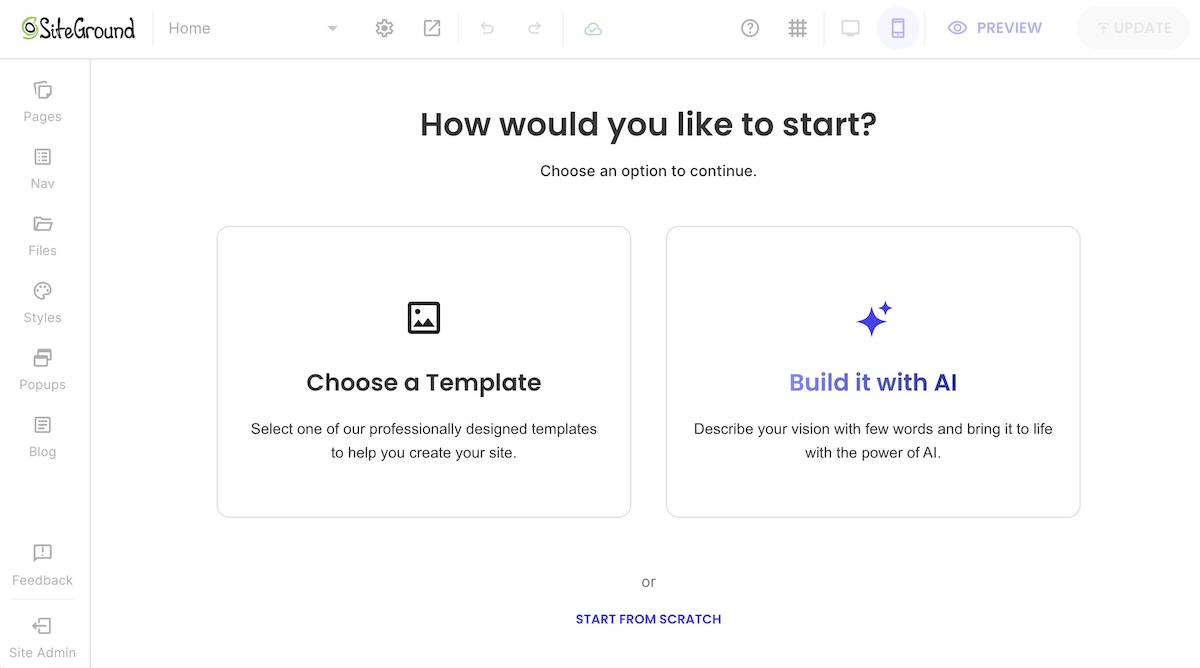
  • Design freedom: There are three ways to start: describe your site and let the AI Wizard build a first draft, pick a template and add pre-built sections, or build from scratch. Either way, you finish in the same grid editor, where you drag, resize, and layer elements wherever you want. If you change your mind later, Change Template lets you apply just the new style and keep your content; the other options replace your content too. Pages are also optimized for every screen size automatically, so there’s no separate mobile layout to maintain.
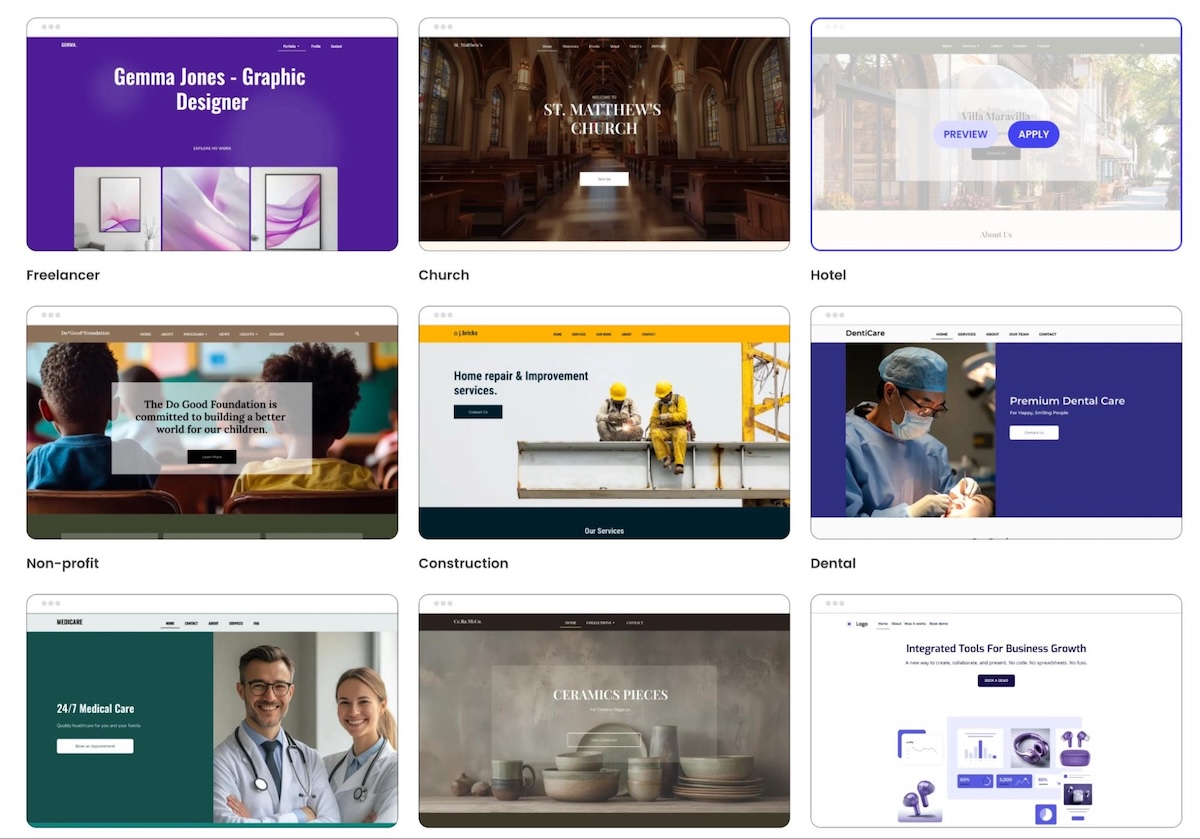
starting a website from a template via SiteGround

AI: The AI Wizard handles the build-it-for-me path, and AI text and image generation come with the plan for anything you add afterward, using a free allowance of 20,000 tokens a month. For broader work, SiteGround AI Studio offers a multi-model AI workspace.

Using an AI website builder such as the AI Wizard to build a website via SiteGround
  • Support: Every plan includes 24/7 support by chat, phone, and ticket.
  • Trade-off: There’s no app marketplace, so features such as marketing tools and analytics are built in rather than added from a store. If you need a niche integration, there’s nothing to browse.

Squarespace

Squarespace is the design-forward option, known for designer-made templates and a drag-and-drop editor for customizing them.

  • Price: $19 a month for Basic, billed annually, up to $99 for Advanced. There’s a 14-day trial but no free plan.
  • Design freedom: A drag-and-drop editor called Fluid Engine for customizing any template.
  • AI: Blueprint AI builds a first draft on every plan, and its text AI tools don’t use credits. Credits go to Image Studio and an AI search-visibility tool: 10 one-time on Basic, then 20 to 120 a month on higher plans.
  • Support: Email support runs 24/7, and live chat runs Monday to Friday. There’s no phone support.
  • Trade-off: Like Wix, you can’t swap templates on a new Squarespace site, though you can restyle everything. Every plan also includes online selling, so if you only need a general site, you’re paying for store features you may not use. The extension marketplace is small and curated, covering shipping, inventory, marketing, and finance.

Hostinger

Hostinger is a low-price option, pairing a drag-and-drop editor with an AI builder, with plans from about $4 a month on a 12-month term.

  • Price: Premium costs $3.99 a month on a 12-month term (about $3 on a 48-month term) and renews at $10.99 a month. The first year includes a free domain, and you can try it free without a card, though publishing needs a paid plan. Paid plans also come with a 30-day money-back guarantee.
  • Design freedom: Drag elements around the editor, and use the mobile editing mode to adjust how pages look on a phone. If you start from a template, you can’t switch it once the site is created. A different one means building a new site and moving your domain over.
  • AI: Credits are spent when you create or edit your site by chatting with the AI, and bigger requests use more of them. Premium includes 5 and Unlimited includes 15, as a one-time allowance that doesn’t renew. Editing by hand with drag and drop doesn’t use credits, and you can buy more credits without upgrading your plan.
  • Support: 24/7 AI chat support.
  • Trade-off: Like Wix, a template you choose is fixed once the site is created. There’s no free plan, and the renewal rate is nearly three times the first-term price.

WordPress

WordPress.org is noted for giving you full control over your design and code, but also full responsibility for keeping the site running. It’s free software you install on your own web hosting. (Note that WordPress.com is a separate hosted service that takes care of hosting and updates, but what you can do depends on the plan you pay for.)

  • Price: The software is free. You pay for hosting and a domain.
  • Design freedom: Switch themes whenever you want, build layouts with the block editor, and edit code directly for anything else.
  • AI: AI tools come from plugins and connectors you add yourself.
  • Support: None from WordPress itself. You rely on your host’s support team and community forums.
  • Trade-off: You handle updates, security, and backups.

Webflow

Webflow is built for people who want to control every last detail of how a page looks, from spacing and fonts to layout, and who want to specifically set how it looks on desktop, tablet, and phone separately. You design visually, and Webflow writes the code behind it.

  • Price: The Starter plan is free with no time limit, but your site lives at a free webflow.io address instead of your own domain, and it’s limited to two pages. Basic is $15 a month, billed yearly, and lets you use your own domain, but it can’t run a blog or other content that updates regularly. Premium is $25 a month, billed yearly, and adds the content management system (CMS) a blog needs.
  • Design freedom: A separate design for each screen size: desktop, tablet, and phones held sideways or upright.
  • AI: Webflow’s AI features run on credits, and the free workspace includes 200 a month.
  • Support: A help center and community forum.
  • Trade-off: It’s built for designers, so expect a learning curve. Templates only start new projects, so you can’t apply one to an existing site.

GoDaddy

GoDaddy’s Airo AI Builder works almost entirely by chat: you describe what you want, the AI builds it, and you refine it by chatting, with small edits you can make section by section.

  • Price: Starter costs $9.99 a month billed annually and is aimed at portfolios, personal sites, and content creators. Professional costs $24.99. A free plan includes 50 AI credits a month for exploring ideas.
  • Design freedom: There are no templates and no drag-and-drop editor. You can change text and images section by section without spending credits, and you can download your code anytime.
  • AI: AI credits are what you spend when the AI builds your site or web apps for you, and they renew monthly: 150 on Starter and 300 on Professional. Editing text and images yourself doesn’t use credits.
  • Support: 24/7 support comes with every paid plan, by phone and chat.
  • Trade-off: Bigger changes go through chat and draw on a monthly credit allowance, so heavy use can run out before the month ends.

Which Wix alternative actually fits your project

Start with the row that matches what you’d hate to give up, then look at the platforms next to it.

You value…Consider
Changing your template after launchSiteGround Website Builder, WordPress
Designer-made templatesSquarespace
Per-device design controlWebflow
A low monthly priceHostinger, GoDaddy, SiteGround Website Builder
Editing your site by chatting with AIGoDaddy
Full control of code and hostingWordPress
A free way to build and test before you paySiteGround Website Builder, Squarespace, Hostinger, GoDaddy
A free plan you can publish onWebflow
Built-in AI to draft your site, drag-and-drop editing, and templates you can swap laterSiteGround Website Builder

Design freedom, without template lock-in

Each of these Wix alternatives fixes a different frustration. Webflow and WordPress hand you deep control, GoDaddy’s Airo lets you build by chat, Squarespace leans on designer-made templates, and Hostinger keeps the price low. Where they split is what happens when you change your mind: only SiteGround and WordPress let you swap templates after launch.

The SiteGround Website Builder is built around you. Tell the AI Wizard what you want, or start from a template, then drag elements around the grid to make it yours. If you change your mind later, you can swap templates on a live site, and pages are optimized for every screen size automatically. 24/7 support and premium hosting come with every plan, including the entry-level Build plan. You can try it free for 14 days with no credit card, and you only choose a plan when you’re ready to publish.

[113]

Frequently asked questions about Wix alternatives

Is there anything better than Wix?

It depends on what you want to change about Wix. Among the Wix alternatives above, SiteGround Website Builder and WordPress let you change templates after launch, Webflow lets you design each screen size separately, and Hostinger starts at about $4 a month on a 12-month term.

Which is better, Wix or Squarespace?

Squarespace is the better pick for designer-made templates, and Wix is the better pick if you want a free plan, since Squarespace offers only a 14-day trial. Pricing is close, at $19 a month for Squarespace Basic and $17 for Wix Light, but Squarespace’s plan includes online selling and Wix’s doesn’t.

Is there a free alternative to Wix?

Yes. Webflow’s Starter plan lets you publish a site for free, with no time limit, to a free webflow.io address, limited to two pages. GoDaddy’s free plan lets you build and explore with 50 AI credits a month. SiteGround Website Builder, Squarespace, and Hostinger offer free trials, and you pay to publish. WordPress is free software but needs paid hosting.

Can I switch from Wix without losing my content?

Partly. You can connect or transfer a domain you bought through Wix, and WordPress.com’s importer brings over pages, images, menus, and the site title. Blog posts can’t be exported, though Wix’s RSS feed provides the 20 most recent. Wix sites can only run on Wix’s servers, so you’ll need to rebuild your design on the new platform.

AI-generated code review checklist: What to check before you keep building

An illustration of a person working at a computer with UI overlays showing an AI assistant adding a discount code field to an order summary.

If you use AI to generate code for your site or web app, whether you’re a developer working with a coding agent (AI that writes code) or a vibe coder building with AI builders like Coderick AI, getting an app feature to run is only half the battle. Just because a new button clicks or a form submits doesn’t mean the underlying code belongs in your codebase for the long haul.

An AI-generated code review checklist is a short set of checks for deciding whether one working change is structurally healthy enough to keep. It covers what the change was meant to touch against what it touched, what code was added, how it fits the project, and whether to keep, refactor (rework its structure), revert (undo) or escalate it.

Key takeaways:

  • Visual previews and tests can confirm that a new AI-generated feature works on screen, but an AI-generated code review checklist determines whether the underlying code is worth building on.
  • Start with scope: define what the change was supposed to touch before prompting, then compare that boundary directly against the files that were modified.
  • AI-generated code red flags include unprompted edits, duplicate logic, over-engineering, fragile workarounds, unneeded dependencies, and code nobody can explain.
  • Conclude every review by choosing to keep, refactor, revert, or escalate the change before moving on to the next prompt.

Why a change that works still needs a review

To answer a prompt quickly, a coding agent sometimes takes shortcuts: it can duplicate code the project already has, create extra files the job didn’t need, or patch a symptom instead of fixing its cause. None of that shows in a working preview, and all of it stays in the project for the next change to build on.

Developers call the result technical debt (the extra work you pay later for a shortcut taken today). Left in place, it tends to show up in three ways:

  • Changes that break other things. A small update on one page can break a feature elsewhere that shared code with it, even though nothing about the two looked connected.
  • More back-and-forth for each change. The agent needs more attempts to change code that’s duplicated or tangled, which costs you time and, in tools that charge per request, more credits.
  • Slower progress. Simple edits, like changing a layout or a form field, start needing troubleshooting before they work.

GitClear and GitKraken’s analysis of 623 million code changes found that as AI-written code spread between 2023 and 2026, developers reorganized existing code 70% less often than in 2022, so that kind of cleanup now depends more and more on someone reviewing a change before more is built on it. Reviewing each change right after it’s made, before you stack more features on top, keeps that debt from piling up.

Good to know: Tests written by the same AI can share its blind spots. If the coding agent writes both a feature and the tests for it, the tests often confirm what the code does rather than what it should do. A green result then tells you the code matches itself, so write down what the feature is meant to do before you trust the tests that came with it.

The AI-generated code review checklist

This is how to review AI-generated code in practice: work through this AI code review checklist from top to bottom, on one change at a time, since each check relies on the ones above it.

CheckThe question to askThe red flag that fails it
Intended scopeWhat was this change supposed to do, and which parts of the app should it touch?Nobody wrote it down before the change was made
Actual scopeWhich files and parts of the app did the change touch?Files outside the intended area changed
Unrelated editsDid the change rename, reformat, delete or fix anything you didn’t ask about?Edits with no link to the request
DuplicationDoes the project already have code that does what this change added?A second version of existing logic
ComplexityWould a smaller change have done the same job?New layers, settings or unused code for a small request
Workarounds and assumptionsDoes the change fix the cause, or only hide the symptom?Hard-coded values, one-off special cases, or errors that are caught and ignored
New dependenciesDid the change add outside code, and does the project need it?A package nobody asked for, or one that can’t be found
Fit with project patternsDoes it name, place and handle things the way the rest of the project does?A second way of doing something the project already does
Structural driftDid it change how the project is organized?A new folder layout or data field nobody decided on
ExplainabilityCan you or the AI explain why it was built this way?An explanation that’s missing or changes each time you ask

Start with scope

Every step in your AI code review process depends on one question: What was this prompt supposed to accomplish? That is why defining scope always comes first.

Define what was supposed to change

Before opening any files or looking at generated code, write down a single sentence describing the intended change and the exact parts of your app it should touch. For example:

“Add a phone number field to the booking form and save it with each new booking.”

This sentence sets a clear boundary: it names the booking form, the database, and nothing else. That boundary gives you a benchmark to measure the AI’s output against.
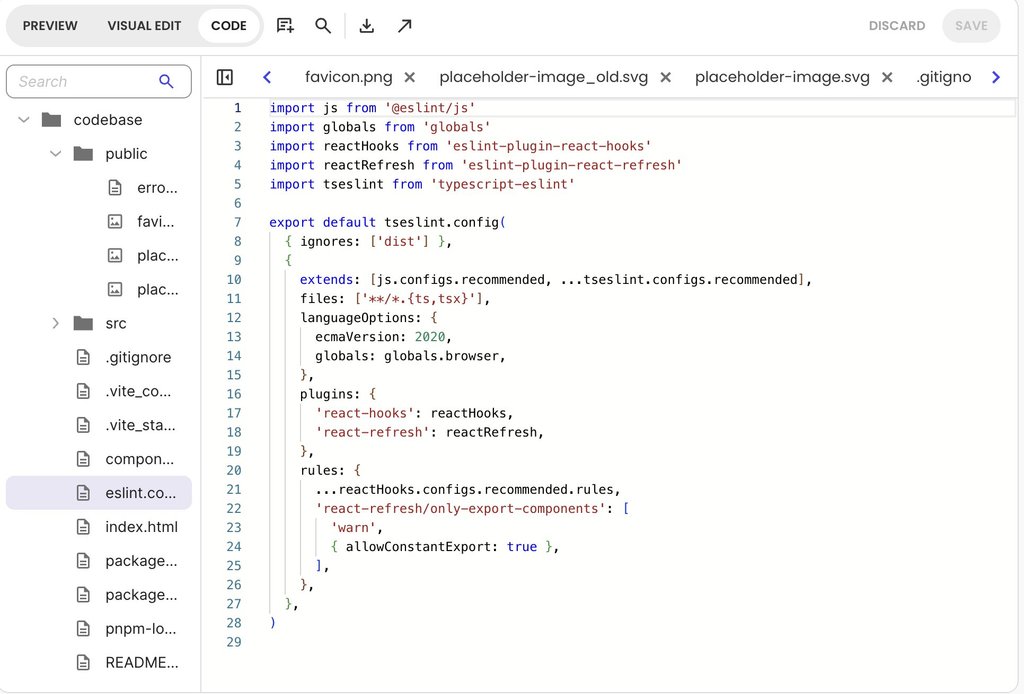
Pro tip: Write your scope sentence before you send your prompt to the AI. If you write it after seeing the preview, you’ll naturally describe whatever the AI happened to create. Defining your scope first keeps you focused, and you can paste that exact sentence directly into your prompt so both you and the AI are aligned on the same goal.

How to review AI code changes without a pull request

Traditional software development relies on pull requests (proposed changes reviewed by teammates) and diffs (visual, line-by-line comparisons showing every line added, modified, or deleted). In most AI web app builders, however, you don’t review code line by line before merging it. Instead, each prompt generates a new, self-contained version of your application.

Without a standard diff tool built into chat-based AI platforms, reviewing a change comes down to tracing modified files and comparing project states. For example, in Coderick AI, each new prompt creates a new version of the project, while the chat card dynamically lists the exact file paths being created or modified in real time.

To review an AI-generated code change without a traditional diff view, you can rely on a few practical approaches:

  • Watch the build in real time: Pay attention to the dynamic file list displayed while the AI processes your prompt to see which files are being created or updated.
  • Ask the AI for a plain-language trace: Prompt the AI directly to list every file it touched and explain what changed and why.
  • Compare project downloads: Download .zip archives of your project before and after the prompt, then compare the two folders using an external file comparison tool.
  • Rely on version checkpoints: If your review reveals problematic code, use timestamped version cards to restore your project back to a clean, working state with a single click.
  • Inspect the codebase directly: Use the AI builder’s code view (such as Coderick AI’s Code tab) to search file contents, verify changes, or make manual adjustments.

For example, to inspect Coderick project code, open the Code tab to switch from the live preview to your project’s complete file tree and code editor. From here, you can search file names and contents simultaneously to locate modified files, inspect the exact lines the AI touched, or make manual tweaks completely credit-free. 

Screenshot of a code editor displaying the Contact.tsx file, with red circles highlighting the search bar and the matching "10am" text within the code.

Flag edits nobody asked for

Coding agents often attempt to “tidy up” or optimize surrounding code while working on your prompt. However, much of that automatic tidying has nothing to do with your original request and can introduce unexpected side effects into your project.

To spot unrelated AI code changes, scan your project updates with these red flags in mind:

  • Unexplained renames: Look for variables (named values in the code) or entire files that were renamed without a clear reason. A single renamed item can ripple across your app and break connections in other files that rely on the old name.
  • Full-file reformatting: Watch out for files reformatted from top to bottom. Massive spacing or indentation shifts hide the few lines that actually changed inside hundreds of lines that just moved around.
  • Deleted code in untouched areas: Check for missing code in parts of the application your prompt never mentioned.
  • Unprompted “fixes”: Question edits to unrelated features, no matter how helpful they might seem at first glance. Unasked-for fixes can alter how those features behave.

If you spot any of these unprompted edits, treat it as a signal to ask the AI why it made the change (or revert to your previous version) before keeping the update.

Check what the change added

Once your scope is defined, the next step is inspecting what the AI added to your project. AI code changes frequently bloat beyond their intended job in four common ways. And left unchecked, that extra baggage carries forward into every future update.

Duplicate logic (reinventing the wheel)

Coding agents frequently write a brand-new function (a named set of code instructions) for something your project can already do, such as creating a second price-formatting tool or a duplicate date helper. In fact, the research by GitClear found that duplicated code blocks surged by 81% as AI tool usage grew.

Having two separate pieces of code doing the exact same job is dangerous because they inevitably drift apart over time. If you update a tax calculation or fix a bug in one function, the duplicate version remains untouched, causing conflicting behavior across your app.

Pro tip: Search your codebase for key terms related to the new feature (like “price” or “format”), or ask the AI directly: “Does anything in our existing project already do what you just wrote?”

Consider how this plays out in a typical e-commerce app:

  • The scenario: You prompt the AI to add a delivery fee at checkout, and it creates a new function called calculateTotal().
  • The hidden issue: A quick code search for “total” reveals an existing function called getOrderTotal() used on your invoice page. Now checkout and invoices calculate totals using entirely separate logic. If your tax rules change next month, the two pages will display different prices.
  • The fix: Instruct the AI to remove the new calculateTotal() function and reuse getOrderTotal() instead.

Overcomplicated AI-generated code (more machinery than necessary)

AI coding tools often over-solve a prompt. Instead of writing a five-line fix, an AI agent might build general-purpose helper functions, multi-layered file structures, or custom configuration settings for hypothetical edge cases you never asked for.

Every unnecessary layer adds hidden weight to your codebase. Extra files and over-complicated structures force the AI to process more code context on every future prompt, burning through your prompt credits faster while making future edits harder to manage. To spot over-engineering, ask yourself one simple question: Would a much smaller, direct change have accomplished the exact same goal? If a minor button update generated three new files and a complex config object, instruct the AI to simplify its approach.

Workarounds and fragile assumptions

A workaround patches the visible symptom of a problem while leaving the underlying cause intact. Rather than fixing a structural issue, an AI might apply a temporary patch that breaks the moment your data or user flow changes. In fact, the research from GitClear found that code that hides unexpected errors instead of reporting them surged by 47% with the rise of AI tools. Silent error handling lets broken data pass through unnoticed during visual testing, only to surface later as mysterious, hard-to-trace bugs.

When reviewing a change, watch out for three common fragile patterns:

  • Hard-coded values: Fixed numbers, test names, or URLs typed directly into code where dynamic variables or settings belong.
  • Brittle timing assumptions: Code that assumes a database query or network request will always finish instantly before the next step runs.
  • Silent error handling: Error blocks (catch {}) that suppress bugs without logging them or alerting the user.

Unnecessary new dependencies

A dependency is an external code library installed into your project to perform specific tasks, such as formatting dates or rendering icons. AI models frequently install new packages out of habit, even when built-in browser tools or code already in your project could handle the job just as easily.

Every extra package increases your app’s overall size and adds another piece of software that could break during future updates. In some cases, AI models can even hallucinate package names that don’t exist, causing server build errors. Whenever an AI change installs a new package, check three things before keeping it:

  • Existence: Does the package exist under that exact name, or is it a hallucinated library?
  • Necessity: Could code already present in your project handle this task without installing something new?
  • Weight: Is adding an entire external library worth it for a minor feature?

Check how it fits the project

The final group of checks evaluates whether a change belongs in your application as it exists today. Code doesn’t live in a vacuum: it has to coexist with every other feature, file, and database table in your project.

Does it follow your existing patterns?

Every software project naturally develops its own habits over time, from how variables are named and where files live, to how data is fetched and saved. When an AI builder solves a problem using an entirely new approach, it introduces a competing pattern. The next time you prompt the AI, it will have to guess which of the two patterns it should follow.

AI-generated code often tends to stand alone in a silo instead of properly connecting to existing project structures. When reviewing code, make sure the AI reuses existing helper functions, follows your established file naming conventions, and connects cleanly with the rest of your app.

Does it alter the project’s core architecture?

Some AI prompts can inadvertently reshape your app under the hood. Common structural shifts include reorganizing folder hierarchies, moving core logic from one component to another, or modifying your database schema (the underlying tables and relationships that store your data).

A structural change isn’t inherently wrong, but it should always be a deliberate decision you requested, never accidental collateral damage from a routine feature prompt. If an AI prompt meant for a visual update unexpectedly alters your database fields or folder structure, pause and review that change before moving forward.

Can the change be clearly explained?

If neither you nor the AI model can explain why a change was built a certain way (or if the AI gives contradictory explanations when questioned), the code is not ready to keep. Healthy code is readable, predictable, and easy to justify.

If you’re building with an AI builder like Coderick AI and you’re unsure why a specific file was modified, you can reference that file directly inside the Coderick AI chat box. Scoping the prompt to that individual file allows the AI to provide a focused, step-by-step breakdown of its exact purpose and logic. 

Here’s an example prompt you can adapt:

“In [file name], explain why this file was changed and what each change does, step by step. Point out any changes I didn’t directly ask for.”

For example, when explaining updates to Navbar.tsx (the top navigation bar component displayed across every page), Coderick AI provides a step-by-step breakdown of why the file was modified, detailing each change made and explicitly highlighting unrequested adjustments (such as tweaking text and icon contrast) to keep your design readable and consistent.

Screenshot of the Coderick AI interface explaining the edit history and reasons for changes made to the Navbar.tsx component.

Keep, refactor, revert or escalate

Once you have completed your review checks, you need a clear action plan for the AI’s work. Every review leads to one of four outcomes: accepting the change as-is, polishing the code, rolling back to a clean state, or getting expert help.

Use the matrix below to decide which path to take based on your findings:

DecisionWhen it appliesWhat to do next
KeepThe change stayed strictly within scope, with no major red flags or messy shortcuts.Accept the change and start building your next feature on top of it.
RefactorThe feature works, but it duplicated existing logic, added unnecessary bloat, or ignored your app’s established coding patterns.Clean up the code in a focused follow-up step before building further. Choose between sending a targeted fix prompt or making credit-free manual edits in the Code tab.
RevertThe change introduced unprompted edits you cannot isolate, altered core project architecture without permission, or cannot be explained clearly.Roll back to your previous version. Re-issue a smaller prompt with stricter scope boundaries.
EscalateThe update touches high-risk areas like user authentication, payment processing, database schemas, or complex dependencies you cannot assess.Pause development and bring in an experienced developer to inspect the code before you keep building.

When you choose to revert a change, keep in mind how version restoration works in chat-based AI builders. Rolling back to an earlier version resets your project’s source code files, but it generally doesn’t alter stored database records or automatically undo a live deployment.

For example, in Coderick AI, clicking Restore on a version card rolls back your project’s file codebase to that clean checkpoint. However, any records created or altered in your database remain intact, and your live site stays unchanged until you explicitly publish again. If the change you’re reverting touched stored data, make sure to inspect your Database dashboard separately after restoring your files.

Every change you keep becomes the next one’s foundation

An AI-generated code review checklist protects your project because every prompt you accept becomes the base for the next feature you build.

Ending every review with a firm decision (to keep, refactor, revert, or escalate) stops a working but weak change from turning into structural debt beneath your app. Making this review habit part of your workflow ensures your project stays fast, clean, and easy to maintain as it grows.

[96]

FAQs

What should an AI-generated code review checklist include?

An AI-generated code review checklist should cover the change’s intended and actual scope, unrelated edits, duplicated logic, unnecessary complexity, workarounds, new dependencies, fit with the project’s patterns, and whether the change can be explained. It should end with a decision to keep, refactor, revert or escalate.

How should I review AI-generated code?

Review AI-generated code by writing down what the change was supposed to do, comparing that with what it touched, and then checking what it added and how it fits the project. Decide what to do with the change before you build on it.

How do I review an AI-generated code change that already works?

To review an AI-generated code change that already works, compare the original request with what the change touched, look for unrelated edits, and check duplication, complexity, dependencies and fit with the project. Then decide whether to keep it, refactor it, revert it or have an expert review it.

What are red flags in AI-generated code even when it works?

Red flags in AI-generated code that works include edits nobody asked for, logic that already exists elsewhere, hard-coded values, error handling that hides problems, new packages the project doesn’t need, and changes nobody can explain.

When should I keep, refactor, revert, or escalate AI-generated code?

Keep AI-generated code when it stays in scope with no red flags, refactor it when it works but duplicates or overcomplicates, revert it when it made changes nobody asked for or can’t be explained, and escalate it when it touches sign-in, payments or the data model.

Do passing tests mean an AI-generated change is safe to keep?

No. Passing tests mean an AI-generated change behaves as tested, not that it’s one you want to build on. A review checks scope, duplication, complexity and fit, which tests don’t measure.

AI coding vs manual coding: How to use both without losing your changes

An illustration comparing AI code updates with hand-edited code preservation side-by-side, featuring a prompt box requesting to keep manual changes.

While vibe coding allows you to generate complex features in seconds, manual coding can sometimes be very helpful for fine-tuning and making quick edits, even if you’re not a developer. That’s why advanced AI builders such as Coderick AI frequently offer built-in code editors alongside your chat interface, giving you the flexibility to switch between prompting and hands-on coding.

AI coding vs manual coding is a choice made for every single change: deciding whether to prompt the AI or write the update yourself. More importantly, it requires managing the handoff between the two approaches so that prompt generations and manual edits never accidentally overwrite or undo each other.

Key takeaways:

  • AI coding vs manual coding is a decision to make for each change: edit by hand when you can name the file and roughly where in it the change goes, and use the AI for new features and changes that span many files.
  • You can sometimes lose manual edits if the AI is working from an older picture of the project than the one you saved, or if it’s rolling back to a version taken before your edit.
  • Treat every switch between editors as a handoff: keep a version to return to, make the edit, tell the AI what changed, and check that both changes survived.
  • Prompts are boundary guidelines, not hard locks: instructing the AI to leave specific files untouched works well, but keeping saved version checkpoints and offline backups remains your ultimate safeguard.

AI coding vs manual coding: choose the editor for each change

AI coding vs human coding is a decision made for every individual edit in your project. Knowing when to switch between the two (and, in some cases, use point-and-click visual editing) keeps your workflow fast, accurate, and cost-effective.

Change typeRecommended toolWhy it’s the better choice
Small edit with known file & lineManual codingDirect manual edits take seconds, eliminate AI guesswork, and consume zero credits.
Copy, color, or image tweakVisual editPoint-and-click editing lets you update visible elements instantly without digging through source files.
New feature or multi-file changeAI codingAI coding excel at generating new components, setting up backend logic, and wiring changes across multiple files simultaneously.
Repetitive change across many placesAI coding (scoped)Referencing specific files in your prompt lets the AI automate repetitive edits across your project without straying out of bounds.
Unlocated bug or unfamiliar codeAI codingAsk the AI to locate the issue or explain the file structure before deciding whether to let it write the fix or handle it manually.

Good AI builders bring AI prompting and manual code editing together in one place, plus point-and-click editing. For example, Coderick AI supports all three methods by combining the chat interface with a Visual Edit mode for instant on-screen tweaks, and a live Code tab for hands-on file edits.

To see how AI coding vs manual coding compare in practice, consider a routine small edit. Say you want to update your opening hours on the contact page of you AI-built site from 10am to 9am:

  • AI coding: You submit a chat prompt asking the AI agent to update the time. The AI processes your prompt, scans project context, re-generates the file, and re-compiles the app, consuming AI credits.
  • Manual coding: You open the code editor, search the project for “10am”, swap it to “9am”, and click save. The edit takes a few seconds and costs zero credits.
Screenshot of a code editor displaying the Contact.tsx file, with red circles highlighting the search bar and the matching "10am" text within the code.

Why AI can overwrite manual code changes

When combining AI and manual coding in a single project, an AI prompt can unexpectedly overwrite or undo your hand-crafted changes. This typically happens for three main reasons, each occurring at a different moment in your workflow:

The AI works from an older state of the project

In some AI app builders, a new prompt reads from the last version generated by the AI rather than the files as you last saved them. When the AI rewrites a file, it overwrites your manual edits with its older copy. Advanced platforms prevent this by updating the AI’s project state whenever you save. For instance, in Coderick AI, saving edits in the Code tab creates a new version checkpoint without consuming credits, ensuring subsequent prompts read your updated codebase.

A rollback goes past your manual edits

Restoring an earlier project version returns your source files to that specific saved state, undoing any manual fixes made after that checkpoint. If you revert to a state saved before your hand edit, those manual changes are replaced by the earlier file state.

A broad prompt reaches finished work

Wide-reaching requests like “make the site look more modern” give the AI freedom to modify any file it considers relevant, including custom code you previously finished and considered complete.

When an edit goes missing, the timing tells you which cause to suspect: if your work vanished immediately after sending a prompt, look at stale project context or overly broad prompts; if it vanished after a version restore, look at rollback boundaries.

How to combine AI coding and manual coding without losing edits

To combine AI and manual coding safely in one project, treat every switch between editors as a clear handoff of the project’s current state. This workflow consists of three quick stages, taking just a minute or two each:

1. Before you edit by hand: establish a clean baseline and save a local backup

Let the AI finish its generation and verify the result in the live preview first so you never edit a file while the AI is actively modifying it. Confirm that a saved version checkpoint exists right after the AI’s update so you have a clean point to return to if needed.

Next, make your edit and save it. Downloading an offline copy of the modified file (or the full project for larger updates) provides an extra layer of safety outside your version history. If a later prompt overwrites that file, your local backup lets you restore your custom code in seconds. For example, in Coderick AI, editing code in the Code tab applies when you click Save, which creates a clean version checkpoint without consuming credits.

2. Before you prompt again: update the AI on your manual edit and set strict file boundaries

Bring the AI up to date so its context includes your manual edit. Start your next vibe coding prompt with a brief summary that states what you changed by hand, points the AI at the specific file to modify, and names what code to leave alone. 

Here is a reusable template you can adapt:

I manually changed [new value] in [file name]. Only edit [file name] to [requested change], and leave my edit and the rest of the file unchanged. 

Filling out this template sets clear boundary rules for the AI. For instance, when you submit this filled-in prompt to an AI builder like Coderick AI, the instructions tell it precisely where to work and what code to protect:

I manually changed the email in Contact.tsx. Only edit Contact.tsx to make the Event Date field required, and leave my edit and the rest of the file unchanged. 

Screenshot of the Coderick AI chat interface displaying a summary of code changes and checks made to the Contact.tsx file, along with suggested next steps.

Explicitly naming the target file helps prevent the AI from altering unrelated code. In platforms like Coderick AI, referencing specific files directly in the chat locks the AI’s focus to those files. While AI models usually follow these instructions, prompts are not physical locks, which is why having a saved version checkpoint and an offline backup remains your best safeguard.

Pro tip: Focus on one area per prompt. A prompt that changes a button, a navigation menu, and a footer touches three separate parts of your project at once. If your manual edit vanishes afterward, pinpointing the cause becomes difficult. Requesting one area at a time keeps each change small enough to review quickly.

3. After the AI’s change: verify your manual edit survived and confirm the scope of edits

Perform two quick checks before moving on to your next task:

  • Verify your manual edit: Search your project files for a unique word or value from your manual update (such as the updated email address) to confirm it is still intact.
  • Verify the scope: Ask the AI which files it modified, then compare that list against the single file you requested it to change.

If your manual edit is missing, stop and restore your previous version checkpoint before sending another prompt.

How to protect manual code changes from AI

Certain manual edits to AI-generated code need to survive dozens of future AI prompts, such as a custom pricing calculation, a third-party analytics tag, or an external widget script.

Here are four habits to protect your critical manual code over the long run:

  • Isolate it in its own file: Keep custom code inside a dedicated file or component whenever possible. When manual logic lives in its own file, prompts aimed at other parts of your app have no reason to touch or overwrite it.
  • Label it with code comments: Give the file an explicit name (like custom-pricing.js) and place a comment at the top, such as “Written by hand. Do not modify without permission.” AI coding agents read source comments, making this a simple way to signal boundaries.
  • Maintain a manual changes log: Keep a quick bulleted list of what you edited by hand and where those changes live. You can copy and paste this list directly into future prompts that touch surrounding features.
  • Download an offline backup before major updates: Before submitting a prompt that reworks an entire page or complex feature, download a local copy of your project. An offline backup ensures your custom code exists in a safe location where no AI prompt can reach.

What to do when the AI overwrites your work

Despite your handoff instructions, AI could still overwrite a manual code edit because chat prompts act as natural-language guidance rather than hard file permissions. When an AI modifies a file, it rewrites the file as a whole. If the model prioritizes its new feature request or misinterprets the surrounding context, it may sometimes drop your hand-crafted lines during that rewrite.

If an AI prompt overwrites your manual work, execute these three recovery steps in order:

1. Stop prompting 

Submitting new prompts after a file is accidentally overwritten compounds the problem. Every subsequent prompt uses the new codebase as its new baseline, pushing your original edit further back in the project history and making recovery significantly harder.

2. Restore the version containing your edit

Roll back your codebase to the last version checkpoint where your manual change was intact. In platforms like Coderick AI, you can revert your source files to a previous checkpoint with a single click. If no saved version contains your edit, restore the code directly from your downloaded offline backup.

File revisions vs. database data: Restoring a past project version rolls back only the application source files; it does not wipe dynamic user data. Database records (such as customer bookings, signups, or form submissions) remain intact, and your live published site is not affected until you explicitly publish again.

3. Re-establish boundary context with the AI

Once your code is restored, update the AI before submitting new feature requests. Explicitly state what was restored, specify the exact file, and remind the AI which code to protect so the same prompt does not trigger a second overwrite.

One habit for every change

AI coding vs manual coding is a deliberate choice made for every single edit. By picking the right tool for each task and managing the handoff whenever you switch, you get the speed of AI generation without risking your custom code.

Nearly every lost edit stems from a skipped handoff. Taking sixty seconds to anchor your code boundaries between prompts will save you hours of tedious rebuilding later. Ultimately, this habit is essential for long-term AI-built app maintenance, as it keeps your project stable and easy to look after as it grows.

[96]

FAQs

AI coding vs manual coding: which should I use for a change?

In AI coding vs manual coding, use manual editing when you know which file and roughly where in it to change, and use the AI for new features, changes across many files, or code you can’t locate. Decide for each change rather than for the whole project.

How do I combine AI coding and manual coding in one project?

Combine AI coding and manual coding by choosing the better editor for each change, keeping a version you can return to, making the edit, telling the AI what changed before the next prompt, and checking that both the new change and your earlier manual edits are still in place.

How do I stop AI from overwriting manual code changes?

To stop AI from overwriting manual code changes, save your edit, tell the AI what you changed and what to leave alone, point it at the file it should work on, and keep custom code in its own file where you can. Instructions help but aren’t locks, so keep a version or a downloaded copy to restore.

Is it better to edit AI-generated code manually or prompt the AI again?

Editing AI-generated code manually is better for small, precise changes you can locate yourself. Prompting the AI again is better for larger changes, new features, or edits spread across many files.

Is manual coding faster than AI for small changes?

Manual coding is often faster than AI for small changes in code you know, since there’s no prompt to write or result to check. A 2025 METR trial found experienced developers working in code they knew well were slower with AI, even though they believed they were faster.

Do manual code edits use Coderick AI credits?

No. Manual edits in Coderick AI’s Code tab don’t use credits, and neither do quick changes made in Visual Edit.

How to understand AI-generated code when you’re not a developer

An illustration showing a website preview's "Book a Stay" button linked to its corresponding Booking.html source code file in a code editor.

If you use vibe coding to build an app with an AI app builder such as Coderick AI, you can easily open the code behind it. Do it, though, and you’ll find dozens or hundreds of files containing AI-generated code you didn’t write. So if you want to know how your app works behind the scenes, where do you start? 

For a non-developer, to understand AI-generated code is to have codebase literacy: knowing which parts of the project produce the app’s important behavior, following one feature from the screen to the data, checking that reading against what the app does, and recognizing when a question needs a developer.

Key takeaways:

  • To understand AI-generated code, you need codebase literacy: the ability to find, follow and check the parts behind the features your business depends on.
  • Start from something you can see on screen, such as a button label, and trace one feature from there to where its information ends up.
  • Treat the AI’s explanations as a guide you confirm, with follow-up questions that tie each answer to a file and an outcome.
  • Check your reading by predicting what the app will do and watching it happen, and take questions about security, payments or performance to a developer.

What it means to understand AI-generated code

Understanding an AI-generated codebase isn’t the same as learning to program. You don’t need to know what every line does, or why the AI chose one approach over another. You need to know the parts of the project behind the features your business depends on, which answers how much AI-generated code you need to understand: often a handful of files out of hundreds.

A non-developer can understand AI-generated code by working through seven steps, one feature at a time:

  1. Map: list what the app does from a customer’s point of view, and match each feature to the part of the project behind it.
  2. Locate: find the file where one visible feature begins.
  3. Trace: follow that feature’s path through the files it uses, to where its information is stored.
  4. Explain: ask the AI to describe that path in plain language, file by file.
  5. Test: predict one thing the app will do when you use the feature.
  6. Check: use the feature and compare what happens with your prediction.
  7. Escalate: bring in a developer when your question moves from what the code does to whether it’s safe, fast or well built.

You don’t need to do this for every single file you find in the codebase of your app. Applying this process to your app’s most important features gives you the clarity and control you need without getting bogged down in the code.

Where to start when reading AI-generated code

Start with the product rather than the code. Before you open a single file (one document of code) or folder (a group of related files), write down what the app does from a user’s point of view: someone signs up, books a slot, pays, or receives a confirmation email. That list tells you which parts of the code matter to you, so you can read AI-generated code selectively and navigate an AI-generated codebase without going through it front to back.

Then match each item to the project’s main areas. Folder names vary between tools, but most projects have the same few kinds of parts:

  • The screens visitors see, such as pages, forms and buttons, usually sit together in one area of the project.
  • The logic behind them decides what happens when someone clicks or submits something, such as checking that an email address looks valid.
  • The database (where the app stores its information, such as accounts or bookings) holds the records each feature creates or reads.
  • Styling and settings control how the app looks and how it’s configured.
  • Connections to outside services, such as a payment provider or an email service, handle anything the app sends beyond itself.

You can ask the AI for a plain-language outline of the project that names these areas and the files in each. For example, if you use Coderick AI, access to your project’s source code shows the full file tree, so you can see that outline against the files themselves. 

Here’s a simple prompt you can use in Coderick AI: 

“Explain my app’s structure in plain English. Group the files by what they do.”

This will make Coderick AI provide a plain-language architectural map of your app. Instead of overwhelming you with technical jargon or raw code, it organizes every file in your project into clear, functional categories, such as setup files, global styling, shared layout components, individual pages, and interactive forms.

Screenshot of the Coderick AI interface explaining an app structure broken down into setup files, style, and shared components.

How to trace a feature through an AI-generated app

Tracing is how you understand the code behind an AI-built app one feature at a time, following it the whole way through, from what a visitor sees to what the app does with their input. Pick a feature you care about. A sign-up form makes a good first choice, since almost every app has one and it touches every kind of part listed above.

Start from something you can see

Pick a word or phrase on the screen that belongs to the feature, such as the button label “Contact us” or the heading above the form, and search the project for it. The file that contains it is where the feature begins. This is how to find which file controls a feature without knowing how the project is organized.

For example, if you vibe code in Coderick AI, the Code tab’s search covers both file names and what’s written inside each file, which takes you from a label on screen to the file behind it:

Screenshot of a code editor interface displaying the Contact.tsx file, with a red circle highlighting the search bar containing the word "contact".

Pro tip: Search for the rarest words on the screen. A label such as “Submit” can appear in dozens of files. Placeholder text inside a form field, such as “Enter your work email,” or the exact wording of an error message usually appears only once, so it leads straight to the right file.

Follow what happens when it’s used

From that file, follow what happens when someone uses the feature. When a visitor clicks on something like “Send Request,” the code usually runs a function (a named set of instructions that runs when something happens), and that function does three kinds of things: it checks the input, such as whether the email address is in the right format, it sends the information somewhere, and it calls other files to handle parts of the job.

You don’t need to read each function yourself. Ask the AI to walk through what happens, step by step, and to name the file behind each step. 

For instance, in Coderick AI, you can reference the file in the chat, which keeps the explanation on that file instead of the whole project. You can give Coderick AI a prompt like this one (you can adapt it to fit your specific case): 

“In [file name], walk me through what happens step by step when a visitor [does something]. For each step, name the file or service that handles it, and explain it in plain language.”

For example:

“In Contact.tsx, walk me through what happens step by step when a visitor clicks “Send Request”. For each step, name the file or service that handles it, and explain it in plain language.”

Coderick AI provides a plain-language, step-by-step trace of the entire form submission workflow, detailing which specific files and external services handle validation, spam protection, message formatting, and email delivery while highlighting any underlying bugs or missing configurations.

Screenshot of an interface outlining a step-by-step guide on how a website form handles submission, validation, and spam protection.

Find where the information ends up

Every feature leaves a result somewhere: a new record in the database, an email sent to the customer, or a request to an outside service such as a payment provider. Finding that result tells you what the feature produces, and whether the information a customer types in is stored where you expect.

Advanced AI app builders like Coderick AI create a database for each project automatically, with a dashboard that shows the records a feature saves, so after a test sign-up you can see the new account and the fields it holds.

How to use AI to understand the relevant code

The AI that built your app is the best guide a non-developer has to its code, and its explanations work best as a starting point you confirm. An explanation can describe what the code seems meant to do instead of what it does. It can also stay general where you need specifics, or describe an earlier version if the app has changed since you last asked.

When you use AI to understand code, four kinds of questions tie each answer to evidence you can check:

  • Ask which file, and which lines in it, handle a step, so you can find the place yourself.
  • Ask what triggers that step, such as a click, a submitted form or a scheduled task.
  • Ask what the step changes or saves, and where that information goes.
  • Ask what would happen in a specific case, such as a sign-up with an email address that’s already registered.

Here’s a simple prompt you can adapt and try: 

“In [file name], walk me through what happens when a visitor [does something]. For each step, tell me which lines handle it, what triggers it, and what it changes or saves and where that information goes. Then tell me what happens if the visitor [does something wrong].”

For example:

“In Contact.tsx, walk me through what happens when a visitor clicks “Send Request.” For each step, tell me which lines handle it, what triggers it, and what it changes or saves and where that information goes. Then tell me what happens if the visitor leaves the event date blank.”

From there, Coderick AI provides a granular, line-by-line walkthrough of the form submission lifecycle, mapping exact line numbers in Contact.tsx to triggers, data flows, and UI updates while calling out code-level bugs and unconfirmed email configurations:

Screenshot of an interface explaining the step-by-step code execution flow of a website form with line number references.

How to check that you understand AI-generated code correctly

Once you’ve traced a feature, explain it back in your own words, without looking at the AI’s answer. If you can say what the feature checks, where it sends the information and what the customer sees at the end, you have a reading you can test.

Then make one prediction and watch it happen. For a sign-up form, it might be: “If I sign up with a new email address, a new record appears in the database with my name and email, and I land on the welcome page.” Use the feature in the app’s preview, then check the database. If the result matches, your reading holds. A wrong prediction means the map needs another look, usually at the step where the result first differed from what you expected.

Pro tip: Test sign-ups create records like any other. A prediction you check on a live app creates an account or a booking like any other. Use an email address you control, such as one with “test” in the name, so you can tell your test records apart from customers’ and remove them afterward.

Know when a question needs a developer

Knowing what code does isn’t enough to judge it in some areas, because the risk depends on details a non-developer can’t assess from behavior alone. These are the ones to recognize:

  • Sign-in and permissions, meaning who can log in and what each person is allowed to see or change.
  • Payments, including what happens when a charge fails or a customer asks for a refund.
  • Personal data, such as customer names, addresses and contact details, and who can reach them.
  • Anything that deletes or overwrites information, since a mistake there can’t always be undone.
  • How the app behaves under heavy use, when many people use it at once or the data grows large.
  • Connections to outside services, which depend on keys, settings and rules outside your project.
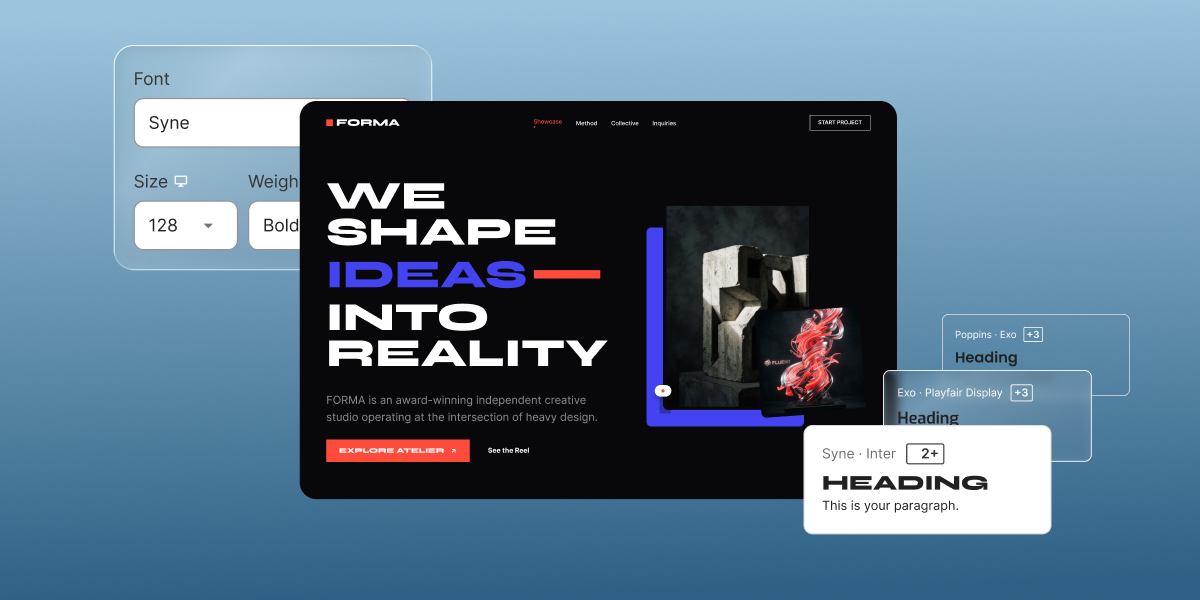
Three signals also tell you you’ve reached the limit of what reading can settle: the AI’s explanation of the same file changes each time you ask, a trace that won’t connect from one file to the next, or predictions that keep failing after you’ve revised your map. 

At that point, your understanding gives a developer a head start, and working with a developer on an AI-built app goes faster when you can point to the feature and the files involved. 

Understanding your app one feature at a time

To understand AI-generated code as a non-developer, you never need to read the entire codebase line by line. Instead, you build codebase literacy one feature at a time: locate where a feature begins, trace its path to where its data is stored, ask the AI to explain the journey, and verify your prediction against live app behavior.

This practical literacy is what allows you to expand your application with genuine confidence. Once you understand how your key files work, you can even begin combining AI prompts with direct manual edits, giving you total control over your AI-built app as it grows over the long term.

[96]

FAQs

What does it mean to understand AI-generated code?

To understand AI-generated code as a non-developer means knowing which parts of the project produce your app’s important behavior, being able to follow one feature from the screen to the data, and checking that reading against what the app does.

How can a non-developer understand AI-generated code?

A non-developer can understand AI-generated code by starting with a feature they already know from the product, locating the code behind it, tracing only that feature’s path, using AI to explain unfamiliar parts, and checking the explanation against an observable result. You don’t need to understand every line or judge the code’s quality.

Do I need to understand every line of AI-generated code?

No. You don’t need to understand every line of AI-generated code. Focus on the paths behind the features that matter most to your business, such as sign-ups, payments and stored customer data, and bring in a developer when the question turns to security, performance or code quality.

How can I check whether I understand AI-generated code correctly?

You can check whether you understand AI-generated code correctly by predicting what the app will do in a specific case, then using the feature and comparing what happens, including in the stored data. If the result differs from your prediction, your understanding needs another look.

How do I find which file controls a feature?

To find which file controls a feature, start with something visible in that feature, such as a button label, a field’s placeholder text or an error message, and search the project for it. The file that contains it is your starting point, and from there you can trace which other files handle the behavior.

Where should I start when reading AI-generated code?

Start reading AI-generated code from a feature you can see and care about, rather than from the first file in the project. A short list of what the app does from a user’s point of view gives you a map before you open any files.

AI-built app maintenance: How to keep control as it grows

An illustration on a blue background featuring a smiling man holding a laptop, alongside UI overlays of a booking form being updated by an AI generator under different versions.

At some point, an app you built through vibe coding starts to matter. Customers sign up through it, payments run through it, or your team relies on it every day, whether you built it in a general AI tool or in an AI app builder such as Coderick AI. From then on, the next change feels risky, because something that already works could stop working.

AI-built app maintenance is keeping practical control of an app built with AI tools as it changes. It means knowing what exists, where important behavior lives, how to make a change and undo it, and what someone else would need to carry the work on if you stepped away.

Key takeaways:

  • AI-built app maintenance starts when the app starts to matter (meaning when customers, revenue or a team depend on it), rather than when something breaks.
  • Keeping control of your AI-built app has five parts: seeing what was built, mapping where key behavior lives, keeping changes small, being able to go back, and leaving context for others.
  • Source code access to your app is the first step, but you also need to understand important behavior, check changes, and retain a way back.
  • Early red flags, such as a fix breaking an unrelated feature or prompts overwriting manual edits, signal underlying issues you can resolve by refining your workflow.

When AI-built app maintenance starts to matter

Before an app matters, almost every change is safe. If a prompt breaks the layout, you simply try another one or click Restore on a previous version card. If the whole build goes off track, starting over only costs an afternoon. Nobody else is affected, so maintaining a vibe-coded app at this stage barely needs a plan.

That changes the moment people begin depending on what you built. An app crosses the line into high-stakes territory when:

From that point on, a single careless prompt or manual code edit can break a feature that was already working, and the cost of that mistake falls directly on your users. 

Long-term AI app maintenance starts right at this tipping point, while everything is still working smoothly.

Why AI-built apps get harder to control as they grow

When you ask an AI to add one simple feature, like a discount box at checkout, it does a lot of unseen work behind the scenes. 

It might update the screen, change how prices are calculated, create a new spot in your database to save discount codes, and edit the receipt page. The discount works on your screen, but you only see the surface result, not the four connected pieces the AI changed under the hood.

As you add more features over time, your app grows faster than your understanding of it. A working app makes everything look fine on the surface, hiding the fact that you no longer fully know how it works. 

The AI also makes choices about how to organize your app without explaining why it made them. Even if you save every code file, the reasons behind those decisions get lost, and the app slowly becomes a black box that you can use but cannot see inside.

Software developers call this gap between how much code exists and how much of it you actually understand comprehension debt. A 2026 study by Anthropic Fellows showed how quickly this gap opens: people who simply let the AI write code without asking questions understood less than 40% of what was created. In contrast, people who asked the AI to explain the code it wrote understood over 65%.

You can do the same when vibe coding. Every time the AI builds a new feature, ask it to explain what it just did in plain language so your understanding keeps up with your app.

What it means to keep control of an AI-built app

Control over an AI-built app rests on five things you can check without reading code line by line. Together, they’re what AI app maintainability means for someone who isn’t a developer, and they answer how to maintain an AI-built app without learning to code.

1. Seeing what was built (visibility)

Visibility means the app’s code, files and data can be seen and kept. Source code lives in files, and an app of any size has dozens or hundreds of them. If you can’t open them, search them or keep a copy, every other part of control depends on the tool that built them.

For example, if you use an advanced AI app builder like Coderick AI, project code access shows every file behind a project. When you click on Code, you can browse the complete file tree, search file names and code text simultaneously, export individual files or the whole project as a .zip archive, and make quick manual tweaks directly in the editor without spending any credits.

Screenshot of a code editor interface displaying an ESLint configuration file alongside a project file directory.

Having access to the code is the foundation of control, but seeing the files is only the first step. 

2. Knowing where important behavior lives (your working map)

Controlling an app doesn’t require reading code line by line. What you need instead is a simple working map that answers four core questions:

  • Which file handles user sign-ups?
  • Which component processes payments?
  • Which section triggers system and notification emails?
  • Where is customer information saved in your database?

With a map in hand, you immediately know where a bug is likely sitting and which parts of your app a new change will affect.

The fastest way to build this map and keep it current is to ask the AI directly. Whenever a change goes in, ask the AI where the new code lives and why it was structured that way. Keeping these explanations builds the exact habit that helps you understand AI-generated code as your app changes.

To see how this works, here’s a simple prompt you can give to Coderick AI: 

“Can you give me a simple map of my app? List the key files and explain what each part does in plain language.”

Coderick AI outlines your project’s overall structure, breaks down what each key file handles, and flags any temporary placeholder content or features that still need setup. It also highlights where common changes live, reminds you how to make edits using chat or visual tools, and suggests clear next steps so you always know where your project stands.

Screenshot of a document explaining project file structure and functions, categorized into setup files, shared components, and pages.

3. Keeping each change small enough to check

Each request should aim at one outcome. When a single prompt asks for a new feature, a redesign and a bug fix together, the result touches so many parts of the app that you can’t tell what changed, or which part caused a new problem. A change you can check is one where you can say afterward what it was meant to do, which parts it touched, and whether it did what you asked.

Check each change before you build the next one on top of it. Asking the AI what it changed, then trying the affected feature yourself, takes a few minutes and keeps problems from stacking up.

For instance, take a look at what Coderick AI does when you point a request at one file (Navbar.tsx, which, as Coderick explained, contains the top bar with the logo), so the change and the explanation of it stay focused on that part of the project:

Screenshot of an AI assistant chat detailing style updates made to a navigation bar component based on a user prompt.

Good to remember: Specifying the exact file name in your prompt gives you three major advantages over a generic request. First, it isolates the AI’s work to one file, preventing unintended modifications to unrelated parts of your application. Second, it saves both time and account credits because the AI does not have to scan your entire codebase to figure out where the code lives. Third, it generates faster and more accurate updates, allowing the AI to deliver precise edits alongside a clear explanation of its work.

4. Being able to go back (recovery)

Recovery means having a known working version of your app (a saved checkpoint) and building the habit of using it.

When a prompt goes wrong, the natural reaction is to describe the error to the AI and ask it to fix it. However, asking for a fix on top of a broken build often adds new code on top of faulty code. After a few rounds of troubleshooting prompts, your app can end up much further from working than when the problem first started.

Restoring the last working version first, and then re-trying the change in a smaller, simpler form, keeps you on safe, familiar ground.

For example, in Coderick AI, version management and recovery are built directly into your chat workflow. Every completed request creates a timestamped version card, letting you roll back your project files with a single click if an update goes wrong. Plus, your private preview panel acts as a safe sandbox, so no changes affect live visitors until you explicitly click Publish or Update.

Screenshot of the Coderick AI chat interface with a red circle highlight over the "Restore this version" tooltip in the top right, above a version history card.

5. Leaving enough context for someone else (continuity)

Continuity means that someone else can step in and take over your app without friction: a colleague, a developer you hire, or even yourself returning after three months away. Your source code shows what the app does today, but it can’t explain why it was built that way, what features you tried and dropped, or which delicate sections you prefer nobody touches.

A short written record fills this gap without needing technical language. A simple page explaining what the app is for, who uses it, key design decisions, and past fixes gives anyone an instant starting point. Having this context also makes collaborating with a professional developer much smoother when the time comes to expand your app.

To help you keep track of this, AI app builders like Coderick AI automatically preserve your full chat history, displaying saved version cards directly alongside the exact prompts that generated them.

Warning signs that control is slipping

These warning signs usually appear long before an AI-built app becomes unmanageable. Catching them early tells you exactly which habit or tool to adjust.

SignWhat it usually points toWhere to look next
You can’t say what the last change touchedRequests that are too large or complex to checkKeep your next prompt focused on a single outcome, and review the file summary.
A fix in one place breaks something elsewhereHidden dependencies across files you have not mapped.Ask the AI for a simple map of your app to see how your files connect.
You keep re-prompting the same fixThe AI is missing context, or the problem sits in a part you haven’t pointed it toRestore the last working version, then point the request at the part involved
You avoid touching part of the appThat feature has turned into an unreadable black box.Ask the AI to explain what that section does in plain language, or consult a developer if it remains unclear.
Your manual edits disappear after a promptConflicts between manual code edits and AI prompts.Reference files in chat, or make manual edits after saving your AI version checkpoint.
The app slows down as its data growsPerformance problems that grow with your data.Inspect your database collections, or consult a developer to optimize data loading.
You’re unsure what it does with customer data or loginsUnanswered security or data privacy questions.Review how your database manages authentication rules, or ask a developer for a quick security check.
Only the AI could explain why something worksArchitectural decisions made without a record.Start a written record of decisions, beginning with that part.

The first five warning signs can usually be resolved using the daily habits covered in this guide, such as restoring version checkpoints and referencing specific files in chat. Performance slowdowns and complex security questions are typically where app owners benefit from a developer’s expertise.

How to keep control of an AI-built app as it grows

You don’t need to audit the whole app to start. Apply the five steps covered here to your very next change, and the habit carries over to the one after it. This is how to keep an AI-built app maintainable without turning maintenance into a project of its own:

  • Before the change, make sure there’s a working version you can return to, and decide which part of the app the change should touch.
  • During the change, ask for one outcome, and ask the AI to explain what it did and why.
  • After the change, try the affected feature yourself, check that nothing nearby broke, and add a line to your record saying what changed and why.

This routine works for vibe coding app maintenance in any AI platform. Your map and your record grow a little with each change, which is how you can maintain a vibe-coded app long term without depending on anyone’s memory of how it was built.

Keeping your understanding in step with your app

AI-built app maintenance comes down to one primary goal: keeping your understanding in step with your app. An AI builder will continue adding new code as fast as you can prompt it, but speed without comprehension quickly leads to debt.

The five pillars of control give you a simple framework to track what was added, know where it lives, and safely undo changes whenever necessary. As long as your understanding moves at the same speed as your codebase, you will remain in complete control of your app as it grows.

[96]

FAQs

What is AI-built app maintenance?

AI-built app maintenance is keeping practical control of an app built with AI tools as it changes. It means knowing what exists, where important behavior lives, how to change it and undo changes safely, and what someone else would need to continue the work.

How do you maintain an AI-built app as it grows?

You maintain an AI-built app as it grows by keeping your understanding in step with each change. Keep changes small, keep a working version to return to, ask the AI to explain what it changed, and write down the reasons behind important decisions.

Is access to the source code enough to keep control of an AI-built app?

No. Access to the source code isn’t enough on its own to keep control of an AI-built app. It lets you see and keep what was built, while control also depends on knowing where important behavior lives, keeping changes checkable, being able to go back, and recording why things were built that way.

What makes an AI-built app maintainable?

An AI-built app is maintainable when its owner can see what was built, find where key behavior lives, make small changes and check them, restore a working version, and hand the project on with its context.

Can non-developers maintain an AI-built app?

Yes. Non-developers can maintain an AI-built app day to day by keeping changes small, keeping working versions to return to and recording decisions. Deeper problems, such as slowdowns or security questions, usually need a developer’s help.

How do you stop an AI-built app from becoming a black box?

You stop an AI-built app from becoming a black box by asking the AI to explain what it built and why, keeping a plain-language map of where important behavior lives, and writing down the decisions behind each significant change.

Why nobody’s reading your blog posts (and how to fix it)

Abstract of how to promote a blog

Most bloggers spend the bulk of their time writing and almost none of it getting anyone to read what they wrote. Writing is the easy part. Getting a post in front of readers, and keeping it there, is the part that actually decides whether a blog grows or stalls.

Key takeaways:

  • Writing takes up a small slice of running a blog people actually read; promotion, distribution, and audience-building take up the rest.
  • A blog needs reliable hosting, a fast load time, and built-in social sharing and email signup tools in place before any promotion tactic can pay off.
  • SEO, social media, email, guest posting, community engagement, and paid promotion are six separate channels, and no single one carries a blog on its own.
  • Email is the only channel you fully own. A platform change or algorithm update can’t touch a list you built yourself.
  • One post can keep earning traffic for months after publishing, as long as it keeps getting promoted instead of being left to sit.
  • How to promote your blog comes down to picking two or three of these channels and running them consistently, not trying to do all six at once.

Get your blog ready to be promoted first

Six channels drive that promotion work: SEO, social media, email marketing, guest posting, community engagement, and paid promotion. Some call this a blog’s 80/20 problem: too much time on the post, not enough on getting it seen. (One well-known version of that split comes from blogger Derek Halpern of Social Triggers, who argued that most bloggers over-invest in writing and under-invest in getting it read.) None of the six channels work well on a shaky foundation, though, so that’s where to start.

Check these three things first:

  • Hosting and speed. A slow site loses visitors before they read a word, and it undercuts every other promotion effort you make. If a shared link takes more than a few seconds to load, most people are gone before they see what you wrote, and no amount of promotion recovers that lost reader.
  • Mobile-friendly design. Most blog traffic arrives on a phone, often straight from a social feed or a search engine result. A layout that breaks on mobile, text that requires pinching to read, or a signup form that’s impossible to tap, turns a curious visitor into a bounce before they’ve read past the headline.
  • Built-in sharing and signup tools. Social share buttons and an email signup form need to already be on every post, not added later on the handful that happen to do well. A post can only be shared as easily as the tools on the page allow, and a reader who wants more from you but has no obvious way to sign up simply won’t.

A shortcut worth knowing: SiteGround Website Builder covers this checklist out of the box. It’s an easy way to build the site itself, with a dedicated blogging platform, ecommerce tools if you ever want to sell something, fast hosting, mobile-ready templates, and built-in social sharing and email signup, all without piecing together separate plugins.

Start building your blog with SiteGround Website Builder>>

1. Make your posts findable with SEO

Search engine optimization (SEO) is the channel that keeps working after you stop actively promoting a post. Get it right, and Google keeps sending readers for months. Here’s how to make good SEO for your blog a reality:

Target keywords readers are actually searching for

Before you write, do keyword research in order to check whether people are actually interested in your topic. Free tools like Google’s autocomplete and the “People also ask” boxes on a search results page show you real queries. Paid tools go further, showing search volume and difficulty. Google’s own Search Essentials guide is worth a skim if you’re new to this, since it covers the baseline requirements before any keyword strategy matters. 

Using Googles People Also Ask to figure out what people are searching for

Build internal links between your blog posts

Every new blog post should link to at least two older, related posts. This does two things: it keeps interested readers on your site longer instead of bouncing after one blog article, and it tells Google which posts on your blog are related to each other. A blog with 30 posts and zero internal links behaves, to Google, like 30 unrelated pages.

Earn backlinks from other sites

A backlink is another site linking to your blog post. They’re one of the strongest ranking signals Google uses, because a link from another site is effectively a vote of confidence. You don’t need hundreds. A handful of links from sites in your niche, earned by writing something genuinely useful enough that other bloggers want to reference it, makes a bigger difference than a large batch of low-quality links. That’s the same standard Google lays out in its guidance on creating helpful, people-first content: blog content worth linking to is content worth reading first.

2. Show up where readers already scroll

Social media platforms put your posts in front of people who’d never find them through search. Here’s the social media game plan for your blog:

Pick 2-3 platforms where your audience actually is

Trying to post well on five platforms usually means posting badly on all five. So pick two or three where your specific audience spends time, and go deeper there instead of wider everywhere. A food blog probably belongs on Pinterest and Instagram. A B2B blog probably belongs on LinkedIn. If your audience skews younger and visual, Instagram marketing is worth the focused effort; if it doesn’t, that focused effort is better spent elsewhere.

Repurpose one post into multiple formats

A single 1,500-word blog post can become a carousel, a short video script, a thread, and three or four standalone social posts, each one native to the feed it’s posted in rather than a link dumped into a caption. That’s four or five separate chances for someone scrolling their feed to stop, engage, and discover the original article, from one round of writing. Repurposing is what turns “one post, one day of traffic” into “one post, ongoing traffic” on exactly the platforms covered above.

Use a consistent hashtag and posting schedule

You don’t need a content calendar tool for this. Pick two or three hashtags relevant to your niche and use them consistently, and blog post on a schedule you can actually keep, whether that’s daily or twice a week. Consistency matters more than frequency, as an audience that knows when to expect you shows up more reliably than one guessing at your schedule.

[39]

3. Own your audience instead of renting it

Social media platforms can change their algorithm overnight and cut your reach in half. Your email list can’t be taken away like that; it’s the one channel where you decide who sees what, and when.

Add a signup form to every blog post

The best place for a signup form is inline, partway through the post, right after you’ve delivered something useful. That’s the moment a reader is most likely to want more of what you write. Building an email list starts with making the signup ask this visible, not with finding the perfect incentive to offer.

Send a regular newsletter recapping new posts

A simple newsletter that recaps your latest blog posts, sent on a schedule readers can predict, does more for retention than an occasional one-off. It doesn’t need original blog content beyond what you’ve already written; a short intro and links to your recent posts is enough to keep your blog in front of people who’ve already said they want to hear from you.

A lead magnet, like a checklist, template, or short guide offered in exchange for an email address, can speed up that first signup too, giving new visitors a reason to join the list before they’ve read enough posts to want a recap on their own.

A lead magnet downloadable offered on a blog for promotion

4. Borrow other people’s audiences

Every blogger with an audience started with zero readers. Guest posting and collaboration are how you reach people who already trust someone else’s recommendation.

  • Write guest posts for niche-related sites. Find blogs and other websites that cover adjacent topics to yours, not identical ones, and pitch a specific relevant blog post idea rather than a generic “can I write for you.” A tight, useful pitch is the best way to achieve guest blogging success.
  • Cross-promote with other bloggers or creators. Newsletter swaps, roundup posts, and shoutouts cost nothing but a few minutes of coordination, and they put your blog in front of an audience that’s already primed to trust a recommendation from someone they follow.

Keep in mind that neither tactic requires a large following to start. A blogger with 200 email subscribers can still swap newsletter mentions with another blogger who has 200 subscribers in a related niche, and both walk away with new readers.

5. Go where the conversation is already happening

Reddit threads, niche forums, and Facebook groups already rank for blogging advice, which tells you something: people are actively asking these questions in these spaces right now.

The rule here is simple: answer the question first, and link back to your blog post only when it’s genuinely the best answer to what was asked.

  • A comment that’s just a link with no context reads as spam and usually gets removed.
  • A detailed, helpful answer that happens to link to a post with more depth reads as a resource.
  • Search for the questions your blog answers on the platforms your audience already uses, and show up as someone who’s actually helpful there before you ever mention your own content.

6. Pay to skip the slow part

Every channel above takes time to compound. Paid promotion is the one lever that can drive traffic the same day you spend the budget.

For a new blog, a small boosted-post budget on the platform where your audience already is can tell you whether a topic gets clicks before you invest more writing time in it.

  • Worth it when you have something specific to test, like which headline or topic gets more clicks.
  • Less worth it as a default strategy for every blog post.

Among the marketing channels available to a small blog, paid is the only one where results stop the moment the budget does. It works best as a small, deliberate line item in your small business marketing plan, paired with organic traffic and channels that keep compounding after you turn the ads off, not as a replacement for them.

Beyond publish: keep the traffic coming

That imbalance between writing and promoting doesn’t end once a blog post is live. A post left alone stops earning attention within a few weeks, or doesn’t get much attention to begin with. But if you resurface it in a newsletter, repurpose it into a new format, or link to it from a newer related post months later, that same piece can keep earning traffic well past its publish date, without a word of new writing.

Ready to put this into practice? The SiteGround Website Builder covers the ground this article walks through. It comes with fast, reliable hosting, a mobile-ready design built in, and email signup tools are built into the platform, ready to add to any post. SEO settings, like meta titles and clean URLs, live in the same editor you write in, so there’s no separate plugin to manage. Start a blog there, and the foundation is already in place.

FAQs about how to promote your blog

Is blogging still worth it in 2026?

Yes. AI search and content saturation have made low-effort blog posts harder to rank, but that’s raised the ceiling for specific, well-promoted content rather than lowering it. Blogs that combine a clear focus with consistent promotion across two or three channels still build real audiences and real traffic.

How do you get 1,000 views a day on a blog?

There’s no single trick. It’s the combination of SEO that keeps a handful of blog posts ranking, a social presence that sends steady referral traffic, and an email list that brings readers back on schedule. Most blogs that hit this number are running at least three of the channels above at once, not relying on one.

What is the 80/20 rule for blogging?

Most commonly, the 80/20 rule for blogging refers to the Pareto principle applied to content: roughly 20% of your posts drive 80% of your traffic. There’s also a time-management version of the idea, popularized by blogger Derek Halpern, that flips the ratio: spend closer to 20% of your time writing and 80% promoting. Both are worth keeping in mind, since a blog needs both strong individual posts and consistent promotion to grow.

How much money can you make per 1,000 blog views?

It varies widely by niche and monetization method, from a few dollars with display ads to significantly more through affiliate links or products, so there’s no single reliable figure. It’s a reasonable secondary goal once traffic is steady, but it’s tangential to the promotion work covered above.

Best fonts for web design: 7 mistakes that make your site look amateur

Abstract of optimal fonts used on a website

If you’re wondering why your site doesn’t look as professional as you’d like, there’s a good chance you can blame it on your font choices. Seven mistakes (from readability slips, to brand mismatches, and clashing pairs) can tank your credibility before anyone reads a word of what you have to offer. Here’s how to fix each one, plus a shortlist of fonts that already get it right.

Key takeaways:

  • Font mistakes, not weak copy, are often what makes a small business site look amateur, and fixing them takes minutes, not a redesign.
  • Body text needs to prioritize readability; headings can afford more personality.
  • A brand’s fonts matter less for which ones they are than for how consistently they’re used, across web and print alike.
  • Most sites need at least two font types working together, one for headings and one for body text, not a single font trying to do every job.
  • A font pairing fails one of two ways: the fonts are too similar to create contrast, or too different in personality to feel like one brand.
  • The best fonts for web design hold up at small sizes and on an actual phone screen, not just in a polished desktop mockup.

Good copy and sharp photos can only carry a website so far. Let’s jump into the seven mistakes that can make or break how your website comes across.

7 font mistakes that are hurting your website

Mistake 1: Choosing style over readability

This mistake happens when a font gets picked because it looks distinctive, trendy, or “on brand,” without anyone checking whether it actually holds up as body text. A decorative or ultra-thin typeface can look sharp in a headline and still be a strain to read once it’s running paragraphs of real content.

Headings can afford some personality. Body text can’t: it has to stay readable first, and only then get to be interesting. Three overlooked factors decide whether a body font clears that bar:

  • X-height, or how tall lowercase letters look. Some fonts, like Cormorant, draw lowercase letters small relative to the overall font size. That’s barely noticeable in a big headline, but it makes body copy look cramped and squint-inducing once it’s running at normal reading size. Rule of thumb: if lowercase text looks small and tight at 16px, it’s not a body font.
The Cormorant that looks good as a header but hard to read in body text

Letter spacing, or how close characters sit to each other. Fonts like Bebas Neue pack letters tightly, which can look sleek as a headline but makes a full paragraph blur together. Look for visible air between letters before using a font for running text.

Bebas Neue font that looks good as a header font but letters are close together and hard to read as body font

Contrast, or how much the text color stands out against its background. This is an important visual fix, especially because it matters when it comes to accessible web design. Indeed, the Web Content Accessibility Guidelines set 4.5:1 as the minimum contrast ratio between text and background for normal-size text. Below that, text starts to look faded or blurry. WebAIM’s Contrast Checker checks your exact colors in seconds; if you’re using the SiteGround Website Builder, its color palette tool flags low-contrast combinations as you pick them.

SiteGround Website Builders color palette tool that checks for color contrast

The fix: save the more distinctive choice for headings, keep body text on a font built for screens (most modern sans-serifs are) at 16px or larger, and confirm your contrast ratio before publishing.

Mistake 2: Ignoring your brand when picking a font

Choosing fonts that have nothing to do with your brand personality is the second-most common mistake. For example, a financial services site set in a bouncy, rounded display font undercuts the trust it’s trying to build before a visitor reads a word of copy.

The fix has two parts:

  • Pick fonts, typically one for headings and one for body text, that match the tone set by your branding basics: serious and structured, or warm and approachable, for example. Mistakes 4 and 5 below cover how to make that pair work together.
  • Stay consistent with that pairing everywhere your brand shows up: the website, the blog, and email, but also print, business cards, brochures, packaging, signage, anything with your name on it. A font that shifts between your homepage and your business card reads as two different brands, not one.

One exception: a logo is often set in its own font deliberately, since a logotype is meant to look distinctive rather than match body copy. That’s normal. The mistake is letting that logo font leak into headings, buttons, or body text elsewhere on the site.

Check out the use of fonts on SiteGround’s homepage: you can see one totally distinctive font for the logo, another for headers, and yet another for body copy — all applied consistently throughout the website.

Homepage example with a logo font header font and body copy fonts

Mistake 3: Using too many fonts

Stray fonts creeping into a site is the real problem, not simply having several: a logo font, a heading font, and a body font is a normal, deliberate system (see Mistake 2). What breaks it is drift: a random typeface from pasted-in Word content, a plugin’s default font, or a new page picking something different just this once. Once fonts outside your chosen set start showing up, the page stops feeling like one brand.

Notice how chaotic the copy below feels. There’s no consistency and your eye doesn’t know where to look. Overall, it looks sloppy and unprofessional.

A website with too many different font types

The fix: stick to the fonts you’ve already chosen, and only those. Before adding any new typeface, check whether it’s actually one of your existing brand fonts; if it isn’t, it doesn’t belong on the page.

Compare the below font usage with the above: it’s the same exact copy, but transmits something completely different. It feels intentional, thoughtfully designed, and enjoyable to look at.

A website with a different font for headers than body copy

Mistake 4: Using the same font for headings and body text

Even sites that stick to their own chosen fonts can still make this mistake: using just one of them for everything, the logo, the headings, and the body text alike. A font chosen for how it looks as a bold logo mark or big headline rarely holds up as long-form body copy, and using it everywhere also flattens the page: headings and the logo stop standing out the way they should.

Observe how flat and unengaging the below text is, versus the fixed text further below. One feels like it came out of a plain text document; the other feels properly designed, with a visual hierarchy that draws the eye through the text.

A website that uses the same font for headers and body copy

The fix: treat your brand fonts as at least two, not one: a heading font (which can also double as your logo font) and a dedicated body font built for readability at small sizes (see Mistake 1). If your brand currently has only one official font, that’s the gap to fix, and not a reason to keep using it for everything. Also consider playing with italics here and there to create movement and emphasis.

A website that uses a different complementary font for headers and body copy

Worth noting: if you’re building in the SiteGround Website Builder, several of the above fixes are already handled for you. Font pairing recommendations come built in, so the combinations on offer were designed to work together, and the color palette tool flags low-contrast pairings before you publish. Prefer something of your own? Bring in a custom WOFF2 font instead, on top of the easy site-building, fast performance, and expert support the platform runs on.

Start building your website now>>

Mistake 5: Pairing fonts that clash

Font pairing goes wrong two ways. The more common: two fonts similar enough to blur together, like two sans-serifs with nearly identical letterforms. 

The other: a vibe mismatch, where two fonts differ in shape but come from different personalities entirely, like a hand-drawn, whimsical heading font such as Amatic SC over a clean, buttoned-up body font like Nunito. The shapes contrast fine; the feel doesn’t, and the pairing reads like two different brands sharing a page.

A website with a clashing header and body font

The fix depends on which clash you’re dealing with:

  • Shape clash. Use a serif headline over a sans-serif body (Playfair Display over Open Sans), or one family for both separated by weight: a bold 700 heading over a regular 400 body.
  • Vibe clash. Shape contrast won’t fix this. Go back to the brand tone from Mistake 2 and pick two fonts that both belong to it.

Either way, the test is the same: does the pairing look like it was chosen on purpose?

Mistake 6: Uploading a font you don’t have web-embedding rights for

Downloading a free font from a random font site doesn’t automatically give you the right to embed it on a live website. Most free fonts are licensed for personal or desktop use only, and using one without a web-embedding license is a real legal risk that most upload tools won’t catch for you.

The fix: stick to fonts explicitly licensed for the web, such as those offered by your website building platform or any available via the full Google Fonts library, where the license already covers embedding at no extra cost.

Mistake 7: Never testing fonts on mobile

A web font that looks perfectly readable on a 27-inch monitor can turn into fine print on a 6-inch phone screen, and mobile already accounts for over half of global web traffic, per StatCounter. Three culprits cause most of the damage, all of which look fine on desktop but become hard to read on a phone:

  • Light font weights. Thin strokes that read fine on a big monitor can turn faint or hard to see at phone scale.
  • Tight letter spacing. The same tight spacing flagged in Mistake 1 gets worse on a narrower screen, with even less room for characters to breathe.
  • Body text under 16px. The 16px minimum from Mistake 1 still applies, but layouts that scale text down for mobile can drop below it unnoticed.

Font legibility is one piece of mobile web design worth testing before launch, alongside layout and tap targets. 

The fix: open your site on a computer screen as well as on your actual phone, not just a browser’s device-simulator view, before calling the font choice final.

The best fonts for web design to use instead

Now that the mistakes above are out of the way, here’s what to use instead. The picks below are screen-tested, load fast, and cover the range from clean sans-serifs to warmer serifs. Most are available free through Google Fonts, which now hosts more than 1,800 open-source font families, so cost is rarely a reason to settle for a generic default.

Best sans-serif fonts

Sans-serif web fonts are the safer default for body text on most small business sites, since their clean letterforms hold up at small sizes and across devices.

FontBest for
MontserratBold, geometric headlines with wide language support; works as heading or body
Open SansHigh legibility body text across devices; works as heading or body
Source Sans 3Clean, neutral text for service and B2B sites; works as heading or body
OswaldCondensed, high-impact headlines; heading use only

Best serif fonts

Serif fonts bring warmth and a more editorial feel, and they pair well as headline fonts even on sites that use a sans-serif body font.

FontBest for
LoraWarm, readable serif headlines for blogs and editorial sites; heading use only
Playfair DisplayHigh-contrast display headlines for fashion and luxury brands; heading use only
PT SerifA traditional serif that reads well as either a heading or body font

Best free Google Fonts

Every font above, and thousands more, is available free through Google Fonts, under licenses that already cover web embedding, so there’s no separate rights check needed.

FontBest for
RobotoA safe, neutral default for almost any small business site; heading or body
NunitoRounded, approachable text for friendly consumer brands; heading or body
Sofia SansClean sans that scales from headline to body without switching families; heading or body
ExoGeometric, techy headline font for startups and SaaS; heading use only

Best font combinations

More pairings worth trying, drawn from the same set:

Heading fontBody fontWhy it works
Playfair DisplayOpen SansClassic serif-over-sans contrast, editorial and trustworthy
OswaldNunitoCondensed, high-impact heading against a rounded, friendly body
MontserratPT SerifGeometric sans heading over a traditional serif body, confident but warm
Sofia Sans CondensedSource Sans 3Condensed heading against a neutral, professional body

Fonts are the easiest design mistake to undo

Compared to fixing broken navigation, rewriting weak copy, or redesigning a slow checkout flow, changing a font is a five-minute job with an outsized payoff. And none of the seven mistakes above require any sort of design training. Just swap a typeface, adjust a weight, or check a contrast ratio — all things a non-designer can do directly inside most website tools.

If you’re building your site in the SiteGround Website Builder, the best fonts for web design are already loaded and paired for you: every template ships with a tested combination, so getting fonts right the first time is the default. Want something more specific to your brand? Upload your own instead. Either way, one of your biggest design hurdles will be solved before you’ve written a single word of copy.

FAQs about the best fonts for web design

What is the 3-font rule for websites?

The 3-font rule says a website should use no more than three fonts total: usually one for headings, one for body text, and one accent font for buttons or callouts. Sticking to three or fewer keeps the visual hierarchy simple enough for most non-designers to maintain without a style guide.

What font is most pleasing to the eye?

There’s no single font that’s universally most pleasing; it’s context-dependent. What reads as elegant on a wedding invitation reads as illegible on a checkout button. For a website, the readability-first picks above are a safe bet.

What are the top 5 font styles for web design?

The five main font styles are serif, sans-serif, slab serif, script, and monospace. Serif and sans-serif cover most body text and headings; slab, script, and monospace are typically used sparingly for accents, logos, or code blocks rather than running text.

What is the best font for a website?

If you want one safe answer, Open Sans or Source Sans 3 are the most versatile picks: free, fast-loading, and legible from a 4K monitor down to a phone screen. Either is a reasonable default until your brand calls for something more specific.