Build a website with AI: The non-technical 60-minute setup

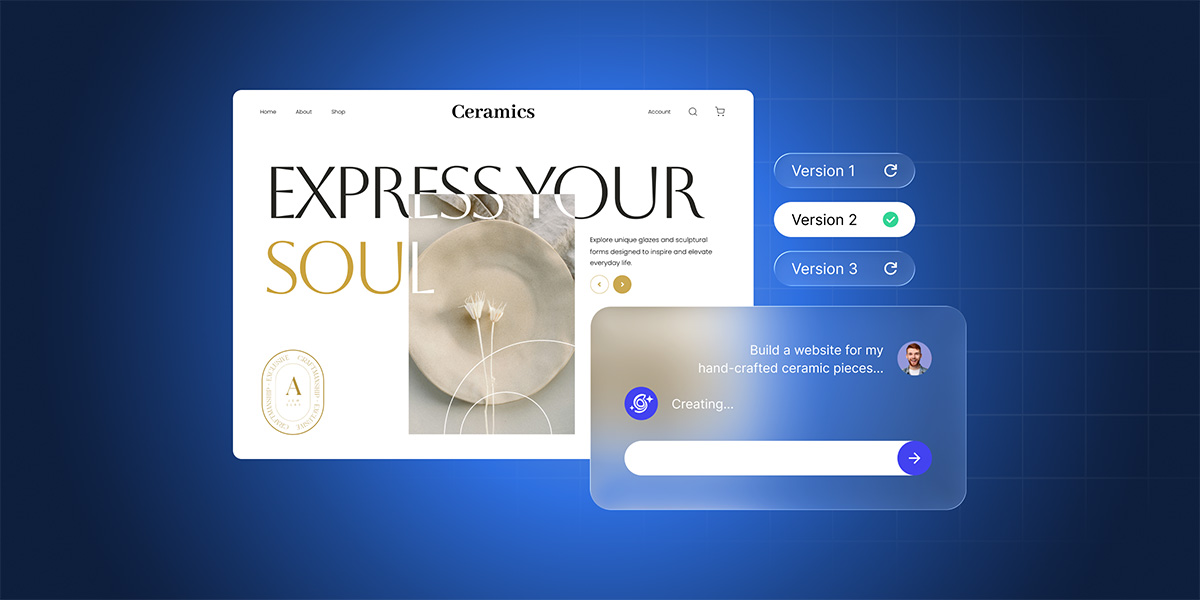
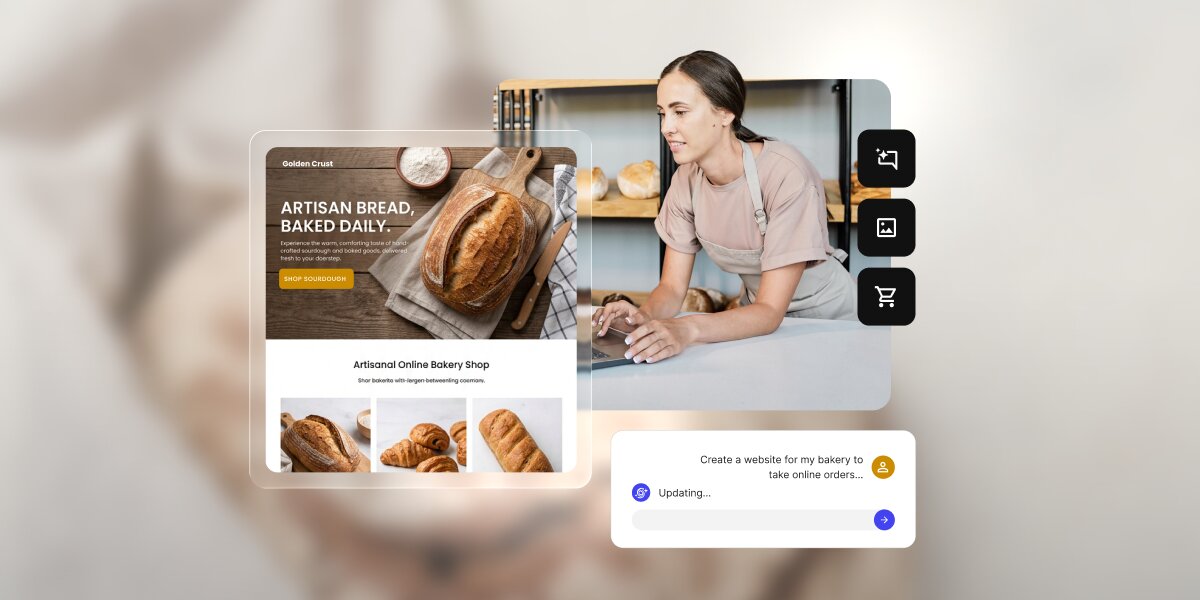
A digital graphic illustrating an AI website builder tool for a bakery business against a softly blurred, warm-toned background. On the right, a floating image panel depicts a female baker wearing an apron and working on a laptop inside a bakery, flanked by a vertical row of black icon buttons representing AI generation, media, and e-commerce shopping carts. On the left, a translucent glassmorphism preview panel displays a live website mockup for "Golden Crust" featuring a rustic hero banner of fresh bread, the bold headline "ARTISAN BREAD, BAKED DAILY.", a gold "SHOP SOURDOUGH" button, and a lower grid titled "Artisanal Online Bakery Shop." In the bottom right foreground, a white chat container captures the user prompt, "Create a website for my bakery to take online orders..." alongside a blue AI icon and an active "Updating..." status message.

What if we told you you only need 60 minutes of setup to build a website with AI? You just have to start with one clear business goal, describe your offer, audience, pages, and the action you want visitors to take, and let the AI create a first draft. Then you review the structure, edit the copy, add your real details, test the forms and mobile layout, and publish once everything is accurate.

This guide walks you through the whole process, from picking your goal to running a final pre-launch check, and shows how all-in-one tools like Coderick AI take you all the way from a prompt to a good-looking, working business website in an hour.

Key takeaways:

  • Pick one goal first. The fastest way to build a website with AI is to decide what it should do: get leads, take bookings, or sell.
  • A strong first AI website prompt does the heavy lifting. Give the AI your business type, audience, offer, pages, tone, and main call to action (CTA), the main thing you want visitors to do.
  • A useful first version is simple. It needs a clear homepage, easy navigation, accurate details, and one working next step, not every section imaginable.
  • All-in-one solutions like Coderick AI take you from words to a working website. Describe the site, refine the draft in plain language, and publish it on SiteGround hosting when it is ready.
  • Review before you publish. Check the forms, mobile layout, contact details, page titles, policies, and the main CTA first.

What should your website do first: lead, book, or sell?

Before you write your first prompt, decide the one job your website has to do. It sounds almost too basic to matter, but this single choice shapes everything that follows: your layout, your wording, which pages you build, and where the buttons go.

Most small business websites exist to do one of three things: get leads, take bookings, or sell products. Picking one now shapes every choice that follows, and gives the AI a clear target to build toward.

Lead: get quote requests or contact form submissions

If you want your customers to get in touch so you can quote, advise, or close the deal, the site’s job is make the visitors message you. Everything should nudge the people toward a short contact or quote form: a clear headline, a visible button on every screen, and customer testimonials to make reaching out feel safe. This is the right goal for service businesses (like plumbers, consultants, lawyers, or agencies), where the sale happens in a conversation rather than on the page.

Book: let visitors schedule an appointment

If your income depends on a full calendar, the site’s job is to remove every excuse not to book. That means scheduling is the star of the show: easy to find and quick to complete. Businesses like salons, clinics, trainers, and studios live and die by this.

Sell: show products or take orders

If you sell products, the site has to make each product look worth buying and make buying feel easy. Good photos and engaging product descriptions are as important as a simple, obvious path to order.

Why one goal makes the AI output better

AI builds toward the goal you give it. Ask it for “a website” and it has no choice but to guess, so it hands you something generic that could belong to anyone. Ask it for “a site that gets quote requests from local homeowners” and suddenly every decision has a north star: the homepage leads with your service, the buttons say “Request a quote,” and the layout puts the form where people will see it. Your goal isn’t just a planning step for you, it’s the most useful single instruction you can give the AI.

What should you prepare before you build a website with AI?

The gap between an AI-built website draft that’s almost right and one that’s frustratingly generic usually comes down to a few minutes of prep. The AI can invent a plausible business out of thin air, but it can’t invent yours, so the more real detail you give it, the less placeholder filler you’ll have to undo later. You don’t need polished sentences, just the honest facts about your business gathered in one place. Here are the seven worth having ready.

Your business description

That’s literally one or two plain sentences on what you do and who you do it for. Resist the urge to dress it up: “I’m a mobile dog groomer serving north Austin” gives the AI far more to work with than “premium pet care solutions,” because concrete words produce concrete pages, while vague words produce vague ones.

Your audience

Name the people the site is for, because the same business speaks very differently to different customers. A bakery selling wedding cakes to couples planning a wedding reads nothing like one selling after-school treats to busy parents. Tell the AI who’s on the other end and it can aim the tone, the examples, and even the imagery at them.

Your offer or services

List the three to six things you actually sell or do, in the words your customers would use. This usually becomes your services or products section, and keeping it short is a feature, not a limit: a focused list is easier for a visitor to scan and easier for you to keep accurate as your business changes.

Your location or service area

State where you operate: a city, a travel radius, or “online only.” This shapes your contact details, tells local customers you actually serve them, and for a lot of small businesses, it’s sometimes the reason someone picks you over a big multinational corporation.

Your main CTA

Decide the single action you most want a visitor to take, like “Request a quote,” “Book now,” “Shop the collection,” and let everything else defer to it. A common early mistake is offering five things to do at once, which leads to none of them getting done. One clear next step almost always beats a menu of options.

Your brand details

Gather the bits that make the site unmistakably yours: your business name, a logo if you have one, and a rough sense of style: is your vibe clean and modern, warm and friendly, or bold and colorful? You don’t need a brand guide. Even three plain adjectives are enough to stop the AI defaulting to a generic look.

Your photos, reviews, and proof

Try to round up real photos, genuine customer reviews, and anything that proves you deliver. This is the single biggest upgrade you can make to an AI draft, because the placeholder images and invented quotes it ships with are exactly what make a site feel fake. Swapping in the real thing is what turns an AI-generated template into your business website.

How do you write AI website prompts that work?

Writing the first AI website prompt is where your prep pays off. You’re not after clever phrasing, you’re handing the AI the same facts you’d give a freelancer on a first call, in a sensible order. Cover these six things and it has nearly everything it needs to get close on the first try, which means less to fix afterward.

Start with the website type

Open with what you’re building and for which business, because the first thing you say frames everything after it. For example, a prompt like “Build a website for a family-run bakery” already tells the AI the industry, the likely pages, and the tone, before you’ve specified any of them.

Name the audience

Add who it’s for: “for local customers looking for custom cakes and everyday bread.” This points the AI at the right register (in this case, friendly and local rather than corporate) and helps it choose examples and images that actually fit your customers.

List the pages you need

Spell out the pages so the AI builds the structure you want instead of the one it assumes: “Include a homepage, menu, about, and contact page.” Naming them keeps things lean, since leaving it open often gets you extra pages you then have to delete.

State the main action

Name the one thing you want visitors to do, and the AI will design toward it: “Make the main action placing a custom cake order through a form.” This tells it where to put the emphasis and what every button is ultimately for.

Add tone and style notes

The AI can build almost any look, but it can’t read your mind, so a few words on feel go a long way, for example: “Use a warm, friendly design with soft colors and large photos.” It’s far easier to steer the first draft than to redecorate later, so spend the words up front.

Include must-have details

Finish with the specifics that simply have to be right: your location, hours, phone number, and any real selling point. “We’re in Portland, open Tuesday to Sunday, and everything is baked fresh daily.” Handing these over now means fewer placeholders to hunt down before launch.


A reusable prompt template

Build a website for [business type] that helps [audience] [main goal].
Include [pages], Use a [tone/style] design, and make the main call to action [CTA].
The site should highlight [services/products/proof] and make it easy to [contact/book/buy].

Filled in for that bakery, it might read: 

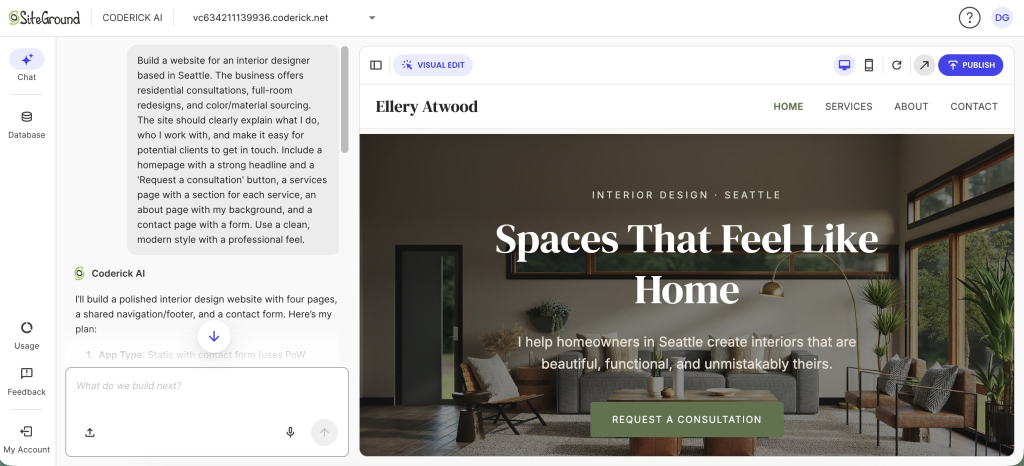
“Build a website for an artisanal, family-run bakery that helps local neighbors and event hosts order custom cakes for special occasions. Include a high-converting Homepage, Menu, About page, and a Contact page. Use appetizing images of cakes, and make the main call to action “Order a Custom Cake”. The site should highlight our custom cakes and make it easy to place an order.” 

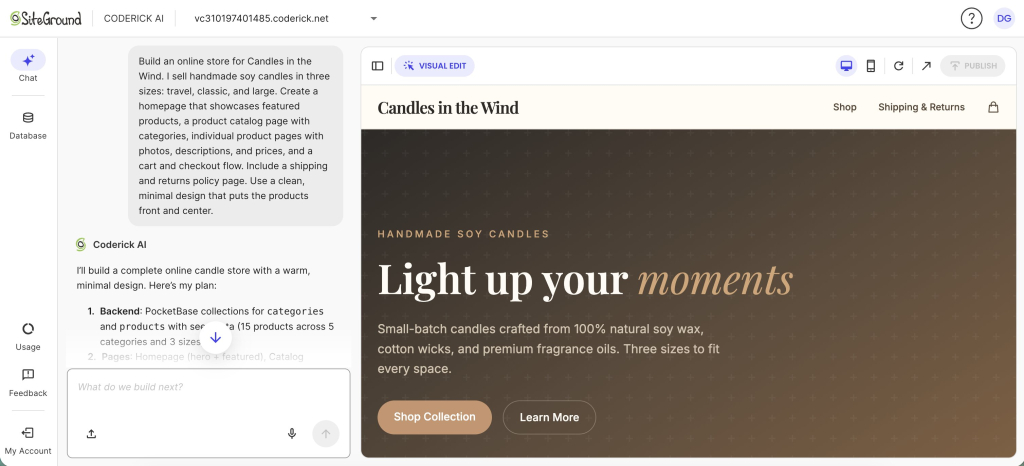
Notice how little of that is clever writing. It’s almost entirely your prep, arranged in order. Here’s what SiteGround’s Coderick AI makes with this basic first prompt:

A website hero section for "Hearth & Crumb," featuring a top navigation bar with links for Home, Menu, About, Contact, and a prominent orange button reading "Order a Custom Cake." The background displays a rich close-up photo of a chocolate layer cake with chocolate drip icing, frosting swirls, and sprinkles. Overlaid on the left side is the tag "FAMILY-RUN ARTISANAL BAKERY," the main headline "Cakes Baked with Heart & Heritage," and descriptive text reading "Every celebration deserves a centerpiece crafted by hand, with the finest ingredients and generations of baking tradition." Two call-to-action buttons sit at the bottom: a solid orange button reading "Order a Custom Cake →" and an outlined button reading "Browse Our Menu."

What pages should your AI-generated business website include?

Most AI-generated business websites need far fewer pages than you’d think. Building a sprawling site is a common early mistake, and a focused handful of strong pages almost always beats it, because visitors don’t explore, they skim for the one thing they came for.
Start with the essentials below, and add more only when there’s a real reason to.

Homepage

The homepage is the one page nearly everyone sees, so it has to answer three questions in seconds: what you offer, who it’s for, and what to do next. Put your main call to action near the top, above the fold (the part visitors see before they scroll), because plenty of people decide whether to stay or leave without scrolling at all.

Services or products page

This is where interest turns into intent, so make it concrete. Lay out what you sell or do in plain terms, with either clear prices or an obvious way to ask for them. Vagueness here is expensive: a visitor who can’t tell what you offer, or roughly what it costs, usually leaves rather than emailing to find out.

About page

People are wary of buying from a business that could be anyone, and the About page is where you stop being anonymous. A real story, a face, and a genuine reason you do this work build more confidence than any list of features. It’s often the most-visited page after the homepage, precisely because trust is what people are really shopping for.

Contact page

Make getting in touch easy: a simple form, your phone number, email, and where you’re based. If your goal is leads, this is arguably your most important page, so don’t hide behind a form alone. Some people want to call, and every barrier you remove between a curious visitor and you is a customer you keep.

Reviews, portfolio, or proof page

As mentioned, testimonials, past work, and before-and-afters let other people vouch for you, which lands far harder than praising yourself. Even a small number of specific, named reviews can tip a hesitant visitor into acting.

Policies, if needed

If you take money or bookings, a few plain policies (for example, returns, privacy, and cancellations) reassure people at the exact moment they’re deciding to trust you with their details. Only add what applies to you; a page of boilerplate nobody needs just adds clutter.

Website goalCore pagesMain CTA
Get leadsHome, services, about, contactRequest a quote
Book appointmentsHome, services, booking, contactBook now
Sell productsHome, products, cart/checkout, policiesBuy now

How do you generate and edit the first version fast?

The moment the AI hands you a draft, there’s a strong pull to start fixing words. Resist it. The fastest route to a publishable site is to work from the outside in, structure before sentences, because there’s no point polishing copy on a page you might delete. Here’s the order that wastes the least effort.

Review the homepage first

It carries the most weight and sets the tone for everything else, so judge it before anything else. Does the headline say what you do? Is the offer clear? Does the main button point where you want people to go? If the homepage works, the rest of the site gets much easier to fix.

Check navigation before copy

Look at the menu before you read a single paragraph. Are the right pages there, in a sensible order, with nothing missing or doubled up? Getting the skeleton right first means you’re never rewriting text on a page that shouldn’t have existed in the first place.

Fix the headline and CTA

Your headline and main button do more work than everything else on the site combined, so give them the most attention. A headline should say plainly what you do and for whom; a button should say exactly what happens when it’s clicked. “Get your free quote” beats “Submit” every time, because it tells the visitor what they’re getting.

Remove sections you do not need

AI tends to pad, adding generic “Our mission” or “Why choose us” blocks to fill space. Delete anything that doesn’t serve your one goal. A short page that carries people toward the next step beats a long one that makes them scroll past filler to find it.

Rename pages and buttons

Swap clever or vague labels for plain ones. “Services” is clearer than “What we offer,” and “Book now” beats “Learn more” when booking is the point. Clarity almost always converts better than cleverness, because a visitor who has to pause and decode a label often just doesn’t click.

Ask for one change at a time

When you refine, give one instruction, check the result, then give the next. It feels slower but it’s faster overall: you can always see exactly what a change did, and it’s easy to undo a single step when something goes sideways, rather than untangling 10 changes at once.

Check what the AI made up: AI writes confident, professional-sounding text, and to fill the gaps you left, it will happily invent details: a phone number, an opening time, a glowing five-star review, a price. It’s just guessing, but a guessed phone number is just as wrong as a made-up one. Before you publish, treat every specific fact on the site as a placeholder until you’ve checked it against reality. The most damaging website mistakes aren’t broken layouts, they’re wrong contact details and claims you can’t stand behind.

What trust blocks should you add before launch?

A website can look polished and still fail, because looking professional and feeling trustworthy aren’t the same thing. A stranger deciding whether to hand you money, or even just their phone number, is scanning for reasons to believe you’re real and reliable. Trust blocks are those reasons made visible. Add the ones that fit your business, and place them where hesitation happens: near your prices and your buttons.

Reviews and testimonials

We’re mentioning this again because nothing you say about yourself carries the weight of what a customer says about you. A few specific reviews, ideally with real names and details (“booked me in same-day when my boiler died”), beat a page of adjectives, because specifics ring true while generic praise reads as invented.

Before-and-after examples or portfolio

For any business where the result is something you can see (like cleaners, landscapers, designers, or stylists), showing the work is more persuasive than describing it. A before-and-after does in a single glance what a paragraph can’t: it proves you can actually deliver the outcome the visitor is hoping for.

Credentials, licenses, or guarantees

Licenses, certifications, insurance, or a simple guarantee all do the same job: they lower the risk of choosing you. A short line like “fully insured” or “satisfaction guaranteed or your money back” can be the small reassurance that turns a maybe into a yes.

Address, phone number, and service area

A real address, a working phone number, and a service area tell a visitor there’s an actual business behind the site. It sounds basic, but missing or vague contact details are one of the fastest ways to make a site feel like a scam, even when it plainly isn’t.

Privacy, returns, or booking policies

Clear, plain-language policies reassure people at the precise moment they’re deciding to trust you, right before they pay or book. They don’t need to be long or lawyerly, they need to be easy to find and easy to understand, so no one hesitates over what happens if something goes wrong.

Clear pricing or “request a quote” language

Price is the question on nearly every visitor’s mind, so don’t dodge it. Either show your prices or make it obvious and easy to get them. Hiding pricing entirely is one of the most common reasons people leave a small business site: they assume the worst and move on to a competitor who was upfront.

What is the 12-point launch checklist for an AI-built website?

Before you launch an AI-built website, run one final check. This final check can catch the small, easily avoidable things: a typo’d phone number, a form that goes nowhere, that quietly cost real customers. It takes only a few minutes, and it’s the difference between a site that works and one that merely looks like it does.

  1. Main CTA is visible above the fold (before scrolling).
  2. Contact form sends to the right inbox.
  3. Booking or checkout flow works from start to finish.
  4. Phone number and email are correct.
  5. Address or service area is accurate.
  6. Mobile layout is readable on a real phone.
  7. Buttons are big enough to tap easily.
  8. Images load and have alt text (short descriptions that aid accessibility and image search).
  9. Page titles are unique for each page.
  10. Each page has one clear main heading (H1).
  11. Policies and any claims are accurate.
  12. Domain, SSL (the padlock that secures your site), and publishing settings are ready.

How does Coderick AI take you from prompt to published website?

Building with AI is the fun bit. You describe your site, watch the pages appear, tweak the words, and you can be ready in 60 minutes. Then the questions start: Where does this thing actually live? How do people find it? Is it secure? What happens when it’s time to swap the temporary address for your real one?

That’s hosting, a database, security, and a domain, and it’s exactly where most AI website tools hand you the keys and walk off, leaving you to wire it all together with extra logins, extra bills, and a weekend you weren’t planning to spend.

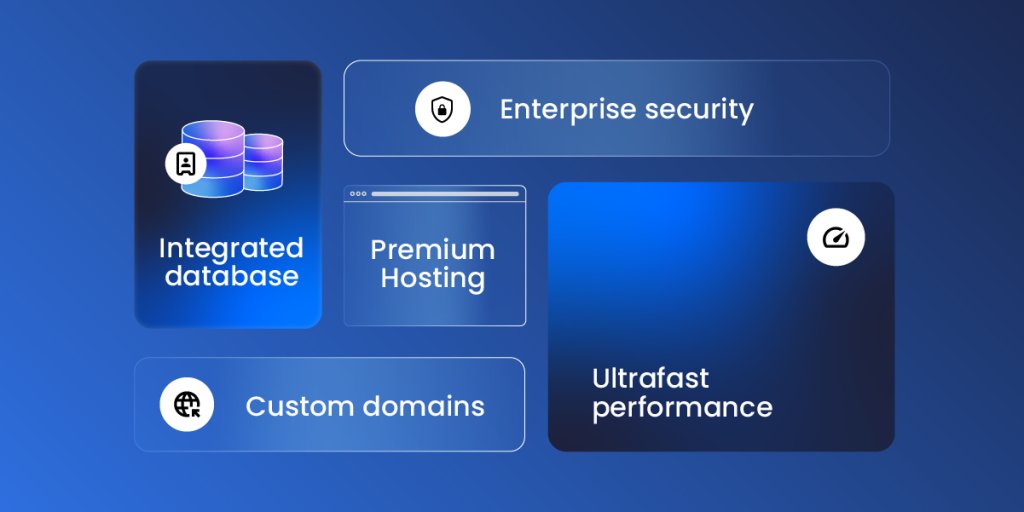
Coderick AI was built to answer all those questions. It’s a full build-and-publish platform rather than just a page generator, so describing, refining, hosting, and publishing all happen in one place. Coderick AI includes premium built-in hosting, database support when your site needs it, the same infrastructure that runs millions of SiteGround sites, and a custom domain on paid plans. You build the site, and it’s already home.
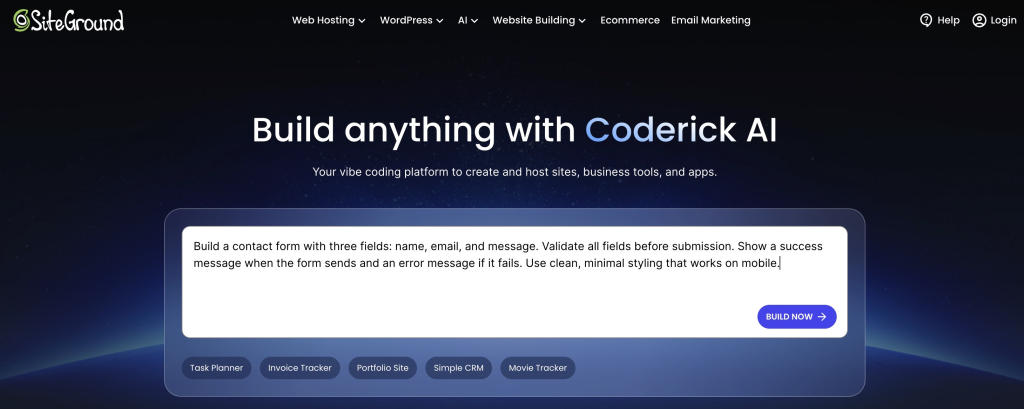
SiteGround Coderick AI homepage with a prompt input field and quick-start options for building sites, tools, and apps

It runs real features, not just static pages

Plenty of AI tools generate good-looking pages that only display information. If your site needs to do something, (take a booking, capture sign-ups, store enquiries), it needs a database behind it, and Coderick AI sets that up for you automatically when your project calls for one. You get a site that works, not just one that looks the part.

Hosting, security, and speed are part of the deal

There’s no separate host to find or configure. Coderick AI includes premium hosting, your pages run on SiteGround’s infrastructure, and the security that protects them is handled from the moment you go live. The tool that builds your site is the one that keeps it running, so nothing gets bolted on afterward.

You publish in one click, then point your domain at it

When the site ready, publishing happens inside Coderick AI with a single click: no export step, no separate deployment workflow. You can launch on a temporary web address while you polish, then connect your own custom domain (your yourbusiness.com) on a paid plan when it’s time for customers to find you.

Ready to build?

[96]

FAQs

Can I build a website with AI without coding?

Yes. You can build a website with AI withno coding required. You describe your business, audience, pages, and goal in plain language, and the AI builds the first version. Tools like Coderick AI generate the draft, then you review it, edit the details, test the forms and mobile layout, and publish when it’s ready.

What should I include in my first AI website prompt?

Include the business type, target audience, site goal, pages, services or products, brand tone, location, and main call to action. For example, tell Coderick AI whether the site should generate leads, take bookings, or sell products.

How long does it take to build a website with AI?

A simple business site can reach a useful first draft in minutes, but a publishable version still needs review. Plan time to edit the copy, replace placeholders, check the mobile layout, test the forms, add trust details, and verify your contact information before going live.

What pages should an AI-built business website include?

Most small business sites need a homepage, a services or products page, an about page, a contact page, and some trust elements such as reviews, portfolio examples, or policies. The exact page map depends on your goal: leads, bookings, or sales.

Can Coderick AI build a website from a short description?

Yes. Coderick AI can create a website from a plain-language description of what you need. Better results come from giving clear context: what your business does, who the site is for, what pages you need, and what action visitors should take.

What should I check before publishing an AI-built website?

Check the main CTA, forms, booking or checkout flow, mobile layout, contact details, images, page titles, policies, and any claims the AI generated. Treat the first version as a strong draft that needs your real business facts before it goes live.

Are AI-built websites mobile-friendly?

Most modern AI website tools generate layouts that adapt to phones, but you should still test on a real device. Check spacing, readable text, tap targets, images, and forms. Mobile review is a key step before publishing.

Can I launch a business website fast with Coderick AI?

Yes. Coderick AI helps you describe a site, generate a draft, refine it, and publish on SiteGround hosting when the website is ready. The fastest path is to start with one goal, use a clear prompt, edit only what matters first, then run a short launch checklist.

What is the biggest mistake when building a website with AI?

Publishing the first draft without review. AI creates structure, copy, and design quickly, but you need to check pricing, contact information, policies, guarantees, testimonials, forms, mobile layout, and the main CTA before sending visitors to the site.
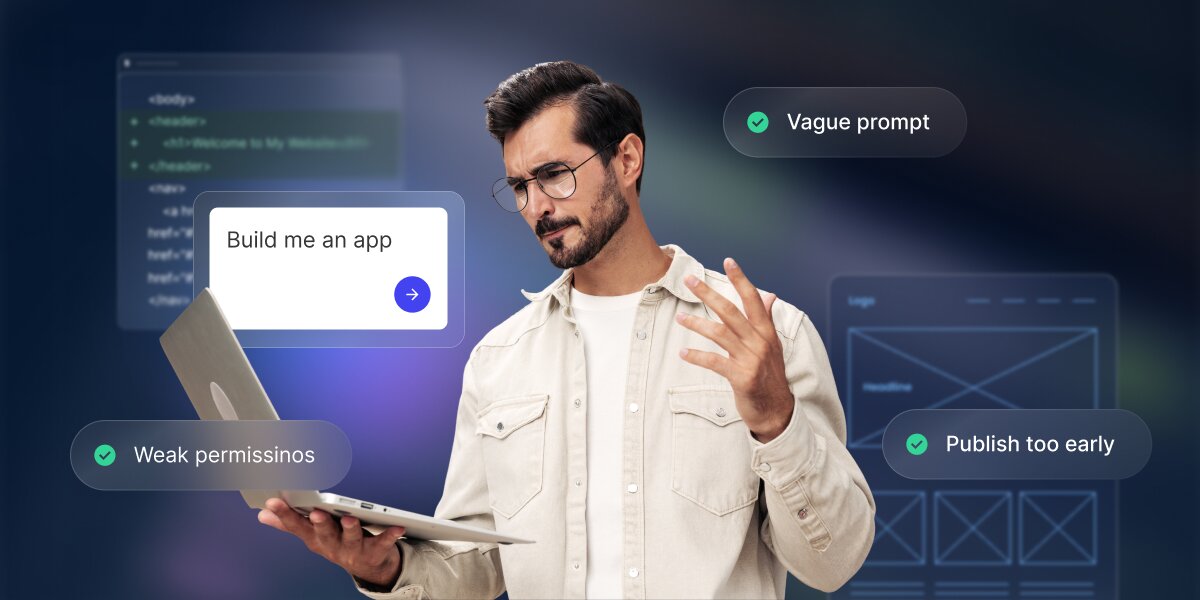
The biggest AI app builder mistakes (and how to avoid them)

A digital illustration featuring a central man with dark hair and glasses, wearing a beige shirt over a white t-shirt, holding a silver laptop. He has a confused and puzzled expression, gesturing with an open hand. Surrounding him are translucent cards with specific text and green checkmark icons. On the left, a card reads "Weak permissinos". In the center, a prompt input box contains the text "Build me an app" with a blue submit arrow. Above this, a card reads "Vague prompt". To the right, a card reads "Publish too early". Blurred abstract technology wireframes, including a terminal with code on the left and an app layout on the right, are visible in the background against a dark gradient.

If you’re wondering whether an app you built with an AI app builder will hold up once people start using it, rest assured: most AI app builder mistakes are easily avoidable. In fact, nearly all of them happen before the app is ever generated: a vague idea or goal, unclear data or prompt, too many features at once, or no plan for testing. An AI app builder can produce a fast first version, but it only becomes useful once you define the goal, review what it built, test the key workflows, and refine in small steps.

This guide walks you through the nine most common AI app builder mistakes that trip people up most, and how to avoid each one, including how advanced AI tools like Coderick AI make those good habits easier to follow.

Key takeaways:

  • Most AI app builder mistakes happen before you build. Unclear goals, vague prompts, missing data rules, weak testing, and overbuilding cause most of the trouble.
  • Treat the first version as a draft. The first AI-generated app is a starting point to react to, not a finished product to ship.
  • Solve one problem for one user first. A useful first version does one clear job for one main group of people.
  • Check the boring stuff before real data. Users, permissions, workflows, and edge cases decide whether the app holds up.
  • Strong prompts spell out five things. The app’s goal, its users, its data, the main actions, and what “working” actually means.
  • All-in-one AI app builders like Coderick AI get you to a working first version fast. They handle the database, hosting, and publishing, so several common mistakes are easier to steer clear of.

Why do AI app builder projects fail?

AI app builders rarely fail because the AI isn’t good enough. They fail because of what happens around the building: fuzzy goals, a first draft mistaken for a finished product, and no testing before real users show up.

The tool builds from the context you give

An AI web app builder works best when you give it a good description of your project. Give it a vague request and it guesses the rest, filling the gaps with generic assumptions that may have nothing to do with your business. The first output is mostly a reflection of the context you provided.

A demo is not the same as a usable app

The first result from a demo usually looks impressive, which is exactly the trap. Looking right and working right are two different things. A demo works when everything goes to plan, but a really usable app keeps working even when someone skips a field, enters the wrong thing, or does steps out of order.

The first version is a draft, not a finished system

Think of the first AI-built app version like the first draft of a document written by ChatGPT. It gives you something to improve, not something ready to publish. Nobody sends a first draft to a client, and the same caution applies here.

User focus changes the outcome

An app built for “everyone” ends up serving no one well. Decide who the main user is, if there’s an admin, a team member, or a customer, and the AI app builder will keep this in mind: which screen comes first, what each person sees, and what the app actually needs to do.

Mistake 1: Starting with a vague app idea

The most common AI app builder mistake is asking for an app before you can describe it. If you want a tool for tracking customers and leads, and your prompt is just “Build me a CRM”, this gives the AI almost nothing to work with. It fills in the details for you, and rarely in the way you had in mind.

What vague looks like

Vague prompts often name the type of app but none of the specifics. For example, saying “I want a booking app” doesn’t say who books, what they book, or what you need to see afterward. As mentioned, every missing detail is one the AI has to invent.

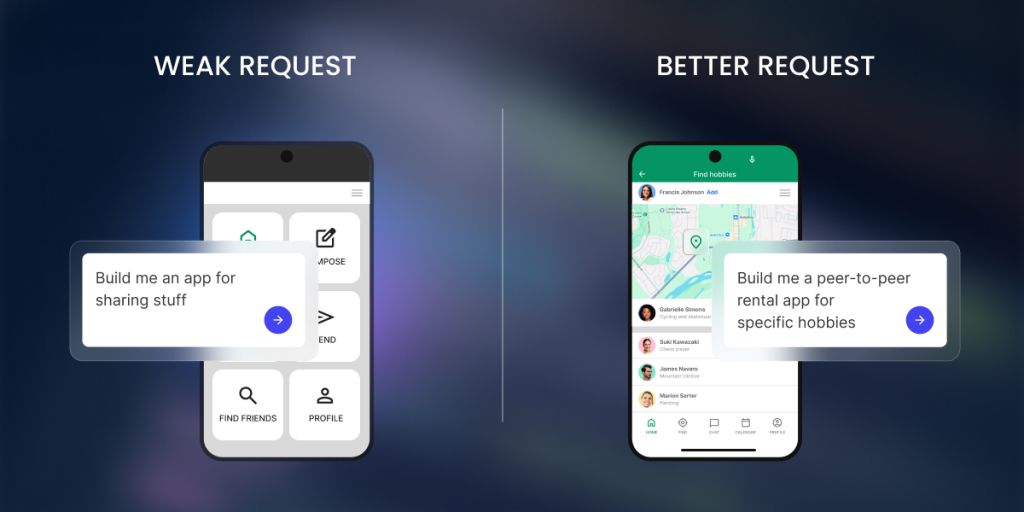
A digital graphic comparing two AI prompting techniques side-by-side against a dark, blurry gradient background.

The left side is labeled "WEAK REQUEST" and features a smartphone mockup displaying a generic wireframe layout with basic placeholder buttons like "COMPOSE" and "FIND FRIENDS." A translucent glassmorphism text box overlays the phone with the vague prompt, "Build me an app for sharing stuff."

The right side is labeled "BETTER REQUEST" and features a smartphone mockup showing a high-fidelity, polished application interface titled "Find hobbies," complete with an interactive map, user profile listings, and a bottom navigation bar. A translucent text box overlays this phone with the specific, descriptive prompt, "Build me a peer-to-peer rental app for specific hobbies."

Why AI fills in the blanks

An AI app builder is designed to be helpful, so it won’t stop and say “that’s too vague.” It makes reasonable-sounding choices to keep you moving. This can seem helpful, but it can also be exactly where your app drifts away from what you needed, and you’ll waste much more time.

How to fix it

Try to pin down five things before you build: the goal, who uses it, the data it stores, the main actions, and what “working” looks like (how you’ll know the app actually did its job). You don’t need perfect wording, just enough that someone else could picture the same app you do.

Weak prompt Better prompt
“Build me a CRM”“Build a CRM for a 3-person agency to track leads with status, owner, next follow-up date, and notes. The main thing I need is one screen that shows whose follow-ups are due today, so nothing slips through.”
“Make a booking app”“Build a booking app for a physiotherapy clinic where clients pick an appointment type and an open slot, and staff review the day’s schedule. The goal is for clients to book without calling us.”

Mistake 2: Building too much in version one

Your first prompt should capture the app idea as a whole: the goal, the main user, the data, and the one core action, as covered above. What it shouldn’t do is pile on every feature you want. It’s tempting to bolt on things like payments, reports, email, and a mobile version in a single go, and that’s exactly how a clean app idea turns into a tangled first version you can’t fix.

Why big first prompts create messy apps

The more you cram into one request, the more places something can go wrong, and the harder it is to tell which part broke. A huge first prompt also forces the AI to make more guesses, so more of your app ends up being its assumptions instead of your decisions.

What belongs in version one

Version one should do one job for one group of people: one main screen, the data behind it, and the single most important action. If your app is a booking tool, version one takes a booking and shows you the schedule. That’s it.

What to save for later

Everything that isn’t the core job waits: payments, fancy reports, notifications, extra user types, a polished design. Add them one at a time, after the main flow works, so each addition is easy to test and easy to undo if it causes trouble.

Mistake 3: Not defining users, roles, and permissions

Most apps are used by more than one kind of person, and they should not all see the same things. Skip defining this, and you risk the worst kind of bug: one customer seeing another customer’s information.

Admin, team, and customer roles

Three roles cover most small apps. An admin (you) can manage everything. A team member works in the app day to day but can’t change the settings. A customer only ever sees their own corner of it. Decide which roles your app needs before you build, not after.

Who can view what

Viewing is about what each role can see, and the rule of thumb is that people see only what belongs to them. A customer sees their own orders, a team member sees the day’s orders, an admin sees everything. Tell the AI this directly, because it won’t assume it for you (and if it does, it may be the wrong assumption).

Who can edit or delete

Seeing something and changing it are different powers. A team member might update an order’s status but not delete the order. A customer might edit their own contact details and nothing else. Spell out who can edit and who can delete, since “delete” is the one that really hurts when it’s wrong.

Permission checks before launch

Before anyone logs in, test the roles. Sign in as a customer in a separate browser and try to reach something you shouldn’t. If you can’t, the permissions work. If you can, you just found a problem while it was still cheap to fix.

Mistake 4: Treating the data model as an afterthought

The data model, which means the way your app’s information is organized, is the foundation under everything else. Get it wrong and your screens, searches, and reports all wobble. You don’t need to design a database, but you do need to think about a few basics first.

What information the app stores

Start by listing the things your app keeps track of: customers, orders, bookings, products. Each of these becomes a table, a list of one kind of thing, like a tab in a spreadsheet. If you can’t list them, the app doesn’t yet know what it’s about.

Which fields matter

For each thing, decide the details worth storing. For a booking, that might be the name, date, service, and status. Those details are called fields. Capture what you’ll actually use, and resist storing information “just in case,” since every extra field is one more thing to maintain.

How records connect

A record is a single entry: one customer, one order, one booking. Records should connect to each other instead of sitting in separate piles, so a customer connects to their orders and an order connects to its items. Without those links you retype the same details over and over, and they drift out of sync.

What happens when data changes

Think about updates and deletions early. If a customer changes their email, does it update everywhere? If you delete a customer, what happens to their past orders? Apps can break at the moment data changes, not when it’s first created, so tell the AI how you want changes handled.

Mistake 5: Skipping workflow rules

A workflow rule is the app doing something automatically, the “when this happens, do that” logic that turns a set of screens into a real tool. Leaving it out means you’ve built a tidy filing cabinet, not an app that works for you.

Statuses

A status shows the stage something is in, like “new,” “in progress,” or “done.” Statuses let you and your team see what needs attention at a glance, and they’re the backbone of almost every workflow. Decide the stages your main item moves through.

Notifications

Notifications tell the right person when something needs them, like an email when a booking comes in. Be specific about who gets told and when, so the app cuts down the messages you send by hand instead of adding noise.

Approvals

Some workflows need approval before they continue, such as a manager approving a request or a refund. If your process has a gatekeeper, build that approval step in rather than relying on someone to remember it.

Follow-ups

Follow-ups are the nudges that keep things from slipping through the cracks, like a reminder when an invoice is overdue or a lead has gone quiet. They’re easy to skip and surprisingly valuable to keep.

Calculations

If your app needs numbers worked out, like a total, a tax amount, or days remaining, let the app do the math. Manual calculations are where small errors creep in, so describe the formula you expect to see.

Mistake 6: Trusting the first version too quickly

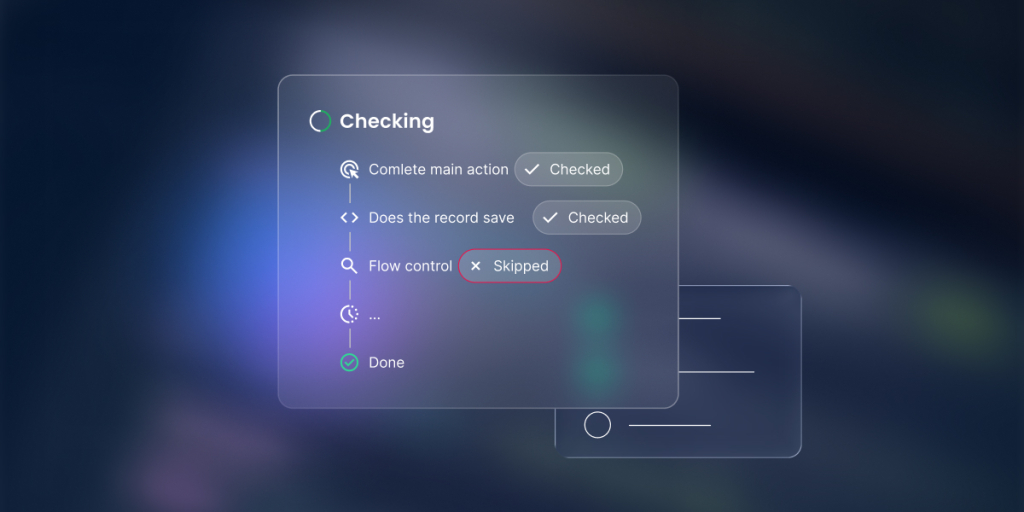
The first AI-built app version looks finished, so it’s tempting to call it done. Spend 20 minutes trying to break it first. That’s far cheaper than letting a customer find the cracks for you.

A digital graphic featuring a floating glassmorphism workflow checklist panel titled "Checking" against a dark, blurry background with subtle blue and purple lighting.

The main panel outlines a vertical sequence of automated backend steps connected by a thin timeline:

"Comlete main action" and "Does the record save" are both accompanied by a translucent "Checked" badge.

"Flow control" is flagged with a red-bordered "Skipped" badge.

This is followed by a loading ellipsis step ("...") and a final step marked with a green checkmark labeled "Done."

A smaller, simplified translucent wireframe card with placeholder lines is partially visible in the background beneath the main panel.

Test the main user path

Walk through the single most important workflow your app does, start to finish, the way a normal user would. Book the appointment, save the order, submit the form. If the main path stumbles, nothing else matters yet.

Test bad inputs

Now misbehave on purpose. Enter letters where a number goes, leave the email blank, paste a phone number into the wrong box. Good apps catch this; weak ones save broken data or fall over.

Test each user role

Log in as each kind of user, not just as yourself, the admin. What a customer can see and do is usually very different from what you can, and the only way to know it’s right is to look through their eyes.

Test the data output

Check that what you entered actually saved and shows up where it should. Add a record, then find it again in the list, on the dashboard (the at-a-glance summary screen), and in any report. Data that looks saved but isn’t is a common and nasty surprise.

Test what happens when something is missing

Real people leave things out. See what the app does with a half-finished booking or a missing required field. It should guide the person to fix it, not fail or store a confusing half-record.

A quick five-point AI-built app testing checklist:

  • Can a user complete the main action?
  • Does the record save correctly?
  • Does the right person see the right data?
  • What happens if a required field is empty?
  • What happens if a user does something out of order?

Try to break it: Test like your worst user, not your best one: the person who double-clicks every button, hits “back” halfway through, types in all caps, and tries to book the same slot twice. Your calm, careful run-through will always pass. The messy user is the one who finds the bug, so be that user for 10 minutes before anyone else has to.

Mistake 7: Ignoring edge cases

Edge cases are the unusual situations that never come up in a smooth demo but absolutely come up in real life. They’re the difference between an app that works on stage and one that works at 5 p.m. on a busy Friday.

Empty fields

What happens when someone submits a form with missing information, or skips a field you assumed they’d fill? The app should ask for what’s missing, not save a blank record or break.

Duplicate records

People submit twice, and two customers can share a name. Decide how the app should handle duplicates, or you’ll end up with two half-right versions of the same thing and no idea which one is correct.

Wrong user access

Test what happens when someone tries to open a page they shouldn’t, by guessing a link or reusing an old one. They should be turned away cleanly, never shown someone else’s data.

Cancelled requests

Bookings get cancelled and orders get withdrawn. Make sure cancelling actually frees things up, like reopening the time slot, instead of leaving a ghost record that blocks everyone else.

Failed payments

If you take money, some payments will fail. The app should handle a declined card gracefully, not leave a customer charged-but-not-confirmed, or confirmed-but-not-paid.

Overdue statuses

Things slip past their due date: an invoice goes unpaid, a task runs late. The app should be able to show what’s overdue, so problems surface on their own instead of waiting for you to notice them.

Mistake 8: Refining everything at once

When an AI-built app isn’t quite right, the instinct is to fire off one giant prompt fixing 10 things. That usually makes it worse, because the AI can rewrite parts that were already fine.

Fix one issue per prompt

Refine one issue at a time and check it before moving on. It’s slower for about five minutes and faster overall, because you always know exactly what caused a change.

Keep what works

Tell the AI what to leave alone, not just what to change. “Keep the booking form exactly as it is, but add a confirmation email” protects the parts you’re happy with from being rewritten.

Use before-and-after feedback

After each change, compare it against the version before. Did the fix work? Did it break anything else? Catching a slip right away is far easier than untangling it 10 prompts later.

Stop when the core workflow works

Know when to stop. Once the main job runs from start to finish, resist polishing forever. Publish or share the useful version, then improve it with real feedback instead of guesses.

The reset move when prompting drifts: If every prompt seems to make the app worse, stop editing and reset. Open a fresh, short brief and restate the basics in a few lines: the goal, who uses it, the data it holds, the one workflow you care about most, and the single problem you want fixed. Starting clean from a clear summary often beats digging a tangled conversation back out of a hole.

Mistake 9: Publishing before the app is ready for real users

Going live feels like the finish line, but publishing to real customers before the app is ready is how a small bug becomes a public one. A few checks first will save you a lot of apologies later.

What to check before users see it

Run the main workflow one last time, confirm each role sees only what it should, and make sure forms save and confirmations send. If you can’t explain in one sentence what each user can see, you’re not ready yet.

What not to connect too early

Hold off on the risky parts until the basics are solid: real payment processing, your live customer list, and anything that sends messages to actual people. Try these with safe stand-ins first.

When to use test data

Until you trust the app, use test data: fake customers, sample bookings, a test card. It lets you try everything, including the failures, without touching a real person’s information or money.

When to ask for help

If something involves payments, legal terms, or sensitive personal data and you’re unsure, that’s the moment to get a second opinion from someone technical. Knowing the edge of your comfort zone is a skill, not a weakness.

A few basic rules for going live:

  • Don’t use real customer data until permissions are checked.
  • Don’t accept payments until the flow is tested.
  • Don’t invite customers until the admin path works.
  • Don’t launch if you can’t explain what each role can see.

A simple checklist to avoid AI app builder mistakes

Before you build with an AI app builder, run through these seven questions. If you can answer each one in a sentence, you’ve already avoided many of the most common AI app builder mistakes.

Before you buildQuestion
GoalWhat specific problem does the app solve?
UserWho is the first user group?
DataWhat records and fields does it store?
WorkflowWhat happens after each action?
PermissionsWho can view, edit, or delete each record?
TestWhat proves the core workflow works?
ScopeWhat is intentionally not included in version one?

How Coderick AI helps you avoid common app-builder mistakes

Look at where most of AI app builder mistakes happen: in the data, the permissions, the workflow, and the messy business of getting an app safely in front of real people. Many AI tools happily generate screens and leave you to handle the rest, which is exactly why those traps are so easy to fall into.

Because all-in-one solutions like Coderick AI keep the building, the data, the hosting, and the publishing in one platform, those parts are handled together rather than left for you to bolt on at the end, and the good habits from this guide become the path of least resistance.

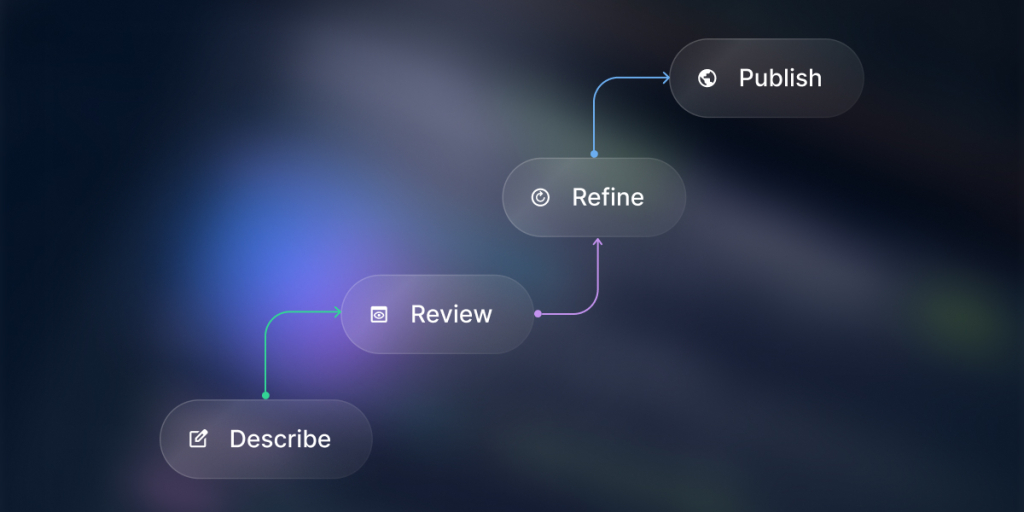
A digital graphic depicting a four-step sequential workflow diagram ascending from bottom-left to top-right against a dark, blurry background with subtle neon lighting. The steps are presented as translucent glassmorphism panels connected by colorful curved arrows. The process begins at the bottom left with "Describe" featuring a pencil icon, which connects via a green line to "Review" featuring an eye icon. A purple line then leads to "Refine" featuring a circular refresh icon, and a final blue line points to the top-right step labeled "Publish" featuring a globe icon.

It builds the data and logic

Many builders hand you good-looking screens and leave the foundation to you, which is exactly how the data-model and workflow mistakes happen. When you describe your app to Coderick AI, it generates the database, the way records connect, and the “when this happens, do that” rules along with the screens. The structure that usually gets treated as an afterthought is there from the first version, so you’re reviewing a foundation instead of scrambling to build one later.

A working draft makes the gaps obvious

The fastest cure for a vague idea is something real to react to. Coderick AI gives you a clickable, working first draft rather than a wall of settings, so the moment you open it you can see what you forgot to mention and what you don’t actually need. It turns “I think I want a CRM” into “this is close, but customers shouldn’t see each other’s notes”, which is a far easier problem to solve.

Version restore makes testing and refinement low-risk

Two of the biggest mistakes, trusting the first version and changing everything at once, come from a fear of breaking things. Coderick AI takes that fear away. You can refine one instruction at a time, make a quick visual edit, or throw a deliberately awkward edge case at it, and if a change goes wrong, version restore rolls the whole app back to an earlier point, like an undo button for the entire project. That makes it safe to test like your worst user and to fix things one at a time.

Everything lives in one place, so you publish on your terms

Publishing before you’re ready gets worse when going live means stitching together a host, a database, and security at the last minute. With Coderick AI, all of that is already part of the platform, so there are fewer seams where things break and nothing rushes you. You can work with sample data for as long as you like, and when the core workflow actually holds up, you publish to SiteGround’s battle-tested infrastructure in a click, with a custom domain on paid plans.

[96]

FAQs

What are the biggest AI app builder mistakes?

The biggest AI app builder mistakes are starting with a vague idea, building too much at once, skipping user roles, ignoring the data model, trusting the first version too quickly, and publishing before testing. Most problems come from unclear inputs, not from the AI alone.

Why do AI app builder projects fail?

AI app builder projects often fail because the user asks for an app before defining the goal, users, data, workflow, and success checks. The builder can generate a first version, but it needs clear context and review to become useful.

How do I avoid vague prompts in an AI app builder?

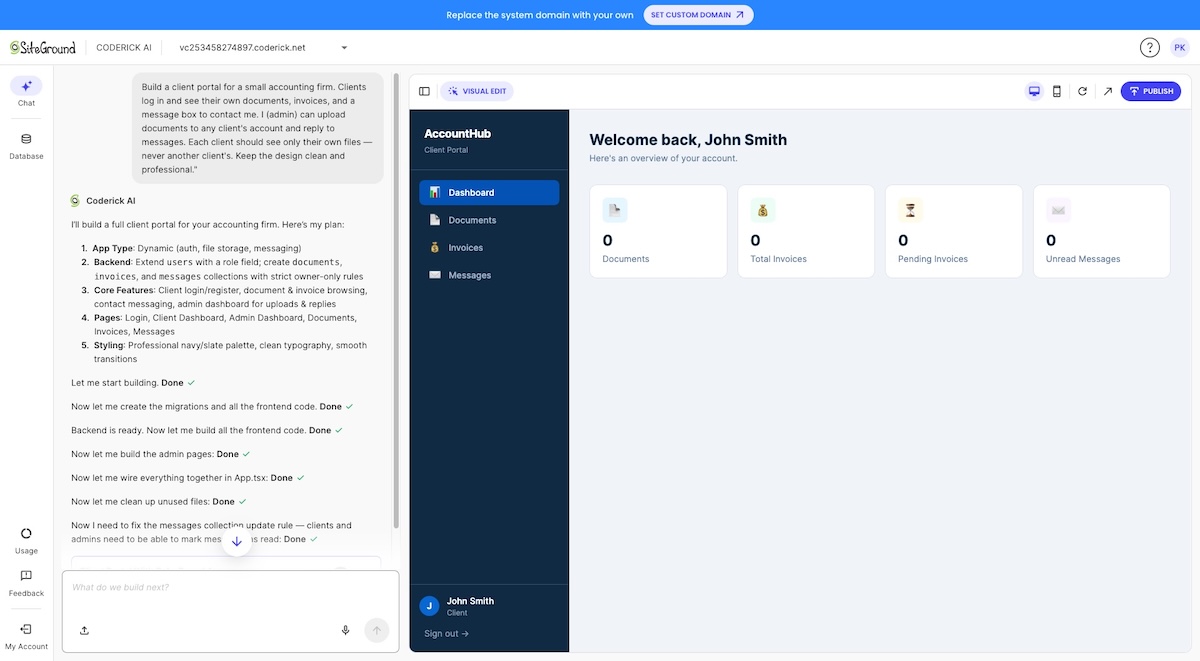
Avoid vague prompts by describing the app type, user roles, main actions, data fields, business rules, and what counts as success. In Coderick AI, a request like “build a client portal for agencies with client-only project views and admin controls” gives far better context than “build me a portal.”

Should I build all features in the first version?

No. The first version should solve one problem well before you add advanced features. Start with one user group, one workflow, and the data needed to support it. Extra features can be added after the core flow works.

What should I test in an AI-built app?

Test the main workflow, required fields, saved data, user roles, permissions, and edge cases. Use test data first. Check what happens when a user submits incomplete information, tries the wrong action, or logs in with a different role.

Can Coderick AI help non-technical users avoid mistakes?

Yes. Coderick AI can help non-technical users create a first version from a plain-language description and refine it through follow-up instructions. The best results still come when the user explains the goal, users, data, and workflow clearly before building.

Is an AI-built app ready to publish immediately?

Usually not. An AI-built app may be useful quickly, but it should be reviewed before real users or real data are involved. Check the main workflow, permissions, forms, data storage, and edge cases before publishing or inviting customers.

What should I do if the app starts getting worse after several prompts?

Stop changing everything at once. Save what works, identify one issue, and use a focused follow-up prompt. If the conversation has drifted, restart with a shorter brief that includes the goal, users, data, and the exact problem you want fixed.

Which no-code web app builder to choose? A buyer’s criteria for non-technical teams

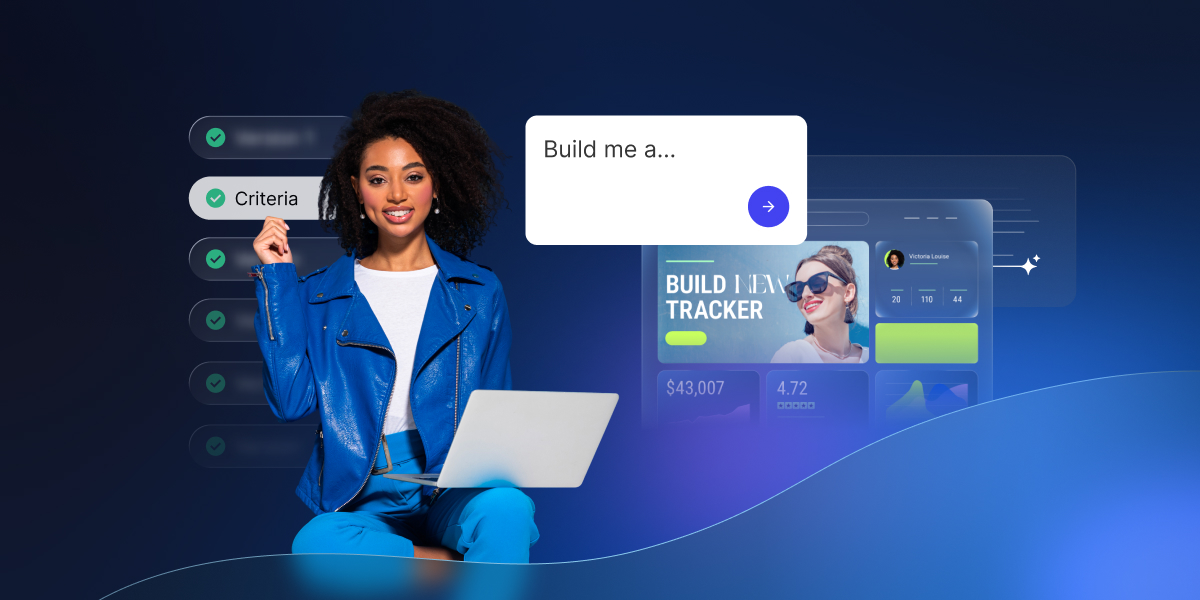
A digital graphic featuring a woman with curly dark hair wearing a bright blue leather jacket and blue pants, sitting with a laptop on her lap. She smiles toward the camera against a dark blue background with abstract blue curves at the bottom. To her left, a vertical list of translucent menu options with green checkmarks is displayed, with one highlighted button clearly labeled "Criteria." An overlay in the center shows a white text input box containing the prompt "Build me a..." and a blue button with a white arrow. In the background to the right, a translucent app dashboard interface is visible, showcasing metrics, graphs, and a profile section.

So you’ve probably heard the good news: you no longer need to hire a developer or wrestle with code yourself to build a web app for your small business. A no-code web app builder can help non-technical teams create browser-based business apps, with screens, data, users, workflows, and publishing support, without writing code.

The problem now becomes: which builder should you choose if you don’t want to spend hours digging into technical details? This guide walks you through what to check before you commit: the features that matter, the integration traps, the costs that can show up later, and how all-in-one solutions like Coderick AI fit the bill.

Key takeaways:

  • Start by deciding what kind of web app you need. Internal tool, customer portal, dashboard, CRM, booking system, or marketplace? The right builder is the one that fits your app type and launch needs.
  • Look past the good-looking screens. A no-code web app builder needs to handle real data, user permissions, and publishing, not just look pretty.
  • Treat integrations with suspicion. If you see the phrase “It connects with your tools,” this can mean true two-way sync or a one-time copy that breaks.
  • Watch the upgrade triggers. Pricing usually climbs as users, records, workflows, or usage grow, so find the limits before you sign up.
  • All-in-one app builders like Coderick AI fit the “just build it for me” case. Describe the app in plain language and get a working, hosted project back, with no manual setup.

What is a no-code web app builder?

A no-code web app builder is a tool that turns your idea into a working browser-based app, without writing any code. You describe what you need, or arrange it with a visual editor, and the tool builds the screens and the rules that tie it all together. When it’s published, your app lives at a web address, and anyone you invite can use it from their phone, tablet or laptop.

Many app builders can give you decent results, but the question you should start with is “can it build my app, for the people who’ll actually use it?”

How a web app differs from a regular website

A website mostly shows information; a web app does something with it. A page that lists your opening hours is a website. A page that takes a booking, saves it, and shows you today’s schedule is a web app. If your idea involves people entering, changing, or looking up information, you’re in web app territory.

What “no code” means in practice

“No code” means you build by simply describing what you want or through a visual interface, instead of writing in a programming language. That doesn’t mean there’s no thinking involved. You still decide what happens when a customer submits a form, a booking changes, or when stock runs low.

That same shift, from writing code to giving plain-language instructions, is what people mean by vibe coding, and it’s why a pastry chef can now build something a developer used to charge thousands for.

What non-technical teams actually build

Most non-technical teams start with one small tool that takes a recurring headache off their plate. A few you’ll recognize:

  • A marketing manager builds a campaign tracker or a content calendar.
  • An agency owner builds client portals, where each client sees only their own files.
  • A product manager builds a feedback board.
  • An operations lead builds an approval workflow.

Different jobs, but notice they’re all the same shape underneath: clear users, structured data, and a process that repeats. That pattern is exactly what no-code app builders are good at.

Where no-code stops being enough

You can build many things with the no-code web app builder, but if your app needs unusual custom logic, deep links into old industry-specific systems, heavy regulated paperwork, or has to serve enormous traffic, you’ll eventually want a developer.

But even then, no-code earns its keep: you can build a first version to prove the idea works, then bring in technical help only for the parts that genuinely need it.

What should a no-code web app builder include?

Strip away the marketing, and every no-code web app builder should come down to six basics: a way to build screens, store data, run rules, manage users, publish, and get help when you are stuck. Miss one of those and you’ll feel it fast, usually the first time your app needs to do something real. Here’s what to look for in each.

User interface builder

This is the part where you build the screens, the actual pages people will look at and click on, like a home screen, a sign-up form, or a list of bookings. A good builder lets you add a page and drop in things like text, buttons, and images, then move them around just by clicking and dragging, with no code involved. Before you commit, try changing one small thing yourself, like moving a button or editing a heading. If even that feels hard, the rest of the app-building process will feel hard too.

Data storage

Your app needs a place to keep information: for example, your customers, their orders, your bookings, and so on. Think of it as a smart spreadsheet built into the app. Each kind of information lives in its own table (one table for customers, one for orders), and each table has columns for the details you care about (name, email, date, price).

The important part is that the tables can talk to each other, so when you open a customer, you can see all of their orders in one place. If a builder barely lets you store or organize information, that is a warning sign, because everything else in your app depends on it.

App logic and workflows

Logic is what makes your app actually do things on its own, instead of just sitting there looking nice. It works like a set of simple “if this, then that” rules that you set up by picking options, not by coding. For example, when someone books an appointment, automatically send them a confirmation email. Or: when you mark an order as shipped, move it to a “Done” list. Make sure you can build the one main thing your app needs to do this way.

User roles and access

Most apps are used by different kinds of people, and not everyone should see or do the same things. A “role” is just a label that decides what a person is allowed to see and change. The common ones are:

  • an admin (you, who can do everything)
  • a team member (who works in the app day to day)
  • a customer (who should only ever see their own information, like their own orders)

Check that the builder lets you set this up easily, so one customer can never see another customer’s details.

Publishing and hosting basics

Building the app is only half the job. You also have to put it on the internet so people can actually open it, the way a shop needs an address, not just shelves full of stock. “Publishing” means making your app live, and “hosting” is the service that keeps it online and running (think of it as the land your app sits on).

Check whether the builder publishes the app for you and whether hosting is included, so you end up with a real web link you can share. Some tools let you design a lovely app, but stop right before this step, and this step is the hard part.

Support and documentation

When you are new to this, and something will not work, getting help quickly matters as much as any feature. “Documentation” simply means the help guides and articles that explain how to do things. Look for clear, easy-to-follow guides, plus support you can actually reach, ideally, real people by chat or email, when you get stuck. You will lean on this most in the first few days, more than you would expect.

CapabilityWhy it mattersBuyer check
UI builderCreates the screens people useCan you edit the layout yourself?
DataStores your recordsCan you structure the fields you need?
LogicRuns your rulesCan an action trigger an outcome?
UsersControls who sees whatCan you set roles and access?
Hosting / publishingGets the app liveCan you publish without separate setup?
SupportHelps non-technical teams unblock issuesCan you reach help when stuck?
IntegrationsConnects to other toolsIs data synced or just copied once?

How visual should a visual web app builder be?

Editing your app should feel like rearranging a shop window, not defusing a bomb. A good visual web app builder lets you change a layout, add a field, or move a button and see the result straight away. Too little visual control and you’re editing settings you don’t understand and hoping for the best. Too much and a five-second change gets buried four menus deep. You want the middle: direct, obvious, and forgiving of mistakes.

A digital graphic featuring a floating glassmorphism application dashboard against a dark blue background with a blurred workflow flowchart visible in the upper left. The dashboard displays a prominent banner showing a woman wearing sunglasses alongside the text "BUILD NEW TRACKER." To the right, a user profile widget for "Victoria Louise" sits above a bright green accent block. The bottom of the interface displays data metrics including "$43,007" and a "4.72" rating. In the bottom-right foreground, a separate white pop-out card highlights "Monthly visitors" with a value of "+10.90k" and an upward-trending blue line graph.

Screen editing

This is just changing how a page looks and how things sit on it: moving a heading up, making an image bigger, putting two things side by side. In a good visual web app builder, you do this by clicking and dragging, the same way you’d rearrange slides in a presentation. Try moving something early on. If it feels natural, you’re in good shape.

Forms and input fields

A form is any screen where people type information in, like a contact form, a booking form, or a “create new order” screen. The boxes they fill in (name, email, date) are called fields. Check that you can add fields easily, label them clearly, and mark the important ones as required so people can’t skip them. Most apps depend on at least one form working properly, so this matters more than it sounds.

Dashboards and tables

A table shows your information in rows and columns, exactly like a spreadsheet: one row per customer, with columns for their name, email, and so on. A dashboard is a screen that gathers important numbers and lists in one place, so you can see what’s going on at a glance, such as today’s bookings or this week’s orders. Look for the ability to sort and filter, so you can quickly answer questions like “show me only this week’s orders.”

Reusable components

A component is a piece you build once and then reuse in many places, like a header with your logo or a standard “card” that shows a product. Instead of rebuilding the same thing on every page, you make it once and drop it in wherever you need it. The real payoff comes later: when you want to change it, you edit it in one place, and it updates everywhere. It saves serious time once your app grows past a few screens.

Mobile responsiveness

This means the app adjusts itself to fit whatever screen it’s on, so it looks right on a phone, a tablet, and a computer without you building three separate versions. Plenty of people, you included, will open the app on a phone first. Always check the phone view before you trust how it looks on a desktop.

The 10-minute test drive: Before you trust any visual web app builder, spend ten minutes in the free trial doing four small things: add a field to a form, rename a button, open your app on your phone, and undo a change you just made. These are the moves you’ll repeat a hundred times once you’re building for real. If any of them fight you during a trial, it will be far worse on a deadline.

What data capabilities matter most?

Data is the part of a no-code web app builder that decides everything else. Get the data model wrong and your screens, workflows, permissions, and reports all inherit the problem. So look past the editor and see how the platform really stores and connects your records.

Tables and fields

A table is one type of information kept together, like all your customers or all your orders, laid out in rows like a spreadsheet. A field is a single detail you store about each one, like a name, an email, a date, or a price. Good builders let you pick the right kind of field for each detail (text, number, date, dropdown, or file upload), which keeps your information tidy and easy to use later.

Relationships between records

Different pieces of information should connect instead of living on separate islands. For example, a customer is linked to their orders, and each order is linked to the items in it. This stops you from typing the same thing over and over. Without it, you might write a customer’s name into a dozen different rows, and the day they change their email, you’ll update some and miss others.

Search, filters, and views

Once you have a lot of information, you need fast ways to find what you want. Search lets you look something up by typing. A filter narrows a long list down to what matters right now, like “only this week’s orders.” A saved view is a filter you keep so you don’t rebuild it every time, like “leads assigned to me.” Without saved views, everyone on your team redoes the same setup every single day.

Imports and exports

Importing means bringing information in, usually by uploading a spreadsheet, so you don’t have to type everything from scratch when you start. Exporting means getting your information back out, usually as a downloadable file. Check that the builder does both, because you’ll almost always want to start from data you already have, and one day you may want a copy of it elsewhere.

Data ownership basics

Data ownership is about who controls your information and whether you can take it with you. Ask any vendor this plainly before you commit: if you stop using the tool, what happens to your records, and in what format can you download them? You want a clear answer up front, not a nasty surprise six months in. Your information is yours, and the right platform treats it that way.

Worth knowing: Almost every no-code tool lets you export your data, usually as a CSV file you can open in a spreadsheet, so your records (customers, orders, bookings) are rarely truly trapped. Far fewer let you export the app itself, the screens, and logic you built, to run somewhere else. Most platforms, including most AI builders, keep the app on their own infrastructure by design. So decide which kind of portability you actually need: if it’s your records, you’re almost always fine; if it’s the whole app, ask that exact question before you build, because the honest answer is usually no.

What user and permission features should you check?

Permissions decide who can access your app and what they’re allowed to do once they’re in. For a non-technical team, this is less about security theory and more about a few plain questions you should be able to answer before you build. Here’s what to look at.

Public vs private apps

First, decide who the app is for. A public app is open to people outside your company, so it usually needs a login, like a customer portal where clients sign in to see their own orders. A private app is just for your own team, like an internal dashboard that never leaves the company. Knowing which one you’re building shapes almost every other choice, so settle it early.

Admin, team, and customer roles

As mentioned above, many small apps need three basic roles. An admin is you, the owner, who can do everything. A team member works in the app day to day but doesn’t control the settings. A customer is an outside user who only ever sees their own corner of it. Good no-code web app builders let you set these up without any technical work.

What each role can view

The golden rule is that people should only see what belongs to them. A customer should see their own bookings, not everyone else’s. A team member might see all of today’s orders, while an admin sees the whole picture. Check that the builder makes it easy to keep one person’s information out of another person’s view.

What each role can edit

Seeing something and being able to change it are two different things, and you want control over both. A new team member might be able to update an order’s status but not delete the order. A customer might update their own contact details, but nothing else. The right setup lets you hand out exactly the right amount of control, no more.

Login and account basics

If people need to sign in, the basics should just work without you babysitting them. Look for simple sign-up and login, and the ability for users to reset their own password when they forget it, which they will. You don’t need anything fancy here. You just need accounts that let the right people in and keep everyone else out.

Don’t skip this: The moment your app stores other people’s details, names, emails, bookings, and payments, you take on responsibilities that have nothing to do with the builder. The basics: collect only what you actually need, add a short privacy policy saying what you store and why, give people a way to request deletion of their data, and check where that data is physically stored if your customers are in strict regions like the EU. It’s far cheaper to set this up on day one than to retrofit it after a complaint.

What integrations do buyers often misunderstand?

Integrations might be the most oversold feature in the whole no-code category, mostly because the word means wildly different things. “Connects with your favorite tools” could be a deep two-way sync, or it could be a one-time copy that breaks the second your data changes. So before you trust a connection, find out which kind it is.

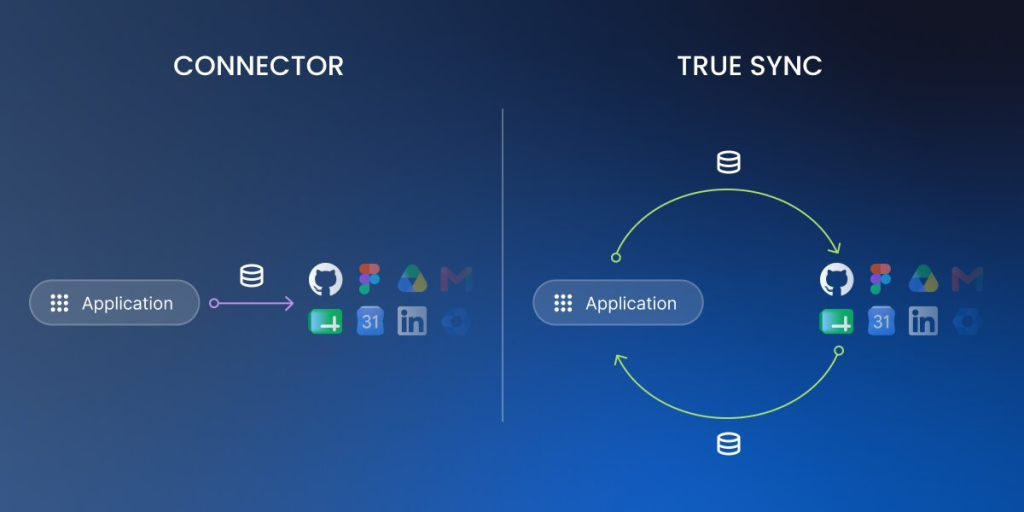
Connector vs true sync

A connector moves information once, or whenever something sets it off, like copying a new sign-up into another tool. A true sync is stronger: it keeps both tools matching all the time, so a change in one instantly shows up in the other. If your app and your other tool always need to agree, a connector on its own isn’t enough. You want a real sync.

A technical diagram comparing two data integration methods, "CONNECTOR" and "TRUE SYNC," against a dark blue gradient background. On the left side under "CONNECTOR," a single horizontal purple arrow with a database icon points one way from an "Application" button to a cluster of popular software icons, including GitHub, Figma, and Google Drive. On the right side under "TRUE SYNC," the "Application" button and the software icons are linked by two curved green arrows that form a continuous circular loop with database icons at the top and bottom, representing bidirectional synchronization.

One-way vs two-way data flow

One-way means information travels in a single direction, like new form entries dropping into a spreadsheet but never coming back. Two-way means it travels both directions, so a change in either place updates the other. Ask which one you’re getting, because a lot of “integrations” turn out to be one-way, and that can catch you out later.

API access in plain English

An API is just a doorway that lets other software talk to your app automatically. You’ll probably never touch it yourself, but if you think you might connect another tool down the road, or pay someone to do it for you, check that the platform offers one. Having an API means your app can grow and connect later instead of being a walled garden.

External databases and spreadsheets

Sometimes your information already lives somewhere else, like a Google Sheet or a separate database, and you want your app to use it. The key question is whether the app stays in step with that source or just takes a one-time snapshot that goes stale. A live connection updates as the source changes. A snapshot is frozen at the moment you imported it. Know which one you’re relying on.

What to ask before you commit

Before you trust any connection, ask the vendor four questions: what information moves, which direction it moves in, how often it updates, and what happens if the connection breaks. Clear answers are a good sign. Vague ones are a warning. When in doubt, test the connection with real information before you depend on it.

What limits show up as your app grows?

The limits that bite are rarely the ones printed on the pricing page. They show up later, once your app is doing real work and more people lean on it. Knowing the usual pressure points helps you choose a no-code web app builder you won’t outgrow in a single quarter. Six things tend to grow at the same time.

More users

As more people use your app, you add more logins and more roles to manage, and many platforms charge more once you pass a certain number of users. Before you choose, check how many people are included in your plan and what happens to the price when your team or your customer base grows.

More records

A record is a single entry, one customer, one order, one booking. They pile up fast, and some plans cap how many you can store or slow down when there are a lot. Make sure the app will still feel quick to search and load once you have thousands of records, not just the handful you start with.

More workflows

Workflows are the automatic “if this, then that” rules that do work for you in the background. The more of them you add, the more some platforms limit how many can run or how often. If automation is a big reason you’re building the app, check those limits before you depend on them.

More integrations

Every connection to an outside tool is one more thing to keep working. As you add integrations, you add places where something can break or fall out of sync. Check whether your plan limits how many connections you can set up, and remember that more of them means more to keep an eye on.

More permissions

When it’s just you, access is simple. Add staff, clients, and different roles, and you need a more careful setup so each person sees only what they should. Check that the builder can handle more detailed permissions as your team and your customer list grow, without it becoming a headache.

More monthly usage

Some tools charge based on how much your app is used each month, such as the number of times it runs or how much data it moves. That bill can climb right when your app is succeeding. If your plan is usage-based, understand exactly what counts as usage so a busy month doesn’t become an expensive surprise.

How do no-code web app builders usually price apps?

No-code web app builder pricing looks simple on the surface and trips people up underneath. The headline number rarely matches what you’ll pay once the app is live, so read the limits next to the price just as carefully as the price itself. These are the common ways these tools charge.

Free plans and trials

Most builders let you try them at no cost, either with a free plan or a time-limited trial. This is exactly how you should test whether a tool fits before paying anything. Build a small version of your real app during the free period, because that tells you far more than any feature list.

Per-user plans

Some tools charge based on how many people can use the app. That’s fine when it’s just you, but the cost can climb as you add teammates or clients. Check what’s included and what each extra person costs, so a growing team doesn’t push you onto a much pricier plan.

Usage-based pricing

Other tools charge based on how much the app is used, such as how many times it runs or how much information it handles. The catch is that the bill grows right when your app is doing well. If a plan works this way, make sure you understand what counts as usage.

Feature-gated plans

Many builders put the better features behind higher tiers. The thing you specifically need, like detailed permissions or a certain integration, might only appear on a more expensive plan. Before you choose, confirm that the feature you actually care about is included at the price you’re looking at.

Publishing and hosting costs

Sometimes getting your app online costs extra on top of building it. Check whether publishing and hosting are included or billed separately, so you don’t finish your app and then discover there’s another charge just to put it in front of people.

Support and collaboration costs

Extras like priority support or letting more than one person edit the app can sit on higher plans, too. If you’ll need real help or you’re working with a teammate, check what that costs. The smart move overall is to map your real needs to the tier one step above where you start, so an upgrade feels like a choice instead of an ambush.

What “free” usually leaves out: Free plans are great for testing, but read what they hold back. Common catches: your app stays unpublished or shows the builder’s branding, you’re capped to a small number of records, a custom domain is paid-only, and some tools delete inactive projects. None of this makes a free plan bad. It just means “free” is for trying the tool, not for running your business on long term.

How does Coderick AI fit for non-technical teams?

Here’s the part nobody warns you about: the app is usually the easy bit. You describe what you want, and for one glorious afternoon, you feel like a developer. Then the unglamorous half shows up. Where does the app actually live? Where does its information go? How do you keep it safe? And what do people type to find it? That’s hosting, a database setup, security, and domain management, and it’s exactly where most AI web app builders wave goodbye and leave you to wire everything together yourself, extra logins, extra bills, and a vanished weekend included.

Coderick AI was built to skip that entire second act. It’s a full build-and-publish platform rather than just a builder, so building, refining, hosting, and publishing all happen in one place. Every plan comes with premium hosting baked in, a database that sets itself up, the same ultrafast infrastructure that runs millions of SiteGround sites, and a custom domain on paid plans. You build the app, and it’s already home.

Describe the app instead of wiring every screen manually

You don’t lay out a single screen by hand. You tell Coderick AI what you want in everyday language, who uses the app and the main thing it should do, and it generates a working first version for you: the screens, the place to store your information, and the logic that ties them together.

Example prompt you can start with:

“Build an internal admin panel for a small online shop. It should list all orders (date, customer, items, total, status) and let me search by customer name or order number. I want to update the order status (pending → packed → shipped → delivered) from a dropdown. Two roles: admin (full access, can delete orders) and team (can view and update status, but cannot delete).”

Start with a working draft

Coderick AI hands you a real, working draft you can click around in straight away, instead of a blank canvas and a blinking cursor. That helps more than it sounds: it’s far easier to react to something real than to picture an app from nothing, and seeing it live makes it obvious what you’d like to change next.

Edit by giving clear instructions

You refine the app by typing plain-language instructions, like “add a status field to each order” or “make the dashboard the first screen,” or you use visual edits to click straight onto something and change it. And if a change doesn’t work out, version restore lets you roll back to an earlier version, so you can experiment without worrying about breaking what you’ve built.

Publish on the included hosting

When you hit publish, your app goes live on SiteGround’s infrastructure automatically, with hosting, the database, and security already in place. That means:

  • no separate host to find,
  • no database to wire up,
  • no SSL certificate to chase,
  • and no juggling three different bills.

You go from a working draft to a real, shareable web address without ever leaving the platform.

Best-fit projects for Coderick AI

You can build almost any website and web app with Coderick AI, but most non-technical teams use it for internal tools, client portals, dashboards, booking trackers, and straightforward business apps. As with any app, the ones that succeed start narrow: one group of users, one source of information, one clear task, then grow from there. If your project needs deep custom engineering, or you already know you’ll need to move it onto a completely different host later, treat the build as a fast prototype and plan from there.

15-minute no-code web app builder scorecard

Use this scorecard to compare two or three no-code web app builders quickly before you commit. Score each from 1 to 5, add up the columns, and let the totals, not the longest feature list, make the call. The tool that fits your specific app beats the one with the most checkboxes.

CriteriaQuestion to askScore (1–5)
App type fitCan it build your specific app?
DataCan it store the records you need?
UsersCan it manage roles and access?
WorkflowsCan it handle your main process?
IntegrationsDoes data sync the way you need?
CostWhat triggers an upgrade?
OwnershipCan you export what matters?
SupportCan non-technical users get help?
LaunchCan you publish without extra setup?

Once you have your scores, the choice is usually obvious. The right no-code web app builder is the one that handles your app type, your data, and your launch without forcing you to learn a new skill or wait on someone else. Build the smallest version that solves a real problem, get it in front of real users, and grow from what you learn.

The truth is, you learn the most about a no-code web app builder by building something in it. Pick the one small tool you keep meaning to make, the booking tracker, the client portal, the simple internal dashboard, and give it a real go. Ready to start?

Try Coderick AI and build your first web app

[96]

FAQs

What is a no-code web app builder?

A no-code web app builder is a platform that lets you create browser-based apps without writing code. It usually gives you tools for screens, data, users, logic, and publishing, so a non-technical team can build an internal tool, portal, dashboard, or simple business app.

What is the difference between a no-code app builder and a no-code web app builder?

A no-code app builder can refer to web, mobile, or internal apps. A no-code web app builder is more specific: it creates apps that run in a browser. That distinction matters if your team wants a dashboard, portal, CRM, booking tool, or business app that people access through a URL.

Do I need technical skills to use a visual web app builder?

No, but you do need to understand the process you want to build. A visual web app builder can help you create screens and workflows without code, but you still need to define users, data, actions, and the main business rules clearly.

What features should I check before choosing a no-code web app builder?

Check data storage, user roles, workflow logic, integrations, hosting, support, pricing limits, and export options. The right tool should match the app you want to build now and still make sense when your users, records, or workflows grow.

Can I build internal tools with a no-code web app builder?

Yes. No-code web app builders are often a good fit for internal tools like CRMs, dashboards, task trackers, approval tools, and admin panels. These apps usually have clear users, structured data, and repeatable workflows, which makes them easier to build and test.

How do integrations work in no-code web apps?

Integrations connect your app to outside tools or databases. Some only send data in one direction, while others support two-way sync or API access. Before choosing a platform, ask what data moves, how often it updates, and what happens if the connection fails.

How should non-technical teams compare no-code platforms?

Non-technical teams should compare no-code platforms by app type fit, ease of editing, data structure, workflow logic, user permissions, integrations, pricing limits, support, and publishing. A simple scorecard is better than choosing the tool with the longest feature list.

Is Coderick AI a no-code web app builder?

Coderick AI can help non-technical users create web apps without writing code by describing what they want in plain language. It is different from a traditional manual no-code platform because the AI creates a working draft first, then you refine it through instructions and publish it on SiteGround hosting.

What kind of app should I build first?

Build the smallest app that solves a real problem. Good first options include a CRM dashboard, booking tracker, customer portal, inventory list, approval workflow, or internal reporting tool. Start with one user group, one data source, and one main workflow.

When is a no-code web app builder not enough?

A no-code web app builder may not be enough if your app needs advanced custom logic, complex external systems, high-scale performance, strict compliance review, or deep engineering control. In those cases, use no-code for a prototype or internal version, then bring in technical help.

How to use an AI web app builder: create web apps for your small business without coding

abstract of vibe coding a web app

You don’t need a developer to build a working business web app anymore. If you can describe what your business needs in plain language, an AI web app builder can turn that description into a real app, with pages, data, users, forms, and the workflows that connect them. 

This guide walks you through what AI web app builders create, what to think about before you start, and how to choose a first project you can ship in a week.

Key takeaways

  • An AI web app builder helps you create web applications where users (your clients or coworkers, for example) can submit, view, update, or manage data.
  • Strong web apps start with four basics: users, data, actions, and workflows. Define those before you ask AI to build.
  • The best first app is narrow, testable, and useful: a CRM, a booking tool, a customer portal, or an internal dashboard.
  • A good prompt for building your web app explains in plain language who uses it, what they do, what information it stores, and what counts as success.
  • Before you publish, test the app on a private version first, and have a simple plan for undoing changes if something breaks.
  • Advanced AI web app builders like SiteGround’s Coderick AI work best when you describe the business problem clearly, then refine the generated app until the main workflow is ready.

What is an AI web app builder?

An AI web app builder is a tool that turns your plain-language description of a business app into a working first version, without requiring you to write code, design screens, configure databases, or set up hosting manually. You describe what the app should do (for example, “a client portal where my customers can log in, see their invoices, and download tax documents”), and the AI builder generates the pages, forms, data tables, and basic logic for you.

This builds on the same shift behind AI website builders and the broader idea of vibe coding: instead of writing code, you write what you want, and the AI handles the technical execution. The result is a working draft you can review, refine, test, and publish when the core workflow is ready.

How a web app is different from a website

To put it simply: a website is mostly something people read, while a web app is something people use.

On a website, visitors look at pages: a homepage, a services page, an about page. They may fill in a contact form, but the experience is largely one-directional: you publish, they read. On a web app, users do things with data. They log in, submit information, see results that update for them, change records, and trigger actions. 

Think of it like this: a small business that needs to share what it does needs a website (and it can easily create one with an AI website builder). A small business that needs to manage what it does often needs an app.

A few examples:

  • A restaurant’s website shows the menu. A restaurant’s web app takes online reservations and stores them in a database (basically a smart, searchable list) the staff can manage.
  • A consultancy’s website explains its services. A consultancy’s web app gives each client a personal portal with documents, invoices, and project status.
  • A small store’s website lists products. A small store’s internal app helps the team track inventory, fulfil orders, and update stock levels.

What an AI web application builder does

An AI web application builder handles the parts that used to require a developer: creating the pages, generating the forms, setting up the database that stores the information, building the logic that ties everything together, and putting it all online at a real web address. You provide the business context, the AI provides the structure and code.

The best builders also include the things you’d otherwise have to set up separately: hosting, a database, security, and a way to publish to a real URL. Coderick AI was built around this all-in-one principle: when you click “publish,” the app goes live on SiteGround’s infrastructure with hosting and security already in place.

When a web app is the right choice

A web app is the right choice when you need users to do something with information, not just read it. If your project involves any of the following, you’re probably building a web app, not a website:

  • People logging in to see their own data
  • Tracking and updating information like leads, bookings, tickets, invoices, or tasks
  • Tracking the status of something over time
  • An internal team coordinating around a shared list or workflow
  • A small set of users who need different levels of access

But if your project is mostly content, marketing pages, and a contact form, a website is usually the right call. SiteGround’s AI website builder guide covers that case in detail.

What makes a web app work?

Every web app comes down to four basics: users, data, actions, and workflows. Define those four right in your head before you start building, and the rest of the work becomes a series of small, specific decisions.

Users: who needs access

Start with the people who will use the app. Some users may be your team. Some may be your customers. Some may be the general public. Each group has a different reason to be there and a different set of things they’re allowed to do. A booking tool, for instance, has two user groups: customers (who book appointments) and staff (who manage the calendar). A client portal has clients (who see their own data) and an admin (who sees everyone’s).

You don’t need a long list to start. Two or three user groups is plenty for a first version.

Data: what the app stores

Next, the information your app keeps track of. For a CRM, that’s leads with names, emails, phone numbers, and statuses. For a booking app, it’s appointments with dates, times, customers, and services. For a client portal, it’s invoices, files, and project updates. The data is the heart of the app. Without it, there’s nothing to display, manage, or act on.

Actions: what users can do

Actions are what each user group can do with that data. A customer might submit a booking request. A staff member might mark it as confirmed. An admin might cancel it and notify the customer. Actions are usually verbs: submit, approve, edit, delete, send, schedule.

Outcomes: what changes after each action

Every action on your web app should produce a clear outcome. A submitted booking creates a new record. An approval changes a status and sends a confirmation email. A cancellation frees up the time slot. If you can’t say what changes after an action, the action probably isn’t useful enough for version one.

Web app partPlain-English meaningExample
UserPerson using the appCustomer, admin, employee
DataInformation storedLeads, invoices, bookings
ActionWhat users doSubmit, approve, update
WorkflowWhat happens nextSend alert, change status

What can an AI web app builder create?

A good AI web app builder can create almost anything, but most small business apps fall into a handful of common categories. The pattern of users, data, actions, and outcomes often repeats; what changes is the specific business problem. For example, here are the web app types small businesses create most often with Coderick AI:

Forms and data collection

The simplest type. A form on a page, a database behind it, a place to review submissions. Useful for lead capture, event registrations, internal feedback, service requests, or for when someone needs to give you structured information and you need to keep track of it. A landscaping company can replace a generic contact form with a quote-request form that asks for property size, type of work, and preferred timing, then collects the answers in one place.

Example prompt you can start with:

“Build a quote-request form for a small landscaping company. Visitors submit their name, email, phone, property address, property size, type of work (lawn care, design, tree work, irrigation, hardscaping, cleanup), preferred timing, and optional notes – no login required. Admin logs in to a dashboard that lists all submissions with searchable, filterable rows, an editable status column (new, contacted, quoted, won, lost), per-submission notes, and CSV export. Clean, mobile-friendly design.“

Here’s what Coderick AI generates from that prompt – and you can keep refining from there.

Simple web app created by Coderick AI from a single prompt

Dashboards and reporting

Dashboards turn lists of numbers and records into something you can read at a glance. They take the information you already have (in a spreadsheet, a CRM, a database) and present it as charts, tables, and key numbers. Freelancers juggle multiple clients, invoices in different states (draft, sent, paid, overdue), and projects at various stages. Most track this in a messy spreadsheet or across three different tools. A dashboard could pull it all together: month-to-date earnings, outstanding invoices, which clients owe what, average days-to-payment, a pipeline of pitches sent versus accepted, and upcoming deadlines. The numbers were always there; the dashboard makes them readable.

Example prompt you can start with:

“Build a single-page dashboard for a freelance writer. Top row: four key-number cards — this month’s earnings, outstanding invoices, overdue amount, pitches awaiting reply. Middle: bar chart of last 6 months’ earnings, and a donut of revenue by client. Bottom: two tables — outstanding invoices (client, amount, days overdue, color-coded status) and active pipeline (prospect, pitch date, stage). Clean minimal styling, deep teal accent, responsive.”

Dashboard web app example vibe coded with Coderick AI

Customer portals

A customer portal is a private area where each customer logs in and sees their own information. An accountant might give every client a portal to upload documents, download statements, and message the firm. A coaching business might give clients a portal to track session notes, exercises, and progress. The portal removes back-and-forth emails and gives each customer a single place to go.

Example prompt you can start with:

“Build a client portal for a small accounting firm. Clients log in and see their own documents, invoices, and a message box to contact me. I (admin) can upload documents to any client’s account and reply to messages. Each client should see only their own files – never another client’s. Keep the design clean and professional.”

Client portal web app created by Coderick AI

Booking and scheduling tools

A small but powerful category. Customers see availability, choose a time, and book. The app stores the booking, sends a confirmation, and updates the calendar so the slot is no longer offered. A yoga studio might use one for class signups. A consultant might use one for discovery calls. A dog groomer might use one for full-service appointments with extras attached.

Example prompt you can start with:

“Build a class-booking app for a small yoga studio. Customers see the week’s classes (date, time, instructor, available spots) and book a spot. Bookings are stored and an email confirmation is sent. I (admin) can add classes, see all bookings, and cancel a class if needed. No payments in version one; bookings are free or paid in person. Mobile-friendly.”

Booking and schedule web app schedule vibe coded with Coderick AI

CRM and sales tracking

A CRM (customer relationship management tool) is where you track leads and customers through their journey with your business. New lead, qualified lead, proposal sent, won, lost. A custom CRM built with an AI web app builder lets you track the exact stages your business uses, not the generic ones a generic SaaS tool gives you. A real estate agent might track stages like “viewed property,” “offer made,” and “in escrow.” An agency might track “discovery call,” “proposal,” “signed,” and “onboarding.”

Example prompt you can start with:

“Build a CRM for a small marketing agency. Each lead has a name, company, source, estimated deal value, and a status (new → discovery call → proposal → signed → onboarded). I want to add leads manually, move them between stages with one click, and filter the list by stage. Show a small dashboard at the top with the count and total deal value per stage. Only my team can log in.”

CRM web app example vibe code created by Coderick AI

Admin panels and internal tools

Admin panels are private apps for your team. They give you a way to view, search, edit, and manage your business records in one place: orders, customers, content, inventory, anything you currently juggle across spreadsheets and inboxes. An AI internal tool builder is useful when a team needs a private dashboard, CRM, approval tool, or operations tracker without waiting for a custom development project. The team often gets a working version faster than the procurement process for a new SaaS subscription.

Example prompt you can start with:

“Build an internal admin panel for a small online shop. It should list all orders (date, customer, items, total, status) and let me search by customer name or order number. I want to update the order status (pending → packed → shipped → delivered) from a dropdown. Two roles: admin (full access, can delete orders) and team (can view and update status, but cannot delete).”

Admin panel web app example created by Coderick AI

What an AI web application builder can’t do

AI web app builders are useful, but builder choice matters because projects still need technical review or specialist help. Here are some things to be cautious about:

  • Very specialized integrations with industry software (medical records systems, legal practice management, real estate MLS feeds) often need a developer to handle the technical bridges (called APIs) between systems.
  • High-volume, mission-critical systems with strict performance, scaling, or compliance requirements (healthcare, payment processing at scale, regulated finance) generally need professional review.
  • Complex algorithms for things like advanced search ranking, real-time matching, or specialized scientific computing tend to sit outside what an AI builder produces well.
  • Pixel-perfect, brand-led design with unusual interactions may need a designer’s hand even if the underlying app is AI-generated.

For everything else (and that covers most small business apps), an AI web app builder gets you a working version faster than any other option.

How do permissions and roles work in a web app?

Roles and permissions are how a web app decides who can see, create, edit, delete, or manage each type of data. The thinking is intuitive once you connect it back to the people in your business.

Public users vs logged-in users

The first divide. Public users are anyone visiting the app without logging in. They can usually see whatever you’ve made public (a booking page, a contact form, a public dashboard). Logged-in users have an account and can see and do more. The login is the gate that separates “anyone on the internet” from “people you’ve given access to private data or actions.”

For a customer portal, the public side might be a small login page; everything else lives behind the login. For a booking tool, the public side might include the entire booking flow, with the admin side reserved for staff.

Admin roles vs customer roles

Among logged-in users, the next divide is usually admin versus customer. Admins manage the app. They see everyone’s data, change settings, and handle exceptions. Customers (or clients, or members, or whatever you call them) use the app. They see only their own data and the actions you’ve allowed.

A simple example: in a fitness studio’s booking app, admins see all bookings across all classes and can cancel, reschedule, or refund. Customers see only their own bookings and can cancel or reschedule their own.

What each role should be allowed to do

The clearest way to think about this: list each role, then list what they should be able to see and do. Two or three short rules per role is usually enough for a first version.

A short example for a small client portal:

  • Admin (you): Can see all clients, all files, all invoices. Can add and remove clients. Can upload documents to any client account.
  • Client: Can see only their own files, invoices, and project status. Can upload documents to their own account. Can message you through the portal.

That’s it. You can layer in more nuance later, but starting simple is the safer way.

Common permission mistakes to avoid

A few patterns that go wrong often:

  • One role for everyone. Everyone is an admin, which means anyone with a login can see and edit anything. Easy to set up, dangerous in practice.
  • Customers seeing each other’s data. Caused by missing the rule that says “show only records belonging to the logged-in user.” If a client portal accidentally shows another client’s invoice, trust is gone.
  • Public pages that should be private. A dashboard with internal metrics left accessible to anyone with the URL. Always check what’s visible when you’re not logged in.
  • Admins with no audit trail. When several team members can change records, you want to know who changed what. For sensitive workflows, ask the builder to log changes.

When you describe a web app to Coderick AI, mention the role rules explicitly. “Only logged-in clients can see their own invoices. Admins can see all invoices.” That single instruction shapes how the web app’s permissions are set up.

Pro tip: Run the “logged-out test”Open the app in a private browser window where you’re not signed in. Then log in as a customer, not as yourself. What you can see in each state is what real users will see. If anything looks wrong, fix it before you publish.

How should non-technical owners think about app data?

The word “database” may sound intimidating, but a database is really a more organized version of the spreadsheets you already use. Where a spreadsheet stores one list, a database stores several lists at once and connects them to each other. You won’t design one yourself; the AI handles that. But you do need to understand what your app stores and how the pieces fit together, because that picture is what you’ll describe in plain English when the AI builds the app. 

Three concepts cover most of what you need to know: tables, fields, and relationships.

Tables are lists of business records

A table is a list: for example, a list of customers, a list of bookings, or a list of products. Each row is one record (one customer, one booking, one product). If you’ve ever kept a spreadsheet of clients or stock, you’ve used a table.

Fields are the details inside each record

A field is one detail on each record. A customer record might have fields for first name, last name, email, phone, and status. Each row in the customers table has the same fields; the values are different from row to row. Sticking with the spreadsheet picture: tables are sheets, fields are columns.

Relationships connect one record to another

Sometimes one record relates to another. An invoice belongs to a customer. A booking relates to a service and a staff member. A relationship is the link between two tables, and it’s how a CRM knows which deals belong to which contact, or how a booking app knows which appointments belong to which client.

You don’t need to design relationships yourself. When you describe the app in plain English (“each invoice belongs to one customer”), the AI handles the technical setup.

Start with the smallest useful data model

The temptation is to plan for everything. Resist it. Start with the smallest set of tables and fields that lets the main workflow actually work. A first-version client portal might have just two tables: clients and files. A first-version CRM might have just one: leads. You can always add more once the basics are running and you know what’s actually missing.

Pro tip: Add fields when you miss them, not beforeResist the urge to plan for every field you might one day need. Start with the bare minimum, use the app for a week, and add fields when gaps become obvious. Apps grow well when they grow from real use, not from imagined needs.

Prompt-to-app: how to describe a web app in plain English

The way you describe your app shapes what the AI builds. A short, vague prompt gives you a generic starting point; a specific one gives you something much closer to what you actually need.

What “prompt to app” means

Prompt to app is the idea that a plain-language description (a prompt) is enough to produce a working app. You don’t write technical documents, you don’t draw screen layouts, you don’t sketch databases. You explain what the app does, who uses it, and what should happen, and the AI handles the construction.

Web app requirements explained in plain English

For your first app, requirements in plain English boil down to five sentences:

  1. Who uses the app. “This app is for me (admin) and my clients.”
  2. What it does. “It lets clients see their invoices and download files.”
  3. What data it stores. “Each invoice has a date, amount, status, and the client it belongs to.”
  4. What actions exist. “I can upload invoices and mark them as paid. Clients can view their own invoices and download them.”
  5. What success looks like. “Clients can log in, see their invoices, and download them without emailing me.”

Five sentences is enough to produce a useful first version.

The simple web app prompt pattern

A reliable pattern for web app prompts:

“Build a [type of app] for [business and audience]. Users are [user groups]. The app should let [user 1] do [action] and [user 2] do [action]. It stores [main data]. The main workflow is: [step 1] → [step 2] → [step 3]. Make the design simple and mobile-friendly.”

Filling that in with a real example:

“Build a booking app for a small massage therapy practice. Users are clients (who book) and the therapist (who manages the calendar). Clients should be able to choose a service, pick an available time, and confirm a booking. The therapist should be able to view all bookings, mark them as completed, and cancel if needed. It stores services, time slots, and bookings. The main workflow is: client picks a service → client picks a time → client confirms → therapist sees the booking. Make the design calm and mobile-friendly.”

That’s a sharper prompt than “build me a booking app.” It still leaves plenty for you to refine afterwards, but the first version will be a lot closer to what you actually need.

Pro tip: Change one thing at a timeWhen refining the app, ask for one change per prompt instead of bundling five edits together. The AI handles a single clear instruction far better than a long list, and you’ll catch problems the moment they happen, not after five things changed at once.

What to include before the AI builds

A short list to add to your prompt if you have strong opinions about any of them:

  • Business details: your name, your service, your city if it matters
  • User groups and what each can do: the role rules from earlier
  • Required fields on the main records: “each lead has a name, email, source, and status”
  • The main workflow you care about: the path through the app that matters most
  • Anything you don’t want: “no payments yet,” “no calendar integration in version one”

How to check the first version

Open the first version and try the main workflow as the user. Submit a record. Approve a record. Log in as a customer.

The first version may look simpler than you imagined; that’s normal. It’s a starting point, not a finished product. From there, you can refine: ask Coderick AI to change the layout, add a field, add a page, or even add a new feature you didn’t include in the first prompt. Visual edits let you adjust labels, copy, and styling directly without going back to chat each time. If something is off, describe what you want changed in plain language, and the app updates. The loop of test → describe → adjust is where the app actually becomes yours.

What workflow rules should your first web app include?

Workflows are the rules that say “when this happens, that follows.” A first web app doesn’t need many workflow rules. The five below cover most small business apps.

Status changes

A status field is the simplest workflow tool. A lead is new, then contacted, then qualified, then won or lost. A booking is requested, then confirmed, then completed. A status change is often the action itself: clicking “approve” changes the status from pending to approved.

Notifications

A notification is a message sent when something happens. A new booking sends an email to you. An approved request sends a confirmation to the customer. Keep notifications few and meaningful. A notification for every small change quickly turns into noise people start to ignore.

Pro tip: One notification rule of thumbIf a notification doesn’t change what someone does next, it shouldn’t exist. A booking confirmation tells the client to show up. A “your status was viewed” alert tells them nothing they can act on. Cut the second kind ruthlessly.

Approvals

An approval is a workflow that requires someone with the right role to confirm an action before it proceeds. A discount request might need owner approval. A new client account might need admin review. Approvals are useful when an action has real consequences and you want a second pair of eyes.

Reminders

Reminders are time-based notifications. An appointment reminder sent 24 hours before the slot. A follow-up reminder a week after a quote is sent. Useful when a workflow has a gap between steps and people forget to come back.

Simple calculations

The web app does math so you don’t have to. An invoice app calculates the total from line items, tax, and discount. A booking app calculates the end time of an appointment from the start time and the service length. A CRM might calculate days since last contact. Small calculations like this turn an app from a list-keeper into something that actually saves time.

When you describe these rules to Coderick AI, keep them short. “When a booking is confirmed, send a confirmation email to the client and a notification to the therapist.” That single sentence gives the AI a clear workflow rule to build from.

What is the best first app to build with AI?

The best first app is small, useful, and easy to test. The most common mistake is starting too big. The second most common is starting in the wrong place. Both are avoidable.

Start with a narrow business problem

Pick one problem in your business that is repetitive, structured, and currently lives in spreadsheets, inboxes, or notebooks. For example, lead tracking, booking, invoice tracking, or client onboarding. Anything that’s currently a tangle of files and messages is a strong candidate.

Resist the impulse to build “the app for everything.” The all-in-one app for your whole business can take a year of work even with AI. A focused app for one thing can be an afternoon.

Choose one user group first

Build for one user group in the first version. Either the customer-facing side (booking, client portal) or the internal side (lead tracker, admin panel). Adding the second side later is easier than getting two sides right at once.

Avoid complex integrations in version one

Save integrations with email tools, payment processors, accounting software, and calendar systems for version two. They add real value, but they also add complexity, and complexity is the enemy of finishing version one.

Pick an app you can test in a week

The right scope for a first app is one you can describe, generate, refine, and test within a week of focused work. If the scope is bigger than that, narrow it. A booking app for one type of service. A CRM for one stage of your pipeline. A portal for one type of document. Short scope wins.

Pro tip: Time-box version oneSet a deadline before you start, even an artificial one: “I’ll publish v1 by next Friday.” A deadline forces decisions. Without one, the urge to keep adding features eats whatever momentum you started with.
Business needFirst app to buildWhy it works
Track leadsCRM dashboardClear data, simple workflow
Manage bookingsScheduling appEasy user actions
Share updatesCustomer portalSimple access model
Track operationsInternal dashboardHigh business value

How to deploy an AI web app: staging vs production and rollback plan

Deployment is the moment the app moves from draft to something real users can access. Most of the time it’s a single click; the planning around it is what matters.

What it means to deploy an AI web app

To deploy an AI web app means to make it live for real users at a real web address. Until you publish, the app exists only in the builder. Once it’s live, anyone with the URL (or the login, depending on how it’s set up) can use it. In Coderick AI, for example, publishing is built into the platform: when you click “publish,” the app goes live on SiteGround’s infrastructure with hosting, security, and a database already handled inside the build-and-publish flow.

Staging vs production basics

A web app usually has two versions:

  • Staging is the place where you make and test changes. Real users don’t see it.
  • Production is the live version that real users actually use.

The point of the split is to try risky changes in staging first, confirm they work, and only then push them to production. For a non-technical owner, the simple rule is: never make a big change directly on the live version. Make it where it can be reviewed.

Pre-publish checks

Before you publish version one, run through a short checklist:

  • Try the main workflow end to end as each user role.
  • Test every form: submit, receive, confirm.
  • Check the mobile experience on an actual phone.
  • Confirm that permissions work (log in as a customer, make sure you can’t see other customers’ data).
  • Read the user-facing copy as if you were a first-time visitor.

Five minutes of pre-publish testing prevents most launch-day problems.

Rollback plan: what to do if something breaks

A rollback plan is a simple recovery plan for going back to the last working version if something breaks after publishing. It doesn’t have to be elaborate. For a first app, it boils down to four questions:

  • What counts as a problem? (“Users can’t log in.” “Forms aren’t submitting.” “Payments aren’t going through.”)
  • Who checks for problems? (Usually you, in the first 24 hours after publishing.)
  • How do I restore the previous version? (Most platforms keep a history; in Coderick AI, you can revert to an earlier project version through the dashboard.)
  • How do I confirm the app is working again? (Run the main workflow yourself.)

How Coderick AI helps create prompt-built web apps

For non-technical users, the hardest part of building an app usually isn’t the app. It’s the four other things you have to figure out separately: where it lives (hosting), where the data goes (database), how it’s protected (security and a secure connection), and how people reach it (a web address of your own). Most AI builders leave all four to you. Coderick AI keeps them in one place, so the build, the hosting, the database, and the publishing all happen in the same platform.

Here’s a how to build your first web app in Coderick AI:

Describe the app in plain English

Open Coderick AI and describe the app in your own words: who uses it, what data it stores, what should happen at each step. As mentioned, you don’t need to be technical, and you don’t need to know what to call things. Coderick AI is built for plain-language instructions, so you don’t need to know technical terms before you start.

Review the first working version

Within a few minutes, Coderick AI builds a working first version of the app. Pages, forms, database, basic logic, the lot. Open it and try the main workflow yourself as if you were the user. The goal of the first version isn’t to be perfect; it’s to be a starting point you can react to.

Edit screens, content, and logic

From there, you refine. Ask Coderick to change a label, add a field, rearrange a section, or add a new feature. For copy and styling tweaks, you can also use visual edit mode and click directly on the element you want to change. Most apps go through several rounds of this before they feel right.

Publish when the core flow works

Once the main workflow runs cleanly, click “publish.” Coderick AI handles the parts that used to be a separate project:

  • The app goes live on SiteGround’s premium hosting infrastructure.
  • The database is already set up and connected.
  • Security is active by default, including SSL (the secure-connection standard your browser shows as a small lock icon) and SiteGround’s enterprise-grade protections.
  • The app is responsive on phones, tablets, and desktops by default.
  • You can connect a custom domain through the dashboard.

The build-and-publish loop is one continuous workflow rather than five separate vendors. Ready to start? 

Try Coderick AI and build your first web app

FAQs

What is an AI web app builder?

An AI web app builder helps you create a browser-based app from a plain-language description. Instead of coding screens, forms, data tables, and workflows manually, you describe what the app should do, review the first version, and refine it until the main business flow works.

What is the difference between a website and a web app?

A website mostly presents information, while a web app lets users do something with data. A website might explain your services. A web app might let customers log in, book appointments, upload files, check status, or manage records.

What can I build with an AI web app builder?

You can build small business web apps such as CRM dashboards, booking tools, customer portals, internal dashboards, task trackers, admin panels, and reporting tools. The best first projects have clear users, simple data, and one main workflow.

What does prompt to app mean?

Prompt to app means describing a web app in plain English so AI can create a working first version. A useful prompt explains the users, actions, data, screens, rules, and what counts as success. In Coderick AI, that description becomes the starting point for your app.

What does it mean to deploy an AI web app?

To deploy an AI web app means to make it live for real users. Before publishing, test the main workflow, forms, permissions, and data. In Coderick AI, publishing is simpler because projects run on SiteGround hosting, but the app should still be reviewed first.

What are the staging vs production basics?

Staging is a test version where you check changes before real users see them. Production is the live version people actually use. For non-technical teams, the simple rule is to test risky changes first, then publish only when the main workflow works.

What is a rollback plan?

A rollback plan is a simple recovery plan for returning to the last working version if something breaks after publishing. It should say what counts as a problem, who checks it, how to restore the previous version, and how to confirm the app works again.

Do I need coding skills to use an AI web application builder?

No. An AI web application builder lets you describe the app in plain language rather than write code. You still need to clearly explain the goal, users, data, and business rules, because the AI builds on the context you provide.

What is the best first web app for a small business?

The best first web app is usually a small internal tool with clear value, such as a lead tracker, booking manager, customer portal, or operations dashboard. These apps are easier to test because the users, data, and workflow are easy to define.

How to use an AI website builder to create your small business website (no code)

A digital graphic featuring a minimalist "Ceramics" website interface against a dark blue grid background. The website displays the headline "EXPRESS YOUR SOUL" in elegant serif typography, partially overlapping a circular ceramic plate and dried flowers. To the right, a floating glassmorphism UI panel shows a user prompt "Build me a website..." and a progress state labeled "Creating..." with three toggle buttons for "Version 1," "Version 2" (selected), and "Version 3."

Not long ago, creating a small business website meant either hiring a developer or losing a few weekends to tutorials, templates, and trial and error. Today, an AI website builder can turn a plain-language description into a draft website with pages, layout, design, and starter copy, without you writing any code.

This guide walks you through the full process: how AI website builders work, what a small business should check before choosing one, and how to review your site before publishing. If you’ve been putting off building a website because the process felt too technical, too expensive, or too time-consuming, this is for you.

Key takeaways:

  • AI website builders generate your pages, site structure, features, and copy. You just have to describe what you need and give them the details that make your business yours: your services, prices, hours, policies, or even the vision and brand voice that sets you apart.
  • Not all sites are built the same. Service businesses, local businesses, single-offer landing pages, and small stores each have a different structure and page elements to convert. Advanced AI website builders like SiteGround’s Coderick AI know how to pick the right structure for you.
  • Before committing to a no-code website builder, check that it gives you editing control, works well on mobile, supports the features your business needs (contact forms, booking, ecommerce, and so on), and includes hosting, a custom domain, and SSL so your site is ready to go live the moment you are.
  • Before publishing, test forms, review the mobile version, check page titles, and confirm that pricing, policies, claims, and contact details are accurate. A five-minute check can save you from problems that cost you customers later on.

What is an AI website builder?

An AI website builder is a tool that turns a plain-language description of your business into a working website, without requiring you to design, code, or build anything yourself. You type something like “I run a dog grooming salon in Austin, I offer bathing, haircuts, and nail trims, and I want clients to book online,” and the AI generates a homepage, a services page, an about page, a contact page, and draft copy for each.

It’s all part of a broader shift in how sites and web apps are created, known as vibe coding. This is an AI-driven software development method that replaces writing code with writing in plain language (prompting). To learn more about it, take a look at the detailed vibe coding glossary we recently prepared.

What AI handles vs. what you decide

The best results come when you treat AI as the site-structure expert and yourself as the business expert.

An AI website maker can handle the first draft: page structure, navigation, responsive design (meaning the site adapts to phones, tablets, and desktops), visual styling, and draft copy for each section. Give it your business details, and it can turn them into structured pages and editable copy.

What it can’t do is know your business the way you do. Service descriptions, pricing, customer testimonials, opening hours, return policies, legal disclaimers: anything that involves a specific fact about your business or a commitment to your customers needs to come from you. The same goes for your unique selling proposition (USP) and what makes you stand out from competitors. If you don’t provide these details, the AI will fill in the gaps with plausible-sounding content that may not be accurate, and inaccurate information on your site can cost you trust and customers.

The AI gets you 80% of the way there. Your input is the 20% that isn’t technical and that you already know. These are the details that actually convert visitors into customers, so be as specific as possible. When someone lands on your site, details are what build trust and drive action. “Haircuts starting at $45, book online” tells a visitor exactly what to expect and what to do next. “Affordable grooming services” might also be true, but it tells them nothing.

AI website builder vs. templates vs. drag-and-drop builders

  • A template builder gives you a pre-designed layout as a starting point. You browse a gallery, pick the one that looks closest to what you need, and replace the placeholders with your own content. Since templates are built for everyone, they’re built for no one in particular. You’ll likely find sections you don’t need and miss ones you do, and adjusting that takes more time than most people expect.
  • A drag-and-drop builder gives you a blank canvas and a toolkit of blocks (text, images, buttons, forms, galleries) that you arrange however you like. You’re making every layout decision yourself, which requires either a good eye for design or a lot of trial and error.
  • An AI website builder does something different: it generates a complete first version: the structure, the layout, and the initial content based on what you described. Instead of choosing from a gallery or dragging blocks around, you get a complete first version of a site that already reflects your type of business.

The advantage is more than just speed. You get the right structure for your type of business, you start from a nearly complete site rather than a blank page or a generic template, and the AI handles the decisions you’d otherwise have to make yourself: what sections to include, how to organize the navigation, what kind of copy fits your industry. Instead of figuring out what your site needs, you’re reviewing a version that already has it.

What does an AI website maker create after you describe your business?

Once you submit your first prompt, the AI website maker interprets it and builds a complete draft. Here’s what that typically looks like, and what to focus on first when reviewing.

The “site brief” output (what it includes)

Before generation, the AI decides on a structure: how many pages your site needs, what order they appear in the navigation, which sections belong on each page, and what visual style fits your business type. Most builders let you review or refine the structure before you start editing the details. It’s worth spending a minute here to make sure the overall shape is right before you get into the copy.

Typical pages (home, services, about, contact, policy)

Most AI-generated small business sites include five core pages, though the specifics shift depending on your site type:

  • Homepage: A headline, a short description of what you do, and a primary call to action. A plumber’s might lead with “Licensed plumbing repairs in Portland” and a “Request a quote” button. A restaurant’s might feature the cuisine type and “View menu.”
  • Services or menu page: What you offer, organized by category. A salon lists haircuts, coloring, and treatments. A restaurant lists starters, mains, desserts, and drinks with prices.
  • About page: Your story, credentials, and why customers should trust you.
  • Contact page: Phone, email, address, a contact form, and (for local businesses) an embedded map.
  • Policy pages: Privacy policy, terms of service, and (for stores) return and shipping policies. The AI generates plausible versions if you don’t give it information in your first prompt, but these need to reflect your actual terms before you publish.

Whatever the structure, it’s usually your starting point. Every page can be adjusted, reordered, or expanded through chatting with the AI builder. For guidance on organizing these pages well, SiteGround’s website structure guide covers the principles behind effective site architecture.

Copy you should check first

The AI writes with confidence, even when details are incomplete, which is exactly the problem with certain sections. A few areas need your attention before anything else:

  • Pricing and rates: If you haven’t included them in your initial prompt, the AI may invent plausible numbers. Swap in your actual rates.
  • Guarantees and timelines: The AI might have added generic statements like “Satisfaction guaranteed” and “delivered in 48 hours.” But those are actual commitments. If you didn’t make them, they shouldn’t be on your site.
  • Legal claims: Anything involving licensing, insurance, certifications, or regulatory compliance needs to come from you, not from generated text.
  • Testimonials: If the AI produced sample reviews, replace them with genuine ones. Fabricated testimonials damage trust quickly and may violate advertising regulations.

The 10-minute review that matters most: Open the draft and read it as if you were a customer visiting for the first time. Every time you see a number, a promise, or a claim, ask: “Is this actually true for my business?” That single pass catches the most important issues before they go live.

Which types of business websites can an AI site builder create?

An AI website builder can create almost any type of business site. However, four site types come up most often for small business owners, and knowing which one fits yours helps you write a sharper first prompt and get a better first draft.

Service business site

If you’re a plumber, consultant, photographer, personal trainer, or any professional who sells expertise or hands-on work, your site needs to do three things: explain what you offer, build trust, and give visitors a clear way to get in touch or book.

Visitors want to quickly understand what services you provide, see evidence that you’re good at what you do (testimonials, portfolio, credentials), and take action without hunting for a phone number or contact form. That usually means a homepage, a services page, an about page, a contact page, and a testimonials or portfolio section.

Example prompt you can start with:

“Build a website for a [your profession, e.g., interior designer] based in [your city]. The business offers [list your main services, e.g., residential consultations, full-room redesigns, and color/material sourcing]. The site should clearly explain what I do, who I work with, and make it easy for potential clients to get in touch. Include a homepage with a strong headline and a ‘Request a consultation’ button, a services page with a section for each service, an about page with my background, and a contact page with a form. Use a clean, modern style with a professional feel.”

Here’s what Coderick AI builds from that prompt (and you can keep refining it from there).

A screenshot of the SiteGround Coderick AI website builder interface. On the left is a chat sidebar where a user has requested a professional, modern website for a Seattle-based interior designer. The AI, Coderick AI, responds with a plan to build a four-page site.

The right side of the screen shows a live preview of the generated website for "Ellery Atwood." The design features a high-end hero section with a moody photo of a contemporary living room, the bold headline "Spaces That Feel Like Home," and an olive green "REQUEST A CONSULTATION" call-to-action button. The top navigation bar includes tools for visual editing, device responsiveness toggles, and a primary "PUBLISH" button.

Local business site

If you run a bakery, a barbershop, a dental clinic, or a repair shop, your visitors usually have one question first: where are you and when are you open? Local business sites are similar to service sites but put much more emphasis on physical presence: embedded maps, directions, local phone numbers, and neighborhood-specific language that helps you show up in local search results.

A restaurant, for instance, needs a menu page with items and prices organized by category (starters, mains, desserts, drinks), an hours-and-location section with a map, and a reservation or ordering option. A salon needs a list of treatments with pricing, photos of the space, and a way to book an appointment.

Example prompt you can start with:

“Create a website for [business name], a [business type, e.g., family-run Italian restaurant] in [your city]. The site should make it easy for local customers to see the menu, check opening hours, and book a table. Include a homepage with a hero image and a ‘Book a table’ button, a menu page with sections for starters, mains, desserts, and drinks (each item with name, description, and price), an hours-and-location page with our address and an embedded map, and a contact page. Design it to feel warm and inviting, with a good mobile experience.”

Single-offer landing page

If you’re launching one product, running a seasonal promotion, or collecting sign-ups for a workshop, you need a single focused page with one clear call to action. (A “call to action” is the button or link that tells visitors what to do next, like “Book now” or “Sign up.”) Landing pages strip away navigation distractions and focus the visitor on a single decision. They work well for product launches, event registrations, limited-time offers, and lead-generation campaigns where you want every visitor’s attention on one thing.

Example prompt you can start with:

“Build a landing page for [your offer, e.g., ‘a weekend pottery workshop on June 14 in Austin, $120 per person’]. The page should open with a strong headline, explain what attendees will learn and take away, show the date, location, and price clearly, and include a ‘Sign up now’ button as the main call to action. Add a section for 2-3 testimonials from past attendees and a short bio of the instructor. Keep the design focused, with no navigation menu. Make it mobile-friendly.”

Small store

If you sell a handful of products (handmade candles, custom T-shirts, specialty coffee beans), you need product listings, a cart, and a checkout flow. Customers need to see what you sell with clear photos and descriptions, understand pricing and shipping, and complete a purchase without leaving your site. An AI website maker can generate a small online store with product pages, pricing, and basic ecommerce structure. Some AI builders even support integrations with trusted payment systems: for example, you can add a Stripe checkout to anything you build with Coderick AI right in the chat.
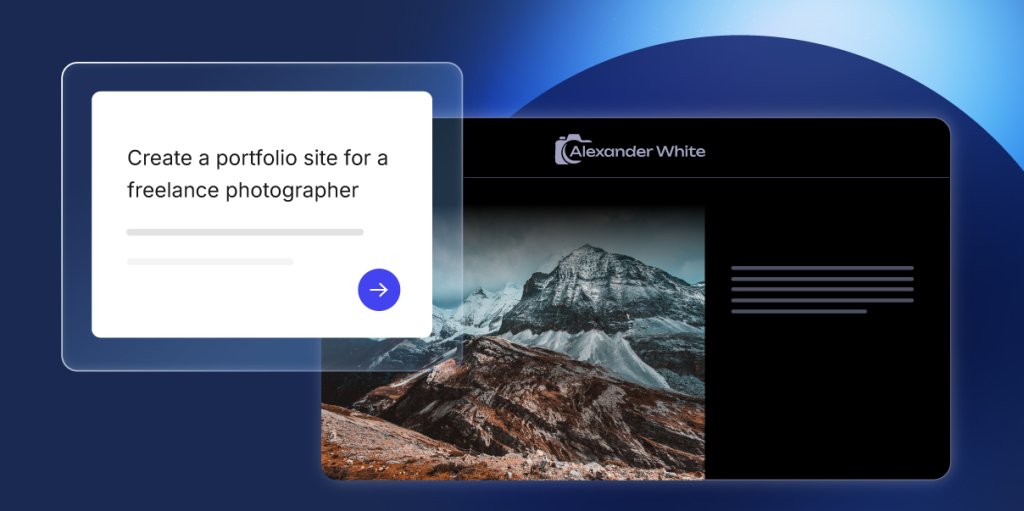
This works well for stores with modest catalogs and straightforward shipping. For larger catalogs, complex inventory management, or advanced shipping rules, a dedicated ecommerce platform like SiteGround Ecommerce is a better fit.

Example prompt you can start with:

“Build an online store for [your brand name]. I sell [your product types, e.g., ‘handmade soy candles in three sizes: travel, classic, and large’]. Create a homepage that showcases featured products, a product catalog page with categories, individual product pages with photos, descriptions, and prices, and a cart and checkout flow. Include a shipping and returns policy page. Use a clean, minimal design that puts the products front and center.”

Here’s how SiteGround’s Coderick AI uses this prompt to generate a draft website you can then perfect:

Screenshot of the Coderick AI interface showing a prompt chat on the left and a live web preview of an online candle store on the right.

You’ll notice the example prompts above include some guidance on structure and page elements. AI builders like SiteGround’s Coderick AI would figure most of this out on their own, but spelling it out upfront tends to produce a stronger first version and saves you follow-up iterations. If you’re not sure what elements your site needs yet, don’t worry. You can always add, remove, or rearrange pages after you see the first result with short follow-up prompts to refine: “add a pricing section,” “change the headline to something more specific,” “make the contact form include a phone number field.” Building iteratively, one change at a time, consistently produces better results than trying to describe everything in a single prompt. For more on this approach, SiteGround’s guide to key principles for building with AI covers the fundamentals.

Quick reference

Site typeBest forMust-have sections
Service business siteConsultants, photographers, trainers, contractorsHome, services, about, contact, testimonials
Local business siteRestaurants, salons, clinics, repair shopsHome, menu or services, hours and location, contact, reviews
Single-offer landing pageProduct launches, workshops, seasonal promosHero section, offer details, one call to action, social proof
Small storeHandmade goods, specialty food, small product linesHome, product listings, cart, checkout, shipping and returns policy

When an AI website builder is not the right choice

AI website builders are the right tool for most small business sites and among the fastest ways to create a publishable first version. But not every project fits that mold, and it’s worth knowing where the boundaries are before you start.

  • If you need a large ecommerce catalog with hundreds of products, complex inventory rules, or advanced shipping logic, a dedicated ecommerce platform will give you more control. SiteGround Ecommerce is built for exactly that.
  • If you need custom integrations with niche software (medical records systems, real estate MLS feeds, enterprise resource planning), a developer is still the way to go.
  • If you need pixel-level control over every design element, a drag-and-drop builder or a fully custom design gives you more precision.

The honest question to ask yourself: does my site need to do something that a typical small business site doesn’t? If the answer is yes, check whether the builder supports it before committing your time.

No-code website builder checklist: features that matter for small businesses

For small businesses, the best no-code website builder is not the one with the longest feature list. It is the one that lets you create, edit, publish, and maintain the site without needing technical help every time something changes.

Not every no-code website builder gives you the same level of control, publishing support, or business features. Before you invest your time in any platform, check for these five things. They’re the difference between a tool that produces a publishable business site and one that produces a demo you can’t actually use.

Editing control (layout, sections, styles)

Once the AI generates your site, the editing experience is what separates a useful tool from a frustrating one. It should be easy for you to rearrange sections, edit text, swap images, adjust colors and fonts, add or remove pages. Some builders like Coderick AI give you a combination of chat and easy-to-use visual editors for this. Others let you make changes only through the chat interface, where you describe what you want (“make the header darker,” “add a page for the team”) and the AI updates accordingly.

Whatever the method, the test is simple: can you make changes freely after the AI generates your site?

Business blocks (forms, booking, store)

A business site without a way for customers to reach you is just a brochure. Make sure the builder supports contact forms, appointment booking or scheduling (if your business takes appointments), and product listings with cart and checkout (if you sell goods). In many AI builders, you can describe the functionality you need (“add a booking form for consultations” or “add a product page with an add-to-cart button”) and the tool generates it.

Some of these features need a database behind them to store submissions, bookings, or orders. In some builders, like Coderick AI, the database is set up automatically. In others, you’ll need to configure it yourself, which would require some additional technical steps.

SEO controls (titles, descriptions, alt text)

SEO stands for search engine optimization. It’s the set of things you do so that when someone searches Google for what you offer, your site shows up. Here are the basics:

  • Page titles (also called “title tags”): The clickable headline that appears in search results. Each page needs a unique, descriptive one.
  • Meta descriptions: The short summary below the title in search results. A good meta description tells the searcher why they should click.
  • Image alt text: A short written description of each image. Search engines can’t see images the way we do; alt text tells them what’s in the picture. It also helps make your website more accessible for visitors who use screen readers (software that reads web content aloud for people with visual impairments).

Most AI website builders generate these automatically, but the defaults tend to be generic. Take a few minutes to rewrite any that don’t match how your customers actually search. “Best bakery in Savannah” is more useful for Google searches than “Welcome to our homepage.” For ecommerce-specific SEO, SiteGround’s ecommerce SEO guide covers the fundamentals.

Mobile and speed basics

Over half of all website visits now come from mobile. A “responsive” site adjusts its layout automatically to fit whatever screen it’s viewed on. Most modern builders generate responsive layouts by default, but that doesn’t mean the result is perfect on every device. You still need to check font sizes, button spacing, and form usability on an actual phone before you publish.

Speed matters just as much. If your site takes more than three seconds to load, a significant share of visitors will leave before they see anything. Builders like Coderick AI include hosting, which removes separate server setup and gives your site a managed publishing environment. Builders that only export code leave you to figure out hosting, server configuration, and optimization on your own.

Domain, hosting, SSL

Three terms that sound technical but are simpler than they seem:

  • Domain: Your web address, like “yourbakery.com.” You register it through a domain registrar and point it at your site.
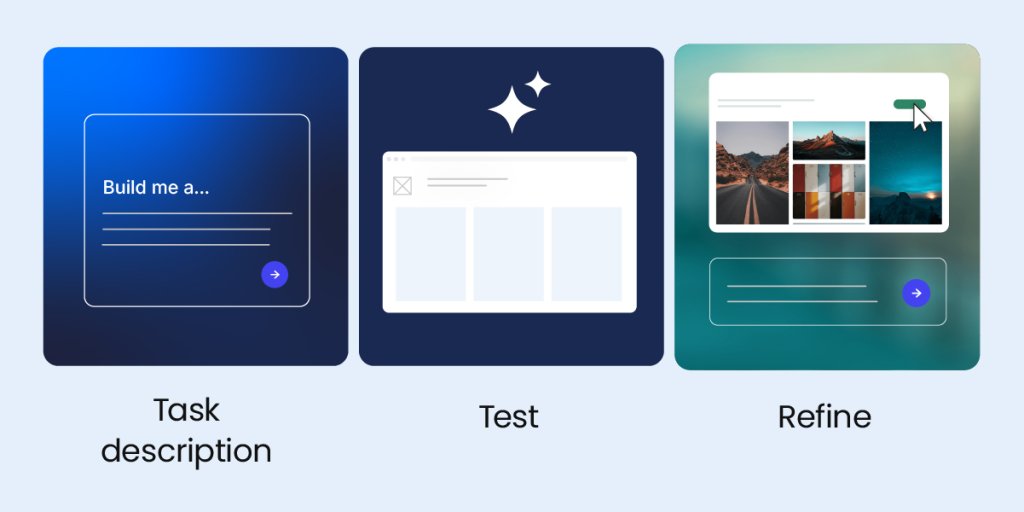
  • Hosting: The server where your website files live. When someone types your domain into a browser, the hosting server delivers your site to their screen. Think of the domain as your street address and hosting as the building at that address.
  • SSL certificate: A security layer that encrypts (scrambles) data between your site and your visitors so nobody else can read it. Sites with SSL show “https” instead of “http” in the address bar. SSL protects sensitive information like form submissions and payment details, and search engines rank sites with it more favorably.

Some builders require you to set these up separately, while others (like Coderick AI) bundle everything together. This all-in-one approach is usually the best fit for non-technical owners, because there’s nothing to configure and nothing to forget.

Quality checks before you publish a business website

If you’re one click away from publishing, hold your horses and spend five more minutes on these checks. They prevent the most common post-launch headaches and make sure your first visitors see a polished, working site.
Forms and booking tests (send, receive, reply)

Submit every form on your site yourself. Send a test message through the contact form and confirm it arrives in your inbox. If you have a booking widget, complete a test booking. If you accept payments, run a test transaction. “I didn’t know my contact form wasn’t working” is the single most common complaint after launch, and it’s completely avoidable.

Mobile check (spacing, tap targets)

Open your site on your actual phone, not the browser’s mobile preview. Tap every button. Scroll through every page. Check that text is readable without zooming, that buttons have enough spacing so you don’t accidentally tap the wrong one, and that images load without breaking the layout.

Trust signals (reviews, address, policies)

Trust signals are the elements that tell a visitor they’re dealing with a legitimate business:

  • A physical address or service area
  • A phone number
  • Genuine customer reviews or social proof
  • Business licenses or certifications, if applicable
  • A privacy policy and terms of service

The AI may have generated placeholder text for some of these. Tell it to replace every placeholder with your actual information before you go live.

Basic SEO pass (titles, one H1, indexable pages)

Before launch, run through these four checks. Most AI builders let you review and edit SEO settings for each page through a settings panel, or you can simply ask the AI to review them for you.

  • Each page has a unique title tag that describes what the page is about. The title tag is what appears as the clickable headline in Google results. “Plumbing repair in Portland, OR” works. “Page 1” doesn’t. You can usually find and edit title tags in your builder’s page settings or SEO section, or ask the AI: “Show me the title tags for all pages.”
  • Each page has exactly one H1 heading. The H1 is the main title of the page, like the headline of a newspaper article. Having more than one confuses search engines about what the page is actually about. To check, ask the AI: “Does any page have more than one H1 heading? If so, fix it.”
  • All pages are set to indexable. This means search engines are allowed to find and show them in results. Most builders enable this by default, but you can confirm by looking for an “indexing” or “search engine visibility” toggle in your page or site settings. If you’re not sure where to find it, ask the builder: “Are all my pages set to indexable?”
  • Your images have descriptive alt text. Alt text is a short written description of what the image shows. Instead of “IMG_4392.jpg,” something like “freshly baked sourdough loaves on a wooden counter” helps search engines understand the image and makes your site more accessible. You can usually edit alt text by clicking on an image in your builder’s editor, or ask the AI: “Add descriptive alt text to all images on the site.”

Ten minutes here gives your site a baseline for search visibility. For the full planning process, SiteGround’s website planning guide walks through everything from goals to launch.

A digital graphic showcasing five technical features in a bento-style grid against a solid blue background. The cards use a mix of solid blue gradients and translucent glassmorphism effects. An "Integrated database" card features a 3D icon of purple and blue cylinders, while "Enterprise security" is marked by a white circular shield and lock icon. "Premium Hosting" is displayed within a minimalist browser window wireframe, and "Custom domains" is accompanied by a white globe icon. Finally, "Ultrafast performance" is highlighted on a large, dark-gradient card featuring a white speedometer icon.

From prompt to live: how it all comes together in Coderick AI

Generating a website and publishing it are two very different problems. Most AI builders solve the first one and leave you to figure out the second: finding hosting, configuring SSL, setting up a database, connecting a domain. By the time you’re done, you could have paid for three separate services and spent an afternoon on setup.

That’s exactly why SiteGround built Coderick AI as a complete platform that takes you from prompt to live, not just a builder. With Coderick AI, you build, edit (by chatting and by making visual edits), and publish in a single environment. Every plan includes premium hosting built directly into the platform, automatic database setup and configuration, ultrafast performance backed by SiteGround’s infrastructure (the same systems that serve millions of websites), and custom domain support on all paid plans.

Connect domain and go live (what “publish” means)

When you click “Publish” in Coderick AI, your site goes live instantly. It’s hosted on SiteGround’s infrastructure with SSL already active, the database already configured, performance already optimized, and responsive by default (meaning your site will look right on phones, tablets, and desktops without any extra configuration).

You connect your custom domain through the dashboard, and the site becomes publicly accessible. There’s no separate hosting account to set up, no server to configure, no certificate to install. If you don’t have a domain yet, you can register one through SiteGround and connect it in the same workflow.

If you’ve been putting off building a website because the process felt too technical, too expensive, or too time-consuming, an AI website builder removes those barriers. Describe what your business does, review what the AI builds, adjust the details that matter, and go live.

FAQs

What is an AI website builder?

An AI website builder uses AI to generate a draft website from your inputs. You describe what your business does, who it serves, and what the site should achieve, and the AI creates pages, layout, navigation, starter copy, and design. Then you review, edit, and publish when it’s ready.

Do I need coding skills to use a no-code website builder?

A no-code website builder does not require coding or technical skills. You describe your business, audience, and site goal, then review the generated version and refine the layout, copy, and business details before publishing.

How do AI website builders compare to traditional builders?

AI website builders create a working first version from a short business description. Instead of starting from a blank page or a template you fill in piece by piece, you get pages, layout, and starter copy in minutes, then edit the details that matter.

Can I connect my own domain and publish right away?

Yes. With Coderick AI, you can connect a custom domain and publish on SiteGround hosting. Hosting and SSL are included, so you do not need to configure a separate server or install a certificate.
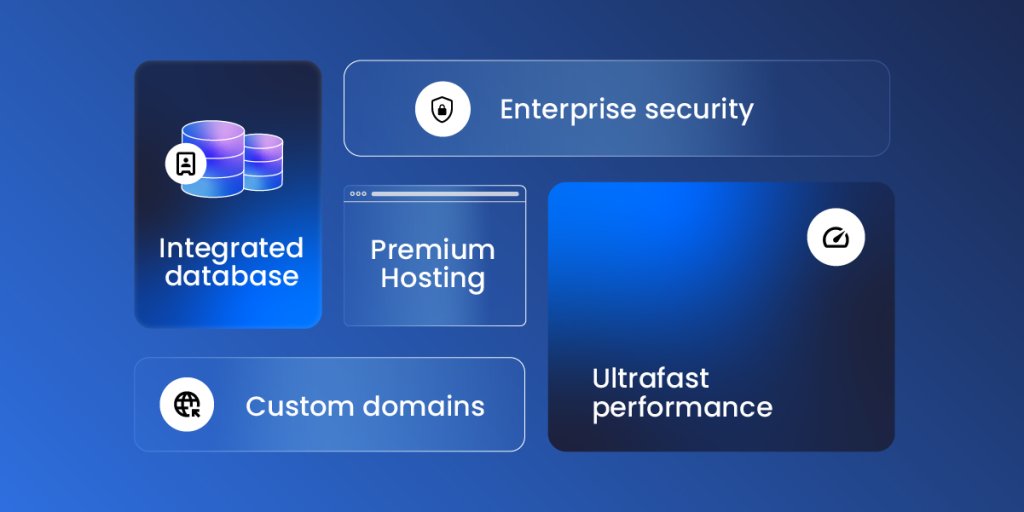
Are AI-built websites mobile-friendly?

Most modern AI website builders generate responsive layouts, meaning designs that automatically adjust to different screen sizes. That said, “responsive by default” doesn’t mean flawless on every device. Check spacing, font sizes, tap targets, and form usability on your phone before you publish.

Are AI website builders SEO-friendly?

Most AI website builders create basic SEO elements such as page titles, meta descriptions, headings, and site structure. Review them before publishing because the AI can draft useful defaults, but only you know how your customers describe your services.

Can I add bookings, payments, or an online store?

Yes. Most AI website builders let you add appointment booking, payments, or a small online store by describing what you need. In Coderick AI, payments run through Stripe on paid plans, so you can sell products, services, bookings, subscriptions, or digital downloads through Stripe’s secure checkout. Start with the one feature that matters most today, test it, publish, and add more as you grow.

Is the AI-generated website copy safe to publish?

AI-generated website copy is a strong first draft, not a final approval. Review pricing, guarantees, timelines, legal claims, policies, and testimonials before publishing. If the AI added a promise or fact you did not provide, replace it with your real business information.

Can an AI website builder replace a developer for a simple business site?

For a simple business site, yes. An AI website builder can handle a homepage, services page, contact page, forms, booking, and a small store. You may still need a developer for unusual integrations, advanced custom features, or complex security and performance needs.

How AI works in WordPress 7.0, and how you can make it useful for your business

An abstract graphic on a purple grid background showing layered glassmorphism windows, with the top card labeled "AI Studio" marked as "Connected" and a toggle switch for "Enable integration" turned on.

WordPress 7.0 is the biggest WordPress update in years. Among the headline features is something that’s caught a lot of attention: built-in AI infrastructure (an AI Client, a new Connectors screen, and an Abilities API with an MCP Adapter) so WordPress plugins can use AI services in a consistent, standardized way.

But what does this all really mean? This guide breaks down what WordPress 7.0’s AI capabilities do and what SiteGround has built so you can start getting real value from AI on your site and your business today.

Key takeaways:

  • WordPress 7.0 introduces shared AI infrastructure, but no AI features out of the box. You need to connect at least one AI provider and have a compatible plugin to start using AI.
  • Most AI capabilities focus on content generation in the editor. Many plugins focus on generating text, images, alt text, excerpts, and summaries directly inside WordPress, instead of requiring you to use a separate tool and paste results back in.
  • You connect AI providers once and use them across compatible plugins. The new Connectors screen replaces the old approach of managing separate credentials in every plugin.
  • Setting up AI requires choosing a provider, creating an account, and managing your own costs. AI services charge per usage, and costs vary by provider and model.
  • SiteGround AI is what makes AI genuinely useful in WordPress. Connecting SiteGround AI as your provider pushes WordPress 7.0’s capabilities further by applying AI to the broader work of managing your site. It powers up the SiteGround AI Agent for WordPress (the most capable WordPress AI assistant available today), which helps with the operational tasks that eat up your time: content, SEO, WooCommerce, plugins, users, and multiple sites. It’s pre-connected on SiteGround-hosted sites, or through a quick setup for sites hosted elsewhere.

The AI problem WordPress 7.0 is solving

Until WordPress 7.0, there was no common system for how AI worked inside WordPress. If you wanted AI features on your site, every plugin handled it differently. An AI writing tool connected to one AI service with its own API key (a unique credential that lets the plugin communicate with the AI provider). An AI SEO plugin connected to a different service with a different key. An AI image generator needed yet another setup.

If you were running all three, you were managing three separate sets of credentials in three separate settings panels, often paying for overlapping subscriptions. None of those tools could share anything with each other. For plugin developers, it was duplicated work: every team building the same connection infrastructure from scratch. For you, it was messy, expensive, and fragmented.

WordPress 7.0 solves this by building a shared AI layer directly into core (the base software that powers every WordPress site). Three components work together to make it happen:

  • The AI Client is a native AI infrastructure layer built directly into WordPress core. It creates a standardized interface for connecting AI providers, so plugins and themes can tap into AI through a single consistent framework. Before this existed, every plugin that wanted to use AI had to build its own connection code for each AI service it supported. Now a plugin simply asks WordPress for what it needs (generate text, create an image), and WordPress routes that request to whichever provider you’ve connected.
  • The Abilities API and MCP Adapter work on two levels. First, they help WordPress know what each connected AI provider can do (text generation, image generation, and so on), so requests get routed to a provider that can handle them. Second, they keep a registry of what your WordPress site itself can do: create posts, manage users, update settings, and other actions that plugins and themes register as available capabilities. The MCP Adapter (which stands for Model Context Protocol) translates all of this into a format that AI tools can discover and work with.
  • The Connectors screen is where you manage all of this. It’s a new page in your WordPress dashboard (Settings → Connectors) where you can see which AI providers are available, connect new ones, and manage your credentials in one place. No more hunting through individual plugin settings to find where your API key went.

What you can do now

So WordPress 7.0 turns AI from a scattered, plugin-by-plugin experience into a platform-level capability. But what does that change for your workflow?

You can add AI to your WordPress site without any technical expertise

Until now, using AI with WordPress meant either hiring a developer to wire up integrations or bouncing between external tools and your editor, copying and pasting back and forth. The new Connectors screen (under Settings → Connectors) makes this dramatically simpler: available AI providers appear as visual cards. You pick one, paste your API key, and compatible plugins on your site can start using AI immediately.

To get your API key, you create an account on the provider’s website (such as platform.openai.com for OpenAI), navigate to their API or developer section, and generate a key. You then copy that key and paste it into the provider’s card on the Connectors screen. That’s the entire setup for most providers.

Three providers are featured by default on the Connectors page: OpenAI, Google Gemini, and Anthropic Claude. If you choose to proceed with any of these, you need to activate their plugin.

Beyond these three, the system is open: community-built providers can be added from the same page. Each one requires you to install its provider plugin and enter your own API key.

For SiteGround customers: If your WordPress site is hosted on SiteGround, there’s a fourth option on the Connectors page — SiteGround AI, already installed and connected. The authentication is handled automatically through your SiteGround account (no need to paste an API key), so it appears in Connectors as already active.

Screenshot of an AI connector dashboard showing SiteGround AI connected and options to install Anthropic, Google, and OpenAI.

You get 20,000 free AI tokens monthly and no separate AI billing to track.

If your site is hosted elsewhere, it’s a quick one-time setup. You will get 14 days of free service.

You can use one shared AI connection instead of managing credentials in every plugin

The practical payoff of the Connectors setup becomes clearer when you use AI-powered plugins on your site. An SEO plugin that generates meta descriptions, a content tool that helps with writing, an image plugin that creates visuals: in the old world, each of these would need its own AI subscription, its own credentials, its own billing. With WordPress 7.0, they all share the provider you’ve already connected. Install a new AI-compatible plugin, and it works immediately, no additional accounts or API keys required.

What this means in practice:

  • Lower costs. Instead of paying three AI services for three plugins, you pay one provider that powers all of them.
  • Easier switching. If a better or cheaper provider appears, you change it once in the Connectors screen and every plugin on your site picks up the new connection automatically.
  • Better plugins over time. Developers no longer need to build their own AI integration from scratch. They can rely on what WordPress provides natively, and focus on what their plugin actually does instead of reinventing credential management and API plumbing.

You can choose the AI provider that fits your needs, and change it later

WordPress 7.0 doesn’t lock you into a single AI service. You can connect multiple providers, and WordPress will figure out which one to use for each task. Through the Abilities API, each provider registers the types of requests it can handle. When a plugin needs AI, WordPress checks your connected providers and routes the request to one that supports it.

That flexibility comes with some things worth understanding before you choose:

  • Costs aren’t always obvious upfront. AI services bill based on “tokens” (roughly a word or part of a word). You use tokens for both your request and the AI’s response. But the price per token varies not just between providers, but between models within the same provider. A more capable model costs more per request, and those costs can add up across plugins that make frequent AI calls. It’s worth checking your provider’s pricing page before you connect.
  • Multiple providers means multiple accounts. Each one has its own API key, its own billing, and its own dashboard to monitor. If you’re connecting two or three providers for different capabilities, you’re managing two or three separate relationships.
  • Not every provider can do everything. For example, Anthropic Claude handles text generation but not images. If you ask for an image and Claude is checked first, WordPress will see that it can’t handle the request and pass it to a provider that can. That routing is automatic, but only if you have a second provider connected that supports the capability you need.

How SiteGround AI handles this more efficiently: Instead of requiring you to manage multiple provider accounts, SiteGround AI gives you access to all leading model families (OpenAI, Claude, and Gemini) through one connection. SiteGround AI automatically selects the best model for each task to deliver an optimal quality-spending balance. One subscription, one token balance, no juggling between providers. This works the same way whether your site is hosted on SiteGround or on another platform.

You can generate text and images inside the editor

Before WordPress 7.0, using AI with your site usually meant going to a separate tool like ChatGPT, Claude, or Gemini, generating content there, and pasting it back into your editor. WordPress 7.0 changes that. With a provider connected, you can install plugins that use the shared AI infrastructure to bring content generation directly into your WordPress workflow. You can have, for example, a “Generate Image” button in your Media Library:

A screenshot of the WordPress Media Library interface showing a grid of uploaded images, including a golden retriever, a stylized cat, and various logos, with prominent buttons for "Add Media File" and "Generate Image" at the top.

Several options already exist, including the official WordPress AI plugin. The capabilities that compatible plugins currently offer center on content creation: generating and editing text, creating images from prompts, producing alt text for accessibility, writing excerpts, and summarizing long-form content. All of this happens inside the block editor and Media Library, so you stay in your workflow instead of switching between tools.

The provider you’ve connected in Settings → Connectors is the one powering these features behind the scenes, so your choice of provider affects the quality, speed, and cost of what you get in the editor.

If your primary need is help writing blog posts, generating images, or adding alt text to your media, the combination of a provider and a compatible plugin gets you there. For the broader work of making AI useful for your whole WordPress site, though, there’s more to the picture.

You can take the use of AI to the next level and incorporate it into your site maintenance workflow

Content creation is one part of running a WordPress website. Then there’s everything else: managing plugins, handling products and orders, organizing users, auditing SEO across hundreds of pages, keeping multiple sites in sync. That operational work eats hours every week, and it’s the part that plugins focused on in-editor generation don’t address.

This is what the SiteGround AI Agent for WordPress is built for. When you connect SiteGround AI as your AI provider in WordPress 7.0, it powers the standard editor capabilities that any provider can handle, but it also activates the AI Agent. The Agent executes tasks across your entire site through a simple chat conversation. You describe what you need in plain language, and it does it. You also don’t need to jump across the admin — the chat conversation is persistent across screens and is able to serve all needs, including text and image generation.

A screenshot of a custom WordPress dashboard featuring a prominent notification banner for updates and a "Manage Your Website" section with quick-action cards for an "AI Agent for WordPress," "View Site," and "Manage Pages."

This is possible because the AI Agent by SiteGround plugin connects directly to your WordPress installation, giving the AI Agent for WordPress access to your plugins, products, users, and settings. A standalone AI provider like OpenAI or Anthropic can generate text or images when asked, but it has no way to reach into your site and act on it. The Agent can, because it’s connected at the site level through the plugin.

What’s more, you can activate the AI Agent by SiteGround plugin for multiple WordPress instances and manage them in bulk from a single chat, located in the SiteGround AI Agent dashboard.

For SiteGround-hosted sites, that connection is set up automatically. For sites hosted elsewhere, you get the same access after installing the plugin and connecting it.

What makes this different: Most plugins built on WordPress 7.0’s AI framework help you generate content. The SiteGround AI Agent for WordPress applies AI to the operational work of managing a WordPress site: the products, the plugins, the users, the SEO, the daily maintenance that eats your time but doesn’t grow your business. And it activates automatically when you connect SiteGround AI as your provider.

An interface showing an "AI Agent for WordPress" prompt box that says "Reduce all prices in the Spring Collection category by 20%," positioned in front of an e-commerce product gallery featuring a headband, tennis racquet, and tennis balls with discounted prices.

Try it on your site

When you update to WordPress 7.0, connect SiteGround AI as your AI provider and let the AI Agent for WordPress help you with the content, the products, the plugins, the SEO, and the daily site maintenance that eats up your time. You’ll be surprised how much of your WordPress workflow fits into a single chat.

FAQs

Does WordPress 7.0 come with AI features you can use right away?

Not out of the box. WordPress 7.0 primarily ships AI infrastructure, the AI Client (how WordPress communicates with AI services), and the Connectors screen (where you manage AI provider credentials). To get visible tools like title suggestions, image generation, alt text, excerpts, and summaries, you’ll typically install an AI plugin.

What is the Connectors screen in WordPress 7.0, and why does it matter?

The Connectors screen (Settings → Connectors) is where you connect AI providers by adding credentials (usually an API key). The practical benefit is simple: you configure AI once in a central place, and compatible plugins can reuse that connection, so you’re not pasting the same key into multiple plugin settings pages.

Do I need an API key (and do I have to pay) to use AI in WordPress 7.0?

Usually, yes. Most AI providers require an API key, and they charge based on usage (often measured in tokens). WordPress 7.0 makes setup cleaner by centralizing credentials in Connectors, but the actual cost depends on the provider and model you choose, and how often you generate content.

What can I actually do with AI in WordPress today?

Right now, the most practical value is content workflow help. With AI plugins, you can draft titles based on your post, excerpts for blog listings and sharing, alt text for images (accessibility + image SEO), summaries for longer pages and images from text prompts (where supported). These tools work best as draft + review — you stay in control of accuracy and tone.

What’s the difference between the WordPress AI plugin and SiteGround’s AI Agent for WordPress?

They’re built for different jobs. WordPress’ AI plugin focuses on content assistance inside the editor (titles, excerpts, alt text, summaries, image generation). SiteGround’s AI Agent for WordPress focuses on site management through chat, helping you handle routine WordPress tasks across your dashboard without you wiring up separate AI provider accounts and keys for each feature.

Will my site break or change when I update to WordPress 7.0?

For most sites, no. WordPress 7.0’s AI components are optional. If you don’t connect an AI provider and don’t install AI plugins, your site should behave the same as before. As with any major update, it’s still smart to test on a staging site first (where solutions like Siteground’s Staging tool can help you) if your site relies on a complex theme or many plugins.

Can I use the WordPress AI plugin on a live website, or should I test it first?

Because the WordPress AI plugin is experimental, it’s best to test it on a staging site first, especially if your site is business-critical. The features are generally triggered manually (you choose when to generate), but “experimental” also means functionality can change between updates, so staging gives you a safer place to validate your workflow.

What are the Abilities API and MCP Adapter, and why should small businesses care?

They’re the foundation for AI assistants that can take action in WordPress, not just generate text. The Abilities API describes what your site can do (publish content, manage settings, ecommerce actions, and more) in a structured way. The MCP Adapter helps translate those abilities into a format AI tools can understand and potentially act on, with permissions and safeguards. The takeaway: WordPress 7.0 isn’t just about AI writing tools; it’s laying the groundwork for AI to support routine site management over time.

What’s new in WordPress 7.0: New features, AI connectors, and how to prepare for the update

A promotional graphic for "WordPress 7.0" featuring a laptop displaying the WordPress dashboard against a blue sky background, with floating UI icons and an update symbol.

Originally scheduled for release in April 2026, WordPress 7.0 is delayed a little, but one thing’s for sure: it’s going to change how you manage your website. It’s focused on improving the editing experience, site-building tools, and AI integration. It builds on the block editor and Site Editor, adding new features and refinements that help you publish faster, design more flexibly, and manage content more efficiently.

This guide covers what’s new in WordPress 7.0 for your day-to-day work, explains what the AI Connectors actually do, and walks you through how to prepare for the update safely. It applies to any WordPress site, though some features (like AI and automatic updates) work differently depending on your hosting for WordPress.

Key takeaways:

  • Built-in AI infrastructure introduces an AI Connectors screen and the WP AI Client: a standardized way to connect your WordPress site to AI providers, and share credentials across compatible plugins.
  • Visual revisions replace the old HTML-based comparison screen with a single-column, color-coded view that shows your content as it actually appears in the editor, making it easy to spot and undo accidental changes.
  • New core blocks (Breadcrumbs and Icons) remove the need for separate plugins.
  • Editor and performance improvements include responsive/mobile-friendly controls, a refreshed wp-admin dashboard, faster block rendering, and client-side media processing.

Why WordPress 7.0 is an important update

Many WordPress updates focus on fixing bugs and incremental improvements. By contrast, WordPress 7.0 is a fundamental shift in how the platform operates, driven by one major change: AI infrastructure.

AI tools for WordPress have existed for a while, but every plugin has had to build its own connection to AI services, store its own credentials, and handle everything independently. WordPress 7.0 replaces that fragmented approach with a standardized system built into core.

The new release is also packed with design and performance upgrades that make the entire experience of using WordPress faster and more intuitive. Let’s take a look at the most important new improvements.

AI added to the core

WordPress 7 introduces an in-built AI client, which offers a standardized way for plugins and other services to communicate with AI models through the WP AI Client, Abilities API and Workflows API, MCP adapter, and Connectors.

What this new AI framework does is let you choose an AI provider to power all AI requests coming from your WordPress, including plugins, themes, editor, and others.

When you log into your WP-admin after the update to 7.0, you will see a new page, accessible from Settings → Connectors. By default, this page shows a list of three AI providers: OpenAI (ChatGPT), Google (Gemini), and Anthropic (Claude), but you can search and connect other AI models as well. In order to actually connect any of these AI providers, you need to activate their respective “connector” plugin and connect your account on their website via an API key.

For WordPress sites hosted with SiteGround, there’s an additional option as seen on the list above: SiteGround AI Studio, which is already a listed AI provider.

A WordPress dashboard settings page titled "Connectors," showing integration options for various AI services including AI Studio SiteGround (connected), Anthropic, Google, and OpenAI, allowing users to configure API keys and credentials.

For more insights on AI in WordPress 7.0, read our in-depth analysis: “How AI works in WordPress 7.0, and how you can make it useful for your business”.

Visual revisions for posts and pages

Every time you save or update a post in WordPress, the system keeps a copy of the previous version. This feature (called revisions) has always been available, but comparing revisions used to mean looking at a two-column screen that displayed your content as raw HTML, making it hard to match what you saw there with how your post actually looked in the editor.

WordPress 7.0 replaces that with a single-column visual comparison that renders your content the way it appears when you’re editing. Changes are color-coded: yellow for modified content, red for deletions, and green for additions. A sidebar lets you navigate quickly between each change in the post.

A screenshot of a website editor showing an "About Us" page for an interior design firm, featuring a hero section with a city view and a section introducing a co-founder with a headshot and biography.

What this means: If you’ve ever accidentally deleted a section of a blog post, removed a product image, or reformatted something incorrectly, visual revisions make it much easier to spot the change and undo it. Especially useful on content-heavy sites where posts go through multiple rounds of editing.

New core blocks: Breadcrumbs and Icons

WordPress 7.0 adds two new blocks to the block editor. Both previously required third-party plugins, so having them built into core means one fewer thing to install and maintain.

The Breadcrumbs block

Breadcrumbs are the small navigational text you sometimes see near the top of a page showing the path to where you are, for example: Home > Blog > How to bake sourdough bread. They help visitors understand where they are in your website’s structure, make it easy to navigate back to parent pages, and help search engines understand how your content is organized (which can improve your search rankings).

The Icons block

The Icons block lets you insert SVG icons (small, scalable graphic symbols) directly into your content from a native library. These are commonly used for things like social media icons, navigation arrows, checkmarks, or decorative elements.

Why this matters: Every plugin you add to your site introduces a potential security risk, a slight performance cost, and another thing to keep updated. By moving essential features like breadcrumbs and icons into WordPress core, your site becomes faster, more secure, and easier to maintain without sacrificing functionality.

Improvements to the block editor

Beyond the new blocks, WordPress 7.0 includes several refinements to the editing experience. These are the block design tools and editor updates that site owners and theme developers will notice most.

  • Better mobile menus: The Navigation block now includes an Overlay setting that controls how your menu looks on mobile devices. You can choose when the mobile overlay appears, pick a hamburger icon style, and design a full overlay template for the expanded mobile menu, all without a page builder or custom code.
  • Responsive controls: You can now choose to hide or show specific blocks on different screen sizes (desktop, tablet, mobile).
  • Simpler headings: The Heading block now registers H1 through H6 as separate block variations, each with its own icon in the block sidebar. This makes it easier to see and switch between heading levels while editing, without needing to rely solely on the toolbar dropdown. Proper heading structure matters for both readability and SEO.
  • Improved layouts: Two new options: text indent automatically indents the first line of paragraphs, and text columns display paragraph text in a multi-column layout without needing a separate Columns block. The Grid block also adds responsive layout controls for building multi-column designs that adapt across screen sizes.
  • Image and gallery updates: The Image block now maintains aspect ratios correctly at all sizes. When you set a specific aspect ratio (such as 16:9 or 4:3), it now applies correctly even at wide or full-width alignment. The Gallery block also adds a built-in lightbox option, so visitors can click images to view them in a larger overlay.
  • Smarter pattern editing: Synced patterns (pre-built block arrangements that update everywhere they’re used) now support a content-only editing mode. You can lock a pattern’s layout while allowing changes to the text and images inside it, with an isolated editor mode that lets you edit patterns without losing your place.

A refreshed admin dashboard

The WordPress admin dashboard hasn’t had a major visual overhaul since 2013. With version 7.0, the dashboard finally gets a modern redesign with updated typography, a cleaner color scheme, and less visual clutter.

A key part of this is a new system called DataViews, which replaces the traditional content lists with a more modern, app-like interface. This brings long-awaited features like inline filtering without page reloads, making it much faster to sort through posts, pages, or media on content-heavy sites.

This refresh is part of a larger, unified WordPress Design System being rolled out, which includes:

  • Consistent form elements and buttons across the admin area.
  • A new dedicated Fonts screen (at Appearance > Fonts) for managing your site’s typography.
  • Refreshed dashboard widgets with a more modern look.

Why this matters: These changes add up to a more modern, consistent admin experience that’s faster to navigate and easier on the eyes. A more efficient backend saves you time and makes managing your website less of a chore.

Performance improvements under the hood

WordPress 7.0 includes several optimizations that make your WordPress site faster. These work automatically after updating, with nothing to configure.

  • Faster block rendering. The way WordPress generates HTML for block-based pages has been optimized, reducing processing time on pages with complex layouts.
  • Improved database queries. Refined data retrieval can lower your web server’s response time (measured as TTFB, or time to first byte: how quickly your server starts sending a page to a visitor’s browser).
  • Client-side media processing. When you upload images, basic adjustments like resizing now happen in the browser’s capabilities rather than on the web server, reducing server load and adding support for advanced image formats. This is part of WordPress’s move toward leveraging client-side processing for smoother media workflows.
  • Better lazy loading. Lazy loading (where images don’t load until a visitor scrolls to them) has been refined, speeding up initial page loads on image-heavy pages.

Pro tip: To measure the impact on your site, you can use tools like Google PageSpeed Insights or GTmetrix. For further optimization, the SiteGround Optimizer plugin provides additional caching, frontend optimization, and image compression on top of what WordPress core offers.

How to prepare for the update

If your site is hosted with SiteGround, the SiteGround AutoUpdate tool can handle the update for you automatically, including a backup before the update and a rollback if anything goes wrong.

You can also update WordPress manually from your dashboard whenever you’re ready.

Step 1. Create a backup. Make a full backup of your WordPress website using the Backup tool in SiteTools. This creates a restore point you can return to if anything goes wrong.

Step 2. Test on a staging site. If your site uses a complex theme, a page builder, or more than a handful of plugins, test the update on a staging copy first. SiteGround’s Staging tool creates a private copy of your site where you can apply the WordPress 7.0 update and check that everything works correctly before touching your live site. You can install the WordPress 7.0 Beta or Release Candidate on staging to test ahead of the final release.

Step 3. Check plugin and theme compatibility. Make sure your active theme and all your plugins have been updated to support WordPress 7.0. Outdated plugins are one of the most common causes of issues after a major WordPress update. Pay particular attention to plugins that modify admin list views, as the DataViews changes may affect them.

Step 4. Confirm your PHP version. Check that your site is running PHP 7.4 or higher. If you’re still on an older PHP version, upgrade it on staging first, test thoroughly, and then apply the change to your live site.

Step 5. Update. Once your backup is in place and you’ve confirmed compatibility, apply the update from your WordPress Dashboard > Updates screen.

Conclusion

WordPress 7.0 is a real step forward for the platform. AI integration, visual revisions, and a refreshed editor all point in the same direction: WordPress is becoming a place where you do more of your work, not just publish the result.

If your hosting already handles automatic updates, backups, and AI provider setup for you, you’ll be able to take advantage of these features from day one. SiteGround customers, for example, get WordPress 7.0 with SiteGround AI Studio already connected as an AI provider, automatic updates with built-in rollback, and an infrastructure optimized for the new capabilities.

FAQs

When is WordPress 7.0 released?

Originally scheduled for release in April 2026, WordPress 7.0 is delayed a little. Until the final release, you can test WordPress 7.0 Beta and Release Candidate builds on a staging site.

What’s new in WordPress 7.0?

WordPress 7.0 introduces visual revisions, new Breadcrumbs and Icons blocks, block editor improvements, the command palette shortcut, a modern admin redesign with DataViews, performance optimizations, a PHP 7.4 minimum requirement, and built-in AI infrastructure including the Connectors screen, AI Client, and Abilities API.

Should I update to WordPress 7.0 right away?

For most sites, the safest approach is to create a backup, test on staging, and confirm that your plugins and theme are compatible before updating. If your site relies on complex plugins (ecommerce, membership, page builders), plan extra testing before upgrading your live site. SiteGround customers can rely on the AutoUpdate tool to handle backups and rollback automatically.

Will my site break or change when I update?

WordPress 7.0’s new features are additive. If you don’t connect an AI provider and don’t install AI plugins, your site behaves the same as before. As with any major release, test on staging first if your site uses a complex theme or many plugins.

What are AI Connectors in WordPress 7.0?

The AI Connectors screen in wp-admin (Settings → Connectors) is where you enter API keys for AI providers (OpenAI, Google, and Anthropic) in wp-admin. It centralizes credential management so plugins can share one set of AI credentials instead of each storing their own. You only need to use it if you want to use AI features that connect to those providers.

What is the WP AI Client?

The AI Client in WordPress 7.0 is a provider-agnostic system that lets plugins send prompts to AI models and receive results through one shared interface. It’s infrastructure, not a visible feature. It means AI-powered plugins will work more consistently and cause fewer conflicts.

Do I need an API key to use AI in WordPress 7.0?

For the built-in Connectors system, yes. You’ll need an account with an AI provider and you’ll pay based on usage. For WordPress sites hosted with SiteGround, the AI Agent for WordPress (part of SiteGround AI Studio) handles AI services for you with no API keys and no separate subscriptions.

Do the new Breadcrumbs and Icons blocks work with my theme?

Yes. Both new blocks are part of WordPress core and work with any theme. The Breadcrumbs block automatically inherits your theme’s global styles.

What is the Command Palette in WordPress 7.0?

The new command palette shortcut is accessible via Ctrl+K (Windows/Linux) or ⌘K (macOS) from the upper admin bar. It lets you search for and jump to any screen, setting, or action in wp-admin without navigating through menus, speeding up common tasks inside your admin dashboard.

What PHP version do I need for WordPress 7.0?

The minimum PHP version is 7.4. Sites on PHP 7.2 or 7.3 may not be able to update to WordPress 7.0 until PHP is upgraded. For best performance, PHP 8.3 or higher is recommended. Test any PHP version upgrade on a staging environment before applying it to your live site.

How do I safely test WordPress 7.0 before updating?

Test on a staging environment first: clone your site using SiteGround’s Staging tool, apply the WordPress 7.0 Beta or Release Candidate update, check that your theme and plugins work correctly, and run through your key pages and workflows (editor, forms, checkout if applicable). SiteGround customers get automatic backups and rollbacks through the AutoUpdate tool, so your live site is protected during the update.

How to build a 360° seasonal marketing campaign with AI: A guide for small businesses

A marketing graphic showing a cooking blog post, a social media post, and a spring sales promotion all linked.

Seasonal marketing campaigns are among the strongest growth drivers for small businesses, as your customers are already in buying mode. But those that see the biggest returns aren’t just posting one-off promotions on social media. They’re running a coordinated 360° marketing campaign across all their channels, including website, email, social media, and paid ads.

This guide walks you through every step of an effective multi-channel seasonal campaign and shows you how to execute each one with AI. That way, you can accomplish in a day what used to take a full marketing team and weeks of lead time.

Key takeaways:

  • Seasonal campaigns tap into buying intent that already exists. You’re reaching customers when they’re actively spending, which means less convincing and more converting.
  • A 360° campaign works because customers see your offer multiple times across different channels, building the recognition and trust that single-channel promos can’t match.
  • Your website is the foundation. Every email, social post, and ad sends people there, so if there’s no sign of the promotion when they arrive, everything else is wasted.
  • A short email sequence outperforms a single blast. A teaser, a launch, a reminder, and a last-chance email build anticipation and urgency.
  • Social and paid ads serve different audiences. Social reaches your followers, and ads reach everyone else. Both work best when they match the rest of the campaign.
  • SiteGround AI Studio lets you build the entire campaign from one workspace. It gives you access to specialized AI agents, each designed for a specific task like creating social posts, managing your store, or building ads. That way, you can execute every step, from planning to optimization, without switching platforms or juggling subscriptions.

Why do you need 360° seasonal campaigns?

Seasonal marketing campaigns are among the most effective small business marketing tools for driving revenue during peak buying periods. When customers are already shopping for Valentine’s or Black Friday, or refreshing their home for spring, your job shifts from creating demand to capturing it.

The problem is that, due to a lack of time and resources, most small businesses approach seasonal marketing sporadically: maybe an Instagram post, perhaps an email if there’s time. Meanwhile, the businesses that get the strongest returns run 360° campaigns, coordinating their website, email, social media, and paid ads around a single offer with a consistent message and visual identity.

This is a serious production effort. A full 360° campaign typically involves:

  • A promotional banner and updated website content
  • An email sequence (teaser, launch, reminder, last chance)
  • Social media posts adapted for each platform
  • Multiple ad variations for Google and Meta
  • Updated product pricing, descriptions, and tags (if you run an online store)

That’s thirty-plus individual pieces of content, each with different format requirements, platform conventions, and audience expectations. Marketing agencies charge thousands to produce this. Enterprise brands have dedicated teams for each channel. Most small businesses have a founder with a to-do list and maybe an afternoon.

A graphic on a purple grid background with the text 'VS' compares a single social media post to a group of multiple connected digital interfaces, which include a website, social posts, an email inbox, and a shop, suggesting an ecosystem.

Many are already using AI to help, but often stop at general-purpose AI chatbots. The real shift comes from having purpose-built tools for each specific task in the campaign workflow. That’s the idea behind SiteGround AI Studio, an AI workspace SiteGround built from two decades of working with small business owners and understanding what they actually need. It brings together specialized AI agents, each trained for a specific job in the campaign workflow, in a single workspace.

In the steps below, we’ll walk through the strategy for each part of a 360° seasonal campaign and show you how to execute them with the help of AI agents.

Step 1: Put up a promotional banner on your homepage

Your website is where every other channel sends people during a seasonal marketing campaign. Every email, social post, and ad you create will point back here. If a customer clicks through from your Instagram post or opens your campaign email and lands on a site that looks exactly the same as any other day, with no sign of a promotion, you’ve lost the moment.

The simplest and most effective way to fix this is a homepage promo banner (or hero banner) that makes the seasonal offer obvious right away. It catches every visitor (whether they came from your campaign or found you through search), and it immediately signals that something special is happening.

Here’s what makes a good promotional banner:

  • The offer is immediately clear. The discount, the product, and the deadline should all be obvious at a glance. Something like “20% off all dining tables, ends April 15” works better than vague phrases like “Big spring savings!” 
  • There’s one clear call to action (CTA). “Shop the sale,” “Use code SPRING20,” “See all deals.” One link, one action, taking visitors straight to the discounted products.
  • There are urgency signals built in. The end date, a note about limited stock, or a shipping cutoff. Real deadlines help people decide now rather than “later” (which usually means never).
  • The visual style matches the rest of the campaign. The same colors, typography, and seasonal feel that people will see in your emails and social posts. When the banner matches the email that brought someone to your site, the experience feels professional and trustworthy.

The best approach is to replace your homepage hero section with the campaign banner rather than adding a small notification bar above it. The hero section is the first thing visitors see before they scroll, and making the promotion the hero of the page means 100% of your visitors are aware of the offer instantly. 

It also keeps the page clean and focused: adding a ribbon banner on top of an existing hero creates visual clutter and competing messages, while replacing the hero gives visitors a single, clear directive.

How to execute this with AI Studio

The AI Agent for WordPress (an AI assistant that integrates with your WordPress dashboard, letting you manage your site through plain-language instructions instead of clicking through menus) handles this entire step. Instead of clicking through WordPress menus and dragging blocks around, you describe the homepage promo banner you need in a chat, and the agent builds it on your live site.

The more context you give the agent, the better the output. Include your offer details, your preferred layout, your brand’s visual style, and where you want the CTA to link. The agent builds the banner in one go, including generating and placing images.

Here’s an example of what a prompt to the AI Agent for WordPress might look like:

Update the homepage topmost hero section of my website to promote [X]% discount on [products], valid through [date]. Analyze my website and treat it as the source of truth for brand tone and visual style. Replace the existing hero image, headline, copy, and CTA with engaging sales messaging to promote the discount. Make the CTA prominent, high-contrast, and linked to the relevant product category.

Pro tip: Build the homepage banner before you move on to anything else. This becomes the reference for the entire 360° campaign: every email, social post, and ad you create from here will adapt the same message, look, and CTA.

Step 2: Prepare your online store

If your products still show full prices, have generic descriptions that don’t mention the seasonal campaign, and carry no visual signal that anything special is happening, you’ve broken the customer’s experience at the worst possible moment.

Before you start promoting your campaign to the world, the store needs to look like the campaign is already happening:

  • Apply sale pricing across the relevant products, categories, or bundles. If your banner says “20% off all dining tables,” every dining table in your store should reflect that discount when a customer clicks through.
  • Update product descriptions to mention the promotion and the end date naturally at the beginning.
  • Add promotional tags or badges (“Holiday Special,” “Black Friday Deal,” “Spring Sale”), so customers see the promotion as they browse, not just on the banner.
  • Create a curated collection page: a “Gift Guide,” “Spring Picks,” or “Best Deals” selection that gives browsers an easy starting point and showcases your strongest offers in one place.
  • Audit your product images. If photos are missing alt text, captions, or proper titles, fix them now. This matters for SEO, for website accessibility, and for the professional feel of your store.

For WooCommerce store owners, this preparation for an ecommerce seasonal campaign is usually the most tedious part: logging into the admin panel, clicking into products one by one, adjusting prices, editing descriptions, adding tags. Multiply that across dozens or hundreds of products and it can easily consume an entire day.

How to execute this with AI Studio

The AI Agent for WordPress connects directly to your WooCommerce store and can execute all of these changes through a simple chat, without clicking through your store’s admin panel:

  • Bulk pricing updates: Tell it “reduce all prices in the Spring Collection category by 20%” and it applies the change across your entire catalog in one go. No clicking through individual products.
  • Description rewrites: Ask it to update all product descriptions in a category to mention the spring sale and reference the campaign end date. It edits each product while keeping your existing formatting intact.
  • Tags and categories: Ask it to add a “Spring Sale” tag to all discounted products, or create a new “Spring Picks” category and assign your featured items to it.
  • New product creation: If you’re building seasonal bundles or gift sets, describe what you want and the agent handles setup, pricing, images, and categorization.
  • Image metadata at scale: Point the agent at your product images and ask it to generate alt text, captions, and titles across your media library. For a large store, this saves hours of mind-numbing manual work.
  • Catalog translation: If you’re expanding the campaign to international customers, the agent can translate your product catalog while preserving your brand tone and technical accuracy.

You can chain multiple actions into a single prompt. The agent works through them sequentially, and you can review the changes before moving on.

An interface showing an "AI Agent for WordPress" prompt box that says "Reduce all prices in the Spring Collection category by 20%," positioned in front of an e-commerce product gallery featuring a headband, tennis racquet, and tennis balls with discounted prices.

Here’s an example of how you might prompt the agent for store preparation:

Apply a [X]% discount to [discounted products or services] in my store ending on [date]. Update each product’s sale price based on its current regular price and add these products to a new product category named “Sale.” Update each product description to mention the [X]% promotion and the [date] end date naturally at the beginning. Create a new page titled “Shop the Sale” using the WooCommerce “On Sale Products” block so it updates automatically, and link this new page to the CTA on my promotional banner on the homepage. Use my current store structure and brand voice as context. If any details are missing, make the best choice based on my site.

Pro tip: Always prepare your store before writing emails and social posts. Once your products show the correct sale prices, descriptions, and promotional tags, you can reference specific items, prices, and collections in every piece of content you create. Every link from an email or social post will lead to a page that matches what was promised.

Step 3: Build your email sequence

Of all the channels in a seasonal campaign, email marketing remains one of the highest-converting channels for small businesses. The reason is simple: the people on your email list already know you. They’ve bought from you before, or they signed up because they were interested. A well-timed email with a clear, relevant offer converts at rates that social media and paid ads rarely match.

The most common mistake small businesses make with a seasonal email campaign is sending a single email blast announcing the sale and leaving it at that. That approach relies on one message reaching the right person at the right moment (which it rarely does). Instead, build an email marketing sequence that creates a narrative arc across the campaign:

  • Teaser (2–3 days before launch): Build anticipation without revealing everything. Something like: “Something big is coming this Friday. You’ll want to check your inbox.” This primes your audience to watch for the next email.
  • Launch (day the sale goes live): This is the most important email. Lead with the offer, make the CTA unmissable, and link directly to your store.
  • Reminder (midpoint of the campaign): By now, some people opened the launch email but didn’t act. Highlight specific products, share what’s selling fast, or link to your curated collection from Step 2.
  • Last chance (final day): Keep it short. The deadline is the message. “This ends tonight” is more powerful than another product roundup.

Every email in the sequence needs four things: an email subject line compelling enough to earn the open, body copy that drives the click, a visual that reinforces the campaign look, and a single CTA.

How to execute this with AI Studio

The Email Marketer (an AI agent that creates complete campaign emails including subject line, body copy, layout, and visuals from a single brief) is built for exactly this kind of work.

A marketing graphic displaying a sequence of example email marketing panels, each with a different theme (e.g., fashion, product feature, lifestyle), and a prominent AI chat interface labeled 'Email Marketer' displaying the prompt: 'Create a high-performing launch email sequence for...', illustrating an automated creation workflow.

Start by giving the agent enough context about your business and the campaign. Here’s what a prompt for the launch email might look like:

Create a high-performing launch email for a [X]% promotion on [discounted products or services] ending on [date]. Use my website as the source of truth for tone of voice, offer details, and brand style. The email should open with a strong hook, clearly state what’s on offer, highlight why it’s valuable, emphasize the deadline, and include one primary call to action with a catchy CTA copy that links to my website. Keep the language specific, benefit-led, and consistent with the website. If any details are missing, make a reasonable assumption based on the page without over-explaining it in the email itself.

The agent produces a complete email from this: subject line, body copy, images, and HTML layout, all ready to preview. Then you can follow up to create the rest of the sequence:

  • Now create a teaser version of this email that hints at the sale without revealing the discount. Build curiosity.
  • Create a reminder version of this email that spotlights our top [number] bestselling [product type] and clearly mentions that the sale ends in [number] days.
  • Create a last‑chance version of this email. Keep it very short and direct. The deadline is the main message, and the primary goal is to drive urgent clicks to the website before the sale ends.

The Email Marketer doesn’t just write the email, but it can also export the finished result as ready HTML or load it directly into SiteGround Email Marketing with a single click. The email goes from AI draft to your sending tool in the same workflow, ready for action.

Pro tip: Always write the launch email first and treat it as the template for the rest of the sequence. It contains the clearest, most complete version of your offer, and every other email is a variation of it, which is exactly the kind of adaptation AI handles in seconds.

Step 4: Create your social media posts

Email reaches the people who most likely already know you. Social media marketing reaches people who follow you but haven’t bought yet, and when a good campaign post gets shared, it reaches people who’ve never heard of you at all. That makes social media the discovery layer of your campaign: the channel where new customers first encounter your offer.

The key mistake to avoid here is treating all platforms the same. Copying your email text and pasting it as a Facebook post and an Instagram caption doesn’t work, because each platform has its own format, audience expectations, and content conventions:

  • Instagram is visual-first. A strong product image or seasonal graphic does most of the work in Instagram marketing, and the caption supports it.
  • Facebook allows longer, more conversational posts. It’s where you can tell a story behind the sale, share behind-the-scenes content, or tap into community engagement.
  • LinkedIn is best suited for B2B offers or professional services. If your seasonal campaign targets other businesses (holiday corporate gifts, for example), LinkedIn is where those buyers spend time.

Plan social media content for at least three to five posts per platform spread across the campaign window: a teaser, the launch announcement, a midpoint reminder (this is a good place to link to a blog post or gift guide if you have one), a product spotlight, and a final last-chance post.

How to execute this with AI Studio

AI Studio includes the Social Managers for Facebook, Instagram, and LinkedIn. Each agent produces a complete, ready-to-publish post: the copy, the image (sized correctly for the platform), and the hashtags, all from a single prompt. Because each agent has built-in knowledge of its platform’s best practices, the posts are already optimized for the format and conventions that perform best on that specific channel.

Here’s an example of prompting the Social Manager for Instagram:

Create a high-converting social media post to drive clicks to my website: [URL]. The promo is a [X]% discount on [discounted products or services], ending on [date]. Use my website as the source of truth for tone of voice, visual style, and positioning. Write a full caption (strong hook first line highlighting the promo, clear benefit, mention of the end date, and one click-focused CTA) and generate matching visuals. Keep the copy concrete, benefit-led, and urgency-driven. If something is missing, make a reasonable assumption based on my website.

Once the post is ready, the agents can publish directly to your connected pages and profiles, so you can go from brief to live post without leaving the workspace. Run through this workflow for each post in your sequence and you’ve got a full social media calendar for the campaign, created in a single session.

Beyond publishing, the Social Managers also help you track how your campaign is performing. You can ask any of the agents for an engagement report on your recent posts, and manage comments directly through the conversation, instead of logging into each platform separately to monitor reactions.

Pro tip: Create all your social content right after the email sequence. At that point, you already have the messaging, the visuals, and the campaign timeline from the previous steps. The Social Managers are adapting what exists, not starting from scratch, which is one of the core advantages of building every campaign asset from the same workspace and the same core brief.

Step 5: Set up your paid ads

Even a modest budget, well-targeted with the right creative, can meaningfully amplify a seasonal promotion by putting your offer in front of new audiences at the exact moment they’re looking to buy.

The part of paid advertising that consumes the most time isn’t the budget or the targeting settings, but writing the ads themselves. Effective ad campaigns require multiple variations: different headlines, different hooks, different descriptions, all promoting the same offer. The advertising platforms (Google, Meta) are designed to test these variations against each other and optimize toward what performs best. But writing five versions of the same ad is tedious, and it’s the step where most small business owners give up and run a single ad, which dramatically limits performance.

Two important principles before you start spending:

  • Don’t lead with ads. Make sure your promotional banner, store, emails, and social posts are live first. Ads work best when they amplify a campaign that’s already running across other channels.
  • Keep the creative aligned. Your ads should look and sound like the rest of the campaign. Same branding basics, same offer, same page destination. When someone clicks an ad and arrives at a page that looks completely different from what they just saw, trust evaporates.

How to execute this with AI Studio

AI Studio includes two dedicated advertising agents: the Ads Expert for Meta (which creates ad copy for Facebook and Instagram campaigns) and the Ads Expert for Google (which writes and refines Google Ads copy).

Here’s an example prompt for the Ads Expert for Meta:

Create ads for my [X]% promotion on [discounted products or services] ending on [date]. Generate five variations that highlight the promotion in different ways. Write the ad copy, generate matching visuals. Include a clear call to action linking to my website [URL]. Use the website as context for the tone of voice, visual style, and overall look and feel. Keep the ads clear, compelling, and focused on driving clicks. If any details are missing, make the best choice based on my site.

Each agent follows the ad structure guidelines of its respective platform, so the output is correctly formatted and ready to load into your ad manager. Aim for three to five variations per platform.

Pro tip: Don’t overthink which ad variation will “win.” The whole point of running multiple versions is to let the platform’s algorithm figure that out. Your job is to provide enough creative options for the system to test. That’s exactly what the Ads Experts make fast and easy.

Quick reference: which AI Studio agent for each step

Marketing campaign step AI Studio agent(s)
Building the promotional bannerAI Agent for WordPress
Preparing your online storeAI Agent for WordPress
Creating the email sequenceEmail Marketer
Creating social media postsSocial Managers for Facebook, Instagram, and LinkedIn
Setting up paid adsAds Expert for Meta + Ads Expert for Google

Build your entire seasonal campaign in one place

The reason a full 360° campaign is now realistic for one person or a small team isn’t just that AI can generate marketing copy or images. It’s that every step of the process can happen in the same workspace, with each step building naturally on the last. SiteGround AI Studio brings all of these agents together in a single workspace: one interface, one set of tools, one workflow for the entire campaign.

Want to build your full seasonal marketing campaign with AI agents? Try AI Studio Plus free for 14 days. You get 100,000 tokens and access to the Email Marketer, Social Managers, Ads Experts, Image Designer, Copywriter, Reputation Manager, Web Researcher, SEO Expert, and more. The trial is available once per account to all users who don’t currently have the paid AI Studio Plus plan. After the trial, the service auto-renews, but you can cancel anytime.

FAQs

What is a 360° seasonal campaign?

A 360° seasonal campaign is a coordinated promotion that runs across your website, email, social media, paid ads, and post-campaign follow-up, using a single consistent offer and message. The goal is to reinforce the same story at every touchpoint, which improves trust and conversion.

Is a 360° campaign the same as omnichannel marketing?

They overlap. Omnichannel marketing is a broader approach to creating connected experiences across channels, while a 360° campaign is the execution plan for a specific promotion (such as a seasonal sale or launch). For a growing small business, the practical difference is minimal: focus on consistency and one destination page.

Why should I add a promotional banner to my website?

Because every other part of your campaign (emails, social posts, ads) sends people to your site. If they arrive and see no sign of a promotion, the click was wasted. A sitewide banner is the fastest way to signal that a sale is happening, and it catches every visitor, not just the ones who came from your campaign.

What should a promotional banner include?

At minimum: one clear CTA (“Shop the sale,” “Book now,” etc.), featured products/services or curated picks, real urgency (end date, shipping cutoff, limited stock).

What emails should I send for a seasonal campaign?

A simple sequence works best: teaser (optional), launch (most important), mid-campaign reminder (spotlight benefits or bestsellers), last chance (deadline-driven), follow-up (thank you + next step). This typically outperforms a single email blast by creating momentum and multiple opportunities to convert.

How long should a seasonal marketing campaign run?

For most small businesses, 7–14 days is ideal: long enough to build momentum, short enough to keep urgency. Flash promos can work in 3–5 days, while longer campaigns need creative refreshes mid-way.

What metrics should I track during a seasonal campaign?

Track a small daily set of metrics: CTA clicks, email opens + click-through rate, top products/pages and add-to-cart rate (ecommerce), social clicks/engagement, ad CTR + cost per click (if running ads). Use the data to make small adjustments (headline, CTA, featured items, subject lines, ad hooks).

ChatGPT vs Claude vs Gemini: Which AI is best for writing, coding, research, image generation, and long documents

A man in a blue shirt is shown in a thoughtful pose, resting his hand on his chin against a blurred background. In the foreground, three prominent AI logos are displayed in a horizontal row, separated by small lightning bolt icons: the green ChatGPT logo on the left, the orange Claude logo in the center, and the colorful Gemini star logo on the right.

Generative AI is leveling the playing field for small businesses — what used to take hours of writing, research, design, or coding can now happen in minutes. But here’s what you might be missing: different AI models are built with different strengths, and using just one model for everything means you’re not getting the best AI has to offer. 

We’ve tested multiple AI models across real-world tasks small business owners do every day. This guide shows you which one to use for what, so you can stop defaulting to one tool and start getting the best possible output.

Key takeaways

  • No single AI model is best at everything. Different AI models have different strengths, and matching the right one to the task gets you significantly better outputs.
  • Each AI model has its specialty. ChatGPT (OpenAI) is the best pick for brainstorming and customer communication. Claude (Anthropic) leads for content creation and coding. Gemini (Google) excels at research and handling large documents.
  • Image generation works best with dedicated image models. Nano Banana Pro and GPT Image 1 each handle different types of visual work, from photorealism to stylized illustrations.
  • You don’t need multiple subscriptions. SiteGround AI Studio gives you access to all of these models in one place, so you don’t have to manage multiple accounts.
  • The best approach is to experiment. Try different models on the same task and see for yourself what works best.

Why different AI models are good at different things

ChatGPT alone holds over 80% of the AI chatbot market, which means most people never try anything else. In our own research, we’ve seen around 70% of website owners relying on ChatGPT for all their daily work. But here’s what’s interesting: OpenAI’s own data shows the most productive AI users (the ones saving 10+ hours per week) are actually using multiple models across different tasks. 

Why? Because different models are genuinely better at different things. 

AI models are trained on massive datasets (text, code, images, scientific papers, books, conversations), and the choices their creators make during training shape what they’re good at. Think of it like education. Two people can both be smart, but if one studied literature and the other studied engineering, you’d ask them different questions. AI models work the same way.

  • Anthropic’s Claude models (like Claude Sonnet 5 and Claude Opus 5) are optimized for careful instruction-following, long-form writing, and analytical reasoning. 
  • OpenAI’s GPT models (like GPT 5.6 Sol) are optimized for conversational writing and creative flexibility. 
  • Google’s Gemini models (like Gemini 3.1 Pro and Gemini 3.6 Flash) are built for research, long context, and multimodal inputs, with strong integration across Google’s ecosystem.
  • There are dedicated image models (like Nano Banana and GPT Image 1), each trained specifically on visual data with different priorities: photorealism, speed, text rendering, or artistic style.

This might sound like a lot to keep track of. It’s actually simpler than it seems. Once you know the basic strengths of each model family, picking the right one becomes second nature, like knowing when to use a spreadsheet versus a slide deck. 

Let’s put this into practice by walking through common tasks you’ll typically encounter when launching a new product or service, from the first brainstorm to customer support. We’ll show you which model to reach for at each step.

Best AI model for brainstorming and ideation 

Every launch starts with an idea. Or more often, a mess of half-formed ideas that need shaping. This is where AI earns its keep as a thinking partner: helping you explore angles you wouldn’t have considered, pressure-test concepts, and generate dozens of options before you commit to a direction.

Our pick: ChatGPT (GPT 5.6 Sol)

We found that GPT 5.6 Sol is the best brainstorming partner of the bunch. It generates a wide, surprising range of ideas and riffs naturally when you push back or redirect. Ask it “give me 20 product name ideas for an organic dog treat brand,” and you’ll have 20 usable options in under 30 seconds. Say “now make them more playful,” and it pivots without missing a beat.

For product naming, positioning exploration, tagline brainstorming, and early-stage “what if” thinking, GPT consistently produces more varied and unexpected output than models that skew more structured and precise. If you’re one of the many people already using ChatGPT daily, make sure to try it out as an ideation buddy.  

Runners-up:

  • Claude Opus 5 – When brainstorming needs to go deeper. If you’re not just generating ideas but evaluating them (weighing trade-offs, thinking through positioning strategy, or developing a rough concept into a full brief), Opus adds the analytical depth that GPT trades away for creative range.
  • Gemini 3.6 Flash – For rapid-fire idea generation when you want volume fast. Useful when you want 20 campaign angles in seconds.

Pro tip: Use GPT to generate the first long draft of ideas, then hand the shortlist to Claude Opus for feedback. Ask Opus “what are the three biggest weaknesses of this product name?” or “which of these five positioning angles would resonate most with first-time parents?” You’ll get a much sharper final answer than either model would give you alone. That’s even easier if you’re using a service such as SiteGround AI Studio, which gives you instant access to all the best AI models in a single workspace.

Best AI model for content creation and editing 

You’ve got an idea and a direction. For most launches, the next move is getting words on the page: the landing page, the announcement email, the blog post, the social captions. This is usually the heaviest lift, and it’s where choosing the right model pays off most, because content quality directly affects whether people buy.

Our pick: Claude Sonnet 5 (Anthropic) 

For the kind of content small businesses produce every day, like blog posts, marketing emails, product descriptions and social media copy, we found that Claude Sonnet 5 hits the sweet spot between quality, speed, and cost. It writes polished, natural-sounding prose, follows brand voice instructions well, and delivers results fast enough that you can iterate through multiple drafts without waiting.

What makes Sonnet stand out for content work is its precision. Give it a detailed brief (tone, audience, key points to hit, things to avoid), and it follows those instructions more reliably than most models. For the vast majority of business content tasks, Sonnet gives you 90% of the quality of the most powerful models at significantly faster output.

Runners-up:

  • Claude Opus 5 – When the stakes are high, step up to Opus. For long-form content that demands nuanced reasoning and editorial precision (a white paper, a detailed case study, a piece of thought leadership), Opus 5 produces work that needs minimal human editing. It’s the model to reach for when the content really matters.
  • GPT 5.6 Sol – A strong all-round writer, particularly good at conversational, engaging copy and at adapting to different tones. If you’ve been writing marketing emails and ad copy with ChatGPT, you’re in good hands. GPT’s natural warmth makes it especially effective for customer-facing communications.

Pro tip: Always paste your brand voice guidelines (even just 3-5 bullet points describing your tone) into the prompt. Sonnet is especially good at sticking to these, and it’s the single biggest quality improvement you can make without changing models. Also: never publish AI-generated content without reviewing it. 

Best AI model for research and data gathering 

This is crucial not only for any early stage of every small business or professional, but the tricky part is that you need to do it periodically in order to stay relevant. What does the market look like? What are customers actually asking for? What are your competitors doing to address that? The right model turns hours of reading into structured, actionable intelligence.

Our pick: Gemini 3.1 Pro (Google)

Gemini 3.1 Pro is the standout choice for research, as per our testing. Its deep reasoning capabilities and ability to process extremely long documents in a single session set it apart. Feed it a 50-page industry report and ask for the five most relevant competitive insights, and it delivers a structured summary without losing track of details buried on page 37.

This also makes it the best option for everyday summarization tasks: condensing a lengthy contract into key points, pulling the main takeaways from an industry report, or turning messy meeting notes into a clean summary. If research and document processing are a regular part of your work, Gemini 3.1 Pro should be your default.

Runners-up:

  • Claude Opus 5 – The best choice when research requires synthesis and judgment rather than just gathering facts. If you need to compare competing strategies, weigh trade-offs, or produce a recommendation from messy, conflicting inputs, Opus 5’s reasoning depth is hard to match. Think of Gemini as the better gatherer and Opus as the better synthesizer.
  • GPT 5.6 Sol – Strong for exploratory research where you’re iterating on questions and narrowing your focus. GPT’s conversational flow makes it easy to go back and forth (“what about this angle?”, “now compare those two”) in a way that feels natural and productive.

Pro tip: When doing competitive research, don’t just ask the AI to “research my competitors.” Instead, give it a specific document or URL to analyze and ask targeted questions: “What are the three main claims this company makes that we don’t?” or “Summarize the pricing strategy in this report.” Specific inputs get dramatically better outputs, no matter which model you use.

Best AI model for image creation and editing 

Product imagery, social media graphics, email banners, ad creatives. A few years ago, this meant hiring a designer or wrestling with Photoshop. Now you can generate and edit professional visuals with a prompt.

Our pick: Nano Banana Pro

Nano Banana Pro is currently the most capable all-round AI image model. It generates images up to 4K resolution with exceptional detail and, importantly for business use, can render readable text within images across multiple languages. That’s a genuine advantage when creating marketing materials like posters, social graphics, or banners with headlines baked in.

It also maintains character consistency across different scenes (so your brand mascot or product looks the same in every visual), handles complex compositions with multiple subjects, and supports editing through natural-language instructions. Want to change the background? Just type “make the background a sunset beach.” 

Runners-up:

  • Nano Banana 2 – A faster, more affordable alternative to Nano Banana Pro that retains much of its quality. If you need to generate a high volume of visuals quickly, like ad variations, social media batches, or product mockups, Nano Banana 2 gives you strong results at a fraction of the time. It also handles editing well, so it’s a great option for quick tweaks like background swaps or color adjustments.
  • GPT Image 1 – Where GPT Image 1 shines is artistic and stylized visuals. Illustrations, branded graphics with a specific aesthetic, creative interpretations of a concept: a hand-drawn feel, a vintage poster style, a whimsical brand mascot. GPT Image 1 produces more distinctive, personality-rich results than photorealistic models. A strong choice for social media content that needs to stand out.

Pro tip: Don’t settle for the first image. Generate 3-4 variations of the same concept, then pick the strongest one and refine it with follow-up instructions (“make the colors warmer,” “zoom in on the product,” “add more white space”). AI image generation is an iterative process, and your best result is almost never the first one (but it can be 2–3 prompts away).

Best AI model for code writing

Whether it’s building a landing page from scratch, customizing your WordPress site, setting up an automation, or creating a simple tool, this is where AI turns your ideas into functional products.

Our pick: Claude Opus 5 (Anthropic)

Claude Opus 5 is consistently rated as the top coding model available. It handles the full development lifecycle: from understanding what you need, to writing clean code, to debugging when something breaks. It’s particularly strong at complex, multi-step projects and working with large codebases where context matters.

For small business owners who aren’t developers but need to build or modify things (a custom contact form, a simple web app, an automation script), Opus 5 translates plain-language descriptions into working code more reliably than any other model. 

Runners-up:

  • Claude Sonnet 5 – Same family as Opus, faster and more affordable. For everyday coding tasks (writing a plugin, building a simple automation, tweaking your site), Sonnet is more than capable and delivers results quickly. Think of Opus as the architect and Sonnet as the builder you call for day-to-day work.
  • GPT 5.6 Sol – A very capable coding model, especially for quick prototyping and building web-based tools. If you’re comfortable with ChatGPT and want to build something quickly (a calculator, a form, a landing page), GPT 5.6 Sol handles it well.

Pro tip: If you want to go from idea to live site or a web application without writing code, SiteGround’s Coderick AI is a dedicated vibe coding tool that lets you describe what you want in plain language and generates a complete, deployment-ready project. It’s a different approach from the model-level coding discussed above: purpose-built for going from a concept to a working site or a web app.

Best AI model for data analysis 

Your product is live. Now the real questions start: Is it working? What’s selling? Which campaign is actually driving results? This is where most small business owners either drown in spreadsheets or ignore the numbers entirely. The right model turns raw data into decisions.

Our pick: Claude Opus 5 (Anthropic)

Opus 5 stands out for data analysis because it combines strong mathematical reasoning with the ability to explain what the numbers actually mean. It can analyze spreadsheets and tables, identify patterns and anomalies, perform statistical analysis, and, critically, present findings in plain language that help you decide what to do next, not just understand what happened.

When your sales data or your social media metrics come in messy and ambiguous (and they often do), Opus is the model most likely to tell you what it means and what to do about it. 

Runners-up:

  • Gemini 3.1 Pro – Excellent when your analysis involves very large datasets or requires cross-referencing with external information. Its ability to process massive amounts of data in a single session means you can feed it your entire sales history alongside an industry report and get a comparative analysis. Think of Gemini 3.1 Pro as the better number-cruncher and Opus as the better strategist.
  • GPT 5.6 Sol – Strong for data analysis tasks where you want to explore the numbers conversationally. GPT makes it easy to ask follow-up questions (“now break that down by month,” “what if we exclude returns?”) and iterate your way to an insight. A good choice when you’re not sure what you’re looking for yet.

Pro tip: Don’t just upload a spreadsheet and ask, “What does this data tell me?” Instead, ask a specific business question: “Which of my three marketing channels delivered the best ROI last month?” or “Are there any patterns in when my customers abandon their carts?” The more specific the question, the more actionable the answer, regardless of which model you use.

Best AI model for customer communication 

Your products are getting traction – and with that comes the questions. Customer inquiries, feature requests, the occasional complaint, review replies, follow-up emails. This is the part of the business that customers actually remember, and it’s the one place where sounding genuinely natural and helpful matters more than anything else.

Our pick: ChatGPT (GPT 5.6 Sol)

When you’re writing back to a customer, the priority is sounding natural, warm, and human. That’s exactly where GPT 5.6 Sol shines. Its conversational tone reads as approachable and empathetic, which matters enormously when you’re handling a complaint, thanking someone for their business, or navigating a tricky support situation.

For a small business owner who needs to respond to a dozen customer emails without sounding robotic or corporate, GPT 5.6 Sol is the most natural fit. It strikes the right balance between professional and personal: friendly without being sloppy, helpful without being stiff.

Runners-up:

  • GPT 5.5 Instant – For high-volume, routine responses (order confirmations, shipping updates, simple FAQ answers), Instant gives you the same conversational GPT tone at much faster speed. The quality difference is negligible for straightforward replies, and the speed adds up when you’re working through a full inbox.
  • Claude Sonnet 5 – Better than GPT when the communication requires careful nuance or precision. Think: a refund negotiation, a response to a complex complaint, or any message where getting the details exactly right matters as much as sounding friendly.

Pro tip: Create a short “response style guide”: just a few bullet points covering your brand’s voice, how you address customers, and any phrases you always (or never) use. Paste it into the prompt whenever you’re drafting customer replies. This is especially powerful with GPT, which naturally adapts to tone cues. It’s the difference between a generic reply and one that sounds unmistakably like your business.

Quick reference: Which AI model to use for every task

Table showing which AI model is best for which task.

Try all of these models in one place

The obvious problem is that managing separate accounts and subscriptions for each AI model is a hassle most small business owners don’t have time for. 

That’s one of the hurdles we’re solving with SiteGround AI Studio. It gives you access to all the most popular AI models in one place, with just one subscription. Every SiteGround customer already has access to AI Studio Essential, included automatically in your plan, no setup needed. You get all the models discussed in this article in one workspace. Switch between models in the same interface, compare how different ones handle the same task, and find what works best for your specific needs. You also get the AI Agent for WordPress to manage your WordPress sites through simple chat commands.

A mouse cursor selecting different AI models from SuteGround AI Studio's interface.

Try AI Studio Plus free for 14 days. You’ll get 100,000 tokens (significantly more room to explore different models across all tasks we’ve covered) plus access to 15+ specialized AI agents for SEO, content creation, reputation management, social media, and more, along with a full prompt library to get you started.

Note: This article was last updated on Jul 29, 2026.

FAQs

Which model is best for writing and long-form content?

Our best pick is Claude Sonnet 5 for everyday business content: blog posts, email marketing, product descriptions, social captions. It’s fast, precise, and follows brand voice instructions reliably. For high-stakes long-form content like white papers or case studies, step up to Claude Opus 5, which produces more polished and editorially refined output. Use GPT 5.6 Sol when you need conversational, engaging copy. It’s especially strong for marketing emails and ad text where warmth and personality matter. If your writing workflow is tightly connected to Google Docs or Drive, Gemini 3.1 Pro is a solid option that integrates well with that ecosystem.

Which model is best for coding and debugging?

Claude Opus 5 is our top pick for coding. It handles complex, multi-step projects reliably and translates plain-language descriptions into working code better than any other model we tested. Gemini 3.6 Flash is a strong alternative for quick scripts, snippets, and debugging smaller issues. It’s fast and surprisingly capable for its cost. GPT 5.6 Sol is a good choice if you’re already comfortable with ChatGPT and need to prototype something quickly, like a landing page or a simple web tool. And if you want to build an entire website or web app without writing code yourself, SiteGround’s Coderick AI lets you describe what you need in plain language and generates a deployment-ready project.

Which model is best for research and synthesis?

It depends on what “research” means for you. If it means processing long documents, analyzing reports, or summarizing contracts, Gemini 3.1 Pro is the best choice. Its ability to handle extremely long inputs in a single session is unmatched. If research means careful synthesis of what you already have (comparing SEO strategies, weighing trade-offs, producing a recommendation from messy inputs), Claude Opus 5’s reasoning depth is better suited. GPT 5.6 Sol works well for exploratory research where you’re iterating on questions and narrowing your focus conversationally.

Which model is best for long documents and heavy context?

Gemini 3.1 Pro is the strongest option for very large documents and datasets. It can process entire reports, contracts, or research papers in one session without losing track of details. Claude Opus 5 is excellent at turning long documents into clean, accurate summaries and structured briefs, especially when you need the output to include strategic interpretation rather than just extraction. GPT 5.6 Sol is still very capable for long documents, especially when you break them into sections and ask targeted questions about each one.

Which model is best for Google Workspace and enterprise workflows?

If your business runs on Google Workspace or Google Cloud, Gemini models integrate most naturally with that ecosystem. For most small business owners and solopreneurs, though, the more practical question is which model produces the best output for each task. SiteGround AI Studio gives you access to all major model families in one workspace, so you can pick the best model for the job regardless of which other tools you use.

Do these models change often, and will this guide stay accurate?

Yes, capabilities and model lineups change often. Model names, capabilities, and pricing can shift within months. What stays stable is the selection logic: different model families have different architectural strengths, and picking by task rather than brand will consistently get you better results. We’ll keep this guide updated as the landscape evolves, but the core principle (match the model to the task) will hold regardless of which specific version is current.

Vibe coding explained: How to build websites and apps with AI 

You no longer need to be a professional coder to build your own website or app. A new, AI-powered approach called “vibe coding” allows anyone to create software simply by describing what they want in plain English, turning their words directly into a working application.

In this guide, we’ll explain how vibe coding works, why it’s important, and how you can use it to bring your ideas to life without needing to be a programmer (or hiring one).

Key takeaways

  • Vibe coding definition: An AI-driven software development method where you use prompts in plain language to build an application.
  • Anyone can use it: It removes the traditional barriers of cost and technical skill, allowing anyone to build custom software quickly and affordably.
  • It’s a three-step loop: Define your task in plain language, review the AI’s output, and refine it until it’s perfect.
  • Just know what you want: Success requires nothing more than a clear vision to guide the AI and a secure platform.
  • You can start now: The best way to begin is to open a tool like Coderick AI and provide a prompt that outlines your desired features and goals.

What is vibe coding?

Vibe coding is an AI-driven software development method where you create websites and applications just by describing what you want in plain language. This approach is often called “intent-first” programming because the entire process begins with your vision, not with a line of code.

You simply state your goal in a prompt, and the AI does all the technical heavy lifting. Although it has coding in the name – and you can also hear it called “vibe programming” – no actual technical skill of the sort is required on your part. All you need is an idea of what you want to build.

Why is vibe coding important today?

The accelerated penetration of AI in our lives in the past few years has impacted software development as well and made vibe coding possible. AI has proven extremely good at writing code – just as good as at writing any other text you wish it to. Even modern developers now use it to speed up their work and make it do the heavy-lifting, while they focus more on ideation and code quality refinement. This shift highlights the growing importance of vibe code in today’s development workflows, where creativity and decision-making matter more than manual execution.

If in the past, bringing an idea to digital life meant you had to either invest months learning to code or spend a significant budget hiring developers, now vibe programming gives you a third option, breaking down these long-standing barriers in several key ways:

  • Vibe coding allows anyone to build software. The power to build software is no longer limited to people with special skills. Vibe coding puts that power directly into the hands of entrepreneurs, small business owners, marketing professionals, and, well, literally anyone.
  • It decreases the time to completion. By automating the coding process, you can turn what might have been a six-month project into something you can build and launch in a fraction of the time – sometimes in just a few minutes or hours.
  • It reduces costs significantly. By removing the need to hire expensive developers, vibe coding makes building custom software financially accessible for small businesses, startups, and solo projects.
  • Vibe programming cuts through complexity. You no longer need to worry about choosing the right frameworks, databases, or security protocols. The output is activation-ready thanks to AI handling the technical heavy lifting.
A promotional graphic showing the process of creating a portfolio website for a freelance photographer. The image displays a prompt card on the left requesting a portfolio site, alongside a preview of the resulting dark-themed photography website featuring a dramatic mountain landscape image.

How does vibe coding work in practice?

The core vibe coding technique is a straightforward, back-and-forth process between you and the AI. It can be broken down into three simple steps.

Step 1: Define your intent

You start by telling the AI what you want to build. This is done in simple, everyday language, just like you’re talking to a person. You don’t need to know how it should work technically; you just need to explain your idea. 

For example, you can say: “I need a modern and friendly website for my bakery with a gallery for my cakes and a contact form.”

From there, the AI will guide you. It may ask you questions to better understand your vision, such as “What information should the contact form collect?” or “Would you like to add a menu section showing your prices and cake flavors?” This initial conversation is the foundation for your entire project.

Step 2: Review, refine, test

Are you vibing with the look and feel of AI’s first version of your project? You most likely would like to change some things. That’s where you start to review and refine. For example, you can write prompts like: 

“Change the main color to a light pink,” or 

“Add a map to the contact page.” 

This initiates a back-and-forth process where you provide feedback and the AI makes adjustments.

Also, if you want your application to have some functionalities – like a contact form where your clients can enter their name, email address, and write you a message – you should test if it works properly. Just try it out and tell AI if it needs to fix anything. 

Step 3: Repeat until perfect

The back-and-forth refinement from Step 2 can be repeated as many times as you need. If you don’t like the new color, you can ask for another one. If you think of a new feature, you can ask the AI to add it. 

You continue this process of providing feedback and seeing the changes instantly until the application looks and works exactly the way you want it to.

What are the core principles behind vibe coding?

The process can be broken down into 3 core vibe code principles that take an idea and turn it into a finished product.

  1. Vibe coding always starts with a simple definition of the user’s intent in natural language. This means you state your goal and desired outcome just as you would in a conversation, without needing any technical jargon.
  2. All progress is achieved through a structured cycle of review, iteration, and verification. This means you review the AI’s output, request changes or new features (iteration), and verify that everything still works as expected after each update.
  3. The path to a finished application is built on the repetition of this refinement cycle. This creative loop continues as many times as necessary until the application perfectly matches your vision.
A three-step workflow diagram illustrating an AI website building process. The steps shown are "Task description" with a prompt input field, "Test" displaying a generated webpage layout with sparkle icons, and "Refine" showing a polished photo gallery website with a cursor making adjustments.

What are the main benefits of vibe coding?

Vibe coding is fundamentally changing who can build software and how it gets done. The growing adoption of this approach highlights the core vibe code benefits, which make software development more accessible, faster, and less dependent on deep technical expertise. Below are some of the key advantages you gain when using vibe programming:

  • Drastically reduced time to market. You can conceive, build, and launch a functional application in a fraction of the traditional time – often in days, not months. This allows you to test new ideas, respond quickly to market needs, and deploy solutions with unprecedented speed.
  • Lower barrier to entry. No programming knowledge is required. Vibe coding opens up software development to a much wider audience, allowing everyone to build the tools they need themselves, without having to hire a developer.
  • Significant cost reduction. By reducing or eliminating the need for large development teams or expensive freelance contracts, vibe coding makes building custom software financially accessible for small businesses, startups, and internal projects with limited budgets.
  • Focus on creativity and strategy. Because the AI handles the technical execution, you can concentrate entirely on the user experience, business logic, and overall strategy of your application. Your energy is spent designing the right solution, not wrestling with code.
  • Empowered experimentation. The ability to make changes instantly through simple conversation encourages experimentation. You can test new features, get feedback, and change direction without worrying about derailing the project or incurring significant technical debt.
  • Effortless evolution and upgrades. Your software’s evolution remains entirely in your hands. Adding new features, upgrading functionality, or doing a complete redesign is fast and affordable, allowing you to make significant improvements at any time through simple conversation.

What challenges should you expect with vibe coding?

While powerful, vibe coding comes with a few hurdles. Understanding the main vibe coding challenges helps you approach the process with the right expectations and a more effective mindset.

The “blank canvas problem”

Vibe coding works best when you have a clear vision of what you want to build. If your problem definition is vague or your goals are unclear, the AI will struggle to deliver a useful result. The quality of the output is directly proportional to the quality of your input and instructions.

Security and trust

When an AI generates code, ensuring that it is secure from vulnerabilities is paramount. You are placing trust in the platform to create robust, safe code and to handle your data responsibly. This is why it’s crucial to use a platform built on a secure, trusted infrastructure.

Context collapse

In a long and complex conversation, the AI can sometimes lose track of previous instructions or misinterpret a new request in the context of the overall project. This requires you to be clear and sometimes re-state constraints to keep the development process on track.

What can you build with vibe coding?

The applications for vibe coding are vast, covering everything from public-facing websites to complex internal software. Because it excels at creating data-driven applications with clear user interfaces, it’s suitable for a wide range of real-world projects. The following vibe coding examples illustrate this versatility:

  • Websites. You can build responsive websites for nearly any purpose, such as professional portfolios to showcase work, marketing sites for new products, or event pages with registration forms. 
  • Custom apps. Beyond websites, you can build focused, standalone applications that feel like native software. These can be designed for specific tasks, offering a rich user experience for things like data entry, calculations, or displaying information from an external source.
  • Internal business tools. Streamline your company’s operations by building custom tools tailored to your workflow. Examples include custom CRM systems to manage customer data, project management dashboards to track progress, inventory trackers, or automated expense approval workflows.
  • Client-facing portals. Develop secure portals where your clients can log in to view project updates, access shared files, check billing information, or manage their own accounts. This provides a professional and centralized experience that improves client communication and service.
  • Minimum Viable Products (MVPs). Vibe coding is ideal for building a Minimum Viable Product (MVP), which is a basic, functional version of an application designed to test a business idea with real users. Launching an MVP allows you to gather crucial feedback and validate your concept before committing to a full-scale development team.

A promotional graphic showcasing AI-powered web development capabilities with a code editor icon and sparkles on the left. On the right, floating buttons display various project types that can be built, including Event Page, Brand Website, Invoice Tracker, Financial App, and Wellness Planner.
Screenshot

How does vibe coding maintain code quality and work with existing codebases?

You might hear some hardcore programmers argue that AI-generated code is inferior to code written by hand. While that may have been a concern in the early days of this technology, things are evolving at an incredible pace, and that information is often outdated. 

Modern platforms are engineered to ensure high vibe coding quality, and aim to create clean, efficient, and secure code. As long as the platform is built on a trusted infrastructure, the quality is reliable for the vast majority of projects.

Another common concern is working with existing codebases. What happens if you already have something built for you or by you and want AI to iterate with it? 

The process works by simply providing the AI with your existing code as context. The AI “reads” and analyzes your entire codebase to understand its structure, purpose, and how the different parts connect. From there, you use simple, natural language to describe the changes you want, such as:

  • “Add a ‘Status’ field to the customer contact form.”
  • “Change the color scheme of the main dashboard.”
  • “Refactor this section to make it load faster.”

The AI then intelligently modifies the existing code to incorporate your request. The core loop still applies, making vibe coding code review a simple process of describing, reviewing, and refining the AI’s suggestions. This workflow is ideal for evolving an existing application, making it a powerful tool for ongoing vibe coding maintenance.

How does vibe coding work in Coderick AI?

There are many vibe coding tools you can use. You can even start with general models like ChatGPT, Perplexity, or any of the big AIs directly. However, it’s preferable to choose a specialized tool – they’re built specifically for development, using advanced prompt engineering behind the scenes to improve the quality and security of the code and to help it integrate into a proper workflow. 

SiteGround’s Coderick AI is a prime example of such a specialized tool and represents one of the most sophisticated vibe coding solutions available today.

What truly sets it apart is how it answers the critical question of “where and how will this code live?” Most AI coding assistants leave you with a block of code, forcing you to solve the complex puzzle of hosting, databases, and security on your own. Coderick AI was designed to eliminate this fragmentation. It’s a complete, all-in-one platform where your “vibe” is transformed into a live, secure, and fully hosted application within a single, seamless environment.

A feature overview graphic with a blue gradient background highlighting five key platform benefits. The cards display Integrated database with a database icon, Enterprise security with a shield, Premium Hosting with a browser window, Custom domains with a globe icon, and Ultrafast performance with a speedometer.

Coderick AI’s also:

  • Secure by default. From your initial conversation with the AI to your live application, every step is protected by SiteGround’s enterprise-grade security systems. You can build with confidence, knowing your project and your users are safe.
  • Running on world-class hosting. Your application goes live on the same battle-tested SiteGround infrastructure that powers millions of websites. This ensures ultrafast performance and reliability without any extra setup or configuration.
  • Activation-ready. Forget complex deployment pipelines and configuration files. When your project is ready, you simply hit ‘Publish,’ and Coderick AI handles the rest. Because it’s fully integrated with our hosting platform, your application goes from concept to live on the web in a single step.
  • Responsive by default. Every website and application you create with Coderick AI is automatically optimized to look sharp and work perfectly on any device, from desktops to smartphones.
  • Built for real work. Coderick AI is designed for production from day one, with critical features like built-in version control (so you can experiment freely) and ready-to-use user authentication included out of the box.

Learn more about Coderick AI 

How can you start with vibe coding today?

All you need to get started with vibe coding is access to an AI. That’s it. While any general model can work, you’ll get the best results with a tool specifically built for development, such as Coderick AI.

You don’t need special preparation or formal vibe coding tutorials; the process is designed to be intuitive. Start explaining your idea in your own words and watch it take shape. Your next great project is just a conversation away.

START VIBE CODING TODAY

Still, if you need ideas or want to get ready prompts, Coderick AI has a nice library of templates and prompts for this purpose.

These prompts are expertly crafted starting points designed to show you what’s possible. Think of them as creative warm-ups. You can launch one with a single click and then start the refinement process immediately. You’ll see examples like:

  • “Design an invoice tracker that keeps invoices, clients, and payments in one place. Make it easy to create invoices, track status (draft/sent/paid/overdue), and filter by client or date.”
  • “Create a task tracking app for a small team. It should have a Kanban board with To Do, In Progress, and Done columns. Let me add tasks and mark them complete.”

The most important thing to remember is that it’s a creative process, so have fun and don’t worry about getting it perfect on the first try.

Frequently Asked Questions (FAQ)

What is vibe coding?

Vibe coding is a method of creating applications by describing your requirements in natural language to an AI, which then generates the complete, functional software for you.

Do I need programming experience to start with vibe coding?

No, you do not need any programming experience. If you can describe your idea clearly in your own words, you have all the skills necessary to build an application with vibe coding.

How does vibe coding work in Coderick AI?

In Coderick AI, vibe coding works by translating your natural language descriptions of an idea into a complete, secure, database-powered, and fully-hosted web application without requiring you to manually write code or manage servers.

What can I build with vibe coding using Coderick AI?

Using vibe coding in Coderick AI, you can build full websites, prototypes, internal tools, client portals, and more.