GPT-6 Astra for small businesses: What it does, what it costs, and whether you need it

Promotional graphic featuring an open laptop displaying "GPT-6 Astra" and the OpenAI logo resting on a rock, set against a dark cosmic background with a spiral galaxy and a constellation line.

GPT-6 Astra is OpenAI’s newest frontier model, built less like a chatbot and more like a computer operator that uses software, browses the web, and carries long multi-step jobs through to a finished document, spreadsheet or presentation. OpenAI released it on September 3, 2026, priced at 2.5 times its predecessor GPT-5.6 Sol on the published per-token rates, and a single conversation can carry a little over a million tokens.

The coverage since launch has been benchmark scores, a debate about whether this counts as artificial general intelligence, and a cybersecurity story that mostly concerns security researchers. For anyone running a small business rather than a research lab, there are two questions: what work can you actually hand this thing, and what does the higher price actually mean once you’re using it? 

Key takeaways:

  • GPT-6 Astra costs 2.5 times what GPT-5.6 Sol did, which makes this the first frontier launch in a while where price is the decision rather than a footnote.
  • It’s built to operate software rather than only produce text. It can do things like using applications, browsing, inspecting what’s on screen, building sites, running quality checks and finishing work that runs through several stages, which changes the question from which model writes better to what work you’d hand over entirely.
  • OpenAI’s president has said he personally believes the company has reached artificial general intelligence, while independent researchers are not so convinced. Still, this doesn’t change what your business should do this month.
  • The way to find out whether it earns the extra cost is to run one job you already do on Astra and on the cheaper model you use now, then compare the finished result.

What is GPT-6 Astra, and what makes it different?

Every model release comes with a claim about being smarter than the last one, and that claim is hard to act on. What’s different about GPT-6 Astra is the kind of thing OpenAI says it’s for. 

It’s built to operate software, not just write text

OpenAI positions Astra as state-of-the-art on computer use, which in plain terms means it can work the way a person works at a screen: look at what’s on the display, decide what to do next, click or type, check what happened, and carry on. One thing to be clear about before you get excited: the model decides the actions, and the application around it supplies the access and carries them out. 

Picking Astra from a dropdown doesn’t hand it your desktop. OpenAI’s own examples are filling out online forms, updating customer records in a CRM, organizing your calendar, researching something online and drafting the summary straight into your email or document editor, analyzing data and generating the plots, building a website and then running quality checks to confirm its features work, and installing and testing software while troubleshooting what it sees on screen.

For a small business actively using AI, that’s a different proposition from a better writer. A writing model gives you a draft you then do something with. A model that operates software can take a job that has several stages, do each stage, and hand you the finished thing at the end. GPT-5.6 Sol could already do this sort of thing, and OpenAI scores it on the same computer-use tests, so the claim for Astra is that it does the work better rather than that it does work Sol couldn’t. OpenAI reports it finishing computer-use tasks in roughly 47% less time, at around 40 minutes per task against 75.

What the benchmarks say, and what they don’t

A benchmark is a fixed set of problems, run identically across different models so their scores can be lined up. OpenAI published three headline results for Astra: 98% on FrontierMath Tier 4, which tests advanced mathematical reasoning and which OpenAI’s own results table puts more precisely at 97.6%, 99.9% on ARC-AGI-3, which tests abstract problem-solving, and 100% on ExploitBench, which tests finding software vulnerabilities and is the reason OpenAI classifies this model at its highest cyber-risk tier. Reporting at launch placed it ahead of both GPT-5.6 Sol and Anthropic’s Claude Fable 5.

Those are OpenAI’s own evaluations on tests it selected, so read them as an indication of where the model is strong rather than a guarantee of what you’ll get, the same caution we applied to Anthropic’s figures when Claude Opus 5 arrived with its own benchmark claims. A score near 100% also tells you less than it appears to, because it usually means the test has run out of room rather than that the problem is solved.

Good to know: File creation, browsing and desktop control are three different capabilities. Producing a file is one: you ask for a comparison and get a spreadsheet to download, with nothing opening on your machine. Browsing is another: the model works through a website, picks options and fills in a form. It uses a browser of its own with a separate profile rather than the one you have open, so you choose what it can reach. Desktop control is the third and the one people picture: it opens an application on your computer and works the interface. They need different things switched on, so the one you want decides what you have to set up.

How to use GPT-6 Astra right now

There are three ways in, and almost everyone reading this wants the first.

  • Through the ChatGPT app, which is what most people mean by using it. Astra is built into the standard ChatGPT website and the iPhone and Android apps, and you need a paid plan to reach it, since free accounts don’t have it. Plus, Pro, Business and Enterprise subscribers all do, and Pro, Business and Enterprise also get a heavier version called GPT-6 Astra Pro alongside it. Start a new chat, open the model dropdown, and you’ll find GPT-6 Astra listed under the Work or Codex modes alongside the GPT-5.6 models it replaces. 
  • To control applications on your own computer, there’s one more step. It runs through the ChatGPT desktop app rather than the browser version, has to be switched on before it does anything, and asks your operating system for permission to see and control the screen. On Windows it works on the active desktop, so you can’t carry on using that screen while it runs. Availability varies by region. 
  • Through the API, which is for software rather than people. An API is the connection that lets one piece of software talk to another, so this route is how a tool you own would send text to Astra and get an answer back without a person typing anything. This route applies only if custom software has been built for you, or by you, that sends requests to OpenAI directly, such as a chatbot serving your website visitors. The model name to use is gpt-6-astra, and it’s available from OpenAI directly as well as through Amazon’s AWS Bedrock and Microsoft Azure. A developer can also connect Astra to a browser or a desktop environment of their own, which is how computer use reaches software outside ChatGPT.

Keep in mind: Safety checks can pause a job part-way through. OpenAI says the extra monitoring around Astra can slow, pause or stop legitimate work. In ChatGPT or Codex a paused task asks you to review the action before it carries on, and through the API the task stops outright. On a long job that runs unattended, that means checking on it rather than assuming it finished.

How much does GPT-6 Astra cost?

The answer depends on how you reach it, and there are two quite different ways to pay. The 2.5x figure everyone is quoting applies to the per-token rates, not to your ChatGPT subscription (tokens are how AI usage gets counted, with one token working out at roughly three-quarters of a word).

If you use the ChatGPT app

You pay a flat monthly fee and Astra is included on the paid tiers, so choosing it instead of a cheaper model costs you nothing extra per message. What it costs you is headroom. Every plan has usage limits, and a heavier model works through that allowance faster, so the practical effect of switching to Astra for everything is that you hit your ceiling sooner in the day. Free accounts don’t reach it at all.

If you build on the developer side

The API route described above is where the 2.5x multiple bites, because you’re billed per token rather than by subscription. Two rates apply: a lower one on everything you send in, which providers call input, and a higher one on everything that comes back, called output. Roughly 750 words works out at 1,000 tokens.

ModelInput (per million tokens)Output (per million tokens)
GPT-5.6 Sol$4$20
GPT-6 Astra$10$50

Sol’s $4 and $20 are promotional rates, running at least into late November 2026, so the 2.5x gap is measured against a discount with an end date. And requests above 272,000 input tokens move onto a second, higher rate card, which matters for the long-document work this model is built for.

Repeated material is where you can cut the bill. Anything the model has seen before can be cached, which costs $1 per million rather than $10, a 90% saving on background you send again and again.

What 2.5x means for a month of real work

A multiple is hard to act on, so here’s what it looks like against work a small business actually does. The figures below are illustrative calculations for text work, not measured computer-use sessions, converting text at roughly 750 words per 1,000 tokens.

If your billing is per token, these give you the rough shape of a bill rather than the bill itself. If you pay a flat monthly fee, they show you something else: which kinds of work draw hardest on the allowance you have already bought.

A month of…What that involvesOn GPT-5.6 SolOn GPT-6 Astra
Blog contentFour 1,200-word posts, each drafted from a brief plus background material, then revised twiceAbout $0.55About $1.40
A product catalog rewriteDescriptions for 200 products, around 150 words apiece, worked up from the specs you already holdAbout $1.75About $4.35
Social and email copyA month of posting: twenty short social captions plus four campaign emailsUnder $0.20About $0.40
One long research jobReading a 300-page report and producing a formatted summaryAbout $1About $2.40

Run all four in the same month and you spend around $3.40 on Sol against around $8.60 on Astra. The multiple is 2.5 and the difference is five dollars. For a business already paying a monthly subscription, the headline sounds alarming and the actual number is not.

Repetition on the long job is where it adds up. One 300-page report runs to $2.40, so working through twenty of them in a month comes to $48, several times the cost of everything else in that table combined. The volume you send in is what moves these numbers, more than the volume that comes back. One qualification, and it cuts against the headline. A rate is charged per token, and Astra uses fewer tokens than Sol on the same work, so the gap in what a finished job costs is smaller than 2.5x. On several of OpenAI’s own published comparisons Astra completed tasks at a lower estimated cost than Sol despite the higher rates, including around 43% lower on a CAD reconstruction test and around 27% lower on a scientific research one. So 2.5x describes the rate card rather than your bill, and what a job actually costs is something only your own work will tell you.

Pro tip: Before you agonize over model choice, look at what you’re sending. Brand guidelines, product lists and tone-of-voice notes pasted fresh into every conversation get charged again on each one, either against your bill or against your allowance. Load that material once into a saved project or an attached file the model can consult, rather than pasting it fresh each time. On the API side, repeated material may also qualify for cached pricing at a tenth of the standard input rate, though caching has its own eligibility rules and expiry, so treat it as a reduction rather than a free pass.

What is GPT-6 Astra best for?

Astra earns its price on long jobs that end in a finished thing. On short, routine work, try the cheaper model first and see whether the difference shows.

Long multi-step jobs that end in a deliverable

Put in terms of jobs sitting on your own list, that looks like:

  • Research that ends in a document. Ask it to look into a topic, gather what’s published, and hand you a formatted brief rather than a wall of notes you then have to organize yourself.
  • Building a spreadsheet from scattered sources. Three suppliers’ public pricing pulled into one comparison table, with the columns you asked for and the arithmetic already done.
  • Work that runs through stages. Going through your published pages, working out which ones still earn their place, and turning that into a plan, with the model holding the brief across all three steps rather than losing it between them.
  • Following your templates. OpenAI says it matches your existing templates and your writing and visual style, and pulls in only the context a job needs rather than repeating everything it was given. For recurring reports that’s the difference between a draft and something you can send.

We ran our own test and gave GPT-6 Astra and the model it replaces, GPT-5.6 Sol, the same prompt:

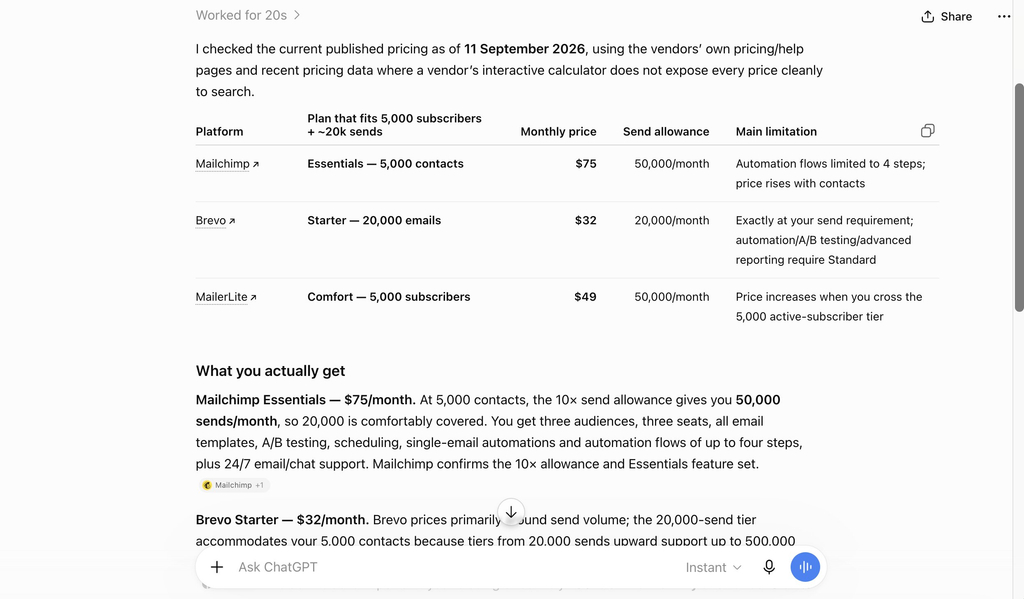
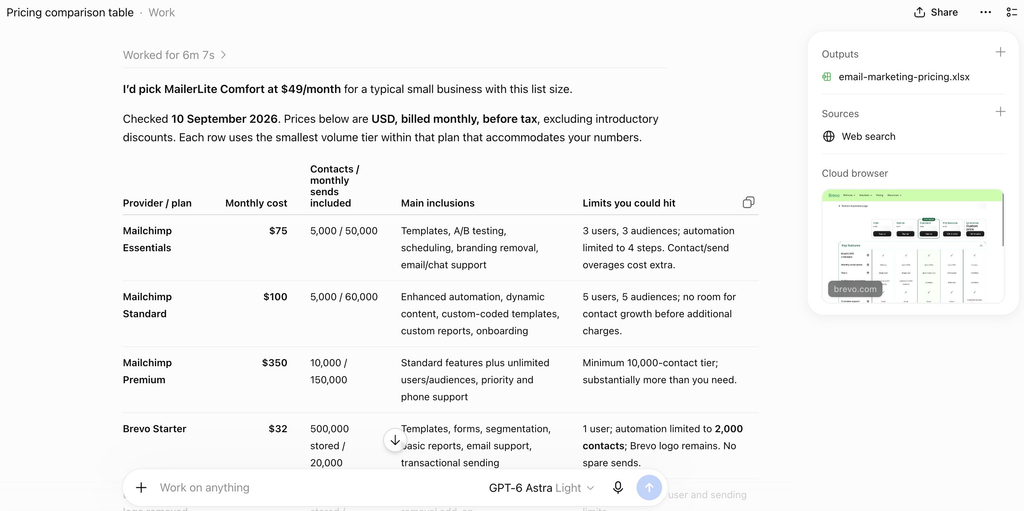
“Research the current published pricing for Mailchimp, Brevo and MailerLite for a business with 5,000 email subscribers sending around 20,000 emails a month. Build me a comparison table showing the monthly cost on each plan that fits those numbers, what’s included at that tier, and any limits I’d hit. Then tell me which one you’d pick for a small business at that size and why. Give me the table as something I can download.“

Both returned a working spreadsheet and both landed on the same recommendation for the same reason. Where they parted was how much of the picture came back. 

Sol gave one plan per provider and explained the logic underneath.
Screenshot of an AI response displaying a pricing comparison table for Mailchimp, Brevo, and MailerLite email marketing plans.
GPT-5.6 Sol

Meanwhile, Astra laid out every tier from all three, stated the assumptions it had priced against, and flagged two catches in the fine print that Sol passed over. Both were usable. Only one showed the full ladder of plans, which matters if your list grows. 
Screenshot of an AI interface displaying a detailed pricing comparison table for Mailchimp and Brevo email marketing plans alongside source citations and downloadable output files.
GPT-6 Astra

When the cheaper model is the right call

A frontier model is overkill for a good share of the week. Captions, a reply to a customer question, notes from a meeting turned into something readable, sorting and labeling, the first pass at something you write regularly: hand any of that to the cheaper model and you’ll be hard pressed to find fault with what comes back. That’s a large share of the marketing work AI has taken over, and none of it needs a frontier model. Save Astra for the work where the difference is visible. 

Is GPT-6 Astra AGI?

OpenAI president Greg Brockman called Astra a generational leap, said he personally believes OpenAI has reached artificial general intelligence, and closed his launch briefing with “Welcome to the AGI era,” while leaving users to decide whether Astra meets the definition. Artificial general intelligence, usually shortened to AGI, is the idea of a system that can handle any intellectual task a person can, rather than being strong in particular areas.

Independent researchers are more cautious. Toby Walsh, professor of AI at the University of New South Wales, said OpenAI is clearly neck and neck in the race, and that the intelligence in artificial intelligence is still today very jagged, meaning it can be superhuman at one task and fail at something a child manages.

Something interesting: Astra is the first OpenAI model where other AI models helped supervise its training. OpenAI built it on its largest training run to date, using more than 100,000 GPUs at its Stargate site in Texas, and says other models played a significant part in overseeing that process. It doesn’t change what the model does for you, and it’s a shift in how frontier models get made: the systems are now involved in building their successors.

For your business, this changes nothing about what you should do this month. Whether Astra clears a definition researchers have argued over for decades makes no difference to whether it writes your product descriptions better than the model you’re paying for now. That question has an answer, and you can get it in an afternoon by running both.

The bottom line: Is GPT-6 Astra worth it for your business?

Nothing about this launch overturns the arrangement most small businesses already have: something cheap running the daily work, and something stronger held back for jobs that are long, layered, or end in a finished artifact. The difference this time is that the stronger option carries a premium, which turns the question from whether Astra performs better into whether the work you’d give it justifies paying 2.5 times as much.

No write-up settles this, ours included. Pick something from your actual workload, put it through whichever model you’re paying for today and then through Astra, and set the two finished outputs against each other along with what each one consumed. A couple of jobs is usually enough to sort your work into two piles, and that sorting is worth more than any published score.

Running that kind of comparison is easier when the models sit together rather than behind separate logins and separate invoices. SiteGround AI Studio carries leading models from OpenAI, Anthropic and Google on one subscription, chosen from a dropdown at the start of each chat. That makes running the same question on two models a matter of changing one setting.

[97]

FAQs

What is GPT-6 Astra?

GPT-6 Astra is OpenAI’s frontier AI model, released on September 3, 2026. OpenAI describes it as its most intelligent and aligned model, built less like a chatbot and more like a computer operator that can use software, browse the web, produce documents and carry out long multi-step tasks.

How much does GPT-6 Astra cost?

GPT-6 Astra is priced at 2.5 times its predecessor, GPT-5.6 Sol, on the per-token developer rates. Through the ChatGPT app it’s included in the paid subscription tiers rather than charged separately, so the cost shows up as usage limits rather than as a bill.

Is GPT-6 Astra AGI?

Not settled, and the people best placed to know disagree. OpenAI president Greg Brockman said he personally believes OpenAI has reached artificial general intelligence and that it might be this model, while leaving users to decide. Independent researchers are more cautious, describing current AI capability as still very jagged.

What can GPT-6 Astra do that GPT-5.6 Sol could not?

Mostly it does the same kinds of things better and faster. GPT-5.6 Sol already handled computer use, and OpenAI scores both models on the same tests. Astra is reported as state-of-the-art on computer use, browsing, software engineering and professional work, finishing computer-use tasks in roughly 47% less time, and scoring 98% on FrontierMath Tier 4 and 99.9% on ARC-AGI-3.

Is GPT-6 Astra worth it for a small business?

It depends on the work. A model priced at 2.5 times its predecessor earns that on long multi-step tasks that end in a real deliverable, such as a researched document or a built spreadsheet. For short marketing copy and quick questions, a cheaper model produces the same result.

Do I need a paid plan to use GPT-6 Astra?

Yes, in some form. GPT-6 Astra rolled out to paid ChatGPT tiers and through the OpenAI API, so free accounts don’t reach it. You can also reach current leading models through a bundled workspace such as SiteGround AI Studio, which includes several models on one subscription.

What does it mean that GPT-6 Astra can use a computer?

It means the model can work the way a person works at a screen rather than only writing text. OpenAI describes it using applications, browsing the web, inspecting what’s displayed, building websites, producing documents and spreadsheets, and running quality checks on its own output.

Can GPT-6 Astra be used for hacking?

Not for attacking anything, though security work isn’t off the table. OpenAI classifies GPT-6 Astra as reaching its Critical cybersecurity threshold, and says defenders can use the public version for work such as secure code review and patching. What it refuses is the advanced end, including writing proof-of-concept exploits. Less restricted access is limited to vetted organizations through an application-based program.

AI Agent for WordPress vs GoDaddy Airo: Which fits ongoing WordPress management better?

Graphic showing an e-commerce website preview alongside an AI assistant prompt window reading "Find and fix the broken links on my site..."

If you are looking for AI to help you with the cumbersome job of running your WordPress site, you have likely come across two of the most popular options available today: SiteGround’s AI Agent for WordPress and GoDaddy’s Airo for WordPress (GoDaddy’s AI-powered WordPress service). 

AI Agent for WordPress vs GoDaddy Airo comes down to where each one sits in the life of a site. Airo for WordPress creates sites and keeps improving them on GoDaddy’s managed hosting, while the AI Agent for WordPress attaches to sites that already exist, no matter where it’s hosted, and runs deeper into the most time-consuming WordPress tasks.

Key takeaways:

  • AI Agent for WordPress vs GoDaddy Airo is mainly a lifecycle decision: Airo for WordPress is site creation-first and extends forward into post-launch work, while the AI Agent for WordPress is operations-first and attaches to existing sites.
  • Airo for WordPress requires GoDaddy hosting. It comes with GoDaddy’s managed WordPress plans rather than as a plugin, so a site hosted with another company can’t use it.
  • The AI Agent for WordPress can work on any host. It’s already connected to SiteGround-hosted sites, and reaches sites on other providers through a lightweight plugin and a connection key.
  • On WooCommerce, the split is between setting a store up and keeping it going. Airo can build a complete storefront from a single conversation, while the AI Agent for WordPress can handle bulk product updates, price changes, categories, and orders on a whole catalog.

Where each product sits in the life of a site

A WordPress site has a life: it gets built, it gets designed, then it settles into years of being updated, added to, corrected, and occasionally rescued. The most useful way to compare Airo for WordPress and the AI Agent for WordPress is not by counting their features (both can make changes on your site through WordPress’ own Abilities API, the system that lets an AI assistant call WordPress functions directly rather than clicking through the dashboard like a person would), but by asking where each one enters the life of your site. 

StageGoDaddy Airo for WordPressThe AI Agent for WordPress
Creating a new siteCore strength. A full site from a conversation, including a complete WooCommerce storefront. Enters after the site exists. The AI Agent for WordPress is designed for the work that starts once there is already a WordPress site to improve, organize, and maintain.
Designing and redesigningStrong. Editing happens in the native WordPress dashboard, with design styles, section patterns, and a point-and-click selector. More useful where redesign overlaps with site structure and content. The AI Agent for WordPress helps refine pages, reorganize content, update site information, and keep existing WordPress material intact rather than replacing the design workflow.
Attaching to a site you already haveRequires GoDaddy managed WordPress hosting.Connects to any WordPress site on any host through a plugin and a connection key.
Routine content workSingle-prompt blog posts, product updates and page refreshes, plus post scheduling and deleting pages from the chat.Covers the full content lifecycle: posts, pages, categories, tags, media, comment moderation, and metadata work such as updating meta descriptions across a batch of pages at once.
Store operationsGenerates the storefront. Running the shop, from adding products to handling orders, is listed on GoDaddy’s roadmapBulk WooCommerce store management including spreadsheet import, category restructuring, price changes across many items, orders, reports and catalog translation.
Plugin and theme managementRecommends, installs and configures plugins based on what your business needs, and works with them through WordPress’ own standards.Extends into ongoing WordPress security maintenance. It can help search, install, activate, update, deactivate, and delete plugins individually or in bulk, with additional controls around consequential changes.
Several sites at onceAgency workflows are part of the offer, and each managed plan hosts one website.Better aligned with portfolio work. AI Agent for WordPress can work across separately connected WordPress sites on different hosts.

For example, Airo’s interface opens from the question of creation: what kind of site should AI build for you, and how quickly can it turn a prompt into a working WordPress starting point? 

Interface of Airo for WordPress featuring a prompt box reading "Build me a photography portfolio..." under the headline "Create a WordPress site in minutes."

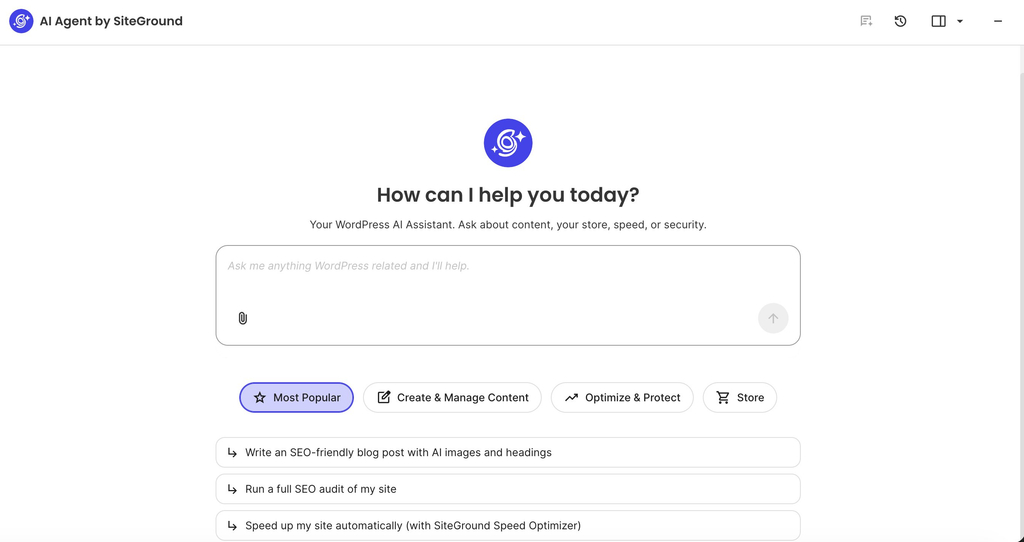
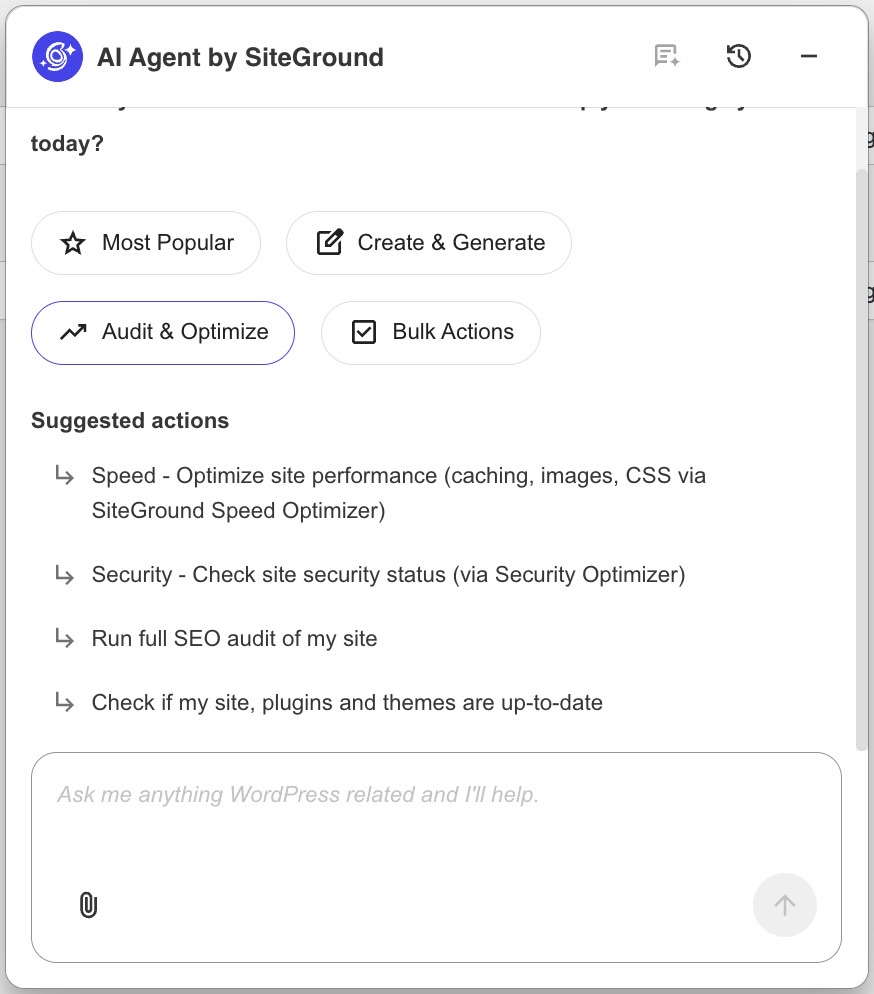
The AI Agent for WordPress starts from a different assumption. The site is already there, and the next question is what needs to be managed today. Its interface surfaces the recurring work of an active WordPress site: creating and improving content, optimizing performance, protecting the site, or supporting store operations. 

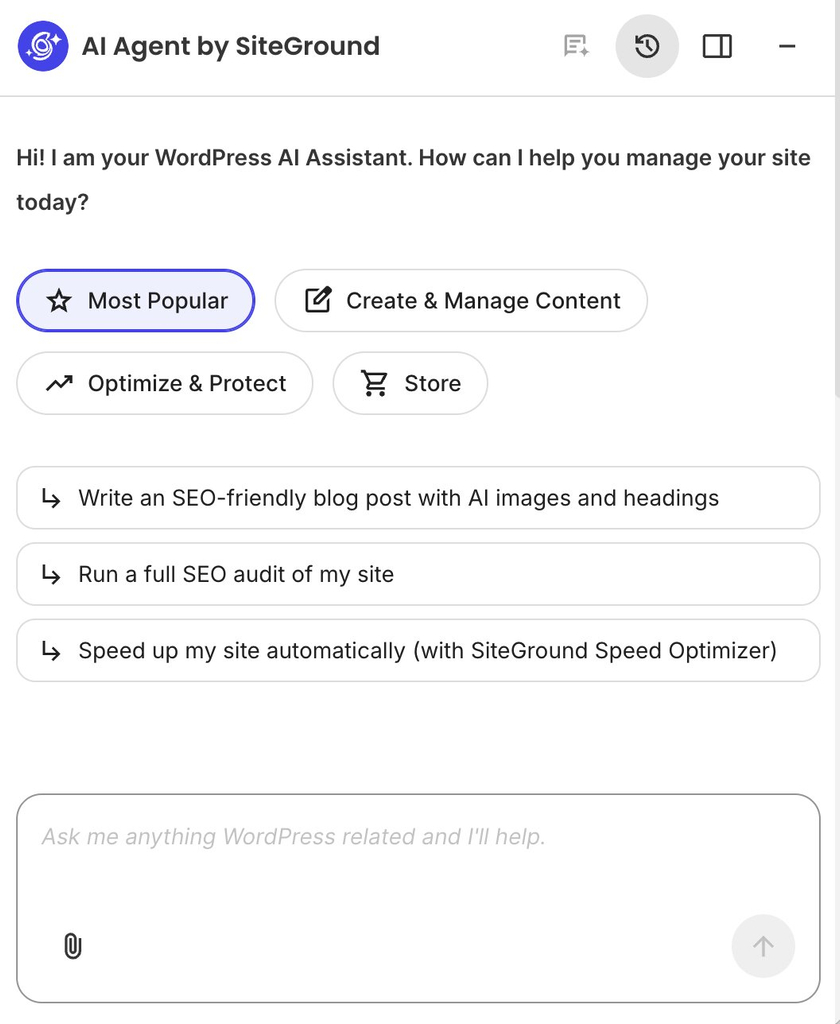
Interface of the AI Agent by SiteGround displaying the prompt "How can I help you today?" above a chat input box and quick action categories.

AI Agent for WordPress vs GoDaddy Airo: how they compare

These are the things you’d only find out after committing to one of the AI assistants: where the site has to be hosted, what happens if you leave, and what either one can change without asking you first.

DimensionGoDaddy Airo for WordPressThe AI Agent for WordPress
Host requirementGoDaddy managed WordPress only. It comes with those plans and isn’t a plugin you can install elsewhere.Any host. Pre-connected on SiteGround, and connects elsewhere through a plugin and a connection key.
Where you use itA sidebar inside the native WordPress dashboard.Available from the place that fits the task: inside WordPress admin for site-level work, or from SiteGround’s AI Studio when managing connected sites and broader workflows.
Ownership and portabilityGoDaddy emphasizes WordPress ownership, access to more than 60,000 plugins, and control over site and data inside its Managed WordPress environment.Keeps the site in standard WordPress. The connection layer can be removed without changing the underlying site, so the site remains portable and operational outside the AI assistant.
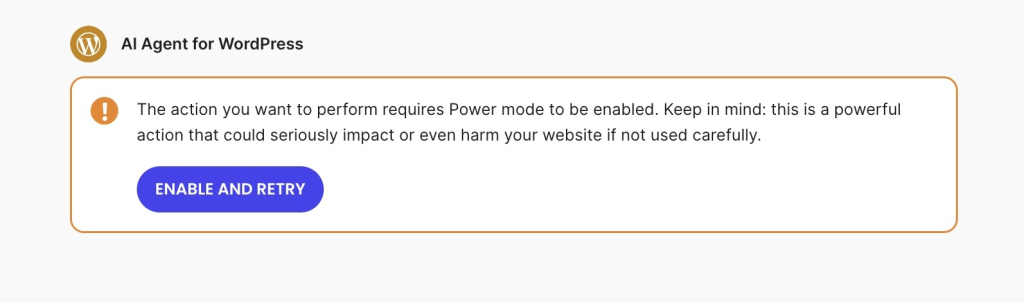
Controls on consequential changesAiro explains larger changes in plain language, waits for approval, works on drafts for bigger edits, and lets users undo changes with one click.Uses Power Mode as an explicit opt-in layer for higher-impact work, including deletions, bulk operations, user changes, and WooCommerce order edits. Deactivating a plugin across every connected site is the kind of request that triggers it. It is off by default, so routine assistance and elevated actions stay clearly separated.
What it comes withIncluded with GoDaddy’s managed WordPress plans, with a free trial at launch.Included for SiteGround clients and available to external WordPress sites through AI Studio and the AI Agent by SiteGround plugin, making the same assistant usable beyond one hosting plan.

So Airo for WordPress belongs to GoDaddy’s managed WordPress, and it isn’t offered as a portable AI assistant you can add to any installation on any host. That makes sense for someone who’s creating a new site there and wants the hosting, AI assistant, dashboard experience, and launch workflow to come together from the start.

The AI Agent for WordPress starts from the assumption that your site already exists. It may already have content, plugins, customers, rankings, products, and a hosting setup the owner does not want to change. Instead of asking the site to begin inside a specific platform flow, the AI assistant connects to the WordPress installation as it is.

This portability factor decides who each product is naturally for. A new site can start wherever the owner chooses. A site that is already live, already indexed, already earning, or already serving customers carries a cost to move. In that situation, the more useful assistant is often the one that can join the existing workflow without turning adoption into a rebuild or migration decision.

The safety row follows the same logic. Airo’s approach centers on explaining larger changes, working in drafts, asking for approval, and offering undo. The AI Agent separates everyday help from higher-impact work through Power Mode, an opt-in layer that’s off by default, because an assistant working across live content, bulk changes, users, plugins, and WooCommerce orders needs permission boundaries built into the workflow rather than added to it.

AI Agent for WordPress warning message stating that the requested action requires Power mode to be enabled, cautioning it could harm the website, with an "Enable and Retry" button.

Good to know: Neither assistant is the right tool if your main goal is drag-and-drop design inside a page builder. Elementor, Divi, and similar tools store and control layouts in their own systems, so neither product should be treated as a replacement for editing those layouts directly. Airo for WordPress checks for page builders and stops before taking on that kind of layout work. The AI Agent for WordPress also avoids page-builder layouts, but can still help with the surrounding WordPress operations: plugins, users, products, store tasks, posts, media, and supported content work. 

The three differences that actually decide it

In practice, three questions can settle the decision almost immediately: whether the assistant can work with the WordPress site you already have, whether your WooCommerce need is store creation or store operations, and whether you manage one site or several.

Whether it works with your existing WordPress site

The AI Agent for WordPress is the best fit for an existing WordPress site no matter where it’s hosted, while Airo for WordPress is tied to GoDaddy Managed WordPress and works best when your site is already inside that environment.

This detail is the most important decision factor for people who aren’t starting from a blank install and already have pages, posts, plugins, rankings, customers, products and years of content history. Their first question should be whether an AI tool can help you with the site if you already depend on.

Generating a store versus running one

WooCommerce is also where the difference is easiest to see. Airo can generate a complete WooCommerce storefront from a single conversation with no manual configuration, which removes the hardest part of opening a shop: getting from an idea to something customers can actually buy from.

Running that shop afterward is different work. Once a store is live, the requests change to updating prices across a product group, reorganizing categories, changing stock status, improving descriptions without breaking the formatting, translating a catalog while keeping technical specifications intact, creating coupons for a campaign, checking recent orders, or applying bulk changes from a spreadsheet you’ve been handed.

The AI Agent for WordPress is built for that side of it, and it can work across a catalog that already has products, orders, and categories. Its value is less about producing the first version of the store and more about reducing the recurring work required to keep the store organized. 

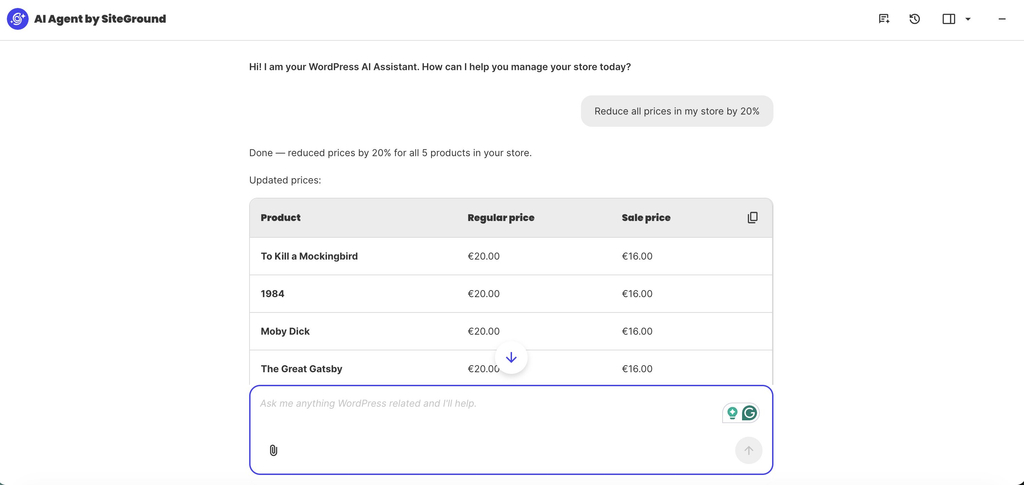
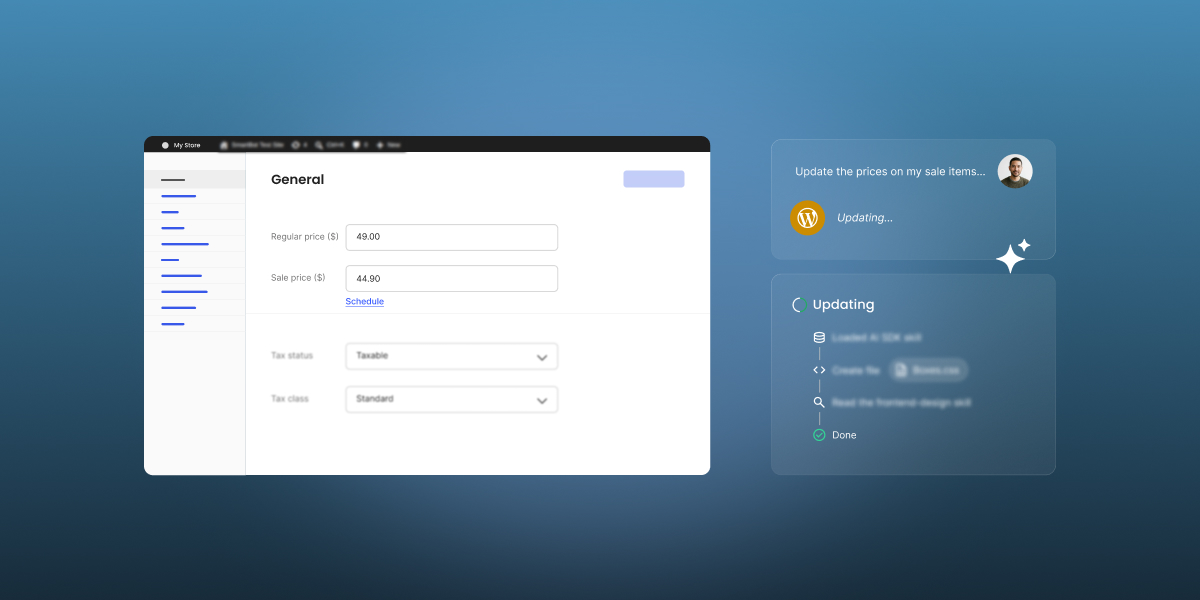
Instead of opening every WooCommerce product one by one, you can ask AI Agent for WordPress to update the whole catalog in a single prompt, for example, by reducing all prices by 20% or applying a campaign discount to a specific product group. The result is the kind of store maintenance task that normally takes an afternoon of repetitive admin work.

Interface of AI Agent by SiteGround confirming a 20% price reduction across store products alongside a table displaying updated prices.

Managing several sites at once

Freelancers, agencies and anyone with several WordPress installations maintain sites at different stages of maturity, often on different hosts, with different plugin stacks, different content needs and different update schedules. GoDaddy has agency-friendly workflows for Airo, and its managed WordPress plans each host a single website, so it doesn’t set out a way of operating across sites in bulk.

The AI Agent for WordPress connects separately to WordPress sites on different hosts, which matches how client work actually looks. Tasks like updating WooCommerce on eleven client sites or auditing who holds admin access across a portfolio happens once rather than site by site. 

Which should you choose?

The easiest way to choose a WordPress AI management assistant is to ask whether you need AI to help create the WordPress site you are about to launch, or to help manage the WordPress site your business already depends on.

When to choose GoDaddy Airo

Airo for WordPress makes sense when you’re bringing a site into existence on GoDaddy. Choose it if:

  • You’re starting a new site or store. Generating a working WordPress site, including a WooCommerce storefront, from one conversation is the fastest route from idea to something live.
  • You’re already on GoDaddy, or moving there anyway. It comes with the managed WordPress plans, so there’s nothing separate to buy or connect.
  • You want creation and upkeep in the same place. Everything happens in the native WordPress dashboard rather than in a separate builder you’d have to learn.
  • Your existing GoDaddy site needs a redesign. Airo’s Site Refresh option rebuilds it around the content you already have, which is a real answer for a site that works but looks dated.

When to choose AI Agent for WordPress

The AI Agent for WordPress makes the most sense when the site already exists, and the real work is keeping it current, secure, organized, and commercially useful. Choose it if:

  • Your site is hosted somewhere you intend to stay. It connects to WordPress wherever it lives, so the assistant fits around your hosting rather than the other way round.
  • Your store needs running rather than building. Bulk catalog work, price changes across many items, orders and reports are the daily reality of a shop that already has customers.
  • You look after more than one site. The same request runs across every connected site, which is where the hours go when you manage a portfolio.
  • The work that eats your week is maintenance. Plugins, users, settings, SEO metadata and content updates are recurring jobs rather than one-off decisions.

The bottom line 

AI Agent for WordPress vs GoDaddy Airo is a question of where you are in the life of your site. Airo for WordPress makes the strongest case when WordPress starts inside GoDaddy. It’s built for the creation path: launching a new site or store, shaping it through conversation, editing in the native dashboard, and continuing to improve it after launch. 

The AI Agent for WordPress becomes the better fit when the site already exists. It connects to WordPress as it is, whether the site is hosted on SiteGround, GoDaddy, or elsewhere, and focuses on the recurring work that defines ongoing management: content updates, WooCommerce operations, plugins, users, media, settings, and multi-site workflows.

FAQs

AI Agent for WordPress vs GoDaddy Airo: which fits ongoing WordPress management better?

AI Agent for WordPress vs GoDaddy Airo comes down to where your site is in its life. The AI Agent for WordPress fits better for ongoing management of a site that already exists, especially on another host or with a store to run. Airo fits better when you’re creating a site on GoDaddy and want creation and upkeep in one place.

Can Airo for WordPress manage an existing site?

Yes, with two conditions. The site has to be on GoDaddy’s managed WordPress hosting, and Airo’s strength with an existing site is redesign rather than daily operations. GoDaddy’s Site Refresh reads an existing site’s content and rebuilds it with a new design, and Airo can also edit content, configure plugins and change settings.

Which is better for ongoing WordPress management?

The AI Agent for WordPress is better for ongoing WordPress management, because it’s built for sites that already exist and covers recurring work such as plugins, users, settings, SEO metadata and bulk content changes across one site or several.

Does SiteGround’s AI Agent work on GoDaddy-hosted WordPress?

Yes. The AI Agent for WordPress works on WordPress sites hosted anywhere, including GoDaddy. You add the site in AI Studio, install the plugin, and paste in a connection key to link the two.

Does GoDaddy Airo work on WordPress sites hosted elsewhere?

No. Airo for WordPress comes with GoDaddy’s managed WordPress hosting, so a site hosted with another company can’t use it. Moving hosts is the only route to it.

Which tool is better for WooCommerce management?

The AI Agent for WordPress is better for WooCommerce management, covering bulk product updates including spreadsheet imports, category restructuring, price changes across many items, orders and reports. Airo generates a complete WooCommerce storefront from a conversation, while GoDaddy lists ongoing shop management on its roadmap.

Which can manage several WordPress sites?

The AI Agent for WordPress can manage several WordPress sites, applying the same request across every connected site regardless of host. GoDaddy’s managed WordPress plans host one website each.

AI Agent for WordPress vs Hostinger Agent: Which is better for WordPress management?

Comparison graphic showing AI agent prompts for updating e-commerce prices across multiple sites on the left and updating the PHP version on the right.

Updating your plugins, changing prices on a batch of products, writing meta descriptions: the work of keeping a WordPress site running can be a never-ending chore. Two AI assistants now promise to collapse that into just one chat, but which one should you choose?

AI Agent for WordPress vs Hostinger Agent comes down to where each draws its boundary. The SiteGround AI Agent for WordPress can work inside WordPress and WooCommerce on a site hosted with any company, while the Hostinger Agent (which now includes the former Kodee experience) can work only across your Hostinger account, reaching the domains, servers and support around your site.

Key takeaways:

  • AI Agent for WordPress vs Hostinger Agent is a question of scope. The Hostinger Agent covers more of the Hostinger ecosystem, while the AI Agent for WordPress goes deeper into WordPress and WooCommerce.
  • The Hostinger Agent requires Hostinger hosting. Its WordPress actions run on Hostinger’s Business Web and Cloud plans, and a site hosted with another company can’t use it at all.
  • The AI Agent for WordPress can work on any host. It’s already connected on SiteGround-hosted sites, and reaches sites on other providers through one plugin and a simple one-time setup.
  • Don’t choose a host only because of an AI assistant. Use the assistant as a tiebreaker after you compare hosting performance, support, pricing, backups, and the tools your business needs.

What Hostinger Agent and AI Agent for WordPress are each built for

These two WordPress AI management assistants look similar in a feature list and behave differently in practice, because each was designed around a different center of gravity.

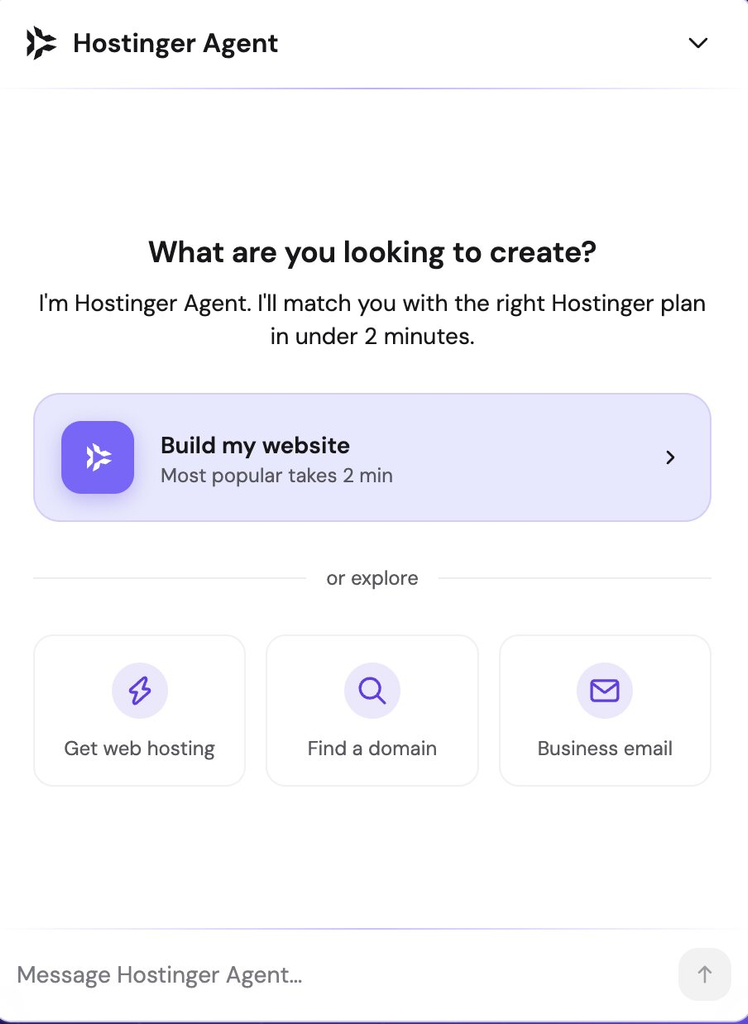
Hostinger Agent is a Hostinger ecosystem assistant that reaches into WordPress. Its home is hPanel, Hostinger’s control panel, and its scope is your whole account there: domains, DNS (the system that points your domain name at the server your site lives on), servers, billing and support tickets, alongside the website itself. It can both advise and take direct action on the account, which is what separates it from a support chat. Its reach widened in August 2026, when Hostinger merged Kodee, its technical support assistant, with a set of specialists into the single product it now calls Hostinger Agent.

Interface of Hostinger Agent featuring the prompt "What are you looking to create?" with options for website building, web hosting, domain search, and business email.

The AI Agent for WordPress takes a more WordPress-focused management approach. Its home is your WordPress admin, and its scope is the site rather than the hosting account around it. The full AI Agent for WordPress capabilities include content, plugins, themes, users, settings, media and WooCommerce store operations. What it won’t do is touch your hosting account, your domains, or your DNS records, since none of those are WordPress.

Interface of the AI Agent by SiteGround displaying category options and quick prompt suggestions for managing a WordPress site.
Screenshot

AI Agent for WordPress vs Hostinger Agent: how they compare across eight dimensions

Here is where the two assistants stand on the eight questions that come up most often when people choose between them.

DimensionHostinger Agent (formerly Kodee)AI Agent for WordPress
Host requirementHostinger hosting only. WordPress actions run on Business Web and Cloud plansWorks on any WordPress host. It is pre-connected for SiteGround-hosted sites and can also connect external WordPress sites through the AI Agent by SiteGround plugin and AI Studio setup.
Scope beyond WordPressThe hosting account: domains, DNS, VPS, payments, billing and support ticketsThe website itself, in more depth. No access to your hosting account
Where you use itThe hPanel sidebar or the Ask AI button, and as a right-hand panel inside WordPress. Also on mobile and through WhatsAppIn a chat inside WordPress admin and from the SiteGround AI Studio dashboard. This lets you manage one site from WordPress or manage connected sites from AI Studio.
WordPress operationsContent edits, plugin and theme management, user roles, migrations, backups and server health checks. Hostinger states its agent performs over 500 admin-level actionsCovers day-to-day WordPress management in more depth: creating, editing, publishing, and organizing posts and pages; managing categories, tags, menus, media, comments, plugins, themes, users, roles, site settings, SEO metadata, and full workflows such as site architecture or taxonomy restructuring.
WooCommerceProduct creation, inventory updates, price changes and order managementProducts individually or in bulk including from spreadsheets, category hierarchies, orders, price changes across many items, sales reports and catalog translation
Several sites at onceNo cross-site bulk operation. Hostinger’s own multi-site tutorial points readers to third-party tools such as WP Umbrella, MainWP and InfiniteWPBuilt for bulk work across separately connected WordPress installations, even when they are hosted with different providers
Controls on consequential changesDrafts the change and asks you to confirm before publishingPower Mode, an opt-in permission layer switched off by default, covering deletions, bulk operations, user changes and WooCommerce order edits
What it comes withIncluded with qualifying Hostinger plansIncluded for SiteGround clients and also available for external WordPress sites through AI Studio and the AI Agent by SiteGround plugin

Pro tip: Before comparing feature lists, write down the last ten things you actually did in your admin. Most small business owners find the list splits cleanly down the middle. Either it’s mostly posts, products, plugins and user accounts, which is WordPress work, or it’s mostly domains, email, DNS records and support tickets, which is hosting work. Whichever column has more entries tells you which assistant would have saved you more time last month, and that’s a better answer than any comparison table, including the one above.

The three differences that actually decide it

Three of those dimensions can rule an assistant out for you completely, while the rest only make one slightly better than the other.

Which hosts each one works on

Hostinger Agent runs on Hostinger, and its WordPress actions are available on Hostinger’s Business Web and Cloud hosting plans, where the assistant opens as a panel on the right side of your WordPress screen. If your site lives with another company, there’s no plan you can buy that gives you access, because the assistant is part of the hosting rather than a plugin you install on top of it.

The AI Agent for WordPress goes in the opposite direction. On SiteGround-hosted sites, it’s already connected and waiting. You can use it on sites hosted anywhere else, including Hostinger, and the connection takes about a minute.

Managing several sites at once

The AI Agent for WordPress runs the same WordPress workflows across every site you’ve connected to it, from one chat. 

Updating a plugin everywhere, adding an editor to all of them, checking who still holds admin access across the lot, or pushing the same content change through a batch of sites are all single requests, and it makes no difference which company hosts each one. Anyone looking after client sites or scaling client site management without hiring more people knows how much of the week disappears into logging in and out of installations to make the same small change.  

Hostinger Agent works one Hostinger site at a time, and Hostinger’s own tutorial on managing multiple WordPress sites points readers toward third-party tools including WP Umbrella, MainWP and InfiniteWP.

Using either as an AI agent for WooCommerce: how they compare

Both assistants cover the everyday work of running a WooCommerce store. The Hostinger Agent creates products, updates inventory, changes prices and manages orders, which is most of what a shop owner does in a normal week.

They separate on volume, because alongside that everyday work the AI Agent for WordPress also handles:

  • Bulk product creation and updates, including from a spreadsheet you upload rather than one product at a time.
  • Category restructuring across a catalog that already exists, without rebuilding it by hand.
  • Price changes across hundreds of items from a single request, which is where seasonal sales and supplier changes usually go wrong.
  • Sales reports and top sellers on request, so you don’t have to build a report to answer a simple question.
  • Catalog translation that keeps technical specifications and formatting intact, rather than flattening your product data.

A shop with a few dozen products may never run into that difference, while a catalog in the hundreds turns it into the difference between a morning’s work and one sentence.

Pro tip: Check your WooCommerce work against your busiest week. Whichever assistant you’re weighing, the best test is what you’ll need it for when a sale is running or a supplier changes prices, since that’s when the difference between doing something once and doing it four hundred times actually costs you a day. On an ordinary week, both handle a store perfectly well, and you’d struggle to tell them apart. Look at what your last busy period actually involved and you’ll know quickly whether bulk work is a feature you’d use.

Should your AI assistant decide where you host?

The answer depends entirely on whether you already have a site somewhere.

If you do, an assistant is probably not a good reason to move it. Migrating a WordPress site means DNS changes, email considerations, some risk of downtime, and a stretch of weeks where everything behaves slightly differently while you learn a new control panel. Weigh that against a tool that manages plugins by chat and the arithmetic rarely works out, particularly when a host-independent assistant can reach the site you already have without moving anything.

If you’re picking a host anyway, for a new site or because your current one has been frustrating you, then the assistant is a fair thing to weigh alongside everything else. It belongs in the tiebreaker column rather than the decision column, though, since hosting still turns on uptime, speed, backups and what happens when you need help at two in the morning, and no AI assistant changes any of those.

Which WordPress AI management assistant should you choose?

Both assistants are good at the job they were built for, and the two situations are easy to tell apart once you know what to look for.

When to choose Hostinger Agent

Hostinger Agent makes sense when Hostinger already runs your hosting and you’d rather not keep two things open. The same conversation that edits a post can also sort out a DNS record, check a domain renewal, look into a billing question or raise a support ticket, which is work that lives outside WordPress and outside the reach of any WordPress-only assistant. Choose it if:

  • Your sites are on Hostinger and likely to stay there. The assistant comes with the hosting, so there’s nothing separate to set up or connect.
  • Your admin time goes on hosting as much as WordPress. Domains, DNS, email and support tickets are all inside its reach, and outside a WordPress-only assistant’s.
  • Support is part of how you work. Raising and following up a ticket happens in the same place as everything else, rather than in a separate system.
  • Your store work is the everyday kind. Adding products, updating stock and handling orders one at a time is well covered.

When to choose AI Agent for WordPress

The AI Agent for WordPress makes sense when WordPress and WooCommerce management is the job itself rather than one part of a wider hosting relationship. Choose it if:

  • WordPress management is where your time goes. Content, plugins, users, media and settings are its whole focus, so it reaches further into each of them than an assistant splitting attention across a hosting account.
  • You look after several sites across different hosting companies. Bulk work runs across all of them from one chat, which is the position agencies and busy freelancers find themselves in.
  • Your store is big enough that bulk work matters. Spreadsheet imports, catalog-wide price changes and category restructuring save hours rather than minutes once you’re past a few dozen products.
  • You’d rather your tools didn’t tie you to one host. An assistant that moves with you removes one reason to stay somewhere that stops suiting you.

Pick the assistant that matches what you manage

The AI Agent for WordPress vs Hostinger Agent turns on what you’re responsible for rather than which product lists more capabilities. If what you manage is a Hostinger account, with hosting, domains and a website sitting inside it, Hostinger Agent reaches more of that account than anything else can. If what you manage is WordPress itself, on one site or twenty, with one hosting company or five, then an assistant that works wherever your sites are is the one that fits.

FAQs

AI Agent for WordPress vs Hostinger Agent: which is better for WordPress management?

AI Agent for WordPress vs Hostinger Agent comes down to what you manage. The AI Agent for WordPress is better when WordPress and WooCommerce operations are the job, or when your sites sit with several different hosting companies. Hostinger Agent is better when Hostinger already runs your hosting and you want the hosting account and the website handled in one conversation.

Is Kodee now Hostinger Agent?

Yes. Kodee is now part of Hostinger Agent. Hostinger merged Kodee, its technical support assistant, with its specialized AI agents into a single Hostinger Agent experience in August 2026, reachable in hPanel from the sidebar or the Ask AI button.

What is the difference between Hostinger Agent and AI Agent for WordPress?

The difference between Hostinger Agent and AI Agent for WordPress is scope and reach. Hostinger Agent covers the hosting account for Hostinger customers, including domains, DNS, servers, billing and support. The AI Agent for WordPress focuses on WordPress and WooCommerce management and works on sites hosted anywhere.

Can Hostinger Agent manage WordPress sites hosted outside Hostinger?

No. Hostinger Agent works only on Hostinger-hosted sites, and its WordPress actions require Business Web or Cloud hosting plans, so a site hosted with another company can’t use it.

Can AI Agent for WordPress work on a Hostinger-hosted site?

Yes. The AI Agent for WordPress works on sites hosted with any provider, including Hostinger. It’s already connected on SiteGround-hosted sites, and elsewhere you add the site in AI Studio, install the plugin, and paste in a connection key.

Can Hostinger Agent manage WordPress plugins, users, and WooCommerce?

Yes. Hostinger Agent handles plugin and theme management, user roles, and WooCommerce work including products, inventory, price changes and orders. Hostinger states its agent performs over 500 admin-level actions.

Can Hostinger Agent manage several WordPress sites at once?

Not as a bulk operation. Hostinger’s own tutorial on managing multiple WordPress sites points readers to third-party tools such as WP Umbrella, MainWP and InfiniteWP rather than its own assistant, so cross-site work isn’t currently its strength.

Which is better for WooCommerce: Hostinger Agent or AI Agent for WordPress?

The AI Agent for WordPress is better for WooCommerce depth. Both create and edit products and handle orders, but it also does bulk work from spreadsheets, category restructuring, price changes across many items and catalog translation.

What safety controls do Hostinger Agent and AI Agent for WordPress use?

Hostinger Agent drafts changes and asks you to confirm before publishing. The AI Agent for WordPress uses Power Mode, an opt-in permission layer switched off by default that covers deletions, bulk operations, user changes and WooCommerce order edits.

Should Hostinger Agent influence which WordPress host I choose?

Hostinger Agent shouldn’t influence which WordPress host you choose if you already have a site elsewhere, since migrating for an assistant rarely pays off and a host-independent agent can reach your existing site. If you’re picking a host anyway, it belongs in the tiebreaker column alongside uptime, speed and support.

WordPress AI without API keys: AI Agent for WordPress vs BYO-key plugins

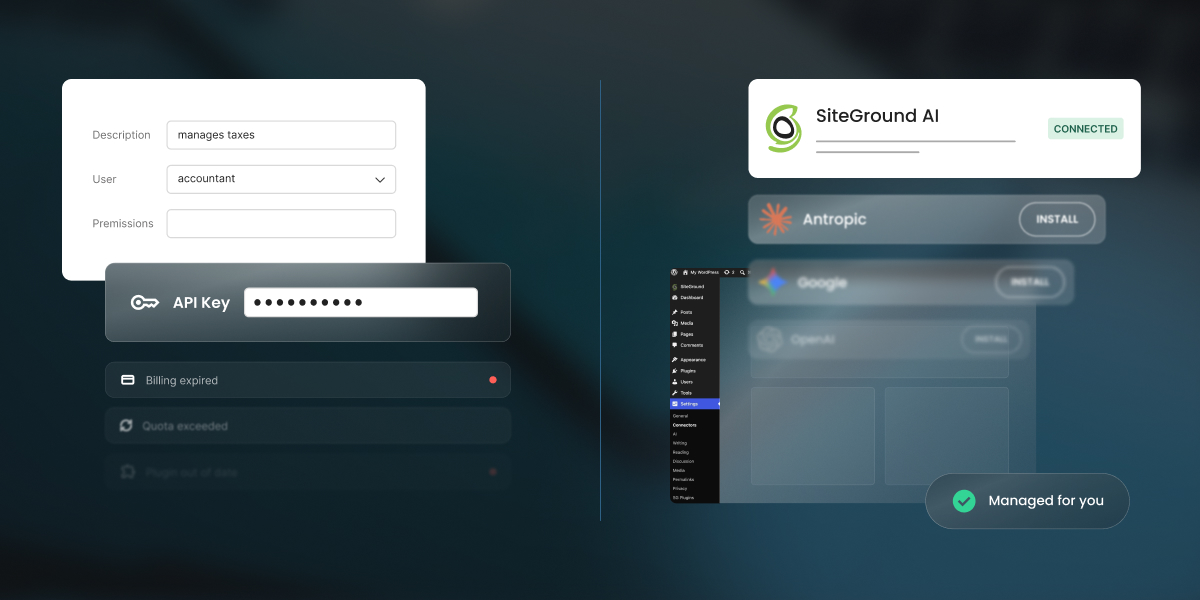
A comparison graphic split down the center against a dark background, contrasting manual API configuration on the left with automated AI integration on the right. The left side shows complex setup forms with fields for user permissions and an API Key, alongside error alerts for "Billing expired" and "Quota exceeded." The right side shows a simplified setup featuring a SiteGround AI card marked "CONNECTED" next to a green checkmark badge reading "Managed for you."

Most WordPress AI plugins arrive with the same hidden requirement: bring your own key. You’re sent off to open a developer account with an AI provider, add a payment method, and generate an API key, which is a long password that lets your site talk to that company’s AI. But did you know you can skip that entire errand?

Running WordPress AI without API keys means a managed service handles the connection to the AI models, so nothing on your site stores a credential and you never open a provider account at all. This is in contrast to the dominant bring-your-own-key (BYO-key) described above, where the plugin supplies the features, and you supply the account, the key, the billing, the limits, and the maintenance that follows.

Key takeaways:

  • Running WordPress AI without API keys means you do not need separate model-provider credentials from OpenAI, Anthropic, Google, or similar services.
  • A managed connector can let a WordPress AI plugin work without an API key, so nothing on your site stores a credential and no developer account is needed.
  • BYO-key WordPress AI plugins can give you more direct control over models, pricing, provider accounts, and portability.
  • One provider is rarely enough. Text and images often need different providers, so a BYO-key setup usually means several accounts, several keys, and several bills.

What BYO-key WordPress AI and managed access actually mean

Every AI feature on a WordPress site needs a route to an AI model. A writing assistant, chatbot, image generator, SEO tool, or WooCommerce helper cannot work on its own. It has to send a request to a model provider, identify who is allowed to use it, and decide who pays for the request. That route can be supplied in several ways.

Access modelHow it worksWho it suits
Direct BYO-key pluginYou create provider accounts yourself and paste the credentials into the plugin or the Connectors screen. For example, the official WordPress AI plugin works this waySite owners who want to choose their own models and hold the provider relationship deliberately
Managed AI accessThe service holds the provider relationships, and no key is stored on your site. For example, SiteGround’s AI Agent for WordPress works this waySite owners who want to use AI in WordPress without the administration

The most common model today is BYO-key. Many AI plugins for WordPress are built around it because it’s straightforward for the plugin developer: the plugin provides the interface, and the user pays the AI provider. For more technical users, this option gives direct control over the model provider, the selected model, the billing account, and usage policies. 

But it also means someone has to manage every provider account, key, quota, billing dashboard, and model retirement notice. With managed WordPress AI access, more of that work is handled for you. You still use AI in WordPress, but you don’t need to open separate accounts with multiple AI providers or keep track of several keys and billing dashboards. That is where comparing managed AI vs BYO-key becomes a business decision, not just a setup preference. 

How AI connects to your WordPress site

There are two main WordPress AI provider setup models, and both take about the same time.

Connecting WordPress AI with your own API key

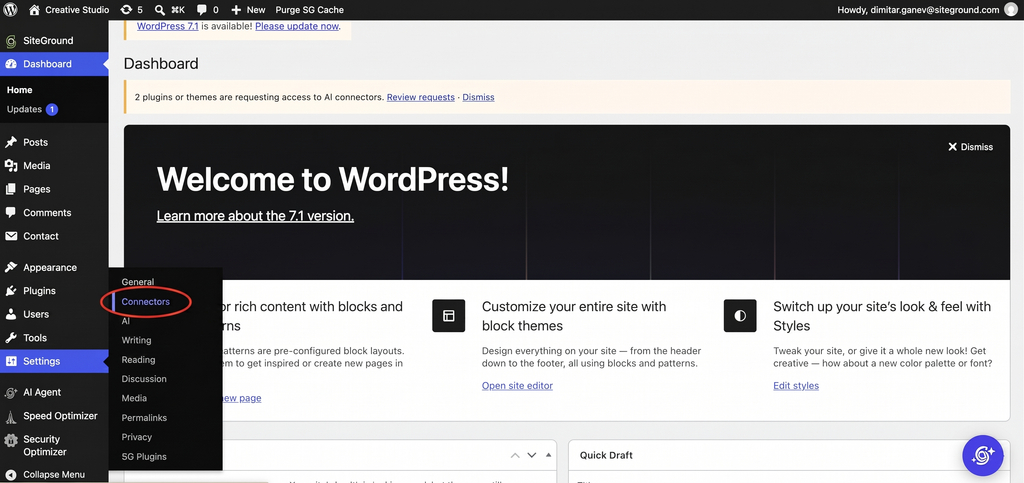
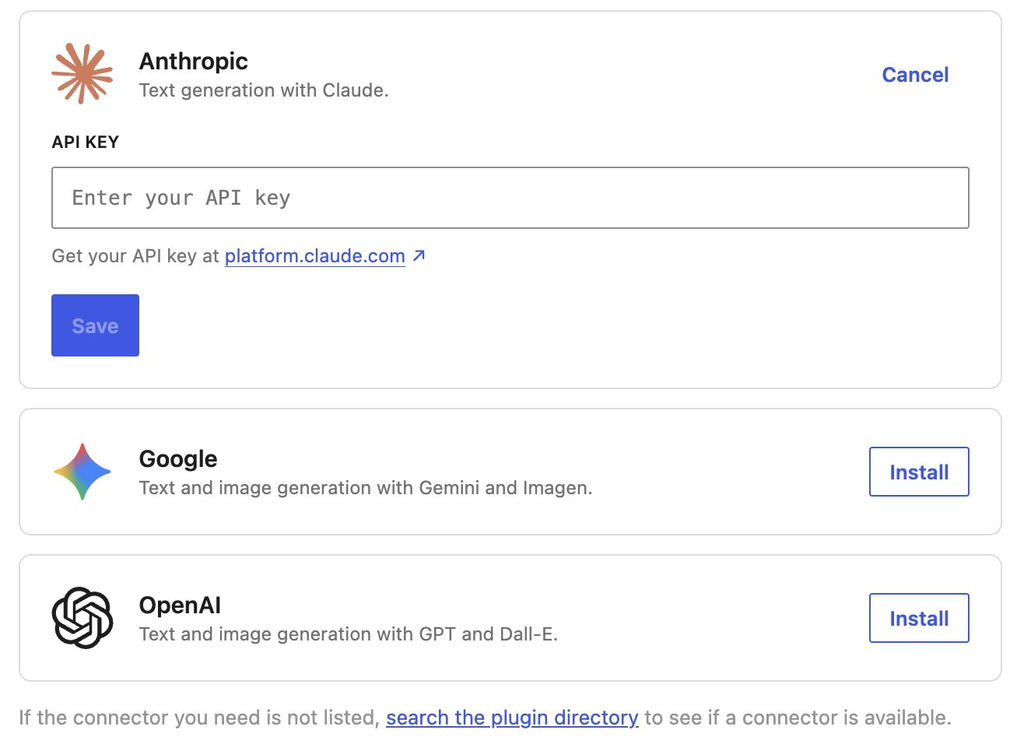
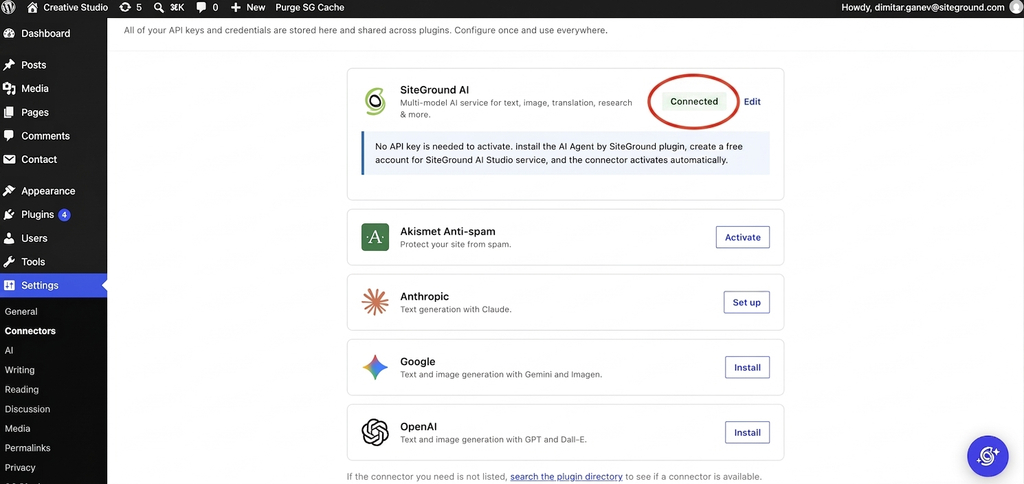
In a BYO-key setup, you create an account with a provider such as OpenAI, Anthropic, or Google. Then you install the relevant provider connector or plugin, generate a key in the provider dashboard, and paste that key into the plugin settings or, if you’re on WordPress 7.0 or above, into WordPress’s Settings > Connectors screen.

A screenshot of the WordPress admin dashboard with a red oval highlighting the Connectors option in the expanded Settings navigation menu on the left sidebar. A top notification banner reads "2 plugins or themes are requesting access to AI connectors," situated above a central welcome panel featuring the headline "Welcome to WordPress!" and a link to learn more about version 7.1.

If you want to use ChatGPT, Claude, and Gemini in WordPress, you usually repeat that process for each provider. One key doesn’t normally cover every model family.

A screenshot of an AI connector configuration page featuring cards for Anthropic, Google, and OpenAI. The Anthropic section is expanded, showing an API KEY input field with the placeholder "Enter your API key," a link reading "Get your API key at platform.claude.com," a blue "Save" button, and a "Cancel" link. Below, cards for Google ("Text and image generation with Gemini and Imagen.") and OpenAI ("Text and image generation with GPT and Dall-E.") display outline "Install" buttons. A footer message at the bottom reads, "If the connector you need is not listed, search the plugin directory to see if a connector is available."

Pro tip: Set a spending cap the same day you create the key. Every provider lets you set one, and it takes about a minute, but almost nobody does it at setup because nothing prompts you to. Do it before you paste the key into WordPress, while you’re still in the provider’s dashboard. Without a cap, a plugin making background calls or one busy month of content can multiply the bill before anything appears on a statement. Worth knowing: OpenAI and Anthropic both offer a hard monthly limit that stops requests, while Google’s billing runs through Google Cloud where the default is an alert that emails you and lets spending continue.

WordPress 7 improved this with the Connectors screen by giving WordPress a centralized place for AI provider connections, including OpenAI, Anthropic, and Google, so compatible plugins can reuse configured connections. However, the standard connector model still uses provider credentials, so WordPress Connectors API keys don’t eliminate provider administration, but rather reduce repeated setup. 

Using AI Agent for WordPress without API keys

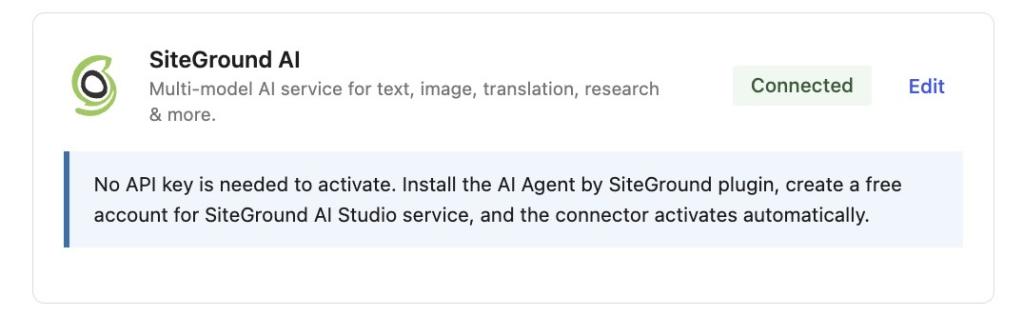
With an AI Agent for WordPress without API keys, the access model changes. For instance, in the case of SiteGround’s AI Agent for WordPress, you install the AI Agent by SiteGround plugin, create a free SiteGround AI Studio account, and the SiteGround AI connector activates without requiring a separate model-provider API key on the site.

That means no OpenAI key to paste, no Anthropic key to rotate, and no separate Google Gemini billing account just to start using WordPress AI features. Moreover, SiteGround AI is a multi-model connector that can route tasks across models such as Gemini, ChatGPT, GPT-Image, and Claude, with no API key needed to activate the connector.

This means that rather than requiring you to know which model to use, SiteGround AI automatically routes each request to the most appropriate one for the job. For example: 

  • General inquiries about your WordPress setup are routed to fast, efficient models like Gemini Flash for near-instant responses.
  • Complex WordPress site management tasks are automatically escalated to advanced reasoning models like Gemini Pro or GPT 5.6.
  • Visual assets are handled by dedicated image-generation models such as GPT-Image.

If your website is hosted on SiteGround, the process is even more seamless: SiteGround AI is already connected as a provider, and the SiteGround AI Studio plugin comes pre-installed and automatically authenticated for all new and migrated sites, meaning the agent arrives connected and ready to work right out of the box with zero setup. 

A screenshot of the WordPress Connectors settings page showing a list of AI integration connectors. At the top, the SiteGround AI card features a red circle highlighting its green Connected status badge, alongside a note explaining that no API key is required when using the AI Agent by SiteGround plugin. Below, additional service cards are listed for Akismet Anti-spam with an Activate button, Anthropic with a Set up button, and Google and OpenAI both displaying Install buttons. The left admin menu shows Connectors selected under the Settings menu.

What happens after you connect

The easiest WordPress AI setup for beginners is not only about the setup. A beginner-friendly setup should stay manageable after the first week, when a few of these might happen:

What happensWith your own API keysWith managed access
You need a second providerAnother account, another key, another billing relationship, another dashboard. Common, since one provider rarely covers both text and imagesNothing. Model routing happens behind the connection
A new administrator joinsDecide whether to share a key, issue a second one, or hold credentials centrally. Every option has a downsideThey use the site. No credential decision at all
You want to know what you’re spendingOne provider dashboard per account, each in its own format and billing cycleOne balance, in one place
A card failsAI features stop, often without an obvious reason, and it looks like a plugin bug until you check the providerHandled through your existing SiteGround relationship
A key is exposedRotate it at the provider, update everywhere it’s stored, and absorb whatever was spent in the meantimeNo key on the site to expose
A model is retiredTrack notices across every provider you use and migrate before the cutoffThe service moves to the replacement
Provider pricing changesYours to absorb, on their scheduleAbsorbed by the service, which is also the trade-off: you didn’t choose
Something breaksWork out whether the plugin, the connector, the key, the quota, or the provider failed. Four support surfaces, none of which owns the whole pathOne place to ask

Let’s look at perhaps the most common issue: the failed-card example. If your Gemini account uses a prepaid balance and that balance hits zero, Google says all API keys in all linked projects under that billing account stop working. To the person inside WordPress, that can look like the WordPress AI plugin API key suddenly broke, even though the real issue is billing.

Retired models are another common lifecycle issue. OpenAI states that it regularly retires older models and that software relying on those models may need updates to keep working. Its notice periods vary by model type, with generally available models receiving longer notice than preview models. Anthropic uses a similar lifecycle language: active, legacy, deprecated, and retired, and says requests to retired models fail. It also tells customers to audit usage by API key and model before retirement dates.

That is the operational work hidden behind BYO-key WordPress AI plugins. Someone has to notice the email, understand whether the WordPress site is affected, test the replacement model, and update the configuration before the feature fails.

What each model costs you

Whichever route you take, something goes. One costs you control over the AI, the other costs you time you’ll spend maintaining it, so the question is which cost you’d rather pay.

What you give up with managed access

You give up model choice. The service decides which model handles each request, and you don’t get a say in it. You give up the direct provider relationship too, so you can’t negotiate, can’t watch provider-level pricing, and can’t move the same setup into tools outside WordPress. And you can’t switch providers on your own schedule, because that decision belongs to the service.

For a business with specific model requirements, or one already using the same provider across other systems, those can be more than technicalities. For example, you may need a specific OpenAI model for a workflow, a direct Anthropic account for procurement reasons, or a Google Cloud billing relationship for compliance.

What you give up with your own keys

Time, mostly, and it recurs. Every row in the table above is work that lands on whoever manages the site, and on a small business that’s usually the person also handling marketing, customers, and everything else.

A BYO-key setup with a single OpenAI account is more exposed to one company’s decisions, not less. If that provider changes its pricing, retires the model you use, or has an outage, you have no alternative route and no way to move quickly. The fair managed AI vs BYO-key comparison isn’t managed access against one key, but rather managed access against a genuinely multi-provider setup, and that’s where the administrative burden actually lives.

WordPress AI without API keys: which model fits your business

The right BYO-key vs managed WordPress AI choice depends on who owns the work after setup.

When to choose your own API keys

Choose your own API keys if you want specific models for specific jobs. That might include using one model for long-form content, another for code, another for image generation, and another for embeddings or search. It also makes sense if you already have provider accounts, already monitor AI spend, or already use the same provider relationship in tools outside WordPress.

BYO-key is also a good fit when:

  • You have someone who will actually do monthly maintenance.
  • You need direct provider invoices for procurement.
  • You need provider-level logs or controls.
  • You are comfortable diagnosing quota, billing, authentication, and model errors.

When to choose managed access

Choose managed WordPress AI when nobody on the team wants to own provider administration. That is quite normal for small business owners. The same person managing WordPress may also be managing content, customer emails, products, bookings, social media, invoices, and support. Adding OpenAI, Anthropic, Google, and image-model billing dashboards to that workload is not a small ask.

Managed access is usually the better fit when:

  • You would rather have one AI relationship than several provider accounts.
  • You want one usage view instead of multiple dashboards.
  • You care more about completing WordPress tasks than choosing exact models.
  • You want a simpler WordPress AI provider setup.

The bottom line

WordPress AI without API keys reduces the number of accounts, keys, dashboards, billing relationships,and provider lifecycle issues. That makes it a better fit for owners and teams that want AI as a business tool, not another technical system to administer. 

In contrast, BYO-key plugins are the right choice when direct model control, provider ownership, and technical configuration matter more than simplicity. 

So the real question is not whether your setup takes five minutes or fifteen, but who handles the administration for the next two years.

FAQs

Can I use WordPress AI without an API key?

Yes. You can use WordPress AI without an API key through a managed connector that holds the provider relationship for you. The AI Agent by SiteGround plugin activates the SiteGround AI connector automatically once you create an AI Studio account, so no credential is stored on your site.

What does BYO-key mean for a WordPress plugin?

BYO-key means bring your own key. The plugin provides the AI features, and you provide the provider account, the API key, the billing setup, the usage limits, and the ongoing maintenance. WordPress’ AI plugin and AI Engine both work this way.

Do I need separate keys for ChatGPT, Claude, and Gemini?

Yes, if you connect each provider yourself. Every provider needs its own account, its own API key, and its own billing relationship. This comes up more often than people expect, because one provider rarely covers both text and image generation.

Can WordPress 7 reuse one provider connection across plugins?

Yes. WordPress 7’s Connectors screen stores provider credentials centrally so compatible plugins can share one connection instead of each asking for its own key. It centralizes where the key lives, but it doesn’t remove the need for a provider account or a key.

Is managed WordPress AI better for small businesses?

Managed WordPress AI, such as AI Agent for WordPress, is usually better for small businesses, because the administration it removes is work that a small team rarely has anyone to do. If your business has a developer or agency already managing provider accounts, your own keys give you more control and that control becomes usable.

What happens when an AI model is retired?

When an AI model is retired, requests to it start failing. With your own keys, you track notices across every provider and migrate before the cutoff. OpenAI gives at least six months for generally available models and around two weeks for previews, while Anthropic gives at least 60 days. With managed access, the service handles the move.

Is AI Agent for WordPress easier to set up than AI Engine?

Yes. AI Agent for WordPress is easier to set up than AI Engine because it needs no provider account and no API key. AI Engine is a BYO-key plugin, so you create an account with a provider, generate a key, and paste it in before any feature works.

What happens if my card fails at the AI provider?

If your card fails at the AI provider, your WordPress AI features stop working, and nothing in WordPress explains why. It usually looks like a plugin problem until you check the provider’s billing dashboard. With managed access, billing runs through your existing account instead.

AI Agent for WordPress vs WordPress AI plugin: Site management or built-in AI features?

Graphic showing WooCommerce product price settings on the left and an AI assistant prompt updating sale prices on the right.

If you open Settings > Connectors on a WordPress 7 site, a banner at the top invites you to install the AI plugin by WordPress, which uses AI to write titles and excerpts from your draft, generate alt text for your images, or suggest meta descriptions. But did you know you can go much further than this with an AI Agent for WordPress, which goes beyond content creation into using AI for actual WordPress management?

AI Agent for WordPress vs the WordPress AI plugin is a comparison between two tools built for different halves of running a site. WordPress’ AI plugin adds AI features to your editor and admin screens, while an AI Agent for WordPress carries out site management through a chat. Both can run at the same time, on one connection.

Key takeaways:

  • AI Agent for WordPress vs WordPress AI plugin comes down to editing versus operating. One helps you produce content in the editor, while the other also helps you with WordPress admin tasks: WooCommerce store management, technical maintenance, and bulk operations across multiple sites.
  • The AI plugin needs its own provider account: install a connector for an AI provider, generate an API key, paste it in, and manage the usage bill. The agent’s connector activates without a key, so there’s nothing to create or maintain.
  • Both can run on one connection. Connect SiteGround AI once, and WordPress’ AI plugin uses it for editor features while the agent handles management, with no provider account or API key of your own.
  • You don’t have to choose. The two sit in different layers with separate settings and separate interfaces, so running both is the setup that matches how many small business owners work.

What each one does today

As with AI plugins and AI Agents as a whole, the shortest way to hold the difference here is this: the official WordPress AI plugin puts AI features inside WordPress screens, and an AI Agent like SiteGround’s AI Agent for WordPress is an admin assistant you talk to.

WordPress’ AI plugin

The official WordPress AI plugin (called AI Experiments until version 0.6.0, which is why older articles use that name) is published by WordPress.org and installed from the plugin directory like any other. Version 1.3.0 arrived in August 2026, and the plugin now has more than 40,000 active installations.

Its features cluster in three places:

  • In the editor, it generates titles, excerpts, slugs, and meta descriptions that pass through to your SEO plugin, translates selected paragraphs and headings, summarizes long posts, suggests categories and tags, offers type-ahead suggestions as you write, and can shorten, expand, or rephrase a passage you’ve selected. 
  • In the Media Library, it writes alt text one image at a time or in bulk, and generates images from your post content. 
  • On the Comments screen, it scores comments for toxicity and sentiment, helps you moderate them, and drafts replies.

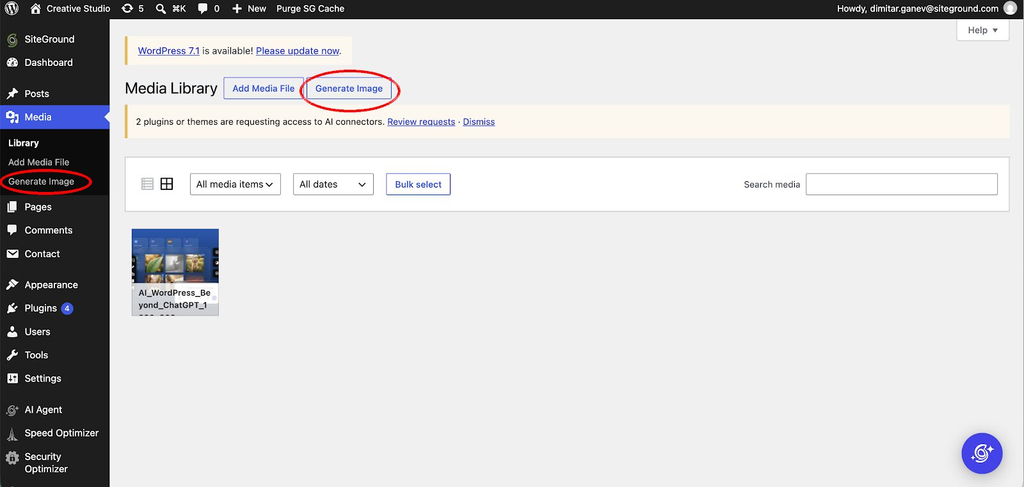
For example, a Generate Image button appears next to Add Media File in your Media Library, and Generate Image is added to the Media menu in the sidebar, so creating an image from a description happens in the same place you’d normally upload one.

A screenshot of the WordPress Media Library dashboard with red circles highlighting two Generate Image buttons—one in the left admin sidebar navigation under the Media menu, and another at the top of the page next to the Add Media File button. A top notification banner reads "WordPress 7.1 is available! Please update now." above an alert noting that plugins are requesting access to AI connectors.

The plugin holds no AI account of its own, so you install a separate AI Connector plugin for whichever provider you want (OpenAI, Google Gemini, Anthropic Claude, or Ollama if you’d rather run a local, free option), add that provider’s API key under Settings > Connectors, then go to Settings > AI to switch AI on globally, and only then turn on the individual features you want. Everything’s opt-in, and nothing runs unless you trigger it.

Editorial Notes is the feature that changes a working day. It reviews your post block by block and leaves suggestions on grammar, readability, accessibility, and SEO, and a companion feature applies those suggestions back into the content for you.

Pro tip: Check which editor you use before installing WordPress’ AI plugin. It works in the Block Editor only, and WordPress has said Classic Editor support isn’t planned. If your pages are built with Elementor, Divi, or another builder that relies on the Classic Editor plugin, you can install it, switch every feature on, open a post, and find nothing there. Reviewers on the plugin page have hit exactly this. Open any post and look at how you edit it before you spend time on setup.

AI Agent for WordPress

The AI Agent for WordPress is a conversational AI assistant for WordPress management: rather than clicking through admin screens, you ask for what you need, and it carries out the task. It reaches your site through a plugin called AI Agent by SiteGround, which is what gives it access to your content, plugins, users, and settings. 

Here’s what you can do with the AI Agent for WordPress:

  • Complete content management. You can ask for a post and get the whole thing, written, illustrated, categorized, tagged, and published, from one prompt. Content updates work the same way, and because the agent makes only the change you asked for, your Gutenberg blocks and shortcodes come out the other side intact.
  • WooCommerce store management. Ask it to reduce every price in a category by 20%, and it ripples through the catalog in minutes rather than an afternoon of copying and double-checking. It also finds orders and pulls the customer details, changes order statuses, creates coupons, and answers questions about your sales when you’d rather not build a report.
  • Technical website maintenance. This is the work that keeps a site secure without ever feeling like a good use of your day, and you can hand most of it over. Ask what’s installed and you get a clean audit, ask it to update your plugins and it does, and you can tell it to back the site up first.
  • Managing multiple WordPress sites at once. If you look after more than one site, everything above runs across all of them from a single instruction. Update a plugin everywhere, add an editor to every site, or check who has admin access across a whole portfolio, without logging into each one in turn.

For example, you can ask it to run a full WordPress security maintenance review with one simple prompt, and it produces the lot: what needs updating, which protections are already on and which aren’t, an account setting that’s giving away more than it should, and comments waiting to be checked. It then offers to apply the safe changes for you.

Screenshot of a WordPress dashboard alongside the AI Agent by SiteGround panel displaying a security maintenance review for dimitarganev.com with the status "Overall status: Needs attention."

The same nine tasks, run through both

We set up a test site with WordPress’ AI plugin and AI Agent for WordPress installed together, and asked both for the same nine things:

TaskWordPress’ AI pluginAI Agent for WordPress
Generate a post titleYes, from the Block EditorYes, from one prompt
Create an excerptYes, from the Block EditorYes, from one prompt
Generate image alt textYes, per image or as a bulk action from the Media LibraryYes, from one prompt
Suggest a meta descriptionYes, in the editor or SEO panel when the feature is enabledYes, from one prompt
Summarize several postsYes, as a bulk action from the Posts listYes, from one prompt
Update a pluginNot possible. No plugin-management write abilityYes, from one prompt
Change a user roleNot possible. No user-management write abilityYes, from one prompt
Update WooCommerce pricesNot possible. No WooCommerce write abilityYes, from one prompt
Apply a change to multiple sitesNot possible. No multi-site operation abilityYes, from one prompt

So WordPress’ AI plugin is single-screen assistance: you’re already editing something, you click a button Generate, and it helps with what’s in front of you.

The AI Agent for WordPress is task execution by instruction, where one prompt can trigger a whole workflow, including operational changes, bulk work, WooCommerce tasks, and actions across several sites when those exist.

Governance: credentials, approvals, and what gets logged

For  WordPress AI site management, what each tool is allowed to do matters as much as how good the output is. WordPress’ AI plugin is governed like a feature layer inside your admin, so the controls are about connectors, approvals, logging, key handling, and which experiments you’ve switched on. 

The AI Agent for WordPress is governed like an operator, because it performs real actions on your site, so control shifts to your WordPress roles, the connection you authorized, an activity log, and human confirmation through a feature called Power Mode before anything high-impact runs.

Governance questionWordPress’ AI pluginAI Agent for WordPress
Who can use the connectionA Connector Approvals experiment requires explicit administrator approval before any plugin or theme can use the AI connectors set up on your siteAccess follows your WordPress roles and capabilities through the connection to your AI Studio workspace, and impactful operations are gated by both permission and confirmation
How credentials are protectedA Key Encryption experiment encrypts provider API keys at rest using bundled libsodium. Without it, keys sit in the standard WordPress connector storageNo provider API key is stored on your WordPress site at all. Authentication runs through the AI Studio connection instead
What gets loggedAn AI Request Logging experiment records AI requests, with logs under Tools and a public logging APIActivity and usage records, an activity log you can filter by category, token usage and balance, chat history, and a live view of what the agent is doing
What requires confirmationEvery feature is opt-in and manually triggered, so nothing runs without you asking for itPower Mode is required for high-impact work: deletions, bulk changes, user changes, settings changes, and WooCommerce actions
What happens on a live siteAdds AI features inside the admin and Block Editor. It is not a site-operations tool for plugins, users, prices, or settingsExecutes real changes on the connected site, including creating, editing, publishing, updating, and deleting, which is why the confirmation step exists
Editorial controlGuidelines lets AI features respect site-wide editorial standards you define onceConstraints are set per request, such as brand voice, length, or summarize only and change nothing. There is no site-wide equivalent
Scope of what it can touchIts editor, media, and comment features generate and apply content changes. The five abilities it exposes to outside tools are read-onlyWrite operations across content, media, plugins, themes, users, roles, and settings, plus WooCommerce products, orders, prices, stock, and coupons

Can you use WordPress AI plugin and AI Agent for WordPress together?

Yes, and there’s nothing to configure to make it work. The two sit in different places, so they don’t compete for anything.

WordPress’ AI plugin lives inside your admin, adding buttons to the editor, the Media Library, and the Comments screen. The agent reaches your site through its own connection to AI Studio and works from a chat. They have separate settings, separate interfaces, and separate provider setups, so switching one off leaves the other running. And if you connect SiteGround AI as your WordPress AI provider, the same connection can support both.

Pro tip: Try the agent first, since its connector lets the plugin work without a provider key of your own, and you can connect SiteGround AI to WordPress in about a minute.

AI Agent for WordPress vs WordPress AI plugin: which should you choose?

The right choice depends on where your WordPress work usually happens.

When to choose WordPress’ AI plugin

Choose the official WordPress AI plugin when you want AI built into the WordPress editing experience. It’s best for people who spend a lot of time writing, editing, publishing, and refining content directly in the Block Editor.

Its value is strongest at the moment of content creation. You’re looking at a post, page, image, or comment, and the AI tools are available in that same context. That makes it useful for generating or improving alt text, writing titles and excerpts, creating meta descriptions, summarizing long content, translating blocks, rephrasing selected passages, and getting editorial suggestions for readability, accessibility, grammar, and SEO.

The tradeoff is setup and ownership. You need to be comfortable configuring an AI provider, connecting it to WordPress, managing credentials, and understanding the usage costs that come from that provider. You should also be comfortable testing features before relying on them, since the official plugin is still experimental.

When to choose AI Agent for WordPress for site management

Choose AI Agent for WordPress when the work you need help with is broader than writing or editing a single piece of content. The difference becomes clear with WordPress admin tasks, and they usually involve searching, navigating, checking, changing, and repeating.

The value grows with the size of the job. Updating one plugin manually is quick. Updating eleven plugins, repricing thirty products, finding all draft posts missing excerpts, checking stock across a category, or creating a group of pages is where a conversational instruction becomes genuinely useful. The agent is especially helpful when the task crosses multiple areas of WordPress, such as content, media, settings, plugins, menus, and WooCommerce.

It’s also a better fit for users who don’t want to manage their own AI provider account for every workflow. With the AI Agent for WordPress, the assistant works through AI Studio and the connected WordPress site, so the setup is simpler from the user’s point of view. On SiteGround-hosted sites, hosting-level backups add another layer of reassurance for operational work, especially when updating plugins or making larger site changes.

When to use both

Use both when your WordPress work moves back and forth between content creation and site administration often enough. This usually applies to small business owners, agencies, publishers, and WooCommerce store managers who are not only writing content, but also maintaining the site around that content. If you publish articles, update product pages, manage media, adjust menus, check plugins, create offers, review orders, and improve existing pages, the two tools solve different parts of the same week.

You can use the agent to prepare or organize the work, then use the plugin to refine the content in the editor, then return to the agent for follow-up actions across the site. That creates a workflow where AI is not limited to a single screen or a single type of task.

Match the tool to the work, and consider running both

Comparing AI Agent for WordPress with the WordPress AI plugin comes down to how much of your WordPress work you want AI to help with, and where that work happens. If the work is mainly writing, editing, translating, summarizing, or improving content inside the editor, the plugin can be all you need. If the work extends across the rest of the site, including plugins, settings, products, menus, media, reports, and repeated admin tasks, the agent is the better fit.

For many people running a small business site, the answer may be both. The plugin gives you AI where you create and refine content, while the agent gives you AI where you manage and maintain the site around that content. Because they operate in different parts of the workflow, they can run alongside each other rather than instead of each other.

FAQs

AI Agent for WordPress vs WordPress AI plugin: what is the difference?

The difference between AI Agent for WordPress and the WordPress’ AI plugin is what each one can do to your site. The plugin adds AI features to your editor and admin screens, while the abilities it exposes to outside tools are read-only. AI Agent for WordPress performs operations, including updating plugins, editing products, changing user roles, and adjusting settings.

Which is better for managing a WordPress site?

AI Agent for WordPress is better for managing a WordPress site, because management means changing things and the plugin cannot manage plugins, users, settings, or WooCommerce operations. WordPress’ AI plugin is better for producing content inside the editor.

Is the WordPress’ AI plugin an AI agent?

No. The WordPress’ AI plugin is not an AI agent. It generates and applies content inside the editor, the Media Library, and the Comments screen, but it cannot manage plugins, users, settings, or WooCommerce. WordPress does list a Site Agent on the plugin’s roadmap, but it has not shipped.

Can the WordPress’ AI plugin update plugins, products or users?

No. The WordPress’ AI plugin cannot update plugins, products, or users. It can change content through its editor, media, and comment features, but site management sits outside what it does.

Does the WordPress AI plugin need separate API keys for ChatGPT, Claude and Gemini?

The WordPress AI plugin needs separate provider API keys for ChatGPT, Claude, and Gemini if you connect each provider yourself, since every provider requires its own account, key, and bill. Connecting SiteGround AI instead registers a provider with no API key, and WordPress’ AI plugin can use that same connection.

Can I use WordPress’ AI plugin and AI Agent for WordPress together?

Yes. You can use WordPress’ AI plugin and AI Agent for WordPress together on the same site. The plugin uses the SiteGround AI connector as its AI provider for editor features, while the agent handles site management, so one connection covers both.

Which tool is better for WooCommerce?

AI Agent for WordPress is better for WooCommerce, because store work means creating and editing products, managing orders, and changing prices, which are write operations. WordPress’ AI plugin can help write product descriptions in the editor but cannot update the products themselves.

Which option is easier for a beginner?

AI Agent for WordPress is easier for a beginner, because there is no provider account to open and no API key to generate, and you describe what you want in ordinary language. WordPress’ AI plugin is simple to use once connected, but connecting a provider yourself is the step that stops most non-technical owners.

WordPress 7 AI features vs AI Agent for WordPress: What’s built-in and what needs an agent

A digital graphic depicting AI-assisted e-commerce price updates and automated site publishing on a dark purple background. In the foreground, a floating translucent UI window displays a user prompt, "Update my prices and republish," alongside green checkmarks for "Updating...," "Publishing...," and "Completed" next to a WordPress logo. In the background, a ceramics website preview showcases updated item prices under an "Essentials" section, featuring the "Solitude Bowl" at "$90," "Tapered Stoneware Vessel" at "$140," and "Pedestal Platter" at "$180."

You’ve probably heard that WordPress 7 brings AI into WordPress itself. But if you upgrade to WordPress 7.0 or later and go looking for AI features, you won’t find any waiting for you. What arrived is a shared infrastructure for connecting AI to your site rather than features, so on its own it changes nothing you can see in your dashboard. 

Something has to sit on top of that infrastructure, and the most capable option available today is a specialized AI Agent for WordPress: a tool that connects to your site, understands what’s on it, and carries out work across your dashboard when you ask in plain language. Comparing WordPress 7 AI features vs an AI Agent for WordPress is a question of what the platform now gives you and how much further an AI Agent takes it.

Key takeaways:

  • WordPress 7 introduced shared AI infrastructure, but no user-facing AI features out of the box. Your dashboard looks the same after the update. What arrived is a connection system that other tools build on.
  • You connect an AI provider once, in Settings > Connectors. Compatible plugins then share that connection, instead of you pasting the same API key into every plugin’s settings.
  • Most providers charge you directly for what you use. You create an account with OpenAI, Google, or Anthropic, generate an API key, and the usage is billed to you.
  • WordPress 7 AI features vs AI Agent for WordPress is a question of reach. The infrastructure connects AI to your site, while an agent like SiteGround’s AI Agent for WordPress is what actually carries out work across it through a simple chat that follows you between screens.

What WordPress 7 actually added

Until WordPress 7, there was no common system for how AI worked inside WordPress. If you wanted AI features, every plugin handled it differently. An AI writing tool connected to one service with its own API key (a unique credential that lets a plugin communicate with an AI provider). An AI SEO plugin connected to a different service with a different key, while an image generator needed a third setup. Run all three, and you were managing three sets of credentials in three settings panels, often paying for overlapping subscriptions, and none of those tools could share anything with each other. 

WordPress 7.0 (the first version of WordPress 7, which was recently followed by WordPress 7.1) solved that by building a shared AI layer directly into core (the base software that powers every WordPress site).

The new WordPress 7.0 AI Client is the part that standardizes how plugins request AI work, so a plugin now asks WordPress, and WordPress routes the request to whichever provider you’ve connected. The WordPress Connectors API powers the Connectors screen, where you manage those provider credentials in one place. And the WordPress Abilities API keeps a structured register of what your site itself can do, such as publishing a post or updating a product, so AI tools can discover what’s possible. 

To get the full picture, read our guide to how AI works in WordPress 7.0.

What happens the moment you upgrade

The only visible change for you is the new WordPress Connectors screen under Settings, where WordPress AI provider setup now happens. Open it, and you’ll find cards for the three providers WordPress features by default: OpenAI, Google Gemini, and Anthropic Claude. Each one needs an API key (a unique credential that lets your site communicate with that provider). To get one, you create an account on the provider’s website, go to their API or developer section, generate a key, and paste it into the card. From that point, whatever AI work happens on your site is billed to that account.

Beyond OpenAI, Google Gemini, and Anthropic Claude, the system is open, and community-built providers can be added from the same page, each requiring you to install its provider plugin and enter your own key. You may also see Akismet listed there, which isn’t an AI provider at all. The Connectors screen stores credentials for external services generally, and anti-spam was the first non-AI example WordPress added.

Pro tip: set a spending limit. AI providers charge per token, and WordPress has no spending cap of its own, so nothing on your site stops the meter once a connection is live. A plugin making frequent background calls, or one busy month of content, can multiply a bill before it shows up on a statement. OpenAI and Anthropic both let you set a hard monthly cap in your account settings, which takes about a minute. Google’s billing runs through Google Cloud, where the default is a budget alert that emails you rather than a limit that stops anything, so check what you’ve actually set there.

If your WordPress site is hosted on SiteGround, there’s a fourth option on that page. SiteGround AI is already installed and connected as an AI provider, with authentication handled automatically through your SiteGround account, so it appears in Connectors as already active with no API key to paste.

SiteGround AI connector card showing a "Connected" status badge and Edit link, with a note that no API key is needed — install the AI Agent by SiteGround plugin and create a free SiteGround AI Studio account to activate automatically.

The six layers between an AI model and a finished task

Let’s illustrate how you can use AI in WordPress 7 and above with an example of a simple task. Say you want to add alt text to an image you have in your WordPress Media Library, and you want to use AI to generate it right into the editor. Six things have to be in place:

What’s neededWhat it meansWhere it comes from
An AI modelThe thing that looks at a photo and writes the descriptionAn outside provider such as OpenAI, Google, or Anthropic
A connection to itPermission for your site to send requests to that providerYou, through Settings > Connectors, with your own account and API key
A standard way to askPlugins requesting AI work without writing code for each providerWordPress core, since 7.0. This is the AI Client, and it works invisibly
Permission to actWriting the result into the Alt text field, rather than only showing you wordsThe Abilities API in core, plus whatever your plugins have registered
Somewhere to ask fromA button, a screen, or a chat where you make the requestNothing in core. WordPress 7 ships no user-facing AI features at all
The finished jobYour image with alt text saved on itOnly if all five above are in place for this particular task

Everything on that list apart from the finished job is either supplied by WordPress core or connected by you in a few minutes. What core deliberately doesn’t include is anywhere to make the request, because the platform’s job is to provide the connection and leave the tools to everyone else.

Pro tip: check what your provider can’t do before you pick it. Not every provider handles every kind of request. For example, Anthropic Claude generates text but not images, so if you connect Claude alone and a plugin asks for an image, WordPress will look for another provider that can handle it and find nothing. The routing between providers is automatic, but only if you’ve connected a second one that covers the gap. If you want both text and images, that means two accounts, two API keys, and two bills to watch.

WordPress 7 AI features vs AI Agent for WordPress, layer by layer

So WordPress 7 AI features become usable once you install AI plugins that have adapted to the new infrastructure. As we found in our 2026 report on AI in WordPress for small businesses, most of those plugins focus on generating content inside the editor: titles, excerpts, alt text, images, summaries.

What extends WordPress 7’s AI features much further, and makes fuller use of them, is a specialized AI agent like SiteGround’s AI Agent for WordPress that can generate content and also handle actual WordPress management. Instead of clicking through admin screens, you describe what you need in a chat that sits in your dashboard, and it transforms tasks that typically take hours of manual admin work into minutes of conversation. Here’s how the two compare:

WordPress 7 on its ownAI Agent for WordPress
What it isInfrastructure: a shared way for plugins to reach AI providersA WordPress AI management assistant that reads and acts on your site, delivered as a chat in your WordPress admin
What you get after setupA connected provider, and plugins that can use itA chat you can ask for work, available on every admin screen
What it can do for youNothing directly. It enables other toolsContent, plugins, themes, products, orders, users, site structure, and bulk changes
How you use itYou configure the connection. Compatible plugins use it on your behalfYou describe what you want in plain language
SetupA provider account, an API key, and that provider’s plugin activatedUp and running for SiteGround-hosted sites. For sites hosted elsewhere, it’s a lightweight plugin 
Who pays for AI usageYou, directly to the provider you connectedCovered by your AI Studio workspace, with usage visible in one place
Works onWordPress 7.0 and later Any WordPress site, with the Connectors entry appearing on 7.0 and later

Do you need an AI Agent for WordPress after WordPress 7?

It depends on what you want the AI to do. The useful way to decide is by the job rather than the product label.

When WordPress 7 and AI plugins are enough

If your goals are highly focused and repeatable, standard AI plugins are often all you need. In-editor tools like Jetpack AI are excellent for drafting and rewriting copy right where you type, while established SEO tools like Yoast and Rank Math are perfect for page-by-page metadata, schema suggestions, and content scoring.

Stick with AI plugins working with WordPress 7’s infrastructure if:

  • You’re comfortable running an AI provider account. For developers and agencies, choosing the model and controlling spending at the provider level is a feature rather than a cost.
  • You only need depth in a single, isolated area. If your primary AI need is a dedicated customer support chatbot to capture leads on your homepage, or a tool to optimize an individual post’s SEO, a purpose-built single-function plugin is the right tool for the job.
  • You already have tools that work. Our guide to choosing between AI plugins and AI agents makes the case that these categories aren’t exclusive, and many growing sites end up running both.

When you need a WordPress AI management assistant instead

Content creation is only a fraction of running a website. For small businesses, the real time-sink is the endless operational overhead: managing product catalogs, processing store orders, auditing user permissions, and keeping multiple domains synchronized. Because these tasks happen entirely outside the post editor, standard in-editor AI content generators cannot help you.

A site-connected management agent like SiteGround’s AI Agent for WordPress is built specifically for operations, making it the perfect fit if:

  • You want to bypass the complexity of API keys and provider billing. Juggling developer dashboards for multiple AI models is an administrative headache. With the AI Agent for WordPress, there are no raw API keys to generate, copy, or maintain. All usage of leading models is consolidated under a single subscription
  • You need system-wide operations, not just text generation. Standard AI plugins are isolated to the block editor or SEO fields. By contrast, an AI Agent for WordPress connects directly to your site and can manage posts, media, pages, users, themes, plugins, and WooCommerce products and orders. It is an operations manager, not just a writer.
  • You need to execute the same change across hundreds of items. Manually updating prices on 300 WooCommerce products or adding missing alt text to your entire media library takes hours of clicking. An AI Agent for WordPress can make these sweeping database modifications instantly in response to a single prompt, saving you from clicking 300 times.
  • You manage multiple websites. Instead of logging into five different dashboards to perform routine updates, you can activate the AI Agent plugin on multiple WordPress installs and orchestrate actions across all of your selected domains simultaneously from a single, unified chat.
AI Agent by SiteGround chat panel with category buttons (Most Popular, Create & Generate, Audit & Optimize, Bulk Actions) and a list of suggested actions for site speed, security, SEO audit, and update checks.

What changes when you connect SiteGround AI as your WordPress AI provider 

Setting up an AI provider the standard way means a developer dashboard, a key you generate and paste in, and a bill you keep an eye on. Connecting SiteGround AI removes all three at once. There are no API keys to generate, copy, or maintain, and no separate bills from different AI providers to track. All your usage consolidates into a single AI Studio subscription, so you get one predictable monthly bill and a clear view of what you’ve used.

As your WordPress 7 AI provider, SiteGround AI powers the standard editor capabilities that any connected provider can handle. It also activates the AI Agent for WordPress, which appears as a chat box in the bottom corner of your admin dashboard. The chat is persistent, so it stays with you as you move between screens rather than being something you open, use, and close.

Behind both of those, it removes a decision most small business owners don’t have the time to make. With a provider connected directly, you’re choosing which AI model runs each request: the fast ones are cheap and shallow, the powerful ones are slower and better at hard problems.

SiteGround AI routes each request to the model that suits it. For instance, if you ask the AI Agent for WordPress for quick advice about a plugin, it goes to something light like Gemini Flash for an instant answer. Ask for something heavier, like analyzing your site database or generating secure code to update your settings, and it routes to a more powerful model such as Gemini Pro or Claude Opus. You get the right level of intelligence for each task without learning the differences between models.

WordPress 7 made your site AI-ready, not AI-managed

What all this means for you is that WordPress 7 AI features vs AI Agent for WordPress isn’t really a choice between two products. The infrastructure connects AI to your site, while an agent is what turns that connection into work getting done. One is the wiring, the other is what you plug into it. 

So the real question isn’t which one to pick, but how much of your WordPress work you want AI to help you with. 

Do WordPress 7.0 AI features include an AI assistant?

No. WordPress 7.0 ships AI infrastructure rather than AI features: the AI Client, which standardizes how WordPress communicates with AI services, and the Connectors screen, where you manage provider credentials. To get anything you can click, you install an AI plugin on top.

Can WordPress 7.0 manage plugins and WooCommerce by itself?

No. WordPress 7.0 cannot manage plugins or WooCommerce by itself. It provides the connection layer and a register of actions your site can perform, but core includes no screen or chat where you can request that work.

What is the difference between WordPress 7.0 AI and an AI agent?

The difference between WordPress 7.0 AI and an AI agent is what each one does. WordPress 7.0 connects your site to an AI provider so compatible plugins can use it. An AI agent for WordPress reads your site and acts on it, handling plugins, products, orders, and users through a chat in your admin.

Do I still need an AI agent after upgrading to WordPress 7.0?

You still need a WordPress AI management assistant such as AI Agent for WordPress after upgrading to WordPress 7.0 if you want help with site management rather than writing. The infrastructure connects AI to your site but does not provide a conversational management interface by itself, and WordPress’s own AI plugin covers the post editor only.

What do the AI Client, Connectors screen, and Abilities API each do?

The AI Client standardizes how plugins request AI work. The Connectors screen is where you connect provider accounts so plugins can share one connection. The Abilities API keeps a structured register of what your site can do, so AI tools can discover which actions are available.

Do I need separate API keys for OpenAI, Claude, and Gemini?

Yes, you need separate API keys for OpenAI, Claude, and Gemini if you connect them individually. Each provider needs its own account, its own API key entered in Settings > Connectors, and its own provider plugin activated. Connecting SiteGround AI instead registers a provider automatically, with no API key at any stage.

Is SiteGround AI Studio an AI provider or an AI agent?

Both roles come from the same plugin. SiteGround AI acts as your AI provider in Settings > Connectors, and the AI Agent for WordPress is the chat that reads and acts on your site. The AI Agent by SiteGround plugin is what connects your site to both.

What happens when AI Studio is connected to WordPress?

When AI Studio is connected to WordPress, SiteGround AI is registered automatically in Settings > Connectors and marked as connected, with no API key required. The AI Agent for WordPress becomes available as a chat across your admin, and you can switch either layer off independently.

You don’t need a developer to add Stripe to your website

A digital graphic illustrating an AI-assisted Stripe payment integration set against a blue gradient background. In the center, a product card displays a "Roaster's Choice Pack" coffee item priced at "$24.00" alongside an active "Stripe Integration" toggle switch. Overlaying the product card on the right is a dark "Payment Details" form with fields for email and credit card information above a blue "PAY $24.00" button being clicked by a cursor. In the bottom left, a prompt card shows the user query "Let customers pay on my site..." followed by an AI status reading "Updating ...".

You’ve probably heard that Stripe is one of the best ways for a small business to take payments, and whoever told you was right. But what’s less widely known is how much of it you can set up yourself: actually, you can add Stripe without a developer for most of what small businesses actually sell. 

Stripe’s no-code tools cover one-time payments, subscriptions, free trials, invoices, and donations, and they’ve absorbed a lot of what used to need custom work. What still needs building is anything that has to happen in your own system after the money arrives (and you can build it pretty easily with AI).

Key takeaways:

  • You can add Stripe without a developer for most of what small businesses sell. Products, services, deposits, donations, and memberships are all covered by tools Stripe built for people who don’t write code.
  • You can start before launching your website. A payment link is a ready-made checkout page with its own web address, which you can email, text, print as a QR code, or put on social media.
  • All of it happens in the Stripe Dashboard, which is the website you log into to run your Stripe account. It’s where you create payment links, see who paid, and change your settings. Nothing there involves code.
  • Taking the money and your own system knowing the money arrived are two separate jobs. You can use an AI builder to put the checkout inside your own site while Stripe keeps handling the transactions.

How to add Stripe without a developer: what you can do with no code

The way to add Stripe without code is to just open a Stripe account, which will give you access to the Stripe Dashboard, a website you log into the same way you’d log into your email. The account itself takes about ten minutes to open, though there are a few things to settle before you take Stripe live, including your bank details, your business information, and how your name appears on customers’ card statements.

The main tool in the Stripe Dashboard is the payment link: a checkout page that Stripe builds and hosts for you, with its own web address. You create it by naming what you’re selling and what it costs, and Stripe gives you back a URL. Anyone who opens that URL sees a proper checkout page with your logo on it, pays by card or Apple Pay or Google Pay, and gets a receipt. The money lands in your bank account, and you get an email telling you it happened.

A screenshot of the Stripe landing page for Payment Links featuring the headline "Create a link. Sell anywhere." and a call-to-action button reading "Create a payment link." On the right, a floating checkout preview card displays a skincare product bundle titled "Pure kit" priced at "€65.00," featuring an Apple Pay option, credit card details entry fields, country selection dropdown set to "Bulgaria," and a dark "Pay €65.00" button against floating chat message bubbles in the background.

That’s already enough to add a payment to a website without a developer, and you can even do it before officially launching your website. You can put the link in an email to a client, send it by text, turn it into a QR code for a menu or a market stall, or post it on Instagram. If you already have a website, you can paste in a small snippet Stripe provides to turn it into a buy button on your own page.

By the way, this no-code side covers more things than you’d expect: 

What you want to doHow it works with no codeWorth knowing before you start
Sell a product or serviceCreate a payment link with a fixed price and share it, or embed it as a buy button on your siteOver 40 payment methods and 35-plus languages are handled for you, with Apple Pay and Google Pay switched on automatically
Charge monthly or yearlyCreate the same kind of link with a recurring price instead of a one-off oneStripe handles the renewals, the failed cards, and the receipts. You don’t manage any of it
Offer a free trialTurn on a trial when you create the subscription link, and choose whether to ask for a card up frontSwitch on the reminder emails as well, because Stripe pauses a trial if no card has been added by the time it ends
Bill a client for agreed workSend a Stripe invoice, which is a hosted page they can pay and download for their recordsUsually a better fit than a payment link when the amount changes from job to job
Take tips or donationsCreate a link where the customer chooses the amountThere’s a default ceiling of 10,000 USD per payment, and this option doesn’t work for recurring gifts
Show your prices on your siteBuild a pricing table in the Dashboard and paste the snippet onto your pagePairs well with payment links for memberships, courses, or software
Add extras at checkoutTurn on optional add-on items, discount codes, and shipping rates when you create the linkAll of it is configured with dropdowns and text fields
Limit how many people can buySet a cap on how many times a link can be paid, after which it stops workingUseful for event tickets, limited stock, or a launch offer

Complex operations like recurring billing (charging monthly or yearly) sound like the point where you’d need help, because someone has to charge the card every month or stop charging when people cancel, but Stripe takes care of all of that. You just set a price and a frequency, share the link, and it runs. This way, you can easily build a subscription business in an afternoon.

Free trials go one step further: you can let someone start a trial without giving you a card at all, which removes the biggest reason people abandon a signup. The catch is small and worth setting up at the same time: unless you switch on the emails that prompt them to add a card before the trial ends, Stripe pauses the subscription rather than charging them. Turn those on when you create the link, and it takes care of itself.

Pro tip: Make your first payment link before you decide anything else. It costs nothing, takes about five minutes, and it’s the fastest way to find out whether you need anything more. Create one for the thing you sell most often and send it to yourself. You’ll see exactly what your customer sees, what the receipt looks like, and what lands in your inbox when it’s paid. Plenty of people discover at that point that the job is already done, and the ones who don’t now know precisely which part is missing, which is a much better position to be in than guessing.

Where the no-code path runs out

Stripe’s no-code tools have their limitations, which might affect you depending on what you sell and how you deliver it:

The limitWhat it means for youWhen it becomes a problem
Your website learns nothingStripe emails you and shows the payment in your Dashboard. It doesn’t tell your site, your database, or your member areaWhen paying is supposed to grant access, confirm a booking, or start something automatically
Limited design controlYou can add your logo, pick your background and button colors, and choose from a set of preset fonts. You can’t change the layoutWhen you’ve paid for a designed site and the checkout page looks like a different company
Customers leave your site to payClicking your buy button takes them to a Stripe page, then brings them back afterwardRarely, in practice. Most people recognize Stripe and trust it. It bothers some brands more than their customers
Everything has to be a fixed productPayment links are built around items with set prices, so variable amounts mean creating a lot of links or asking customers to type a numberWhen you quote every job differently, which is most consultants, trades, and agencies
Caps on pay-what-you-wantA default maximum of 10,000 USD per payment, and no support for recurring amountsLarge deposits, retainers, and donation programs. The cap can be raised by asking Stripe
No rules of your ownAnything conditional, like different pricing for different customers or a follow-up that happens automaticallyThis is the genuine dividing line between configuring and building

The first limitation is probably the most significant one: Stripe has no connection to whatever you’ve built, so it can’t log a customer into a members area, mark an order as paid in your booking system, add someone to a course, or update a record in the spreadsheet you run your business on. 

For a lot of small businesses, that’s completely fine. If you take a deposit and then phone the customer to arrange the work, nothing needed to happen automatically. If you sell a physical product and pack it yourself, an email telling you to pack it is all you need. The gap only becomes a problem when the payment is supposed to update a record in an app you already built.

When do you need a developer for Stripe?

Picture someone paying you, and ask what needs to happen the moment the payment goes through. If the answer is that you find out and the money reaches your bank, you’re good to go. You can build the whole thing yourself this afternoon. If the answer involves something else happening, without you doing it, keep reading.

You don’t need a developer if Stripe’s tools are enough

You can accept Stripe payments without a developer if you’re selling a set number of things at set prices, taking deposits or donations, running a subscription, or invoicing clients for work you’ve agreed to. You also need to be comfortable with customers paying on Stripe Checkout, which is the hosted page they get sent to. For most small businesses, that’s a non-issue and occasionally an advantage, since people recognize the name.

That covers a lot of real businesses. A consultant selling three service packages, a restaurant taking deposits, a gym running memberships, a charity collecting donations or even a full ecommerce platform all sit comfortably inside the no-code surface. 

You might need a developer if you want more than the Stripe Dashboard

You’ve outgrown Stripe’s no-code options when paying has to give someone access to something you’ve built, when the checkout needs to sit on your own page with your own design, when the amount is worked out rather than picked from a list, or when something has to happen by itself once the money arrives.

A membership site is a good example: someone pays, and they should be able to log in and see the content immediately. Stripe can take that payment perfectly well, but it has no way to create their account or let them in. 

However, custom payment builds can get expensive. That’s why you should also know that needing more than the Stripe Dashboard and needing to hire a developer aren’t the same thing. There’s a route in between.

The middle path: add Stripe to your own site or app without custom code

What if you can get the checkout on your own site, styled like the rest of it, connected to whatever should happen next, and you still don’t write any code? 

An AI builder for launching without developers can do exactly this by building the connection for you. You describe the payment behavior you want, and it builds the checkout into your site and connects your own Stripe account, with the card handling still happening on Stripe’s side. Because the flow lives in your app, it can also do what payment links can’t: update a record, grant access, or mark an order paid when the payment succeeds. 

If you use an advanced AI builder like Coderick AI, it will read the payment intent in your prompts and will show a Stripe connection card inside the chat interface:

Example of connecting Stripe payments to a client's AI built website

From there it’s a few clicks and one paste. You click Connect, and Coderick AI asks for a key from your Stripe account.

Stripe issues what it calls a Restricted Key, which starts with rk_, and it isn’t your account password. It can only do the specific things Coderick AI needs, and you can change its permissions or switch it off from your Stripe Dashboard whenever you want. 

Once the key validates, the card flips to Connected and Coderick sets up the rest in the background: your product list, and the connection that listens for payments. When someone buys, Stripe confirms the payment back to your site and your order records update to paid without anyone touching them.

Read our guide to setting up Stripe inside Coderick AI to learn about the full process (which takes about a minute). 

What to check before you take real payments

Whichever route you take with Stripe, spend twenty minutes on these four checks before a real customer pays you.

  • Pay yourself in test mode. Stripe gives every account a test mode, which is a complete copy of the system where nothing is real. You can put a fake card through your own checkout and watch the whole thing work without any money moving. Switch it on, buy your own product, and see what happens.
  • Try a card that fails. Stripe publishes test card numbers that are designed to be declined. Use one and check that nothing gets marked as paid, and that the customer sees something sensible rather than a blank page.
  • Find out where the notification goes. Know which inbox receives the payment email and who actually reads it. A payment nobody notices for three days is a fulfillment problem, and it’s the most common one.
  • Look at what the customer sees afterward. The confirmation page and the receipt are part of what they’re buying, and both can be edited. Check that they say something you’d be happy to receive.

Pro tip: Run the same test on your phone. You’ll do the four checks above on whatever you built the site on, which is almost certainly a desktop. Most of your customers won’t be. Checkout is the part of a site most likely to behave differently on a small screen, and it’s the part where a problem costs you the sale rather than a page view. Repeat your test order on a phone before you do anything else. And if you’ve built the store around that checkout with AI, there are eight things worth verifying before real money moves.

Stripe without a developer: the 10-minute test

Whether you can add Stripe without a developer has almost nothing to do with how technical you are. It comes down to one thing: whether anything has to happen after the payment. If the money arrives and an email telling you about it is the whole job, you can have this working before the end of the day, for free, using tools Stripe built for exactly this.

If something on your own site does have to change when someone pays, that’s a genuinely different piece of work. It’s still not a reason to hire a developer, because the gap between a Stripe-hosted link and a custom build is now filled by AI builders that do the connecting for you.

So answer the question before you spend anything on custom development. Open Stripe, make a payment link for the thing you sell, and send it to yourself. Ten minutes later you’ll know whether you’re finished or whether you need the middle path, and either answer saves you a quote you didn’t need.

[96]

FAQs

Do I need a developer to add Stripe to my website?

You don’t need a developer to add Stripe to your website for most common cases. Stripe’s no-code tools handle one-time payments, subscriptions, free trials, invoices, and donations. You need help when a payment has to change something in your own system, when the checkout must sit on your own branded page, or when amounts and rules are custom.

Can I add Stripe to my website without hiring a developer?

Yes. You can add Stripe to your website without hiring a developer by creating a payment link in the Stripe Dashboard and pasting Stripe’s snippet onto your page as a buy button. You can also skip the website entirely and share the link by email, text, or QR code.

Can I use Stripe without writing code?

Yes. You can use Stripe without writing code through payment links, invoices, quotes, pricing tables, and subscriptions, all created in the Stripe Dashboard. Stripe notifies you when someone pays and deposits the money in your bank account, so no code is needed for the payment itself.

What is the easiest way to add Stripe payments to a website?

The easiest way to add Stripe payments to a website is to create a payment link in the Stripe Dashboard and embed it as a buy button. It takes about five minutes, costs nothing to set up, and requires no code.

What Stripe payment flows can I launch without custom code?

Without custom code you can launch one-time product sales, monthly or yearly subscriptions, free trials that start without card details, tips, donations, pay-what-you-want payments up to a default cap, invoices, quotes, and a pricing table on your own site.

Can I accept subscriptions without a Stripe developer?

Yes. You can accept subscriptions without a Stripe developer by creating a payment link with a recurring price. Stripe handles renewals, failed cards, and receipts. You can also offer a free trial without asking for a card, as long as you switch on the reminder emails that prompt customers before the trial ends.

Can I accept one-time payments without a Stripe developer?

Yes. You can accept one-time payments without a Stripe developer using a payment link, an invoice, or a buy button on your own page. All three are created in the Stripe Dashboard and need no code.

Can I build a payment-ready website without a developer?

Yes. You can build a payment-ready website without a developer by using an AI builder to create the site and the checkout together, connected to your own Stripe account. Stripe still handles the card details, and because the checkout lives in your site, the payment can also update your own records.

AI plugin fragmentation in WordPress: Why more choice makes sites harder to manage

Count the WordPress AI plugins on your site. If there are more than two, you probably didn’t plan it that way. One arrived to write meta descriptions, another to answer visitor questions, a third because the first couldn’t do images. Each install solved the problem in front of you.

What comes next is AI plugin fragmentation in WordPress: the AI capabilities you need spread across several narrow tools, none of them aware of the others, and the work of holding it all together left to you. Our 2026 report on AI in WordPress for small businesses found 67% of small business owners doing that work alone, wasting time they could use to run their actual business.

Key takeaways:

  • AI plugin fragmentation in WordPress is a supply problem before it’s your problem. A new AI plugin joins the WordPress directory roughly every 1.8 hours.
  • The cost is never the sticker price. Each plugin adds a settings screen to learn, an update cycle to keep up with, and a share of your security exposure. Many also add an account, a key, and a subscription of their own.
  • Plugins are where the security risk sits. Most of the WordPress vulnerabilities disclosed most recently were in plugins.
  • WordPress 7 fixed part of this and moved the rest. Developers got one standard way to reach AI providers. Site owners still create accounts, generate keys, and watch token bills.
  • The goal is fewer connections, not fewer capabilities. Consolidation is about reducing the number of things you maintain, not giving up what they do.

What AI plugin fragmentation in WordPress means

Fragmentation is what happens when a job gets divided across tools that were never designed to work together. In WordPress, it means one AI plugin writes your content, a second handles SEO metadata, a third runs a chatbot, and a fourth generates images, with no shared account, no shared settings, and no shared idea of what your site is for. You’re the only thing connecting them.

This isn’t a failure of judgment on your part, but rather the shape of the supply. An independent count of the entire WordPress plugin directory, published in July 2026 by WordPress consultant Casey Burridge, found 3,163 AI plugins among 68,651 listings, with 17.4% of everything added in 2026 being AI-related. That’s roughly one in six new plugins.

The first 1,000 AI plugins took WordPress.org 18.3 years to accumulate. The second thousand took 9.4 months, and the third took 88 days. Two-thirds of every AI plugin ever listed arrived in the last twelve months. Our own 2026 report on AI in WordPress for small businesses puts the growth rate at roughly three times faster than the wider plugin economy.

More supply isn’t the same as more help. As the author of that count puts it, one in six being AI-related is a supply signal rather than a quality signal, spot checks suggest plenty are thin wrappers around somebody else’s API key, and discovery in the directory was already hard before this. Meanwhile, 44.4% of the small business owners in our report already name finding and configuring plugins as one of their biggest difficulties. The shelf got fuller for people who were already struggling to choose from it.

What stacking narrow WordPress AI plugins actually costs you

Listicles price WordPress AI tools for small business one at a time, which is exactly how the total escapes notice. Here’s what each one adds, beyond its monthly fee.

CostWhat it looks like in practiceWhy it compounds
CredentialsAn API key to generate, paste in, and keep track of for each AI plugin that talks to a providerEvery key is a credential to store, rotate, and eventually lose track of. Losing track is the normal outcome, not the unusual one
SubscriptionsSeparate billing for each narrow tool, with token charges underneathFour tools at typical plugin subscription prices is not a small line, and token spend moves on top of it every month
InterfacesA different settings screen and a different mental model per pluginSomeone already finding the WordPress dashboard difficult now has five more dashboards inside it
Update cyclesEach plugin ships on its own schedule with its own breaking changesMore update surface means more weekly maintenance and more chances that a conflict takes the site down
Security surfaceEach plugin is code with permissions, often handling API tokens and exposing endpointsPlugins accounted for 91% of WordPress vulnerabilities disclosed in 2025. Every addition widens the surface
OverlapTwo plugins doing similar work, neither doing it completelyYou pay twice and still have a gap, which is usually what prompts installing the sixth

The overlap described in the last row happens for a reason that has nothing to do with choosing carelessly. The plugins you already run are adding AI of their own. For example, Rank Math and Yoast added AI writing to their SEO panels, Elementor added it to the page builder, and the translation plugins added AI translation. So the AI plugin you install to write product descriptions may duplicate something the SEO plugin you’ve had for three years gained in an update you never read the notes for.

Keep in mind: The directory’s search is showing you tags, not capabilities. Plugin authors choose their own tags, and many carry several. A tool tagged for chatbots, SEO, ecommerce, and content will surface for all four searches while doing one of them well. Before installing, read the changelog rather than the description. The description is marketing; the changelog shows what has actually been built and when anyone last touched it.

Did WordPress 7 solve AI plugin fragmentation?

WordPress 7.0 partly solved AI plugin fragmentation, and this is the part most coverage gets wrong in one direction or the other. It was built to address exactly this problem, and WordPress 7.1 continued the work at the same layer. It succeeded there, but it just wasn’t the layer where you live.

What the AI Client and Connectors screen fixed

Before WordPress 7, every plugin that wanted to use AI wrote its own connection code for every service it supported. Dozens of plugins each maintained their own integrations, and credentials ended up scattered across as many settings screens as you had plugins.

WordPress 7 replaced that with a shared foundation. The AI Client gives plugins one standard way to ask for what they need, and WordPress routes the request to whichever provider you’ve connected. The Connectors screen puts provider credentials in one place instead of many. Within months, more than 70 plugins had registered with the new layer. If you want the details, our explainer on how AI works in WordPress 7.0 covers it.

One condition decides whether any of that reaches you. The sharing only applies to plugins built to use Connectors. A plugin that predates WordPress 7, or that simply keeps its own settings screen, still stores its own key exactly as before. And if you’re still on WordPress 6.x, none of it applies yet, because the Connectors screen isn’t there: every AI plugin carries its own key. Adoption is early, so on most sites today the answer is mixed: some tools share a provider connection, others carry their own.

Why the AI plugin fragmentation moved to the provider level

What WordPress 7 standardized was how plugins reach AI providers. What it didn’t change is the WordPress AI plugin setup complexity you face before any of that helps. You still open the Connectors screen, choose a provider, install that provider’s plugin, create an account on the provider’s website, find your way into its developer dashboard, generate an API key, come back and paste it in, and then install a separate features plugin before anything visible appears. After that you track spending in the provider’s own billing dashboard.

Then there’s the catch that turns one setup into two. Providers don’t all do everything. For instance, Anthropic’s models generate text but not images, so an owner who needs both connects a second provider, which means a second account, a second key, and a second billing dashboard to watch.

So WordPress 7 solved fragmentation for developers and moved it to the provider layer for everyone else. The count genuinely improved: instead of entering the same key into five plugin settings screens, you enter it once, and every plugin sharing that connector uses it. What didn’t improve is the work in front of that. You still create the account, generate the key, install two plugins, and watch a billing dashboard, and needing both text and images means doing all of it twice.

When multiple WordPress AI plugins are the right answer

Consolidation arguments can read as sales copy when they pretend there’s never a reason to run several tools. There are actually three cases when it’s worth it to choose multiple WordPress AI plugins:

  • If a specialized AI plugin genuinely beats a more general one. Things like industry-specific compliance are deep problems, and a tool built for one of them will do it better than a broad platform. If your business depends on that depth, pay for it.
  • If you already rely on the tool and it works. If your trusted SEO plugin added AI features and your whole workflow runs through it, replacing it to reduce a count isn’t a saving. There can be switching costs, and consolidation for its own sake isn’t a goal.
  • If the requirement is genuinely narrow. One small job, one small plugin, no ongoing cost, no credential: if this is what you use your AI plugin for, then there’s no need to replace it.

The test is whether each one of your AI plugins is there because you chose it for a job, or because it was the fastest answer to a problem you had on a random Tuesday.

Pro tip: Sort your list by last updated, not by name. In your Plugins screen, the useful question isn’t what each tool does but whether anyone is still maintaining it. A plugin that hasn’t shipped an update in a year is carrying whatever security issues it had a year ago, and abandoned AI plugins are especially common because many were built quickly during the rush described above. Anything unmaintained that also holds an API key is the first thing to remove, because it combines the two risks in this article into one line on your site.

How to reduce WordPress AI tool sprawl

To avoid AI plugin fragmentation in WordPress, consolidate by reducing connections, not capabilities: one place that reaches your site, one set of credentials, one interface to learn, one record of what changed.

A site-connected AI agent can reduce WordPress AI tool sprawl this way. For example, SiteGround’s AI Agent for WordPress connects once and then handles content, media, plugins, users, and WooCommerce through the same conversation, with no provider account to create and no key for you to store.

A screenshot of the AI Agent by SiteGround dashboard featuring the central heading "How can I help you today?" and the tagline "Your WordPress AI Assistant. Ask about content, your store, speed, or security." Below the blue icon logo sits a prompt input box with the placeholder text "Ask me anything WordPress related and I'll help." Category tabs beneath the input highlight "Most Popular" alongside options for "Create & Manage Content," "Optimize & Protect," and "Store," followed by suggested starter prompts: "Write an SEO-friendly blog post with AI images and headings," "Run a full SEO audit of my site," and "Speed up my site automatically (with SiteGround Speed Optimizer)."

You don’t have to replace everything at once, and it’s usually a mistake to try. Stop the stack growing first, then replace the tools whose jobs already overlap, and keep the specialists that earn their place. Our guide to AI plugins and AI agents covers that choice in more detail.

Whichever route you take, count the things you maintain rather than the AI features you have.

The problem was never a shortage of WordPress AI plugins

AI plugin fragmentation in WordPress isn’t caused by bad plugins or by careless site owners, but rather by a directory adding a new AI plugin every 1.8 hours, aimed at people who mostly manage their sites alone, in a market where each tool solves one slice and none of them can see the others.

So before the next install, ask what it adds to the list of things you now have to keep working: another screen, another update, and often another account, key, and bill. Answer that, and the right number of WordPress AI plugins usually turns out to be smaller than the number you have. And you might also be surprised by how much of your AI needs you can consolidate with a single AI Agent.

FAQs

What is AI plugin fragmentation in WordPress?

AI plugin fragmentation in WordPress is when the AI capability a site needs ends up spread across several narrow plugins, each with its own settings screen and update cycle, and often its own account, API key, and subscription, with none of them aware of the others. The work of holding them together falls to the site owner.

Why are multiple WordPress AI plugins hard to manage?

Multiple WordPress AI plugins are hard to manage because each one adds a separate interface and update schedule, and often its own credential and billing relationship. The features add up, but so does the maintenance, and 44.4% of small business owners already report difficulty finding and configuring plugins.

What security risks come from stacking multiple WordPress AI plugins?

The risks of stacking multiple AI plugins are a wider security surface, conflicting code, duplicated spending, and credentials nobody is tracking. Plugins accounted for 91% of WordPress vulnerabilities disclosed in 2025, and AI plugins often hold API keys that can spend money.

Why do WordPress AI plugins need API keys and add subscription complexity?

WordPress AI plugins need API keys and can add subscription complexity because most do not include the AI itself. They connect to an outside provider through an account you create and pay for separately, so each plugin can mean another key to store and another bill to watch.

Did WordPress 7.0 solve AI plugin fragmentation?

WordPress 7.0 solved AI plugin fragmentation partly. It standardized how plugins reach AI providers and centralized credentials in the Connectors screen, which fixed the problem for developers. Site owners still create provider accounts, generate keys, install a features plugin, and monitor token billing, so the fragmentation moved to the provider layer rather than disappearing.

How can site-connected AI agents reduce WordPress AI tool sprawl?

Site-connected AI agents reduce WordPress AI tool sprawl by replacing several narrow plugins with one connection, one set of credentials, and one interface. Instead of maintaining separate tools for content, media, and store tasks, you work through a single agent connected to the site.

How to build internal tools with AI for your business without coding

A man holding a laptop uses an AI prompt to create an "Internal dashboard" that is shown floating on the right. The user's prompt is: "Create a dashboard to track our project status..." Below the prompt, a loading state shows: "Generating..." The resulting AI-generated dashboard displays project statistics for "This week": 12 active projects, 8 completed, and 3 at risk. A detailed project table lists projects with columns for Project, Owner, Status (e.g., On track, In progress, At risk), Priority (e.g., High, Medium), and Due date.

Somewhere in your business there’s a process running on a spreadsheet, three email threads, and someone’s memory. Maybe it works most of the time, but it also breaks the same way every month: two people edit the same row, a request stalls because nobody owned it, and the status column means different things to different people.

An internal tool replaces that with one place where the records live, the statuses are agreed, and each person sees the part that concerns them. You can now build internal tools with AI by describing the process instead of coding it or hiring a programmer, which moves the work from writing software to defining what your team actually does.

Key takeaways:

  • Start with your records, not with a platform. What you track, what states it moves through, and who can do what. Platform roundups answer a question you don’t have yet.
  • Eight elements make a specification build-ready. Users, records, actions, states, permissions, views, exceptions, and a success test.
  • You can build internal tools with AI without coding. What decides the result is the description you write, not the software you write it into.
  • Exceptions are the most skipped element and the one that decides whether the tool survives. Missing fields, duplicates, late items, and rejections happen in week one.

Dashboards, CRMs, and admin panels are the same system

If you search for the best internal tools, you’ll find dashboards in one roundup, CRMs in another, and admin panels in a third, as though you have to pick a category before you start. You don’t, because they aren’t different kinds of software. They’re different windows onto the same one.

Underneath each sit records, the individual things you track, and states, the stages those things move through. A CRM is a records view with a sales pipeline as its state model. A dashboard is the same records counted and summarized. An admin panel is those records again, opened for editing by people you trust with that. So when you set out to build a CRM with AI, or go looking for a dashboard builder, you are describing the same system twice.

This changes the question. You stop asking whether you need a dashboard or a CRM and start asking what your records are and what states they move through. Answer that once and the views follow. Most no-code internal tools are business process tools at heart, and a team that defines its records properly gets all three views without building three things.

Start with the process, not the platform

Nearly every guide on this subject opens with a ranked list of builders. That’s the wrong first question, and not only because most of those lists are published by the platforms on them. It’s the wrong question because the obstacle is rarely the tool. Most small businesses have never written down how their own process works.

This is also why non-technical teams that build internal tools without code are sometimes disappointed. Given a vague description, a builder produces a plausible, generic app that matches nothing in particular. But given a precise one, it produces something your team recognizes. The quality of what comes out tracks the quality of what went in, and the input is a specification you write, not a platform you choose.

If you haven’t settled on a builder yet, take a look at our guide to choosing a no code web app builder.

Eight questions that turn a process into an internal tool specification

Answered in order, the following eight elements turn an informal business process into an internal tool specification a builder can act on. Work through them against your own process rather than just reading them.

ElementThe question Why it matters, and what goes wrong without it
UsersWho uses the tool?Decides how many views you need. Teams design for themselves and forget the person who only submits a request and never opens anything else
RecordsWhat information does it store?The unit of work: a job, a lead, an invoice, a request. Getting this wrong at the start makes everything after it wrong
ActionsWhat can each user do?Create, edit, approve, assign, close. Actions are where permissions and workflow meet
StatesHow does work move through the process?The status field is the process. Most spreadsheet workflows already have states, in a column nobody formally agreed on
PermissionsWho can view, edit, approve, or delete?The difference between a tool a team trusts and one where somebody deletes a month of records
ViewsWhat does each user need to see?This is where dashboards, board layouts, and admin screens come from. They’re outputs of the model rather than choices you make up front
ExceptionsWhat happens when information is missing, invalid, late, duplicated, or rejected?The most skipped element, and the one that decides whether the tool survives contact with real data
Success testWhat proves version one is useful?Defined before building. Usually: the team stopped using the spreadsheet

Take for example a team handling internal purchase requests through a shared sheet and an inbox. Here’s how the eight answers come out.

  • Users. Anyone who can request something, the two managers who approve, the director who signs off on anything large, and the office administrator who orders and receives.
  • Records. Requests, each holding an item, a cost, a reason, a requester, and a date needed.
  • Actions. Submit, approve, reject, mark ordered, mark received.
  • States. Submitted, approved, rejected, ordered, received.
  • Permissions. Requesters see only their own and approve nothing. Managers approve up to a limit and pass anything larger to the director. The administrator edits any request and deletes none.
  • Views. A requester sees a form and their own history. A manager sees a queue of pending approvals. The director sees monthly totals by team, which is the dashboard nobody had to specify separately.
  • Success test. The sheet stops being updated within a month.
  • Exceptions are where the real work is. What happens when a request arrives with no cost attached, when the same item is requested twice in a week, when an approval sits untouched for five days, and when a rejected request gets resubmitted with a different number? Each answer is a rule the builder needs. The success test is that the sheet stops being updated within a month.

Your states are already written down, in the messiest column of your spreadsheet. Before inventing a status list, sort that column and read every distinct value people have typed into it. You’ll find the official ones, and you’ll also find the informal ones: “waiting on Dave,” “chasing,” “held until budget.” Those are states your process has and nobody ever agreed on, which is exactly why work gets stuck in them. Deciding which to keep and which to merge is most of the states question, already done for you.

How to build internal tools with AI from your specification

With those eight answers written down, the build step is mostly transcription. You describe the tool to an AI internal tool builder in plain language, in the order of the model. A useful description names the records, the states, who does what, and one exception rule, rather than asking for a category of app.

So rather than just saying “build me an internal purchase request app”, which will just result in the AI builder guessing what you need, your initial vibe coding prompts can be something specific like this:

“Build a purchase request tool. Each request stores an item, cost, reason, requester, and date needed, and moves through submitted, approved, rejected, ordered, and received. Requesters see only their own requests. Managers approve up to $500 and anything higher goes to the director. Flag any request submitted without a cost instead of accepting it.”

If you give this prompt to an advanced AI builder like Coderick AI, what comes back is a working internal tool rather than a mockup:

A screenshot of a web application preview displaying a login page split into two sections beneath a top editor bar with a blue "PUBLISH" button. The left dark panel features the "Ledger" logo, the headline "Every purchase, on the record.", a description for an internal procurement workspace, and a "manager limit" badge. The right light panel shows a "Welcome back" sign-in form with email and password input fields, a dark "Sign in" button, and a "No account? Create one" link.

Coderick AI generates the database behind it with the fields you named, created the three roles, and built a separate view for each: requesters see their own requests, approvers get an approval desk with a queue of what’s waiting on them specifically, and everything moves through the status pipeline you defined. The approval limits are enforced in the data rather than just in the interface, and the exception rule comes back with a recovery path, since flagged requests give the requester an “Add cost” action instead of leaving them stuck. It also makes the design decisions you left out, which at this stage is very welcome.

From there, you can refine your internal tool (see our guide to vibe coding workflows for more insights on how to do it). When the version in front of you is right, publishing takes one click. Your tool goes live with hosting included, so there’s no separate deployment step and nothing to set up before your team can log in.

How to test an AI-built internal tool before your team depends on it

Your instinct might be to check that the AI-built internal tool works. But what matters more is whether it holds up when the process misbehaves, which is what week one will do to it. Most of the AI app builder mistakes that surface later are visible in the first hour if you test for the right things.

  • Use real, messy data, not clean examples. Take fifty rows from the actual spreadsheet, including the incomplete ones and the ones with a note typed into a number field. A tool that only works on tidy input isn’t ready.
  • Run every exception you wrote down. Submit a request with a field missing. Submit the same one twice. Leave an approval untouched past its deadline. Reject something and resubmit it. You defined what should happen in each case, so check that it does.
  • Test each role as that person, not as yourself. Log in as a requester and try to approve your own request. Log in as a manager and try to exceed the limit. Permissions that were described correctly can still be built loosely, which is one of the checks our guide on whether vibe coding is safe covers in more depth.
  • Check the success test you set. Not whether the tool looks finished, but whether the team stopped updating the spreadsheet. That’s the only result that tells you it worked.

Pro tip: Test with the person who submits, not the person who built it. Whoever writes the specification tests the manager and admin views hardest, because those are the ones they thought about most. The requester view gets tested last and used most, by people who never see the rest of the tool. Hand it to someone who only submits requests, give no instructions, and watch where they hesitate. Every hesitation is a label or a missing option you’d never find from the inside.

When to buy software instead of building an internal tool

There are processes where building is the wrong call, and knowing which is worth more than any feature list. Almost all build-versus-buy guidance is published by companies with a stake in the answer: platform vendors argue for building, and software management firms argue for buying. Read both, and notice which direction each one leans.

Build when the process is genuinely yours

Building is the right call when the workflow is specific to how you operate rather than to your industry, when no vendor models it without you contorting your process to fit, and when the tool is narrow enough that maintaining it stays small. The purchase-request example qualifies. The approval limits, the roles, and the exception rules are yours, and there’s not much surface area to keep working.

Buy when the function is a commodity

Buying an internal tool wins when the category is mature with credible vendors, when your requirements are pretty standard, and when configuring an existing product already covers the workflow. Payroll, accounting, and email marketing are commodities. Building one to avoid a subscription can be a decision you’ll be servicing for years.

If a workflow hasn’t changed in two years and probably won’t, buying stays the better answer even when no product fits perfectly, because maintaining custom software for a stable process rarely pays back.

Keep in mind that AI-generated software still needs an owner, tests, and updates as the things around it change. AI changed what it costs to build, not what it costs to keep. When the tool gets adopted, small bugs accumulate, and whoever built it becomes its unofficial product owner, fielding requests they never signed up for. That’s survivable when the tool is narrow and expensive when it isn’t, which is the real argument for keeping version one small.

The hard part was never the building

For most of the time internal tools have existed, the barrier was engineering. You knew what your team needed and couldn’t get it made, so the spreadsheet stayed. That barrier has largely gone, revealing the one underneath: most teams have never written down how their own process works.

So when you build internal tools with AI, the eight questions covered here are the work. A team that can answer them has a tool worth building. A team that can’t gets a plausible app matching nothing they do, whatever they build it with.

The next step costs nothing. Open the spreadsheet your process runs on and answer the eight questions against it. Most of it is already there: the columns are your records, the status column is your states, and the people who edit the sheet are your users and permissions. What you’ll be missing is usually the exceptions and the success test, which are the two that decide whether the tool survives.

Once you have your answers, the first version of your AI-built internal tool is one prompt away.

[96]

FAQs

How do I build an internal tool with AI?

You build an internal tool with AI by describing your process precisely enough for the builder to act on it. Define your users, records, actions, states, permissions, views, exceptions, and a success test, then hand that specification to the builder rather than starting from a template.

What should I include in an internal tool prompt?

An internal tool prompt should include who uses the tool, what records it stores, what each user can do, the statuses work moves through, who can view or edit or approve, what each user needs to see, what should happen when data is missing, late, or duplicated, and what result will prove version one is useful.

Can a non-technical team build internal tools without coding?

Yes. A non-technical team can build internal tools without coding, because the hard part is describing the process rather than writing the code. The teams that struggle are usually the ones that skipped defining states, permissions, and exceptions.

How do I turn a spreadsheet workflow into an internal app?

You turn a spreadsheet workflow into an internal app by treating each row as a record, the status column as your workflow states, and the people who edit the sheet as your users and permissions. Most spreadsheets already contain the model, just informally.

How should I test an AI-built internal tool?

You should test an AI-built internal tool with real, messy data rather than clean examples, then deliberately trigger the exceptions: missing fields, duplicates, late items, and rejections. Finish by checking your success test, which is usually whether the team stopped using the spreadsheet.

When should I buy software instead of building an internal tool?

You should buy software instead of building an internal tool when the function is a commodity, the category has credible vendors, your requirements are standard, and the workflow is stable year over year. Maintenance costs several times the initial build, and AI lowers the cost of building without lowering the cost of maintaining.

Can Coderick AI build internal tools such as dashboards, CRMs, and admin panels?

Yes. Coderick AI can build AI-powered internal tools such as dashboards, CRMs, and admin panels, which are three views of the same underlying system. Once you have defined your records, states, and permissions, the views follow from that specification.

Stripe CRM integration: Start accepting payments in the CRM app you already built

A digital graphic depicting payment integration and e-commerce analytics against a dark blue background. In the upper center, a floating white prompt box displays the text "Add a way for clients to pay.." next to a blue arrow action button. Below, a translucent glassmorphism dashboard shows "Monthly Shop Performance" metrics—including "Total Sales" of "USD 423.60," "Avg. Order Value" of "USD 117.67," and "Total Orders" of "24"—sitting above a "Most Recent Orders" table with highlighted order statuses like "COMPLETED." Floating on the right are payment UI elements, including a credit card icon with a green checkmark, alongside "PAID" and "UNPAID" status badges.

If you’ve already built your CRM app, payments are probably the piece you left for later. And no wonder: taking card details yourself makes you responsible for storing them safely, so you’ll probably want to hand that job to a payment provider your customers already recognize. For many CRM apps, that means integrating Stripe, one of the most trusted and widely used payment providers in the world.

Stripe CRM integration connects Stripe payments back to your customer records, so you can collect money from the same place you already track customers, and the payment status appears against the right person. It works two ways: connect Stripe to an off-the-shelf CRM, or build the payment flow into an app you own.

Key takeaways:

  • Stripe CRM integration puts payment status on the customer record. Instead of checking two systems, you see who has paid, what they bought, and what should happen next, in the place you already work.
  • Building it no longer means writing code. With an AI app builder such as Coderick AI you describe the payment behavior you want and it builds the checkout, then connects your own Stripe account.
  • The webhook is the source of truth, not the thank-you page. Stripe sends your app a separate message when a payment actually completes. Never record a payment based on the customer landing back on your site.
  • Granting access is only half the job. Refunds, disputes, and cancellations need handling too, or a refunded customer stays marked paid and keeps access indefinitely.
  • Test the whole thing before real money moves. Stripe’s test mode lets you run every path, including a card that deliberately fails, without charging anyone.

What Stripe CRM integration means

CRM payment integration means payment activity and customer records stay connected in the same system, so nobody reconciles a spreadsheet of payouts against a list of customers by hand. CRM payment processing can reach that point two ways, and which applies to you depends on where your customer data sits today.

RouteWhen it is the right answerWhat it involves
Connect Stripe to an off-the-shelf CRMYou already pay for a CRM that ships a Stripe connector, or supports one through an automation toolAuthorizing the connector and mapping fields
Build the payment flow into the app you already haveYou built your own CRM or app, your CRM has no connector, or the payment step needs to sit inside a workflow your CRM does not modelAdding a checkout step and a way for your app to record what Stripe confirms

Connecting Stripe to an existing CRM

If you already pay for a CRM that offers a Stripe connector, use it. Most major CRMs either ship one or reach Stripe through an automation tool, and setup is usually authorizing the connection and choosing which events update which fields.

Check two things first: what the connector actually syncs, since some bring across payments but not refunds or failed renewals, and whether it can trigger the workflow you care about rather than just showing a payment history.

Pro tip: Read the connector’s fine print before you rely on it. “Stripe integration” on a CRM pricing page can mean a live two-way connection, a one-way import of past payments, or just a link out to your Stripe dashboard. Only the first keeps a record current. Ask the vendor two questions before committing: does it write a refund back to the record, and can a payment trigger something, such as moving a stage or sending an email. If either answer is no, you will still be joining things up by hand.


Adding Stripe payments to the CRM app you already have

If you built the app yourself, there’s no connector to install. You’re not rebuilding anything. You’re adding a Stripe checkout step for the customer, and a way for your app to hear back from Stripe and update the right record. You can also add Stripe payments to Coderick AI projects, which puts that within reach without writing code.

This is also where an AI app builder for business workflows changes the practical difficulty, because the work is mostly wiring rather than something creating, and wiring is something you can easily describe in a sentence.

What has to happen in your CRM when a customer pays

It helps to understand the whole sequence:

  • Your app sends the customer to Stripe. They click a pay button on a customer record, an invoice, or a booking page.
  • Stripe collects the payment on its own page. Card details go to Stripe and never touch your app or its code, which is why you are not responsible for storing them.
  • Stripe sends your app a message confirming what happened. This message is called a webhook: your app has a URL that sits waiting, and Stripe posts an event to it when a payment succeeds, fails, or is refunded.
  • Your app updates the customer record. It matches the event to the right customer, marks them paid, records what they bought, and stores the Stripe reference.
  • The customer comes back to your app. They land on a confirmation page. This happens in parallel with the webhook and is not the same thing.

The customer’s return trip and Stripe’s message to your app are separate events. A customer can close the tab before returning and the payment still happened. Someone can reach your confirmation page without paying at all. Trust the webhook; the redirect exists so the customer sees something friendly.

There are two ways to take the payment, and the difference is how much of the flow lives inside your app.

A Stripe payment link is a hosted checkout page with its own URL, created in your Stripe dashboard or generated for you, with nothing to build. You can email it, put it on a booking confirmation, or store it against a customer record and send it when a job is done. Using Stripe payment links in CRM workflows is the quickest way to accept payments in CRM software you already run, and for many service businesses it is enough on its own.

The limit is that a bare payment link doesnчt know who clicked it. To have a payment land against the right record automatically, you pass an identifier through the link so the webhook can match it back, which is where the second option usually wins.

Stripe Checkout: when the payment sits inside the app

Stripe Checkout for CRM means your app creates the checkout at the moment the customer clicks and attaches your own identifiers, such as the customer ID and the job ID. Stripe still hosts the payment page, so card handling is unchanged, but the event that comes back carries those identifiers and the record updates itself.

Start with a payment link if you want money moving this week. Move to Checkout when you want the payment status to appear on the right record without anyone copying anything across.

How to add a payment flow with Coderick AI

If you build your CRM app with Coderick AI, you can add Stripe payments by describing the payment behavior you want in the chat and it builds the flow, including the products, the checkout, and the confirmation page.

A specific prompt is more useful than “add payments.” You can name the record, the trigger, and what should change afterward. Something closer to this:

“Add Stripe payments to my app so I can collect payment on a sale. Add a ‘Collect payment’ button on each sale that opens Stripe Checkout for the sale’s value, and mark the transaction as paid once the payment succeeds.“

Here’s an example of what Coderick AI gives you after this prompt: an option to integrate Stripe right in the chat.

A screenshot of the SiteGround Coderick AI web development interface showing a split view with an AI assistant on the left and a live application preview on the right. The left panel features an AI response regarding Stripe payment setup, a Stripe integration prompt with a "CONNECT" button, a credit usage alert, and a prompt input asking "What do we build next?" The right panel displays a preview of a web application titled "Ledger SALES DESK," showcasing a dark panel with the headline "Every lead, deal, and follow-up on one desk." beside a login form featuring email and password fields, a dark "Sign in" button, and a "Create an account" link.

The Collect payment button, the hand-off to Stripe, and the confirmation page are all ready; your Stripe key is what’s missing, so the chat says so plainly and shows a Connect card underneath. Click Connect and a dialog asks for your Restricted Key, which you copy from your own Stripe account. It goes in that dialog, never into the chat. A checkpoint is saved at the same moment, so you can preview what was built or roll back to it if the next change goes wrong.

Coderick AI connects to Stripe using a Restricted Key rather than your main secret key, so you choose exactly which permissions to grant, and a key beginning rk_test keeps you in test mode until you swap in rk_live. And the key goes into the connection dialog, never into the chat itself. The full setup guide covers creating the key and what each permission does.

What this doesn’t do is remove your responsibility to understand the flow. The builder handles the wiring. You still decide what happens after a refund, who can see paid features, and what the record should say.

Six CRM payment-flow mistakes that break payment status

These are the failures that cost real money, and they are the reason a payment flow can look finished while being wrong. Each one is worth checking whether you built the flow yourself, had it built, or described it to an AI builder.

What goes wrongWhat the business actually seesWhat to do instead
Duplicate webhook eventsStripe occasionally retries an event. A naive database insert records one payment twice, so two paid orders exist for one payment and CRM revenue stops matching StripeCheck whether the Stripe event ID has already been processed before acting, or make the write an update keyed on the Stripe object ID so repeats overwrite rather than duplicate
No revocation pathOnly the payment-succeeded event is handled. After a refund, a chargeback, or a failed renewal, the record stays marked paid and the customer keeps access indefinitelyHandle refund, dispute, and cancellation events too. Granting access is half the job; removing it is the half that gets forgotten
Access checked only in the browserA customer edits JavaScript in their own browser and reaches paid features without payingEnforce every paid-feature check on the server, not in frontend code
Trusting the success redirect instead of the webhookA customer closes the tab after paying and is never recorded as paid. Or the success page is reached without any payment completingTreat the webhook as the source of truth for payment state. The redirect is for the customer’s experience, not for your records
Secret key exposedThe Stripe secret key ends up in frontend code or committed to a repository, where anyone who finds it can use it against your accountKeep secret keys server-side only, never in frontend code and never committed. Prefer a restricted key scoped to just the permissions the integration needs
No webhook signature verificationA forged request marks orders as paid without any money movingVerify the webhook signing secret on every incoming event before processing it

These six mistakes cost money in more ways than the missed sale. Stripe keeps its processing fee when you refund a payment and charges a separate fee for every dispute, so a refunded customer who keeps access costs you the sale, the fee, and whatever you go on delivering to them. Factor those payment gateway fees into your prices before launch. None of this is specific to Stripe either. PayPal, Square, and most other providers also confirm payments through webhooks, retry failed deliveries, and sign their events, so the same six checks apply whichever provider you use to add payments to an AI-built app.

If the payment worked but the record didn’t update, Stripe will tell you why. Your Stripe dashboard logs every event it tried to send your app, whether your app answered, and what it said back. That log separates three very different problems: Stripe never sent the event, Stripe sent it and your app never answered, or your app answered with an error. Without it you are guessing which half of the flow is broken.

How to test before you take real money

Stripe gives you a complete test environment, so you can be wrong for free. Run all of this before a real card is involved.

  • Connect in test mode first. Keys beginning rk_test or sk_test cannot move real money, so nothing you do here can charge anyone.
  • Pay with Stripe’s test cards. Stripe publishes card numbers that always succeed, so you can complete the entire flow yourself and watch the record update.
  • Run the declined-card path deliberately. Stripe also publishes cards that always fail. Use one, and check that your app does not mark anyone paid.
  • Close the tab immediately after paying. This is the test almost nobody runs, and it is the one that catches a flow relying on the redirect. If the record still updates, your webhook is doing its job.
  • Refund the test payment in your Stripe dashboard. Then check whether the customer record went back to unpaid and whether access was removed. If it did not, you have found the revocation gap before a real customer did.

Only once all five behave correctly should you swap in your live key. On Coderick AI, that means replacing the test key from the Integrations menu, and the test to live mode guide covers the switch.

Test mode and live mode are separate worlds, and nothing crosses over. Products, prices, customers, and payment links created in test mode do not exist in live mode, and neither do your webhook settings. So the first live payment is not the test flow with real money in it, and a flow that worked on Friday can fail on Monday because what it pointed at was never created on the live side. After switching keys, run one small real payment to yourself and refund it before sending anything to a customer.

What payment status in your CRM should show after someone pays

This is what justifies having a CRM rather than just a checkout. A payment is a fact about a customer that should change what happens next.

At minimum, the customer payment status should distinguish four states rather than a single paid checkbox: unpaid, paid, refunded, and failed or overdue. A checkbox cannot represent someone who paid and was then refunded, which is the case that causes trouble later.

Alongside the status, store what they bought, the amount, the date, and the Stripe reference, so any record traces back to the transaction in your Stripe dashboard. Stripe stays the system of record for the money, and your app holds what the money means.

Then let the status do some work. Paid can trigger the onboarding email, move the deal stage, or schedule the booking. Overdue surfaces the record in a follow-up list. Refunded revokes access and flags the account. Tracking paid and unpaid customers in a CRM only pays off when the status changes something automatically, which is the reason to put payments where the customer data already lives.

Stripe handles the money, your app handles the meaning

Stripe CRM integration is easier to reason about once the division of labor is clear. Stripe takes the card, checks it, moves the money, and keeps the authoritative record of every transaction. Your app decides what that payment means for the customer: what they now have access to, what stage they are at, and what should happen next.

Almost everything that goes wrong is the second half falling out of step with the first. The payment succeeds and the record does not update, or the refund goes through and the access stays on. Build the checkout, then spend your remaining effort on the states, the revocation path, and the tests above.

[96]

FAQs

What is Stripe CRM integration?

Stripe CRM integration connects Stripe payment activity to CRM customer records, so payments can be collected from the same workflow where you already track customers and the resulting payment status appears against the right record. It can mean connecting Stripe to an off-the-shelf CRM, or building the payment flow into an app you own.

How do I add Stripe payments to a CRM?

To add Stripe payments to a CRM, either enable your CRM’s Stripe connector, or add a checkout step and a webhook handler to an app you built. The connector route is faster when it exists. The build route is what you use when the CRM is your own.

Can I connect Stripe to a CRM app I already built?

Yes. You can connect Stripe to a CRM app you already built without rebuilding it. You add a checkout step for the customer and a webhook handler that updates the customer record when Stripe confirms the payment.

Can a CRM track Stripe payment status?

Yes. A CRM can track Stripe payment status when your app listens for Stripe webhook events and writes the result to the customer record. The webhook, not the browser redirect, is what tells you a payment actually completed.

How do I connect Stripe payments to customer records?

To connect Stripe payments to customer records, pass an identifier such as the customer ID through the checkout session, then read it back from the Stripe event and update the matching record. Without that identifier, a payment arrives with no reliable way to tell whose it was.

Can Coderick AI build a CRM that accepts Stripe payments?

Yes. Coderick AI can build an AI-built CRM with Stripe payments. You describe the payment behavior you want in the chat, connect your Stripe account with a restricted key, and it builds the checkout, the products, and the confirmation flow around your existing records.

Can I use Stripe Payment Links inside a CRM workflow?

Yes. To use Stripe payment links inside a CRM workflow, store a link against a customer or job and send it when payment is due. To have payments land against the right record automatically, pass an identifier through the link or use Stripe Checkout instead.

How do I track paid and unpaid customers in a CRM?

To track paid and unpaid customers in a CRM, store a payment status on each record that covers unpaid, paid, refunded, and overdue, updated from Stripe webhook events rather than entered by hand.

What should happen in a CRM after a customer pays through Stripe?

After a customer pays through Stripe, the CRM should mark the record paid, store what they bought and the Stripe reference, and trigger whatever comes next, such as granting access, moving the deal stage, or sending onboarding. It should also be able to reverse all of that if the payment is later refunded.