7 Email marketing myths debunked (and what each one breaks)

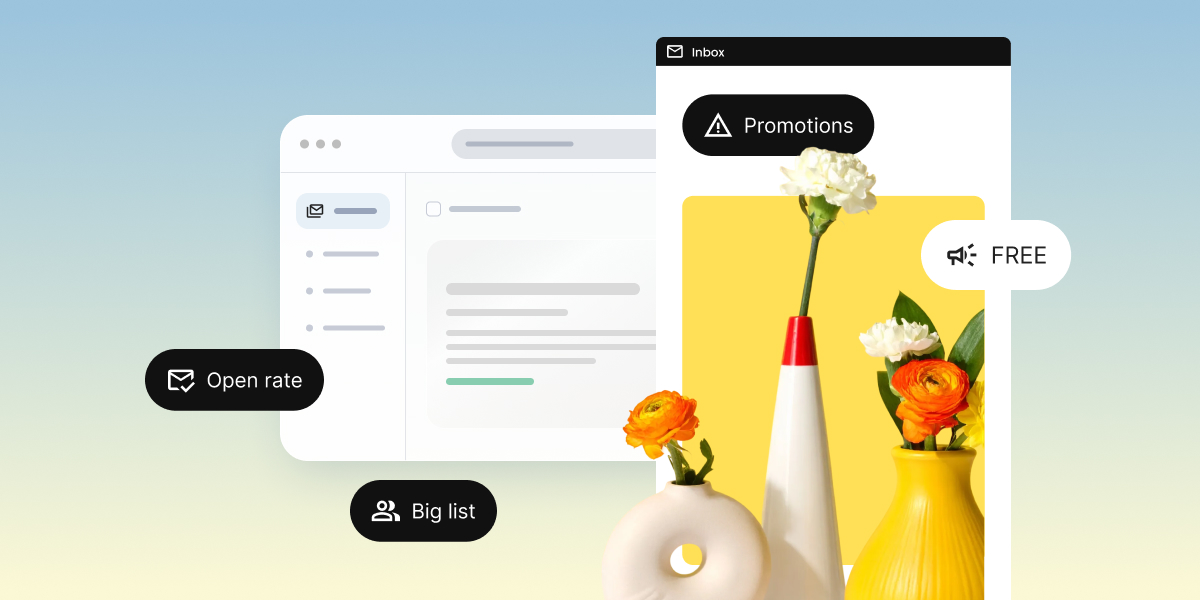
Email inbox mockup tagged “Open rate,” “Big list,” “Promotions,” and “FREE,” representing common email marketing myths, with flowers in vases.

Email marketing myths rarely look dangerous. They look like good advice: skip the word “free,” send on Tuesday, grow the list at any cost. When your opens start slipping, those habits are a likely cause, because each one damages a signal inbox providers use to decide where your email lands. And some of the opens you’re worried about may never have been real in the first place.

Key takeaways:

  • Since November 2025, Gmail has been rejecting non-compliant bulk email with temporary and permanent errors, so authentication (SPF, DKIM, and DMARC) now matters more than word choice.
  • Google asks bulk senders to keep user-reported spam below 0.1% and never let it reach 0.3%, which makes a hidden unsubscribe link far more costly than an unsubscribe.
  • Email marketing isn’t dead: in the Data & Marketing Association’s Marketer Email Tracker 2026, UK marketers estimated a return of about £41 for every £1 spent on email.
  • A bigger list only helps if the contacts want your emails: a hard bounce rate above 2% is a sign of list quality problems, and every bounced, inactive, or purchased contact drags down your sender reputation.
  • Apple Mail Privacy Protection downloads email content in the background by default, so opens get recorded whether or not the reader looked at the email.
  • The fastest way to catch email marketing myths is to ask which of the four inbox signals a rule affects, then test it on your own list.

The 4 signals every email marketing myth gets wrong

Every myth on this list fails for the same reason: it works against one of the four signals inbox providers like Gmail, Yahoo, and Outlook use to decide where your email lands. Those signals are authentication, sender reputation, spam complaints, and engagement.

Placement comes first and opens come second. An email that lands in spam rarely gets opened, however good the subject line is.

SignalWhat inbox providers checkWhat to aim for
AuthenticationProof that you’re allowed to send from your domainSPF, DKIM, and DMARC records set up for your domain
Sender reputationYour track record: bounces, inactive contacts, and how consistently you sendA hard bounce rate under 2% and a steady sending schedule
Spam complaintsHow often recipients click “Report spam”A spam rate under 0.3% (ideally under 0.1%) and one-click unsubscribe, processed within 48 hours
EngagementWhether people open, click, and replyClicks holding steady or rising across campaigns

Inbox providers don’t publish limits for reputation and email engagement, but you can still track both. You build them over time with every campaign you send.

The other two are now hard rules. Google and Yahoo introduced sender requirements in 2024, and Microsoft followed for Outlook.com, Hotmail.com, and Live.com in May 2025. Since November 2025, Gmail rejects emails that don’t comply instead of just warning the sender. 

The strictest rules apply to bulk senders, meaning anyone who sends close to 5,000 or more messages to personal Gmail accounts within 24 hours. Smaller senders aren’t off the hook, though. Every sender has to meet a baseline: SPF or DKIM authentication, a spam rate under 0.3%, and valid DNS records for the sending domain and servers.

The seven myths below all sound harmless. Each one quietly works against at least one of these signals.

Myth 1: Email marketing is dead

Email marketing isn’t dead. In the Data & Marketing Association’s Marketer Email Tracker 2026, a survey of 250 UK marketers, the estimated return on email rose to about £41 for every £1 spent, up from around £38 in the previous edition.

Social media, messaging apps, and now AI assistants have all been called email’s replacement. What this myth breaks is sender reputation. Businesses that treat email as a side channel send irregularly, stop cleaning their lists, and let contacts go stale. When they finally send a campaign, bounces and complaints spike, results disappoint, and the myth seems confirmed. It’s a self-fulfilling prophecy with a very measurable paper trail.

Compare email to your other channels before you cut it

Before you move budget away from email, put it side by side with the marketing channels you’d move it to:

  • Pull revenue or leads by channel for the same period, such as the last 90 days.
  • Count how much of each audience you actually own. Your list stays yours if an algorithm changes; your followers don’t.
  • Calculate your email marketing ROI using real sales data, not open rates.

If email still loses after that comparison, look at how the program is run before you blame the channel.

Myth 2: Avoiding spam trigger words keeps you safe

Spam trigger words rarely decide whether an email reaches the inbox. Google’s sender requirements don’t list banned words at all. Instead, they cover technical basics like authentication, spam rate, and unsubscribe rules. And when Google explains how Gmail’s spam filters work, the factors it names are “IP address, domains/subdomains, sender authentication, and user input.”

Using words like “free” occasionally won’t hurt you, but stacking them makes you look like spam. All-caps urgency and phishing-style wording still look suspicious for reasons beyond any single word.

Tip: Your subscribers are a spam filter too. Google doesn’t ban any words, but your readers can still click “Report spam” on an email that reads like a scam. Every report counts toward your spam rate, which Google wants under 0.3%. So a “FREE!!! ACT NOW!!!” subject line won’t break a rule, but it can still cost you. Write like a person, not a pop-up ad.

What this myth breaks is authentication. Senders spend hours scrubbing “free” and exclamation points from their subject lines while their domain has no SPF, DKIM, or DMARC records, which is the first thing inbox filters check. The result is a flat subject line, sent from a domain filters can’t verify.

Set up SPF, DKIM, and DMARC before you rewrite a single word

Authentication is the part of email deliverability that filters check first. Confirm these three records exist for the domain in your From address:

  • SPF: lists the servers allowed to send email for your domain.
  • DKIM: adds a signature that proves the email wasn’t changed in transit.
  • DMARC: tells inbox providers what to do when SPF or DKIM fails. Google and Microsoft both accept a starting policy of p=none, as long as your From domain aligns with SPF or DKIM.

Once those pass, you can write “free” where it’s honest without worrying about the word itself.

Myth 3: A bigger list means more opens

A bigger list doesn’t bring more opens if the extra contacts don’t want your emails. Invalid addresses bounce, inactive ones ignore you, and purchased ones report you as spam. All three drag down sender reputation.

The myth usually shows up as buying lists or importing contacts who never confirmed they wanted your emails. Both fill your list with addresses that bounce, and the damage is easy to measure: SiteGround’s deliverability guidance treats a hard bounce rate above 2% as a sign of list quality problems.

The simplest prevention is a double opt-in, which asks new subscribers to confirm their address before they join. It catches typos, fake sign-ups, and spam traps before they turn into bounces.

Remove bounced and inactive contacts on a schedule

Regular list cleaning keeps your list size honest:

  • Remove hard bounces after every campaign, because those addresses won’t start working again.
  • Pick an inactivity window, such as 180 days without a click, and send those contacts one re-engagement email before removing them.
  • Never import a purchased list, no matter how targeted it claims to be.

In SiteGround Email Marketing, the first step happens automatically. Contacts that hard bounce move to the Suppressed tab and won’t receive emails unless you change their status manually, while soft bounces stay on your list because the cause may be temporary. Contacts who report your email as spam are moved to the Unsubscribed tab. You can review all four statuses (Subscribed, Unsubscribed, Unconfirmed, and Suppressed) under Client Area > Services > Email Marketing > Contacts > Contact List.

Myth 4: Unsubscribes mean your emails are failing

Unsubscribes don’t mean your emails are failing. They’re the safe exit for a reader who’s no longer interested, and the alternative exit, a spam report, costs far more.

Google says it directly: unwanted messages without one-click unsubscribe are more likely to be reported as spam, and more reports push future messages toward the spam folder. Hiding the link in tiny gray text or requiring a login doesn’t keep subscribers. It turns a quiet exit into a complaint that counts against your spam rate. Understanding why people unsubscribe is more useful than trying to stop them.

Put a one-click unsubscribe where people can find it

  • Place a clearly labeled unsubscribe link in every marketing email’s footer.
  • Make it work in one click, with no login or password required.
  • Process requests within 48 hours, which matches Google’s requirement.
  • Tell subscribers how often you’ll email them when they sign up, so nobody unsubscribes because of a surprise.
  • Track your unsubscribe rate per campaign to spot content that consistently pushes people away.

Myth 5: There’s a perfect time and frequency to send

There’s no universal best time or frequency to send email. Send-time studies name different winners, from Tuesday to Friday, because the right schedule depends on who’s reading: their time zones, their routines, and what they signed up for. 

Frequency is just as personal. The DMA’s 2026 tracker found around 14% of customers get four or more emails a week from a single brand. Whether that’s welcome or too much depends entirely on the audience.

The myth breaks engagement in two directions. A copied “best” time puts you in the same crowded window as everyone else. And treating “less” as always safer backfires too. Sending less often can help subscribers who’ve stopped engaging, but long gaps and subscribers are more likely to forget your name and report you. Sudden spikes after a quiet period look suspicious as well: Google ties eligibility for its built-in unsubscribe button partly to increasing sending volumes gradually.

Quick tip: Picture your subscribers’ day before you pick a send time. If they read your emails at work, a mid-morning send fits their routine. If your email asks them to plan something personal, like a trip or a purchase, it has a better chance outside working hours. Use that as your starting point, then let your own click data confirm or correct it.

Test send times and frequency on your own list

  • Split your list and send the same email at two different times, then compare clicks.
  • Pick a cadence you can keep, weekly or biweekly, and stick to it for at least a few months before judging it.
  • Watch unsubscribe and spam rates after you increase frequency. If they rise, your audience has answered for you.

In SiteGround Email Marketing, you can run this test by splitting contacts into two groups, scheduling the same campaign for each at different times, and filtering Analytics by group to compare clicks.

Myth 6: Landing in the Promotions tab means your email failed

Landing in Gmail’s Promotions tab doesn’t mean your email failed. The Promotions tab is part of the inbox: Gmail files marketing emails there automatically, and readers open them like any other message.

The damage comes from trying to escape it. Stripping out images, disguising campaigns as personal notes, or adding “Re:” to subject lines surprises subscribers with a sales pitch where they expected a friend. A surprised reader ignores the email or reports it, which hurts engagement and complaints at once. The tab isn’t the penalty. The workaround is.

Design for the Promotions tab instead of trying to escape it

In the Promotions tab, your email competes on three things readers see before they open it: sender name, subject line, and preheader.

  • Use a sender name subscribers recognize, such as your brand or a real person at your company, and keep it consistent.
  • Write a preheader that adds information instead of repeating the subject line.
  • Make the subject line match what’s inside, so the open doesn’t end in disappointment.
  • If your most engaged subscribers want to see you first, tell them they can drag your email into the Primary tab.

Myth 7: Open rate is the most important email metric

Open rate isn’t the most important email metric, and since 2021 it hasn’t been a reliable one. Apple Mail Privacy Protection downloads remote content, including tracking pixels, in the background for the many users who turn it on, whether or not the reader opens the email.

That means an open can register the moment your email arrives in Apple Mail, even if nobody reads it. Inbox providers still see how people actually interact with your email. Apple’s feature only changes what you see in your reports.

What this breaks:

  • Your open rate: it’s partly made up of opens that never happened, and so are the benchmarks you compare it to.
  • Your trend lines: a drop or a spike can say more about how many subscribers use Apple Mail than about your emails.
  • Your list cleaning: removing contacts based on opens alone can keep people who never read anything and delete readers who block tracking.

Base inactivity rules on clicks where you can, such as no clicks in 180 days, and use opens only as a backup signal.

Judge each email by clicks and conversions, not opens

  • Use clicks as your main engagement signal, since they require a real action from a real person.
  • Track conversions, such as purchases, bookings, or replies, as the measure of whether an email worked.
  • Treat email open rate as a rough trend line within the same audience, not a success score.
  • Understand the difference between CTR and CTOR, since CTOR uses opens as its denominator and inherits the same inflation.

How to test the next email rule you hear

Any new email rule deserves three questions before it changes how you send.

  • Which signal does it affect? If a rule can’t be tied to authentication, reputation, complaints, or engagement, it’s a style preference, not a deliverability rule.
  • Is there a primary source? Google, Yahoo, Microsoft, Apple, and your email platform publish their requirements. A rule that only appears in blog posts quoting other blog posts deserves suspicion.
  • Can you test it on your own list? Send times, frequency, and subject line styles can all be split-tested. Your list’s results beat any benchmark.

Run “never email on Mondays” through the test, for example. It doesn’t touch authentication or complaints, no inbox provider publishes it, and a two-week split send will tell you whether it holds for your audience. That’s a test, not a rule.

Build those three questions into your email marketing strategy, and the next viral tip gets a fair trial instead of automatic obedience.

Stop letting email marketing myths run your campaigns

Email marketing myths stick around because they feel responsible. Skipping “free” feels safe. Keeping every contact feels like growth. Hiding the unsubscribe link feels like damage control. Meanwhile, each habit chips away at the signals that decide inbox placement, and the bill arrives months later as a mystery drop in results. Trade the rules of thumb for what inbox providers actually publish and what your own list tells you. Your numbers will finally start telling the truth.

If you’d rather not babysit DNS records and bounce lists yourself, SiteGround Email Marketing handles a lot of it for you. If your domain is registered or hosted with SiteGround, it sets up SPF, DKIM, and DMARC for you automatically. It blocks campaigns from domains missing those records, suppresses hard bounces, and moves spam reporters to your Unsubscribed list. Bounce, spam, and unsubscribe rates are all waiting for you in Analytics.

New users also get a manual review of their first three campaigns, so mistakes get caught before your sender reputation pays for them. You can try it free for 30 days.

[58]

Frequently asked questions about email marketing myths

Do spam trigger words really send emails to spam?

Spam trigger words rarely send emails to spam on their own. Inbox providers weigh authentication, sender reputation, spam complaints, and engagement far more heavily, so a trusted, authenticated sender can use “free” without problems.

Are email open rates still accurate?

Email open rates aren’t fully accurate anymore. Apple Mail Privacy Protection loads tracking pixels in the background, recording opens that never happened, so clicks and conversions are more reliable measures of success.

How often should you send marketing emails?

A good starting point is once a week or every two weeks, and no less than once a month, so subscribers don’t forget who you are. If you want to send more often, increase gradually, and pull back if your spam rate climbs above 0.1% or unsubscribes jump after a send.

Do small senders need DMARC?

Yes, in practice. Google and Microsoft only require DMARC from senders who send around 5,000 or more emails a day, but a basic record with a p=none policy takes minutes to set up, protects your domain from spoofing, and covers you if you ever cross that threshold. Since Gmail treats bulk sender status as permanent once you reach it, it’s easier to have DMARC in place before you need it.
Email banner size: Dimensions that prevent header cropping

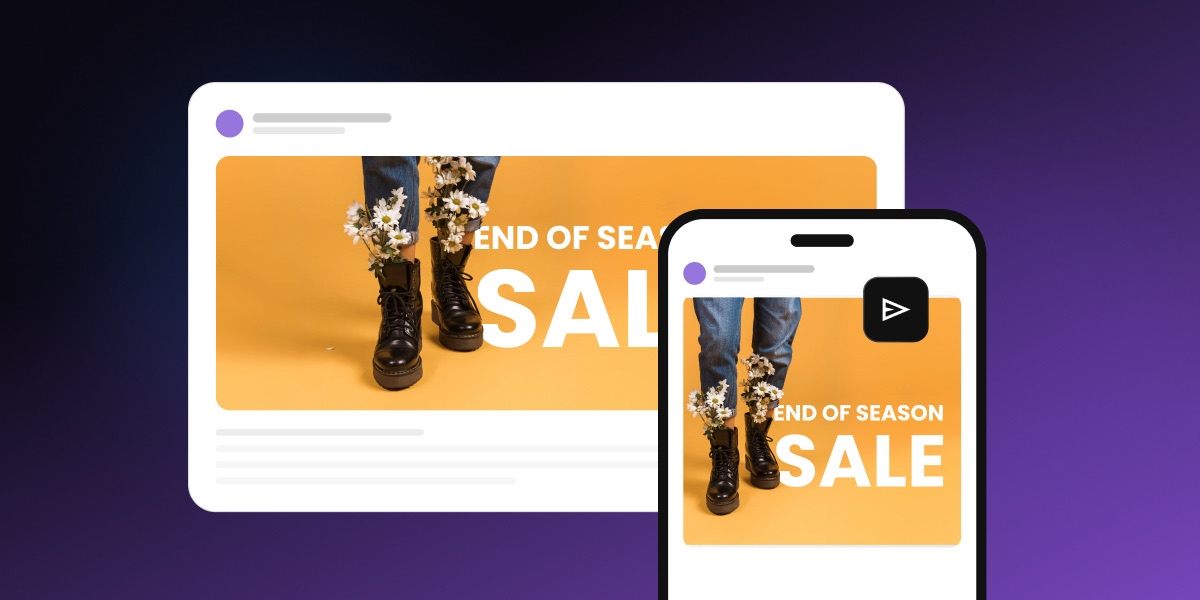
An "End of Season Sale" email banner with an orange background and black boots filled with daisies, shown on a desktop email layout and a smartphone screen to compare how the banner displays on each device.

The right email banner size is 600px wide, the same width as your email template. That one number covers both your header and your hero banner, and only the height changes between them. It sounds like a minor detail until you get it wrong. Go any wider and Outlook chops off the edge, while phones shrink the text in your banner down to fine print. SiteGround Email Marketing layouts already set the width and handle mobile scaling, so all you need to bring is an image that fits.

Key takeaways:

  • The standard email banner size is 600px wide. Header banners run 150–200px tall, and hero banners run 300–400px tall.
  • On a 360px-wide phone, a 600px banner displays at about 60%, so 16px text inside the image drops to roughly 10px.
  • Setting width=”600″ in the image’s HTML stops classic Outlook from showing a 1,200px file at full size.
  • Keeping hero banners at 400px tall or less leaves room for your headline and call to action on the first screen.
  • A test email to Gmail, classic Outlook for Windows, and a phone catches these problems before your list sees them.

Email banner size at a glance

An email banner is a wide image that runs the full width of an email. The two you’ll use most sit at the top: a header banner with your logo and navigation, and a hero banner right below it that carries the campaign’s main message, often with a headline and a button. Some emails also use smaller banner strips further down, such as a promo bar above the footer.

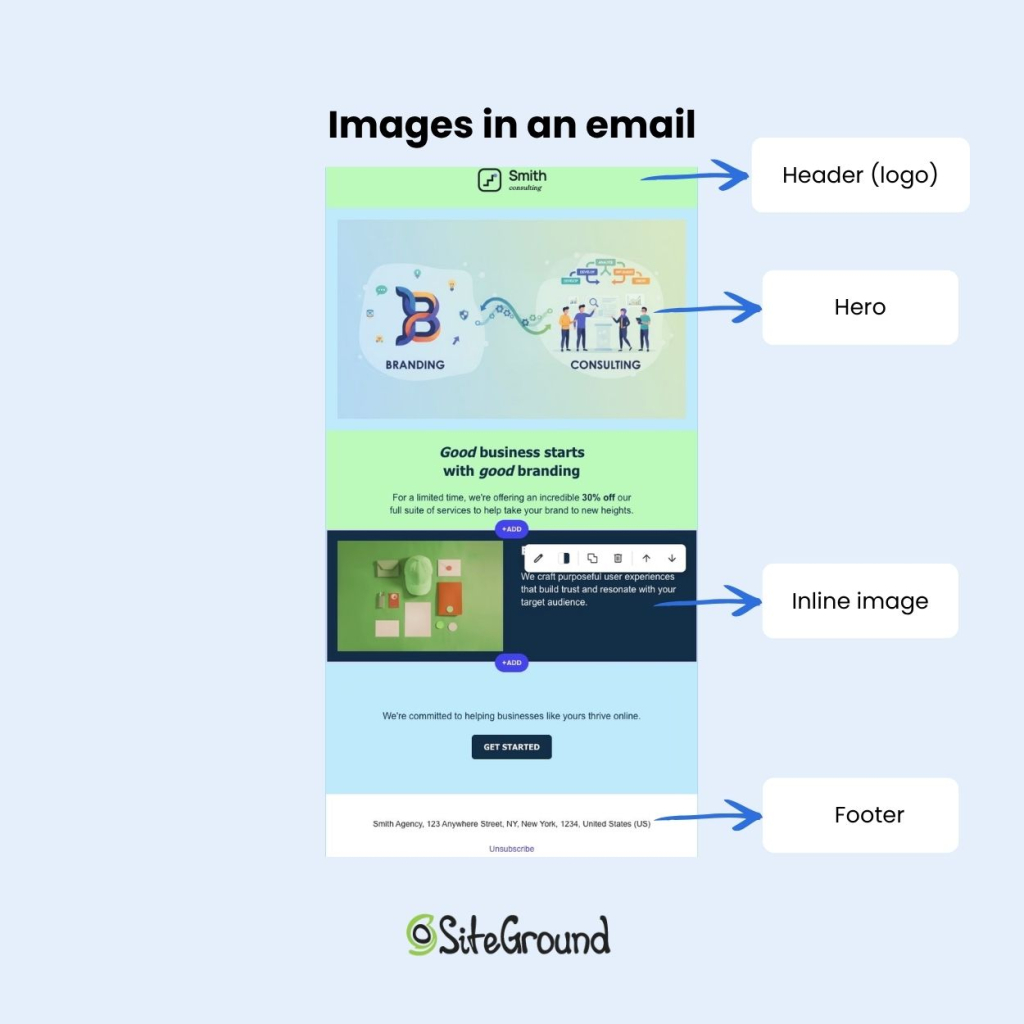
Annotated email template from Smith Consulting labeling four image placements: the logo in the header, a branding and consulting hero banner, an inline product image next to body text, and the footer with the company address and unsubscribe link.

An email banner displays at 600px wide, with a header banner at 150–200px tall and a hero banner at 300–400px tall. What changes from screen to screen is how big that banner, and the text inside it, looks once a phone shrinks it to fit.

BannerDesign size2x exportDisplays as on a 360px phone16px text becomes
Header banner600 × 150–200px1,200 × 300–400px~360 × 90–120px~10px
Hero banner600 × 300–400px1,200 × 600–800px~360 × 180–240px~10px

On phones, the banner displays at the screen width, roughly 320–480px, so one 600px file covers desktop and mobile. You don’t need to design a separate mobile version. The 2x export is the optional sharpness step from our email image size guide, and for a banner with text on it, it’s the step to keep, because text is the first thing to blur.

What happens if your email banner is too big or too small

A banner that’s too big gets cropped, pushes your message down, or leaves an empty box at the top of the email. A banner that’s too small turns blurry or leaves its text unreadable. Here’s how to spot each problem and fix it.

Too wide: cropped in Outlook, sideways scrolling elsewhere

  • What you see: The banner is cut off on the right in classic Outlook for Windows. If the width isn’t set anywhere, other clients show a sideways scroll bar too.
  • Why it happens: Classic Outlook renders email with Microsoft Word’s engine, which ignores CSS widths on images. Without a width attribute in the HTML, it displays the image at its actual pixel size, so a 1,200px export shows up at 1,200px
  • Fix: Set width=”600″ on the image tag itself. Keep the CSS width too, for every other client.

In SiteGround Email Marketing, the layout’s image block sets the width for you, so there’s no code to edit.

Too tall: your message and CTA drop below the fold

  • What you see: A 600 × 800px banner fills a laptop screen before any copy appears. On a phone, it scales to about 360 × 480px, so readers scroll before they know what the email is about.
  • Why it happens: The banner takes up the whole first screen, so your headline and CTA start below it.
  • Fix: Keep hero banners at 400px tall or less.

Too heavy: slow loading, and a blank space where images are blocked

  • What you see: An empty box at the very top of the email, where readers look first.
  • Why it happens: A heavy banner takes longer to load, especially on mobile data. The same empty box appears when images are blocked.
  • Fix: Give the banner’s cell a background color in your brand palette, add alt text that repeats the headline, and keep the headline in live text below the image.

Text too small once scaled on mobile

  • What you see: Banner text that’s hard to read on a phone.
  • Why it happens: Text baked into the image shrinks with it. A 600px banner on a 360px phone displays at about 60%, so 16px text drops to around 10px.
  • Fix: Set banner headlines at 28px or more at design size (56px in the 1,200px file). On a 360px phone, that lands around 17px, just above the 16px recommended for mobile body text. Better still, move headlines and CTAs into live HTML text, which stays sharp and still shows when images are blocked.
  • In SiteGround Email Marketing: Headlines and buttons live in the layout’s sections as HTML text, so they stay readable on phones. You’ll only hit this if you design text into the banner file before you upload it.

Too low-resolution: blurry or pixelated on phone screens

  • What you see: A soft banner on high-density phone screens, with the text blurring first.
  • Why it happens: The file was exported at exactly 600px, so the phone stretches it to fill extra screen pixels.
  • Fix: Export at 1,200px wide and display it at 600px.

How to size your email banner in 4 steps

Sizing an email banner takes four steps: match the template width, export at 2x, keep text in the safe zone, and test.

  1. Match the banner to your template width. 

Check your template’s content width before you open a design tool. It’s the one number the rest of your email design builds on.

  1. Export at 2x for sharp phone screens.

Set your canvas to 1,200px wide, double the heights from the table, then set width=”600″ on the image. Pick JPG or PNG using the format rules in the image size guide.

  1. Keep text and CTAs inside the center safe zone, at a size that survives mobile scaling. 

Leave at least 20px of empty space on each side at design size (40px in the 1,200px file), and keep headlines at 28px or more.

  1. Compress the file and test it in real inboxes.

 Get the file under the weight cap from the image size guide, then send a test.

In SiteGround Email Marketing, go to Client Area > Services > Email Marketing > Campaigns and click New Campaign.

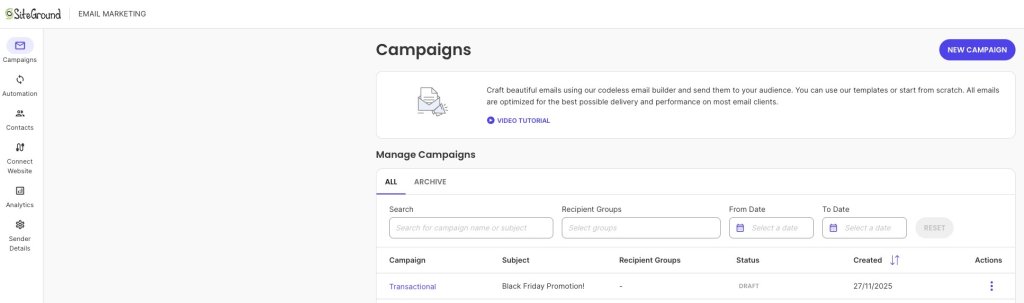
The Campaigns page in SiteGround Email Marketing, with a New Campaign button, a short intro to the codeless email builder, and a Manage Campaigns table with search and date filters listing a draft campaign titled "Black Friday Promotion!"
  • Pick a Basic Layout and click Select. The layout’s image block already holds the right width, so you only need a file that matches it.
  • Click the image placeholder and open the Image Gallery. Upload your banner from your computer, or pick one you’ve uploaded before.
  • Click Test Email in the top-right corner, enter an address, and click Send. Send one test to each inbox you want to check: Gmail, classic Outlook for Windows, and your phone.
  • Open each test and check the banner. First and last name variables show as “Test Name,” so a generic greeting isn’t a bug.

Test your email banner size before every new design

An email banner size that works in one inbox can still break in another, so every new banner gets one test send before it goes to your list. Open it in classic Outlook for the crop, on a phone for the text, and with images turned off for the empty box. 

You don’t have to work out most of this by hand. SiteGround Email Marketing comes with ready-made layouts that have banner placeholders already set to the email’s width and built to scale down on phones.

Pick a layout, click a placeholder to swap in your own banner, and send yourself a test. The width, the structure, and the mobile scaling are already in place, so the only thing left to check is your image.

[58]

Frequently asked questions about email banner size

What is the ideal size for an email banner?

The ideal size for an email banner is 600px wide and 300–400px tall for a hero banner, exported at 1,200px wide so the text stays sharp on phones.

What size is an email header?

An email header is 600px wide and 150–200px tall, which is enough for a logo and a short menu bar. In SiteGround Email Marketing, your logo appears in the header on its own once you add it under Sender Details > Brand Identity.

What size should an email banner be for Outlook?

An email banner for Outlook should be 600px wide, with width=”600″ set in the image’s HTML. The attribute stops classic Outlook from showing a 2x file at full size.

How wide should an email template be?

An email template is typically 600px wide, which fits Outlook’s reading pane without a horizontal scroll bar and scales down to phones. Your banner should match it.

What happens if my email banner is too big?

An email banner that’s too big gets cropped in Outlook, forces sideways scrolling, or pushes your message below the fold.

Is the 600px email width rule outdated?

No, the 600px email width rule isn’t outdated. Desktop monitors got wider, but reading panes stayed about the same, and phone screens are still narrower than 600px, so a 600px email fits both. What changed is screen density, which is why you export at 2x.

Email image size: The exact dimensions for every email section

Newsletter preview from The Inkwell showing a vintage typewriter and the heading "New Stories This Week," next to icons for resizing, text scaling, and image preview, with a woman in headphones reading email on her laptop.

The right width for every image in a marketing email is 600 to 640 pixels, whether it’s sitting in the header, the hero banner, or the footer. Height and file size change by section, but that width holds the whole layout together. Get it wrong and your image renders stretched, cropped, or oddly scaled, depending on which email client opens it.

Key takeaways:

  • Email image size starts at 600 to 640 pixels wide across header, hero, body, and footer images. Height and file size are what change by section, not width.
  • Keep each image under 1 MB. That’s the ceiling most email platforms enforce before flagging an upload.
  • Use JPG for photos and PNG for logos, text, or anything with transparency.
  • SiteGround Email Marketing’s templates already have these dimensions built into each image block, so there’s no math to do yourself.

Where each image sits in a marketing email

Before we get into the numbers, here’s how a typical marketing email looks and where the images usually go: a header image at the top, a hero banner right under it, one or more body images through the middle, and, where the platform allows it, a footer image near the bottom.

Annotated email template from Smith Consulting labeling four image placements: the logo in the header, a branding and consulting hero banner, an inline product image next to body text, and the footer with the company address and unsubscribe link.

Building in SiteGround Email Marketing skips most of this math for you. Its pre-made templates come with these dimensions already built into each image block. The built-in AI Image Generator creates a replacement image that matches the aspect ratio of whatever’s already sitting in that block, so swapping a placeholder photo doesn’t mean recalculating anything.

The one spec table you need

Bookmark this table instead of piecing the numbers together from five different guides.

Image typeWidthHeightMax file sizeFormat
Header / logo600–660px150–200pxUnder 200 KBPNG (logo) or JPG (photo header)
Hero / banner600–660px300–400pxUnder 1 MBJPG (photo) or PNG (graphic)
Body / inline600–660pxVaries with contentUnder 1 MBJPG (photo) or PNG (icon/graphic)
Footer600–660px100–150pxUnder 100 KBPNG (logo/icons)

These numbers are industry convention, not an enforced standard: there’s no W3C spec for email images, and no client checks for compliance. 

The 600px width is the closest thing to a hard rule, since it’s what fits Outlook’s reading pane without a horizontal scrollbar, the same logic behind our email marketing design recommendations for the rest of the template. 

Heights and file-size caps vary somewhat by platform and are shown above as the range most guides converge on.

Header and banner image size

The email header is the first thing a subscriber sees, so it carries the most weight for making a good first impression without slowing anything down.

Recommended width and height

A header image should be 600 to 640px wide and 150 to 200px tall. That height is enough to fit a logo and, sometimes, a short menu bar, without pushing your actual message below the first screen a subscriber sees. Getting this right early in your email format sets a predictable frame for every section below it.

File size cap for header images

Header images should stay under 200 KB, and ideally closer to 100 KB. They’re rarely photographic, so there’s no reason for a logo-and-background header to weigh anywhere near what a hero photo does.

Hero and body image size

This is where most of the email’s visual weight sits, so getting these two right matters more than the header or footer.

Full-width hero images

The hero is the image directly under the header that introduces the campaign’s main idea. It runs 600 to 660px wide and 300 to 400px tall. That range keeps it visible above the fold on both desktop preview panes and mobile screens without forcing a scroll before the offer even registers.

Inline / body images (product shots, inline graphics)

Email body images can go as narrow as 564px, but 600px matches the rest of the template and avoids upscaling on wider screens. An email newsletter that stacks two or three product shots down the body should keep every image at that same width so the layout reads as one column instead of a set of mismatched crops.

File size cap for hero and body images

Cap each hero or body image at 1 MB. That’s the ceiling most email platforms enforce before flagging an upload, and it’s more than enough headroom for a well-compressed photo at 600 to 680px wide.


Pro tip: for extra sharpness on newer phones and laptops, export the image at twice its display size (a file at 1,200px for one that will show at 600px wide), then compress it before uploading. It’s an optional polish step, not something every image needs.

Footer image size

Most email footers skip images entirely, a logo, social icons, and a background color usually say everything a footer needs to. This section is for the platforms and templates that do add one.

Logo and social icon dimensions

Where a footer image shows up, it’s usually just a small logo (150 to 200px wide) or a row of social icons (24 to 32px each) sitting above the unsubscribe link. SiteGround Email Marketing keeps its footer to links and background color, which covers the same job without needing an image at all.

Keeping footer images lightweight

If a template does include a footer image, keep it light: PNG for logos and icons, under 100 KB total. It’s a small, low-priority element, so it doesn’t need much of the email’s file-size budget. Icons without alt text lose their meaning the moment a client blocks images by default, which is the same reason accessible design treats alt text as mandatory, not optional.

File size limits: How big is too big?

Keep any single image under 1 MB. Most platforms will accept larger files, but a 1 MB image inside an otherwise lightweight email is usually a sign it wasn’t compressed before upload.

There’s one edge case worth knowing about: Gmail cuts off very long emails behind a “View entire message” link once the code behind the email crosses roughly 102 KB. This only matters if you’re writing custom HTML and embedding images directly into the code itself. 

If you’re using an email marketing platform like SiteGround Email Marketing, uploaded images are stored on a server and the email’s code just links to them, so this practically never comes up.

Staying under the 1 MB per-image cap is what actually matters for a typical hosted-image build.

JPG vs. PNG: Which to use where

JPG compresses photographs by discarding detail a viewer won’t notice, trading a little quality for a much smaller file. PNG keeps every pixel intact and supports transparency, which is why it should decide the format, not personal preference.

FormatCompressionTransparencyBest for
JPGLossy, smaller fileNoProduct shots, hero images, lifestyle photography
PNGLossless, larger fileYesLogos, icons, text overlays, graphics

Rule of thumb for using JPG and PNG:
Logo on a colored background: PNG
Icon or graphic with text: PNG
Screenshot: PNG
Product photo or hero image: JPG
Photo-heavy banner: JPG

A one-off email blast built around a single product photo is a JPG situation every time. A PNG version of the same photo would run two to three times heavier for no visible gain, while a logo saved as JPG loses the transparent background it needs to sit cleanly on a colored section.

Getting email image size right, one time

Once the numbers above are set, header at 600–640px, hero at 200–400px tall, footer under 100 KB, JPG for photos and PNG for everything else, there’s nothing left to guess on the next campaign. Email image size isn’t a creative decision made fresh each send; it’s a spec sheet you set once and reuse.

None of this requires manual calculation if you build the campaign in SiteGround Email Marketing. Its templates arrive with these dimensions already built into each image block, and the AI Image Generator produces a new image that matches the aspect ratio of whatever’s already there, so replacing a placeholder photo doesn’t mean redoing the math above.

[58]

Frequently asked questions about email image size

Why do email clients block images by default?

Most email clients block images automatically to protect recipients from tracking pixels and to speed up load times on a first open. That’s exactly why alt text and a lightweight file size matter more in email than on a web page: the image might never load at all.

What image resolution should I use for email, screen or print DPI?

Use screen resolution, 72 DPI, not print DPI. Print files run at 300 DPI or higher, which produces a file many times heavier than an email needs for the same visual quality on a screen.

Why does my image look lower quality after I send the email?

Most email platforms compress images automatically on upload or send to keep file sizes manageable, and that compression is usually the cause. Starting with a properly sized, already-compressed file gives the platform less room to degrade it further.

What’s the ideal image resolution for an email blast?

The same 72 DPI screen resolution applies to a one-off blast as it does to a regular newsletter. What changes for a blast is usually the file weight budget, since a single hero-driven send can afford a slightly larger hero image than a newsletter running six or seven images down the body.

Why isn’t my responsive email image full-width on some devices?

This usually comes down to missing width and height attributes or a fixed pixel width in the image’s HTML instead of a percentage-based or fluid width. Without those, some clients render the image at its native size regardless of the screen it’s on.

How do I make an image responsive in an HTML email?

Set the image’s width to 100% in the HTML or CSS and cap it with a max-width matching the template’s full width, typically 600px. That combination lets the image shrink on narrow screens while never exceeding the intended size on desktop.

Is email marketing dead? Separating the myths from the numbers

Woman at a laptop looking thoughtful, with icons for email, analytics, and growth trends beside her, next to a toggle switch labeled "Update."

Marketers keep asking if email marketing is dead. Two things are driving the doubt: attention has drifted to newer platforms, and open rates have looked strange since Apple started auto-loading tracking pixels through Mail Privacy Protection. Email marketing isn’t dead. Email still returns $36 to $42 per dollar spent, ahead of paid search and social ads. The metric that’s broken is open rate, not the channel.

Key takeaways:

  • Email marketing isn’t dead: it returns $36 to $42 per dollar spent, still ahead of paid search and social ads on cost per result.
  • Apple Mail Privacy Protection inflates open rates by roughly 15 to 20 percentage points, so a dropping open rate doesn’t automatically mean a failing campaign.
  • Click-through rate (averaging around 2%) and click-to-open rate (around 7%) resist that inflation and give a clearer read on real engagement.
  • A bloated, unsegmented list can push your bounce rate and spam complaints up while your click-through rate drops, one root cause showing up as three separate symptoms.
  • Tracking opens when your actual goal is revenue or signups means optimizing for a number that doesn’t measure what your business cares about.
  • Checking your click-through rate and click-to-open rate against a simple benchmark table tells you more about your email marketing performance than any amount of open-rate watching.

Two questions worth asking first

Two things are doing most of the work behind “is email marketing dead,” and neither one is about the channel itself.

Has attention moved, or have results actually dropped?

TikTok, short-form video, and newer social platforms get talked about constantly. Attention is not the same measurement as return on investment, though. A channel can go quiet in industry conversation while still converting at the same rate it always did. Email marketing metrics have stayed remarkably stable even as the marketing conversation has moved on to louder platforms.

Does a falling open rate mean your campaigns are failing?

For most senders, no. Apple’s Mail Privacy Protection, introduced for Apple Mail users, pre-fetches images and pixels regardless of whether a person actually opens an email. That inflates recorded open rates for a large share of your list, and when the inflation shifts or a spam filter changes, the number moves in ways that have nothing to do with your subject lines or your content.

Both questions lead to the same conclusion: neither reduced attention nor a falling open rate proves email marketing stopped working, only revenue and engagement can answer that. The next section shows what those numbers actually look like.

What the email marketing statistics actually show

Past the open-rate noise, the numbers are consistent: strong ROI, steady click-through rates, a channel performing the way it always has.

Email marketing’s return on investment still leads

Some published estimates put email marketing ROI at $36–$42 returned per dollar spent, a wider margin than paid search or paid social typically deliver on comparable budgets. That gap alone answers the “is it dead” question at the business level: a channel returning that consistently isn’t dying, it’s just not the one everyone is currently talking about.

ChannelAverage ROI
Email marketing$36 to $42 per dollar spent
Paid search (PPC)About $2 per dollar spent, according to Google Economic Impact Report
Paid social adsAbout $3 to $5 per dollar spent, according to Sprout Social

Click-through rate and click-to-open rate are the metrics to trust

Click-through rate typically runs 2% to 5% depending on list warmth and industry, and click-to-open rate, which measures clicks only among people confirmed to have opened, averages closer to 7%. Neither metric depends on the same pixel-loading behavior that Apple Mail Privacy Protection distorts, which makes them a far more honest read on whether your subject lines, content, and offers are actually landing.

Where open rate still fits

Open rate isn’t useless, it’s just no longer a standalone health check. It can still flag a real problem if it drops sharply across your entire list at once, particularly among non-Apple recipients where the inflation doesn’t apply.

Common mistakes that make email marketing look dead

Each of these mistakes creates a real drop in performance, and each one gets misread as proof that the channel stopped working.

Sending to a bloated, unsegmented list

A list full of stale addresses, disengaged subscribers, and people who never wanted the content in the first place drags down your click-through rate, your deliverability, and your sender reputation all at once. It looks like the channel failed. It’s actually list hygiene, one root cause showing up in three different metrics.

Your fix: No opens or clicks in 90 days is the standard cutoff for an inactive subscriber, not a real one. Pull them into their own group and stop sending, before they tank your sender reputation for everyone else on the list.

For example, a 20,000-contact list with 4,000 people who haven’t opened or clicked in six months will often show a click-through rate under 1%, a bounce rate creeping past 3%, and a slipping sender score as inbox providers pick up on the pattern. If you suppress those 4,000 contacts, the list will often jump to a 2.5%+ click-through rate with bounce rate back under 1%, same content, same audience, just fewer dead names on it. The only thing that changed is who’s still on it.

Tracking the wrong KPI for the goal

If the email marketing goal is revenue or signups but the only number anyone checks is opens, the campaign gets judged against a metric that was never meant to measure that outcome. A campaign can have a mediocre open rate and still hit its revenue target, or a great open rate and convert nobody. Match the metric to the goal, and pick that goal before the campaign goes out, not after.

Quick tip: Decide before you hit send whether the goal is a click, a signup, or a sale, then judge the campaign only by that number. Open rate was never built to measure any of those.

Treating every email like a one-off blast instead of a strategy

A single promotional email sent to the full list, with no sequence, no segmentation, and no follow-up, will underperform almost any campaign built around a plan. Building an email marketing strategy means defining segments, cadence, and goals before you write a single subject line, and it’s usually the difference between a channel that “stopped working” and one that was never set up to work in the first place.

One more tip: Before you send email #1, write down what email #2 and #3 will cover and when they’ll go out. Even a rough three-email plan turns a single blast into an actual sequence.

How to check whether your own email marketing is working

This is the actual gut-check, and it takes less time than most people assume. Start with click-through rate. Then compare your numbers against the table below.

MetricHealthy rangeWhen to investigate
Click-through rateAround 1-3% or higherTrending down across 2-3 sends in a row
Click-to-open rateAround 8-12% or higherDropping while CTR stays flat, or vice versa
Bounce rateUnder 2%Above 5%, sign of list decay
Spam complaint rateUnder 0.1%Above 0.3%, most inbox providers start throttling delivery at this point

A quick example. Say your open rate looks strong at 45%, comfortably above what you’d expect for your industry. But your click-through rate is flat at 1.1%, well below healthy. That gap is the tell: a high recorded open rate with weak clicks usually means Apple Mail Privacy Protection is inflating the open number, not that your subject lines are working. The click-through rate is telling you the real story: the content or offer isn’t landing, even though the open rate looks fine.

What to do with what you find:

  • CTR and CTOR both healthy, only open rate moved: Leave it alone. This is tracking noise, not a content or strategy problem.
  • CTR dropped for two or three sends in a row, CTOR still healthy: The list is fine, the offer or subject lines probably aren’t. Test new subject lines before touching segmentation.
  • CTR and CTOR both dropped together: This points to list decay or fatigue. Check your bounce and spam complaint rates next, if those climbed too, it’s time to prune the list, not rewrite the copy.
  • Bounce rate or spam complaints climbed on their own, clicks stayed flat: A deliverability problem, not an engagement one. Fix authentication and list hygiene before you touch anything else.

Watching email engagement trends over a few sends, rather than reacting to a single campaign, gives a clearer signal than any one number in isolation.

So is email marketing dead? Not even close.

None of this means email marketing runs itself. List hygiene still matters, segmentation still matters, and picking the right KPI for the goal still matters. What’s changed isn’t the channel’s ability to perform, it’s which metric proves that performance. Open rate stopped being a reliable solo indicator the moment pixel pre-fetching became standard on a large share of inboxes, and marketers who kept watching it alone drew the wrong conclusion.

Platforms built for email marketing that surface click-through rate, click-to-open rate, and deliverability signals side by side make this a lot easier to track than digging through raw export data. SiteGround Email Marketing keeps those numbers visible in one place, so the metric doing the misleading isn’t the one you’re staring at by default.

[58]

Frequently asked questions about whether email marketing is dead

Is email marketing still effective, or is it outdated?

It’s still the highest-ROI channel for most businesses, returning $36 to $42 per dollar spent. What’s outdated is judging it by open rate alone.

Why do some people say email marketing is dead?

Mostly because attention has shifted to newer platforms and because open rates look strange since Apple Mail Privacy Protection started inflating them. Neither reason reflects an actual drop in email’s performance.

Is email marketing declining?

Spending and usage have stayed steady or grown across most industries. What’s declining is trust in open rate as a standalone metric, which is a measurement problem, not a channel problem.

Does Gen Z like email marketing?

Younger audiences use email differently, often for receipts, confirmations, and brand updates rather than casual browsing, but they still check it regularly and respond to well-targeted campaigns.

Does email marketing have a future?

Yes. As long as businesses need a channel they own outright, not one controlled by a platform’s algorithm, email keeps that role, and the ROI data backs it up.

List bombing: How to spot the attack and protect your email list

Man sitting on a bean bag chair looking concerned at his laptop, with an inbox showing a flagged email and a notification reading "5,498+ New subscribers."

A sudden overnight jump in subscribers isn’t always the good news it looks like. It could be list bombing: bots or bad actors flooding your signup form with fake or non-consenting emails until your bounce rate, spam complaints, and sender reputation take the hit. Before you get excited about the growth chart, check where those signups actually came from. The fix starts with catching the spike.

Key takeaways:

  • A sudden spike in subscribers with no matching signup campaign is the clearest sign of list bombing.
  • List bombing floods your own list with fake signups; email bombing floods someone else’s inbox by subscribing their address to hundreds of unrelated lists.
  • Mailbox providers treat a 0.1% spam complaint rate and a 2% bounce rate as red lines for sender reputation, and list bombing pushes both fast.
  • Fake profiles created during an attack can inflate your billed contact count
  • Double opt-in is the single most effective form-level defense: it turns a bot’s submission into an unconfirmed profile instead of an active subscriber.
  • Pause sending before you clean the list. Cleaning first just means you’re still sending to fake addresses while you work.

What list bombing actually is (and how it differs from email bombing)

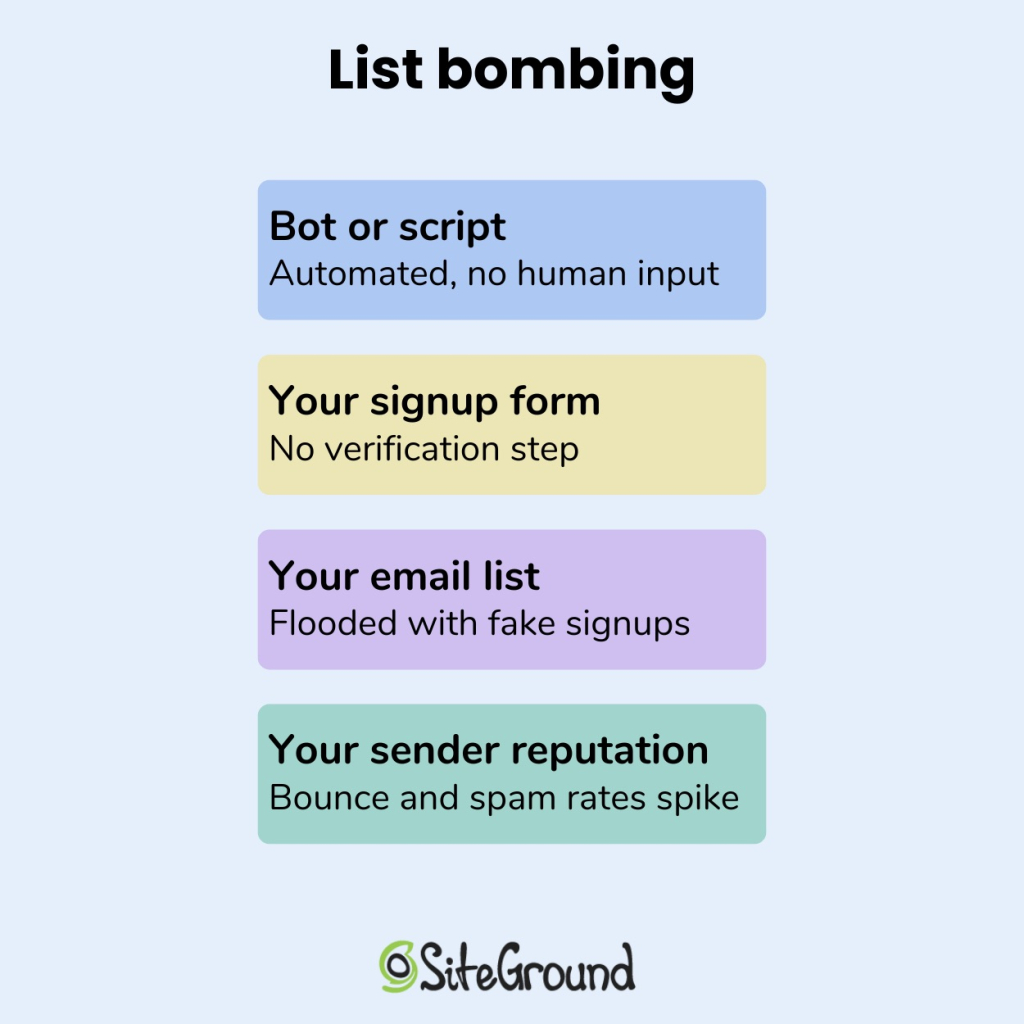
List bombing is when someone, or something, submits a large volume of fake, invalid, or non-consenting email addresses through your own signup form or checkout page, usually within minutes. The goal is to pollute your list with contacts who never opted in, so your next send trips spam filters and damages your sender reputation.

Diagram showing list bombing steps: a bot or script exploits a signup form with no verification, flooding an email list with fake signups and spiking bounce and spam rates.

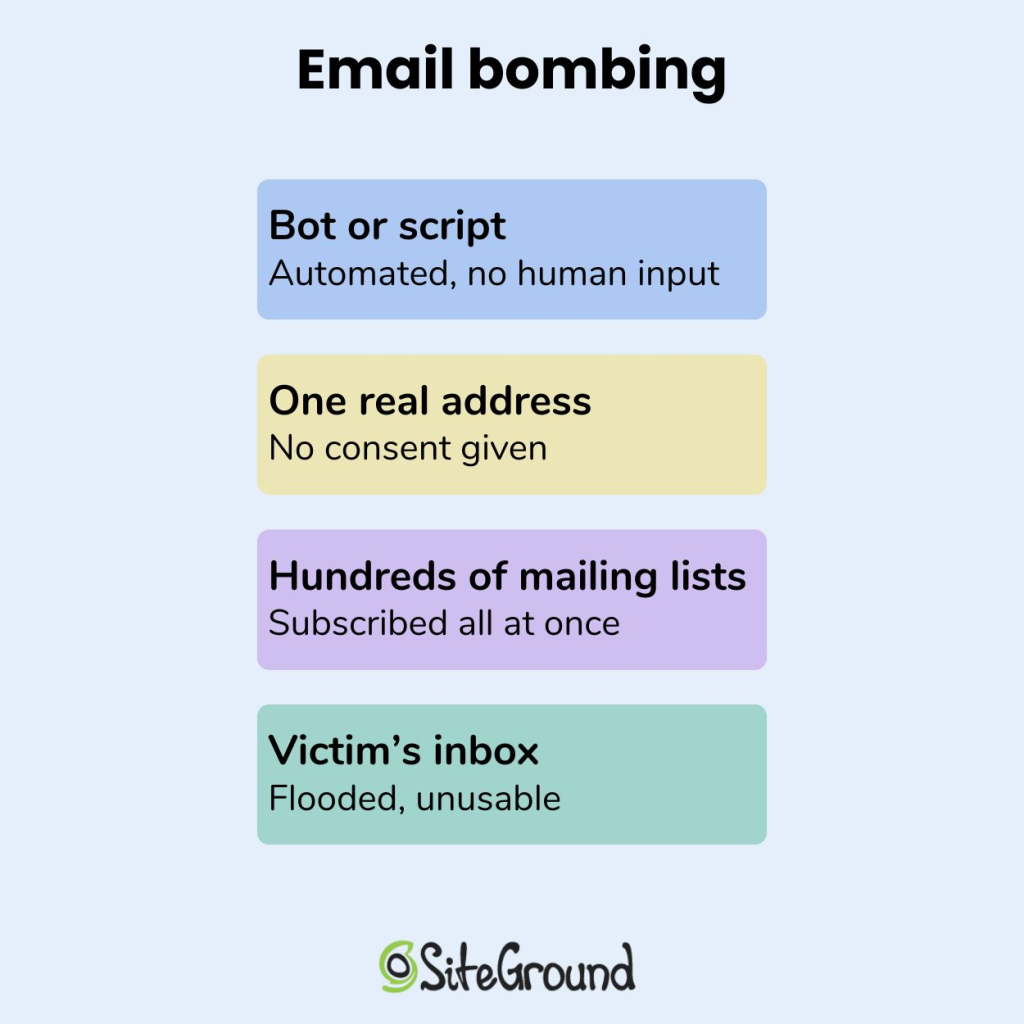
Email bombing runs in the opposite direction. It takes one real person’s address and subscribes it to hundreds or thousands of unrelated mailing lists at once, burying their inbox in confirmation emails until it’s unusable. If list bombing turns your list into the crime scene, email bombing turns someone else’s inbox into one.

Diagram showing email bombing steps: a bot or script subscribes one real email address to hundreds of mailing lists without consent, flooding the victim's inbox.
List bombingEmail bombing
TargetYour email listSomeone else’s inbox
MethodBots submit fake or invalid addresses to your signup formBots subscribe one real address to hundreds of unrelated lists and services
Who gets hurtYou: your sender reputation, deliverability, and contact countThe victim: their inbox becomes unusable
What lands in the inboxNothing (the addresses are usually fake)A flood of confirmation and welcome emails from services the victim never signed up for
Your roleTargetUnwitting accomplice, since your confirmation emails are part of the flood

Subscription bombing is another name for this same email bombing technique. The U.S. Department of Health and Human Services flagged it as a denial-of-service threat in a 2024 sector alert aimed at healthcare organizations, where the goal is usually to bury a legitimate message, like a fraud alert or account sign-in notice, under the noise.

The warning signs you’re being list bombed

Three signals show up together when you’re being list bombed, and none of them show up in isolation during normal list growth.

A subscriber spike with no matching campaign

A normal spike in subscribers can usually be traced to something: a promotion, a piece of content that took off, a signup form placed somewhere new. A list bombing spike has no source. You’ll see 50, 200, or 2,000 new contacts appear within an hour with nothing on your side to explain it: no campaign launch, no partnership, no post that suddenly went viral. Check the timestamps first. Legitimate signups cluster around whatever drove them, like a send time or a social post. Bombed signups cluster around nothing except each other.

A same-second wave of signups from one form

Look at the entry point next. Real subscribers trickle in from different pages, campaigns, and referral sources. A list bombing attack usually funnels through a single unprotected form, often a checkout page or newsletter box, with dozens of submissions landing within the same second or two: the telltale sign of a script rather than a person typing. Names repeat in odd patterns too, the same first and last name over and over, or obvious placeholder text where a real name would go. If your signup form doesn’t already ask for more than an email address, that single field is the door the attack is using.

What list bombing actually looks like: a real case

It didn’t arrive with a label. It happened to SiteGround’s website builder and ecommerce expert Erin Ridley:

“I can’t remember if the warning came from Google or my ESP. All I know is that my emails were all going to spam.”

That’s usually how list bombing shows up first. Not as an alert that names the attack, but as a deliverability problem with no obvious cause. A sender score drops. A domain lands in spam. Nothing on the sending side has changed to explain it.

The cleanup turned out to be the harder part. Without a reliable way to tell the fake signups from the real ones, Erin ended up cutting subscribers who’d done nothing wrong: 

“Cleaning up my list was a total disaster. I had no great way to filter out the fakes and ended up having to delete probably loads of valid emails.”

Over 15,000 bogus signups had been added straight to the list, and in Ridley’s words, that’s “partly why they all bounced too.” The fake addresses didn’t just sit there. They pushed the bounce rate up right alongside the spam complaints, the same two metrics that decide whether a mailbox provider trusts you next time.

Cases like this aren’t rare, and they follow the same shape: fake signups overwhelm the list before anyone’s confirmed the cause, and a routine dashboard check turns into a multi-day cleanup. Nobody sets out looking for this. They notice the number first, which is why monitoring your sender metrics routinely matters more than reacting after the fact.

What list bombing costs you

A list bombing attack hits your sender reputation and sending eligibility on one side, and your bill on the other. Here’s how each one breaks down.

The spam-complaint and bounce-rate thresholds mailbox providers watch

Mailbox providers judge your sender reputation against two numbers, and list bombing pushes both in the wrong direction fast.

  • Spam complaint rate: 0.1% (one complaint per 1,000 emails sent). Treated as high across the email marketing industry, and SiteGround Email Marketing uses that same line as the point where a campaign gets suspended.
  • Bounce rate: 2%. Fake or invalid addresses created during an attack bounce at a much higher rate than real subscribers, since a chunk of them were never valid inboxes to begin with.

Cross either line and Gmail, Yahoo, and Outlook start routing your legitimate sends to spam right alongside the fake ones.

The real risk: a suspended sending account

The real risk is a stopped campaign.

  • Campaign-level suspension. If you’re using SiteGround Email Marketing, a campaign that breaches its bounce or spam-complaint limit gets suspended on the spot.
  • Account-level suspension. Repeated or excessive breaches can get your whole Email Marketing service suspended.

A list bombing attack you haven’t caught yet can turn into a paused email program on launch day, with nothing to signal it beforehand except the campaign status changing. Getting reinstated means proving the list is clean first, a slower process than catching the spike before you ever hit send.

What list bombing does to your bill

This part isn’t gated by thresholds at all. Every fake profile that gets even a single confirmation email counts as an active contact for that billing cycle. Some platforms, like SiteGround Email Marketing, price plans by active contact limits rather than total list size, but a flood of bogus signups can still burn through that allowance fast if each one triggers an initial send. SiteGround won’t upgrade your plan automatically, you’ll get a warning and have to raise the limit yourself, and deleting the fake contacts afterward won’t lower that count until the next billing cycle.

How to respond the same day you spot list bombing

Once you’ve confirmed the spike is list bombing and not organic growth, the order of operations matters.

  1. Pause sending before you clean anything

Stop any scheduled or automated sends the moment you confirm the spike, even routine ones like welcome emails or order confirmations. Every email sent to a fake or unconfirmed address before the list is clean adds another bounce or complaint to metrics that are already climbing. 

If you’re using SiteGround Email Marketing, check Client Area > Services > Email Marketing > Analytics first: it breaks bounce rate and spam rate down per campaign, so you can see exactly which send the fake signups are hitting before you decide what to pause. 

Say your weekly newsletter always bounces under 1%, and this week it’s at 6%. That jump tells you which campaign to trace back to which list, and from there, which signup form on your site fed that list. A short pause, a day at most, costs you almost nothing. Continuing to send into a bombed list can cost you the sending privileges you’re trying to protect.

  1. Segment and suppress the fake profiles

Build a segment around what the fake profiles have in common rather than deleting them one at a time. Where engagement-based filtering is available, signed up in the same 10-minute window, zero opens, zero clicks, no purchase history in 30 days catches most fakes without touching real subscribers.

SiteGround Email Marketing doesn’t support that directly, but tagging the batch with a Custom Field the moment you spot it works as a substitute, then mark that batch as Unsubscribed rather than deleting it outright. Suppressed is a status SiteGround assigns automatically for delivery problems, not one you can apply yourself, so Unsubscribed is the manual equivalent, and it keeps a record of who was excluded and why, which matters if you need to explain an inflated contact count later.

  1. Re-enable or tighten double opt-in

Double opt-in is the single change that stops most of this at the form, not after the fact. Instead of adding a submission straight to your active list, it sends a confirmation email first and only activates the contact once a real person clicks it, something a bot filling out a form has no way to do. In SiteGround Email Marketing, the toggle lives at the group level, not the account level: go to Contacts > Groups, open the group tied to the form that got hit, and turn on double opt-in there. Any group you haven’t switched on is still exposed. 

If your form runs through a separate builder like WPForms or Elementor, add it there instead. If you’re on SiteGround’s own form and don’t want to switch builders, an Expert Care request can get CAPTCHA added manually. Either way, treat double opt-in as the default for every group going forward, not just the one that got hit.

Don’t let list bombing catch you off guard again

List bombing isn’t a one-time event for most of the brands it hits. Once a signup form has been targeted, it tends to get targeted again. Bot networks reuse target lists, so the form that got hit once is likely still on one. The forms differ, the volume differs, but the pattern (a spike with no source, clustered timestamps, repeated name patterns) stays the same every time.

SiteGround Email Marketing builds in the two defenses that actually work here. Double opt-in blocks fake signups at the form, and campaign performance monitoring catches a rising bounce or complaint rate before it becomes a suspended campaign. Both are already part of the account, nothing to configure from scratch.

[58]

Frequently asked questions about list bombing

Is list bombing illegal?

List bombing sits at the edge of a few laws rather than squarely inside one. The CAN-SPAM Act’s false-header provisions and the Computer Fraud and Abuse Act’s unauthorized-access rules have both been used against bulk-signup abuse in general, but most enforcement targets attacks on a person’s inbox, not a business’s list. Whether it gets prosecuted is a separate question from whether it’s illegal: most cases go unreported because the damage (a bad sender reputation and a cleanup project) doesn’t look like the kind of harm law enforcement typically pursues. Treating it as a security incident to contain is usually the more useful response than waiting on legal action.

How do you know if you’re being list bombed?

The two clearest signs are a subscriber spike with no matching campaign, promotion, or referral source, and a cluster of signups landing within the same second or two from a single form. If your bounce rate or spam complaint rate jumps at the same time, that’s a third confirming signal.

How do you protect against list bombing?

Double opt-in is the strongest single defense, since it requires a real person to confirm a signup before it becomes an active contact. That alone handles the vast majority of cases. In the rare case where a bot clears the confirmation step too, a CAPTCHA or honeypot field on the form is the next layer, though the SiteGround Email Marketing plugin doesn’t support this natively; you’d need to add it through a separate form builder like WPForms or Elementor.

Does list bombing hurt deliverability?

Yes, directly. The fake and invalid addresses a list bombing attack adds to your list bounce and generate spam complaints at a much higher rate than real subscribers, and both metrics feed straight into how mailbox providers score your sender reputation.

What is the difference between list bombing and email bombing?

List bombing floods your own email list with fake signups through your own forms. Email bombing, or mail bombing, does the opposite: it takes someone else’s real address and subscribes it to hundreds of unrelated lists and services, flooding their inbox instead of yours.

Whitelist vs. blocklist vs. blacklist: What’s the difference for email senders?

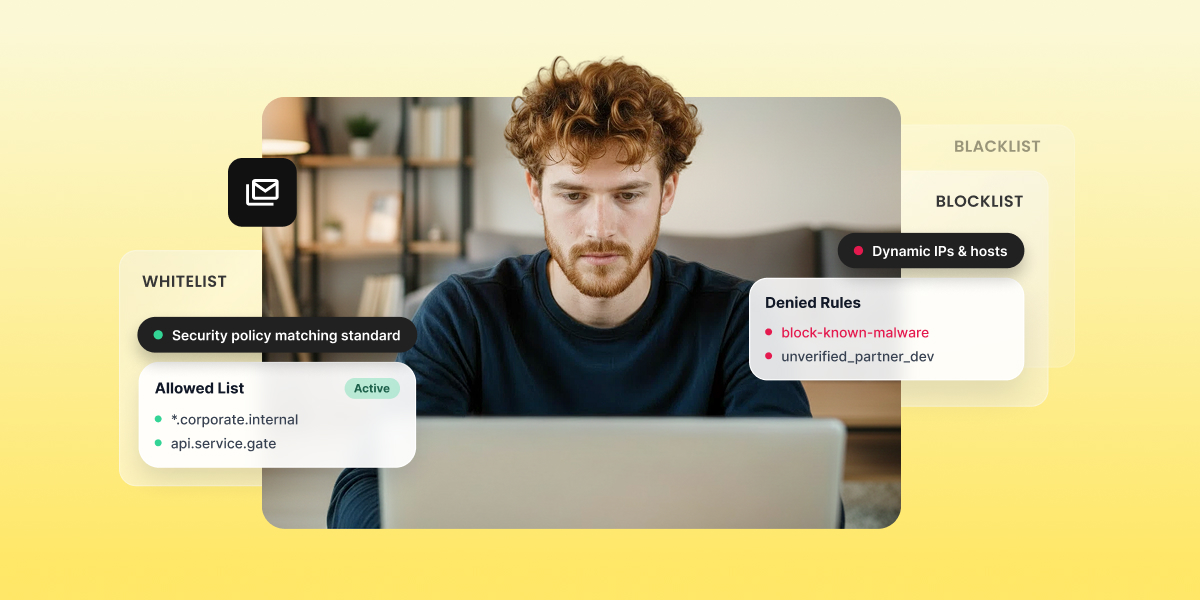
Illustration comparing whitelist, blacklist, and blocklist concepts with allowed and denied rule examples for email security

A whitelist gets your domain explicitly trusted. A blacklist and a blocklist do the opposite: they flag you as untrustworthy, and they’re the same mechanism wearing two different names. Which one applies to you right now depends on one question: are you trying to get in, or trying to get delisted?

Key takeaways:

  • Whitelisting earns trust proactively. Blacklisting and blocklisting flag you reactively, after something’s already gone wrong.
  • “Blacklist” and “blocklist” describe the same mechanism. The industry has shifted toward “blocklist,” not introduced a new concept.
  • Getting whitelisted by one client’s IT team fixes inbox placement for that one client only. It does nothing for your domain reputation with Gmail, Yahoo, or anyone else.
  • An IT admin adding an unauthenticated domain to a mail gateway’s allowlist is asking to get spoofed, which is why SPF and DKIM come before any whitelist request, not after.
  • SiteGround authenticates every domain pointed to its DNS automatically, which is the reason most senders never need to make a manual whitelist request in the first place.

What’s the actual difference between whitelist, blocklist, and blacklist

A whitelist is a list of senders a mail system trusts by default, so their mail skips normal spam filtering.

A blacklist is a list of senders a mail system flags as untrustworthy, so their mail gets rejected or sent to spam regardless of content.

A blocklist is the same thing as a blacklist, just the newer, more common term for it.

Whitelist and blacklist work on opposite defaults, and that difference is what makes them scale so differently. A whitelist entry only helps the sender it names, for the one recipient system holding it. A blacklist or blocklist affects everyone who checks that list, which is why one listing event on a major list like Spamhaus can hurt delivery across thousands of inboxes at once, while one whitelist entry fixes delivery for exactly one person.

“Blacklist” and “blocklist” are essentially the same list, described with the industry’s older term and its newer one. If a bounce message or a checker tool uses one label instead of the other, that’s not a sign you’re looking at something new, it’s the same problem under a different name. These dynamics all sit inside the bigger picture covered in SiteGround’s email deliverability guide.

Whitelist: What it does and when you need one

Getting whitelisted means one specific mail system has decided to trust you, and that trust doesn’t travel anywhere else.

How email whitelisting actually works

A whitelist runs on allow-by-default logic reversed: nothing gets through unless it’s named. That’s the opposite of how blacklists and blocklists work, where everything gets through unless it’s named. A whitelist entry doesn’t improve your reputation anywhere else; it just tells one specific system to skip its usual filtering for one specific sender.

This is why whitelisting matters most in narrow situations: a client whose finance team needs every invoice email to land, a personal email address that keeps missing a newsletter, an internal system sending automated alerts that can’t afford to be delayed by spam filtering.

How to get your sending domain whitelisted

Four mechanisms actually apply here, and they’re not interchangeable:

  • Gmail Postmaster Tools: not a whitelist request tool, but the reputation dashboard Gmail uses to decide whether to trust your domain going forward. Registering your domain and keeping your spam rate below Gmail’s visible threshold is the closest thing to a self-service path toward better placement, since Gmail doesn’t accept manual whitelist requests from senders.
  • Microsoft SNDS (Smart Network Data Services): register your sending IP to see Microsoft’s own complaint and filtering data for it. Same “check your standing” logic as Postmaster Tools, for Outlook and Hotmail.
  • Microsoft JMRP (Junk Mail Reporting Program): an actual feedback loop, not just a dashboard. Enrolling gets you copies of recipient complaints as they happen, so you can catch a bad segment before it turns into a full listing.
  • Asking a specific IT admin directly: the one truly manual request, and it only works after your domain is already authenticated with SPF and DKIM. An admin adding an unauthenticated domain to a mail gateway’s allowlist is asking to get spoofed, so most won’t do it, and shouldn’t.

Where whitelisting falls short

Picture a marketer who asks a key client to add their sending address to Outlook’s Safe Senders list. It works. That one client now always sees the campaign in their inbox. But the next newsletter still lands in spam for the other four thousand subscribers on Gmail and Yahoo, because that whitelist entry only ever applied to one person’s inbox rules. It did nothing for domain or IP reputation anywhere else. Whitelisting is a patch for one relationship, not a fix for your sending reputation.

Blacklist and blocklist: What they do and when they apply to you

“Blacklist” is the older term. “Blocklist” and “denylist” describe the same mechanism. The shift toward the newer terms has been underway across the industry for a few years now, not a change in what actually happens to your mail. If you land on one, your campaigns are either rejected outright or routed straight to spam, and the label used to describe it doesn’t change the outcome.

What actually gets you listed

A short set of triggers accounts for most listings:

  • High spam complaint rates
  • Hard bounces from a stale list
  • Hitting a spam trap
  • A sudden, unexplained jump in sending volume

As of 2026, a hard bounce rate over 2% or a spam complaint rate over 0.1% (one complaint per 1,000 emails) puts a domain or IP at risk. Cross 0.3% and you’re looking at serious reputation damage. 

Here’s how that plays out: a small business imports a list of 3,000 contacts they haven’t emailed in two years. Some of those addresses no longer exist. The first campaign alone pushes hard bounces past 2%, and within a day, their IP shows up on Spamhaus. From that point, every email from that IP gets rejected or spam-foldered, including ones going to the addresses that were still perfectly valid. The full breakdown of causes, checking tools, and delisting steps for each major list lives in SiteGround’s guide to email blacklists.

Where blacklisting and blocklisting fall short

Blacklisting and blocklisting have the flip-side problem of whitelisting: these lists permit everything not explicitly named, which means a brand-new spammer with a clean IP sails through until they’ve done enough damage to get flagged. The mechanism is reactive by design. It catches bad behavior after the fact, not before it.

Picture a brand-new sender who buys a “verified” list and sends their first campaign to 10,000 addresses. Nothing’s blocked yet. No spam filter has a reason to distrust an IP with zero sending history. It takes that first bad campaign actually landing, generating complaints and hitting spam traps, before any list catches up to what happened. The mechanism is reactive by design. It catches bad behavior after the fact, not before it.

Which one applies to your situation right now

TermDefault behaviorWho controls itWhere you’ll see it in emailWhat to do about it
WhitelistDeny by default, allow named sendersThe recipient’s mail system or inbox settingsA client’s Safe Senders list, an internal mail ruleAsk the specific recipient or admin; authenticate first
Blacklist / blocklistAllow by default, block named sendersThird-party list operators (Spamhaus, Barracuda)Bounce messages, checker tools like MXToolboxConfirm the listing, fix the cause, request delisting

If your campaigns are landing in spam or bouncing outright, that’s blacklist and blocklist territory. Start with the checks and removal steps in the email blacklist guide, not with whitelist requests, since asking to be whitelisted while you’re actively flagged treats the symptom, not the cause.

If you’re setting up a new sending domain, or a specific client keeps missing your emails despite otherwise normal deliverability, that’s whitelist territory. If the underlying problem traces back to how your list was built (purchased addresses, no double opt-in, stale subscribers) that’s neither a whitelist nor a blacklist fix. It’s a list hygiene problem wearing a deliverability symptom.

How SiteGround keeps you off these lists in the first place

The whitelist section made SPF and DKIM authentication a prerequisite for any manual allowlist request. SiteGround handles that prerequisite automatically: every domain with SiteGround-managed DNS gets SPF and DKIM set up on signup, no manual records, no support ticket. Domains outside SiteGround DNS get sending blocked until those records exist, so a sender can’t damage their own reputation by skipping authentication.

On the infrastructure side, SiteGround monitors its shared IP pool 24/7 and rotates out any IP that gets flagged, with no visible delivery gap. Every campaign also runs through AI scanning pre-send for spam triggers and phishing patterns, a different layer aimed at the same goal: never end up on a list at all. Paired with clean list-building habits on the sender’s side, that combination is why campaigns sent through SiteGround Email Marketing see a 98.80% delivery rate.

The vocabulary lesson is over. Now let the setup do the work.

SiteGround Email Marketing automatically authenticates any domain pointed to its DNS, and blocks unauthenticated sending from any domain that isn’t, so no sender accidentally torches their own reputation.

Whether you’re launching your first campaign or troubleshooting your five-hundredth, the setup matters more than the vocabulary.

[58]

Frequently asked questions about whitelist vs blacklist vs blocklist

What is the difference between whitelist and blacklist?

A whitelist blocks everyone by default and only allows the senders it names; a blacklist allows everyone by default and only blocks the senders it names. They run on opposite logic, which is why fixing one never fixes the other.

Is it blocklisted or blacklisted?

Both terms describe the same listing. “Blocklist” is the newer, increasingly preferred term across the industry, but a checker tool or bounce message using either one means the same thing happened to your domain or IP.

What does it mean if you’re whitelisted?

It means one specific mail system, a client’s inbox rules or an organization’s mail gateway, has been told to trust mail from your domain without running its usual spam filtering. It doesn’t affect how any other mail system treats you.

How do I remove my domain from a blocklist?

Confirm the listing first, then fix whatever caused it before requesting delisting, since most lists deny removal requests if the root cause is still active. The full process, list by list, is covered in the section above.

AI email templates vs. AI email generators: what’s the difference?

Smiling woman holding a laptop showing an eco-friendly product email, with an AI chat panel generating subject lines beside her

An AI email template generator hands you a fixed layout with placeholder text. An AI email generator writes the real thing on the spot, no placeholders standing in for finished copy. One saves you from designing a layout. The other saves you from staring at a blank subject line field at 4pm on a Friday.

Key takeaways:

  • A real email generator writes copy specific to your message; a template generator assembles a layout and fills it with generic filler text.
  • SiteGround Email Marketing’s Generate with AI feature drafts a full email for you, copy and design, and you can still edit everything it creates in the no-code builder.
  • If your layouts already look right and writing is the slow part, an AI email template generator won’t fix that; you need something that drafts copy.
  • Picking the right ai email template generator depends on which part of your workflow, design or writing, is actually the bottleneck.

How AI email generators work

An AI email generator writes and designs a complete email from a short prompt: subject line, preheader, and body, drafted specifically for what you’re sending, not filled in from a template. You describe the message, and the tool does the writing; you still decide what it says.

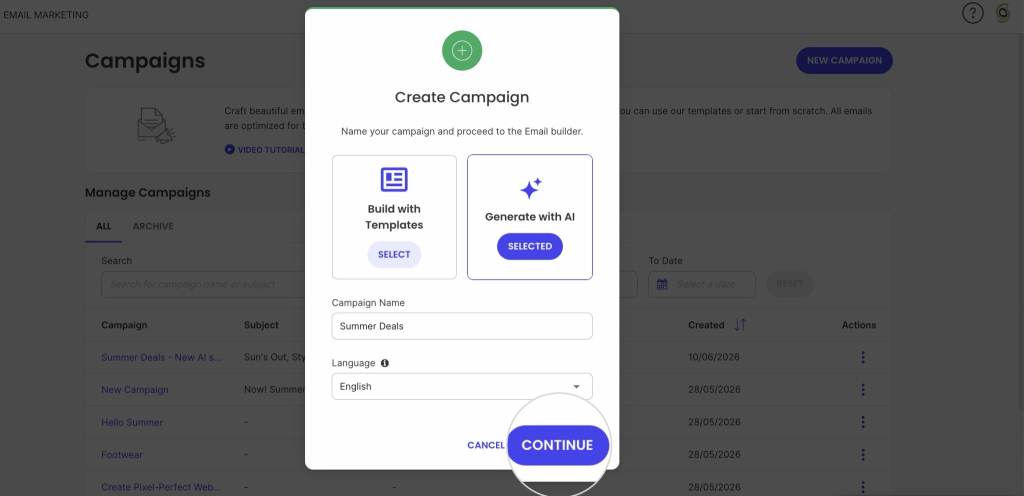
Create Campaign modal with 'Generate with AI' option selected, a campaign named Summer Deals, and a highlighted Continue button

What a generator actually gives you

  • You give it a prompt or brief: audience, goal, tone, sometimes a past campaign or product feed as context.
  • An LLM drafts the actual send-ready text: subject line, preview text, body copy, and CTA language, generated for that specific message, not pulled from a filler bank.
  • Some tools layer in personalization tokens or brand-voice tuning, trained on your past sends, at this stage.
  • Layout is often secondary or absent; many generator tools hand you the copy and expect you to drop it into whatever template you already have.

That’s also where SiteGround Email Marketing’s Generate with AI feature has a specific step worth knowing about: describe your business and the email you want, or start from a preset (Promotional, Newsletter, Announcement, Welcome, Event invitation). Then it plays your answers back in a short summary before writing anything, so you can catch a mismatch before you’re looking at a finished draft. Confirm it, and the draft opens straight into the builder you’re already using to edit.

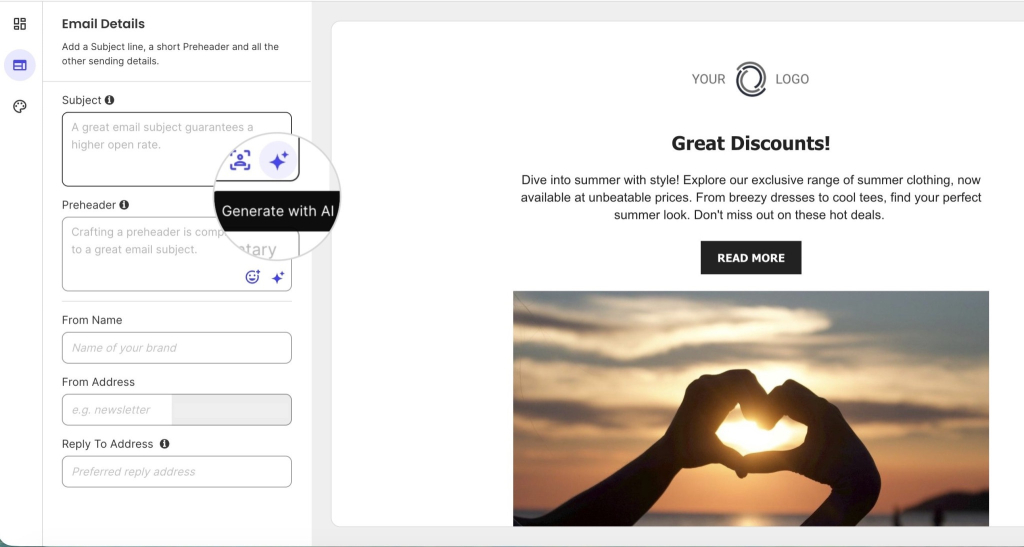
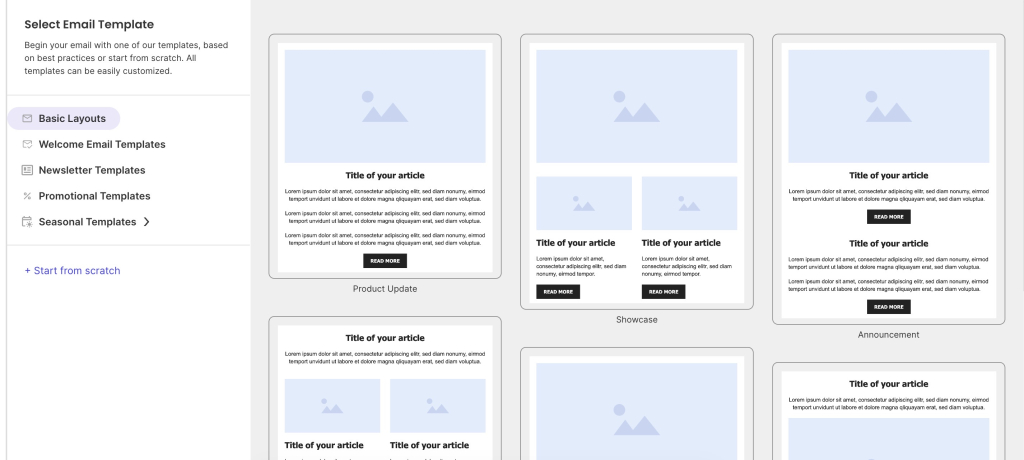
Generation doesn’t have to mean starting from a blank prompt either. Inside a SiteGround Email Marketing template, sparkle icons let you generate a subject line, preheader, image, or block of text on the spot, so a pre-made layout and AI-written copy aren’t mutually exclusive.

SiteGround Email Marketing editor showing the Generate with AI button next to the subject line and preheader fields

Where the human touch still comes in

A finished draft is rarely finished. Brand voice doesn’t come built in, you usually need to feed it sample copy first, and keeping that voice active long-term is often a paid feature.

Personalization works the same way: it needs a real data source behind it, a CRM or your past sends, or the “personalized” line is just a placeholder with a nicer name. That’s exactly why the last pass is yours: a generator hands you a draft, not a finished decision about tone or structure.

None of this replaces email copywriting instinct. A generator hands you a draft, not a finished decision about tone or structure.

How AI email template generators work

Where an AI email generator writes the message, an AI email template generator builds the shell it goes into. 

Give it a prompt, an industry, or a brand asset, and it assembles pre-built blocks, header, hero image, footer, into a structure, then fills the gaps with placeholder text you’re expected to replace yourself. The layout is done. The writing isn’t.

What a template generator actually gives you

  • You give it a starting point: a prompt, an industry or use-case selection, or an existing brand asset like a logo or color palette.
  • It matches that input against a library of pre-built block layouts (header, hero image, product grid, CTA button, footer) and assembles them into a structure.
  • It fills placeholder text and image slots with generic filler copy pulled from the matched category, not copy written for your specific message.
  • You then edit that filler manually in a drag-and-drop or block-based editor before sending.

While SiteGround Email Marketing’s templates aren’t AI-assembled, they solve the same starting problem: pick a pre-built layout and skip designing from scratch, then write directly into it with the manual builder.

Email template picker showing categories like Basic Layouts, Newsletter, and Promotional, with a grid of layout options including Product Update, Showcase, and Announcement formats

Where template generators fall short

The layout arrives finished, but the words don’t. If you need five different promotional emails this month, a template generator saves you from rebuilding the structure five times, but you’re still writing five sets of subject lines and body copy from scratch.

That’s the gap an email marketing design process alone doesn’t close. It’s also why “free ai email template generator” and “ai html email template generator” searches usually lead to the same disappointment: a nice-looking shell with nothing written inside it.

AI email template generators vs. AI email generators: which one fits your workflow

What it doesWhat it doesn’tBest forExample tools
Template generatorAssembles a pre-built layout from blocksWrite your actual messageRecurring formats with a fixed lookMailmodo, Venngage, Figma plugins
Email generatorDrafts subject line, preheader, and body from a promptGuarantee a finished layoutNew copy for a specific campaignSiteGround Email Marketing (Generate with AI)

Ask yourself:

  1. Do you need the same layout with new content each time, like a weekly newsletter? A template generator is enough.
  2. Does the copy need to change per recipient or campaign? You need an email generator.
  3. Does brand voice consistency matter more than speed? Lean template generator; email generator output needs heavier editing.
  4. Are you already on a platform with templates built in, like SiteGround Email Marketing? Check what it already covers first. Some platforms, SiteGround Email Marketing included, now generate the copy too, so a separate tool may not be necessary at all.

Worth noting how AI is changing marketing more broadly here: the line between these two categories keeps blurring as more platforms build generation directly into their editors, rather than treating it as a separate product.

When to use an AI email template generator

Reach for a template generator if the layout is what’s actually slowing you down: you’re comfortable writing your own copy, but rebuilding a header, hero image, and footer from scratch every send wastes time you don’t have. This is the more common starting point for anyone new to email marketing, since a working layout is the first thing you need before copy matters at all.

When to use an AI email generator

Reach for an email generator if writing is the bottleneck, not design: you know roughly what the email needs to say, but turning that into a finished subject line and body copy is what eats the afternoon. This is also where it’s worth checking your existing platform before adding another AI tool to your stack, since more email platforms now build generation in directly.

The right AI email generator for your next campaign

Whichever bottleneck you’re solving for, layout or copy, SiteGround Email Marketing covers both without asking you to bring in a separate tool.

Use Generate with AI to build a whole campaign from scratch: describe your business, your audience, and the tone you’re going for, or start from a preset and a complete draft, subject line, preheader, and body, opens straight into the builder. 

Or start from a template and use the sparkle icons within it to generate a subject line, preheader, image, or block of text as you go, without building the whole thing from a prompt.

[58]

Frequently asked questions about AI email template generators

What’s the difference between an email template and an AI email generator?

An email template is a pre-built layout you fill in yourself; an AI email generator writes the subject line, preheader, and body for you based on a prompt.

Can AI write the whole email, not just the template?

Yes. Different tools do different jobs: some, such as the template generators covered earlier, hand you a layout and expect you to write the copy yourself. Others are built as full email generators from the start. SiteGround Email Marketing’s Generate with AI feature works this way: it drafts the whole email, subject line, preheader, and body, from a prompt or preset, not just a layout with gaps to fill.

Do I need an AI generator if my email platform already has templates?

It depends on whether writing or layout is your bottleneck; some platforms, including SiteGround Email Marketing, now include both in one tool, so check before adding a separate one.

Are AI email generators free?

Some AI email generators are free: SiteGround Email Marketing’s free plan includes access to Generate with AI, while several standalone template tools also offer free tiers with limited features.

Email warmup: How to go from a cold domain to a trusted sender 

Woman working on a laptop with UI overlays showing domain reputation climbing, 99% deliverability, and a primary inbox with excellent sender reputation

A new domain gets treated as suspicious by mailbox providers before a single email goes out, regardless of how good your content is. Warming up fixes that by building a sending pattern mailbox providers learn to trust over time.

Key takeaways:

  • Email warmup works by gradually increasing send volume while building engagement signals, typically 4 to 8 weeks for a brand-new domain to reach full sending volume.
  • A domain with no sending history and a domain quiet for 60+ days follow the same ramp. A migrated domain with clean history is the one that can move faster, and only if its metrics hold up.
  • Opens are a weaker trust signal than they used to be, since Apple Mail Privacy Protection can register a false open regardless of real engagement.
  • Stopping warmup the moment you hit target volume is one of the most common ways senders undo weeks of progress.

What email warmup does to your sender reputation

A domain builds its reputation through behavior: how much it sends, how consistently, and how recipients respond. A domain with no history that suddenly sends hundreds of messages looks exactly like a spam operation to Gmail, Outlook, or any other provider, even if every word of the content is legitimate. Email warmup is the process of building that pattern deliberately: sending a small, steady volume, growing it over time, and letting real engagement (opens, replies, and clicks) tell providers this domain is worth trusting.

This is why warmup sits downstream of sender reputation rather than replacing it. Reputation is the thing providers are actually scoring. Warmup is how you earn a good one before you need it, instead of finding out you don’t have one the day your first real campaign lands in spam.

How the email warmup ramp works

Warmup works by ramping: gradually increasing how much email you send from a domain while building up engagement signals like opens and replies that mailbox providers read as trust markers. Opens are a weaker signal than they used to be. Apple Mail Privacy Protection can register a false open whether or not someone actually looked at the message, so replies and clicks carry more weight than open rate alone.

Which of the three cases below applies to you comes down to one thing: whether the domain has sent email before, and if it has, whether that sending stopped recently or a long time ago.

If your domain has never sent email before

This is the slowest ramp, and it needs one thing in place before it starts: SPF, DKIM, and DMARC (the records that prove your domain isn’t being spoofed) all confirmed working. Warmup builds trust on top of authentication, not instead of it. Take a domain registered this month for a new product launch, with zero sending history. There’s nothing to lean on here, so the ramp starts at the lowest volume and climbs the most gradually of the three cases.

If you’re warming up a domain you’re migrating

Ramp speed here depends entirely on whether the sending history you’re bringing over was clean. Say a domain is moving from another host, and it was sending consistently with a low bounce rate. That domain can move through warmup faster than the brand-new case, since some trust carries over from the previous sending pattern. It’s not automatic, though. You need to verify that history is clean rather than assume it is.

If you’re reactivating a domain that’s gone quiet

Mailbox providers treat a long gap in sending as a reset, not a pause. A domain that sent regularly two years ago, then went quiet for eight months, doesn’t get to pick up where it left off. 

The ramp for this case follows the same schedule as a brand-new domain, not a lighter version of it, since a gap that long is enough for providers to have stopped trusting the old pattern entirely.

How fast can you actually ramp up?

The schedule below isn’t one formula, and it isn’t always a fixed week count either. New and dormant domains follow the same calendar-based schedule. A migrated domain works differently: how fast it moves depends on its metrics, not the week number.

New domain: 4 to 8 weeks

This is the full week-by-week ramp for a new domain: one that’s never sent email before. Follow it in order, only moving to the next week once the current week’s metrics are healthy.

WeekEmails/dayFocus
15-10Known contacts only, real two-way replies
215-25Keep bounce rate (emails that couldn’t be delivered) at zero
330-50Monitor inbox placement (whether you’re landing in the inbox or spam) closely
475-100Check domain reputation health (your overall trust score with mailbox providers)
5++20% per weekContinue only as long as metrics stay healthy

Migrated domain: faster, but only as long as your metrics hold

A migrated domain is one that’s moving its sending to a new host or platform while keeping its existing sending history. This starts one tier higher than the new-domain schedule, since some trust can carry over from that history. It only works as long as your metrics stay within the thresholds below.

WeekEmails/dayFocus
120-30Skip the lowest tier, since some trust carries over. Keep bounce under 2%
240-70Continue only if bounce stays under 2% and complaints (recipients marking you as spam) under 0.1%
375-100+Approaching full volume, same metric gates apply
If either threshold is crossed at any point—Drop back to the new-domain schedule instead

If the bounce rate or complaint history on the old domain wasn’t clean, follow the new-domain schedule instead. A migration doesn’t guarantee a faster ramp. It just makes one possible. As a working line: a bounce rate that’s stayed under 2% counts as clean; anything higher and the domain should be treated as if it’s starting from zero.

Dormant domain: same schedule as a new domain

A dormant domain is one that sent email regularly at some point, then stopped for an extended stretch (weeks or months) before picking sending back up. This is the identical schedule as the new-domain table above, not a separate one. A gap in sending is enough to erase the trust a domain had built before, so it starts from the same place.

WeekEmails/dayFocus
15-10Known contacts only, real two-way replies
215-25Keep bounce rate at zero
330-50Monitor inbox placement 
475-100Check domain reputation health 
5++20% per weekContinue only as long as metrics stay healthy

Mailbox providers treat inactivity as a reset. A domain quiet for less than 30 days can often resume closer to its old pace; past 30 days, treat it cautiously; past 60 days, run it as close to the new-domain schedule as this one, since providers no longer have recent data to trust.

Whichever table applies to you, one thing holds across all three: a clean early stretch isn’t permission to skip ahead. Mailbox providers watch the pattern over time, not a single good week, so jumping two tiers because the first few days looked fine tends to undo the progress those days bought you.

Do you need a tool for email warmup?

If you’re warming up one domain, you don’t need to pay for a warmup tool. Free email warmup just means sending to real contacts yourself and tracking replies by hand, and that’s enough for most senders. 

Paid email warmup tools and software exist mainly for agencies or teams juggling several domains at once, where tracking each one manually gets tedious. Those email warmup services automate the tracking, but the underlying schedule doesn’t change. For one domain, doing it yourself is the easier starting point.

Warmup is done. Don’t flip the switch and walk away.

Reputation built during warmup doesn’t hold on its own once the ramp ends. If sending suddenly goes quiet, or jumps straight to full campaign volume the day warmup finishes, the trust you spent weeks building starts eroding immediately. The safer move is to taper into your regular sending pattern, not switch into it.

That’s exactly the kind of ongoing sending SiteGround Email Marketing is built to support once your domain has earned its reputation. Instead of managing the transition manually, you can move straight from a warmed-up domain into scheduled campaigns and automations without a hard cutover moment where your sending pattern changes overnight.

[58]

Frequently asked questions about email warmup

How long does email warmup take?

A brand-new domain typically needs 4 to 8 weeks to reach full sending volume. A migrated domain with a clean history can move faster, but the pace depends on keeping bounce and complaint rates low, not a fixed timeline. A dormant domain coming back into use follows the same schedule as a brand-new one.

What happens if you skip warmup and send at full volume anyway?

Mailbox providers see a sudden spike from a domain with no track record and treat it the same way they’d treat a spam operation. Expect a sharp jump in bounce rate, emails routing straight to spam instead of the inbox, and in worse cases, the domain landing on a blocklist. Recovering from that takes longer than warming up would have in the first place.

Can you warm up more than one domain at once?

Yes, but each domain needs its own separate ramp. Warmup builds reputation per domain, so running two schedules in parallel doesn’t speed either one up, it just means tracking two sets of numbers instead of one. This is the exact situation where manually tracking everything gets tedious, and where the paid tools mentioned earlier tend to earn their cost.

How do you know if warmup is failing?

Watch the same metrics the schedule already tracks: bounce rate climbing past 2%, complaints climbing past 0.1%, or inbox placement dropping instead of holding steady. Any one of those showing up mid-ramp means the volume increased faster than the domain’s reputation could support, and the fix is to hold at the current volume, or drop back a tier, rather than pushing forward.

Can you warm up an email address for free?

Yes. Manual warmup, sending to real contacts who open and reply, costs nothing but the time it takes. Paid tools exist to automate that tracking, but they’re not required to warm up an address.

Does email warmup work the same way with Outlook and Microsoft accounts?

The core mechanism (gradual volume, real engagement) applies across providers, but the specific signals each one weighs, and how quickly each resets trust after inactivity, aren’t identical between Gmail, Outlook, and other providers.

Email reputation: What builds it, what kills it, and where to check yours

Woman reviewing declining email performance charts and inbox warning signs on a laptop

Email reputation decides whether your campaigns land in the inbox or the spam folder, before a recipient ever reads the subject line. It’s not a one-time setting. It’s a rolling score mailbox providers keep on your domain and IP based on how you’ve sent before. Here’s what raises it, what tanks it, and exactly where to check it.

Key takeaways:

  • Email reputation is the trust score mailbox providers assign to your sending domain and IP; a poor one sends emails to spam before content is ever scanned.
  • Authentication, the technical records (SPF, DKIM, DMARC) that prove an email really came from you, is the single fastest lever, since providers weigh it before engagement.
  • A Sender Score above 80 generally signals healthy standing; anything under 70 usually needs immediate attention.
  • Complaint rate above roughly 0.1% is enough to trigger throttling at major mailbox providers, a threshold most senders discover only after hitting it.
  • A sudden sending spike, not high volume on its own, is what reads as risk to mailbox providers.
  • Domain reputation carries over when you switch providers; IP reputation resets and has to rebuild from zero.

How email reputation is measured

Email reputation is the trust score mailbox providers assign to a sending domain and IP, built from sending history rather than any single email’s content. It decides whether a campaign reaches the inbox before a recipient ever opens it, which is why a well-written email can still underperform if the domain sending it carries a weak score.

This score has two separate components. 

  • Domain reputation tracks trust tied to your sending domain, and it carries over if you switch providers. 
  • Sender reputation, sometimes just called IP reputation, tracks trust tied to the specific IP address doing the sending, and it resets when that IP changes even if the domain stays the same. 

Postmaster Tools reports both side by side; Sender Score measures the IP side specifically.

Three signals feed it most directly:

  1. Authentication pass rate: whether SPF, DKIM, and DMARC checks succeed on your outgoing mail.
  2. Engagement: opens, clicks, and how often recipients mark a message as spam.
  3. Complaint rate: the share of recipients who report a message instead of unsubscribing.

None of these work in isolation. A domain with clean authentication but a high complaint rate still gets throttled.

Reputation is one input into email deliverability overall, alongside content and list health, but it’s the input that gets checked first. Reputation isn’t static, either. Every campaign updates the score somewhat, which is why a domain that’s behaved well for months can slip fast after one poorly targeted send.

Running an email reputation check: where to look and what it means

An email reputation check takes under a minute once you know where to look. Finding your score is the easy part. Knowing what it calls for next doesn’t come with either tool automatically, which is what the rest of this section covers.

Postmaster Tools (for Gmail specifically)

Google Postmaster Tools shows four separate graphs instead of one blended number:

  • Domain reputation
  • IP reputation
  • Spam rate
  • Authentication status

It reflects only how you look at Gmail, which sends the largest share of most small business lists. Set it up once by adding a short verification code (a TXT record) to your domain’s DNS zone (where your domain’s technical settings live), and the dashboard fills in within a few days of consistent sending.

If your domain shares sending infrastructure with other senders through an ESP, IP reputation partly reflects them too.

Sender Score (for broader inbox providers)

Sender Score from Validity rates your sending IP from 0 to 100, calculated from spam trap hits (see below), blocklist status (whether your domain or IP has been flagged and blocked by major mailbox providers), and complaint data gathered across mailbox providers, not just Gmail. It leans more toward IP reputation than domain reputation, but it’s the closest thing to a universal number.

  • 80 and above: generally signals healthy standing, most senders in this range see normal inbox placement.
  • 90 and above: the top tier specifically, and the gap is real: senders here tend to run complaint rates roughly a fifth of what 80-90 senders see. This band exists because complaint rate carries heavy weight in the score, and it’s the one signal that keeps climbing scores from plateauing.
  • Under 70: usually means one input, most often complaint rate or a blocklist listing, needs attention now.

What the numbers actually mean

ReadingWhat it meansWhat to do
“High” domain reputation, or Sender Score above 80HealthyKeep sending as normal
“Medium,” or score 70–80Early warningTighten list hygiene before the next send
“Low” or “bad,” or score under 70Active problemPause high-volume sending until the cause is fixed

Free vs. paid email reputation checkers, and when you need which

  • Free (Google Postmaster Tools, Sender Score, MXToolbox): covers what most small businesses need: domain status, blocklist checks, a directional score.
  • Paid (Validity Everest): adds continuous testing of whether your emails actually land in the inbox across dozens of providers, plus blocklist alerting. It’s priced and built for high-volume senders, generally above 500,000 emails a month, well past where most small business lists sit.

At the sending volumes most small businesses operate at, free tools cover the full picture. Paid monitoring becomes worth adding only once list size or send frequency crosses into territory where a missed problem would actually cost revenue.

What builds a strong email reputation

Three levers move this score the most, and they compound: authentication clears the baseline, engagement keeps the score climbing, and clean lists keep the other two from being undone. Each one gets its own section below, in the order that matters most first.

Authentication (SPF, DKIM, DMARC)

SPF confirms which servers may send on your domain’s behalf. DKIM signs the message so it can’t be altered in transit. DMARC tells the receiving server what to do if either check fails. Pass all three and you’ve handled the single biggest lever in the score. Authentication doesn’t just stop spoofing. It’s the fastest lever for improving email sender reputation, since mailbox providers weigh it before they even look at engagement.

Engagement signals

Opens and clicks tell mailbox providers people want your mail. For a small business list, an open rate in the 20 to 25% range signals healthy engagement, while consistently landing under 15% usually points to a list quality problem rather than a deliverability one. Tracking these alongside your other email marketing metrics keeps engagement problems visible before they turn into reputation problems.

List quality and complaint rate

Complaint rate, the share of recipients who click “report spam” instead of unsubscribing, carries more weight than almost any other single signal. Gmail and other major providers start throttling delivery once the complaint rate crosses roughly 0.1%, a threshold most senders don’t know exists until they’ve already hit it. Regular list cleaning keeps this number low by removing recipients who’ve gone inactive before their frustration turns into a spam complaint instead of a quiet unsubscribe.

What damages your email reputation

The damage side works differently from the build side. These aren’t slow erosions, they’re specific triggers, and one bad hit can undo months of clean sending. The three below cover what actually causes the drop, not just the symptoms.

Spam trap hits

Spam traps are addresses mailbox providers seed specifically to catch senders with poor list hygiene, and hitting even one counts as a strong negative signal since a real recipient would never appear on a properly maintained list. They show up two ways: pristine traps seeded onto lists that scrape or buy addresses, and recycled traps, old addresses a provider reactivates after a year or more of inactivity. Regular list cleaning is the main defense against both.

Sudden volume spikes

A sudden jump in send volume, not a large list on its own, is what reads as risk, since spikes are the pattern spam operations actually show. Doubling a list size or send frequency overnight, even with fully opted-in recipients, can trigger the same scrutiny as a genuine abuse case. Ramping volume gradually over one to two weeks after a large list import gives providers time to trust the new pattern instead of flagging it.

High bounce or complaint rates

Hard bounces above roughly 2%, and complaint rates above 0.1%, both signal a list problem to mailbox providers, and both compound: a domain already flagged for one issue gets less benefit of the doubt on the next. The fix is the same for both: clean the list before the next send, not after the numbers already show the damage.

Common misconceptions about email reputation

Each of these sends people toward the wrong fix, usually the one that feels most within their control rather than the one that’s actually broken. Recognizing which applies saves a lot of wasted effort chasing the wrong lever.

Flagged emails mean the content is the problem

Content matters for spam filters, but reputation is a separate, sender-level signal that gets checked first. Rewriting a subject line won’t fix a domain that’s already flagged. Fixing the underlying sending pattern will.

Authentication is a one-time setup

SPF, DKIM, and DMARC are prerequisites, not insurance. Reputation is a rolling signal built from ongoing sending behavior, not a box to check once and forget.

A bigger list means a stronger reputation

Mailbox providers read list growth against a sender’s normal pattern, not against list size on its own. A sudden jump reads as risk, not authority, no matter how many people actually opted in.

Reputation isn’t a score you fix once

Reputation moves with every campaign sent, not just the ones that go wrong. Watching it regularly, instead of fixing it once and moving on, is what keeps a small dip from turning into a blocklist entry.

Some of this takes no action at all. Domains whose DNS (a domain’s technical settings) is managed by SiteGround Email Marketing get SPF, DKIM, and DMARC set automatically, and the platform blocks sends from domains missing those records before a bad configuration can damage your sender reputation.

The senders who never think about their reputation again are usually the ones who automated the boring part first.

[58]

Frequently asked questions about email reputation

How do I fix my sender reputation?

Fix a damaged sender reputation by pausing high-volume sending, cleaning the list of inactive or invalid addresses, and confirming SPF, DKIM, and DMARC all pass. Then rebuild volume gradually instead of resuming at full send rate right away. If authentication turns out to be the gap, SiteGround Email Marketing sets SPF, DKIM, and DMARC automatically for managed-DNS domains, so that piece won’t need separate troubleshooting.

Is IP reputation different from domain reputation?

Yes, and mixing them up is common. Domain reputation follows your sending domain; IP reputation follows the specific server sending the mail. Shared hosting and third-party ESPs mean your IP reputation is shared with other senders, while domain reputation is yours alone. 

Does switching email service providers reset your reputation?

Domain reputation carries over since it’s tied to your domain, not your provider. IP reputation resets, since you’re now sending from a new IP with no history. This is the exact confusion that causes people to blame a new tool for a problem that’s actually a fresh IP warming up.

How long does it take to rebuild a damaged email reputation?

No fixed number, but mailbox providers reward consistency over speed. A gradual return to normal sending patterns rebuilds trust faster than trying to prove yourself with a big clean campaign.

Does sending volume affect your reputation on its own?

Volume alone isn’t the trigger. A sudden spike relative to your normal pattern is. Doubling your list size overnight reads as suspicious even if every recipient opted in.

How does email reputation relate to deliverability overall?

Reputation is one input into deliverability, not the whole picture. Content, list quality, and authentication all feed into whether an email lands in the inbox; reputation is the mailbox provider’s running trust score based on your sending history specifically. 

Email blacklists: Why you’re on one and how to fix it

Woman reacts to a 5% open rate after her email newsletter gets moved to spam

An email blacklist is a shared list of IP addresses or domains that mailbox providers flag as spam sources. If you’re on one, your campaigns are landing in spam, or not landing at all. The good news is, it’s rarely mysterious. Check your IP and domain separately, work through each list’s own removal process, and fix whatever got you flagged in the first place. Most first offenses clear in a day or two. Here’s the actual checklist, not the panic.

Key takeaways:

  • Blacklists (also called blocklists or denylists) target your sending IP or domain, not individual email addresses.
  • Your IP and domain are checked and listed independently. A clean domain doesn’t mean a clean IP, and vice versa.
  • Removal has to happen list by list. There’s no single form that clears every blacklist at once.
  • Fixing the root cause before you request delisting matters more than how fast you submit the request.
  • Staying off the list long-term comes down to authentication and list hygiene, not luck.

What is an email blacklist?

An email blacklist is a database that flags IP addresses or domains associated with spam, so mailbox providers can reject or filter mail from them before it reaches an inbox. 

In plain terms: you did something Gmail or Outlook didn’t like, and now they don’t trust mail from your domain or your server. 

Some of these lists are public and free to check, like Spamhaus. Others live inside a specific provider’s own filtering system, like Gmail’s Postmaster Tools reputation scoring, and you won’t find those on a public checker at all.

You’ll also see “blocklist” and “denylist” for the exact same thing. The industry’s been moving away from “blacklist” for a few years, but all three mean the same mechanism: a list telling a receiving server not to trust your source. Different word, same problem, so don’t treat a mismatched term in an article as a sign you’re reading about something else.

One quick distinction: blocking unwanted senders in your own inbox is a personal setting in your email client, not this. This article covers your domain or IP getting listed by someone else. Solid email deliverability means staying off these third-party lists, not managing your own inbox filters.

How email blacklisting actually works

A blacklist tracks sending identity. This is usually the IP address the email was sent from, the domain used to authenticate it, or a domain that appears in the message body.

Getting flagged is not always about your own behavior. Spam complaints, high bounce rates, and sending from a compromised server are the usual causes, but some blacklists target specific IP ranges outright, and if you’re on shared sending infrastructure, another sender’s bad behavior on that same IP can get you listed too.

So when you get listed, check where you’re sending from before you start changing your campaigns. If it’s a policy listing on the IP range, no amount of cleaning your list or fixing your copy will lift it. That one gets resolved by your host or ESP and the first thing you need to do is contact them. —Katerina Nikolova, CRM Manager at SiteGround

IP-based blacklisting

The older, more common type. Send enough spam from one IP, or send from a compromised server, and that IP lands on a list like Spamhaus’s SBL. From there, every mail server that checks that list rejects or flags mail from it, no matter which domain the mail claims to be from.

Domain-based blacklisting

Same mechanism, different target: your sending domain instead of your IP. This matters more now than it used to. In 2024, Gmail and Yahoo introduced bulk sender requirements that put domain authentication and reputation front and center in how they filter mail. The upshot: a shared IP with a great reputation can’t save you if your domain’s reputation is bad.

Spam traps

Spam traps are email addresses that don’t belong to real people, planted specifically to catch senders with bad list hygiene. Any mail sent to one is treated as strong evidence you’re sending to addresses you shouldn’t have, usually a sign of a purchased or scraped list.

Sudden list growth

A steep, sudden jump in your email list size looks the same to a mail server as a spammer buying a list, even when the growth is completely legitimate. If you’re about to bring in a big batch of new subscribers, space it out or explain the growth through your sending platform rather than blasting it all at once.

How a DNSBL lookup decides you’re listed

Most public blacklists work as DNSBLs (DNS-based blackhole lists). Think of DNS as the internet’s phone book, the system that looks up an address and returns an answer. A DNSBL uses that same lookup system, but instead of finding a website, it checks whether the sender’s IP is on the list. 

When a mail server gets your message, it runs one of these quick lookups. The answer comes back yes or no on your IP, and the receiving server decides what happens next: reject outright, or route to spam. All of this happens in milliseconds, before your email marketing campaign ever reaches an inbox.

The blacklists that actually matter

Not every list on a checker report deserves the same reaction. Some carry real weight with major mailbox providers. Others barely register.

BlacklistPriorityWho checks itWhat to do
Spamhaus (SBL)HighApple iCloud, Microsoft, Yahoo, thousands of ISPs (internet service providers)Fix immediately
Barracuda Reputation Block ListHighCorporate mail filtersFix immediately
UCEPROTECTLowFewer providers, often used as a secondary signalMonitor, usually auto-expires
CBLLowFeeds into other lists rather than being checked directlyMonitor
Gmail Postmaster Tools / Outlook SNDS ((Smart Network Data Services)Not a public listGmail and Microsoft only, internal reputation scoringCheck the dashboard directly, won’t show on a public checker

If Spamhaus or Barracuda flags you, treat it as urgent. The rest are worth knowing, not worth losing sleep over on their own.

ISP-specific blocks (Gmail, Outlook Postmaster Tools)

Gmail and Microsoft run their own internal reputation systems, separate from public blacklists entirely. Your domain can have a perfectly clean record on every public checker and still get filtered into spam by Gmail or Outlook specifically, because these providers score your sending reputation privately and never publish the result anywhere you can check. 

The first sign is usually an unexplained drop in your overall open rate and click rate, not a blacklist entry showing up anywhere. If your numbers dip and nothing else changed (no new list, no different subject lines, no send-time shift), this kind of internal filtering is worth ruling out, even though no checker tool will confirm it directly.

How to check if you’re blacklisted

You’ll know from one of two places: a bounce message that names the blocklist directly, or a checker tool that confirms it. Here’s the order that gets you an answer fastest, and why each step comes before the next.

Scan your recent bounce messages first

This costs nothing and takes no tool. A rejection message often names the exact blocklist, which skips straight past the guesswork of checking every list one by one.

Run your sending IP through a checker

MXToolbox covers the major lists in one pass. Bounce messages won’t always name a list, so this step catches what step one missed.

Check your domain separately

IP and domain blacklisting are independent, so a clean IP check doesn’t rule out a domain-level listing, and vice versa. Skipping this step is the most common reason someone thinks they’re clear when they’re not.

Check your sender reputation in Google Postmaster Tools

Save this for last since it’s the narrowest check: Gmail-specific reputation issues that never show up on any public checker.

Not every deliverability dip means you’re blacklisted. Sometimes it’s a temporary throttle from a mailbox provider, a DNS misconfiguration, or an issue on your platform’s side. Confirm the actual listing before you start the removal process below

How to get removed from a blacklist

Once you’ve confirmed a listing, the process is more methodical than it feels in the moment.

Fix the root cause before you request removal

Spamhaus and Barracuda will both deny a delisting request if the underlying problem hasn’t actually been resolved, whether that’s an open relay (a misconfigured mail server that lets anyone, including spammers, send mail through it), a compromised account, or a spike in spam complaints. Submitting a removal request before you’ve fixed the cause just gets you relisted, often within days.

Submit a removal request through the blocklist’s own site

Each list runs its own delisting process. There’s no single form that clears you everywhere at once, so work through each one your check turned up.

  • PBL (covers dynamic or residential IPs) and DBL (covers domains): self-removable through Spamhaus’s Checker tool.
  • SBL: requires your ISP or network owner to contact Spamhaus directly with evidence of remediation. Not self-service.
  • Barracuda: its own web-based removal form.

Moved the framing sentences to the top and bottom so the bullets stay scannable, and bolded the list names since those are the actual thing a reader is scanning for once they know which one applies to them.

Don’t resubmit repeatedly if it doesn’t clear right away

Filing the same request multiple times in a short window doesn’t speed anything up, and on some lists it flags the request for additional review instead. One thorough submission, filed after the cause is genuinely fixed, works better than five impatient ones.

Expect different timelines for different lists

Automated lists like SpamCop typically clear in 24 to 48 hours once complaints stop. Spamhaus’s manually reviewed listings, like SBL, generally process in 24 to 72 hours for a first offense, longer for repeat listings. Barracuda often responds within 12 to 24 hours for straightforward cases. UCEPROTECT runs on a standard 7-day period. None of this is guaranteed. Complex or repeat cases can stretch to weeks.

Monitor for a few days after removal, not just at the moment of delisting

Clearing a public blacklist doesn’t mean your deliverability recovers instantly. Mailbox provider reputation, especially at Gmail and Microsoft, tends to lag behind the public listing status by a few days, so don’t expect open rates to snap back the moment a checker tool shows you clear.

How to stay off the list for good

Most listings trace back to two things: authentication gaps and a messy list. Both are fixable before they become a problem.

Use double opt-in on your sign-up forms

Clean sign-up practices do more here than people expect. Using double opt-in for your forms keeps out the fake and mistyped addresses that generate spam complaints and hard bounces (permanent failures, like sending to an address that doesn’t exist), which are exactly the signals that get a domain flagged in the first place.

Get your authentication records set up correctly

On the infrastructure side, SiteGround creates SPF and DKIM records automatically for every domain. SPF (Sender Policy Framework) and DKIM (DomainKeys Identified Mail) are the two records that prove an email actually came from your domain and wasn’t tampered with along the way, and that authentication piece is already in place before you send your first campaign.

Keep your unsubscribe process compliant

SiteGround Email Marketing also handles the compliance side automatically: every email goes out with an unsubscribe link built in, and opt-outs get processed immediately rather than sitting in a queue. You’ll still need to add your business address to the template yourself.

Removal is easy. Staying off is where you win.

A blacklist entry feels like an emergency the first time it happens, but it’s rarely permanent and almost never mysterious once you know what to check. Confirm the listing, fix what caused it, work through each list’s own removal process, and put authentication and list hygiene in place so you’re not back here in a month.

Ready to send campaigns with authentication handled and unsubscribes processed automatically? SiteGround Email Marketing takes care of the setup that keeps most senders off blacklists in the first place.

[58]