
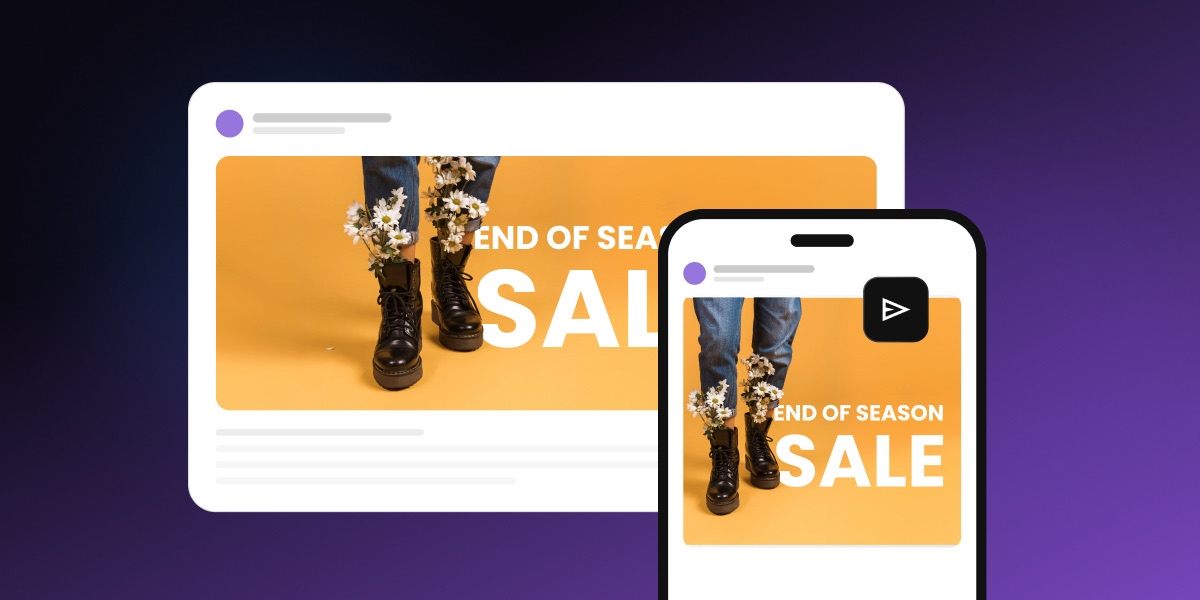
The right email banner size is 600px wide, the same width as your email template. That one number covers both your header and your hero banner, and only the height changes between them. It sounds like a minor detail until you get it wrong. Go any wider and Outlook chops off the edge, while phones shrink the text in your banner down to fine print. SiteGround Email Marketing layouts already set the width and handle mobile scaling, so all you need to bring is an image that fits.
Key takeaways:
- The standard email banner size is 600px wide. Header banners run 150–200px tall, and hero banners run 300–400px tall.
- On a 360px-wide phone, a 600px banner displays at about 60%, so 16px text inside the image drops to roughly 10px.
- Setting width=”600″ in the image’s HTML stops classic Outlook from showing a 1,200px file at full size.
- Keeping hero banners at 400px tall or less leaves room for your headline and call to action on the first screen.
- A test email to Gmail, classic Outlook for Windows, and a phone catches these problems before your list sees them.
Email banner size at a glance
An email banner is a wide image that runs the full width of an email. The two you’ll use most sit at the top: a header banner with your logo and navigation, and a hero banner right below it that carries the campaign’s main message, often with a headline and a button. Some emails also use smaller banner strips further down, such as a promo bar above the footer.
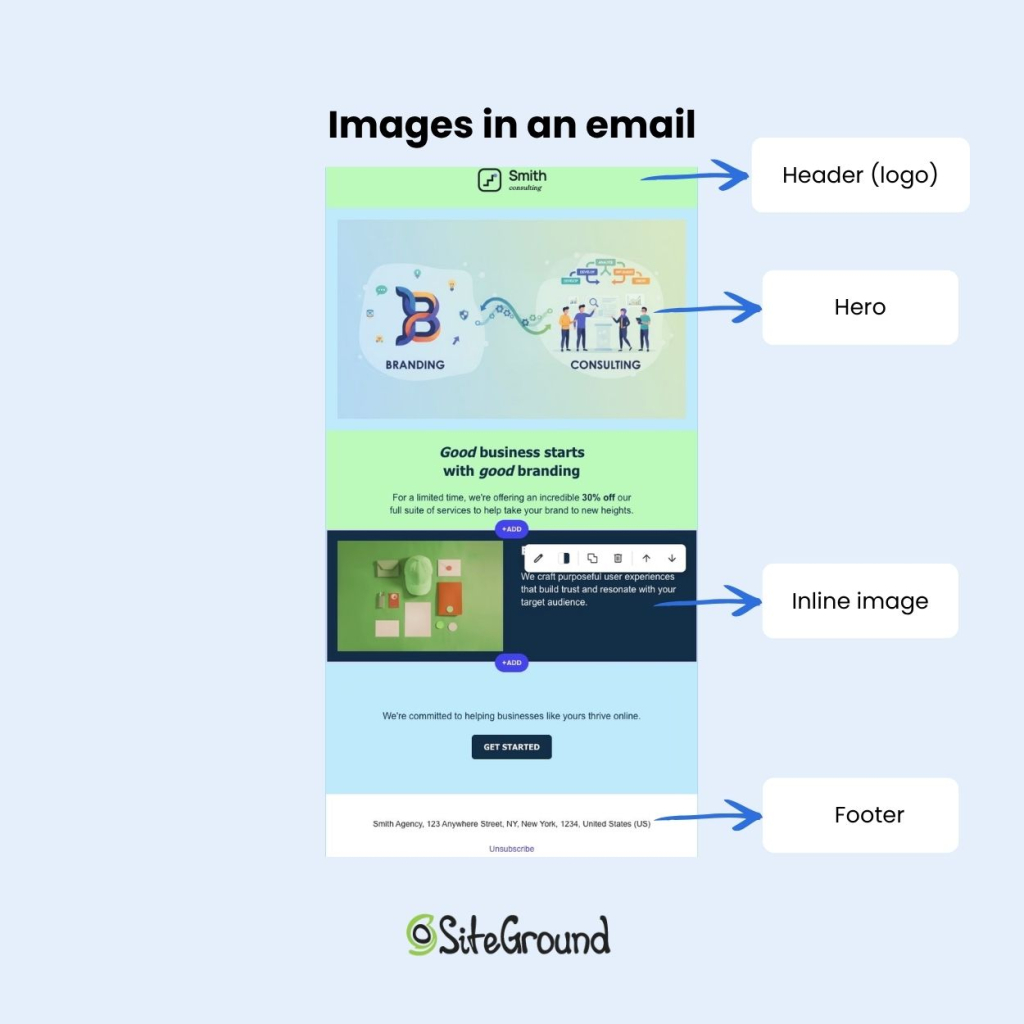
An email banner displays at 600px wide, with a header banner at 150–200px tall and a hero banner at 300–400px tall. What changes from screen to screen is how big that banner, and the text inside it, looks once a phone shrinks it to fit.
| Banner | Design size | 2x export | Displays as on a 360px phone | 16px text becomes |
| Header banner | 600 × 150–200px | 1,200 × 300–400px | ~360 × 90–120px | ~10px |
| Hero banner | 600 × 300–400px | 1,200 × 600–800px | ~360 × 180–240px | ~10px |
On phones, the banner displays at the screen width, roughly 320–480px, so one 600px file covers desktop and mobile. You don’t need to design a separate mobile version. The 2x export is the optional sharpness step from our email image size guide, and for a banner with text on it, it’s the step to keep, because text is the first thing to blur.
What happens if your email banner is too big or too small
A banner that’s too big gets cropped, pushes your message down, or leaves an empty box at the top of the email. A banner that’s too small turns blurry or leaves its text unreadable. Here’s how to spot each problem and fix it.
Too wide: cropped in Outlook, sideways scrolling elsewhere
- What you see: The banner is cut off on the right in classic Outlook for Windows. If the width isn’t set anywhere, other clients show a sideways scroll bar too.
- Why it happens: Classic Outlook renders email with Microsoft Word’s engine, which ignores CSS widths on images. Without a width attribute in the HTML, it displays the image at its actual pixel size, so a 1,200px export shows up at 1,200px
- Fix: Set width=”600″ on the image tag itself. Keep the CSS width too, for every other client.
In SiteGround Email Marketing, the layout’s image block sets the width for you, so there’s no code to edit.
Too tall: your message and CTA drop below the fold
- What you see: A 600 × 800px banner fills a laptop screen before any copy appears. On a phone, it scales to about 360 × 480px, so readers scroll before they know what the email is about.
- Why it happens: The banner takes up the whole first screen, so your headline and CTA start below it.
- Fix: Keep hero banners at 400px tall or less.
Too heavy: slow loading, and a blank space where images are blocked
- What you see: An empty box at the very top of the email, where readers look first.
- Why it happens: A heavy banner takes longer to load, especially on mobile data. The same empty box appears when images are blocked.
- Fix: Give the banner’s cell a background color in your brand palette, add alt text that repeats the headline, and keep the headline in live text below the image.
Text too small once scaled on mobile
- What you see: Banner text that’s hard to read on a phone.
- Why it happens: Text baked into the image shrinks with it. A 600px banner on a 360px phone displays at about 60%, so 16px text drops to around 10px.
- Fix: Set banner headlines at 28px or more at design size (56px in the 1,200px file). On a 360px phone, that lands around 17px, just above the 16px recommended for mobile body text. Better still, move headlines and CTAs into live HTML text, which stays sharp and still shows when images are blocked.
- In SiteGround Email Marketing: Headlines and buttons live in the layout’s sections as HTML text, so they stay readable on phones. You’ll only hit this if you design text into the banner file before you upload it.
Too low-resolution: blurry or pixelated on phone screens
- What you see: A soft banner on high-density phone screens, with the text blurring first.
- Why it happens: The file was exported at exactly 600px, so the phone stretches it to fill extra screen pixels.
- Fix: Export at 1,200px wide and display it at 600px.
How to size your email banner in 4 steps
Sizing an email banner takes four steps: match the template width, export at 2x, keep text in the safe zone, and test.
- Match the banner to your template width.
Check your template’s content width before you open a design tool. It’s the one number the rest of your email design builds on.
- Export at 2x for sharp phone screens.
Set your canvas to 1,200px wide, double the heights from the table, then set width=”600″ on the image. Pick JPG or PNG using the format rules in the image size guide.
- Keep text and CTAs inside the center safe zone, at a size that survives mobile scaling.
Leave at least 20px of empty space on each side at design size (40px in the 1,200px file), and keep headlines at 28px or more.
- Compress the file and test it in real inboxes.
Get the file under the weight cap from the image size guide, then send a test.
In SiteGround Email Marketing, go to Client Area > Services > Email Marketing > Campaigns and click New Campaign.
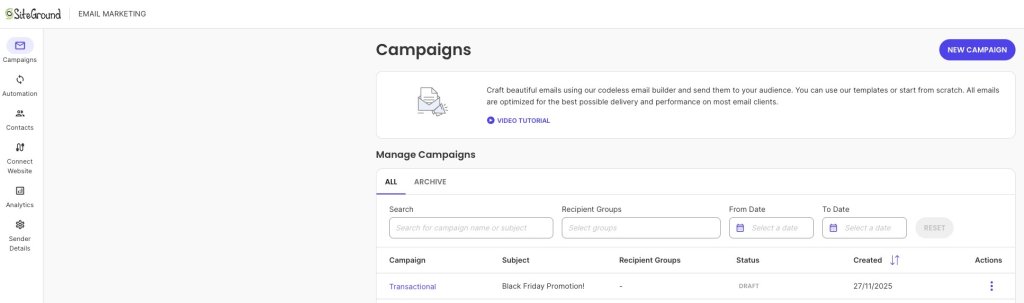
- Pick a Basic Layout and click Select. The layout’s image block already holds the right width, so you only need a file that matches it.
- Click the image placeholder and open the Image Gallery. Upload your banner from your computer, or pick one you’ve uploaded before.
- Click Test Email in the top-right corner, enter an address, and click Send. Send one test to each inbox you want to check: Gmail, classic Outlook for Windows, and your phone.
- Open each test and check the banner. First and last name variables show as “Test Name,” so a generic greeting isn’t a bug.
Test your email banner size before every new design
An email banner size that works in one inbox can still break in another, so every new banner gets one test send before it goes to your list. Open it in classic Outlook for the crop, on a phone for the text, and with images turned off for the empty box.
You don’t have to work out most of this by hand. SiteGround Email Marketing comes with ready-made layouts that have banner placeholders already set to the email’s width and built to scale down on phones.
Pick a layout, click a placeholder to swap in your own banner, and send yourself a test. The width, the structure, and the mobile scaling are already in place, so the only thing left to check is your image.
[58]
Frequently asked questions about email banner size
The ideal size for an email banner is 600px wide and 300–400px tall for a hero banner, exported at 1,200px wide so the text stays sharp on phones.
An email header is 600px wide and 150–200px tall, which is enough for a logo and a short menu bar. In SiteGround Email Marketing, your logo appears in the header on its own once you add it under Sender Details > Brand Identity.
An email banner for Outlook should be 600px wide, with width=”600″ set in the image’s HTML. The attribute stops classic Outlook from showing a 2x file at full size.
An email template is typically 600px wide, which fits Outlook’s reading pane without a horizontal scroll bar and scales down to phones. Your banner should match it.
An email banner that’s too big gets cropped in Outlook, forces sideways scrolling, or pushes your message below the fold.
No, the 600px email width rule isn’t outdated. Desktop monitors got wider, but reading panes stayed about the same, and phone screens are still narrower than 600px, so a 600px email fits both. What changed is screen density, which is why you export at 2x.