Thinking about affiliate marketing but worried you’ve missed your chance? 

A person working on a laptop with an affiliate marketing dashboard in the background showing reporting data, a social media notification of 20K+ new likes, and a monthly commission widget displaying $14,800

Getting started in affiliate marketing in 2026 might feel a bit like arriving late to a party. Every niche is flooded with content, AI is generating articles faster than anyone can read them, and the classic advice to “just write reviews and add links”  isn’t as effective as it was in the early days.

However, industry trends paint a different picture. Studies show that the vast majority of brands still actively use affiliate marketing and that the market continues to generate record revenue. This indicates that the industry is not in decline, but is instead undergoing a transformation. The affiliates losing ground are those who rely on volume without being authentic, while the most successful are those who create useful content and recommend products they really use and like.

So you haven’t missed the party, you’ve simply arrived at a time when building trust and delivering value are no longer optional, but essential for staying competitive. This guide will teach you how. 

Key takeaways:

  • Grand View Research values the 2025 global affiliate marketing industry at $22.6 billion, with projections reaching $35.7 billion by 2031. Supporting this growth, Rakuten Advertising finds that 81% of brands worldwide are running an active affiliate program.
  • Select a niche that aligns with your genuine interests. Creating content consistently is much easier when you are personally invested in the topic.
  • Prioritize “evergreen” channels like a blog, YouTube, or Pinterest. Unlike short-lived social media feeds, content on these platforms is indexed by search engines, allowing it to generate traffic and revenue years after publication.
  • Seek affiliate programs with a long cookie window, a reliable payout history, and, most importantly, a high customer satisfaction rate, as every recommendation is a direct extension of your own brand and the trust you’ve built with your audience.
  • Implement conversion tracking from day one. Understanding which content drives sales and which link placements perform best allows you to double down on what works and cut what doesn’t.
  • Focus on your individual progress and milestones. Comparing your entry-level earnings to the revenue of industry veterans who have spent years building their brand is counterproductive to your success.

What is affiliate marketing? 

Affiliate marketing is a partnership between you and a brand, in which the latter aims to reach new prospects, and pays you each time one of those prospects takes a specific action. Most commonly, that action is making a purchase, but programs may also pay per click, per lead, or for any other defined outcome.

You aren’t tied to a single brand or product category, either, so you can partner with as many companies and earn from all of them at the same time. However, just because you can, doesn’t mean you should. Affiliates who build trust with their audience by sharing products they believe in and actually use are more likely to get their viewers to act on their recommendations, and therefore receive commissions.

How does affiliate marketing work? 

Once you apply to a company’s affiliate program and get accepted, you’ll receive a unique link to track your referrals, either through email or in your affiliate dashboard. That link is what connects your recommendation to the sale. You can embed it as hyperlinked text in an article, place it on a button, add it to an image, share it in your social media bio, or send it directly in a message. 

Your link can also offer added value to the person clicking on it, whether it’s a coupon code for a physical item, or a free trial and discounted first year for a service-based platform.

How affiliate marketers get paid?

Affiliate marketers typically earn income through one of two primary commission models:

  • One-time (flat) commission: you earn a fixed amount or percentage when someone completes the required action through your link once, regardless of whether they stay a customer. 
  • Recurring commission: you earn a percentage every month for as long as the customer stays subscribed.

To make the difference concrete, if you refer someone to a $40/month vibe coding tool that pays a 60% commission, you earn $24 every month that person stays subscribed. After 12 months, that single referral has earned you $288. In contrast, a one-time commission on that same sale would have only paid you $24 once.

The tradeoff: Programs offering recurring commissions build income over time, but your long-term earnings depend on the product’s quality and customer satisfaction. On the other hand, programs with flat-rate commissions often use tiers, where the amount you earn per sale rises as your referrals grow.

You should also consider the payout logistics, as these directly influence your cash flow. Many programs maintain a minimum threshold, meaning you must earn a certain amount, like $100, before you can withdraw your funds, or they follow a set schedule that only releases payments on a specific date once a month.

Beginner takeaway: Choose at least one program from each model. One-time commissions give you a nice quick win, while recurring commissions build steady passive income as you grow. SiteGround’s affiliate program, for example, gives you the opportunity to benefit from either model: you get tiered flat commissions for hosting referrals or recurring earnings on some of the other services for up to one year. Plus, the payouts are weekly with no minimum threshold, so you don’t have to wait around or hit high sales targets just to get paid for your work.

Types of affiliate products

The niche you operate in and the type of products you recommend are closely connected, and together they set the ceiling for how much you can earn per referral.

Affiliate product typeTypical commissionCommon nichesWhat to know
Physical products5–15% per saleHome, fitness, fashion, beauty, outdoorEasier to recommend because people recognize the brands, but lower earnings per sale mean you need significant traffic volume to earn meaningfully
Digital products and online courses20–50% per saleAnything related to education and personal developmentHigher earnings potential per referral; requires more trust-building because the buyer cannot touch or try the product before purchasing
Subscription servicesVaries widelySaaS (web hosting, email marketing, ecommerce, video streaming, creative software)Some of the highest-earning programs available; buyers typically take longer to decide since they are committing to an ongoing subscription

However, a high commission rate only matters if people act on your affiliate link. A 50% commission on a product you have never used and don’t believe in will almost always earn less than a 10% commission on something you sincerely recommend and your audience trusts enough to buy. 

When someone clicks on your link, a small file called a “cookie” is stored in their browser. This cookie contains your unique affiliate ID and stays active for a set period of time, during which they need to buy, sign up, or complete whatever the program requires. 

Cookie windows vary depending on what you are promoting. Physical products tend to come with shorter windows, sometimes just 24 hours, whereas digital products and subscription services can offer up to 60 days. The longer the cookie window, the more time your referral has to come back and complete the action while still crediting you. 
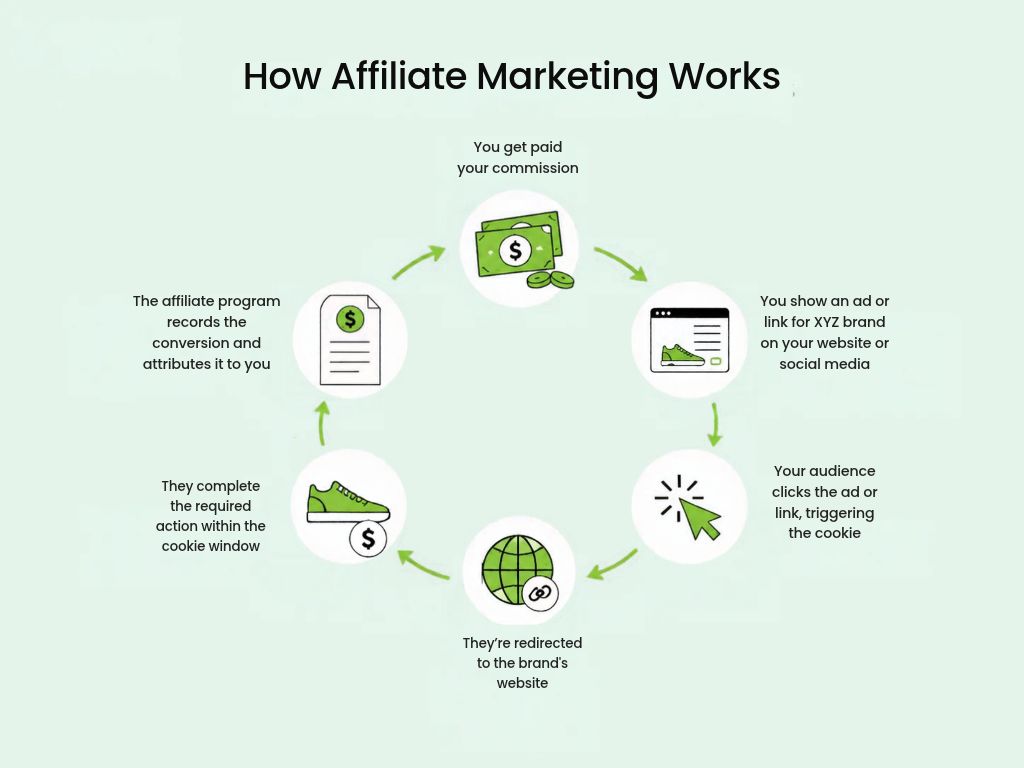
A circular diagram showing how affiliate marketing works in five steps: you share an affiliate link on your website, blog, or social media; a customer clicks the link; they are redirected to the merchant's store through a tracking link; they complete a purchase; the affiliate program records the transaction and pays you your commission.

How much can you make with affiliate marketing in your first year?

It varies enormously depending on where you’re starting from. A blogger with existing traffic who adds affiliate links to content they’re already publishing can start seeing commissions within weeks. A professional with an established reputation in their field recommending tools they already use can convert their credibility into income relatively quickly. But if you’re starting from total zero, your first year is less about earning and more about building the foundation that income eventually comes from. 

Here’s roughly how the first year tends to go for a complete beginner:

  • Months 1–3: You join a few programs, add links to your content, and focus on building your presence on your chosen platform; while it’s possible to make sales at this stage, it’s not really realistic.
  • Months 4–6: You can expect a few sales here and there, but these will start to show you what content resonates with your audience and what products they actually want.
  • Months 7–12: The most consistent affiliate marketers at this stage report earning between $200 and $500 per month, although these figures aren’t set in stone and may vary.

How to start affiliate marketing in 5 steps 

Now that you have a solid understanding of the fundamentals, here’s a step-by-step guide to getting you closer to earning your first affiliate commission.

Step 1: Pick one niche you can sustain 

Your niche is the main topic around which your affiliate content and online identity revolve, and this is why you need to choose it wisely.

You can take two main routes here: either target a high-commission niche if maximizing the affiliate income is your priority, or focus on a passion or hobby you’re really knowledgeable and enthusiastic about. Choosing the latter is often the smarter move, as leveraging existing expertise saves you time from learning an entirely new field and helps you stay consistent while waiting for the first affiliate sale to come. 

To validate whether this is the best affiliate niche for you, you need to check the demand, to see if people are actively looking for related content. For example, if you want to specialize in “web hosting,” simply enter that keyword along with other similar terms into one of following tools:

  • Google Ads Keyword Planner: It shows search volume data, competition levels, and keyword ideas directly from Google’s own database. 
  • Ubersuggest: It gives keyword search volume, competition level, and content ideas for any niche, but the free plan is limited to only 3 searches per day. 
  • Keyword Surfer: A free browser extension that shows search volume directly in Google results as you type.
  • Ahrefs: A full SEO platform covering keyword research, competitor research, and site audits, however it requires a paid plan starting from $29/month.


Pro tip: When validating your niche, look at the total demand across a cluster of related keywords (the one you enter and the ones that pop up as suggestions) rather than judging it by a single term’s monthly search volume. Search interest varies widely from niche to niche and topic to topic, so the combined picture across several related terms is a much more reliable signal than any one keyword alone.

Step 2: Set up your content distribution platform(s)

Now that you have an idea of what you’ll be talking about, you need to understand where your target audience hangs out most. While you can post content whenever you want and use whichever format you feel most confident with, by placing it where you’re sure people will search for it, your efforts won’t be in vain. 

The best way to figure this out is to put yourself in their shoes: search the topics you want to cover, watch what comes up, check the comments on popular YouTube videos in your niche, see who is engaging on LinkedIn or Reddit, and notice which platforms surface the most active conversations. You’ll spot patterns quickly. Start with the platform where your audience is most active and engaged, test a couple if you are not sure, and narrow it down to the one that gets traction.

Here’s a breakdown of the main platforms in which marketers promote affiliate products:

PlatformTypeContent lifespanBest forProduct types
Affiliate marketing website/blogSearch engineYearsIn-depth reviews, tutorials, comparisons, roundupsSoftware, SaaS, web hosting, financial products, electronics
YouTubeSearch engineYearsProduct demonstrations, how-to videos, honest reviews, unboxingTech gadgets, cameras, software tutorials, fitness equipment
PinterestVisual search engineMonths to yearsInspirational and visual niches; repurposing existing blog contentHome decor, fashion, food, fitness, beauty, finance
Community channels (Reddit, Facebook groups)Search engineDays to weeksHigh-intent recommendations within niche communitiesNiche gear, software tools, courses, anything with an engaged community
Social media (TIkTok, Instagram)Discovery channelHours to daysBrand awareness, short-form demonstrations, driving traffic to primary platformPhysical products, lifestyle, beauty, fashion


Pro tip: Some affiliate programs ask for proof of an online presence before approving you. Therefore, set up your account(s) and publish a few pieces of content early to increase your chances of getting accepted.

Should you use paid advertising or banner ads for promoting affiliate products?

While it’s not prohibited, most affiliate programs don’t allow you to send paid traffic straight to your affiliate link, and platforms like Google or Facebook might suspend your account if you try. To get around that, you’d have to set up a dedicated landing page first, which will cost you additional money. And even then, you’re paying for every click whether someone completes an action or not, which means your budget can disappear fast with very little to show for it.

Paid ads are most effective when you already have a steady stream of organic traffic that actively generates conversions, but they aren’t a good place to start with as a beginner.

Step 3: Find affiliate marketing program(s) worth joining

This is where things start getting exciting. Even though you might want to sign up for every program you come across (which will quickly become hard to manage), focus on finding a few solid ones with fair commissions and simple tracking.

Where to find affiliate programs?

One way is by typing “[brand name] affiliate program” directly into your browser for any company whose products you want to recommend, or “[niche] affiliate program” to search for available programs in your field. If a brand doesn’t list one on their site, don’t hesitate to email them directly. This way you can negotiate commissions from the start and build a relationship ahead of the competition.

Alternatively, you can join an affiliate network. This is a platform that brings together hundreds or thousands of brands in one place, allowing you to browse and apply to multiple programs from one place. If you run into any technical or administrative issue with your account, though, it might take quite some time since it has to go through the network’s support team rather than being resolved directly with the brand.

Affiliate networkIn-house program 
ExamplesAwin, CJ Affiliate, ImpactSiteGround’s affiliate program
Program varietyHundreds of brands in one placeMultiple products to promote (managed hosting, WordPress hosting, website builder, ecommerce, vibe coding, email marketing)
Commission ratesVaries widely by merchantUp to $100 per hosting sale, scaling with monthly volume or 60% recurring commissions from any other SiteGround service; custom deals for top performers are available
Cookie durationVaries by merchant60 days
TrackingVaries by network; some offer SubID supportTrack clicks, sales, and conversion rates by creating separate campaigns for each platform or piece of content
SupportPlatform-level supportDedicated affiliate manager
PayoutVaries by networkWeekly, no minimum threshold
Best forBeginners exploring what’s available across a nicheAnyone

How to evaluate if an affiliate program is worth it?

Not all programs are built the same. Before recommending a brand to your audience, take a moment to look over these key criteria to make sure the partnership is worth your time and effort:

  • Cookie duration: at least 30 days for digital services and 1 week for physical products. 
  • Commission structure: recurring commissions or tiered commission structures that reward higher sales volumes with increased rates.
  • Payment reliability: check how often the program pays, what the minimum payout threshold is, and whether there is a history of delayed payments.
  • Brand reputation: recommend companies that have a high customer satisfaction rate, since a bad customer experience will reflect on you too, not just the brand.
  • Support: some programs provide dedicated affiliate managers and marketing materials, making it easier for the affiliate marketer to promote the brand. 
  • Tracking and analytics: go for programs that allow you to create different links for different pieces and placements, and show you the number of clicks and sales generated by each, so you know what performs and what does not.

Step 4: Leverage content and traffic strategies

Affiliate marketing is a content marketing business after all. Your links mean nothing without content that people can find, read, and most importantly, trust, which is why what you publish and how you optimize it for both search engine and AI models matters as much as which programs you join.

How to know what to write about?

The content formats that convert most include product reviews, comparisons, “best X for Y” roundups, how-to guides, and tutorials. However, your choice of format should align with your target keyword and search intent. For instance, a user searching for “best email marketing software for small business” demonstrates transactional intent and is likely seeking a comparison. Conversely, someone searching “how to send a newsletter” has informational intent and prefers a step-by-step tutorial.

Here’s how to find the right keywords and topics on each platform:

  • For a website/blog: use the same tools you used to validate your niche.
  • For YouTube: type your topic into the search bar and note what autocomplete suggests, or use vidIQ. It’s a free browser extension that overlays keyword search volume and competition scores directly on YouTube pages as you browse.
  • For Pinterest: you can either do the same trick with the search bar or look at Pinterest Trends. It’s a free tool showing you growing and seasonal trends you can hop on. 
  • For community forums: note the questions that come up repeatedly. The most upvoted unanswered questions are your best content opportunities
  • For social media: search your niche hashtag (for example, #webhosting) to see what content people are engaging in. 

How to drive traffic to my content? 

Every platform has its own rules for getting content discovered.

  • On YouTube, your keyword should appear in the video title, thumbnail, description, and even closed captions. 
  • On Pinterest, it goes in the pin title, description, and the text overlaid on the image itself, and if you add your pin to a board specifically named after this keyword, even better. 
  • For a website or blog, since search engine optimization covers a lot more ground, it’s best to follow a dedicated SEO checklist.
  • In forums and communities, detailed and specific answers rank better in search results than short replies, and platforms like Reddit even allow you to publish longer, blog-style posts that can rank on their own. 
  • On social media, you should include your keyword in captions, on-screen text, and say it out loud in videos since TikTok transcribes audio for search indexing.

People buy when they sense an authentic experience and your affiliate link should appear at the exact moment your recommendation feels most natural, not wherever it is most convenient for you.

  • On a blog, that means linking within the text when you first mention the product, adding it to comparison tables and buttons where the reader is already in decision mode. 
  • On YouTube, most put it in the description with a clear call to action like “Try it now: [affiliate link]” or in a QR code in your video, for people watching on their TV. 
  • On social media, one way is a link in bio since there’s nowhere else to add it, and another is “comment [word] and I will send you the link,” which you can automate with a third-party tool. 
  • On Pinterest, you can add your affiliate directly to your post.

Disclosing your affiliate partnerships is not optional, it’s required by the FTC in the US and by the CMA and ASA in the UK. But there’s also a practical reason to do it: 57% of consumers name transparency as the most important value they look for in a creator. 

Here’s what a compliant disclosure looks like on each platform:

  • Blog or website: add a short statement at the very top of any post containing affiliate links, before the reader reaches any recommendation. For example: “This post contains affiliate links. If you purchase through them, I may earn a commission.”
  • YouTube: check the “paid promotion” box when uploading the video, mention the affiliate relationship verbally at the start, and include a written line in the description. Doing all three keeps you fully compliant.
  • TikTok: turn on TikTok’s disclosure setting and add hashtags like #ad or #affiliatelink at the beginning of your caption. 
  • Instagram and Facebook: use the built-in paid partnership label that Meta provides for affiliate and sponsored content, pair it with a short statement in your caption for maximum transparency.
  • Forums and communities: add a brief note alongside every affiliate link you share; a simple (affiliate link) in parentheses next to the URL is enough and keeps you compliant without interrupting the flow of your answer.

Is AI helping or hurting affiliate marketers?

AI tools have made it easier to research keywords, generate first drafts, and handle other repetitive tasks that experienced affiliates now use as a regular part of their workflow. The problem, though, is that it has also flooded every niche with content where AI did all the thinking and the writer contributed nothing original. AI-generated avatars, voiceovers, and faceless video content are becoming increasingly common, raising valid concerns about whether AI is undermining the visibility of authentic content.

The good news is that search engines are getting better at spotting this kind of content, and readers are too. At the end of the day, people buy from people they trust, and you can’t build that trust if you’re not really there. The affiliates who use AI to work faster while still showing up authentically in their content, are the ones winning in this debate. 

Step 5: Measure performance and fine tune whenever needed

Knowing that a conversion happened is useful, but knowing where it came from is what lets you repeat it. Some affiliate marketers use SubIDs: labels added to tracking links to identify the source of each click, including the platform, content piece, or specific placement. Others rely on performance metrics in their affiliate dashboard, though the available data varies by program.

SiteGround’s affiliate dashboard makes this straightforward with custom campaign tracking. You can create separate campaigns for each platform or piece of content, label them accordingly, and compare their total and unique clicks, number of sales and their conversion rate side by side. You can even create a branded short link like siteground.com/go/yourbrand, which is especially useful for creators who share links verbally with their audience. 


Pro tip: Review click and conversion data monthly. High traffic with no clicks calls for a clearer call to action or link placement, while clicks without sales indicate a product-audience mismatch. If no one clicks, refine your content; if no one buys, adjust your offer.

The 3 affiliate marketing mistakes that can get you stuck

We’ve touched on some of these already, but they’re worth emphasizing one more time so you’re sure you’ll avoid them. 

1. Trying to sell instead of solving a problem

The most common mistake beginners make is sharing their affiliate links everywhere and waiting for clicks. This approach almost never works. What really converts is content that addresses a specific problem and presents the product as the logical solution.

2. Recommending products you haven’t actually used

Reviews assembled from pricing pages and other people’s opinions all read the same, and AI can produce them faster than you can. What sets your content apart is proof you were there: screenshots of the actual dashboard, numbers you measured yourself, the thing that annoyed you in week two.

3. Failing to track where your conversions come from

Many beginners fail to set up tracking properly, relying only on total clicks and earnings. Without knowing which specific piece of content, link placement, or platform drove a sale, you won’t know what works or how to replicate your success.

30-day affiliate marketing action plan: how to not waste your first days

  • Pick a niche and confirm there is both search demand and active affiliate programs in it.
  • Set up accounts on the platform(s) where your target audience spends most of their time.
  • Apply to a few affiliate programs in your niche.
  • Conduct keyword research to plan your first ten content pieces.
  • Optimize every piece of content for organic search.
  • Place your affiliate links strategically where users are most likely to click.
  • Configure tracking parameters before publishing your first link live.
  • Commit to a consistent publishing schedule.
  • Analyze your performance metrics monthly to identify effective tactics and adjust accordingly.

You’re now ready to begin your affiliate marketing journey 

The journey of an affiliate marketer starts with one niche and one honest recommendation. Most beginners overcomplicate the process. In reality, showing up consistently, publishing, testing, tracking, and improving is what separates successful affiliates from those who give up early.

If you decide to focus on website building, ecommerce, email marketing or vibe coding, SiteGround’s affiliate program is an ideal place to start. It offers both tiered and recurring commissions, 60-day cookies, weekly payouts, and a dedicated affiliate manager to assist you every step of the way.

 FAQs about affiliate marketing for beginners

Can I start affiliate marketing with no experience?

Yes. All you need to start affiliate marketing is a niche you know well enough to create content about consistently, a platform where your target audience looks for recommendations, a few relevant affiliate programs, and the right keywords to reach your audience.

Can I start affiliate marketing for free?

Yes, affiliate marketing is one of the most low-risk endeavors you can pursue. You can create content on virtually any platform simply by opening a free account, and affiliate programs are free to join. If you promote products you already use and like, you don’t need to spend money purchasing anything new. Additionally, you can generate content ideas using free search tools, meaning your primary investment at the start is simply your time.

Can you make $100 a day with affiliate marketing?

Yes, but it’s not a beginner’s outcome. Getting there requires either significant traffic at modest commission rates, or a smaller but highly targeted audience and high-ticket programs where one or two sales a week is enough to hit the target. Affiliates who reach that level consistently have usually been publishing for at least a year or more.

Do you need a website to start affiliate marketing?

Yes, you can start affiliate marketing without a website, though most affiliates eventually create one. Some of the main benefits are that you have full control over your content (no host can ban your account, limit your reach, or decide who sees your posts), and if something goes wrong you can restore it from a backup instead of waiting on a support team. A well-ranked blog post can also keep bringing in visitors and commissions for months or years after you publish it, with only occasional maintenance rather than the constant output social media demands. Some affiliate programs, particularly in the SaaS space, may require proof of an established website before approving your application.

What is the difference between an affiliate program and an affiliate network?

An affiliate program can be hosted in-house or featured on a network. In-house programs are managed directly by the brand with their own dedicated team and dashboard, while affiliate networks are third-party platforms that host multiple merchant programs under a single login, allowing you to browse and apply to various brands from one place.

If I already have an established audience, does affiliate marketing hurt their trust in me?

No, but only if you prioritize your audience over the commission. You should disclose clearly, only recommend products you would stand behind regardless of what they pay, and keep affiliate content to a reasonable share of your output.

What is a web hosting control panel, and how does it work?

abstract of a website hosting control panel

Once you buy hosting, your web hosting control panel is where you’ll run your site day to day, from setting up email and connecting your domain to restoring backups. Not every panel works the same way, though. Some are built for people who manage servers, and others are designed to keep everyday jobs simple. Here’s how control panels work, the main types, and what a good one looks like.

Key takeaways:

  • A web hosting control panel is the dashboard where you manage domains, email, files, backups, and security.
  • Every click in the panel runs a server task for you, so you never have to touch the command line.
  • Panels come in three types: third-party, open-source, and host-built, which can be designed around the host’s own users.
  • Your hosting account, control panel, and WordPress site admin are separate logins with separate jobs.
  • The panel usually comes with your hosting plan, so choosing a panel really means choosing a host.
  • A good panel makes jobs easy to find, runs backups automatically, and includes free SSL, like SiteGround’s Site Tools.

What is a web hosting control panel?

A web hosting control panel is a web-based dashboard for managing your hosting account and the websites on it. So instead of typing commands on a server, you use menus and buttons to handle domains, email accounts, files, databases, backups, and security settings from one place.

Think of it as the settings app for your hosting. For example, your phone runs thousands of processes you’ll never see, and the settings app gives you the handful of switches you actually need. A hosting control panel does the same for the server your site lives on.

Almost every type of web hosting comes with some kind of control panel, from entry-level shared plans to managed cloud servers. The basics look similar, but how much comes included varies from host to host and plan to plan:

  • Everyday site jobs, such as email, domains, and one-click WordPress installs, are standard almost everywhere.
  • Safety features, such as automatic backups and free SSL, vary a lot. Some hosts include them, and others sell them as add-ons.
  • Developer tools, such as SSH access, PHP version control, and staging, are often reserved for higher-tier plans.

The main exception to all of this is an unmanaged server you set up yourself, which is a much more technical endeavor. There, you either install a panel or manage everything from the command line.

How a hosting control panel works

A hosting control panel sits between you and the software that runs your server. When you click a button, the panel translates that click into the commands the server needs, runs them, and shows you the result.

By way of example, here’s what happens when you create a new email address:

  1. You fill in a short form in the panel with the address (hello@yourbusiness.com) and a password.
  2. The panel tells the mail server to create the mailbox and sets up the settings it needs to send and receive messages.
  3. The panel confirms the account is ready and shows you the login details for your email app.

Without a panel, the same job means connecting to the server with developer tools and editing configuration files by hand — and if you don’t know what that means, that’s exactly why you benefit from a control panel). 

The same pattern repeats for everything else in the panel. Restoring a backup, installing an SSL certificate, or adding a subdomain are all server tasks with a friendly form on top. If you’re still getting your head around how to host a website, the control panel is, thankfully, the piece that makes the whole setup manageable day to day.

What you can do in a hosting control panel

Nearly all the routine admin for your site happens in the control panel. Here’s what you’ll use it for, roughly in order of how often you’ll need it.

Manage your domains and DNS

Your control panel is where your domain and your site get connected. From there, you can:

  • Point a domain at your website
  • Add subdomains like shop.yourbusiness.com
  • Edit DNS records, the instructions that tell the internet where your website and email live

If you’ve just registered a name, the next steps after buying a domain usually start here.

Create email accounts

The control panel is where you create email addresses on your own domain, such as hello@yourbusiness.com. You can also set up forwarders, so messages sent to that address land in an inbox you already check.

Install and manage websites

Getting a site into your hosting account starts in the control panel. You can set up WordPress or another app with an installer, or kick off a website migration if your site already lives with another host. Once it’s live, many panels also offer staging: a private copy of your site where you test changes before visitors see them.

Work with files and databases

The control panel gives you direct access to the behind-the-scenes parts of your site, the ones you never see while editing pages:

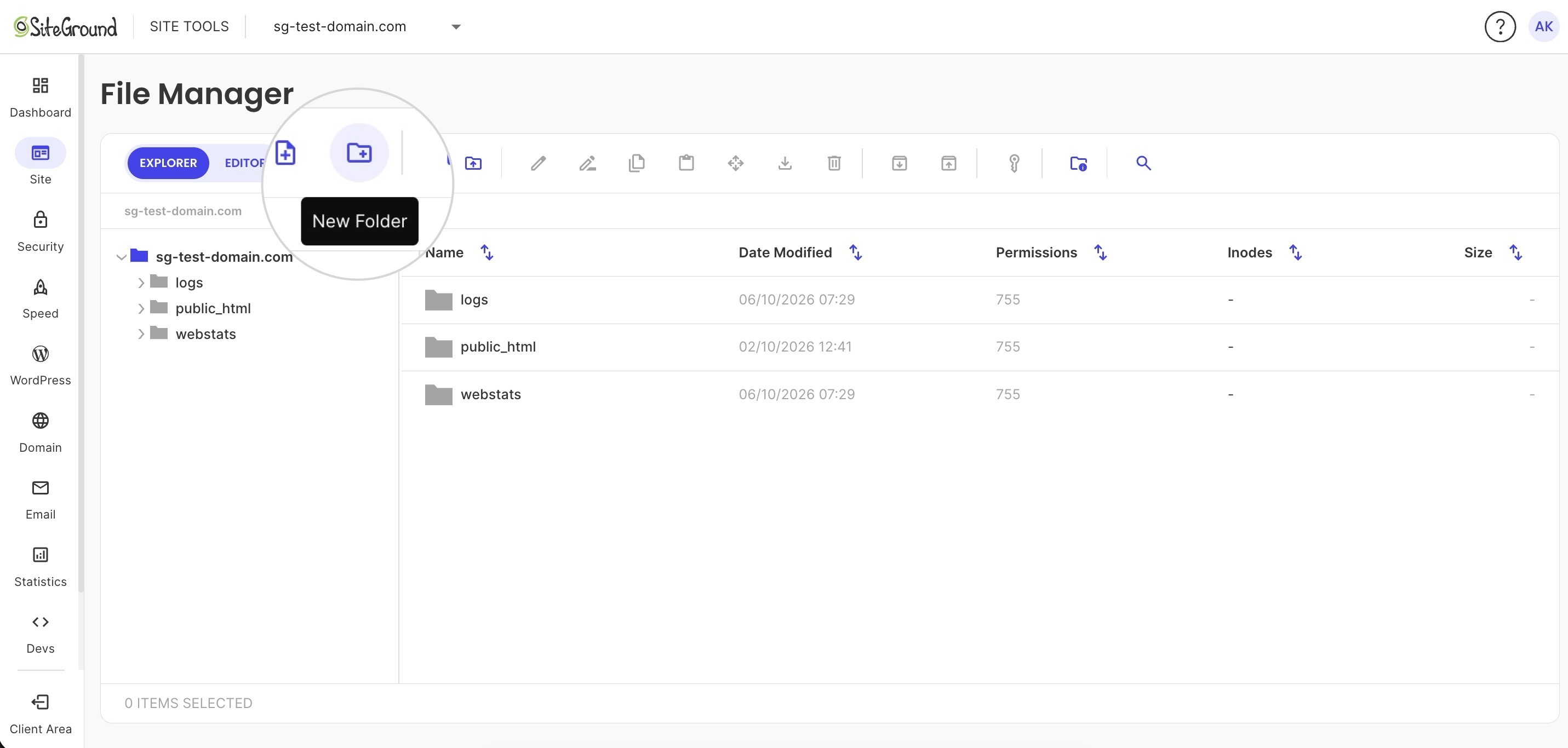
  • File manager: browse, upload, and edit your site’s files in the browser
  • FTP accounts: connect a desktop app like FileZilla to move files in bulk
  • Database tools: view, export, or repair the data behind your site
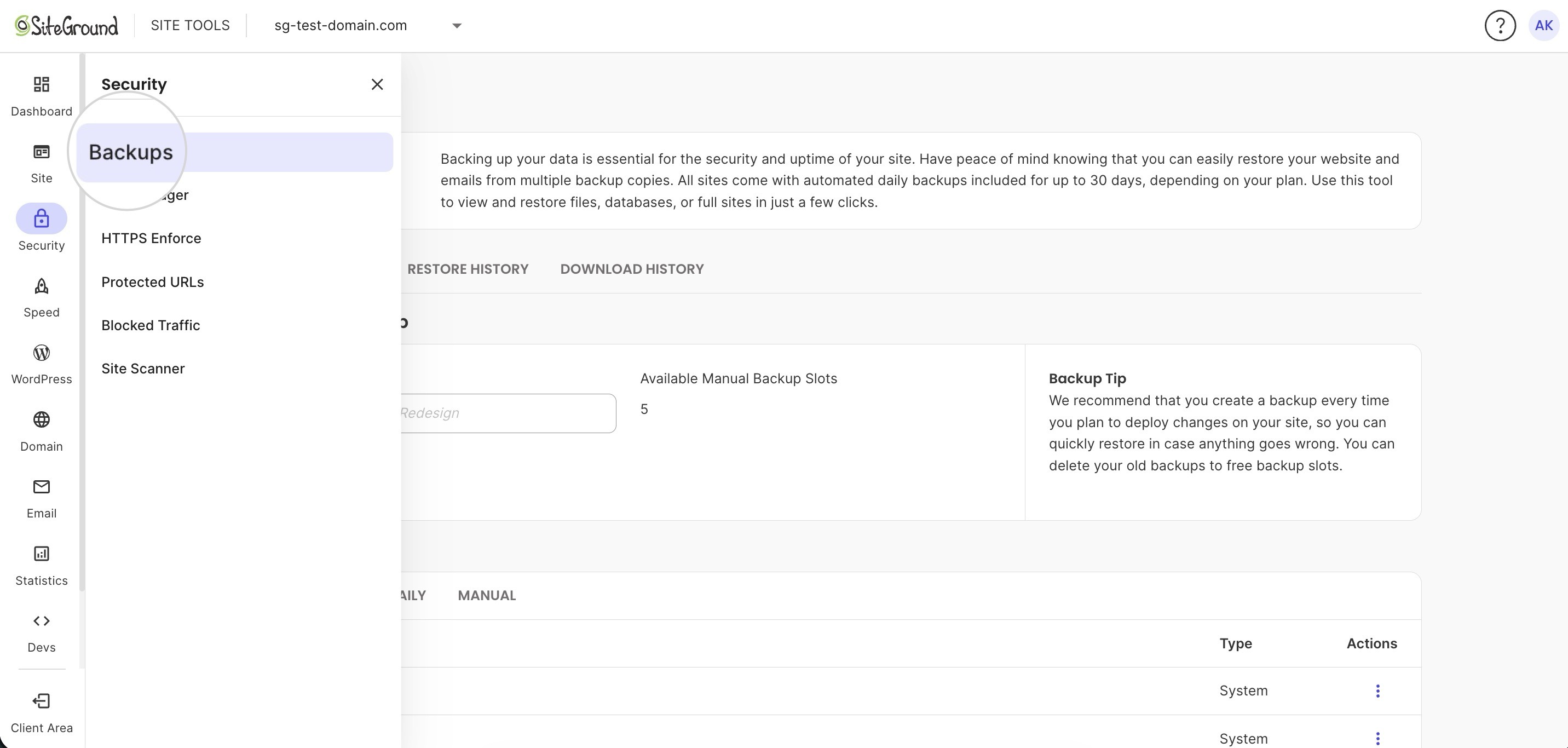
Managing files in SiteGround Site Tools

If you manage your site through an app like WordPress, you’ll rarely need any of these. They’re there for the day something breaks and support asks you to rename a folder or check a file.

Back up and restore your site

Backups are your undo button, and the hosting provider control panel is where you find them. Look for automatic daily backups, a way to create your own copy before big changes, and a restore option that doesn’t require a support ticket.

Creating a new backup in SiteGround Site Tools

Keep your site secure

The control panel holds the security settings that sit at the server level:

  • SSL certificates: install and renew the SSL certificate that puts the padlock in the browser bar
  • Blocked IP addresses: stop specific visitors or bots from reaching your site
  • Password-protected folders: lock off parts of your site that shouldn’t be public

Server-side protection only goes so far, so pair it with a few basic website security tips like strong passwords and regular software updates.

Give other people access

If a developer, designer, or teammate works on your site, many hosts let you add them as a collaborator, either from the control panel or your hosting account. They get their own login with access to that site only, so you never share your password, and they can’t see your billing, invoices, or the rest of your account.

Your hosting account vs. control panel vs. WordPress admin

Your hosting account, your control panel, and your WordPress admin are three different areas with three different jobs. Beginners mix them up constantly, which is why “how do I log in?” shows up in search so often.

Here’s what each area handles:

Hosting accountControl panelWordPress admin
What it’s forBilling, plans, and account detailsRunning the hosting behind your siteBuilding and editing the site itself
Typical tasksPay invoices, upgrade your plan, contact supportCreate email, restore backups, manage DNSWrite posts, install plugins, change your theme
ExampleRenewing your plan before it expiresSetting up hello@yourbusiness.comPublishing a new blog post

A quick rule of thumb:

  • If the task is about money or your plan, it’s the hosting account.
  • If it’s about what visitors see on your pages, it’s WordPress.
  • Everything in between lives in the control panel.

Some WordPress hosting plans blur the lines by adding WordPress tools to the panel, such as automatic updates or staging. The three areas still do separate jobs. At SiteGround, for example, the Client Area is your hosting account and Site Tools is your control panel. Your WordPress admin is the dashboard you reach by adding /wp-admin to the end of your site’s address, and it’s where you edit your pages and posts.

The main types of web hosting control panels

Back to the control panel itself. Not every host gives you the same one, and the panel you end up with depends on who hosts your site and how much of the server you manage. Almost every panel falls into one of these categories.

1. Third-party panels

A third-party panel is a ready-made control panel that a host licenses from a software company instead of building its own. It looks and works the same no matter which host you’re with, with the same menus for email, domains, files, and backups. cPanel and Plesk are the best-known examples, and you’ll find them on many shared and reseller hosting plans.

That consistency cuts both ways. What you learn in one account carries over to the next, but if a menu confuses you or a routine task takes too many clicks, it’ll be the same at every host that uses that panel. The host can’t redesign it either, because the software company decides what changes and when.

2. Free and open-source panels

Free, open-source panels such as CyberPanel and aaPanel are ones you install yourself, usually on a VPS or dedicated server. They cost nothing to license, but you’re responsible for setup, updates, and security. They suit developers who are comfortable with unmanaged hosting better than someone launching a first site.

3. Panels built by the hosting company

Some hosts build their own panel for their own platform. Because the host owns the design, it can shape the panel around what its customers actually do, such as keeping backups and SSL a click away, and fix what users find frustrating without waiting on an outside vendor. The tools are also built for the exact servers the host runs, so features like caching and WordPress management fit the platform instead of being generic.

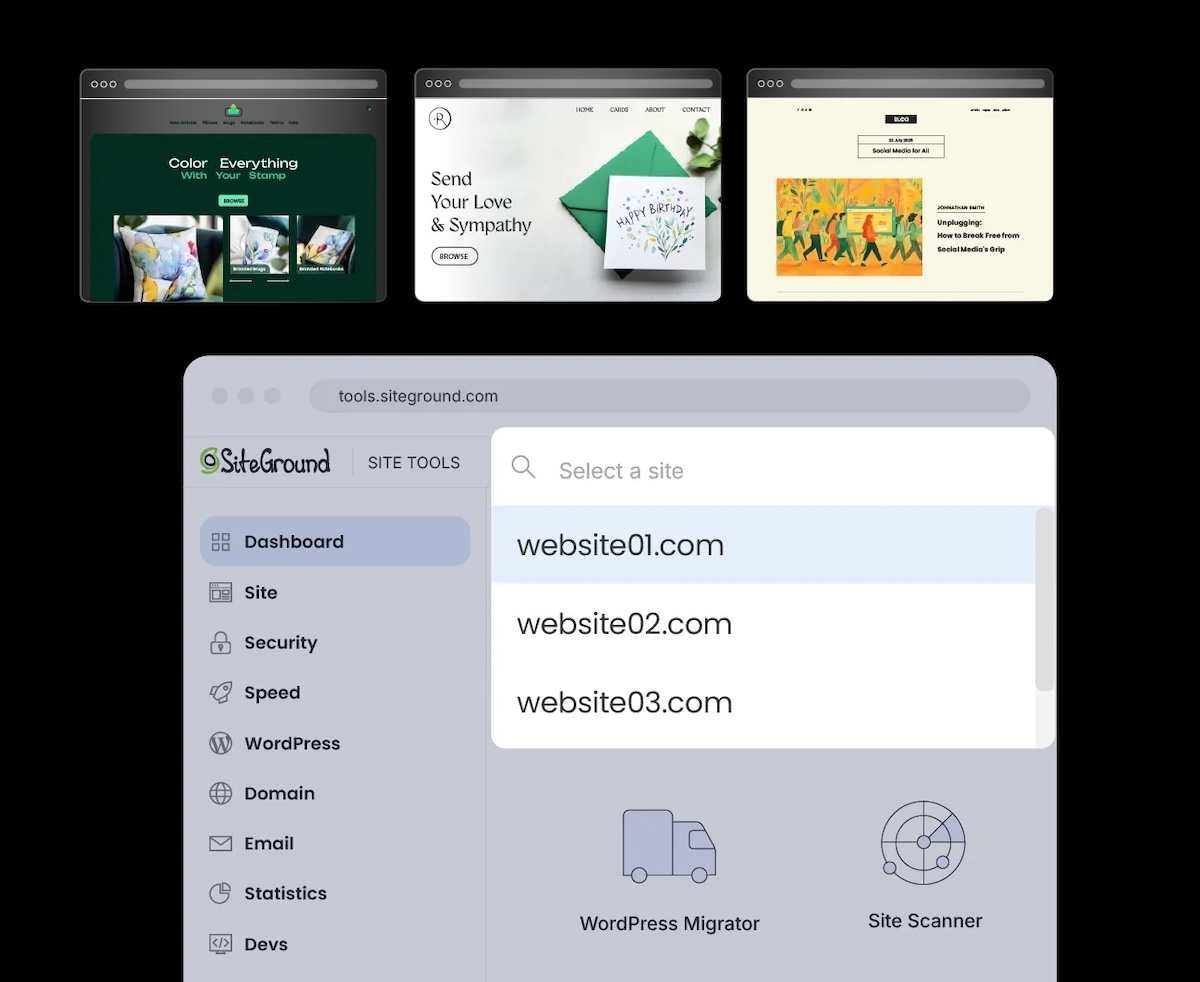
SiteGround’s Site Tools is one example. SiteGround built it for its own hosting platform and organized it around individual websites instead of the hosting account, so each site gets its own panel with its own settings. If you manage more than one site, you can switch between them from a dropdown in the header, including sites in different SiteGround hosting accounts.

Managing multiple sites in SiteGround Site Tools

In Site Tools, you’ll find:

  • More than 35 tools in one panel, from email and domains to caching, CDN, and site statistics
  • One-click WordPress installs, automatic updates, and migrations from other hosts, with staging on the GrowBig plan and higher
  • 30 days of automatic daily backups on shared hosting plans, with free restores
  • A free Let’s Encrypt SSL certificate for new sites that renews automatically

If you’d like to see how it’s laid out, the free Site Tools demo lets you try it before signing up.

Using the SiteGround Website Builder or SiteGround Ecommerce? Your site runs from Site Admin instead of Site Tools. That’s because it’s an all-in-one platform that handles the technical setup, so Site Admin focuses on editing and running your site rather than server tools like FTP and databases. You can access your Site Admin by going to Client Area > Websites.

What to look for in a control panel

Your control panel usually comes with your hosting plan, so judging a panel is part of choosing a web hosting partner. It’s also a quick health check if you already have hosting and something feels harder than it should. A good panel passes these checks:

  • You can find things. Common jobs like creating an email account or restoring a backup take a few clicks, and a search bar covers the rest.
  • Help is a click away. You can reach support from inside the panel, and tools link to guides that explain what they do, so you’re not stuck searching forums when something breaks.
  • Backups run on their own. Daily backups happen without you, and restoring one doesn’t need a ticket or a fee.
  • Security basics are included. Free SSL with automatic renewal comes with the plan, and anything paid is clearly labeled as paid.
  • It’s fast. Pages in the panel load quickly, even when you’re managing several sites.
  • It works on your phone. You can check a backup or fix a DNS record from a mobile browser when you’re away from your desk.
  • It grows with you. Adding a second site, or a tenth, doesn’t turn the panel into a maze.

If your current panel fails two or three of these, that’s a fair question to raise before your plan renews. A panel you dread opening is a panel you’ll avoid, and avoided panels are where expired SSL certificates and missing backups tend to hide.

A good control panel makes the rest of hosting feel easier

A web hosting control panel is where the practical side of running a site happens: email, domains, backups, security, and the occasional emergency restore. It can look intimidating at first, but a well-designed panel keeps those jobs simple enough to handle on your own.

When you’re comparing hosts, take a close look at the panel you’ll be working in every day. SiteGround Web Hosting comes with Site Tools, so daily backups, free SSL, and one-click WordPress installs are ready from your first login.

[86]

Frequently asked questions about website hosting control panels

Is there a free control panel for web hosting?

Yes, free control panels for web hosting exist. Open-source options such as CyberPanel and aaPanel cost nothing to license, but you install and maintain them yourself on a VPS or server. On a regular hosting plan, the panel is typically included in the price.

How do I log in to my web hosting control panel?

You usually log in to your web hosting control panel through your host’s account dashboard, which links to the panel for each site. With SiteGround, for example, you can access your hosting control panel by going to Client Area > Websites. 

Which web hosting panel is the best?

The best web hosting panel is the one that makes your everyday jobs easy. Since the panel usually comes with your hosting plan, the practical question is whether your host’s panel includes automatic backups, free SSL, and simple site management. The checklist in the section on what a good control panel looks like is a quick way to judge it.

AI Agent for WordPress vs AI Puffer: Management agent or all-in-one AI plugin?

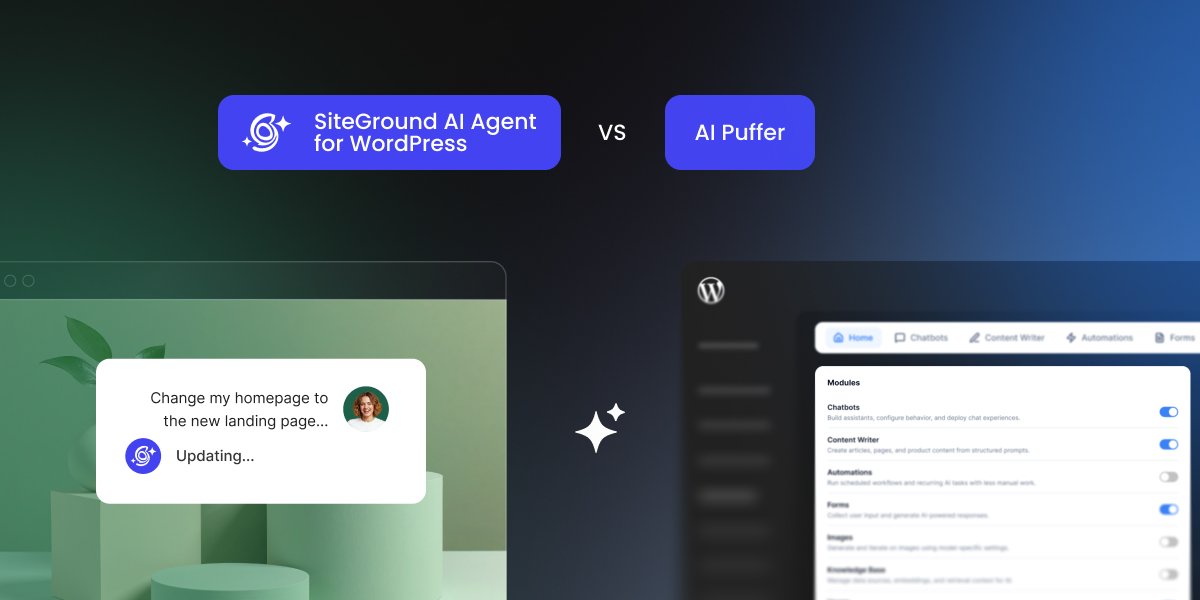
A visual comparison graphic contrasting the SiteGround AI Agent for WordPress interface with the AI Puffer module dashboard.

Two WordPress AI assistants describe themselves as all-in-one AI solutions, but they do very different jobs on your site. AI Puffer (formerly known as AI Power) is a modular toolkit that packs a visitor chatbot, content generator, AI forms, and scheduled tasks into a single plugin. SiteGround’s AI Agent for WordPress acts as a personal site manager that you talk to directly inside your WordPress control panel to handle your daily website chores.

AI Agent for WordPress vs AI Puffer comes down to choosing between a dedicated manager that runs your website and a toolkit that adds AI features for your visitors. While AI Puffer requires you to sign up with outside AI companies and set up API keys before anything works, the AI Agent for WordPress comes ready to use out of the box with built-in access.

Key takeaways:

  • AI Agent for WordPress vs AI Puffer comes down to functionality: AI Puffer adds a collection of individual AI tools and modules, whereas the AI Agent for WordPress provides a single conversational assistant that helps you manage WordPress itself.
  • AI Puffer relies on scheduled background automations that you set up in advance for repeatable content pipelines, while the AI Agent for WordPress carries out administrative tasks on demand whenever you ask in live chat with zero advance setup.
  • AI Puffer requires you to create outside accounts and manage your own API keys (which bill you separately), while the AI Agent for WordPress includes built-in access to top AI models out of the box without third-party keys or separate provider billing.
  • Many websites can benefit from using both tools together: AI Puffer for customer-facing chatbots and forms for visitors, and the AI Agent for WordPress for daily site maintenance and WooCommerce administration.

Two kinds of all-in-one: an AI toolkit and a management agent

AI Puffer adds a set of AI tools to your site and admin area. As an all-in-one AI plugin, it’s built from modules (separate features you switch on or off), which reach your site through pages, shortcodes (short snippets you paste into a page to show a feature), blocks and scheduled tasks. 

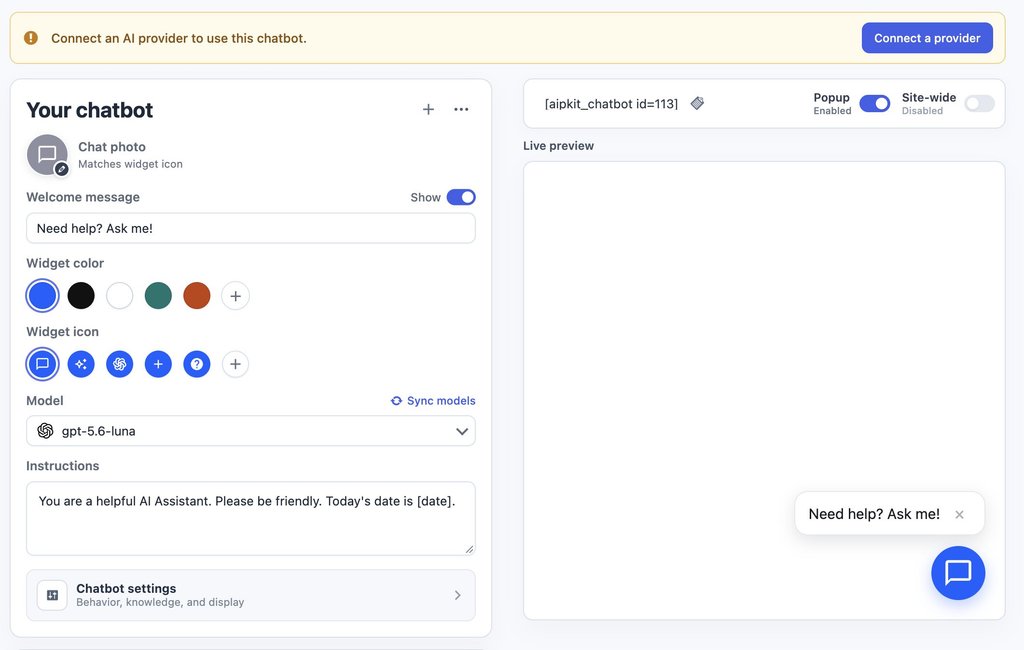
Some modules are for your visitors: a chatbot, AI forms and an image generator they use on your pages. Others are for you: the Content Writer for articles and product copy, and automations that produce or rewrite content on a schedule. The AI Puffer WordPress plugin shows these modules as soon as you install it, and setting up any of them, a chatbot included, starts with connecting an AI provider using your own key.

A chatbot builder interface showing widget customization settings, model selection, and a live preview.

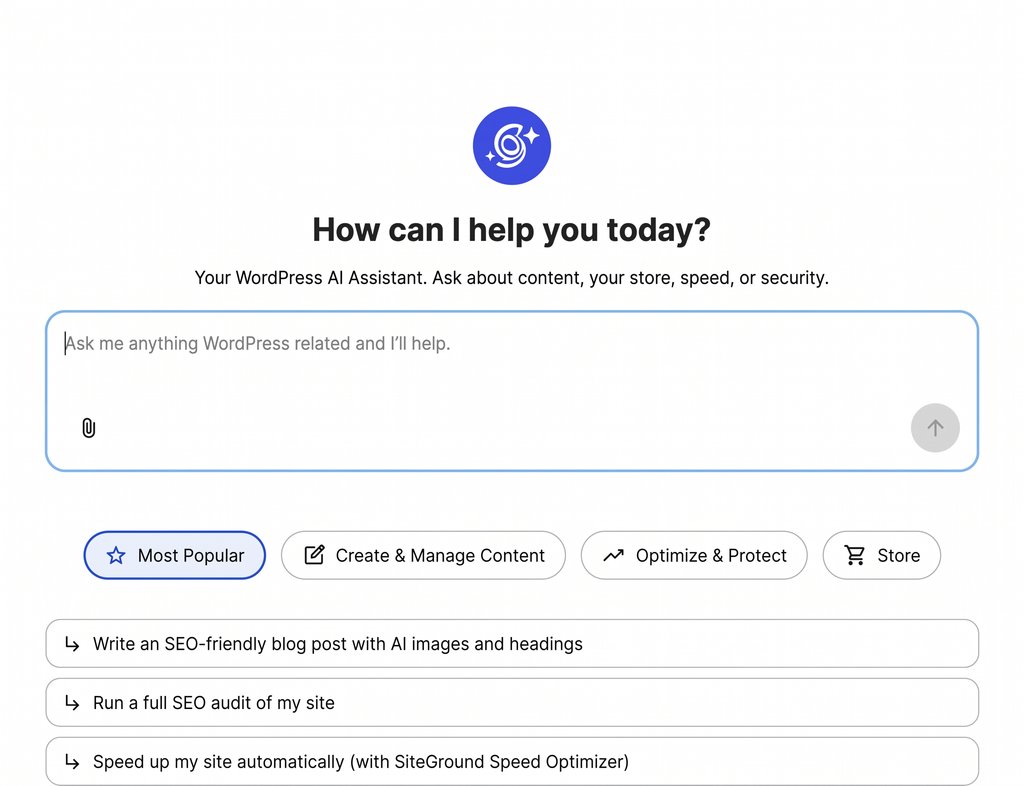
SiteGround’s AI Agent for WordPress manages your entire site through a single chat. You open the chat directly in your WordPress control panel or SiteGround AI Studio, type what you need done, and the assistant carries out all your WordPress tasks: publishing posts, updating plugins, changing user permissions, adjusting settings, and managing WooCommerce online store orders and stock. 

Under the hood, the agent automatically selects and pairs the best AI model for your specific request. Whether you need quick text, a custom image, or something more complex, it routes the task behind the scenes to top models from Google (like Gemini) or OpenAI’s ChatGPT. 

This intelligent model selection ensures you always get the highest quality result for the job at hand without ever having to sign up for outside AI accounts, enter connection codes, or choose models yourself.

Screenshot of the AI Agent by SiteGround welcome screen featuring a prompt input box and suggested quick actions.

AI Agent for WordPress vs AI Puffer, side by side

To see how SiteGround’s AI Agent for WordPress and AI Puffer compare across daily website workflows, the table below breaks down their main features, setup requirements, and capabilities:

DimensionAI PufferAI Agent for WordPress
What it isA toolkit of AI modules inside WordPressA conversational agent for WordPress site management
How you use itConfigure each module, and set up tasks with sources, prompts and schedulesAsk in a chat inside the WordPress admin, or from SiteGround AI Studio
Who supplies the AIYour own API keys from OpenAI, Anthropic, Google and others, billed by each providerIncludes managed AI access automatically with no third-party API keys or separate billing needed
Before first useConnect an AI provider: an account with billing, an API key added to AI Puffer, and a model sync. Setting up a chatbot or any other module needs itPre-connected on SiteGround. Elsewhere, install the plugin and paste a connection key from SiteGround AI Studio
What decides which features workThe providers you connect: image generation and the knowledge base need a provider that offers those kinds of modelsAvailable without choosing providers
ContentArticle and product generation, bulk rewrites, and SEO fields for Yoast, Rank Math, All in One SEO and The SEO Framework, in both the block and Classic editorsPosts, pages, media and SEO metadata (the titles and descriptions search engines show), created and edited on request
Visitor-facing AIA chatbot trained on your site content, with web search, voice and lead forms, plus AI forms and an image generator for visitorsOperates inside your administration area for site management rather than public visitor pages
Plugins, users, settings and menusNot coveredManages plugins, themes, user permissions, and core settings, with high-impact changes protected by Power Mode (a setting that stays off until you allow high-impact changes)
WooCommerceBulk product titles, descriptions, tags and SEO fields. Doesn’t change price, SKU, stock, categories or attributes. Sells AI credits as productsManages complete store catalog tasks, bulk price changes, inventory, sales reports, and customer orders
AutomationScheduled tasks for creating and rewriting content, keeping the knowledge base current and replying to commentsExecutes tasks on demand whenever you request them in chat
WordPress AI connectorsCan route other plugins’ AI requests through your keys, logs and pricing rulesConnects your website(s) to SiteGround AI Studio via the Connectors screen, providing built-in AI access without third-party API keys
Multi-site managementA separate copy per site, each with its own settings and keys, under 2-, 5- or 10-site licensesRuns administrative tasks simultaneously across multiple connected websites from one chat
SafetyNew content can be reviewed before saving or saved as a draft, while rewrites of existing content apply directly. Module access can be limited by user roleKeeps Power Mode off by default to guard deletions, user edits, settings, and orders until explicitly confirmed
CostFree, or Pro from $9.99 a month for one site, plus your AI provider’s usage charges20,000 free AI tokens to start on any website, whoever hosts it, then top up or subscribe monthly. Included with SiteGround hosting plans, which add free monthly AI tokens

Managing the AI versus managing the site

Both products come with management features, and they manage different layers. AI Puffer’s settings run its own AI: which provider answers, which modules appear, who can use them and how much they can use. The AI Agent for WordPress manages WordPress itself: the content, plugins, users, settings and store behind your site.

Keys, models and the features each one allows

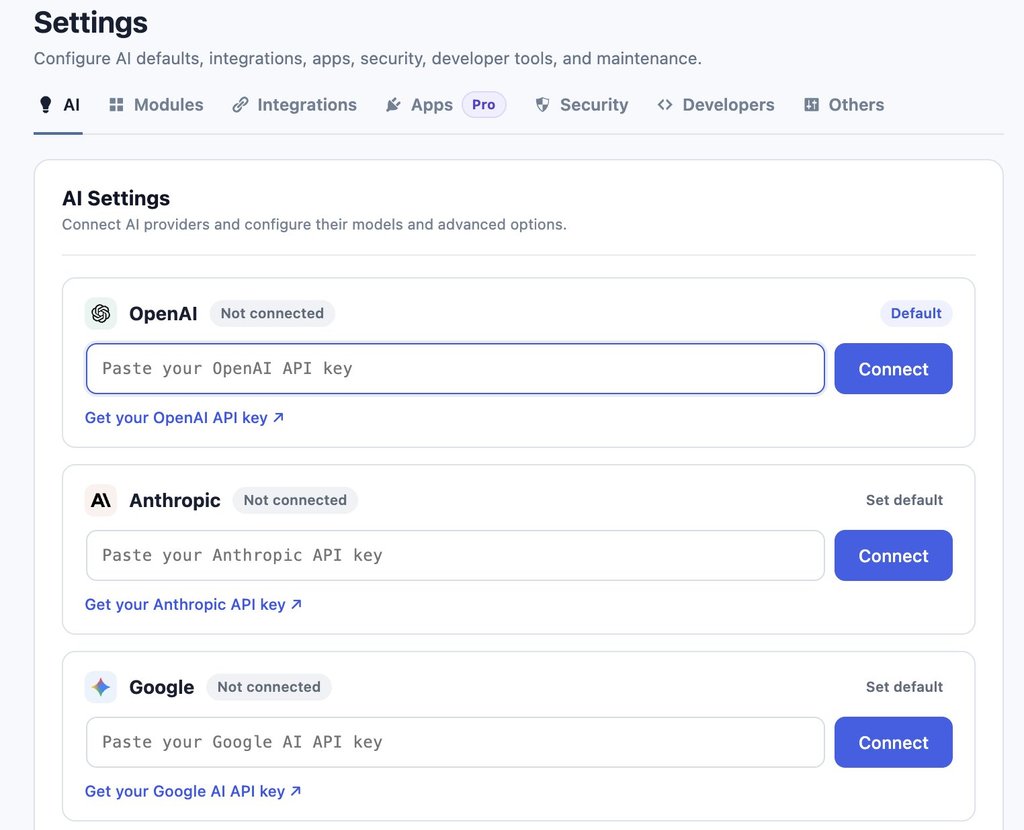
Connecting a provider to AI Puffer takes three steps:

  1. You create an account with an AI company such as OpenAI, Anthropic or Google and add billing details, since it charges for each request.
  2. You copy the API key from that account into AI Puffer’s settings.
  3. You sync the model list, so AI Puffer knows which AI models your account can use.

Once the AI Puffer API key is in place, the providers you’ve connected decide which features work. OpenAI covers the widest range, including images, speech and the embedding models (the kind of AI model that turns your content into something a chatbot can search) that the knowledge base depends on. Anthropic, the company behind Claude, covers text and web search only, so a site that connects only Anthropic gets a chatbot and a writer, and no image generation or knowledge base. On Pro, Ollama runs free AI models on a server you manage yourself.

An AI settings interface displaying API key connection options for OpenAI, Anthropic, and Google AI providers.

AI Puffer Pro includes no AI credits, so a Pro site pays twice: once for the plugin and once for each provider it connects. The upkeep is yours too, from topping up an exhausted provider account to replacing a revoked key. 

In the meantime, the AI Agent for WordPress includes its AI access, so there’s no provider account to top up and no key to replace, which is the practical side of choosing managed AI access over your own keys.

Pro tip: Set a spending limit with your AI provider. OpenAI, Anthropic and Google all let you set a monthly budget or usage alert in the billing section of your account. If you connect your own key to any WordPress plugin, a limit keeps a busy chatbot or a large automation from running up a bill you didn’t expect.

What AI Puffer’s connector and access controls do

On WordPress 7.0 or later, AI Puffer can take over WordPress’s AI connector layer (the shared system that lets plugins ask for AI through one set of settings). AI requests from other plugins and WordPress features then run through AI Puffer’s provider keys, model defaults, logs and pricing rules, so AI Puffer decides which AI account answers them.

Its access controls work the same way. The Role Manager sets which WordPress user roles, such as editors or shop managers, can use each AI Puffer module, and usage limits cap how much AI a guest, a user or a whole role can use. All of these govern AI use, and none of them can change your site’s plugins, user accounts or settings.

AI Puffer automation versus asking a WordPress AI agent

AI Puffer’s WordPress automation is set up in advance. You create a task by choosing what it does, the source it draws from, and the prompts, images, SEO fields and schedule it uses. Sources include a simple list or a CSV file (a spreadsheet saved as plain text), and on Pro an RSS feed (the automatic list of new posts a website publishes), web addresses or a Google Sheet. It then runs by itself, five items at a time, which suits a content pipeline you repeat every week.

Those tasks run on WordPress cron (WordPress’s scheduled-task system), which checks for due tasks only when someone visits your site, so on a quiet site a task can run late unless your host sets up a server cron, a timer that runs on the server itself. Rewrite tasks change published content directly once they run.

Pro tip: Run a rewrite task on one post first. Because AI Puffer’s rewrite tasks change published content directly, its own documentation advises testing a new task on a single item before pointing it at a whole category. Check the result on the live page, then widen the task once the prompt produces what you want.

SiteGround’s AI Agent for WordPress works on demand directly inside your chat window with zero advance setup. Instead of configuring feeds, prompts, or timers beforehand, you tell the agent what you need whenever you are ready (whether that is drafting an announcement, updating plugins, or managing online store inventory) and it carries out the work immediately in live chat.

The same week on four kinds of sites

A blog that publishes every day

Running a daily blog highlights the core difference between these two tools: AI Puffer focuses on building an automated content pipeline, while the AI Agent for WordPress handles the active management of the website surrounding that content.

AI Puffer excels at setting up automated background publishing. It can turn plain text lists, CSV files, RSS web feeds, or Google Sheets into scheduled blog posts complete with generated images, search engine details, and automated comment replies. On its Pro plan, a “Smart SEO” feature evaluates each draft against popular plugins (like Yoast or Rank Math) and can revise a post up to three times (though each rewrite counts as a separate request to your outside AI provider). Connecting a Google Sheet also requires setting up a technical connection key inside Google Cloud so the plugin can access your spreadsheet.

A content automation setup interface displaying options to create content, rewrite existing posts, build a knowledge base, or reply to comments.   
JPG

SiteGround’s AI Agent for WordPress handles the ongoing maintenance and administration of the blog itself. Instead of configuring background feeds or spreadsheet connections beforehand, you use live chat to publish and reorganize articles on demand, clean up categories and tags, update plugins, and maintain site configurations. 

A WooCommerce store with a growing catalog

When running an online shop, the difference between these two tools comes down to whether you need help writing product text or managing your store’s daily operations.

AI Puffer focuses primarily on product copywriting and SEO. As a Pro feature, it can rewrite product titles, descriptions, short descriptions, tags, web addresses (slugs), and search engine fields in bulk. However, core store details (such as prices, stock levels, SKUs (product identification codes), categories, and product attributes) are only read as background context for the AI and remain completely unchanged. Additionally, store owners can use AI Puffer to sell AI credit packages to their site visitors as WooCommerce products.

Good to know: AI credits you sell aren’t credits from your AI provider. The credit packages AI Puffer sells to visitors are its own units, priced by rules you set, such as per 1,000 tokens or per image. Your AI provider still bills you for every request those visitors make, so set your credit prices above what each request costs you. Credits also reach a buyer only when the order completes and only on a logged-in customer account, not a guest checkout.

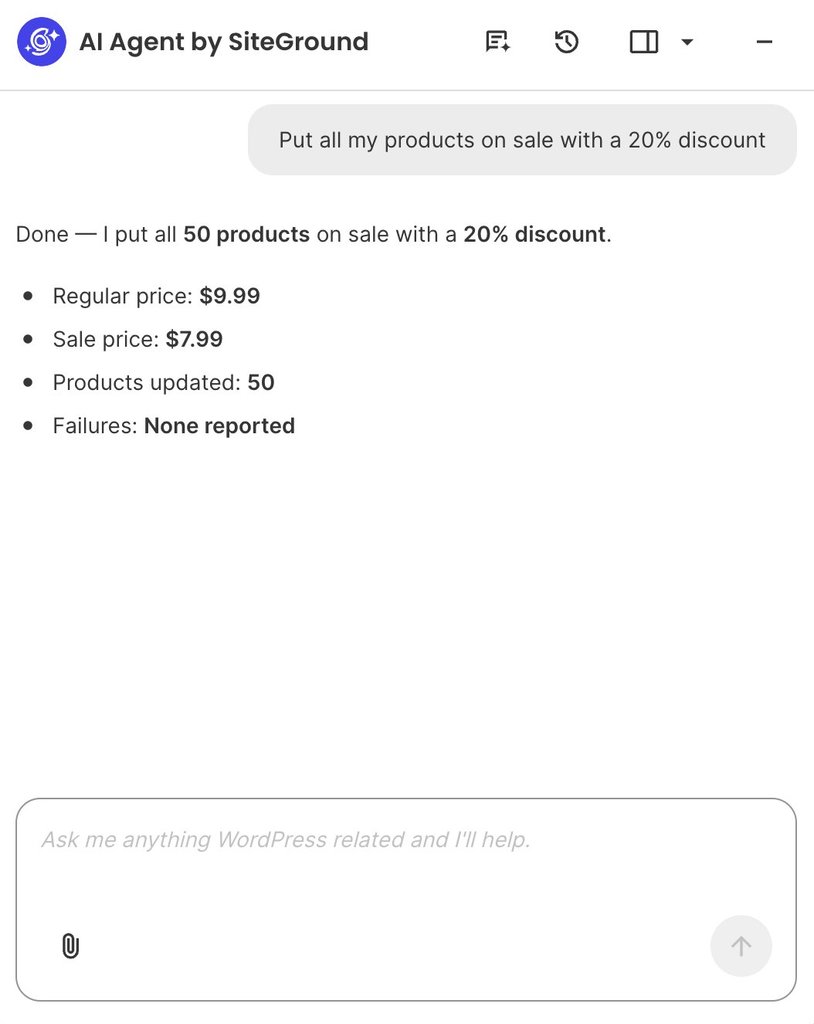
By contrast, SiteGround’s AI Agent for WordPress handles WooCommerce management across both your product pages and your store’s underlying operations. Beyond drafting product details, it carries out live e-commerce tasks directly through chat, including updating prices across multiple items at once, managing customer orders, tracking inventory stock, and generating sales reports.

For example, running a storewide promotion takes a single plain-language request instead of hours of manually editing individual product pages. You can simply instruct the assistant to apply a discount across your entire catalog, and it automatically calculates the new prices, updates every item at once, and confirms the exact changes right in the chat:

Screenshot of the AI Agent by SiteGround interface confirming a 20% discount applied to 50 products.

A service business that wants a chatbot

For a business that wins clients through its website, AI Puffer’s chatbot captures leads as well as answering questions, drawing on your site content and uploaded files. On Pro, chatbot rules can show a quote form when a visitor asks about pricing, save what they submit, and send it to HubSpot or Pipedrive (CRM tools, which businesses use to track leads and customers). AI forms can run guided intakes, and a feature AI Puffer calls its Realtime Voice Agent adds live voice to the chatbot, rather than being an agent that manages the site.

The AI Agent for WordPress works in the WordPress admin, not on your public pages, so this is the case where running both makes sense: AI Puffer for the chatbot and forms visitors see, and the AI Agent for WordPress for running the site behind them. 

An agency with client sites on different hosts

AI Puffer operates independently on each website, requiring separate license keys (sold in 2-, 5-, or 10-site tiers), API keys, and settings for every client. Making a single configuration change across ten client sites requires logging into ten separate WordPress dashboards to update each one individually.

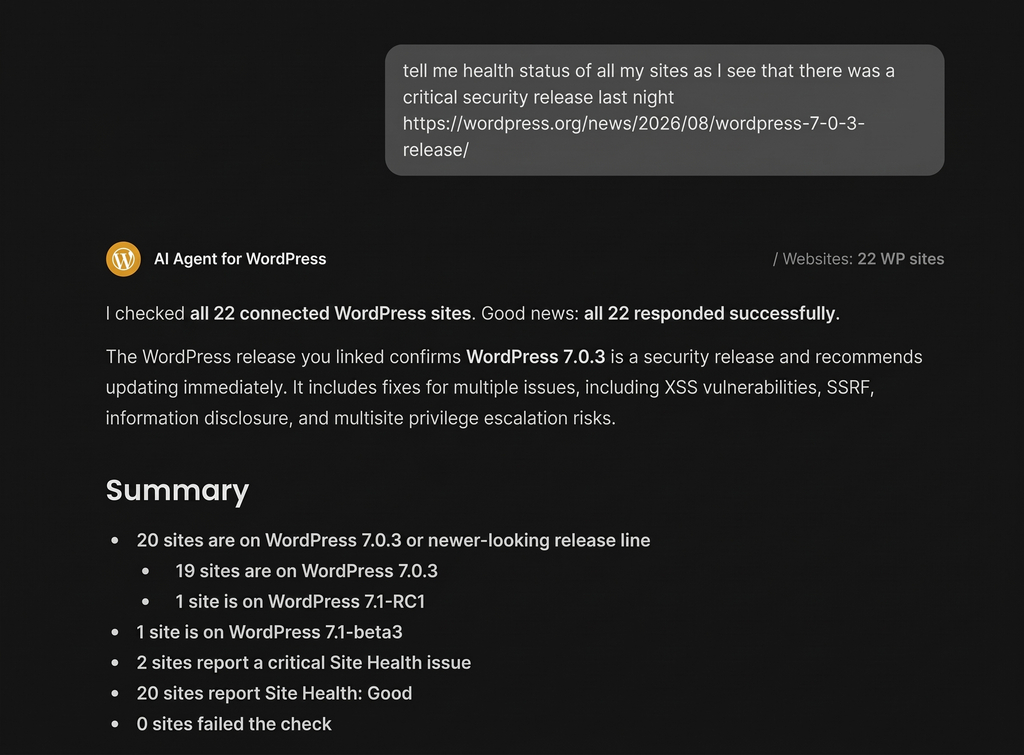
SiteGround’s AI Agent for WordPress enables centralized multi-site management from a single chat workspace, regardless of where each website is hosted. Agencies can run bulk administrative tasks (such as checking user permissions, updating plugins, or reviewing core security updates) across their entire portfolio with a single prompt.

For example, when a critical WordPress security patch is released, confirming update status across 22 client sites would traditionally require logging into 22 separate admin areas. With the AI Agent for WordPress, you can check and confirm update statuses across all 22 sites at once in a single prompt:

An AI Agent for WordPress chat interface displaying a site health and security status summary for 22 connected websites.

The bottom line: AI Puffer or AI Agent for WordPress?

AI Agent for WordPress vs AI Puffer comes down to one question: do you want to add individual AI features to your website, or do you want an assistant to help you run it?

AI Puffer provides a toolkit of AI features for your visitors, such as customer chatbots and smart web forms, along with background content schedules, all running on third-party API keys you set up and manage yourself. SiteGround’s AI Agent for WordPress acts as a personal site manager that handles your daily website operations, from updating plugins and managing user permissions to adjusting store prices and processing customer orders, with built-in AI access ready right out of the box. 

FAQs

AI Agent for WordPress vs AI Puffer: what is the difference?

The difference between AI Agent for WordPress and AI Puffer is what each one works on. AI Puffer adds AI features to your site, including a visitor chatbot, AI forms, content generation and scheduled tasks, using your own AI provider keys. AI Agent for WordPress manages the site itself from a conversation, including plugins, users, settings and WooCommerce operations, with AI access included.

Is AI Puffer an AI agent or an all-in-one AI plugin?

AI Puffer is an all-in-one WordPress AI plugin. It combines a chatbot, content writer, AI forms, image generator, knowledge base and automations in one toolkit. Its Realtime Voice Agent is a voice mode for the visitor chatbot, not an agent that manages the site.

Can AI Puffer manage an entire WordPress site through chat?

No. AI Puffer cannot manage an entire WordPress site through chat. Its chatbot answers visitors from your content, and its tools cover content, forms, images and scheduled tasks. It doesn’t update plugins, change users or settings, or handle store operations.

What can AI Agent for WordPress do that AI Puffer cannot?

AI Agent for WordPress updates plugins, changes users and settings, raises prices across many products, handles WooCommerce orders and runs changes across several sites, all from a conversation. AI Puffer’s product tools write and rewrite product content, and don’t change prices, stock or categories.

Does AI Puffer require my own AI provider API keys?

Yes. AI Puffer requires your own API key from at least one provider, such as OpenAI, Anthropic or Google, and you need one connected before you can set up a chatbot or any other module. The provider bills you directly for usage, including on AI Puffer’s free version. AI Agent for WordPress includes AI access, so there’s no key to create or manage.

Does AI Puffer Pro include AI credits?

No. AI Puffer Pro doesn’t include AI credits. Pro adds plugin features, and your AI provider bills you separately for usage, so a Pro site pays for the plugin and for each provider it connects.

Can AI Puffer update WordPress plugins, users and settings?

No. AI Puffer can’t update WordPress plugins, users or settings. Its settings manage its own AI features, such as provider keys, which roles can use each module, and usage limits.

AI Agent for WordPress vs AI Puffer for WooCommerce: which is better?

AI Agent for WordPress handles more of WooCommerce management. AI Puffer writes and rewrites product titles, descriptions and tags in bulk, while AI Agent for WordPress also changes prices across the catalog, handles orders and pulls sales reports.

Can I use AI Puffer and AI Agent for WordPress together?

Yes. AI Puffer and AI Agent for WordPress do different jobs, so a site can use AI Puffer for a visitor chatbot or AI forms and AI Agent for WordPress to manage the site and store.

Is AI Puffer the same as AI Power?

Yes. AI Puffer is the plugin’s current name, so an AI Agent for WordPress vs AI Power comparison covers the same plugin. Its WordPress.org listing still uses the older address, gpt3-ai-content-generator.

Email banner size: Dimensions that prevent header cropping

An "End of Season Sale" email banner with an orange background and black boots filled with daisies, shown on a desktop email layout and a smartphone screen to compare how the banner displays on each device.

The right email banner size is 600px wide, the same width as your email template. That one number covers both your header and your hero banner, and only the height changes between them. It sounds like a minor detail until you get it wrong. Go any wider and Outlook chops off the edge, while phones shrink the text in your banner down to fine print. SiteGround Email Marketing layouts already set the width and handle mobile scaling, so all you need to bring is an image that fits.

Key takeaways:

  • The standard email banner size is 600px wide. Header banners run 150–200px tall, and hero banners run 300–400px tall.
  • On a 360px-wide phone, a 600px banner displays at about 60%, so 16px text inside the image drops to roughly 10px.
  • Setting width=”600″ in the image’s HTML stops classic Outlook from showing a 1,200px file at full size.
  • Keeping hero banners at 400px tall or less leaves room for your headline and call to action on the first screen.
  • A test email to Gmail, classic Outlook for Windows, and a phone catches these problems before your list sees them.

Email banner size at a glance

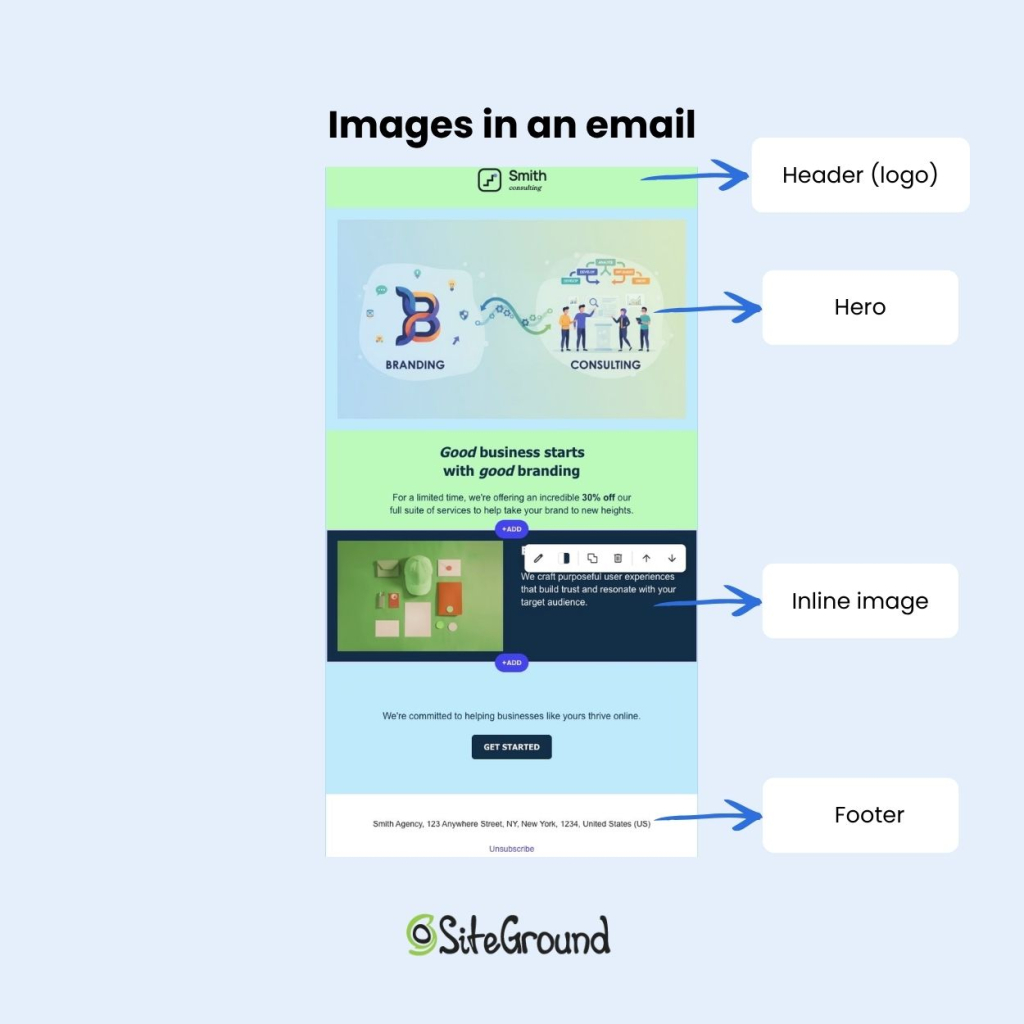
An email banner is a wide image that runs the full width of an email. The two you’ll use most sit at the top: a header banner with your logo and navigation, and a hero banner right below it that carries the campaign’s main message, often with a headline and a button. Some emails also use smaller banner strips further down, such as a promo bar above the footer.

Annotated email template from Smith Consulting labeling four image placements: the logo in the header, a branding and consulting hero banner, an inline product image next to body text, and the footer with the company address and unsubscribe link.

An email banner displays at 600px wide, with a header banner at 150–200px tall and a hero banner at 300–400px tall. What changes from screen to screen is how big that banner, and the text inside it, looks once a phone shrinks it to fit.

BannerDesign size2x exportDisplays as on a 360px phone16px text becomes
Header banner600 × 150–200px1,200 × 300–400px~360 × 90–120px~10px
Hero banner600 × 300–400px1,200 × 600–800px~360 × 180–240px~10px

On phones, the banner displays at the screen width, roughly 320–480px, so one 600px file covers desktop and mobile. You don’t need to design a separate mobile version. The 2x export is the optional sharpness step from our email image size guide, and for a banner with text on it, it’s the step to keep, because text is the first thing to blur.

What happens if your email banner is too big or too small

A banner that’s too big gets cropped, pushes your message down, or leaves an empty box at the top of the email. A banner that’s too small turns blurry or leaves its text unreadable. Here’s how to spot each problem and fix it.

Too wide: cropped in Outlook, sideways scrolling elsewhere

  • What you see: The banner is cut off on the right in classic Outlook for Windows. If the width isn’t set anywhere, other clients show a sideways scroll bar too.
  • Why it happens: Classic Outlook renders email with Microsoft Word’s engine, which ignores CSS widths on images. Without a width attribute in the HTML, it displays the image at its actual pixel size, so a 1,200px export shows up at 1,200px
  • Fix: Set width=”600″ on the image tag itself. Keep the CSS width too, for every other client.

In SiteGround Email Marketing, the layout’s image block sets the width for you, so there’s no code to edit.

Too tall: your message and CTA drop below the fold

  • What you see: A 600 × 800px banner fills a laptop screen before any copy appears. On a phone, it scales to about 360 × 480px, so readers scroll before they know what the email is about.
  • Why it happens: The banner takes up the whole first screen, so your headline and CTA start below it.
  • Fix: Keep hero banners at 400px tall or less.

Too heavy: slow loading, and a blank space where images are blocked

  • What you see: An empty box at the very top of the email, where readers look first.
  • Why it happens: A heavy banner takes longer to load, especially on mobile data. The same empty box appears when images are blocked.
  • Fix: Give the banner’s cell a background color in your brand palette, add alt text that repeats the headline, and keep the headline in live text below the image.

Text too small once scaled on mobile

  • What you see: Banner text that’s hard to read on a phone.
  • Why it happens: Text baked into the image shrinks with it. A 600px banner on a 360px phone displays at about 60%, so 16px text drops to around 10px.
  • Fix: Set banner headlines at 28px or more at design size (56px in the 1,200px file). On a 360px phone, that lands around 17px, just above the 16px recommended for mobile body text. Better still, move headlines and CTAs into live HTML text, which stays sharp and still shows when images are blocked.
  • In SiteGround Email Marketing: Headlines and buttons live in the layout’s sections as HTML text, so they stay readable on phones. You’ll only hit this if you design text into the banner file before you upload it.

Too low-resolution: blurry or pixelated on phone screens

  • What you see: A soft banner on high-density phone screens, with the text blurring first.
  • Why it happens: The file was exported at exactly 600px, so the phone stretches it to fill extra screen pixels.
  • Fix: Export at 1,200px wide and display it at 600px.

How to size your email banner in 4 steps

Sizing an email banner takes four steps: match the template width, export at 2x, keep text in the safe zone, and test.

  1. Match the banner to your template width. 

Check your template’s content width before you open a design tool. It’s the one number the rest of your email design builds on.

  1. Export at 2x for sharp phone screens.

Set your canvas to 1,200px wide, double the heights from the table, then set width=”600″ on the image. Pick JPG or PNG using the format rules in the image size guide.

  1. Keep text and CTAs inside the center safe zone, at a size that survives mobile scaling. 

Leave at least 20px of empty space on each side at design size (40px in the 1,200px file), and keep headlines at 28px or more.

  1. Compress the file and test it in real inboxes.

 Get the file under the weight cap from the image size guide, then send a test.

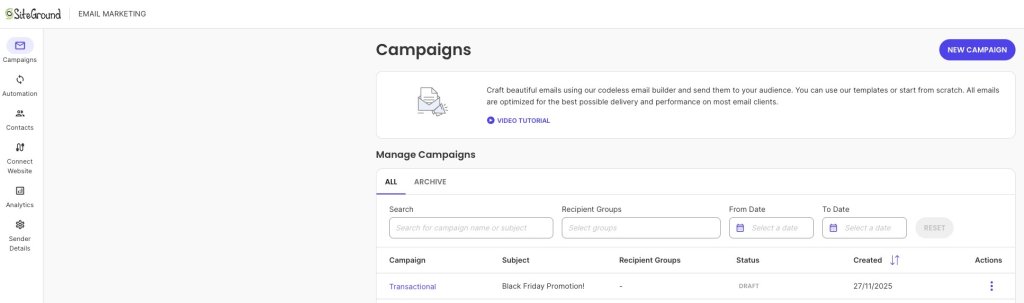
In SiteGround Email Marketing, go to Client Area > Services > Email Marketing > Campaigns and click New Campaign.

The Campaigns page in SiteGround Email Marketing, with a New Campaign button, a short intro to the codeless email builder, and a Manage Campaigns table with search and date filters listing a draft campaign titled "Black Friday Promotion!"
  • Pick a Basic Layout and click Select. The layout’s image block already holds the right width, so you only need a file that matches it.
  • Click the image placeholder and open the Image Gallery. Upload your banner from your computer, or pick one you’ve uploaded before.
  • Click Test Email in the top-right corner, enter an address, and click Send. Send one test to each inbox you want to check: Gmail, classic Outlook for Windows, and your phone.
  • Open each test and check the banner. First and last name variables show as “Test Name,” so a generic greeting isn’t a bug.

Test your email banner size before every new design

An email banner size that works in one inbox can still break in another, so every new banner gets one test send before it goes to your list. Open it in classic Outlook for the crop, on a phone for the text, and with images turned off for the empty box. 

You don’t have to work out most of this by hand. SiteGround Email Marketing comes with ready-made layouts that have banner placeholders already set to the email’s width and built to scale down on phones.

Pick a layout, click a placeholder to swap in your own banner, and send yourself a test. The width, the structure, and the mobile scaling are already in place, so the only thing left to check is your image.

[58]

Frequently asked questions about email banner size

What is the ideal size for an email banner?

The ideal size for an email banner is 600px wide and 300–400px tall for a hero banner, exported at 1,200px wide so the text stays sharp on phones.

What size is an email header?

An email header is 600px wide and 150–200px tall, which is enough for a logo and a short menu bar. In SiteGround Email Marketing, your logo appears in the header on its own once you add it under Sender Details > Brand Identity.

What size should an email banner be for Outlook?

An email banner for Outlook should be 600px wide, with width=”600″ set in the image’s HTML. The attribute stops classic Outlook from showing a 2x file at full size.

How wide should an email template be?

An email template is typically 600px wide, which fits Outlook’s reading pane without a horizontal scroll bar and scales down to phones. Your banner should match it.

What happens if my email banner is too big?

An email banner that’s too big gets cropped in Outlook, forces sideways scrolling, or pushes your message below the fold.

Is the 600px email width rule outdated?

No, the 600px email width rule isn’t outdated. Desktop monitors got wider, but reading panes stayed about the same, and phone screens are still narrower than 600px, so a 600px email fits both. What changed is screen density, which is why you export at 2x.