AI plugin fragmentation in WordPress: Why more choice makes sites harder to manage

Count the WordPress AI plugins on your site. If there are more than two, you probably didn’t plan it that way. One arrived to write meta descriptions, another to answer visitor questions, a third because the first couldn’t do images. Each install solved the problem in front of you.

What comes next is AI plugin fragmentation in WordPress: the AI capabilities you need spread across several narrow tools, none of them aware of the others, and the work of holding it all together left to you. Our 2026 report on AI in WordPress for small businesses found 67% of small business owners doing that work alone, wasting time they could use to run their actual business.

Key takeaways:

  • AI plugin fragmentation in WordPress is a supply problem before it’s your problem. A new AI plugin joins the WordPress directory roughly every 1.8 hours.
  • The cost is never the sticker price. Each plugin adds a settings screen to learn, an update cycle to keep up with, and a share of your security exposure. Many also add an account, a key, and a subscription of their own.
  • Plugins are where the security risk sits. Most of the WordPress vulnerabilities disclosed most recently were in plugins.
  • WordPress 7 fixed part of this and moved the rest. Developers got one standard way to reach AI providers. Site owners still create accounts, generate keys, and watch token bills.
  • The goal is fewer connections, not fewer capabilities. Consolidation is about reducing the number of things you maintain, not giving up what they do.

What AI plugin fragmentation in WordPress means

Fragmentation is what happens when a job gets divided across tools that were never designed to work together. In WordPress, it means one AI plugin writes your content, a second handles SEO metadata, a third runs a chatbot, and a fourth generates images, with no shared account, no shared settings, and no shared idea of what your site is for. You’re the only thing connecting them.

This isn’t a failure of judgment on your part, but rather the shape of the supply. An independent count of the entire WordPress plugin directory, published in July 2026 by WordPress consultant Casey Burridge, found 3,163 AI plugins among 68,651 listings, with 17.4% of everything added in 2026 being AI-related. That’s roughly one in six new plugins.

The first 1,000 AI plugins took WordPress.org 18.3 years to accumulate. The second thousand took 9.4 months, and the third took 88 days. Two-thirds of every AI plugin ever listed arrived in the last twelve months. Our own 2026 report on AI in WordPress for small businesses puts the growth rate at roughly three times faster than the wider plugin economy.

More supply isn’t the same as more help. As the author of that count puts it, one in six being AI-related is a supply signal rather than a quality signal, spot checks suggest plenty are thin wrappers around somebody else’s API key, and discovery in the directory was already hard before this. Meanwhile, 44.4% of the small business owners in our report already name finding and configuring plugins as one of their biggest difficulties. The shelf got fuller for people who were already struggling to choose from it.

What stacking narrow WordPress AI plugins actually costs you

Listicles price WordPress AI tools for small business one at a time, which is exactly how the total escapes notice. Here’s what each one adds, beyond its monthly fee.

CostWhat it looks like in practiceWhy it compounds
CredentialsAn API key to generate, paste in, and keep track of for each AI plugin that talks to a providerEvery key is a credential to store, rotate, and eventually lose track of. Losing track is the normal outcome, not the unusual one
SubscriptionsSeparate billing for each narrow tool, with token charges underneathFour tools at typical plugin subscription prices is not a small line, and token spend moves on top of it every month
InterfacesA different settings screen and a different mental model per pluginSomeone already finding the WordPress dashboard difficult now has five more dashboards inside it
Update cyclesEach plugin ships on its own schedule with its own breaking changesMore update surface means more weekly maintenance and more chances that a conflict takes the site down
Security surfaceEach plugin is code with permissions, often handling API tokens and exposing endpointsPlugins accounted for 91% of WordPress vulnerabilities disclosed in 2025. Every addition widens the surface
OverlapTwo plugins doing similar work, neither doing it completelyYou pay twice and still have a gap, which is usually what prompts installing the sixth

The overlap described in the last row happens for a reason that has nothing to do with choosing carelessly. The plugins you already run are adding AI of their own. For example, Rank Math and Yoast added AI writing to their SEO panels, Elementor added it to the page builder, and the translation plugins added AI translation. So the AI plugin you install to write product descriptions may duplicate something the SEO plugin you’ve had for three years gained in an update you never read the notes for.

Keep in mind: The directory’s search is showing you tags, not capabilities. Plugin authors choose their own tags, and many carry several. A tool tagged for chatbots, SEO, ecommerce, and content will surface for all four searches while doing one of them well. Before installing, read the changelog rather than the description. The description is marketing; the changelog shows what has actually been built and when anyone last touched it.

Did WordPress 7 solve AI plugin fragmentation?

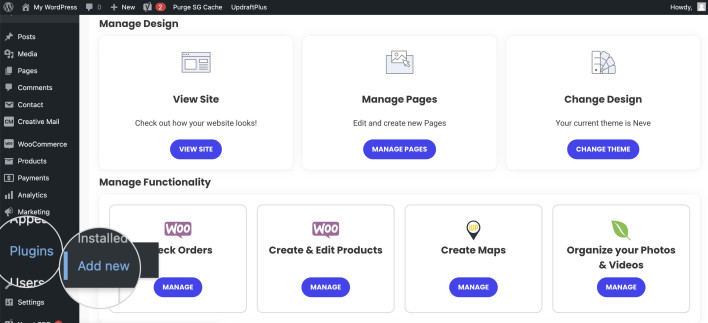
WordPress 7.0 partly solved AI plugin fragmentation, and this is the part most coverage gets wrong in one direction or the other. It was built to address exactly this problem, and WordPress 7.1 continued the work at the same layer. It succeeded there, but it just wasn’t the layer where you live.

What the AI Client and Connectors screen fixed

Before WordPress 7, every plugin that wanted to use AI wrote its own connection code for every service it supported. Dozens of plugins each maintained their own integrations, and credentials ended up scattered across as many settings screens as you had plugins.

WordPress 7 replaced that with a shared foundation. The AI Client gives plugins one standard way to ask for what they need, and WordPress routes the request to whichever provider you’ve connected. The Connectors screen puts provider credentials in one place instead of many. Within months, more than 70 plugins had registered with the new layer. If you want the details, our explainer on how AI works in WordPress 7.0 covers it.

One condition decides whether any of that reaches you. The sharing only applies to plugins built to use Connectors. A plugin that predates WordPress 7, or that simply keeps its own settings screen, still stores its own key exactly as before. And if you’re still on WordPress 6.x, none of it applies yet, because the Connectors screen isn’t there: every AI plugin carries its own key. Adoption is early, so on most sites today the answer is mixed: some tools share a provider connection, others carry their own.

Why the AI plugin fragmentation moved to the provider level

What WordPress 7 standardized was how plugins reach AI providers. What it didn’t change is the WordPress AI plugin setup complexity you face before any of that helps. You still open the Connectors screen, choose a provider, install that provider’s plugin, create an account on the provider’s website, find your way into its developer dashboard, generate an API key, come back and paste it in, and then install a separate features plugin before anything visible appears. After that you track spending in the provider’s own billing dashboard.

Then there’s the catch that turns one setup into two. Providers don’t all do everything. For instance, Anthropic’s models generate text but not images, so an owner who needs both connects a second provider, which means a second account, a second key, and a second billing dashboard to watch.

So WordPress 7 solved fragmentation for developers and moved it to the provider layer for everyone else. The count genuinely improved: instead of entering the same key into five plugin settings screens, you enter it once, and every plugin sharing that connector uses it. What didn’t improve is the work in front of that. You still create the account, generate the key, install two plugins, and watch a billing dashboard, and needing both text and images means doing all of it twice.

When multiple WordPress AI plugins are the right answer

Consolidation arguments can read as sales copy when they pretend there’s never a reason to run several tools. There are actually three cases when it’s worth it to choose multiple WordPress AI plugins:

  • If a specialized AI plugin genuinely beats a more general one. Things like industry-specific compliance are deep problems, and a tool built for one of them will do it better than a broad platform. If your business depends on that depth, pay for it.
  • If you already rely on the tool and it works. If your trusted SEO plugin added AI features and your whole workflow runs through it, replacing it to reduce a count isn’t a saving. There can be switching costs, and consolidation for its own sake isn’t a goal.
  • If the requirement is genuinely narrow. One small job, one small plugin, no ongoing cost, no credential: if this is what you use your AI plugin for, then there’s no need to replace it.

The test is whether each one of your AI plugins is there because you chose it for a job, or because it was the fastest answer to a problem you had on a random Tuesday.

Pro tip: Sort your list by last updated, not by name. In your Plugins screen, the useful question isn’t what each tool does but whether anyone is still maintaining it. A plugin that hasn’t shipped an update in a year is carrying whatever security issues it had a year ago, and abandoned AI plugins are especially common because many were built quickly during the rush described above. Anything unmaintained that also holds an API key is the first thing to remove, because it combines the two risks in this article into one line on your site.

How to reduce WordPress AI tool sprawl

To avoid AI plugin fragmentation in WordPress, consolidate by reducing connections, not capabilities: one place that reaches your site, one set of credentials, one interface to learn, one record of what changed.

A site-connected AI agent can reduce WordPress AI tool sprawl this way. For example, SiteGround’s AI Agent for WordPress connects once and then handles content, media, plugins, users, and WooCommerce through the same conversation, with no provider account to create and no key for you to store.
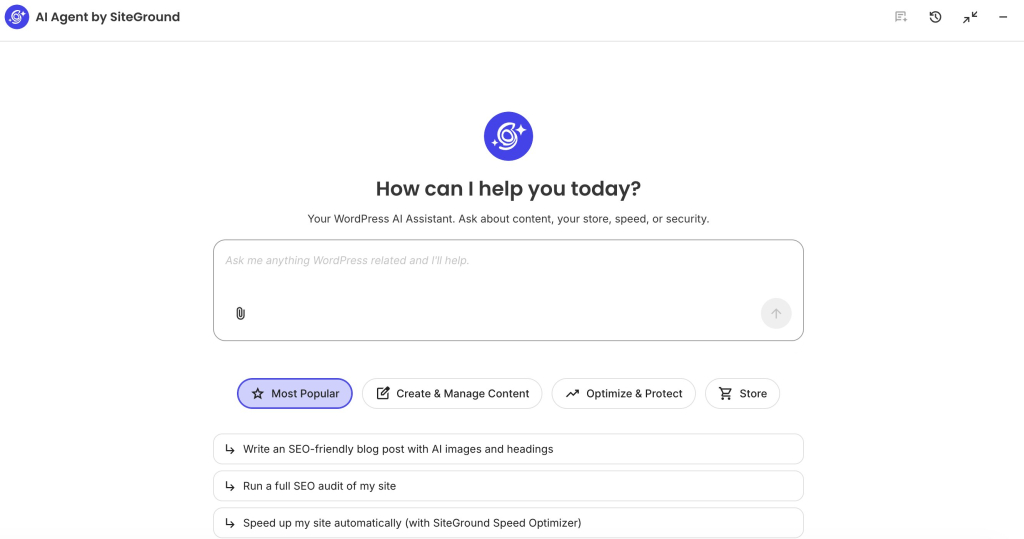
A screenshot of the AI Agent by SiteGround dashboard featuring the central heading "How can I help you today?" and the tagline "Your WordPress AI Assistant. Ask about content, your store, speed, or security." Below the blue icon logo sits a prompt input box with the placeholder text "Ask me anything WordPress related and I'll help." Category tabs beneath the input highlight "Most Popular" alongside options for "Create & Manage Content," "Optimize & Protect," and "Store," followed by suggested starter prompts: "Write an SEO-friendly blog post with AI images and headings," "Run a full SEO audit of my site," and "Speed up my site automatically (with SiteGround Speed Optimizer)."

You don’t have to replace everything at once, and it’s usually a mistake to try. Stop the stack growing first, then replace the tools whose jobs already overlap, and keep the specialists that earn their place. Our guide to AI plugins and AI agents covers that choice in more detail.

Whichever route you take, count the things you maintain rather than the AI features you have.

The problem was never a shortage of WordPress AI plugins

AI plugin fragmentation in WordPress isn’t caused by bad plugins or by careless site owners, but rather by a directory adding a new AI plugin every 1.8 hours, aimed at people who mostly manage their sites alone, in a market where each tool solves one slice and none of them can see the others.

So before the next install, ask what it adds to the list of things you now have to keep working: another screen, another update, and often another account, key, and bill. Answer that, and the right number of WordPress AI plugins usually turns out to be smaller than the number you have. And you might also be surprised by how much of your AI needs you can consolidate with a single AI Agent.

FAQs

What is AI plugin fragmentation in WordPress?

AI plugin fragmentation in WordPress is when the AI capability a site needs ends up spread across several narrow plugins, each with its own settings screen and update cycle, and often its own account, API key, and subscription, with none of them aware of the others. The work of holding them together falls to the site owner.

Why are multiple WordPress AI plugins hard to manage?

Multiple WordPress AI plugins are hard to manage because each one adds a separate interface and update schedule, and often its own credential and billing relationship. The features add up, but so does the maintenance, and 44.4% of small business owners already report difficulty finding and configuring plugins.

What security risks come from stacking multiple WordPress AI plugins?

The risks of stacking multiple AI plugins are a wider security surface, conflicting code, duplicated spending, and credentials nobody is tracking. Plugins accounted for 91% of WordPress vulnerabilities disclosed in 2025, and AI plugins often hold API keys that can spend money.

Why do WordPress AI plugins need API keys and add subscription complexity?

WordPress AI plugins need API keys and can add subscription complexity because most do not include the AI itself. They connect to an outside provider through an account you create and pay for separately, so each plugin can mean another key to store and another bill to watch.

Did WordPress 7.0 solve AI plugin fragmentation?

WordPress 7.0 solved AI plugin fragmentation partly. It standardized how plugins reach AI providers and centralized credentials in the Connectors screen, which fixed the problem for developers. Site owners still create provider accounts, generate keys, install a features plugin, and monitor token billing, so the fragmentation moved to the provider layer rather than disappearing.

How can site-connected AI agents reduce WordPress AI tool sprawl?

Site-connected AI agents reduce WordPress AI tool sprawl by replacing several narrow plugins with one connection, one set of credentials, and one interface. Instead of maintaining separate tools for content, media, and store tasks, you work through a single agent connected to the site.

How to build internal tools with AI for your business without coding

A man holding a laptop uses an AI prompt to create an "Internal dashboard" that is shown floating on the right. The user's prompt is: "Create a dashboard to track our project status..." Below the prompt, a loading state shows: "Generating..." The resulting AI-generated dashboard displays project statistics for "This week": 12 active projects, 8 completed, and 3 at risk. A detailed project table lists projects with columns for Project, Owner, Status (e.g., On track, In progress, At risk), Priority (e.g., High, Medium), and Due date.

Somewhere in your business there’s a process running on a spreadsheet, three email threads, and someone’s memory. Maybe it works most of the time, but it also breaks the same way every month: two people edit the same row, a request stalls because nobody owned it, and the status column means different things to different people.

An internal tool replaces that with one place where the records live, the statuses are agreed, and each person sees the part that concerns them. You can now build internal tools with AI by describing the process instead of coding it or hiring a programmer, which moves the work from writing software to defining what your team actually does.

Key takeaways:

  • Start with your records, not with a platform. What you track, what states it moves through, and who can do what. Platform roundups answer a question you don’t have yet.
  • Eight elements make a specification build-ready. Users, records, actions, states, permissions, views, exceptions, and a success test.
  • You can build internal tools with AI without coding. What decides the result is the description you write, not the software you write it into.
  • Exceptions are the most skipped element and the one that decides whether the tool survives. Missing fields, duplicates, late items, and rejections happen in week one.

Dashboards, CRMs, and admin panels are the same system

If you search for the best internal tools, you’ll find dashboards in one roundup, CRMs in another, and admin panels in a third, as though you have to pick a category before you start. You don’t, because they aren’t different kinds of software. They’re different windows onto the same one.

Underneath each sit records, the individual things you track, and states, the stages those things move through. A CRM is a records view with a sales pipeline as its state model. A dashboard is the same records counted and summarized. An admin panel is those records again, opened for editing by people you trust with that. So when you set out to build a CRM with AI, or go looking for a dashboard builder, you are describing the same system twice.

This changes the question. You stop asking whether you need a dashboard or a CRM and start asking what your records are and what states they move through. Answer that once and the views follow. Most no-code internal tools are business process tools at heart, and a team that defines its records properly gets all three views without building three things.

Start with the process, not the platform

Nearly every guide on this subject opens with a ranked list of builders. That’s the wrong first question, and not only because most of those lists are published by the platforms on them. It’s the wrong question because the obstacle is rarely the tool. Most small businesses have never written down how their own process works.

This is also why non-technical teams that build internal tools without code are sometimes disappointed. Given a vague description, a builder produces a plausible, generic app that matches nothing in particular. But given a precise one, it produces something your team recognizes. The quality of what comes out tracks the quality of what went in, and the input is a specification you write, not a platform you choose.

If you haven’t settled on a builder yet, take a look at our guide to choosing a no code web app builder.

Eight questions that turn a process into an internal tool specification

Answered in order, the following eight elements turn an informal business process into an internal tool specification a builder can act on. Work through them against your own process rather than just reading them.

ElementThe question Why it matters, and what goes wrong without it
UsersWho uses the tool?Decides how many views you need. Teams design for themselves and forget the person who only submits a request and never opens anything else
RecordsWhat information does it store?The unit of work: a job, a lead, an invoice, a request. Getting this wrong at the start makes everything after it wrong
ActionsWhat can each user do?Create, edit, approve, assign, close. Actions are where permissions and workflow meet
StatesHow does work move through the process?The status field is the process. Most spreadsheet workflows already have states, in a column nobody formally agreed on
PermissionsWho can view, edit, approve, or delete?The difference between a tool a team trusts and one where somebody deletes a month of records
ViewsWhat does each user need to see?This is where dashboards, board layouts, and admin screens come from. They’re outputs of the model rather than choices you make up front
ExceptionsWhat happens when information is missing, invalid, late, duplicated, or rejected?The most skipped element, and the one that decides whether the tool survives contact with real data
Success testWhat proves version one is useful?Defined before building. Usually: the team stopped using the spreadsheet

Take for example a team handling internal purchase requests through a shared sheet and an inbox. Here’s how the eight answers come out.

  • Users. Anyone who can request something, the two managers who approve, the director who signs off on anything large, and the office administrator who orders and receives.
  • Records. Requests, each holding an item, a cost, a reason, a requester, and a date needed.
  • Actions. Submit, approve, reject, mark ordered, mark received.
  • States. Submitted, approved, rejected, ordered, received.
  • Permissions. Requesters see only their own and approve nothing. Managers approve up to a limit and pass anything larger to the director. The administrator edits any request and deletes none.
  • Views. A requester sees a form and their own history. A manager sees a queue of pending approvals. The director sees monthly totals by team, which is the dashboard nobody had to specify separately.
  • Success test. The sheet stops being updated within a month.
  • Exceptions are where the real work is. What happens when a request arrives with no cost attached, when the same item is requested twice in a week, when an approval sits untouched for five days, and when a rejected request gets resubmitted with a different number? Each answer is a rule the builder needs. The success test is that the sheet stops being updated within a month.

Your states are already written down, in the messiest column of your spreadsheet. Before inventing a status list, sort that column and read every distinct value people have typed into it. You’ll find the official ones, and you’ll also find the informal ones: “waiting on Dave,” “chasing,” “held until budget.” Those are states your process has and nobody ever agreed on, which is exactly why work gets stuck in them. Deciding which to keep and which to merge is most of the states question, already done for you.

How to build internal tools with AI from your specification

With those eight answers written down, the build step is mostly transcription. You describe the tool to an AI internal tool builder in plain language, in the order of the model. A useful description names the records, the states, who does what, and one exception rule, rather than asking for a category of app.

So rather than just saying “build me an internal purchase request app”, which will just result in the AI builder guessing what you need, your initial vibe coding prompts can be something specific like this:

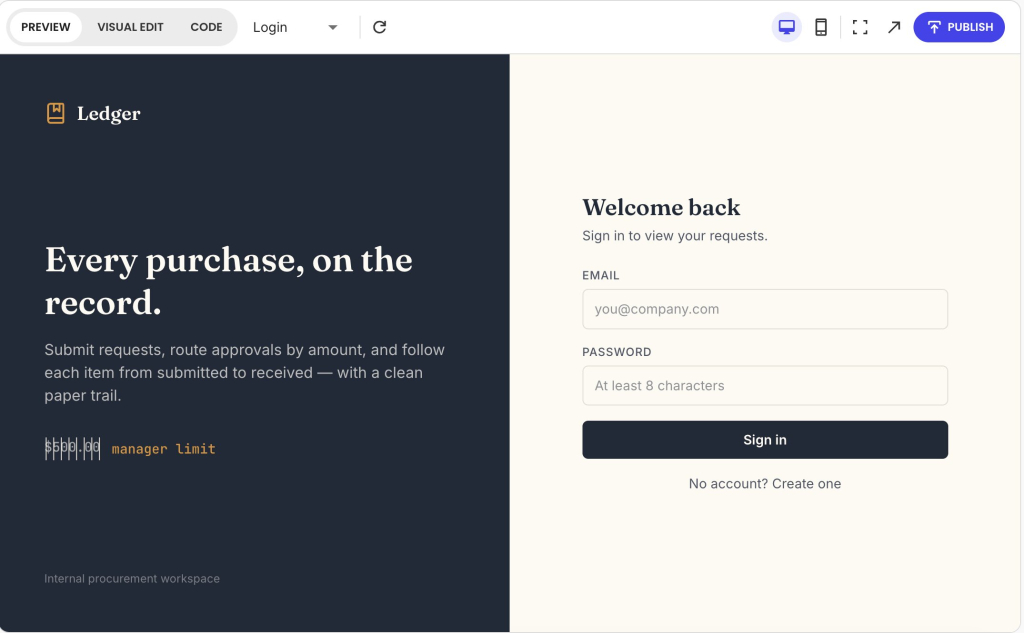
“Build a purchase request tool. Each request stores an item, cost, reason, requester, and date needed, and moves through submitted, approved, rejected, ordered, and received. Requesters see only their own requests. Managers approve up to $500 and anything higher goes to the director. Flag any request submitted without a cost instead of accepting it.”

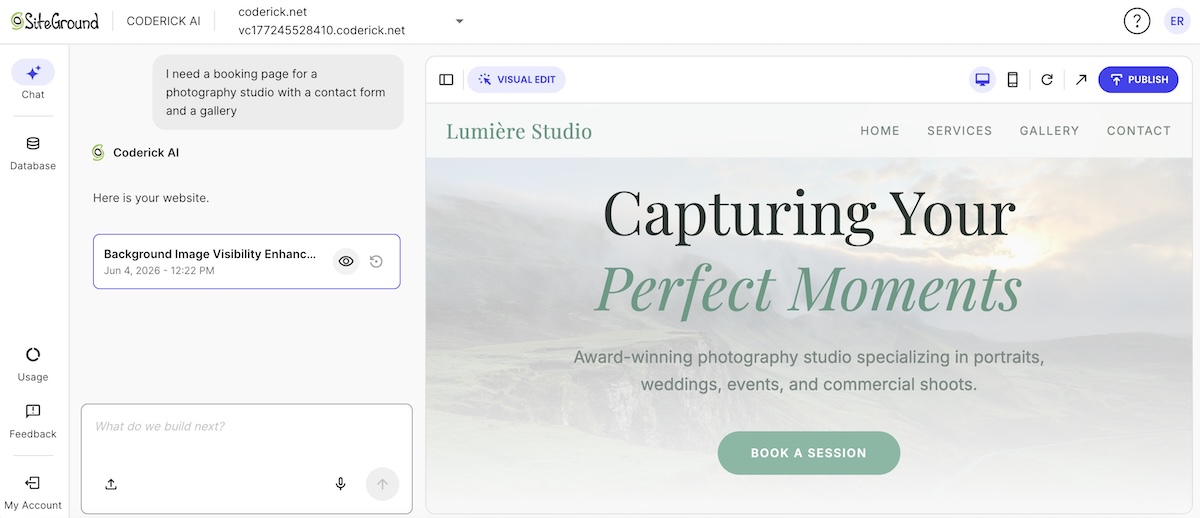
If you give this prompt to an advanced AI builder like Coderick AI, what comes back is a working internal tool rather than a mockup:

A screenshot of a web application preview displaying a login page split into two sections beneath a top editor bar with a blue "PUBLISH" button. The left dark panel features the "Ledger" logo, the headline "Every purchase, on the record.", a description for an internal procurement workspace, and a "manager limit" badge. The right light panel shows a "Welcome back" sign-in form with email and password input fields, a dark "Sign in" button, and a "No account? Create one" link.

Coderick AI generates the database behind it with the fields you named, created the three roles, and built a separate view for each: requesters see their own requests, approvers get an approval desk with a queue of what’s waiting on them specifically, and everything moves through the status pipeline you defined. The approval limits are enforced in the data rather than just in the interface, and the exception rule comes back with a recovery path, since flagged requests give the requester an “Add cost” action instead of leaving them stuck. It also makes the design decisions you left out, which at this stage is very welcome.

From there, you can refine your internal tool (see our guide to vibe coding workflows for more insights on how to do it). When the version in front of you is right, publishing takes one click. Your tool goes live with hosting included, so there’s no separate deployment step and nothing to set up before your team can log in.

How to test an AI-built internal tool before your team depends on it

Your instinct might be to check that the AI-built internal tool works. But what matters more is whether it holds up when the process misbehaves, which is what week one will do to it. Most of the AI app builder mistakes that surface later are visible in the first hour if you test for the right things.

  • Use real, messy data, not clean examples. Take fifty rows from the actual spreadsheet, including the incomplete ones and the ones with a note typed into a number field. A tool that only works on tidy input isn’t ready.
  • Run every exception you wrote down. Submit a request with a field missing. Submit the same one twice. Leave an approval untouched past its deadline. Reject something and resubmit it. You defined what should happen in each case, so check that it does.
  • Test each role as that person, not as yourself. Log in as a requester and try to approve your own request. Log in as a manager and try to exceed the limit. Permissions that were described correctly can still be built loosely, which is one of the checks our guide on whether vibe coding is safe covers in more depth.
  • Check the success test you set. Not whether the tool looks finished, but whether the team stopped updating the spreadsheet. That’s the only result that tells you it worked.

Pro tip: Test with the person who submits, not the person who built it. Whoever writes the specification tests the manager and admin views hardest, because those are the ones they thought about most. The requester view gets tested last and used most, by people who never see the rest of the tool. Hand it to someone who only submits requests, give no instructions, and watch where they hesitate. Every hesitation is a label or a missing option you’d never find from the inside.

When to buy software instead of building an internal tool

There are processes where building is the wrong call, and knowing which is worth more than any feature list. Almost all build-versus-buy guidance is published by companies with a stake in the answer: platform vendors argue for building, and software management firms argue for buying. Read both, and notice which direction each one leans.

Build when the process is genuinely yours

Building is the right call when the workflow is specific to how you operate rather than to your industry, when no vendor models it without you contorting your process to fit, and when the tool is narrow enough that maintaining it stays small. The purchase-request example qualifies. The approval limits, the roles, and the exception rules are yours, and there’s not much surface area to keep working.

Buy when the function is a commodity

Buying an internal tool wins when the category is mature with credible vendors, when your requirements are pretty standard, and when configuring an existing product already covers the workflow. Payroll, accounting, and email marketing are commodities. Building one to avoid a subscription can be a decision you’ll be servicing for years.

If a workflow hasn’t changed in two years and probably won’t, buying stays the better answer even when no product fits perfectly, because maintaining custom software for a stable process rarely pays back.

Keep in mind that AI-generated software still needs an owner, tests, and updates as the things around it change. AI changed what it costs to build, not what it costs to keep. When the tool gets adopted, small bugs accumulate, and whoever built it becomes its unofficial product owner, fielding requests they never signed up for. That’s survivable when the tool is narrow and expensive when it isn’t, which is the real argument for keeping version one small.

The hard part was never the building

For most of the time internal tools have existed, the barrier was engineering. You knew what your team needed and couldn’t get it made, so the spreadsheet stayed. That barrier has largely gone, revealing the one underneath: most teams have never written down how their own process works.

So when you build internal tools with AI, the eight questions covered here are the work. A team that can answer them has a tool worth building. A team that can’t gets a plausible app matching nothing they do, whatever they build it with.

The next step costs nothing. Open the spreadsheet your process runs on and answer the eight questions against it. Most of it is already there: the columns are your records, the status column is your states, and the people who edit the sheet are your users and permissions. What you’ll be missing is usually the exceptions and the success test, which are the two that decide whether the tool survives.

Once you have your answers, the first version of your AI-built internal tool is one prompt away.

[96]

FAQs

How do I build an internal tool with AI?

You build an internal tool with AI by describing your process precisely enough for the builder to act on it. Define your users, records, actions, states, permissions, views, exceptions, and a success test, then hand that specification to the builder rather than starting from a template.

What should I include in an internal tool prompt?

An internal tool prompt should include who uses the tool, what records it stores, what each user can do, the statuses work moves through, who can view or edit or approve, what each user needs to see, what should happen when data is missing, late, or duplicated, and what result will prove version one is useful.

Can a non-technical team build internal tools without coding?

Yes. A non-technical team can build internal tools without coding, because the hard part is describing the process rather than writing the code. The teams that struggle are usually the ones that skipped defining states, permissions, and exceptions.

How do I turn a spreadsheet workflow into an internal app?

You turn a spreadsheet workflow into an internal app by treating each row as a record, the status column as your workflow states, and the people who edit the sheet as your users and permissions. Most spreadsheets already contain the model, just informally.

How should I test an AI-built internal tool?

You should test an AI-built internal tool with real, messy data rather than clean examples, then deliberately trigger the exceptions: missing fields, duplicates, late items, and rejections. Finish by checking your success test, which is usually whether the team stopped using the spreadsheet.

When should I buy software instead of building an internal tool?

You should buy software instead of building an internal tool when the function is a commodity, the category has credible vendors, your requirements are standard, and the workflow is stable year over year. Maintenance costs several times the initial build, and AI lowers the cost of building without lowering the cost of maintaining.

Can Coderick AI build internal tools such as dashboards, CRMs, and admin panels?

Yes. Coderick AI can build AI-powered internal tools such as dashboards, CRMs, and admin panels, which are three views of the same underlying system. Once you have defined your records, states, and permissions, the views follow from that specification.

How to start an online boutique: A step-by-step guide to sourcing, setup, and real costs

Abstract of how to start an online boutique with images of a homepage and product pages

The online boutique you’ve been dreaming up is the fun part. Putting it into action might feel like a different story. Getting there means choosing a builder, sourcing an apparel line you can actually stock and ship, photographing it so shoppers trust the fit, and pricing it against real numbers instead of a vague “initial costs” line. We’ll cover all of that, plus the legal basics that usually get glossed over.

Key takeaways:

  • How to start a successful online boutique comes down to four real jobs: choosing the right platform, sourcing your product, photographing and listing it correctly, and pricing the whole thing honestly.
  • Inventory is the single biggest cost of launching a boutique if you’re holding stock upfront.
  • Different sourcing paths, wholesale, private label, dropshipping, and made-to-order, trade off cost and control for how much cash sits in inventory before your first sale.
  • You can start an online clothing boutique with little to no upfront inventory spend using made-to-order production or pre-orders instead of a bulk buy.
  • Sales tax gets a lot more manageable with the right platform: many ecommerce builders include built-in rate calculation and nexus tracking, so you’re not tracking rates state by state on your own.
  • Once you’ve chosen the right builder, connecting your domain and activating your store is the fast part, usually just pointing a domain and clicking through a few settings.

(Still getting oriented on what ecommerce actually involves? Start there before you dive into sourcing.)

Step 1: Pick and source your apparel niche

You’ve probably already got a business idea in mind. Maybe you’ve even done all the research. But if you’re starting from scratch, then pick a niche you can actually source and restock, not just one you’re excited to sell. Let’s quickly make sure you’re on the right track.

There are a few common ways to get product, each with a different tradeoff between cost, control, and how much inventory you need to hold upfront:

  • Wholesale or resale: stock existing brands to test a niche before committing to your own designs
  • Private label: put your own branding on an existing product without running full manufacturing yourself
  • Custom manufacturing: design and produce your own line, with the most control but the biggest upfront commitment
  • Dropshipping or made-to-order: sell without holding inventory upfront. Made-to-order works on most platforms; dropshipping specifically needs a builder that supports it, so confirm that before you commit to this route

Whichever route you choose, get clear on three things before you commit to a supplier: their minimum order quantity, what a sample costs and how long it takes to arrive, and whether they can back up their claims with a verifiable business history, reviews, or past client work. A sample itself is worth the cost no matter what: it’s the only way to check fabric weight, stitching quality, and true-to-size fit before you’re financially locked into a style, and a supplier who won’t produce one at any price is a red flag on its own.

How many styles should you start with? Enough to look like a real store, not so many you can’t restock evenly. A tight, focused lineup is easier to manage and sell through than a sprawling catalog, and you’ll have real sales data to guide you once you start scaling your business.

Step 2: Choose an ecommerce platform

You’re going to need a place to sell that product, and the easiest route will be to choose an ecommerce website builder. At a high level, look for a builder that can handle a variant-heavy catalog well, not just a generic product list. Run through these before you commit to one:

  • Think about what job your site needs to do. For a boutique, that’s selling a variant-heavy catalog, not just publishing pages.
  • Built-in size and color variants, so a shopper picks options from one product page instead of you creating a separate listing per combination.
  • Bulk photo uploads, so listing 20 products doesn’t mean 20 separate upload sessions.
  • Checkout that’s already optimized for conversions, not an added-on plugin you have to configure yourself.
  • Works well on mobile, not just desktop. Most ecommerce traffic now comes from phones, so make sure mobile web design comes baked in: size and color selection, photos, and checkout all need to hold up on a small screen before you commit to a builder.
  • Fast, reliable hosting with SSL bundled in. A catalog full of product photos is only as fast as the hosting underneath it, and slow pages cost you both search rankings and sales, so this shouldn’t be an afterthought or a separate purchase.
  • Easy-to-manage ecommerce SEO, so product pages are structured to rank without a developer or a separate plugin to configure. 
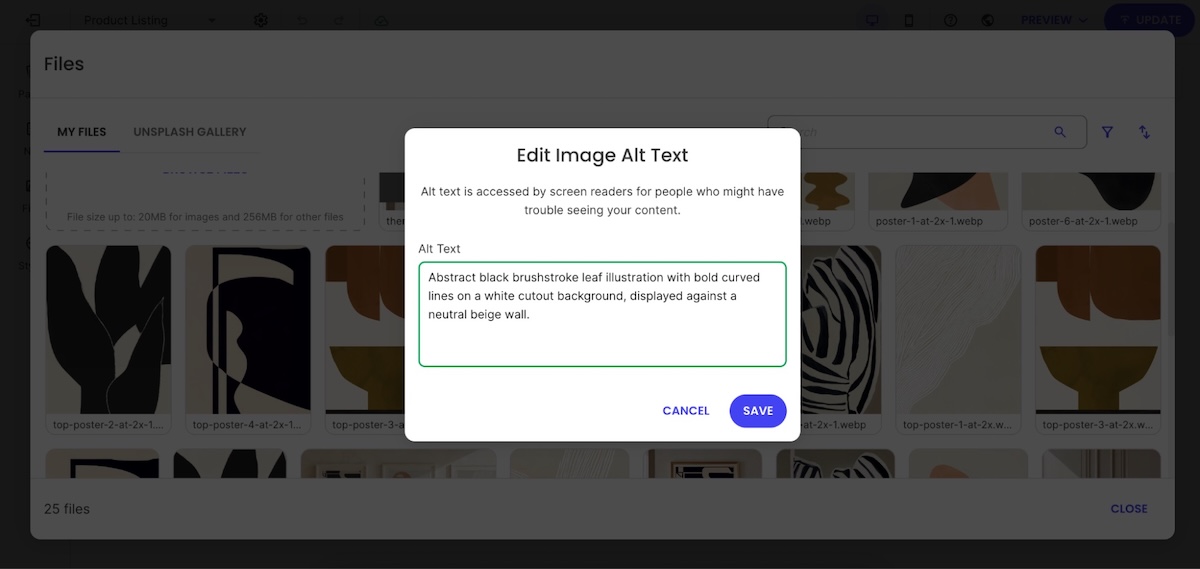
Example of the SiteGround Website Builder prompting you to add image alt text
  • Consider time to launch. A templated builder gets you live faster than one with unlimited design freedom and more decisions to make.
  • Be thoughtful about pricing. Check whether the plan includes hosting, SSL, and a domain, or whether those show up as separate line items later.

Most general-purpose builders can technically sell clothes, but the difference shows up once you have 20 products with three sizes and four colors each. A builder that treats each variant as a separate product turns a simple catalog into a maintenance chore, so it’s worth taking a closer look at what a clothing storefront specifically needs from a builder before you commit to one.

Why SiteGround Ecommerce makes the difference here: variants live on a single product page instead of scattered listings, bulk photo uploads and AI-assisted product details cut the busywork, checkout comes optimized for conversions out of the box, and hosting, SSL, and SEO tools are all bundled in rather than added on afterward.

Start building your ecommerce website now>>

Step 3: Set up your domain and activate your store

With the right builder, this step covers two things at once: your domain and the hosting underneath it.

  • New domain: Buy one directly through your builder and it connects automatically. No separate registrar, no DNS setup on your end.
  • Existing domain: If you already own one from elsewhere, you’ll need to update its DNS records, usually just changing the nameservers, to point it at your new store. This is where support matters most: redirecting a pre-purchased domain trips up a lot of first-time sellers, so a builder with a real person on chat beats one that only offers a ticket queue.
  • Hosting: With top-notch hosting, this is what keeps your store online, fast, and secure. It’s set up automatically with the right builder rather than something you shop for and configure on your own.

This is where an all-in-one platform actually pays off: look for one where your domain, hosting, and SSL connect automatically in a single setup, not three separate purchases you have to coordinate yourself. Hosting speed matters more than people expect, since a photo-heavy catalog is only as fast as what’s running underneath it. SiteGround Ecommerce, for example, builds speed optimization into hosting instead of treating it as an upsell. And when you’re moving a domain from elsewhere, real support on hand is the way to go.

Once you’ve connected your domain and activated your store, the boutique-specific work starts: getting your products photographed, listed, and priced.

Step 4: Photograph and list your products

Product photography is the one technical task that’s genuinely specific to selling clothes, and it’s what actually makes a storefront sellable. A shopper who can’t tell how a fabric drapes or what color it really is won’t buy, and if they do, they’ll return it. So let’s get this one right.

Photography basics that make a difference

  • Consistency over expensive equipment: a phone camera, a $30 lighting kit, and one consistent background will outperform a mix of styles shot in different rooms
  • Pick one format, flat-lay, mannequin, or model, and use it across your whole catalog so your store doesn’t look like three different sellers
  • If you’re using a model, shoot the same size and model across the full catalog so shoppers have one consistent reference point

Size and color variants

Set up size and color variants on a single product page rather than creating a separate listing for every size and color combination. This is basic product page SEO: splitting variants across multiple URLs creates near-duplicate pages that compete with each other in search results instead of stacking their ranking power, and it forces shoppers to hunt for the right size instead of selecting it from a dropdown.

Listings that reduce returns

Write sizing details as if the shopper can’t try the item on…because they can’t. Include:

  • Exact measurements (bust, waist, hip, length) for at least one size, not just “small, medium, large”
  • The model’s height and which size they’re wearing, if you’re using a model
  • Fabric composition and stretch, since a 95% cotton tee fits differently than a 5% spandex blend
  • A direct answer to “does this run small or large,” since that’s the question behind most sizing-related returns
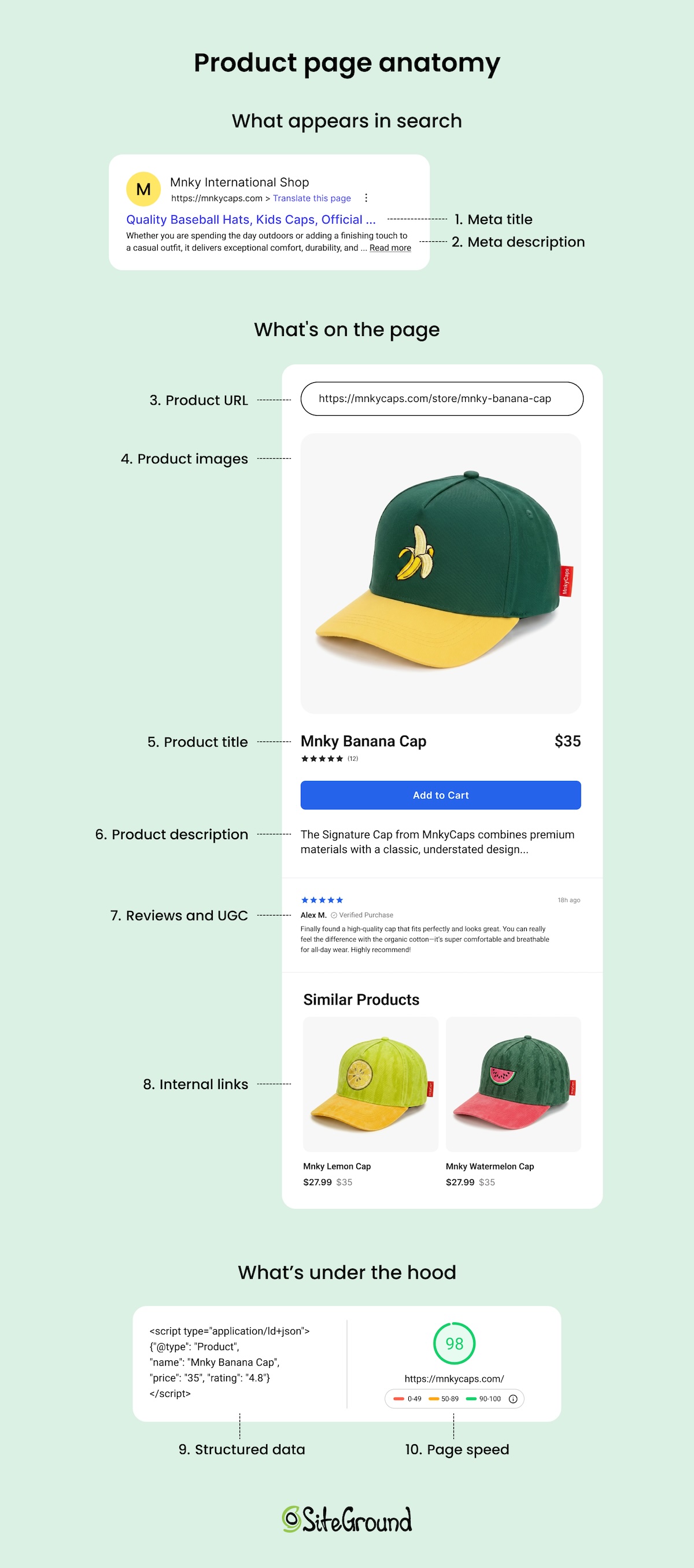
Visual diagram with the anatomy of an online store product page

Photos and listings that convert browsers into buyers follow the same visual and structural principles as any ecommerce store, so it’s worth digging into the layout and conversion side of things once your catalog’s live.

Step 5: Connect payments and shipping

With the right builder, this step is generally just about flipping switches and not building technical integrations (thankfully). Most all-in-one platforms come with payment processor options already available and a shipping rate calculator built in, so you’re choosing settings rather than hunting down plugins.

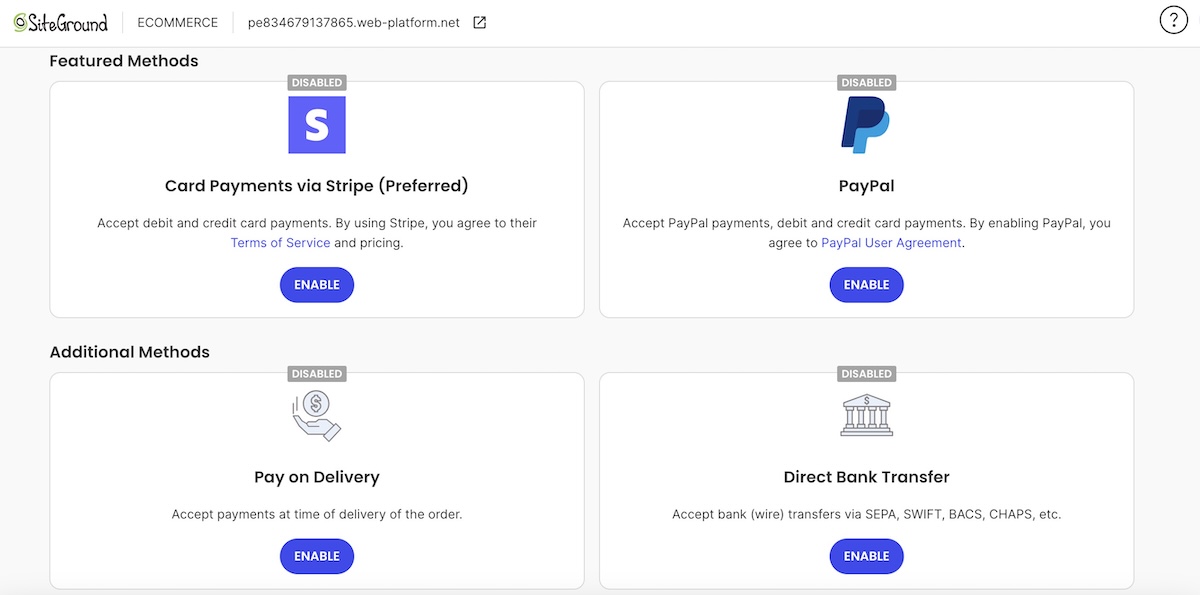
Backend of SiteGround Ecommerce where you can connect different payment methods for your customers

A few things worth getting right on the payments side:

  • Check for a stacked platform fee. Card processing typically runs around 2.9% plus $0.30 per transaction, but some builders add their own fee on top of that, so it’s worth understanding how online payments actually get priced before assuming the headline rate is what you’ll pay.
  • Run a test transaction before you go live. It takes two minutes and catches problems that are embarrassing to find out about on your first real sale.
  • Set your returns policy before launch, and not after your first return request. Clothing returns are common because sizing varies by brand, so decide on free returns, a restocking fee, or store credit only, and state it clearly.

For shipping, you’re really making two separate calls: how the order gets to the customer, and how you charge for it. Here’s what to keep in mind:

  • Pick a shipping cost rate strategy that fits your margins. A flat rate is simple but risks undercharging on heavy orders, which is why it’s worth setting shipping by weight and destination instead once your catalog has any real size range.
  • If you offer free shipping, build it into your numbers on purpose. A minimum-order threshold, often set around 30% above your average order value, covers your cost while still nudging people to buy more.
  • Get your product weights and dimensions right. Most rate calculations run on this data, and a wrong number is an easy way to lose money on every heavier order.
  • Write a short shipping policy covering processing time, delivery estimates, and returns, and link it in your footer so customers don’t have to ask. Better yet, add a section about it as well as payment-related issues on an FAQ page.
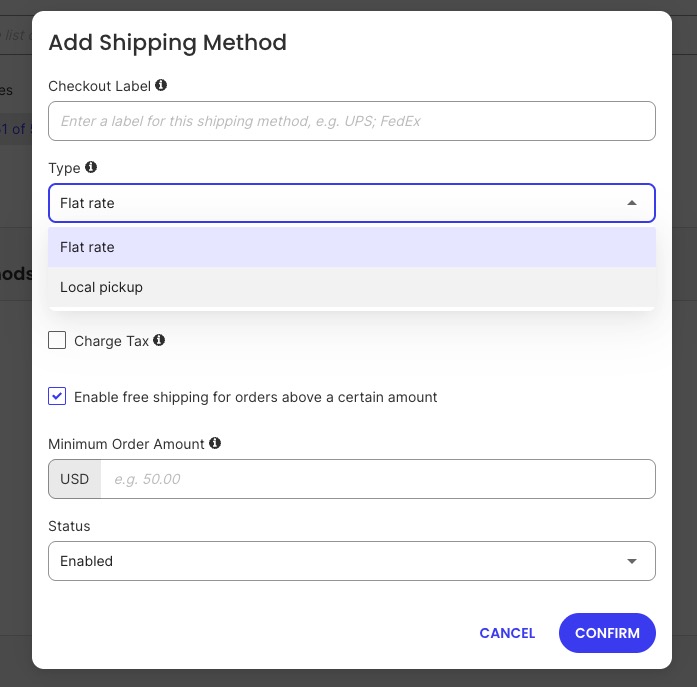
Choosing a shipping method in SiteGround Ecommerce backend

Step 6: Start your boutique legally

Starting an online boutique legally comes down to four concrete things, and none of them require a lawyer to get right the first time.

  • Business structure. A sole proprietorship needs no separate filing: you operate under your own name and Social Security number from day one. An LLC costs $150 to $800 to set up depending on your state, filed through your state’s Secretary of State website, and typically takes anywhere from same-day to a few weeks to process. The tradeoff for the extra cost: an LLC separates your personal assets from business liability, which matters more once you’re carrying real inventory.
  • EIN. Most sole proprietors don’t need one unless they hire employees or their bank requires one to open a business account. Apply directly through irs.gov, skip any third-party site charging a fee for this, and you’ll have your EIN the same day, for free.
  • Ecommerce sales tax. Cross a state’s economic nexus threshold, usually $100,000 in annual sales, and you’re required to register and collect there too, not just your home state. The right builder can automate most of this: a free basic setup applies predefined rates at checkout, and a Stripe-connected advanced setup handles real-time rates and nexus tracking automatically.
  • Business license. Requirements vary by city and state, and some require a general license even for a store that only sells online. A quick search of your city and state government site tells you what applies before you launch.

Step 7: Launch and get your first sale

Before you announce anything, run a pre-launch checklist:

  • Place a test order and confirm the checkout, confirmation email, and order notification all work
  • Click through every size and color variant to confirm the right photo loads for each
  • Test your shipping rate calculation with a real address, not just your own
  • Read every product listing once more for sizing details and typos

Promoting your boutique doesn’t require a big budget in the first weeks, just a plan. A few things to get right early:

  • Get your store ready to convert before you spend time or money on traffic. Product photos, sizing details, and a working checkout matter more than which channel you pick.
  • Make sure your search engine optimization is dialed in. Write product titles and descriptions around the terms people actually search, add alt text to your photos, and claim a Google Business Profile if local SEO matters for your boutique too.
  • Set up two automated email flows before you launch: an abandoned cart reminder and a post-purchase thank-you. Both run in the background and recover sales you’d otherwise lose.
  • Pick two channels that match your product and target market. Visually driven products like clothing tend to do best on Instagram, TikTok, or Pinterest. 
  • Match your effort to your budget. With $0 to spend, lean on organic posting and your existing network; with a small business budget, you boost your best-performing posts instead of guessing where to start.

Want more structure than the basics above? A full 90-day marketing plan is there once you’re ready for it.

What it actually costs to start an online boutique

If you’re sourcing wholesale, private label, or custom-manufactured inventory, most first-time launches cost between $2,000 and $10,000. Inventory is the largest piece of that: StartupOwl’s guide to starting an online boutique puts your first inventory purchase at 60 to 70% of your total startup budget. Made-to-order and pre-order sellers see a much lower number here, since there’s no stock to buy upfront.

Cost itemTypeTypical range
Starting inventory and samplesOne-time$1,000 to $5,000+
Domain nameOne-time, renews yearly$10 to $20 per year
Business registration and licensingOne-time$150 to $800, depending on your state
Store platform planRecurringRoughly $15 to $50/month
Payment processingRecurring, per transactionAround 2.9% plus $0.30 per transaction, set by your processor
MarketingRecurring, optionalCan start at $0 with organic promotion

If you’re planning this line by line, there are more ways to trim costs without cutting corners on the stuff that actually affects sales.

Common mistakes that stall first-time boutique sellers

  • Buying inventory before validating the niche. Committing to a large inventory run before you’ve sold a single item to a stranger is the single fastest way to tie up cash in stock that doesn’t move.
  • Starting with too large a catalog. Launching with dozens of styles spreads your budget thin, makes restocking uneven, and makes it harder to tell what’s actually working when your attention is split across everything at once. A focused offering lets you build thoughtfully, watching what sells and expanding with intention instead of guessing.
  • Inconsistent product photography. Mixing flat-lay, mannequin, and model shots, or shooting in different lighting across your catalog, makes a store look unfinished even when the product is good.
  • Treating inventory as part of “initial costs” instead of its own budget line. Since inventory is typically 60 to 70% of your launch budget, folding it into a vague total makes it easy to underestimate.
  • Skipping business registration and sales tax setup until after the first sale. Registering after you’ve already sold in a state creates back taxes and penalties that a same-day setup would have avoided.
  • Splitting size and color variants into separate product listings. This is a common mistake on generic ecommerce sites too, and it hurts both search rankings and the shopper’s experience.
  • Not confirming the payment processing rate before launch. That rate applies to every sale you make, so finding out what it costs after your first month of transactions is too late to factor it into your pricing.
  • Repeating generic ecommerce mistakes on top of boutique-specific ones. Poor navigation, slow load times, and cluttered product pages sink clothing stores the same way they sink any other store. Worth running through the ones that trip up ecommerce sites across the board, not just the clothing-specific stuff.

The setup is handled: now build your boutique

Sourcing, photography, pricing, and legal setup are the real work of starting an online boutique. Once those pieces are in place, the technical side is the fastest part of the whole process: SiteGround Ecommerce bundles hosting, SSL, a store builder, and checkout into one dashboard, so you’re not wrangling five separate tools before you’ve listed a single product.

You can test the full setup with a 14-day free trial, no credit card required, before committing to a plan. That’s enough time to upload your first products, set up size and color variants, and see what your boutique actually looks like live before you spend a dollar on the platform itself.

[103]

Frequently asked questions

How much does it cost to start an online boutique?

Most first-time sellers spend between $2,000 and $10,000, with inventory making up 60 to 70% of that total. Domain, registration, and platform costs are comparatively small next to the cost of your first batch of stock.

Can I start an online boutique with no money?

You can start with very little upfront cash by using made-to-order production, or pre-orders instead of buying bulk inventory. You’ll pay more per unit than a wholesale order, but you avoid tying up cash in stock before you know it sells.

How do I start an online boutique legally?

Register a business structure, sole proprietorship or LLC, get an EIN if you plan to hire or need a dedicated business bank account, and register for a sales tax permit in any state where you cross that state’s economic nexus threshold.

Do I need a business license to sell online?

It depends on your city and state. Many jurisdictions require a general business license even for a store that only sells online, so check your local government’s requirements before you launch rather than after.

How do I start an online boutique from home?

Every step here, sourcing, photography, listing setup, and store activation, works the same whether you’re shipping from a spare room or a warehouse. The main home-specific consideration is storage space for inventory and a consistent spot to photograph products.

What’s the easiest way to start an online clothing boutique?

Pick one niche. For example, use made-to-order sourcing to skip the upfront inventory cost, and set up your store on a single platform that handles hosting, checkout, and product management together instead of pulling together separate tools.

Email reputation: What builds it, what kills it, and where to check yours

Woman reviewing declining email performance charts and inbox warning signs on a laptop

Email reputation decides whether your campaigns land in the inbox or the spam folder, before a recipient ever reads the subject line. It’s not a one-time setting. It’s a rolling score mailbox providers keep on your domain and IP based on how you’ve sent before. Here’s what raises it, what tanks it, and exactly where to check it.

Key takeaways:

  • Email reputation is the trust score mailbox providers assign to your sending domain and IP; a poor one sends emails to spam before content is ever scanned.
  • Authentication, the technical records (SPF, DKIM, DMARC) that prove an email really came from you, is the single fastest lever, since providers weigh it before engagement.
  • A Sender Score above 80 generally signals healthy standing; anything under 70 usually needs immediate attention.
  • Complaint rate above roughly 0.1% is enough to trigger throttling at major mailbox providers, a threshold most senders discover only after hitting it.
  • A sudden sending spike, not high volume on its own, is what reads as risk to mailbox providers.
  • Domain reputation carries over when you switch providers; IP reputation resets and has to rebuild from zero.

How email reputation is measured

Email reputation is the trust score mailbox providers assign to a sending domain and IP, built from sending history rather than any single email’s content. It decides whether a campaign reaches the inbox before a recipient ever opens it, which is why a well-written email can still underperform if the domain sending it carries a weak score.

This score has two separate components. 

  • Domain reputation tracks trust tied to your sending domain, and it carries over if you switch providers. 
  • Sender reputation, sometimes just called IP reputation, tracks trust tied to the specific IP address doing the sending, and it resets when that IP changes even if the domain stays the same. 

Postmaster Tools reports both side by side; Sender Score measures the IP side specifically.

Three signals feed it most directly:

  1. Authentication pass rate: whether SPF, DKIM, and DMARC checks succeed on your outgoing mail.
  2. Engagement: opens, clicks, and how often recipients mark a message as spam.
  3. Complaint rate: the share of recipients who report a message instead of unsubscribing.

None of these work in isolation. A domain with clean authentication but a high complaint rate still gets throttled.

Reputation is one input into email deliverability overall, alongside content and list health, but it’s the input that gets checked first. Reputation isn’t static, either. Every campaign updates the score somewhat, which is why a domain that’s behaved well for months can slip fast after one poorly targeted send.

Running an email reputation check: where to look and what it means

An email reputation check takes under a minute once you know where to look. Finding your score is the easy part. Knowing what it calls for next doesn’t come with either tool automatically, which is what the rest of this section covers.

Postmaster Tools (for Gmail specifically)

Google Postmaster Tools shows four separate graphs instead of one blended number:

  • Domain reputation
  • IP reputation
  • Spam rate
  • Authentication status

It reflects only how you look at Gmail, which sends the largest share of most small business lists. Set it up once by adding a short verification code (a TXT record) to your domain’s DNS zone (where your domain’s technical settings live), and the dashboard fills in within a few days of consistent sending.

If your domain shares sending infrastructure with other senders through an ESP, IP reputation partly reflects them too.

Sender Score (for broader inbox providers)

Sender Score from Validity rates your sending IP from 0 to 100, calculated from spam trap hits (see below), blocklist status (whether your domain or IP has been flagged and blocked by major mailbox providers), and complaint data gathered across mailbox providers, not just Gmail. It leans more toward IP reputation than domain reputation, but it’s the closest thing to a universal number.

  • 80 and above: generally signals healthy standing, most senders in this range see normal inbox placement.
  • 90 and above: the top tier specifically, and the gap is real: senders here tend to run complaint rates roughly a fifth of what 80-90 senders see. This band exists because complaint rate carries heavy weight in the score, and it’s the one signal that keeps climbing scores from plateauing.
  • Under 70: usually means one input, most often complaint rate or a blocklist listing, needs attention now.

What the numbers actually mean

ReadingWhat it meansWhat to do
“High” domain reputation, or Sender Score above 80HealthyKeep sending as normal
“Medium,” or score 70–80Early warningTighten list hygiene before the next send
“Low” or “bad,” or score under 70Active problemPause high-volume sending until the cause is fixed

Free vs. paid email reputation checkers, and when you need which

  • Free (Google Postmaster Tools, Sender Score, MXToolbox): covers what most small businesses need: domain status, blocklist checks, a directional score.
  • Paid (Validity Everest): adds continuous testing of whether your emails actually land in the inbox across dozens of providers, plus blocklist alerting. It’s priced and built for high-volume senders, generally above 500,000 emails a month, well past where most small business lists sit.

At the sending volumes most small businesses operate at, free tools cover the full picture. Paid monitoring becomes worth adding only once list size or send frequency crosses into territory where a missed problem would actually cost revenue.

What builds a strong email reputation

Three levers move this score the most, and they compound: authentication clears the baseline, engagement keeps the score climbing, and clean lists keep the other two from being undone. Each one gets its own section below, in the order that matters most first.

Authentication (SPF, DKIM, DMARC)

SPF confirms which servers may send on your domain’s behalf. DKIM signs the message so it can’t be altered in transit. DMARC tells the receiving server what to do if either check fails. Pass all three and you’ve handled the single biggest lever in the score. Authentication doesn’t just stop spoofing. It’s the fastest lever for improving email sender reputation, since mailbox providers weigh it before they even look at engagement.

Engagement signals

Opens and clicks tell mailbox providers people want your mail. For a small business list, an open rate in the 20 to 25% range signals healthy engagement, while consistently landing under 15% usually points to a list quality problem rather than a deliverability one. Tracking these alongside your other email marketing metrics keeps engagement problems visible before they turn into reputation problems.

List quality and complaint rate

Complaint rate, the share of recipients who click “report spam” instead of unsubscribing, carries more weight than almost any other single signal. Gmail and other major providers start throttling delivery once the complaint rate crosses roughly 0.1%, a threshold most senders don’t know exists until they’ve already hit it. Regular list cleaning keeps this number low by removing recipients who’ve gone inactive before their frustration turns into a spam complaint instead of a quiet unsubscribe.

What damages your email reputation

The damage side works differently from the build side. These aren’t slow erosions, they’re specific triggers, and one bad hit can undo months of clean sending. The three below cover what actually causes the drop, not just the symptoms.

Spam trap hits

Spam traps are addresses mailbox providers seed specifically to catch senders with poor list hygiene, and hitting even one counts as a strong negative signal since a real recipient would never appear on a properly maintained list. They show up two ways: pristine traps seeded onto lists that scrape or buy addresses, and recycled traps, old addresses a provider reactivates after a year or more of inactivity. Regular list cleaning is the main defense against both.

Sudden volume spikes

A sudden jump in send volume, not a large list on its own, is what reads as risk, since spikes are the pattern spam operations actually show. Doubling a list size or send frequency overnight, even with fully opted-in recipients, can trigger the same scrutiny as a genuine abuse case. Ramping volume gradually over one to two weeks after a large list import gives providers time to trust the new pattern instead of flagging it.

High bounce or complaint rates

Hard bounces above roughly 2%, and complaint rates above 0.1%, both signal a list problem to mailbox providers, and both compound: a domain already flagged for one issue gets less benefit of the doubt on the next. The fix is the same for both: clean the list before the next send, not after the numbers already show the damage.

Common misconceptions about email reputation

Each of these sends people toward the wrong fix, usually the one that feels most within their control rather than the one that’s actually broken. Recognizing which applies saves a lot of wasted effort chasing the wrong lever.

Flagged emails mean the content is the problem

Content matters for spam filters, but reputation is a separate, sender-level signal that gets checked first. Rewriting a subject line won’t fix a domain that’s already flagged. Fixing the underlying sending pattern will.

Authentication is a one-time setup

SPF, DKIM, and DMARC are prerequisites, not insurance. Reputation is a rolling signal built from ongoing sending behavior, not a box to check once and forget.

A bigger list means a stronger reputation

Mailbox providers read list growth against a sender’s normal pattern, not against list size on its own. A sudden jump reads as risk, not authority, no matter how many people actually opted in.

Reputation isn’t a score you fix once

Reputation moves with every campaign sent, not just the ones that go wrong. Watching it regularly, instead of fixing it once and moving on, is what keeps a small dip from turning into a blocklist entry.

Some of this takes no action at all. Domains whose DNS (a domain’s technical settings) is managed by SiteGround Email Marketing get SPF, DKIM, and DMARC set automatically, and the platform blocks sends from domains missing those records before a bad configuration can damage your sender reputation.

The senders who never think about their reputation again are usually the ones who automated the boring part first.

[58]

Frequently asked questions about email reputation

How do I fix my sender reputation?

Fix a damaged sender reputation by pausing high-volume sending, cleaning the list of inactive or invalid addresses, and confirming SPF, DKIM, and DMARC all pass. Then rebuild volume gradually instead of resuming at full send rate right away. If authentication turns out to be the gap, SiteGround Email Marketing sets SPF, DKIM, and DMARC automatically for managed-DNS domains, so that piece won’t need separate troubleshooting.

Is IP reputation different from domain reputation?

Yes, and mixing them up is common. Domain reputation follows your sending domain; IP reputation follows the specific server sending the mail. Shared hosting and third-party ESPs mean your IP reputation is shared with other senders, while domain reputation is yours alone. 

Does switching email service providers reset your reputation?

Domain reputation carries over since it’s tied to your domain, not your provider. IP reputation resets, since you’re now sending from a new IP with no history. This is the exact confusion that causes people to blame a new tool for a problem that’s actually a fresh IP warming up.

How long does it take to rebuild a damaged email reputation?

No fixed number, but mailbox providers reward consistency over speed. A gradual return to normal sending patterns rebuilds trust faster than trying to prove yourself with a big clean campaign.

Does sending volume affect your reputation on its own?

Volume alone isn’t the trigger. A sudden spike relative to your normal pattern is. Doubling your list size overnight reads as suspicious even if every recipient opted in.

How does email reputation relate to deliverability overall?

Reputation is one input into deliverability, not the whole picture. Content, list quality, and authentication all feed into whether an email lands in the inbox; reputation is the mailbox provider’s running trust score based on your sending history specifically. 

Email blacklists: Why you’re on one and how to fix it

Woman reacts to a 5% open rate after her email newsletter gets moved to spam

An email blacklist is a shared list of IP addresses or domains that mailbox providers flag as spam sources. If you’re on one, your campaigns are landing in spam, or not landing at all. The good news is, it’s rarely mysterious. Check your IP and domain separately, work through each list’s own removal process, and fix whatever got you flagged in the first place. Most first offenses clear in a day or two. Here’s the actual checklist, not the panic.

Key takeaways:

  • Blacklists (also called blocklists or denylists) target your sending IP or domain, not individual email addresses.
  • Your IP and domain are checked and listed independently. A clean domain doesn’t mean a clean IP, and vice versa.
  • Removal has to happen list by list. There’s no single form that clears every blacklist at once.
  • Fixing the root cause before you request delisting matters more than how fast you submit the request.
  • Staying off the list long-term comes down to authentication and list hygiene, not luck.

What is an email blacklist?

An email blacklist is a database that flags IP addresses or domains associated with spam, so mailbox providers can reject or filter mail from them before it reaches an inbox. 

In plain terms: you did something Gmail or Outlook didn’t like, and now they don’t trust mail from your domain or your server. 

Some of these lists are public and free to check, like Spamhaus. Others live inside a specific provider’s own filtering system, like Gmail’s Postmaster Tools reputation scoring, and you won’t find those on a public checker at all.

You’ll also see “blocklist” and “denylist” for the exact same thing. The industry’s been moving away from “blacklist” for a few years, but all three mean the same mechanism: a list telling a receiving server not to trust your source. Different word, same problem, so don’t treat a mismatched term in an article as a sign you’re reading about something else.

One quick distinction: blocking unwanted senders in your own inbox is a personal setting in your email client, not this. This article covers your domain or IP getting listed by someone else. Solid email deliverability means staying off these third-party lists, not managing your own inbox filters.

How email blacklisting actually works

A blacklist tracks sending identity. This is usually the IP address the email was sent from, the domain used to authenticate it, or a domain that appears in the message body.

Getting flagged is not always about your own behavior. Spam complaints, high bounce rates, and sending from a compromised server are the usual causes, but some blacklists target specific IP ranges outright, and if you’re on shared sending infrastructure, another sender’s bad behavior on that same IP can get you listed too.

So when you get listed, check where you’re sending from before you start changing your campaigns. If it’s a policy listing on the IP range, no amount of cleaning your list or fixing your copy will lift it. That one gets resolved by your host or ESP and the first thing you need to do is contact them. —Katerina Nikolova, CRM Manager at SiteGround

IP-based blacklisting

The older, more common type. Send enough spam from one IP, or send from a compromised server, and that IP lands on a list like Spamhaus’s SBL. From there, every mail server that checks that list rejects or flags mail from it, no matter which domain the mail claims to be from.

Domain-based blacklisting

Same mechanism, different target: your sending domain instead of your IP. This matters more now than it used to. In 2024, Gmail and Yahoo introduced bulk sender requirements that put domain authentication and reputation front and center in how they filter mail. The upshot: a shared IP with a great reputation can’t save you if your domain’s reputation is bad.

Spam traps

Spam traps are email addresses that don’t belong to real people, planted specifically to catch senders with bad list hygiene. Any mail sent to one is treated as strong evidence you’re sending to addresses you shouldn’t have, usually a sign of a purchased or scraped list.

Sudden list growth

A steep, sudden jump in your email list size looks the same to a mail server as a spammer buying a list, even when the growth is completely legitimate. If you’re about to bring in a big batch of new subscribers, space it out or explain the growth through your sending platform rather than blasting it all at once.

How a DNSBL lookup decides you’re listed

Most public blacklists work as DNSBLs (DNS-based blackhole lists). Think of DNS as the internet’s phone book, the system that looks up an address and returns an answer. A DNSBL uses that same lookup system, but instead of finding a website, it checks whether the sender’s IP is on the list. 

When a mail server gets your message, it runs one of these quick lookups. The answer comes back yes or no on your IP, and the receiving server decides what happens next: reject outright, or route to spam. All of this happens in milliseconds, before your email marketing campaign ever reaches an inbox.

The blacklists that actually matter

Not every list on a checker report deserves the same reaction. Some carry real weight with major mailbox providers. Others barely register.

BlacklistPriorityWho checks itWhat to do
Spamhaus (SBL)HighApple iCloud, Microsoft, Yahoo, thousands of ISPs (internet service providers)Fix immediately
Barracuda Reputation Block ListHighCorporate mail filtersFix immediately
UCEPROTECTLowFewer providers, often used as a secondary signalMonitor, usually auto-expires
CBLLowFeeds into other lists rather than being checked directlyMonitor
Gmail Postmaster Tools / Outlook SNDS ((Smart Network Data Services)Not a public listGmail and Microsoft only, internal reputation scoringCheck the dashboard directly, won’t show on a public checker

If Spamhaus or Barracuda flags you, treat it as urgent. The rest are worth knowing, not worth losing sleep over on their own.

ISP-specific blocks (Gmail, Outlook Postmaster Tools)

Gmail and Microsoft run their own internal reputation systems, separate from public blacklists entirely. Your domain can have a perfectly clean record on every public checker and still get filtered into spam by Gmail or Outlook specifically, because these providers score your sending reputation privately and never publish the result anywhere you can check. 

The first sign is usually an unexplained drop in your overall open rate and click rate, not a blacklist entry showing up anywhere. If your numbers dip and nothing else changed (no new list, no different subject lines, no send-time shift), this kind of internal filtering is worth ruling out, even though no checker tool will confirm it directly.

How to check if you’re blacklisted

You’ll know from one of two places: a bounce message that names the blocklist directly, or a checker tool that confirms it. Here’s the order that gets you an answer fastest, and why each step comes before the next.

Scan your recent bounce messages first

This costs nothing and takes no tool. A rejection message often names the exact blocklist, which skips straight past the guesswork of checking every list one by one.

Run your sending IP through a checker

MXToolbox covers the major lists in one pass. Bounce messages won’t always name a list, so this step catches what step one missed.

Check your domain separately

IP and domain blacklisting are independent, so a clean IP check doesn’t rule out a domain-level listing, and vice versa. Skipping this step is the most common reason someone thinks they’re clear when they’re not.

Check your sender reputation in Google Postmaster Tools

Save this for last since it’s the narrowest check: Gmail-specific reputation issues that never show up on any public checker.

Not every deliverability dip means you’re blacklisted. Sometimes it’s a temporary throttle from a mailbox provider, a DNS misconfiguration, or an issue on your platform’s side. Confirm the actual listing before you start the removal process below

How to get removed from a blacklist

Once you’ve confirmed a listing, the process is more methodical than it feels in the moment.

Fix the root cause before you request removal

Spamhaus and Barracuda will both deny a delisting request if the underlying problem hasn’t actually been resolved, whether that’s an open relay (a misconfigured mail server that lets anyone, including spammers, send mail through it), a compromised account, or a spike in spam complaints. Submitting a removal request before you’ve fixed the cause just gets you relisted, often within days.

Submit a removal request through the blocklist’s own site

Each list runs its own delisting process. There’s no single form that clears you everywhere at once, so work through each one your check turned up.

  • PBL (covers dynamic or residential IPs) and DBL (covers domains): self-removable through Spamhaus’s Checker tool.
  • SBL: requires your ISP or network owner to contact Spamhaus directly with evidence of remediation. Not self-service.
  • Barracuda: its own web-based removal form.

Moved the framing sentences to the top and bottom so the bullets stay scannable, and bolded the list names since those are the actual thing a reader is scanning for once they know which one applies to them.

Don’t resubmit repeatedly if it doesn’t clear right away

Filing the same request multiple times in a short window doesn’t speed anything up, and on some lists it flags the request for additional review instead. One thorough submission, filed after the cause is genuinely fixed, works better than five impatient ones.

Expect different timelines for different lists

Automated lists like SpamCop typically clear in 24 to 48 hours once complaints stop. Spamhaus’s manually reviewed listings, like SBL, generally process in 24 to 72 hours for a first offense, longer for repeat listings. Barracuda often responds within 12 to 24 hours for straightforward cases. UCEPROTECT runs on a standard 7-day period. None of this is guaranteed. Complex or repeat cases can stretch to weeks.

Monitor for a few days after removal, not just at the moment of delisting

Clearing a public blacklist doesn’t mean your deliverability recovers instantly. Mailbox provider reputation, especially at Gmail and Microsoft, tends to lag behind the public listing status by a few days, so don’t expect open rates to snap back the moment a checker tool shows you clear.

How to stay off the list for good

Most listings trace back to two things: authentication gaps and a messy list. Both are fixable before they become a problem.

Use double opt-in on your sign-up forms

Clean sign-up practices do more here than people expect. Using double opt-in for your forms keeps out the fake and mistyped addresses that generate spam complaints and hard bounces (permanent failures, like sending to an address that doesn’t exist), which are exactly the signals that get a domain flagged in the first place.

Get your authentication records set up correctly

On the infrastructure side, SiteGround creates SPF and DKIM records automatically for every domain. SPF (Sender Policy Framework) and DKIM (DomainKeys Identified Mail) are the two records that prove an email actually came from your domain and wasn’t tampered with along the way, and that authentication piece is already in place before you send your first campaign.

Keep your unsubscribe process compliant

SiteGround Email Marketing also handles the compliance side automatically: every email goes out with an unsubscribe link built in, and opt-outs get processed immediately rather than sitting in a queue. You’ll still need to add your business address to the template yourself.

Removal is easy. Staying off is where you win.

A blacklist entry feels like an emergency the first time it happens, but it’s rarely permanent and almost never mysterious once you know what to check. Confirm the listing, fix what caused it, work through each list’s own removal process, and put authentication and list hygiene in place so you’re not back here in a month.

Ready to send campaigns with authentication handled and unsubscribes processed automatically? SiteGround Email Marketing takes care of the setup that keeps most senders off blacklists in the first place.

[58]

Can you trust an AI-built online store with customers and payments?

Abstract of an AI-built online store you can trust

You built an online store in an afternoon. It looks great, you pat yourself on the back. But there’s one looming question: are you actually able to charge someone’s card yet? Are AI-built online stores safe for real payments? The answer is yes — if the store passes a payment-readiness check first. 

Key takeaways:

  • Are AI-built online stores safe for real payments? Yes, once you verify eight specific things before launch, not just the design.
  • Test an AI-built store before launch in order: offer, trust signals, policies and data, checkout, mobile, payment status, confirmation, then edge cases.
  • Secure online checkout means card numbers never touch your site’s own code. That’s not a promise, it’s a technical fact.
  • Coderick AI’s Stripe integration handles one-time purchases and subscriptions automatically.
  • A launch checklist only counts if you run it against a real test transaction, not a visual walkthrough.

One thing first: if you haven’t settled on a platform yet, choose the right selling path before working through the rest of this.

Are AI-built online stores safe for real payments?

Yes, but only if you check a specific set of things before you flip the switch on real payments. AI-built store safety comes down to two things: what you actually check yourself, and how much your builder already handles by default. Most of the risk lives in the first part, and that’s what the checklist below walks you through.

Indeed, an AI website builder can produce a complete-looking store in minutes: product pages, a working cart, a checkout button that appears to do its job. But speed and safety solve different problems. A finished-looking store can still fail on:

  • Payment status handling
  • Refund logic
  • A checkout that breaks the moment someone opens it on a phone

A few things make AI-built store risks a distinct category, not just the standard ecommerce checklist with an AI label stuck on it:

  • AI-generated copy can misstate a price, a shipping promise, or a product spec with total confidence and zero warning.
  • A store built in minutes rarely gets the manual walkthrough an agency-built site would get before launch, because skipping that step was the whole point.
  • The person building it is often not a technical or ecommerce professional either, so there’s no expertise in the loop to catch what a specialist would spot on sight.

None of these problems show up when you’re just poking around a finished site. All three show up the first time a customer tries to pay. That’s why the checklist below treats payment readiness as separate from design readiness.

Heads up: not every AI builder leaves all of this on you. Coderick AI closes off a chunk of it before you even start testing, more on that once you’ve gone through the list below.

AI-built store launch checklist: what to verify before taking real payment

AI-built store payments touch eight separate points before you can actually trust them. Work through each one in order:

1. Start with the offer: is it actually clear?

An AI generator, in all its cheerful optimism, will happily produce a colorful product description, a price, and a delivery promise that don’t quite agree with each other, nevermind what you can actually execute. Before you touch checkout, put yourself in a customer’s shoes landing on this page for the first time. Can they answer:

  • What am I paying?
  • What am I getting?
  • By when?

How to check: read your own product page as a stranger would. If you can’t answer all three in one glance, that’s the fix.

An unclear promise turns into payment risk costs the moment a customer disputes a charge over it. This is also the cheapest fix on the whole list, since it’s a text edit, not a technical one, so do it before anything else here.

2. Do the trust signals actually hold up?

Right after the offer, a customer checks whether you’re a real business with a safe and secure website. This is what they’re looking for:

  • Your business name matches what’s on the payment page.
  • A real contact method exists, and someone actually answers it.
  • Checkout shows a padlock and a recognizable payment brand.
  • There’s a working support channel, not just a contact page that exists for show.

How to check: use your own contact form and support channel like a stranger would, and see whether anything, or anyone, actually answers.

This matters even for businesses that don’t sell physical goods, since the same expectations apply to safe payment pages built for portfolios, restaurants, or one-off event bookings. An AI builder can generate a footer with a contact form in seconds, but it won’t notice if that form points to a dead inbox. 

3. Are your policies actually visible?

Another thing customers expect to see, and that conveys trust, is a clear answer to what happens if something goes wrong, before they hand over a card number, not after. They expect to see:

  • Your refund window is stated plainly, not brushed aside on a page nobody clicks.
  • Your delivery timeline is realistic and accessible before checkout, not just in a shipping confirmation email.
  • Any access or subscription terms are spelled out up front.
Example website with a shipping policy in the footer transmitting trust

How to check: make sure all of these details are easily visible from your product pages, or no more than one click away. 

4. Is the online checkout secure and easy to use?

A secure online checkout comes down to two separate things, and they don’t fail in the same place:

  • Security: this is solved by choosing the right foundation, not by building it yourself. Integrating with a reputable payment processor like Stripe (used as the example throughout this checklist, the same checks apply to whichever one you use) means the most sensitive part of the transaction, the actual card data, is handled by a company that specializes in exactly that: encrypted, PCI-compliant, and built for this one job. It also means checkout carries a brand your customers already trust, rather than an unfamiliar name asking for their card number.
  • Usability: if checkout runs through Stripe’s own hosted page, the payment form itself isn’t something the AI generator built, it’s Stripe’s tested interface. What the AI-built site still controls is everything around it: whether the right product, price, and currency get passed into that page, and whether the redirect back to your site after payment actually works. That hand-off, not the payment form, is where bugs tend to show up.

How to test: place a real test order with a real card, not a made-up test transaction, and confirm the product, price, and currency on Stripe’s page match exactly what you expected before payment.

5. Does checkout actually work on mobile?

We’ve all been there: mobile checkout simply fails in ways desktop checkout doesn’t. And boy is it frustrating. Make sure your mobile experience ticks these boxes:

  • The payment button stays visible instead of hiding under the on-screen keyboard.
  • The card field accepts spaces and other common formatting.
  • The confirmation page loads fully on screen, not cut off at the edge.
online store mobile website that works well and transmits trust

How to test: run the exact same test from step 4, but do it on your phone. AI-generated layouts render cleanly in a desktop preview and only reveal these problems once a thumb, not a mouse, is doing the tapping.

If most of your traffic already arrives on mobile (which, according to recent mobile commerce data, it likely does, with some estimates as high as 78% of global ecommerce traffic), this test matters more than the desktop version you keep checking instead.

6. Does the store know if the payment succeeded, failed, or was canceled?

Can an AI-built store process payments securely? Part of the answer is whether the store actually knows what happened after the customer clicked “pay.” Practically, a payment can:

  • Succeed
  • Fail on a declined card
  • Get canceled mid-checkout

How to test: use your payment processor’s test card numbers to trigger a successful payment, a decline, and a cancellation, then confirm each one redirects to the right place and shows the correct status, both what the customer sees and what your payment processor dashboard reflects.

Your store needs to get this right every time, not just on the happy path, and that consistency is what AI-built store payment security really comes down to.

If you sell subscriptions: run the same test on a renewal charge, not just the first payment. Confirm that a failed renewal actually cuts off access, using recurring access checks rather than leaving the account active by mistake.

7. What happens in the moment right after a customer pays?

Step 6 confirmed a successful payment shows the right status. This step is about whether that moment actually reassures the customer, and two different systems are behind it:

  • Your thank-you page and its next-step messaging come from your own site, not Stripe. Once payment goes through, Stripe hands control back to whatever confirmation page your site built, so a generic “thanks” instead of a real next step is your site’s copy to fix, not a Stripe default.
  • The email receipt is Stripe’s own mechanism, a dashboard toggle, sent from Stripe’s own template.

How to test: place a real test order and time it. Turn receipts on under Customer emails in your Stripe dashboard settings by toggling “Successful payments,” and separately, check that your own confirmation page actually says something useful instead of a generic thank-you.

8. Have you tested what happens when something goes wrong?

The friction-free path is 80% of testing. The other 20% is deliberately breaking things. Let’s get messy.

How to test:

  • Decline a test card
  • Cancel mid-checkout
  • Request a refund
  • Place the same order twice in a row, then check your payment records after checkout to confirm it created one order, not two.

Agencies building AI-generated stores for clients run exactly this kind of client store QA before handoff. If you can’t answer what your store does in each of these four scenarios, you haven’t tested an AI-built store before launch. You’ve only tested that it looks like one.

AreaWhat to check
OfferProduct, service, price, and promise are stated plainly.
Trust signalsBusiness identity, contact information, secure checkout, and a support path are visible.
PoliciesRefunds, delivery, access, and support expectations are clear before checkout.
Customer dataCheckout forms collect only what fulfilling the order requires.
CheckoutA customer can pay without confusion or unexplained errors.
MobileCheckout works cleanly on a phone, not just on desktop.
Payment statusThe store correctly shows success, failure, or cancellation every time.
ConfirmationThe customer gets a clear next step immediately after paying.
Edge casesFailed payments, canceled payments, refunds, and duplicate orders have all been tested.

The checklist above covers what’s specific to AI-built stores. Stripe checks before launch covers what it doesn’t: test mode, live keys, tax, and disputes.

A note on Coderick AI
If you’re building with Coderick AI, SiteGround’s AI website and app builder, checkout and payment status both come included by default, since it connects to Stripe’s own checkout page rather than a payment form built from scratch. A confirmation page comes included too, though its actual messaging (a real next step versus a generic thanks) is still yours to write well, more on that in step 7.
Start building your online store now with Coderick AI>>

What Coderick AI already handles: where a developer still needs to check the rest

A Coderick AI online store comes with a portion of the checklist above already checked off before you typing out any prose on your keyboard.

The security that comes with the site, not just the site itself

Most of the checklist above is about what you test. This part is about what’s running behind the site to keep it safe, none of which a customer ever sees:

  • Access control: user authentication is built in from the start. Weak or missing authentication is one of the most common vulnerabilities found in AI-generated code, so having it handled by default closes off a real, documented gap rather than a hypothetical one.
  • Hosting and security: SiteGround’s stack comes with it automatically, covering firewalls, malware scanning, and DDoS protection. Translation: this blocks common break-in attempts, scans for infections, and absorbs traffic spikes designed to knock a site offline.
  • Version control: every change to the site is tracked, so there’s a history to roll back to if an edit breaks something, or if an unauthorized one gets through.
  • Coderick AI payments: payments here run through Stripe’s hosted page, so card numbers never touch the platform’s underlying code. It’s one of several payment features in Coderick AI built to remove risk before you write a line of setup instructions.
Restore a previous version of project in Coderick AI

This lines up with security research on vibe-coded websites more broadly: build method is exactly why security gaps show up in the first place, which is why having some of it handled by default matters.

Where a developer still needs to check the rest

Coderick AI’s built-in Stripe checkout draws a clear line between what’s handled for you and what isn’t:

  • Handled without a developer: one-time purchases and recurring subscriptions.
  • Still needs a developer: splitting a single payment between multiple parties, a custom pricing engine, or a marketplace where customers shouldn’t see each other’s data.

Every AI website builder draws this same line somewhere, Coderick AI included. Look at code-free checkout options first to see how far you can get without a developer, then bring in one specifically for a paid app flow review once you know what needs custom logic.

Build an AI-built store your customers can trust

Are AI-built online stores safe for real payments once you’ve gone through that list? They sure can be, but only in the past tense, after you’ve actually run it against a live transaction, and not while it’s still sitting on a to-do list. Coderick AI is an AI builder with launch controls already pointed at the specific risks above: built-in authentication, inherited hosting security, version history, and Stripe checkout that never lets card data touch your code.

You’ll still want to run the checklist. Coderick AI just gets you started several items ahead, not at zero. If you’re ready to put a store in front of real customers and real payments, build your trusted AI project and run this same checklist against it before you take your first order.

[96]

Frequently asked questions

Are AI-built online stores safe for real payments?

Yes, AI-built online stores are safe for real payments when you verify checkout, payment status handling, and post-payment confirmation before launch, rather than assuming a finished-looking site is a tested one. The build method doesn’t determine safety. What you checked before your first real transaction does.

What makes an AI-built online store safe to launch?

An AI-built store is safe to launch once it passes eight checks: a clear offer, visible trust signals, upfront policies, minimal data collection, a working checkout, mobile compatibility, accurate payment status handling, and a tested confirmation flow. Skipping any one leaves a gap that only shows up once real money is involved.

Can an AI-built store process payments securely through Stripe?

Yes. An AI-built store can process payments securely through Stripe when Stripe processes the actual payment on its own PCI-compliant infrastructure, so card details never sit on your AI-built store’s servers. What still needs checking on your end is whether your store correctly reflects Stripe’s payment status back to the customer, since a secure processor doesn’t guarantee an accurate confirmation screen.

What should I test on an AI-built store before accepting real payments?

To test an AI-built store before launch, run a full transaction end to end: place a real order, use a card built to simulate a decline, cancel mid-checkout, and request a refund. Then repeat the same order on a phone. If any of those scenarios produces a confusing result for you or the customer, fix it before accepting a real payment from someone who isn’t testing.

What are the risks of using an AI-built online store?

The main AI-built store risks are unreviewed AI-generated content, like a wrong price stated with total confidence, thin post-payment handling with no clear status tracking, and gaps between what the builder covers by default and what still needs a developer, such as custom payment splits. None of these are reasons to avoid AI-built stores. They’re reasons to test one before it takes real money.

Shopify vs. WooCommerce vs. AI-built store: Choose by payments, setup, and control

Abstract of Shopify vs. WooCommerce vs. AI-built store

Searching “Shopify vs WooCommerce” for a business with no warehouse and nothing to ship, just a coaching package, a photography session, or a members-only newsletter, is the first sign you’re comparing the wrong two things. The real question is Shopify vs WooCommerce vs AI-built store, and it isn’t decided by platform popularity. What you’re actually selling decides it first, then payments, setup time, and long-term control decide it from there.

Key takeaways:

  • Shopify vs WooCommerce vs AI-built store comes down to one question: are you selling a product catalog, or something else?
  • An AI-built store skips the product catalog step and can go live with a working payment flow in hours, not weeks.
  • Coderick AI’s Stripe-based checkout accepts real payments for products, services, bookings, digital downloads, and subscriptions.
  • Service businesses, bookings, memberships, and portfolio sites rarely fit the product-catalog assumption behind a typical Shopify vs WooCommerce comparison.
  • If you need full inventory, tax, and multichannel tooling, a full platform earns its complexity. If you don’t, an AI-built selling flow usually gets you to a first sale faster.

Shopify vs. WooCommerce vs. AI-built store: What each option actually solves

Each option solves a different problem before it solves any feature comparison. Here’s what each one is actually built to do.

Shopify: a hosted, retail-ready ecommerce platform

Shopify is a hosted platform built for retail: a product catalog, cart, checkout, and fulfillment tools that work right out of the box. You don’t manage servers or software updates.

  • What’s included: Hosting, security patches, and PCI compliance, all handled inside Shopify’s own admin and theme system.
  • Entry cost: As of August 2026, the Basic plan runs $39 a month, or $29 a month billed annually, plus a 2.9% + 30 cent card transaction fee through Shopify Payments. Adding functionality beyond the core plan typically means paying for separate apps.
  • Next tier: The Grow plan, formerly called the “Shopify” plan in older comparisons, runs $105 a month (as of August 2026) and adds stronger reporting and up to five staff accounts.
  • The trade-off: A retail-ready storefront and predictable support, in exchange for a monthly subscription, a percentage of every sale, and costs that can climb quickly once you’re paying for apps to cover features the core plan doesn’t.

For a business selling 20 or 200 product variants, this level of out-of-the-box functionality is usually worth it. For a business selling one service package or a single paid course, it’s a lot of catalog infrastructure you’ll never use.

Worth knowing
SiteGround Ecommerce is a hosted, all-in-one store builder aimed at the same retail-catalog businesses Shopify serves. Instead of hunting down and paying for a separate app every time you need a new feature, the core pieces come built into the plan itself, running on SiteGround’s own hosting infrastructure for speed and uptime, with SiteGround’s support team behind it if something goes wrong.

WooCommerce: self-hosted control on WordPress

WooCommerce is a free, open-source plugin that turns a self-hosted WordPress site into a store. You own the code, the data, and the hosting account, and nothing about your setup is locked into a vendor’s theme system or app marketplace.

  • Core plugin: Free to install.
  • Real cost: A production-ready store realistically runs $500 to $3,000 a year once hosting, an SSL certificate, a premium theme, and a handful of paid extensions are stacked in, and that’s before a developer touches it.
  • Hosting range: Entry-level hosting often starts around $3 to $15 a month, though renewal rates are commonly higher, and costs climb further as a store’s traffic and resource needs grow.
  • What you get: Full code and data ownership, plus the entire WordPress plugin ecosystem, tens of thousands of extensions covering shipping, tax, subscriptions, and marketing.
  • The trade-off: Full ownership and lower platform costs, in exchange for an ongoing maintenance job and costs that climb as you add plugins to cover missing features. Plugin updates, security patches, and the odd conflict between extensions are yours to handle indefinitely, whether that’s your own time or a developer’s you’re paying for. If you haven’t run a WordPress site before, expect a real learning curve before any of it feels routine.
Adding WooCommerce as a plugin in WordPress

AI-built store: a custom selling flow, not a catalog platform

An AI online store builder isn’t a smaller Shopify or a simpler WooCommerce. It’s a custom online store with AI generating the structure from a plain-language description: tell it what you sell, and it builds the pages, forms, and checkout flow around that.

  • How it’s built: No product-catalog template to start from. The structure, pages, and forms come from your description, not a theme picker.
  • Payments: If you use a platform such as Coderick AI, the payment flow inside an AI build can run through Stripe. That means a generated site can accept cards, Apple Pay, and Google Pay directly.
  • The trade-off: Less catalog and inventory depth than Shopify or WooCommerce, in exchange for a setup that skips platform selection, theme shopping, and plugin configuration almost entirely.
An AI built website created by Coderick AI from a single prompt

Do you need a full ecommerce platform?

The fastest way to know if you need a full ecommerce platform is to count what you’re actually managing, including your catalog of physical products with variants, stock levels, and shipping rules. If that list is short, a full platform is solving problems you don’t have yet. Let’s break it down.

Signs a full platform earns its complexity

  • You stock 20 or more product variants, or manage physical inventory across more than one location.
  • You need multichannel selling: the same catalog listed on your site, a marketplace, and social shops at once.
  • You collect ecommerce sales tax across multiple states or countries and need automated calculation, not a spreadsheet.

If your business matches that list, a full platform, whether that’s Shopify, WooCommerce, or SiteGround Ecommerce is a more realistic starting point than an AI-built selling flow.

When a simple payment flow is enough

A simple payment flow is enough when your business model involves services, bookings, digital downloads, or paid access rather than a shelf of physical products. What you actually need is simply a payment-ready store, and not a complex catalog platform. That means a page that explains what you offer and a checkout that takes the payment. Easy as that.

Getting there without hiring a developer is the whole appeal of an AI-built store. You describe what you sell, and the builder generates a checkout without development and a working payment page without a line of code or an eye-crossing plugin stack to configure.

If your product list is short and stable, this is usually the faster and cheaper path to a first sale.

A website selling only one service with a simple payment flow

Shopify vs. WooCommerce vs. AI-Built Store at a glance

The table below distills payments, setup time, control, cost, and best-fit business type across all three selling setups.

DimensionShopify/ecommerce platformWooCommerceAI-built store (Coderick AI)
PaymentsShopify Payments or third-party gateways; 2.9% + 30 cents standard rateAny gateway via plugin: Stripe, PayPal, WooCommerce PaymentsPayment processor varies by builder; Coderick AI, for example, uses Stripe (and thus Apple Pay, and Google Pay)
Setup timeDays to weeks, including theme and app setupDays to weeks, plus hosting and plugin configurationHours for a basic selling flow
Control and customizationModerate; bound by themes and apps system, or more complex code editingHigh; full code and hosting ownershipLow to moderate; generated structure, limited deep customization
Ongoing maintenanceLow; handles hosting, security patches, and platform updatesHigh; you or a developer handle plugin updates, security patches, and the occasional plugin conflict indefinitelyLow; hosting and platform updates are handled by the builder
Typical annual cost$468 to $4,788+ plus transaction fees and apps$500 to $3,000+ plus developer time if neededSingle subscription; hosting included
Best-fit business typeRetail catalogs, multichannel sellersContent-and-commerce hybrids, custom integrationsServices, bookings, paid access, portfolios

Cost is rarely a single number on any of these three. The store cost tradeoffs above show why the advertised monthly price is only the starting point, not the realistic annual figure, once transaction fees, apps, extensions, or hosting are factored in.

Where Shopify and WooCommerce pull ahead of an AI-built store

The evidence here favors a full platform once a catalog gets complex enough to need real inventory and integration tooling.

Shopify vs. AI-built store: catalog, inventory, and multichannel selling

Shopify vs an AI-built store is a clear win for Shopify (or other competent ecommerce website builders) once your catalog crosses a few dozen SKUs. These are core ecommerce website builder features, not add-ons:

  • Built-in inventory tracking across multiple locations.
  • Product variants, such as size, color, and material, managed natively.
  • Native listings on sales channels such as Instagram, TikTok Shop, and Amazon, though the exact channel list varies by platform.

An AI-built store can generate a product page and working payment setup basics in an afternoon. It doesn’t come with inventory management as a built-in feature the way Shopify does, so stock tracking would have to be custom-described and built into the app itself, and keeping that in sync with a separate sales channel, a marketplace or an in-person POS, isn’t something an AI-built store can typically support. For a boutique with 200 SKUs across three sales channels, that gap will matter more than setup speed.

WooCommerce vs. AI-built store: content control and developer flexibility

WooCommerce vs an AI-built store comes down to ownership. WooCommerce gives you:

  • Full code access.
  • A WordPress content system built for long-form blogging and ecommerce SEO.
  • Access to tens of thousands of WordPress plugins, so almost any custom workflow, from a loyalty program to a booking calendar, can be built or bought (although often with added cost).
  • Straightforward payment data in your workflow: syncing orders into a CRM, an accounting tool, or a custom reporting dashboard.

That last one is harder to replicate on a generated AI build that isn’t designed for deep third-party integrations yet. If your business depends on content marketing alongside selling, or on a specific integration WooCommerce already supports, that flexibility is hard to give up.

Where an AI-built store pulls ahead of Shopify and WooCommerce

The evidence runs the other way for service-based, appointment-based, and access-based businesses, where a product catalog was never really the point.

Building an AI-built selling flow instead of a full store

Building an AI-built selling flow instead of a full store starts with a conversation and not a template picker. You describe what you’re selling and who buys it, and an AI builder for selling flows, such as Coderick AI, turns that into a custom selling flow: the pages, forms, and Stripe-based checkout built around your description. This means:

  • No theme to install.
  • No plugin stack to configure.
  • No separate hosting account: the site publishes on the builder’s own hosting the moment you’re ready.
  • Setup typically runs hours instead of the days or weeks a Shopify or WooCommerce launch usually takes once you count theme customization and app setup.

Before sending real customers to it, a short list of AI store launch checks, testing the checkout, confirming pricing and policies display correctly, and checking the mobile view, is worth running through.

For businesses that need more than a page and a checkout, such as a custom ecommerce app with account logins, saved orders, and a dashboard, the same plain-language approach applies: describe the added functionality, and it gets built into the generated site.

Creating an online store website with Coderick AI with a simple prompt

Selling services or taking paid bookings online without a product catalog

Selling services or taking paid bookings online doesn’t require a product catalog at all. It requires:

  • A page that explains the service.
  • A calendar or intake form.
  • A checkout.

An AI-built store can generate all three from a description of the service and the price. This is also where freelancers and small agencies benefit most: handling client selling projects, invoices, and one-off packages inside a generated selling flow skips the overhead of running a full store just to bill a handful of clients a month.

Choosing a platform for paid access, memberships, or gated content

The right choice here comes down to whether you need a member login and drip content, or a full store built around it.

  • Coderick AI can build a members-only area with sign-up, login, and gated pages.
  • A Stripe subscription handles the recurring charge itself.

For a creator or coach selling one membership tier, that’s a recurring revenue setup without a shopping cart, a product catalog, or checkout steps built for buying multiple physical items at once.

Running a portfolio, restaurant, or event-based business

Running a portfolio, restaurant, or event-based business rarely means managing SKUs:

  • A restaurant needs online ordering or reservations.
  • A photographer needs a booking calendar and a way to collect a deposit or shoot payment.
  • An event organizer needs ticket sales tied to a date, not a warehouse.

These are businesses built to sell without a product catalog, and an AI-built store, with Stripe handling the ticket or order payment, matches that shape more closely than a platform designed around stock-keeping units and shipping zones.

How to choose the right selling setup for a small business

Which selling setup is best for a small business depends on one thing first: what you’re actually selling, not which platform has the most reviews.

Start with your business model, not the platform

Start with your business model, not the platform name. Ask what you’re actually selling before you compare features: a product catalog points toward Shopify, WooCommerce (or other ecommerce platforms such as SiteGround Ecommerce), while services, bookings, or paid access point toward an AI-built store or a simple payment flow.

Weigh setup time against long-term control

Setup speed and long-term control rarely move together across these three options:

  • AI-built store: Live fastest, but the structure is generated from your description. A major redesign later usually means describing it again, not editing existing code.
  • WooCommerce: The most control and the most maintenance. Because the code is yours, you can move hosts or rebuild the front end later without starting over.
  • Shopify and similar hosted platforms, such as SiteGround Ecommerce: Sit in between, a subscription in exchange for less upkeep.

Plan for where you’ll need to grow

Think about how you’ll grow, and not just where you’re starting. If you’re not selling yet, or you’re not sure you’ll ever need a full product catalog, an AI-built selling flow gets you live and taking payments now instead of spending weeks setting up a platform you might not need. 

And if that product line does happen? Moving to Shopify or WooCommerce later means rebuilding there rather than exporting and continuing, which is a reasonable trade for the months you spent selling instead of waiting. A business that already knows it needs multichannel inventory can skip that step and start on the full platform directly.

If you’re selling…Start with…
A physical product catalog with 20+ SKUsAn ecommerce platform like Shopify, WooCommerce or SiteGround
A smaller catalog, with full code ownership as a priorityWooCommerce
Services, bookings, or a single paid courseAn AI-built store
Paid access, memberships, or gated contentAn AI-built store with a Stripe subscription
A portfolio, restaurant, or event-based businessAn AI-built store

Where Coderick AI fits compared to Shopify and WooCommerce

Coderick AI is built for exactly the businesses this article has been describing: services, bookings, memberships, portfolios, and short product lists that don’t need multichannel inventory or tax automation across a dozen jurisdictions. Instead of picking a theme and configuring plugins, you describe what you’re selling in plain language, and Coderick AI builds the pages, forms, and checkout around it, then keeps building as the business needs more: a booking calendar, a client portal, an invoice tracker, or an internal dashboard, all as part of the same project rather than a separate app or plugin.

It isn’t positioned as a Shopify or WooCommerce replacement for a retail catalog business; it’s a separate path for businesses that were never trying to run one.

  • How it works: Describe what you’re selling, connect a Stripe account, and Coderick AI generates the pages, forms, and checkout around that description.
  • What’s handled for you: Every project starts on a SiteGround-provided domain and publishes immediately on SiteGround’s own hosting, included in the plan, no separate hosting account to arrange. Connecting your own domain later, with SSL enabled automatically once it’s pointed, is a setting inside your account rather than a separate technical project, backed by the same support team behind SiteGround’s other hosting and ecommerce products.
  • Beyond the storefront: The same prompt-based approach can add a client portal, an invoice tracker, or an internal dashboard to the same project, not just the pages that take payment.
  • Checkout: The Coderick AI checkout setup runs on Stripe, taking cards, Apple Pay, and Google Pay for products, services, bookings, digital downloads, and subscriptions. Running through app checkout readiness, confirming the Stripe connection, testing a real charge, and checking the confirmation flow, takes a few minutes before sending customers to it.
Coderick AI SiteGrounds AI-powered platform in action creating an app

Choosing Shopify vs. WooCommerce vs. AI-built store decision comes down to fit

The right choice here was never about finding the best-reviewed platform. It comes down to naming what you’re actually selling before comparing a single feature, then letting that answer point you to Shopify, WooCommerce, or an AI-built store.

If that’s services, bookings, paid access, or a portfolio without a warehouse behind it, Coderick AI is built for exactly that path. Describe what you’re selling in plain language, and it generates the pages, forms, and Stripe-based checkout around it, with hosting and your domain already sorted. It keeps building as the business grows, too, into a client portal, an invoice tracker, or an internal dashboard, not just a bigger storefront. Create a selling flow with Coderick AI and go from a description to a working checkout in just hours.

[96]

Frequently asked questions

Should I use Shopify, WooCommerce, or an AI-built store?

Use Shopify or WooCommerce if you’re selling a physical product catalog with multiple SKUs, variants, or inventory across channels. Use an AI-built store, such as one built with Coderick AI, if you’re selling services, bookings, digital downloads, or paid access and want a working payment flow without managing a full ecommerce platform.

What’s the difference between Shopify, WooCommerce, and an AI-built store?

Shopify is a hosted, subscription-based platform built for retail catalogs. WooCommerce is a free, self-hosted plugin that turns WordPress into a store you fully control. An AI-built store generates a custom selling flow from a plain-language description instead of starting from a catalog template.

When should I choose Shopify over WooCommerce or an AI-built store?

Choose an ecommerce platform like Shopify or SiteGround when you want a hosted platform with built-in support, predictable updates, and native multichannel selling, and you’re willing to pay a monthly subscription plus transaction fees for that convenience.

When is an AI-built store enough to start selling online?

An AI-built store is enough when you need a payment-ready store for services, bookings, digital downloads, or paid access rather than a physical product catalog, and you want to accept payments without configuring a full ecommerce platform first.

Do I need a full ecommerce platform to sell online?

No. You need a full ecommerce platform only if you’re managing a product catalog with inventory, shipping, and tax across multiple channels. Services, bookings, and paid access can run on a simpler payment flow instead.

Can I sell online with a simple AI-built payment flow?

Yes. Platforms like Coderick AI can often connect to Stripe, so a generated site can accept cards, Apple Pay, and Google Pay for products, services, bookings, digital downloads, and subscriptions.

Is Shopify better for retail stores than AI-built stores?

Yes, for retail stores with a real product catalog. Ecommerce platform inventory tracking, product variants, and native multichannel listings handle catalog complexity that an AI-built store isn’t designed to manage at scale.

When is Coderick AI a better fit than Shopify or WooCommerce?

Coderick AI fits better when you’re selling services, bookings, memberships, or a short list of offerings rather than a full product catalog, and you want a working payment flow without configuring a separate ecommerce platform.

Can Coderick AI help me build a custom selling flow?

Yes, Coderick AI can help you build a custom selling flow. Describe what you’re selling and Coderick AI generates the pages, forms, and Stripe-based checkout around that description, without a theme, plugin, or template to configure first.

What should I compare before choosing an online store builder?

Compare what you’re actually selling, how much setup time you can spend before your first sale, how much control you want over code and hosting, and the realistic annual cost, not just the advertised monthly price, of each option.

Stripe CRM integration: Start accepting payments in the CRM app you already built

A digital graphic depicting payment integration and e-commerce analytics against a dark blue background. In the upper center, a floating white prompt box displays the text "Add a way for clients to pay.." next to a blue arrow action button. Below, a translucent glassmorphism dashboard shows "Monthly Shop Performance" metrics—including "Total Sales" of "USD 423.60," "Avg. Order Value" of "USD 117.67," and "Total Orders" of "24"—sitting above a "Most Recent Orders" table with highlighted order statuses like "COMPLETED." Floating on the right are payment UI elements, including a credit card icon with a green checkmark, alongside "PAID" and "UNPAID" status badges.

If you’ve already built your CRM app, payments are probably the piece you left for later. And no wonder: taking card details yourself makes you responsible for storing them safely, so you’ll probably want to hand that job to a payment provider your customers already recognize. For many CRM apps, that means integrating Stripe, one of the most trusted and widely used payment providers in the world.

Stripe CRM integration connects Stripe payments back to your customer records, so you can collect money from the same place you already track customers, and the payment status appears against the right person. It works two ways: connect Stripe to an off-the-shelf CRM, or build the payment flow into an app you own.

Key takeaways:

  • Stripe CRM integration puts payment status on the customer record. Instead of checking two systems, you see who has paid, what they bought, and what should happen next, in the place you already work.
  • Building it no longer means writing code. With an AI app builder such as Coderick AI you describe the payment behavior you want and it builds the checkout, then connects your own Stripe account.
  • The webhook is the source of truth, not the thank-you page. Stripe sends your app a separate message when a payment actually completes. Never record a payment based on the customer landing back on your site.
  • Granting access is only half the job. Refunds, disputes, and cancellations need handling too, or a refunded customer stays marked paid and keeps access indefinitely.
  • Test the whole thing before real money moves. Stripe’s test mode lets you run every path, including a card that deliberately fails, without charging anyone.

What Stripe CRM integration means

CRM payment integration means payment activity and customer records stay connected in the same system, so nobody reconciles a spreadsheet of payouts against a list of customers by hand. CRM payment processing can reach that point two ways, and which applies to you depends on where your customer data sits today.

RouteWhen it is the right answerWhat it involves
Connect Stripe to an off-the-shelf CRMYou already pay for a CRM that ships a Stripe connector, or supports one through an automation toolAuthorizing the connector and mapping fields
Build the payment flow into the app you already haveYou built your own CRM or app, your CRM has no connector, or the payment step needs to sit inside a workflow your CRM does not modelAdding a checkout step and a way for your app to record what Stripe confirms

Connecting Stripe to an existing CRM

If you already pay for a CRM that offers a Stripe connector, use it. Most major CRMs either ship one or reach Stripe through an automation tool, and setup is usually authorizing the connection and choosing which events update which fields.

Check two things first: what the connector actually syncs, since some bring across payments but not refunds or failed renewals, and whether it can trigger the workflow you care about rather than just showing a payment history.

Pro tip: Read the connector’s fine print before you rely on it. “Stripe integration” on a CRM pricing page can mean a live two-way connection, a one-way import of past payments, or just a link out to your Stripe dashboard. Only the first keeps a record current. Ask the vendor two questions before committing: does it write a refund back to the record, and can a payment trigger something, such as moving a stage or sending an email. If either answer is no, you will still be joining things up by hand.


Adding Stripe payments to the CRM app you already have

If you built the app yourself, there’s no connector to install. You’re not rebuilding anything. You’re adding a Stripe checkout step for the customer, and a way for your app to hear back from Stripe and update the right record. You can also add Stripe payments to Coderick AI projects, which puts that within reach without writing code.

This is also where an AI app builder for business workflows changes the practical difficulty, because the work is mostly wiring rather than something creating, and wiring is something you can easily describe in a sentence.

What has to happen in your CRM when a customer pays

It helps to understand the whole sequence:

  • Your app sends the customer to Stripe. They click a pay button on a customer record, an invoice, or a booking page.
  • Stripe collects the payment on its own page. Card details go to Stripe and never touch your app or its code, which is why you are not responsible for storing them.
  • Stripe sends your app a message confirming what happened. This message is called a webhook: your app has a URL that sits waiting, and Stripe posts an event to it when a payment succeeds, fails, or is refunded.
  • Your app updates the customer record. It matches the event to the right customer, marks them paid, records what they bought, and stores the Stripe reference.
  • The customer comes back to your app. They land on a confirmation page. This happens in parallel with the webhook and is not the same thing.

The customer’s return trip and Stripe’s message to your app are separate events. A customer can close the tab before returning and the payment still happened. Someone can reach your confirmation page without paying at all. Trust the webhook; the redirect exists so the customer sees something friendly.

There are two ways to take the payment, and the difference is how much of the flow lives inside your app.

A Stripe payment link is a hosted checkout page with its own URL, created in your Stripe dashboard or generated for you, with nothing to build. You can email it, put it on a booking confirmation, or store it against a customer record and send it when a job is done. Using Stripe payment links in CRM workflows is the quickest way to accept payments in CRM software you already run, and for many service businesses it is enough on its own.

The limit is that a bare payment link doesnчt know who clicked it. To have a payment land against the right record automatically, you pass an identifier through the link so the webhook can match it back, which is where the second option usually wins.

Stripe Checkout: when the payment sits inside the app

Stripe Checkout for CRM means your app creates the checkout at the moment the customer clicks and attaches your own identifiers, such as the customer ID and the job ID. Stripe still hosts the payment page, so card handling is unchanged, but the event that comes back carries those identifiers and the record updates itself.

Start with a payment link if you want money moving this week. Move to Checkout when you want the payment status to appear on the right record without anyone copying anything across.

How to add a payment flow with Coderick AI

If you build your CRM app with Coderick AI, you can add Stripe payments by describing the payment behavior you want in the chat and it builds the flow, including the products, the checkout, and the confirmation page.

A specific prompt is more useful than “add payments.” You can name the record, the trigger, and what should change afterward. Something closer to this:

“Add Stripe payments to my app so I can collect payment on a sale. Add a ‘Collect payment’ button on each sale that opens Stripe Checkout for the sale’s value, and mark the transaction as paid once the payment succeeds.“

Here’s an example of what Coderick AI gives you after this prompt: an option to integrate Stripe right in the chat.

A screenshot of the SiteGround Coderick AI web development interface showing a split view with an AI assistant on the left and a live application preview on the right. The left panel features an AI response regarding Stripe payment setup, a Stripe integration prompt with a "CONNECT" button, a credit usage alert, and a prompt input asking "What do we build next?" The right panel displays a preview of a web application titled "Ledger SALES DESK," showcasing a dark panel with the headline "Every lead, deal, and follow-up on one desk." beside a login form featuring email and password fields, a dark "Sign in" button, and a "Create an account" link.

The Collect payment button, the hand-off to Stripe, and the confirmation page are all ready; your Stripe key is what’s missing, so the chat says so plainly and shows a Connect card underneath. Click Connect and a dialog asks for your Restricted Key, which you copy from your own Stripe account. It goes in that dialog, never into the chat. A checkpoint is saved at the same moment, so you can preview what was built or roll back to it if the next change goes wrong.

Coderick AI connects to Stripe using a Restricted Key rather than your main secret key, so you choose exactly which permissions to grant, and a key beginning rk_test keeps you in test mode until you swap in rk_live. And the key goes into the connection dialog, never into the chat itself. The full setup guide covers creating the key and what each permission does.

What this doesn’t do is remove your responsibility to understand the flow. The builder handles the wiring. You still decide what happens after a refund, who can see paid features, and what the record should say.

Six CRM payment-flow mistakes that break payment status

These are the failures that cost real money, and they are the reason a payment flow can look finished while being wrong. Each one is worth checking whether you built the flow yourself, had it built, or described it to an AI builder.

What goes wrongWhat the business actually seesWhat to do instead
Duplicate webhook eventsStripe occasionally retries an event. A naive database insert records one payment twice, so two paid orders exist for one payment and CRM revenue stops matching StripeCheck whether the Stripe event ID has already been processed before acting, or make the write an update keyed on the Stripe object ID so repeats overwrite rather than duplicate
No revocation pathOnly the payment-succeeded event is handled. After a refund, a chargeback, or a failed renewal, the record stays marked paid and the customer keeps access indefinitelyHandle refund, dispute, and cancellation events too. Granting access is half the job; removing it is the half that gets forgotten
Access checked only in the browserA customer edits JavaScript in their own browser and reaches paid features without payingEnforce every paid-feature check on the server, not in frontend code
Trusting the success redirect instead of the webhookA customer closes the tab after paying and is never recorded as paid. Or the success page is reached without any payment completingTreat the webhook as the source of truth for payment state. The redirect is for the customer’s experience, not for your records
Secret key exposedThe Stripe secret key ends up in frontend code or committed to a repository, where anyone who finds it can use it against your accountKeep secret keys server-side only, never in frontend code and never committed. Prefer a restricted key scoped to just the permissions the integration needs
No webhook signature verificationA forged request marks orders as paid without any money movingVerify the webhook signing secret on every incoming event before processing it

These six mistakes cost money in more ways than the missed sale. Stripe keeps its processing fee when you refund a payment and charges a separate fee for every dispute, so a refunded customer who keeps access costs you the sale, the fee, and whatever you go on delivering to them. Factor those payment gateway fees into your prices before launch. None of this is specific to Stripe either. PayPal, Square, and most other providers also confirm payments through webhooks, retry failed deliveries, and sign their events, so the same six checks apply whichever provider you use to add payments to an AI-built app.

If the payment worked but the record didn’t update, Stripe will tell you why. Your Stripe dashboard logs every event it tried to send your app, whether your app answered, and what it said back. That log separates three very different problems: Stripe never sent the event, Stripe sent it and your app never answered, or your app answered with an error. Without it you are guessing which half of the flow is broken.

How to test before you take real money

Stripe gives you a complete test environment, so you can be wrong for free. Run all of this before a real card is involved.

  • Connect in test mode first. Keys beginning rk_test or sk_test cannot move real money, so nothing you do here can charge anyone.
  • Pay with Stripe’s test cards. Stripe publishes card numbers that always succeed, so you can complete the entire flow yourself and watch the record update.
  • Run the declined-card path deliberately. Stripe also publishes cards that always fail. Use one, and check that your app does not mark anyone paid.
  • Close the tab immediately after paying. This is the test almost nobody runs, and it is the one that catches a flow relying on the redirect. If the record still updates, your webhook is doing its job.
  • Refund the test payment in your Stripe dashboard. Then check whether the customer record went back to unpaid and whether access was removed. If it did not, you have found the revocation gap before a real customer did.

Only once all five behave correctly should you swap in your live key. On Coderick AI, that means replacing the test key from the Integrations menu, and the test to live mode guide covers the switch.

Test mode and live mode are separate worlds, and nothing crosses over. Products, prices, customers, and payment links created in test mode do not exist in live mode, and neither do your webhook settings. So the first live payment is not the test flow with real money in it, and a flow that worked on Friday can fail on Monday because what it pointed at was never created on the live side. After switching keys, run one small real payment to yourself and refund it before sending anything to a customer.

What payment status in your CRM should show after someone pays

This is what justifies having a CRM rather than just a checkout. A payment is a fact about a customer that should change what happens next.

At minimum, the customer payment status should distinguish four states rather than a single paid checkbox: unpaid, paid, refunded, and failed or overdue. A checkbox cannot represent someone who paid and was then refunded, which is the case that causes trouble later.

Alongside the status, store what they bought, the amount, the date, and the Stripe reference, so any record traces back to the transaction in your Stripe dashboard. Stripe stays the system of record for the money, and your app holds what the money means.

Then let the status do some work. Paid can trigger the onboarding email, move the deal stage, or schedule the booking. Overdue surfaces the record in a follow-up list. Refunded revokes access and flags the account. Tracking paid and unpaid customers in a CRM only pays off when the status changes something automatically, which is the reason to put payments where the customer data already lives.

Stripe handles the money, your app handles the meaning

Stripe CRM integration is easier to reason about once the division of labor is clear. Stripe takes the card, checks it, moves the money, and keeps the authoritative record of every transaction. Your app decides what that payment means for the customer: what they now have access to, what stage they are at, and what should happen next.

Almost everything that goes wrong is the second half falling out of step with the first. The payment succeeds and the record does not update, or the refund goes through and the access stays on. Build the checkout, then spend your remaining effort on the states, the revocation path, and the tests above.

[96]

FAQs

What is Stripe CRM integration?

Stripe CRM integration connects Stripe payment activity to CRM customer records, so payments can be collected from the same workflow where you already track customers and the resulting payment status appears against the right record. It can mean connecting Stripe to an off-the-shelf CRM, or building the payment flow into an app you own.

How do I add Stripe payments to a CRM?

To add Stripe payments to a CRM, either enable your CRM’s Stripe connector, or add a checkout step and a webhook handler to an app you built. The connector route is faster when it exists. The build route is what you use when the CRM is your own.

Can I connect Stripe to a CRM app I already built?

Yes. You can connect Stripe to a CRM app you already built without rebuilding it. You add a checkout step for the customer and a webhook handler that updates the customer record when Stripe confirms the payment.

Can a CRM track Stripe payment status?

Yes. A CRM can track Stripe payment status when your app listens for Stripe webhook events and writes the result to the customer record. The webhook, not the browser redirect, is what tells you a payment actually completed.

How do I connect Stripe payments to customer records?

To connect Stripe payments to customer records, pass an identifier such as the customer ID through the checkout session, then read it back from the Stripe event and update the matching record. Without that identifier, a payment arrives with no reliable way to tell whose it was.

Can Coderick AI build a CRM that accepts Stripe payments?

Yes. Coderick AI can build an AI-built CRM with Stripe payments. You describe the payment behavior you want in the chat, connect your Stripe account with a restricted key, and it builds the checkout, the products, and the confirmation flow around your existing records.

Can I use Stripe Payment Links inside a CRM workflow?

Yes. To use Stripe payment links inside a CRM workflow, store a link against a customer or job and send it when payment is due. To have payments land against the right record automatically, pass an identifier through the link or use Stripe Checkout instead.

How do I track paid and unpaid customers in a CRM?

To track paid and unpaid customers in a CRM, store a payment status on each record that covers unpaid, paid, refunded, and overdue, updated from Stripe webhook events rather than entered by hand.

What should happen in a CRM after a customer pays through Stripe?

After a customer pays through Stripe, the CRM should mark the record paid, store what they bought and the Stripe reference, and trigger whatever comes next, such as granting access, moving the deal stage, or sending onboarding. It should also be able to reverse all of that if the payment is later refunded.

Legal requirements for email marketing: 7 rules that keep you out of trouble

Man reviewing an email marketing campaign on his laptop, with an inbox preview showing a promotional email

A single non-compliant email can cost you up to $53,088 under the CAN-SPAM Act alone, and that’s before GDPR, CASL, or your state’s privacy law get involved. Here’s what each one actually requires, and how to meet every legal requirement for email marketing without a law degree.

Key takeaways:

  • The legal requirements for email marketing come from at least four sets of email marketing laws depending on your subscriber list: CAN-SPAM (US), GDPR (EU/UK), CASL (Canada), and a growing list of state privacy laws.
  • CAN-SPAM’s maximum civil penalty is $53,088 per non-compliant email, set by the FTC’s inflation adjustment effective January 2025.
  • The FTC’s largest CAN-SPAM settlement to date is $2.95 million, against a company that sent over 30 million commercial emails without a working opt-out.
  • You have 10 business days to honor an unsubscribe request under CAN-SPAM, and your opt-out link has to stay functional for at least 30 days after each send.
  • CAN-SPAM is an opt-out law; GDPR and CASL are opt-in laws. Sending the same campaign to a US list and a Canadian list can mean two different consent requirements.
  • Legal compliance and deliverability aren’t the same thing. You can meet every legal requirement and still land in spam if your content mix, image ratio, or send frequency work against you.

The legal requirements for email marketing are: an honest, non-misleading subject line, a valid physical mailing address, accurate sender information, and a working unsubscribe link you honor within 10 business days. 

Depending on where your subscribers live, you may also need documented opt-in consent before you send anything, which is the case under GDPR and CASL. Most guides treat the US baseline and the international consent rules as two separate topics. In practice, they’re one checklist to run through before every send, and which parts apply to you depends entirely on your subscribers’ location.

Email marketing laws by region: which ones apply to your list

Which of these email marketing laws applies to you depends entirely on where your subscribers live, not where your business is registered.

LawWho it coversConsent modelPenalty ceilingDistinguishing requirement
CAN-SPAMUS recipientsOpt-out$53,088 per emailNo prior consent needed to send a first email
GDPREU/UK recipientsOpt-inUp to 4% of global annual revenue or €20 millionRequires a documented lawful basis before sending
CASLCanadian recipientsOpt-inUp to $10 million CAD per violationConsent must be express or implied under narrow conditions
State privacy lawsVaries by state (e.g., California, Colorado, Virginia)VariesVaries by stateGrants recipients the right to know what data you hold and to request deletion

CAN-SPAM Act (email marketing law in the United States)

The CAN-SPAM Act doesn’t require permission before you send a first commercial email to a US address. What it requires instead is honesty and an easy way out: accurate header information, a non-deceptive subject line, a valid physical postal address, and a clear unsubscribe mechanism you have to honor within 10 business days. It applies to B2B email just as much as B2C. The FTC has said plainly that the law makes no exception for business-to-business messages.

GDPR (EU and UK subscribers)

If your list includes anyone in the EU or UK, GDPR shifts the entire model from opt-out to opt-in. You need a lawful basis, usually explicit consent, before you send anything, and you have to be able to show when and how that consent was collected. 

There are two narrower exceptions worth knowing. B2B email to a named contact at a company can sometimes rely on “legitimate interest” instead of consent. And in the UK specifically, PECR‘s “soft opt-in” lets you email existing customers about similar products without fresh consent, as long as you gave them a clear opt-out when you first collected their details.

GDPR also gives subscribers the right to request a copy of their data or ask you to delete it, which means your email platform needs a way to actually locate and remove someone’s records, not just unsubscribe them from future sends.

CASL (Canada’s anti-spam law)

Canada’s Anti-Spam Legislation is one of the stricter regimes in the world. It requires express or implied consent before you send, identification information in every message, and an unsubscribe mechanism that works immediately, not within a grace period. Penalties can reach $10 million CAD per violation, which makes CASL worth taking seriously even if Canadian subscribers are a small slice of your list.

State privacy laws (CCPA/CPRA and newer state laws)

State-level privacy laws don’t regulate email sending directly the way CAN-SPAM does, but they regulate the data behind your list. As of 2026, around 20 US states, including California (CCPA/CPRA), Colorado, Connecticut, and Virginia, have their own comprehensive privacy laws, with Indiana, Kentucky, and Rhode Island the newest additions, effective January 2026. These laws give recipients the right to know what personal data you’ve collected, opt out of its sale, and request deletion. If a subscriber invokes that right, you need a process for finding and removing their information across your entire email platform, not just your active list.

The 7 email marketing requirements every campaign must meet

Regardless of which laws apply to your list, these seven requirements cover the ground CAN-SPAM, GDPR, and CASL all care about in some form. Meet all seven and you’ve handled the overwhelming majority of what gets a business in trouble, whether the fine comes from the FTC, an EU regulator, or Canada’s CRTC.

1. Accurate header and sender information

The “From,” “To,” and routing information in your email has to accurately identify the person or business that sent it. Using a domain name or email address you don’t have the right to use, even to make a promotional email look more personal, is itself a CAN-SPAM violation.

2. Honest, non-deceptive subject lines

Your subject line has to reflect the actual content of the message. A subject line like “Re: your account” on a promotional email you’re sending cold is the kind of deception the FTC treats as a violation on its own, independent of anything else in the email.

3. A physical postal address

Every commercial email needs a valid physical postal address. This can be your current street address, a post office box registered with the USPS, or a private mailbox registered with a commercial mail-receiving agency. A missing address is one of the most common reasons the FTC cites in enforcement actions. 

If you’re using SiteGround Email Marketing, you’ll need to add your business address to your template yourself.

Recipients need an obvious, functioning way to opt out, and that mechanism has to keep working for at least 30 days after you send (60 for CASL). 

SiteGround Email Marketing includes a working unsubscribe link in every email automatically, so this one’s handled without any setup on your end.

Email newsletter template with a cafe and coffee photo, ending with an Unsubscribe link in the footer

5. Processing opt-outs within 10 business days

Once someone unsubscribes, you have 10 business days to stop emailing them under both CAN-SPAM and CASL. Under CAN-SPAM specifically, you also can’t sell or transfer their address to anyone else once they’ve opted out. GDPR doesn’t set a fixed deadline, but requires you to honor the withdrawal “without undue delay,” so treat 10 business days as the outside limit, not the standard, if any EU or UK subscribers are on your list. 

SiteGround Email Marketing processes opt-outs immediately, so there’s no delay to track manually.

For any subscriber under GDPR or CASL, you need to be able to show when and how they consented, not just that they’re currently on your list. That means storing timestamps, the specific opt-in method used, and the exact language they agreed to, since “we’ve always had them on the list” isn’t a defense under either law.

7. Distinguishing ads from other messages, where required

Some jurisdictions require commercial messages to be clearly identifiable as advertising, separate from transactional or relationship emails like receipts and password resets. Mixing promotional content into a transactional email can pull that message under commercial-email rules it wouldn’t otherwise be subject to. Getting your double opt-in process right from the start makes this distinction easier to maintain, since you’re not retrofitting consent records after the fact.

TL;DR: What this means for you

RequirementAutomationYour responsibility
Unsubscribe mechanismAutomated by some ESPs (email service providers), including SiteGround Email MarketingVerify it works and stays live 30 days (60 for CASL) if your platform doesn’t confirm this, or test regularly regardless
Opt-out processingAutomatic and immediate with SiteGround Email MarketingConfirm your platform processes opt-outs within 10 business days, or build a manual process if not
Physical postal addressNoneAdd your business address to your template yourself, regardless of platform
Consent management (GDPR)A named feature on some platforms, confirmed for SiteGround Email Marketing via its own documentationConfirm whether your platform logs timestamp, opt-in method, and consent language, since GDPR requires being able to prove this
Consent logging (CASL)Not confirmed as automated on any specific platform in this researchKeep your own log of timestamp, method, and language for Canadian subscribers
Sender info, subject lines, physical addressNot automatable, this is content you writeAccurate and honest on every send, regardless of platform
Documented consent (EU, UK, Canada)Not automatable, this is a record you keepProof of when and how each subscriber opted in

What happens if you break these email marketing laws (real penalty figures)

The FTC’s maximum CAN-SPAM penalty is $53,088 per non-compliant email, not per campaign. Send one broken unsubscribe link to 10,000 addresses, and that’s 10,000 separate violations, not one mistake.

In practice, the FTC rarely goes for the theoretical maximum. Two real cases show what actually happens:

  • $2.95 million: a company sent over 30 million commercial emails without honoring opt-outs or including a physical address.
  • $650,000: a company disguised marketing emails as account notifications, again over a missing working opt-out.

Neither case involved proof of bad intent. A broken link and an outdated template were enough.

This is also why cleaning your list regularly matters beyond deliverability: bad data is what turns one small mistake into thousands of separate violations.

Opt-in vs. opt-out: which laws require which consent model

Not every law treats permission the same way. Some let you email first and ask forgiveness later; others require a yes before you send anything at all.

LawConsent modelWhat it means in practice
CAN-SPAM (US)Opt-outYou can send a first commercial email without permission, as long as you honor opt-outs promptly and meet every other requirement.
GDPR (EU/UK)Opt-inYou need documented consent before you send anything.
CASL (Canada)Opt-inSame as GDPR: consent has to come first, and you need to be able to prove it.

If your list spans multiple regions, apply the stricter opt-in standard to everyone rather than segmenting by region. It’s simpler to manage than running separate consent processes per country, and since GDPR and CASL are both stricter than CAN-SPAM, meeting their bar automatically covers you under CAN-SPAM too.

Understanding why people unsubscribe also helps you spot when a consent problem, not a content problem, is driving your opt-out rate.

Four sending rules that keep subscribers engaged (and out of spam)

None of these sending rules are legal requirements, but ignore them and you can be fully compliant on paper and still watch your open rates drop and your emails land in spam anyway.

The 80/20 rule: balancing value and promotion

The 80/20 rule says roughly 80% of your email content should be genuinely useful to the reader, education, updates, or resources, with only about 20% direct promotion. This is a content-mix guideline, not a spam-filter rule: lists that get promotional email after promotional email tend to disengage and unsubscribe at a higher rate, which is what damages your sender reputation over time, not the ratio itself.

The 60/40 rule: why your text-to-image ratio affects deliverability

The 60/40 rule refers to keeping your email body at roughly 60% text and no more than 40% images. This one is a genuine deliverability lever: spam filters flag image-heavy emails with little text more aggressively, since that pattern historically correlates with spam. An email that’s almost entirely one large image is a common trigger for inbox providers to route a message to the promotions tab or spam folder.

Safe send frequency: how often is too often

There’s no single legal limit on how often you can email someone, but sending too frequently is the fastest way to trigger complaint rates that hurt your deliverability across your entire list, not just with one annoyed subscriber. A reasonable starting cadence for most small business lists is one to two emails per week, adjusted based on your unsubscribe and complaint rates rather than a fixed schedule. If you’re running cold email outreach alongside your list, the frequency math works differently since you’re not yet working with a warmed, consenting audience.

Gmail and Yahoo’s bulk sender rules

If you send 5,000 or more emails a day to Gmail or Yahoo addresses, there’s a fourth rule that isn’t a law but hits faster than one: authenticate your domain (SPF, DKIM, DMARC), add one-click unsubscribe headers to every marketing email, and keep your spam complaint rate under 0.3%, ideally under 0.1%. CAN-SPAM might fine you eventually. Gmail will just stop delivering your email next week.

A pre-send legal compliance checklist for legal email marketing

Before you hit send on any campaign, confirm:

  1. Your sender name and reply-to address are accurate and belong to your business.
  2. Your subject line matches the actual content of the email.
  3. A valid physical postal address appears somewhere in the email.
  4. Your unsubscribe link is visible, one-click, and tested.
  5. You have a process to honor opt-outs within 10 business days.
  6. Any EU, UK, or Canadian subscribers have documented, timestamped consent.
  7. Your list has been cleaned recently, since sending to invalid or complained-about addresses raises both legal and deliverability risk. Your email unsubscribe rate is a useful early signal that something on this list is off before it becomes an enforcement problem.

Stay compliant without hiring a lawyer

You don’t need a law degree to get this right. You need a platform that treats compliance as the default, not a plugin you have to remember to install.

Four laws, one small business, and about zero interest in reading legal text. That’s the actual math most people are working with. The good news: none of it requires memorizing statutes. It requires picking a process where the boring, easy-to-forget parts happen automatically instead of living on a sticky note.

Ready to send your next campaign without wondering if you missed something? Try SiteGround Email Marketing and get your first compliant send out the door in minutes.

[58]

What is the 80/20 rule in email marketing?

The 80/20 rule in email marketing means about 80% of your email content should provide value to the reader, like tips, updates, or resources, and no more than 20% should be direct promotion. It’s a content-mix guideline aimed at keeping subscribers engaged, not a legal requirement.

What is the 60/40 rule for email?

The 60/40 rule for emails recommends keeping your email body at roughly 60% text and 40% or less images. Image-heavy emails with little text are more likely to get flagged by spam filters, so this ratio helps protect deliverability.

Is it illegal to send emails without an unsubscribe option?

Yes, it is illegal for commercial emails sent to US recipients. CAN-SPAM requires a clear, working unsubscribe mechanism in every commercial email, and failing to include one is one of the most common reasons the FTC pursues enforcement action.

What is the 30/30/50 rule for cold emails?

The 30/30/50 rule is a cold email outreach guideline suggesting roughly 30% of your effort go toward list building and targeting, 30% toward subject lines and personalization, and 50% toward the email body and offer itself. It’s a resource-allocation framework, not a legal standard.

What email marketing laws apply in the United States?

The main federal law is CAN-SPAM, which requires accurate sender information, an honest subject line, a physical postal address, and a working unsubscribe option honored within 10 business days. On top of that, depending on where your subscribers live, state privacy laws like California’s CCPA/CPRA may also apply, giving recipients the right to know what data you’ve collected and request its deletion. CAN-SPAM applies nationwide regardless of state; state privacy laws are additional, not a replacement.

AI email subject lines: How to prompt better than everyone else

Comparison of a vague AI prompt producing a generic subject line versus a specific prompt with audience, tone, goal, and past winners producing "3 spots left for Friday"

Give AI the right inputs, and it’ll write a subject line good enough to make your best draft nervous. Skip them, and it defaults to the safest, most forgettable pattern it knows. The fix isn’t a different tool. It’s a better prompt, and that holds whether you’re using ChatGPT, Claude, Gemini, or the generator built into your email platform.

Key takeaways:

  • AI email subject lines only sound generic when the prompt behind them is generic; the tool isn’t the bottleneck.
  • A structured prompt (audience, tone, goal, and a few real examples) consistently outperforms a one-line request, in any AI tool.
  • ChatGPT, Claude, and Gemini can produce noticeably different subject lines from the identical prompt, so it’s worth testing more than one.
  • Treat every AI-generated subject line as a first draft to test, not a finished answer.
  • SiteGround Email Marketing’s built-in AI generator uses the same inputs this framework covers: tone, email type, and a short description.

Why your AI email subject lines all sound the same

AI-generated subject lines sound interchangeable because most prompts only give the model one piece of information: the topic. Ask any tool to “write a subject line for my sale” and it has to invent the audience, the tone, and the goal on its own, so it defaults to the safest, most generic pattern it knows.

What generic prompts leave out

A one-line prompt skips four things a human copywriter would be less likely to skip: who’s reading it, what tone fits the brand, what the reader should do next, and what similar lines have worked before. Without those, the AI fills the gaps with whatever’s statistically common: urgency words, vague benefit claims, and a tone that could belong to any brand. That’s why five different tools, given the same bare-bones prompt, tend to hand back five versions of the same line.

What AI tools for email subject lines actually do

An AI email subject line generator is only as good as what you feed it. The tool isn’t the problem; the input is, and that’s true whether you’re using a dedicated generator or typing straight into ChatGPT.

Most tools take one input (a topic or a pasted email) and return five to ten options in seconds. That’s genuinely useful for speed, but it comes at a cost.

What they don’t know unless you tell them

Speed doesn’t buy you relevance. A generic prompt means the tool doesn’t know your audience, your brand voice, or what’s worked before, unless you tell it. Here’s what telling it looks like in practice: SiteGround Email Marketing’s AI subject and preheader generator has a sparkle icon on the Subject field. Click it, choose “Describe your email” instead of just scanning your draft, and add a tone and email type before you generate.

SiteGround Email Marketing editor showing the Generate with AI button next to the subject line and preheader fields

Using an AI tool to optimize subject lines you’re not sold on

If you’ve drafted a subject line and it feels flat, vague, or too long, don’t ask an AI tool to write a new one from scratch. Paste in the line you have and ask it to fix a specific weakness: “This subject line is too vague. Rewrite it to name the specific offer, still under 50 characters.” Targeted edits like this outperform a fresh generation, because you’re pointing the model at exactly what’s wrong instead of hoping it guesses right.

This also works after the fact, but for your next similar campaign rather than the one that already went out. That is, if last month’s newsletter subject line got a weak open rate, paste that line in and ask the AI to fix the specific issue (too generic, too long, buried the offer) before you draft this month’s version.

The AI email subject line prompt framework: what actually changes the output

Four inputs consistently separate a sharp AI-generated subject line from a flat one: audience, tone, goal, and a few real examples to anchor the pattern. These aren’t specific to subject lines — they’re the same dos and don’ts that make any ChatGPT prompt sharper; this section applies them to one specific, high-stakes line of copy.

Audience and segment context

Name a real segment, not a generic description. “Write for our customers” tells the AI nothing useful. “Write for subscribers in the VIP group” or “for people who clicked but didn’t buy in our last campaign” gives it a specific reader to write for, and both are segments you can actually build: the first from a group you’ve already set up, the second by filtering that campaign’s Recipient Activity by action and assigning those contacts to a group.

Brand voice and tone

State the tone explicitly, and say what to avoid as clearly as what to include. “Warm, a little playful, no corporate language” works better than “professional,” which every brand claims and none of them mean the same way. Naming what you don’t want (no fake urgency, no exclamation marks, no clickbait) closes off the model’s default fallback patterns.

Campaign goal and desired emotion

Tell the AI what you want the reader to feel and do, not just what the email is about. “Get them to open out of curiosity” produces different output than “get them to open because they’re worried they’ll miss the deadline.” The goal shapes word choice more than the topic does.

Why AI puns in email subject lines fall flat

AI-generated puns read as generic more often than they read as clever, because the model reaches for the most statistically common wordplay for a given topic, and so does every other brand asking for the same thing.

A few you’ll see constantly, because every AI tool reaches for the same ones:

  • Coffee sale: “Brew-tiful savings,” “Perk up your day”
  • Summer sale: “Hot deals, cool prices,” “Sun’s out, savings out”

If a prompt calls for humor, ask for specificity instead. It lands better and reads less like a template:

  • Generic pun: “Don’t let your cart get cold”
  • Specific detail: “That candle’s been in your cart since Tuesday. We’re not judging, but we did notice.”

Show, don’t just tell, examples of what you want

Once the other three inputs are set, give the AI three to five proven subject-line patterns as examples of the shape you want, not just descriptions of a shape. Here’s what that looks like for three reliable patterns:

  • Curiosity gap: “Why your neighbor’s WiFi is faster than yours” — names a gap, doesn’t close it, and it’s specific enough to feel like it’s about you.
  • Specific number: “7 people just grabbed the last size in navy” — a real number reads as true; “almost sold out” reads as filler.
  • Direct benefit: “Your package skipped the line, arrives Thursday” — states the outcome and makes it feel a little lucky, no framing needed.

Paste three to five lines like these into the prompt (your own past lines if you have strong ones, or examples like these if you don’t) and ask the AI to write new subject lines “in this style.” This is a few-shot prompting: showing the model real examples of the pattern, rather than describing the pattern in the abstract, gets it to copy the structure instead of guessing at it.

Before and after: a staged prompt, from vague to fully structured

Watching a prompt evolve makes the mechanism visible. Start with the vague version, then add one variable at a time:

  1. Vague: “Write a subject line for our summer sale.”
  2. Add audience: “Write a subject line for our summer sale. The audience is returning customers who bought last summer.”
  3. Add tone: “…Keep the tone confident and a little playful, not salesy.”
  4. Add goal and constraint: “…The goal is to get them to shop the new collection before it sells out. No exclamation marks, no ‘don’t miss out.'”

Each stage narrows what the AI can guess at, so the output gets sharper. By stage four, the model has almost nothing left to invent.

Here’s how the results look in practice with different models:

StagePromptChatGPT (direct, benefit-led)Claude (conversational, natural)Gemini (concise, structured)
1. Vague“Write a subject line for our summer sale.”☀️ Summer sale: Hot deals, cool prices!Summer sale: up to 40% off, ends Sunday☀️ Summer Sale is LIVE: Grab your favorites before they’re gone!
2. + Audience“…The audience is returning customers who bought last summer.”☀️ Summer’s back—and so are your favorite dealsYou’re back for round two? Summer sale starts nowJust like last year, but better: Your exclusive summer deals are here!
3. + Tone“…Keep the tone confident and a little playful, not salesy.”☀️ You’re back. Summer is too.You again? Good. We saved you the good stuff.😎 Ready for round two? Let’s make this summer even better than the last.
4. + Goal and constraint“…Get them to shop the new collection before it sells out. No exclamation marks, no ‘don’t miss out.'”☀️ Your summer favorites just got a refreshYou again? Good. The new collection won’t wait.Your favorite pieces from last year are back, along with what is next.

Why ChatGPT, Claude, and Gemini don’t give you the same email subject line

As you just saw, giving ChatGPT, Claude, and Gemini the exact same structured prompt still produced three different subject lines, not because one of them failed to follow the prompt, but because each model weighs instructions and word choice differently. A thin prompt makes any tool sound generic, but even a strong prompt won’t make every tool sound identical.

What changes between models, and why

Every large language model is trained on different data and tuned with different priorities, so identical instructions land differently, as the table above shows. ChatGPT kept its emoji through every stage and leaned toward tighter, benefit-forward phrasing. Claude never used an emoji or an exclamation point, even at stage 1, and wrote the most conversational lines of the three. Gemini ran the longest, most descriptive lines and was the only one to add urgency language before the constraint told it not to.

None of these are wrong. They’re different defaults, and the only way to know which fits your brand is to test more than one.

ModelTends towardBest for
ChatGPTDirect, benefit-led phrasingFast iteration, high volume of options
ClaudeConversational, natural toneBrand voice that leans personal
GeminiLonger, descriptive phrasingDetailed context, though watch for added urgency language

Testing one prompt across models without juggling logins

Running the same prompt through multiple models used to mean separate logins and separate subscriptions. SiteGround AI Studio gives access to Gemini, Claude, and ChatGPT from one workspace, so you can run the identical prompt across all three and compare results side by side instead of settling for whichever tool you happened to open first.

How to test which AI subject line gets the most opens

There’s no subject line that wins for every list. The fastest way to find out which one wins for yours is a same-audience A/B test, not a best guess.

  1. Start with the options you already have. Most AI tools return three to five subject lines from a single prompt anyway, so you don’t need a separate step to generate variety; it’s already sitting there.
  2. Pick your two strongest. Look for the ones that feel most specific to your brand, not the most generic-sounding “safe” choice.
  3. Split a small percentage of your list (5 to 10%, if your platform allows it) and send each version to one half.
  4. Wait for a real read on opens, not just the first hour. Most lists show a meaningful open-rate gap within 2 to 4 hours.
  5. Send the winner to the rest of the list. Whichever line pulled a higher open rate on the test group is the one to trust, not the one that sounded best in the moment.

Better AI email subject lines start with a better prompt

Name the audience, state the tone, give it a goal, show it what’s worked before. Do that consistently, and the subject lines stop sounding like everyone else’s inbox and start sounding like something worth actually testing.

SiteGround Email Marketing’s built-in AI generator already runs on this logic, whether you knew it or not. Add a tone and an email type before you hit generate, then lean on “Improve Writing” instead of starting from scratch. You’ve been prompting like a pro since before you finished this article. 

And if you want the framework to go further than just the subject line, SiteGround Email Marketing’s AI email generator now builds the whole email around it. Pick a campaign type, describe your business and goal the same way you’d write a good prompt, and it hands back a subject line, preheader, and body ready to edit in the builder you already use.

[58]

Frequently asked questions about AI email subject lines

What is a catchy email subject line?

A catchy subject line gives the reader a specific reason to open the email right now, through curiosity, a clear benefit, or urgency, rather than a generic description of what’s inside. The best ones read like a message from a person, not an announcement from a brand.

What subject line gets the most opens?

There’s no single subject line that wins across every list; open rates depend on the audience, the sender’s relationship with them, and past engagement. What consistently performs is specificity: naming the actual benefit, offer, or update instead of a vague teaser.

Can AI help write better email subject lines?

Yes, AI can help write better email subject lines, but only if the prompt gives it something to work with: audience, tone, and goal. A one-line prompt like “write a subject line for my sale” produces the same generic output every generator tool already gives you.

How do I prompt AI to write an email subject line?

Give the AI four things: who the email is for, what it’s about, the tone you want, and what you don’t want (no fake urgency, no clickbait, no exclamation marks, whatever applies). The more specific the input, the less generic the output.

Which is an example of a strong subject line?

A strong subject line names a specific, real detail instead of a general claim: “Your order ships Thursday” instead of “Update on your order,” or “3 spots left for Friday’s webinar” instead of “Don’t miss out.” Specificity is what separates a strong line from a forgettable one.

Why do ChatGPT, Claude, and Gemini give different subject lines for the same prompt?

Each model was trained differently and weighs instructions differently, so identical prompts can produce noticeably different tone, length, and structure. Testing the same prompt across models, which SiteGround’s AI Studio makes possible without separate logins, is the fastest way to see which one fits your brand voice.