

Most WordPress admin work doesn’t take long because each task is hard. It takes a long time because there are just so many darn tasks. But AI Agent workflows change that. With SiteGround AI Agent for WordPress, you can move from all that scattered manual admin work to structured AI Agent workflows for publishing, service page updates, WooCommerce product management, maintenance, onboarding, SEO refreshes, and troubleshooting in a fraction of the usual time.
Key takeaways
- AI Agent workflows turn repeat WordPress tasks into guided prompt sequences instead of scattered manual admin work.
- The most useful WordPress AI workflows combine several types of work, such as content publishing, WooCommerce product management, maintenance, site onboarding, SEO, and troubleshooting.
- A strong AI SEO workflow can refresh outdated WordPress content, improve headings, update metadata, and add internal links in one review-first process.
- Power Mode, staging, backups, and human review help keep AI Agent for WordPress workflows safer when changes affect live content, WooCommerce products, settings, users, plugins, or site structure.
What are AI Agent workflows?
AI Agent workflows are multi-step task sequences completed through natural language prompts. The AI Agent for WordPress prompt examples provide the individual instructions that can be combined into each sequence. A single workflow can include drafting content, updating metadata, reviewing plugins, cleaning up comments, troubleshooting issues, and saving changes for human review, all without switching between a dozen admin screens. With the SiteGround AI Agent for WordPress, those prompts don’t just generate suggestions. They execute real changes on your live WordPress site.
Why AI Agent workflows matter more than single WordPress tasks
Single-task automation solves one problem, but a workflow completes the job.
For example, ask an AI agent to “write a blog post” and you get a draft. That’s nice. Run an AI Agent workflow, on the other hand, and you get a brainstormed topic, a structured outline, a formatted draft, suggested categories and tags, a meta description, and a saved draft ready for human review. The difference between a single AI task and an AI Agent workflow is the difference between a tool and a full-fledged WordPress process.
Why WordPress work spreads across too many admin screens
The WordPress admin is organized by feature, not by job. Plugin updates live in one place, SEO settings in another, user roles somewhere else, and performance tools somewhere else entirely. A single task that feels straightforward — say, getting a new site ready to launch — can easily touch five or six completely separate admin screens before it’s done.
AI Agent workflows collapse that navigation into one single, glorious conversation thread. The agent moves through the steps; you review and approve. Easy as that.
How SiteGround AI Agent for WordPress turns repeat work into guided prompts
SiteGround AI Agent for WordPress is a capability inside SiteGround AI Studio that connects natural language prompts to live WordPress site-management actions. It can read your site content, draft new content, check plugin status, update settings, suggest SEO improvements, and save drafts for review.
Workflows are the prompt sequences. That is, they are a structured series of instructions that move through a job from start to finish. You can run them in a single session or split them across multiple sessions. The agent keeps the context, and you keep the control. Use the complete AI Agent for WordPress tutorial for the underlying connection, interface, and task-execution process.
Let’s break down each of these possible workflows.
Workflow 1: Publish a blog post from idea to draft
The fastest path from “I should write about this” to a draft ready for review is now about 10 minutes.
Manually, publishing a blog post has meant generating the idea, building the outline, writing the draft, formatting it in the WordPress editor, assigning categories and tags, writing the meta description, and doing a final review. That’s a multi-hour process even for the most experienced of writers.
With an AI content workflow in the SiteGround AI Agent for WordPress, those steps become a prompt sequence within WordPress itself. The agent creates idea options, builds structure, drafts content, and organizes metadata. You review before anything goes live.
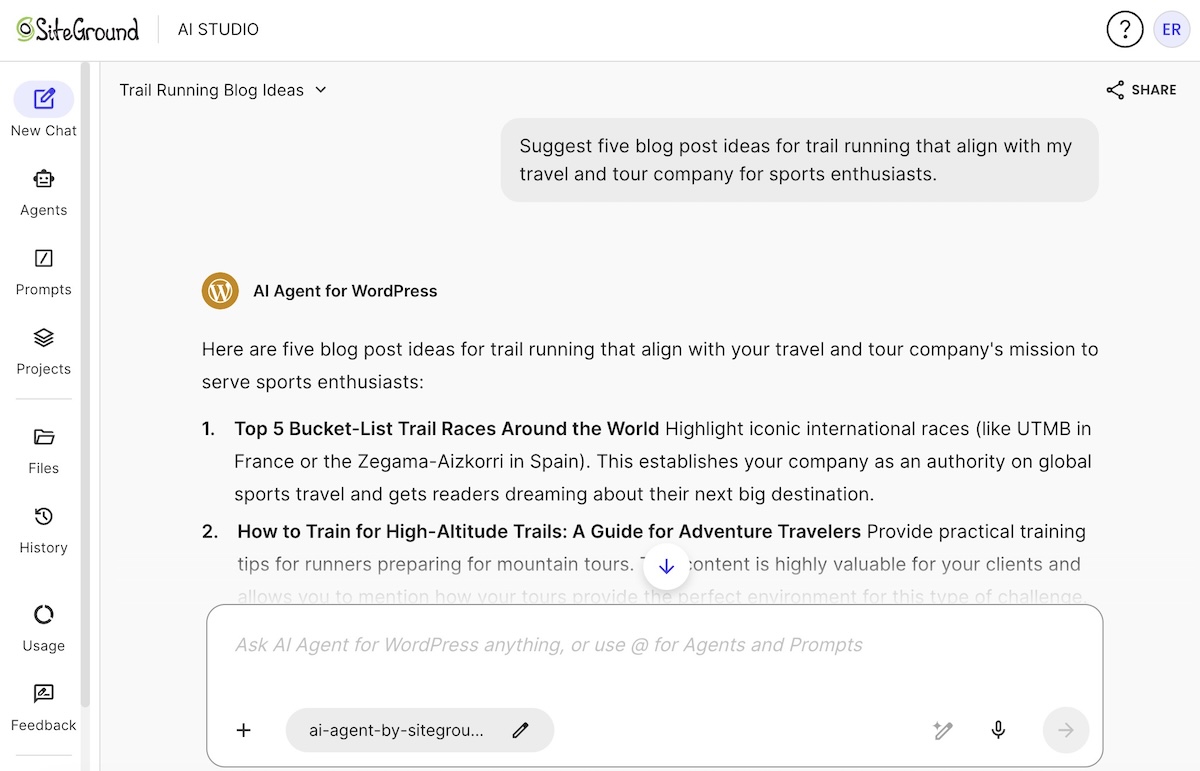
The AI workflow: brainstorm, structure, draft, and organize
| Step | Prompt example | What the AI Agent does |
| 1 | “Suggest five blog post ideas for [topic] based on this site’s content.” | Creates topic options |
| 2 | “Turn idea #2 into an outline with H2s and H3s.” | Builds the structure |
| 3 | “Draft the post and save it as a WordPress draft.” | Creates the draft |
| 4 | “Suggest categories, tags, and a short excerpt.” | Organizes the post |
| 5 | “Write an SEO title and meta description.” | Prepares metadata. |
| 6 | “Save this for review before publishing.” | Keeps human approval in the workflow |
What to review before publishing
Before you hit publish, check the draft for factual accuracy, brand voice consistency, and any claims the agent may have made with false confidence. Review the suggested categories and tags against your existing taxonomy (afterall, the agent suggests based on content, not editorial strategy). Confirm the meta description matches actual search intent, and review any generated featured image for brand visual alignment and alt text accuracy before publishing.
Estimated time: 60+ minutes manually vs. about 10 minutes with an AI-assisted workflow.
Workflow 2: Update a service page for a new offer
Updating a service page is one of the most procrastinated WordPress tasks. The manual process means rewriting copy, adjusting headings, updating CTAs, adding or removing sections, and refreshing the SEO metadata, all without breaking the page layout. It’s enough to make one go crosseyed.
An AI workflow fixes this by handling the content side, while you simply handle the final approval. This workflow is useful for consultants, agencies, freelancers, local businesses, and service providers who update their pages when offers change but rarely have a full writing session blocked in the calendar.
Since the page is already live, start by creating a draft copy. That way, none of the edits in steps 2–6 touch the published version until you’re ready to swap it in.
The AI workflow: revise the page without rebuilding it from scratch
The new step order looks like this before I apply:
| Step | Prompt example | What the AI Agent does |
| 1 | “Create a duplicate of this service page as a draft for editing.” | Creates a safe copy for review without unpublishing the live page |
| 2 | “Review this service page and summarize what needs updating for our new offer.” | Finds outdated or weak sections |
| 3 | “Rewrite the hero section for [new offer] with a clearer value proposition.” | Updates core copy |
| 4 | “Improve the H2s so they match buyer questions.” | Strengthens structure |
| 5 | “Add a short FAQ section for this service.” | Adds supporting content |
| 6 | “Write a new meta title and meta description.” | Supports search visibility |
| 7 | “Save the draft for final review before swapping it with the live page.” | Keeps human approval in the workflow before the updated page goes live |
What to review before setting the page live
Read the revised hero section aloud. Does it reflect your actual service, or did the agent generalize? Check the updated H2s against the questions your real prospects ask, as the agent works from the existing page content and may not know the nuance of your audience. Confirm all CTA text points to the correct destination before setting the page live.
Estimated time: 45+ minutes manually vs. about 10 minutes with an AI-assisted workflow.
Workflow 3: Update and organize a WooCommerce product catalog
WooCommerce product catalog work is slow by default. Missing descriptions, inconsistent categories, and absent images all live in separate screens. While you could use a WordPress AI assistant for pricing, its real power lies in product catalog cleanup and data hygiene. It collapses the distance between your media library and your product list, cleaning up descriptions and structure until your catalog is consistent, professional, and search-ready. One conversation replaces a hundred clicks.”
The AI workflow: clean up product data without running a promotion
| Step | Prompt example | What the AI Agent does |
| 1 | “Find products with missing or weak descriptions.” | Identifies product content gaps |
| 2 | “Rewrite the descriptions for these products using a clear, consistent format.” | Improves product copy |
| 3 | “Find products without categories or with inconsistent categories.” | Flags catalog organization issues |
| 4 | “Suggest better product categories and tags.” | Improves catalog structure |
| 5 | “Check products with missing images or incomplete attributes.” | Finds incomplete product data |
| 6 | “Prepare a review list before applying changes.” | Keeps the store owner in control |
What needs review before product changes go live
- Descriptions: Review rewritten descriptions for accuracy before applying them. The agent drafts from existing information and may miss product-specific details.
- Categories: Check suggested categories against your store’s navigation structure before applying them.
- Bulk changes: Do not apply bulk changes without reviewing the list the agent prepares in step 6 of the table above.
- Product types: This workflow is optimized for Simple Products. Variable products with multiple attributes such as size or color should be managed directly in the WooCommerce dashboard.
- Images and attributes: The agent flags missing images and incomplete attributes but cannot update attributes directly. Those need manual resolution in the WooCommerce dashboard.
Estimated time: 90+ minutes manually vs. about 15 minutes with an AI-assisted workflow.
Workflow 4: Run a monthly WordPress maintenance routine
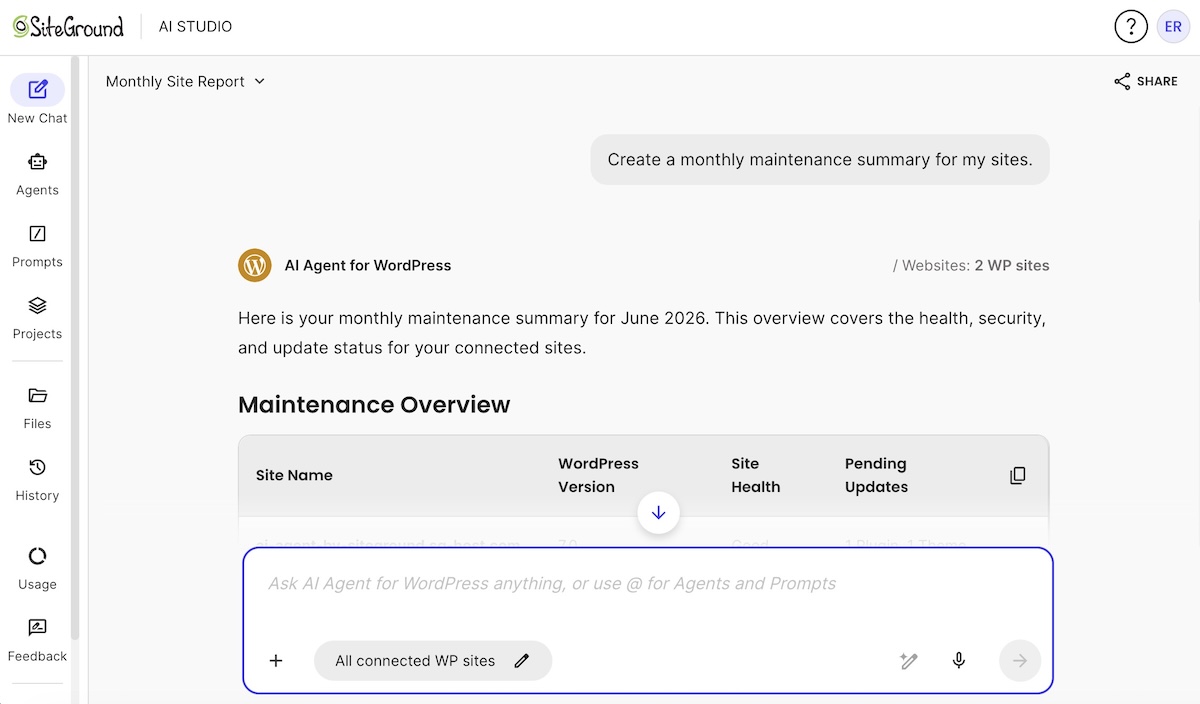
Monthly maintenance on a WordPress site covers plugin updates, theme updates, spam comment cleanup, performance checks, and WordPress security review. Done manually, that’s 90+ minutes across separate admin screens (plus those small lost bits of sanity). Done with a WordPress maintenance AI workflow, it’s about 10 minutes of prompts and a review-first output that tells you exactly what to check, approve, update, or leave for manual review.
The AI workflow: turn maintenance into a repeatable routine
| Step | Prompt example | What the AI Agent does |
| 1 | “Check which plugins and themes need updates.” | Reviews pending updates |
| 2 | “Summarize any risks before updating.” | Adds a review layer |
| 3 | “Update low-risk plugins first and leave major updates for approval.” | Helps prioritize updates |
| 4 | “Check spam comments and suggest what should be removed.” | Supports cleanup |
| 5 | “Review performance or security issues I should investigate.” | Flags maintenance priorities |
| 6 | “Create a monthly maintenance summary.” | Produces a report-style output |
Which steps need backup or Power Mode
- Backup first: Take a backup before running plugin or theme updates.
- Use staging: Run updates on staging first if the site has custom development or an active WooCommerce store.
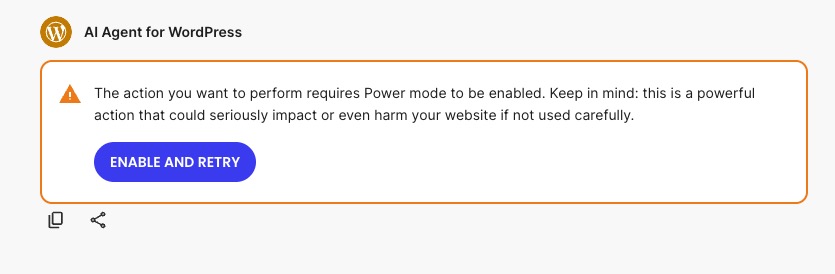
- Power Mode: Some update actions require Power Mode, a setting that enables the agent to apply high-impact changes that need elevated permissions. The agent will pause and prompt you to enable it before continuing — it won’t proceed automatically. The Power Mode safety guide explains the wider permission and review model.
Estimated time: 90+ minutes manually vs. about 10 minutes with an AI-assisted workflow.
Workflow 5: Onboard a new WordPress site
If you’re an agency managing multi-site operations, then setting up a new WordPress site from scratch involves a laundry list of tasks. Manually, that’s a half-day of work. With an AI site onboarding workflow in SiteGround AI Agent for WordPress, it’s about 20 minutes of prompts and a structured setup you can repeat across every new project.
The AI workflow: standardize setup without missing steps
| Step | Prompt example | What the AI Agent does |
| 1 | “Set the site title to [Title], tagline to [Tagline], and timezone to [City]. Check the permalink structure and remind me if I need to update it manually.” | Updates global site settings and flags any items that require a manual step in the dashboard. Note: permalink structure changes require a one-click manual update in WordPress settings and cannot be applied automatically |
| 2 | “Create my starter pages as drafts and add a placeholder Hero block to each one.” | Generates a batch of pages with basic Gutenberg block markup so they are ready for your page builder or theme, not just blank screens |
| 3 | “Suggest user roles for owner, editor, and contributor access.” | Supports access planning |
| 4 | “Add placeholder SEO titles and descriptions for the starter pages.” | Prepares launch basics |
| 5 | “Create a pre-launch QA checklist.” | Helps review before go-live |
| 6 | “Summarize the setup for the handoff note.” | Creates a client or owner summary |
When to use staging before launch
Use staging for any new site that involves custom theme development, paid plugin configurations, or client-specific settings you want to validate before the domain goes live. The agent’s starter page output and settings review can be tested on staging first, then replicated on the live site with confidence.
Onboarding is also a good time to ask the agent to install and activate your standard plugin stack — Speed Optimizer, Security Optimizer, and an SEO plugin, for example. The AI Agent for WordPress can handle installation and activation of multiple plugins in a single batch prompt.
Estimated time: Half a day manually vs. about 20 minutes with an AI-assisted workflow.
Workflow 6: Refresh old WordPress content for SEO
Old WordPress posts lose search visibility for predictable reasons: the information is outdated, the headings don’t match current search intent, internal links point to newer content that has overtaken them, and the metadata was written years ago for a different audience. This AI SEO workflow addresses all of those problems in one review-first pass.
A content refresh done well typically takes 30+ minutes per post. With the SiteGround AI Agent for WordPress, it runs in about five minutes per post.
The AI workflow: update old content with a review-first process
| Step | Prompt example | What the AI Agent does |
| 1 | “Find older posts that may need a content refresh.” | Identifies refresh candidates |
| 2 | “Review this post and list outdated sections.” | Creates an update plan |
| 3 | “Rewrite the outdated sections with clearer, current information.” | Refreshes the content |
| 4 | “Improve the H2s, title tag, and meta description for search intent.” | Handles metadata and heading work inside the same SEO workflow |
| 5 | “Search my site for my three most recent posts about [Topic] and suggest where to link them in this article.” | Searches your content library for relevant posts and identifies anchor text opportunities. Links are provided as a list for your approval, not auto-inserted |
| 6 | “Apply these updates to the post while keeping it published, so we don’t lose our current search ranking.” | Updates the live post without taking it offline. Note: changing a published post to draft will unpublish it and return a 404 to visitors and search engines |
What to check before republishing
- Facts and statistics: Verify anything the agent surfaced in the rewrite. Outdated numbers replaced with new outdated numbers don’t fix the underlying problem.
- Title tag and meta description: Check that both match current search intent, not just what the original post was targeting.
- Internal links: Review suggestions for relevance. The agent picks from existing content, but editorial judgment still determines what belongs in the flow.
- Images: Check whether any images in the post are still accurate. If the agent updated the text but screenshots show an older version of a product or interface, upload a fresh image or ask the agent to generate a placeholder.
Estimated time: 30+ minutes per post manually vs. about five minutes per post with an AI-assisted workflow.
Workflow 7: Troubleshoot a WordPress issue before asking for support
Most WordPress troubleshooting workflows start with “something is slow” or “something broke after an update.” Without a structured process, that turns into 45 minutes of forum searches, deactivated plugins, and support tickets that are hard to write because you don’t have a clear list of what changed.
This AI troubleshooting workflow collects symptoms, checks recent changes, and prepares a support-ready summary so if you do need to escalate, you arrive with a clear picture of the problem.
The AI workflow: collect symptoms and narrow the likely cause
| Step | Prompt example | What the AI Agent does |
| 1 | “The site is loading slowly after the latest update. Help me investigate.” | Starts diagnosis |
| 2 | “List all active plugins and flag any that are resource-heavy or have available updates that might contain a fix.” | Reviews active plugins, checks for available updates, and flags any known to cause performance issues |
| 3 | “Review caching, performance, or theme issues I should check.” | Suggests troubleshooting paths |
| 4 | “Summarize safe next steps before I change anything.” | Adds a review layer |
| 5 | “Create a support summary with symptoms, recent changes, and likely causes.” | Prepares handoff information |
When to stop and escalate to support
Stop the AI troubleshooting workflow and contact support directly when:
- The site is down.
- Customer data may be affected.
- There’s evidence of a security incident.
- The agent’s suggested steps involve database changes or file edits you’re not comfortable making.
The workflow is for investigation, not remediation of serious issues.
Estimated time: 45+ minutes manually vs. about 10 minutes with an AI-assisted workflow.
How much time can AI Agent workflows save on WordPress tasks?
The table below shows practical time estimates across all seven workflows. These are examples based on typical task scope; actual time savings will vary by site complexity, content volume, and how much review each output requires.
| Workflow | Manual time | AI Agent workflow time | Estimated time saved |
| Publish a blog post | 60+ minutes | ~10 minutes | ~50 minutes |
| Update a service page | 45+ minutes | ~10 minutes | ~35 minutes |
| Update WooCommerce product catalog | 90+ minutes | ~15 minutes | ~75 minutes |
| Monthly WordPress maintenance | 90+ minutes | ~10 minutes | ~80 minutes |
| Onboard a WordPress site | Half day | ~20 minutes | ~3.5 hours |
| Refresh old content for SEO | 30+ minutes per post | ~5 minutes per post | ~25 minutes per post |
| Troubleshoot a WordPress issue | 45+ minutes | ~10 minutes | ~35 minutes |
Which AI Agent workflow steps need review, staging, or Power Mode?
Not every AI workflow step carries the same risk. The review, staging, and Power Mode guidance below applies to all seven workflows.
Use review steps before publishing or applying SEO changes
Every workflow in this article includes at least one “save for review” step before changes go live. That’s intentional. AI-generated content is a strong first draft, not a final publication.
- Text: Review for factual accuracy, brand voice, and audience fit.
- SEO metadata: Check for search intent match.
- Internal links: Review suggestions for editorial relevance.
Use staging for unfamiliar workflows
Run unfamiliar WordPress AI workflows on a staging copy of your site before applying them to a live environment. This applies particularly to:
- Site onboarding workflows on a new build.
- Maintenance workflows that include plugin or theme updates on a site with custom development.
- Any workflow that touches WooCommerce settings or product data at scale.
Use Power Mode for high-impact actions
Some actions inside SiteGround AI Agent for WordPress require Power Mode before the agent proceeds. Power Mode is required for high-impact actions such as deletions, bulk content changes, creating or updating users, modifying core WordPress settings, and managing WooCommerce orders. The agent will pause and prompt you to enable it when an action requires it — it won’t proceed automatically.
Start running AI Agent workflows on your WordPress site
Most WordPress sites are one good workflow away from getting hours back every month. Run them once and save an hour. Run them every month and change how your site gets managed.
Start with the blog post or maintenance workflow. Both are low stakes, high frequency, and will show you exactly how the prompt-and-review pattern works in practice. From there, the other five workflows are ready when you are. All of them run conveniently via the SiteGround AI Agent for WordPress, available through SiteGround AI Studio. For a broader explanation of its capabilities, supported tasks, and safety controls, read the SiteGround AI Agent for WordPress overview.
Explore SiteGround AI Studio and get started with AI Agent for WordPress →
Frequently asked questions
AI Agent workflows for WordPress are multi-step task sequences completed through natural language prompts. A workflow can include drafting content, updating SEO metadata, checking plugins, reviewing settings, cleaning up comments, troubleshooting issues, and saving changes for review — all within a single conversation thread.
Yes. The SiteGround AI Agent for WordPress supports multi-step workflows by working with WordPress content, plugins, themes, users, settings, WooCommerce tasks, maintenance, troubleshooting, and SEO-related tasks via chat prompts inside SiteGround AI Studio.
An AI Agent for WordPress can help speed up tasks such as drafting posts, updating service pages, refreshing old content, writing meta descriptions, suggesting internal links, checking plugin updates, cleaning up spam comments, onboarding a new site, and collecting information before a troubleshooting call.
Yes. The SiteGround AI Agent for WordPress can help brainstorm topics, create outlines, draft posts, suggest categories and tags, write meta descriptions, recommend internal links, and save posts as drafts for review before publishing.
Yes. An AI Agent for WordPress can review a service page, rewrite outdated sections, improve headings, add FAQ content, prepare SEO metadata, and save changes for review before they go live. Manual review before publishing is still recommended.
Yes. The SiteGround AI Agent for WordPress supports AI SEO workflows including improving title tags, writing meta descriptions, refreshing old content, updating headings, and suggesting internal links. SEO changes should still be reviewed by a human before republishing.
Yes. The SiteGround AI Agent for WordPress can help with WordPress maintenance AI workflows such as plugin and theme update reviews, performance checks, security flagging, spam cleanup, troubleshooting, and maintenance summaries. Some actions require Power Mode depending on their impact.
Some AI Agent workflows require Power Mode for actions that delete content, make bulk changes, create or update users, modify core WordPress settings, or manage WooCommerce orders. The agent pauses and asks you to enable it before continuing.
Yes. Staging is recommended for unfamiliar WordPress AI workflows, site setup, plugin or theme updates, bulk content changes, WooCommerce product changes, settings changes, or any troubleshooting steps that could affect a live site.
Time savings vary by site and workflow. Practical examples include reducing a blog post workflow from 60+ minutes to about 10 minutes, a maintenance routine from 90+ minutes to about 10 minutes, and a content refresh from 30+ minutes to about five minutes per post.