What Is a Favicon—and Why Does Your Website Need One?

What Is a Favicon: Benefits, Best Practices and Usage 

A favicon is the small icon you see in browser tabs, bookmarks, and search results—it’s your website’s visual calling card, and it does more for your brand than you might think. A well-designed one makes your site look polished and helps users find their way back to you easily. This guide covers everything you need to know: what favicons are, where they show up, how to create one, and how to add it to your site.

Key takeaways:

  • Favicons are small but mighty — that tiny icon in your browser tab plays a big role in brand recognition and user experience.
  • They show up everywhere — browser tabs, bookmarks, search results, mobile home screens, and even desktop shortcuts.
  • Size and format matter — offering multiple sizes (16×16 up to 72×72) and formats (ICO, PNG, SVG) ensures your favicon looks sharp on every device.
  • Keep the design simple — small icons don’t have room for detail, so stick to clean visuals, brand colors, and no text.
  • Adding one is easier than you think — whether you’re on WordPress, a website builder, or a custom site, implementation is just a few steps.
  • Favicons can indirectly boost SEO — a recognizable icon can improve click-through rates and signal professionalism to both users and search engines.

What Is a Favicon Image?

A favicon, short for “favorite icon,” is a small (usually 16×16 pixel) image that serves as a visual representation of a brand’s website. It’s a subtle but important element of web design, reinforcing brand identity and improving user experience. You’ll typically find them displayed in:  

  • Browser tabs 
  • Browser history tabs 
  • Browser bookmarks 
  • Mobile home screens 
  • Search engine results pages 
  • Google search bars 
  • Desktops 

They’ve become so common that you see them everywhere all the time, yet you might not even notice them. The most typical use in practice is as small icons next to the web page titles in browser tabs. 
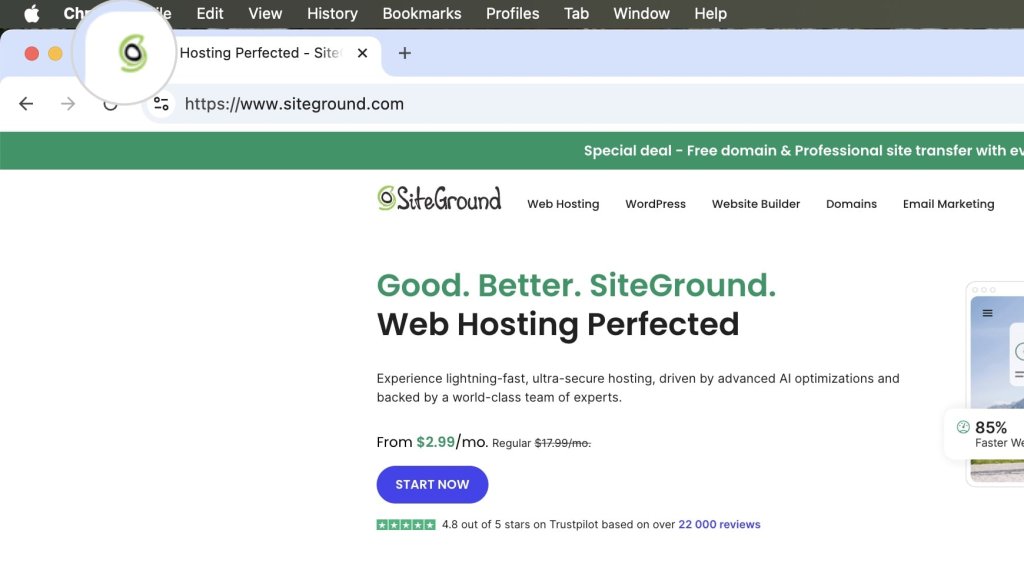
screenshot showing what is a favicon and its location in the browser tabs

First introduced by Microsoft with the release of Internet Explorer 5 in 1999, favicons originally appeared as small icons in the bookmarks (Favorites) and address bar when a user bookmarked a webpage. The original implementation required the favicon to be named favicon.ico and placed in the root directory of a website. This simple yet effective feature quickly gained popularity, leading to widespread adoption across various web browsers.

Over time, the role of the favicon expanded beyond a bookmark icon. It started appearing in browser tabs, bookmarks, and even search engine results pages. As web design evolved, so did the formats and sizes of favicons, accommodating the needs of modern devices and high-resolution displays. Today, favicons are a standard element of web design, playing a crucial role in site identity and user experience. 

Where Are Favicons Used?

Favicons have a broad range of usage in modern devices and applications. Below, we’ll examine the most common places where you’ll encounter them. 

Browser Tabs

In browser tabs, favicons appear next to the page title, enabling users to identify and differentiate between multiple tabs quickly. This is particularly useful when visitors have numerous tabs open, as the favicon provides a visual cue that helps them locate the desired tab without having to read the full title. 
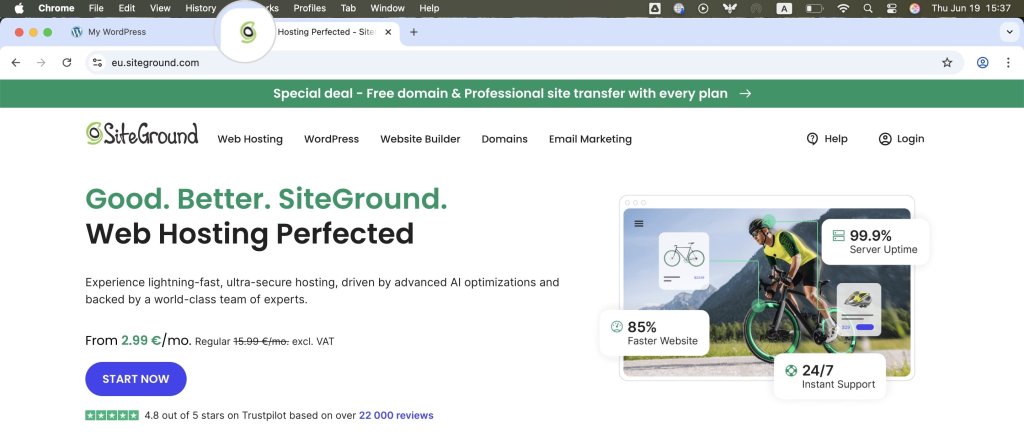
Favicons in browser tabs

Favicons become even more important when the tabs are stacked next to each other, reducing their area and making the page titles unreadable. The favicon tab icon remains the last distinguishable part of the tab.   
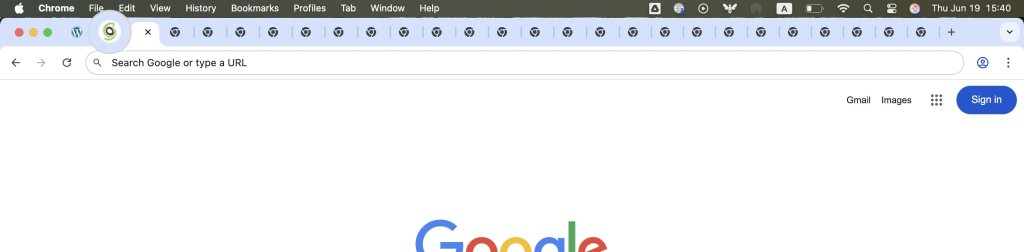
Multiple tabs displaying only favicons

Browser History Tab

Favicons are also displayed in the browser history tab, which helps users more easily identify previously visited websites. This visual element makes finding and revisiting websites simple, improving the overall website navigation experience and improving websites’ client retention. 
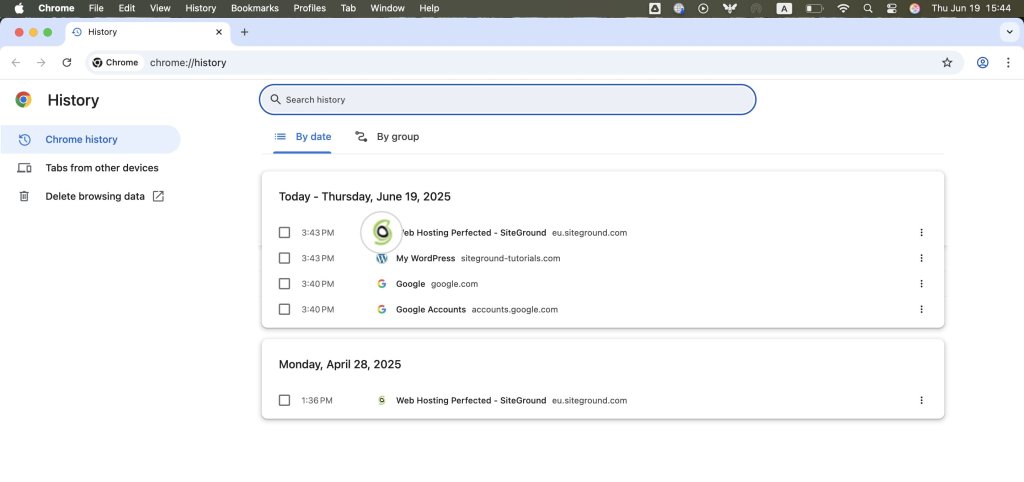
Favicons in browser history

Bookmarks

When a user bookmarks a website page, the favicon is saved alongside the page title in their bookmarks list. This not only helps users quickly recognize and access their saved sites but also improves the organization of bookmarks by providing a visual element that stands out.
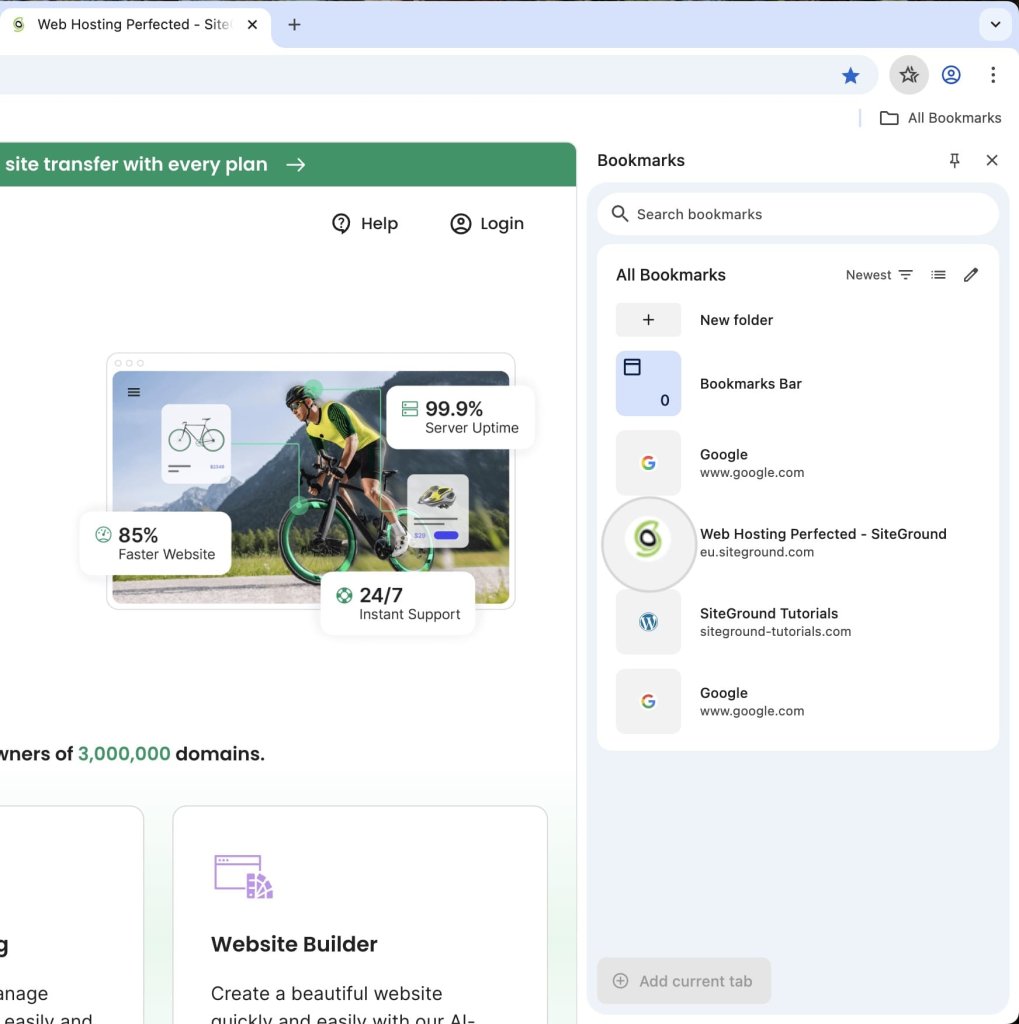
A favicon in bookmarks

Mobile Home Screens

On mobile devices, users have the option to add websites directly to their home screens. In the context of mobile web design, favicons function like app icons, providing a convenient and recognizable shortcut for users to access their favorite sites quickly. 
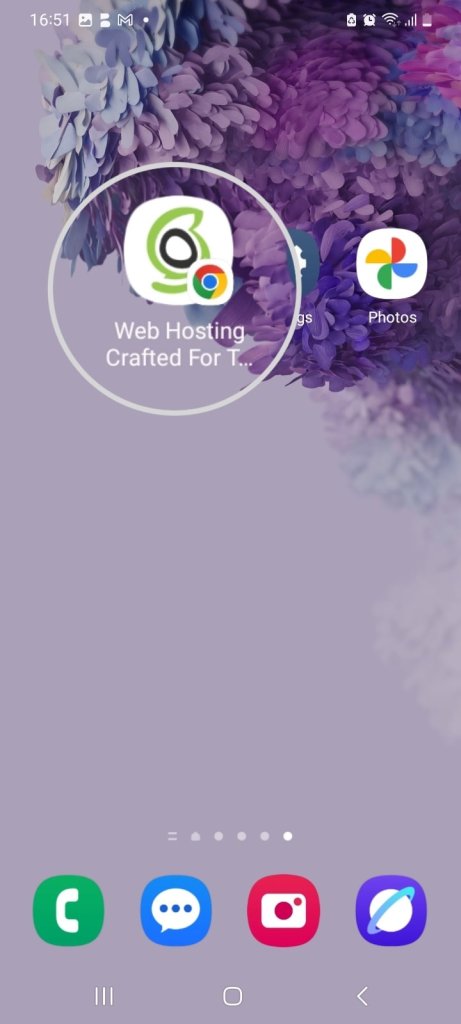
A favicon on a mobile device

SERP (Search Engine Results Pages)

Search engines display favicons alongside search results on the SERPs (Search Engine Result Pages). This visual element can capture users’ attention, potentially increasing click-through rates by making the website more appealing and trustworthy in SERPs.
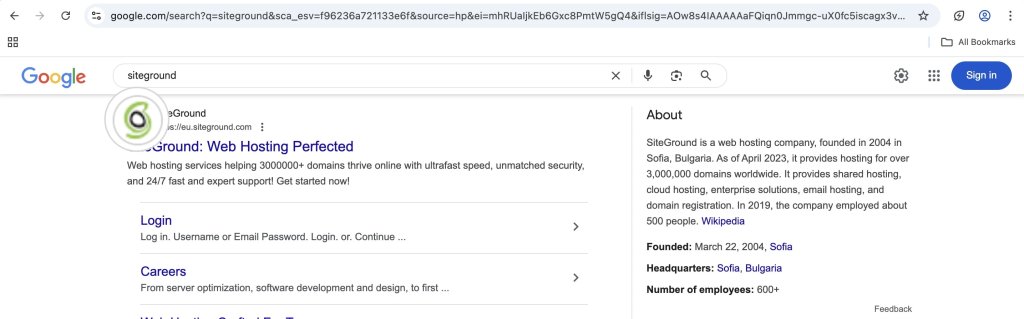
A favicon for a result on a SERP (Search Engine Results Page)

Within the Google search bar, favicons appear next to search suggestions and results. As a result, they reinforce brand identity and help users quickly identify the websites they’re interested in visiting.  
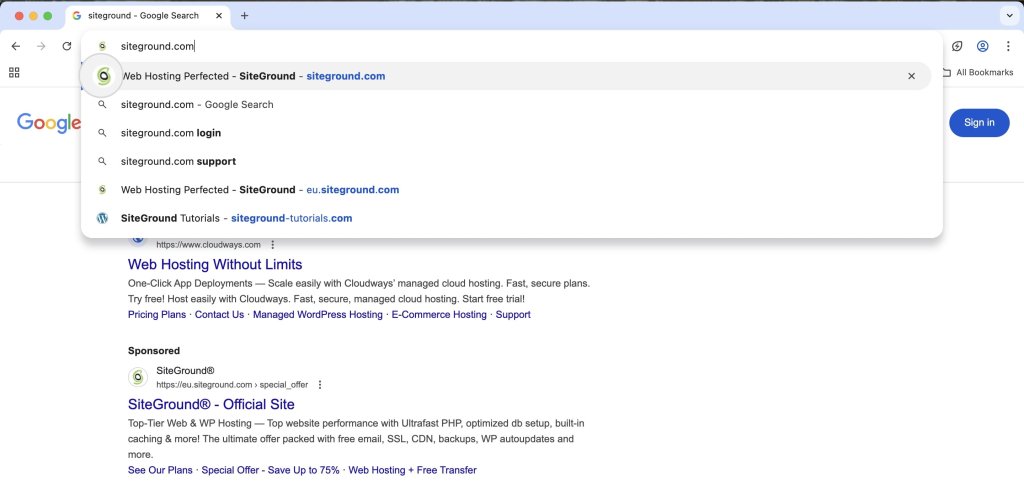
A favicon on a Google search bar

Desktops

Favicons can be used as desktop shortcuts as well, allowing users to create direct links to websites from their computer desktops. This provides a convenient way for users to access their preferred sites without opening a browser first.

A favicon on a desktop

What Are the Favicon Sizes?

Favicons are available in multiple sizes to ensure compatibility across different devices and platforms, including:

  • 16×16 – standard size for browser tabs, bookmarks, browser history, and search engine results.
  • 32×32 – suitable for desktop shortcut icons and taskbar shortcut icons.     
  • 48×48 pixels – common for Windows desktop icons and larger displays. 
  • 72×72 and above – ideal for larger screens like smart TVs, tablets, etc. 

Providing multiple sizes is crucial for displaying the favicon correctly on all screen types. Additionally, larger sizes may be used for high-resolution displays, ensuring that the favicon remains sharp and clear.  

Favicon File Types

Favicons support several file formats. The common favicon file formats include: 

  • ICO Format – The ICO format is the most widely supported and is ideal for ensuring compatibility with older browsers. It can contain multiple image sizes within a single file, allowing for flexibility in display across different contexts.
  • PNG Format – The PNG file extension offers high-quality images with support for transparency, making it suitable for modern browsers. PNG favicons are often used for their clarity and ability to maintain image quality.
  • SVG Format – SVG (Scalable Vector Graphics) is a format that provides scalability without loss of quality. This makes it perfect for high-resolution displays and responsive designs, as the favicon can be resized without becoming pixelated.  

Favicons in JPG are not quite common, since their lack of detail makes them unsuitable for smaller images. 

How Do You Create Favicons?

Even if you’re not a seasoned designer, there are plenty of graphical software and online favicon generator applications to help you craft your own custom favicon. Adobe Photoshop, Figma, and RealFaviconGenerator are just a few from the long list of powerful design tools you can choose from.       

Once you have the design ready, you can upload your file to the RealFaviconGenerator. The tool will convert it into multiple formats, ensuring broad browser compatibility. You can also preview how the favicon appears on different devices and color modes, and generate the HTML code to insert into your index file.   

If You’re a SiteGround Client, Check Out AI Studio
If you host your website with SiteGround, you also have access to SiteGround AI Studio — an all-in-one AI platform designed for small businesses. Among its many tools, the Image Designer agent lets you generate and edit images using natural language, making it a great option for creating favicon concepts without needing a separate design tool. It’s worth exploring what’s available to you as a SiteGround client.
Learn more>>
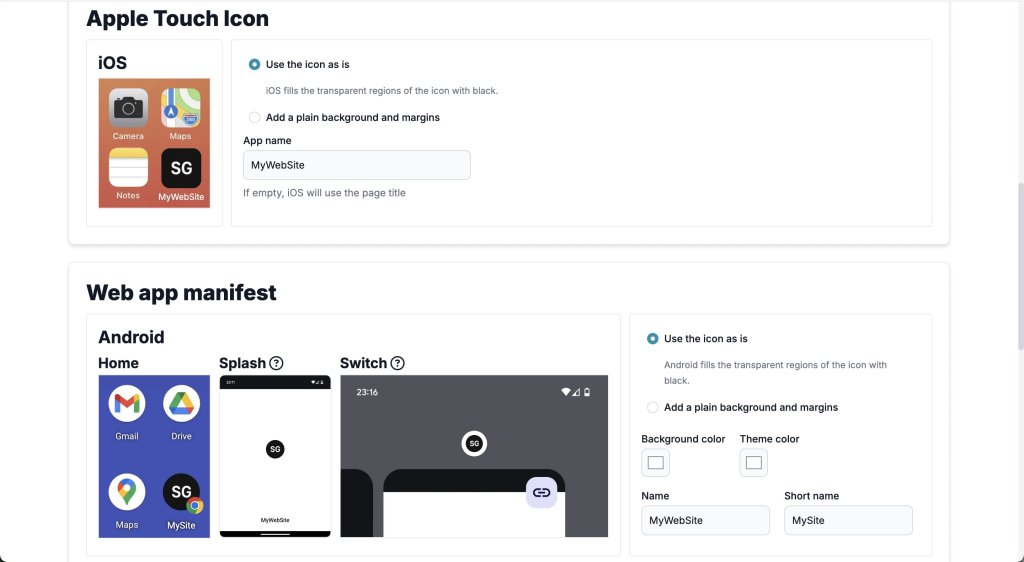
A favicon generated by RealFaviconGenerator

How Do You Add a Favicon to Your Website? 

You’ve designed the perfect favicon and are looking to implement it on your website. So, how do you go about it? 

Adding a favicon is straightforward, regardless of what application your website is built upon. For some applications, it’s as simple as a few mouse clicks, while others require a few extra steps. 

Below, we’ll go through some of the more common cases.

How to Add A Favicon to a Custom Website

Generally, you must upload the favicon file to your website and configure the index file to display it. This method is valid for all kinds of websites, but with some applications, it’s a matter of a few clicks. However, if you have a custom PHP/HTML website, you’ll have to do it the old-fashioned way. 

First, access your website files through FTP or File Manager and upload the favicon file to the root folder (typically public_html). The file can be named anything you want and in any of the supported formats. The typical naming convention, however, is favicon.ico (or another extension).
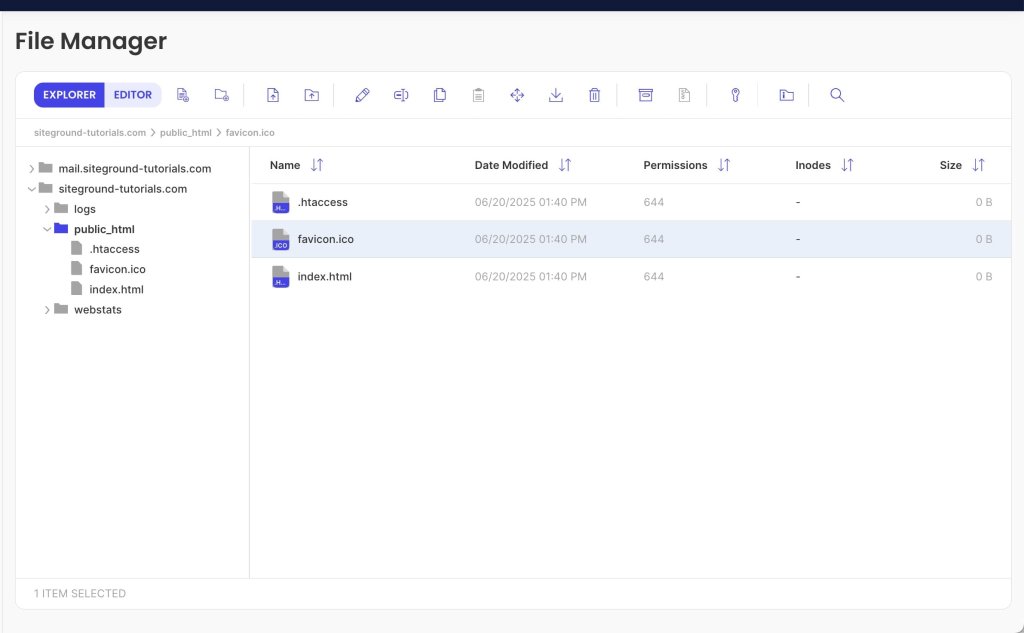
A favicon in a website's root folder (public_html)

Then, open your index file (index.php or index.html), and add the following code in the <head> section to specify the favicon file. 

<head>

  <link rel="icon" href="/favicon.ico" type="image/x-icon">

</head>

Here is how this piece of code would look inside the index file.
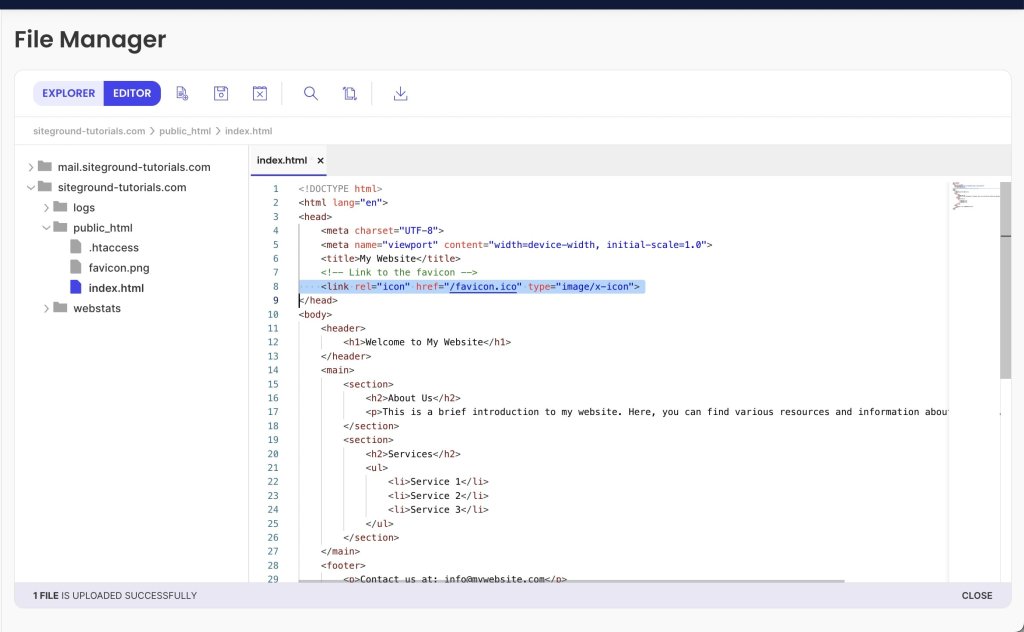
A favicon element in an index file

Note that the favicon path /favicon.ico corresponds to the public_html directory. If the file is located in a subfolder, you must specify it in the file path. 

For example, if your favicon is named favicon.ico and located in the subfolder public_html/images, the file path should be /images/favicon.ico.

To ensure that your favicon is rendered correctly on various screen sizes, you can upload several favicon files of different sizes. Then, add multiple <link> elements to your HTML file, each assigning the proper file to a different screen size. The code would look similar to this. 

<link rel="icon" type="image/png" href="/favicon-96x96.png" sizes="96x96" />

<link rel="icon" type="image/svg+xml" href="/favicon.svg" />

<link rel="shortcut icon" href="/favicon.ico" />

<link rel="apple-touch-icon" sizes="180x180" href="/apple-touch-icon.png" />

<link rel="manifest" href="/site.webmanifest" />

How to Add a Favicon in SiteGround Website Builder 

SiteGround Website Builder is our own proprietary page builder making crafting web pages a fun and rewarding experience. With its intuitive interface, you can instantly build eye-catching and professional-looking websites without writing a single line of code. 

Adding a favicon to your website using our Website Builder is easy and only takes a few clicks, just like many other features.

While in the page editor, go to the Content tab, and click the Header section at the top of any page.
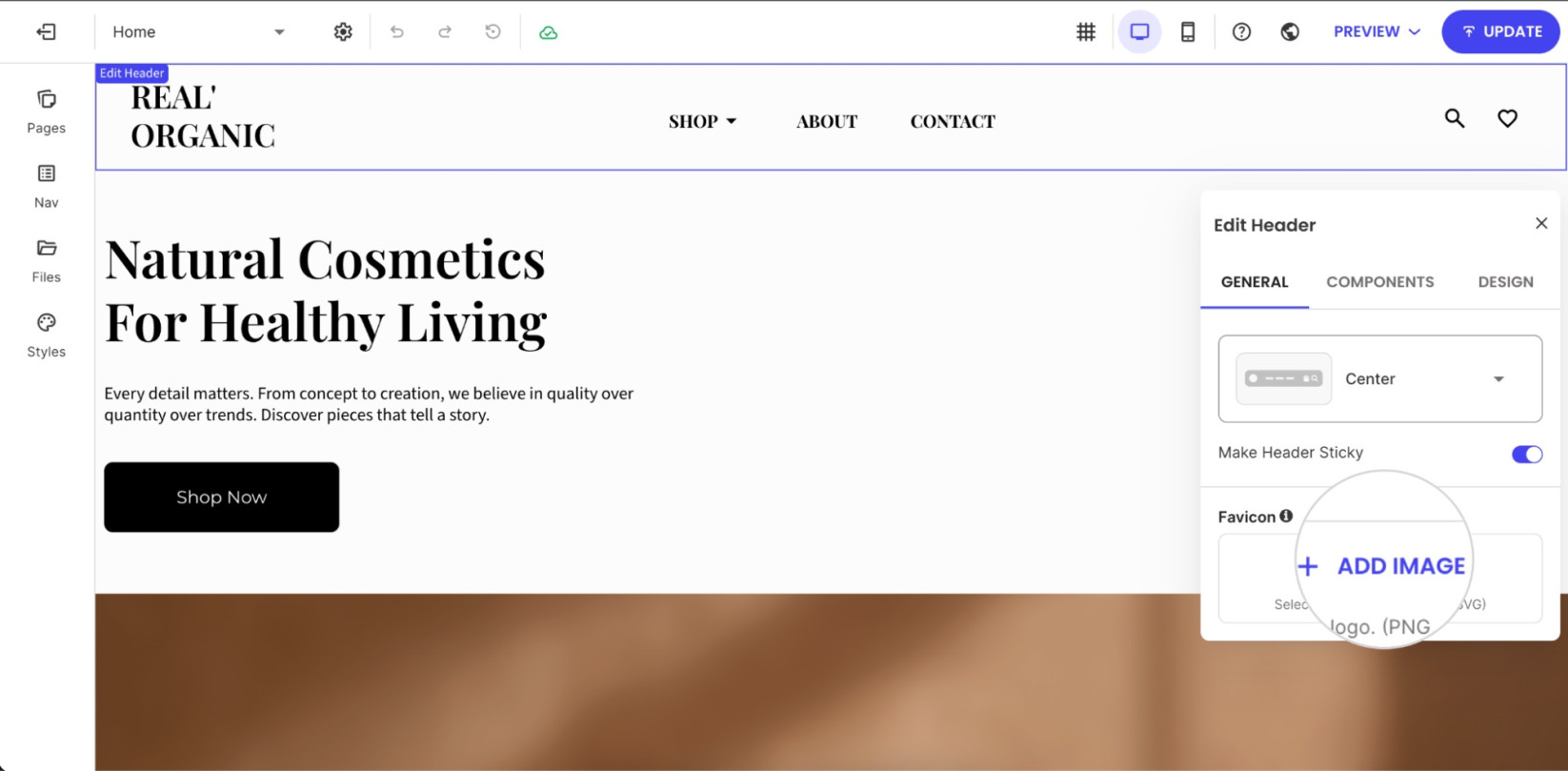
Adding a favicon to the SiteGround Website Builder

From the Edit Header menu, navigate to the Favicon section and click on Add image. Select or upload the image you want to use as your favicon. The favicon will then appear in browser tabs once the changes are saved and the site is updated.

How to Add a Favicon in WordPress

WordPress uses the term “site icon” instead of “favicon,” but both are practically the same. Adding a favicon to a WordPress site has always been easy, but it’s become even easier since the release of WordPress 6.5 in April 2025. 

Previously, you had to use the theme customizer, theme editor, or a plugin. But after the changes introduced in version 6.5, you can simply add the favicon from the general settings section.

To add a favicon, log in to your WordPress dashboard. Navigate to the Settings > General section, and click the Choose a Site Icon button next to Site Icon. 
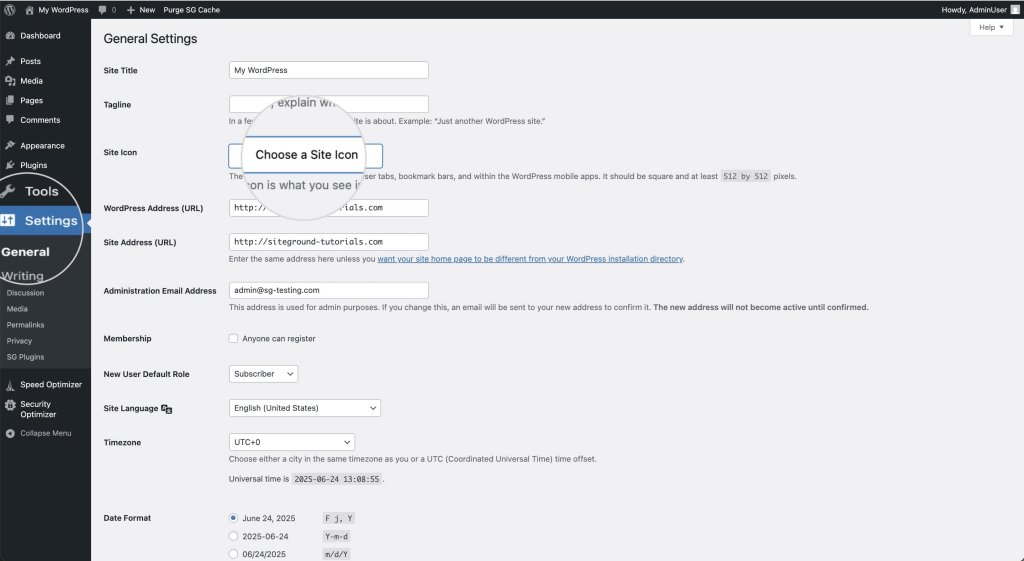
Uploading a site icon to a WordPress website

In the pop-up window, choose an image file from your computer or your website’s media gallery. The recommended site icon size is 512×512 pixels at a ratio of 1:1. Once you’re ready, hit the Save Changes button. 
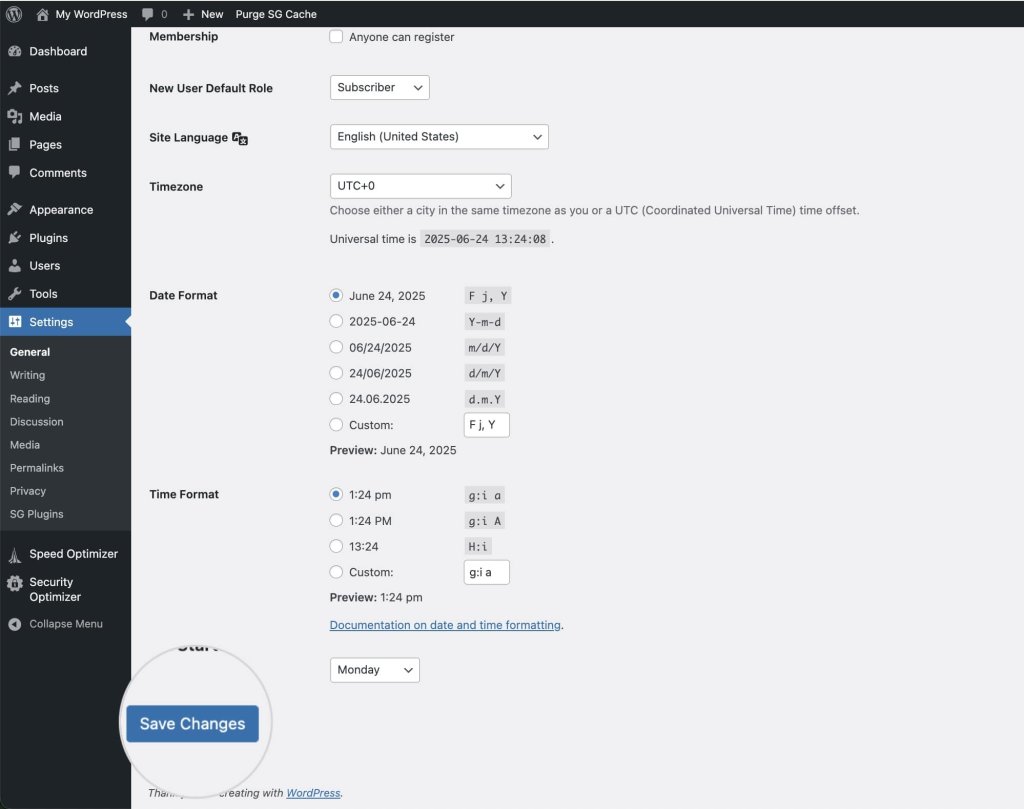
Saving a favicon in a WordPress website

What Are the Benefits of Using Favicons?

Better User Experience

Favicons enhance user experience by providing a visual identifier for websites, making navigation more intuitive and efficient. Web users can quickly locate and switch between tabs, bookmarks, and history entries, improving overall satisfaction and ease of use.

Improved User Retention

By helping users easily locate and return to websites, favicons contribute to improved user retention and engagement. A recognizable favicon can encourage users to spend more time on a site and return more frequently, fostering a loyal user base.

Establishing Brand Identity and Visibility

Favicons play a crucial role in reinforcing branding basics. They serve as a constant reminder of the brand, ensuring that a website stands out in users’ minds. A well-designed favicon can enhance brand recognition and make a lasting impression on users.

What Are the Best Practices for Favicons?

The best favicon is simple, on-brand, and legible at tiny sizes—think clean shapes, brand colors, and no text. Here are the key design and implementation practices to keep in mind.

Keep It Simple

Simplicity is key when designing a favicon. Given the small size, it’s important to create a design that is clear and easily recognizable. Avoid intricate details that may become lost or unclear when scaled down.

Use the Logo as a Foundation, But Don’t Duplicate It

While it’s effective to use the logo as a foundation for the favicon, avoid exact duplication. Instead, create a simplified version that captures the essence of the brand while remaining distinct and recognizable.

Convey the Brand Identity

Ensure the favicon reflects the brand’s identity and values, serving as a visual representation of the company. It should align with the overall branding strategy and communicate the brand’s message effectively.

Use Minimum Text

Text can become unreadable at small sizes, so it’s best to avoid using text in favicons altogether. Focus on strong visual elements that convey the brand identity without relying on words.

Consider the Colors

Choose colors that align with the brand’s color scheme. Make sure they contrast well to remain visible against various backgrounds. A well-chosen color palette can enhance the favicon’s impact and recognition.

Provide Multiple Favicon Sizes      

Visitors nowadays access websites from various devices with different screen sizes, so a single default favicon size might not look good on all of them. Add several files of varying dimensions to ensure your favicon appears clearly on all devices.      

Do Favicons Affect SEO? 

Favicons can indirectly impact SEO (Search Engine Optimization) by improving user experience and engagement. A recognizable favicon can increase click-through rates in search results and encourage users to spend more time on a site, both of which can contribute to better search performance. Additionally, favicons contribute to a cohesive and professional online presence, which can enhance a website’s credibility and trustworthiness.

Additionally, favicons contribute to a cohesive and professional online presence, which can enhance a website’s credibility and trustworthiness.  

Final Thoughts on Favicons

Every detail of your website matters, and favicons are no exception. Though small, these icons play an important role in establishing credibility and reinforcing brand identity. By optimizing user experience and improving audience engagement, favicons help your website remain memorable and easily recognizable. Don’t overlook this essential element—capitalize on its potential to effectively draw and retain visitors’ attention.

Ready to put it all together? With the SiteGround Website Builder, adding your favicon is just a few clicks—no code, no hassle. And the same goes for building your entire site. Its intuitive drag-and-drop interface makes it easy to create a professional, polished website without any technical know-how. Give it a try and see how simple it can be.

[24]

Favicon FAQs

What is a favicon used for?

A favicon is used to visually represent your website across browsers and devices—appearing in browser tabs, bookmarks, search results, and mobile home screens. It helps users quickly identify and return to your site, especially when they have multiple tabs open.

Is a favicon the same as a logo?

Not exactly. A favicon is often inspired by your logo, but it’s a simplified version designed to work at very small sizes. Where a logo can include text, detail, and multiple elements, a favicon needs to be instantly readable at 16×16 pixels, so it’s usually just the most recognizable part of your brand mark.

How do I generate a favicon?

There are several easy ways to create a favicon. Free online tools like RealFaviconGenerator let you upload a logo or image and automatically convert it into all the necessary sizes and formats. Design tools like Figma and Adobe Photoshop give you more creative control if you want to build one from scratch. If you’re a SiteGround client, AI Studio‘s Image Designer is another great option for generating custom icon concepts using AI.

What is an example of a favicon?

Some of the most recognizable favicons are Google’s multicolored “G,” Facebook’s white “f” on a blue background, and Amazon’s smiling arrow. They all share the same quality: a simple, bold visual that’s instantly identifiable even at tiny sizes.

This article was originally published in June of 2025, and then updated in April of 2026.
Shared vs. VPS: Choosing the Right Hosting Solution for You

Shared vs. VPS: Choosing the Right Hosting Solution for You

You’ve finally decided to dip your toes into running your own website. It’s an exciting new endeavor, but then you hit your first roadblock—which hosting should you choose? The two types you will hear of most often are shared hosting and VPS (virtual private server). 

Both options will get the job done, but they’re typically suited for different setups and budgets. So, instead of diving in blindly, take the time to make an informed decision by balancing your needs with your budget.

At first, all this may seem overwhelming. But fear not; this article will help you understand the differences between shared and VPS hosting, what each solution is suitable for, and what to look for when choosing a plan. 

Shared Hosting vs. VPS Hosting 

Shared and VPS hosting are two foundational pillars of the web hosting industry, both known for their efficiency and stability. However, as with many things, there is no “one size fits all” solution in web hosting. Each plan has its strengths and weaknesses, and it’s up to you to decide which one best suits your needs. Let’s explore what makes each setup unique.

What Is Shared Hosting?

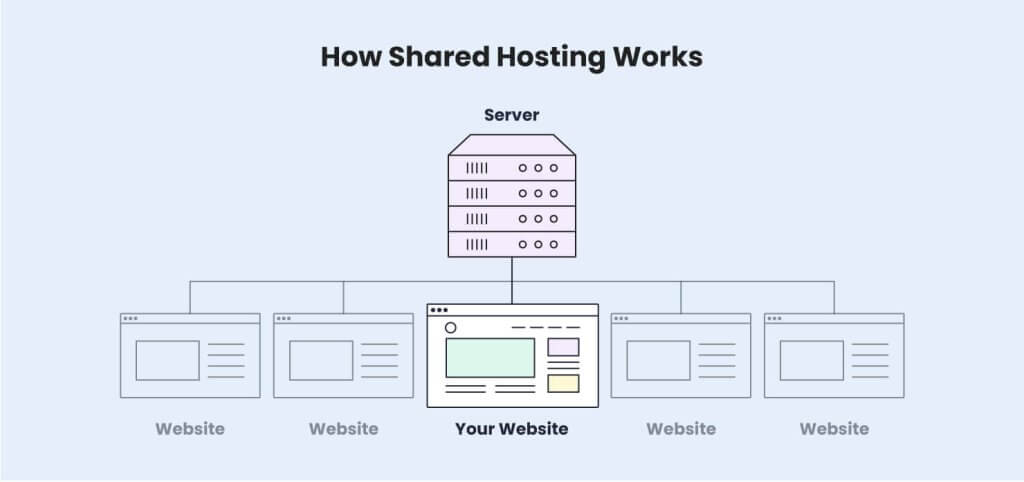
In a shared hosting environment, multiple clients are located on the same web server and share the same resources—RAM and CPU. The storage space is divided into multiple isolated accounts allocated to separate users. 

How Shared Hosting works

Think of it like a dormitory—you have your own room but share amenities like the bathroom, kitchen, and living room with other roommates. This means your website’s performance is not entirely under your control. Even if you follow best practices, your neighbors can influence performance, especially if one or several of them are resource hogs.

Still, responsible web hosts try to alleviate this by leveraging strict resource monitoring and restricting excessive usage, which ensures equal and fair distribution of server resources. They also implement mechanisms like a CDN (Content Delivery Network) and caching to reduce server strain.

That said, shared hosting remains the most affordable option for running a website. Hosting multiple clients on the same shared server reduces the costs for the hosting provider, who can, in turn, offer the service at a much lower price. 

Shared hosting is usually managed, meaning the web host is responsible for the operating system, server configuration, security, and standard maintenance procedures. That makes it perfect for beginners and people who don’t want to delve too much into the technicalities of running a website. 

Who Can Benefit from Shared Hosting?

  • Personal blogs with growing audiences
  • Startup companies looking to expand operations
  • Medium-sized businesses with consistent numbers of users
  • Beginners looking for easy-to-manage website applications and tools   

Pros 

  • Low cost–Shared hosting is cheaper since multiple users share the server cost.
  • Managed server–The hosting provider typically manages the server configuration. 
  • Easier management–Out-of-the-box management tools provided by the hosting company for better website management.
  • Beginner-friendly–Shared hosting is great for beginners. They can focus on their website while the host takes care of the server.

Cons

  • Shared server resources–No dedicated resources for your website. You share the resources with other users. 
  • Server limits–There are usually bandwidth or traffic limits to reduce the server load.
  • Limited customization–Limited access to the server configuration since multiple users share the same environment.
  • No root access–Root access is not permitted on shared hosting since the service is managed.

If you’re seeking a reliable and affordable shared hosting solution, SiteGround offers a range of plans tailored to meet diverse needs. Our shared hosting packages provide an ideal platform for small, medium, and large websites alike. 

What Is Virtual Private Server (VPS Hosting)?

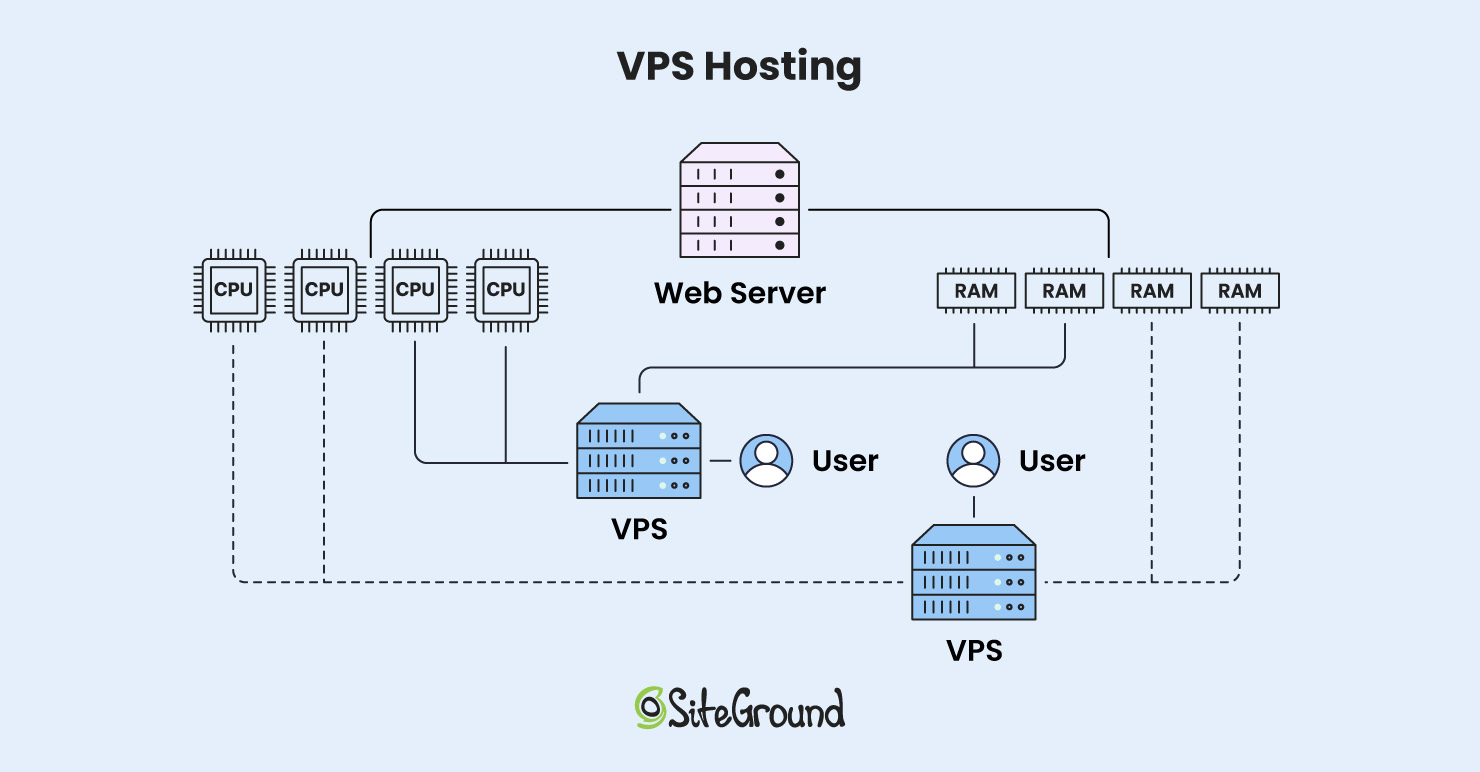
In a VPS setup, you also share a physical web server with other users. However, you have your own virtual web server partition with its own operating system and reserved resources. 

This means that you are independent of your neighbors since you have your own dedicated disk space, CPU, and RAM. 

However, it also means that you are solely responsible for maintaining the entire VPS. Thus, your website performance depends on your server maintenance knowledge. 

VPS hosting plans are usually located on less crowded servers, primarily containing other VPS users.     

What is VPS Hosting

Since you are independent of other users, you have much more freedom in modifying the server configuration. Usually, VPS plans come with root access, which means you have full control. You can tweak almost everything as you see fit. 

It’s like living in a building where others rent smaller apartments and share common spaces and amenities, but you have your own condo with its bathroom, kitchen, and everything you need. 

There is a tradeoff, though: VPS servers are usually more costly than many other hosting types, including shared hosting. Furthermore, you are solely responsible for the server maintenance. While the host will maintain the physical server, you are on your own when it comes to installing and managing the operating system, modifying the server configuration, and all other technical aspects. 

VPS is often confused with dedicated server hosting, but there is one stark difference. With dedicated hosting, you own an entire physical server, while with virtual private server hosting, you share the physical server with others.

Going back to the analogy above, if a VPS is a condo in a building, a dedicated server is the entire building that you have for yourself. 

Who Should Get a VPS? 

  • Large businesses with a lot of visitors and traffic and who are able to afford more expensive solutions
  • Large ecommerce stores with higher budgets that consume more resources
  • Technically proficient users with an innate understanding of server maintenance 

Pros

  • Improved performance and uptime–Performance is more predictable since you are not sharing resources with others.  
  • Guaranteed server’s resources–You have dedicated server resources. 
  • Increased bandwidth limits–Bandwidth limits on VPS hosting are typically more lenient. The limits depend on the web host.              
  • Unaffected server usage–You are independent of your neighbors on the same physical server. 
  • More control–Root access and access to the entire server configuration. 

Cons

  • Expensive–More expensive than shared hosting. 
  • Not beginner-friendly–Requires advanced technical knowledge of server maintenance. The web hosting provider doesn’t get involved in server maintenance. 
  • Unmanaged–You are on your own when running the server, which can be time- and effort-consuming. You may need to hire extra staff.  

SiteGround doesn’t offer VPS hosting but provides a more sophisticated and advanced alternative: cloud hosting. This solution is both powerful and highly scalable, allowing you to adjust resources dynamically to meet your website’s demands. Cloud hosting ensures that your site can handle traffic spikes effortlessly, maintaining optimal performance and reliability. By choosing SiteGround’s cloud hosting, you gain the flexibility and power of a scalable infrastructure without the complexities of managing a virtual private server.

For more information on this topic, read this article about cloud hosting vs VPS hosting.

Differences Between Shared Hosting and VPS Hosting 

The main difference between shared and VPS hosting is that on VPS hosting, you have your own virtual instance of a web server with reserved resources, while shared hosting users share the same server environment, resources, and operational system (OS). 

VPS hosting is more expensive and suitable for advanced users who require more control and possess the technical knowledge to maintain a web server independently.       

Shared hosting is a simple, budget-friendly solution and a great choice for medium-sized websites. You can’t customize the server setup, but in some cases, that’s not a bad thing. Shared hosting is usually managed, meaning your web host takes care of server maintenance, allowing you to focus on managing your website without worrying about actions that could harm the server.    

But let’s go through all the differences between shared and VPS so you can make the best choice for your needs.

FeatureShared HostingVPS Hosting
PerformancePerformance can fluctuate due to shared resources. It depends on how well the hosting provider manages the servers. Higher performance potential given dedicated resources, but it depends on your technical proficiency. Requires server maintenance knowledge since the hosting provider is not involved. 
SecurityManaged security with strict rules maintained by the hosting provider. Your site is protected from the get-go. Isolated environment with full control over the server. Security is your responsibility. 
ScalabilityLimited scalability. Requires plan upgrade for more resources. More scalable. Upgrading resources can be easy or difficult, depending on the provider. 
CustomizationLimited customization due to a shared environment with strict restrictions. The hosting provider has pre-configured the server for you. High customization freedom, including server configuration and root access. You must know what you’re doing or you can break the server configuration.
Level of ControlMinimal control over server settings and OS due to the shared environment. Server management is taken care of by the hosting provider.Full control over the server and OS. Root access. The user is responsible for the server management. 
Ease of Use Easy. Typically, the hosting provider maintains the server configuration and provides management tools.Hard. You are responsible for installing applications, running the server, and maintaining security. 
PriceMore affordable, with plans starting at a few dollars per month.Generally more expensive, with some basic plans offering fewer resources than shared hosting.

Performance

Performance is a crucial aspect of running a website. You want your visitors to stay on your web page, and to do so, your website should load quickly before they give up waiting and abandon it. Performance also plays a huge role in the SEO rankings, especially since Google introduced Core Web Vitals.

In a shared server environment, the website speed can fluctuate since you don’t have fixed resources. More or less, you depend on the other users—if another website eats up too many resources, your speed may also suffer. These fluctuations can be mitigated by a reliable web hosting provider who imposes resource monitoring and fair resource distribution.   

At a base level, you can squeeze out more performance from virtual private servers. You have a reserved amount of resources exclusive only to your websites, so other users on the same physical server don’t influence your website. 

This comes with one caveat: on a VPS hosting plan, you are responsible for the server maintenance. Thus, you should have advanced knowledge of how to run the entire server and all applications to make sure that it doesn’t fall apart. Alternatively, you might need to spend extra cash hiring additional staff to monitor your VPS.   

Security

Security is another critical facet of running a website, and similar to performance, there are elements of it that just aren’t so straightforward.

A shared server hosts multiple websites, and the more websites there are, the greater the exposure to security breaches. If one website falls victim to malicious attacks, the other websites might follow. However, in most cases, shared web hosting is managed, meaning hosting providers enforce strict security rules, firewall protection, and malware prevention measures to keep you safe.

SiteGround offers robust security features to protect your website, such as proactive server monitoring, advanced firewall systems, and AI-driven anti-bot systems to fend off potential threats and malicious activities. With SiteGround, you can have peace of mind knowing that your website is safeguarded by top-tier security measures and technology, allowing you to focus on growing your online presence.

On a VPS plan, you benefit from an isolated environment dedicated exclusively to your websites, eliminating concerns about infections from other users. However, this autonomy also means that maintaining the server’s integrity is entirely your responsibility. To prevent security breaches, you must remain vigilant and proactive, implement robust security measures, and continuously monitor your server.

Scalability and Flexibility

As your business grows, it’s crucial to scale your server to handle traffic spikes without losing momentum. In this regard, shared servers are less flexible than VPS servers. Shared hosting providers typically offer plans with fixed resources that cannot be increased separately. You must upgrade to a higher plan in order to scale up the resources.  

With SiteGround shared hosting plans, upgrading is as easy as a single click. Changing your plan does not require reconfiguration or downtime, allowing you to enjoy a smooth transition to a more powerful solution. 

VPS plans, on the other hand, are generally more flexible. They are often hosted on premium servers, with resources distributed among fewer users, providing more headroom for expansion. However, the ease of scaling can vary depending on your provider. With some, adding extra resources may be as simple as clicking a button, while others may require a more complex and time-consuming configuration process.

When it comes to scalability, SiteGround offers an excellent alternative to VPS—cloud hosting. Cloud servers provide the same power as VPS but excel in scalability. Users can adjust resources up or down as needed without experiencing downtime. You can even configure a cloud server to autoscale. This allows the system to monitor resource usage and automatically allocate more resources when CPU or RAM usage nears its limit. For more information, check out this guide on setting up autoscale for cloud servers.

Customization

In terms of customization, VPS servers are the clear winner. Shared hosting providers are able to offer cheaper web hosting solutions by accommodating multiple users on the same physical server. But for this to work, they need to maintain strict restrictions that cannot be surpassed—certain ports are closed, firewall rules are tougher, server configuration is off-limits, etc.

In contrast, a VPS provides you with your own isolated server environment, separate from other servers and accounts on the same physical machine. This grants you significantly more freedom to customize your server—you can close or open ports, set up a dedicated IP address more easily, modify the server configuration files, etc.  

But again, most users will do just fine with the pre-set configurations hosting providers usually offer. So unless you have a very technical background and really know your way around this, you will probably be better off with shared hosting. 

Level of Control

With a shared hosting plan, you don’t have the level of control that VPS hosting offers. Since you share the same server configuration and operating system with other users, any changes to the configuration could impact everyone differently.

If you require greater control, VPS hosting is the way to go. However, remember the wise saying: “With great power comes great responsibility.”. While you’ll have much more control over your server, this also means you can inadvertently cause issues if you lack the necessary knowledge and expertise in server maintenance.

Price

When it comes to pricing, shared hosting is significantly more affordable than VPS hosting. By optimizing costs in a shared hosting environment, providers can offer budget-friendly yet reliable solutions that cater to various financial needs, with some plans starting at just a few dollars per month.

While VPS hosting is generally more expensive, there are some extremely low-cost options available. However, these budget VPS plans often come with limited resources, and many shared hosting plans can surpass them in terms of performance.

A reliable and well-equipped VPS server is typically a more costly investment. It’s important to assess whether you truly need the advanced features it offers in exchange for the higher price.

VPS vs. Shared – How to Pick a Plan

Each of the two hosting options has its unique advantages and limitations, and understanding these differences is key to making an informed decision. In this section, we’ll explore the essential factors to consider when choosing between VPS and shared hosting, helping you determine the best fit for your specific needs and budget.

Website Type and Size

The size of your website is one of the most important criteria when choosing among the different types of web hosting. For a modest blog with just a few pages, extensive resources aren’t necessary. A shared hosting plan would be more than adequate to ensure your website runs smoothly and efficiently.

However, if you own a large ecommerce store, you are more likely to need something more substantial. Dedicated servers might be too expensive, but VPS servers would also do a good job of handling resource-hungry websites. 

Speed and Performance

Everyone wants their website to load blazingly fast; that’s a given. However, it’s important to consider whether you truly need the power that a VPS server provides. While a VPS typically offers more CPU and RAM than a shared hosting plan, these resources won’t significantly impact performance if your website isn’t optimized.

Focus on optimizing your website’s software first; this can often make a more noticeable difference than simply upgrading to a more powerful VPS plan. Of course, if your website is large and complex, you’ll need the hardware to support it, which may require transitioning to a VPS.

Traffic and Resource Usage

A website generating lots of traffic is bound to exhaust more server resources. Shared hosting plans come in different sizes, but in general, they are limited by bandwidth or monthly visits. 

VPS plans are usually unmetered and have no bandwidth limits, so you can use all the resources available to you. 

However, keep in mind that if the traffic outgrows the VPS resources, your website might start crashing. If you decide to go with VPS, you should explore what options the hosting provider offers for scaling.  

Level of Security 

Your hosting plan choice will also depend on how invested and proactive you are in maintaining your website’s security. Shared servers can be more vulnerable, as you share server space with other websites, and if one is compromised, others might be affected. However, even with shared plans, web hosts implement various protective measures—such as firewalls, account isolation, and malware scanning—to keep websites as secure as possible with minimum intervention by the website owners.

With a VPS plan, you don’t have to worry about vulnerabilities from other websites since you’re running your own isolated server. However, this also means you are solely responsible for maintaining your server’s security. This includes installing security applications, setting up firewalls, monitoring for suspicious activities, and potentially hiring security specialists.

Budget

Ultimately, your choice of hosting plan will largely depend on your budget. If you’re just starting an online business or running a modest personal blog, VPS hosting might be more than you need. A shared hosting plan would suffice, ensuring smooth website operation with minimal investment. Most shared hosting plans are managed, meaning the provider handles server maintenance, allowing you to focus on running your website.

Conversely, if your website experiences high traffic or involves resource-intensive applications, you might need a more powerful and pricier option like VPS hosting. This provides a robust platform capable of handling substantial traffic. However, since VPS plans are often unmanaged, you may need to hire additional staff to manage the server, which can increase your expenses.

Final Thoughts: Is VPS Better Than Shared Hosting?

The choice between VPS and shared hosting depends on your specific needs and circumstances. If you’re a beginner, have a limited budget, or run a small website, shared hosting is a cost-effective and manageable solution. It provides essential features without requiring technical expertise.

On the other hand, if you manage a high-traffic website, need dedicated resources, or require extensive customization and control, VPS hosting is the better choice. It offers improved performance, scalability, and security but at a higher cost and with a steeper learning curve.

Ultimately, the decision should be based on the website’s size, traffic, budget, and your technical proficiency. Carefully assess your requirements to choose the hosting type that best aligns with your goals and resources.

How to Keep Your Emails Out of Spam (10 Tips included)

How to Avoid Your Emails Going to Spam? (10 Tips included)

Despite your best efforts as an email marketer, like strict adherence to all general anti-spam policies, you may still find out that some of your recipients don’t receive your emails. Although there is no way to secure 100% email deliverability, you should consider the different reasons why your emails do not reach the subscribers’ inboxes and one of the biggest reasons is that they get flagged as spam. 

Although it may seem intimidating at first, overcoming spam filters and other related delivery issues is not rocket science. With the right knowledge, you can trim down the chances of your emails getting trapped by spam filters and achieve better delivery rates.

Here, we’ll demystify how spam filters work and how they evaluate whether an email is spam or not. We’ll also explore the most critical factors that spam filtering algorithms take into account. Finally, we’ll unravel the 10 most effective tips to make your emails pass even the most strict spam filters. 

So, let’s roll up our sleeves and get your email deliverability soaring.

Why Emails End Up In SPAM?

Let’s face it – everyone has fallen victim to unsolicited and spam emails and wondered how to get rid of them. At best, they are simply annoying but harmless, littering your inbox with irrelevant ads and promotions. However, at their worst, they can cause serious harm, leading to substantial financial and reputational losses. Through spam emails, bad actors conduct social engineering, spoofing, data theft and create all other kinds of trouble. 

To protect their clients from such malicious events, Internet service providers and Email service providers incorporate spam protection systems and spam filters to keep recipients and their networks spam-free. They act as gatekeepers to the recipient’s inbox, putting incoming emails through rigorous and thorough checks before being given a pass. From the moment you send your email till it actually reaches the recipient, it passes through one or more filters aiming to identify and stop malicious or unwanted messages. Every spam filter has its own set of rules, threshold, sensitivity, spam trigger words, etc. You can’t anticipate and predict all, but at least you can understand the most common reasons that trigger spam filters and minimize the chances of your emails ending up in spam folders.   

How Spam Filters Work?

Spam filters use a complex set of rules, algorithms, and AI to evaluate emails and set spam score thresholds. They put every incoming email message under the microscope to decide its fate. After the filters have gone through all checks, they assign a spam score to the emails. If the emails meet the predefined threshold, they are given a safe passage to the recipient’s inbox. However, if the score is higher, they might get expelled to the spam folder; get completely rejected at the network level without any feedback to the sending server; or get directly dropped with an error, something like a hard bounce.

Types of Spam Filters

In general, there are several different types of spam filters, which have a different approach to how they catch spam.

Blacklists

These filters monitor different Denylist/Blacklist databases globally and will stop emails coming from IPs listed in such blacklists. Denylists (blacklists) are databases containing lists of domains and server addresses that have been reported as regular senders of spam content. 

Content Filters

Content filters go through the email message and look for specific words and language that could suggest that the email is clickbait, phishing, or other types of spam. Most content filters look for similar things – bad words used multiple times, such as “offers,” “limited-time,” sexual language, and others. They also watch out for common scams such as the “ 419 scam”, best known when impersonated by a Nigerian prince asking for money against the promise to return a larger sum in the future.

Header Filters

These filters are focused on reading the information transmitted via the header of the email, such as the source IP, if the email is sent to a group of recipients, and more, and aim to ban messages from bad sources, such as IPs known to be used by spammers.

Language Filters

Some Email service providers monitor the language of the emails, and if that language varies from the country language of the recipient, they might stop the messages. These filters may be set differently, but in general, they aim to protect recipients from content that is not tailored to their needs.

Rule-based Filters

Email service providers and users alone can use a filter to set up specific rules that can be applied to all emails coming in. For example, you can set the filter to stop all emails from one specific sender or look for specific words or phrases in the body or in the header of the incoming emails, and if such are detected, the message gets sent to the spam folder.

Bayesian Filter

The Bayesian filters monitor the recipients’ preferences by examining the emails that they send to spam and set rules based on the patterns they detect to automatically flag similar emails in the future. 

AI Filters

AI is being increasingly used to fight spam. Its purpose is to detect patterns in emails, sender behavior, and other suspicious content to help spam filters flag more accurately the messages that go through the network. AI gets trained on the actual incoming and outgoing content of the network, using real messages to learn what is good and what is bad, and its contribution to this fight is getting more and more valuable.

How Spam Filters Calculate the Spam Score?

The Email Service providers constantly update the rules their spam filters use in response to the ever-changing and inventive ways spammers find to catch email users off guard. But even so, there are a few essentials and common criteria that all spam filters consider when forming the spam score of your emails.

Sender Reputation 

The first thing spam filters do, no matter what, is check the sender’s reputation. As discussed in detail in our article on Email deliverability, this refers to the credibility of your sender IP.  If your IP is listed in any Denylists/Blacklists, your emails will be flagged as spam.

Domain Reputation 

Let’s assume your IP is clean, but your domain has a bad history and is known to be sending spam. Again, this information may be recorded in public denylists or private databases of the recipient’s email provider. Unlike the sender reputation, where responsibility is shared with your ESP, the domain reputation is something that you are personally responsible for, and you should monitor it with care.

Email Content Quality

Email content quality is fundamental for both user engagement and spam filter avoidance. High-quality content is relevant, well-written, and provides value to the recipient. When creating email campaigns, email marketers should learn to avoid “spam trigger words” –  specific words or phrases that can activate spam filters. You don’t have to overthink it, but as a rule of thumb, these words are often associated with deceptive or aggressive marketing practices. Remember the Nigerian prince and the content filters above? Just like those.

The quality of the served content heavily impacts user engagement with your emails. High user engagement is a positive signal to email providers that recipients value your content and that you are not sending spam. And vice versa. You can easily monitor that engagement with several metrics – open rates, click rates, replies, and forwards and aim to improve the quality of your emails with every campaign. 

Unengaged subscribers tend to ignore your emails. Like a one-sided conversation, you will have a silent partner who will have no reaction to what you are saying. If your emails are consistently unopened, it signals that your content might not be relevant or desired, and as a result, your future emails are more likely to be directed straight to spam.

What is worse, some of the recipients who open the emails but are not interested in your content might launch spam complaints. With so many scammers online, users have become sensitive to what’s landing in their inboxes, even when they have given consent to receive emails from a certain sender. If you don’t follow strict sending patterns and maintain pristine content quality, they might complain against you and flag your emails as spam.  A spam complaint is a significant blow to your sender reputation. Here are some common triggers that might irritate recipients and lead to spam complaints, which you may want to consider:

  • Unexpected Frequency – Sending emails too often or at irregular intervals can frustrate subscribers. 
  • Irrelevant Content – Content that doesn’t relate to subscribers’ interests or needs can lead to disengagement.
  • Misleading Subject Lines – Crafting misleading subject lines that don’t align with the email body is usually frowned upon.
  • Lack of Personalization – Generic, “one-size-fits-all” messages can make subscribers feel undervalued and disengaged.
  • Difficult Unsubscription Process – Making it hard to unsubscribe can push users to report your emails as spam instead.

You may also want to consider that the industry-acceptable standard spam complaint rate is less than 0.1% (1 complaint for every 1,000 messages sent). These kinds of rates are not set in stone, but they are set by major email providers like Google and are a good indicator for marketers what to expect if they go above that. Google, AOL, Yahoo, and others give you the opportunity to monitor the complaint rate through their platforms via unique interfaces, which you may want to check out if you wish to keep track and be a better sender.

Now that we have analyzed how spam filters work and what triggers them, let’s get practical and go over the top 10 tips to avoid your emails going to spam.

10 Tips To Avoid The Spam Folder

Let’s dive into 10 of the most practical strategies to keep your emails landing right where you want them – in your subscribers’ inboxes.

1. Build Your Own Email List

The cornerstone of any successful email marketing campaign is a solid, organically grown email list. Refrain from taking shortcuts like buying lists or scraping emails. It can damage your sender reputation and violate privacy laws. Build your list the right way, with people who genuinely want to hear from you.

Do not ever buy email lists or scrape emails! One of the biggest risks, besides the obvious low engagement rate of such contacts, is that you might fall into honeypots. Honeypots are spam trap email addresses used by organizations to catch spammers. They are inactive email addresses solely existing to lure unsuspecting spammers who send unsolicited marketing emails. If you have such an address in your list, it can lead to serious deliverability issues for your campaigns in general.

Craft a blueprint for your list-building strategy that focuses on attracting subscribers through valuable content, engaging social media campaigns, and enticing lead magnets. Make it easy and rewarding for people to sign up, and watch your list grow with interested, engaged subscribers.

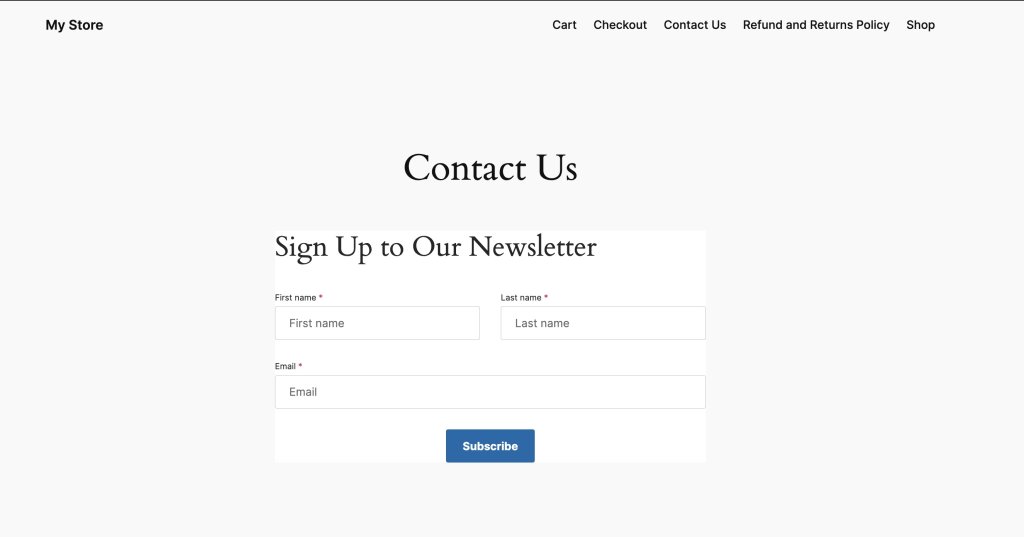
SiteGround Email Marketing service comes with a free WordPress Email Marketing plugin that allows you to create signup forms on your website and WooCommerce checkout for collecting leads. That is the first step towards successful email list building since it opens the funnel for all those subscribers to start enrolling.

Once you have a signup form, you may want to revise its positioning – by strategically placing sign-up forms on your web pages and giving them visibility in high-traffic areas, you ensure that more people will engage with them.

And ultimately, you should consider the “incentive” you give your users to subscribe. It may be access to a discount, free content, or else. We have a great article on how to build an email list if you wish to dive deep into the topic.

Use signup forms to collect subscribers to your email marketing campaigns

2. Use Double Opt-In Signup Forms

Forms that require “double opt-in” ensure that only those who truly want to engage with your brand make it onto your list. It’s a two-step process where users confirm their subscription, typically by clicking a link sent to their email. This extra step reduces the likelihood of spam complaints and improves the overall health of your email list.

Implementing double opt-in might seem like a hurdle, but it’s actually an advantage. It seeds out people who accidentally signed up for your newsletter and are unaware of it. They might be unpleasantly surprised when they start receiving your campaigns and act on impulse. There is a high probability that they could report you as spam and damage your reputation. 

The double opt-in helps you verify the subscriber’s interest and email address validity, leading to a more engaged audience and better deliverability. 

3. Authenticate Your Domain

Authenticating your sender domain is a way to prove your emails come from you and not a spammer who hijacked your domain. By verifying your email domain with DNS records, you ensure the recipients’ email servers that the emails come from a legitimate sender. Protocols like Sender Policy Framework (SPF), DomainKeys Identified Mail (DKIM), and Domain-based Message Authentication, Reporting & Conformance (DMARC) give your emails safe passage from sender to recipient servers.

Each protocol plays a unique role. SPF prevents email spoofing by verifying sender IP addresses. DKIM adds a digital signature to your emails, ensuring they haven’t been tampered with. DMARC ties the two together, telling receiving servers what to do if an email doesn’t have SPF or DKIM records set. All three mechanisms combined form a strong shield against forging your domain, which instills trust into recipient mail servers and increases your sender reputation. 

If you use SiteGround Email Marketing service to send your emails and your DNS is managed by SiteGround, we automatically set the DKIM and SPF records for you, validating the authenticity of your email campaigns. Here, you can read more about domain authentication in general and specifically on the SiteGround platform.

4. Include Unsubscribe Option in your emails

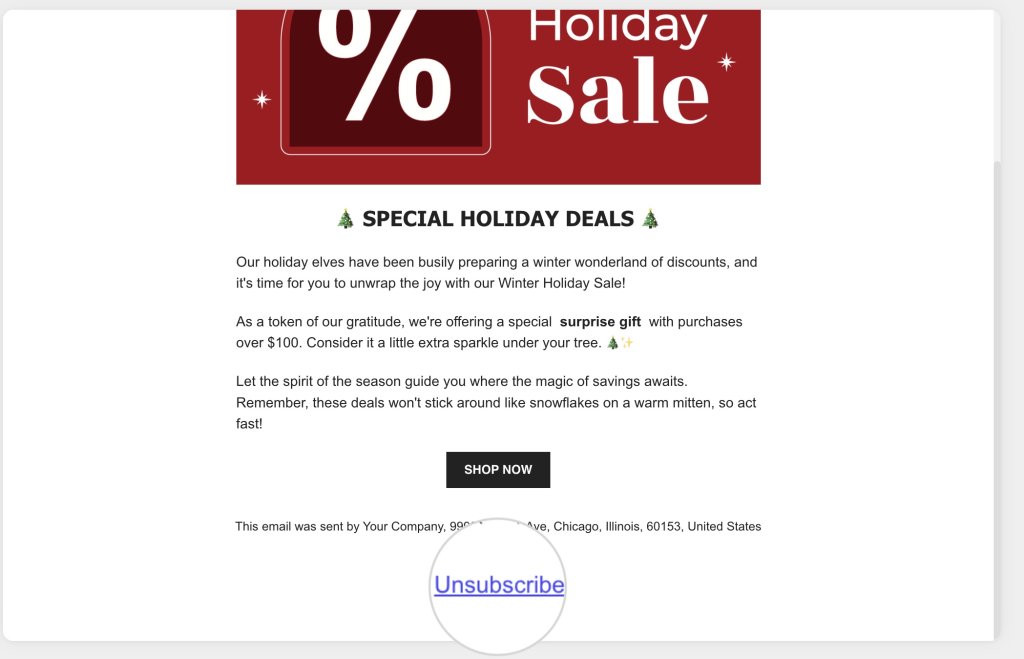
Always leave the choice for your users to unsubscribe –  not only is it a mandatory requirement in many anti-spam laws, but it also helps you maintain a strong core of an engaged audience. This feature gives the opportunity to users who do not like your content or are not interested to leave your list without harming your reputation. Without an unsubscribe link, these users would just click “report spam” and hit you really hard.

SiteGround Email Marketing users shouldn’t worry about unsubscribe options. All emails sent through our platform contain an Unsubscribe link in the footer by default, and recently, we added an automatic 1-click unsubscribe feature in the email headers to comply with the latest email providers’ requirements.

"Unsubscribe" button in an email marketing campaign

5. Clean Your Email List Regularly

Regularly removing inactive and unengaged subscribers from your list is fundamental to keeping high email deliverability and improving engagement rates.

Make it a habit to review your list periodically. Remove subscribers who haven’t engaged with your emails over a set period of time. Consider a re-engagement campaign before you hit delete, but if they still don’t give in, it’s time to let them go.

6. Monitor Denylists

Ending up on a denylist can be disastrous for your sender and domain reputation. Avoiding that requires a proactive approach to monitoring your reputation.

You can regularly check if your sender IP or domain is on a denylist using online tools. If you find yourself listed, take immediate action to remedy the situation by reaching out to the denylist operator and rectifying any issues that led to your listing.

If you are using an email service provider to send your campaigns and you notice that your IP is on a blacklist, you should contact that ESP for assistance. 

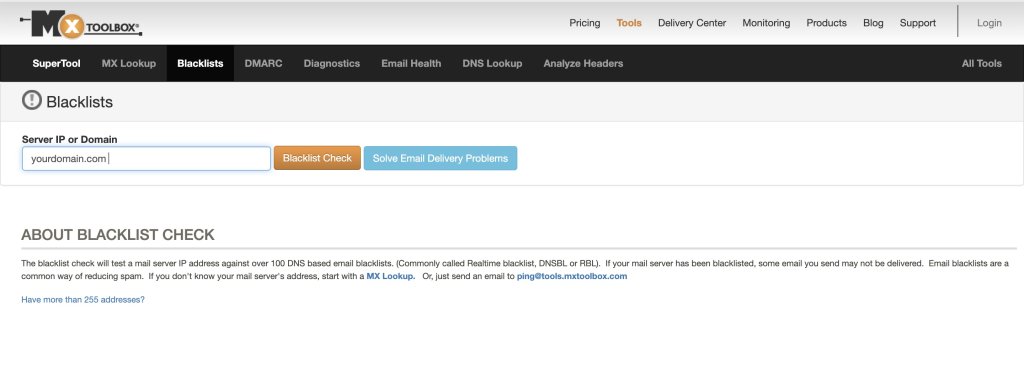
One such tool to monitor your reputation is MXToolBox, which can provide insights into how your IP address and domain fares in some of the most authoritative denylists. 

MX Toolbox Denylist Checker

7. Be Compliant with Internet Privacy Laws

Internet privacy laws like the CAN-SPAM Act, CASL, GDPR, and CCPA are not just guidelines; they are mandatory for any serious email marketer. Compliance ensures your emails are not only legal but also more likely to be welcomed by recipients.

Understand the requirements of each law, such as providing a clear opt-out mechanism, including your physical mailing address, refraining from using misleading subject lines, and obtaining explicit consent before sending emails. Staying informed and compliant keeps you out of legal trouble and builds trust with your audience.

8. Avoid Spam Triggers 

When crafting your emails, think of spam triggers as landmines on the path to a recipient inbox.  These triggers are specific words, phrases, formatting choices, and even punctuation that can raise red flags for spam filters. Steering clear of these can significantly improve your chances of avoiding the dreaded spam folder.

Spam triggers can be sneaky, often hiding in plain sight within your email content. They range from overly salesy language to aggressive calls to action and even certain words associated with spammy behavior (like “free,” “guarantee,” or “no risk”). Common spam triggers are: 

  • Words and phrases suggesting large financial benefits – free money, save big, risk-free, no fees, financial freedom, etc. 
  • Phrases and words prompting urgency and immediate actions – urgent, act now, last chance, once in a lifetime, instant, etc. 
  • Words and phrases promising on medical cures, health benefits, and sexual stimulants –  cure, miracle, life-changing, lose weight, baldness, cure-all, etc.
  • Overly persistent calls to action – get it now, do it today, join millions, start now, etc.
  • Excessive use of text in CAPS
  • Words and phrases associated with cheap marketing tricks – buy direct, special promotion, increase sales, great offer, you have won, bargain, best prices, etc.

Here is a small list with spam trigger words you must use cautiously:

  • Free
  • Guarantee
  • No risk
  • Winner
  • Unlimited
  • Discount
  • Act now
  • Offer expires
  • Urgent
  • Congratulations
  • Miracle
  • Incredible deal
  • Special promotion
  • Risk-free
  • Prize
  • All natural
  • Easy money
  • Get paid
  • Eliminate debt
  • Extra cash
  • Lowest price
  • Winner
  • Buy direct
  • Cancel at any time
  • Cheap
  • Save big
  • Exclusive deal
  • Hidden charges
  • Great offer
  • No obligation

Another thing to moderate in your email content is images. If you add too many or slow-loading images, this may trigger the spam watchers. Keep it at around 1-2 well-optimized images (using a web tool like TinyPNG) to pass successfully through the spam checkers. 

The key is to communicate your message effectively without setting off alarms. Of course, some of those words will show up in your message, but having too many of those in combination and as a percentage of the overall text is what makes it shady and a spam trigger. Here are some tips on how to steer away from spam triggers: 

  • Use Natural Language –  Write as if you’re speaking to a friend. Avoid excessive use of text in capital letters, bold text, and exclamation points, as these can appear shouty and spam-like.
  • Be Mindful of Subject Lines – Your subject line is the first thing a recipient sees. Make it engaging but never misleading or “too-good-to-be-true.”
  • Balance Text and Images – Emails that are heavy on images with little text can be a red flag. Aim for a healthy balance that’s visually appealing yet informative.
  • Keep It Clean –  A cluttered layout with multiple fonts, colors, links and images can not only look spammy but may also confuse your readers. A clean, simple design is more effective and less likely to trigger filters.
  • Avoid Deceptive Tactics –  Never try to trick spam filters by using tactics like inserting dots in words (e.g., f.r.e.e). Not only do modern filters see through them, but they also damage your credibility with subscribers.

The definition of what constitutes a spam trigger can evolve as email clients update their filtering algorithms. It’s essential to stay on top of these changes by regularly testing your emails and tweaking content as necessary. A/B testing different elements of your emails can also provide insights into what resonates best with your audience without setting off spam filters.

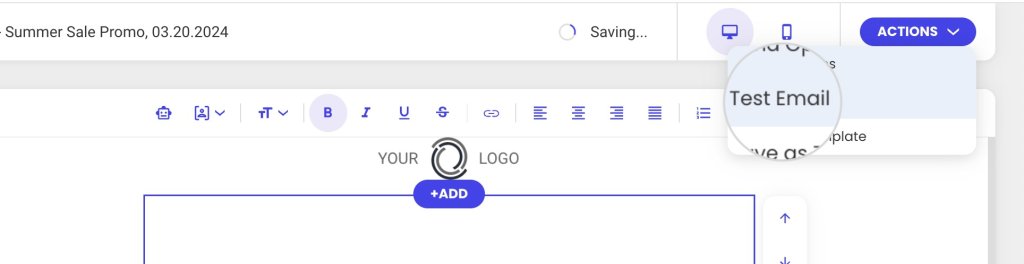
If you are using SiteGround Email Marketing, you can test your email campaigns by sending them to your own address to catch any spam triggers in advance.  

Test email option in SiteGround Email Marketing

9. Monitor Your Email Engagement Metrics

Data is your best friend when it comes to avoiding spam. Sadly, there is no way for you to know the exact percentage of the emails you send that get flagged as spam by spam filters. Depending on the reason why your emails get flagged, as well as on the specific filter settings and what they are instructed to do, different things may happen to a “spam” email. They may be rejected by the recipient server at a network level, which means they would never be delivered and reach the spam folder. What is more, recipient servers do not like to communicate specifics on how they handle various types of situations in order to not facilitate spammers into cutting corners. Since often there is no real feedback loop, the sending server cannot gather actual statistics on how many of your emails ended up in spam. 

As the second best alternative, you may want to keep a close eye on metrics measuring email deliverability and user engagement in general. They will provide insights into how your audience and email filters respond to your content: 

  • Reported as spam rate –  The percentage of recipients who mark an email from a campaign as spam or junk. This metric indicates how many subscribers consider the emails unwanted or irrelevant enough to report them to their email service provider as spam. It is also your only real “spam” metric, but it does not include data on the emails that ended up in spam folders or got rejected at the network level by filters, which makes this metric alone insufficient.
  • Open rate – Measures the percentage of email recipients who open a given email out of the total number of emails sent. Too many unopened emails as a percentage of the total not only indicate a problem with your subject line but also put you at risk of your future emails being flagged as spam.
  • Delivery rate –  Indicates the percentage of emails that were successfully delivered to the recipients’ mailboxes (inbox and spam folder including) out of the total number of emails sent in a campaign. The delivery rate focuses on the reachability of the emails. It only measures what part of the sent emails have reached their recipients but doesn’t tell you where they landed or what happens to those that didn’t hit the target. Still, if you have too many undelivered emails there might be different reasons, one of which being a high spam rate.
  • Click rate –  Measures the percentage of email recipients who clicked on one or more links within an email. This metric is crucial for gauging the level of engagement and interest your content generates among your audience. It can provide insights into how effective your email content, calls to action, and overall design are at prompting recipients to take the desired action. If your content does not manage to engage subscribers systematically, a chain reaction may follow of declining open rates, unsubscriptions from your email list and increased spam complaints.
  • Unsubscribe rate –  Tracks the percentage of recipients who opt out of a mailing list after receiving an email campaign. It is an indicator of how well the content aligns with the audience’s interests and whether the email campaigns meet their expectations. Obviously, it does not indicate any spam risk on its own, but if you notice your unsubscribe rate is high or growing, you may assume that your spam complaint rate might be increasing as well since that shows recipients are getting impatient with your content and will start punishing you in various ways.
  • Bounce rate – Refers to the percentage of email addresses in your campaign that didn’t receive your message because the recipient’s mail server returned it. In a different article, we discuss the different types of email bounces, so here, we only remind you that “hard” bounces show that you have invalid emails on your list. If your bounce rate is too high, that might indicate to email providers that you are not collecting your subscribers in the right way, and they might start flagging your domain and content for spam.

Use these metrics to map out what works and what doesn’t. High engagement rates are a sign you’re on the right track, while dips could indicate it’s time to tweak your strategy. On the contrary, you want to keep the unsubscribe, bounce, and reported as spam rates as low as possible. An increase in these metrics should prompt you to reassess your marketing campaigns. 

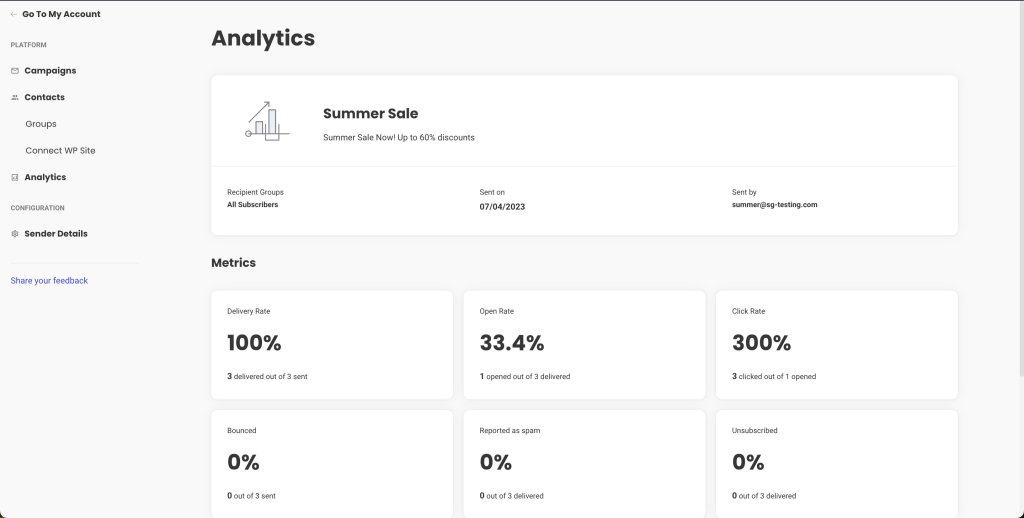
Your email marketing service might offer analytics tools out of the box, or you can use third-party instruments to measure these metrics. With SiteGround Email Marketing, every email campaign is monitored, and the vital statistics are displayed in a user-friendly and intuitive interface.

Campaign statistics in SiteGround Email Marketing

10. Send Relevant Content

Relevance is the key to engagement. Your emails should be timely, targeted, and full of value. Personalize your content to resonate with your audience’s needs and interests.

Don’t flood your users with repetitive and irrelevant content just for the sake of sending. Prioritize quality over quantity and make each email campaign meaningful and impactful.

Segment your list to deliver more personalized content. Use data like past purchases, location, or engagement history to tailor your messages. The more relevant your content is, the more likely subscribers are to engage and the less likely they are to report your messages as spam.

11. Bonus Tip: Use Spam Checkers

Before you send out your emails, run them through a spam checker. These tools analyze your emails for common spam triggers and give you a chance to correct any issues before pressing send.

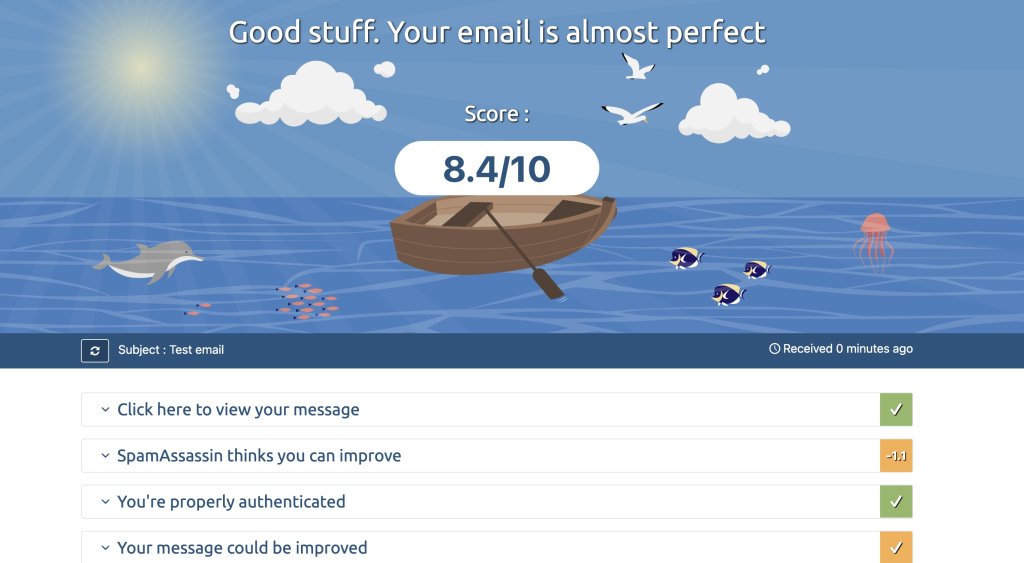
Look for reliable spam-checking tools like Mail Tester and make them a part of your email review process. Incorporate their feedback to reduce the chances of your emails being flagged as spam.

Spam checker test email

FAQ

Let’s tackle some common questions to help you navigate the world of email deliverability.

Why Are My Emails Going to Junk?

Your legitimate emails could be going to junk for a variety of reasons, including poor sender reputation, low engagement rates, or content that triggers spam filters. To pinpoint the exact reason, you’ll need to analyze your email practices, from the way you collect email addresses to the relevance and frequency of your content.

Take notice of instances when your emails end up in junk and look for patterns. Are there specific types of content that consistently get flagged? Are certain email clients more likely to mark your emails as spam? Use this information to refine your email strategy.

Send Wanted Emails

The golden rule of email marketing is to send emails that your subscribers actually want to receive. This means understanding their preferences, providing value, and respecting their time.

Tune into your subscribers’ wavelength by asking for feedback, conducting surveys, and analyzing engagement data. Adjust your content strategy to align with their interests, and you’ll see better results.

Avoid Email Honeypots

To avoid such spam traps, only collect email addresses directly from your audience through legitimate sign-up forms and never purchase lists. Regularly validate your email addresses to ensure they are legitimate and engaged.

Conclusion

Mastering the art of email deliverability takes time, effort, and a willingness to learn and adapt. By following the tips outlined in this guide, you’ll be well on your way to ensuring your emails reach their intended inboxes. Remember to build a solid foundation with a permission-based email list, authenticate your emails, maintain list hygiene, and always provide value to your subscribers.

As you continue your email marketing journey, keep testing, tweaking, and improving. The landscape of email deliverability is ever-changing, and staying informed is key to success. Implement these preventive measures, monitor your email deliverability consistently, and you’ll find your emails welcomed by both subscribers and their inboxes.