

The AI Agent for WordPress doesn’t just write content. It can manage live-site actions such as deleting plugins, changing user roles, and updating WooCommerce orders on your live site, which is exactly why it ships with a safety switch.
That switch is SiteGround AI Agent Power Mode. It is disabled by default, and until enable it, the agent can’t run high-impact AI actions such as deletions, bulk edits, user changes, WordPress settings changes, or WooCommerce order updates. Role-aware permissions and confirmation prompts back it up at every step.
Key takeaways:
- Power Mode is disabled by default and requires explicit approval before the AI Agent for WordPress runs any high-impact action on a live WordPress site.
- The agent works inside the WordPress permission model, so the five standard roles (Administrator, Editor, Author, Contributor, and Subscriber) still define what it can access.
- SiteGround AI Agent Power Mode covers destructive and bulk operations: deletions, bulk content edits, user creation and updates, settings changes, and WooCommerce order actions.
- The agent manages content, plugins, themes, users, settings, WooCommerce, and troubleshooting inside WordPress, but it can’t reach server configuration, DNS, SSL, or hosting credentials.
- The safest workflow when using the AI Agent for WordPress is to keep Power Mode off by default, turn it on only when needed, back up before major changes, and review important actions before they go live.
Why safety matters when AI manages a live WordPress site
The risk of AI on a live site is rarely abstract. It looks like a deleted page that was still getting traffic, a changed setting that breaks checkout, or an order updated while the customer is mid-purchase.
Live-site AI needs more than a chat interface
A chatbot that suggests text is low stakes. An AI Agent for WordPress that can act on a production website needs stronger safety controls.
Sensitive actions include:
- publishing live content
- deleting posts, plugins, themes, or media
- changing users, WooCommerce orders, or WordPress settings
This is where the cost of a misread instruction can result in a bad change to a real site. That gap is exactly what a safety model has to close, and it’s why keeping a live WordPress site secure has to account for automated actions, not just human ones.
The real risk isn’t AI writing text, it’s AI changing things
Writing is reversible. You read a draft, you don’t like it, you ignore it. Changing is not always reversible. Deleting a plugin, removing a page, or bulk-editing categories can affect layout, functionality, and revenue in seconds.
Picture a prompt meant to tidy a blog: “delete the old posts.” Without a checkpoint, an agent could read that far more broadly than you intended, unpublish a year of content, and break every internal link pointing to it. Nothing malicious happened. The instruction was simply wider than you meant, and on a live site that gap between what you said and what you meant is the entire problem a safety model exists to catch. Clearer AI Agent for WordPress prompts reduce that ambiguity by defining the area, item, action, limit, and review step.
.post-page__colored-blocks.post-page__colored-blocks–update p { margin: 15px 0px; }SiteGround’s safety model is built around permissions, confirmations, and Power Mode
SiteGround handles AI Agent for WordPress safety with three layers working together.
1. WordPress roles decide the level of access.
2. Confirmation prompts put a human in front of risky steps.
3. Power Mode acts as the master switch that keeps high-impact actions off until you deliberately turn them on.
Each layer covers a different failure: the wrong role, the wrong click, or the wrong bulk command.
What is SiteGround AI Agent Power Mode?
SiteGround AI Agent Power Mode is a built-in safeguard for the AI Agent for WordPress. It’s must be enabled before the agent can perform high-impact actions such as:
- deleting plugins
- removing posts
- changing key settings
- making bulk content changes
- managing users
- modifying WooCommerce orders
For a detailed list of sensitive actions, see What Does Power Mode Do in the AI Agent for WordPress?
Power Mode is disabled by default
Out of the box, the AI Agent for WordPress can’t run destructive or high-impact actions. This is a deliberate default, not a setting you have to remember to lock down. If you never enable it, the agent stays in its safer, lower-impact mode, which is a sensible baseline for anyone still learning how AI works inside WordPress.
Power Mode controls only high-impact actions
When Power Mode is off, the agent can still help with plenty of everyday work. What it can’t do is complete the actions that would be expensive to undo.
Not every task deserves the same friction. Drafting a post and deleting 40 posts are not the same risk, so they shouldn’t require the same level of approval. By splitting low-risk work from high-impact work, SiteGround lets routine tasks stay fast while the actions that can break a site get a deliberate checkpoint.
How does the AI Agent for WordPress decide what it can access?
The AI Agent for WordPress doesn’t invent its own permissions. It works within the familiar WordPress role and capability system, so access maps to the same permissions you already assign to human users. That means the principle of least privilege applies to the agent exactly as it applies to your team: give it the lowest role that still gets the job done.
Every WordPress user has a role, and each role carries a fixed set of capabilities. The agent operates through that role rather than around it, so if a role can’t publish or delete something, neither can the agent acting under it. That makes role choice the first real safety decision you make, before Power Mode ever enters the picture.
Match the role to the work. An Administrator can manage plugins, themes, users, and settings, so an agent connected at that level can handle full site management, which is exactly why Administrator access is best reserved for workflows that genuinely need it. For content-only work, a lower role is the safer fit: an Editor handles content without plugin or settings control, a Contributor is limited to drafts, and a Subscriber has no business running site-management tasks at all.
| WordPress role | Practical meaning for safe AI use |
| Administrator | Use only when the AI Agent needs full site-management access. |
| Editor | Better for content workflows that don’t require plugin or settings control. |
| Author | Useful only for limited content creation or editing. |
| Contributor | Very limited; best for draft-only workflows. |
| Subscriber | Not suitable for site-management actions. |
What can SiteGround’s AI Agent for WordPress change?
Inside WordPress, the agent’s reach is broad but bounded. It can help manage content, maintenance, users, WooCommerce, settings, and optimization tasks through chat prompts, while Power Mode gates higher-impact changes. Think of it as a capable operator across the WordPress admin, including the work that keeps WordPress performance in good shape.
Content, pages, media, and comments
The agent can create and manage posts, pages, images, categories, tags, and comments. This is the everyday WordPress content work most site owners want help with, and much of it stays in the lower-risk lane until publishing, deletion or bulk changes are involved.
Plugins, themes, users, and settings
It can also help with WordPress core, plugins, themes, and compatibility checks, along with user roles, permissions, and user details. These touch how the site runs, so several of these actions require Power Mode before they complete.
WooCommerce products, orders, and customer details
For stores, the agent can help run WooCommerce operations, including products, orders, and customer details. Order and transaction actions carry real financial weight, so the riskier ones are gated behind Power Mode.
Performance, security, troubleshooting, and maintenance guidance
The agent can advise on performance, caching, vulnerabilities, plugin conflicts, and on-page SEO. This guidance is mostly informational, which makes it a safe place to start before you hand over any high-impact work.
| Area | What the AI Agent can help manage |
| Content | Posts, pages, images, categories, tags, comments |
| Maintenance | WordPress core, plugins, themes, compatibility checks |
| Users | User roles, permissions, user details |
| WooCommerce | Products, orders, customer details |
| Settings | General, reading, permalink, multilingual, staging, migration guidance |
| Optimization | Performance, caching, vulnerabilities, plugin conflicts, on-page SEO |
What can’t the AI Agent for WordPress access or change?
Just as important as what the AI Agent for WordPress does is what it deliberately leaves outside its WordPress management scope. It operates in the WordPress management context, not as a replacement for hosting-level administration, and that boundary is part of the safety design. For the broader product context, see how SiteGround’s AI Agent works inside WordPress.
Server-level configuration stays outside the WordPress agent scope
The AI Agent for WordPress works strictly inside the WordPress application layer. It doesn’t reconfigure the server, rewrite system-level settings, or take over the jobs that belong to your hosting environment. Those tasks stay where they’ve always lived: outside the WordPress admin.
Hosting panel, DNS, SSL, and credentials aren’t the same as WordPress content
Editing a page and changing a DNS record are different categories of action. The agent handles the first and not the second. Hosting panel settings, DNS, SSL certificates, database credentials, and user passwords sit outside its reach, the same way they sit outside a normal WordPress editor’s day-to-day work. If you want the fuller picture of where that line falls, it maps closely to what managed hosting handles for you at the server level.
Need help at the server level? The AI Agent for WordPress stays inside WordPress by design, but you’re not on your own for hosting tasks. The AI assistant in your SiteGround Help Center can help you with DNS, SSL, email, and other server-side settings,
Third-party plugin settings and page builders work best in their own interfaces
The agent manages plugins as software: it can install, update, activate, or remove them, and check for compatibility issues. What it doesn’t do is operate inside a third-party plugin’s own settings panels. Configuring a form plugin, a membership tool, or a third-party SEO plugin still happens in that plugin’s interface, the same way it always has. The exception is SiteGround’s own plugins, such as Speed Optimizer and Security Optimizer, which the agent integrates with directly.
The same logic applies to page builders. The agent works with standard WordPress content, so pages built with Elementor, Divi, or similar builders keep their layouts in the builder’s own structures. Content changes to those pages are best made in the builder itself.
Why clear boundaries make the AI Agent safer to use
A tool with a defined scope is easier to trust. Because the agent can’t touch infrastructure, an over-broad prompt can’t accidentally reach your DNS or SSL setup. A request like “clean everything up” can’t take down your domain, because your domain was never within reach in the first place.
How do you enable or disable Power Mode safely?
You can turn Power Mode on in two places: from the AI Agent by SiteGround plugin page in WordPress, or directly in a chat session when the AI agent detects an impactful action and asks for it. To switch it on, follow SiteGround’s steps to enable Power Mode and confirm the change from the same interface.
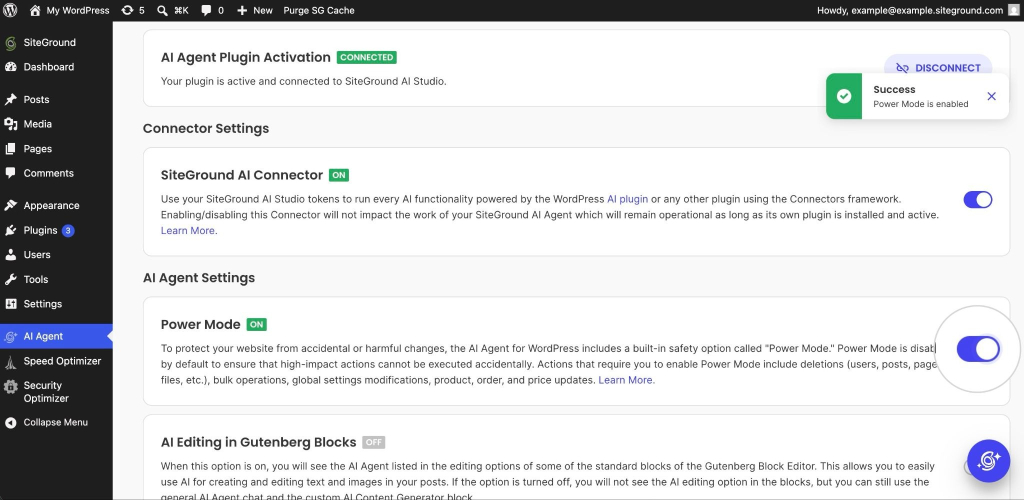
The safe habit is to enable it only for the specific task at hand, then disable it again once you’re done. Power Mode stays enabled after a task completes, so turning it off deliberately keeps your default state on the cautious side rather than leaving high-impact actions available indefinitely.
What happens when the AI Agent detects a risky action?
The safety model isn’t hidden. It shows up at the exact moment risk appears, so you see it right when it matters instead of reading about it in a settings menu later.
The agent pauses before execution
The agent stops before running a high-impact action. The task doesn’t quietly proceed in the background. It waits, which turns a potential accident into a decision you get to make on purpose.
The user sees a warning
You get a clear prompt explaining that the requested action is impactful and needs Power Mode. This is the human-in-the-loop step: the point where a person confirms that yes, this deletion or order change is intended. It’s also a natural cue to confirm you have a recent backup before anything runs.
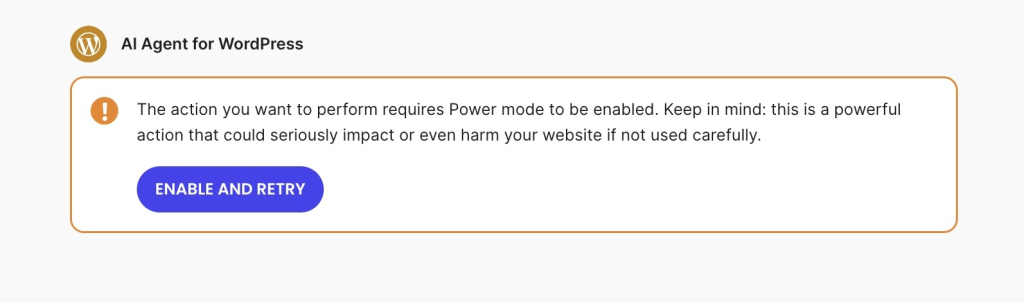
Power Mode must be enabled before the task continues
The high-impact action only proceeds once Power Mode is enabled. If it stays off, the risky step doesn’t happen. That single condition is what keeps a fast, chat-driven workflow from turning into an accidental one.
Best practices for using an AI Agent on a live WordPress site
Using an AI Agent for WordPress on a live site can be genuinely low-stress once you set a few habits. None of these are about fear. They’re about giving yourself an easy way back if something goes sideways.
Back up before major changes
For low-risk content tasks, a normal review workflow is usually enough. For deletions, settings changes, bulk edits, plugin updates, or WooCommerce order changes, take a backup first. The backup you never made is the one you’ll wish you had.
Use staging for unfamiliar workflows
When you’re trying something new, test it on a staging site before touching production. Staging lets the agent do its work where a mistake costs you nothing but a few minutes.
Keep Power Mode off until you need it
Leave Power Mode disabled as your default. Turn it on for the specific high-impact task, then turn it back off. This keeps the safer state as your resting position rather than the exception.
Start with low-risk prompts
Get a feel for the agent through low-risk AI Agent workflows for content edits, drafts, and guidance before you hand over destructive actions. A few low-stakes tasks tell you how it interprets instructions, so the first high-impact request isn’t also your first request.
Review important changes before publishing
Read what the agent produced before it goes live. Human review at the end catches the small misreadings that no permission model is designed to catch, and it’s the cheapest quality check you have.
The bottom line: SiteGround built AI safety around user control
SiteGround’s AI Agent for WordPress safety model comes down to one idea: you stay in control of high-impact actions on your live site. Power Mode keeps high-impact actions off by default, WordPress roles limit what the agent can reach, and confirmation prompts put a person in front of every risky step. The result is an assistant that’s fast for everyday work and deliberately slow for the actions that could break a live site.
If you want to try it on your own site, the AI Agent for WordPress lives inside SiteGround AI Studio. Use the AI Agent by SiteGround plugin to connect the agent. Start with low-risk prompts, follow the complete AI Agent for WordPress tutorial for supported tasks, and enable Power Mode only when a task genuinely calls for it. That’s how you get the speed of an AI agent with the safety net of human control.
Frequently asked questions
Yes. Using an AI Agent for WordPress on a live site can be safe when the workflow includes permissions, confirmation prompts, backups, and human review. SiteGround’s AI Agent for WordPress uses Power Mode for high-impact actions, so the agent can’t proceed with certain risky changes until you enable that mode.
Power Mode is required for high-impact actions such as deleting plugins, themes, posts, pages, categories, tags, users, media, or products; making bulk content changes; creating or updating users; changing general WordPress settings; and managing WooCommerce orders or transactions.
You can enable Power Mode from the AI Agent by SiteGround plugin page in WordPress, or from an AI chat session when the agent detects an impactful action and asks for Power Mode before continuing.
Yes. Power Mode remains enabled after the task is complete. You can manage the setting through the AI Agent by SiteGround plugin interface in WordPress.
Yes. The AI Agent for WordPress works within the familiar WordPress permissions model, so its access follows the same roles and capabilities you already assign to human users.
Yes, SiteGround’s AI Agent for WordPress can help run WooCommerce store operations, including products, orders, and customer details. Some WooCommerce order actions, such as canceling pending orders, marking orders as completed, or deleting transactions, require Power Mode.
Yes. For low-risk content tasks, a normal review workflow may be enough. For high-impact AI actions such as deletions, settings changes, bulk edits, plugin updates, or WooCommerce order changes, the safest approach is to create a backup first and review the result afterward.