Best WordPress Themes: Default, Free & Paid

abstract of best wordpress themes

This article was originally published in January 2022, and then updated in December 2025.

Searching for the best WordPress themes can feel like endless job interviews. Every candidate looks impressive on paper, they all promise to be the perfect fit, but which one will actually deliver? 

You don’t need to interview every theme on the internet before finding your match.

We’ve done the homework for you by looking at what actual users are saying—not just what the sales pages promise.

Every theme claims to be “lightning-fast,” “SEO-optimized,” and “beginner-friendly.” Do they deliver? That’s what we’re here to find out. Whether you’re launching your first blog, building a business site, or just tired of your current theme’s performance issues, this guide will help you find the best WordPress theme that actually shows up and does the work.

Key Takeaways:

  • WordPress themes control your site’s design and come in three types: default, free, and premium.
  • Best default theme: Twenty Twenty-Three—lightweight, fast, supports full site editing, and accessibility-focused.
  • Best free theme: Astra—over 1 million installs, highly customizable, works with page builders, praised for speed and flexibility.
  • Best premium theme: Avada—750,000+ sales, multipurpose with hundreds of templates, extensive customization, and strong support.
  • Essential features to prioritize: responsive design, fast loading, SEO-friendly code, customization options, plugin compatibility, and regular updates.
  • Quality hosting matters—SiteGround’s Managed WordPress Hosting handles updates automatically and keeps themes running fast.

What Is a WordPress Theme?

A WordPress theme is the design framework that controls how your website looks. It defines your website’s layout, typography, colors, spacing, header and footer structure, and sometimes even template options for posts and pages.

In other words: Your theme sets the overall style of your site, which is the foundation your content sits on.

How Themes and WordPress Work Together

Before diving into specific themes, it helps to understand how WordPress themes work alongside the platform’s editing tools. Here’s a quick overview:

  • Gutenberg (Block Editor): WordPress’s built-in editor for writing and designing content with blocks (text, images, columns, etc.). You’ll use this editor no matter which theme you choose.
  • Page Builders: Optional plugins that let you design pages visually with drag-and-drop layouts. Some page builders, like Elementor and Divi, also offer their own pre-built themes or templates, so you can use them to control your website’s design entirely, not just individual pages.
  • Themes: The main design framework that controls site-wide style — your header, footer, colors, typography, and default layouts. You can use a standalone theme, a free or premium theme, or a theme provided by a page builder like Divi or Elementor.

Types of WordPress Themes

WordPress themes come in different types, each suited to different needs and skill levels. These are the main categories of WordPress themes:

  • Default WordPress Themes: These come pre-installed with WordPress (like Twenty Twenty-Three). They’re lightweight, well-coded, and great for simple sites.
  • Free WordPress Themes: Available in the WordPress.org theme directory. Many are excellent, but some free WordPress themes offer limited design options unless you upgrade.
  • Paid (Premium) WordPress Themes: These typically include advanced customization features, more templates, priority support, and extra design flexibility.
  • Custom WordPress Themes: Built from scratch or heavily customized for a unique design and functionality. (Note: Fully custom themes aren’t covered in this guide; we focus on default, free, and premium themes that anyone can use without hiring a developer.)

How We Picked These WordPress Themes

Rather than testing every theme ourselves, we focused on what real users are saying. Here’s how we curated this list:

  • Popularity Metrics – We looked at the most purchased and downloaded themes from major marketplaces. Themes that are widely used tend to be reliable and well-supported.
  • User Reviews – Instead of relying on a few testimonials, we analyzed ratings and reviews from hundreds of users to identify consistent feedback.
  • Forum Insights – We checked reputable WordPress forums and communities to see which themes users actually recommend and why.
  • Updates & Support – Active development and responsive support were key factors. Themes that are regularly updated and supported reduce long-term risks for your WordPress website.
  • Feature Relevance – Finally, we considered the features users mention most frequently, including mobile responsiveness, SEO optimization, customization options, and plugin compatibility.

By focusing on real user feedback and measurable popularity, this guide helps you choose the theme most likely to work well for your website, business, or project.

Best WordPress Themes (Quick View)

ThemeTypePriceStandout Features
Twenty Twenty-ThreeDefaultFreeFull site editing, lightweight, accessibility-focused
AstraFreeFreeLightweight, fast, highly customizable, page builder-friendly
NeveFreeFreeMobile-first, fast, compatible with page builders
OceanWPFreeFreeMultipurpose, WooCommerce-ready, flexible layouts
Hello ElementorFreeFreeMinimal, ultra-lightweight, optimized for Elementor
KadenceFreeFreePerformance-focused, easy to customize, responsive
AvadaPaid$69 Multipurpose, pre-built templates, extensive customization, plugin-friendly
DiviPaid$89/yearDrag-and-drop builder, pre-designed layouts, design freedom
GeneratePress PremiumPaid$59/yearLightweight, SEO-friendly, highly customizable theme
BridgePaid$69 Multipurpose, visual design-focused, flexible layouts
BeThemePaid$60 Hundreds of pre-built templates, multipurpose, plugin compatibility

Best Default WordPress Theme

Twenty Twenty-Three

When it comes to default WordPress themes, Twenty Twenty-Three stands out as the top choice. Released alongside WordPress 6.3, it’s designed with full site editing in mind, giving users unprecedented control over layout and design without needing any coding skills.

Example of Twenty Twenty three wordpres theme homepage header

Why Twenty Twenty-Three Is So Popular

  • Full Site Editing: Unlike earlier default themes, Twenty Twenty-Three fully supports block-based editing, allowing users to customize headers, footers, and page layouts directly in the WordPress editor.
  • Lightweight & Fast: Many users on WordPress forums and ThemeForest discussions note that the theme is highly optimized for speed, helping pages load quickly and improving SEO.
  • Accessibility First: It’s built with accessible web design in mind, ensuring that your site is usable for all visitors—a feature praised repeatedly by real users.
  • Flexible Design Options: Comes with multiple starter templates and block patterns, so you can quickly launch a site or build a custom look from scratch.
  • Reliable & Well-Supported: As an official WordPress theme, it’s regularly updated to stay compatible with the latest WordPress version, plugins, and security standards.

What is block-based editing?
It’s the modern WordPress editing system where every part of your page—text, images, buttons, columns, headers, footers—is built using customizable “blocks.” Instead of relying on a single large editor or custom code, you assemble your site visually by dragging, arranging, and styling these blocks. This gives you more design control, a faster workflow, and a consistent way to edit both content and full site layouts (headers, footers, templates) without needing a page builder.

Best For:

Twenty Twenty-Three is ideal for bloggers, small business websites, and anyone who wants a minimalist, highly customizable, and modern WordPress theme. Beginners will appreciate its ease of use, while advanced users can leverage full site editing to create unique designs without additional plugins.

Not Ideal For:

  • Highly Feature-Rich Sites: If you need complex ecommerce functionality or advanced custom layouts, you may need additional plugins or a premium theme.
  • Older WordPress Versions: Requires WordPress 6.1 or newer for full site editing, so it’s not suitable for sites running outdated versions.
  • Users Seeking Pre-Built Designs: While starter templates exist, the theme is minimalist by default, so it may require some design work for a fully polished look.

Real User Feedback:

Across WordPress.org forums and review threads, users consistently praise Twenty Twenty-Three for its speed, reliability, and design flexibility. Many note that it’s a safe, stress-free starting point, especially for those building a website from scratch or migrating from older themes.

Best Free WordPress Themes

1. Astra

When it comes to the best free WordPress themes, Astra consistently stands out. With over a million active installations and glowing reviews across WordPress.org and popular forums, it’s a free theme trusted by beginners and professionals alike. 

Example of Astra WordPress theme homepage header

Why Astra Is a Popular WordPress Theme:

  • Lightweight & Fast: Astra is designed for performance, with minimal bloat and fast loading times, a feature highlighted by many users.
  • Highly Customizable: Using the WordPress Customizer or page builders like Elementor and Beaver Builder, you can create a unique look without touching code.
  • Multipurpose Design: Astra works well for blogs, portfolios, business sites, and small online stores. Its flexible layout options make it easy to adapt to different site types.
  • SEO-Friendly: Users appreciate that Astra is built with clean code and optimized for search engines, helping sites rank better in Google.
  • Regular Updates & Support: The theme is actively maintained, ensuring compatibility with the latest WordPress version and plugins.

Best For:

Astra is a free WordPress theme that is ideal for beginners who want a reliable, flexible option, as well as experienced users who want a lightweight, customizable foundation for any type of site.

Not Ideal For:

  • Sites that want complex features built directly into the theme without using plugins.
  • Users who prefer a pre-styled design out of the box—Astra is minimal by default, so some setup is required to achieve a polished look.

Real User Feedback:

Across WordPress forums and review sites, Astra is frequently praised for being fast, flexible, and easy to use. Many users recommend it as a “go-to” free WordPress theme, noting that it’s a reliable foundation for building any website.

In addition to Astra, several other free WordPress themes are widely used and praised by the community. These other free WordPress themes offer solid functionality, flexibility, and strong user support.

2. Neve
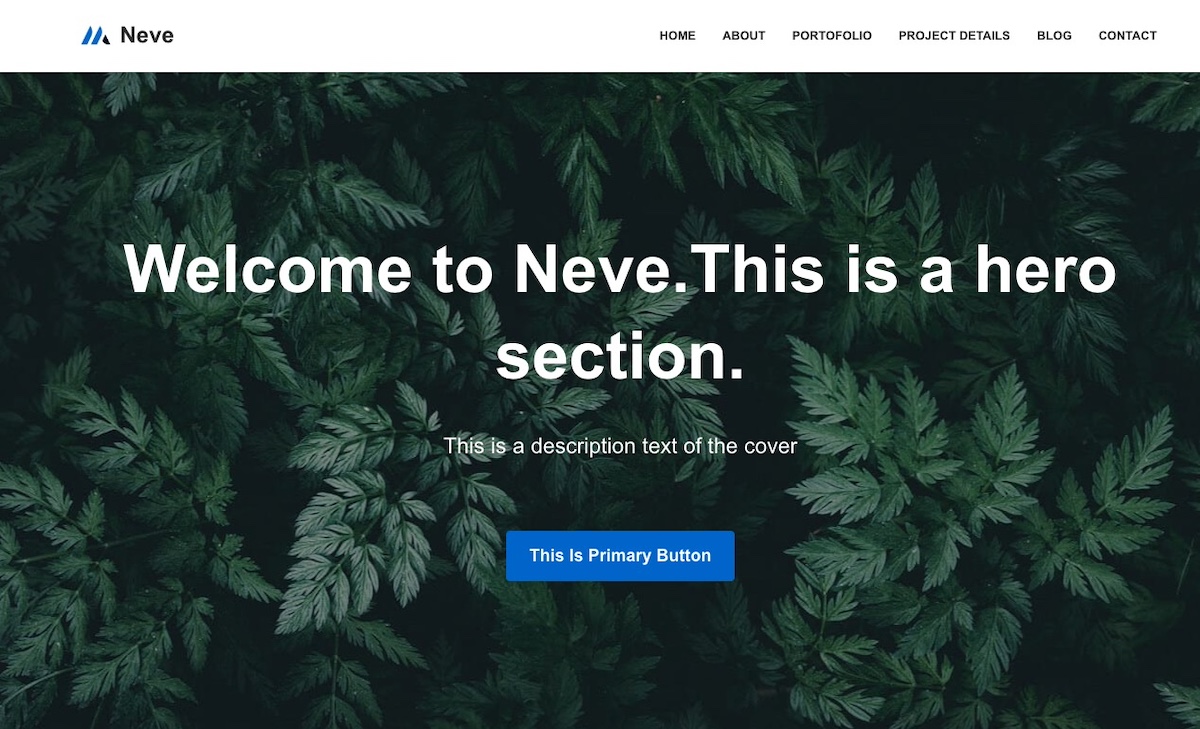
Example of Neve WordPress theme homepage header
  • Overview: A fast, lightweight theme with a mobile-first approach.
  • Best For: Blogs, startups, and small business websites.
  • Why Users Like It: Easy setup, responsive mobile web design, and compatibility with page builders.
  • Not Ideal For: Advanced users looking for built-in complex layouts without plugins.

3. OceanWP
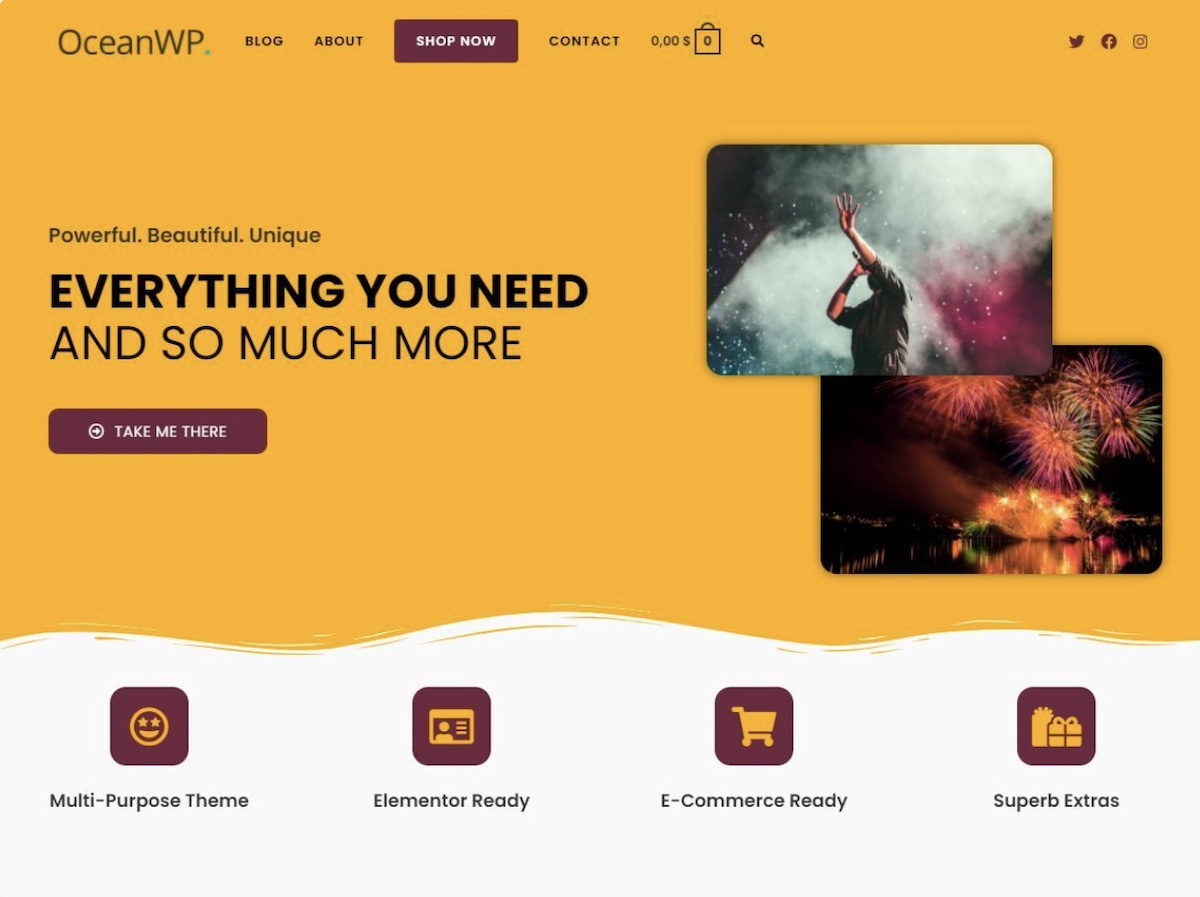
Example of OceanWP WordPress theme homepage header
  • Overview: A multipurpose theme with extensive customization options.
  • Best For: Ecommerce stores, portfolios, and business sites.
  • Why Users Like It: WooCommerce-ready, flexible layouts, and strong community support.
  • Not Ideal For: Beginners who may find the many options overwhelming.

4. Hello Elementor
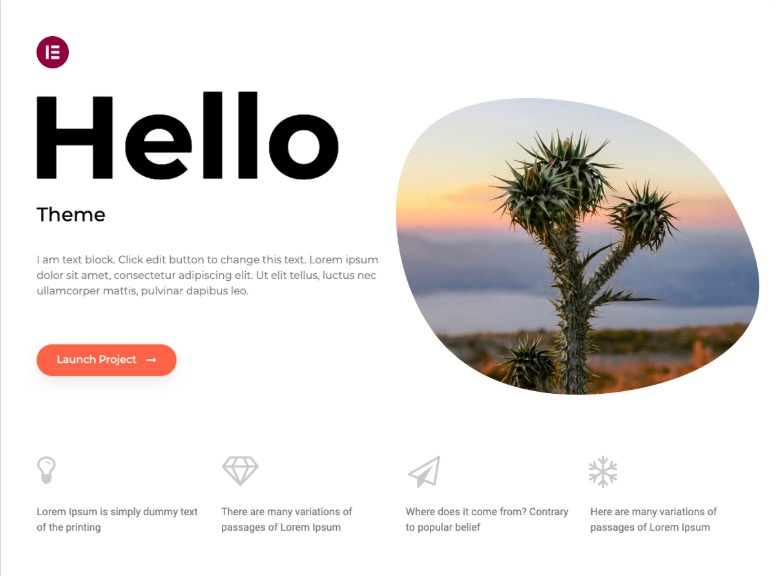
Example of Hello Elementor WordPress theme homepage header
  • Overview: A minimal, bare-bones theme designed to work with the Elementor page builder.
  • Best For: Users who want full design control via Elementor.
  • Why Users Like It: Extremely fast and lightweight, perfect for custom page designs.
  • Not Ideal For: Those who don’t plan to use a page builder—it has almost no styling by default.

5. Kadence

Example of Kadence WordPress theme homepage header
  • Overview: A flexible, performance-focused theme suitable for a wide range of websites.
  • Best For: Small businesses, blogs, and WooCommerce stores.
  • Why Users Like It: Fast, easy to customize, and well-documented.
  • Not Ideal For: Users who want highly specialized templates out of the box.

Best Paid WordPress Themes

1. Avada

With over 750,000 sales on ThemeForest—a popular online marketplace where developers sell WordPress themes and plugins—and thousands of positive reviews, Avada is one of the most trusted and widely used premium themes in the WordPress community.

Example of Avada WordPress theme homepage header

Why Avada Is a Popular WordPress Theme

  • Multipurpose Flexibility: Avada comes with hundreds of pre-built templates for blogs, business websites, portfolios, and ecommerce stores. Users love that it can adapt to almost any site type.
  • Advanced Customization: Built-in options and the Fusion Builder page builder allow users to tweak layouts, colors, headers, and footers without touching a single line of code.
  • Plugin Compatibility: Avada works seamlessly with WooCommerce, Yoast SEO, and other essential plugins, making it ideal for professional sites.
  • Regular Updates & Support: The theme is actively maintained, with dedicated support and detailed documentation, which users consistently praise in forums and reviews.
  • Performance & SEO Optimized: Despite being feature-rich, Avada is optimized for speed and search engines, helping websites perform well.

Best For:

Avada is perfect for business websites, agencies, portfolios, and ecommerce sites that need a highly flexible theme with robust support. It’s also suitable for users who want a “ready-to-go” theme with many pre-built templates.

Not Ideal For:

  • Beginners seeking lightweight themes: Avada is feature-rich and can feel heavy if not optimized properly.
  • Minimalist Sites: If you want a simple, stripped-down design, Avada’s extensive options may be overwhelming.

Real User Feedback:

Across ThemeForest reviews and WordPress forums, users consistently praise Avada for its flexibility, extensive customization options, and reliable support. Many recommend it as a go-to premium theme for serious projects that require professional design and functionality.

A Note on Heavy Themes & Hosting:
Some premium themes are feature-rich and can be “heavy,” meaning they use more resources and may require optimization to keep your site fast. Using SiteGround’s fast WordPress Hosting can help: it automatically handles updates for WordPress core, themes, and plugins, and its optimized servers ensure even complex sites load quickly and run smoothly. This way, you get the flexibility of a feature-rich theme without worrying about speed or maintenance.

Here are a few other popular WordPress themes that are premium and repeatedly show up in expert round‑ups and marketplace best‑seller lists—often praised for flexibility, design quality, or specialized strengths.

2. Divi
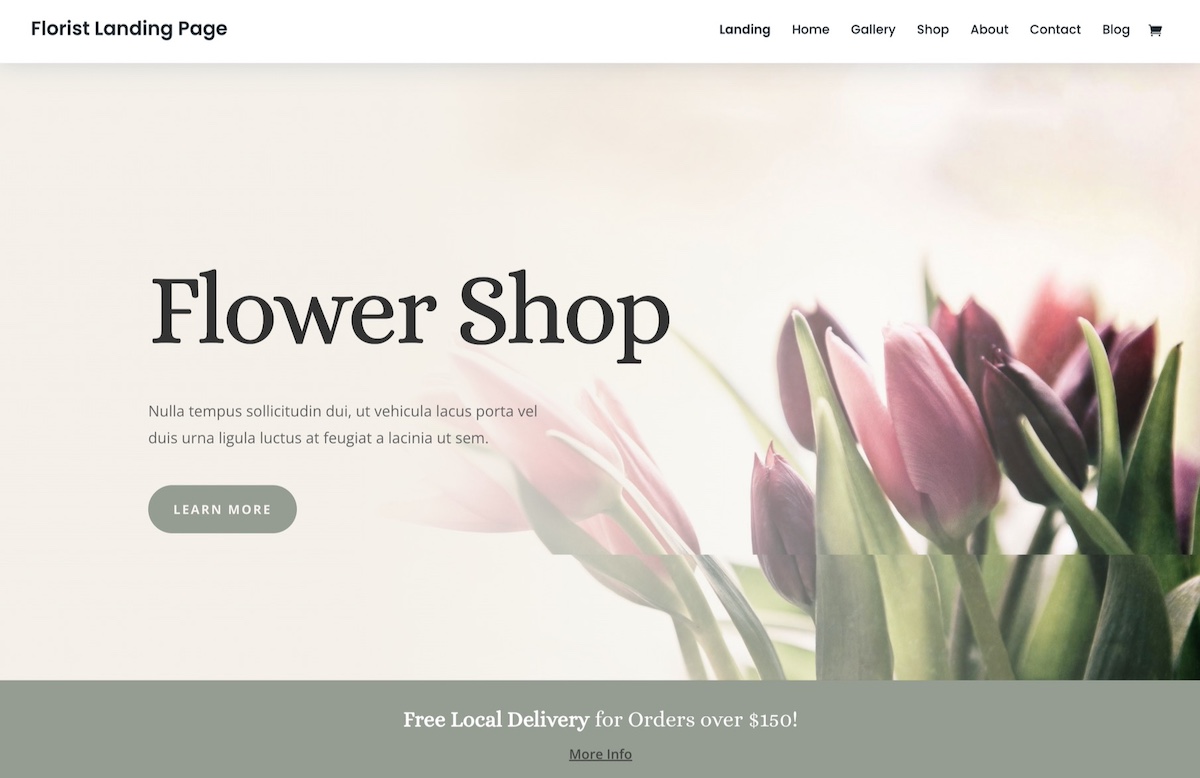
Example of a Divi WordPress theme homepage header
  • Overview: A premium WordPress theme with a built-in visual page builder and hundreds of pre-built layouts.
  • Best For: Agencies, freelancers, portfolio sites, and businesses wanting full design flexibility.
  • Why Users Like It: Drag-and-drop builder, extensive design options, and large library of pre-designed templates.
  • Not Ideal For: Users who want a lightweight, minimal theme; Divi can be heavy if not optimized.
3. GeneratePress Premium

Example of GeneratePress Premium WordPress theme homepage header
  • Overview: A lightweight, performance-focused premium option versus the popular free version of the GeneratePress theme.
  • Best For: Small businesses, performance-sensitive sites, and users who want speed with flexibility.
  • Why Users Like It: Fast, SEO-friendly, highly customizable, and compatible with popular page builders.
  • Not Ideal For: Users who want pre-built layouts; most design work is done via customization.

4. Bridge

Example of Bridge WordPress theme homepage header
  • Overview: A multipurpose premium theme with a creative and visually-oriented design.
  • Best For: Creative agencies, portfolios, and visually-driven business websites.
  • Why Users Like It: Flexible layouts, large template library, and strong visual design options.
  • Not Ideal For: Beginners or users seeking a simple, lightweight theme; lots of options can feel overwhelming.

5. BeTheme

Example of BeTheme WordPress theme homepage header
  • Overview: A versatile multipurpose premium theme with hundreds of pre-built website templates.
  • Best For: Agencies, large or complex websites, and projects that need ready-made layouts.
  • Why Users Like It: Extensive template library, flexible design, and wide plugin compatibility.
  • Not Ideal For: Users who prefer minimal or simple themes; it can be heavy and complex to navigate.

WordPress Theme Features to Look For

Choosing a WordPress theme isn’t just about looks; it’s about functionality, performance, and long-term reliability. Below are the features we considered when selecting the themes in this guide. That said, if you explore other themes, keep these same standards in mind to ensure your site stays fast, flexible, and reliable. 

Here are the essential WordPress theme features you should consider:

1. Responsive Design / Mobile Friendly: Your theme should look great on desktops, tablets, and smartphones. Since more than 60% of global web traffic comes from mobile devices—and Google favors mobile-friendly sites—a responsive WordPress theme ensures your content performs well across all screens.

2. Fast Loading & Performance Optimized: WordPress themes that are lightweight and well-coded load faster, improving user experience and SEO. Avoid themes that are bloated with unnecessary features.

3. SEO-Friendly: Themes built with clean code, proper HTML structure, and optimized performance support WordPress SEO, helping search engines index and rank your content more effectively.

4. Customization Options: Look for themes with easy-to-use customization tools: headers, footers, colors, fonts, and layout options. Themes compatible with the WordPress Customizer or page builders make design simple.

5. Plugin Compatibility: Your theme should work seamlessly with popular plugins like WooCommerce, Yoast SEO, and Contact Form 7. This ensures you can grow your business and expand your site’s functionality without conflicts.

6. Regular Updates & Support: WordPress themes that are actively maintained are safer, more secure, and compatible with the latest WordPress version. If you’re using SiteGround Managed WordPress Hosting, updates for WordPress core, themes, and plugins are automatically handled for you, so your site stays secure and up-to-date with minimal effort. Check also for responsive theme support and thorough documentation.

7. Starter Templates / Demo Content: Themes with pre-built templates or demo content can help you launch your site faster and give you a foundation to build on.

8. Accessibility & Translation Ready: Themes that follow accessibility guidelines (WCAG) and support multilingual plugins make your site usable for more people worldwide.

Pro tip: Even the best theme performs poorly on slow or unreliable servers. Choosing a web hosting provider optimized for WordPress ensures your site loads quickly, stays secure, and works seamlessly with your theme.

[18]

Next Steps: Pick the Best WordPress Theme for Your Site

So there you have it—no more endless scrolling through theme directories. Whether you go with a reliable default theme, a flexible free option, or splurge on a premium theme with all the bells and whistles, you’ve now got a solid foundation that actually shows up and does the work.

The best WordPress theme isn’t the one with the most features or the flashiest demo. It’s the one that performs well and doesn’t cause drama down the line. And if you want your theme to run at its best, pair it with hosting that can keep up. SiteGround’s Managed WordPress Hosting automatically handles updates for WordPress core, themes, and plugins, so you never have to worry about compatibility issues or security gaps. Plus, their optimized servers mean even feature-rich themes stay fast and responsive.

Now stop overthinking it and launch that site already. Your ideal theme is waiting.
Ad for SiteGround Managed WordPress Hosting

This article was originally published in January 2022, and then updated in December 2025.
How to Change Fonts in WordPress to Make Your Site Unique

The days of a web ruled by white pages, black text, and blue links are fading into history. These days, if you want to get noticed your page has to “Pop”. JavaScript, CSS, and images all add to the pop of your website. Fonts also add a lot to the distinctive look of your website.

Unlike some of the other elements of your website though, fonts can be large blocks of data that – if not handled properly – can slow down the loading of your website. Speed is king these days so while pop is important, you need to make sure you don’t impact the speed of your site when using fonts.

In this article we are going to look at fonts and how they relate to WordPress, how to change fonts in WordPress, how to use Google fonts within WordPress, and finally, we will take a look at how you can organize your fonts so that they make your WordPress site look good while not impacting the speed of your site. 

So let’s get to fonting, shall we?

How to add new WordPress fonts to your site

1. Pick a font in the right format

The first step you need to do when working with fonts, is to select your font and get it into your site. If you search around, you will find that there are a lot of free fonts available for use. These fonts come in a variety of formats. You need to make sure that when selecting a font, you pick one that is available in the right format. As with everything on the web, you’ve got options and not all options are created equal.

  • EOF: Embedded OpenType Fonts

This format is more compact OTF fonts.

  • OTF: Open Type Fonts

These are the most commonly used web fonts.

  • TTF: True Type Fonts

This is an older format developed in the 1980’s by Microsoft and Apple. 

  • WOFF 1.0: Web Open Font Format

This format is broadly used for web pages and recommended by the W3C.

  • WOFF 2.0: Web Open Font Format

This is a better option than WOFF 1.0 due to better compression abilities. 

As of this writing, all formats were supported by the current version of all modern web browsers. (HINT: Internet Explorer is not a modern web browser.)

All of the formats above will work, however, for performance sake, whenever possible, use WOFF2 fonts. Since they are compressed, they load faster.

2. Add the WordPress font to your site

There are a few different ways you can add custom fonts to your theme. Let’s look at two options: how you can do it manually and how you can do it through themes and plugins.  

Option 1: Add fonts manually through the File Manager

First, let’s look at the hard way. Loading it manually. 

The first thing we need to do is locate a font. I pulled one from one of my personal sites but you can search around and find one you like. 

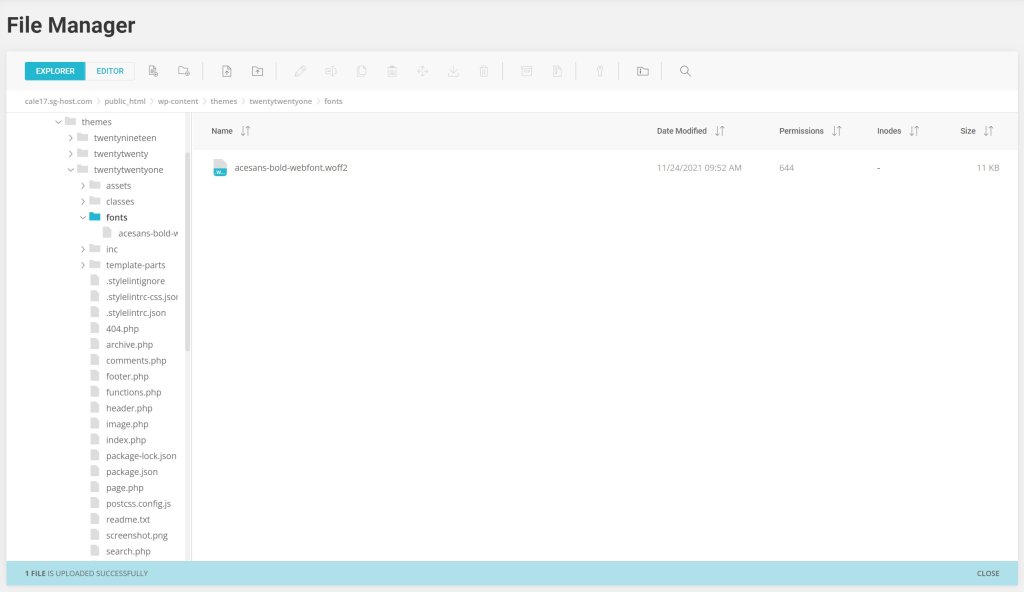
Next we need to upload the actual font file to our website. Since my test site is hosted on SiteGround, I use the SiteTools > File Manager to do this. 

I am using the current WordPress default theme, twentytwentyone. So in that directory I create a directory named “fonts” and upload my font file there.

Next, we need to tell our theme that it has a new font to work with. We do this with a @font-face section in our stylesheet.

@font-face {

    font-family: “ace_sansbold”;

    src: url(‘fonts/acesans-bold-webfont.woff2’)  format(‘woff2’);

    font-weight: normal;

    font-style: normal;

}

This tells our theme that there is a new font family named ace_sansbold and it can be loaded from fonts/acesans-bold-webfont.woff2.

That’s all fine and good but just having a font doesn’t make any difference, we need to apply the font. I want this font used in my site’s title. To do that we find the style selector used for that and change it.

In twentytwentyone, that is the .site-title selector. By default it looks like this:

.site-title {

color: var(–branding–color-link);

font-family: var(–branding–title–font-family);

font-size: var(–branding–title–font-size-mobile);

letter-spacing: normal;

text-transform: var(–branding–title–text-transform);

line-height: var(–global–line-height-heading);

margin-bottom: calc(var(–global–spacing-vertical) / 6);

}

We want to make one change. We want to change the font-family line to this.

font-family: “ace_sansbold”;

This will tell our theme to use our new font instead of the one selected in the Theme customizer. The final will look like this:

.site-title {

color: var(–branding–color-link);

font-family: “ace_sansbold“;

font-size: var(–branding–title–font-size-mobile);

letter-spacing: normal;

text-transform: var(–branding–title–text-transform);

line-height: var(–global–line-height-heading);

margin-bottom: calc(var(–global–spacing-vertical) / 6);

}

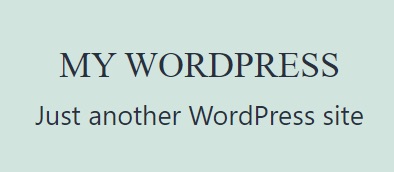
Here is what my site title looked like before I added the font.

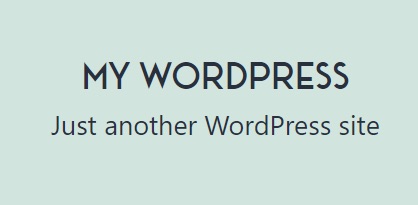
After I followed the instructions above, it looks like this:

Option 2: Add and edit fonts through themes and plugins

Ok, we did it the hard way, now let’s dive in the straightforward way, that is to take advantage of the themes and plugins to add fonts to your site easily. 

How to add fonts using the Theme Editor

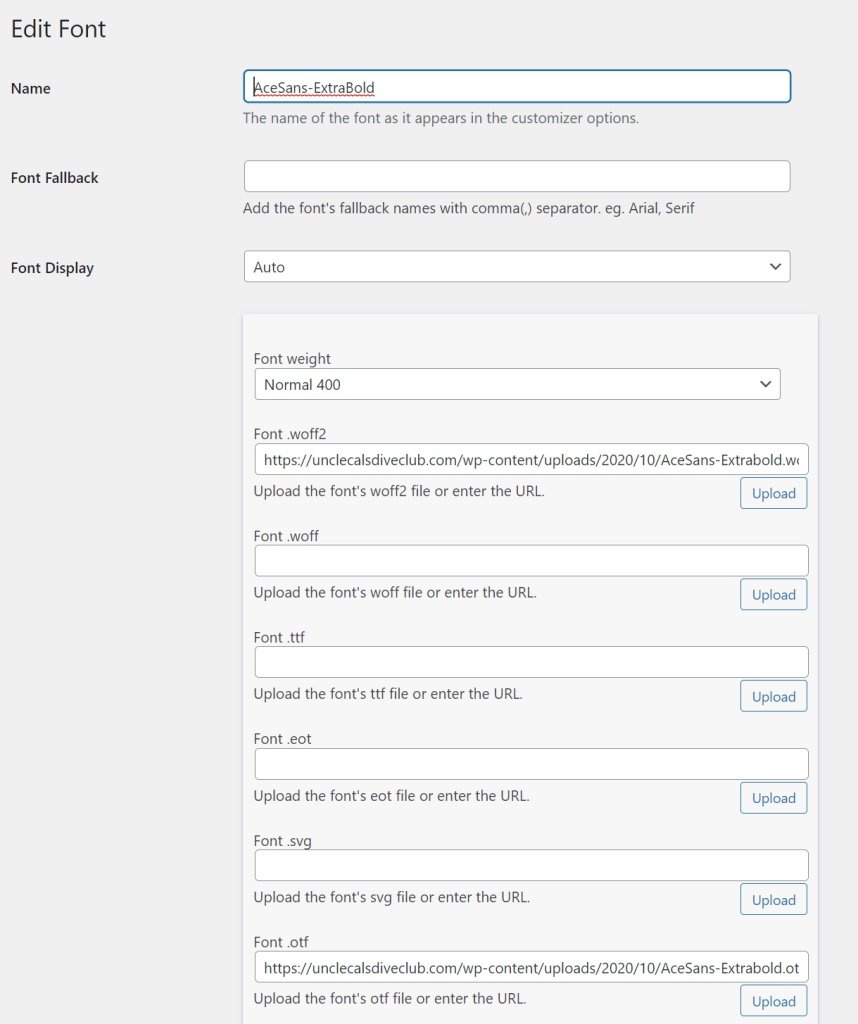
Most modern themes have some way of adding fonts in and assigning them to parts of the site. I use the Astra WordPress theme on one of my sites and it comes with a feature called “Custom Fonts”. Instead of having to manually apply CSS and upload files, I am presented with a simple form that allows me to add or edit fonts.

Once I save it, everything is automagically handled for me. Not only is the font placed where it should be and readily accessible, but the new fonts now appear in my Theme Editor, ready for me to use. No hacking CSS!

As a bonus, Astra comes ready for me to use any of the Google Fonts. They are already programmed in and ready for me to use.

How to add fonts using WordPress Font Plugins

If your current WordPress theme doesn’t include fonts out of the box, there are still options as freemium plugins.

Fonts Plugin

“Fonts Plugin” gives you all of the Google fonts ready to use in WordPress. Additionally, it will let you enter in your Adobe API key if you have one, to use all of the Adobe fonts as well. 

One of the things this plugin won’t do is allow you to upload custom fonts like described above. The pro version may allow you to do that, but the documentation is unclear on this point.

One really nice feature of this plugin is that it gives you a new Gutenberg block called a “Google Fonts” block. This is an extension of the Paragraph block and it gives you the option to select a font for the block. Changing fonts for a text element in Gutenberg is difficult to say the least. It’s nice to see someone figuring that out.

There are other plugins that you can use to add fonts to your existing WordPress website theme. Take a quick look at the WordPress Plugin Repository and you’ll find several that will do the job. 

How to change fonts in the Theme Customizer

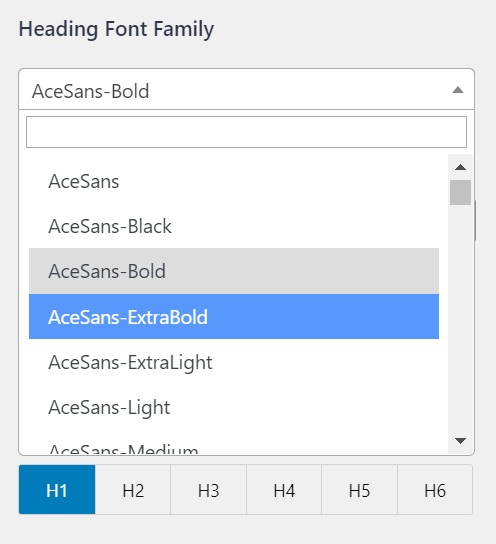
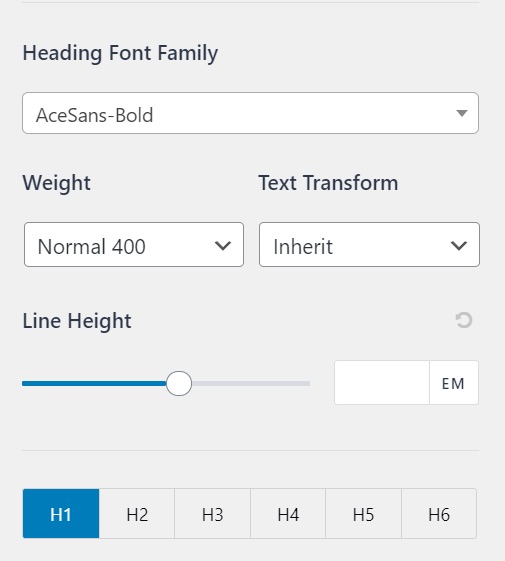
Some WordPress themes have font selectors for different parts of your page or site. By default, twentytwentyone does not, but as shown above, Astra does. In Astra, the “Global” option has a “Typography” option. Clicking into Typography, you are presented with selectors to allow you to set different fonts and weights for things like:

  • Body
  • Headings (H1-H6)

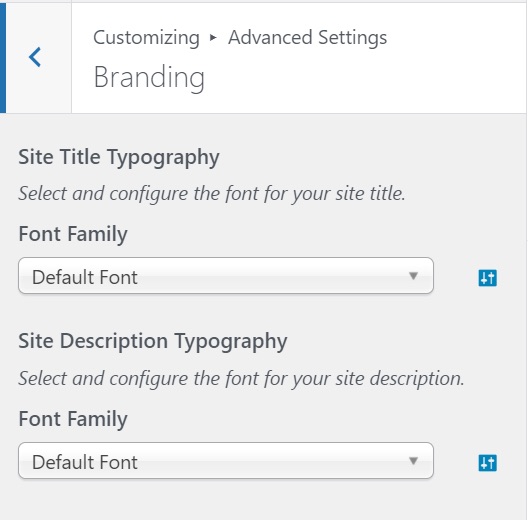
This gives you broad control over the fonts that are displayed on your site. Different themes and plugins will add other options to the Theme Customizer to allow you more fine-grain control over what fonts are used where. A good example of this is the Font Plugin described above. It adds a section to the Theme Customizer for twentytwentyone to allow users to select and assign fonts.

You can pick fonts, weights, and sizes for most of the standard elements. For instance, above we manually replaced the font family for the .site-title selector. Using the Font Plugin, it is as simple as going to Advanced Settings > Branding.

There you can select the Site Title Typography options.

Bonus: How to keep fonts from slowing your site down

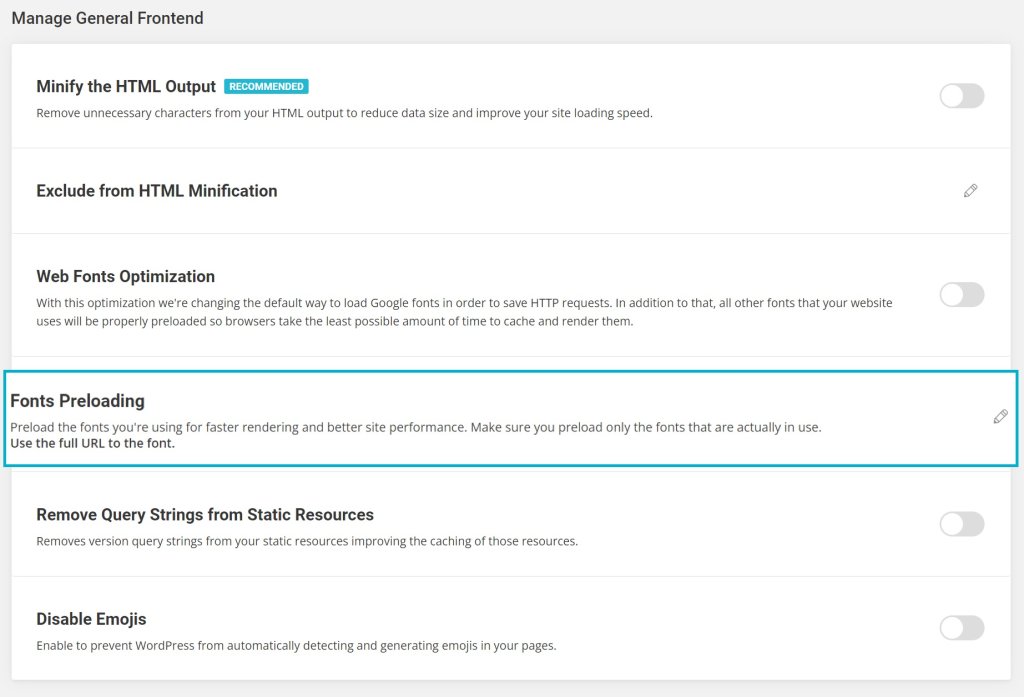
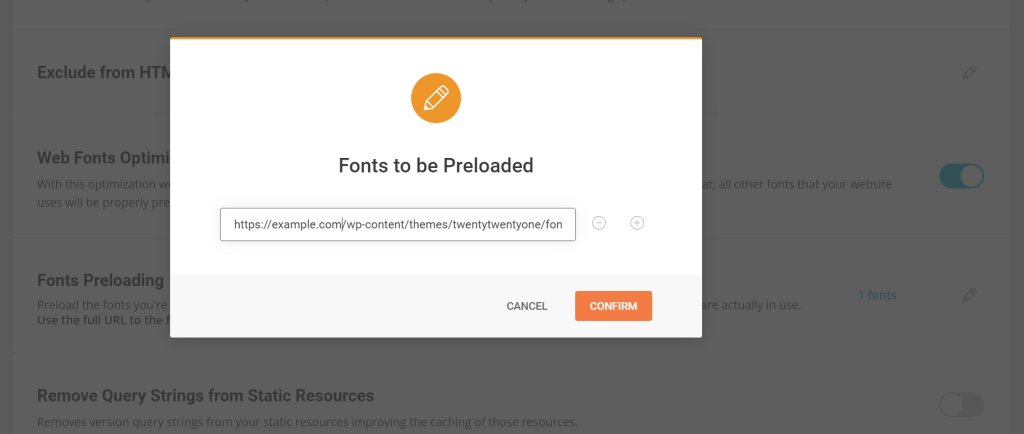
We’ve talked a lot about how to get fonts into your system and use them. Fonts, however, are just one more thing that a browser has to load to view your site. Things a browser has to load are just things that can slow it down. How can you deal with this? The solution is to preload your font files. Thankfully, if you host your website with SiteGround, you have access to the SiteGround Optimizer plugin which will make this task for you really straightforward. If you click through to the Optimizer Settings > Frontend > General you will find the “Fonts Preloading” feature.

This option is a little different than most of the other options in the plugin because it is not an on or off, you have to enter the URL to your font so they can be preloaded.

In our case, the URL would be https://example.com/wp-content/themes/twentytwentyone/fonts/acesans-bold-webfont.woff2. We enter that URL in and click Confirm.

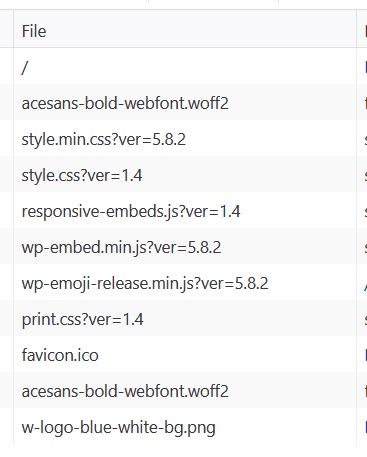
This will insert the proper link tag with rel=”preload” in it so that the font file is the first thing that is loaded. You can see this by opening your website in a different browser, one that you are not logged into, visiting the page, and then click Inspect and Network. Then reload the page.

<link 

  rel=”preload” 

  as=”font”

  href=”https://example.com/wp-content/themes/twentytwentyone/fonts/acesans-bold-webfont.woff2″ 

  Crossorigin

/>

The first entry is the actual page you requested but the second entry will be the font file. It gets loaded as the first asset.

Important Tip:

Only preload the most common font files you use. If you preload all of your font files, you will end up slowing your site back down. One, maybe two font files preloaded should be good enough to get your site up and running.

Wrap Up

Fonts are a good way to make your site look distinctive. Used sparingly they can set your site apart without significantly impacting its performance.

As with all good things, less is more. Too many fonts will slow your site down and also make your site more difficult for your users to read. The end results are the same in both cases, users bounce to the next site, so, as with everything, use website fonts wisely and make sure you keep them optimized.

[subscribe_cta]

WordPress Database Cleanup: Steps and Plugins To Keep Your Site Unpolluted and Fast

Wordpress Database Cleanup

I’ve been managing (and mis-managing) SQL databases for almost 37 years now. SQL was the second programming language I mastered and to this day it is still one of my favorites.

In all that time of wrangling databases, one thing has remained constant, you have to actively manage your database and at times, that means cleanup and maintenance. WordPress databases are no different.

Why Clean Your WordPress Database?

One of the most important reasons to do WordPress database cleanup is because your database is the second slowest part of your entire system. The only thing slower is the file system itself. So making sure that your database is operating at optimal speed is important not only to your site health but to your search engine rankings. Most of the major search engines use page speed as a factor in ranking a page. For optimum WordPress performance, you want to keep the database clean. Cleaning your WordPress database is part of an overall process of WordPress performance tuning.

The vast majority of WordPress installs use a MySQL (or MariaDB) Relational Database Management System (RDBMS). That is what we will focus on in this article. Even so, most of the advice will apply to whatever datastore you are using for your WordPress database.

Steps to Take for an optimal WordPress Database Cleanup

Back Up First

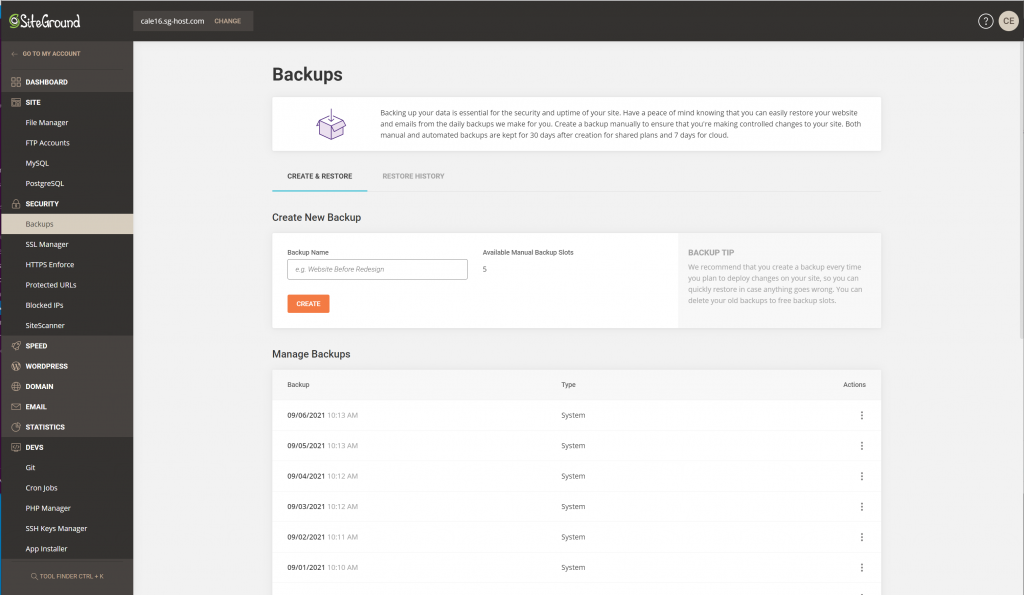
Before you embark on this journey, make sure you create a fresh backup. Yes, you should have nightly backups from the past 30 days nearby but things may have changed since your backup. You want to make sure that if you mess something up, you can easily restore things to the point where you started.

If your hosting partner offers an on-demand backup system like SiteGround does, make one now.

If not, before you go any further, install a plugin that will allow you to create and restore database backups.

There are many good plugins out there that will do the job. I’ve worked with several of them and looked at others. For this job, backing up and restoring, I like UpdraftPlus WordPress Backup Plugin because it has a very easy to understand restore feature. The free version will get the job done for our purposes but the paid version adds a lot of nice to have things. (like support for WP-CLI… that is really important to me in most plugins.)

Once you get the plugin installed, go ahead and make a backup. Unless you are deleting files, there is no reason to backup everything, just backup the database.

After you make your backup, go ahead and restore it so you can see what it’s like before you get in an emergency situation. Remember, if you have an untested backup system, you don’t have disaster recovery, you have hopes and wishes.

Leftover tables in the WordPress Database

Now that you’ve got your backup system ready, this first item is one that you may want to bring a developer in on. I’ma  big fan of bringing in professional help when I’m in over my head and this task may put a lot of people in over their heads.

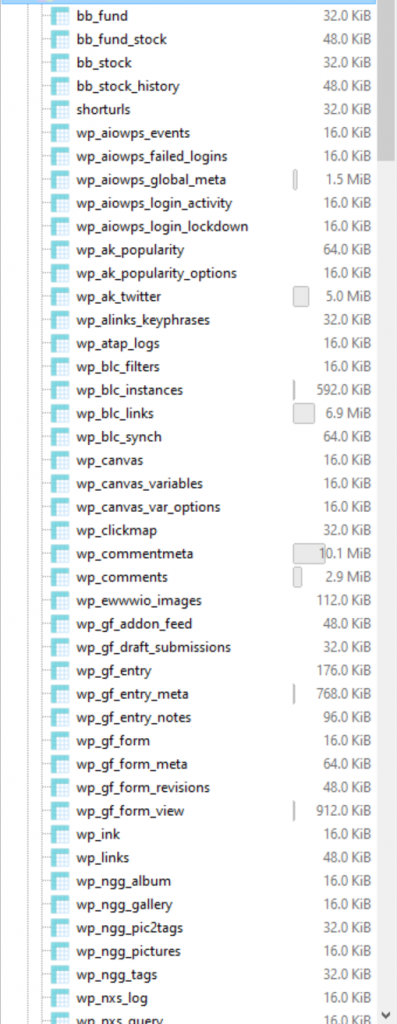
If your site has been around a while, the chances are good that you have installed and uninstalled a lot of plugins. My personal site has been running WordPress since 2005. Many plugins, especially the older ones, did not clean up after themselves. This means that during install, they may have created tables in your database that they did not delete when you uninstalled them. Look at your list of tables – if you don’t know how, you don’t need to be doing this without help – and try and identify any that are no longer in use. Remove those tables from your database.

Once you’ve removed them, test EVERYTHING. It is these kinds of operations that make me recommend having a staging environment up and running and test these things in staging first. Still, if you have your backup, you should be good to go. 

I looked at the database for my personal site a year or so ago. There are over 500 tables in it. The standard WordPress install has around 40. I really need to take the time to clean things up myself.

There are plugins that will help you with this task if you do not have a developer available. One of them is mentioned below, WP-Optimize. 

Don’t be alarmed if when you try and remove a table it fails. The database user that your WordPress install runs under may not – probably SHOULD NOT – have table delete privileges. Still, you can show this list to your developer and they will know how to safely remove these tables.

Revisions

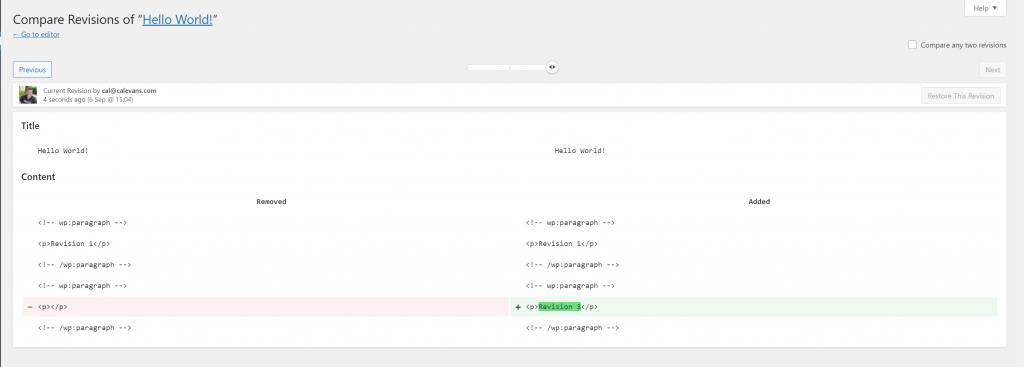
Next up, let’s talk about Post revisions. As you are working on a Post or Page, WordPress is constantly saving it in the background. To allow you to go back and restore one of these versions at a later date, each revision is stored as a separate record in the posts database. Once you have finished editing your Post and pushed it live, these revisions serve no purpose. 

If you have a developer on staff, they can easily delete these records from the table without having to install any plugins. If you don’t have a developer, or you want to make a change that will keep this problem solved for you, check out WP Revisions Control. This simple plugin will allow you to set how many revisions to keep and it will keep your database clean for you, automatically.

Draft Posts

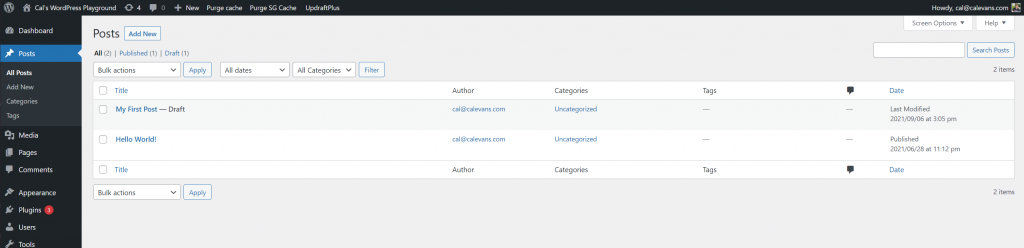
Another source of “cruft” in your database is old posts that you started but never released. Again, using my personal site as an example, I looked one time and I had well over 50 posts in DRAFT status. This means not only did I have 50 records in my database I didn’t need but I also had revisions for each of them just hanging around. Get rid of those old posts that you are never going to release.

Empty the Trash

As an administrator of a WordPress installation, you have deleted old posts, pages, and other things. WordPress doesn’t actually remove these old entries from your system, it moves them into “the trash”. (From a technical perspective it changes the status of these items.)

The Trash is great if you need to go back and retrieve something later on but after a certain amount of time, you can be fairly confident that you aren’t going to need what you trashed. So empty “The Trash”. When you do this, you actually delete the items that WordPress has marked as trash. This gets them out of your database and keeps them from hanging around and cluttering things up.

Things Not To Worry About

There is a lot of advice on what you should do to clean your WordPress database out on the Internet. Some of it is well meaning but not all that useful. Here are a couple of things that you don’t need to worry about.

Cleaning Transients

Transients are little pieces of information that WordPress and plugins need to store temporarily. Transients have an expiration date. Some people will advise you to make sure you cleanup expired transients every once in a while. Don’t bother. WordPress’ cron system will do this for you every night. At best, you may delete a few hundred records a few hours early. The effort you put into managing transients is effort you could better spend making your site pretties, faster, or more useful to your readers. 

Optimizing Tables

A lot of places will tell you to “optimize your tables”. Some might even explain what this means while others just used it as a magic incantation that is supposed to make you feel better about your database. The truth is that there was a time when optimizing database tables was important. Thankfully those days are long gone. These days most MySQL databases use tables that don’t require optimization. Even my crusty old personal site’s database no longer needs to be optimized. Technically, it is no longer necessary to do this for 99.9% of WordPress installations out there. If you are part of the other .01%, instead of optimizing your tables, move your site to a modern version of MySQL with a table type that does not need optimization

Plugins that do all of this for you

Yes, there are things you need to do on a regular basis to keep your database clean and healthy. Yes, you or a programmer working for you can do these things manually on a regular basis. However, if you are like most of us, you don’t like having to remember to clean things up. For those cases, there are plugins that can do all of this and much more for you, automatically.  Think of them as the Roomba for your site. These plugins will come out while you aren’t around and take care of cleaning up the dusty corners of your site for you on a regular basis.

Here are four options you can consider:

Advanced Database Cleaner

This plugin is available in both free and premium. The free version will do all of the basics you need done. You can even schedule it to run on a regular basis so that your database stays clean. The Pro version will give you many more options. I recommend starting with the free until you understand what it does and then if you feel the need, move to the Pro.

Optimize Database after Deleting Revisions

This is another good choice although it does offer “tabel optimization” that I just got through telling you was unnecessary. It will keep your database clean of old posts, comments, revisions, and a bunch of other things. There aren’t as many options as Advanced Database Cleaner but the ones you really need are there. This plugin is free and there is a link to donate to the author if you use it and find it useful. (and I always suggest you donate to the authors of free plugins if you use their plugins) 

If you do choose to analyze the tables, it will attempt to run analysis on them but if you are using a table type that doesn’t require this feature, it will tell you that. It won’t harm your database or any of your data.

WP-Optimize – Cache, Clean, Compress

Probably my favorite option though (and the one I have loaded on my personal site) is WP-Optimize. This performs all the functions we’ve discussed here plus a lot of other things. Like the previous two, you can schedule this plugin to run automatically. However, since this is written by the same team that wrote the very first plugin I recommended, UpdraftPlus WordPress Backup Plugin, it integrates with that seamlessly and gives you the option to automatically back your database up before it performs maintenance. This is a nice feature. Like Updraft Plus, WP-Optimize comes in a free and paid version. I’ll leave it to you to decide whether you need the features present in the paid version.

Speed Optimizer

If SiteGround is your hosting partner then make sure you have the Speed Optimizer plugin installed. This is a MUST INSTALL plugin for every site hosted with SiteGround because it’s free speed. This is an easy plugin to install and while the database is not it’s primary focus, it does do routine database maintenance. It also does a LOT more to speed your site up and keep it fast. For the full details on this great plugin, check out this blog post.

Wrap Up

Keeping your WordPress database clean is an important step to making sure that your site always runs quickly. Either invest the time to manually clean your site on a regular basis or install and configure one of the recommended plugins to do it for you. Either way, it is time well spent.

[subscribe_cta]

WordPress Security Plugins That Are a MUST to Keep Hackers Away

Making your website secure is not a one-time thing. It’s not a switch you can flip to “SECURE” and then not worry about it again. Web security is built in layers. The point of each layer is to make it a little more difficult for bad actors to get in and do bad things. Our goal is to put up just enough layers so that they give up and move on to a site with fewer layers.

Exactly, what is “WordPress Security”?

A lot of web site owners I talk to think that WordPress security is a plugin they install or a service they buy. Nothing could be further from the truth. Security is a mindset, it’s not a specific thing. It is something you should think about in every decision you make about your website.

  • Want a new theme? What is the theme developers reputation security-wise?
  • Want to add a new plugin in? How secure is it? Have there been any vulnerabilities reported in it?
  • Want to hire a new contractor? What do others have to say about their work? Is their code secure?

Every decision you make needs to be wrapped in the question “How will this affect the security of my site?” If you can’t say for sure that the answer to that question is either increase it or at least not hurt it, then you need to re-think the decision.

The other analogy I use a lot is that security is not one specific action, but a series of layers you wrap around your site.

  • The top layer is a network firewall
  • The next layer is is your application firewall (in WordPress, this is usually a plugin)
  • The next layer in is strong passwords
  • The next layer in is Two-Factor authentication
  • The next layer in is moving your wp-admin directory to a different name.
  • The next layer in is not using the login name “admin”
  • The next lawyer is to disable XML-RPC

None of these things by themselves are going to make your site secure. However, all of them together may make your site secure so that bad actors move on to a site with less security. Another good news is that you can nowadays easily secure your website by hosting your website with a high quality hosting partner that commits to security.

You may notice that Installing an SSL certificate is not in the list above. This is because having an SSL certificate is what we call “table stakes” these days. This means that it’s not a security measure, it’s something you should do when you setup any and every website. They improve your security and your search engine ranking. Since they are now free, there is absolutely no reason for any website to be running without one. Moreover, on SiteGround, they install free Let’s Encrypt SSL certificates shortly after the creation of each website to make it even simpler for you.

>> If you are interested in knowing more about WordPress Security, download now for free our eBook 21 Tips to Keep Your WordPress Secure <<

What are the best WordPress security plugins to secure each layer of your WordPress site?

To set up the layered setup described above will take most people some time. As mentioned before, almost everything can be accomplished these days by non-technical site owners. That having been said, if you are nervous about it or unsure of your ability to commit the time to do things right, hire someone you trust to do it for you.

Network Firewall

If you are using a reputable hosting partner like SiteGround, this will be configured for you. If you are unsure if your hosting partner provides this service for you, ask them. If you don’t get a very clear “Yes, we provide you with a network level firewall.” consider finding a new hosting partner.

Application Firewall

In the WordPress ecosystem, “Application Firewall” usually means a plugin. There are several good ones with solid reputations to choose from. I don’t usually recommend specific plugins because as soon as I do, someone writes to me to tell me how my recommendations are wrong. Still, since a lot of users have asked me for recommendations about security plugins, I am going to break my rule and make a few recommendations. It is important to note that these are in no particular order.

By the way, most of these plugins do a lot more than just APplication Firewall. 

  • Malware scanning
  • Security audits
  • Security hardening
  • Website firewall

Some of the companies behind these plugins also provide malware removal and hacked site cleanup. If you are looking for peace of mind, that’s a great feature to have.

Jetpack

Jetpack is Automattic’s omnibus plugin. It has a lot of functionality and most of it doesn’t deal with security. It does however have some security features built into it. If you already have Jetpack installed, consider purchasing the security features.  

If you don’t currently have Jetpack installed and don’t need any of the other features, this might not be the best solution.

Sucuri Security

Sucuri has been around for a while and has a great reputation. In addition to offering a Web Application Firewall Sucuri offers a lot of other features:

  • Malware Removal & Hack Cleanup
  • Advanced DDoS Mitigation
  • Malware & Hack Scan Frequency

These three features are important and covered by their basic level. All-in-all, Sucuri is a well rounded offering that would be an important lawyer in any website’s security.

iThemes Security Pro

I’ve actually used this one before. I am not currently using it but at the time I was using it it was one of the best – if not the best – on the market. (It is important to note that I do not think the plugin has degraded in any way, my needs changed.) 

The one thing that I remember about this plugin is that it’s admin page is complex. Make sure you block out a few hours over a couple of days to read and understand every option available to you so that you can make the right decisions. That advice is equally applicable to every security plugin. 

Unlike other plugins, iThemes gives you all of the features on every pricing level. The difference in price is based on the number of sites you want to protect.

Strong Passwords

Though there are plugins available for this layer, strong password support is thankfully built into the WordPress core. I strongly encourage you to enforce strong passwords on any user that has any security above Guest or Subscriber. If they can manage anything, they should have at the very least, a strong password.

WP 2FA

Two Factor Authentication (2FA) is one of the newer technologies to come to the web but it is an important one. Logins and passwords can be stolen online but a phone can’t. By adding 2FA as a layer to your security, you make it impossible for someone to access your site just because they got access to your login and password.

One plugin I’ve used over the years to implement 2FA is WP 2FA. It only does 2FA. If you already have an application firewall that implements 2FA, use that. But if you do not, WP-2FA is a good choice.

…and the rest

The other layers however, you still need some help with. I’ve tried combinations of dozens of different plugins to implement them and each time something didn’t go quite right. While I love the concept of “one plugin-one feature” Sometimes the plugins don’t play nice with each other and then you end up with a mess on your hands.

 That’s why I was excited when SiteGround released their in-house built WordPress Security plugin. It wraps a lot of security layers into one plugin.

Security Optimizer: The All-In-One WordPress Protection Plugin

This is a newcomer to the group but it has already become my favourite security plugin. I already have it installed on 4 of my WordPress installs, only one of those is actually hosted with SiteGround.

Security Optimizer comes with a lot of security features. Each of them can be turned on or off without bothering the rest of the features. My favourite 4 features of the plugin are as follows:

  • Two-Factor authentication
  • Disabling XML-RPC
  • Disabling the login name “admin”
  • Lock and protect system folders

I’ve installed stand-alone plugins that did each one of these things. Each time I ended up eventually removing the plugin because either it didn’t do the job the way I wanted it to or it became abandonware and was holding up my upgrading of my system.

Security Optimizer integrates all four of these important features in a single plugin. Because it’s created by SiteGround, I know that it won’t be abandoned.

It does a lot more than just these 4 things but these are the 4 that are the most important to me. To see everything it can do, install it, or watch this webinar I did on WordPress Security. In the webinar I install and configure it while you watch.

Concluding on WordPress Security

Spending time thinking about keeping your site secure is always time well invested. It is even more important as we are in vacation time now. Making sure you are up-to-date and as secure as possible means you can spend less time worrying about your site and more time focusing on your vacation activities.

Remember, the whole point of security is not to lock your system down tight so that nobody can get into it, because then…well, nobody can get into it. The point of security is to make it difficult enough so that bad actors move on to a site that is easier to break into. 

“Security is a journey, not a destination.” 

  — Cal Evans

[subscribe_cta]

WordPress Security Experts: Most Common Backdoors for Hackers and How to Avoid Them

WordPress Security Experts on Common Backdoors for Hackers

Having a reliable and secure WordPress website  is critical for both your business and your users. For one thing, not having to worry about someone hacking your website and destroying years of work is a priority – but also, any user’s data breach will undermine your audience’s confidence and it’s questionable whether they’ll ever return. Even though website security is an on-going process, there are a few most common back doors for hackers that you can effectively avoid. That’s why we turned to well-known  WordPress  experts on the subject and organized a #WPSecurityChat on Twitter along with the creator of 11+ million websites-powering plugin Yoast (@Yoast), the full-stack developer and marketing technologist Jono Alderson (@jonoalderson), the PHP community force Cal Evans (@calevans), and SiteGround’s WordPress Initiative Manager Hristo Pandjarov (@pandjarov). Here’s a summary of their discussion with useful tips on how to safeguard your website against hackers.

Top 5 common ways for WordPress sites to be hacked in 2021

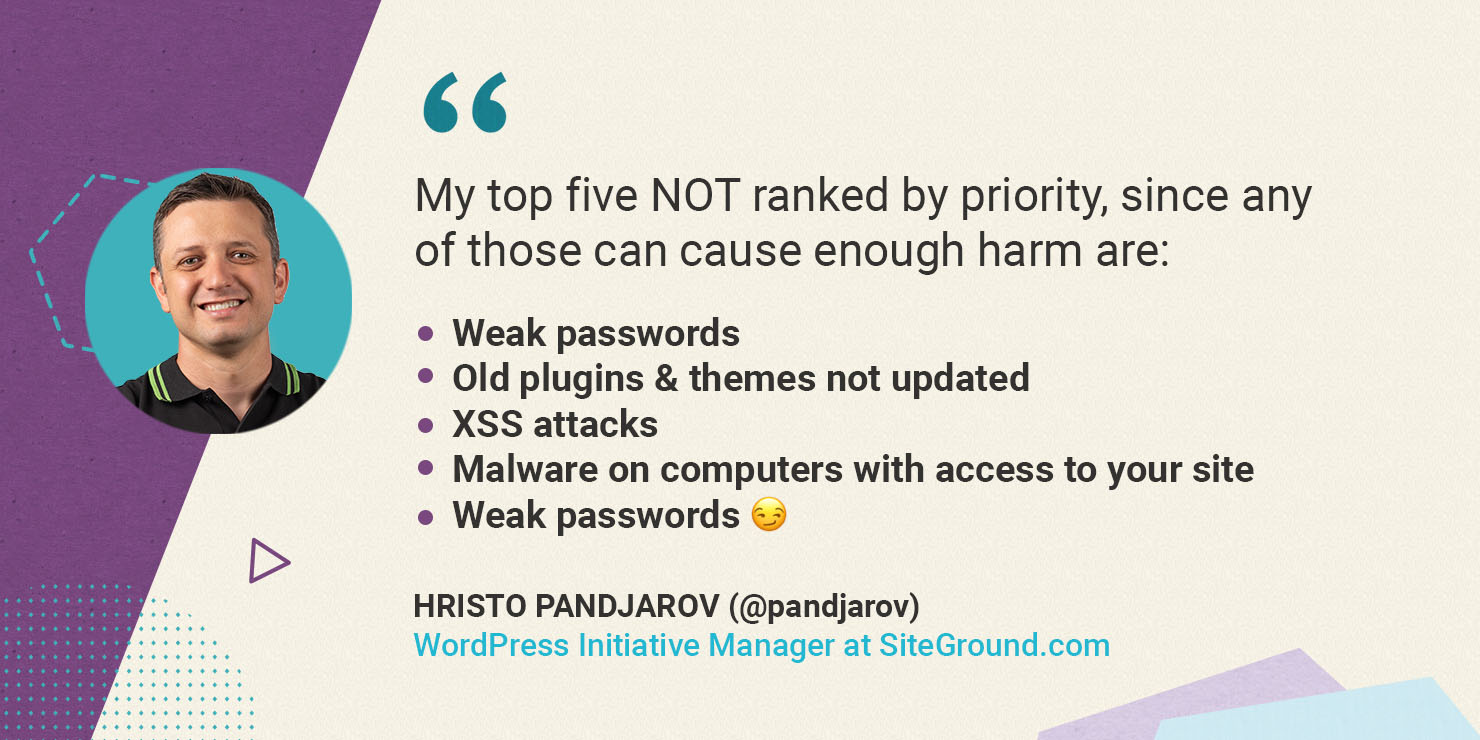
WordPress is a safe and secure software in and of itself. The majority of vulnerabilities are caused by the use of unreliable plugins, outdated themes and weak passwords. Hristo Pandjarov, our WordPress Initiatives Manager and SEO strategist outlines five most common backdoors: “My top five NOT ranked by priority, since any of those can cause enough harm are:

  • Weak passwords
  • Old plugins & themes not updated
  • XSS attacks 
  • Malware on computers with access to your site
  • Weak passwords 🙂 “
Hristo Pandjarov on top 5 common ways for WordPress sites to be hacked

Using a password manager, such as LastPass or 1Password, is advised by our WordPress security experts. Over the years, having a very strong master password and then randomly-generated ones for different logins has proven to be the best solution. You can find more useful tips and simple steps that address the issues above in our blog article “5 Simple Steps to Secure your WordPress” by one of the other participants in our #WPSecurityChat, Cal Evans.

Most hackers don’t care about your site’s popularity according to our security experts

Many website owners think that if your website is not hugely popular, then there is no reason for it to be a target. All of our WordPress experts agreed that it makes no difference whether your website is popular or not; everyone is at risk, and everyone should take measures to prevent hackers from gaining unauthorized access to their sites.

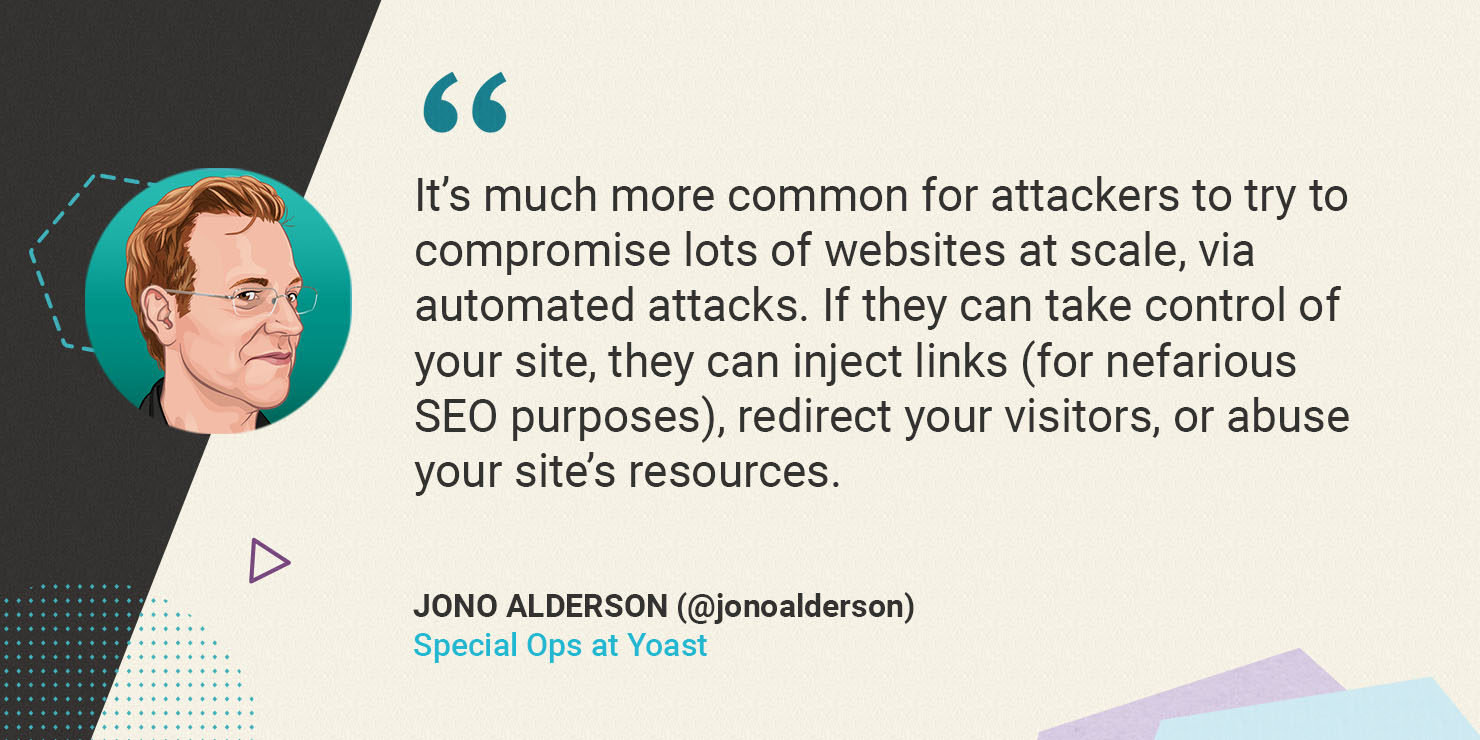
According to Jono Alderson (@jonoalderson), a Special Ops at Yoast, “It’s much more common for attackers to try to compromise lots of websites at scale, via automated attacks. If they can take control of your site, they can inject links (for nefarious SEO purposes), redirect your visitors, or abuse your site’s resources.”

Jono Alderson on hackers compromising lots of websites at scale

How does site security affect SEO?

Jono Alderson, an expert at Yoast, the widely-used WordPress SEO plugin, summarizes that “…so much of SEO is all about building up and demonstrating trust, relevance, and authority. If your site gets hit, there’s a real risk that all of that gets compromised.” Your website’s reputation and SEO are closely connected. For example, if your website displays irrelevant content to users and search engines, your relevance and trustworthiness will suffer. 

Jono Alderson on website security and SEO

Because site security is so important, Jono Alderson also revealed helpful methods for determining whether or not your site has been hacked, “Most good security plugins will also let you know when sensitive files have been changed or added, or when unusual behaviour has been detected. Make sure that you’ve configured that kind of logging, and regular scans.”

At SiteGround, we offer SiteScanner malware detection and monitoring service. The scanner lets you perform on-demand scans of your website as well as comprehensive daily scans to detect domain blacklisting and malware.

Site security is something you have to constantly work on

There is a common notion among our WordPress experts that webmasters tend to neglect site security over other tasks. Common mistakes include failing to update software, plugins, themes, and so on. Cal Evans, PHP developer and WordPress expert, shared his tips for avoiding common hacks “Be diligent in maintaining your site. Check in daily to see what has changed. It’s ok for YOU to update plugins instead of waiting for autoupdate,” adding “Keep good backups and keep them for a while.” 

Cal Evans on maintaining your site security

At SiteGround we try to take some of that load off your shoulders by automating many of these tasks as part of our managed WordPress security services. We automatically update your instances and their plugins to the latest version and patch against common WordPress-related exploits through our server firewall. Our latest backup service updates include distributed physical backup locations and enhanced data protection which help enormously in event of a hacking incident.

How can your web host help in keeping sites secure?

If your website does get hacked, our experts suggest you contact your hosting provider’s support team or a specialist. Hristo Pandjarov puts emphasis on “Regenerating the #wordpress salts, to make sure there aren’t any logged hackers, plugin & theme updates, malware scan of all computers with administrative access to your site and last but not least changing your hosting account pass and enabling 2FA auth!”

To add to the importance of choosing the right web host to help keep your website secure, Jono shares that “Good WordPress hosting companies also know WordPress inside-out. They’ll make sure that your setup – and theirs – is hardened. They’ll recognize and protect against common attack patterns, and know exactly what to do if things go wrong.”

Jono Alderson on good WordPress hosting companies

SiteGround is well-known for our powerful, yet simple to use managed WordPress services. We place a high value on site security since the beginning. Our team dedicates hundreds of hours of development time to keep improving our web hosting security, starting on a server level with shared accounts isolation, reliable backups on distributed geographical locations, a smart Web Application Firewall (WAF), and enabling 2FA authentication for our users among other things. On the WordPress application level, we’ve also always made a targeted effort to go the extra mile for our clients in order to make running WordPress more secure on our platform. Our most recent security upgrade is the release of the SiteGround Security plugin, which addresses the majority of threats and assists clients in adopting better security policies, such as:

  • Establishing relevant rules to protect WordPress against common malware, bruteforce and other security issues. Some of these rules include hiding your WordPress version or deleting your default readme.txt, making it harder for crawlers to detect that you’re even using WordPress.
  • Strengthening WordPress login security
  • Monitoring your admin area activity log
  • Post-hack actions tool in case you suspect your site might have been hacked

You can find the whole conversation between our WordPress security experts by checking searching the #WPSecurityChat on Twitter. For more WordPress security expert tips, check our free ebook on WordPress Security. Share your thoughts on what are the most common threads for WordPress sites and what are the best practices to prevent them. Follow us on Twitter for more exciting news and expert discussions on relevant topics. 

[subscribe_cta]

What is XMLRPC and How This WordPress’ Vestigial Tail Threatens Your Website Security

XMLRPC.php

In the root directory of every WordPress site is a file, xmlrpc.php that actually predates WordPress itself. Back before WordPress, during the b2 days, this file was created to give sites a way to communicate with each other and for other applications to communicate with the blog itself.

What is XMLRPC?

The name tells you everything you need to know about the functionality.

XML – This was designed to accept payloads in XML. These days JSON is a much more common format but XMLRPC predates JSON by quite a bit.

RPC – RPC stands for Remote Procedure Call. It was a standard by which one system could ask another system to do something. These days we use APIs – REST or Graph API – to do the same thing but before those existed, RPC was one of the ways we accomplished this.

How does XMLRPC work?

To make XMLRPC.php do something you had to POST a message to it. If you are not familiar with how browsers work, this is basically like clicking the Submit button on a form. That usually initiates a POST request. 

If you make a POST request to yourdomain.tld/xmlrpc.php and you hand it a properly formatted XML payload, you can do things like create a post on your site.

One of the things that XMLRPC was used for a lot back in the day was “pingbacks”. Those comments you see on posts that show that someone else linked to it on their blog. 

Potential security threats from WordPress’ XMLRPC

For a long time, XMLRPC was a useful tool. Those days are fading into history now. These days all of the functionality that XMLRPC used to be used for is handled by the built-in REST API. Even though it’s not used anymore. It’s still hanging around. Those who get nostalgic about such things see it and smile. Those that are worried about security see it and frown.

XMLRPC poses a couple of distinct security risks for WordPress sites that can result in severe WordPress XMLRPC attacks. 

The first type of WordPress XMLRPC attack is a simple Brute Force attack. Since part of the XML payload that is passed to WordPress is the login and password of the user that wants to take the action, it is an easy way for attackers to try out user name and password combos until they find one that works. Many security conscious site owners will limit the number of login attempts a user can make before locking them out but won’t bother to block XMLRPC requests thus leaving a back-door open for attackers to try and find a way in.

Brute Force Attacks via XMLRPC

Once an attacker finds credentials that work, they are free then to attempt to do damage to your site by injecting content into your site’s database. Whether these are Posts, Pages, or just comments, the end result is the same. Content that you did not approve and most likely do not want is being served by your site. 

At the very least, this means spam comments or posts. At the worst though, it could be innocuous posts or comments that have malware injected.

DDoS attacks using XMLRPC

Because one of the ways that XMLRPC was used was for pingbacks, malicious users can use it to overwhelm your server by issuing a lot of expensive requests all at once.

A pingback writes a record to your database. Writing to your database is an expensive task, resource wise. While a single pingback won’t hurt your site’s performance, hundreds or even thousands of them at once can bring even the beefiest server to its knees. 

This is called a DDos or Distributed Denial of Service attack. Distributed because it’s usually not a single machine making all the requests, usually it is a whole bunch of machines spread out all over the place.

How to disable XMLRPC in WordPress

There are a few ways you can disable XMLRPC. I highly recommend that you do it because honestly, you just don’t need it. 

Through your webserver’s config file 

If you are familiar with how to block requests via your webserver’s config files – and you have access to your webserver’s config files, this is a great way to block it. For Apache, you can add this code to the .htaccess file in the root directory of your site.

<Files xmlrpc.php>

order deny,allow

deny from all

</Files>

That will stop it dead in its tracks.

Through your theme’s functions.php file

If you are not one who likes to much around in your web server’s config files, you can add a single line of code to your theme’s functions.php file.

add_filter( ‘xmlrpc_enabled’, ‘__return_false’ );

Make sure and get that exactly right, there are 2 underscores before the word return. Again, this will turn it off. This tells WordPress itself that you don’t want to accept XMLRPC requests.

Installing a plugin

Finally, if don’t want to bother with adding code to your theme’s functions.php, you can disable XMLRPC in WordPress by installing a plugin. (Hint, the plug does the exact same thing as the previous tip.) There are several good ones out there that are free or you may already have this functionality available to you if you have one of the Application Firewall plugins installed.

If not, let me recommend my favourite one and what I use on all of my sites to turn off XMLRPC, SiteGround Security Plugin. Even if you aren’t hosting with SiteGround, you can use this free plugin to manage several different security tasks. If you only want it to turn off XMLRPC, then disable all the other options. That’s one of the things I love about this plugin, everything is optional.

XMLRPC served us well in it’s day, but it’s day has come and gone. It’s time to let it retire gracefully. Until the WordPress core developers decide it is time to remove it, you need to protect yourself and your site by disabling it.

[subscribe_cta]

How Website Speed Affects Your SEO Rankings?

Core Web Vitals

Even though website speed itself has not been an official ranking factor in Google’s SEO algorithm until now, experts have largely proclaimed its importance for good SEO. With the upcoming Core Web Vitals update planned by Google for May 2021, which adds 3 new metrics to the Page Experience signal, website speed officially becomes a ranking factor. So now many webmasters wonder what the immediate impact of that change will be on the SEO searches. Looking for an answer to this question, we turned to top SEO experts and organized a #SiteSpeedForSEO Twitter chat where Aleyda Solis (@aleyda), AJ Ghergich (@SEO), Craig Campbell (@craigcampbell03), and Hristo Pandjarov (@pandjarov) shared their insights with us. Here’s what we learnt from them.

Website speed effect on organic searches after the Core Web Vitals update

According to Aleyda Solis (@aleyda), an expert in international SEO, speaker and author, “Speed is already a ranking factor along many others, as the page experience one will be and we shouldn’t expect an “extreme” shift in our rankings due to it.“ Arnout Hellemans seems to agree with it and even says “Hardly any imho, it’s a PR play and it’s already in the algorithm. But that doesn’t mean you should ignore this.”

Overall all the experts who took part in the chat agree that we shouldn’t expect a dramatic immediate shift in our SEO rankings as a result of the Core Web Vitals update for a number of reasons. These new metrics are just 3 out of 200 other ranking factors and they will not get special priority so their relative weight will be low. Furthermore, Google will roll this update slowly starting in May till August 2021 to gather data, so any changes would not have an immediate impact.

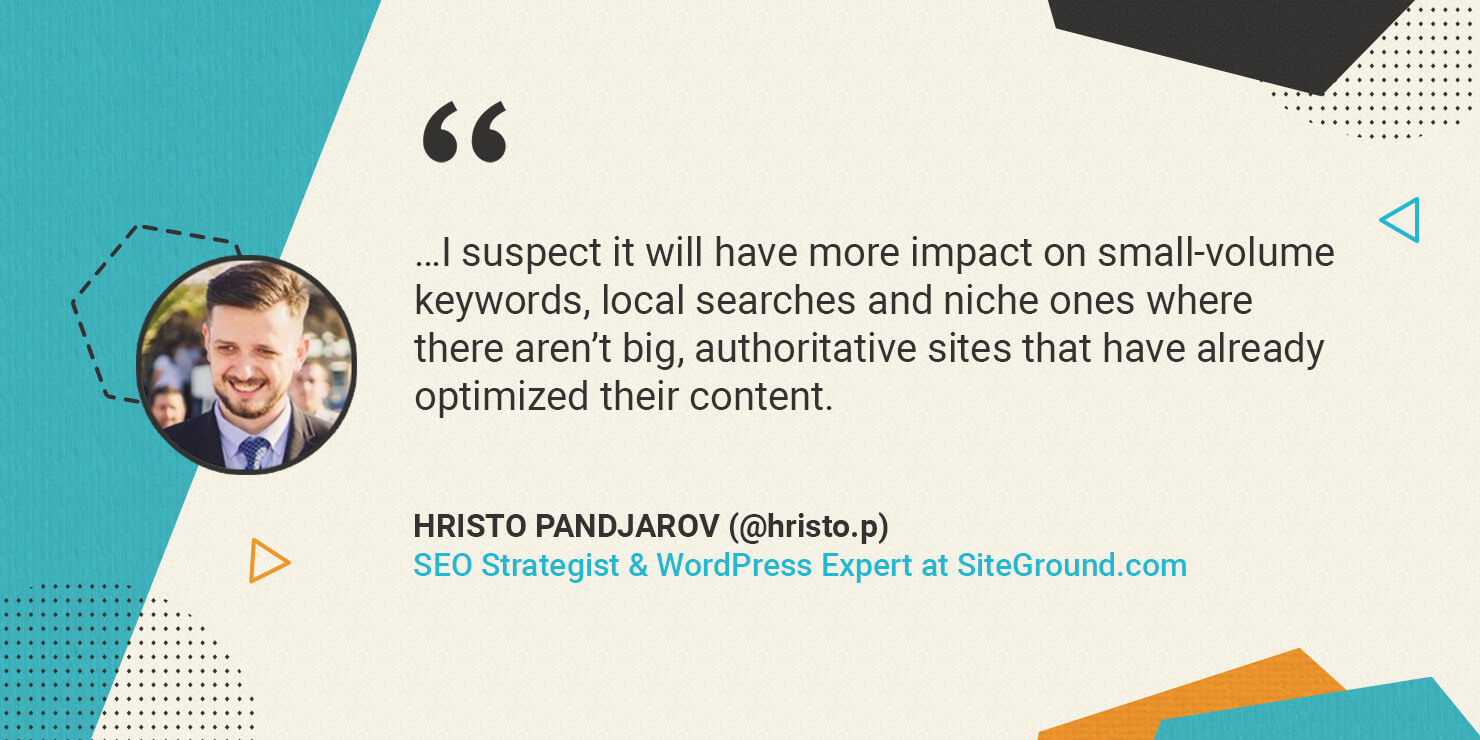
Hristo Pandjarov, SEO Strategist and WordPress Initiatives Manager at SiteGround expects that this update will have “a bigger impact on small-volume keywords, local searches and niche ones where there aren’t big, authoritative sites that have already optimized their content.” If your site is already fast, you have fewer reasons to worry.

The optimal website loading speed

It’s good to know that major shifts are not foreseen as a result of the new Google update, but still if your site is not really well optimized, or if you are not sure where it stands, you are still bearing a risk and Google is sending you a message to get to work. A good start for this is to figure out how your website currently scores on the 3 new metrics – Largest Contentful paint (LCP), First Input Delay (FID), and Cumulative Layout Shift (CLS) and what to aim for.

According to Nikola Baldikov, SEO Manager at SiteGround the ideal page loading time is around 1 to 2 secs, while Hristo Pandjarov’s advice is to look at the #TTFB of 200ms for traffic in the same continent and Aleyda Solis adds that her preferred thresholds are LCP of less than 2.5 seconds and FID of less than 100 milliseconds. 

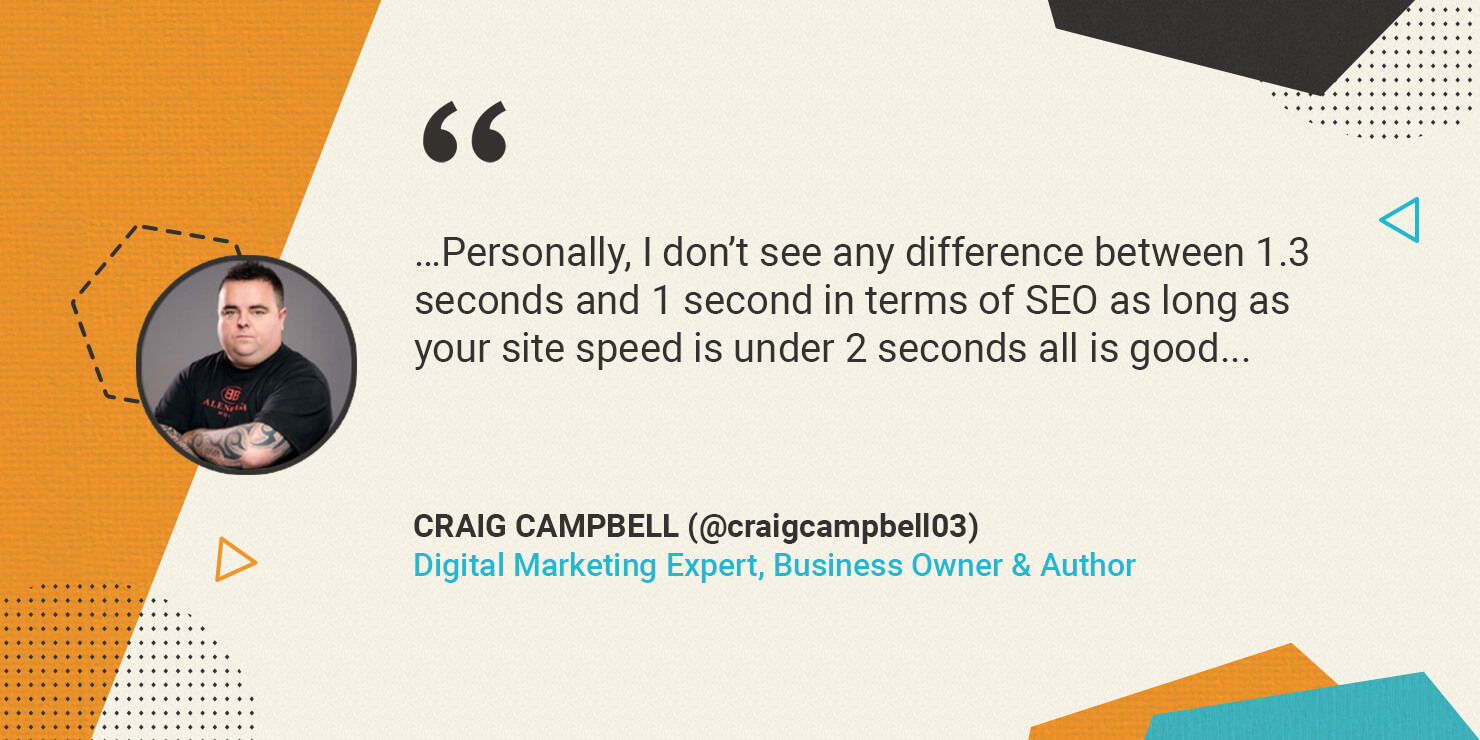
If your site is already fast though, it doesn’t make a huge difference if it loads for 1 second or 1.3 seconds in terms of SEO, according to Craig Campbell. Obsessing about it is of no use, but you should definitely care to optimize website speed if you are not close to the recommended values yet.

Useful website speed test tools

There are a lot of website speed test tools, which you can use to check your page loading times. Some of the most common ones are Lighthouse, PageSpeed Insights, Search Console > Core Web Vitals report, and more. Big thanks to Aleyda Solis who shared with us her all-inclusive list of tools to test website speed. 

Take a look at the list she has prepared and figure out which particular areas of improvement to focus on. When looking at the reports, make sure you follow Aleyda’s advice “to identify what’s hurting your own speed the most vs. cost of change” so that you focus resources on getting big wins in a short time.

Website Speed Optimization Suggestions

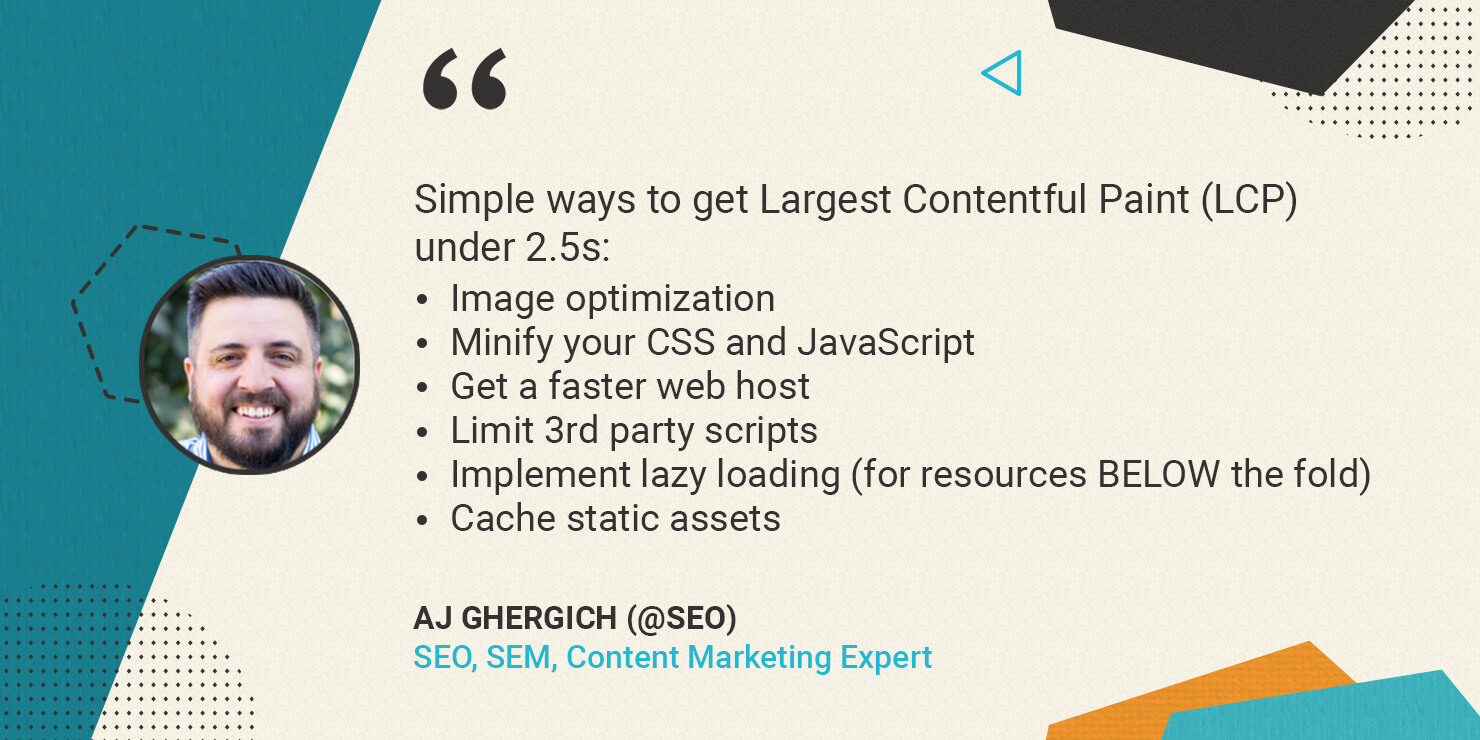
Here’s a concise list of simple ways to optimize performance, nicely summarized by AJ Ghergich. We have elaborated on his overview so that our clients could easily put the suggestions into action:

Lower Largest Contentful Paint (LCP) under 2.5s 

  1. Optimize your images

The most common problem for website performance and LCP in particular are the large images that need to be loaded simultaneously and slow down the page. That is why you should consider the following optimizations:

Add lazy loading of images – that way not all images will be loaded at the same time upon opening the page. AJ Ghergich strongly recommends to implement it only for resources BELOW the fold. SiteGround clients with WordPress sites could enable that from the SiteGround Optimizer plugin.

Use caching for static assets – at SiteGround we use NGINX direct delivery which is enabled by default on our servers, so if you are a client you get this caching effect out of the box.

Serve an alternative image format –  WebP. This is a very useful way to reduce the size of the images on your site. For WordPress users hosted on SiteGround, you could enable this as an automatic service via the SiteGround Optimizer plugin.

2. Minify your CSS and JavaScript

One of the easiest ways for big performance wins in this case is to use compression like Brotli or Gzip. Another possibility is to use plugins for WordPress sites. If you are a SiteGround customer, Brotli is enabled by default on our servers and you don’t need to do anything to use it, and the SiteGround Optimizer plugin for WordPress will help you with the minification of CSS and JS.

3. Limit 3rd party scripts

The more scripts that need to be loaded on the page, the slower it will open. Third-party scripts are for example tracking software, advertising scripts, heatmaps, and other. Once they serve their purpose, make sure you remove them so they don’t pile up slowing the website.

4. Get a faster web host

Having a fast server helps a lot for boosting the LCP metric. So if you have done all of the above and your site is still loading slow, see what’s happening with your hosting and how your provider can help optimize the environment for more performance.

At SiteGround we constantly upgrade our platform to make it faster and more efficient and we believe that’s a never-ending process. For example, at the end of last year, we launched our new Ultrafast PHP and we see performance gains up to 30% across sites hosted on our platform. More recently, this year, we revamped our MySQL setup to boost its processing capacity and thus improve the database performance, which though not directly mentioned in this article impacts the performance of dynamic sites like WordPress.

5. CDN

Since website speed tests are greatly affected by the speed of the Internet connection, where sites with international traffic are most hurt, experts suggest that you use CDN. 

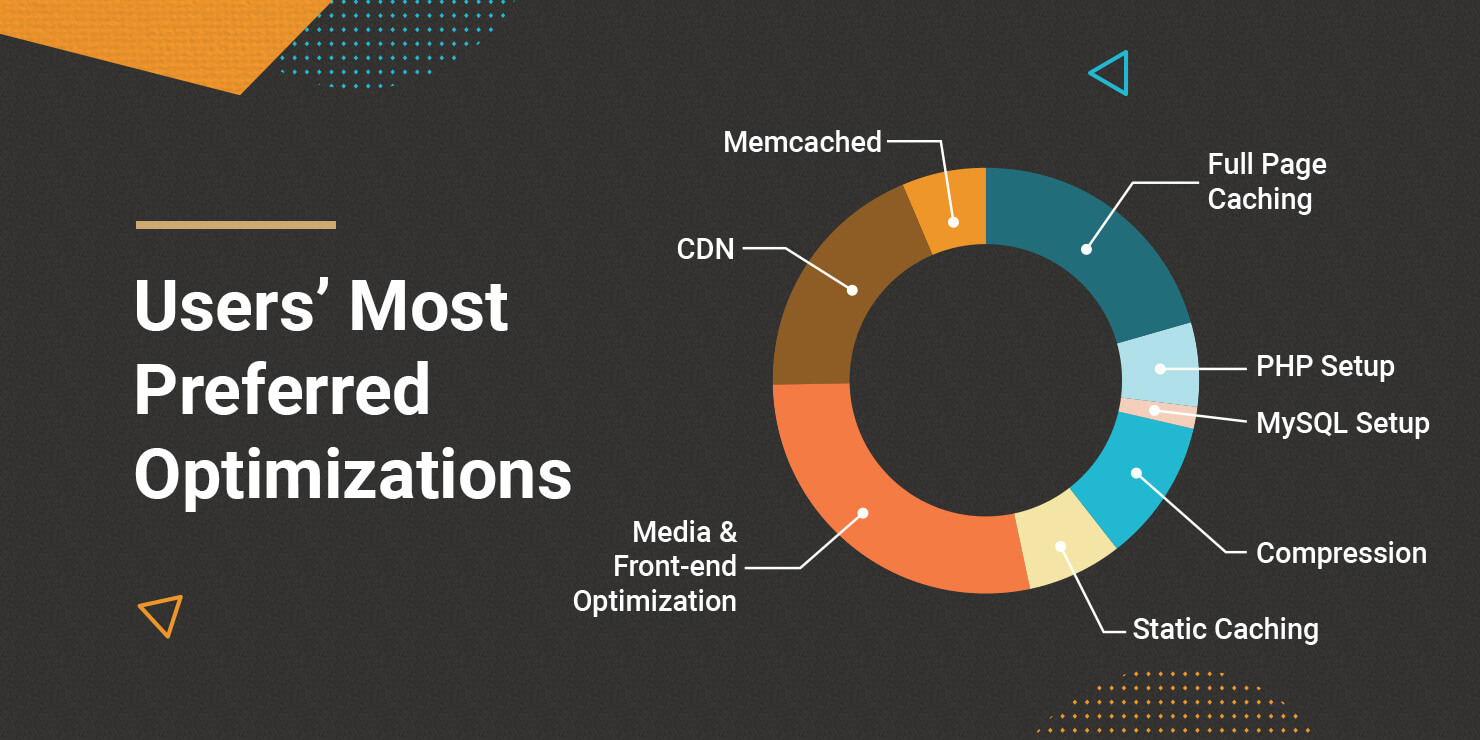
In case you wonder which of all those optimization suggestions should be the first on your list, take a listen at the users’ opinion. According to a different Twitter campaign where we asked users to pick their favorite website speed optimization tip, we clearly see that Media (images) & front-end optimizations together rate as the most effective ways to improve performance with full-page caching and CDN coming up second and third. 

Get First Input Delay (FID) under 100 milliseconds 

If you score poorly on this one, it is most likely that your JavaScript is the culprit. Minify and defer JavaScript to fix the issue. For SiteGround clients with WordPress sites, that could be done in a click of the mouse from the SiteGround Optimizer plugin.

Get Cumulative Layout Shift (CLS) under 0.1 

The CLS is largely a web design issue. According to AJ Ghergich, the most common reasons for it are:

  • Images without dimensions  
  • Ads, embeds, and iframes with dimensions  
  • Dynamically injected content 
  • Custom Web fonts – AJ suggests to use “swap” in CSS and instruct the browser to show the browser font first until the custom font gets loaded to avoid users seeing blanks on the page.
  • Actions waiting for a network response before updating the DOM 
  • Infinite scrolling 

In this article, we focused entirely on optimizing website speed for the 3 new metrics that will become ranking factors in Google’s algorithm. But your optimization efforts should not stop with LCP, FID, and CLS. There are other things you can do that will improve your performance overall and have a positive impact not only on your SEO but on your user experience and business results. So once you have mastered the tips mentioned in this article, take a look at this list we have gathered with the 9 most effective ways to boost performance: https://www.siteground.com/speed-tips. We’d love it if you comment under this post to tell us about the optimizations you try and how they impact your page loading times.

[subscribe_cta]

Harnessing the Power of Off-Page SEO: a Definitive Guide

Successful SEO (search engine optimization) requires marketers to use both on-page and off-page SEO efforts. It is the combination of these two techniques that produce long-term, sustainable results in Google search.

But don’t jump ahead and assume I’m just talking about backlinks because today’s off-page SEO is much more than acquiring a few links to your site.

After we discussed in detail what is on-page SEO, today I’d like to explore off-page SEO, so you can get a better understand of how you can use this technique to improve your search engine ranking and drive more organic SEO traffic to your website or blog.

Before we begin, let me say we won’t be talking just about SEO factors. Rather, we’ll be talking about you and how you can be a better part of your community.

To stay ahead in the world of SEO, check out our video: SEO in 2025: 6 Trends Truly Changing The Landscape.

What is Off-Page SEO?

I like to consider off-page SEO as the process of helping search engines understand the who, why, and what of you. In particular, off-page SEO is focused on building the perception of your website or blog by demonstrating expertise, authority, and trust.

Google actually mentions this in its Search Quality Rating Guide which was first released back in 2015. Google updates this document often and the latest versions have strong references to E-A-T, which stands for Expertise, Authoritativeness, and Trustworthiness.

E-A-T helps Google know if:

  • You are a trustworthy website or blog
  • You are considered an authority in your subject matter, topic, or industry
  • Provide high-quality content humans like and trust

Search engines have been trying for decades to find a way to return the best results for a given search phrase. To do that, they take into account the on-site SEO and off-page SEO factors. 

Off-page SEO factors are important because these data points give search engines a better indication of how the world perceives your website or blog. A website that is useful is more likely to have a number of external data points that are created by users outside of the website owner.

Off-Page SEO Factors

There are a variety of off-page SEO factors that exist, and these will vary importance by year and by industry. As Google involves its algorithm and usage of artificial intelligence, what matters to SEO shifts. And as SEO consultants attempt to manipulate Google ranking, the off-page SEO factors will shift even more.

How do you stay up to date with what really matters in off-page SEO? 

You need to stay focused on traditional marketing and PR that provides a means to freely share what you know and what you have with those within your community.

Off-Page SEO factors and traditional marketing efforts include:

  • Google My Business
  • Brand mentions and citations on other websites, articles, or the media
  • Social media profiles and activity
  • Guest blogging
  • Forum post or answer websites like Quora or Reddit
  • Podcast interviews and appearances
  • Event speaking and presentations
  • Video websites
  • User reviews 
  • Referring domains and backlinks
  • Local directories and listings

All of these factors are simply helping Google connect the online dots to see how you and your website (or blog) interacts with the community. The more interaction with the community, the more relevance, and authority you have to Google.

A backlink also referred to as an inbound link, is created when a third-party website or blog links over to your content. Backlinks help in driving brand awareness, website traffic, and help improve your organic search ranking. 

There is a large segment of the SEO industry that hyper focuses on backlinks. They perform troll websites with requests for backlinks, pay for backlinks from websites or agencies that source them for a fee, or they inject malware into websites to programmatically build backlinks without website owners even knowing they are present.

Just don’t do it! Not only does all of this violate Google’s rules, but it is also an utter waste of time and money. 

When discussing backlinks, Google specifically states:

Any links intended to manipulate PageRank or a site’s ranking in Google search results may be considered part of a link scheme and a violation of Google’s Webmaster Guidelines. This includes any behavior that manipulates links to your site or outgoing links from your site.

The following are examples of link schemes which can negatively impact a site’s ranking in search results:

  • Buying or selling links that pass PageRank. This includes exchanging money for links, or posts that contain links; exchanging goods or services for links; or sending someone a “free” product in exchange for them writing about it and including a link
  • Excessive link exchanges (“Link to me and I’ll link to you”) or partner pages exclusively for the sake of cross-linking
  • Large-scale article marketing or guest posting campaigns with keyword-rich anchor text links
  • Using automated programs or services to create links to your site
  • Requiring a link as part of a Terms of Service, contract, or similar arrangement without allowing a third-party content owner the choice of qualifying the outbound link, should they wish.

Additionally, creating links that weren’t editorially placed or vouched for by the site’s owner on a page, otherwise known as unnatural links, can be considered a violation of our guidelines. Here are a few common examples of unnatural links that may violate our guidelines:

  • Text advertisements that pass PageRank
  • Advertorials or native advertising where payment is received for articles that include links that pass PageRank
  • Links with optimized anchor text in articles or press releases distributed on other sites
  • Low-quality directory or bookmark site links
  • Keyword-rich, hidden or low-quality links embedded in widgets that are distributed across various sites, for example:
    Visitors to this page: 1,472
    car insurance
  • Widely distributed links in the footers or templates of various sites
  • Forum comments with optimized links in the post or signature 

The best way to get other sites to create high-quality, relevant links to yours is to create unique, relevant content that can naturally gain popularity in the Internet community. Creating good content pays off: Links are usually editorial votes given by choice, and the more useful content you have, the greater the chances someone else will find that content valuable to their readers and link to it.

After reading Google’s statement, it’s hard to believe there are still SEO companies pitching backlinks. But there are, and as marketers, you just need to stay clear of them to protect yourself and your website or blog.

The best backlinks will come from being part of your community, giving freely of yourself and your knowledge, and by helping those around you.

In the 15+ years of doing SEO, I’ve never done backlink outreach or paid for a backlink. And I won’t.

Instead, I’ve created quality content, I’ve spoken at industry conferences, I’ve been interviewed on podcasts, I’ve created free educational webinars, and I’ve made myself available to help others.

All of that activity has naturally brought backlinks from a lot of high quality and authoritative websites. And this is exactly what Google expects and wants.

Be the Peacock and Build Your E-A-T

In 2014 I gave my first WordCamp presentation in Miami. It was titled Be the Peacock and it was focused on building an online brand. Building off-page SEO is the same type of concept. 

In this presentation, I talked about how there are thousands upon thousands of new URLs registered each day. The internet has grown so great, that it is difficult to stand out and be noticed. It is difficult to make yourself distinguishable and it is even harder to make sure that you are remembered.

To attract and capture a long-term online audience, you have to be the peacock.

You have to display your beauty proudly and in a very wide fan. You do not know who will look or when, so you need to make sure you are colorful and that you will be remembered for your uniqueness.

You need to figure out what will stand you apart from the masses and what will make someone remember your beauty. You need to be bold and beautiful.

That presentation hit close to home for me, because as I child I was very shy, and I stuttered. I was in remedial reading in 5th grade and was almost held back in school. I grew up on public assistance and I was a ward of the state (meaning the state was my legal guardian). To that little girl, I was far from a beautiful peacock. I thought I was nothing and I didn’t matter to anyone.

Back then I would never have imagined that I would speak at conferences around the world, appear as a guest on my favorite podcasts, or write guest articles for companies like SiteGround. I never would have guessed that one-day people would pay me by the minute for SEO advice on sites like Clarity.fm. I would have never guessed that anyone would care about who I am and what I had to say. I was wrong.

So, what happened? Why am I here now and how did I come so far from that little girl who could barely speak in public? How did I find my colors and how was I able to spread my feathers?

I found something I was passionate about, I found purpose in my work, and I realized I had a very strong desire to give back to the community. This changed everything.

I was raised in a small town by a village of surrogate parents, and when I became an adult, I knew I wanted to give back to society as a thank you for all those aunts, uncles, and random adults who helped raise me as a child.

That desire to give back and help others allowed my inner peacock to arrive and it allowed me to become an expert at off-page SEO. It wasn’t because I was chasing backlinks or media mentions. I just wanted to do good and I wanted to share my knowledge so I could help others.

That is when off-page SEO really works. That’s when it becomes natural and when your E-A-T with Google develops without you ever asking anyone for a backlink or mention.

Remember…

When you think about the idea of off-page SEO and you question what you can do to help build your reputation with Google, I want you to think back to my story and how life and time allowed me to become an online peacock who let her colors shine. 

I want you to look inside yourself to find your passion and purpose. And then I want you to turn that into good for your community. 

When you do that, off-page SEO will come. 

A Final Reminder of Off-Page SEO

Website owners – including myself – tend to get caught up with only one technique. They focus entirely on on-page SEO and forget about off-page SEO or vice versa. In real-world applications, you really need both to rank in search. 

On-page SEO helps establish the SEO foundation for your website or blog. Off-page SEO follows those efforts by validating your reputation and building your E-A-T with Google.

You have to have a balance of both SEO techniques to prove that you have quality content and that the world cares about this content. 

Once you demonstrate your authority via off-page SEO, your on-page SEO efforts feel much more natural and they provide much greater results.

When you think about off-page SEO, remember to focus on your passion, your purpose, and your community. Giveback and give as often as you can. 

[subscribe_cta]

What is On-Page Optimization in SEO and How to Easily Master it

When we think about optimizing content for search, many marketers will immediately get overwhelmed because they are used to hearing SEO consultants talk about formulas, Google algorithms, and phrases like keyword density. A lot has changed in SEO in recent years and you can honestly set all of that aside because Google no longer works that way.

Yes, my friends, keyword density is dead and so are a lot of other old school SEO tactics and myths.

There is no perfect formula for on-page optimization of content. To win in today’s world of search, you need to stay focused on writing content for real humans, solving people’s problems, and helping the search engines locate the right content for a given search phrase.

At the heart of strong content, optimization is an overriding focus on the human. And honestly, I’m really happy about this because it makes the entire process of SEO a whole lot easier.

To stay ahead in the world of SEO, check out our video: SEO in 2025: 6 Trends Truly Changing The Landscape.

Recent Pivots in On-Page Optimization

The last few years have been pivotal years for SEO. We saw massive shifts in the type of content Google wants and the type of content it rewards with page one ranking. I’d like to highlight some of these items right away, so I can get you thinking in the right direction.

Here are some areas where we’ve noticed SEO shifts:

  • A strong desire and focus on solving the problems of readers
  • Longer keyword phrases are driving search and bringing in the majority of search traffic to websites and blogs
  • A greater need for longer content that fully covers a given topic
  • A strong focus on readability
  • A focus on accessibility so everyone can understand the nature of links and images and content flow
  • A need for subheaders and bullets for ease of use on mobile devices
  • A need for short paragraphs for ease of reading on mobile devices
  • A need for featured images for social sharing and distribution
  • A strong desire for multimedia content (videos, podcasts, images, etc.)
  • A move away from binary data points like keyword density
  • A move towards keyword variations and topics
  • A strong reliance on semantic language

Don’t let that term “semantics” worry you. It simply means you are using descriptive words that help Google better understand the nature of your content as a whole.

 I said above that longer content is important and that is because:

  • Longer content can go deeper into a topic, and in doing so, it can better answer the searcher’s question
  • Longer content will tend to drive more social sharing which drives more visitors and more visibility with search engines
  • Longer content will better satisfy the human reader, which will, in turn, will drive more backlinks

The new benchmark for content length:

  • My recommendation for national searches (think about a search for how to treat a sunburn) is a minimum of 1,000 words and usually about 2,000 words. But know this is solely because it takes about this much text to thoroughly present a problem and outline the solution.
  • Local searches (think about a search for a local Italian restaurant) do not require as much content, because they are less informational. They are simpler and more direct, so content doesn’t have to be as deep or long. You could rank something locally with as little as 500 words.

In today’s SEO, there is no magic number for the ideal quantity of words on a page. The trick is to create better content than the other websites ranking on page one of SERPs (search engine results page). If you can do this, you can win with 500 words, 1,000 words, or 5,000 words.

Always Consider Semantic Wording

As you optimize your content for search engines, you are really just trying to help them find the right content for a search term. There isn’t any voodoo associated with optimization. Instead, it is just making sure you are clear in your content writing.

Let’s assume for this exercise I have determined my focused keyword is “WordPress hosting” and I would like to rank for this phrase.

The first thing I would want to do is think about alternative phrases that would semantically align with this phrase. Put in other terms, what things would naturally be discussed or flow with WordPress hosting? These would be things like:

  • Website or blog
  • Performance or speed
  • Cost 
  • Software updates
  • Backups
  • Hosting company
  • Migrations
  • SSL
  • Technical support

If I were to talk about WordPress hosting, I would naturally assume the content would include those above elements. Those above elements would lead to many variations of my core phrase WordPress hosting. These might include:

People tend to fall down when writing for SEO because their mind knows their topic well and it skips over important details.

For example, I would simply state that “it costs $12/month” and to the writer, this would make sense. But to the search engines and readers, they might be wondering what “it” is and what is included in the “cost” they are supposed to pay.

What would be a better usage of this text would be to have a section of the content dedicated to the “Cost of WordPress Hosting” and within this section we talk about all the things that would be included in this hosting plan.

This is not only helpful for the reader and encourages them to convert into a customer, but it is also helpful for the search engines.

Create an Outline to Guide Your Writing

This leads me to the next important element of on-page SEO, which is your content outline. You should always have a content outline when writing for the web. 

In our case, we would simply talk about the things we’d want to cover. And those “things” would tie back to the human readers we want to serve.

For us to create a strong web page that talks about WordPress hosting, we would want to cover the things that really matter to human readers. These elements would be:

  • Introduction– This would provide a nice overview of WordPress hosting and our offering for humans and search engines.
  • Who – This would highlight who our hosting serves. This could be websites and blogs or online stores.
  • What – This would describe what is included in our offering. We would include things like SSL certificates, daily backups of software, automatic updates of WordPress and plugins, security features like firewall protection, and so on. 
  • How – This would provide information on how the above items are executed and delivered or it would provide details on migrations, ongoing support, etc.
  • Why – This would highlight the expertise that we offer, the technical team we employ, or the availability to 24/7 support staff.
  • Close – This would be a closing paragraph that would reiterate the items discussed and summarize for the reader.

But this is just one route to go. Instead you could focus your sections on key elements of the hosting like:

  • Introduction
  • Price
  • Performance
  • Ease of use
  • Security
  • Support
  • Close

The key takeaway here is you have a plan and this plan answers your human reader’s questions, while also providing structure and semantic language to help the search engines understand the nature of the content and who this content can serve.

And if we were to look at word count, we would naturally end up with 3,000+ words, because there is no way to discuss all the above items for anything less.

10 Key On-Page SEO Elements to Watch

While I’m going to use a page in my text below, the tips can be used for optimizing a page, post, or product. Here are things to consider as you enter your content into your website.

Page Name or Title

  • This is the name you give your page when you create it.
  • Choose a title that is relevant to what the content discusses.
  • Make sure the title is unique and does not duplicate another page title.
  • Keep the title short enough so it is easy to read and digest
  • Include the keyword phrase, but do not repeat it.

URL

  • The URL is the website address for a piece of content. The URL is displayed as part of a search result in Google and it appears below the document’s title and snippet.
  • This should always include your keyword.
  • This should be as short as possible.

H1 Header

  • The H1 is the most important item and it should never be omitted on a page, post, or product. 
  • Make sure your website or WordPress theme uses H1 headers.
  • Make sure your website or WordPress theme uses only one H1 header per URL.
  • Include your keyword in your H1 tag.

H2-H6 Subheaders

  • Search engines will use these to better understand the structure of the page.
  • We created these above when we were making our content outline of price, performance, security, etc.
  • Keep headers in title case and do not use long sentences.
  • Use unique header content.

Paragraph Text

  • This simply refers to the content itself. 
  • Include your keyword phrase and variations a number of times within the content, but do not stress about an exact number.
  • Use the keyword in the first sentence of the page, and if that is not possible, in the first paragraph.
  • Use variations of your keyword. In our example these would be WordPress hosting, WordPress website hosting, managed WordPress hosting, hosting for WordPress, etc.
  • Remember semantics and include semantically relevant phrases. 

A Note of Semantics: 

Remember that semantics is simply using descriptive words along with your text. An example I like to use is the word mouse. If I wrote an article about a mouse how would Google know if I meant a computer mouse or a mouse that lives in my alpaca barn? It would look at the semantics of the entire article to figure it out. A computer mouse would also mention things like a desk, computer, Mac, Logitech, monitor, clicks, etc. A barn mouse would mention things like barn, hay, straw, rodent, removal, pest management, traps, bait, cats, etc. 

Images

  • Images are great for SEO, usability, and sharing on social media. 
  • While all content won’t have the option for an image, use an image whenever possible.
  • The image file name should describe the image.
  • Image alt text should describe the image and carefully consider semantics when doing so.
  • Hyperlinks are links or routes to other places on the web. These could be inside your website or to an external website or blog.
  • Hyperlinks help the SEO of the page it is on, so use them if possible.
  • External hyperlinks are good for the user and don’t hurt SEO, so don’t be afraid of them.
  • Always include strong anchor text that clearly defines the destination of the link and has strong semantic word choices if possible.
  • While there is no set rule for how many links to include on one page, don’t add any more than what is needed for the reader.
  • Don’t place hyperlinks in the intro paragraph as these take readers and search engines away before they can digest your content.
  • Avoid click here, page, and article as anchor text.

Bullets

  • Bulleted lists help readers scan a page and it helps make content easier to read. I’m using them here for this very reason. 
  • Google embraces bullets because they know readers like them, and they make content easy to digest on mobile devices.
  • Bullets also show up often in featured snippets on Google.

Meta Titles

  • A page’s meta title gives Google and other search engines an idea of what the page is about and what they should expect to see as they digest the content.
  • This appears in the search engine results page.
  • A page’s meta title should be a title and not a sentence.
  • Make sure it is unique and doesn’t duplicate other meta titles.
  • Make it informative, yet easily readable.
  • Include the focused keyword phrase in it.
  • This is your first opportunity to reach potential visitors, so make it enticing, but not cheesy.
  • Keep it under 55 characters long.

Meta Descriptions

  • A page’s meta description gives Google and other search engines a summary of what the page is about and what they should expect to see as they digest the content. 
  • This appears in the search engine results page.
  • A page’s meta description might be a sentence or two or a very short paragraph.
  • Make sure it is unique and doesn’t duplicate other meta descriptions
  • Make it informative, yet easily readable.
  • Include the focused keyword phrase in it.
  • This is your first opportunity to reach potential visitors, so again we want to make it interesting, but not cheesy.
  • Keep it under 160 characters.

How to get free traffic to your website – Video tutorial

So that’s it! There was no magical pixie dust, no voodoo, and no complex formulas you need to master to write SEO-friendly content.

We simply wrote informative content, that uses descriptive words, and then we reviewed specific elements we know search engines use to locate and use content in search.

And if you were paying close attention, you’ll notice our focus wasn’t entirely on keywords. Instead, we focused on readability, semantics, with a few references to keywords sprinkled into the URL, H1 header, intro text, and meta.

And at the end of the day, if you forgot about keywords, and just wrote exceptional content that was educational, easy to read, and was better than anyone else online, you’d still win in search. You might not win as many phrases and much traffic as you could, but you would still win because you were servicing the human.

At the end of the day, SEO is about humans and making people’s lives awesome. Never ever let anyone tell you differently. 

The more I teach SEO and provide coaching at the Digital Marketing Kitchen, the more I hear myself repeating this over and over again.

Don’t make keyword rank and search traffic your ultimate goal. Make your goal to make people’s lives better and you’ll win at digital marketing.

[subscribe_cta]

What Is The Principle of Least Privilege in WordPress

Computer programmers like to give things big names. This is how we end up with something called the “Principle of Least Privilege” (POLP) to say something as simple as only let users do what they absolutely need to do.

That’s all we are talking about here. Make sure that all the users in your site have exactly the permissions they need, and nothing more. But since that doesn’t sound impressive, we are going to call it POLP from now on.

Application Users

The easiest user to talk about is the WordPress application user. 

  • You probably have one or more administrator accounts. 
  • You may have multiple “Editor” or “Author” accounts.
  • Depending on your site, you may also have “Subscribers”.

POLP teaches us that you should absolutely limit the people that have administrator privileges to those that need it and can prove that they need it. In most systems, this usually means you need a primary administrator and a backup administrator in case something happens to the primary like they forget their password the same day you find out your password recovery mechanism isn’t working. By the way, securing your logins as best as possible is an absolute must, so we strongly recommend you to check this article on how to set up a 2-factor authentication on your WordPress.

Anyone else who requests administrator privileges should have to prove that they can’t get their daily job done without them. Yes, it is inconvenient to have to ask someone to do something for you but limiting administrator accounts limits that damage that can accidentally be done to your system.

Editor and Authors have less opportunity to do damage so you don’t have to be quite as strict about them but even so, everyone who has privilege in the system should have a reason for having that privilege. 

Database Users

The next “user” we need to discuss is your database user. Every WordPress site has a user and password it uses to access the database that runs WordPress. POLP teaches us that that user should have the least amount of privilege necessary to do the job. 

Unfortunately, since plugins use this user to create and delete tables, data, etc. this user has to be pretty powerful. Still, this user does not need to be all-powerful. There are two important things to check on the user that you use to access your database. (If you do not know how to check these, hire a developer, this particular part is pretty technical).

  1. Your database user should not have GRANT privileges. This means that it cannot grant privileges to other users. There is no scenario in WordPress where the database user should be creating new users or granting them privileges to anything.
  2. Your database user should not have access to any database other than the one that is attached to your WordPress site. That user should not be able to access data or make modifications to ANY other database on the server.

If you are looking to implement some changes based on the above section, you can check the following tutorial and see how to manage user’s privileges in your MySQL database.

Access to Control Panels

Finally, premium hosting partners like SiteGround have very powerful control panels that let you control things orbiting your site like email and performance. Many of these controls can do serious damage to your site if used improperly or maliciously.

SiteGround and other hosting partners allow you to add “collaborators” to accounts. Collaborators make it very easy for someone to help solve problems or perform maintenance for the site owner. This is a much better way to allow a developer to help you than sharing your login and password. You can also check our article on how to secure your login details in 5 simple steps.

Review POLP Regularly

Whether it’s your WordPress users, or your Control Panel collaborators, you need to regularly review who has elevated access to your system. At the very minimum, once a month it is a good idea to review and evaluate users who have elevated access and make sure they still require this access. When they don’t, demote them or remove them altogether until such time as you need them to have that level again.

These audits won’t take much time but could save you many hours of disaster recovery if a forgotten account gets compromised and used to harm your site, not to mention the damage it will do to your online reputation.

Remember, reputation grows slowly like a coconut tree and falls quickly like a coconut.

[subscribe_cta]