Top 12 Website Metrics to Increase Performance

website performance metrics explained

Website metrics offer a window into how users engage with your site, revealing insights like daily or monthly visitor numbers, how they discovered your site, and how many leave for other options. While you can explore endless data points, the real challenge is knowing which metrics truly matter. So, which ones should you track to grow your website effectively? 

Let’s dive into the essential metrics that provide the biggest impact on understanding and improving your site’s performance.

Why Is Website Speed Important?

By now, you should need no convincing that website speed is crucial for your online business. That’s because website performance has an impact on your brand reputation, SEO rankings and conversion rates. Here are the main reasons how and why this happens:

Brand Reputation 👍

Let’s be honest, when your website loads slowly, it irritates your visitors, and eventually they leave your site. That’s why it’s important to have a website that loads as fast as possible. According to Google, 53% of visits are abandoned if a website takes more than three seconds to load. 

Indeed, the slower your website, the more likely it is for your visitors to leave and be less likely to return ever. If they don’t find what they’re looking for quickly, they won’t interact with your site, as they would consider it inaccessible and unreliable. 

This directly impacts your brand reputation, because visitors could have a bad impression of your site. And we all know that a negative brand reputation is harmful for your online business presence.

SEO Rankings 📈

Google and search engines in general aim to provide web users with the best possible user experience. Website speed is an official and important ranking factor in Google’s algorithm, in addition to being a crucial part of your website’s UX. If your website is slow, this will definitely affect your SEO rankings, it will hurt your site visibility among users, and eventually you’ll start losing traffic to your website.

Conversion Rates 🛒

If all this sounds scary, it may not come as a surprise that a slow website can affect your conversion rates, too! The longer it takes for  your website to load, the bigger the drop in potential conversion rates. According to a study by Portent, a site that loads in one second has a 3x higher conversion rate than a site that loads in five seconds. This is a huge difference in conversions due to just a matter of a few seconds. Since conversions are among your top website KPIs, you wouldn’t want to allow this to happen, right?

How to Measure Your Website Performance Score

Now that we’re on the same page that website speed is a crucial factor for your successful online presence, let’s explore how to measure your site’s performance with what’s often  known as client-side testing. This type of testing evaluates the speed of your web application by analyzing performance directly in the browser.

You can test your website speed with different free online tools. Some of the most popular ones include Pingdom, Google PageSpeed Insights, GTMetrix, webpagetest.org, and others. All you need to do is go to one of these tools, paste your website/webpage URL, and start the test. It will take only a few seconds for the tool to show you the results.

Now comes the hardest part – the analysis. What does each metric tell you and is there a way to improve it?

What Website Metrics Mean and How to Improve Them

1. Page Load Time

One of the most important website metrics is page load time. Page load time is the time it takes your browser to fully load the requested website. It measures the entire time – from entering a URL or clicking a link, until the page finally loads. Ideally, that should happen in less than two seconds.

If your site is not hitting this target, your overall page load time can be improved by following the tips below for each of the individual metrics. What is more, if you’re using WordPress, we recommend our free all-in-one SiteGround Optimizer plugin that works on any hosting platform and can save you loads of time and effort in improving the majority of your WordPress website performance metrics.

2. Time to First Byte (TTFB)

Time to First Byte measures the time it takes for the web browser to receive the first byte of information after sending a request for a resource. A good TTFB result (0.8 seconds or less) means that your browser is responsive. To improve your TTFB, here’s what you can do:

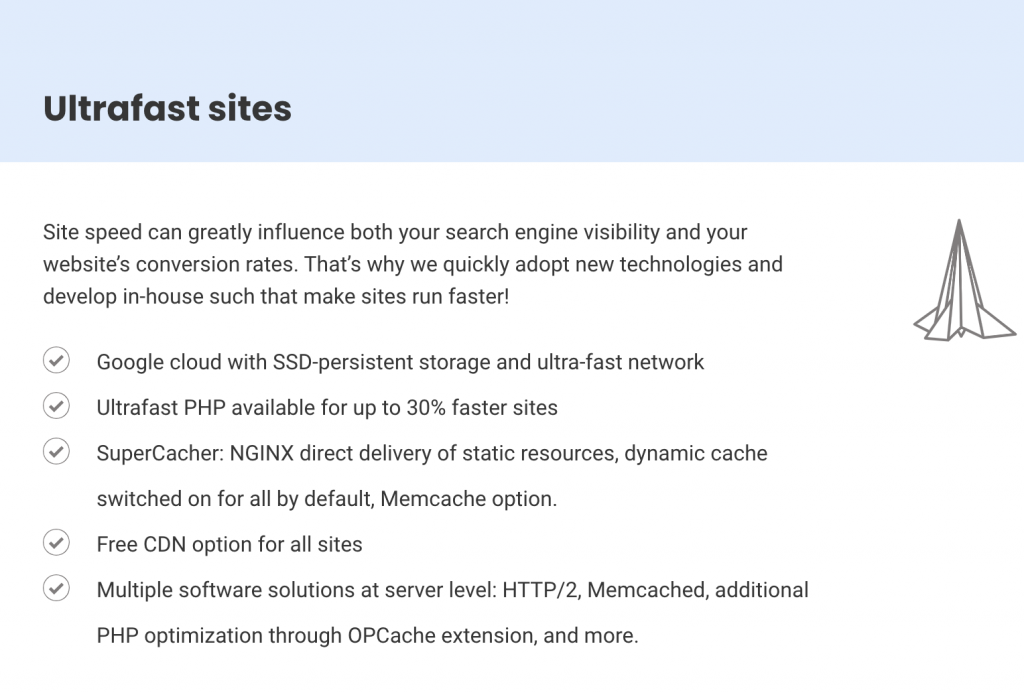
Make sure you run your site on the latest PHP version and have a proper server-level setup. At SiteGround, we have already developed a custom ultrafast PHP setup that has lower memory usage and allows the server to process a bigger number of queries faster. All this cuts the TTFB and makes web pages load 30% faster on average.

Next, check with your hosting provider if they offer full-page caching on your host server. This would store (“memorize”) your web pages on the server and then serve them to your users the next time they are requested. SiteGround clients take advantage of our in-house developed powerful Caching technology enabled by default, which results in up to five times faster sites.

Even if everything is optimized on the server-level, as mentioned above, visitors located far from the origin server may still experience slow TTFB. For this reason, and to cut TTFB, start using a content delivery network (CDN). The CDN will use a distributed network of servers that are closer to your users and serve them the content of your website from their closest location. SiteGround has its own in-house built CDN that’s included for free in every hosting plan we offer.

No matter where you’re hosted, though, if your website is using WordPress, you can download and install our free SiteGround Optimizer Plugin. With just a few clicks, you can take advantage of its powerful caching capabilities that can make your site up to 20% faster than comparable plugins.

3. Time to Start Render (TTSR)

Time to start render (TTSR) measures the time it takes for the content (i.e. any element from it) to begin displaying on the page after the initial request for the website to load. Lower TTSR keeps the attention of the user because they see the content quickly. A good result for TTSR is less than 750 milliseconds. If your result is not as good, here’s what you can do about it:

First, make sure that you keep your JavaScript, HTML, and CSS files lightweight by minifying them. Minification will remove all unnecessary characters from these files. You can do this yourself manually in the source code or use a tool to help you, in case you’re not so tech-savvy. Again, for WordPress sites, our free SiteGround Optimizer Plugin has an option to enable that with a single click.

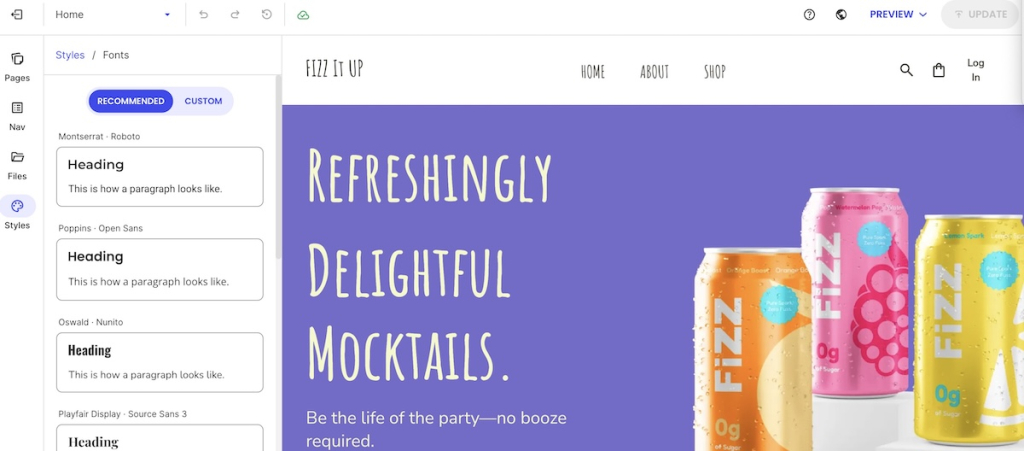
Next, optimize and preload the fonts you’re using. To do that, make sure that you’re not using too many fonts (less than four is best), embed them in the CSS, and optimize them before uploading them on your website. You can do this manually or with the help of our free SiteGround Optimizer Plugin for WordPress where this happens in a click.

Another useful thing you can do is defer JavaScript. By deferring JavaScript, your browser will only process and load JavaScript files after parsing the HTML. This significantly speeds up TTSR, because there’s nothing to block the process of displaying your website on a screen. Again, you can easily do that with the SiteGround Optimizer Plugin for WordPress websites.

Last, but not least, make sure you use the HTTP/2 protocol. HTTP/2 protocol is the latest version of the HTTP protocol and allows browsers to load websites much faster. However, it might be a bit technical to do this yourself, so it’s good to ask your web host about it. If you’re hosted with SiteGround, HTTP/2 protocol is enabled by default on our servers for you.

4. Time to Title

Time to title measures the time it takes for your website’s title to display in the browser tab. This tells your website visitors that your site is loading. It’s an important metric because it shows your users that your site is legitimate and gives them a hint of whether your site will provide them with the content they’re looking for.

If your website is fast enough and you follow the tips we’ve provided in this blog post, then it will improve your time to title as well. To make your website load more quickly, and thus improve your time to title, the ultimate solution is to use caching, as this will display the title in the browser tab from the server memory the next time your users try to open your site.

5. Time to Interactive (TTI)

Time to interactive (TTI) is the time it takes for your website to be interactable, i.e. for users to be able to interact with it (scroll, click buttons, etc.). This is a crucial metric, because even if your website loads fully, but it’s not responding to user interactions, then you’ll lose them again. A good TTI should be less than 3.8 seconds.

To improve your TTI, here are some things to consider. As mentioned above, minification is a powerful way to cut TTI as well. 

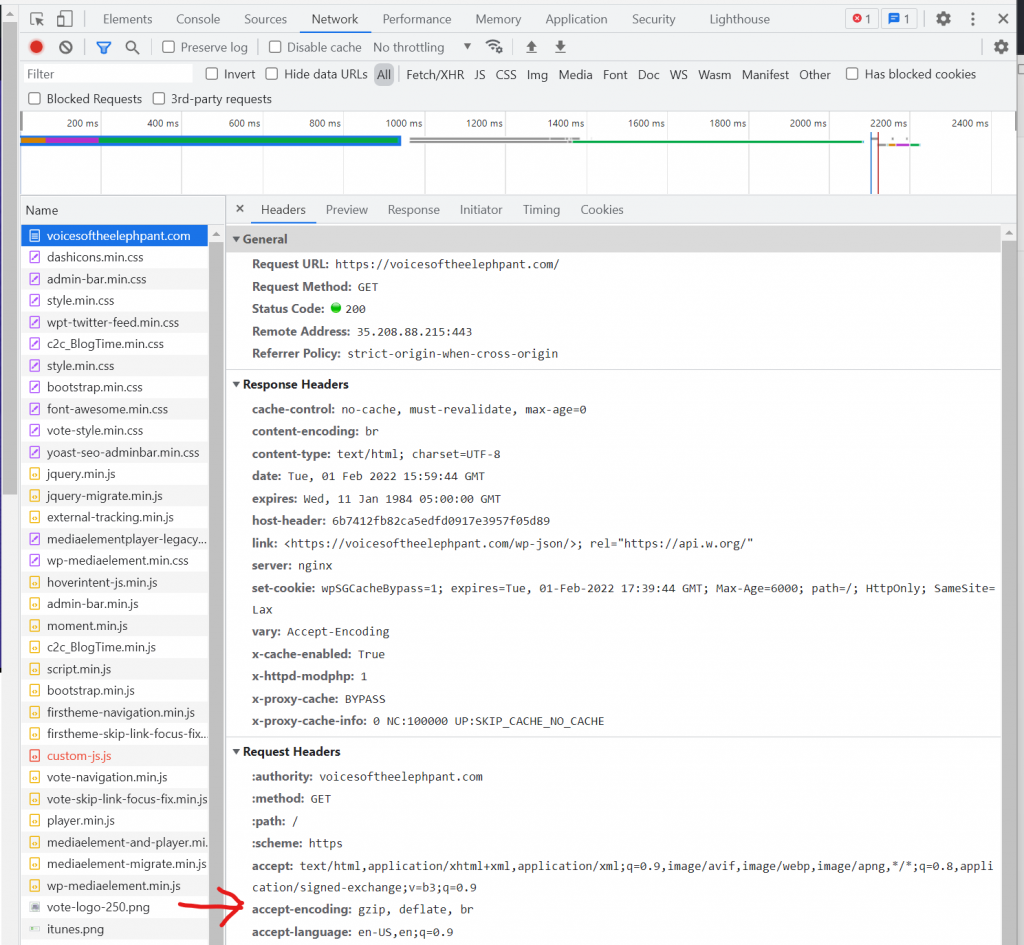
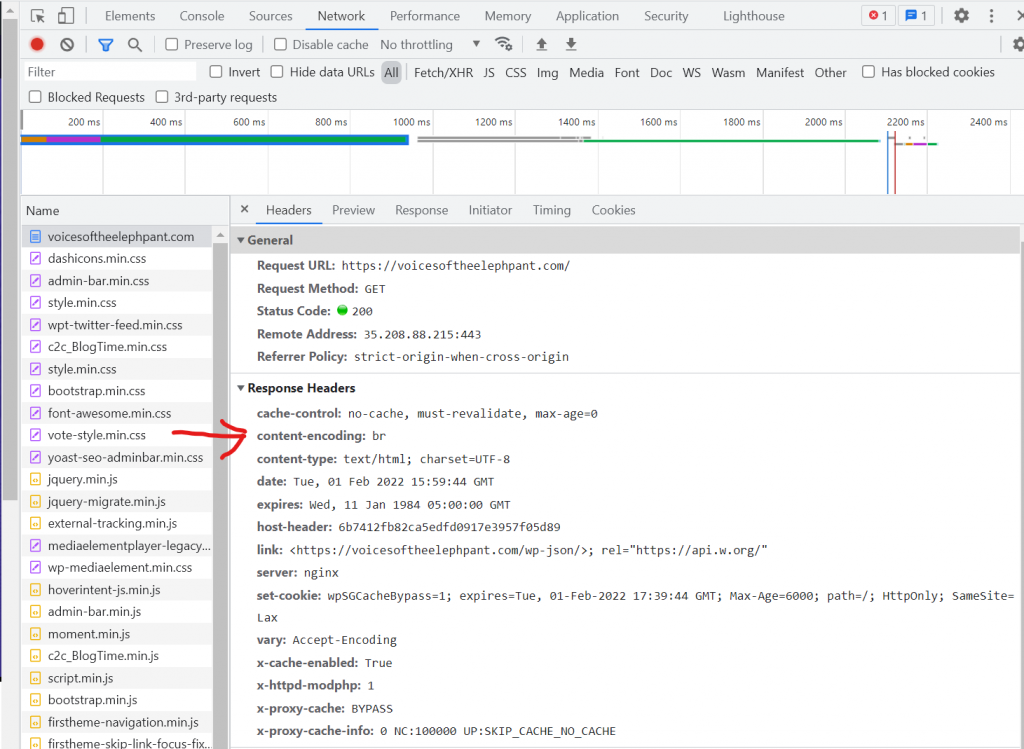
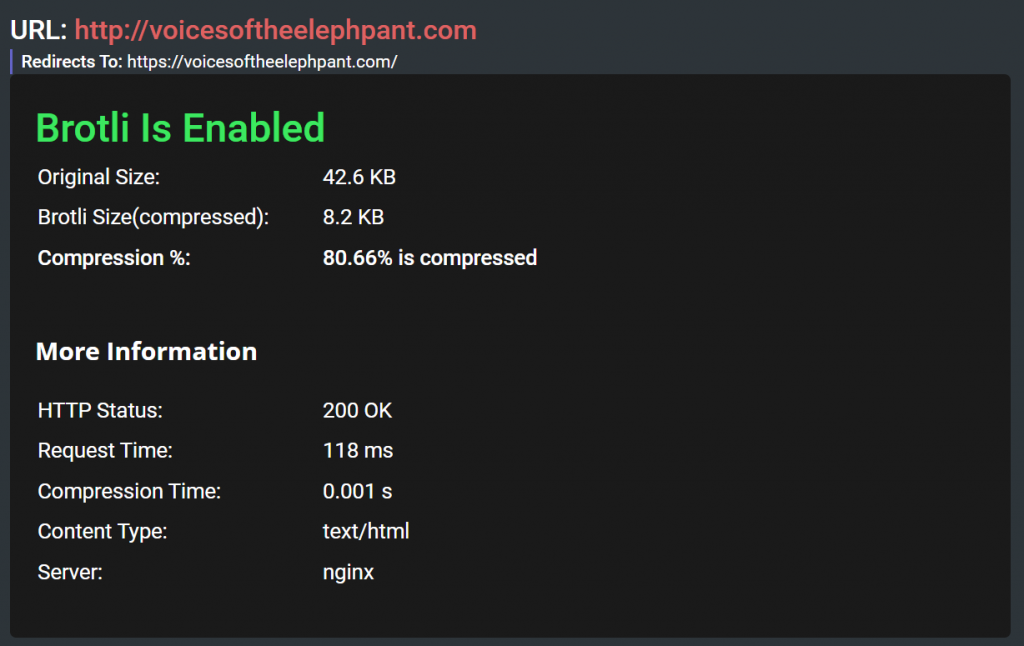
Apart from that, make sure to enable compression. Some good compression mechanisms are Brotli (Google’s next generation compression algorithm) and gzip – they both reduce the size of HTML, CSS and JS files. SiteGround clients enjoy the Brotli compression algorithm out-of-the-box and benefit from up to 15-20% speed gains. If you’re hosted elsewhere, ask your hosting provider to find out which compression methods they use. 

Last, but not least, eliminate render-blocking resources – eliminate all resources that pause or slow down your website’s ability to display on a screen. If you’re doing this on your own, refactor your code or hand-edit your HTML. If you don’t feel like doing it yourself, the SiteGround Optimizer Plugin for WordPress sites provides powerful frontend optimization options that are just a few clicks away.

6. Connection Time

Connection time is the time between a user’s request and when that request establishes a connection between the user’s browser and your website’s server. Connection time might be slow for your website visitors due to various reasons, such as too much server traffic (e.g. from bots), or users in distant geographic locations from your origin server.

To improve connection time for your visitors, consider hosting your website on a better infrastructure. For example, SiteGround-hosted websites take advantage of the modern Google Cloud platform, which ensures high availability and fast connectivity. 

Using caching and enabling a CDN are other powerful tools for speeding up connection time. SiteGround clients enjoy our in-house developed Caching technology out-of-the-box and take advantage of our free in-house built SiteGround CDN included in all of our hosting plans.

7. Time to Last Byte (TTLB)

Time to last byte (TTLB) is when the user’s browser receives the last byte of your website. An average TTLB should be 750 milliseconds per endpoint response. A factor that can influence your TTLB is the quality of your database queries.

To improve TTLB, make sure that your slow database queries are optimized by using a fast MySQL setup. For example, at SiteGround we’ve developed a custom MySQL setup that reduces the number of slow queries between 10 and 20 times and is available by default for all our clients.

8. DNS Lookup Time

Domain name system (DNS) lookup time measures the amount of time it takes for your DNS provider to translate a domain name into an IP address. If your average DNS lookup speed is more than 120 milliseconds, then you might need to improve it. 

One of the reasons for a slow DNS lookup time could be your DNS provider. If this is the case, you’ll have to switch to a faster DNS provider. Another reason could be the high number of third-party resources on your web pages (that also need to be translated into IP addresses, on top of your own domain name). Reducing the number of third-party resources would improve your DNS lookup speed.

SiteGround customers have the advantage of not needing to think about either of the above, because our central anycasted DNS system ensures faster domain resolving and faster website loading. What’s more, WordPress users can enable the DNS prefetch feature in the Speed Optimizer plugin to speed up their websites when loading content from third-party domains.

9. Bounce Rate

One of the most important web page metrics is bounce rate. Bounce rate refers to the percentage of visitors that leave your website immediately, before taking any action on it. If your bounce rate is high (anything above 46%, according to SemRush), one of the possible reasons could be slow website speed.

10. Conversion Rate

Next on the list is conversion rate, which reflects the percentage of visitors who take a desired action on your website, and is derived from your overall site traffic statistics. Having a high conversion rate means that your website performs well among your visitors and meets their expectations. In general, a good conversion rate is between 2% and 5%, but you must keep in mind that these numbers might differ for various industries.

11. Average Time on Page

Our list wouldn’t be complete without one of the most important web analytics metrics – namely, average time on page. Average time on page measures the average amount of time spent on a single page by all users of a given website. The majority of studies show that the average time a visitor spends on a web page is around 50 seconds, across all industries. If your visitors spend more time on your website, this could be a clear indication of a good user experience.

12. Error Rate

One of the less popular, but just as important website metrics is error rate. Error rate refers to the number of requests that return an error code, relative to the total number of requests over a period of time. A high error rate can be caused by issues with your server. The higher the error rate, the fewer times your site has loaded properly for visitors, leading to lower satisfaction with their experience.

Grow Your Online Presence with Optimized Website Metrics

Having a fast and reliable hosting provider can help speed up your website tremendously, which will have a direct positive impact on conversion rates, average time on page, bounce rates, error rates, and the rest of your web traffic metrics.

As a result, your site’s loading speed and your website metrics are vital parts of a successful online business presence. Selecting the right hosting provider can save you significant time and effort, as a quality host can handle much of the website optimization for you—letting you focus on growing your online presence.

If you’re not a SiteGround client already, get a head start on a new website project, or transfer an existing one to improve its performance with one of our current hosting offers:

Shortcuts to a Faster Website

shortcuts to faster website

Fast website performance is a crucial element of your online success. It affects the experience of your website users, your SEO rankings, user engagement and conversions, your reputation – pretty much every element of your online presence. To get you on the fast track to a faster site for better online results, here is a short infographic with some quick tips that you can easily apply to any website.

Explore our shortcuts to a faster website and get on your way to a more successful online presence and business.

Learn more about each website performance tip in our infographic. Here are some useful resources about each website speed feature we recommend and how you can use them on the SiteGround hosting platform:

[subscribe_cta]

4 Outstanding Digital Marketing Tips for Your Small Business

digital marketing tips for small business

If you want to grow your small business, digital marketing is the modern way to reach results that bring your business success. This is especially true with the consistent growth of technologies, online communication, and social media platforms. 

Digital marketing for a small business isn’t limited to paid ads and posting on social media. For an all-around effective strategy, it’s crucial to include SEO, content marketing, and email marketing, as well. 

Whether you run a full-on e-commerce business or a brick-and-mortar store, these digital marketing tips will help you get more online engagement with your audience and conversions.

Forms of Content Marketing

As a marketer, you’ve likely come across the saying “content is king.” 

Content brings many benefits like building trust with your audience, generating leads, and establishing your business as an authority in your niche. 

In fact, according to Demand Metric, content generates three times as many leads as outbound marketing, drives six times higher conversion rates, and potentially has a 7.8-fold boost in web traffic. 

Content marketing is too valuable for brands and customers to ever go away. That’s why scaling your content marketing is a winning digital marketing strategy for your business. 

So, what’s included in content marketing?

Blog Content Marketing

Blogs are a powerful type of inbound marketing and allow for flexibility in terms of topics and purposes. You can use them to promote internal and external content and blog articles via links, add social share buttons, and incorporate product information. 

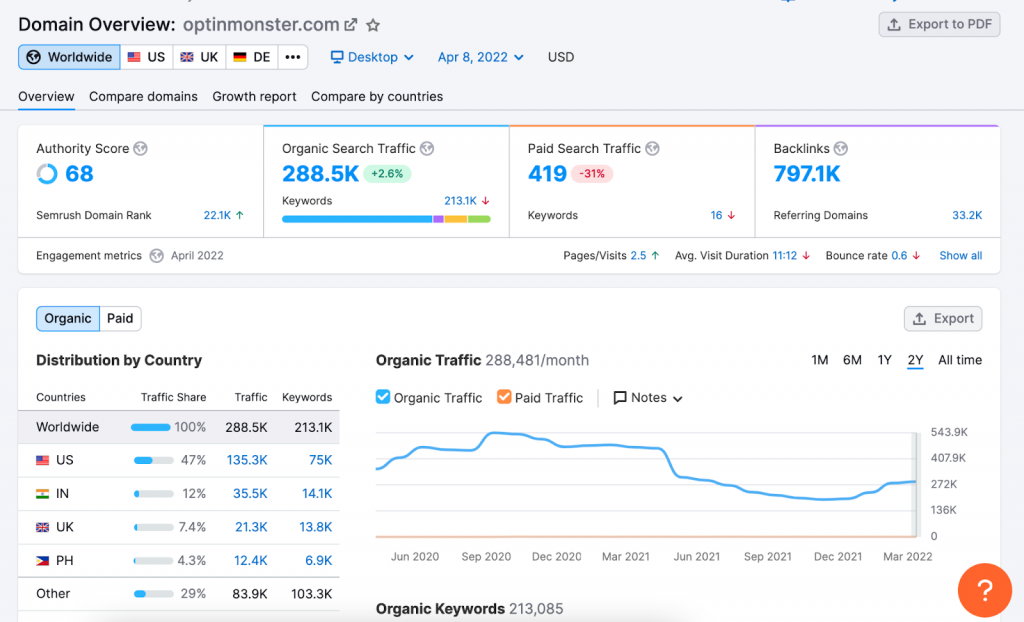
Take OptinMonster, for example. It’s now a huge company under AwesomeMotive’s wing, but it wasn’t always like that. They got there by consistently creating high-quality content and sticking to a publishing schedule.

More specifically, OptinMonster excels at pillar posts. Pillar posts are long-form content to inform the reader deeply on a topic. They usually steer away from salesy language and are extremely actionable. Another word is 10x content.

Creating longer and more informative articles like OptinMonster rather than shorter, lower-quality ones will help your business long-term since it builds trust with readers and they generally prefer this kind of content. 

And you can achieve a consistent blog posting schedule with a content calendar and keyword mapping. It will help you visualize your projects and stay on track with publishing.

Social Media Content Marketing

Social media has become so widely used across the globe, amounting to an entire 4.65 billion users, according to Kepios. With that said, smart marketers know not to skip social media in their small business digital marketing strategies.

You can use many platforms like Facebook, Instagram, Pinterest, Twitter, LinkedIn, and even Snapchat. You can share current discounts, product releases, and show off your brand culture through posts and stories. Plus, social media is an excellent outlet to grow brand awareness and engage your audience. 

According to a HubSpot case study, a small business generated $1.2 million in revenue from its social media marketing strategy. $1.2 million results are an excellent incentive to start a social media marketing strategy. The biggest hurdle is time as a social media strategy doesn’t get created and executed overnight. It takes time to see results.

Video Content Marketing

Video content marketing is a fairly new strategy that encapsulates the principle of producing and sharing relevant video content to your target audience to create interest and attract leads. 

Video content has become increasingly popular over the last few years. For example, a study by BusinessofApps shows that YouTube now has 2.3 billion monthly users. And, an entire 69% of consumers say that they prefer to learn about a brand’s product or services through video content rather than any other form (as per Wyzowl’s statistics).

To create videos for your marketing campaigns, remember that video marketing is to educate your audience. Educate them on how your product works, the benefits, where it can be used, case studies, and success stories on how clients have used it in the past, etc. 

Here are some more tips on creating successful video marketing campaigns:

  • Center your videos around the story, not the sale
  • Hook the viewers in the first ten seconds with a captivating intro
  • Use humor, animations, and effects 
  • Upload your videos on your own domain before uploading on sharing sites to drive maximum SEO value
  • Use video to educate and prove yourself 

You can upload your videos on social media platforms like Facebook, YouTube, Instagram, or landing pages. All you need is a good camera (iPhone works excellent) and editing software like iMovie or Adobe Premiere Pro.

Podcast Content Marketing

Podcasting can add a new dimension to your brand and content marketing strategy. There are many ways you can approach podcasting, utilizing different mediums, channels, and distribution methods.

Some of the top benefits of podcasting for your brand include:

  • The current popularity of podcasting 
  • Ease of entry with inexpensive equipment and free uploading
  • You can turn any content like videos and blogs into a podcast
  • There’s a lot of potential for collaboration 
  • Break into new audience segments

With those benefits in mind, the best way to think about podcasting in content marketing is to think of it as a new marketing channel. Content marketing always has the same goal: to reach people and generate new leads. This could mean providing answers to questions (essential for SEO) or entertainment in podcasting.

Grow Your Email List

The email list is the heart of your business, and without it, that heart would fail to beat. And essentially, email marketing remains one of the most effective digital marketing for small business strategies today. 

Unfortunately, there are so many elements that can cause your email list to shrink, such as:

  • The subscriber has changed companies and now has a new email.
  • The subscriber gave you their spam email, which they rarely check.
  • The subscriber has unfortunately decided that your content isn’t for them anymore and has unsubscribed.

Did you know that an average email list decays approximately 22.5% every year, according to Marketing Sherpas? So that’s basically a quarter of what you have! 

As sad as all of that sounds, it’s part of your content life cycle, frankly inevitable. 

Wherever you are right now with your list in terms of numbers, let’s talk about some ways to grow and maintain your email list.

Insert Subscribe and Social Share Buttons on Your Pages

Don’t feel restricted to only adding subscribe and social share buttons on your homepage. You can put it on all of your content pages. Besides, once people get further into your blog’s pages, they’re unlikely to return to the homepage.

You can include them in different places like the sidebar, header, and footer. You can add a subscribe bar in the footer of each page of your website or blog. Or include social share buttons in its header, giving it more visibility.

You can even include your social share buttons on multiple spots on the same page. The point is to make it visible to your audience and include several platform options. It may turn out that your audience prefers using different platforms.

Offer Something In Return “What’s in it For Me?”

Just asking people for their emails may not always get you the desired conversions. If you’re looking for better and faster results, try offering your audience a lead magnet.

It doesn’t have to cost you much time or money to make, but make sure it’s something of value to your subscribers.

Here are some more examples of opt-in incentives you can offer:

  • Downloadable articles
  • Access to a private Facebook group
  • Templates
  • Stock Photos
  • Live call with you
  • Demo coaching session 
  • Free newsletter 
  • White papers

Those are just a few ideas, but the possibilities are endless. 

If you have a cooking blog, for example, you can offer a free cookbook in exchange for emails. A great lead magnet solves a customer’s problem, promises a quick win, is specific, quick to digest, of high value, instantly accessible, and demonstrates your expertise.

Use CTAs on Blog Posts (Call To Action)

Most signups come from an effective CTA. Even better, clickable CTA buttons have proven many times over to increase conversions. So much so that a study by Protocol 80 found that adding a CTA button to their article templates increased conversions by 83% and boosted e-Commerce conversions by 22%. 

Clickable CTA buttons help users navigate through your site and take specific actions. It’s equally crucial for your home page and high-converting landing pages. 

Some criteria for a good CTA include contrasting colors, a clickable button, text that adds context around the button, and it’s put in a place that catches the eye. 

Remember to always test your CTAs on different devices for bugs and improvements. You can use your email marketing ideas to convert your audience into customers now that you know how to grow and maintain your email list.

Optimize Your SEO strategy

To help you rank your small business on top of Google search results, we’ve written an extensive blog post you can refer to. Once you’ve nailed your SEO rankings, you can now fine-tune your strategy with some additional tips:

Use Local Search Engine Optimization

Many smaller brick-and-mortar businesses feel insignificant compared to giant corporations. However, unlike their global counterparts, local businesses have the advantage of targeting a local market. Small businesses can appear in the (Snack) Pack Rankings and organic page rankings by using local SEO. 

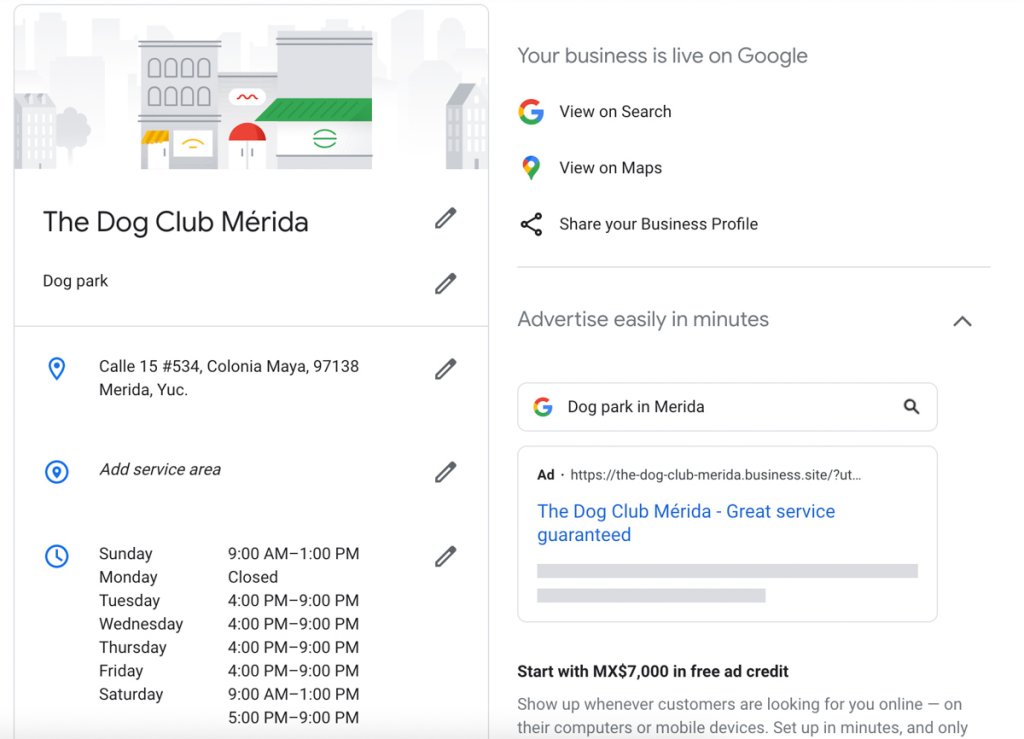
When using local SEO, the goal is to be in the Snack Pack Ratings. This is the little box you see appear at the top of the Google search results.

Within this box, you can usually find a business’s:

  • Hours of operation
  • Phone number, email, etc.
  • Address
  • Link to website
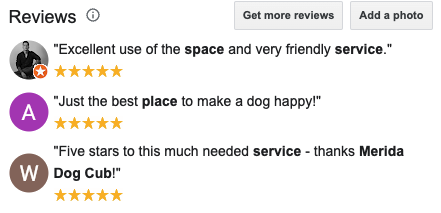
  • Reviews and star rating
  • Google map result

It’s important to program all this information into your Google Business Profile ( GBP ). It can ultimately persuade a potential customer to use your services while helping your business’s SEO ranking. 

Even further, to optimize your GBP, make sure:

  • The category is correct
  • The website link is active and functional
  • Relevant keywords are included in the title tag
  • Perform regular updates of your posts

Once you fill out the information and optimize it, it should take a few weeks before you start seeing results. Remember that any form of SEO takes time and is worth the wait!

Increase Site Speed

A technical SEO tip is to ensure your site is always running quickly since search engines prefer when page loading times are faster. 

There are a few things you can do to obtain high website speeds, including:

  • Minimize ‘HTTP requests’ and keep the use of scripts and plugins to a minimum.
  • Use a CSS stylesheet instead of multiple CSS stylesheets or inline CSS. CSS stylesheets tell a website browser how to display your website.
  • Make your image files as small as possible. 
  • Compress your web pages. 
  • Shrink your site’s code by deleting unnecessary spaces, line breaks, or identification in your HTML, CSS, and Javascript. 

Above all, possibly the most important way to ensure your site is running quickly is to choose a good hosting service. You can have this easily with SiteGround Hosting. We use all the newest technologies, including ultra-fast networks, ultrafast PHP, multiple server software solutions, etc.

And, if you’re set up on WordPress, the SiteGround Optimizer plugin lets you boost the speed of your website without having much tech knowledge. 

Your site’s speed needs to be consistent across all devices to boost your ranking, so once again, make sure to test it on every device.

Use Paid Ads (PPC)

While SEO and content marketing can bring in many new clients, paid ads have a ton to offer, too. In fact, a Trend Statistics study shows that 80% of marketers focus on Google Ads for PPC, proving that marketers know the effectiveness. 

Paid ads are useful to build brand awareness, and since most of the time they appear in front of customers who have expressed interest in the product with their online activity, the leads are way more likely to convert than those from organic traffic. 

Content marketing and SEO are always winning practices, but you might have noticed it’s very competitive. The internet is full of businesses of all sizes, all striving to make the top of the search results. It guarantees that you’ll always need existing domain authority.

The five most common types of paid ads include:

  • Search ads: These ads appear first on Google’s search results, above all organic rankings. They look the same as regular search results except for the little “Ad” text in the corner. 
  • Display ads: These banner ads appear in footers, headers, between text, and sidebars of content pages like blogs and product profiles.
  • Social media ads: You can program these ads on social media platforms. Each platform will have its objective, but the ads are generally highly targeted and allow a lot of flexibility in how you program them. 
  • Google shopping ads: Used by eCommerce owners and appear in the carousel on the results page when users search for a specific item. 
  • Retargeting ads: These ads get specifically placed in front of users when they didn’t convert the first time they saw the product and were close to the checkout. 

This list just includes the most common types of ads, but there are many different types. The ad you use depends on your business’s needs and audience. 

There are a few tips for general success, whatever type of ad you choose.

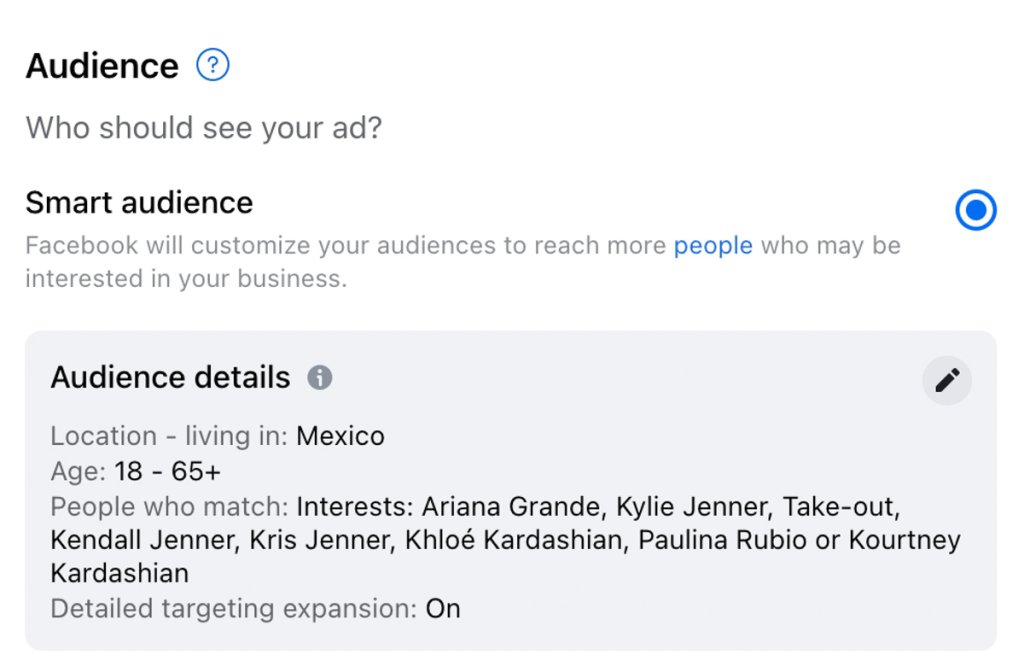
Firstly, filter your audience to reach your ultimate target. When programming and launching an ad, you obviously want as many people to see it as possible. But, what’s most important is the right people seeing it. 

Most ad tools allow you to filter your buyer personas and get specific with demographics, geographics, needs, interests, etc. You should use more granular keywords to get the most out of your budget. 

For example, Facebook ads allow you to reach hyper-targeted audiences with geographic location settings, interests, ages, gender, etc. 

Another crucial tip for paid ads is regularly tracking your KPIs, as it’s the only way to know what’s working and dig into the data. Google and social media platforms make it simple for you to track your KPIs with data dashboards and metrics.

Is Paid Advertising a Worthy Alternative to SEO? 

Now, you might be wondering if paid advertising is an alternative to investing in SEO. The truth is, when it comes to small business ads, it’s never a one thing or the other situation. Your strategy should include organic and paid advertising, with complementary campaigns that help you find your audience (and help them find you). 

While paid advertising does lead to quicker results, the real question here is whether those results are sustainable for your business or will be short-lived. 

Paid advertising can take a big bite from your budget, especially if you’re using it constantly to substitute SEO. Another downside is that clicks never guarantee sales. It’s one thing to get people to click your ad, but you also have to convince them your product is worth buying. 

However, SEO is a long-term investment that will give you long-term results if you’re willing to be patient.

Sum Up

If you have a small business, you need to take these digital marketing tips and add them to your marketing plan. Some of these tips will be more effective depending on your business. 

Having said that, it’s important to think outside of the box and try different areas you think will be effective for your business. This is especially true as the digital landscape is constantly changing, and businesses are forced to adapt to keep a competitive advantage and gain new customers. 

If you have any questions about our digital marketing tips, leave a comment below!

[subscribe_cta]

Small Business SEO: Ranking Your Business on Top of Google

small business SEO tips

Let’s say it straight: Small business SEO is hard in 2025.

And frankly, it was never easy. Maybe back in 2010, when marketers could trick Google with keyword stuffing, PBNs, and various other methods like message board posts used for backlinks. There was also a lot less competition. 

These days, basically all keyword clusters and niches are taken by well-known sites and are hard to outrank. However, small businesses have endless opportunities to rank in their niches for the right keywords.

In this article, we’ll discuss how you, as a small business, can boost your SEO and gain organic traffic.

To stay ahead in the world of SEO, check out our video: SEO in 2025: 6 Trends Truly Changing The Landscape.

What Is Small Business SEO?

SEO (search engine optimization) for small businesses is a combination of strategies that make your page on Google get traffic, clicks, and conversions. In other words, it makes your website appear higher in search results to make your business more discoverable, surpassing the competition’s rankings.

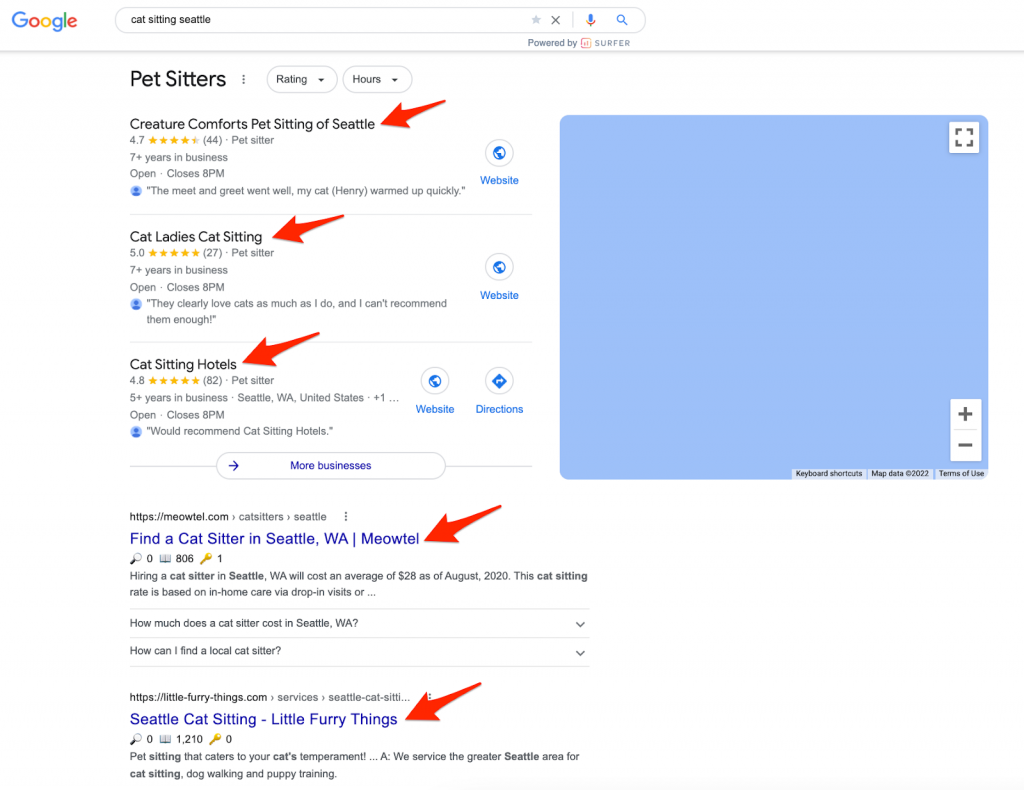
If your online and local SEO strategy is effective, your website should show up on the first page of the search results like the links below.

Did you know that according to Search Engine Journal, 25% of people click on the first page of the search results? Apart from that, the first page in the search results gets an average CTR of 31.7%, according to Backlinko. These statistics are powerful reminders that SEO is crucial for organic traffic.

Is it 100% necessary to do SEO? 

Well, let’s put it this way: if you don’t have an elaborate SEO strategy, you’re at a serious disadvantage with your competition. Their SEO efforts will keep them climbing up the ladder while your page sits at the bottom and never goes up.

Not to mention, your organic traffic will suffer, and if your business depends heavily on online marketing, this could mean some serious consequences for your business.

How SEO Benefits Small Businesses

As mentioned above, SEO is crucial for your business’s success. But let’s dive into that deeper.

What benefits does SEO specifically have?

Boost Organic Traffic from Search Engines

The most significant benefit of SEO for small businesses is the organic traffic it brings. Organic traffic doesn’t only help you save money on things like paid advertising, but it generally brings in prospects that are further along in the buying journey. 

Your organic traffic leads will more likely end up buying your products since they’re searching for specific queries.

Ranking on the first page of the search engines is necessary to be seen by most customers. And if you’re in the first position, it can double your click-through rate over the number two result, according to Smart Insights.

Even better, claiming the featured snippet can help you jump over the number one spot and give you a double chance at gaining more organic traffic.

Replace Expensive Paid Ads

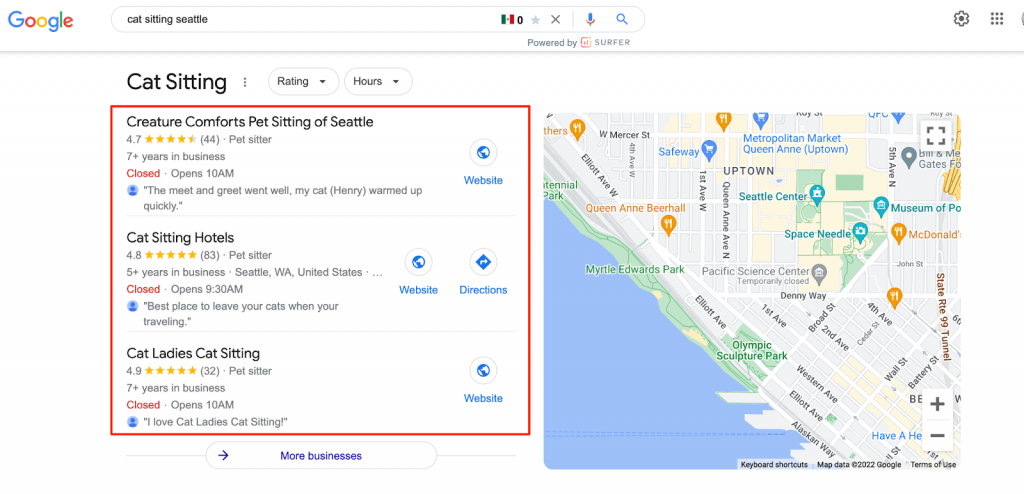
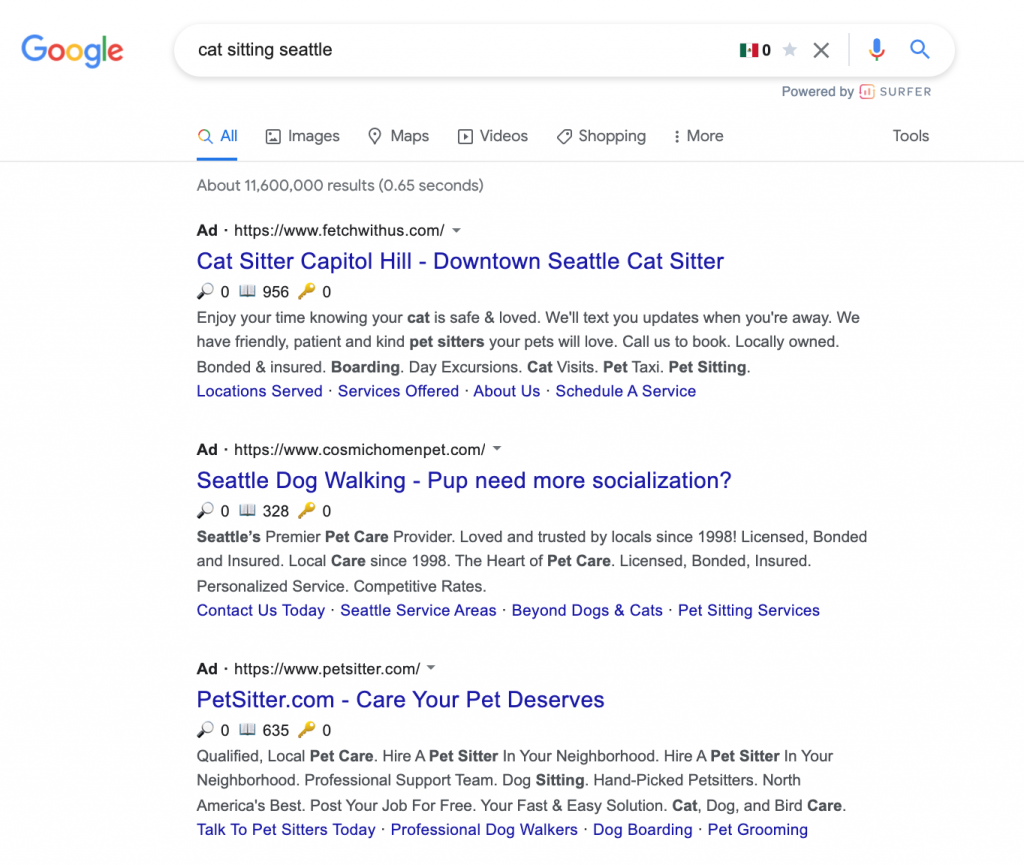
Now, you might be wondering if paid advertising is an alternative to investing in SEO. Let’s look at a cat sitting example where the first three links are advertisements.

Paid ads allow you to “artificially” have your links show up first in Google. 

It can be a good idea in many instances, leading to quicker results. The real question is whether those results are sustainable for your business or will be short-lived. 

Paid advertising can cost a lot of money, especially if you’re using it constantly to substitute SEO. Another downside is that clicks never guarantee sales. It’s one thing to get people to click your ad, but you must convince them your product is worth buying. 

So, paid advertising does have its benefits like amplified reach and enhanced targeting and should be used as part of a marketing strategy. But it’s not a valid replacement for SEO entirely.

Increase the Number of New Leads

Each new lead presents a unique opportunity. New leads can become long-term clients, recommend your services/products to their networks, and leave persuasive reviews on your website. 

It’s essential for a small business to constantly search for new leads to increase the customer database.

SEO Tips for Small Businesses

Now that we’ve gone over the importance and benefits of SEO for small businesses, let’s dive into the tips.

Keyword Research and Competitor Analysis

Keyword research is the backbone of SEO. Basically, if nobody searches for the product you offer or your content topics, you won’t get promising traffic results.

You need to know your keywords to avoid being in the 90.63% of pages that don’t get any organic traffic from Google, as per a study by Ahrefs. You read that right; keyword research is THAT important.

Aside from helping your pages gain traffic, keyword research helps to:

  • See how much traffic you can get for specific keywords
  • Know how hard it is to rank for certain keywords
  • Create content plans for keywords
  • Understand the likeness of searchers becoming customers 

Keyword research starts with a list of topic ideas that your potential customers may be searching for. Let’s say you own a gardening store. You’ll look for “seed” keywords (no pun intended). Your seed keywords could be: 

  • Plants
  • Landscape
  • Pots
  • Shrubs
  • Nursery

Seed keywords are meant to be vague, and you won’t use these as are to create content. They’re meant to be general topic ideas that you’ll narrow down on later. 

Once you’ve developed a list of seed keywords, you can quickly check to see what keywords your competitors are using. Take one of your seed keywords and search it on Google.

You need to use your best judgment when determining competing websites. If huge brands like Home Depot and Amazon appear, you shouldn’t necessarily treat them as competitors. Instead, look for websites like your own or ones that you’re trying to be like. 

Once you find your main competitors, you can see which keywords bring them the most traffic. Tools like Ahrefs have an excellent feature for this.

A successful business can rank for dozens of top keywords. Does that mean you need to try to rank for the same ones? Not always, as large companies generally have more budgets to ensure they’re constantly ranking for the top keywords.

In this case, consider which keywords will bring more leads to your specific products or product line.

For example, if your audience is looking for succulents, you can use a keyword related to the most popular, cheap, longest-living succulent. The more specific you get, the more leads it will bring you. 

Overall, a successful competitor analysis involves finding gaps or disconnects between the competition and the audience, then finding ways to fill those gaps. 

But competition research isn’t all. In fact, there are usually a ton of potential keywords your competition may not be targeting. To find them, you’ll need to use keyword research tools like Moz, Semrush, Ahrefs, Google Keyword Planner, Keyword Surfer, etc. 

Whichever you plan to work with, they generally all work the same. You plug in a seedword, and the keyword tool pulls keywords from its database based on that keyword. 

Google Keyword Planner is easily the most talked about since it’s effective and free. 

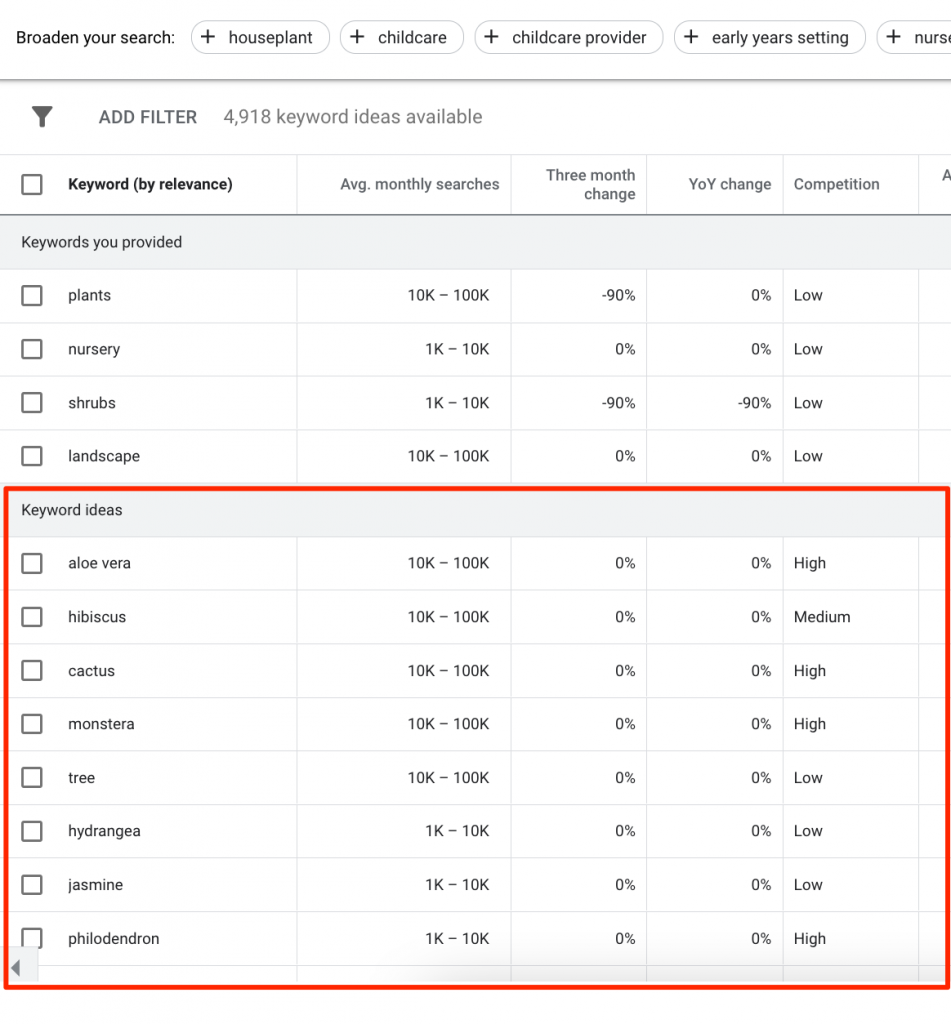
If we enter our seed keywords from above, we get the following results:

Google Keyword Planner takes your seed keywords and generates ideas from them, avoiding overlapping the keywords you enter. 

Now, if you want to level up your keyword research and access more data, you’ll need a paid tool like Semrush or Moz. These tools generally give you more diverse and higher-quality keywords. Additionally, analyzing the length of your content using a word counter can help ensure that your pages are well optimized without unnecessary fluff or keyword stuffing.

Add Your Location to Your Google Business Profile

Today, businesses with a physical location need a local SEO strategy so customers can find them. Local SEO is so powerful that consumers’ use of Google to evaluate local businesses has leaped from 63% in 2020 to 81% in 2021, according to BrightLocal. 

By skipping local SEO, you miss out on the primary channel of how consumers discover local businesses.

Google Ads Audience settings interface

Did you know you can have your website show up in the map and in the search results below? That means you have a double chance of getting clicks on your website and gaining customers. 

You can set up your location on your Google Business Profile ( GBP ). Google will need to verify some information with you like opening and closing hours, type of business, proof of location, etc. 

The process is relatively simple and well worth it.

Enable Reviews From Your Google Business Profile

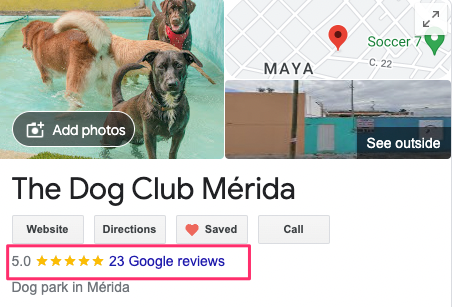
Google Maps results are best accompanied by customer reviews. According to Dimensional Research, as many as 90% of prospects are influenced by online reviews when considering an online purchase. 

Having said that, ensure the star ratings are visible from the first search page.

Then when the user clicks on your link, they should be directed to the written reviews.

Your reviews can tell prospects a lot about the services or products you offer, how many people recommend you, the use cases, etc. 

You should always include reviews on your website, even if you have an online store. People are consistently searching for product reviews, so you could also have a chance at gaining organic traffic just by having product review pages.

To make your content rank, you need backlinks. Backlinks from authoritative sites signal to search engines like Google that others vouch for your content and are worth surfacing in rankings. 

Some of the most common ways to get backlinks include:

  • Guest posting (publishing content on reputable blogs or podcasts)
  • PR campaigns (an SEO or marketing campaign)
  • SEO outreach (sending emails asking for backlinks)
  • Links from customers (links in reviews) 
  • Forums and comments (Quora, product reviews, TripAdvisor)

Remember to always look for trustworthy, authoritative, popular, and quality blogs when getting backlinks.

On the other hand, avoid getting links from poor quality guest posts, private blog networks, duplicate content, and foreign language websites, as Google may see them as spam. Even worse, your rankings can actually suffer because of this. 

Did you know that the links you accept on your website also differ in value and affect SEO? When spreading link love, the websites you choose to link out to, even the anchor text you use, whether you choose the follow or nofollow link, and any meta tags you associate with the linking page can heavily impact your site’s value.

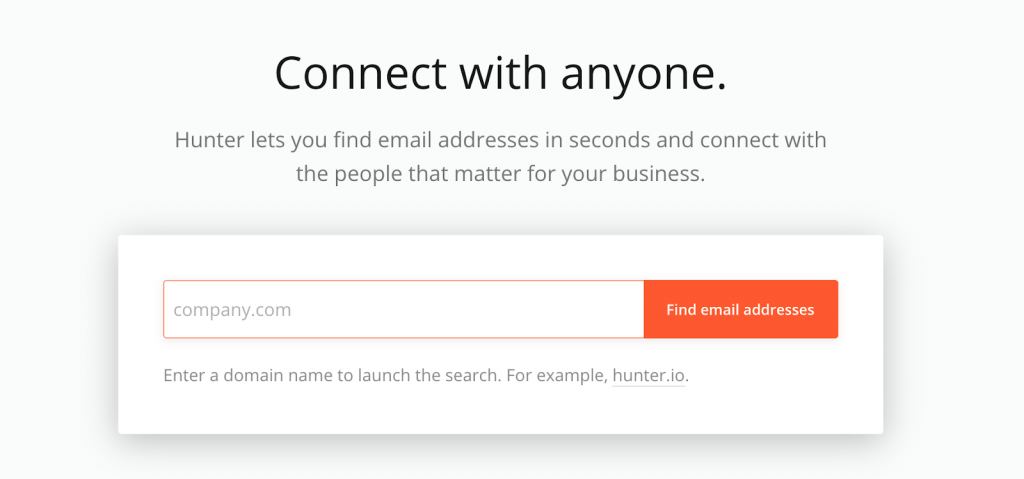
If you’re doing link outreach and aren’t able to find an email or name of a specific person in the company, you can use Hunter.io.

It’s a great tool to include in your small business SEO strategy.

Rich Results with Structured Data

In 2009, Google introduced Rich Results to create a better user experience and help searchers find their queries easier. 

Some common types of rich results include:

Breadcrumbs

Breadcrumbs enable Google to indicate your webpage’s position within the website’s hierarchy.

It helps users understand the relationship between the pages and navigate your site easier. 

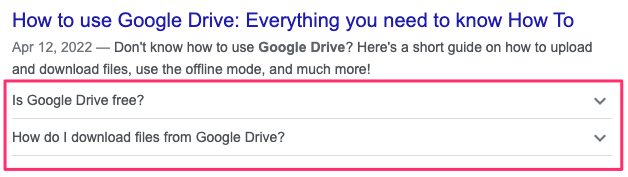
Frequently Asked Questions 

Another common rich result is the FAQ on the search results. 


This section helps users know more about your product or service and can encourage clicks. 

Star Ratings

Star ratings in snippets make the search results more appealing to the eye.

It also tells users that other people found this recipe worth trying. 

The most practical way of enabling rich results is by adding structured data to your website’s coding. For instance, the title, author of the post, featured image, time and date of the post, etc., can all be formatted to help classify your webpage and help search engines understand the web page. 

You can use the three formats (JSON-D, RDFa, and Microdata) supported by Google when structuring your data.

You can refer to Google’s official reference or find codes from schema.org to find the right structured data code. Many content management systems also provide plugins that allow web builders to insert several codes into their web pages. 

It’s always important to test your page’s structured data. Tools like Google’s structured data testing tool or Google’s rich results test make it easy to check if the coding of your pages is correct.

Choose a Great Hosting Provider

Last, but not least, choosing a multifunctional hosting provider that gives you a competitive edge is another critical factor in your SEO rankings. 

The most important things to look for when choosing a provider include: 

Fast loading

Ensuring you have a fast-loading website will help users perform all the actions they want, making it easier for Google to understand that users find your website valuable and giving it higher chances of ranking. 

Server Reliability and Uptime Scores

In 2013, Amazon went down for 30 minutes, costing them $66,240 in revenue every minute, according to the Service Health Dashboard. 

Having said that, staying online is important, and having a reliable host is a key part of this. 

Today’s industry standard is 99.95% uptime. Any hosting provider that has an uptime below 99% should be avoided. 

Essential Plugins 

Choosing a hosting provider with ample plugins will help your site maintain healthy growth and keep its rankings high. For example, SiteGround Optimizer includes caching controls, speed tests, multisite options, and environment, frontend, and media optimizations. 

A security plugin, for example, is essential as cyber security threats are higher than ever before. As a website owner, look for plugins like SiteGround Security to protect your WordPress site from threats like brute-force attacks, data leaks, compromised logins, and more.

While you can download SiteGround plugins without having the hosting, it’s nice to have hosting and strong plugins in one place for a streamlined process.

In a nutshell, choosing a hosting provider like SiteGround that offers fast loading, is reliable, and includes features and plugins to help your site rank, plays a huge part in helping your website. Of course, you can rely on your keyword research and other important SEO practices, but your hosting provider will work in the background to help you achieve your SEO goals. 

Conclusion

SEO for small businesses is a long journey that is key to receiving organic traffic and creating sustainable leads. Although the information in this article may seem overwhelming, you can work on developing and executing your SEO strategy step by step. 

Remember to be patient and persistent when waiting for your SEO effort results to come in, as SEO in all cases takes time. 

[subscribe_cta]

Help! My site has been hacked!

It is every website owner’s nightmare. You wake up from a blissful night of sleep, pour yourself a cup of coffee, and sit down at your computer expecting to check your overnight order sales and the latest sports scores. Then you find out that your site has been hacked. Needless to say you don’t have any overnight orders and all of a sudden your favorite team is now the last thing on your mind.

How to tell if your site has actually been hacked

There are a couple of ways to figure this out:

  • You open your site and see something else instead. If the hack is that obvious, your site will be defaced with other content – e.g. a message, saying for example “Your site has been hacked by [XYZ]”.
  • You open your site and it redirects you to another website that has nothing to do with your business (a scam/phishing site about something different).
  • You get a report from your web host. If you host your site at SiteGround, you’ll be able to see this report in your Client Area. In that report’s interface, there’ll be a tool that allows you to freely scan your website for malicious code and leftover backdoors. Even better, if you have SiteGround Site Scanner enabled, you will get an instant notification when it detects malicious content or activity on your site. 
  • You find out Google has dropped your website from search results. If you haven’t noticed anything obviously wrong with your site, but it has indeed been hacked, then eventually Google Safebrowsing will display a warning or the site will be removed from Google search results. That’s usually the last resort and it’s way better to detect hacks earlier, which is why we recommend always using Site Scanner or other site checker tools for early detection. 
  • If you have a Google Webmaster account, you get an official report from Google that your site has been hacked. In this case, you can check the Webmasters sections for more info. If you still haven’t added your website to Google Webmaster tools, it’s a good idea to do so.

Next Steps: How to repair your hacked website yourself

Ok, so you have confirmed that your site has been hacked. Pour yourself a cup of calming tea and let’s get to work.

Make a backup

The first thing you need to do is create a backup of your site. Yes, I realize your site has been compromised and we are going to try and fix that. But right now you need to preserve the evidence. So use your normal backup tool to create a backup of your site and store it somewhere safe and out of the way. Make sure you label it properly so that you don’t accidentally restore it at some point in the future.


If your site is hosted with SiteGround, you can use the website Backup tool to easily create backups and restore your site. For detailed information on how to do all that, follow the link.

Restore from the last working backup

At this point you do not know what caused your site to be compromised. You don’t know if someone bruteforced your password, or used a vulnerability in one of your plugins. So go back to the last known working and malware free backup and restore from it. 

Your last working backup may not be your last backup. If you aren’t absolutely positive about when your site was hacked, go back as far as you can. Hopefully you have a minimum of 30 days backup available to you. This will give you the best chance of getting to a clean backup.

Scan your website

Your next step would be to scan your website for malware or other malicious code. There are many site scanning tools to choose from that can help you diagnose your site for malicious code, files, or other hacks. Pick one to do a quick scan of your website and to also check if your site comes up in one of the main blacklists online.


If you’re a SiteGround customer, you can go for the Site Scanner service. Follow the link to learn how Site Scanner protects websites.

Put your site into maintenance mode

Once you have your backup restored, put your site in maintenance mode. This will let you get to the admin side of your site but you won’t be endangering any of your site visitors with potential malware.

The easiest way to do this is by using the WP Maintenance Mode plugin. It allows you to activate maintenance mode from the admin interface.

First, download and install the WP Maintenance Mode plugin. Once activated, select Settings -> WP Maintenance Mode from the WordPress dashboard.

Install SiteGround Security and clean things up

Even at this stage the SiteGround Security plugin has one cool trick up its sleeve. Once you have it installed, click on its menu and go to “Post-Hack Actions”. All of these are important, but let’s take them in a little different order than they are shown.

  1. Log out all users
  2. Reinstall All Free Plugins
  3. Force Password Reset

That second one is the magic. If your site was compromised and the attacker uploaded their own copy of one of your plugins, this will clear that out.

Reset WordPress itself

You can log in to your WordPress admin and use example.com/wp-admin/update-core.php to re-install WordPress itself. Even if it says you are on the most recent version of WordPress, go ahead and re-install WordPress. This will overwrite any core files that may have been compromised in the attack.

It should be noted that even though we have now cleaned all of the code that runs your site, the attack may have altered your database. Even though we restored from an old backup, you need to check each post and comment to make sure that nothing has been inserted. This is a daunting task for some sites and the reason we hire professionals who have the proper tools to get the job done.

Next, go to your plugins menu and update everything that might be out of date. If you have paid plugins (and who doesn’t these days?) go pay the fee on each one of them and upgrade to the latest version or disable and delete them. Do not just disable them and do not leave unpatched plugins or themes on your site.

Review your passwords and policies

Earlier we logged out all users and forced a password reset for all users. This will help if the attacker compromised a user’s account. To make it harder next time, make sure that all of your admin and editor accounts have Two-Factor Authentication turned on. There are several good plugins out there both free and paid that will give you 2FA. If you’ve been following my instructions so far, you already have one of the best of them installed, SiteGround Security. 

Go to the SG Security menu and select “Login Security”. From there, click the slider next to “Two-factor Authentication for Admin & Editors Users”. This will force all Admin and Editor accounts to turn on 2FA the next time they log in…including you. Yes, it adds one more step to logging into your site each morning and yes, some days you’ll play “Where’s my phone?!?” before you can get logged in, but the peace of mind is worth it.

Also, it’s a must to make all users use strong passwords. WordPress itself does not give you the option to enforce strong passwords but there are plugins you can get that will. I strongly encourage you to install one and make strong passwords a site policy.

Review Access

A lot of attackers will install their own user accounts hoping that you won’t notice. Now is the time to notice. Review the list of users at every level and see if you see anything out of place. On most sites, you should only have one or at the most two admin accounts. Look at those to make sure you recognize all of them. The same goes for any role that has elevated permissions like editing content.

Rescan your site

We’ve done what we can to clean things up. Now let’s see how things look. Go back to the scanning tool you originally used and rescan your site. You will probably still be in blacklists, but the malware should be gone.

If your site scanner gives you a clean bill of health, then the first part of your journey is done. 

If on the other hand, the scanner is still detecting malware then at this point you are going to have to contact SiteGround support or a professional. You’ve done all of the things that most non-technical or semi-technical people can do. Honestly, at this point I would be contacting a professional site cleaner to deal with it. My site is too important to me to risk it.

Scan your devices

Scanning your website is important as mentioned above, but it’s equally important to scan your devices as well. Scan your PC or other devices you use to make sure that if the respective device is infected with malware, you clean that up to prevent your site from being hacked again due to this same malware.

How to secure your WordPress website? (video tutorial)

Post-Cleanup Steps

First and foremost, take a break. You’ve probably been at this for hours now. It only takes a few minutes to read about the steps I’ve described above. In reality, it takes hours to accomplish all of them properly. You’ve probably read about 100 other pages just like this one that gives you similar advice but may have other steps as well. 

Stop. Breath. Relax.

Ok, now let’s take steps to try and make sure this doesn’t happen again.

Lock things down

There are a couple of things you need to lock or disable to prevent this from happening again:

  • Lock and protect your system folders to prevent unauthorized or malicious scripts to be executed in your system folders.
  • Hide your WordPress version from hackers that exploit vulnerabilities in WordPress versions.
  • Disable themes and plugins edit option from the WordPress admin to prevent unauthorized access via the WordPress editor.
  • Delete the default Readme.html file that is often used by hackers to compile lists of potentially vulnerable sites to be hacked or attacked.

You can do all of the above for WordPress websites with a few clicks in the SiteGround Security plugin, in the ‘Site Security’ section. If you go to the ‘Login Security’ section, it will also allow you to easily enable 2FA for admin and editor users, disable common usernames, limit login attempts, etc.

If you’re a SiteGround customer and have Site Scanner enabled for your website, you can also take advantage of its ‘Site Protect’ feature. It allows you to manage four different on/off options from its interface:

  • Disable FTP file transfers to your website
  • Disable SSH file transfers
  • Disable file upload to your website via PHP
  • Prevent the execution of malicious scripts on the server

All these give you time to review the website’s status and react accordingly, if needed.

Set up regular scanning

Another useful tip is to scan your site regularly to prevent malicious attacks at an early stage. This could save you time, money, and reputation the next time you have to deal with hackers.  SiteGround customers have the option to purchase the Site Scanner service that detects and prevents upload of malware, warns you about potential threats at an early stage and in a timely manner, and gives you tools for reaction in case your site is under attack.

To get this service, go to Site Tools in your SiteGround dashboard. Click on “Security” and then on “Site Scanner”. Sign up to have your site scanned daily. Yes, it costs extra but you’ve just spent hours cleaning and repairing your site exactly because you didn’t have someone monitoring it for you.

Install a software firewall

If you want to take it a step further, there are some great “Software Firewall” plugins for WordPress that will lock things down even more. You may want to consider installing one of these and subscribing to their service.

One more step you can take to clean and further protect your site: Hire a professional

If your site is responsible for a non-trivial amount of your income stream, hire a professional security expert who knows how to clean WordPress sites.

A professional will cost you but, if you are uncertain about doing it yourself, they stand a much better chance of actually fixing the problem than you by yourself.

Wrap Up

Getting hacked sucks. The best strategy is to build layers of security on top of your site. 

Layer 1: Have sets of backups

If you don’t have backups, you can’t even begin to fix your site. Make sure you have 30 days of backups stored somewhere other than your web hosts backup system. SiteGround backs up my site every day and stores it in a place that is easy to get to and restore. That having been said, I also have a backup plugin that makes a separate backup and stores it on a server disconnected from everything else. These are my “secure” backups. Storing them on your own computer is fine. Storing them on a USB drive plugged into your computer is a good option. Storing them on something like Amazon S3 is an even better solution.

However you do it, make sure you have 2 sets of backups. Those that your hosting company makes for you daily, and those that you make yourself…daily. 

Layer 2:  Download SiteGround Security plugin:

This does the basics for you: 

  • 2FA
  • Turning off unneeded headers and features
  • Making it harder to guess passwords by limiting login attempts

All of these things make for a good base layer of security. If your site is your personal blog and you won’t lose any money if it gets hacked, this is probably good enough. However, if you derive income from your site, add a few more layers.

Layer 3: Activate SiteGround Site Scanner: 

Scanning your site daily for bad content is an important layer. Make sure you have a trusted service like SiteGround scanning your site to make sure it is clean.

Layer 4: Maintain Good policies:

Review your policies like strong passwords and make sure you have good solid security policies. Additionally, limit the number of Admin accounts to the absolute bare minimum. If you have to grant someone admin access to get something fixed, make sure you disable and delete the account as soon as you can.

Layer 5: Get a Software Firewall Plugin

Finally, if you’ve done all the rest and still want another layer, invest in a Software Firewall Plugin. There are several of them out there, do your homework and find the right one for you.

No website is secure. However, you can make it so difficult to access your site that it’s not worth the effort and the attacker moves on to the next site on their list.

[subscribe_cta]

How to Leverage Browser Caching in WordPress to Optimize Page Load Time

How to Leverage Browser Caching in WordPress

Optimizing a website for speed is a never ending quest. There is always something you can tweak to shame milliseconds off each load. While that might not sound like a lot, each tweak ads up.

I’ve talked about caching before, but that was all server-side caching. That’s the low-hanging fruit because you can control it a lot more and it will make a bigger overall difference. 

Once you’ve plucked the low-hanging fruit though, there are still things you can do to speed things up. One of those things is taking advantage of browser caching. 

Differences Between Browser Caching And Server Caching

Previously we discussed server-side caching. That is, saving off the results of expensive operations so that we don’t execute them on every page load. API calls and complex database queries are good examples of things that should be cached server side. Our video on object caching can help you figure out this better:

On the contrary, browser caching has nothing to do with “expensive operations” and is all about reducing the actual number of bytes that are pulled across the wire each time someone loads a page from your website. 

What Is Browser Caching?

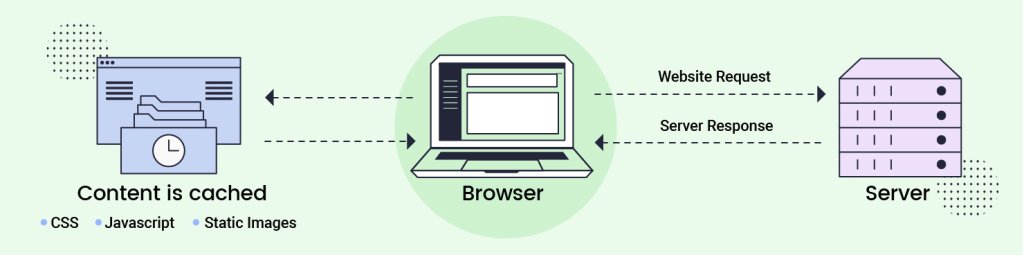
All modern browsers set aside a portion of your file system to temporarily store things. This is called its cache. Modern websites are made of a lot of different pieces of content:

  • HTML
  • Images
  • CSS
  • JavaScript
  • Other media

Some of these pieces of content are static, in that they never or rarely change. For example, your company’s logo probably won’t change often. Storing the graphic of your company’s logo in the browser’s cache means that’s one less thing that has to actually be fetched from your server for your image to paint.

How Browser Caching Works In WordPress

When a user types a URL into a browser, it starts a conversation between the browser and the server.

Browser: Hey, do you host this page?

Server: Yes, here’s the HTML

Browser: [Reads HTML and builds a list of the things it needs to request to display the page]

Browser: Ok, here’s the list of other things I need to display the page

Server: Here ya go…

Server: Here ya go…

Server: Here ya go…

The server keeps going until it has given the browser all the things it has requested. Sometimes these are small graphics, other times these are large JavaScript files or CSS files. Regardless of what they are, without browser caching, the browser has to ask for each and every one of these items, every time.

What if a user is visiting your shop and browsing? They may click 5,10,15 pages. Most of the pieces of these pages are the same thing over and over again. Your base CSS, your JavaScript, your company’s logo… never change between pages. But the browser has to ask for it each time and the server has to send it.

Browser caching lets the browser decide to temporarily store some of these pieces and reuse them. This shortens the conversation between the browser and the server. After the server hands the browser the HTML of the page, the browser builds its list of things it needs to display the page. With browser caching, it then looks at the list of things it already has and strikes them from the list before continuing the discussion with the server.

How browser caching works

Controlling The Browser Cache

The problem is that browsers aren’t that bright. Left to their own devices, they would simply cache everything and never request anything. While this would make the user experience very fast, eventually the browser would be showing the user old data. 

Can you imagine your browser storing the current score of your favorite sports-ball match? No matter how much time passed or how many times you hit refresh, the score would never change because the browser has cached the score already. 

So obviously we need some way to tell the browser what can and cannot be cached. Even for the things that can be cached, we want to tell the browser when it’s no longer any good so it knows to ask for a new copy. For that, we use “Headers”.

In the conversation between the browser and the server, there is data that is passed both ways on each request, these are called “headers”. Users never see headers but they can affect the content that the user sees.

Servers send different headers to the browser to help it figure out what it can cache and where. There are several different headers and values that the server and browser can exchange to control caching- For the most part, it boils down to these 2:

1. Cache-Control

The Cache-Control header is the first one looked at by the browser. It tells the browser what it can do with the entity it just received. The most important possible values are:

  • no-cache
    This tells the browser it’s ok to cache this resource but it has to check with the server to make sure it has the most recent version.
  • public
    This tells the browser – or an intermediary like a CDN – that it’s ok to cache this resource.
  • private
    This means that this is a cacheable resource but only by the browser. CDNs canc’e cache this resource. 
  • no-store
    This tells the browser that this resource should never be cached.

2. Expires

This header tells the browser when this resource should be considered “stale”. This means that after this date and time, the browser needs to request a new copy of the resource.

With these 2 headers, a browser can now make an intelligent decision about caching any given resource.

So really, the only thing we need to know now is how to set the headers that our server sends to a browser.

How To Leverage Browser Caching In WordPress?

As with everything in WordPress, there’s the hard way and the easy way to do it. The hard way is usually the way we used to do it before someone figured out the easy way. The hard way almost always involves editing a file manually and usually involves hiring a developer to help you. The easy way almost always involves installing and configuring a plugin. 

The Hard Way: Leveraging Browser Caching By Setting Caching Headers Manually

If you are dead-set on doing things the hard way, this involves modifying a file in the root of your website named “.htaccess”.  (The leading dot is important)

If you open this file in an editor, you can add “ExpiresByType” lines to define how long a specific type of resource should be cached.

For instance:

ExpiresByType text/css “access 1 month”

This tells the server to tell the browser that any given CSS resource can be cached in the browser’s cache for 1 month before requesting a new copy.

You need to make this decision for every type of resource that you serve and add a record into the file for it. This is a time-consuming process and you have to remember you did it this way in case you want to manually adjust the times.

Here is a common set of headings you can use in your .htaccess file.

<IfModule mod_expires.c>

  ExpiresActive On

  ExpiresByType image/jpg “access 1 year”

  ExpiresByType image/jpg “access 1 year”

  ExpiresByType image/gif “access 1 year”

  ExpiresByType image/png “access 1 year”

  ExpiresByType text/css “access 1 month”

  ExpiresByType application/pdf “access 1 month”

  ExpiresByType application/javascript “access 1 month”

  ExpiresByType application/x-javascript “access 1 month”

  ExpiresByType application/x-shockwave-flash “access 1 month”

  ExpiresByType image/x-icon “access 1 year”

  ExpiresDefault “access 2 days”

</IfModule>

That covers most types of resources that your server will serve. 

The upside to the hard way is that it gives you absolute control over the caching on the browser. 

Personally, this is my preferred way to set caching headers. That having been said, I am a programmer and enjoy doing things the hard way. You may want to look at a plugin to leverage browser caching easily.

The Easy Way: Leveraging Browser Caching Using A WordPress Plugin

As with everything in WordPress, “there’s a plugin for that”. Leveraging the browser cache is no exception. Many of the most popular caching plugins have options that you can use to fine-tune the browser cache headers. By default, WordPress will add “Cache-Control” headers to all static resources (CSS, JS, etc) The plugins will add them to more than just that as well as give you more granular control.

If SiteGround is your hosting partner, you don’t need to worry about this. These headers are already configured for you. Nevertheless, If you are not yet hosting your WordPress site with SiteGround, you can use the SiteGround Optimizer plugin to insert the caching headers into your .htaccess file for you.

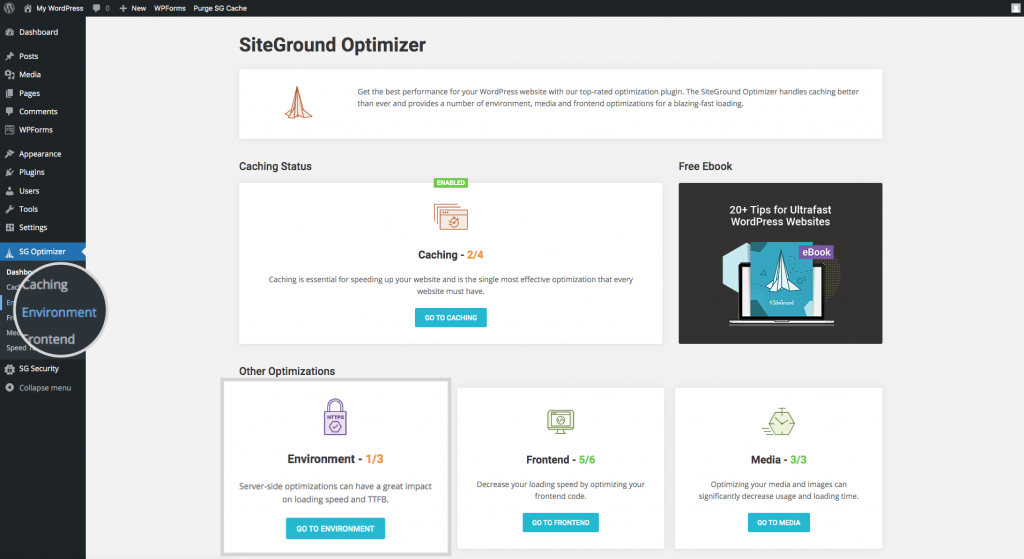
If you already have the SiteGround Optimizer plugin installed – and you should – Select the “Environment” menu option from the main menu or click on “Go To Environment” on the dashboard page.

Leverage Browser Caching with SiteGround Optimizer Plugin

There, you will find “Browser Caching” in the middle of the page. Click the slider to green and you are good to go. This option won’t be visible in the SiteGround Optimizer plugin installed on websites, hosted with us, because we manage this for our clients.

Leverage browser caching functionality in SiteGround Optimizer plugin

Cache Busting

Regardless of how you set your cache headers, sometimes you want to tell the browser “Hey, I know I said hold on to this resource for a month, but I’ve got a new copy and you need to ask for it.” This is called “Cache Busting”.

In WordPress, the way we bust caches is to append a version number to the name of the file.

For example:

<script src=”/js/jquery.js” />

Regardless of how many times we update jquery.js, the browser isn’t going to request a new copy until this one expires based on the rules we set. That is why most resources that are loaded in WordPress include a version number as part of the query string.

<script src=”/js/jquery.min.js?ver=3.6.0” />

The browser stores the complete file name jquery.min.js?ver=3.6.0 as the key for this resource. So if we change the ver= part, it thinks it’s a new resource and requests it regardless of the status of the caching headers.

<script src=”/js/jquery.min.js?ver=3.6.1” />

That’s how we bust caches and request fresh resources even if the ones we have haven’t expired.

Speed Results After Leveraging Browser Caching

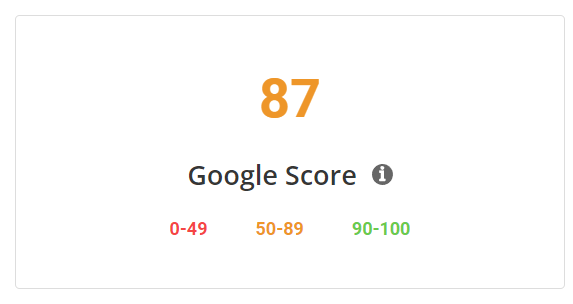
So does all of this make any difference? A lot of that depends on your other optimizations already implemented. For one of my production sites, I had implemented all the SG Optimizer plugin recommendations. This took me to a Google Page Score of 87.

Google score of 87 without using SiteGround Optimizer

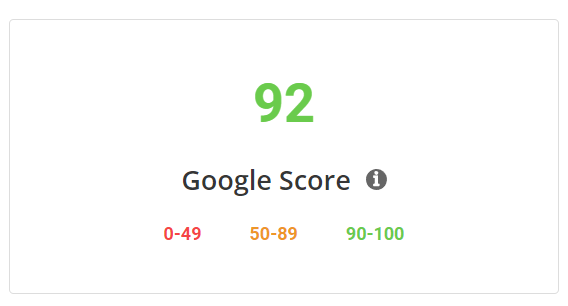
Then, I added the caching headers described above to my .htaccess file. This was the only change I made to the site. Now when I run SG Optimizer Speed Test, I get a score of 92!

Google Score of 92 after using SiteGround Optimizer to leverage browser caching in WordPress

So yes, five points on Google Page Speed score was worth the 2 minutes it took me to leverage browser caching. 

I hope your results are even better!

🚀 Get SiteGround Optimizer for FREE

–> Click here to learn more and download the plugin

[subscribe_cta]

How And When To Use Coupons On Your Site For An Effective Marketing Strategy

online coupon marketing strategy

Building an e-commerce site doesn’t mean that it will be successful. The site is only 1/2 of the equation, the other 1/2 is buyers. To be successful you need to attract buyers. There are a lot of different ways that you can attract new customers to your site and encourage previous buyers to return. Books have been written, courses developed just to show you how to drive a steady stream of buyers to your site.

One method that has worked in retail almost since there has been retail is couponing. Everybody loves coupons, and that means that EVERYBODY loves to use coupons. Building a coupon marketing strategy is one of the absolute best ways to drive traffic. They work because coupons, as a concept, serve one single purpose, changing the user’s buying habits.

What Are Coupons?

Coupons are a pull marketing strategy that merchants use to change buying habits. The hope is that, if you change your habits once and like it, the new habit will stick without the need for more coupons. 

If you normally buy brand X wine but you get a coupon for brand Y wine, the hope is to break your existing buying habits and convince you to try brand Y.

Additionally, some coupons are designed not to make you change brands but to buy more. Some coupons for brand Y wine are not for people who have never tried brand Y but for those that regularly buy a bottle. The hope is to change their buying behavior by convincing them to buy more than they usually do. 

Both of these types of coupons are trying to change buying behavior, but each targets a different behavior and thus a different group of consumers. 

Physical Coupons

Physical coupons are usually printed pieces of paper with a discount code on it that retailers will honor. Many times physical coupons are distributed by the postal service, however, in some cases, they are handed out at a store. Physical coupons are more costly for retailers because there is a physical cost to creating and distributing them. Even if they are printed on a copier and handed out by employees at the store, they cost. This means that retailers are more cautious about what they offer with physical coupons. Experiments are more expensive so most retailers stick with what they know will work to change behavior.

coupon marketing strategy - Physical coupons

Digital Coupons

On the other hand, digital coupons have almost no costs associated with creation and distribution. If you are using WordPress and WooCommerce and want to run an online coupon marketing strategy, you can create a 10% off coupon for your T-Shirts and send it to everyone on your mailing list. Your total cost for this was the time it took to enter the coupon into the system and write the email.

coupons marketing strategy - Digital coupons

Because they are so cheap to create, many retailers set their online coupon marketing strategy incorrectly. They will literally create a 10% off coupon for one of their products and send it to everyone they can, hoping that if they send it to enough people that they will generate some sales. The problem with this “shotgun” approach to coupons is that if you do it enough, the only behavior you are changing is that you are teaching your customers to wait to purchase until you send out a coupon. This is not the behavior you want from your customers.

3 Key Ecommerce Coupon Marketing Tips

In order to create an effective coupon marketing strategy, before you create your first coupon, ask yourself, “What behavior am I trying to change?” Then, figure out which customers have that behavior, and craft not only a coupon but a message specifically for those customers.

1. Set the behavior you want to change

Let’s say you want to increase your average cart value, the amount of goods that a customer buys in any given transaction. One way to do that is with a digital coupon.

For every customer that regularly purchases from you, but purchases less than $50 per transaction, send them a coupon to give them a 10% discount on their next transaction if it is over $75.

Don’t send them more than 1 of these coupons and don’t send this coupon to every customer on your mailing list. Only send it to customers that have already purchased from you once and you expect to purchase from you again.

For each customer that uses this coupon, you have changed their behavior, at least once, and increased your average cart value for that customer.  Whatever you do next, do not send this customer another “10% discount when they purchase $75 or more” coupon. Sending them the same thing over and over just encourages the bad behavior of waiting for the coupon to arrive before purchasing. 

2. Personalized coupons

Digital coupons are easy to personalize. Up to this point we’ve talked about sending out coupons to groups of customers, but you can easily create a coupon that is good only for a specific person. The most common version of this is a birthday salutation. 

If you have collected your customer’s birthday (or any other special life event date) then you can easily send that person a happy birthday email and a special discount coupon good only on their birthday.

If you are going to do this, make it personal.

Bad Example:

Happy birthday! Here’s a 10% off our latest book.

Better Example:

Today is your birthday since you like ”X”, here is a 30% off coupon that is valid only for today.

Best Example:

Cal, to celebrate your birthday, we want to give you a 30% off of ”X” because we know you like ”X”. it’s only good for today.

The best scenario above takes more time because you have to do a little research. You have to figure out who is having a birthday tomorrow. If they are a regular customer, you also want to figure out what they buy the most of and offer them a coupon for that.

This type of coupon builds brand loyalty. By offering a sizable discount on something they already purchase from you, you are letting them know that you appreciate their business. This will stick in people’s mind and they will remember it the next time they go to buy anything that you sell.

You can do this for customers that haven’t bought from you yet but you need to remember two things:

  • It needs to be sincere
  • It needs to be a steep enough discount to cause someone to buy something from you.

A generic Happy Birthday email with a 10% discount on something the person would never purchase, to begin with, will likely be deleted without even a click.

On the other hand, a sincere happy birthday that greets the person by name and offers them a 50% discount this one time as your way of celebrating their birthday will most likely move the needle. 

[subscribe_cta]

3. Create a sense of urgency

In each of the Happy Birthday examples above, the discounts were limited to the birthday. This serves two purposes. First, it keeps you from being surprised in 6 months when things may have changed and all of a sudden you’ve got to sell something at a 50% discount. Second – and most importantly, it tells the person receiving the coupon that the matter is urgent. It may only be urgent for a moment or two as they make the buy/no buy decision but it will be urgent when you want it to be, when the offer is fresh in the mind of the customer.

Limiting your coupons to a given timeframe is a good way to limit them. Another way is to limit the number of times a coupon can be used. This is the digital version of “The next 100 callers get…” that you see on TV ads running late a night. 

An example of this would be the following:

Send out an email to your existing customer base about a new T-Shirt design that you’ve released. In the email tell customers that the first 100 buyers that purchase the new t-shirt and use this coupon also get a coffee mug with the same design.

That creates urgency above and beyond a date. With a date they know they have until the end of that date to claim their discount. With a limited-use coupon, they don’t know how many people have purchased before them so they need to purchase quickly if they want to take advantage of the offer.

Urgency is used to change the behavior of fence-sitting. Those people get an offer and leave it in their inbox because they aren’t sure if they want to purchase it yet. Losing the discount will cause them to make the decision, even if the decision is no.

How To Create Coupon Codes For An Online Store

Now that you know the key 3 tips to create a successful coupon code for your online store, it is time to implement it on your site! Sounds difficult? Not at all! Check the video below to find the steps to easily set it up in WooCommerce, plus further examples on how to use them correctly: 

5 Innovative And Effective Ways to Use Digital Coupons For Your E-commerce

There are as many different ways to use coupons as there are coupons themselves. We’ve delved deep into a couple of ideas in this article but let’s close out with a few more ideas that I’ll leave for you to explore on your own.

1. Add coupons to your mailing list landing page

Everybody knows you need a lead magnet to get people to sign up for your mailing list. Coupons are a great lead magnet. Not only do they encourage the behavior of signing up for your mailing list but they also encourage a new customer to make a purchase. Macy’s online shop is a good example:

digital coupon code in a mail list subscribe form

2. Create single-use coupons

In addition to celebrating life events with a single-use coupon, you can find many other uses. For example, if your product requires regular replenishment, such as coffee, offer a one-time discount of 30% off if the customer purchases the first replenishment when they purchase the product.

digital coupon code marketing strategy

3. Run social ads offering coupons to audiences that frequent or follow your competitors

Whatever your favorite social platform is, run an ad on it offering new customers an incentive to try your product. Instead of targeting everyone, target people who are currently following your competition. Most social platforms have “Look-alike” audience features. Take advantage of that. Try changing their behavior of buying your competitor’s product into buying yours. 

For example, if you run an online store of items for weddings, you can target people following other wedding online store accounts to show them interesting discounts such as the following one:

digital coupon code marketing strategy in social media

4. Create coupons for influencers to hand out

Influencers get to be influencers by building big and/or niche audiences. They build these audiences by posting things that people want. One of the things you can do to help create an influencer is to give them a special coupon just for them to hand out. The bonuses to this tactic are:

  • You now have an influencer that owes you a favor
  • You can specifically track how many sales they sent to you to help determine how big of an influencer they are.
online coupon marketing strategy with influencers

5. Create different coupon codes for different distribution channels

There is no rule that says you have to use the same coupon code for every channel. If you want to see which ones pull best for you, distribute different codes to different channels.

For instance, distribute the coupon code I_LOVE_BRAND_X_WINE to your Facebook followers and BRAND_X_WINE_IS_THE_BEST to your Twitter followers. Each of them gets the customer 10% off but you get a better understanding of which channels work best for you.

online coupon marketing strategy in social media

Wrap Up

Coupons excite customers and potential customers. Everyone loves a bargain. However, their true purpose is to influence behavior. Before you issue a digital coupon make sure you understand what behavior you are trying to influence. Once you do, craft your offer and your message around changing that behavior.

Indiscriminate use of coupons as a way of boosting sales numbers is a quick way to train your customers to simply wait for the coupon. That’s not a behavior you want to encourage in your customers.

Use coupons often, use them creatively, and use them effectively. They will help you move the needle both in the short term and the long term.

Now, coupons are just part of your whole eCommerce marketing strategy. If you want to dive deeper into how to start or enhance your online store, download ourfree guide on How to Start Selling Online, where you will get a comprehensive PDF and educational videos that will help you through the whole process of creating your online store using WooCommerce and tips to successfully run your online business. Download it to get expert guidance and make sure you don’t miss a thing to achieve success!

How To Start Selling Online Free Guide

[subscribe_cta]

How to accept payments online: Your guide to getting paid

Abstract of accepting online payments

There are several ways to accept payments online — from payment links and invoicing tools to full checkout integrations — and most take less than ten minutes to set up. This guide breaks down all your options: what they cost, how they work, and which one fits your business, whether you’re selling a product, offering a service, or sending your first invoice.

Key takeaways

  • Every online payment comes down to one of two things: a card payment or a bank transfer. Everything else is just the channel you use for collecting payments.
  • You don’t need a website to start getting paid — a payment link or invoice can have you up and running in minutes.
  • The technical side — gateways, processors, merchant accounts — is handled automatically by most modern platforms. You won’t need to touch any of it.
  • Fees vary more than most people expect. Always check the full pricing page, not just the headline rate.
  • A website is more accessible and affordable to set up than most first-time sellers expect — and it’s the only payment method that gives you full control over the customer relationship and your marketing channels.

How do online payments work?

At its core, getting paid online means money moving from your customer’s account to yours. There are two fundamental ways that happens — and understanding the difference makes everything else in this guide click.

Debit and credit card payments

When a customer pays by credit or debit card, the process moves through several steps behind the scenes: the customer enters their card details, a payment gateway captures and encrypts the data securely, a payment processor moves the money through the card network, and the funds land in your merchant account — minus a small fee. For most growing businesses, credit card payments are the fastest, most familiar option for customers, and they settle within one to two business days.

Diagram of how card payments work online

Direct bank transfers

With a bank transfer (sometimes called ACH in the US), the customer’s bank sends funds from the customer’s bank account directly to yours — no card network involved, fewer intermediaries, and usually lower fees as a result. 

The trade-off is speed and convenience: transfers typically take one to three business days to settle, and the customer has to initiate the online payment manually rather than entering card details at checkout. Bank transfers work well for large invoices and B2B transactions, but they add friction for one-off or impulse purchases.

Three terms worth knowing:

  • Payment gateway: the technology that captures and encrypts your customer’s payment details the moment they hit pay, then passes them securely to the payment processor. Most website builders and online payment platforms include one, and you won’t need to set it up separately.
  • Payment processor: the service that takes those encrypted details from the gateway and does the actual work of moving money, communicating with the customer’s bank, getting authorization, and transferring the funds to your account. Stripe is an example of an online payment processor.
  • Merchant account: a holding account where your funds land after an online transaction is approved, before they’re transferred to your regular bank account. Platforms like Stripe include one automatically, so you won’t need to open one yourself.

The good news is that wrangling these terms — and the technology behind them — isn’t something you necessarily need to do manually. When you use a modern ecommerce platform or website builder (like SiteGround Ecommerce), the gateway is built in, the processor connects with one click, and the merchant account is included automatically. It just works.

Everything else in this guide — the platforms, the setup steps, the costs — is really just about which channel you use to collect one of those two payment types.

Ways to sell online

There are four main channels to accept online payments. Which one makes sense depends on what you’re selling and where your business is right now.

A payment link is a URL that takes the customer straight to a checkout page. You generate it through a payment platform, then share it however makes sense (by email, in a social media DM, on an invoice, or even in a text message). No website required. Payment links are the fastest way to get started: you can be set up and ready to accept payments online in under ten minutes. 

The downside is that they’re fairly bare-bones: there’s no storefront, no product listings, and no real presence for customers to browse. They’re ideal for service providers, creators, and anyone testing a new offering, but they’re not a long-term substitute for something more permanent.

Online invoicing

Invoicing tools let you send a professional bill to a client that includes a link for online payment. They’re especially well suited to freelancers, consultants, and service businesses that bill clients on completion or by project. Tools like Wave (free) and FreshBooks make the process straightforward, and some support direct bank transfers alongside cards.

That said, bank transfers come with more friction and slower settlement. Worth checking what payment methods a platform supports before committing to one.

Marketplaces

Platforms like Etsy or Gumroad handle the entire selling experience (think: listings, checkout, and payments) without you needing to build anything. What you give up: fees are typically higher than processing your own online payments, customization is limited, and building a direct relationship with your customers — including building an email list — is much harder when the platform sits between you and the buyer. A reasonable place to start for physical or digital products, but not a long-term substitute for your own setup.

A website with a checkout page

A website with an integrated checkout brings everything together: your storefront, payment gateway, and processor all in one place. It’s the most scalable and professional option — and for sellers thinking about website marketing and long-term growth, it’s the only setup that gives you full control. This is the right choice for product sellers from the start, and the natural next step for service providers who want a permanent presence and a direct marketing channel to their audience.

One thing worth considering as you set up: a checkout page needs to feel trustworthy and load quickly — both have a direct impact on whether customers follow through on a purchase. That means an SSL certificate, a clean design, and fast, reliable web hosting.

Why your website platform choice matters at checkout 
If you’re going the website route, the platform you choose has a direct impact on how well your checkout performs. A checkout page lives or dies on two things: speed and trust. A slow page loses customers before they pay; an unpolished or unsecured one loses them the moment they arrive. The stakes are higher than you might think — research shows that conversion rates drop by an average of 4.42% for each additional second of load time in the first five seconds. 

SiteGround Ecommerce is built with speed and trust in mind — fast loading times out of the box, SSL security included as standard, and a website builder designed to get you from setup to selling without a technical background. The result is a checkout experience that’s built to convert, not just function.

Start selling now>>

A note on other payment tools

Tools like Venmo, Cash App, and Zelle (known as peer-to-peer (P2P) payment apps) are a common starting point for informal selling, and they work fine for the occasional online transaction between people who know each other. But they come with real limitations for business use: most offer no seller protection, accounts can be flagged or frozen when used regularly for business purposes, and none of them are designed with commerce in mind. If you’re just starting out, they might get the job done in a pinch, but they’re not a reliable foundation to build on.

Apple Pay and Google Pay are a different story. They’re not selling channels — they’re a checkout convenience that sits on top of a regular card payment. Most payment processors support them natively, which means if your processor does, they’ll show up as a checkout payment method for your customers automatically. Worth knowing they’re covered, but not something you need to actively set up.

A note on AI-built websites

If your site was vibe coded with an AI app or website builder, adding payments doesn’t require a rebuild. A portfolio site, a restaurant site, or an event site built this way started as a chat prompt, and connecting a payment processor works the same way. Stripe is the easiest option here: Coderick AI now integrates with Stripe directly in the chat, so you describe what you want to charge for, connect your Stripe account, and Coderick builds the checkout, payment links, and confirmation page for you. No separate gateway to configure and no code to touch. The same logic applies to any AI-built site: Stripe (or a similar processor) plugs into the existing structure instead of asking you to rebuild around a payment feature.

How do online payments get set up — with or without a website?

The setup process is way simpler than most people expect. Before you begin, you’ll need three things: 

  1. a bank account to receive funds
  2. a payment processor (or platform that includes one) to handle the transaction
  3. a way to send customers to the payment (so a link, an invoice, or a checkout page)

Chances are, you already have the first one covered.

Accepting online payments without a website

  1. Sign up for an online payment platform and connect your bank account
  2. Run a test transaction before going live
  3. Generate a payment link or create an invoice
  4. Share it with your customer (by email, message, or social media)

Accepting payments on a website

  1. Choose a website builder with built-in ecommerce and payment support (such as SiteGround’s)
  2. Sign up for a compatible payment processor — Stripe and PayPal are two of the most widely used — and add your bank details. Stripe is typically the better fit for websites and scalable setups, while PayPal is faster to get started with and widely trusted by consumers.
  3. Connect the processor to your website builder (usually one click — the gateway is already built in)
  4. Enable direct bank transfer as an additional online payment option if your platform supports it
  5. Add your product, service, or booking listing
  6. Run a test transaction
  7. Go live
Backend of SiteGround Ecommerce where you can connect different payment methods for your customers

How much does it cost to accept online payments?

The cost depends on how money moves and which platform you use. Here’s a basic breakdown.

Card payments

A commonly cited industry rate is 2.9% + $0.30 per transaction — meaning on a $100 sale, you’d typically keep around $96–$97. If you’re selling internationally or accepting multiple currencies, additional fees can push that total meaningfully higher, so it’s worth checking the full pricing breakdown.

Payment platforms generally offer two pricing models:

  • Pay-as-you-go: no monthly fee, but a slightly higher per-transaction rate. Better for lower-volume sellers.
  • Monthly subscription: lower per-transaction processing fees in exchange for a fixed monthly cost. More cost-effective once you’re processing a consistent volume.

One thing to check: some ecommerce platforms charge their own transaction fee on top of the processor’s, unless you use their preferred processor. This can add up, so it’s worth reading the pricing details before committing.

Direct bank transfers

Bank transfers are usually charged as a flat fee rather than a percentage, which makes them meaningfully cheaper on larger transactions. On a $1,000 invoice, the savings over card processing can be significant. Whether those savings are worth the added friction for your customers depends on your setup — for high-value or repeat clients, usually yes. Not all platforms support bank transfers either, so it’s worth confirming before building your setup around it.

What to watch for: processors that bury fees in fine print, charge monthly minimums on low-volume months, or advertise low rates that only apply to specific card types. Always check the full pricing page, not just the headline number.

Which payment setup is right for a small business?

It depends on what you’re selling and where you are in your business. Here’s a quick-reference guide:

Business typeBest starting pointWhy it worksWhen to level up to an ecommerce website
Freelancer / consultantPayment link or invoicing toolFast, low overhead, no website neededWhen you want a professional online presence
Service businessInvoicing + payment linkEasy for repeat clients; supports bank transfersWhen bookings or quotes go digital
Product sellerWebsite with checkoutHandles inventory, shipping, and multiple buyersAlready the right choice from day one
Testing an ideaPayment linkGet paid before investing in infrastructure — though setting up a basic website is simpler than it might seemOnce demand is proven

What are the most common mistakes when accepting online payments?

The most common mistakes are easy to avoid once you know what to look for.

  • Not understanding payout timelines. Card payments and bank transfers settle at very different speeds. If your cash flow depends on quick access to funds, card payments are the safer choice.
  • Ignoring chargeback policies before they’re needed. A chargeback is when a customer disputes a charge and the card network reverses it. Understand your processor’s policy before your first sale, not after.
  • Choosing a processor with hidden fees. Monthly minimums, annual fees, and fine-print per-transaction charges can quietly erode your margins. Read the full pricing page.
  • Missing the platform’s own transaction fee. As we mentioned above, some ecommerce platforms add their own fee on top of the processor’s. Easy to miss, easy to avoid by checking in advance.
  • Skipping the test transaction. Always run a test purchase before going live. It takes two minutes and prevents embarrassing failures on day one.
  • Not having a refund policy visible at checkout. Customers are more likely to complete a purchase when they know returns are handled clearly. It also reduces disputes.
  • Offering only bank transfer when customers expect to pay by card. Bank transfers add friction. If most of your customers are individuals rather than businesses, card payments should be the default.

Start accepting payments online today

No technical skills or big budget are needed to get started. Payment links and invoicing tools make it possible to accept payments in minutes, and these days most setups are far simpler to configure than they appear.

When you’re ready for something more permanent and professional, a website brings everything together: your storefront, payment gateway, processor, and direct transfer support all in one place. SiteGround Ecommerce is an easy way to take that next step — quick to set up, secure out of the box, and with no platform transaction fees on top of your processor’s. Plus built-in online payment processing, a website builder designed for non-developers, and around-the-clock expert support from people who know small business.

FAQs about accepting payments online

What is the safest way to accept payments online?

Using a reputable payment processor with built-in fraud protection and encryption is the safest approach. Established processors handle PCI compliance on your behalf, meaning your customers’ card data is never stored on your own systems. Avoid informal payment methods like bank transfers to strangers or P2P apps, which offer little to no seller protection.

How does accepting an online payment work?

When a customer pays online, their card details are captured by a payment gateway, encrypted, and passed to a payment processor. The processor contacts the customer’s bank, confirms the funds are available, and moves the money to your merchant account. The whole process takes seconds from the customer’s perspective, with funds typically landing in your account within one to two business days.

What is the safest way to accept payment from strangers?

Use a payment platform that includes seller protection (and avoid P2P apps). Card payments through a reputable processor give you the strongest protection: disputes can be handled formally, and most processors have fraud detection built in. For high-value transactions, consider requiring payment before delivering goods or services.

How can payments be accepted without a website?

The easiest way is to use a payment link — a URL that takes the customer directly to a checkout page. You generate the link through a payment platform (most take five minutes to set up), then share it by email, text, or social media. Invoicing tools work the same way for clients who expect a formal bill. No website, no technical setup required. That said, if you’re considering something more permanent, setting up a basic ecommerce website is simpler and more affordable than most people expect.

This article was originally published in May 2022, and then updated in April 2026

How to create an ecommerce website: 8 steps to first sale

Abstract of how to create an ecommerce website

Wondering how to create an ecommerce website? It means setting up an online store where customers can browse your products, add them to a cart, and pay securely — and with the right platform, you can do it in a single day. Here’s exactly how.

Key takeaways

  • Build your ecommerce website with one goal in mind: making your first sale, not perfection.
  • Choose an all-in-one platform to simplify setup, payments, hosting, and performance.
  • Set up payments, shipping, and taxes early — modern platforms make it faster than you’d expect.
  • Pick a clean, professional design and customize the basics without over-tinkering.
  • Launch fast with essential pages, clear navigation, and content that drives action.
  • Make your store trustworthy from day one with clear policies, contact info, and social proof.
  • Use built-in AI tools to create product copy, page content, and images without getting stuck.
  • Drive early traffic with email, social media, and small ad tests — then improve based on real data.

Most people trip up by spending months obsessing over the perfect logo, debating color schemes, and reading every “ultimate guide” they can find. Meanwhile, their store? Still not launched. Or worse, it’s live, but nobody’s buying because they forgot the actual goal: making sales.

This guide is different. We’re not here to help you build a perfect ecommerce empire (it doesn’t exist anyway). We’re here to help you get your first sale. Because once you’ve proven that people will actually pay you for what you’re selling, everything else gets easier.

Ready? Let’s build an online store that actually makes money.

Step 1: Start with the sale in mind

Every decision you make while building your ecommerce site should serve one goal: getting someone to buy. Before you pick a single template or upload a product photo, clarify what you’re actually trying to accomplish.

Get clear on the problem you’re solving

Think about the last thing you bought online. You didn’t buy it because the ecommerce website had a cool parallax scrolling effect. You ultimately bought it because you had a problem and that product was the solution.

Your potential customers are no different. They’re thinking about their problems, and your ecommerce marketing job is to solve one of them, clearly and specifically.

So when creating your site, it’s essential to first clarify:

  • What specific problem does my product solve?
  • Why is it painful enough that someone would pull out their credit card?
  • How does my solution make their life measurably better?
  • What is my unique selling proposition? 

Write this down. These answers becomes the foundation of everything: your homepage headline, your product descriptions, even which products you launch with.

Define your customer persona

You don’t need to write a novel about a fictional person named “Jennifer” who likes yoga. You just need to answer: Who actually has the problem I’m solving and would pay to fix it?

What you should consider when thinking about your customer persona:

  • The basics of your target audience: Age range, life stage (college student vs. new parent vs. retiree shop very differently)
  • The mindset: Budget-conscious or quality-focused? Impulsive or careful researcher?
  • The context: Where do they hang out online? When do they shop? What makes them trust a new brand? Where will they be at in the customer journey?

Focus on one main action

Your ecommerce site needs to make people do something. And that something should be buying your product.

Here’s what to do to make sure your site is focused:

  • Pick your one main action (likely: it’s “Add to Cart” or “Buy Now”)
  • Build everything around making that action easy and appealing
  • Keep every website page focused on moving people toward that button 

Step 2: Choose an ecommerce platform

Choosing your ecommerce platform is the most consequential decision you’ll make. It determines your setup complexity, cost, flexibility, and support options.  For first-time sellers, an all-in-one platform removes unnecessary complexity and helps you launch faster, with fewer decisions and fewer things that can go wrong.

Think of your ecommerce platform as the engine under the hood of your online store. Pick a good fit, and you won’t think about it much (which is exactly what you want). Pick a bad fit, and you’ll be fighting with it every time you need to add a product or process a payment.

You don’t need to become a tech wizard or spend weeks researching. But you do need to understand your options and pick the path that makes sense for where you are right now.

All-in-one vs. DIY: pick your path

You’ve essentially got two realistic routes when it comes to creating an online store:

The DIY route: Go with a content management system like WordPress and get WooCommerce Hosting for ecommerce support. From there, you’d need to connect your domain, configure payment gateways, install security plugins (if it’s not done for you), troubleshoot when things break, and so on. It’s doable if you enjoy tinkering with tech, but it eats up time you could spend actually selling.

The all-in-one route: This means that your domain, hosting, and ecommerce are all in one package. Everything’s connected, optimized, and ready to go. Log in, pick a template, add products, start selling.

For first-time sellers, an all-in-one approach (like SiteGround Ecommerce) is the smarter play. You get professional-grade hosting, automatic domain setup, built-in security and speed optimization, and one support team for everything. More importantly, you get to focus on making that first sale instead of troubleshooting plugins at midnight.

Backend of SiteGround user account and the different services available

Domain and hosting

Depending on which route you choose, you’ll need to get your domain (your web address like yourstore.com) and web hosting (where your site lives on the internet) sorted out. For the sake of this article (which is focused on getting you started simply and efficiently) we’re going to discuss the steps for an all-in-one ecommerce platform.

With this type of easy-to-use platform, you simply choose your custom domain name (and if you’re stuck, tools like the SiteGround AI domain generator can help you find something perfect), and then everything, including hosting, is set up for you in one simple process. No connecting separate services. No configuring servers. No hoping everything talks to each other properly.

SiteGround domain name generator in action allowing you to find a domain with AI

Why an all-in-one ecommerce platform like SiteGround makes the difference:

With a quality all-in-one platform, everything is handled in one place. SiteGround Ecommerce, for example, automatically connects your domain, provides fast ecommerce-ready hosting, includes built-in performance optimization and a global CDN, and keeps your site reliable and secure. You manage it all from a single dashboard with no technical setup, and no juggling tools.

Get started now>>

Availability of templates

Unless you’re a designer (or have one on speed dial), you’ll want pre-made templates that don’t look like they were built in 2003.

Good platforms offer:

  • Industry-specific templates designed for ecommerce, not just generic websites
  • Professional website designs that build trust with customers from the moment they land on your site
  • Easy customization so your store reflects your brand without looking like everyone else’s
  • Mobile-optimized web designs that work beautifully on any device
  • Accessible web design built in, so that your site is usable by everyone and meets modern accessibility standards
Example of a bunch of different website builder templates to choose from

Ease of use

You don’t need to be a tech genius, but you do need basic tools to manage your online store, and help people actually find it.

When choosing an ecommerce platform, look for:

  • Built-in ecommerce SEO (search engine optimization) features like customizable page titles and meta descriptions (as seen below)
  • An intuitive dashboard where you can add products, edit pages, and take care of order management and inventory tracking without having to study a manual
  • The ability to customize your site visually, no coding required
  • Tools like email marketing and analytics that help you as you grow your online business.
Example of a website builder AI providing optimized titles and SEO descriptions

Multiple payment gateways

People have strong opinions about how they pay for stuff online. Some love PayPal. Some refuse to use anything but Apple Pay. Some want to type in their card directly.

With that in mind, your ecommerce platform should support:

  • Credit and debit cards (the basics, like Visa, Mastercard, etc.)
  • Digital wallets like PayPal, Apple Pay, Google Pay
  • Secure checkout that keeps customer data safe (and keeps you compliant with all those annoying-but-necessary regulations)
Backend of SiteGround Ecommerce where you can connect different payment methods for your customers

Transaction fees

Many platforms take a percentage of every sale on top of your payment processor’s fees. It might not seem like much at first, but it adds up quickly — so factor it into your platform decision early.

Step 3: Set up payment and taxes

Payment and tax setup sounds intimidating, but modern platforms have made it surprisingly straightforward. If you’ve chosen an all-in-one ecommerce platform, most of the work is already done for you. You’re mostly just connecting accounts, choosing options from dropdown menus, and letting the system handle the calculations.

Payments

The set-up process is actually surprisingly easy. Usually you just need to connect your accounts (like Stripe or PayPal, which takes all of about five minutes), and toggling on the payment methods you want to offer. That’s it. No coding, no complicated integrations.

Shipping

You don’t need a complicated shipping strategy on day one, but rather just need something that works.

Start with the shipping basics:

Define your shipping zones: Are you shipping locally? Nationwide? Internationally? Start conservative, as it’s much easier to expand your zones later than to deal with shipping headaches, unexpected costs, or delivery issues in regions you’re not ready to serve. If you’re just starting out, consider limiting to your country first and adding international shipping once you have a few orders under your belt.

Choose your shipping methods:

  • Flat rate shipping: Charge the same amount regardless of what they order (keeps it simple for you and predictable for customers)
  • Free shipping: Offer it on orders over a certain amount to up average order value
  • Local pickup: If you’re local or have a physical location, let people skip shipping entirely

You can always get fancier later with real-time carrier rates and zone-based pricing. But for your first sale? Simple flat rates will do just fine.

Backend of SiteGround Ecommerce where you can identify different shipping zones

Taxes

Ah yes, everyone’s favorite topic. But before you start sweating, remember: your platform can handle most of this automatically.

For most first-time sellers shipping within their own country, this takes maybe 10 minutes to configure. The platform already knows the sales tax rates: you just tell it where you’re located and where you’re shipping, making it easy to collect sales tax.

If you’re selling internationally (especially in the EU), there are extra considerations like VAT and different tax classes. But even here, good platforms have pre-loaded rates and can handle things like EU B2B transactions with VIES checks. It sounds complicated, but the platform does the math for you.

Backend of SiteGround Ecommerce where you can set up taxes

Advanced tax setup (if you need it later):

Some platforms, like SiteGround Ecommerce, offer advanced tax services (like Stripe Tax integration) that automatically calculate taxes for even more countries and product types, plus give you detailed reporting. 

Start selling in hours, not weeks
With SiteGround Ecommerce, your store comes ready with professional templates and intuitive customization tools, so your site looks great from day one. Payment gateways, shipping options, and taxes are built in and easy to configure — no technical headaches, no juggling multiple tools.

Start building your site now>>

Step 4: Pick a theme & customize

Your theme is the visual foundation of your store — it shapes how customers perceive your brand before they’ve read a single word. The goal isn’t to win a design award; it’s to create a professional-looking store that doesn’t scare people away and makes it easy to buy. You can refine the aesthetic later, once you’ve made some sales and know what resonates.

Start with a template 

Unless you’re a designer — or have the budget to hire one — you’ll start with a pre-made template. That’s a good thing. Modern ecommerce platforms offer templates built specifically for online stores, so you’re not designing from scratch or guessing what works.

Choose something that fits your industry. A handmade jewelry store should feel different from an auto parts shop. But don’t overthink it. As long as the structure is solid, you can adjust the visuals to match your brand.

The goal isn’t perfection; it’s launching with a website design that looks professional, works on every device, and makes it easy for customers to buy. You can always refine the look later, once sales start coming in.

Customize the basics (but don’t go overboard)

Once you’ve picked a theme, you’ll want to make it yours. But “making it yours” doesn’t mean rebuilding everything from scratch.

Focus on these essentials:

  • Your logo: Even a simple text-based company logo is fine to start. You can always upgrade later
  • Your brand colors: Swap in your main colors so it feels cohesive with your online business.
  • Your font: Same with fonts: pick a set of fonts that aligns with your branding basics.
SiteGround Ecommerce site editor where you can choose between recommended font pairings

Most modern themes let you do all of this with user-friendly builders. No coding required. You click, you type, you upload an image, you’re done.

Resist the urge to tinker endlessly

Customization tools are fun to play with, but they can be a trap! You can change button shapes, rearrange sections, edit images…and before you know it, it’s been six hours and you still haven’t added a single product.

So remember Step 1? Keep the sale in mind, and save the tinkering for later.

Step 5: Build your website pages

Your website pages are what turn visitors into customers, and you don’t need many of them to launch. A handful of well-built pages that do their job beats 20 half-finished ones every time. Everything else can wait.

Create essential pages

Let’s talk about the non-negotiables — the pages every ecommerce site needs from day one:

  • Homepage: This is where most visitors land first, so your homepage design should quickly explain what you sell, why it matters, and what to do next. Keep it simple with a clear headline, featured products or categories, and an obvious path to start shopping.
  • Product category pages: If you sell more than a few products, category pages help shoppers browse without feeling overwhelmed. Group similar items together and make it easy to scan products at a glance.
  • Product pages: This is where the sale happens. Each product detail page should clearly show what the product is, why it’s valuable, how much it costs, and how to add it to the cart without distractions.
  • Trust pages: Every store also needs basic trust pages (we’ll touch more on these in a moment).

A note on why structure matters: Thoughtful website structure, with clearly organized categories and product pages, not only makes shopping easier for visitors but also helps search engines and AI-driven tools (including GEO search) understand your site, increasing visibility and discoverability.

Fill your website pages

Now that you know which pages you need, it’s time to fill them with content that actually helps people take action.

Start by writing for real humans. Use clear, straightforward language and focus on what the customer cares about most, and what this product or page does for them. Answer obvious questions before visitors have to go looking.

Next, make your content easy to scan. Most visitors won’t read every word; they’ll skim until something catches their eye. Research has found that on the average web page, users have time to read at most 28% of the words during an average visit.This is why visual hierarchy matters.

To keep pages scannable and effective:

  • Use descriptive headings that clearly explain what each section is about
  • Break information into short paragraphs (2–3 sentences max)
  • Use bullet points for key features or benefits
  • Bold important details so they stand out at a glance
  • Make sure each page naturally leads to one clear action (as discussed in Step 1)

This kind of thoughtful structure doesn’t just improve usability — it also helps search engines and AI-driven search tools better understand your pages, making them easier to surface in search results.

Clear content, strong visual hierarchy, and a logical flow all work together to turn browsers into buyers.

Stuck staring at a blank page? This is where SiteGround Ecommerce‘s built-in AI writer comes in handy. Need a product description? Homepage headline? About page copy? The AI writer can generate content on the fly based on what you’re selling. You can use it as-is or tweak it to match your voice. Either way, it beats the paralysis of “I don’t know what to write.”

SiteGround Ecommerce site builder where you can use AI to help generate headlines

Add basic imagery

The reality is that people buy with their eyes first. In fact, clear visuals are the most important factor for 67% of online shoppers, often outweighing product descriptions and reviews. So your images need to be good enough that people can actually see what they’re buying.

Types of images to include:

  • Product photos: Show each product from multiple angles, include a size reference if needed, and demonstrate use when relevant.
  • Other key images: Homepage hero images to set the vibe, category banners to preview what’s inside, and a personal touch photo for your About page.

Practical tips:

  • You don’t need a professional photographer on day one. A smartphone with good lighting works for most products.
  • Avoid generic stock photos; they kill trust immediately.
  • Keep image styles consistent across your site to align with your brand.
  • Leverage an AI image generator (such as the one built in to SiteGround Ecommerce) to create original images on the go.

Include an email marketing signup form

Here’s something super important to always keep in mind: not everyone who visits will buy on their first visit. But if you can capture their email (especially with the help of a good lead magnet), you get another chance to convert them later via email marketing. Plus, email marketing consistently delivers one of the highest returns on investment of any marketing channel — reason enough to make it a priority from day one.

To get those sign-ups, keep the ask simple: “Get 10% off your first order” or “Be the first to know about new products.” Don’t ask for their life story; just an email address.

Email newsletter form integrated easily into a website page

And here’s where the all-in-one approach really shines: If you’re using SiteGround Email Marketing, adding signup forms is seamless — no third-party integrations or complicated setup. You get easy-to-use form builders, powerful segmentation so you can target the right people with the right messages, and built-in analytics to see what’s actually working. Everything managed from the same dashboard as your store. No juggling multiple platforms, no wondering if your tools are talking to each other. It just works.

Step 6: Make your website trustworthy

Trust is everything when you’re new. You don’t have thousands of reviews or a recognizable brand name yet, so you need to work harder to prove you’re legitimate. 

Here’s what website content builds trust:

  • Clear contact info: Email address in your website footer, a dedicated Contact page, and ideally a phone number (even if it goes to voicemail). Nothing screams “scam” louder than an ecommerce website with no way to reach the people running it. Bonus points if you actually respond quickly, because nothing builds trust faster than a helpful human.
  • Simple policies: Shipping policy (when will it arrive and what does it cost?), return/refund policy, privacy policy (legally required in most places), and terms of service. Keep them straightforward and customer-friendly. 
  • Social proof: Customer reviews on product pages, testimonials on your homepage, trust badges like secure checkout icons, and links to your social media. People trust other people way more than they trust you. 

Step 7: Launch & drive first visitors

Your site is built, your products are listed, everything works. Now you need to actually get people to show up and (hopefully!) buy something. But the internet is vast and crowded, and nobody’s going to stumble upon your brand new store by accident. You need to actively drive traffic, especially in those critical first few weeks.

Here’s how to drive traffic to your ecommerce website as you launch:

Send email marketing

If you already have an email list, this is your fastest path to first sales.

Here’s how to use email marketing for your ecommerce website launch:

  • Announce your launch: Send a simple, exciting email letting people know you’re open for business
  • Offer a launch discount: Something like “10% off for our first 50 customers” creates urgency
  • Make it personal: Remind people why you started this and why they should care

Leverage social media

You might already have some followers on Instagram, Facebook, LinkedIn, TikTok, or wherever you hang out online. Now’s the time to tell your followers about your store.

Smart ways to use social media marketing to build sales:

  • Post about your launch: Share behind-the-scenes content, product photos, your story
  • Go live: Do a quick video showing your products and answering questions
  • Tag relevant people: If you know anyone who’d genuinely love what you’re selling, tag them (but don’t be spammy)
  • Use relevant hashtags: Make it easier for people interested in your niche to find you
  • Engage in communities: Join groups or forums related to your products and participate genuinely (not just dropping links)

Invest a small amount in paid ads

Organic reach is great, but paid ads can help you get in front of targeted customers quickly, even with a tiny budget.

Start with $5-10 per day and test:

  • Facebook/Instagram ads: Target based on interests, demographics, and behaviors
  • Google Shopping ads: Show your products in search results when people are actively looking
  • Pinterest ads: Great for visual products (home decor, fashion, crafts)

Focus on your ideal customer from Step 1, test different images and copy, and track actual sales (not just clicks). Don’t blow your budget on day one; instead start small and scale what works.

Gather customer feedback

Pay attention to what’s working and what’s not. Track where traffic comes from, which products people view, and where they drop off. Send survey emails, asking early customers how they heard about you and what almost stopped them from buying.

This feedback tells you what to double down on and what to fix. Your first few weeks are a live experiment, so adjust accordingly.

Step 8: Improve and fine tune after first sales

Your first sale is proof that people will pay for what you’re selling. Now the job shifts from launching to improving, using real customer behavior and data to make your store work better over time.

Tweak design

Now that you have real traffic and sales data, you can look at your digital marketing metrics to see how people actually use your site (as opposed to how you thought they’d use it).

Look for friction points:

  • Are people abandoning their carts? Maybe your checkout process is confusing or your shipping costs are surprising them at the last minute
  • Are certain pages getting high bounce rates? Could be slow loading times, unclear messaging, or design issues
  • Are mobile users struggling? Check your analytics. If mobile traffic is high but conversions are low, your mobile device experience needs work
  • Is your CTA button getting missed? Maybe it’s not prominent enough or the color doesn’t stand out

Make small, strategic tweaks based on actual behavior and feedback. Change one thing at a time so you know what’s making a difference. A/B test if you want to get fancy, but honestly, just fixing obvious pain points will get you most of the way there.

[37]

Add more products

Your initial product lineup was enough to prove the concept. Now you can expand strategically.

Smart ways to add products as you scale your business:

  • Look at what’s selling best and add variations (different colors, sizes, related items)
  • Pay attention to customer requests: If multiple people ask “do you have X?”, that’s a clear signal
  • Fill gaps in your catalog: What would make sense as a natural addition to what you already offer?
  • Test new categories carefully: Don’t go too broad too fast. Instead stay close to what’s already working

Build your email list

Remember that email signup form you added in Step 5? Now’s the time to get serious about building your email list and actually using it.

Focus on:

  • Optimizing your signup offers: Is your incentive compelling enough? Test different offers (10% off vs. free shipping vs. early access to sales)

  • Capturing emails at checkout: Every customer should be on your list
  • Sending regular emails: Weekly or bi-weekly newsletters, product launches, exclusive deals. Stay top of mind without being annoying
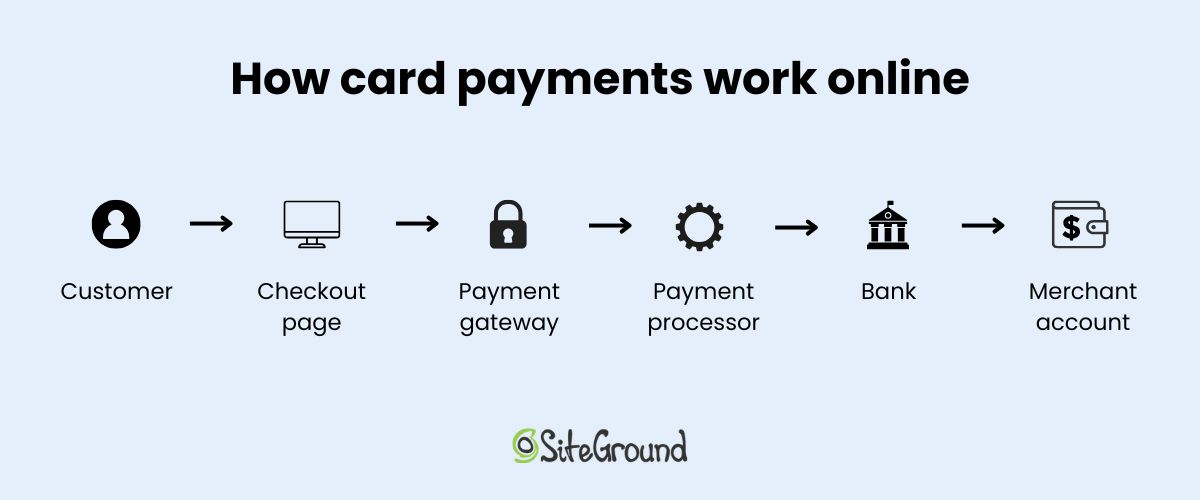
  • Segmenting your list: Send different messages to first-time buyers vs. repeat customers vs. people who abandoned carts
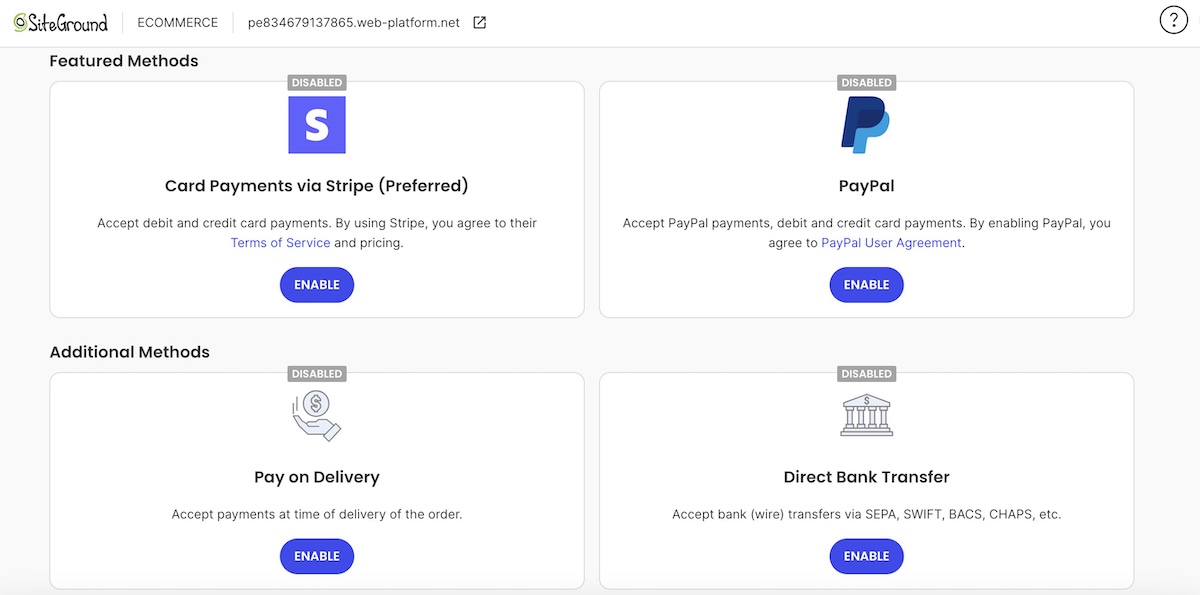
Email is your most valuable marketing channel because you own it. Social media platforms can change algorithms or disappear. Your email list is yours forever. Treat it like the asset it is.

Now you know how to build an ecommerce site — get that first sale

Building an ecommerce store is truly easier than ever. You don’t need a massive budget, a tech degree, or months of preparation. You just need a clear plan, the right ecommerce tools, and the willingness to launch before everything feels perfect.

Ready to start? SiteGround Ecommerce gives you everything you need in one place: domain, premium web hosting, payment processing, email marketing, and an intuitive online store builder. No juggling multiple services. No technical nightmares. Just a straightforward path from idea to first sale.

Stop planning. Start selling.

FAQs for how to create an ecommerce site

How much does it cost to create an ecommerce website?

It depends on your approach, but you can start for less than you think. If you go the all-in-one platform route (like SiteGround Ecommerce), expect to pay anywhere from $10-50 per month for web hosting and platform fees, plus your domain name (around $10-15 per year — unless you go with a SiteGround domain, which is free for the first year). Add in some budget for initial product photography or marketing, and you can realistically launch for under $100-200. The DIY route (separate hosting + WordPress + WooCommerce) might seem cheaper upfront, but factor in the time cost of setup, potential paid plugins, and troubleshooting.

What do I need to start an ecommerce website?

Less than you probably think. The essentials are: a product to sell, a domain name (your web address), web hosting, an ecommerce platform to build and manage your store, a payment gateway to collect payments, basic policies (shipping, returns, privacy), and product photos and descriptions. With an all-in-one platform like SiteGround Ecommerce, most of this is bundled together and ready to go from day one.

What’s the best ecommerce platform for beginners?

Honestly? The most user-friendly platform is the one that doesn’t make you think about the technical stuff. All-in-one platforms like SiteGround Ecommerce are built specifically to get you up and running fast: domain registration, hosting, payment setup, and store building all happen in one place with intuitive dashboards and drag-and-drop builders. No coding required, no juggling multiple logins. Other popular options can also be user-friendly but come with monthly fees and less flexibility as you grow. WordPress with WooCommerce gives you maximum control but has a steeper learning curve. For first-time sellers, small businesses, and solopreneurs who want to focus on selling (not troubleshooting), go with a platform that bundles everything and has solid support.

What are the four types of ecommerce?

The four main types of ecommerce are based on who’s selling to whom:

– B2C (Business-to-Consumer): You sell directly to individual customers. This is what most people think of when they hear “ecommerce.” Think of online stores like Amazon, clothing retailers, or your handmade jewelry shop.

– B2B (Business-to-Business): You sell products or services to other businesses. Think wholesale suppliers, software companies, or bulk office supply distributors.

– C2C (Consumer-to-Consumer): Individuals sell to other individuals, usually through a marketplace. eBay, Etsy, and Facebook Marketplace are classic examples.

– C2B (Consumer-to-Business): Individuals offer products or services to businesses. Freelancers, influencers, and photographers often operate in this model.

For most first-time sellers reading this guide, you’re building a B2C store. But it’s good to know the landscape.

This article was originally published in May 2022, and then updated in April 2026

The Difference Between Brotli And Gzip Compression Algorithms To Speed Up Your Site

Brotli VS Gzip

Are you looking for free ways to make your website faster? One way that every website owner can get a little free speed is to turn on compression at the server. When both the webserver and the browser it is conversing with understand a common compression algorithm, then the data that is actually sent over the wire can be compressed. Compressed data is smaller. Smaller data is received faster. 

What is Compression?

When you type in a URL into your browser, your browser starts a conversation with the server and one of the things it tells it is if it can decompress content and if so, what compression “algorithms” it understands.

Your server listens, and if you have turned on compression and it knows one of the compression algorithms the browser does, it will compress all the data and send it to the browser.

Most modern web browsers understand or “accept” content encoded in one of three algorithms:

  • Deflate
  • Gzip
  • Brotli

When a web browser contacts a server, it sends a header that looks like this:

Accept-Encoding: br, gzip

That tells the server that it understands data compressed in either Brotli (br) or Gzip (gzip). Servers do have the option of ignoring this and returning uncompressed data as well. 

Overall though, compressed data travels faster than uncompressed data. So your website gets to the browser faster if the data is compressed.

Compression mainly applies to text:

  • HTML
  • JavaScript
  • CSS

These make up a large chunk of modern websites these days and all of these can be compressed by server-side compression algorithms. 

On the other hand, most image formats (jpg, png, etc.), most audio formats (mp3s) and other non-text binary files are already compressed. Compressing these won’t make any difference so regardless of the Accept-Encoding header, servers will send these as it is.

As stated above, most modern web browsers will accept 3 main compression algorithms. Most servers have now migrated to one or both of the two most popular ones, Gzip and Brotli.

What is Gzip Compression?

The two most common compression algorithms are Gzip and Brotli. Gzip is the oldest and most common of the two. It was written by Jean-loup Gailly and Mark Adler. The initial beta release was made in 1992. The first actual version, version 1.0, was released in early 1993.  back in 1992 just as the web was coming online for most people. 

Gzip was designed as an all-purpose compression library. The theories behind Gzip were based on the earlier compression algorithm, DEFLATE. 

Because of its popularity – and the fact that it is very good at making files small – it is still widely used today both in different operating systems as well as a primary compression algorithm for web servers. 

What is Brotli Compression?

Brotli was developed by Google employees Jyrki Alakuijala and Zoltán Szabadka in 2013. Google was originally looking for a better way to compress WOT files which are web fonts. 

Gzip was originally intended to compress files and has been adapted to compressing streams so it could work on the web. Brotli on the other hand,  was designed from the beginning to compress streams. This makes it a better choice for web servers to compress content before streaming it to a browser.

In 2015, Google released the Brotli specification for HTTP. In addition to specifying how the browser should notify the server that it can decompress Brotli by sending a “Content-Encoding: br” header, Google engineers also made other improvements to Brotli that made it even faster for compressing web content.

What’s The Difference Between Brotli and Gzip Compression?

While they both have their origins in the LZ77 algorithm, Gzip was designed specifically to compress files. The library has been incorporated into a lot of different programs that need to compress files. The library was incorporated into web servers as compressing content started to be the norm. It was one of two compression algorithms specified in RFC 2616, the HTTPS 1.1 specification. While it wasn’t specifically designed for streaming operations like web servers, it was adapted to it.

Brotli, on the other hand, was specifically designed for the web. Google recognized the need for a way to compress streams more efficiently so they designed Brotli.

Both algorithms do a good job at what they were designed to do. Gzip still continues to be used on the web because it is still better than nothing at all. However, as Brotli grows in popularity, more and more web servers are preferring Brotli over Gzip. Given the choice of the two, Brotli is the default many servers will use. It’s been the default choice on all SiteGround servers for a while now.

Check the following video for more reference on the differences between Brotli and Gzip!

Benchmarking Brotli And Gzip

When Brotli was benchmarked against gzip, it was found that it compresses files better:

  • 14% smaller JavaScript files
  • 21% smaller HTML files
  • 17% smaller CSS files

Since Brotli was designed to compress streams on the fly, it is faster at both compressing content on the server and decompressing it in the browser than in gzip. In some cases the overall front-end decompression is up to 64% faster than gzip.

How Can I Enable Compression On My Website?

In simple terms, “turning on compression” simply means telling your web server to compress everything before it sends it to a browser that has announced it can handle compression.

If you are a server administrator, you know how to edit config files. If you are not a server administrator, skip this section and scroll straight to the “If I am not a server administrator” section below.

If I Use Apache

If you are using the Apache web server, there are 2 steps to enabling Brotli compression:

  • Firstly, enable the apache Brotli module. It is included by default but may not be enabled:

$ sudo a2enmod brotli 

  • Next, you need to edit your web hosts config file and tell the server what you want to apply the compression to:

<IfModule mod_brotli.c>

            AddOutputFilterByType BROTLI_COMPRESS text/html text/plain text/xml text/css text/javascript application/javascript

</IfModule>

In the example above, we are telling the web server to compress:

  • HTML
  • Plain Text
  • CSS
  • JavaScript

These are the main types of files that can be compressed.

If I Use Nginx

Nginx is another very popular web server. Like Apache, it is controlled by config files. You need to locate your nginx.conf file and add the following two lines:

load_module modules/ngx_http_brotli_filter_module.so;

load_module modules/ngx_http_brotli_static_module.so;

Then in your website’s individual conf file, you need to add the following:

brotli on;

brotli_static on;

brotli_types *;

After making the changes, either Apache or Nginx, restart your web server and now it will respond with a “Content-Encoding” header if the browser sends a “Accept-Encoding” header.

If I Am Not A Server Administrator

If you are not a server administrator, it’s actually much easier for you to enable compression on your server. You simply pick a host like SiteGround that turns it on by default. It’s that easy. 

Most top-tier hosts like SiteGround are interested in both making your site as fast as possible, and conserving as much bandwidth as possible. These are the two biggest benefits of enabling compression. Therefore, top-tier hosts turn on compression by default. 

If you are not a SiteGround client, then you need to make sure that your web host turns on compression on your web server. If they don’t and they won’t turn it on for you, it’s time to find a new host.

How Can I Test Brotli and Gzip Compression?

So how can you tell if compression is turned on for your website? There are a couple of ways to do this. 

The Hard Way

  • Open a browser. I’m going to use Chrome in this example but the concept will work with any browser. The names of the options might change a little though between brands of browsers.
  • Right click anywhere on the browser and select “Inspect”
  • This will open a window on the side or bottom and it is a very busy window. The window has several tabs with names like this.
    • Elements
    • Console
    • Sources
    • Network
    • Performance
    • Etc…
Network tab
  • Find the “Network” tab.
  • In the URL box above, enter your website’s URL and press enter. This is going to fill the network tab with a lot of different records. Scroll back up to the very first record. It should just be the name of your domain.
Find your domain in the network tab
  • Click on that first record.
Click on the first record in the network tab
  • Locate the “accept-encoding” header. It will be located in the “Request Headers” section. These are the headers that your browser sent to the server. If you don’t have this header then try a different browser because the server won’t compress if the browser doesn’t send the compression header.
Locate Response Headers in the Network Tab
  • Finally, locate the “content-encoding” header. This will be located in the “Response Headers” section. These are the headers that your server sent to the browser before it sent your website. This tells the browser that the server chose Brotli as the compression and it should uncompress the content streams as they come in before displaying them.

Honestly, most developers – myself included – do it this way. Yes, for the uninitiated, it is the hard way. If you don’t normally use the Inspect tab to dig into the conversation that your browser and the server are having then it can be confusing. However, once you understand what to look for and where, this way requires very little effort and is available everywhere.

The Easy Way

Still, there are those people who are not comfortable doing it this way. For those of you that are reading this article and fall into this category, I present to you, the easy way.

Seriously, that’s it. When checking my site, I got the following results.

Check if Brotli is enabled

Not only does this tell me that my web server is capable of encoding my website in Brotli, it also tells me that 80.66% of my website came across encrypted.

Wrap Up

Compression in websites is now the norm because it helps your site load faster. 

Currently, Brotli is the best compression algorithm available for websites. If you see you are not offering Brotli, move to a web hosting partner that has it enabled. A hosting partner like SiteGround! You can get +15-20% smaller files with Brotli and smaller files mean a faster loading website. Check out more about SiteGround’s implementation in our article, More Site Speed Gains with Brotli Compression Algorithm. You can also harness all of our other speed boosters that will make your site fly.

[subscribe_cta]