
GitHub deployment turns a push into a live update. You push to a chosen branch, a build runs on GitHub Actions or on your host, and the result replaces the version your visitors see. GitHub starts the process. Your host keeps the application running.
Key takeaways:
- A GitHub deployment runs in six steps, and only the first two, commit and push, happen on your own machine.
- The build runs either on a GitHub Actions runner that ships the result to your server, or on the host after GitHub notifies it of the push.
- GitHub Actions can build and ship your code, but it cannot keep your application running. That always takes a host.
- GitHub Pages serves static files only, so an app with a backend or a database needs somewhere else to run.
- A failed build usually leaves the previous version live, while a failed deploy can take the site down.
What actually happens when you push
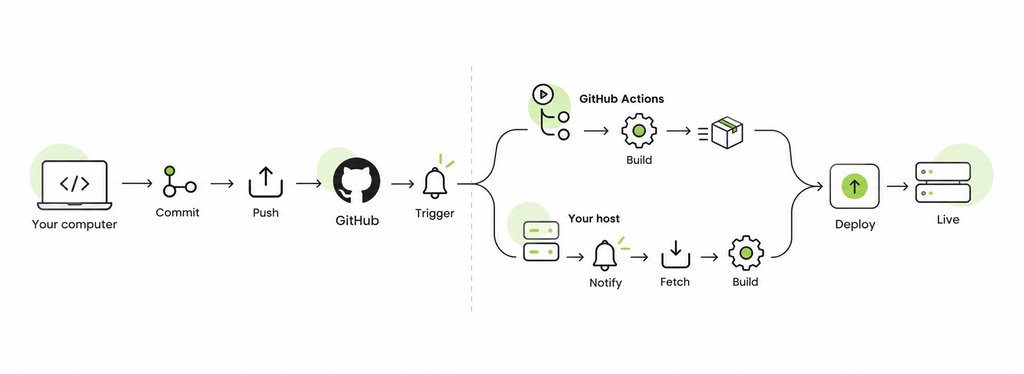
Pressing push feels like the last step. With auto-deploy, it is the second step of a six-step pipeline:
- Commit. You save a snapshot of your changes in your local Git repository.
- Push. The commit travels to GitHub, and the branch there now points at it.
- Trigger. GitHub announces that the branch changed, often through a webhook, and whatever is listening reacts.
- Build. A fresh copy of the code is fetched, dependencies are installed, and the build command runs.
- Deploy. The build output is moved to where the server runs it.
- Live. The application restarts on the new version.
From step 3, there are two ways this can go, depending on who runs the build: a GitHub Actions workflow on GitHub’s machines, or your host itself.
From commit to build
A build turns the code you wrote into code a server can run. Your repository holds source files, such as TypeScript, JSX, and a package.json that names dependencies without containing them. The build fetches a clean copy of the commit, installs those dependencies, and runs the build command, which compiles and bundles everything into an output folder. The build runs on either a GitHub Actions runner or your host’s own server, depending on which model you use.
Because the build starts from exactly what is in the repository, “it works on my machine” stops working as an excuse. A file you never committed, or a package you installed globally and never declared, is simply not there.
From build to live
If GitHub ran the build, a workflow step copies the output to your server. If your host ran it, the output is already where it needs to be. Deployment puts the build output, called an artifact, where the server runs it, then restarts the application on the new code. The careful method prepares the new version alongside the running one and switches over only once it is complete, so visitors never see a mix of both. The careless method overwrites live files one at a time, which is what a manual FTP upload does. On SiteGround Node.js Projects, every deploy creates a brand-new build, and older builds stay on the account until you delete them.
Environments: Why staging and production are separate
An environment is a named destination for your code, such as staging or production, with its own settings and secrets. Production is what visitors use. Staging runs the same code against test data, with a test database and a sandbox payment key, so a broken checkout charges nobody.
On GitHub, an environment is also a gate. GitHub’s documentation lists four types of deployment protection rules: required reviewers who approve the job, a wait timer that delays it, limits on which branches and tags can deploy, and custom rules checked by an outside service. Environment secrets are released only to jobs that target that environment, and only after approval when reviewers are required. GitHub also records deployments per environment, so the repository shows which commit is live where. These rules apply to GitHub Actions workflows. If your host deploys through its own GitHub App, protection rules don’t gate that deploy, and staging is something the host provides, or doesn’t.
Note! Private repositories may need a paid GitHub plan for some of these features.
CI, CD, and the words nobody defines
CI/CD is the umbrella term for automating everything between a commit and a release. It covers three practices, and “CD” means two different things depending on who is talking.
Continuous integration vs. continuous delivery vs. continuous deployment
- Continuous integration (CI) merges changes into a shared branch often and runs an automated build and tests on every one, so a problem surfaces at the commit that caused it.
- Continuous delivery automatically prepares every change that passes for release, but a person decides when it goes to production.
- Continuous deployment removes that decision. Every change that passes goes live on its own.
A host that rebuilds on every push to a linked branch is doing continuous deployment, even if no tests run. Putting tests in front of it is what makes it CI/CD. For the rest of the vocabulary, from pipelines to runners, see our vibe coding glossary.
What GitHub Actions does, and what it doesn’t
GitHub Actions runs your deployment process. It does not host your application. That one distinction clears up most confusion about GitHub deployment.
You describe a workflow in a YAML file in your repository’s .github/workflows folder, name the event that starts it, such as a push to main, and list the steps. GitHub starts a runner, a temporary virtual machine, which checks out your code, installs, tests, builds, and, if you wrote a step for it, sends the result to a server. When the job finishes, GitHub discards the runner.
Nothing from the run stays running, so a GitHub Actions deployment always has two halves: the workflow GitHub runs and a destination you provide, whether a cloud platform, a virtual server, or a hosting account. If that destination can build the code itself after a push, you may not need a workflow at all. When you do, GitHub’s deployment documentation covers the syntax.
Deploying to your own server or host
Deploying from GitHub to a server means connecting a repository to the machine that runs the application, so each push becomes a new live version. The two common approaches differ in who does the build.
Connecting a repository to a web host
- GitHub Actions pushes to the server. The workflow builds on a runner, then copies the result to your server over SSH, using credentials stored as encrypted repository secrets. You maintain the workflow, the keys, and whatever keeps the app running.
- The host pulls from GitHub. You authorize the host’s GitHub App once, pick a repository and branch, and the host builds and deploys every push on its own machines. There is no workflow to maintain.
SiteGround Node.js Projects take the second route. On the GrowBig, GoGeek, and Cloud plans, you connect a repository through the SiteGround GitHub App when you create a Node.js project, and every push to the linked branch rebuilds and redeploys the app. The branch, Node.js version, build command, and environment variables are adjustable in Site Tools, and auto-deploy can be paused without disconnecting the repository. Whether a shared plan suits your app is a separate question, covered in does shared hosting support Node.js.
Why GitHub Pages isn’t the same thing
GitHub Pages is a static site hosting service. According to GitHub’s documentation, it publishes HTML, CSS, and JavaScript files from a repository and serves them as they are. There is no Node.js process, no database, and nowhere for an API route to run. A portfolio or a documentation site suits it. An Express server or anything with a user login does not.
GitHub’s usage limits also state that Pages is not intended as free hosting for an online business, an ecommerce site, or commercial SaaS, and as of October 2026 they cap published sites at 1 GB.
When a deploy fails
Most failures fall into one of two categories, and each is fixed in a different place, so work out which one you have first.
Failed build vs. failed deploy
| Failed build | Failed deploy | |
| What stopped | The install or build command | The app, after a successful build |
| What visitors see | Usually the previous version | Errors, if the platform switched before checking |
| Typical causes | Missing dependency, syntax error, wrong Node.js version | Missing environment variable, hardcoded port, crash on startup |
A failed build is the safer failure: on a platform that switches versions only after a successful build, the old version keeps serving. A failed deploy can take the site down if the platform switches before confirming the new version starts. Hosts that copy files into the live folder add a third case, the partial deploy, where an interrupted upload leaves old and new files mixed, and the fix is a full redeploy.
Reading a deployment log
A deployment log is the transcript of every command the build ran, in order. Read it from the bottom up to find where it stopped, then look for the first error above that point, because the final lines usually report the consequence rather than the cause. Lines starting with + or > mark the command being run, and an exit status of 0 means it succeeded.
Warnings are where beginners go wrong, and a SiteGround Node.js test deployment we ran in September 2026 shows why. Midway through the install, npm printed a deprecation notice that reads like a problem. The build carried on and finished with a status of completed:
+ [...] npm install [...]

npm warn deprecated recharts@2.15.4: 1.x and 2.x branches are no longer active. [...]

+ [...] npm run build [...]

> vite build

+ exit 0

Build info: {"status":"completed"}
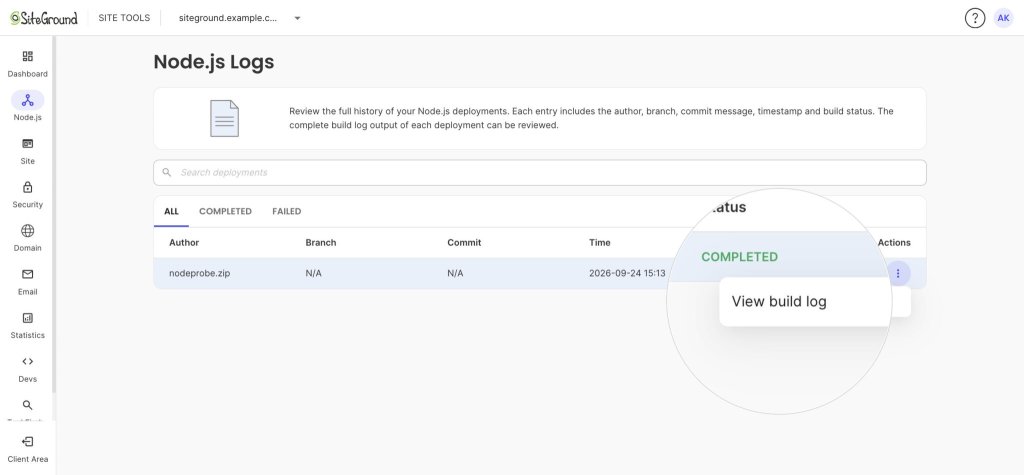
On SiteGround Node.js Projects, every build is listed in Site Tools > Node.js > Logs with its author, branch, status, and commit, and a Failed tab isolates the broken ones. Open a build’s Actions menu and select View build log, as described in how to manage a Node.js project in Site Tools.
Rolling back
Rolling back means returning production to the last version that worked. With push-to-deploy, the reliable method is git revert: it creates a new commit that undoes the bad one, and pushing it runs a normal build that puts the previous code live again. Avoid resetting the branch and force-pushing, which erases the record of what happened. Remember that a rollback restores code, not data, so database changes the bad release made stay in place.
On SiteGround Node.js Projects, older builds on the Logs page can be viewed or deleted but not reactivated, so reverting and pushing is how you roll back.
Is auto-deploy worth it for a small project?
For most projects with a build step, yes. For a static page you touch twice a year, no, and a manual upload is fine.
Auto-deploy pays off when changes are frequent, when the project must be built before it runs, or when more than one person ships code. That includes most apps built with vibe coding tools, where push-to-deploy becomes the final step of the vibe coding workflow. The cost is up front: the project has to live in Git and on GitHub, and if your host does not build for you, you also need a workflow, SSH keys, and secrets. For someone new to Git, learning it is the real price, and it is worth paying anyway.
| Manual upload | Push-to-deploy | |
| How a change goes live | Build locally, connect, upload | Push to the linked branch |
| During the update | Visitors can hit half-uploaded files | The switch happens once the build is ready |
| Record of releases | None, unless you keep one | Every deploy tied to a commit |
| Rolling back | Find and re-upload old files | Revert the commit and push |
| Best for | A few static files edited rarely | Anything with a build step or regular changes |
Putting GitHub deployment to work
GitHub deployment comes down to one chain: push, trigger, build, deploy, live. Once you can name each link, a failed build becomes a log to read rather than a mystery. If your next project is a Node.js app, SiteGround Web Hosting runs Node.js projects from the GrowBig plan upward with GitHub auto-deploy built in, so the host handles the build. If it is an API, hosting a Node.js API backend picks up from here, and if you are still deciding where any project should live, start with how to host a website.
[86]
Frequently asked questions about GitHub deployment
Yes, GitHub is widely used for deployment, as the place a deploy starts rather than where the application runs. A push triggers a GitHub Actions workflow or a host integration, which builds the code and publishes it to a server. The exception is GitHub Pages, which serves static sites directly.
To deploy a project from GitHub, connect the repository to whatever will run it. Either authorize your host’s GitHub App and choose a branch, so the host builds every push, or write a GitHub Actions workflow that builds the project and copies the output to your server.
To deploy using GitHub Actions, add a YAML workflow file to .github/workflows that runs on a push to your production branch. It checks out the code, installs dependencies, builds, and sends the output to your server over SSH or a provider’s API, using credentials stored as repository secrets.
Yes, you can deploy through GitHub in three ways: publish a static site with GitHub Pages, run a GitHub Actions workflow that ships your build to a server, or connect the repository to a host that deploys every push. Which fits depends on whether your project needs a running server.
A GitHub deployment key, or deploy key, is an SSH key that gives a server access to a single repository, read-only by default. It lets the server fetch code without anyone’s personal credentials. Deploy keys never expire, so remove the key when you retire the server.