
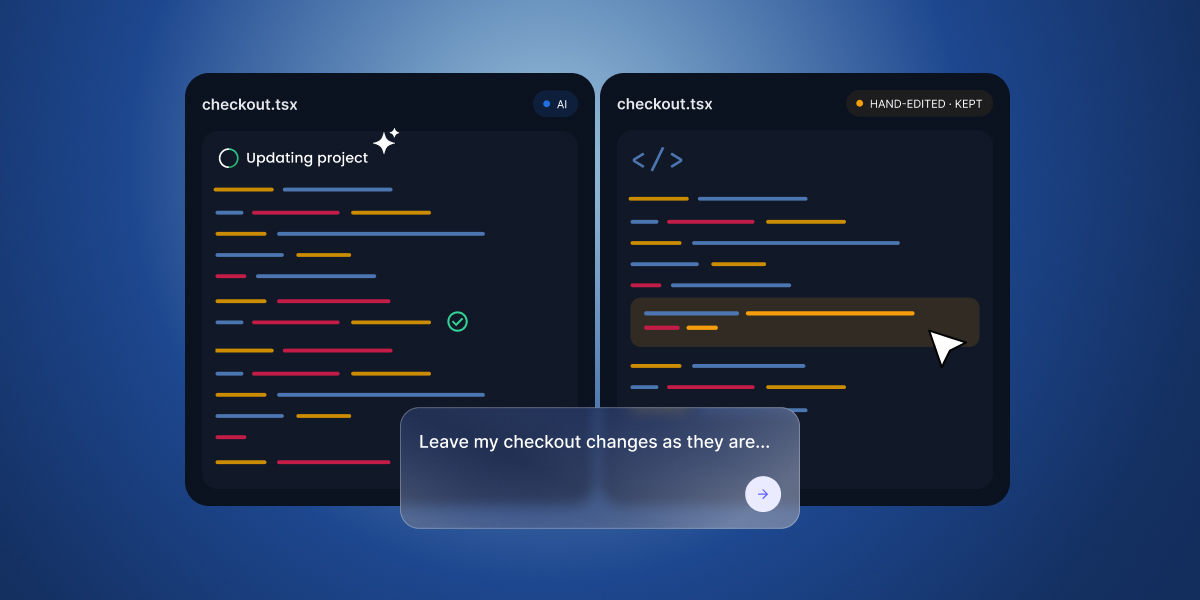
While vibe coding allows you to generate complex features in seconds, manual coding can sometimes be very helpful for fine-tuning and making quick edits, even if you’re not a developer. That’s why advanced AI builders such as Coderick AI frequently offer built-in code editors alongside your chat interface, giving you the flexibility to switch between prompting and hands-on coding.
AI coding vs manual coding is a choice made for every single change: deciding whether to prompt the AI or write the update yourself. More importantly, it requires managing the handoff between the two approaches so that prompt generations and manual edits never accidentally overwrite or undo each other.
Key takeaways:
- AI coding vs manual coding is a decision to make for each change: edit by hand when you can name the file and roughly where in it the change goes, and use the AI for new features and changes that span many files.
- You can sometimes lose manual edits if the AI is working from an older picture of the project than the one you saved, or if it’s rolling back to a version taken before your edit.
- Treat every switch between editors as a handoff: keep a version to return to, make the edit, tell the AI what changed, and check that both changes survived.
- Prompts are boundary guidelines, not hard locks: instructing the AI to leave specific files untouched works well, but keeping saved version checkpoints and offline backups remains your ultimate safeguard.
AI coding vs manual coding: choose the editor for each change
AI coding vs human coding is a decision made for every individual edit in your project. Knowing when to switch between the two (and, in some cases, use point-and-click visual editing) keeps your workflow fast, accurate, and cost-effective.
| Change type | Recommended tool | Why it’s the better choice |
| Small edit with known file & line | Manual coding | Direct manual edits take seconds, eliminate AI guesswork, and consume zero credits. |
| Copy, color, or image tweak | Visual edit | Point-and-click editing lets you update visible elements instantly without digging through source files. |
| New feature or multi-file change | AI coding | AI coding excel at generating new components, setting up backend logic, and wiring changes across multiple files simultaneously. |
| Repetitive change across many places | AI coding (scoped) | Referencing specific files in your prompt lets the AI automate repetitive edits across your project without straying out of bounds. |
| Unlocated bug or unfamiliar code | AI coding | Ask the AI to locate the issue or explain the file structure before deciding whether to let it write the fix or handle it manually. |
Good AI builders bring AI prompting and manual code editing together in one place, plus point-and-click editing. For example, Coderick AI supports all three methods by combining the chat interface with a Visual Edit mode for instant on-screen tweaks, and a live Code tab for hands-on file edits.
To see how AI coding vs manual coding compare in practice, consider a routine small edit. Say you want to update your opening hours on the contact page of you AI-built site from 10am to 9am:
- AI coding: You submit a chat prompt asking the AI agent to update the time. The AI processes your prompt, scans project context, re-generates the file, and re-compiles the app, consuming AI credits.
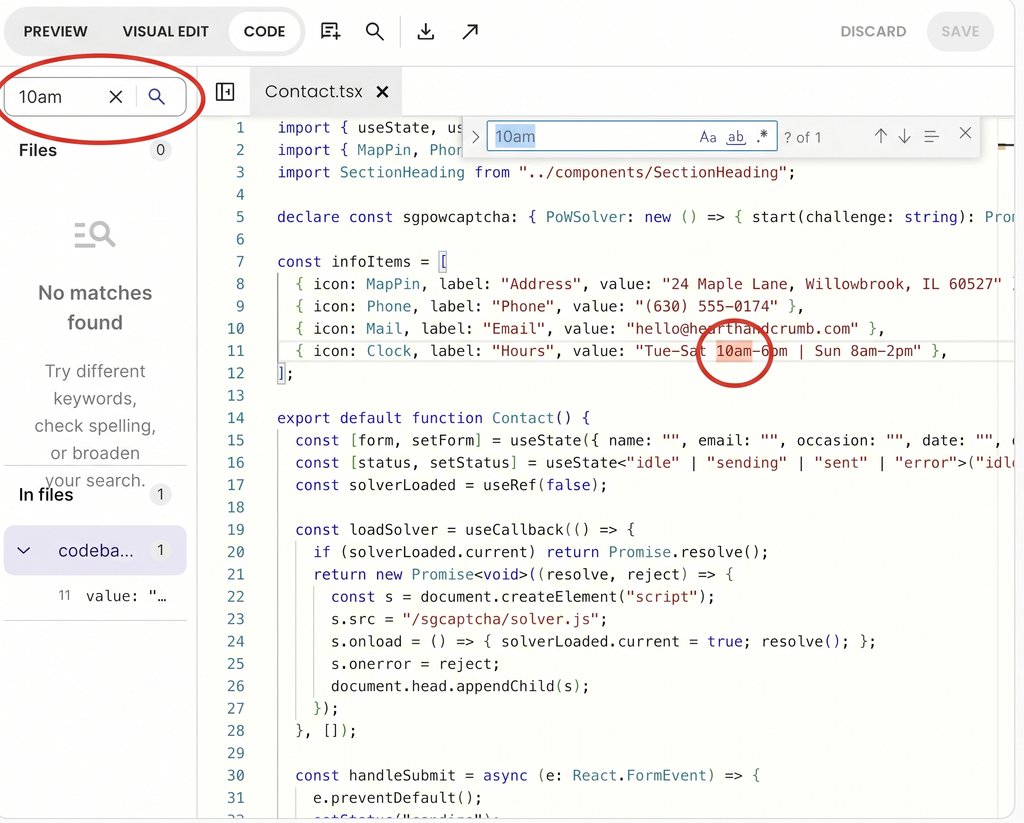
- Manual coding: You open the code editor, search the project for “10am”, swap it to “9am”, and click save. The edit takes a few seconds and costs zero credits.
Why AI can overwrite manual code changes
When combining AI and manual coding in a single project, an AI prompt can unexpectedly overwrite or undo your hand-crafted changes. This typically happens for three main reasons, each occurring at a different moment in your workflow:
The AI works from an older state of the project
In some AI app builders, a new prompt reads from the last version generated by the AI rather than the files as you last saved them. When the AI rewrites a file, it overwrites your manual edits with its older copy. Advanced platforms prevent this by updating the AI’s project state whenever you save. For instance, in Coderick AI, saving edits in the Code tab creates a new version checkpoint without consuming credits, ensuring subsequent prompts read your updated codebase.
A rollback goes past your manual edits
Restoring an earlier project version returns your source files to that specific saved state, undoing any manual fixes made after that checkpoint. If you revert to a state saved before your hand edit, those manual changes are replaced by the earlier file state.
A broad prompt reaches finished work
Wide-reaching requests like “make the site look more modern” give the AI freedom to modify any file it considers relevant, including custom code you previously finished and considered complete.
When an edit goes missing, the timing tells you which cause to suspect: if your work vanished immediately after sending a prompt, look at stale project context or overly broad prompts; if it vanished after a version restore, look at rollback boundaries.
How to combine AI coding and manual coding without losing edits
To combine AI and manual coding safely in one project, treat every switch between editors as a clear handoff of the project’s current state. This workflow consists of three quick stages, taking just a minute or two each:
1. Before you edit by hand: establish a clean baseline and save a local backup
Let the AI finish its generation and verify the result in the live preview first so you never edit a file while the AI is actively modifying it. Confirm that a saved version checkpoint exists right after the AI’s update so you have a clean point to return to if needed.
Next, make your edit and save it. Downloading an offline copy of the modified file (or the full project for larger updates) provides an extra layer of safety outside your version history. If a later prompt overwrites that file, your local backup lets you restore your custom code in seconds. For example, in Coderick AI, editing code in the Code tab applies when you click Save, which creates a clean version checkpoint without consuming credits.
2. Before you prompt again: update the AI on your manual edit and set strict file boundaries
Bring the AI up to date so its context includes your manual edit. Start your next vibe coding prompt with a brief summary that states what you changed by hand, points the AI at the specific file to modify, and names what code to leave alone.
Here is a reusable template you can adapt:
I manually changed [new value] in [file name]. Only edit [file name] to [requested change], and leave my edit and the rest of the file unchanged.
Filling out this template sets clear boundary rules for the AI. For instance, when you submit this filled-in prompt to an AI builder like Coderick AI, the instructions tell it precisely where to work and what code to protect:
I manually changed the email in Contact.tsx. Only edit Contact.tsx to make the Event Date field required, and leave my edit and the rest of the file unchanged.
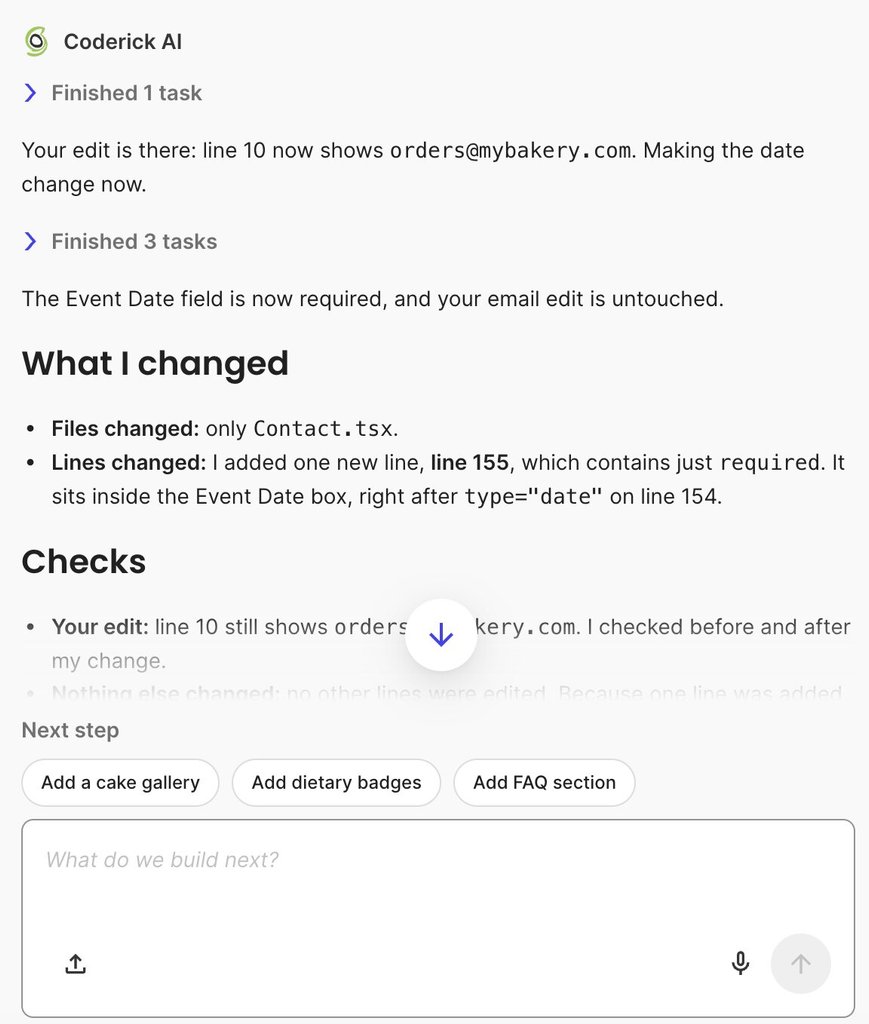
Explicitly naming the target file helps prevent the AI from altering unrelated code. In platforms like Coderick AI, referencing specific files directly in the chat locks the AI’s focus to those files. While AI models usually follow these instructions, prompts are not physical locks, which is why having a saved version checkpoint and an offline backup remains your best safeguard.
Pro tip: Focus on one area per prompt. A prompt that changes a button, a navigation menu, and a footer touches three separate parts of your project at once. If your manual edit vanishes afterward, pinpointing the cause becomes difficult. Requesting one area at a time keeps each change small enough to review quickly.
3. After the AI’s change: verify your manual edit survived and confirm the scope of edits
Perform two quick checks before moving on to your next task:
- Verify your manual edit: Search your project files for a unique word or value from your manual update (such as the updated email address) to confirm it is still intact.
- Verify the scope: Ask the AI which files it modified, then compare that list against the single file you requested it to change.
If your manual edit is missing, stop and restore your previous version checkpoint before sending another prompt.
How to protect manual code changes from AI
Certain manual edits to AI-generated code need to survive dozens of future AI prompts, such as a custom pricing calculation, a third-party analytics tag, or an external widget script.
Here are four habits to protect your critical manual code over the long run:
- Isolate it in its own file: Keep custom code inside a dedicated file or component whenever possible. When manual logic lives in its own file, prompts aimed at other parts of your app have no reason to touch or overwrite it.
- Label it with code comments: Give the file an explicit name (like custom-pricing.js) and place a comment at the top, such as “Written by hand. Do not modify without permission.” AI coding agents read source comments, making this a simple way to signal boundaries.
- Maintain a manual changes log: Keep a quick bulleted list of what you edited by hand and where those changes live. You can copy and paste this list directly into future prompts that touch surrounding features.
- Download an offline backup before major updates: Before submitting a prompt that reworks an entire page or complex feature, download a local copy of your project. An offline backup ensures your custom code exists in a safe location where no AI prompt can reach.
What to do when the AI overwrites your work
Despite your handoff instructions, AI could still overwrite a manual code edit because chat prompts act as natural-language guidance rather than hard file permissions. When an AI modifies a file, it rewrites the file as a whole. If the model prioritizes its new feature request or misinterprets the surrounding context, it may sometimes drop your hand-crafted lines during that rewrite.
If an AI prompt overwrites your manual work, execute these three recovery steps in order:
1. Stop prompting
Submitting new prompts after a file is accidentally overwritten compounds the problem. Every subsequent prompt uses the new codebase as its new baseline, pushing your original edit further back in the project history and making recovery significantly harder.
2. Restore the version containing your edit
Roll back your codebase to the last version checkpoint where your manual change was intact. In platforms like Coderick AI, you can revert your source files to a previous checkpoint with a single click. If no saved version contains your edit, restore the code directly from your downloaded offline backup.
File revisions vs. database data: Restoring a past project version rolls back only the application source files; it does not wipe dynamic user data. Database records (such as customer bookings, signups, or form submissions) remain intact, and your live published site is not affected until you explicitly publish again.
3. Re-establish boundary context with the AI
Once your code is restored, update the AI before submitting new feature requests. Explicitly state what was restored, specify the exact file, and remind the AI which code to protect so the same prompt does not trigger a second overwrite.
One habit for every change
AI coding vs manual coding is a deliberate choice made for every single edit. By picking the right tool for each task and managing the handoff whenever you switch, you get the speed of AI generation without risking your custom code.
Nearly every lost edit stems from a skipped handoff. Taking sixty seconds to anchor your code boundaries between prompts will save you hours of tedious rebuilding later. Ultimately, this habit is essential for long-term AI-built app maintenance, as it keeps your project stable and easy to look after as it grows.
[96]
FAQs
In AI coding vs manual coding, use manual editing when you know which file and roughly where in it to change, and use the AI for new features, changes across many files, or code you can’t locate. Decide for each change rather than for the whole project.
Combine AI coding and manual coding by choosing the better editor for each change, keeping a version you can return to, making the edit, telling the AI what changed before the next prompt, and checking that both the new change and your earlier manual edits are still in place.
To stop AI from overwriting manual code changes, save your edit, tell the AI what you changed and what to leave alone, point it at the file it should work on, and keep custom code in its own file where you can. Instructions help but aren’t locks, so keep a version or a downloaded copy to restore.
Editing AI-generated code manually is better for small, precise changes you can locate yourself. Prompting the AI again is better for larger changes, new features, or edits spread across many files.
Manual coding is often faster than AI for small changes in code you know, since there’s no prompt to write or result to check. A 2025 METR trial found experienced developers working in code they knew well were slower with AI, even though they believed they were faster.
No. Manual edits in Coderick AI’s Code tab don’t use credits, and neither do quick changes made in Visual Edit.