
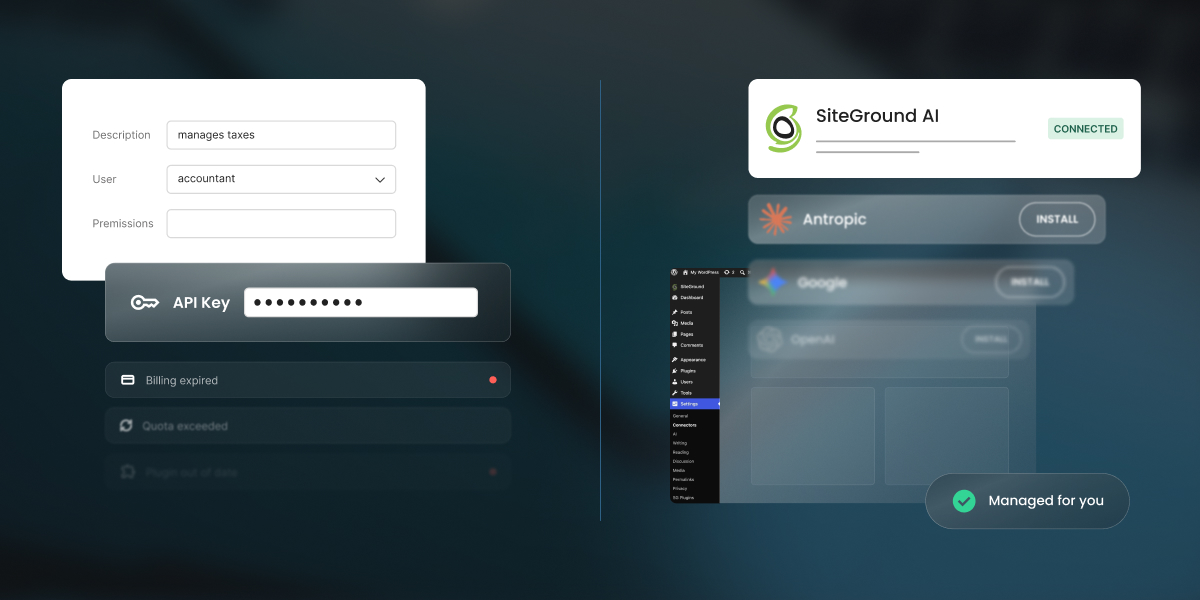
Most WordPress AI plugins arrive with the same hidden requirement: bring your own key. You’re sent off to open a developer account with an AI provider, add a payment method, and generate an API key, which is a long password that lets your site talk to that company’s AI. But did you know you can skip that entire errand?
Running WordPress AI without API keys means a managed service handles the connection to the AI models, so nothing on your site stores a credential and you never open a provider account at all. This is in contrast to the dominant bring-your-own-key (BYO-key) described above, where the plugin supplies the features, and you supply the account, the key, the billing, the limits, and the maintenance that follows.
Key takeaways:
- Running WordPress AI without API keys means you do not need separate model-provider credentials from OpenAI, Anthropic, Google, or similar services.
- A managed connector can let a WordPress AI plugin work without an API key, so nothing on your site stores a credential and no developer account is needed.
- BYO-key WordPress AI plugins can give you more direct control over models, pricing, provider accounts, and portability.
- One provider is rarely enough. Text and images often need different providers, so a BYO-key setup usually means several accounts, several keys, and several bills.
What BYO-key WordPress AI and managed access actually mean
Every AI feature on a WordPress site needs a route to an AI model. A writing assistant, chatbot, image generator, SEO tool, or WooCommerce helper cannot work on its own. It has to send a request to a model provider, identify who is allowed to use it, and decide who pays for the request. That route can be supplied in several ways.
| Access model | How it works | Who it suits |
|---|---|---|
| Direct BYO-key plugin | You create provider accounts yourself and paste the credentials into the plugin or the Connectors screen. For example, the official WordPress AI plugin works this way | Site owners who want to choose their own models and hold the provider relationship deliberately |
| Managed AI access | The service holds the provider relationships, and no key is stored on your site. For example, SiteGround’s AI Agent for WordPress works this way | Site owners who want to use AI in WordPress without the administration |
The most common model today is BYO-key. Many AI plugins for WordPress are built around it because it’s straightforward for the plugin developer: the plugin provides the interface, and the user pays the AI provider. For more technical users, this option gives direct control over the model provider, the selected model, the billing account, and usage policies.
But it also means someone has to manage every provider account, key, quota, billing dashboard, and model retirement notice. With managed WordPress AI access, more of that work is handled for you. You still use AI in WordPress, but you don’t need to open separate accounts with multiple AI providers or keep track of several keys and billing dashboards. That is where comparing managed AI vs BYO-key becomes a business decision, not just a setup preference.
How AI connects to your WordPress site
There are two main WordPress AI provider setup models, and both take about the same time.
Connecting WordPress AI with your own API key
In a BYO-key setup, you create an account with a provider such as OpenAI, Anthropic, or Google. Then you install the relevant provider connector or plugin, generate a key in the provider dashboard, and paste that key into the plugin settings or, if you’re on WordPress 7.0 or above, into WordPress’s Settings > Connectors screen.
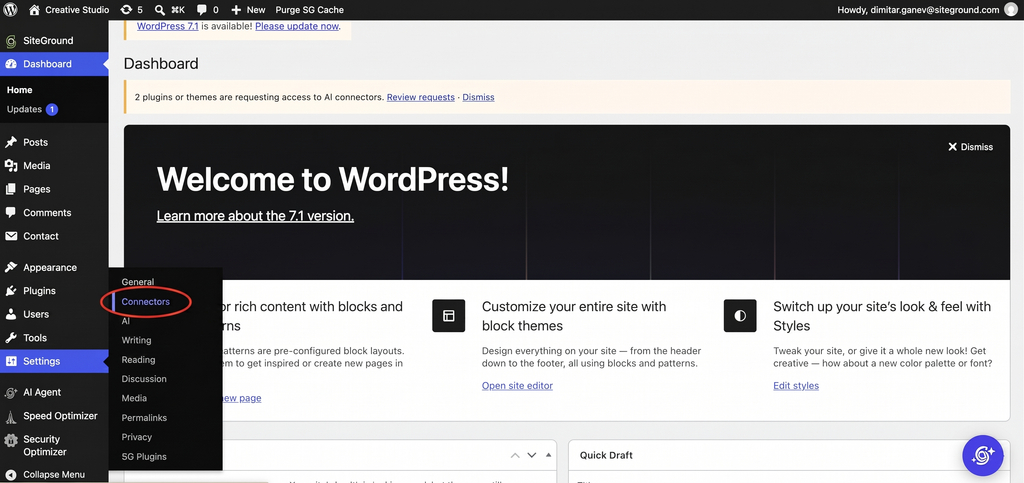
If you want to use ChatGPT, Claude, and Gemini in WordPress, you usually repeat that process for each provider. One key doesn’t normally cover every model family.
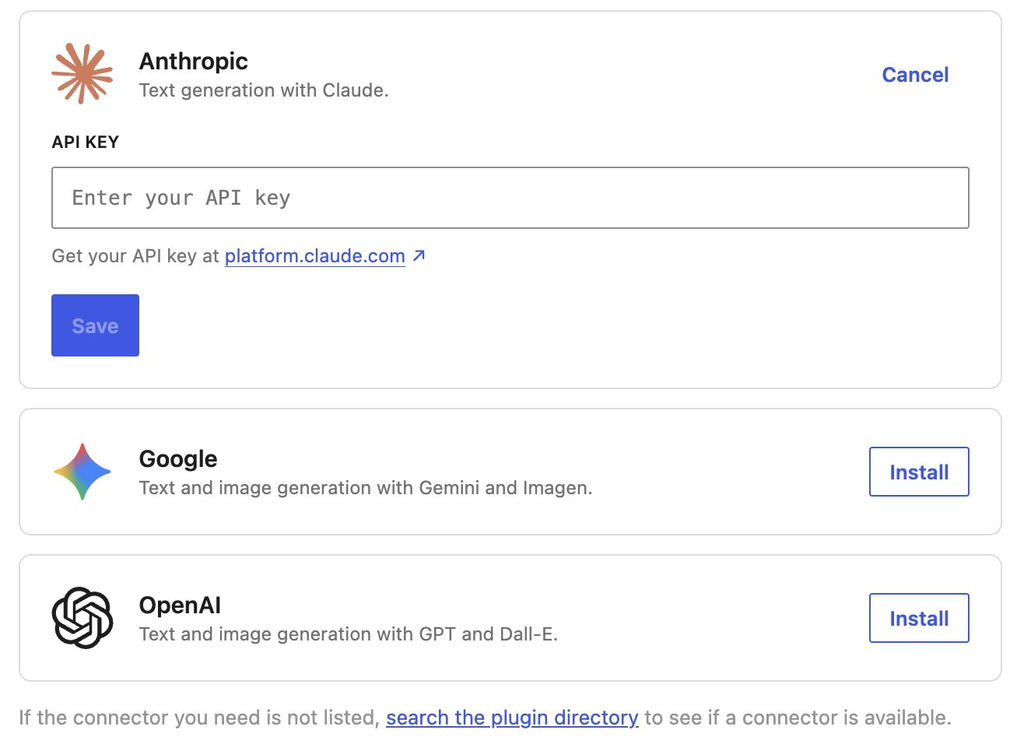
Pro tip: Set a spending cap the same day you create the key. Every provider lets you set one, and it takes about a minute, but almost nobody does it at setup because nothing prompts you to. Do it before you paste the key into WordPress, while you’re still in the provider’s dashboard. Without a cap, a plugin making background calls or one busy month of content can multiply the bill before anything appears on a statement. Worth knowing: OpenAI and Anthropic both offer a hard monthly limit that stops requests, while Google’s billing runs through Google Cloud where the default is an alert that emails you and lets spending continue.
WordPress 7 improved this with the Connectors screen by giving WordPress a centralized place for AI provider connections, including OpenAI, Anthropic, and Google, so compatible plugins can reuse configured connections. However, the standard connector model still uses provider credentials, so WordPress Connectors API keys don’t eliminate provider administration, but rather reduce repeated setup.
Using AI Agent for WordPress without API keys
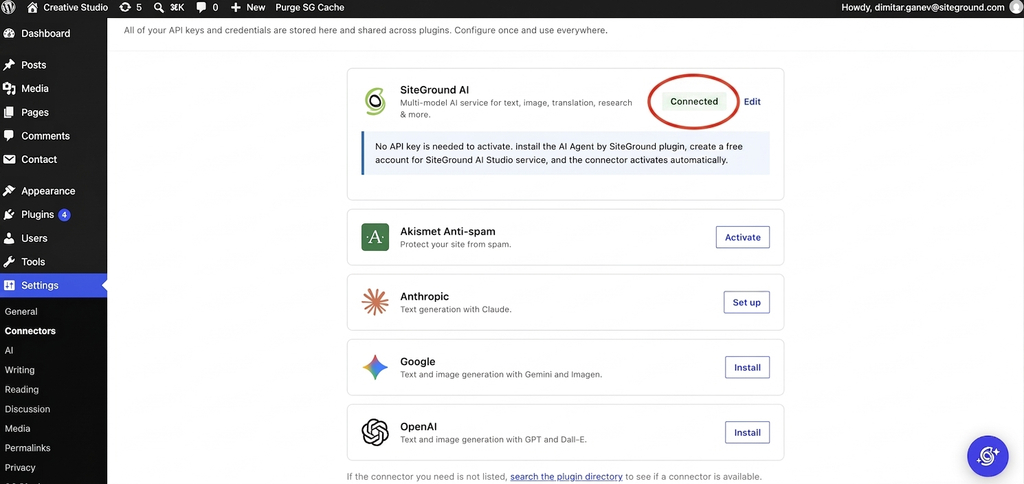
With an AI Agent for WordPress without API keys, the access model changes. For instance, in the case of SiteGround’s AI Agent for WordPress, you install the AI Agent by SiteGround plugin, create a free SiteGround AI Studio account, and the SiteGround AI connector activates without requiring a separate model-provider API key on the site.
That means no OpenAI key to paste, no Anthropic key to rotate, and no separate Google Gemini billing account just to start using WordPress AI features. Moreover, SiteGround AI is a multi-model connector that can route tasks across models such as Gemini, ChatGPT, GPT-Image, and Claude, with no API key needed to activate the connector.
This means that rather than requiring you to know which model to use, SiteGround AI automatically routes each request to the most appropriate one for the job. For example:
- General inquiries about your WordPress setup are routed to fast, efficient models like Gemini Flash for near-instant responses.
- Complex WordPress site management tasks are automatically escalated to advanced reasoning models like Gemini Pro or GPT 5.6.
- Visual assets are handled by dedicated image-generation models such as GPT-Image.
If your website is hosted on SiteGround, the process is even more seamless: SiteGround AI is already connected as a provider, and the SiteGround AI Studio plugin comes pre-installed and automatically authenticated for all new and migrated sites, meaning the agent arrives connected and ready to work right out of the box with zero setup.
What happens after you connect
The easiest WordPress AI setup for beginners is not only about the setup. A beginner-friendly setup should stay manageable after the first week, when a few of these might happen:
| What happens | With your own API keys | With managed access |
|---|---|---|
| You need a second provider | Another account, another key, another billing relationship, another dashboard. Common, since one provider rarely covers both text and images | Nothing. Model routing happens behind the connection |
| A new administrator joins | Decide whether to share a key, issue a second one, or hold credentials centrally. Every option has a downside | They use the site. No credential decision at all |
| You want to know what you’re spending | One provider dashboard per account, each in its own format and billing cycle | One balance, in one place |
| A card fails | AI features stop, often without an obvious reason, and it looks like a plugin bug until you check the provider | Handled through your existing SiteGround relationship |
| A key is exposed | Rotate it at the provider, update everywhere it’s stored, and absorb whatever was spent in the meantime | No key on the site to expose |
| A model is retired | Track notices across every provider you use and migrate before the cutoff | The service moves to the replacement |
| Provider pricing changes | Yours to absorb, on their schedule | Absorbed by the service, which is also the trade-off: you didn’t choose |
| Something breaks | Work out whether the plugin, the connector, the key, the quota, or the provider failed. Four support surfaces, none of which owns the whole path | One place to ask |
Let’s look at perhaps the most common issue: the failed-card example. If your Gemini account uses a prepaid balance and that balance hits zero, Google says all API keys in all linked projects under that billing account stop working. To the person inside WordPress, that can look like the WordPress AI plugin API key suddenly broke, even though the real issue is billing.
Retired models are another common lifecycle issue. OpenAI states that it regularly retires older models and that software relying on those models may need updates to keep working. Its notice periods vary by model type, with generally available models receiving longer notice than preview models. Anthropic uses a similar lifecycle language: active, legacy, deprecated, and retired, and says requests to retired models fail. It also tells customers to audit usage by API key and model before retirement dates.
That is the operational work hidden behind BYO-key WordPress AI plugins. Someone has to notice the email, understand whether the WordPress site is affected, test the replacement model, and update the configuration before the feature fails.
What each model costs you
Whichever route you take, something goes. One costs you control over the AI, the other costs you time you’ll spend maintaining it, so the question is which cost you’d rather pay.
What you give up with managed access
You give up model choice. The service decides which model handles each request, and you don’t get a say in it. You give up the direct provider relationship too, so you can’t negotiate, can’t watch provider-level pricing, and can’t move the same setup into tools outside WordPress. And you can’t switch providers on your own schedule, because that decision belongs to the service.
For a business with specific model requirements, or one already using the same provider across other systems, those can be more than technicalities. For example, you may need a specific OpenAI model for a workflow, a direct Anthropic account for procurement reasons, or a Google Cloud billing relationship for compliance.
What you give up with your own keys
Time, mostly, and it recurs. Every row in the table above is work that lands on whoever manages the site, and on a small business that’s usually the person also handling marketing, customers, and everything else.
A BYO-key setup with a single OpenAI account is more exposed to one company’s decisions, not less. If that provider changes its pricing, retires the model you use, or has an outage, you have no alternative route and no way to move quickly. The fair managed AI vs BYO-key comparison isn’t managed access against one key, but rather managed access against a genuinely multi-provider setup, and that’s where the administrative burden actually lives.
WordPress AI without API keys: which model fits your business
The right BYO-key vs managed WordPress AI choice depends on who owns the work after setup.
When to choose your own API keys
Choose your own API keys if you want specific models for specific jobs. That might include using one model for long-form content, another for code, another for image generation, and another for embeddings or search. It also makes sense if you already have provider accounts, already monitor AI spend, or already use the same provider relationship in tools outside WordPress.
BYO-key is also a good fit when:
- You have someone who will actually do monthly maintenance.
- You need direct provider invoices for procurement.
- You need provider-level logs or controls.
- You are comfortable diagnosing quota, billing, authentication, and model errors.
When to choose managed access
Choose managed WordPress AI when nobody on the team wants to own provider administration. That is quite normal for small business owners. The same person managing WordPress may also be managing content, customer emails, products, bookings, social media, invoices, and support. Adding OpenAI, Anthropic, Google, and image-model billing dashboards to that workload is not a small ask.
Managed access is usually the better fit when:
- You would rather have one AI relationship than several provider accounts.
- You want one usage view instead of multiple dashboards.
- You care more about completing WordPress tasks than choosing exact models.
- You want a simpler WordPress AI provider setup.
The bottom line
WordPress AI without API keys reduces the number of accounts, keys, dashboards, billing relationships,and provider lifecycle issues. That makes it a better fit for owners and teams that want AI as a business tool, not another technical system to administer.
In contrast, BYO-key plugins are the right choice when direct model control, provider ownership, and technical configuration matter more than simplicity.
So the real question is not whether your setup takes five minutes or fifteen, but who handles the administration for the next two years.
FAQs
Yes. You can use WordPress AI without an API key through a managed connector that holds the provider relationship for you. The AI Agent by SiteGround plugin activates the SiteGround AI connector automatically once you create an AI Studio account, so no credential is stored on your site.
BYO-key means bring your own key. The plugin provides the AI features, and you provide the provider account, the API key, the billing setup, the usage limits, and the ongoing maintenance. WordPress’ AI plugin and AI Engine both work this way.
Yes, if you connect each provider yourself. Every provider needs its own account, its own API key, and its own billing relationship. This comes up more often than people expect, because one provider rarely covers both text and image generation.
Yes. WordPress 7’s Connectors screen stores provider credentials centrally so compatible plugins can share one connection instead of each asking for its own key. It centralizes where the key lives, but it doesn’t remove the need for a provider account or a key.
Managed WordPress AI, such as AI Agent for WordPress, is usually better for small businesses, because the administration it removes is work that a small team rarely has anyone to do. If your business has a developer or agency already managing provider accounts, your own keys give you more control and that control becomes usable.
When an AI model is retired, requests to it start failing. With your own keys, you track notices across every provider and migrate before the cutoff. OpenAI gives at least six months for generally available models and around two weeks for previews, while Anthropic gives at least 60 days. With managed access, the service handles the move.
Yes. AI Agent for WordPress is easier to set up than AI Engine because it needs no provider account and no API key. AI Engine is a BYO-key plugin, so you create an account with a provider, generate a key, and paste it in before any feature works.
If your card fails at the AI provider, your WordPress AI features stop working, and nothing in WordPress explains why. It usually looks like a plugin problem until you check the provider’s billing dashboard. With managed access, billing runs through your existing account instead.