

As we found in our 2026 report on AI in WordPress for small businesses, the AI plugins market has been exploding. There is now an AI plugin for almost every WordPress task imaginable, and it’s tempting to install each shiny new tool that promises to make your life easier with a bit of AI magic. But that is how your site ends up overloaded, so the real question is: how do you choose AI plugins for WordPress well, and end up with only the ones you actually need?
Fortunately, you don’t need to test every option. Choosing AI plugins for WordPress means starting with the task you need to complete, narrowing your options to the right plugin category, and evaluating each candidate for compatibility, total cost, API requirements, security, overlap, and ongoing maintenance before installing it. That kind of WordPress AI plugin selection is what keeps your site fast and easy to manage rather than cluttered.
This article will walk you through the whole process and show you how a site-connected assistant like the AI Agent for WordPress can help you search for and install the AI plugins you actually need.
Key takeaways:
- Choosing AI plugins for WordPress is a process, not a shopping trip: start from the task, narrow to the category, then run one candidate through nine checks before you install anything.
- Judge every plugin on the same nine points, from whether it fits the job to how it handles your data and whether it overlaps something you already run.
- The real cost is rarely the sticker price, because separate subscriptions, AI provider accounts, and API keys can add up across a stack of AI tools.
- Overlap is the check most people skip, yet removing a plugin you no longer need is often a bigger speed and security win than adding a new one.
- A site-connected assistant like the AI Agent for WordPress can run these checks against your live site, recommend or install a plugin, and in many cases handle the task so you need no new plugin at all.
How do you choose an AI plugin for WordPress?
The best way to choose an AI plugin for WordPress is to define the task first, then check a single candidate against the same short list of questions every time, so the decision is consistent instead of swayed by whichever tool has the best marketing that week.
AI has become the headline feature nearly every plugin leads with, from established names bolting an AI panel onto tools you already know to brand-new plugins built entirely around a single model. On the surface, many can look almost identical, which makes it genuinely hard to tell a tool that will still be maintained next year from one that was rushed out to catch the wave.
For a detailed analysis of the AI plugins market, download our 2026 report on AI in WordPress for small businesses.
The nine checks below cover the things that actually decide whether a plugin helps your site or slowly weighs it down.
1. Does it fit the specific task?
Among WordPress AI tools, task fit matters more than feature count. The question is not whether a plugin does a little or a lot, it’s whether what it does matches what you actually need. If you have one narrow job, a plugin built for exactly that will serve you better than a broad suite where your task is buried among features you will never open. If your need is genuinely bigger, like WordPress management as a whole, then a tool scoped to that makes sense. What you are avoiding is the mismatch: paying for and loading capabilities that have nothing to do with the job in front of you.
2. Is the AI plugin compatible with your WordPress setup?
AI plugin compatibility is whether the plugin works cleanly alongside the rest of your site: your WordPress version, your theme (the design template that controls how your site looks), and the plugins you already run. Plugin conflicts are one of the most common reasons a WordPress site suddenly looks broken or slows to a crawl, because two tools try to do overlapping things at the same time.
Check that the plugin lists support for a current WordPress version and was tested recently. AI plugin compatibility problems are far cheaper to avoid than to diagnose after the fact.
3. What does the subscription actually cost?
Note the plugin’s own price, monthly or yearly, and be honest about which tier you will really need. The free version is often a preview, and the feature you actually came for (bulk actions, higher limits, the model you want) tends to sit on a paid plan. AI plugin pricing is worth writing down rather than eyeballing, because a “cheap” plugin at the tier that does nothing useful is not cheap. And this is only half the cost picture, which brings us to the next check.
4. Does it need its own API keys or provider account?
This is the cost that catches people out. Many WordPress AI plugins don’t include the AI itself. Instead, they connect to AI models like ChatGPT, Claude or Gemini, and to do that you have to create your own account there and generate an API key, a long password that lets the plugin use that service and bills you for what it uses.
When this is the case, you’re paying twice: once for the plugin and again for the AI usage on a separate bill you have to set up and watch. Always check whether the AI is included or billed separately before you decide a plugin is affordable.
If you are on WordPress 7.0 or later, this check gets easier. WordPress 7 added a built-in way to connect an AI provider like OpenAI or Anthropic once, from a single Connectors screen, and plugins built for it share that connection instead of each asking for its own API key. You still set up one provider account and still pay for what the AI uses, but it is one connection and one bill to watch rather than a separate key buried in every plugin. Our guide to AI in WordPress 7.0 for business explains this in detail.
5. How does it handle your data and permissions?
An AI plugin often needs real access to your site to read your content, change your pages, or send your data to an outside service to process it. That is quite common, but it’s worth a moment’s thought. Look at what the plugin asks to do, and where your content goes when it uses AI. A well-made plugin is clear about both.
WordPress AI plugin security comes down to two simple questions: does it ask for more access than the job requires, where does it send site data, and is it still being looked after? An abandoned plugin with deep access is one of the riskier things you can leave installed, which leads us to the next check.
6. Is it actively maintained?
WordPress, PHP (the programming language WordPress runs on), and the AI services behind these plugins all change regularly. An AI plugin that is not kept up to date will eventually break against them, or stop being safe. Before installing, look at when it was last updated and how often new versions appear. A plugin updated last week is a good sign; one untouched for a year is a warning, however good it looked at launch.
7. Is there real support if something goes wrong?
It’s possible at some point an AI plugin will do something you didn’t expect, and what matters then is whether you can reach a human who can help. Check what support looks like before you commit: documentation only, a community forum, or actual responsive help from the people who built it. On a free plugin, the answer is often “you are on your own,” which can be fine for something minor and painful for something your business depends on.
8. Does it overlap with something you already have?
This is the check almost everyone skips, and it is the core of a simple WordPress plugin audit. Before adding a plugin, look at what is already installed, because there is a fair chance something on your site already does part of the job. Running two WordPress AI plugins that overlap is worse than wasteful: they compete, they both load code on every page, and they widen the surface where things can break. That overlap can add cost, maintenance work, and conflict risk even when both plugins are technically compatible. This is how sites end up slow and fragile without anyone deciding they should be.
9. How much work is it to set up and keep running?
Finally, be realistic about effort, both to get started and to live with. Some plugins are active in a click; others want accounts, keys, and a page of configuration before they do anything. And setup is only day onе: every plugin you keep is another interface to learn, another thing to update, another candidate when something goes wrong. A slightly less powerful tool that you will actually keep current often beats a stronger one that becomes a chore. Low ongoing effort is a feature, not an afterthought.
| Check | What to verify |
| Task fit | It does the job you need, without sprawling into features you will never use. |
| Compatibility and performance | Works with your WordPress version, theme, and existing plugins without causing conflicts or unnecessary load. |
| Subscription price | The plugin’s own cost, at the tier that actually does the job. |
| API keys and accounts | Whether the AI is included or billed separately through your own account. |
| Data and permissions | How it handles your content and how much access it asks for. |
| Active maintenance | Updated regularly and keeping pace with WordPress and PHP. |
| Support | Real help available when something goes wrong. |
| Overlap | Nothing you already run does the same job. |
| Setup, testing and upkeep | Can be tested safely, reversed if needed, and maintained without excessive effort. |
How an AI Agent for WordPress can run these checks for you
Running all these checks can be a fair amount of work. But here’s some good news: you don’t actually have to do this by yourself. It’s exactly the kind of job a specialized AI agent for WordPress can do for you, from choosing the AI plugin against these criteria to even installing it.
For example, you can ask SiteGround’s AI Agent for WordPress to act as your research assistant. And because it connects directly to your site, it doesn’t just give generic advice, but actually looks at what you have installed right now. In one exchange, it can handle the hardest check—overlap—by cross-referencing your actual setup, potentially saving you from adding a plugin you don’t even need.
If a new tool genuinely is the answer, the agent will search and generate a comparison table with pros, cons, and a suggested starting point. Once you’re satisfied, just give the agent the word, and it will install your chosen plugin for you.
Here’s an example prompt you can copy and adapt:
“Find me the best WordPress AI plugin for a [task] on my WordPress site. Compare options based on task fit, compatibility, performance impact, pricing, API key/provider costs, security, update history, support quality, overlap with my existing plugins, and setup/testing effort. Check my existing plugins first, then give me a shortlist and one final recommendation.”
Say you are about to add another AI tool for a visitor chatbot. Rather than reaching for a generic “best chatbots” list, the agent checks your WordPress version, your theme, and your active plugins, and tells you what it finds. It works through the same nine checks for you, weighing a handful of candidates on task fit, compatibility with your exact setup, pricing, whether each needs its own API keys, how it handles your visitors’ data, update history, support, and setup effort.
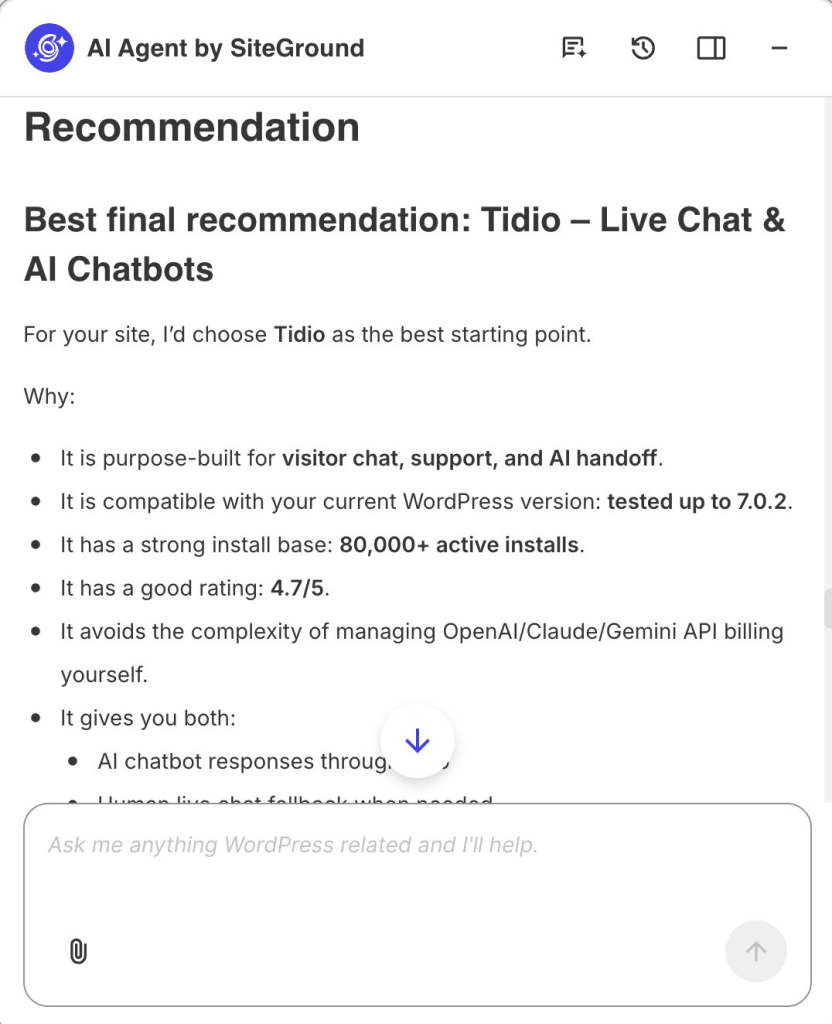
You can then just tell the AI Agent “install it.” And because the AI Agent is securely linked to your site, you don’t need to log into the dashboard, navigate through the Plugins menu, or search the repository yourself. It instantly downloads, installs, and activates the plugin directly on your live site.
When your site does not need another AI plugin at all
Knowing you can choose the right AI plugins so easily doesn’t change the big problem: stack up too many of them, and your dashboard fills with separate settings screens, each with its own login, its own way of working, and its own updates to keep track of. Your monthly costs can climb, because most of these tools are subscriptions, and several small ones add up to a bill you never sat down and agreed to. And your site gets heavier, because each plugin loads its own code, so the more you stack, the slower and more fragile the whole thing becomes.
This is once again where a site-connected WordPress assistant changes the math, because it doesn’t do one job. A specialized AI agent can often replace a whole shelf of single-purpose plugins at once and become the most useful WordPress AI tool for your business.
With the SiteGround AI Agent for WordPress, for example, the same tool can draft and publish a post, generate and apply SEO metadata, upload images to your media library, create products and discount coupons in your store, and moderate comments—all from one place, on your instruction. It can even clear your site’s cache, install and update themes, or run your core updates.
So instead of adding another tool to the pile, you are removing the reason the pile exists. And there are no separate logins to remember, no API keys to configure, and no subscriptions to keep track of. In fact, the AI Agent for WordPress is completely free for SiteGround customers, giving you 20,000 AI tokens a month as part of the free AI Studio Essential plan. You can also use it on sites hosted elsewhere (if you have a SiteGround account): it’s one lightweight plugin and about a minute to connect.
FAQs
You choose an AI plugin for WordPress by starting from the specific task you need done, narrowing to the right type of plugin, and then checking one candidate against a consistent set of questions, about task fit, compatibility, real cost, API keys, data and permissions, maintenance, support, overlap, and setup effort, before installing anything.
Before installing an AI plugin for WordPress, check that it fits your exact task, works with your WordPress version and existing plugins, and is priced clearly, including whether the AI is billed separately through your own account. Then look at how it handles your data, whether it is actively maintained and supported, and whether anything you already run does the same job.
Not by default — each one adds its own settings, login, and code to every page load, and overlapping plugins compete rather than add value. Check for overlap with what you already run before adding another, and consider whether a site-connected assistant like the AI Agent for WordPress can cover several of those jobs at once instead of adding another single-purpose tool.
The type of WordPress AI plugin your business needs depends on the job you are trying to finish, such as writing content, generating SEO metadata, editing images, translating a store, or moderating comments. Define that task first, then look only at plugins in that category, rather than at broad tools that promise to do everything.
To compare the true cost of WordPress AI plugins, add the subscription price at the tier you actually need to any separate AI usage billed through your own provider account. Many plugins connect to an outside AI service, so the real cost is the plugin plus that usage, not just the advertised plan.
Many WordPress AI plugins do require API keys, because they connect to an outside AI service rather than including the AI themselves, though WordPress 7.0 lets you connect a provider once for the whole site rather than per plugin. An API key is a private credential that lets the plugin use that service on your account, which usually means a second bill for AI usage on top of the plugin’s own price. Always check whether the AI is included or billed separately.
Two WordPress AI plugins overlap when they can perform the same job, such as two tools that both generate SEO metadata. Review what each installed plugin actually does, not just its name, and remove duplicates, since overlapping plugins compete, add weight to every page, and increase the chance of conflicts.
To audit the AI plugins on your WordPress site, list everything installed, note the single job each one does, and flag any that overlap, sit unused, or have not been updated in a long time. Removing those is often a faster performance and security win than adding a new plugin. A site-connected assistant can run this audit for you.
Yes. An AI Agent for WordPress can recommend a plugin for a task, check it against what you already have installed to avoid overlap, and install it on your instruction. Because it is connected to your live site, its recommendations reflect your actual setup, and it can also remove plugins you no longer need, with your confirmation.