How to Maintain a Fast eCommerce Website

Whether you’re adding functionality to your website through a plugin, a theme, or carrying out bespoke development, it’s important to review any changes you make and the impact they have on your site performance. 

For any website, but especially for ecommerce, performance is extremely important. Your website speed has an impact on how you rank on search engines and on your customers’ experience when shopping with you. Slow websites result in fewer page views, a reduction in customer satisfaction, and fewer conversions. 

Setting up a website that’s optimized for speed is not a one-time deal. As your site grows, any changes you make can impact the work you’ve already done. If you’ve made a change that seems to be affecting your performance, you should immediately address it to get your site back on track. 

Creating the foundation

Before getting into all the considerations when making adjustments to your existing website, it’s very important to start with a solid foundation. For the purposes of this article, we’ll assume you are using WordPress, but much of the process still applies when working with other platforms.

From the outset, ensure you are hosting your website on a high-performance provider such as SiteGround. You should enable some form of caching (with SiteGround you can enable SuperCacher) which will keep things fast. For caching, although there are some amazing techniques that will make everything faster for the vast majority of people landing on your website, you still have to keep in mind that visitors may receive an uncached piece of content. Caching is not a solution to all performance issues, especially since not all content can be cached.

It’s important to start with an optimized foundation for key areas of your website such as the home, product, cart and checkout pages. Ideally, you should also have a staging environment in order to carry out future tests in a safe way.

Setting a baseline

First of all, you’ll want to get a baseline of your current performance to know what you are working with.
To do this, I recommend using a selection of different tools, some of which serve the same function but ensure your results are more representative of your visitors. These tools are all free.

  • GTMetrix provides an in-depth analysis of your page speed scores, fully-loaded times, page size and even total requests generated on the page, along with resolutions.
  • Pingdom serves the same purpose as GTMetrix, but using multiple versions of a similar tool increases the accuracy of your results.
  • Google PageSpeed Insights provides information on how your page loads, along with additional audits and how to resolve issues if they are present.
  • Query Monitor, a WordPress plugin that gives insights into what your website is doing behind the scenes, how much memory it’s using, how many database queries it’s making, how many outside requests it makes and much more.
  • Chrome Developer Tools are tools built into the Chrome browser that allow you to review, monitor and debug certain performance-heavy areas and even test things such as page speed yourself. If you’ve never used these tools, right-click on a website in Chrome and select Inspect.

Start by using the first three tools above to run through your homepage and a product page. These first steps are easier to work with right in the browser without technical knowledge.

Once you’ve gone through these and made a note of the applicable load time, page size, etc., it’s time to move on to testing the cart, checkout and add to cart in your browser. To do so, head over to one of your product pages and open the developer tools (you can do so as above, use F12 or option + command + I)

Clear the log of any entries using the stop icon on the left-hand side, enable preserve log and disable cache. Once you’ve done so, add an item to your cart and make a note of the information along the bottom bar, repeat the same steps for the cart and checkout, ensuring you have at least one item in your cart when you do so.

You can even use the menu highlighted in the image above to limit the speed of your tests. This is helpful when it comes to mobile users who are likely to be on slower connections such as 3G (always remember to switch this back to online if you change it, though).

Building for the future

Now that you have a baseline to work with, you can use this in the future whenever you make significant changes to your website. You can also use this to create certain targets for how fast the website should be.

If your baseline numbers seem slow, I would highly recommend going through Andrea Zoellner’s article, which provides a brilliant starting point to boost performance all around.

Moving forward, you can use your staging website to test out new plugins, themes, or custom code, ensuring they provide what you are looking for. Make sure they aren’t causing any performance regressions by running through the tests again. You might be surprised at what can have an impact on your website speed. When companies like Amazon note that for every added 100ms in loading time, it costs them 1% in sales, it’s important to keep on top of these things.

A real-world example of naive bespoke development

Now that we’ve gone through some of the basics, I’ll provide a real-world example of a very small piece of code that had a significant impact on the speed of adding to cart, viewing the cart and using the checkout. This is a little more technical but provides a good insight into how a seemingly minor piece of code can have a big impact.

In this example, I addressed the general performance of the site, but quickly noticed that there was still a major issue with the cart and checkout. It was taking anywhere between 5 and 20 seconds to load these two pages, which is way beyond an acceptable level (you want to aim for 1 to 3 seconds at most if you can). In return, this was causing a major decline in purchases. If a customer can browse your site, add items to the cart, but then they get to the cart or checkout and it takes a long time to load, they are likely to give up after 5 seconds and your conversion rates drop significantly.

At this point, I decided to install the Query Monitor plugin on the site to see if anything obvious would jump out. After installing the plugin and activating it, I then went to the cart to see what diagnostic information it would give me. The first thing that jumped out was that the page was using a large amount of memory —60mb in fact! This may not sound like much, but it adds up quickly when you have a large number of visitors on your site. This high memory usage led me to believe that perhaps the page was loading a large amount of data from the database. I switched the query monitor tab to queries and scrolled through the list to eventually come across a particular query that had a very high row count and was taking a long time to process. This confirmed my initial suspicions about the reason for the high memory usage.

Then, we disabled every plugin except WooCommerce, repeated our test and still had an issue. We changed the theme, repeated our test and the issue was gone. Now we knew it was theme-related.

Knowing this, we re-enabled the plugins, carried out a further test, and found that everything was running smoothly and at a much more acceptable 2-second load time on the cart. We then re-enabled the bespoke theme and started digging into it, beginning with the functions.php file. 

During this time, I also had a discussion with the client to establish if they’d had anything in particular added recently because this issue was relatively new. They noted some functionality was developed for them. The new functionality was that a particular coupon would be automatically added to the cart if a customer was logged in and they had not made a previous purchase.

As you can imagine, there was a little back and forth here, but it wasn’t long before I found what seemed to be the offending code. I commented it out and ran another test: 2 seconds load time again. Bingo! We found the issue. But now, how do we solve it?

The code before and after

Before:

Upon initial inspection, this particular piece of code looks fairly innocent. First, it loads all completed orders for the current customer based on their user ID, counts them and then returns true or false depending on how many orders it counted.

However, let’s highlight some problems:

  1. It loads all orders, notice the -1 for numberposts
  2. It loads all orders, even if the customer isn’t logged in (one of the requirements was only for logged-in users)

The biggest issue with loading all orders, especially for a guest, is that for every new order made by a guest, this function will start getting exponentially slower as it has to query the database for all records. Because it’s using the get_posts function, WordPress will then parse all of those to a WP_Post object.

So issue one was addressed by altering numberposts to only 1 because we only need to load one completed order to know they’ve made a previous order. We also don’t need to run this if they are a guest, so we can add a further check at the start to return early if they aren’t logged in. This, in turn, means the query won’t run. We can also change this to use WP_Query instead of get_posts. It’s generally more correct to use WP_Query and it provides additional functionality. Lastly, we can actually reduce the fields that the query returns because we don’t need them all to know there is an entry, either.

After:

Following this fix, the cart and checkout loaded within an acceptable 1 to 2 seconds for both guests and logged-in customers. The best part is that not only did the website go back to its usual sales, but it also further surpassed expectations by doubling them! This goes to show that taking care of performance can have a significant impact on your bottom line and is well worth the investment. You can do it yourself or have a third party carry out an audit and work with you on optimizing your site.

Be wary of copy and pasting code

Just for fun, I decided to see if I could find this problematic piece of code in the wild, to see if it had been taken from somewhere. I happened to find it on Stack Overflow, which by all accounts means it was just copied and pasted with no thought given to how it might affect the site.  

I even took a look at some of the additional answers in that particular thread and although they are generally of higher quality, they all still suffer from the same issue of loading more data than necessary. This isn’t to say ours couldn’t be improved; we could, in fact, write a raw database query, but this would give a very minor improvement and become considerably less workable. There is a fine line between optimising code while keeping it understandable.

Scaling well to maintain speed

Changing your site carefully is an important part of maintaining a successful online business. The tips above, like creating a solid and powerful foundation with a good host that has caching, using a staging site to test any of your changes, and evaluating any changes with speed test,s can help you avoid major mistakes. Never implement any questionable code without testing it first and when in doubt, reach out to someone for a second opinion. With time, you’ll be able to scale your site and your revenue without worry.  

This was the 10th installment of our Black Friday series. Eager for more tips on optimizing your ecommerce performance? Stay tuned for more posts just like this one featuring industry experts and some of our technical partners. Learn how to improve your website design, conversions, online marketing, and more.  

[subscribe_cta]

10 Design tips to maximize sales this shopping season

If you sell products or services online, you know that a well-designed site is crucial for success. You have probably put a lot of thought into the look and feel of your site, using attractive, readable colors and fonts, and selecting featured product images that are engaging and compelling.

You have also probably thought carefully about the wording on your site, to make sure your customers clearly understand the value and benefits of what you offer. You’re displaying this content using a well-architected site layout that follows the voice and aesthetic of your brand. You’ve put a lot of work into your website design, but is there more you can do to improve the shopping experience for your customers?

Good website design is about so much more than colors, fonts, or images. A well-designed experience reduces friction, streamlines the user experience, and guides the user through the process to their desired outcome. In other words, good design makes things easier. It doesn’t matter how attractive something is if the experience is frustrating or difficult to use.

This is especially true when designing a complex interface like an eCommerce site. A poorly designed eCommerce site is often difficult to navigate, challenging to add products, unclear how to find what is in your cart, and has a confusing or complicated checkout process. Anyone of these points of friction can result in a lost sale from an otherwise interested purchaser. However, there are ways of avoiding these issues by thinking about design decisions throughout the shopping process.

Check out the 15 Black Friday Ecommerce tips that will help you drive more online sales during the year’s most important shopping season.

To create an optimized commerce experience that can help you maximize sales, remember to make it easy to…

1. Shop on any device

Customers want to be able to purchase your product or service no matter where they are or which device they are using. Make sure your content is optimized for all screen sizes (not to mention network bandwidth). Your customers expect access to all the functionality of your site at all times, regardless of whether they are on a phone, tablet, or computer. Ensure you’re not hiding or limiting what they can do based on their device.

2. Save items for later

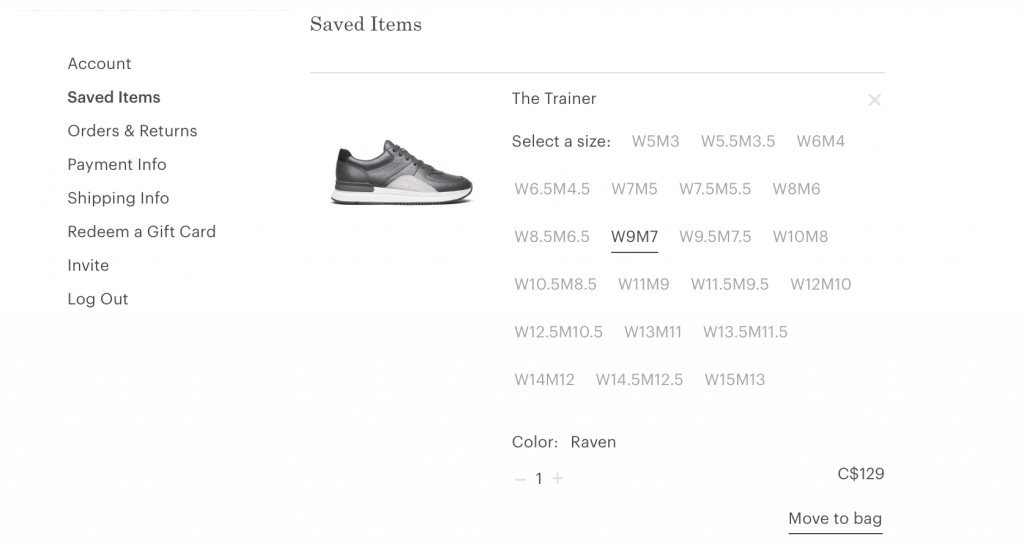
Even if a customer isn’t ready to make a purchase yet, it’s still possible to make their experience more streamlined. If you let them save items for later, they will be more likely to complete a purchase in the future. Consider adding functionality like a shopping list or a favorites list to your site. While you’re putting this together, think about how else you can add value. For example, is it likely that your customers will want to compare items to see which is best for them? Or share their list with someone else?

3. Add items to the cart

Hooray, your customer has found something they want! Create a frictionless experience for adding an item to their cart by making it as painless and simple as possible. Make sure your calls to action (such as the add to cart button) are clearly worded and simple to find, and that all options (such as sizes, colors, tiers, or other price points) are spelled out in a visible location. Your customer might make their decision at different points in the process, such as the single product view or a product archive view, so ensure that the add to cart action is present everywhere to enable this behavior in the fewest number of clicks.

If you have created a saved product list, it’s important to be able to convert those items to a sale as well! No matter where they take action, you should clearly communicate that an item has been added to the cart, whether through a pop-up, tooltip, menu, or another visual cue that indicates success.

4. See what’s in the cart

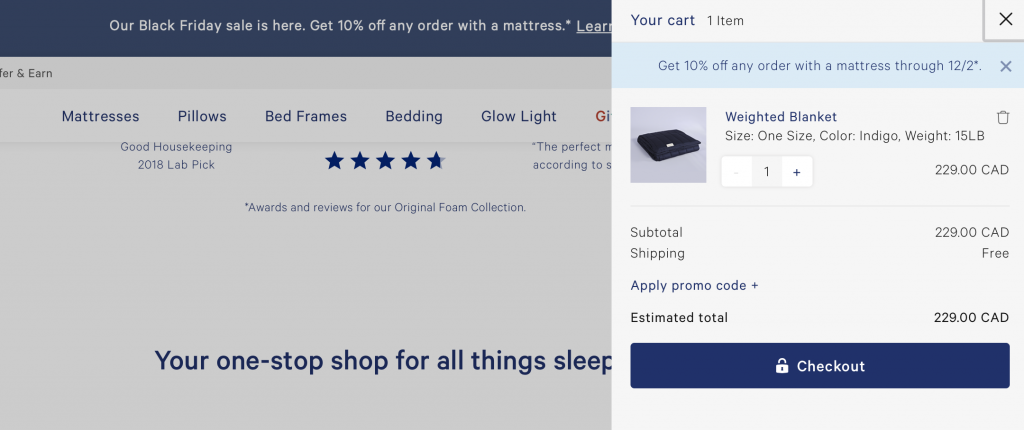
Once an item has been added to the cart, your customer may have additional shopping to do, or they may already have other products in their cart from a previous interaction. It’s crucial to make it easy to view which products are in their cart, and how many of each they have. In addition, your cart should be accessible from any page on your site. Many sites will add a cart icon to their primary or secondary menu that displays the total cost and/or total quantity of items in the cart. Oftentimes, clicking on this icon will reveal a “mini-cart,” or smaller popover/dropdown interface that contains a high-level summary of all products, with the ability to visit the main cart page to view more details or check out.


5. Change the number of items in the cart

Sometimes, your customers will want to alter the number of items they have added to the cart. They may have accidentally added a duplicate item that they want to remove, or they may want to increase the number on a certain item to meet a sale or discount criteria. It should be a smooth process to increase, decrease, or completely remove items from the cart. If you have a “mini-cart” on your site, consider incorporating this functionality there, so your customers can edit their cart without leaving the current page.

[bf_prep_checklist_download]

6. See how much the purchase will cost

It may seem obvious that customers on an eCommerce website are interested in knowing how much they will be paying for their items, but oftentimes, the true cost will be more than just the listed price. In addition to clearly communicating any incentives, such as discounts, sales, or bundles, your customers want you to be transparent with all added costs as well. Do you need to collect sales tax? Are there processing or handling fees? Is there a shipping cost? Is the purchase one-time or recurring? Communicating all of these items on the cart page (as well as a comprehensive total alongside your cart menu icon or within your “mini-cart”) will affirm trust and enable the checkout process to proceed smoothly.

7. Get the items when they’re needed

Knowing when and how they’ll receive their order is a major factor in whether a customer decides to go through with an online purchase. This is especially crucial if you are shipping physical goods. In an age where the dominating online retailers provide fast, cheap shipping, it will probably be difficult to compete simply on price. In that case, it’s important to be very clear with your shipping options. Your customers want to know where you ship, how quickly an item will be sent out, and when they can expect delivery. Can you offer free shipping for a certain dollar amount? Do you offer the ability to pay for expedited shipping if necessary? Does your shipping come with tracking? Provide your customers with options that fit their needs.

8. Check out

Your customer is ready to make a purchase. This is the easy part, right? Not so fast. After you’ve worked so hard on creating a streamlined, trustworthy add-to-cart process, don’t lose your customers by forgetting to optimize your checkout as well. First, make sure they can check out no matter where they are on the site. You never know at what point they will be ready to buy! Next, be clear about your payment process. In addition to specifying which credit cards you support, are you able to support any other payment types (like PayPal, Apple Pay, or Google Pay)? What kind of currency do you accept? Will there be any fees for converting between currencies? 

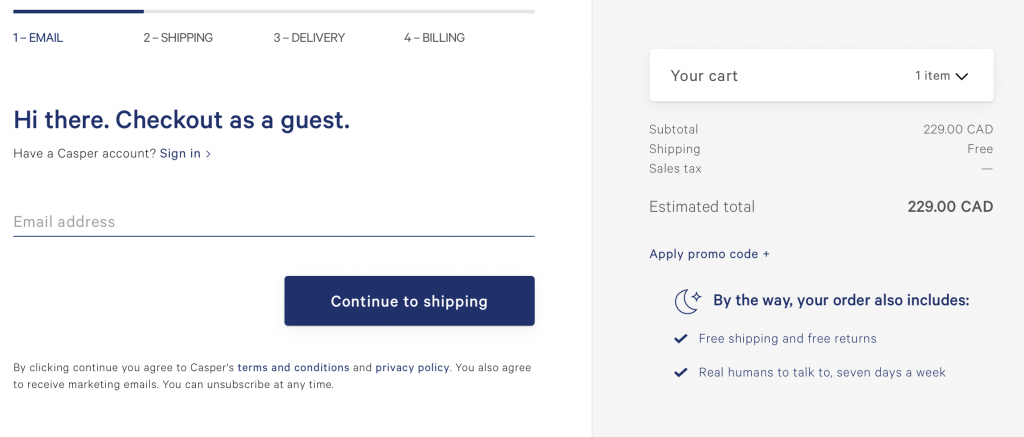
Also, if possible, try to keep your checkout process to a single page, or within your site, to reduce the amount of friction needed to complete the purchase. If you must go to a second page or send your customers off-site, be very clear about the steps involved and make sure your integration is clear and smooth. Most importantly, if at all possible, make sure your customer has the option to check out as a guest, without requiring them to have an account on your site. You can explain the benefits of getting an account (ability to track orders, collect rewards points, easier support process, etc), but creating an account should never stand between you and closing a sale.

9. Know what happens next

Establish trust by making your entire process transparent for your customers. Whether it’s where to add coupons or discount codes, how many pages in the payment process, or how to view their order status, when they know what to expect, they will feel confident in doing business with you.

10. Get in touch

Sometimes, even the most streamlined and optimized customer experience will still benefit from the ability to talk with a real person. Help direct your customers to the proper channels for getting their questions answered. Providing access to a comprehensive FAQ for some of the most common requests (such as shipping guidelines, return policies, or customer inquiries) along with links to your preferred email or customer support platform goes a long way toward making your customers feel at ease with making a purchase.

This was the 9th installment of our Black Friday series. Eager for more tips on optimizing your eCommerce performance? Stay tuned for more posts just like this one featuring industry experts and some of our technical partners. Learn how to improve your website design, conversions, online marketing, and more.  

[subscribe_cta]
How to monetize digital content

“If you build it, they will come.” The now eternal words that were ominously whispered in the popular 1988 movie Field of Dreams was great advice for the cornfields of Iowa. It even worked for companies like Google and Facebook, whose incredible appeal attracted thousands, then millions, and now billions. But if you’re selling digital content, you’ll likely learn the hard lesson that I learned: you can build it, but they won’t come. 

Continue reading “How to monetize digital content”

The 6 Crucial eCommerce Design Mistakes You Must Avoid

As a WordPress Maintenance and Support Specialist at FixUpFox, I manage ecommerce websites on a daily basis. There are a few common mistakes that I see when people are starting up new ecommerce sites that I’d like to go over. Fixing these mistakes before your site is launched means that you’ll be presenting a better experience to potential customers, leading to higher conversion!

Continue reading “The 6 Crucial eCommerce Design Mistakes You Must Avoid”

Creating Holiday-Themed Landing Pages

It’s never too early to start thinking about the holidays. If you are planning to offer website visitors seasonally-themed promotions or just want to add a festive landing page, now is the time to start.

The goal of a holiday landing page for your organization or business website is typically to convert. This is even more important for eCommerce sites. To boost your conversions, start with a focus for a holiday landing page that aligns with popular search terms for the season that fit the context of what you do. Use that page to help drive conversions that match your goals.

Free Holiday Marketing Guide Download

Download our free Holiday Marketing Guide featuring content from SiteGround and our partner experts in ecommerce, email marketing, web design and code optimization to help your business in any holiday season.

What is a landing page?

Landing pages are targeted standalone web pages, designed to convert customers for a specific offer. They serve various purposes, such as generating leads, collecting email addresses, conducting market research, or capturing direct sales. The key to their effectiveness lies in eliminating barriers to conversion. By removing distracting elements like navigation menus, visual clutter, and competing offers, landing pages guide visitors toward a quick and seamless checkout.

What is the Difference Between Landing Pages and Product Pages

Product pages are part of a larger catalog on your website and offer dynamic features like sorting, filtering, and various interaction options. They usually display the site’s header, footer, and navigation, allowing access to multiple areas of the site. Additionally, product pages may showcase related products or suggestions for items frequently bought together.

On the other hand, landing pages are static, devoid of header and footer navigation, and free from sidebars promoting other products. They focus primarily on a single offer and aim to simplify checkout processes. Often, the offer and checkout are consolidated on the same page or streamlined through a single checkout page.

For businesses with a limited number of service-based packages, landing pages can replace product pages entirely. However, stores offering a vast array of shippable products or digital downloads should reserve landing pages for targeted advertising campaigns.

Not sure how to turn that idea into a great landing page for the holidays? We at Design Shack have a few tips to help you get started and make the most of the upcoming season.

Continue reading “Creating Holiday-Themed Landing Pages”

8 Tips to Boost Holiday Sales and Conversions

Q4 is one of the most profitable times for businesses. Thanks to Halloween, Thanksgiving, Black Friday, Cyber Monday, and Christmas, people are spending a ton of money in the last three months of the year. In fact, according to statistics from eMarketer, holiday retail sales crossed the $1 trillion mark for the first time in 2018 and holiday ecommerce sales were responsible for $126 billion. 

But, your business can only take advantage of this awesome opportunity to generate sales if you’re prepared for it. That’s just one of the lessons we’ve learned after years of Q4 planning. 

Check out these 8 tips to boost holiday sales and conversions. 

Download our free Holiday Marketing Guide featuring content from SiteGround and our partner experts in ecommerce, email marketing, web design and code optimization to help your business in any holiday season.

Continue reading “8 Tips to Boost Holiday Sales and Conversions”

Three ways to speed up your ecommerce website

Everyone knows how important Black Friday, Cyber Monday, and the Christmas shopping period are to businesses, both online and offline. To help ecommerce webmasters make the most of this season, we’ve partnered with experts in the web industry and will be sharing informative and inspiring content over the next couple of weeks.

To kick things off, let’s talk about one factor often overlooked in preparation for the high-traffic shopping season: your website’s speed. 

Your site’s performance and load time play a big role in the experience your customers have on your site. Website visitors can end up spending quite a bit of time on your site, browsing, comparing options, and checking out. Every extra second it takes to load images and complete actions on your site causes friction and can prevent customers from completing their orders. 

Luckily, there are several quick and easy customizations you can implement to improve your website. Read on to see three ways we recommend for any website owner looking to increase their site’s performance and their sales this season. 

Continue reading “Three ways to speed up your ecommerce website”