Tools for Running a Successful Service Business Online

useful business tools for growth

There are a lot of things that go into running a service business online beyond finding clients and building things for them. You’ve got to manage contracts, invoices, estimates, proposals, and more. You need to keep clients informed on progress, collect payments, and follow up on those payments that are invariably missed. On top of all of that, you need to have some sort of repeatable process to make projects run smoothly and keep getting in new work.

In the following article, I’m going to share a few of the tools that I use for managing my client services business online. I handle ongoing maintenance and support for WordPress at FixUpFox, and I’ve tried out dozens of tools to make it easier to keep the business running smoothly. Whether you use WordPress or not, my goal is to help you to manage your business with ease online and focus on the most important part: keeping your clients happy and successful!

Handling Leads

As I use Trello for all of my project planning, it makes sense for me to track leads there as well. I use the Custom Fields power-up for Trello to add details from my form to individual cards. I display the name, email, and phone number of the lead on the front of the card. Links and files attached to the form go into the card as well for me to review. I also put when the form was filled out as first-contact, and then set a due date of the first non-weekend day after it was received to remind myself to contact the lead. I can use the comment section here to keep notes, making this a simple and flexible CRM. Trello lets you use one power-up per board on their free plan, so you can set up this whole workflow for free with your current WordPress site.

If you’ve never heard of Zapier, it’s the tool that will supercharge automation between your other tools. Zapier is a tool that lets you take two online services and connect them together. For instance, you can tell it to watch your company Twitter account and send you a message when someone responds. Or perhaps you want to update a spreadsheet when a sale is made on your site. Zapier has a free plan available for up to 100 “zaps” per month, which is a good starting point to determine if it can fit your needs. 

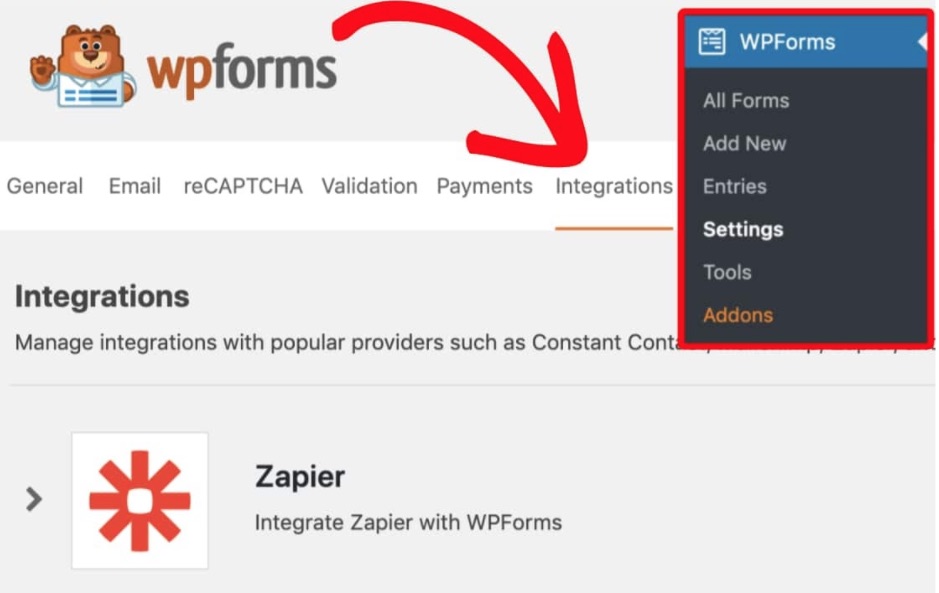
You can also set up an integration in Zapier to send the output of one of our contact forms to another service to track leads. Zapier already supports Gravity Forms, WP Forms, and Ninja Forms. I use Gravity Forms, and I send leads from my website to a Trello project planning board to keep organized with all of the leads that come in. If you decide to use WP Forms, which can also be integrated with Zapier, and you’re a SiteGround client, you can get a 50% discount for their Pro version by visiting the Perks section in your SiteGround Customer Area. You can also set up other form plugins that you have manually, though they will take a bit more work.
Invoicing and Estimates

I’ve been using Sprout Invoices for years to handle invoicing and estimates for my business. The paid business plan of the plugin allows you to handle recurring invoices and payments for clients, with payment data stored at the payment processor of your choice. This allows you to set up a recurring billing system that you don’t need to constantly bother clients about getting paid while keeping their payment information secure. I also like that clients can have users created on my site, allowing them to view and print past invoices, as well as change contact and payment information themselves.

If you already have an invoicing system that you like, I’m not suggesting that you should switch. I am suggesting that if you don’t already have a system to handle invoices, you should find one.  Most of the differences between major providers are surface level, and pricing on basic plans is usually low enough to warrant for a business that wants to ensure that they have a repeatable process for collecting payments from clients.

Maintenance Agreements

I use WP E-Sign, also known as ApproveMe to handle maintenance agreements for my clients. As with the other tools that I suggest, it offers a repeatable process to handle an important task in any business: having contracts and agreements signed digitally by clients and vendors in a UETA/ESIGN compliant way. I have a maintenance agreement that was created and vetted by an attorney which I use for all of my clients.

WP E-Sign allows me to make a template, which I can then customize as needed for each client. This lets me enter their contact information for them, or lets them fill it in when signing the contract. Each document is at a custom URL and can only be accessed by the people who should be seeing them. I can get notified of when the document is viewed, as well as when it is signed.

If you choose to use Sprout Invoices, it also integrates with WP E-Sign to let you have clients sign off on invoices and estimates as well. This lets me create a workflow for onboarding new clients that have them signing a contract, receiving an invoice, and paying, all without me having to do anything beyond initial setup. When this is complete I get notified so that I can start working.

Support Management

My support workflow starts out similarly to my lead tracking system. I have a Gravity Form setup on my site that feeds information to a Trello board which clients can use to ask support questions. I don’t expect all clients to use this though, and I allow them to send support requests via email or directly on the Trello boards. This grants some flexibility for them while limiting places to check when it is time for me to work.

Since I’m working with WordPress, I have a wide selection of tools that I can use to help manage the maintenance of these sites. I use InfiniteWP, which I use to help with regular backups and updates of sites. It also lets me send reports directly to clients with some of the changes that have been done on their sites.

Mindset

Whatever tools that you use to power your business online, there are a few tips that I have that apply to all of them:

  • Don’t overcomplicate. Find a tool that fits your needs and use it. There are so many options out there that it is easy to feel like you are doing real work by endlessly comparing them, but that doesn’t move the needle on your business.
  • Make repeatable processes. The less that you have to think while doing routine tasks, the more time and energy that you can save for real work.
  • Take notes. You will forget things. You shouldn’t be juggling all of your due dates, tasks, or client requests in your head. Making some time to plan will save you countless hours and headaches in the future.

I hope that you find at least one new actionable item from this article to improve your business. You should always be striving to make your business work for you as opposed to the other way around. These tips are intended to help you get there and to make it more enjoyable to start your day.

[subscribe_cta]

10 Design tips to maximize sales this shopping season

If you sell products or services online, you know that a well-designed site is crucial for success. You have probably put a lot of thought into the look and feel of your site, using attractive, readable colors and fonts, and selecting featured product images that are engaging and compelling.

You have also probably thought carefully about the wording on your site, to make sure your customers clearly understand the value and benefits of what you offer. You’re displaying this content using a well-architected site layout that follows the voice and aesthetic of your brand. You’ve put a lot of work into your website design, but is there more you can do to improve the shopping experience for your customers?

Good website design is about so much more than colors, fonts, or images. A well-designed experience reduces friction, streamlines the user experience, and guides the user through the process to their desired outcome. In other words, good design makes things easier. It doesn’t matter how attractive something is if the experience is frustrating or difficult to use.

This is especially true when designing a complex interface like an eCommerce site. A poorly designed eCommerce site is often difficult to navigate, challenging to add products, unclear how to find what is in your cart, and has a confusing or complicated checkout process. Anyone of these points of friction can result in a lost sale from an otherwise interested purchaser. However, there are ways of avoiding these issues by thinking about design decisions throughout the shopping process.

Check out the 15 Black Friday Ecommerce tips that will help you drive more online sales during the year’s most important shopping season.

To create an optimized commerce experience that can help you maximize sales, remember to make it easy to…

1. Shop on any device

Customers want to be able to purchase your product or service no matter where they are or which device they are using. Make sure your content is optimized for all screen sizes (not to mention network bandwidth). Your customers expect access to all the functionality of your site at all times, regardless of whether they are on a phone, tablet, or computer. Ensure you’re not hiding or limiting what they can do based on their device.

2. Save items for later

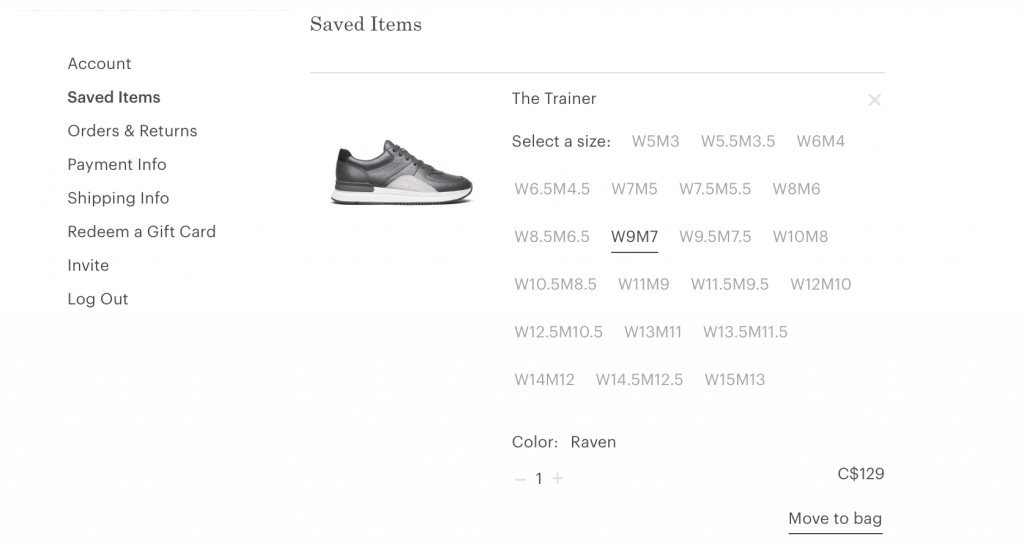
Even if a customer isn’t ready to make a purchase yet, it’s still possible to make their experience more streamlined. If you let them save items for later, they will be more likely to complete a purchase in the future. Consider adding functionality like a shopping list or a favorites list to your site. While you’re putting this together, think about how else you can add value. For example, is it likely that your customers will want to compare items to see which is best for them? Or share their list with someone else?

3. Add items to the cart

Hooray, your customer has found something they want! Create a frictionless experience for adding an item to their cart by making it as painless and simple as possible. Make sure your calls to action (such as the add to cart button) are clearly worded and simple to find, and that all options (such as sizes, colors, tiers, or other price points) are spelled out in a visible location. Your customer might make their decision at different points in the process, such as the single product view or a product archive view, so ensure that the add to cart action is present everywhere to enable this behavior in the fewest number of clicks.

If you have created a saved product list, it’s important to be able to convert those items to a sale as well! No matter where they take action, you should clearly communicate that an item has been added to the cart, whether through a pop-up, tooltip, menu, or another visual cue that indicates success.

4. See what’s in the cart

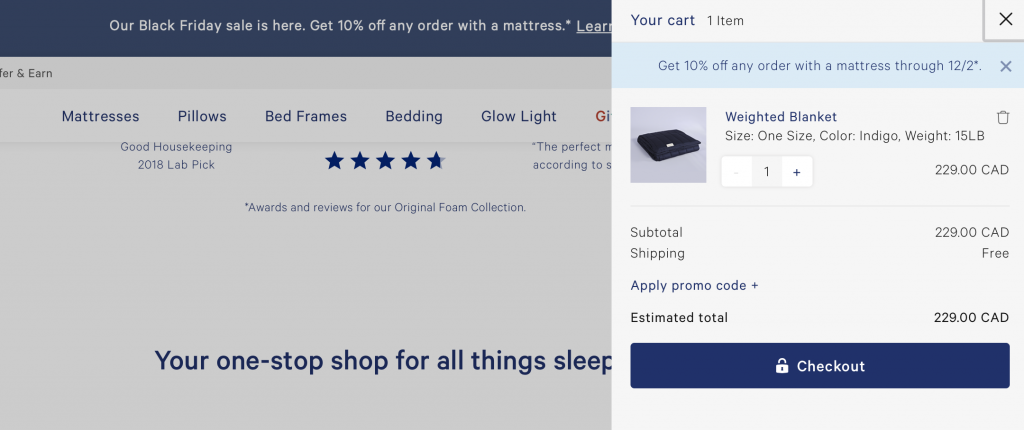
Once an item has been added to the cart, your customer may have additional shopping to do, or they may already have other products in their cart from a previous interaction. It’s crucial to make it easy to view which products are in their cart, and how many of each they have. In addition, your cart should be accessible from any page on your site. Many sites will add a cart icon to their primary or secondary menu that displays the total cost and/or total quantity of items in the cart. Oftentimes, clicking on this icon will reveal a “mini-cart,” or smaller popover/dropdown interface that contains a high-level summary of all products, with the ability to visit the main cart page to view more details or check out.


5. Change the number of items in the cart

Sometimes, your customers will want to alter the number of items they have added to the cart. They may have accidentally added a duplicate item that they want to remove, or they may want to increase the number on a certain item to meet a sale or discount criteria. It should be a smooth process to increase, decrease, or completely remove items from the cart. If you have a “mini-cart” on your site, consider incorporating this functionality there, so your customers can edit their cart without leaving the current page.

[bf_prep_checklist_download]

6. See how much the purchase will cost

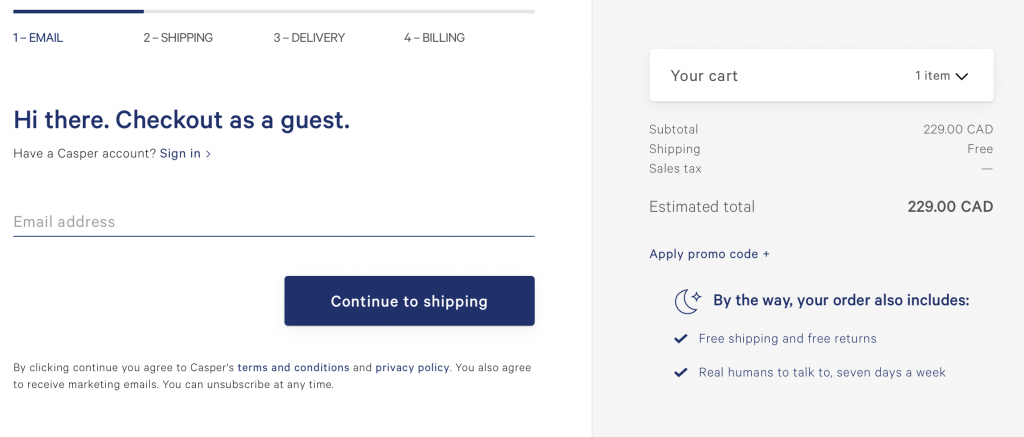
It may seem obvious that customers on an eCommerce website are interested in knowing how much they will be paying for their items, but oftentimes, the true cost will be more than just the listed price. In addition to clearly communicating any incentives, such as discounts, sales, or bundles, your customers want you to be transparent with all added costs as well. Do you need to collect sales tax? Are there processing or handling fees? Is there a shipping cost? Is the purchase one-time or recurring? Communicating all of these items on the cart page (as well as a comprehensive total alongside your cart menu icon or within your “mini-cart”) will affirm trust and enable the checkout process to proceed smoothly.

7. Get the items when they’re needed

Knowing when and how they’ll receive their order is a major factor in whether a customer decides to go through with an online purchase. This is especially crucial if you are shipping physical goods. In an age where the dominating online retailers provide fast, cheap shipping, it will probably be difficult to compete simply on price. In that case, it’s important to be very clear with your shipping options. Your customers want to know where you ship, how quickly an item will be sent out, and when they can expect delivery. Can you offer free shipping for a certain dollar amount? Do you offer the ability to pay for expedited shipping if necessary? Does your shipping come with tracking? Provide your customers with options that fit their needs.

8. Check out

Your customer is ready to make a purchase. This is the easy part, right? Not so fast. After you’ve worked so hard on creating a streamlined, trustworthy add-to-cart process, don’t lose your customers by forgetting to optimize your checkout as well. First, make sure they can check out no matter where they are on the site. You never know at what point they will be ready to buy! Next, be clear about your payment process. In addition to specifying which credit cards you support, are you able to support any other payment types (like PayPal, Apple Pay, or Google Pay)? What kind of currency do you accept? Will there be any fees for converting between currencies? 

Also, if possible, try to keep your checkout process to a single page, or within your site, to reduce the amount of friction needed to complete the purchase. If you must go to a second page or send your customers off-site, be very clear about the steps involved and make sure your integration is clear and smooth. Most importantly, if at all possible, make sure your customer has the option to check out as a guest, without requiring them to have an account on your site. You can explain the benefits of getting an account (ability to track orders, collect rewards points, easier support process, etc), but creating an account should never stand between you and closing a sale.

9. Know what happens next

Establish trust by making your entire process transparent for your customers. Whether it’s where to add coupons or discount codes, how many pages in the payment process, or how to view their order status, when they know what to expect, they will feel confident in doing business with you.

10. Get in touch

Sometimes, even the most streamlined and optimized customer experience will still benefit from the ability to talk with a real person. Help direct your customers to the proper channels for getting their questions answered. Providing access to a comprehensive FAQ for some of the most common requests (such as shipping guidelines, return policies, or customer inquiries) along with links to your preferred email or customer support platform goes a long way toward making your customers feel at ease with making a purchase.

This was the 9th installment of our Black Friday series. Eager for more tips on optimizing your eCommerce performance? Stay tuned for more posts just like this one featuring industry experts and some of our technical partners. Learn how to improve your website design, conversions, online marketing, and more.  

[subscribe_cta]

The 6 Crucial eCommerce Design Mistakes You Must Avoid

As a WordPress Maintenance and Support Specialist at FixUpFox, I manage ecommerce websites on a daily basis. There are a few common mistakes that I see when people are starting up new ecommerce sites that I’d like to go over. Fixing these mistakes before your site is launched means that you’ll be presenting a better experience to potential customers, leading to higher conversion!

Continue reading “The 6 Crucial eCommerce Design Mistakes You Must Avoid”

Time-saving Tips for Managing an Online Business

When it comes to running a business online, you have a lot more to think about than just your website. Sure, you have to be concerned with ongoing maintenance, including proactive protection like daily backups and site security. But you also have to keep up with client orders and support, invoicing contractors, and keeping paperwork up to date. Your website may be the hub for your business, but there’s more that needs to be done besides keeping it updated. This takes time, and can quickly become overwhelming. We’re going to briefly cover a few things that you can try to save some time while managing your online business.

Continue reading “Time-saving Tips for Managing an Online Business”