28 Top Event Invitation Emails for RSVPs, Shares & Sign-ups

abstract of an event invitation email

Have you ever stopped to think about what actually gets you to say yes to an event invitation email? Sure, you’re weighing whether to attend—but what tips the scale? What sparks an immediate RSVP or even inspires you to forward the invite to a friend? The answers lie in the craft of the email itself. Because a strong event invitation is more than just a date, time, and location—it’s an experience in miniature that builds excitement, communicates value, and nudges action.

So let’s define the building blocks of a super successful event invitation, as well as explore examples and templates that get the job done well.

What Is an Event Invitation Email and Why It’s Important

An event invitation email might seem like a rather simple concept: it’s an event and you’re sending an invite—end of story. But a great invitation is more than just an email newsletter with a date and time. It’s your first impression, and can often serve a purpose far beyond just a simple invite. 

That is, it can set the tone for the event, communicate value, and encourage recipients to take action—whether that’s RSVPing, registering, or even forwarding the invite to a friend. When done right, an event invitation email grabs attention, builds anticipation, and creates a sense of exclusivity or urgency. 

So event invitations are kind of a big deal! And that’s why how you write an event email invitation matters, as well as getting the email design just right. We’re here today to get to the bottom of all the different ways you can make your event invitation successful as well as leverage it to achieve various goals beyond just filling seats. 

With SiteGround Email Marketing, you get access to ready-made, professionally designed templates that make it easy to create polished, goal-driven event emails. No stress, no complicated setup—just effective, great-looking emails that help your event shine.
Get started today >>>

Key Elements of an Event Invitation Email

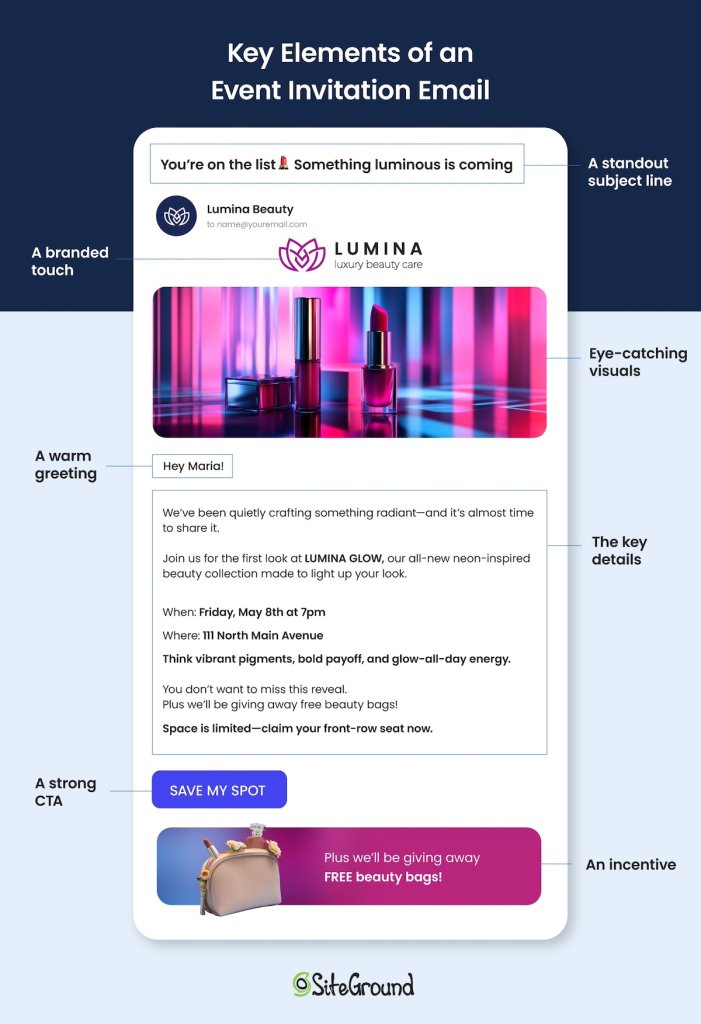
Think of your event invitation email as a mini billboard announcement—an advertisement of sorts. You’ve got just a tiny small window to catch someone’s eye, and enough so that they want to take action. So, to get started, here are the important ingredients you’ll want to include to get the job done just the right way:

1. A standout subject line

As always, your subject line is your deal maker or breaker. All the tried-and-true email subject line rules apply here, so this means it should be clear, intriguing, and ideally, interesting if not fun. Tease what’s inside or highlight the benefit of attending. Bonus points if it creates urgency or exclusivity. 

2. A warm greeting and compelling intro

Start with a friendly “hello” that feels personal. Then dive into the what and the why: what’s the event, and why should the reader care? Make it feel exciting and relevant to them right away.

3. The key details

Don’t bury the basics! Make sure the what, when, where (and how) are easy to spot. Whether it’s in a bolded section or an eye-catching graphic, make sure the essentials are front and center.

4. A strong call to action

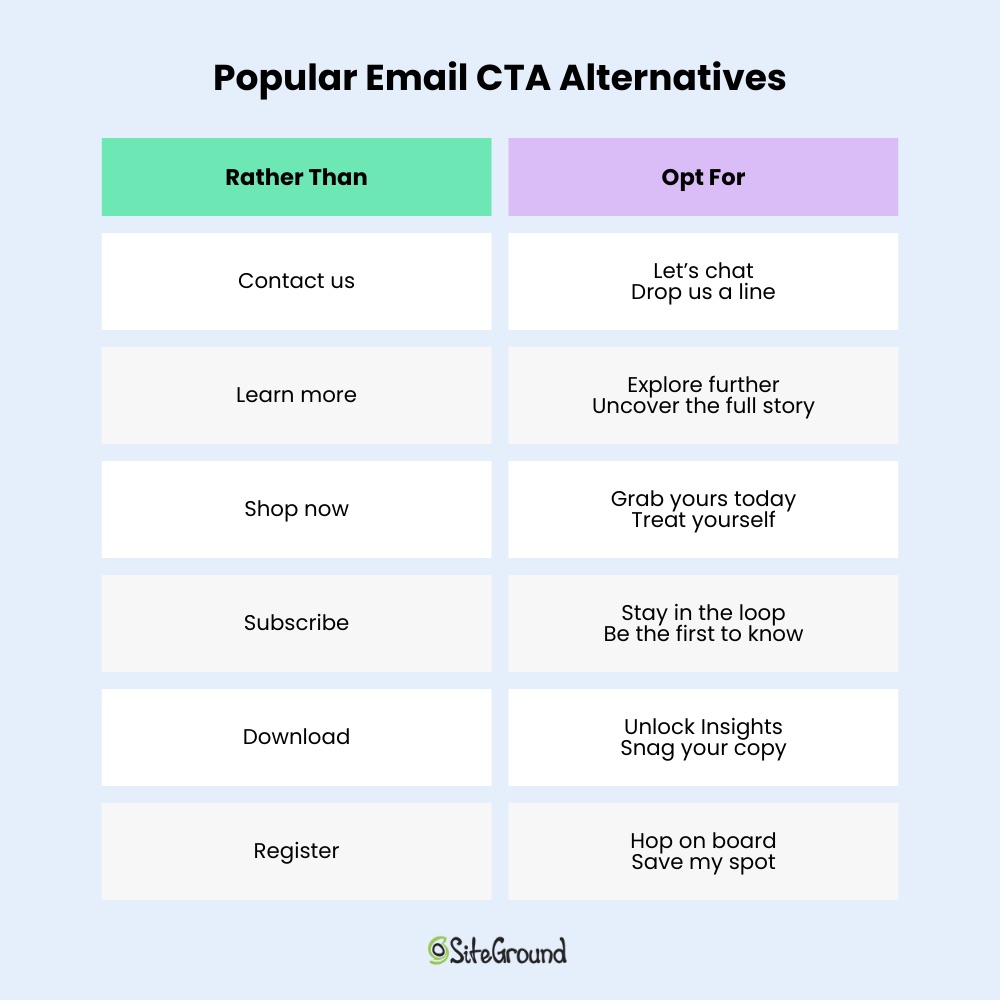
Want them to RSVP? Register? Share the invite? For an effective call to action, tell them exactly what to do. A bold, clear button with action-driven text (“Save My Spot” or “Get VIP Access”) works wonders—plus make sure it’s extra noticeable.

5. Eye-catching visuals

Images or graphics can bring your event to life. Use a photo from a past event, a sleek branded header, or just a pop of color to help break up text and pull readers in.

6. A personal or branded touch

Add a little personality—whether it’s your brand’s voice or a signature from the host. People connect with people, so a touch of warmth or wit can go a long way.

7. Optional: social proof or incentives

If space allows, include a short testimonial, name-drop a speaker or special guest, or mention a freebie (who doesn’t love a little swag?). These extra touches can give fence-sitters the nudge they need to sign up.
key elements of an event invititation email

Event Invitation Email Examples and Templates by Goal

As we’ve just touched on, not all event invitations actually have the same objective. As such, the tone, layout, content, and call to action of your email might change based on what you’re trying to achieve. So whether you’re looking to pack the room, build buzz, or upgrade your attendees, here are smart approaches and templates to get you there. 

Get People to RSVP or Register

When your main goal is to fill seats (real or virtual), your event invitation email should be clear, enticing, and laser-focused on the value of showing up. 

Tactics to get people to RSVP:

  • Use urgency: Add phrases like “Limited spots” or “Early bird ends soon” to encourage quick action.
  • Highlight benefits: Focus on what they’ll gain from attending—knowledge, connections, free stuff.
  • Add a calendar link: Let them save the date in one click.
  • Use a bold CTA button: Make sure it stands out with action-driven text like “Save My Spot” or “Register Free.”
  • Keep it mobile-friendly: Make it easy to RSVP from a phone.
  • Include a follow-up reminder: Send a re-engagement email to non-responders a few days later.
  • Offer incentives: Think early access, a freebie, or entry into a giveaway for those who register early.

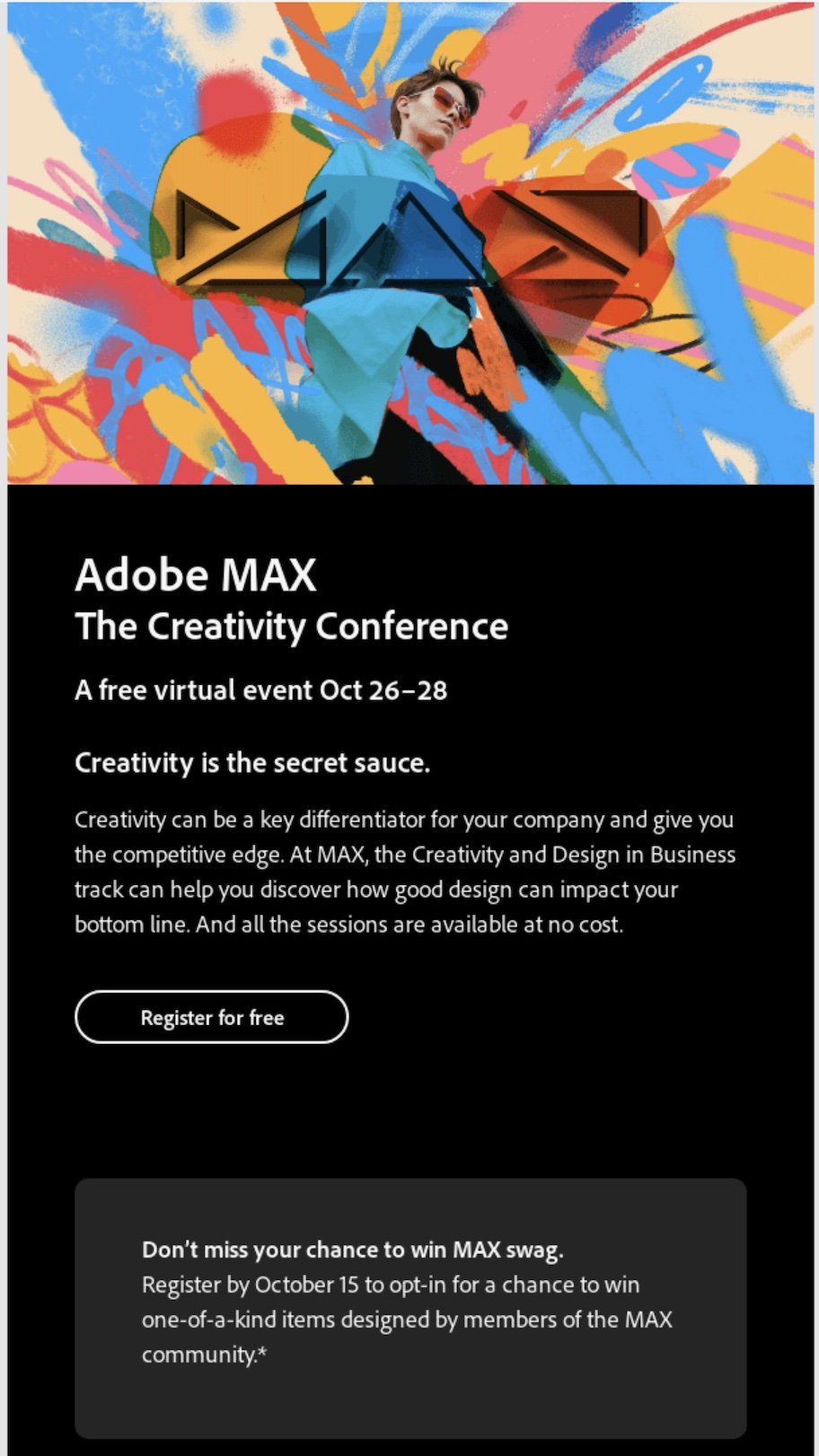
The Adobe Max event invitation below demonstrates a few of these tactics in action. It highlights the benefits of joining the conference (give your business a creative edge!), the call to action is ultra clear (register for free!), and they incentivize you with the chance to win swag if you sign up by a certain date. All little tidbits to get recipients to sign up, stat.
example of an event email to get rsvps
Image source: reallygoodemails.com

Event Email Template to Get RSVPs

Subject line: “You’re invited—something exciting is about to happen 🎉”
Headline: Ready for Something Special? Your Spot’s Waiting 

Body:
Hey [First Name],

We’ve got something special lined up—and you’re on the guest list. Whether you’re coming to learn, connect, or just soak in the vibes, this [type of event] is where you’ll want to be.

🗓️ Date: [Date]\
📍 Location: [Venue or Virtual Link]

Expect fresh ideas, friendly faces, and maybe even a surprise or two. 😉

Spots are limited—and trust us, you don’t want to miss this.

CTA: [Save My Spot]

Can’t wait to see you there!

Spark Sharing or Personal Invitations

Want people to forward your invite or shout it out on social? Make your email feel fun, personal, and easy to share. 

Tactics to spark sharing:

  • Encourage + enable forwarding: Add a simple “Forward this email” line with a button. Another option is to make sure your email can be viewed in a browser so that readers can share the link.
  • Add share buttons: Include quick-share links for Facebook, X, LinkedIn, or WhatsApp.
  • Offer a “bring-a-friend” bonus: Small perks like drink tickets or exclusive content can motivate sharing.
  • Use fun, inclusive language: Make it feel like a party people want their friends at.
  • Create FOMO: Tease highlights or surprises that make people want to invite others.
  • Include a pre-written caption: Make it copy-paste easy to share on social or Slack.

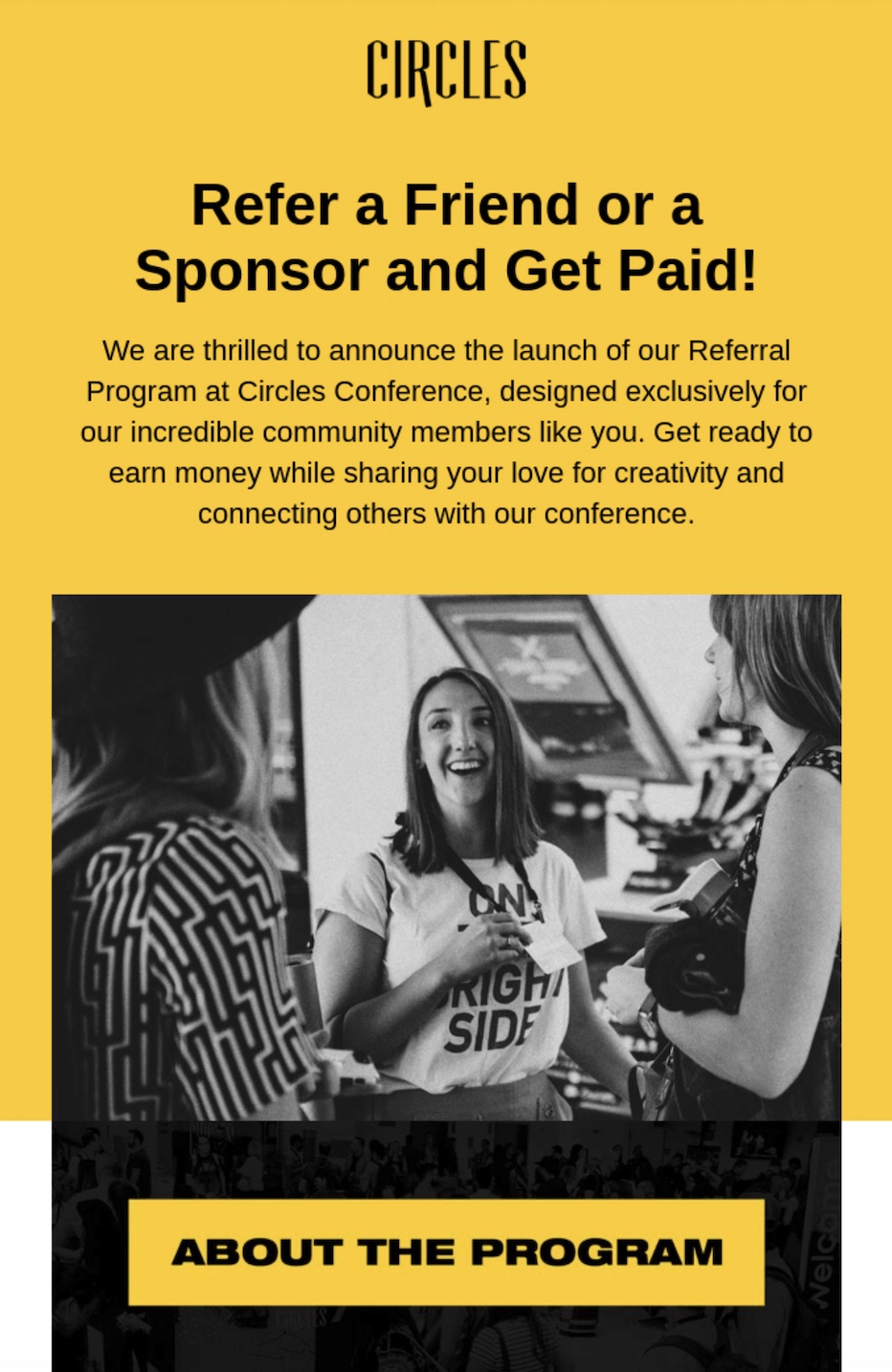
The below email takes “bring-a-friend” bonuses to the next level with a “get paid” incentive. This is sure to make attendees more motivated to not only go, but bring someone with them. They make sure the message is front and center, and make it easy and obvious how to learn more.
event invitation email to get people to share
Image source: reallygoodemails.com

Event Email Template to Get RSVPs

Subject line: “You’re invited—something exciting is about to happen 🎉”
Headline: Ready for Something Special? Your Spot’s Waiting 

Body:
Hey [First Name],

We’ve got something special lined up—and you’re on the guest list. Whether you’re coming to learn, connect, or just soak in the vibes, this [type of event] is where you’ll want to be.

🗓️ Date: [Date]
📍 Location: [Venue or Virtual Link]

Expect fresh ideas, friendly faces, and maybe even a surprise or two. 😉

Spots are limited—and trust us, you don’t want to miss this.

CTA: [Save My Spot]
Can’t wait to see you there!

Drive VIP or Early Access Upgrades

Got a special tier or limited-access experience? Time to lean into exclusivity and make your reader feel like they’ve just unlocked something awesome.

Tactics for VIP or early access invites:

  • Highlight exclusivity: Use words like “limited,” “invite-only,” or “first access.”
  • List premium perks: Make the upgrade benefits crystal clear (and tempting).
  • Show the difference: Use a side-by-side comparison of general vs. VIP access.
  • Use a countdown: Create urgency with a “VIP offer ends in X days” timer.
  • Add testimonials or past photos: Show what previous VIPs experienced.
  • Target your warmest leads: If you do lead scoring, you can send an upgrade invite to your most engaged subscribers first.

Pro tip: Use scarcity wisely—if you’re offering something limited, let people know exactly how limited it is.

The example below tackles some of these tactics by highlighting exclusivity, the benefits, and urgency. By sending an invite like this only to the most engaged subscribers or your warmest leads, you not only boost loyalty, but also increase sign-ups.

example of a vip event invitation

Event Email Template for VIPs and Early Access

Subject line: “VIP treatment? Yes, please. 👑”
Headline: Get the VIP Treatment—Because You Deserve It

Body:
Hey [First Name],

Ready to level up your experience? Our VIP pass gives you exclusive access to the good stuff—think early entry, front-row views, premium content, or maybe even a little swag.
This isn’t your average invite—it’s a backstage pass to the best version of the event.

🎟️ VIP access is limited—and going fast.

Let’s make this an event to remember. You in?

CTA: [Upgrade Me to VIP]

Fill a Waitlist

When an event has limited space, you want people to act fast—but also stay interested if they miss the initial cutoff. That’s where a great waitlist strategy comes in. It keeps the momentum going and gives you a ready-to-go audience if spots open up or you expand capacity.

Tactics to fill your waitlist:

  • Use urgency and scarcity: Say how fast spots filled to create FOMO.
  • Keep the form simple: Just a name and email—friction kills interest.
  • Promise early access: Let waitlisters be first to know about future dates or openings.
  • Offer sneak peeks: Share behind-the-scenes content while they wait.
  • Create VIP vibes: Use language like “priority access” or “insider list.”
  • Stay top of mind: Follow up with updates, related content, or similar events.

The below email employs a heartfelt and playful message while also leveraging urgency and scarcity. The message is brief, and the waitlist sign-up is extra clear and easy, making clicking through friction-free.
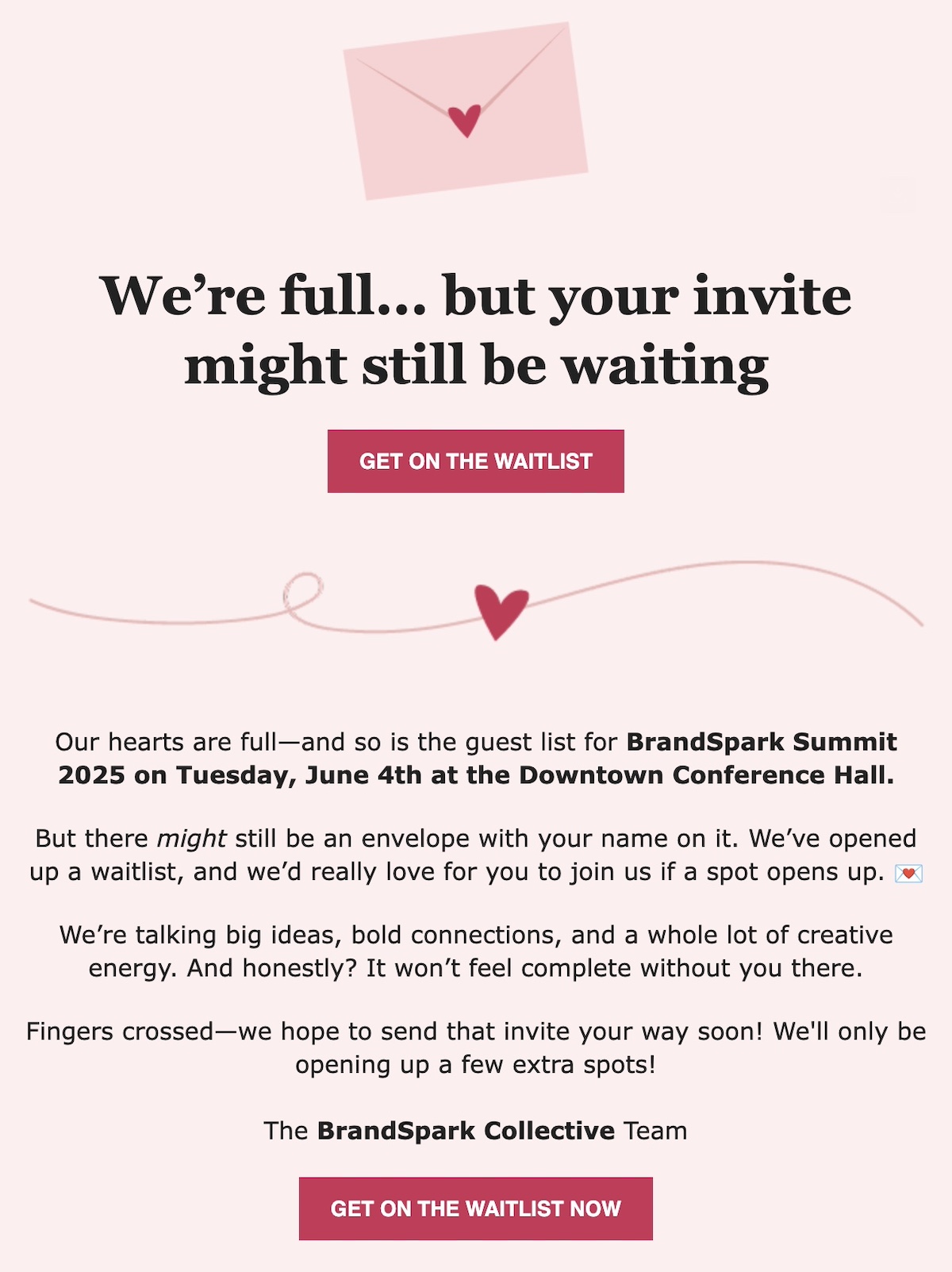
event waitlist email example

Event Email Template to Fill a Waitlist

Subject line: “We’re full… but the door isn’t closed! Join the waitlist 📝”
Headline: Last Chance to Get in—Waitlist Now Open!

Body:
Hey [First Name],
Our [event name] is officially at capacity—wow!

But good news: we’ve opened up a waitlist in case any spots open up… or in case we add a few surprises 👀

🎟️ Don’t miss your chance—add your name now and be the first to know.

CTA: [Join the Waitlist]

We’d love to see you there!

Encourage Virtual Attendance 

If your event has both in-person and virtual components, don’t treat the virtual crowd like an afterthought. A strong invitation can make your online audience feel like VIPs, too—without the hassle of travel, parking, or shoes.

Tactics to boost virtual attendance:

  • Highlight the ease: “No travel, no dress code—just great content from your couch.”
  • Promote live interaction: Mention chat, polls, or Q&A to make it feel participatory.
  • Include replays or perks: Offer recordings, downloadable extras, or exclusive virtual bonuses.
  • Mention accessibility: Emphasize global access, closed captions, or multiple time zones.
  • Show the experience: Use past screenshots or testimonials from virtual attendees.
  • Add clear joining info: Keep the RSVP process simple, with a direct link to join.

In the example below, Snowflake promotes its event for data professionals, but doesn’t forget those that might wish to attend virtually. For them, they offer a “virtual data for breakfast event” that includes the same agenda and discussions, along with straightforward registration.

example of a virtual event email invite
Image source: reallygoodemails.com

Event Email Template to Encourage Virtual Attendance

Subject line: “Can’t make it in person? Join us from anywhere 💻”
Headline: Join Us Virtually—Your Front-Row Seat Awaits

Body:Hi [First Name],
Can’t be there in person? No problem—we’re bringing the experience to you.
Join us live from wherever you are for [event name]. Expect great content, real-time interaction, and none of the commute.

🗓️ [Date + Time]
📍 Online (link sent after registration)

Grab your spot and log in for front-row vibes—from your living room.

CTA: [Attend Virtually]

Build Buzz or Brand Awareness 

When the goal is buzz—not just butts in seats—you want your invitation to act more like a spotlight. You’re building anticipation, generating curiosity, and getting people to talk, even if they’re not attending.

Tactics to build buzz:

  • Tease the reveal: Use intrigue—“something big is coming…”—to stir interest.
  • Use bold visuals: Include animated GIFs, sneak-peek photos, or eye-catching graphics.
  • Add share buttons: Make it easy for readers to post the invite to social media.
  • Feature speakers or performers: Highlight big names to increase share appeal.
  • Create a branded hashtag: Encourage social conversation before and during the event.
  • Mention press or media presence: It ups the perceived importance of the event.

The below email aims to create buzz around a movement, touting the past year’s success, and hyping a sneak preview. It’s warm, inviting, and motivating, and inspires you to want to learn more.
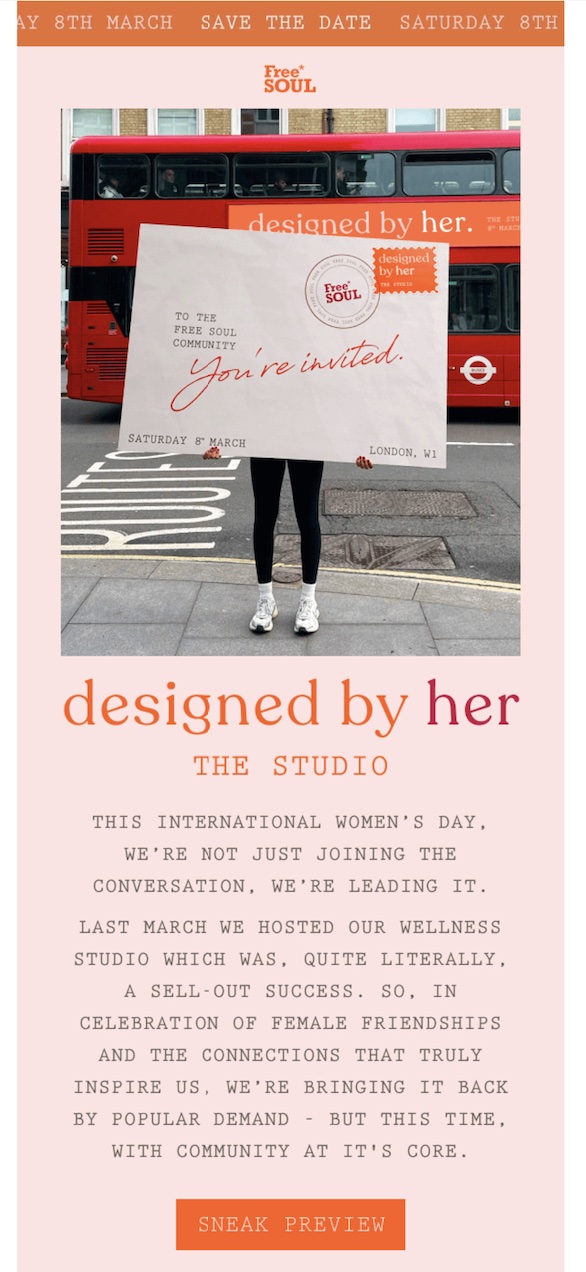
event email example to generate buzz
Image source: reallygoodemails.com

Event Email Template to Build Buzz

Subject line: “Something big is coming—are you watching? 👀”
Headline: Get Ready—[Event Name] Is About to Drop!

Body:
Hey [First Name],
We’re about to pull back the curtain on something big—[event or campaign name] is nearly here.

Even if you’re not attending in person, you can still be part of the excitement.

🌟 Follow the buzz
📸 Watch behind-the-scenes drops
🔗 Share the moment

CTA: [Stay in the Loop]

Trust us—you’ll want to see this unfold.

Follow Up Post-Event 

Your event may be over, but your relationship with attendees shouldn’t be. A thoughtful follow-up keeps the momentum going and opens the door for future engagement, feedback, and sharing.

Tactics for following up:

  • Say thank you: A warm, personalized thank-you note goes a long way.
  • Include a recap link: Offer a replay, summary, or highlights from the event.
  • Share photos or videos: Let people relive the best moments—and share them.
  • Ask for feedback: A short survey shows you care and helps you improve.
  • Promote what’s next: Invite them to the next event, community group, or product.
  • Send within 24–48 hours: Strike while the good vibes are still fresh.

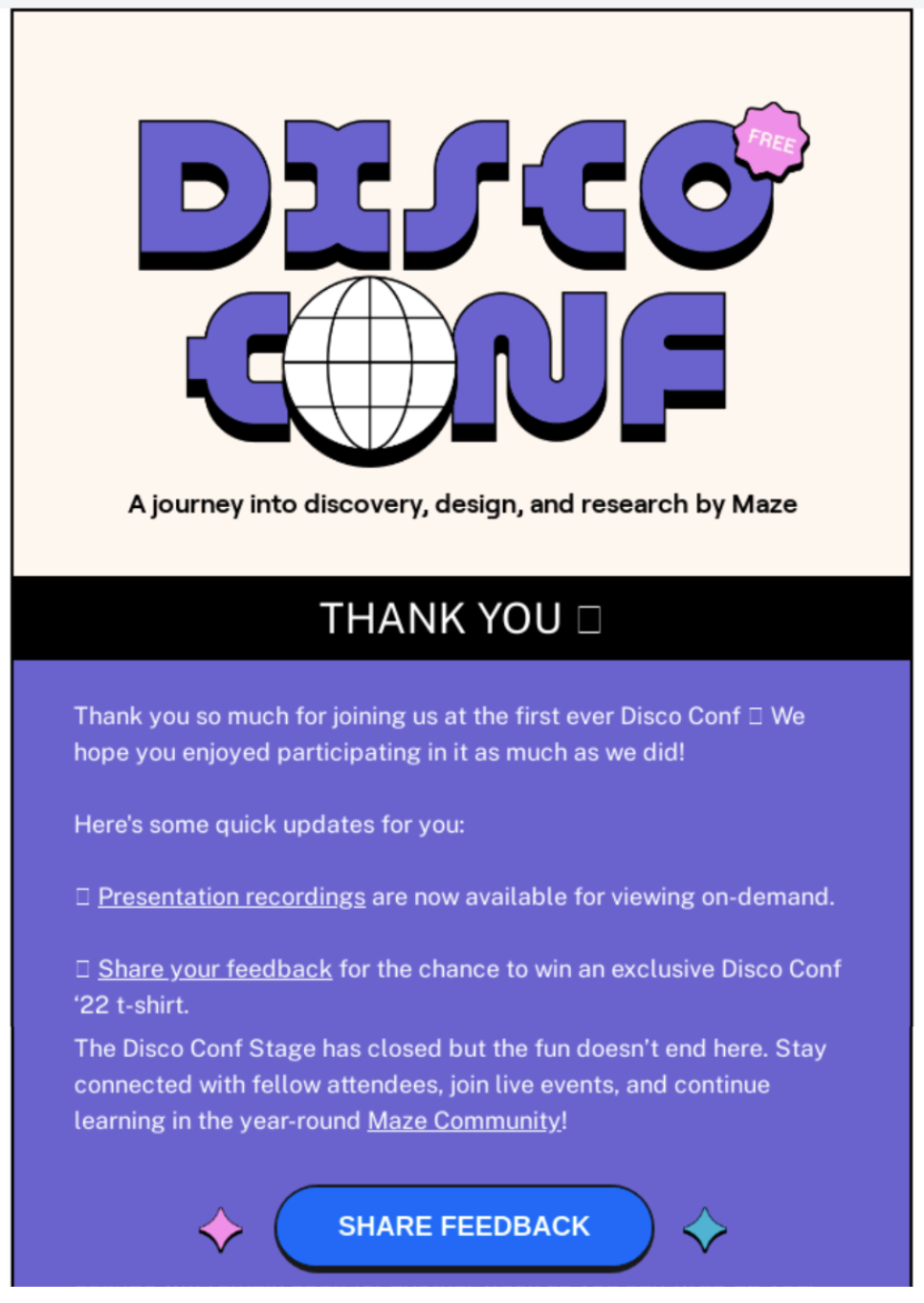
The below example checks several of these boxes by expressing gratitude, sharing resources, inviting participants to a community, and asking for feedback. All great ways to close the loop on your event and make sure that it nudges people further along in their customer journey.
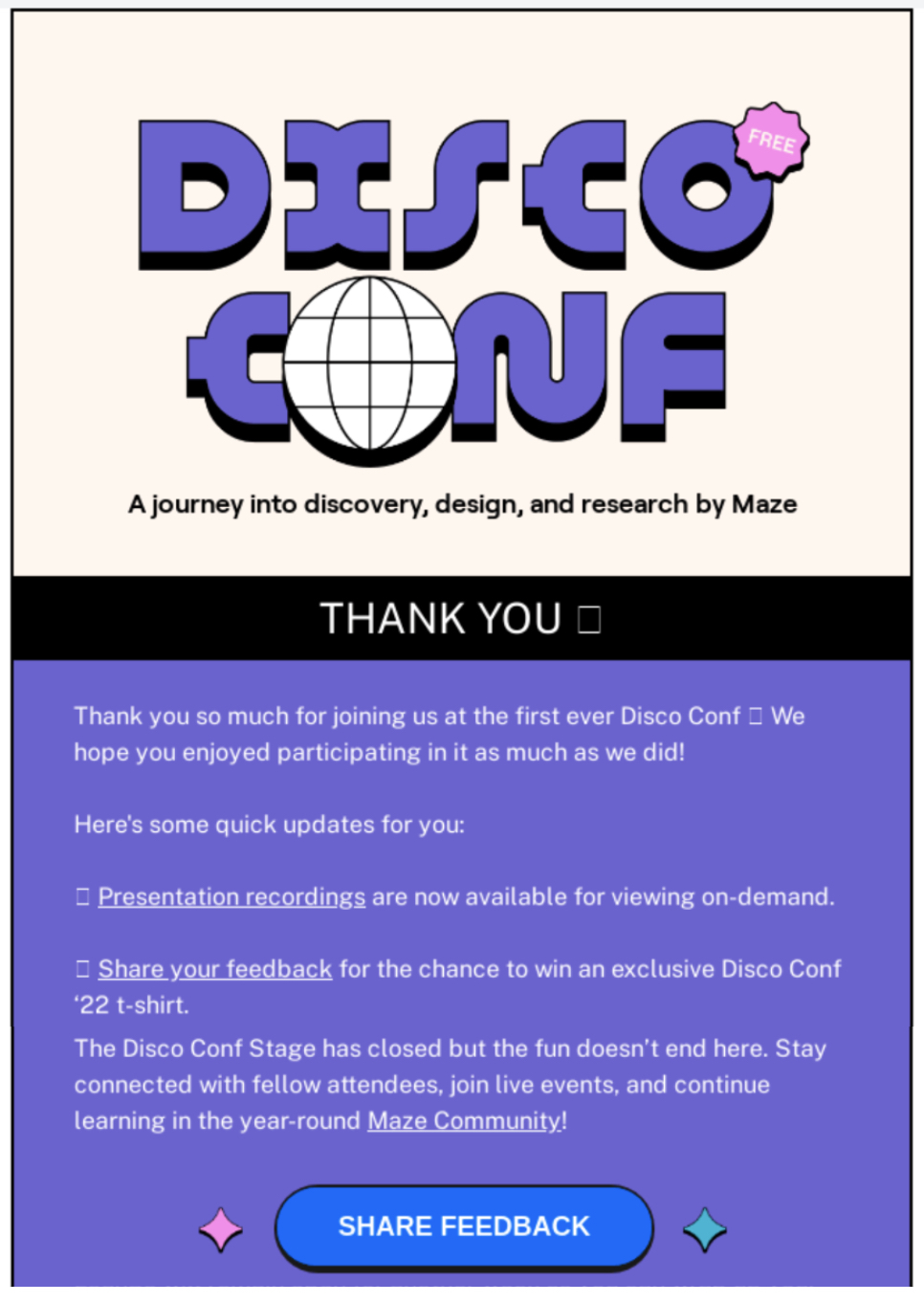
post event email example
Image source: reallygoodemails.com

Post-Event Follow-Up Email Template

Subject line: “That was fun—let’s do it again 💬”
Headline: What a Day! Let’s Rewind and Recap the Highlights

Body:
Hey [First Name],

Thanks for being part of [event name]! We hope it sparked ideas, made you smile, or left you feeling inspired.

If you missed anything—or just want to relive it—here’s what we’ve got for you:

🎥 Event replay
📸 Photo gallery
📝 Key takeaways

CTA: [View the Recap]

And if you loved it (we hope you did!), we’d love to see you again soon. Follow along on Instagram to stay posted on what’s next.

Pro tip: when your invitees sign up, be sure to create a unique email segment specific to the event. That way you can set up future email automations to keep that interested person engaged on topics relevant to what they signed up for.

Event Invitation Email Examples and Templates by Occasion

Not all events are created equal—and neither are the emails that go with them. From product launches to polished galas, the occasion sets the tone. Here’s how to tailor your invitation strategy (and copy) to fit the vibe.

Product Launch Event Invitation

A product launch event email is more than just a simple product launch email; it’s an opportunity to celebrate the big reveal, and a chance to bring your audience into the experience with you. Your email should reflect that sense of occasion and exclusivity, whether you’re hosting a live demo, throwing a party, or unveiling something groundbreaking on stage (or screen).

Tactics for product launch event invites:

  • Set the scene: Paint a picture of the event—where it is, what’s happening, and why it’s worth attending.
  • Lead with the “wow”: Use bold visuals or headlines to build curiosity about what’s being unveiled.
  • Show off the experience: Tease live demos, expert speakers, or exclusive access to the product.
  • Add a limited-time bonus: Sweeten the deal with an early access pass or attendee-only perk.
  • Build urgency: Include a countdown or mention limited spots to drive fast RSVPs.

The email example below uses bright and eye-catching imagery to grab attention and create an energetic vibe ripe for an event filled with drink, music, and local artists. Then the brand emphasizes exclusivity, early access, and a chance to win, enticing recipients to join by the RSVP date. 

product launch event invitation email example
Subject line: Something big is dropping 🎉 (you’ll want a front-row seat)
Header: Be the first to see what’s next

Body:We’ve been working on something game-changing, and it’s almost here.

Join us [Date/Time] for an exclusive first look at our latest [product/solution/idea].

It’s bold, it’s new—and we think you’ll love it.

Spots are limited, so RSVP now to save your virtual seat.

CTA: [Reserve My Spot]

Webinar Invitation

Webinars should promise value—clear, actionable takeaways or insights that make it worth tuning in. Keep it focused and benefit-driven, with just enough personality to avoid sounding like a textbook.

Tactics for webinar invites:

  • Lead with the learning: What will they walk away knowing?
  • Make it skimmable: Bullets work great for webinar benefits or topics.
  • Introduce the speaker: Build trust by showcasing credibility or relatability.
  • Reinforce the format: “Live Q&A,” “short & actionable,” or “on-demand replay” helps sell it.
  • Minimize the commitment: Remind them they don’t need to leave their desk.

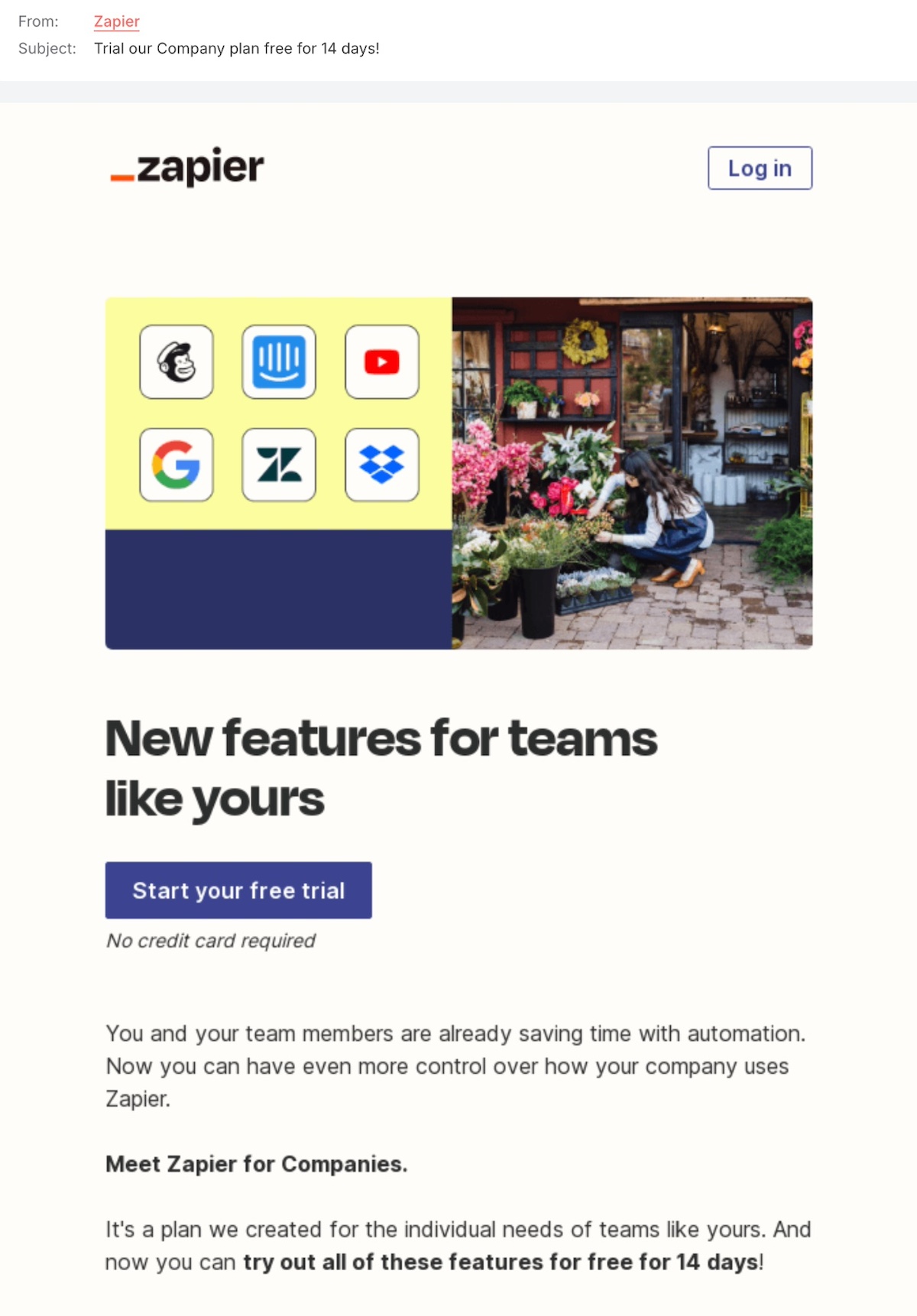
In the email sample below, Zapier makes it extra clear what attendees will gain with a straight-to-the-point “in 30 minutes, we’ll cover.” They also make it extra clear that you should sign up even if you aren’t available—they’ll send you a recording. The benefits are clear, so is the action, and the sign-up seems effortless. 
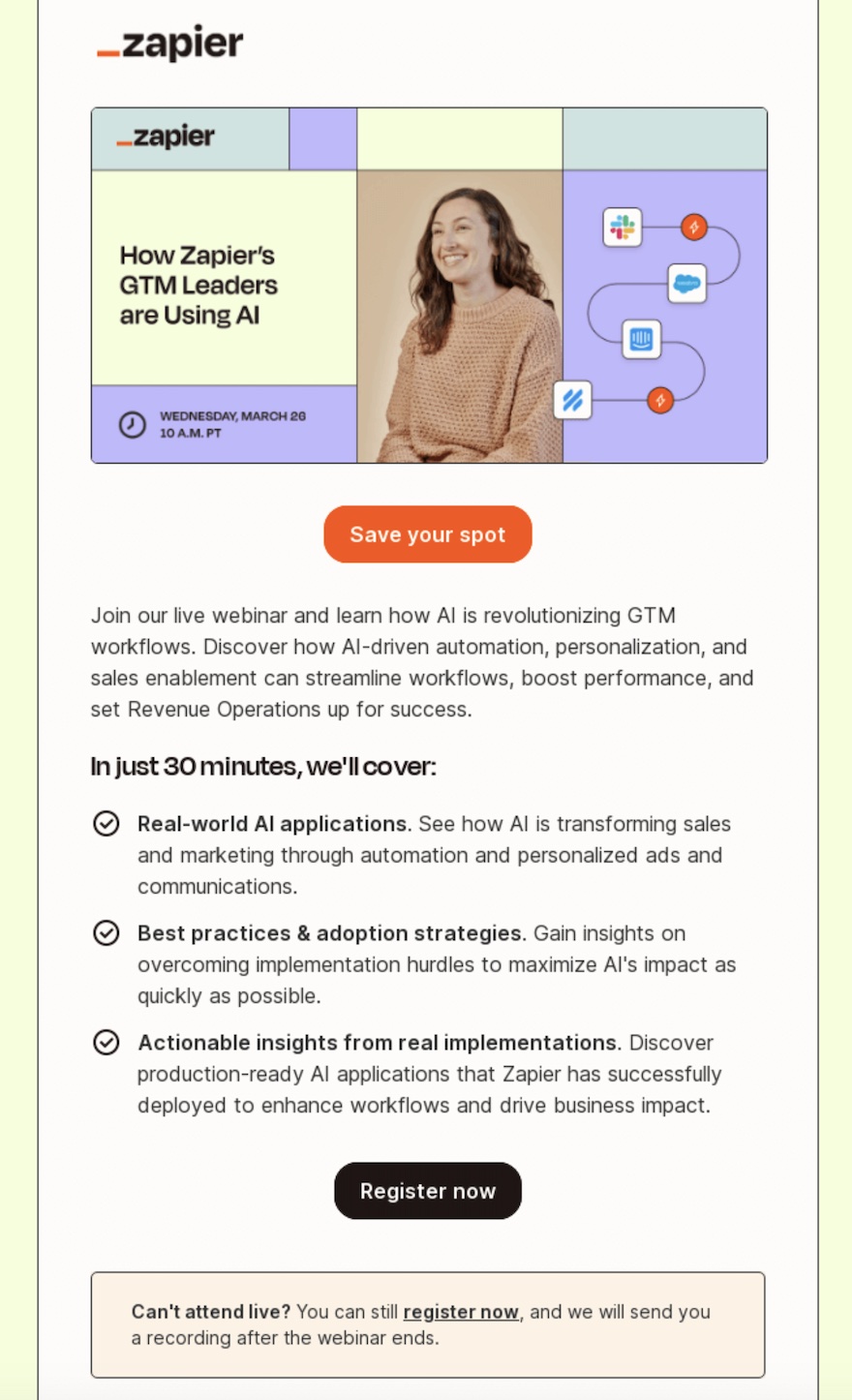
webinar event email invite example
Image source: reallygoodemails.com

Webinar Email Invitation Template

Subject line: Free training: [Benefit] in just 30 minutes
Header: Join our live webinar and learn [something useful]

Body:
Need to get better at [thing your audience struggles with]?
We’ve got you.

Join [Expert Name] on [Date/Time] for a hands-on session where you’ll learn:

✔ How to [key takeaway]
✔ Why most people get it wrong—and how to do it right
✔ Quick wins you can apply the same day

It’s free, fast, and packed with value.

CTA: [Save My Spot]

Formal Invitation

For galas, ceremonies, fundraisers, or black-tie events, you want your email to exude elegance while still driving RSVPs. Think: beautifully written, clean design, and a touch of exclusivity.

Tactics for formal invitations:

  • Use refined language: Swap “Hey there!” for “You are cordially invited…”
  • Focus on the experience: Highlight the ambiance, setting, and attire.
  • Include a proper RSVP: A formal event should feel, well, formal—yes/no options and all.
  • Mention hosts or honorees: Adds prestige and context.
  • Consider adding a digital invite card: A sleek graphic or animated save-the-date elevates the look.

The below event invitation sample nails formal glamour with a clean, refined, and elegant design of black and gold, silver. They also make mention of honored guests, as well as featured chefs, transmitting prestige (and justifying the black-tie attire). The unmissable “reserve here” makes RSVPing easy and clear.

example of a formal event invitation email
Image source: reallygoodemails.com

Formal Event Invitation Email Template 

Subject line: You’re invited: An evening to remember ✨
Header: A formal invitation to [Event Name]

Body:We are delighted to invite you to a special evening of [celebration/culture/purpose].

Join us on [Date] at [Venue Name] for a night of connection, elegance, and inspiration.
Cocktail hour begins at 6:00 PM | Formal program at 7:30 PM
Attire: Formal

Kindly RSVP by [Date].

CTA: [RSVP Now]

Tradeshow Invitation

Tradeshows are high-energy, high-impact opportunities to connect with potential customers, partners, and press. Your email should reflect that buzz—while making it easy for recipients to plan their visit and stop by your booth.

Tactics for tradeshow email invitations:

  • Lead with location: Mention the tradeshow name and your booth number right up front.
  • Offer a reason to stop by: Demos, swag, sneak peeks, or giveaways—what’s the draw?
  • Add a calendar link: Help them remember you in a sea of vendors.
  • Highlight team presence: Introduce who will be there or offer to pre-book a meeting.

This event invitation email example from Garmin gets the tradeshow announcement just right—leading with the date and location, clearly highlighting the booth number, and teasing can’t-miss experiences to draw attendees in.
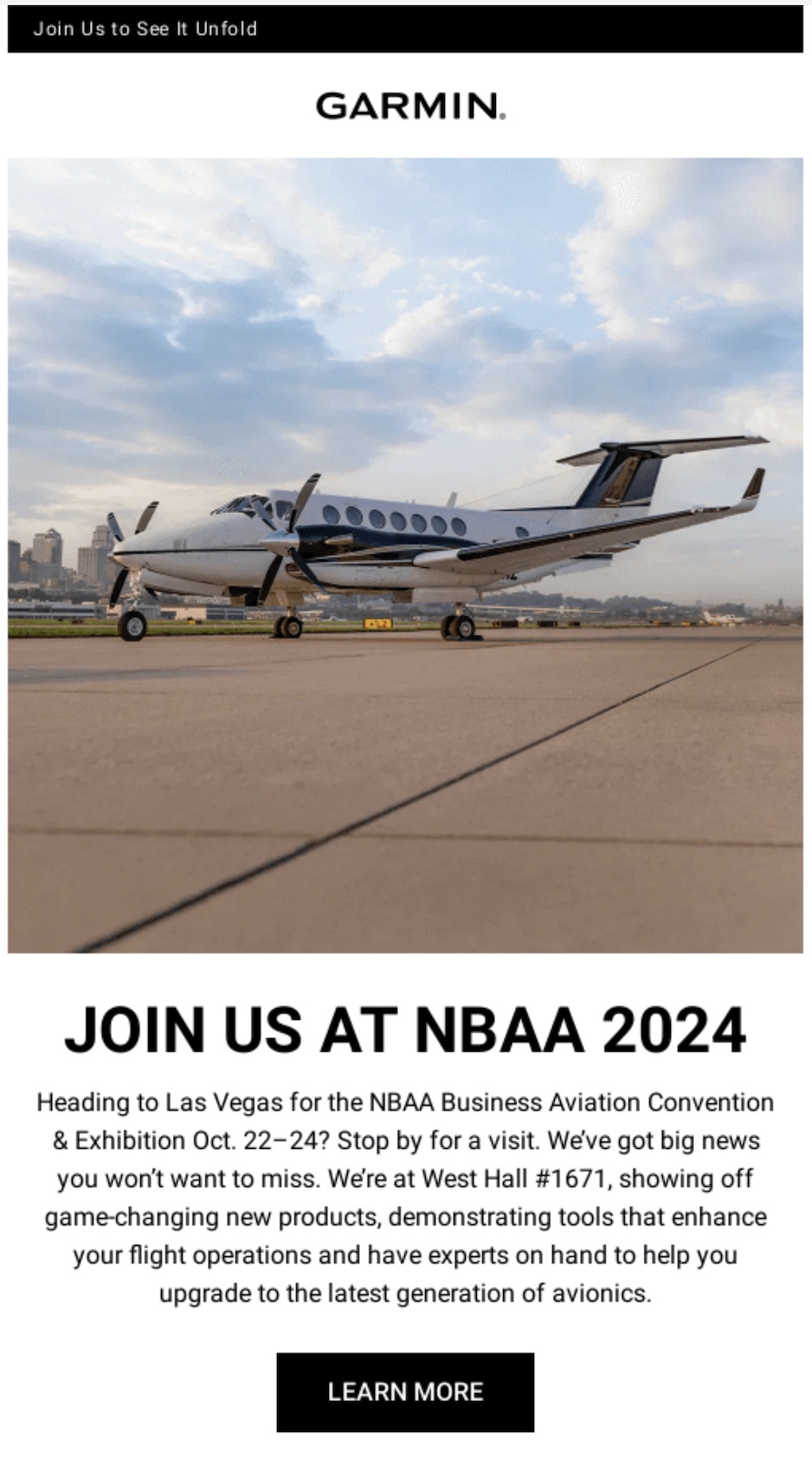
example of a tradeshow event invitation email
Image source: reallygoodemails.com

Tradeshow Event Invitation Email Template 

Subject line: Headed to [Tradeshow Name]? Let’s meet!
Header: Visit us at [Booth #] at [Event Name]

Body:
We’re excited to be at [Tradeshow Name] this year—and we’d love to see you there.Stop by Booth #[XX] for hands-on demos, sneak previews of what’s coming next, and a chance to meet our team.

Plus, we’re giving away [exclusive swag/gift/offer] to visitors who check in!

Want to book a quick chat ahead of time? Just hit the button below.

CTA: [Book a Time] or [Add to Calendar]

Networking Event Invitation

Networking events are all about meaningful connection—without the stuffiness. Your email should be warm, inviting, and make it clear why this gathering is worth your contact’s time. Think casual confidence with a clear value hook.

Tactics for networking event email invites:

  • Lead with the benefit: “Meet industry leaders,” “Grow your circle,” or “Make real connections.”
  • Emphasize the vibe: Is it casual cocktails or structured speed networking? Set expectations.
  • Name-drop (just a little): Mention a few key attendees, hosts, or organizations involved.
  • Add a location draw: Rooftop bar? Cozy lounge? A great space ups the appeal.
  • Encourage +1s: Let people bring a colleague or friend to ease the pressure.

In the email example below, the message is extra simple. They quickly list the benefits, that it’s free to attend, and notable guest speakers. The call to action is clear and to the point: register for the festival.
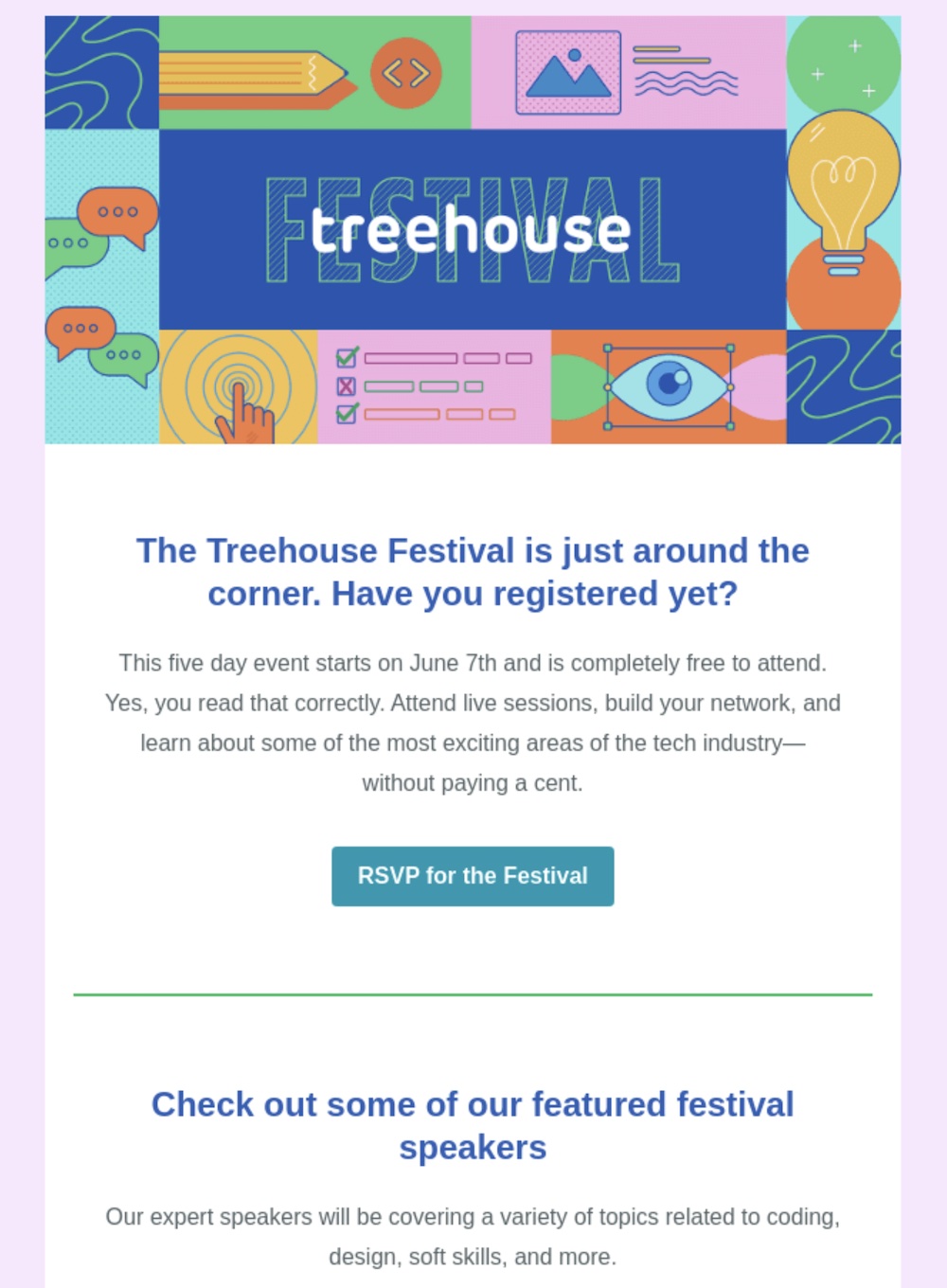
example of an event invitation email for networking
Image source: reallygoodemails.com

Networking Event Invitation Email Template 

Subject line: Let’s connect—[Event Name] is happening soon!
Header: Mix, mingle, and make meaningful connections

Body:
Looking to meet like-minded professionals without the awkward small talk?Join us for [Event Name], a relaxed evening of real conversation, new connections, and great drinks.

📍 [Location] | 🕕 [Date/Time]

Whether you’re growing your network or just want to meet cool people in [industry/location], this is the place to be.

Feel free to bring a friend—we’ll save you both a spot.

CTA: [RSVP Now]

Countdown Event Email Invitation

Nothing lights a fire under a reader like a ticking clock. Countdown-themed emails are perfect for creating urgency and giving your audience that final nudge to RSVP, register, or show up. Think fast-moving, exciting, and action-packed.

Tactics for countdown email invitations:

  • Use a countdown timer: Dynamic timers (or even a static “3 days left”) drive urgency.
  • Keep copy short and punchy: Every second counts—make it easy to skim and act.
  • Remind them what they’ll miss: FOMO is real—highlight the key moments or perks.
  • Pair with an offer: Time-limited discounts or bonuses add extra motivation.
  • Send in stages: Consider a 72-hour, 24-hour, and same-day reminder for max impact.

The email below combines a perfectly timed countdown timer—adding a playful touch with a dash of FOMO—along with the announcement of high-profile speakers. It’s designed to amp up the anticipation and drive participation.
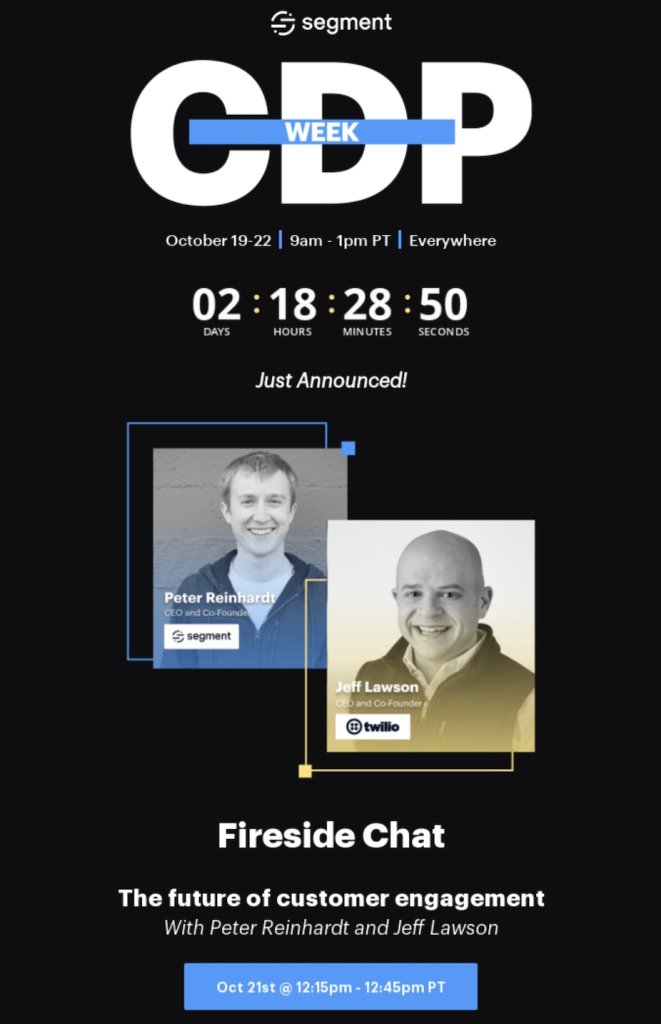
example of an event invitation email with a countdown
Image source: reallygoodemails.com

Countdown Event Invitation Email Template 

Subject line: ⏳ Only 3 days left—don’t miss [Event Name]
Header: The countdown is on!

Body:
Time’s almost up! In just [X days/hours], [Event Name] kicks off—and trust us, you don’t want to miss it.

✨ [1-2 highlight perks: keynote speaker, live demo, free gift, networking]
📍 [Location] |
🗓️ [Date/Time]

There’s still time to claim your spot, but not for long. The countdown is ticking…

CTA: [Register Now] or [Save My Spot]

Limited-Space Event Invitation

When space is tight, your email needs to do double duty: create excitement and encourage fast action. This is your chance to lean into exclusivity, urgency, and just a hint of FOMO (in the most elegant way, of course).

Tactics for limited-space event email invites:

  • Highlight scarcity: Use phrases like “space is limited” or “only 20 spots available.”
  • Mention past demand: If it sold out last time, say so—it builds urgency.
  • Use a waitlist as a backup: Create a secondary CTA for those who miss the cut.
  • Add a countdown or date limit: “RSVP by Friday” gives a clear deadline.
  • Tease the value: Make the small group feel like a big deal (such as exclusive access, direct time with speakers, personalized experiences).

The below example email focuses on highlighting the scarcity—with a precise number of just 52 spots left. Then they add the time limit—”early access ends tonight”—for added motivation. Throw in a discount, and a clear CTA (“take the workshop”) to really seal the deal.

example of an event invitation email about limited space
Image source: reallygoodemails.com

Limited-space event invitation template

Subject line: Only a few spots left for [Event Name]!
Header: You’re invited—before it fills up

Body:
We’re hosting an intimate [event type] for a small group of [industry/profession] leaders—and we’d love for you to be part of it.

With only [#] spots available, this is your chance to get [exclusive value—like early product access, expert insights, one-on-one time with our team].

📍 [Location or Virtual Link] | 🗓️ [Date/Time]

Spots are going fast—grab yours before they’re gone!

CTA: [Claim Your Spot]

Create Event Invitation Emails that Convert

A great event invitation email does more than share logistics—it sets the tone, builds anticipation, and guides people to take action. The right subject line grabs attention, the design reinforces your brand, and a clear, compelling CTA drives results. Even small details like your RSVP button placement or the imagery you choose can make the difference between a “maybe” and a “count me in.”

Need a little help putting it all together? SiteGround’s Email Marketing tool comes packed with professionally designed templates—so you’re not starting from scratch. They’re easy to customize, quick to set up, and built with best practices in mind to help you create emails that get opened, clicked, and remembered. Get started today. 
Lead Scoring Simplified: Identify Future Clients Effectively

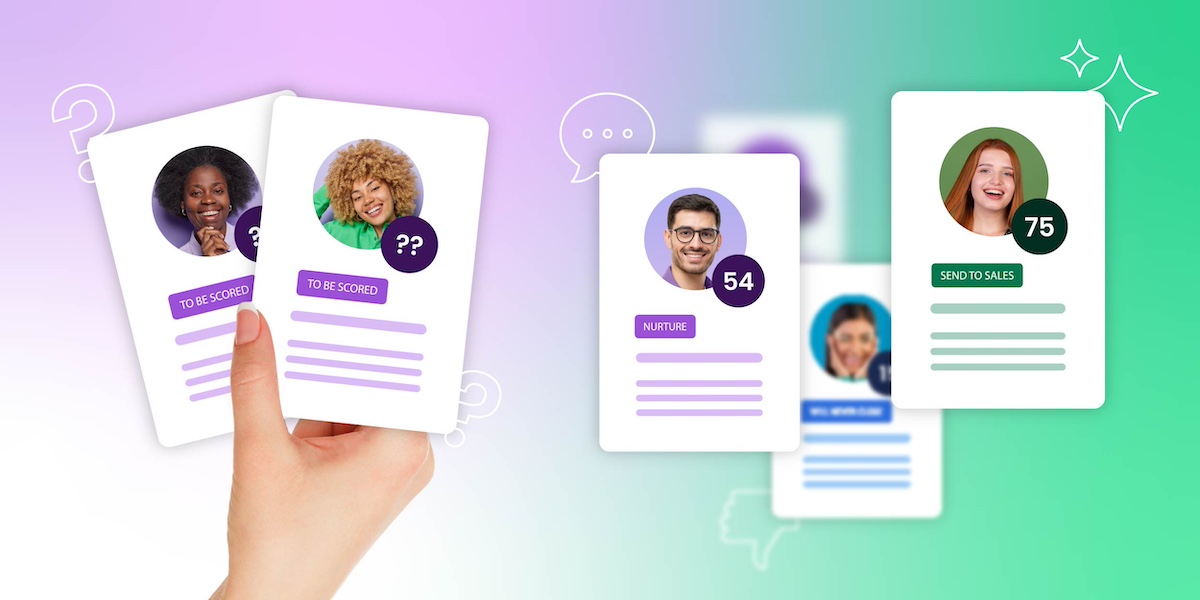
Abstract image of lead scoring

When running your business, a key task is reeling in potential customers. But once you’ve gathered a substantial number, how do you identify the high-quality leads—the ones ready to say “yes” to your offerings?

That’s where lead scoring comes in. It helps rank leads based on their likelihood to convert, allowing your marketing and sales teams to focus on those showing genuine interest in your brand. While it sounds simple, implementing lead scoring can pose some challenges.

That’s why, in today’s article we’ll guide you through the basics of lead scoring, help you create a lead scoring system, and share insights to effectively identify and nurture high-quality leads. Plus, we’ve developed a lead evaluation template to help you establish your lead scoring model.

[38]

What Is Lead Scoring?

Lead scoring, also known as lead ranking, is a strategy used by sales and marketing teams to evaluate and prioritize leads based on their likelihood of becoming future customers. This process involves assigning point values to each lead, with the numerical value varying according to the company’s unique criteria and objectives. Some companies may choose a range from 1 to 5, 1 to 10, or even up to 100.

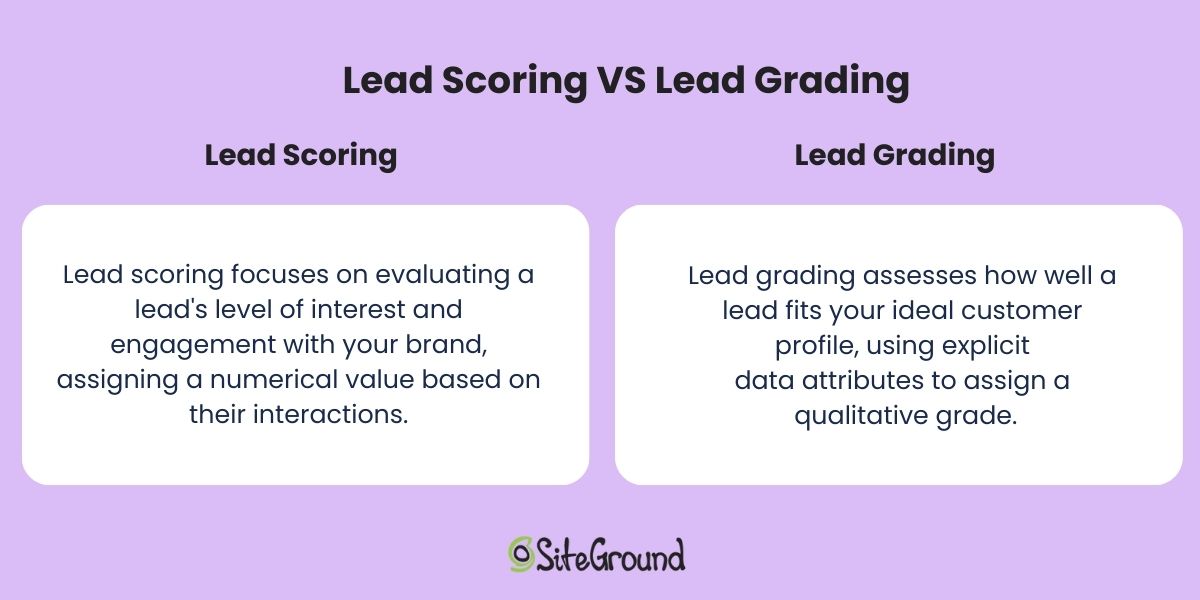
Lead Scoring vs. Lead Grading

Alongside lead scoring, there’s lead grading, which is often used together to enhance lead management. While both processes aim to prioritize leads, they approach it from different angles.

Here’s how they work together:

  • Lead grading: Initially, leads are graded based on their customer data, including demographic attributes like age and location, and firmographic details such as company size and industry. This grading assesses alignment with the company’s ideal customer profile (ICP), with an “A” indicating a strong match and a “D” suggesting a weaker fit.
  • Lead scoring: After grading the leads, the next step is to score them based on their behavioral data, such as downloading freebies from your website, or attending webinars. This scoring reflects their level of engagement and readiness to convert.
Lead scoring versus lead grading

By combining these approaches, you can efficiently prioritize leads that are both a good fit and highly engaged with your brand, thereby optimizing your sales and marketing efforts.
Why Is Lead Scoring Important for Your Business?

Why Is Lead Scoring Important for Your Business?

Only 25% of the leads you generate have the potential to make a purchase. Of these, approximately 79% still won’t result in sales, leaving you with just five customers out of every 100 leads generated, which can sound… discouraging, to say the least. But that’s why the lead scoring process matters. 

On one hand, it fosters sales and marketing alignment by creating a shared framework for evaluating lead quality and readiness. This allows you to spend more time on qualified leads and less on dead-end ones, ultimately increasing your conversion rate—one of the most important digital marketing metrics. 

On the other hand, customers enjoy a better experience, as lead scoring makes it easier to nurture them with relevant content and guide them more smoothly through the sales funnel, thereby minimizing your cost per lead.

How Does a Lead Scoring Model Work?

Now that you’ve got the basics down, let’s see how an example lead scoring model works.

Imagine you run an ecommerce business specializing in eco-friendly home goods. To prioritize leads effectively, you decide to implement the following scoring system:

ActionPoints Earned
Signing up for a newsletter10 points
Participating in an online workshop20 points
Browsing a pricing page30 points
Adding products to their wishlist40 points

A prospect meeting all these criteria would quickly accumulate 80 points and become a qualified lead, ready to transition from marketing to sales. In a small business without distinct teams, this means the owner or a key team member can contact these high-potential leads with personalized offers and more targeted marketing campaigns.

However, a high lead score can fall, as the process also involves deducting points for unfavorable traits and behaviors, such as the example below:

ActionPoints Deducted
Incomplete contact information-5 points
Ignoring follow-up emails-10 points
Unsubscribing from the newsletter-5 points
Negative feedback or review-15 points

Ultimately, the balance of added (80) and deducted (35) points results in a final score (45) that reflects the lead’s potential in becoming a customer. In this scoring system, a score above 70 might classify a lead as “hot,” indicating a high likelihood of conversion and warranting immediate attention. A score between 40 and 70 could be considered “medium,” suggesting moderate interest and potential for nurturing through targeted marketing efforts. Meanwhile, a score below 40 would categorize a lead as “cold,” indicating lower priority and the need for further engagement strategies to increase interest.

How to Implement Lead Scoring 

There are three ways you can implement a lead scoring system in your marketing and sales processes. However, you should view these as steps you can progress through depending on your number of leads, rather than overcomplicating things from the start. Let’s take a look, shall we?

1. Manual Lead Scoring 

Unless you’re working with a very small number of leads, manual lead scoring isn’t practical. However, for someone new to managing a lead database, it can serve as a valuable foundation for automating the process in the future.

2. Automated Lead Scoring

If you’re using some kind of marketing automation tool or CRM platform like Salesforce or HubSpot, for example, you’ve probably noticed a lead scoring feature available.

The main difference between automated and manual lead scoring is that, with automation, the software continuously applies the designated points to each attribute for every lead in real-time, which can come handy when you are dealing with a big amount of leads. This streamlines the process and ensures that scoring is always up-to-date by gathering data from various sources, such as website interactions, email engagement, social media activity, and other CRM data.

Additionally, some software platforms allow you to set a target score as a goal and trigger specific automated actions once a lead reaches that score.

3. Predictive Lead Scoring 

Predictive lead scoring leverages machine learning to analyze large datasets, identifying characteristics that differentiate low-quality leads from high-potential ones by examining patterns in both successful and unsuccessful conversions. However, there’s a caveat—you need substantial lead data for it to be effective, which makes it less suitable for newer businesses.

To build such a model, you can use built-in predictive lead scoring in tools like Salesforce Einstein and Hubspot Enterprise, or opt for no-code AI platforms—BigML and Google AutoML Tables being some of the most popular.

Be aware that because predictive models rely heavily on historical data and established trends, they excel at recognizing patterns that have been successful in the past. But this reliance can limit their ability to identify new or emerging opportunities that deviate from these patterns, potentially causing your business to miss out on innovative strategies or untapped markets. 

Therefore, it’s important to balance predictive insights with current market analysis.

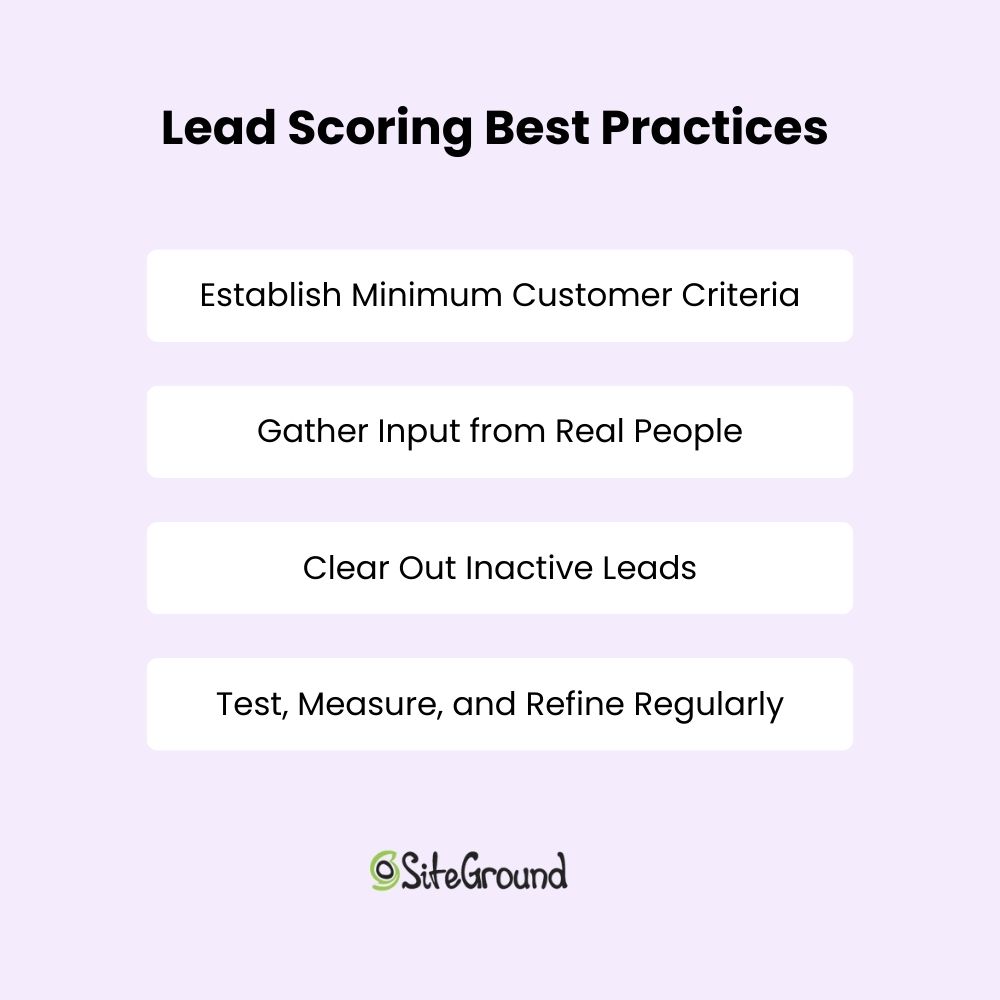
Lead Scoring Best Practices

Lead scoring is not an easy process, but it’s definitely worthwhile. By following the tips below, you can effectively get your marketing efforts off the ground and start seeing more leads convert.

1. Establish Minimum Customer Criteria

To ensure your lead scoring model effectively targets the right audience, it’s essential to define the minimum criteria a lead must meet to be considered a valuable customer. Remember the lead grading we mentioned earlier? This is where it comes into play.

For instance, if you run on a B2B model, your ideal customer might need to operate within a specific industry, such as healthcare or technology, or have a minimum annual revenue threshold.

By setting these criteria, you ensure that your sales team doesn’t waste time on leads with no potential to become customers. While it might seem minor or overly specific, establishing these criteria now will save time and resources in the long run.

2. Gather Input from Real People

It’s very important that before you embark on any sort of lead scoring journey, that you have buy-in from everyone who’s involved in the purchasing process. 

Collaborate with your sales reps to gain insights on leads that were initially scored as high-quality but ultimately proved to be poor fits. Analyzing these cases can help identify any overvalued or undervalued variables in your lead scoring model.

Additionally, while your sales team might believe certain content effectively converts customers, it’s important to gather perspectives from those who experienced the sales process firsthand. Conduct customer interviews to understand what truly influenced their decision to buy from you. Hearing from both sides will provide a more comprehensive view.

3. Clear Out Inactive Leads

Effective lead scoring involves not only identifying hot leads but also managing cold ones. In this context, lead decay plays an important role by recognizing that leads can become less likely to convert into customers due to a lack of meaningful interaction or progress in the buying process.

Businesses typically establish timeframes within their CRM platforms to differentiate between hot and cold leads. Lead decay automatically reduces scores when engagement diminishes over time. Without this mechanism, databases can become cluttered with “zombie leads” that seem valuable but have long since cooled, leading to inefficient use of sales resources. Keep in mind also that the lead decay period may vary between B2B and B2C contexts, as B2B sales cycles are often longer. 

Test, Measure, and Refine Regularly

As market conditions, customer behaviors, and business objectives evolve, your lead scoring system must adapt to remain a reliable tool for identifying and prioritizing high-potential leads. That’s why coming up with scoring criteria isn‘t a one-time task but rather an ongoing process of regular testing, measurement, and refinement.

Lead scoring best practices

Common Lead Scoring Challenges

Identifying When Lead Scoring Is Essential

The necessity of lead scoring largely depends on your business operations and the volume of leads you handle each month. Here are some cases in which lead scoring might be a fit for your business:

  • If your sales cycle is relatively short and closing leads is straightforward.
  • If your lead database is limited, focusing on generating more leads may be more beneficial.
  • If your sales reps are effectively managing leads and achieving strong conversion rates, lead scoring might not be necessary. 

Determining the Right Data Points for Lead Scoring

While there is no one-size-fits-all answer to how many data points should be included in a lead scoring model, a typical range is between 10 to 20. This range allows for a balanced approach, providing enough detail to make informed decisions without overcomplicating the model.

Considering Multiple Lead Scoring Models

If your business currently targets one ideal customer profile, a single lead scoring model is sufficient. However, if you plan to diversify by introducing new product lines, exploring new markets, or targeting different customer personas, it may be beneficial to develop multiple lead scoring systems. This approach allows you to adapt and qualify various groups of leads according to their unique characteristics and needs.

Following Through on Lead Scoring

By now, you’ve probably caught on that the lead scoring process isn’t just about tallying up points like a game; it’s a savvy strategy that sales and marketing departments use to spotlight the most promising leads while ironing out any wrinkles in their lead generation and lead nurturing methods.

While lead grading and lead scoring are two different players, they make a winning team when used together. But remember, setting scoring criteria isn’t a “set it and forget it” kind of deal; it’s an ongoing adventure. Keep the lines open with your sales team and regularly review your scoring model to ensure your lead scoring efforts stay sharp and effective.

Ready to roll up your sleeves and turn this knowledge into action? Download our free Lead Evaluation Template and create a scoring model that makes sense for your business.

AI Email Summaries and How they Impact Your Marketing

An image of an AI Email Summary

AI is everywhere these days, and now it’s popping up in our email inboxes, categorizing our messages, and summarizing them too. While these AI-driven features can be handy, it changes the game for us email marketers. 

We can no longer rely on our meticulously crafted messages to consistently land in recipients’ inboxes. Despite these challenges, the email marketing benefits—like direct communication with your audience and higher engagement rates—remain as important as ever for business growth. 

So today we’re covering the latest trends when it comes to AI email summaries and features, how they impact your business, and what you can do to adapt so that your email marketing efforts don’t go to waste.

What are AI-Generated Email Summaries?

AI-generated email summaries use artificial intelligence to capture the key points of an email so that the reader can quickly grasp the message without having to read the whole thing. While there are external tools out there to accomplish this, AI email summaries are becoming increasingly popular among the most well-known email platforms, including Apple, Google, and Yahoo. 

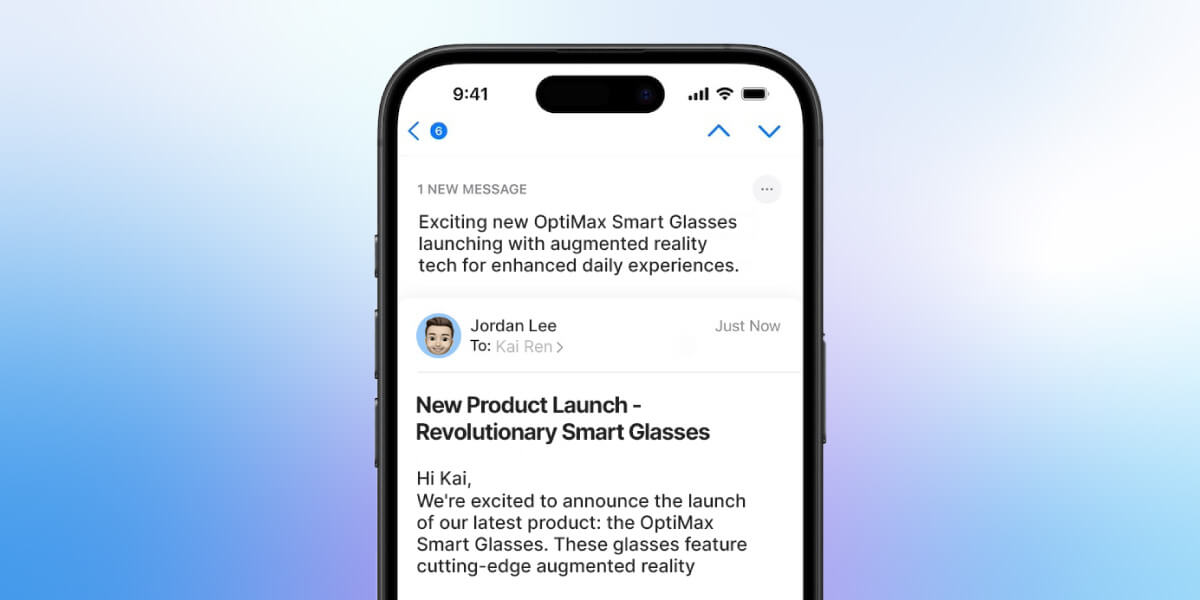
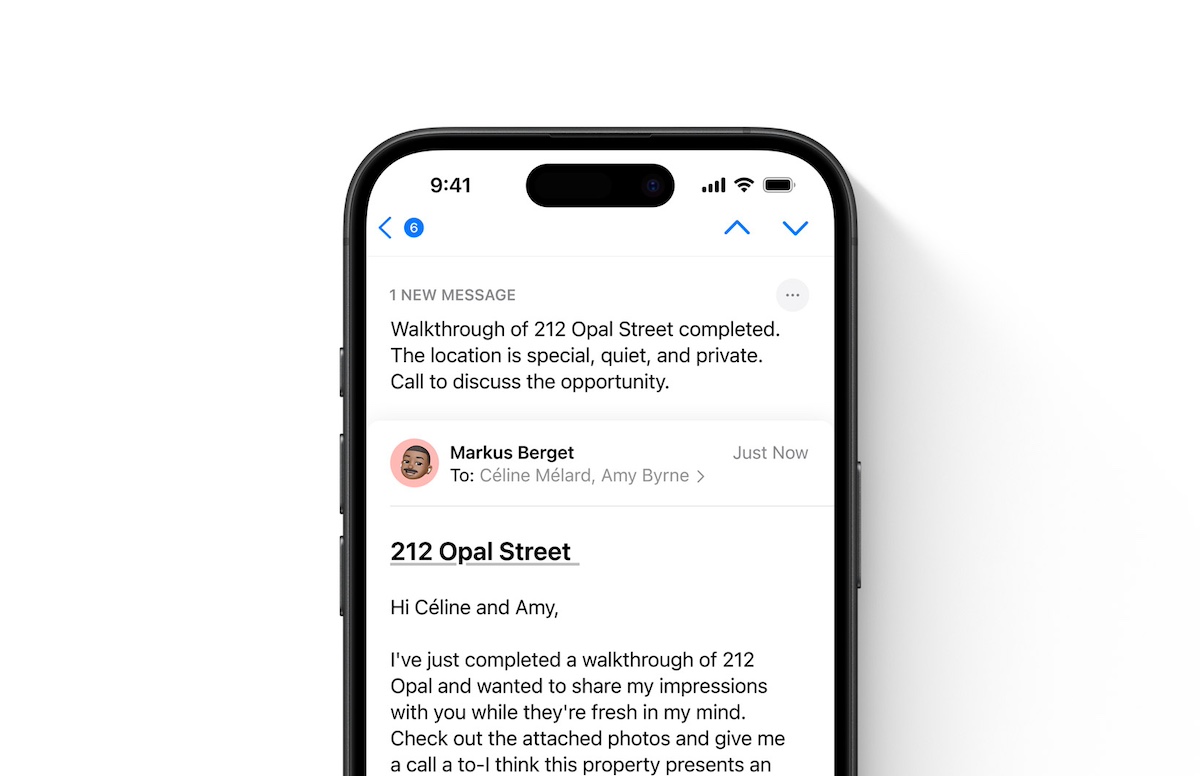
Apple AI generated email summary

New AI-Generated Email Features and Their Impact

AI has worked its way into our email marketing platforms in a handful of ways, most notably with Apple’s recent introduction of Apple Intelligence (along with a slew of new inbox features for Apple iOS 18). Given the popularity of the Apple email client, this kind of change is not one to be ignored. 

Before we get to how marketers can adapt to these new functionalities, let’s break down how they’re being used by email’s largest platforms, and therefore how they can impact your marketing efforts.

AI-Generated Email Previews

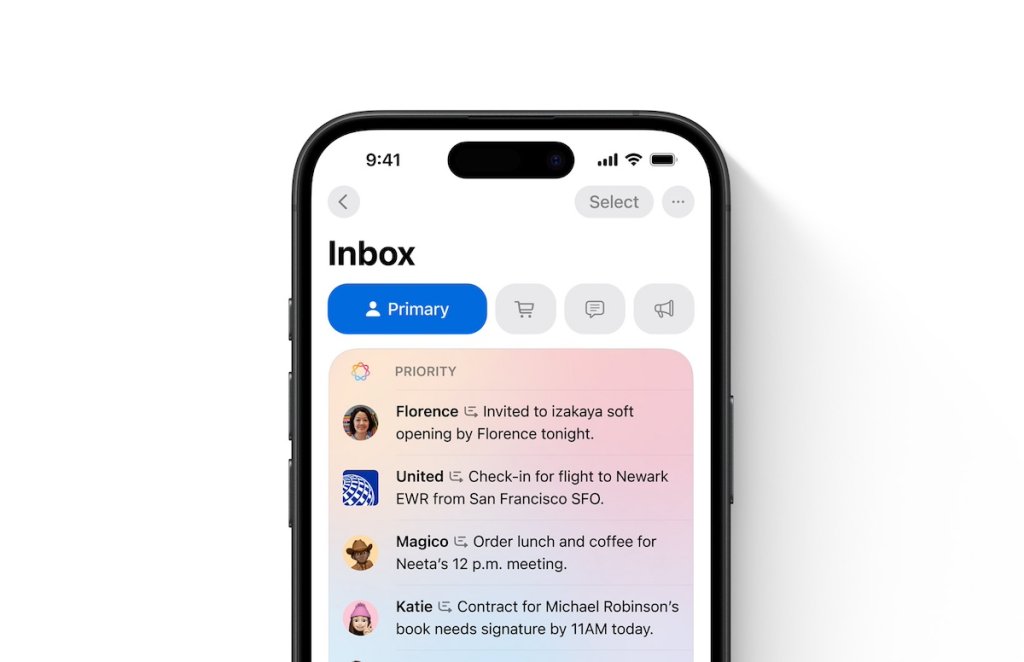
If you’ve worked with email marketing, then you know that getting an email opened isn’t just about the subject line—it’s also about the preview text. Traditionally, marketers have strategically written preview text to complement their subject lines in order to entice recipients to open their emails. But with the rise of AI-generated email previews, that control is slipping away.

Certain email providers—notably Apple—are now starting to replace that sender-defined preview text with AI-generated previews. For example:

  • Apple Mail: By default, Apple’s latest operating systems no longer display the preview text set by the sender. Instead, Apple Mail generates its own AI-powered snippet based on the email’s content. It’s worth noting that this feature is not yet available on all Apple Mail clients, so the experience may vary depending on the user’s device and settings.
AI generated apple inbox
  • Gmail and Yahoo Mail: Neither platform replaces the sender’s preview text with AI-generated previews by default—yet. Instead, they continue to display the preview text as provided by the sender or the first few lines of the email. This means that marketers and senders still have control over how their emails appear in recipients’ inboxes.

Impact on Marketing:

  • Lost Control Over Messaging: With AI-generated previews, marketers lose control over how their email’s preview text is displayed, weakening the intended impact and potentially causing inconsistencies with the subject line and overall message.
  • Potential Inaccuracy: AI previews may misinterpret the content, leading to inaccurate or misleading snippets that don’t accurately represent your brand or message, affecting user trust and engagement.
  • Mixed Benefits: While AI previews improve the experience for personal emails, they can disrupt marketing emails, as they may focus on irrelevant content and miss key offers or calls to action, lowering engagement.
  • Impact on Open Rates: Less engaging or misaligned AI previews may reduce open rates, as recipients might ignore emails with unappealing or unclear snippets.

AI-Generated Email Summaries

AI email summaries are similar to email previews, but instead they are a bit more detailed, and are presented once the email is opened. 

Email providers are leveraging AI to provide summaries of email content, highlighting key information, and offering suggested actions. The idea is that these summaries can save users time and help them stay organized. For example:

  • Apple Mail: Apple’s AI-powered summary feature identifies key points in long email threads, offering a brief overview of the conversation’s most important details. What’s different about Apple’s email summaries is that, unlike the previews, email summaries are not shown by default. Instead, users have the option to click and view an AI-generated email summary. Again, this feature isn’t yet available on all devices or software versions.
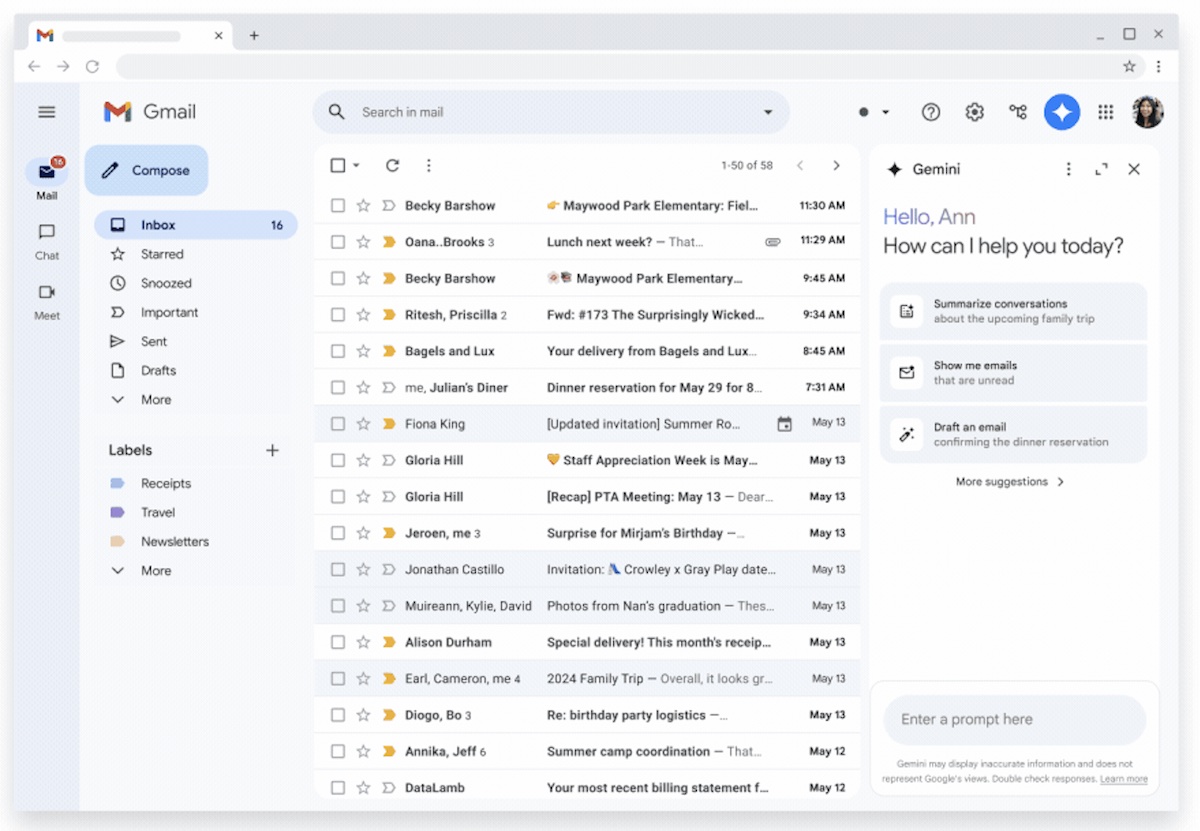
  • Gmail: Gmail’s AI assistant, Gemini, can summarize long email threads and suggest responses, allowing users to quickly understand the gist of a conversation. These summaries are available through the Gemini interface (if one has a subscription to Google Workspace) but are not automatically shown—users must choose to engage with them. 
Gemini ai generated email summary
  • Yahoo Mail: Yahoo Mail offers AI-generated summaries that highlight important actions like tracking updates or event invites. These summaries appear within the inbox and can help users prioritize emails.

Impact on Marketing:

  • User Engagement Challenges: While AI-generated summaries can make email management more efficient, they also mean that users may not always engage with the full content of your email. This might not, however, have as big of an impact on your email marketing as the changes brought by AI email previews. This is partly because, at least with Apple Mail, the AI summary isn’t automatically enabled.
  • Potential for Misrepresentation: Just like with AI-generated previews, summaries aren’t always perfect. They may miss key details or present the wrong context, potentially leading to confusion or misinterpretation of your message. 
  • Brand Dilution: Apart from the potential for message inaccuracies, brand voice will almost certainly be sacrificed given that AI summaries capture key information, not the overall tone of the email. This can result in a disjointed experience for the recipient, as the essence and personality of your brand may not come through as clearly, diminishing the emotional connection you aim to establish with your audience.
  • Less impact on Email Engagement: If someone has already decided to open your email, it’s likely that they actually want to see what’s inside, and not just a summary. Since marketing emails are often designed to be skimmable and visually appealing, recipients are more likely to skip the summary and dive into the full content. This could reduce the overall impact of AI summaries on your email marketing metrics, as the summaries may be skipped in favor of engaging directly with your message.

AI-Categorized Inboxes

Email platforms have long used folders or categories to help users manage their inboxes, but with the rise of AI, some providers have started to use machine learning to automatically categorize incoming messages into tabs, making it easier to sort and prioritize emails. This feature helps users declutter their inboxes and focus on what matters most. It also means a whole other obstacle for email marketers.

AI-powered categorization automatically analyzes the content of incoming emails and sorts them into predefined categories or tabs. For example:

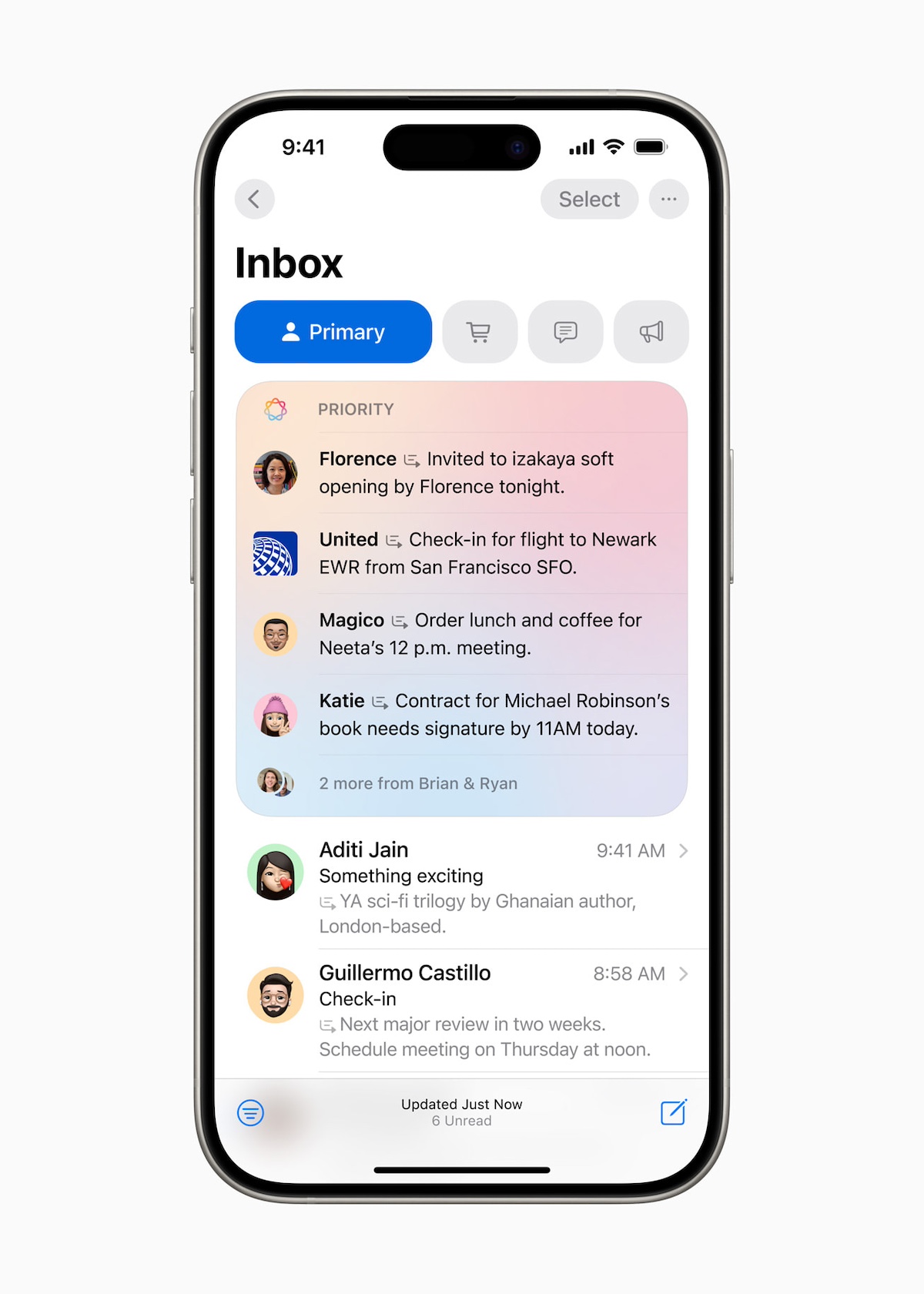
  • Apple Mail: With the introduction of iOS 18.2 and macOS 15.4, Apple Mail now uses AI to automatically categorize emails into tabs such as Primary, Transactions, Updates, and Promotions. This feature helps users organize their inboxes by sorting emails based on content and sender. Like with the other AI features, this categorization is not yet available across all devices or versions. 
AI categorized Apple inbox

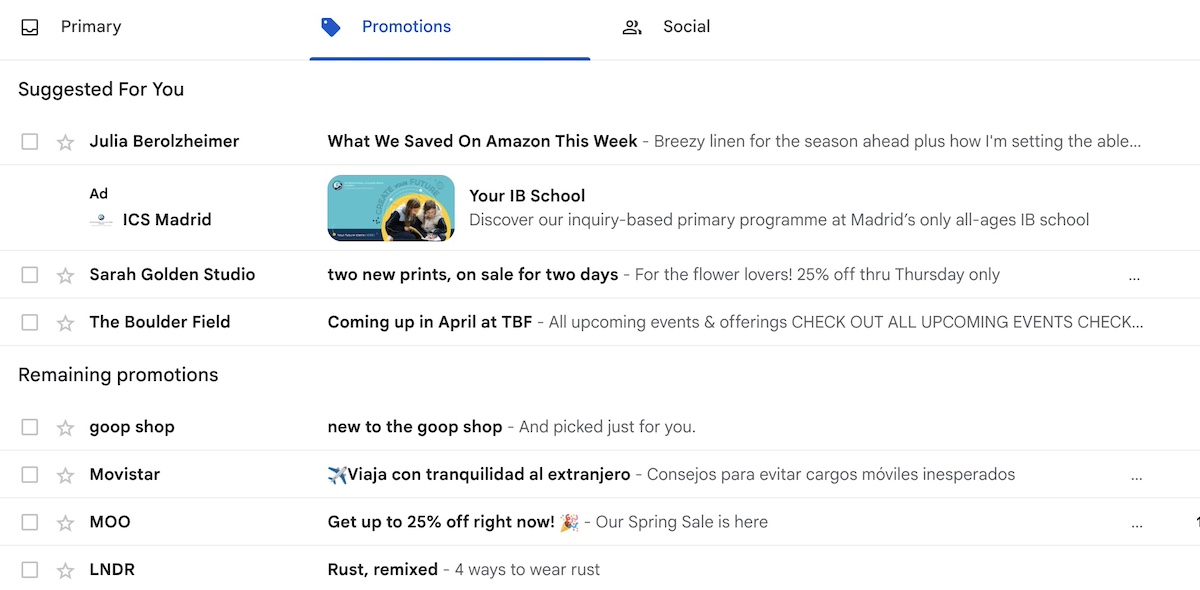
Gmail: Gmail has now long used AI to automatically sort emails into categories like Primary, Social, and Promotions, based on the content and sender. It now also further breaks down email categorization into “suggested for you” and “remaining promotions.” These AI-driven tabs help users easily find personal messages, promotional emails, and social updates without clutter.

AI categorized gmail inbox

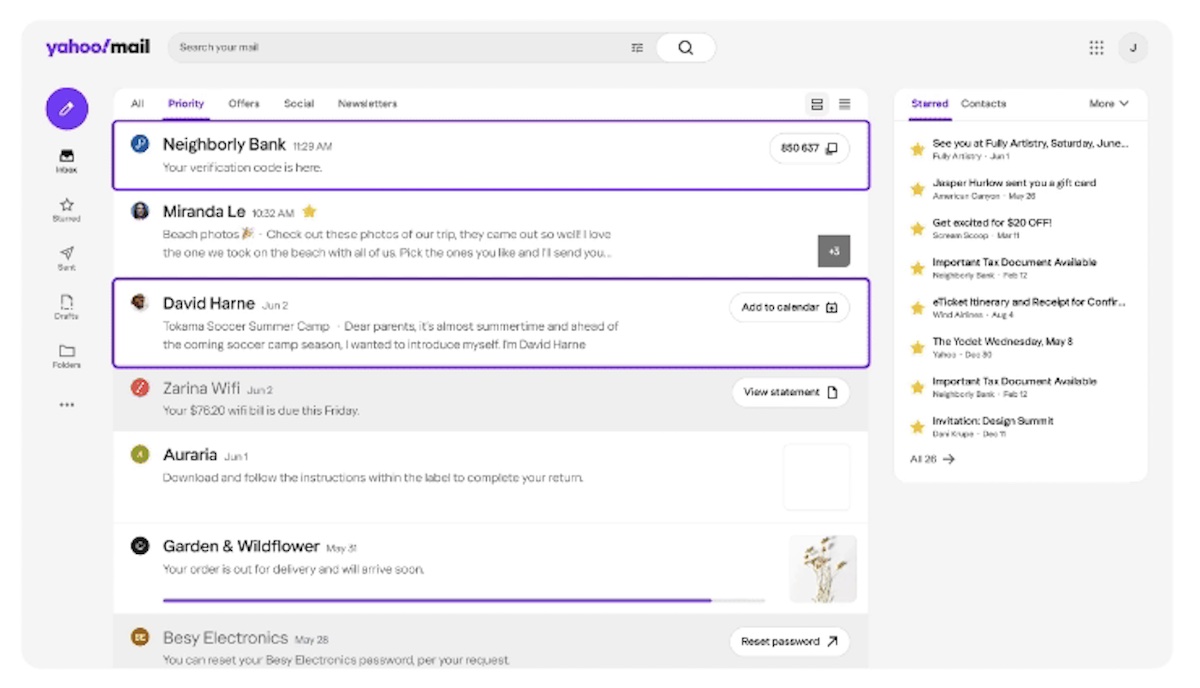
Yahoo Mail: Yahoo Mail categorizes emails into tabs like Primary, Social, and Promotions, but with a focus on AI-powered summaries and quick actions. For example, quick action buttons within emails allow users to take actions such as tracking packages or adding events to calendars directly from their inbox. This feature is designed to streamline inbox management, but it can also impact how marketing emails are viewed and interacted with, especially if they’re automatically sorted into the Promotions tab.

AI actions in Yahoo inbox

Impact on Marketing:

  • Reduced Visibility for Marketing Emails: AI categorization often filters promotional emails into the Promotions tab, reducing their visibility compared to personal messages in the Primary inbox.
  • Need for Higher Engagement: Since AI considers user engagement when sorting emails, marketers must focus on increasing open and click-through rates to improve inbox placement.
  • Encouraging Manual Overrides: Asking subscribers to move emails to their Primary inbox or add senders to their contact list can help bypass automatic sorting.
  • A/B Testing for Optimization: Testing subject lines, send times, and email formats can help determine the best ways to maximize visibility within AI-driven inbox tabs.

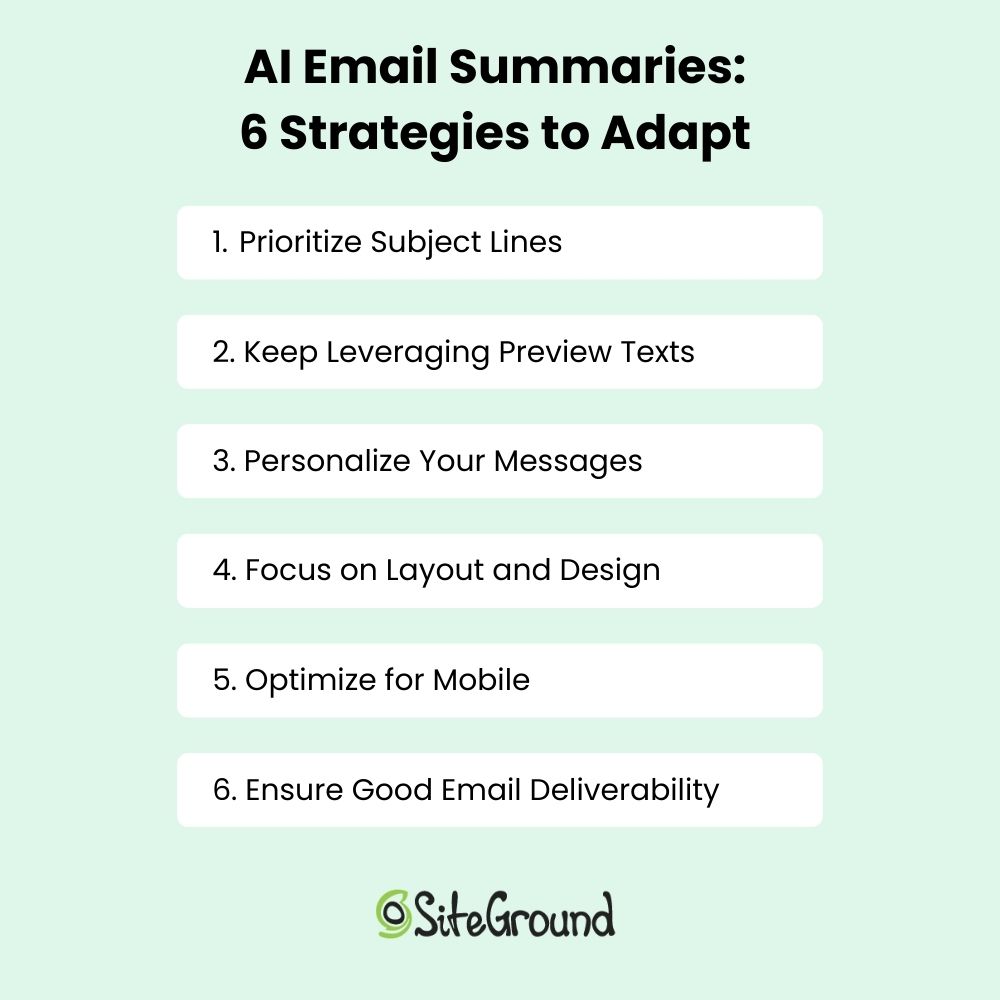
AI Email Summaries: 6 Strategies to Adapt

By now it’s clear that these AI summaries and categorizations have an impact on your marketing efforts. So how can you combat these changes and stay ahead with your email marketing?

1. Prioritize Subject Lines

As email marketers, you’re now going to have to live and die by your email subject lines. Preview text is no longer guaranteed, so getting folks to open your emails means the subject line alone needs to get the job done. 

To succeed, keep subject lines concise (40-50 characters), create urgency, personalize when possible, and use clear, actionable language. Regularly test and optimize your subject lines while avoiding spam triggers, and focus on sparking curiosity or offering solutions to engage your audience. All the best practices apply now more than ever!

2. Keep Leveraging Preview Texts

While preview text is no longer a guarantee, that doesn’t mean you should disregard it altogether. Many platforms will still show your chosen preview text, so it’s worth still being strategic. With that in mind, make sure your preview text is clear, engaging, and reinforces your subject line, giving your email the best shot at standing out. Just remember, preview text is no longer your safety net—so make the subject line the star of the show!

strategy to adapt to AI email summaries - preview text

3. Personalize Your Messages

Personalizing your messages is a smart way to hack all the AI distractions, and increase engagement. That’s because emails that include a recipient’s name or that are tailored to their preferences or past interactions are more likely to get noticed and read. People appreciate content that feels relevant to them—whether it’s a timely offer or an update on something they’ve shown interest in. And if you’re struggling to come up with just the right text, try AI email prompts to help you craft just the right words for just the right audiences.

Strategy to adapt to AI email summaries - personalized email

To get personalization right, segment your email list and pay attention to where each customer is in their email customer journey. A new subscriber may benefit from a welcome offer, while a loyal customer might appreciate an exclusive deal. By sending the right message to the right person at the right time, you’ll increase the likelihood that your email stands out even amidst AI email previews and summaries. 

4. Focus on Layout and Design

The way your email looks and is structured matters more than ever. If it’s just one big block of text, chances are your readers will hit that AI summary button before even giving it a second glance. To avoid that, you need to make your email layouts both easy to skim and visually appealing.

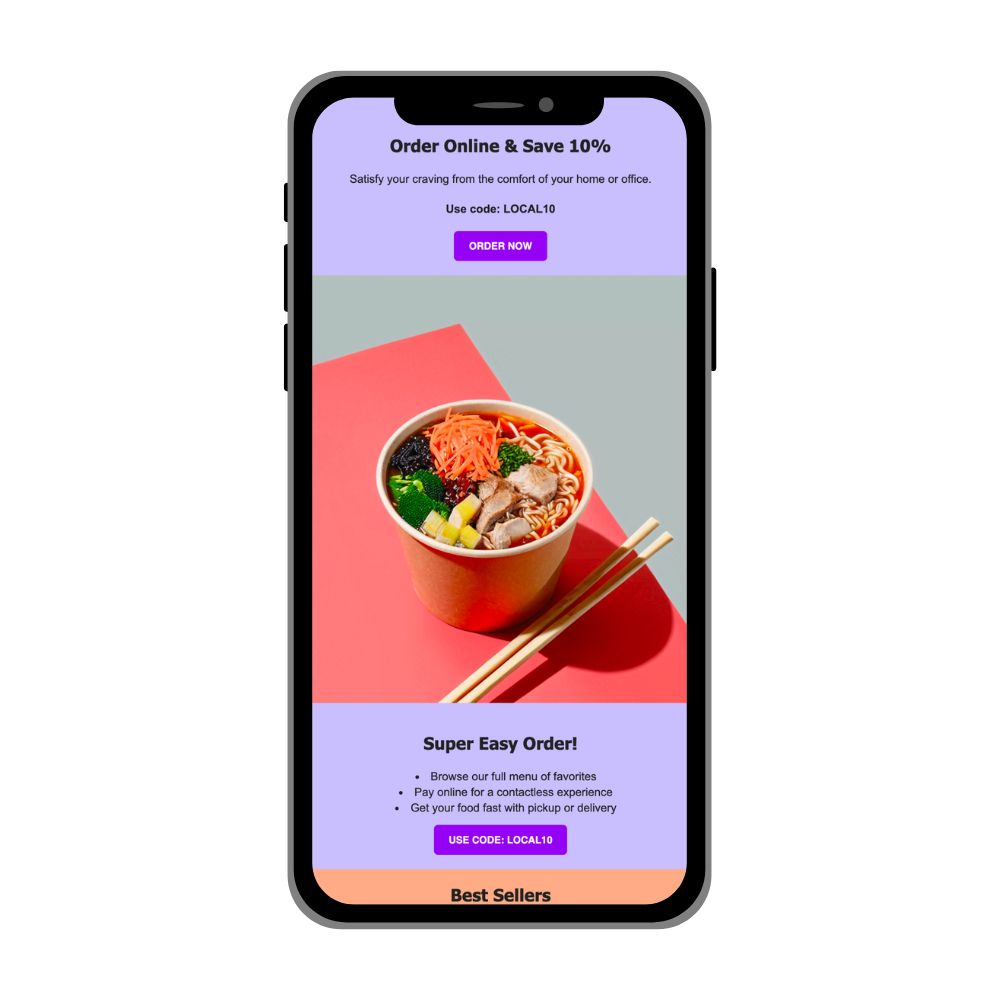
Think of it like setting up a display in a store—you want your message to catch the eye and make the reader want to dive in. Use headings, bullet points, and short paragraphs to break up the content. Add images or graphics that complement your message, and don’t forget to make your call-to-action buttons bold and easy to tap. By creating an email that’s not only simple to scan but also enticing to look at, you’ll keep readers engaged and less likely to rely on a summary. 

Strategy to adapt to AI email summaries - design and layout

SiteGround Email Marketing makes creating beautiful, well-designed emails (like the one above) a breeze thanks to an easy-to-use builder, a built-in AI writer, and heaps of ready-to-use templates. Save time and grow your business with SiteGround.

Get started today>>

5. Optimize for Mobile

Since we’re fighting a few more inbox battles here, that means we need to be even more laser-focused on mobile optimization. This means that it’s all the more important that, in a mobile context, your subject line is short, snappy, and compelling—remember, mobile screens cut off anything too long. 

As for the layout, think of it as your email’s first few seconds to impress. The option for an AI email summary can automatically push content down, so it’s especially key to place your most important information right at the top, above the fold, so your readers can immediately see the essentials without scrolling. Keep it clean, skimmable, and easy to tap, with large buttons and readable text.

Strategy to adapt to ai email summaries - optimize for mobile

A good email marketing platform will do the sizing optimization for you, as well as offer layouts. SiteGround Email Marketing, for example, offers the template above (along with many others) that automatically optimizes for mobile, and implements the best practices we’re discussing today. Easy to use, effective, and looks fantastic on all screens.
6. Ensure Good Email Deliverability

Sending emails is easy—getting them read is a different story. With AI-powered inbox sorting, your thoughtfully created messages might end up buried in the promotions tab or, worse, in spam. But with some extra effort, you might be able to outsmart the filters.

Tips to Boost Email Deliverability:

  • Keep Your Email List Fresh – Regularly clean out inactive subscribers to improve engagement rates.
  • Send Smart, Not Spammy – Avoid spammy words, personalize your content, and time your emails wisely.
  • Track & Tweak – Monitor open rates and clicks—high engagement tells email providers your emails belong in the inbox.
  • Use a Reliable Email Marketing Platform – Choose a platform with excellent deliverability, like SiteGround Email Marketing, that prioritizes proper authentication, avoids blacklisting, and ensures your emails land in the right inboxes, not the spam folder.
AI email summaries - 6 strategies to adapt

Adapt to AI Email Summaries and Stay Ahead

Email marketing should still be a mainstay among your business strategies, but staying ahead and adapting means it’s important to keep an eye on new AI features. With more undoubtedly on the way, staying flexible and proactive is the key to keeping your marketing fresh and effective.

At SiteGround, we believe in growth through adaptability. That’s why SiteGround Email Marketing is designed to be easy, efficient, and full of best practices, so you can spend less time on the details and more time on your big-picture strategy. We’ve got your back in helping your business thrive.

Website Layout: 13 Types, Examples & How to Choose the Right One

Abstract image of website layout

This article was originally published in April 2025, and then updated in April 2026

The best website layout depends on your content, your audience, and what you want visitors to do next—and the right choice can mean the difference between a site that converts and one that doesn’t. A thoughtfully designed layout builds your brand, improves user experience, and helps grow your business. In this guide, we break down 13 of the most effective layouts, why they work, and how to choose the right one for your site.

Key takeaways:

  • The best website layout depends on your content, audience, and conversion goals — not personal preference.
  • Different pages on your site can use different layouts, as long as the overall design feels cohesive.
  • Strategic placement of elements like CTAs and visuals directly impacts engagement and conversions.
  • Layouts should be responsive and perform well across all devices, not just desktop.
  • A clean, simple layout almost always outperforms a complex or overly designed one.

What is a Website Layout?

A website layout is the arrangement of visual elements on a webpage, including text, images, buttons, and navigation menus. As part of your website checklist, choosing the right layout plays a super important role in user experience, engagement, and conversion rates.

What is a website layout definition

A good layout balances both design and functionality, lending to an intuitive user experience that guides your visitors through your site (and hopefully to conversions!).

Why Does Website Layout Matter?

Of course you want a good website layout, and we know it should look nice and work properly. But how does it really impact the bigger picture? Your website layout impacts:

  • User Experience (UX): Beyond basic functionality, a clear, simple, and structured layout makes website navigation seamless and improves usability—that way, users don’t have to think about how to interact with your site; it just happens naturally.
  • Engagement: Strategic placement of elements—like, calls to action, for example—keeps visitors interested and encourages interaction.

Conversions: A well-designed layout guides users toward those aforementioned calls to action, increasing sign-ups, sales, or other desired actions. Tracking digital marketing metrics—such as bounce rate, time on page, and conversion rates—helps you determine whether your website layout is really getting the job done.

13 Best Website Layout Ideas

Now that you’re convinced of just how very important it is to put extra thought into your site layouts, let’s examine 13 of the best website layout ideas, along with examples, that can help you create an engaging and high-converting site.

1. Hero Layout

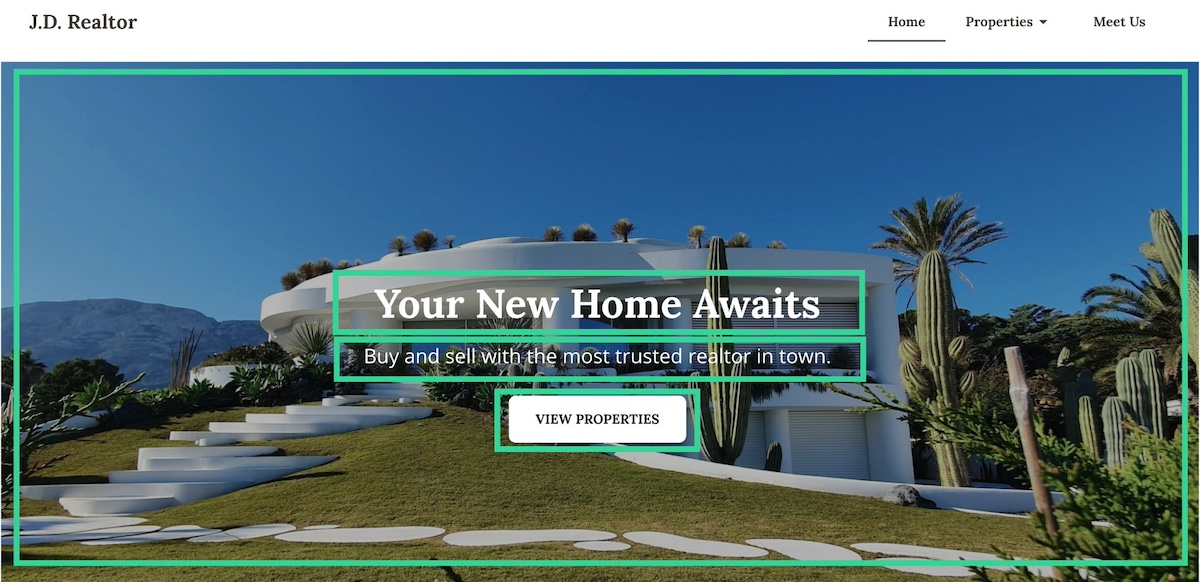
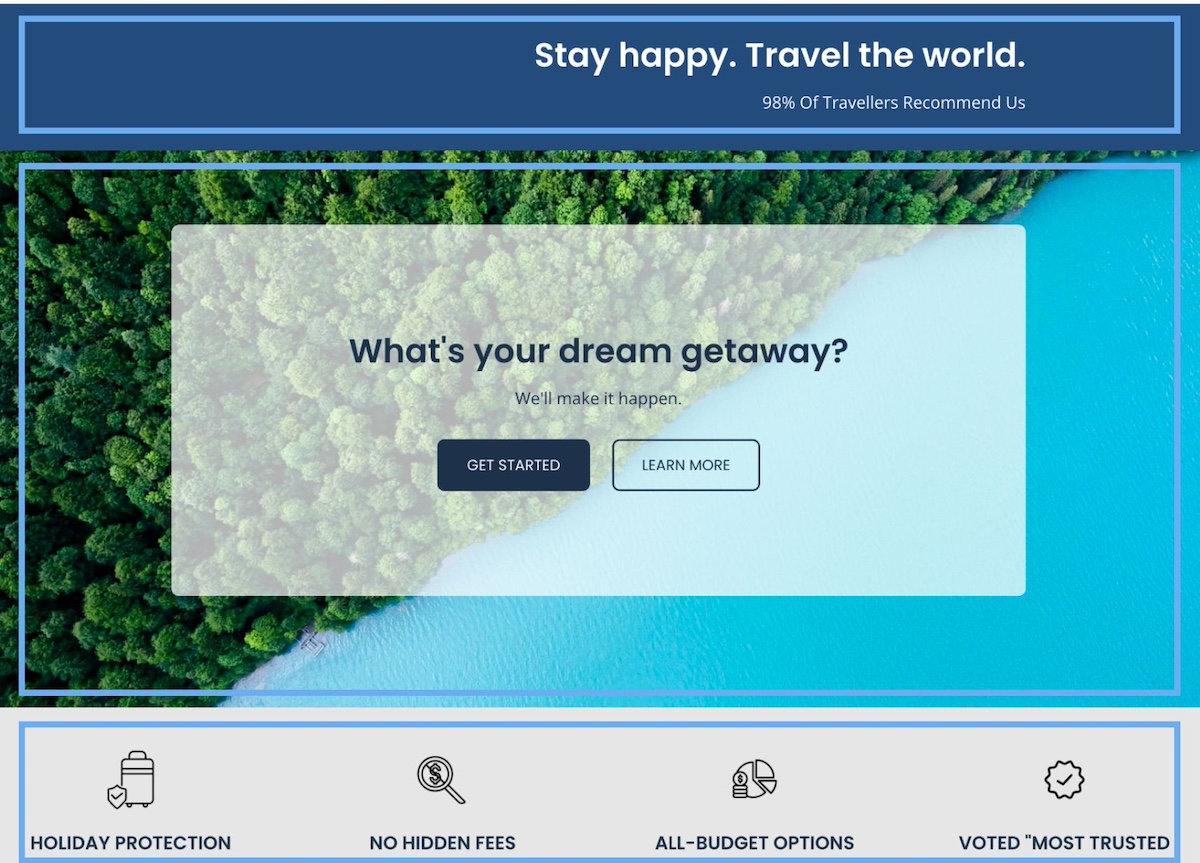
The hero layout is one of the most common and widely used website layouts because it’s typically used for homepage design. It usually features a large, visually striking section at the top of the page, including a high-quality image that really sets the vibe for your services and offerings. Overlaying this visual is usually a compelling headline, a subtitle, and a clear call to action (CTA). 

This layout is often the first thing visitors see, making it your best chance for grabbing attention and setting the tone for user experience with the rest of the site. 

Example of a hero website layout showing a full-width image with an overlaid headline and CTA button

Why the Hero Layout Works

  • Captures Immediate Attention: A well-designed hero section instantly captures visitors’ attention so that they stay on the page rather than bouncing.
  • Establishes Brand Identity: The hero area is often where businesses communicate their core message, unique selling proposition, and/or brand personality through visuals and copy.
  • Guides Users to Take Action: The CTA importantly directs users toward the next step in their journey, whether that means signing up, exploring products, or learning more.
  • Improves User Experience: By placing key information front and center, the hero layout makes navigation easier and helps users understand the purpose of the website quickly.

Because of its versatility and effectiveness, the hero layout often serves as the foundation for many of the other layouts we’ll be discussing today. For example, variations like the fullscreen image layout, split-screen layout, and even asymmetrical designs frequently incorporate hero sections at the top of the page.
Pro-tip: the hero section layout is also a go-to layout for landing pages given its ability to get the message across and drive conversions.

2. Asymmetrical Layout

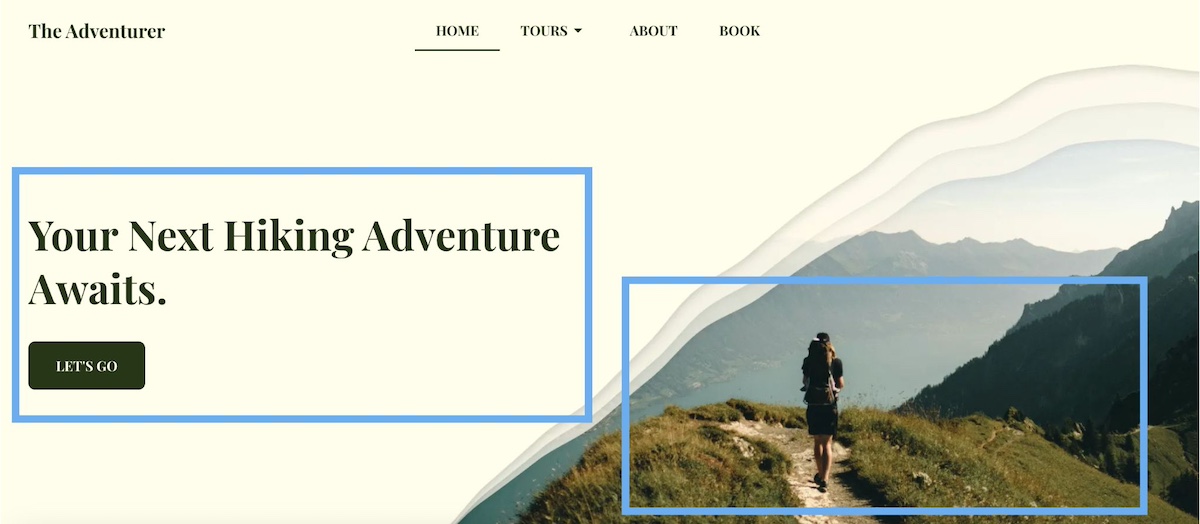
Unlike traditional grid-based designs, the asymmetrical layout embraces imbalance, using uneven spacing and contrasting elements to create a bold, modern aesthetic. Instead of mirroring elements evenly on both sides, this website layout embraces imbalance to guide the user’s eye strategically across, and even down the page.

Example of an asymmetrical website layout using uneven spacing and contrasting element sizes for a bold, modern design

Why the Asymmetrical Layout Works

  • Creates a Bold, Modern Aesthetic – If a brand wants to stand out from competitors, an asymmetrical design can give a fresh, cutting-edge feel that signals creativity and innovation.
  • Enhances Visual Interest & Storytelling – The unconventional structure draws attention to specific elements, allowing brands to emphasize certain messages, products, or calls to action, and imagery in a unique way.
  • Encourages Engagement – By breaking predictable patterns, asymmetry keeps users intrigued and exploring the page more actively.
  • Works Well with Minimalist Design – Even in a minimalist website, an asymmetrical layout can introduce contrast and movement while maintaining simplicity.
When to Use the Asymmetrical Layout

While asymmetrical layouts can be highly effective, they require a good design eye to make sure they remain user-friendly, attractive, and don’t feel chaotic. Not surprisingly, designers, artists, and brands with a strong visual identity often favor asymmetrical layouts to showcase their work in a way that feels dynamic and immersive. When done right, it looks pretty and works well!

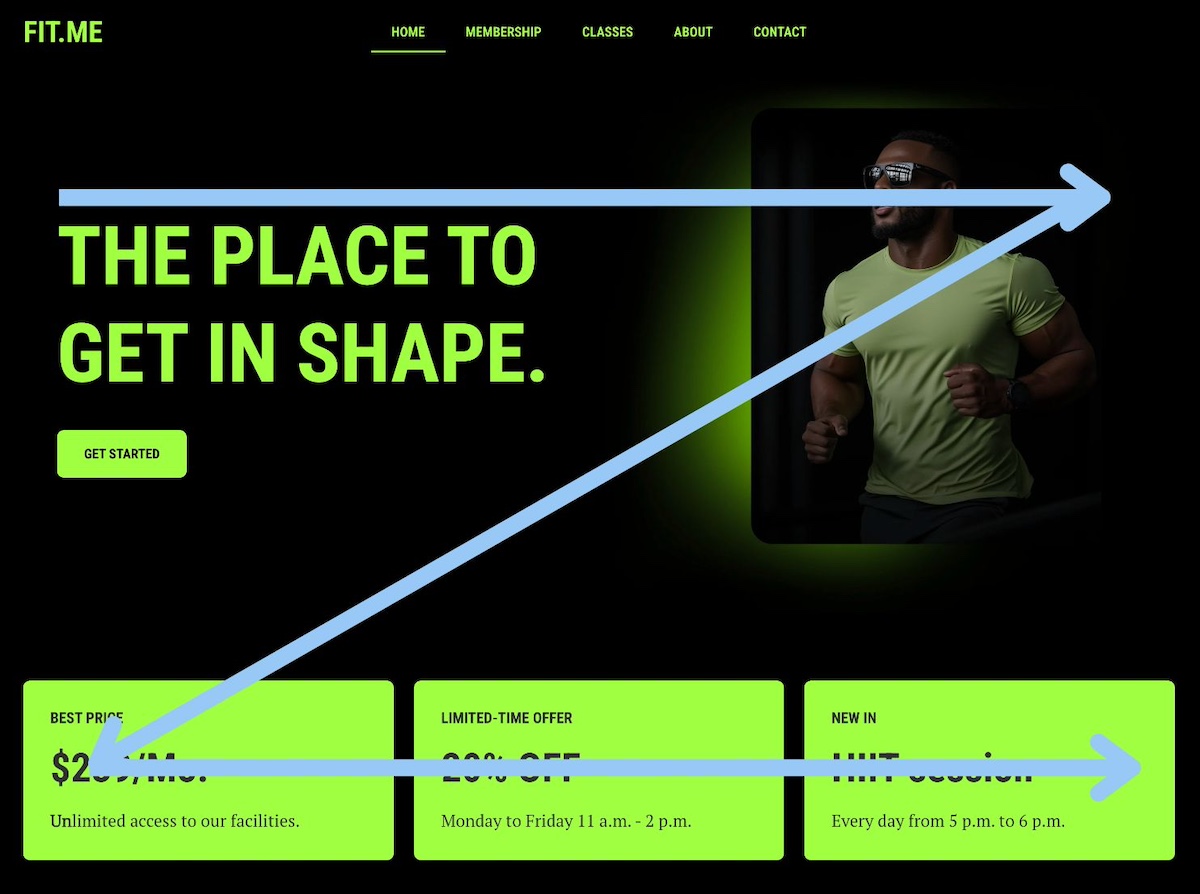
3. Z-Pattern Layout

The Z-pattern layout idea follows the natural way users scan a webpage, moving their eyes in a zigzag motion from left to right and then diagonally down the page. Scaling a business often requires clear messaging; the Z-pattern layout helps transmit this by making sure visitors follow a natural path to the most important parts of your site.

Diagram of a Z-pattern website layout showing how users scan content in a zigzag motion from left to right and diagonally down the page

Why the Z-Pattern Layout Works

  • Aligns with Natural Eye Movement – Most people scan web pages in an F or Z shape, making this layout intuitive and easy to navigate.
  • Balances Visual & Text Elements – The alternating sections allow for a mix of images and text, making content more digestible and engaging. 
  • Directs Attention to CTAs – By strategically placing headlines, visuals, and calls to action along the Z-path, businesses can guide visitors toward conversions more effectively.
  • Great for Storytelling – The natural flow of this layout makes it ideal for brands that want to lead visitors through a narrative, gradually building interest and leading to a final action.

When to Use the Z-Pattern Layout

Businesses that rely on a mix of visuals and text to convey their message—such as landing pages, service-based websites, and marketing campaigns—often benefit from this layout. It keeps users engaged while subtly directing them toward the most important sections of the page, like a sign-up form or product showcase. 

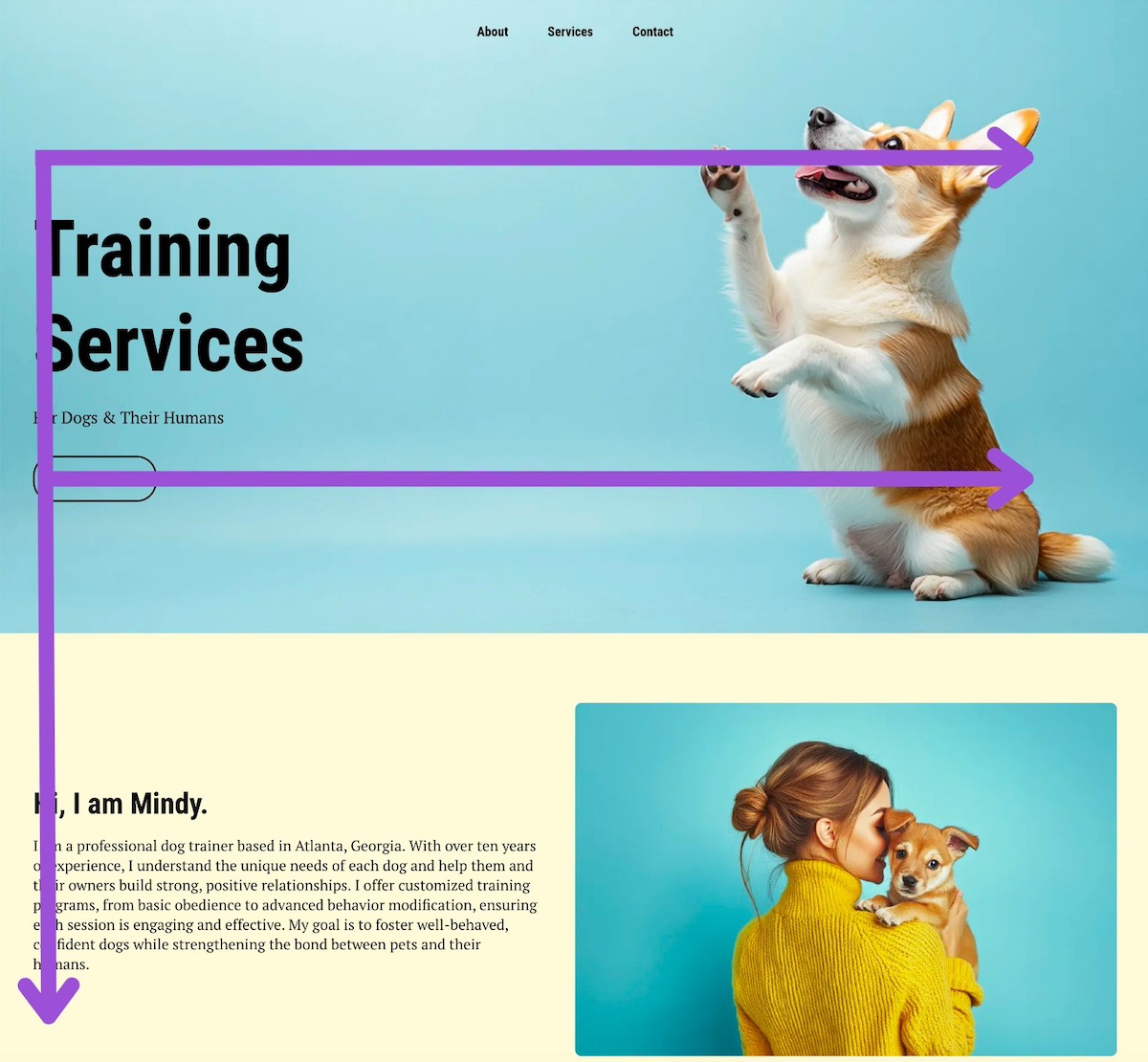
4. F-Pattern Layout

The F-pattern layout is based on how users typically scan text-heavy pages — starting at the top left, moving horizontally, then scanning down the left side. This scanning behavior resembles the shape of the letter “F,” making it an optimal layout idea for content-rich websites.

Diagram of an F-pattern website layout showing how users scan text-heavy pages from left to right and down the left side

Why the F-Pattern Layout Works

  • Matches Natural Reading Behavior – Since people tend to read from left to right, the F-pattern aligns with how visitors instinctively process information.
  • Ideal for Content-Heavy Pages – News websites, blogs, and resource hubs often use this layout to present large amounts of text in a way that remains scannable.
  • Prioritizes Key Information – The most important content (headlines, subheadings, and CTAs) is positioned where users’ eyes are most likely to land.
  • Improves Readability & Usability – The structuring content in an F-pattern helps reduce cognitive load and make it easier for visitors to find relevant information.

When to Use the F-Pattern Layout

Indeed, the F-pattern layout is best suited for text-heavy pages like blogs, news sites, product listings, and search results, where users primarily scan rather than read in depth. This website layout idea helps highlight key content while keeping information simple and easy to digest. And for small business marketing, this layout makes sure visitors follow a natural—but intentional path—to the most important parts of your site, helping to achieve those much-desired conversions.

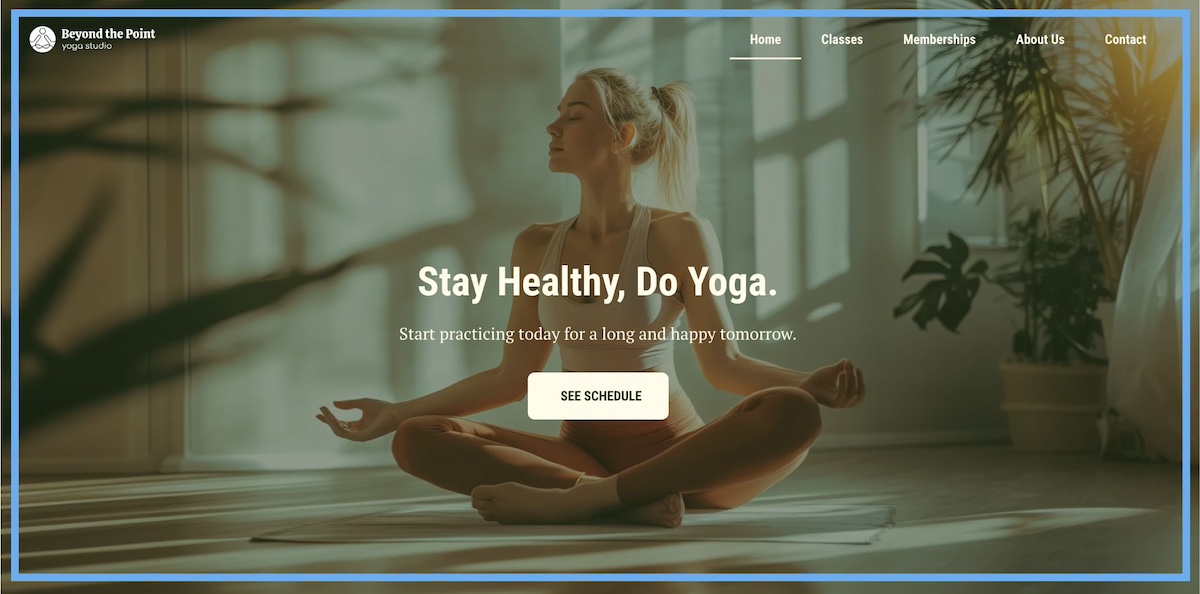
5. Fullscreen Image Layout

The fullscreen image layout features a large, high-quality image that spans the entire background of a webpage, often with minimal text and a strong CTA. This visually immersive design is commonly used to create a striking first impression and evoke emotion.

Example of a fullscreen image website layout featuring a large background image with minimal text and a prominent CTA

Why the Fullscreen Image Layout Works

  • Captures Immediate Attention – A bold, fullscreen image instantly draws visitors in, making it a great website layout idea for high-impact storytelling.
  • Creates an Emotional Connection – Evocative visuals can convey a brand’s personality, mood, or message more effectively than text alone.
  • Encourages Focused Interaction – With minimal distractions, visitors are naturally guided toward messaging and CTAs.
  • Enhances Mobile Experience – A fullscreen design adapts well to different screen sizes, making it easier to offer a seamless browsing experience across devices.

When to Use the Fullscreen Image Layout

This layout idea is perfect for brands that rely on strong visuals, such as photographers, travel agencies, fashion brands, luxury products, and landing pages promoting a single product or campaign. It works best when the image is carefully chosen to align with the brand message.

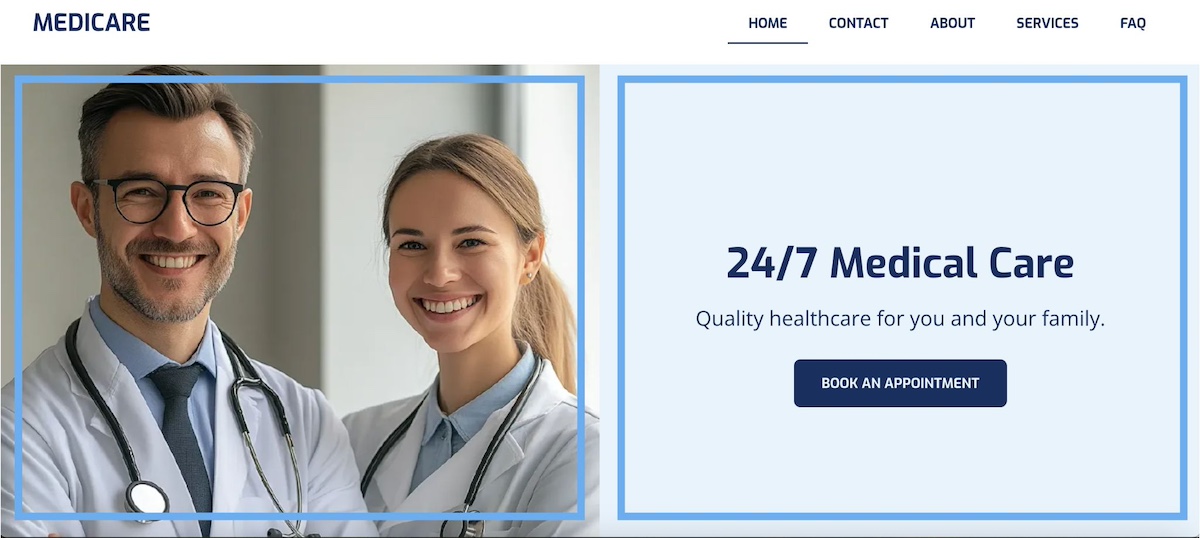
6. Split Screen Layout

The split screen layout divides the page into two equal or asymmetrical sections, each featuring different content. This design allows two elements to have equal emphasis, also with the possibility for users to quickly compare two options without excessive scrolling.

Example of a split screen website layout dividing the page into two equal sections with contrasting content on each side

Why the Split Screen Layout Works

  • Creates a Balanced Visual Hierarchy – By giving equal weight to two key elements, this layout ensures both get attention without overwhelming the visitor.
  • Works Well with Minimalist Design – A split screen keeps the layout clean while still allowing for diverse content presentation.
  • Enhances User Engagement – Visitors are more likely to interact with the page since it invites them to explore both sections, encouraging exploration without feeling overwhelming or cluttered.
  • Offers Clear Choices – Suited for businesses with multiple offerings, such as different services, product categories, or user paths (such as, “Shop Men” vs. “Shop Women”).

When to Use the Split Screen Layout

This simple website layout is great for businesses that need to present two distinct options, such as ecommerce stores, service providers with multiple offerings, or landing pages that cater to different user types. It’s also effective for showcasing strong visuals alongside supporting text.

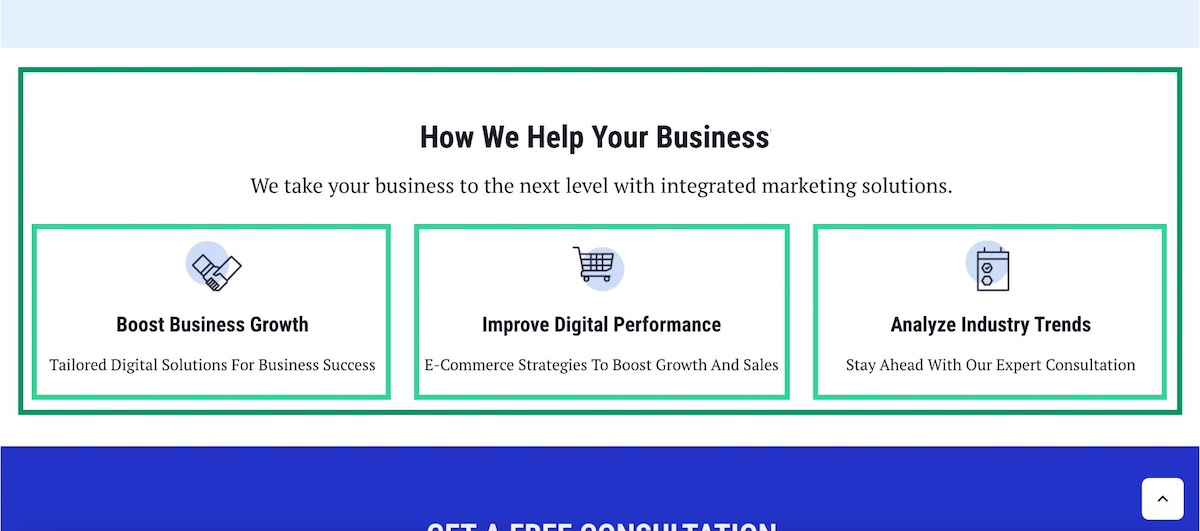
7. Features & Benefits Layout

The features and benefits layout is designed to highlight key product or service features while clearly explaining the benefits to the user. This layout ensures that visitors not only understand what is being offered but also why it matters to them.

Example of a features and benefits website layout presenting product features alongside icons and concise explanatory text

Why the Features & Benefits Layout Works

  • Clarifies Value Proposition – Helps visitors quickly grasp how a product or service solves their problems.
  • Balances Information & Visuals – Typically uses icons, images, or illustrations alongside concise text to keep content engaging.
  • Improves Readability & Flow – Features are presented in digestible sections, often with an alternating or grid structure.
  • Encourages Conversions – Often includes CTAs after key benefits, prompting users to take action.

When to Use the Features & Benefits Layout

This layout is ideal for product pages, SaaS websites, landing pages, and service-based businesses where communicating value succinctly is nonnegotiable. It helps visitors quickly understand why they should choose your offering over competitors.

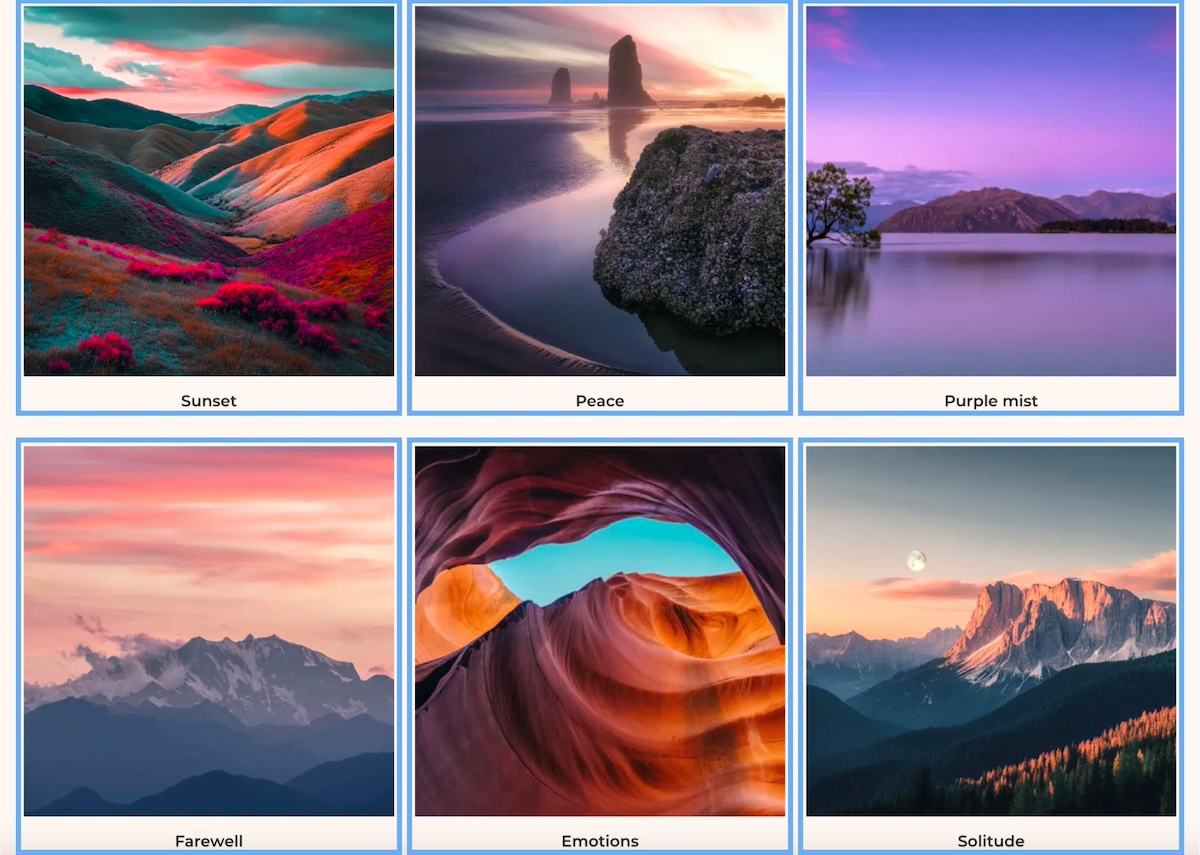
8. Grid Layout

The grid layout arranges content into a structured, evenly spaced grid, making it easy to scan and visually appealing. It provides a clean, organized look while maintaining flexibility in how elements—such as images, text, and buttons—are displayed.

Example of a grid website layout showing evenly spaced content blocks arranged in structured rows and columns

Why the Grid Layout Works

  • Creates a Sense of Order & Balance – The structured design helps present multiple pieces of content without overwhelming the user.
  • Enhances Readability & Navigation – By neatly organizing content into sections, visitors can quickly find what interests them.
  • Highly Adaptable & Responsive – Works well for different screen sizes, ensuring a seamless experience on desktops and mobile devices.
  • Optimal for Visual & Product-Based Sites – Perfect for showcasing images, such as in portfolios, ecommerce stores, or galleries.

When to Use the Grid Layout

This layout is commonly used for portfolio websites, ecommerce stores, blogs, and galleries where multiple items need to be displayed at once. It’s especially effective for brands that rely on strong visuals to engage their audience.

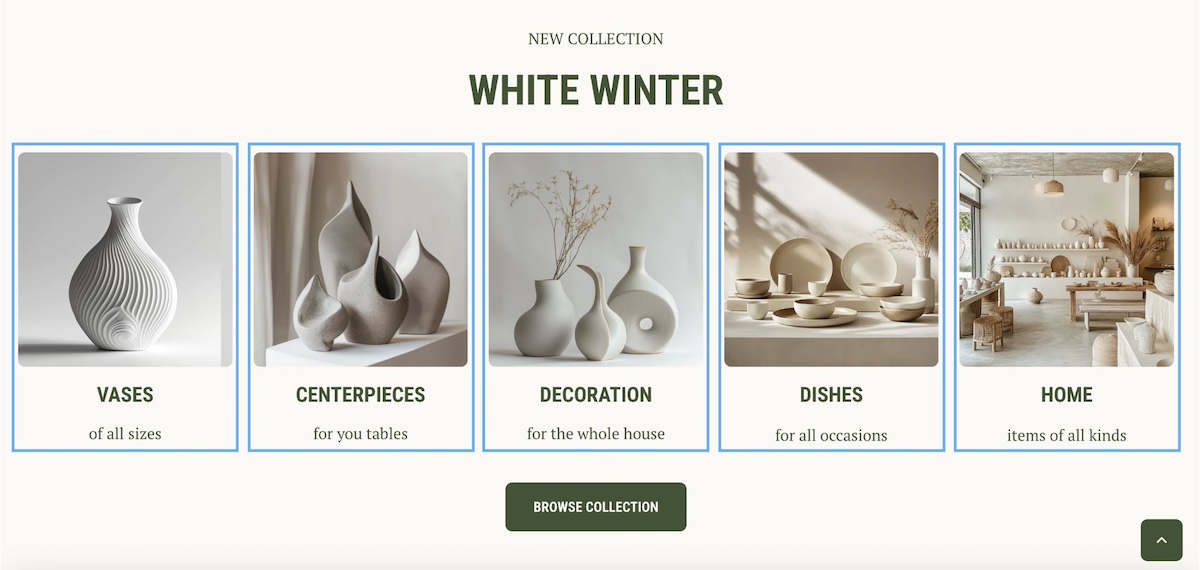
9. Card Layout

The card layout presents content in self-contained, rectangular blocks (or “cards”), each typically featuring an image, a headline, a short description, and a call to action. This modular design makes it easy to organize and display various types of content in a digestible way.
Example of a card website layout displaying self-contained content blocks each with an image, headline, and call to action

Why the Card Layout Works

  • Highly Scannable & Organized – Users can quickly browse through multiple pieces of content without feeling overwhelmed.
  • Flexible & Adaptable – Works well across different screen sizes and can be arranged in grids, rows, or columns for a dynamic experience.
  • Encourages Interaction – Cards often include clickable elements, making them ideal for engaging users with blog posts, products, or portfolio items.
  • Popular Across Many Industries – Frequently used by e-commerce sites, news platforms, and social media (e.g., Pinterest, Instagram, and Trello).

When to Use the Card Layout

This website layout idea is great for ecommerce stores, blogs, portfolios, dashboards, and content-rich websites that need to display multiple items in a user-friendly way. It’s especially useful for sites with dynamic or frequently updated content.

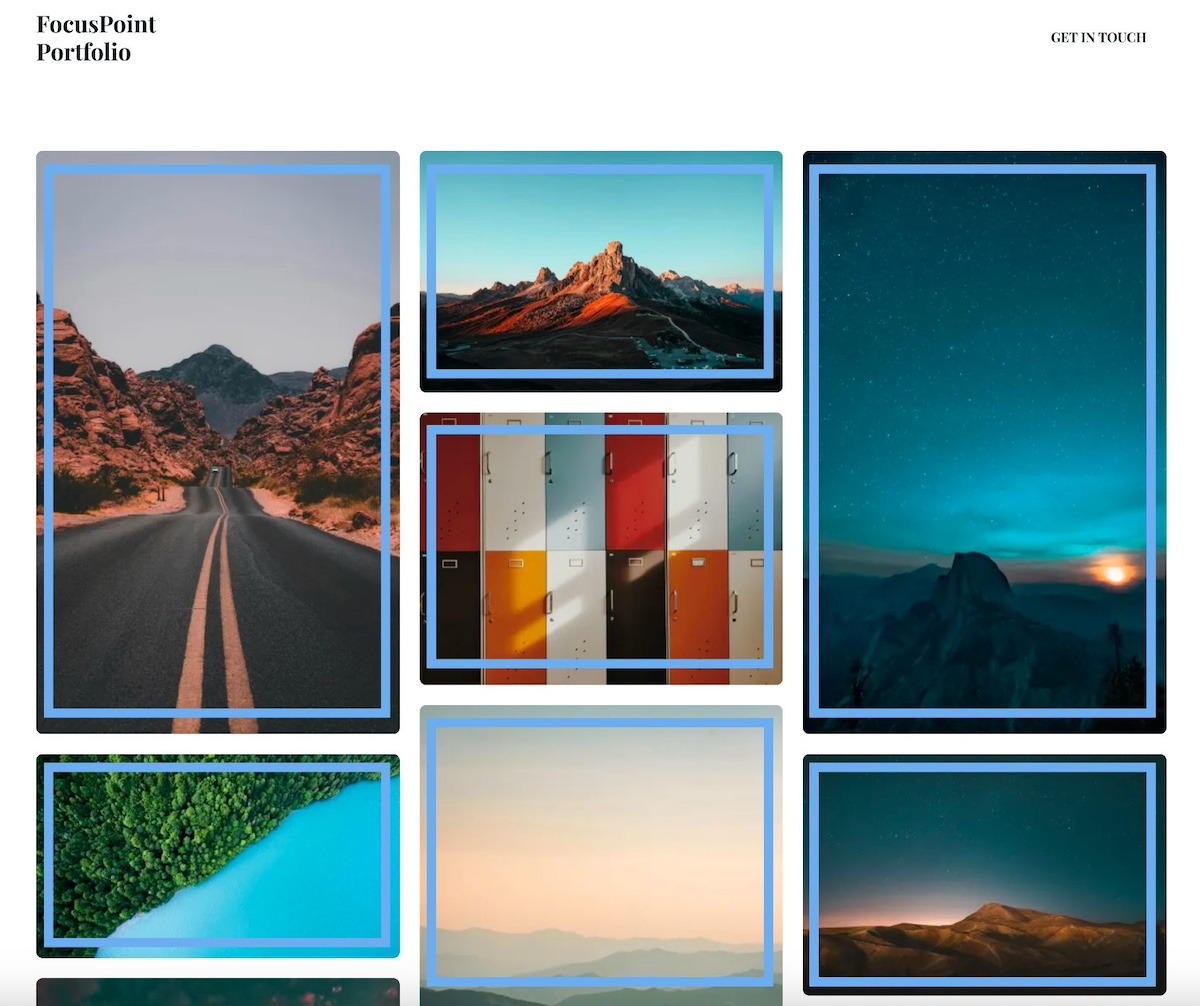
10. Gallery Layout

The gallery layout arranges visual content—typically images—in a structured format, often using a grid, masonry, or carousel design. This layout prioritizes aesthetics and engagement, making it a good choice for visually driven websites.

Example of a gallery website layout arranging images in a structured grid format for visually driven content

Why the Gallery Layout Works

  • Showcases Visual Content Effectively – Great for photographers, artists, designers, and ecommerce brands that rely on strong visuals.
  • Creates a Clean, Organized Look – Keeps images aligned and structured, making it easy for users to browse content.
  • Enhances User Engagement – Interactive elements like hover effects, lightboxes, and sliders make the experience more dynamic.
  • Optimized for Mobile & Desktop – Gallery layouts can adapt to different screen sizes while maintaining visual appeal.

When to Use the Gallery Layout

This layout is perfect for photography portfolios, art websites, fashion brands, travel blogs, and ecommerce stores that want to display products or creative work in a visually compelling way.

11. Box Layout

The box layout refers to a design style where content is contained within boxes or distinct sections that are clearly separated from each other, often with borders, padding, or background color contrasts. This layout helps to organize information and guide the user’s eye through the page. 

Example of a box website layout with content contained in clearly separated sections using borders and background contrast

Why the Box Layout Works

  • Provides a Clean, Balanced Structure – Content remains neatly contained, making it easy to read and navigate.
  • Enhances Focus on Core Content – The boxed format naturally draws attention to the main elements, reducing distractions.
  • Works Well with Minimalist & Traditional Designs – Often used in corporate, business, and blog websites for a polished, professional look.
  • Offers a Strong Sense of Hierarchy – Helps segment content into clearly defined sections, improving readability.

When to Use the Box Layout

The box layout works well for presenting content that needs clear separation, such as product listings, blog posts, or individual services. It’s a simple website layout that can also be used for things like portfolios or case studies, where each project or example is highlighted within its own section.

12. Horizontal Strips Layout

The horizontal strips layout divides a webpage into full-width sections (or “strips”) stacked vertically. Each strip typically highlights a different type of content, such as an introduction, features, testimonials, or a call to action, creating a scroll-friendly and sequential user experience.

Example of a horizontal strips website layout with full-width content sections stacked vertically for a scroll-friendly experience

Why the Horizontal Strips Layout Works

  • Improves Readability & Flow – By breaking content into clearly defined sections, users can easily follow the page without feeling overwhelmed.
  • Works Well for Storytelling – Each strip can present a different aspect of a brand, product, or service in a logical sequence.
  • Enhances Visual Hierarchy – Alternating background colors, images, or typography help guide the user’s attention.
    Mobile-Friendly & Responsive – Adapts well to different screen sizes, making it a great choice for modern web design.

When to Use the Horizontal Strips Layout

This layout is great for landing pages, business websites, product showcases, and long-scroll designs where structured storytelling is important. It works particularly well for conversion-driven pages (like landing pages) that guide users through a step-by-step experience.

13. Alternating Layout

The alternating layout arranges content in a staggered pattern, typically switching between text on one side and an image or video on the other. This creates a visually dynamic experience that keeps users interested as they scroll.

Example of an alternating website layout switching between text and images in a staggered pattern as users scroll

Why the Alternating Layout Works

  • Enhances Engagement & Readability – Breaking up content into alternating sections prevents monotony and keeps visitors interested.
  • Creates a Natural Flow – Mimics how people scan content, leading them smoothly from one section to the next.
  • Great for Storytelling – Works well for explaining processes, showcasing features, or guiding users through key information.
  • Balances Text & Visuals – Ensures neither text nor images overwhelm the design, keeping a harmonious structure.

When to Use the Alternating Layout

This layout example is best for business websites, product pages, about pages, and service explanations where a mix of visuals and text helps convey information effectively. It’s especially useful for brands that want to create a compelling, easy-to-follow narrative.

Which Website Layout Should You Choose?

Not sure which layout is right for your site? Use this quick-reference guide to find the best fit based on your content, goals, and page type.

LayoutBest ForContent TypeIdeal PageConversion Focus
HeroHomepages, landing pagesVisual + short copyHomepageHigh
AsymmetricalCreative, lifestyle brandsVisual-ledHomepage, portfolioMedium
Z-PatternStorytelling, campaignsMixed text + visualsLanding page, service pageHigh
F-PatternContent-heavy sitesText-heavyBlog, news, search resultsMedium
Fullscreen ImageVisual brands, single campaignsImage-ledLanding page, homepageHigh
Split ScreenTwo audiences or offeringsVisual + textHomepage, landing pageHigh
Features & BenefitsSaaS, product, service sitesMixedProduct page, landing pageHigh
GridPortfolios, ecommerce, blogsMulti-item visualCategory page, shopMedium
CardBlogs, dashboards, ecommerceMulti-item mixedBlog, shop, dashboardMedium
GalleryPhotography, fashion, artImage-ledPortfolio, product pageLow
BoxCorporate, blogsText + structured contentAnyLow
Horizontal StripsStorytelling, long-scroll pagesMixedLanding page, homepageHigh
AlternatingProduct and service explanationsMixed text + visualsProduct page, about pageMedium

What Are the Best Practices for Website Layout Design?

It’s one thing to pick a layout that works for you, and it’s another to implement it the most effective way possible. So now that you know the different layout options, here are some key best practices to keep in mind:

1. Match Your Layout to Your Business Goals

Your layout should reflect what you’re offering, who your target audience is, and what actions you want users to take. For example, an ecommerce site may prioritize a grid or card layout for product browsing, while a service-based business may use a hero layout to highlight key offerings. Also keep in mind the customer journey, and which touchpoints you want to hit, where and how.

Bottom line: don’t pick a layout just because you like it; pick it because it’s best suited to meet your business’s goals.

2. Keep Your Website Layout Simple and Scannable

Overly complex layouts or unnecessarily over-the-top designs can overwhelm visitors. Sure, they’re nice to look at, but not always so nice to interact with. Stick with a clean, predictable design with clear navigation so that it’s easy for users to find information and take action. Avoid clutter, excessive text, and too many competing elements. 

And while it can be novel to have a site with lots of flashy design elements (like animations or sideways scrolling), these fancy bells and whistles create user confusion and possibly even a slow and poorly functioning site. Stick to what works. 

3. Let Your Content Dictate Your Layout

Your content should dictate your layout—not the other way around. For example, if your site is highly visual, a gallery or fullscreen image layout may be best. If it’s text-heavy, an F-pattern or or Z-pattern will improve readability.

Identifying the key messages you wish to get across can help you identify which layout, or layouts, might best tell your story. 

4. Mix Layouts Across Pages Without Losing Consistency

Not every page on your website calls for the same layout. A homepage might use a hero layout, while a blog page might follow an F-pattern for readability. The key is maintaining a cohesive design that feels unified across the site. So go ahead and mix up your layouts based on your content needs—just make sure that the brand experience and design feels consistent and not chaotic.

5. Optimize Your Website Layout for Loading Speed

Layouts with large images, animations, or complex scripts can slow down your site, leading to higher bounce rates and lower conversions. So as you build your site, be sure to optimize images, minimize unnecessary elements, and use a lightweight, efficient design to improve load times.

If you’re using WordPress you can get this done easily by using the SiteGround Speed Optimizer plugin, which automatically addresses many speed-inhibiting elements of your site. Or, you can build your site with the SiteGround Website Builder straight away, and benefit from built-in speed, security, and SEO, as well as a super easy-to-use interface along with beautiful templates. 

make your online journey successful with SiteGround

6. Design Your Layout for All Devices

Just because your website looks amazing on a desktop computer doesn’t mean it’ll look as good on other screens. And yet it’s essential that your layout be responsive and adapt seamlessly to different screen sizes—something Google reinforces with its mobile-first indexing guidelines—so make sure to design your site for all screens and test it to make sure it gets the job done.

Website layout best practices

Ready to Bring Your Website Layout to Life?

Your website’s layout is more than just a boring digital business brochure—it’s the foundation for how visitors interact, engage, and ultimately convert. Perhaps you’re drawn to the clean structure of a grid layout, or the storytelling flow of a Z-pattern, or maybe the bold impact of a fullscreen hero section—whichever you prefer, the right design can make all the difference.

Keen to put one or several of these layouts—or even designs—into action? All of these templates are available to you via the SiteGround Website Builder. Not only is it mega easy to use, but it makes site creation hassle-free, fun, and attractive. Plus, you’ll have peace of mind knowing that your site works flawlessly (on all devices), and can grow alongside you and your business.

No matter which layout you choose, one thing’s for sure: A well-structured website doesn’t just look good—it keeps your visitors interested and those conversions rolling in. 

Get online easily with SiteGround Site Builder

Website Layout FAQs

What is the layout of a website?

A website layout is the arrangement of visual elements on a website page, including text, images, buttons, and navigation menus. It determines how content is structured and presented, shaping how visitors navigate your site, engage with your content, and take action. A good layout balances design and functionality, guiding users naturally toward the information or actions that matter most.

What is the most common website layout?

The hero layout is the most widely used website layout, particularly for homepages and landing pages. It features a large, full-width image or video at the top of the page, paired with a headline and a clear call to action. Its popularity comes down to its versatility, as it works across almost every industry and gives businesses a strong, immediate way to communicate their value proposition.

What website layout is best for conversions?

There’s no single answer, but layouts that create a clear, distraction-free path toward a CTA consistently perform best. The hero layout, Z-pattern layout, and horizontal strips layout are all strong choices for conversion-driven pages since they naturally guide visitors toward a specific action. The most important factor is that your layout removes friction, making it obvious what you want visitors to do next.

How do I choose the right layout for my website?

Start with your content, your audience, and your goals. A visually driven brand might suit a fullscreen image or gallery layout, while a text-heavy site would benefit from an F-pattern or alternating layout. Think about the actions you want visitors to take and work backwards from there. Your layout should make those actions feel like the natural next step, not an afterthought.

Can I use multiple layout types on one website?

Yes — and most well-designed websites do. Different pages serve different purposes, so it makes sense that they’d use different layouts. A homepage might use a hero layout, a blog page might follow an F-pattern, and a product page might use a features and benefits or alternating layout. The key is maintaining a consistent visual identity across all of them so the overall experience feels cohesive rather than disjointed.

This article was originally published in April 2025, and then updated in April 2026

How to Write Effective Email CTAs (+ Examples)

Featured image of article about email CTA

This article was originally published in April 2025, and then updated in July 2025.

You’ve nailed the subject line, curated engaging content, and designed an eye-catching template—everything seems perfectly aligned for success. Yet there’s one can’t-live-without element that can make or break your email marketing campaign—your call to action, or CTA. This small yet powerful piece of text serves as the link between your message and the recipient’s next move.

However, making it work takes more than just slapping a CTA button on your email and hoping for the best. From picking the perfect words and choosing the right colors to finding that sweet spot for placement, every detail matters.

Fear not—we’ve got your back! With these tried-and-true tips and powerful call to action examples, you’ll be all set to create effective CTAs that encourage subscribers to take action and drive results in your email marketing campaigns.

Why Does a Good Call to Action Matter?

As a small business owner or someone working independently, you likely don’t send email marketing campaigns just for the sake of it—you create them with a specific goal.

Building your email list is all about converting subscribers into customers, but without a clear CTA, your audience may hesitate instead of taking action. A well-placed email CTA guides them through the customer journey so that they move forward efficiently and effectively.

However, not every email needs to be, nor should it be, a sales pitch. Sometimes, your emails are just meant to share valuable insights and foster trust. Think newsletters or lead nurturing emails—here, the focus might be more on informing and entertaining rather than pushing for an immediate action. In these cases, an email call to action can be as subtle as a gentle nudge, inviting readers to dive deeper into your content or engage at their own pace.

So, whether you’re driving conversions or building relationships, the strategic use of calls to action will ensure your emails resonate with your target audience and support the growth of your business or project.

Image of SiteGround email marketing course for beginners

Best Practices for Email Calls to Action

Now that we’ve got the basics down, let’s unpack all that goes into an effective email CTA—from copy and design to the destination URL—and discover how to crank up those click-through rates.

1. Write Short and Magnetic Copy

Whether you’re leveraging action words, highlighting benefits, or creating a sense of urgency, persuasive language compels recipients to take the desired action. It reinforces the value proposition you’ve crafted within the content of your email and, ideally—your subject line too. 

While opting for a hyperlink within action-oriented text gives you the freedom to play with your phrasing, when it comes to your call-to-action button, brevity is your best friend. Aim for a concise copy, ideally two to four words long, as anything longer might lose its charm. It could also be a tight squeeze on mobile screens, which, in case you didn’t know, are the go-to choice for checking emails.

2. Speak in First-Person 

Calls to action can work their magic without directly addressing the reader, but why not add a dash of first-person charm? By incorporating pronouns like “I,” “me,” “my,” and “mine,” you can transform your email CTA into a personal invitation that taps into the reader’s self-interest. It’s like whispering, “This is just for you!”

Suppose you’re running an email campaign for a special promotion. Instead of using the phrase “Get 10% Off” in your email CTA you might say “Claim My 10% Discount.” This subtle shift can enhance the overall message, making readers feel like active participants in their journey with your brand.

3. Use Approachable Action Words

As we already mentioned, for a call to action to be effective, it should include action-oriented language that guides the reader to achieve the desired outcome. However, some verbs like “submit,” “register,” “buy,” and “download,” can make your readers feel uneasy, as they imply a greater commitment—whether it’s spending money, investing time, or making a firm decision they might not be ready for.

To counteract this, it’s important to provide readers with a sense of choice. You can do that by replacing the verbs above with more approachable ones like “Get,” “Start,” “Explore,” or “Try.” These words feel less committal and more inviting, encouraging further engagement without pressure.

Alternative email CTAs to commonly used calls to action, such as "contact us," "learn more," "shop now," "subscribe," "download," and "register."

4. Be Mindful of Colors and Font Sizes

When choosing colors for your call to action, whether for text or buttons, aim to create a contrast with the background to prevent blending with other design elements in your email. A tool like the WebAIM Contrast Checker can help you nail the perfect contrast ratio. For optimal readability, it’s best to use a font size between 16-20 pixels.

Additionally, when crafting a CTA button, give it some breathing room with ample spacing (whitespace). This way, you ensure it pops out, making it a breeze for users to tap the right link and dodge any mix-ups! 

The email CTA button below is a good example of making the CTA button really pop.

A good email CTA example from AllTrails, featuring a green call-to-action button with the text "Start an Activity."

5. Design for Mobile

While clicking a link with a mouse on a desktop offers precise control, tapping a call to action on a mobile device can be more challenging, especially if it’s a button. Therefore, when including a CTA button, aim for a height between 35 and 45 pixels to make sure it’s easy for the reader to interact with it.

For enhanced accessibility, consider increasing the height of your CTA buttons to 50 pixels to make them easier for individuals with visual impairments to identify. Furthermore, setting the width in percentages, rather than fixed pixels, allows your CTA buttons to automatically adjust to various screen sizes, ensuring they display correctly on any device.

SiteGround Email Marketing makes it easy to create mobile-friendly emails that look great on any device. From responsive buttons and images to perfectly scaled text, everything is optimized for the small screen. Plus, you get predesigned templates, smart segmentation, automation features, and an AI-powered email writer to help you hit send faster.

Get started with SiteGround Email Marketing today>>

6. Mind the Number

A common question among marketers is, “How many CTAs in an email are too many?” Some argue that including many CTAs provides subscribers with various options to engage, potentially increasing interest. However, too many email CTAs can overwhelm readers, dilute your message, and even harm your sender reputation by making your email appear spammy.

To strike the right balance, aim for no more than one link per 125 words of text, which helps maintain a balanced link-to-text ratio and prevents your email from being overloaded with links. If your email includes more images, a good rule of thumb is to limit your hyperlinks to a maximum of three.

Types of Email CTAs

As you decide how many CTAs to include, it’s also important to consider the type of CTA you’re using. Marketing teams typically identify two main types:

  • Primary CTA: This is the main action you want the recipient to take—such as making a purchase, signing up, or visiting a webpage. It aligns with your email’s core purpose and should stand out visually with bold colors, large fonts, or a prominent button. You might include it in more than one place within the email, but it still counts as a single action in terms of importance.
  • Secondary CTA: A secondary CTA provides an alternative path for readers who aren’t ready to act on the primary ask. This might include following your brand on social media or exploring related content. These are usually more subtle—styled as hyperlinks or understated buttons—and placed further down the email.

By combining a clear primary email call to action with an optional secondary one—and keeping the total number of links in check—you can guide readers effectively without overwhelming them.

7. Optimize The Placement

To maximize the visibility of your calls to action, strategic placement is key—it’s the difference between an email marketing campaign that succeeds and one that falters.

If your primary CTA is tucked away at the bottom of a long email without any context, users might not scroll far enough to find it. So, give your CTA the spotlight it deserves by placing it near the top, or “above the fold,” right after those enticing product features or benefits. This way, it grabs attention right from the start and encourages immediate action.

An illustration of what does "above the fold" mean

With the rise of AI email summaries, this placement becomes even more important, as these summaries can push content further below the fold. Therefore, it’s important to ensure that your most important messages, including a key CTA, are positioned closer to the top.

Also, don’t forget those curious clickers who love to explore every aspect of your email, from the logo to headlines and images. By embedding the same link in these elements, you can subtly direct readers to your desired destination, often without them even realizing it.

8. Do The Blurriness Test

While we highly recommend A/B testing to evaluate your email call to action performance, there’s a quick visual test you can use called the “blurriness test.” 

To conduct this test, convert your email into an image and apply a high level of blur (around 50%). Then, take a step back and examine the blurred image. This technique helps you assess whether the layout is well-organized and if the primary call to action stands out and remains prominent, even when details are obscured. If your CTA is still noticeable, it suggests that it will catch the reader’s eye in a real-world scenario.

Below is a call-to-action example of an email that passes the blurriness test. Can you tell where the CTA buttons are placed? 

A blurred example email featuring two call-to-action buttons

You probably guessed it: you can find one at the top of the email and another at the end. 

9. Include UTM Tags Within the Destination Link

You’ve completed the previous nine steps, added the destination link to the call to action, and now, you might be tempted to wrap things up and send this email. But wait!

Imagine you’re promoting a landing page on your website and want to use the same link across other digital marketing channels, such as social media posts and online ads, not just email marketing campaigns. How can you determine which channel is generating the most traffic and engagement for your landing page?

This is where UTM parameters come into play—these are tags you can append to your URLs to track the source, medium, and campaign name in your analytics tool. By using UTM parameters, you can gain detailed insights into the performance of each marketing channel, allowing you to make data-driven decisions to optimize your marketing strategy and allocate resources more efficiently.

You can easily create UTM parameters using free tools like the Google Campaign URL Builder, and monitor their performance in Google Analytics.

Email Call-to-Action Examples 

We know there are many tools to help you come up with CTAs for your emails, including AI—everyone’s best friend. So, rather than overwhelming you with a long list of CTA copy you’ve likely seen before, we’re providing you with real-life examples to spark your creativity. Use these to experiment and try something new when designing your next email campaign.

Jump In

This welcome email from Vimeo is a perfect example of how including multiple calls to action can effectively encourage newcomers to explore your services. Right from the start, the email invites readers to “jump in” with a prominent primary CTA button, while additional calls to action are strategically placed throughout the copy to subtly introduce other features and functionalities they benefit from. 

An example email from Vimeo, featuring multiple CTAs

Give Us Feedback

survey email below, Food52 playfully asks readers to give them some “food for thought,” extending this clever wordplay into their CTA copy. Did you catch that? While “give us feedback” is straightforward, it also cheekily hints at giving “feed” back, suggesting a return of something nourishing to the sender. It’s a subtle touch, but definitely an effective one!

An example email from Food52, featuring multiple CTAs

Get Lucky

Simpler Hair Color used a creative approach to guide readers toward the desired action: leveraging the gaze within an image. This subtle yet powerful visual cue naturally draws the reader’s attention, increasing the likelihood of engagement with the email CTA button below the image. 

An example email from Simpler, featuring one CTA

Additionally, by strategically placing elements like lines, arrows, or a play button on images, you can direct the reader’s eye along a clear path. These techniques not only enhance the visual appeal of your messages but also increase email marketing campaign effectiveness by focusing attention on key actions.

Complete Your Look

For Adidas, the CTAs are subtly placed by using clickable images instead of multiple CTA buttons. This strategy encourages customers to explore and effectively boosts conversion rates by directing them to curated product pages. It provides a seamless shopping experience, allowing customers to easily explore and purchase featured items directly from the promotional email—genius, isn’t it? 

 An example email from Adidas, featuring multiple CTAs

Feel the Difference

In their product launch email, TheraOne invites customers to dive into their latest offerings.  The email highlights the unique benefits and features of these new products, aiming to capture the interest of potential buyers. To top it off, a vibrant email CTA button beckons with the phrase “Feel the Difference,” encouraging recipients to click and experience the hype firsthand. It does make you curious, doesn’t it?

An example email from TheraOne, featuring one CTA

Transform Your Email CTA Knowledge into Results

A compelling call to action is more than just a few action words placed randomly in your email—it’s the driving force that transforms interest into engagement and curiosity into conversion. By applying expert tips and techniques, you can enhance the visual appeal and effectiveness of your email campaigns, seamlessly guiding your readers toward the action you want them to take.

With SiteGround Email Marketing, effective CTA creation is built right in. You get pre-designed button styles that are easy to customize: adjust shape, color, and outline with just a few clicks. Plus, every hyperlink you add is automatically styled for visibility—colored by default and underlined on hover—so they’re easy to spot and even easier to click. So, are you ready to put your CTAs to work?

This article was originally published in April 2025, and then updated in July 2025.

What is a Dedicated Server? Everything You Need to Know

What is a Dedicated server featured image

Not every website or application needs a dedicated server — and for most, it’s not the most practical option. But in certain high-demand scenarios, it becomes a necessary choice.

Most websites, blogs, and online stores run efficiently on shared, VPS, or cloud hosting — all of which offer a balance of cost, scalability, and ease of management. However, businesses dealing with high-traffic, resource-heavy applications or strict security requirements often need the exclusive resources and control that only a dedicated server can provide.

In this guide, you’ll learn:

  • What a dedicated server is, and how it works
  • Who needs a dedicated server, and who doesn’t
  • The pros and cons compared to other hosting options
  • Key features to look for when choosing a provider
  • How much do dedicated servers cost

By the end, you’ll know whether a dedicated server is the right choice for your needs — or if another hosting option makes more sense. 

Let’s get started.

What is a Dedicated Server?

A dedicated server is a physical machine used by one client only — unlike shared hosting, where multiple users share the same resources. This means all of the server’s power — CPU, RAM, storage, and bandwidth — is fully dedicated to a single website, application, or business.

Because no other users are on the server, performance is faster, security is stronger, and there’s full control over settings and software. 

However, this level of control comes at a cost:

  • High expenses — Dedicated servers require substantial investment in hardware and maintenance.
  • Technical expertise — Users must configure, secure, and optimize the server themselves (or hire experts).
  • Complex management — Unlike managed hosting, dedicated servers demand manual updates, security patches, and troubleshooting.

Dedicated servers are best for heavy-traffic websites, large databases, gaming servers, and businesses that need strict security and customization.

In short, a dedicated server may be the best choice if you need maximum speed, security, and control.

How Dedicated Server Hosting Works

A dedicated server is stored in a data center operated by a hosting provider. The provider owns and maintains the physical server hardware, while the client rents or leases the entire server.

Here’s how it works:

  1. Server Setup — The hosting provider installs the operating system (Linux or Windows Server), configures the server hardware, and connects it to high-speed internet.
  2. Resource Allocation — Since the entire server is dedicated to one client, CPU power, RAM, storage, and bandwidth are not shared with other users.
  3. Customization — The client controls server settings, security configurations, and installed software.
  4. Maintenance & Security — Depending on the plan, monitoring, updates, and security patches can be handled by the service provider (managed hosting) or the client (unmanaged hosting).

Because the user is fully responsible for server management, technical knowledge is required to keep everything secure and operational.

Dedicated Server vs. Other Hosting Options

Choosing between hosting options starts with understanding how resources are allocated, managed, and scaled. Here’s how dedicated servers compare to other common setups.

Difference Between a Web Server and a Dedicated Server

A web server is any machine that processes and delivers website data to users. A dedicated server is a type of web server that is reserved for a single client, allowing faster performance, stronger security, and full control.

Dedicated vs. Non-Dedicated Servers

A non-dedicated server (like cloud or VPS hosting) splits resources among multiple users, leading to potential slowdowns and security risks. A dedicated server, however, is fully dedicated to a single client, providing better stability and performance.

Dedicated vs non-dedicated servers comparison table

Shared Hosting vs. Dedicated Hosting

Shared hosting is the most cost-effective and user-friendly option for most websites — especially blogs, service-based businesses, and small to mid-sized online stores. It allows multiple websites to share server resources, which keeps costs low and simplifies maintenance through managed environments.

While a dedicated server offers full control and resource exclusivity, it comes with significantly higher costs and requires advanced technical knowledge or a dedicated IT team. For the majority of websites, this level of power isn’t necessary and often results in overpaying for unused capacity.

Shared hosting is ideal for businesses looking for:

  • Affordable monthly plans without hardware management
  • Managed hosting environments with automatic updates and support
  • Scalable performance for everyday traffic demands

Unless you’re running a resource-intensive platform or handling extreme levels of traffic, shared hosting provides more than enough performance — with far less complexity.

Shared Hosting vs. Dedicated Hosting comparison table
Smarter Hosting Starts With SiteGround

When to Choose a Dedicated Server & Who Needs One?

For most businesses, shared hosting or cloud hosting solutions offer the perfect balance of cost, ease of management, and performance. However, certain use cases demand a dedicated server’s exclusive control, scalability, and security. 

Below, we explore the scenarios where dedicated hosting is not just beneficial but often essential.

Large-Scale E-Commerce Businesses

Online stores with thousands of products and high daily traffic require robust hosting solutions. Large-scale e-commerce sites with thousands of daily transactions may experience peak load spikes during sales events. Such events may slow down shared or Cloud hosting. 

However,  dedicated servers provide fast load speeds, high uptime, and strong security that such high-market platforms need.

Benefits that a Dedicated server provides

Enterprises Handling Sensitive Data & Compliance-Heavy Industries

Industries like finance, healthcare, and government must meet strict data protection regulations (HIPAA, PCI-DSS, GDPR). That requires full control over the server’s information processing.

Therefore, a dedicated server is often necessary for:

  • Full security control with encryption and firewalls tailored to compliance needs.
  • Custom configurations to meet industry-specific data protection policies.
  • Secure storage of sensitive customer or financial data without third-party access risks.

High-Traffic Websites & SaaS Platforms

Websites and Software-as-a-Service (SaaS) platforms that attract millions of visitors per month need reliable dedicated hosting to prevent downtime and slow page loads. Additionally, a dedicated server allows for full customization, scalability, and lots of computing power. That enables businesses to tailor server configurations to meet specific needs and easily adapt to growing demands.

A dedicated server is useful for:

  • Handling thousands of simultaneous user requests without performance loss.
  • Offering smooth functionality for data-intensive SaaS applications.
  • Preventing crashes that could impact business reputation.

Streaming Services & Gaming Servers   

Game servers and streaming services require dedicated servers due to the specific demands and expectations of their users. These services need high-performance computing and robust performance.

Many gaming environments, for example, require real-time interaction, which means latency must be minimized, especially in multiplayer online games.

For video streaming platforms, performance and latency are critical because viewers expect playback without interruptions.

A dedicated gaming server provides:

  • Seamless gaming experience
  • Lag-free streaming with high bandwidth
  • Protection against DDoS attacks

Businesses Needing Full Customization & Control

If you require specific server configurations, custom software, or advanced security measures, and complete access, you may need your own dedicated server.

 A dedicated server allows:

  • Root access for complete control
  • Custom firewall and security settings
  • Ability to install any software or operating system

While dedicated servers offer advantages in these specific cases, they also come with significant responsibilities. Most businesses can achieve high performance, security, and scalability using managed cloud hosting or VPS solutions — without the need for dedicated server management.

Cost Considerations – What is the Cost of a Dedicated Server?

While dedicated servers offer exclusive control and high performance, they also come with a significant cost burden. The total expense of a dedicated hosting solution depends on several factors, making it essential to evaluate whether this investment aligns with your business’s needs and budget.

For most businesses, VPS or cloud hosting provides the best balance of cost, performance, and ease of management. Dedicated servers are typically only necessary for organizations that require complete control and exclusive resources.

Pricing Factors in Dedicated Server Hosting

The cost of a dedicated server varies widely depending on the infrastructure and level of support provided. Unlike shared or VPS hosting, where resources are distributed, dedicated servers provide access to the full capabilities of a physical machine — and that comes with a price.

Pricing factors of dedicated server hosting

Hardware Specifications 

The type and quality of server hardware directly impact cost. Servers with industry-leading hardware, including multi-core processors, large memory capacity, and high-speed SSD storage, will cost significantly more. Businesses needing high-performance computing or running resource-intensive applications must invest in advanced server configurations to ensure consistent performance.

Bandwidth Usage 

Bandwidth is another major cost factor. Dedicated servers used for streaming services, hosting multiplayer online games, or traffic-heavy websites often require extensive data transfer capacity. Hosting providers typically offer bandwidth tiers, and exceeding them can result in extra charges. Sites with large user bases or data-heavy applications should factor this into their budget.

Managed vs. Unmanaged

A managed dedicated hosting solution includes ongoing support such as server monitoring, security patches, operating system updates, and technical assistance from the hosting provider’s server administrators. 

While convenient, managed hosting costs more. Unmanaged servers are less expensive but demand in-depth technical knowledge, as the user is responsible for setup, maintenance, and troubleshooting. Companies without a dedicated IT team should be prepared to outsource support if opting for an unmanaged plan.

Each of these elements affects the overall pricing, and it’s important to weigh them carefully based on your technical capacity and hosting requirements.

Comparing Costs With Other Hosting Types

When considering a dedicated server, comparing costs with other hosting options is important to determine if the benefits justify the investment.

Dedicated Hosting Prices vs. Other Hosting Types comparison table

Before investing, weigh your technical capacity, performance goals, and long-term needs. For most growing businesses, Shared or managed cloud hosting is far more practical. 

Looking for powerful hosting without the high cost of a dedicated server?

Types of Dedicated Server Hosting

Not all dedicated servers are the same. Your choice — whether cloud-based, OS-specific, or fully managed — will impact performance, cost, and the technical work required.

Managed vs. Unmanaged Dedicated Hosting

A managed dedicated server means the provider handles technical maintenance, security patches, updates, and backups. This includes technical support, making it ideal for large-scale businesses that want a hassle-free experience.

A managed dedicated server means the hosting provider takes care of:

  • Server monitoring
  • Security patches and updates
  • Operating system maintenance
  • Backup and disaster recovery

On the other hand, Unmanaged Dedicated server hosting refers to having an entire server to yourself. This implies that you have the technical expertise and know-how to manage all the aspects of a web server.

Dedicated Linux Server vs. Windows Dedicated Server

Choosing between a dedicated Linux server and a Windows dedicated server depends on the applications you plan to run, your team’s familiarity with the operating system, and your overall hosting strategy.

Linux servers are often favored for web hosting due to their stability, security, and open-source flexibility. They support widely-used technologies like Apache, MySQL, and PHP, and are well-suited for hosting websites, email servers, and software development environments. Linux tends to have lower resource overhead, and because it’s open-source, licensing costs are minimal or nonexistent — which reduces the total cost of ownership.

Windows servers, on the other hand, are essential for businesses that rely on Microsoft technologies like .NET applications, Microsoft SQL Server, or Active Directory. Windows servers provide a familiar interface and integrated support for Microsoft-based software, but they come with licensing fees and require more system resources. They’re also more commonly used in enterprise settings where Microsoft infrastructure is already in place.

Both options can be used on bare metal server hosting or through dedicated cloud hosting. However, the choice between them should be based on your technical requirements, in-house expertise, and software dependencies.

Dedicated Cloud Hosting vs. Traditional Dedicated Servers

When evaluating dedicated hosting options, it’s important to understand the difference between traditional dedicated servers and dedicated cloud hosting. While both offer exclusive access to server resources, they differ in structure, scalability, and maintenance.

Dedicated Cloud server vs. Traditional Dedicated server

A traditional dedicated server is a physical machine located in a hosting provider’s data center. It provides fixed, high-performance hardware reserved for a single user. This setup is ideal for applications requiring stable performance, robust processing power, and low-level customization. 

However, traditional dedicated servers lack flexibility — scaling resources up or down often requires manual hardware changes or migrations. They also come with greater responsibility for server monitoring, hardware maintenance, and backups.

Dedicated cloud hosting, on the other side, delivers similar resource exclusivity but on a virtualized infrastructure. The server environment is built on a cloud platform that allows for elastic scaling, rapid deployment, and better fault tolerance. 

Businesses can increase or decrease computing power, memory, or storage without replacing physical hardware. This model is especially useful for applications that need high availability and agility, such as e-commerce stores, SaaS platforms, or data analysis environments.

In short, traditional dedicated servers offer control and predictable performance, while dedicated cloud servers offer scalability and resilience. Choosing between the two depends on your operational needs, budget, and comfort with managing server infrastructure versus leveraging a cloud-based service.

Features to Look for in Dedicated Server Providers

Before committing to a dedicated server hosting solution, it’s essential to understand what to look for in a provider. The right features can make a major difference in how your server performs, how secure your data remains, and how easily you can scale as your business grows.

Note that your selected features will directly impact your server’s ability to handle real-world workloads and future growth.

Hardware and Performance Considerations

The performance of a dedicated server depends heavily on the underlying hardware, making it crucial to choose a provider that offers reliable, high-performance components built for demanding workloads.

  • Processing power — Look for industry-leading hardware like Intel Xeon or AMD EPYC CPUs.
  • Memory usage — More RAM means smoother performance for high-traffic websites and a smoother gaming experience.
  • Storage type — SSDs are faster than HDDs, especially for database-driven applications.

Security and Scalability Options

Dedicated servers must be equipped to handle modern threats while supporting long-term growth. Look for providers that offer:

  • Network security — This should include robust DDoS protection, firewalls, and intrusion detection.
  • Backup solutions—Automated backups for data recovery are a must in case of system failure, cyberattack, or human error.
  • Scalability — Can the server handle future growth without requiring migration?

Together, these features ensure your dedicated hosting solution performs well.

Is a Dedicated Server Right for You?

Dedicated servers offer high performance, control, and security — but they’re not the right fit for everyone. If your website handles extremely high traffic, processes large volumes of sensitive data, or runs custom applications that require full server control, a dedicated server might be necessary.

That said, this level of hosting comes with increased complexity, higher costs, and the need for in-house technical expertise or a managed support plan. 

For most blogs, small-to-medium e-commerce stores, and service-based websites, a shared server, VPS, or managed cloud hosting solution will provide more than enough resources — without the overhead.

Ultimately, choosing a dedicated server should be based on your operational needs, performance demands, and available technical resources. If you don’t have a clear use case that justifies the cost and effort, it’s likely not the best fit.

SiteGround is all the hosting most websites ever need

An Easy Beginner’s Guide to Email Retargeting

Abstract image of email retargeting

Email retargeting might sound like something reserved only for the super savvy marketer, but the reality is that it’s easily accessible to anyone that wants to step up their marketing game. And thank goodness, because it’s an email marketing benefit you don’t want to miss. It allows you to send timely, personalized emails that nudge potential customers closer to the finish line. 

It’s all about re-engaging people who have already shown interest in your brand—whether they abandoned a cart, downloaded content, or signed up for an event—by sending relevant follow-ups that keep you top of mind.

In this article, we’re breaking down email retargeting in a way that’s simple and actionable, so by the end, you’ll be ready to put it to work for your business.

What is Email Retargeting?

Email retargeting is a strategy that re-engages potential and existing customers by sending personalized emails based on their past interactions with your brand, encouraging them to move further down the sales funnel. 

This could be as simple as reminding them about an abandoned cart or as strategic as following up after they attend an event or sign up for an offer. Email retargeting keeps your brand top of mind and helps turn those that are just casually interested in your offerings into long-term and loyal buyers.

Definition of what is email retargeting

How Does Email Retargeting Work?

Email retargeting works by sending specific messages triggered by a user’s past behavior or actions. These triggers can be based on various events, such as abandoning a shopping cart, downloading a piece of content, or attending a webinar. Once a user takes an action, an automated email—or email sequence—is sent to remind them of what they interacted with or to offer something that aligns with their interests. This customized approach increases chances of customer engagement and, of course, conversion.

Email Retargeting Best Practices

Email retargeting can seem complex, but it really doesn’t need to be. By following these five best practices for email retargeting, you can easily get your own efforts off the ground and start seeing more of those leads turn into customers. 

1. Build Your List

Your email list is where the real email retargeting magic happens. So on one hand, you need to build your list, but on the other, you need to build it thoughtfully—because how people get added to your list and, in turn, how you segment those new subscribers, is the first important key to retargeting. 

While there are countless clever ways to build a high-quality email list, let’s cover a few specific examples as they relate to email retargeting: 

  • Building Your List Via Sign-Up Form: If you’re adding leads to your list via a form on your website, think about what helpful information you might want or need to know about your potential customer—maybe their business size, their role, or even their specific interests. Knowing this will help you as we move on to step two.

Pro tip: Only ask subscribers to provide information that is absolutely necessary, as the more fields you add to your form, the less likely people will be to fill it out. So be strategic!

  • Building Your List Via Events & Lead Magnets: You can also gather leads via specific, value-added content, such as events, webinars, or lead magnets like free downloadables. So, let’s say you create a landing page where you offer a free case study or an event sign up—in signing up, the potential customer provides you with their email. Lead acquired!  
  • Build Your List Via Other Channels: Whether it’s an in-store sign-up, a co-marketing give-away, or otherwise, there are many unique ways to build your list and gather useful information about your subscribers.

Ready to grow your email list? With SiteGround Email Marketing, you can effortlessly build and segment your list using sign-up forms, lead magnets, events, and more. Start cultivating a targeted, engaged audience today so that you can leverage email retargeting and drive higher conversions tomorrow.

2. Segment Your List

You’re planning to gather all these emails through the aforementioned different channels, which is great because it will provide you with unique information about your customers—what they might be interested in, what event they may have attended, what case studies intrigue them. How you plan to use this information, though, is where the real email retargeting happens. 

That’s because, based on each of these data points, you can plan to create a segmented email list. For example, if someone downloads a guide on strength training for beginners, they can be added to a segment focused on weightlifting. If another user signs up for a webinar on marathon training, they can be placed in a segment geared toward endurance athletes.

Segmentation like this allows you to send more personalized and relevant messages based on user behavior. So for the weightlifting enthusiast, you might send a breakdown of the best protein supplements for muscle recovery, while the runner could receive a personalized training plan for improving their race time.

So as you build your list, make sure to segment emails based on the channel they were received, or data they may have shared (such as interests, business role, etc.). By customizing your retargeting emails to these different segments, you’re increasing your chances of conversion while making each email feel personal and thoughtful.

3. Develop Email Automation Sequences

Once you’ve built and segmented your list, the next step is to automate your email retargeting campaigns. Email automation is your secret weapon—it sends the right message at the right time, without you having to hit “send” every time. 

Develop email sequences that align with your customers’ actions, whether that’s a series of reminders for abandoned carts, event follow-ups, or personalized product recommendations after someone signed up for a specific freebie. Use this specific information about your customer to send messages that build on the initial trigger. 

Below is an example of what this kind of retargeting email sequence could look like if someone signed up for a lead magnet, such as a free downloadable. 

Automation sequence for email retargeting

When it comes to creating sequences, think of them as a well-planned map, where each email transitions into the next, guiding your leads through their email marketing journey without missing a beat. The key is consistency and timing—make sure your emails are spaced out enough to stay top-of-mind, but not too often to feel like you’re bombarding them.

4. Create Emails That Convert

Perhaps you’ve got a sequence in mind, but that’s not enough: you need those emails to actually get clicked—and then to convert. 

The first step? Personalization. 

You can, of course, address your customers by name—this is the easiest way to personalize. But, an even more important approach when it comes to retargeting, is that of referencing the recipient’s previous actions (like that recent research report they downloaded) so that the email, and its content, feels like it’s made just for them. 

Then it’s important that your email message follows best practices, so keep in mind the following in order to maximize your chances of success:

  • Implementing a strong email subject line is the place to start here—it needs to generate curiosity or offer something valuable right off the bat. 
  • When it comes to the email itself, keep the content clear, compelling, and to the point. Too much copy is a turn-off. 
  • Use strategic email design consisting of thoughtfully laid-out visuals and copy, as well as a noticeable and actionable call-to-action. 
  • And don’t forget to optimize for mobile—many customers will be reading your emails on their phones, so make sure they look great on all screen sizes.

5. Monitor and Optimize

Your email retargeting efforts shouldn’t be a “set it and forget it” situation. To truly succeed, you need to monitor your email marketing metrics and fine-tune your campaigns.

Track metrics including open rates, click-through rates, and conversion rates to see how your emails are performing. If your open rates are low, work on your subject lines; if your click-through rates are low, examine your calls to action; and if your conversion rates are low, explore how your email content aligns with your landing page content. 

Sometimes just switching up types of emails or content formats can do the trick and capture new interest. Don’t be afraid to tweak your messages, analyze the results, and update future sends accordingly. And if you’re not sure which approach to take, run an A/B test—send two versions of an email with just one difference, like the subject line—and see which performs better.

email retargeting best practices

Email Retargeting Examples

Now that you know the basics, let’s look at some real-world examples that demonstrate how email retargeting strategy works in action. Whether it’s nudging a potential customer toward a purchase or re-engaging them after an event, these email marketing campaign examples illustrate best practices when it comes to the versatility and effectiveness of email retargeting.

Abandoned Cart Email

The abandoned cart email is a retargeting classic. You know how it goes: you add a product to your shopping cart but leave without checking out. Email retargeting swoops into the rescue, sending you a friendly reminder about the items you left behind. Maybe there’s an added offer to sweeten the deal and tip you in favor of a purchase. It’s a simple, but powerful way to retarget you with a precise message that hopefully turns that lost sale into a successful one.

example of an abandoned cart retargeting email

The above example keeps it simple and playful with a catchy subject line, and a to-the-point message. Now, if the recipient still doesn’t buy after this email, you could potentially send a later email with a discount to finally secure the sale. That’s the beauty of retargeting: you can refine and “retarget” your message until you hit the bullseye. 

Interest-Based Email

Interest-based email retargeting focuses on customers as a result of specific products or content they’ve engaged with. For example, if, when filling out your sign-up form, a customer indicates that they’re interested in sustainable travel, you might follow up with an email featuring your top eco-friendly vacation packages, tips for reducing your carbon footprint while traveling, or an exclusive discount on a nature-focused retreat. This approach makes the emails feel tailored and relevant, which increases the likelihood of a conversion.

In the below email sign-up scenario, Zapier asks new subscribers to share more about their role in order to “personalize” (and retarget) their experience.

email form sign up with interests and roles for retargeting

After signing up, a subscriber who indicated they are a business owner might receive the below email about upgrading to a Company plan, while someone in customer support could get an email on how to maximize efficiency with Zapier.

example of an interest based retargeting email

Event-Activated Email

Event-based retargeting emails are all about keeping the connection going. If someone signed up but couldn’t make it, send them a recap with highlights so they don’t feel like they missed out. If they did attend, keep the conversation going with bonus content, special offers, or a simple next step to stay engaged.

The goal? Stay on their radar, add value, and give them a little nudge toward their next move—whether that’s joining another event, checking out your services, or making a purchase.

example of event based email retargeting

The above example capitalized on post-event buzz to send additional valuable resources, and also request feedback. This targeted, relevant message increases the likelihood of engagement. Meanwhile, future emails in this sequence could build on this momentum by delivering more event-related content while also subtly guiding potential customers toward conversion. 

Download-Triggered Email

When someone downloads a piece of content from your website, whether it’s an e-book, a whitepaper, or a guide, they’ve already shown interest in what you offer. Download-triggered email retargeting follows up with that initial interest, delivering additional valuable content or suggesting related products or services. It’s an excellent way to nurture leads who are already engaging with your brand, moving them from the information stage to the decision-making stage.

example of downloaded based email retargeting

The above email from SiteGround is the first in a retargeting sequence. It was triggered when someone read one of our articles and then decided to download our ChatGPT for Marketing cheat sheet. This email could be followed by future emails, including a video on ChatGPT, tips on using AI for email marketing, and the like. So when a customer expresses interest in ChatGPT, SiteGround’s smartly set up email automation goes into action to retarget that customer and send them information that is relevant to their interest. 

Making Your Email Retargeting Strategy Work for You

Email retargeting doesn’t have to be hard or complicated; it just requires you to be thoughtful about using the tools and information at your disposal. Set up smart segments as you gather your leads, create strategic email automations that nudge your customers along, and optimize as you go. Simple as that!

And if you’re looking for a smooth way to put your retargeting strategy into action, SiteGround Email Marketing has you covered. With its easy-to-use automation features, you can effortlessly set up and manage your campaigns, making sure your retargeting emails reach the right people at the perfect time.

create successful email marketing campaigns with SiteGround

What Is Lead Nurturing? A Simple, Effective Guide

An abstract image of lead nurturing

Have you ever experienced a pushy sales pitch the minute you walk through a store door? Of course you have—we all have, and it can be totally off-putting, making you want to walk right out of the store, never to return. But a warm welcome, helpful advice, and a little space to explore? That’s a much better experience—one that makes people more likely to stick around, come back, and buy. 

That’s exactly how lead nurturing works. Instead of rushing potential customers into a sale, it’s about guiding them through their journey. You gently build trust, address concerns, and keep your business top-of-mind until that future customer is ready to commit.

For small business owners and freelancers, lead nurturing can make a world of difference. And with the right strategies in your back pocket, you can turn those casual inquiries into loyal customers, and without the dreaded pushy or salesy vibes. Let’s dive into what lead nurturing is, why it matters, and three simple steps to make it work for your business.

What is Lead Nurturing?

Definition of what is lead nurturing

Lead nurturing means staying connected with potential customers and guiding them toward a purchase by building trust and providing helpful information along the way. Rather than pushing for that immediate sale, lead nurturing focuses on giving value, addressing pain points, and guiding prospects toward a purchasing decision in a natural, trust-building way.

This approach is especially useful for small businesses and freelancers who don’t have massive marketing budgets but still need to turn leads into loyal customers. Consistent engagement with potential clients, whether through email or other channels, helps you to stay on their radar and increase conversions.

Why Is Lead Nurturing Important for Your Business?

For small businesses and solo entrepreneurs, a well-structured lead nurturing program can make a hugely important difference because:

  • Most leads aren’t ready to buy immediately. Studies show that the majority of prospects need multiple touchpoints before making a decision.
  • It builds trust and credibility. Consistently providing useful information helps position you as an expert in your field.
  • It increases conversion rates. Leads who receive personalized follow-ups are more likely to turn into paying customers.
  • It helps maximize your marketing efforts. Nurturing existing leads is often more cost-effective than constantly chasing new ones.

With the right lead nurturing strategies, you can keep your business growing without relying solely on expensive advertising or cold outreach. Return on investment is high and the process is scalable—there’s just no reason not to get on board.

3 Steps to Lead Nurturing

Now that we know why lead nurturing matters, let’s talk about making it work. Here are three key steps to make it happen.

1. Map Out the Customer Journey

Understanding your customer’s journey is your first important step in your lead-nurturing strategy. That’s because, before you can deliver the right message at the right time, you need to identify the right message and the right time—and for that, you need to map out how potential customers (your leads!) interact with your business.

To map out the customer journey, start by defining your buyer personas—detailed profiles of your ideal customers based on demographics, needs, and pain points. Then, outline the key touchpoints where they engage with your business, such as:

  • Visiting your website or landing page
  • Downloading a lead magnet (such as a free guide or checklist)
  • Signing up for your newsletter
  • Following your social media accounts
  • Attending a webinar or consultation call
  • And so on…

Map out these interactions carefully, considering where leads might first discover your brand, when they need more information, and when a well-timed nudge can move them toward a decision and beyond. 

2. Create Lead Nurturing Campaigns and Content

Once you’ve built a clear map and identified key touchpoints and gaps, the next step is to develop lead-nurturing campaigns and content that will move those customers through each stage of the buying journey. 

Your lead nurturing program should include a mix of content strategies that not only generate leads, but eventually create conversions.

There are many ways you can meet your future customers at each touch point and nudge them to the next. Here are some of the most common and effective methods for doing so:

Leverage Email Marketing with Freebies and Lead Magnets

People love getting something of value for free. Offering downloadable guides, checklists, templates, or exclusive content in exchange for an email address is a great way to collect leads, build your email list, and begin the lead nurturing process. Just remember that free content should align with what you actually provide as a business, ensuring that gathered leads are actually interested in what you have to offer.

Example of a lead magnet

The above food website offers free weekly dinner plans in exchange for an email address. From there, the business can build a relationship with the customer via the weekly meal plans and other informational emails. Then, the business could eventually offer custom meal packages or consulting services, thus turning the subscriber into a customer.

But your email marketing list is just the first step—how you engage with those leads matters just as much. That’s where email marketing comes in. A well-designed email sequence allows you to follow up with your leads, keep them engaged, and gently guide them toward a conversion.

Instead of sending random emails, use a strategic approach:

  • Segment your audience based on how they joined your list (such as downloading a freebie, signing up for a webinar).
  • Create email automation sequences, with lead nurturing emails like welcome emails, follow-up messages, or exclusive offers tailored to their interests.
  • Keep emails engaging and actionable—short, clear, personalized, and value-driven with a compelling call-to-action (CTA).
  • Don’t forget the power of a strong email subject line—Keep it to the point and compelling.

SiteGround Email Marketing offers a seamless solution that makes automating lead nurturing emails a breeze, sidestepping the complexity of other traditional email marketing platforms. SiteGround’s intuitive approach helps you reach customers at the perfect moments, driving engagement and fueling business growth with ease.

Create Landing Pages that Convert

A well-designed landing page is a very targeted way to capture leads and guide them toward the next step in their journey. This kind of page typically focuses on one very important goal: to get conversions, and usually does so by offering an incentive in return, such as a free resource, a special discount, or an event signup. 

To maximize results, drive traffic through targeted ads, email campaigns, and social media promotions. Keep it simple with a strong headline, a brief description of the offer, and a call-to-action (CTA) that encourages signups. 

example of a landing page that converts

The above is a great example of a super focused landing page. The message is extra clear, as is the call to action. Once the visitor enters their site, they are then prompted to provide an email address, upon which the lead nurturing journey begins.

Give Exclusive Discounts and Offers

A well-timed discount or special offer can be the final push a lead needs to become a paying customer. Consider offering limited-time deals, first-time customer discounts, or loyalty rewards to keep leads interested and coming back for more.

example of a discount or offer to gain leads

Upon receiving the above email, a curious lead might finally be enticed to make a purchase given the steep discount. 

Organize Educational Events and Webinars

Live events—whether virtual or in-person—allow you to create a more personal connection with your leads. Hosting a free webinar, workshop, or networking event is a great opportunity for leads to interact with you, ask questions, and see the value of your product or service firsthand. It can also help build your credibility as an authority in your space, and more trust from your leads.

example of an event to gather leads

The above webinar email nails lead nurturing with an offer to join in on a fireside chat with the founder and a guest. The offer is made even more enticing by the fact that the pass is limited and complimentary. 

Run Paid Ads

Not all leads move through your funnel at the same pace. Retargeting ads can help bring back visitors who have interacted with your website but haven’t converted yet. By serving them relevant ads with personalized offers, you can stay top-of-mind and encourage them to take the next step.

These are just a handful of ways that you can connect with your leads at each touchpoint. Don’t be afraid to get creative with what you implement and when—just remember that the key is to provide ongoing value, and meet your leads where they are in their journey.

3. Monitor Metrics and Improve

Lead nurturing isn’t a one-and-done process—it requires ongoing tracking and optimization so that you can be sure you’re getting the absolute best driving results. With that in mind, monitoring your lead nurturing campaign metrics will allow you to identify what’s working and what needs improvement. 

That said, if you really want to optimize and improve, you’ll want to brush up on the meaning behind key metrics—especially email marketing metrics— but, in the meantime, here are the top stats to keep an eye on:

  • Email Open Rates: Are your emails getting noticed? A low open rate might mean your subject lines need improvement.
  • Click-Through Rates (CTR): Are leads engaging with your content? If CTRs are low, your calls-to-action (CTAs) may need more clarity or appeal.
  • Conversion Rates: How many nurtured leads actually turn into customers? This helps determine the overall effectiveness of your lead nurturing campaigns.
  • Lead Engagement Levels: Are people interacting with your emails, downloading resources, or attending events? If not, your content might not be resonating.
  • Unsubscribe Rates: A rising unsubscribe rate may indicate that your emails are too frequent, irrelevant, or not providing enough value.

Pro tip: A/B test key elements of your lead nurturing emails—subject lines, content formats, send times, and CTAs—to see what resonates best and continuously optimize for better engagement. Just be sure to test one thing at a time.

Begin Your Lead Nurturing Journey

A strong lead nurturing program helps you turn interest into loyalty—without the hard sell. Understanding your customer’s journey, sharing useful content, sending well-timed emails, and paying attention to what works, allows you to build real connections that drive long-term growth. The key? Stay consistent, keep adding value, and be the first brand they think of when they’re ready to buy.

And if you’re looking for an effortless way to manage your email marketing, SiteGround has you covered. With our easy-to-use email tools, you can send automated sequences, segment your audience, and track performance—all from one place. Whether you’re nurturing leads with helpful newsletters or sealing the deal with a well-timed promo, SiteGround Email Marketing helps you keep the conversation going without the stress. Ready to make lead nurturing work for you? Let’s get started!

Grow your business with SiteGround Email Marketing

Master B2B Email Marketing: Proven Tactics & Examples

Featured image for a blog post on B2B email marketing strategies

Ever wonder how some brands skillfully connect with other businesses and drive substantial sales through email? It’s not just luck; it’s the strategic prowess of B2B email marketing at work. However, attempting to proceed without a strategy tailored for business audiences is like setting sail without a map—you’re likely to lose your way. 

Today, we’ll be your north star, guiding you as we explore effective email strategies, real-life examples, and best practices to help you achieve results, just like the top performers in the B2B field.

What Is B2B Email Marketing?

Business-to-business (B2B) email marketing refers to the process of sending targeted messages from one business to another, selling products or services that can address internal challenges, improve operations, or enhance offerings.

It’s all about building brand awareness, nurturing relationships with potential clients, and ultimately increasing your bottom line. Although this might sound similar to the business-to-consumer (B2C) marketing model, there’s more going on beneath the surface.

Differences between B2B and B2C email marketing

Why Do B2B Emails Require a B2B Email Marketing Strategy?

B2B email marketing campaigns, in contrast to B2C ones that focus on individuals, aim to connect with entire organizations—or, more precisely, the diverse group of individuals within them.

Unlike solo shoppers, a company’s buying process is much longer and more complex, often involving multiple stages of evaluation and approval. It’s like a team sport, requiring collaboration and input from people across various roles and departments.

This means B2B marketers need to tailor their email marketing strategy to address the diverse interests and concerns of multiple decision-makers. By providing valuable information—such as detailed product specifications, case studies, industry reports, and more—marketers can help each team member understand the benefits and relevance of the offering.

Therefore, B2C email marketing tactics simply won’t work for your B2B emails—just as different keys are needed for different doors, you’re reaching out to a completely different set of buyer personas.

B2B Email Marketing Tactics That Deliver Results

We’ve highlighted key steps to help you plan an effective B2B email marketing strategy, so you can direct your marketing efforts toward strategies that transform your readers into loyal customers.

1. Map the Buyer’s Journey

Just as an individual customer has a journey with a specific brand, so does a company as a consumer. 

The B2B email customer journey outlines the experience a company has with your brand through email communication, starting with the initial introduction and continuing as they evaluate and consider your offer. Below are the key stages of the customer journey:

  • Awareness: The targeted company is becoming familiar with your brand and product but isn’t considering a purchase yet.
  • Consideration: Interest is shown in your offer, but more information is needed before making a decision.
  • Purchase: The company is prepared to buy or try your product and is assessing budget and return on investment (ROI) to finalize their decision.
  • Retention: After your qualified leads have become customers, your aim is to engage them and encourage repeat purchases and renewals.

Map the journey your prospects take, counting the touchpoints they need before they finally say “yes!” to your offer. Also consider how often you should pop up in their inbox to keep the momentum going. 

Knowing what your prospects want and need in every stage of the sales funnel will guide the types of emails you send, ensuring they are relevant and impactful, but more on this in the following section. 

2. Identify Your Target Personas

As we mentioned earlier, when you’re reaching out to a company, you’re not contacting just one person—you’re actually trying to connect with its buying center, or the team of people who decide whether to purchase from you.

In B2B email marketing, connecting with the right people is key—after all, you don’t want to spend your time chatting with gatekeepers or those who aren’t in the loop. So, it’s important to identify each member of the buying team to ensure you’re speaking to the right individuals, or at least that your message is passed on to the decision-makers you need.

The buying center typically consists of six key roles:

  • Initiators: Identify the need for a product or service. These could be department heads, team leaders, or managers.
  • Users: Utilize the product or service after purchase. They might include end-users like sales teams, or customer service representatives.
  • Influencers: Impact decisions and opinions within the buying center. These could be industry experts, consultants, or senior executives.
  • Gatekeepers: Manage the flow of information. These are often administrative assistants, office managers.
  • Deciders: Approve or reject the purchase. These are usually high-level executives or managers, such as CEOs, CFOs, or department heads.
  • Buyers: Handle logistics and administrative aspects of the purchase. These roles are typically filled by procurement officers, purchasing managers, or finance personnel.

Here’s a breakdown of the customer journey stages and the B2B email types you need to send for each stage and target role.

B2B email types by stage and target role

3. Build a B2B Email List

Cold emails might seem like an easy option, but it’s a risky adventure if you start sending messages to every email address you come across. Reaching out to those who haven’t given you the green light can lead to spam complaints, lower email deliverability rates, and leave recipients more frustrated than pleased.

Instead, focus on those who have willingly joined your email list through an opt-in form—and even better if you’ve implemented a double opt-in process. Below is an overview of five proven methods for generating qualified leads:  

  • Utilize LinkedIn 

As the saying goes, “Social media is for discovery, email is for conversions.” Leverage LinkedIn’s vast B2B network by running lead-generation ads, or, if you’re on a budget, try directly messaging your target buyer persona. Be transparent about your purpose, and it could open up new opportunities to follow up with emails.

  • Offer Lead Magnets

Sprinkling your website with ebooks, research reports, or mini-courses in exchange for email addresses is always a smart move. Toss in a few profiling fields on the sign-up form—like job title and organization—and you’ll have an easier time sorting and segmenting your audience later!

  • Organize Gated Events

B2B prospects value educational content, constantly seeking ways to innovate and deliver better solutions to their clients. Therefore, hosting gated events—either online or offline—can help you present yourself as an expert in your field, network with your target audience, and ultimately gather valuable contacts.

  • Use a Data Vendor

If you want to save time and effort, vendors like Global Database or D&B Hoovers serve up a treasure trove of insights, from key decision-makers’ details (like job title, seniority, age, education) to company scoop (industry, size, location, financials). They keep their databases fresh and up-to-date, and all this valuable information is just a subscription away!

  • Implement a Referral Program

If you already have a squad of email subscribers, why not turn them into your brand ambassadors by offering fun incentives like discounts or exclusive content for referrals? People love sharing great finds with friends and colleagues, making referrals a fantastic way to widen your reach and build trust.

4. Segment Your Audience

Having snagged those coveted email addresses, you’re halfway to hitting your email marketing strategy goal. However, when running email campaigns at scale, trying to personalize messages for each individual can be like trying to bake a unique cake for every guest at a party—overwhelming and inefficient.

Instead, think about organizing your contacts into customer segments. You could start with broader segmentation based on industry, company size, and job title to ensure relevance. Then, refine your segments further by considering the roles within the buying center as you gather more detailed information about your contacts.

5. Utilize B2B Email Sequences

Once you’ve tailored your content to meet the specific needs and preferences of your target audience—whether they’re decision-makers, influencers, or end-users within a business—you can streamline your communication through drip marketing campaigns. These automated sequences keep your content relevant and engaging, especially in B2B contexts where the sales cycle is longer.

Drip campaigns allow you to deliver a series of pre-scheduled emails that guide prospects through the buyer’s journey and nudge them gently to conversion. They spring into action in response to specific triggers or behaviors, like website visits or content downloads, as you can see below.

A sequence of emails illustrating how drip marketing works

B2B Marketing Emails Best Practices

A well-planned B2B email strategy is only as effective as its content. With your prospects’ inboxes likely blasted with emails daily, be sure to follow these best practices to ensure yours stands out and doesn’t get lost in the shuffle.

1. Use a Persuasive Subject Line

The busier your targets are, the more vital a captivating subject line becomes. It’s wise to kick things off by showcasing the value of your email—whether it’s an insider resource, a handy tool, or an irresistible offer. Plus, teasing a solution to a common industry challenge can really spark your recipients’ curiosity. 

Here are some effective B2B subject line examples that you can apply to your emails: 

📕 Educational content and guides:

“[number] tips to [lead’s goal] in [year],” “A proven solution for [lead’s pain point],” “[number] steps to achieve [lead’s goal].”

🛍️ Product or service promotions:

“Would you like to try [product/service name] for free?” “[number] facts about what [product/service name] can do for you,” “Did you know this about [lead’s interest]?”

📈 Niche-specific: 

“Your [lead’s niche] service needs this,” “Every [lead’s job position] needs this tool,” “[lead’s company name] can sell even more with [your company name].”

2. Strike a Balance Between Professionalism and Personality

When crafting B2B content, it’s easy to adopt a formal tone that might seem stiff and robotic. While maintaining professionalism is important, remember that you’re still communicating with real people, even if they represent a brand. 

Think about the business emails that catch your eye—the ones that speak directly to your needs and interests—and strive to write with empathy and a touch of personality. Below are some ideas on how to make your B2B emails more approachable: 

  • Personalize

Use the information you’ve gathered to personalize as much of your email message to the recipient’s needs and preferences as possible. If your marketing content seems irrelevant or holds little interest for them, you risk being dismissed as spam.

  • Ask Questions

Engage your reader by asking questions that prompt them to think or reflect. This can make the email feel more interactive and less like a monologue.

  • Include Relatable Examples

Use anecdotes, scenarios, or even case studies that the reader can relate to, making your message more tangible and relevant.

  • Don’t Overdo Your Design

Occasional plain emails appear much more personal and authentic than fully designed pieces, as they give the feel of a one-on-one conversation, which stands out among overly salesy messages.

  • End With a Friendly Sign-Off

Use a warm and approachable closing, like “Take care,” “Looking forward to hearing from you,” or “Best wishes,” to leave a positive impression.

3. Add Straightforward Calls to Action

After capturing your reader’s attention with a stellar subject line and engaging content, guide them with a clear call to action (CTA) that specifies the next steps. Ensure your CTA stands out and is easy to follow, with descriptive links that lead to exactly what is promised.

Here are some effective calls to action to implement in your B2B emails: 

📣 To increase brand awareness:

“Learn more,” “Start your journey,” “Discover [product name],” “Watch a demo,” “Take a tour,” “I’m interested,” “Tell me more.”

🛒  To encourage conversion:

“Get started today,” “Start free trial,” “Download the report,” “Book your appointment,” “Request a demo,” “Enroll now,” “Get early access,” “Sign up for free,” “Unlock exclusive access.”

🚀 To drive sales:

“Buy now,” “Upgrade to [product name],” “Get your [product],” “Claim your discount,” “Order now,” “Try premium.”

9 Great B2B Email Marketing Examples

This is where theory turns into practice—with clever B2B email examples. They capture the many different types of emails you can send and the diverse techniques you can use to turn your professional emails from dull to dazzling.

So without further ado, let’s check them out!

1. Lead Magnet Delivery B2B Email

Lead magnets not only boost your credibility but also pave the way for building brand awareness. Satisfied visitors are more likely to share your content, amplifying your reach and influence, making lead magnets a proven email lead generation tactic.

Take a look at the SiteGround email below, which offers a free guide on building a successful online presence for small business owners. With a catchy header image, a well-placed CTA button, and a list of all the goodies in the guide, it’s straightforward yet irresistibly persuasive.

Screenshot of the SiteGround lead magnet delivery B2B email
Screenshot

2. Case Study B2B Email

Case studies, success stories, and customer testimonials are a B2B marketer’s secret weapon, highlighting your solution’s effectiveness in real-world scenarios. These narratives provide tangible evidence of your product’s impact, demonstrating how it has successfully addressed challenges similar to those faced by prospective customers.

In the email below, Animalz hooks readers with a captivating opening line that makes it clear why they should stick around. Instead of immediately pushing a CTA button, they dive headfirst into the story, weaving in relatable challenges and impressive outcomes to draw readers in. After all, who can resist a good tale?

Screenshot of the Animalz case study B2B email
Screenshot

3. Event Invitation B2B Email

When you’re promoting an event—be it an in-person seminar, workshop, or online webinar—the goal of your emails is to encourage attendance and generate excitement among your subscriber list. To achieve this, your emails should effectively capture the essence of the event by highlighting key speakers, topics, and activities that will intrigue potential attendees. 

And just as you wouldn’t clutter your mailed invitations with unnecessary information, avoid doing so with your emailed invitations. Take a cue from Slack—they highlight key details upfront and offer a sneak peek of the event, crafting an email that’s both light and efficient.

Screenshot of the Slack event invitation B2B email
Screenshot

4. Welcome B2B Email

A welcome email is your brand’s official introduction to new subscribers who’ve taken the exciting leap—whether by signing up for a newsletter or creating an account. It’s more than just a “thanks a bunch” note—it’s your moment to shine and make a memorable impression. Use it to showcase what your brand is all about and kick off your new subscriber’s adventure as a valued partner in your business journey.

This welcome email example from Miro gets the job done right, giving readers a clear snapshot of what their platform offers while cleverly nudging them to revisit the website.

Screenshot of the Miro welcome B2B email
Screenshot

5. B2B Newsletters

In general, newsletters present a great opportunity to keep your new email joiners hooked and gently prompt them further along in the sales cycle. They offer email marketers the flexibility to deliver more in-depth content, as recipients often open them during moments when they can fully engage with the material.

By incorporating industry insights, trends, and expert opinions, you can position your brand as an industry thought leader—just like this email from Exploding Topics.

Screenshot of the Exploding Topics B2B newsletter

Alternatively, you can dish out a selection of curated content or the freshest updates from your blog posts to keep yourself at the forefront of your audience’s minds.

Screenshot of the HoneyBook B2B newsletter


6. Demo Invitation B2B Email

A demo invitation email is commonly used in B2B marketing, especially for products that are complex or benefit from a hands-on demonstration to fully convey their value. Whether it’s following up on initial contact, responding to a curious inquiry, or as part of a targeted outreach campaign, this email is all about engaging potential customers at the perfect moment.

In their demo invitation email, Weave added an exciting twist by offering a special discount from one of their partners—isn’t that smart?

Screenshot of the Weave demo invitation B2B email
Screenshot

7. Sales Promotion B2B Email

As consumers, we’re all familiar with promotional emails, and let’s be honest—who doesn’t love finding a great deal in their inbox? Businesses value this approach too. Once you’ve established a connection, showcased satisfied customers, and demonstrated the effectiveness of your product, why not seal the deal with a special offer? 

In the example below, Google cleverly encourages their existing customer base to upgrade by slipping a tempting offer of free product usage into the subject line and kicking off the email with the benefit front and center!

Screenshot of the Google B2B sales promotion email
Screenshot

8. Customer Survey B2B Email

While we can’t read customers’ minds just yet, survey emails offer valuable insights into their thoughts, desires, and expectations. Whether you’re refining a product, enhancing a service, or simply checking in, these emails help strengthen customer connections. Plus, people love sharing their opinions—especially when they know you’re listening!

When putting together a customer survey email, be sure to let your audience know why it matters and how it benefits them. To secure their participation, consider adding a little extra fun by offering a chance to win a prize—just like in this example from Wistia.

Screenshot of the Wistia customer survey B2B email

9. Re-Engagement B2B Email

For B2B companies, re-engagement emails play a vital role in bringing back inactive subscribers, encouraging repeat purchases, or reminding customers of your value. This kind of email tends to be more formal, steering away from casual phrases like “we miss you,” and instead often emphasize educational content, product updates, or exclusive offers.

We like how this B2B re-engagement email from Asana clearly reminds the recipient that they’ve been missing out on new features and gently nudges them to reconnect.

Screenshot of the Asana re-engagement B2B email
Screenshot

Making the Most Out of Your B2B Emails

As we wrap up our journey through the world of B2B email marketing, it’s clear that success lies in a strategic approach tailored to the unique dynamics of business-to-business interactions. By mastering the intricate dance of the buyer’s journey and crafting communications that charm multiple decision-makers, your emails can become powerful allies in building partnerships and driving sales.

However,  you don’t need a complex setup to get started with B2B email marketing. In fact, the most important part is consistency—sending helpful, relevant emails at the right time.

Our own email marketing platform offers essential automation features that help you set up simple but effective sequences, like sending a welcome email when someone signs up, or following up a few days later. For many B2B use cases, especially early on, that’s all you need to start seeing results. 

Call-to-action button regarding SiteGround Email Marketing platform

How To Eliminate Render-blocking Resources

Why and how to eliminate render-blocking resources

This article was originally written and published on March 28th, 2022, by Cal Evans. It has been updated on March 20th, 2025, to reflect the latest developments in techniques for eliminating render-blocking resources.

In the early days of the web, the first web pages were built in a simplified version of XML called HTML. White with black text. If you saw a phrase with a blue underline, you knew you could click it. If it were purple, you knew you had already clicked it.

Life was simple.

These days the HTML is usually the smallest part of any web page. When a browser requests a page, it gets the HTML but then has to parse it and download the resources.

  • CSS
  • JavaScript
  • Images
  • Fonts
  • …and other external files needed to provide the user experience

Not all resources are created equal. Some resources that have to be loaded can actually slow down the display of the web page.

These resources are called “Render Blocking Resources” and this article will show you a few tactics you can use to reduce the number of render blocking resources on your website and how to apply them manually or using the SiteGround Speed Optimizer plugin.

What are Render-Blocking Resources?

“Render” is the technical term for “display”. In this article, whenever we talk about rendering, we mean the process of displaying your website on a screen. 

Every resource that is loaded into your website has the potential to be a render-blocking resource. This includes:

  • Large images
  • JavaScript code that has to execute in the <head> of your page
  • Large CSS that your page can’t display until it is all loaded
  • Any resource from another site that is slower than yours
  • Plugins that each have their own CSS and JavaScript files

In short, anything that you have in your HTML to be loaded is potentially a render-blocking resource.

Why Should You Eliminate Render-Blocking Resources?

When a visitor lands on your website, their browser wants to show them the page as quickly as possible. But if there are too many render-blocking resources, the browser has to hit the brakes and wait for those files to download and process before showing anything useful.

This creates what we call a “slow first paint” – that awkward pause where users stare at a blank or half-loaded page. Not ideal, right?

Here’s why it matters:

  • Better User Experience – Fast-loading pages feel smooth and polished. A slow-loading page, on the other hand, can frustrate visitors and make them leave before they even see your content.
  • Improved SEO – Google and other search engines consider page speed as a primary ranking factor. If your pages are slow because of render-blocking resources, it will hurt your position in search results.
  • Higher Conversions – Whether you’re running an online store, a blog, or a portfolio site, faster-loading pages often mean higher conversion rates. A snappy page helps keep people engaged.
  • More Efficient Use of Resources – Eliminating unnecessary or poorly optimized assets reduces bandwidth usage and server load, which can save you money and reduce strain on your hosting environment.
.post-page__colored-blocks.post-page__colored-blocks–update p { margin: 15px 0px; }

With Interaction to Next Paint (INP) replacing First Input Delay (FID) as a core web vitals metric, it’s even more important to reduce render-blocking resources. 

Optimizing how quickly users can interact with your page will not only improve perceived performance but also positively impact your web vitals score.

At the end of the day, your website’s goal is to communicate something quickly and clearly. Render-blocking resources get in the way of that by delaying when visitors can actually start interacting with your content.

Now that you know the “why,” let’s dig into how to spot these slowpokes and streamline your website’s loading process.

How To Identify Render-Blocking Resources on Your Website?

There are plenty of tools to help you see how your website loads. We suggest these options for identifying render-blocking resources:

Using Browser DevTools

This is one of the tools that can show you a “waterfall” view of how a page loads. All modern browsers include this feature.

Right-click anywhere on your webpage, select “Inspect”, then head to the “Network” tab.

Reload the page, and you’ll see something like this:

Inspect element network tab to eliminate render-blocking resources

On the right side, you’ll spot the waterfall chart. The colored bars show how long each resource takes to load. The thin blue line marks when the page starts rendering.

If you notice a lot of resources loading before that line, it could mean there’s room for improvement. 

This built-in view is great for quick checks, but it only tells you how the page performs on your current setup. If you’re developing locally, results might be faster than real-world conditions.

For deeper insights, you can turn to online tools like WebPageTest.

WebPageTest & Other Performance Testing Tools

WebPageTest gives you a clearer picture of how your site performs globally. Plus, you can customize tests to match real-world conditions.

Pro tip: If you want a quicker overview, tools like PageSpeedInsights also flag render-blocking resources.

The typical method is:

  • Start with a desktop test
  • Pick a server location that’s distant from your website’s host
  • Stick with Chrome unless you have a reason to choose another browser

You can adjust these under the “Advanced Configuration” tab.

WebpageTest Tool to eliminate render-blocking resources

Hit “Start Test” and review the results.

WebPageTest results to eliminate render blocking resources

You’ll now see a more detailed waterfall chart. Clicking it opens a full-sized version where you can spot render-blocking JavaScript and CSS files.

waterfall display from WebPageTest to eliminate render blocking resources

In this example, there are 32 render-blocking resources—mostly CSS files, with a few JavaScript files mixed in.

It’s easy to see why JavaScript can block rendering, but CSS can do the same. The browser can’t fully display the page until it has all the styles it needs. If an important CSS rule loads late, your page might pause until it’s ready.

This is why streamlining CSS and JS delivery is key, and exactly what we’ll cover next.

How To Eliminate Render-Blocking Resources

Over time, web developers have experimented with various methods to reduce or eliminate render-blocking resources. Today, there are several reliable techniques you can use to speed up page rendering.

1. Optimizing JavaScript Loading

JavaScript is one of the most common culprits when it comes to render-blocking. Luckily, there are several techniques to control how and when your scripts load, so your page can display faster.

1.1. Understanding Async vs. Defer

To prevent JavaScript files from blocking page rendering, you should use the DEFER or ASYNC attributes in your script tags.

<script defer src="https://example.com/script.js"></script>
  • DEFER downloads the script while the page is rendering and executes it only after the HTML is fully parsed. It preserves the order of scripts.
  • ASYNC downloads and executes the script as soon as it’s ready, regardless of the page’s rendering state. This can cause scripts to execute out of order.

Generally, DEFER is the better choice, especially when your scripts depend on each other or on the DOM. It allows the browser to focus on painting the page before running scripts.

1.2. Handling Third-Party Scripts Efficiently

Third-party scripts, like analytics or social sharing widgets, are common render-blockers. If possible, load these scripts using DEFER or ASYNC. 

Some non-essential third-party scripts can also be moved to load after the page has finished rendering entirely, using event listeners like window.onload.

1.3. Lazy Loading Non-Critical Scripts with IntersectionObserver

For scripts that are only needed once a user interacts or scrolls to a certain section (e.g., chat widgets or embedded videos), you can lazy-load them using the IntersectionObserver API. 

const observer = new IntersectionObserver((entries) => {
  if (entries[0].isIntersecting) {
    // Dynamically load script here
  }
});
observer.observe(document.querySelector('#lazy-element'));

This tells the browser to load these scripts only when the related elements come into view, reducing the upfront workload for the browser.

2. Optimizing CSS for Faster Rendering

CSS tells your browser how to style your page, but it can also slow down how fast that page shows up. Let’s look at how to make your CSS work with you, not against you, when it comes to performance.

2.1. Inlining Critical CSS for Above-the-Fold Content

Browsers block rendering until they’ve processed CSS. To speed up the first paint, Google suggests identifying your “critical CSS” (the styles needed for the above-the-fold content) and inlining it directly into your HTML.

<style>/* Critical CSS goes here */</style>

This eliminates the need for the browser to wait for external stylesheets before displaying content above the fold. 

The easiest way to identify and inline critical CSS is by using tools like the Chrome Coverage Tool to see what styles load during initial rendering.

Chrome coverage tool to Eliminate Render-Blocking CSS

It will show you the CSS that you are loading which is non-critical (red bar) and critical (green bar).

By pulling the critical CSS out and placing it inline, you can remove the CSS as a render-blocking resource.

2.2. Deferring Non-Critical CSS

For non-essential styles, such as those affecting the footer or elements below the fold, you can defer loading by using the media attribute with a value like print and switching it back to all after the page loads:

<link rel="stylesheet" href="non-critical.css" media="print" onload="this.media='all'">

This trick allows the browser to prioritize critical resources and load the rest after the page is visually complete.

2.3. Preloading Key CSS Files

Another tactic is preloading CSS files you know are crucial but don’t want to inline. Preloading helps the browser discover these resources earlier in the rendering process:

<link rel="preload" href="important.css" as="style" onload="this.rel='stylesheet'">

It’s useful for important stylesheets that impact the look and feel of above-the-fold content but are too large or complex to be inlined.

3. Progressive Rendering Techniques

Beyond scripts and stylesheets, there are some additional strategies you can use to progressively load content and speed up your website’s first paint.

3.1. Server-Side Rendering (SSR) and Static Generation

Server-Side Rendering (SSR) and static generation can help deliver fully-formed HTML to the browser, reducing the reliance on client-side scripts for initial rendering. 

This means content becomes visible sooner because the browser doesn’t have to wait for JavaScript to build the page structure.

Frameworks like Next.js or Gatsby make SSR and static generation easier to implement.

3.2. Optimizing Fonts and Images to Improve Load Times

Fonts and images can also block rendering if not handled correctly. To optimize them:

  • Use the font-display: swap CSS property to prevent font files from blocking the first paint.
  • Lazy-load images below the fold using the loading=”lazy” attribute.
  • Preload key fonts or hero images with the <link rel=”preload”> tag to prioritize them.

Together, these strategies improve your site’s performance by letting browsers display content as early as possible while loading non-essential assets in the background.

How to Reduce Render-Blocking Resources in WordPress with SiteGround Speed Optimizer

If you’re using WordPress, the SiteGround Speed Optimizer plugin offers an easy way to reduce render-blocking resources without touching your code.

Even if you don’t host with SiteGround, this plugin can still help optimize your website’s performance.

.post-page__colored-blocks.post-page__colored-blocks–update p { margin: 15px 0px; }

Warning: 

When making these changes, it’s important to proceed carefully. We recommend adjusting one setting at a time and then checking your site in a different browser to make sure everything is still working correctly. 

This way, you can identify any potential issues and fix them immediately before moving on to the next optimization.

1. Optimizing JavaScript

First, go to the JavaScript settings in the plugin. Here are the key optimizations:

Screenshot of the Speed Optimizer Frontend JavaScript settings, listing the toggle options to minify, combine and defer JavaScript files, and additional options to exclude specific files from optimization.
  • Minify JavaScript Files: This removes unnecessary characters from your JavaScript code. This makes it smaller and faster to load.
  • Combine JavaScript Files: Combining JavaScript files reduces the number of requests the browser needs to make, speeding up the load time.
  • Defer Render-blocking JavaScript: This important option adds the DEFER attribute to your JavaScript files, allowing the page to render before executing JavaScript.

2. Optimizing CSS

Next, head to the CSS settings:

Screenshot of the Speed Optimizer Frontend CSS settings, listing the toggle options to minify, combine and preload CSS files, and additional options to exclude specific files from optimization.
  • Preload Combined CSS: This setting makes sure that your combined CSS file is loaded early in the process, so it’s available when the page starts rendering.
  • Minify CSS Files: This removes spaces, new lines, and comments from your CSS, shrinking the file size and improving load times.
  • Combine CSS Files: Combining CSS files helps reduce render-blocking by lowering the number of HTTP requests.

By applying these optimizations, you can significantly reduce render-blocking resources on your WordPress site and make it faster.

If you want to dive deeper into WordPress optimizations, check out our video on How to Speed up Your WordPress Website Like a Pro.

After going through all these steps on our test site, we are down to 24 render-blocking resources from 32. That’s a really good start.

The next step is to locate all critical CSS and inline it. Then, defer all other CSS and apply the other optimization techniques we discussed above. That will remove almost all of the remaining render-blockers. 

Now, let’s go over a final checklist of all the techniques we’ve explored.

Checklist for Eliminating Render-Blocking Resources

By now, you’ve learned that render-blocking resources don’t just slow things down—they can directly impact user experience, SEO, and conversions. 

To help you put everything into action, here’s a checklist you can follow:

  • ✅ Identify render-blocking resources using browser DevTools or tools like WebPageTest.
  • ✅ Add defer or async attributes to non-critical JavaScript files.
  • ✅ Optimize third-party scripts by loading them asynchronously or deferring them when possible.
  • ✅ Use IntersectionObserver to lazy load scripts that aren’t needed immediately.
  • ✅ Inline your critical CSS (above-the-fold styles) directly into your HTML.
  • ✅ Defer non-critical CSS or load it asynchronously, and remove unused CSS.
  • ✅ Preload important CSS files to give the browser a head start.
  • ✅ Implement progressive rendering techniques like Server-Side Rendering (SSR) or static generation where it makes sense.
  • ✅ Optimize fonts and images to remove hidden bottlenecks.
  • ✅ Use performance optimization plugins like the SiteGround Speed Optimizer to automate many of these tasks easily.

Eliminating render-blocking resources may feel like fine-tuning. Each of these steps chips away at those frustrating pauses during page loads. Apply them consistently, and you’ll create a faster, smoother experience for your visitors.

From improving user experience to boosting SEO, every optimization counts. When your pages load quickly, visitors stick around longer and search engines take notice of that. 

The best part? With а tool like the SiteGround Speed Optimizer, you can automate a lot of these steps and get faster results without much hassle and coding knowledge.

In the long run, every little improvement adds up—and that’s what keeps your website fast, reliable, and ready to perform.