What is RAG in AI and Why Your Business Needs It?

Illustration of Retrieval-Augmented Generation (RAG) in AI showing a flow from unstructured data and search to AI-powered structured outputs, symbolizing how businesses can extract insights using RAG technology.

While AI continues to advance rapidly, one approach that’s gaining real traction in practical business settings is Retrieval-Augmented Generation—also known as RAG. If you’ve heard the term floating around in tech circles and wondered what RAG is in AI and why it matters for your business—then this guide is for you!

Whether you’re a freelancer, building a growing agency, or running a small business, RAG can help you build smarter support systems, create better content, and give your team instant access to your company’s knowledge—all without writing a single line of code. Sounds great, right?

Let’s get to it and break it all down.

What is RAG (Retrieval-Augmented Generation)?

RAG means Retrieval-Augmented Generation, which is a modern AI technique that combines two powerful capabilities:

  1. Retrieving information from a trusted source (like your most relevant documents, website, or internal knowledge base)
  2. Generating a natural-sounding response using the retrieved information

Some of the most popular AI tools, such as ChatGPT or Claude, are generative AI models. That means they create answers based on patterns they’ve learned from the internet. But here’s the catch—they don’t know your business. They might know some basic public information, but if essential information like your policies, product specs, or customer needs isn’t part of their training data, the answers they give can be vague or worse—flat-out wrong.

That’s where RAG comes in.

Instead of relying solely on what the model remembers, RAG systems “look up” relevant information in real time from a custom source (like your own knowledge base). Then, the AI uses that information to craft a grounded and accurate response.

Think of RAG like an AI that can “Google” your company’s internal data before answering a question.

So when someone asks your AI assistant, “What’s your return policy for international orders?”—it doesn’t guess and hallucinate. Instead, it’ll find the exact policy from your documentation and explain it clearly.

In short, RAG brings the power of search into the world of AI conversation.

How Does RAG in AI Work?

To keep things simple, think of RAG as a two-step process working quietly behind the scenes:
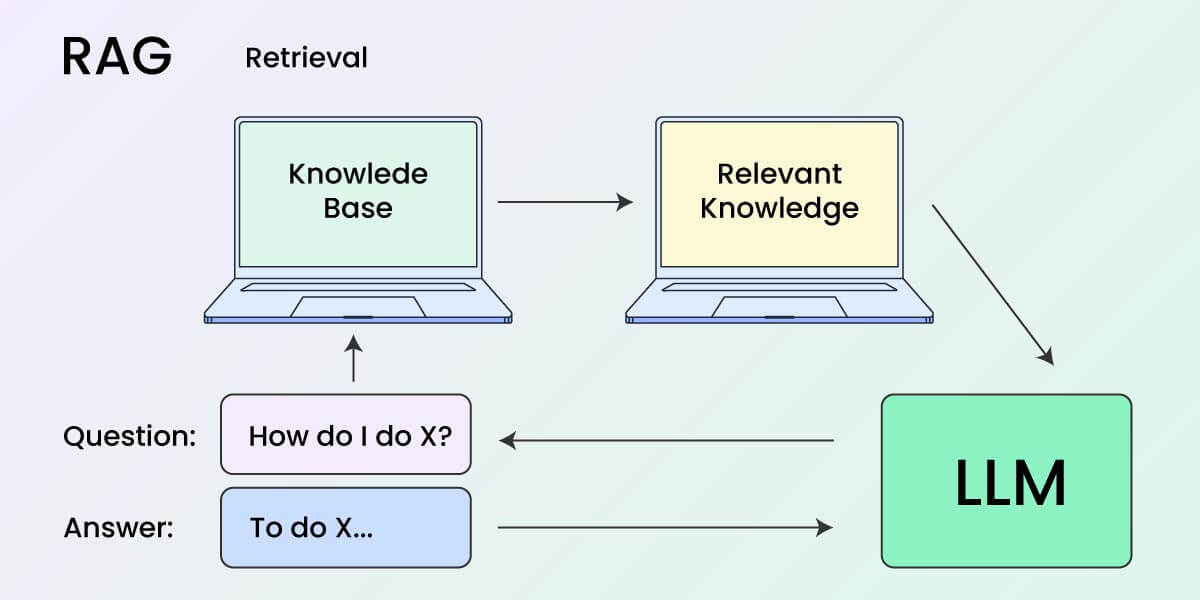
Diagram showing how RAG (Retrieval-Augmented Generation) works. A user asks a question, which is sent to a knowledge base. Relevant knowledge is retrieved and passed to a large language model (LLM), which generates an answer based on that input.

Step 1: Retrieval of information

The AI first looks for information that’s relevant to the question. This is done using a smart search tool that checks through a pre-indexed knowledge base—that could be your website, support docs, product manuals, or internal wiki.

But instead of looking for exact keyword matches, it uses semantic search. That means it understands the meaning behind the question and matches it to the most relevant content, even if the words aren’t exactly the same.

Here is a semantic search example:
If someone searches for “comfortable shoes for running” on an ecommerce platform, they might see results for “lightweight trainers” or “breathable athletic footwear” if the platform understands the user’s intent and the semantic meaning of those phrases.

Step 2: Generation of response

Now, after the relevant content has been found, a language model like GPT or Claude reads it and generates a natural-sounding answer based on it.

But here it gets interesting—The AI doesn’t just repeat the source word-for-word. It will explain it in a conversational tone—the way a helpful teammate or support rep would talk to you.

Let’s backtrack with the question we previously had: “What is your return policy for international orders” question scenario. So instead of saying:

“Refer to section 3.2 of the returns policy on our website.”

…it might say:

“You can return international orders within 30 days—just keep in mind that return shipping is at your expense.”That’s the power of RAG—it gives you the factual accuracy of a search engine combined with the clarity of a human response. Best of both worlds!

How Can Businesses Use RAG? (3 Common Use Cases)

You got this far in the article, so now you might be wondering, “OK, but how would this help my business? How can I benefit from that?” You’re not alone. 

The best thing here is that RAG isn’t just for enterprises and tech giants. In fact, it’s ideal for small teams that want to do more with less.

Here are three ways agencies, freelancers, and SMBs can start benefiting from RAG today:

1. Smarter Customer Support (That Doesn’t Hallucinate)

Most AI customer support chatbots struggle with real-world support issues. They’re either too scripted or too generic. But with RAG, you can build a custom AI assistant that actually knows your business.

  • Feed it your FAQs, policy documents, product guides, or past email templates
  • Let customers ask natural questions, like “Can I change my subscription tier next month?”
  • The AI retrieves the exact info and generates a confident, brand-aligned answer

This might result in fewer support tickets, faster answers, and happier customers, without hiring more support agents. Of course, you might have to make some tweaks and modifications at first to your internal documentations, FAQs, etc., but once everything is set up, everything should be a breeze.

You could even go the extra mile and set RAG in a way that can even be used internally to help your support team get quick answers while handling live chats or calls.

2. Instant Knowledge Access for Your Team

Once your internal knowledge base is connected, RAG becomes more than just a support tool—it becomes your team’s always-on assistant. Instead of pausing work to ask a teammate or digging through shared drives, emails, or Slack threads, your staff can simply ask a question and get an immediate and accurate answer.

Whether it’s a new hire getting up to speed, a team member handling a client call, or someone double-checking a workflow before a deadline, RAG can surface exactly what they need, without slowing them down.

Some of the practical use cases include:

  • Onboarding and training: let new team members ask questions and get accurate answers pulled from your internal guides or SOPs.
  • Task execution: find step-by-step instructions for internal processes, like submitting invoices or updating client dashboards.
  • Real-time support during meetings: need a quick stat, link, or document reference while talking to a client? RAG will have your back.

With RAG, you can create something like a “smart search assistant” for your internal content. Your team would just type a question, and the AI fetches the right info from your SOPs, onboarding guides, or client briefs.

It’s like having a teammate who always knows where everything is and can answer any question in seconds.

3. Marketing and Content Creation on Autopilot

If your team is small, keeping up with content demands like blog posts, product updates, or marketing emails can be a challenge.

Let’s say you want to:

  • Generate blog post outlines based on past reports
  • Write product descriptions using your own feature docs
  • Personalize email campaigns based on customer purchase history

With a RAG setup, you can automatically pull facts from your existing content and let the AI generate something new, clear, and aligned with your brand’s voice.

Keep in mind that it doesn’t invent things out of thin air. Instead, it repurposes what you already have, saving you hours of work. Let’s say you have a detailed PDF with all your product features and benefits. With RAG, your AI assistant can scan that document and help generate:

  • A landing page headline based on your strongest selling points
  • A short product description for your online store
  • A quick-answer snippet for your chatbot when customers ask, “What’s the difference between the basic and premium plans?”

You’re not starting from scratch—the AI is simply pulling the right information from your content and shaping it into the format you need.

How to Start Using RAG (Even Without Tech Skills)

As we previously said—The best part is that you don’t need a technical team to get started with RAG today.

Here are three beginner-friendly ways you can adopt RAG in your business:

1. Use a No-Code RAG Platform

Several tools now let you upload content and get a working RAG assistant within minutes, such as Chatbase, Twilio AI Assistants, Heyday (by Hootsuite), and Notion AI. 

These platforms handle everything behind the scenes (like document indexing, embedding, retrieval, and generation) so you don’t have to worry about any of the technical setup.

What does that actually mean?
When you upload your content (whether it’s FAQs, PDFs, website copy, or internal docs), the system automatically breaks it into chunks, understands the context using AI (that’s the embedding), and creates a fast way to search through it when someone asks a question.

You don’t need to know how vector databases work or how to fine-tune a language model.
All you need to do is:

  • Upload your content (or paste in URLs, depending on the platform)
  • Tell the platform what types of questions you expect
  • Choose how and where the assistant will appear (on your website, in a chat widget, inside your CRM, etc.)

The result? You’ll have an AI assistant that feels like it was trained on your business, without ever touching code. It’s a plug-and-play way to bring RAG into your daily workflow—whether you want to improve support, onboard clients faster, or speed up internal communication.

2. Add RAG to Your Website Chatbot

If you’re already using live chat tools (like Intercom, Drift, Crisp, or Zendesk), good news—you may already have the foundation for RAG built in.

Many of these platforms are now offering AI integrations that let you connect a custom knowledge base (or even an entire folder of help docs) to the chat experience. Instead of relying on keyword search triggers or pre-set flows, your chatbot can now answer questions by searching your content and generating human-like responses, powered by RAG.

Why is this valuable for your business?

  • You don’t need to replace your existing support stack.
  • Your chatbot becomes smarter over time, especially as your knowledge base grows.
  • The responses are more accurate, consistent, and tailored to your brand tone – because they’re based on your actual content, not random web data.

Imagine a user lands on your pricing page and asks, “Do you offer bulk discounts for agencies?”

Instead of a generic “Let me connect you to support,” your AI-powered chatbot could respond with:

“Yes, we offer discounted rates for agency packages starting at 10 client accounts. You can learn more on our reseller page or request a custom quote here.”That kind of direct, helpful answer reduces friction, shortens sales cycles, and frees up your human team for more complex queries.

Pro tip:
Some platforms allow you to train the bot on a mix of articles, past chat logs, and help center pages, making your chatbot a true extension of your support team.

If you’re an agency or a small business with a website and live chat, adding RAG support can give your customers a high-quality, self-service experience without you being online 24/7.

3. Go Open-Source (If You Have Technical Help)

If you’re looking for more control, deeper customization, or want to build something completely unique for your business, you can explore the open-source RAG ecosystem. This route gives you the flexibility to design a solution that’s tailored to your exact workflows, brand voice, or data privacy needs.

But here’s the tradeoff—you’ll need a developer or an AI-savvy freelancer to help set things up, because of the technical complexities.

Here’s a quick look at the key components that make up a custom RAG system:

Frameworks to Build With:

  • LangChain: A modular framework that makes it easier to connect large language models (like GPT-4 or Claude) with custom tools, APIs, and data sources. Great for chaining steps like retrieval, summarization, and follow-up generation in complex flows.
  • LlamaIndex: Built specifically to help developers connect large language models to external data, like PDFs, Notion pages, or Google Docs. It’s focused on the document ingestion and retrieval part of the pipeline.

Vector Databases (Where Your Data Lives):

  • Qdrant, Pinecone, and Weaviate are popular tools that store your document embeddings (AI-friendly formats) and enable lightning-fast similarity search. This is the “retrieval” part of Retrieval-Augmented Generation.

Imagine this case—a digital agency builds an internal RAG assistant that pulls from all their client briefs, creative strategy decks, and ad campaign performance reports. When a strategist types “What were the top-performing Facebook ad variations for the skincare brand last quarter?” The assistant retrieves relevant performance data and copy, then summarizes it in natural language.

Why go custom?

  • You can connect to niche tools or legacy systems
  • You can implement advanced filters (e.g., only search data from a specific client or date range)
  • You control the security and privacy of your data
  • You can embed the assistant into internal dashboards, CRMs, or apps

Keep in mind:

  • You’ll need to handle hosting, updates, and fine-tuning yourself or via your tech partner
  • Costs may vary depending on the infrastructure and usage

Tip:
Many businesses start with a no-code RAG platform (like Chatbase or Twilio), see clear ROI, and then decide to invest in a custom setup to scale or integrate more deeply into operations.

If you’re an agency or growing business with in-house devs or a tech-savvy partner, this path opens up a highly strategic edge in how you deliver support, access knowledge, or even build AI-powered products for clients, but as we said—it’ll require technical assistance from a tech-savvy person.

How to Actually Get Started with RAG

1. Identify the Right RAG Use Case for Your Business

Before implementing Retrieval-Augmented Generation (RAG), identify a clear, high-impact use case. Focus on areas where customers or team members frequently ask questions or need access to context-specific information. 

Think about the most common natural language queries your support team receives or what internal teams often search for across shared drives.

Examples include answering questions about product specifications, automating onboarding FAQs, or surfacing key process documentation.

2. Gather Relevant Business Content for RAG

RAG systems rely on high-quality unstructured data to generate relevant and coherent responses. Start by gathering internal documents, customer service transcripts, standard operating procedures (SOPs), and help articles.

The goal is to build a centralized knowledge base that your RAG model can retrieve from. This can include:

  • Help center articles
  • Internal wikis or SOPs
  • Product or service documentation
  • Blog posts, guides, or even support email templates

Preprocess the data using natural language processing techniques like chunking, tokenization, and entity recognition to improve retrieval quality.

Important!
Make sure that this content/information is factually correct and up to date, because the generated responses otherwise would be inaccurate!

3. Select a RAG Platform and/or Tool

If you’re not a developer, choose a no-code or low-code RAG implementation. 

These platforms often integrate with pre-trained large language models and manage the document embedding and vector search behind the scenes:

  • ChatGPT Plus: upload your own content and use it like a retrieval engine
  • LangChain templates: a flexible framework to build RAG pipelines with prompt engineering and retrieval tuning
  • OpenAI Assistants API: great for embedding natural language interfaces into business tools
  • Enterprise tools: tools like Perplexity Pages, Arcwise, or Glean combine vector databases and semantic search to scale efficiently

Each solution uses vector embeddings to encode your documents and semantic similarity to match them with user intent, making the traditional keyword search methods increasingly obsolete.

4. Test Like a Real User

Testing matters. 

Input real-world questions that reflect how people naturally phrase things, with spelling errors, incomplete thoughts, or vague wording.

This is how you ensure your retrieval model and generative AI component work effectively. Instead, mimic how real users talk—messy, unclear, with typos or half-finished thoughts. Try questions like:

  • “Do you refund if I ship back late?”
  • “How do I fix the handle if it comes loose?”
  • “What do I say if a client is unhappy?”

Use the test results to refine your prompt templates, improve data indexing, or provide more grounding documents. RAG systems perform best when they’re aligned with user query intent and designed to minimize hallucination risks.

5. Add a Human Backup Plan

Even with solid AI systems, generative models can misinterpret edge cases or lack niche context. Always implement fallback logic to route low-confidence responses to humans.

  • Escalate high-risk or sensitive queries to support staff
  • Use feedback loops to update your embeddings and improve retrieval
  • Monitor model accuracy to detect drift or degradation over time

This hybrid model (AI + human oversight) keeps your system accurate and trustworthy, especially in customer-facing or regulated environments.

Is RAG in AI Right for Your Business?

If your business relies on knowledge, support, or content (and let’s face it—that’s most businesses), then RAG is one of the most practical AI tools you can adopt.

Instead of waiting for your favorite AI tool to guess the right answer, RAG lets you feed it exactly what it needs to know—so every answer is accurate, on-brand, and useful.

Let’s recap:

  • RAG is more reliable than basic AI because it fetches real info from your data sources
  • It works with your existing content—no need to “train” a model from scratch
  • It saves time for your team and customers, with better and faster answers
  • You don’t need to be technical to use it—thanks to no-code RAG tools and platforms

Still not sure if RAG fits your needs? Here’s a quick checklist:

  • Do you have a support team or a growing FAQ section?
  • Do your team members often ask repeat questions?
  • Do you publish guides, policies, case studies, or product docs?
  • Do you want to automate or scale content creation without sacrificing quality?

If you said yes to any of those – RAG is worth exploring.

Before you plug RAG into your support workflows, content tools, or chat widgets – you need a strong digital foundation. Whether you’re hosting help docs, building a branded website, or simply securing a domain for your next AI-powered project, SiteGround has your back.

From ultra-fast hosting to a powerful site builder and email marketing tools, we make it easy to launch, grow, and scale – no matter how tech-savvy (or not) you are. Explore our hosting solutions and build your AI-ready online presence today.

What is a Dedicated Server? Everything You Need to Know

What is a Dedicated server featured image

Not every website or application needs a dedicated server — and for most, it’s not the most practical option. But in certain high-demand scenarios, it becomes a necessary choice.

Most websites, blogs, and online stores run efficiently on shared, VPS, or cloud hosting — all of which offer a balance of cost, scalability, and ease of management. However, businesses dealing with high-traffic, resource-heavy applications or strict security requirements often need the exclusive resources and control that only a dedicated server can provide.

In this guide, you’ll learn:

  • What a dedicated server is, and how it works
  • Who needs a dedicated server, and who doesn’t
  • The pros and cons compared to other hosting options
  • Key features to look for when choosing a provider
  • How much do dedicated servers cost

By the end, you’ll know whether a dedicated server is the right choice for your needs — or if another hosting option makes more sense. 

Let’s get started.

What is a Dedicated Server?

A dedicated server is a physical machine used by one client only — unlike shared hosting, where multiple users share the same resources. This means all of the server’s power — CPU, RAM, storage, and bandwidth — is fully dedicated to a single website, application, or business.

Because no other users are on the server, performance is faster, security is stronger, and there’s full control over settings and software. 

However, this level of control comes at a cost:

  • High expenses — Dedicated servers require substantial investment in hardware and maintenance.
  • Technical expertise — Users must configure, secure, and optimize the server themselves (or hire experts).
  • Complex management — Unlike managed hosting, dedicated servers demand manual updates, security patches, and troubleshooting.

Dedicated servers are best for heavy-traffic websites, large databases, gaming servers, and businesses that need strict security and customization.

In short, a dedicated server may be the best choice if you need maximum speed, security, and control.

How Dedicated Server Hosting Works

A dedicated server is stored in a data center operated by a hosting provider. The provider owns and maintains the physical server hardware, while the client rents or leases the entire server.

Here’s how it works:

  1. Server Setup — The hosting provider installs the operating system (Linux or Windows Server), configures the server hardware, and connects it to high-speed internet.
  2. Resource Allocation — Since the entire server is dedicated to one client, CPU power, RAM, storage, and bandwidth are not shared with other users.
  3. Customization — The client controls server settings, security configurations, and installed software.
  4. Maintenance & Security — Depending on the plan, monitoring, updates, and security patches can be handled by the service provider (managed hosting) or the client (unmanaged hosting).

Because the user is fully responsible for server management, technical knowledge is required to keep everything secure and operational.

Dedicated Server vs. Other Hosting Options

Choosing between hosting options starts with understanding how resources are allocated, managed, and scaled. Here’s how dedicated servers compare to other common setups.

Difference Between a Web Server and a Dedicated Server

A web server is any machine that processes and delivers website data to users. A dedicated server is a type of web server that is reserved for a single client, allowing faster performance, stronger security, and full control.

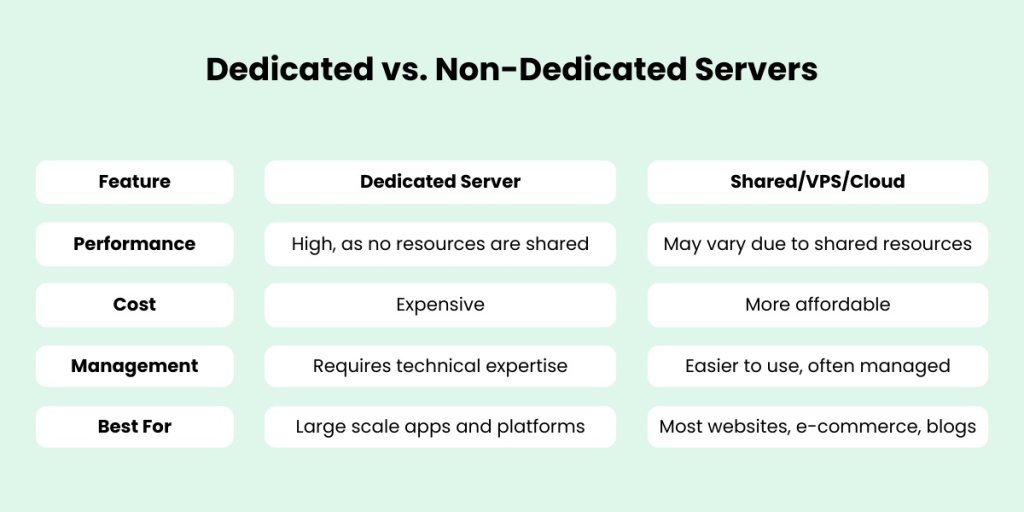
Dedicated vs. Non-Dedicated Servers

A non-dedicated server (like cloud or VPS hosting) splits resources among multiple users, leading to potential slowdowns and security risks. A dedicated server, however, is fully dedicated to a single client, providing better stability and performance.

Dedicated vs non-dedicated servers comparison table

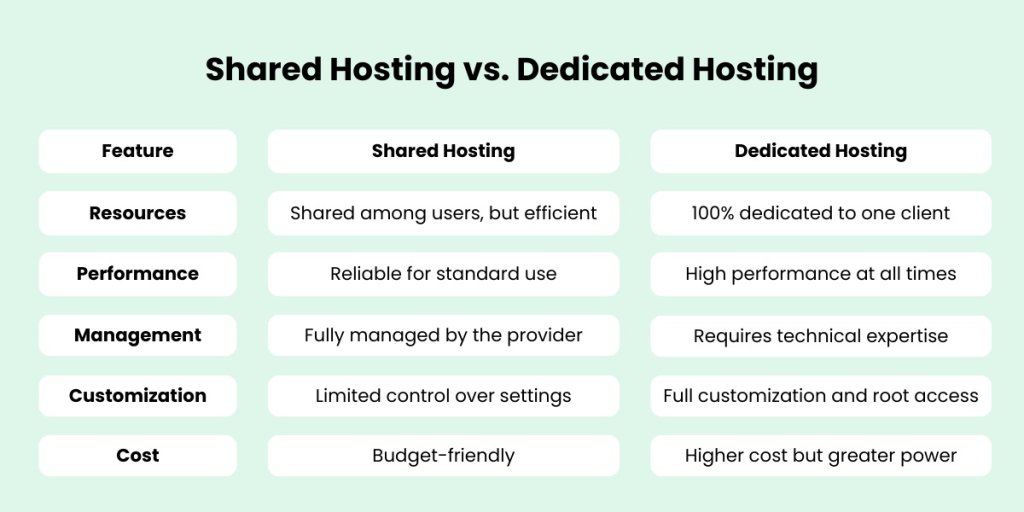
Shared Hosting vs. Dedicated Hosting

Shared hosting is the most cost-effective and user-friendly option for most websites — especially blogs, service-based businesses, and small to mid-sized online stores. It allows multiple websites to share server resources, which keeps costs low and simplifies maintenance through managed environments.

While a dedicated server offers full control and resource exclusivity, it comes with significantly higher costs and requires advanced technical knowledge or a dedicated IT team. For the majority of websites, this level of power isn’t necessary and often results in overpaying for unused capacity.

Shared hosting is ideal for businesses looking for:

  • Affordable monthly plans without hardware management
  • Managed hosting environments with automatic updates and support
  • Scalable performance for everyday traffic demands

Unless you’re running a resource-intensive platform or handling extreme levels of traffic, shared hosting provides more than enough performance — with far less complexity.

Shared Hosting vs. Dedicated Hosting comparison table
Smarter Hosting Starts With SiteGround

When to Choose a Dedicated Server & Who Needs One?

For most businesses, shared hosting or cloud hosting solutions offer the perfect balance of cost, ease of management, and performance. However, certain use cases demand a dedicated server’s exclusive control, scalability, and security. 

Below, we explore the scenarios where dedicated hosting is not just beneficial but often essential.

Large-Scale E-Commerce Businesses

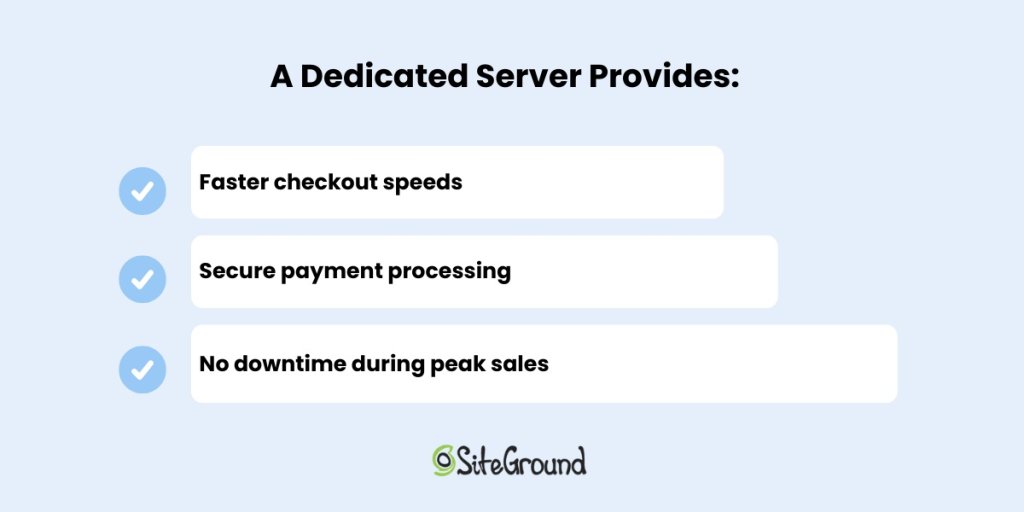
Online stores with thousands of products and high daily traffic require robust hosting solutions. Large-scale e-commerce sites with thousands of daily transactions may experience peak load spikes during sales events. Such events may slow down shared or Cloud hosting. 

However,  dedicated servers provide fast load speeds, high uptime, and strong security that such high-market platforms need.

Benefits that a Dedicated server provides

Enterprises Handling Sensitive Data & Compliance-Heavy Industries

Industries like finance, healthcare, and government must meet strict data protection regulations (HIPAA, PCI-DSS, GDPR). That requires full control over the server’s information processing.

Therefore, a dedicated server is often necessary for:

  • Full security control with encryption and firewalls tailored to compliance needs.
  • Custom configurations to meet industry-specific data protection policies.
  • Secure storage of sensitive customer or financial data without third-party access risks.

High-Traffic Websites & SaaS Platforms

Websites and Software-as-a-Service (SaaS) platforms that attract millions of visitors per month need reliable dedicated hosting to prevent downtime and slow page loads. Additionally, a dedicated server allows for full customization, scalability, and lots of computing power. That enables businesses to tailor server configurations to meet specific needs and easily adapt to growing demands.

A dedicated server is useful for:

  • Handling thousands of simultaneous user requests without performance loss.
  • Offering smooth functionality for data-intensive SaaS applications.
  • Preventing crashes that could impact business reputation.

Streaming Services & Gaming Servers   

Game servers and streaming services require dedicated servers due to the specific demands and expectations of their users. These services need high-performance computing and robust performance.

Many gaming environments, for example, require real-time interaction, which means latency must be minimized, especially in multiplayer online games.

For video streaming platforms, performance and latency are critical because viewers expect playback without interruptions.

A dedicated gaming server provides:

  • Seamless gaming experience
  • Lag-free streaming with high bandwidth
  • Protection against DDoS attacks

Businesses Needing Full Customization & Control

If you require specific server configurations, custom software, or advanced security measures, and complete access, you may need your own dedicated server.

 A dedicated server allows:

  • Root access for complete control
  • Custom firewall and security settings
  • Ability to install any software or operating system

While dedicated servers offer advantages in these specific cases, they also come with significant responsibilities. Most businesses can achieve high performance, security, and scalability using managed cloud hosting or VPS solutions — without the need for dedicated server management.

Cost Considerations – What is the Cost of a Dedicated Server?

While dedicated servers offer exclusive control and high performance, they also come with a significant cost burden. The total expense of a dedicated hosting solution depends on several factors, making it essential to evaluate whether this investment aligns with your business’s needs and budget.

For most businesses, VPS or cloud hosting provides the best balance of cost, performance, and ease of management. Dedicated servers are typically only necessary for organizations that require complete control and exclusive resources.

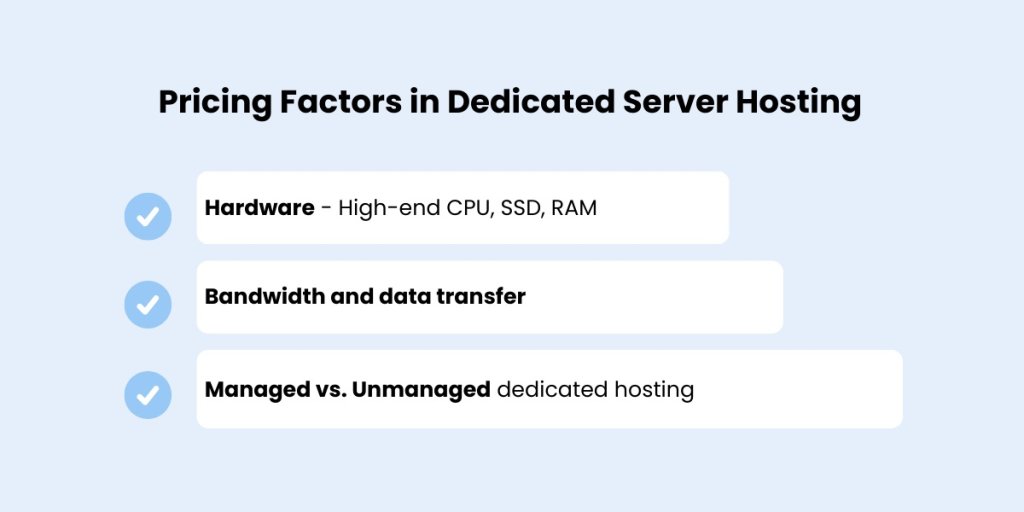
Pricing Factors in Dedicated Server Hosting

The cost of a dedicated server varies widely depending on the infrastructure and level of support provided. Unlike shared or VPS hosting, where resources are distributed, dedicated servers provide access to the full capabilities of a physical machine — and that comes with a price.

Pricing factors of dedicated server hosting

Hardware Specifications 

The type and quality of server hardware directly impact cost. Servers with industry-leading hardware, including multi-core processors, large memory capacity, and high-speed SSD storage, will cost significantly more. Businesses needing high-performance computing or running resource-intensive applications must invest in advanced server configurations to ensure consistent performance.

Bandwidth Usage 

Bandwidth is another major cost factor. Dedicated servers used for streaming services, hosting multiplayer online games, or traffic-heavy websites often require extensive data transfer capacity. Hosting providers typically offer bandwidth tiers, and exceeding them can result in extra charges. Sites with large user bases or data-heavy applications should factor this into their budget.

Managed vs. Unmanaged

A managed dedicated hosting solution includes ongoing support such as server monitoring, security patches, operating system updates, and technical assistance from the hosting provider’s server administrators. 

While convenient, managed hosting costs more. Unmanaged servers are less expensive but demand in-depth technical knowledge, as the user is responsible for setup, maintenance, and troubleshooting. Companies without a dedicated IT team should be prepared to outsource support if opting for an unmanaged plan.

Each of these elements affects the overall pricing, and it’s important to weigh them carefully based on your technical capacity and hosting requirements.

Comparing Costs With Other Hosting Types

When considering a dedicated server, comparing costs with other hosting options is important to determine if the benefits justify the investment.

Dedicated Hosting Prices vs. Other Hosting Types comparison table

Before investing, weigh your technical capacity, performance goals, and long-term needs. For most growing businesses, Shared or managed cloud hosting is far more practical. 

Looking for powerful hosting without the high cost of a dedicated server?

Types of Dedicated Server Hosting

Not all dedicated servers are the same. Your choice — whether cloud-based, OS-specific, or fully managed — will impact performance, cost, and the technical work required.

Managed vs. Unmanaged Dedicated Hosting

A managed dedicated server means the provider handles technical maintenance, security patches, updates, and backups. This includes technical support, making it ideal for large-scale businesses that want a hassle-free experience.

A managed dedicated server means the hosting provider takes care of:

  • Server monitoring
  • Security patches and updates
  • Operating system maintenance
  • Backup and disaster recovery

On the other hand, Unmanaged Dedicated server hosting refers to having an entire server to yourself. This implies that you have the technical expertise and know-how to manage all the aspects of a web server.

Dedicated Linux Server vs. Windows Dedicated Server

Choosing between a dedicated Linux server and a Windows dedicated server depends on the applications you plan to run, your team’s familiarity with the operating system, and your overall hosting strategy.

Linux servers are often favored for web hosting due to their stability, security, and open-source flexibility. They support widely-used technologies like Apache, MySQL, and PHP, and are well-suited for hosting websites, email servers, and software development environments. Linux tends to have lower resource overhead, and because it’s open-source, licensing costs are minimal or nonexistent — which reduces the total cost of ownership.

Windows servers, on the other hand, are essential for businesses that rely on Microsoft technologies like .NET applications, Microsoft SQL Server, or Active Directory. Windows servers provide a familiar interface and integrated support for Microsoft-based software, but they come with licensing fees and require more system resources. They’re also more commonly used in enterprise settings where Microsoft infrastructure is already in place.

Both options can be used on bare metal server hosting or through dedicated cloud hosting. However, the choice between them should be based on your technical requirements, in-house expertise, and software dependencies.

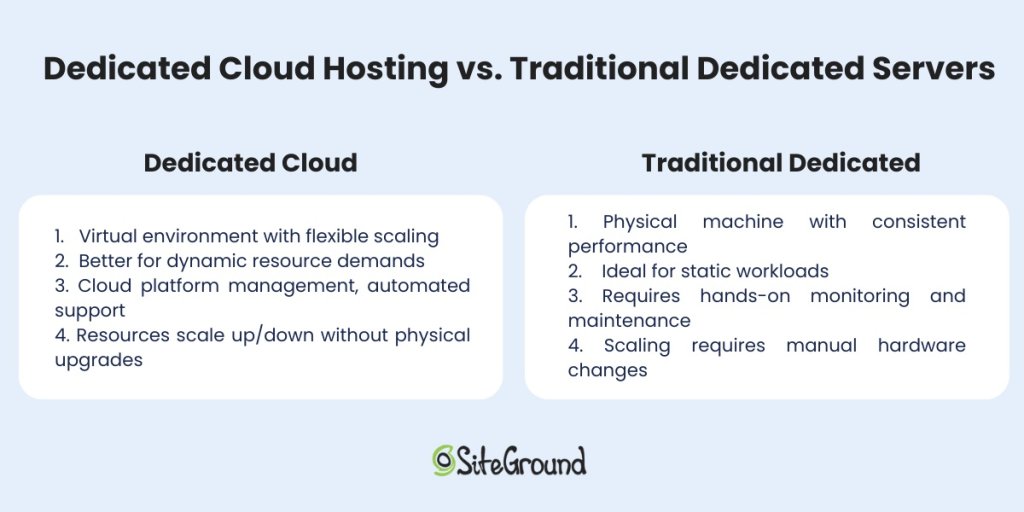
Dedicated Cloud Hosting vs. Traditional Dedicated Servers

When evaluating dedicated hosting options, it’s important to understand the difference between traditional dedicated servers and dedicated cloud hosting. While both offer exclusive access to server resources, they differ in structure, scalability, and maintenance.

Dedicated Cloud server vs. Traditional Dedicated server

A traditional dedicated server is a physical machine located in a hosting provider’s data center. It provides fixed, high-performance hardware reserved for a single user. This setup is ideal for applications requiring stable performance, robust processing power, and low-level customization. 

However, traditional dedicated servers lack flexibility — scaling resources up or down often requires manual hardware changes or migrations. They also come with greater responsibility for server monitoring, hardware maintenance, and backups.

Dedicated cloud hosting, on the other side, delivers similar resource exclusivity but on a virtualized infrastructure. The server environment is built on a cloud platform that allows for elastic scaling, rapid deployment, and better fault tolerance. 

Businesses can increase or decrease computing power, memory, or storage without replacing physical hardware. This model is especially useful for applications that need high availability and agility, such as e-commerce stores, SaaS platforms, or data analysis environments.

In short, traditional dedicated servers offer control and predictable performance, while dedicated cloud servers offer scalability and resilience. Choosing between the two depends on your operational needs, budget, and comfort with managing server infrastructure versus leveraging a cloud-based service.

Features to Look for in Dedicated Server Providers

Before committing to a dedicated server hosting solution, it’s essential to understand what to look for in a provider. The right features can make a major difference in how your server performs, how secure your data remains, and how easily you can scale as your business grows.

Note that your selected features will directly impact your server’s ability to handle real-world workloads and future growth.

Hardware and Performance Considerations

The performance of a dedicated server depends heavily on the underlying hardware, making it crucial to choose a provider that offers reliable, high-performance components built for demanding workloads.

  • Processing power — Look for industry-leading hardware like Intel Xeon or AMD EPYC CPUs.
  • Memory usage — More RAM means smoother performance for high-traffic websites and a smoother gaming experience.
  • Storage type — SSDs are faster than HDDs, especially for database-driven applications.

Security and Scalability Options

Dedicated servers must be equipped to handle modern threats while supporting long-term growth. Look for providers that offer:

  • Network security — This should include robust DDoS protection, firewalls, and intrusion detection.
  • Backup solutions—Automated backups for data recovery are a must in case of system failure, cyberattack, or human error.
  • Scalability — Can the server handle future growth without requiring migration?

Together, these features ensure your dedicated hosting solution performs well.

Is a Dedicated Server Right for You?

Dedicated servers offer high performance, control, and security — but they’re not the right fit for everyone. If your website handles extremely high traffic, processes large volumes of sensitive data, or runs custom applications that require full server control, a dedicated server might be necessary.

That said, this level of hosting comes with increased complexity, higher costs, and the need for in-house technical expertise or a managed support plan. 

For most blogs, small-to-medium e-commerce stores, and service-based websites, a shared server, VPS, or managed cloud hosting solution will provide more than enough resources — without the overhead.

Ultimately, choosing a dedicated server should be based on your operational needs, performance demands, and available technical resources. If you don’t have a clear use case that justifies the cost and effort, it’s likely not the best fit.

SiteGround is all the hosting most websites ever need

Core Web Vitals Guide: What They Are & How to Improve Them

Understanding Core Web Vitals

Slow loading times, unresponsive elements, or unexpected page shifts can frustrate users. This is why Core Web Vitals have become essential for optimizing your site and your chances of ranking higher in searches.

By improving your website performance on these metrics, you can provide a smoother experience for your audience. This results in better search engine rankings, increased engagement, and more conversions.

What are Core Web Vitals?

Core Web Vitals is a set of metrics from Google that measure real-world user experience for loading performance, interactivity, and visual stability of a webpage. Achieving good Core Web Vitals is recommended for success in Google Search, as it helps ensure a fast, responsive, and visually stable user experience.

The three Core Web Vitals are: 

  • Largest Contentful Paint (LCP) – Measures how long it takes for the largest visible element (like an image, video, or block of text) to load and become visible to the user.
  • Interaction to Next Paint (INP) – Measures the time it takes for a website to respond visually after a user interaction, such as clicking a button or typing.
  • Cumulative Layout Shift (CLS) – Measures how much visible content shifts unexpectedly during loading. 

Google uses these quality signals as part of its ranking algorithm, and improving them can boost your search rankings.

Largest Contentful Paint (LCP)

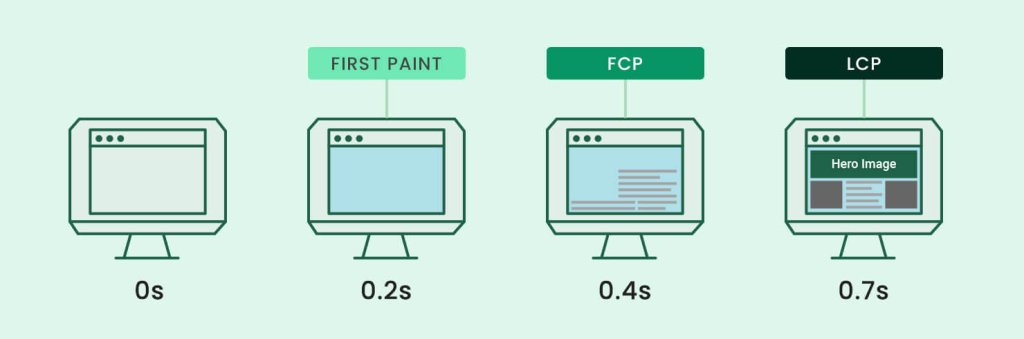
Illustration of the differences between First Paint, First contentful paint and Largest Contentful Paint.

Largest Contentful Paint (LCP) measures how long it takes for the largest visible content element on a page to fully render. This could be an image, video, or a block of text that occupies the most space on the screen. This metric is important because it gives an accurate view of how fast a web page loads from the user’s perspective.

Here’s how Google defines LCP scores:

Illustration of how Google defines Largest Contentful Paint and its scores - "Good" (0 to 2.5 seconds), "Needs improvement" (between 2.5s and 4s) and "Poor" (more than 4s).
  • Good: 2.5 seconds or less
  • Needs improvement: Between 2.5 and 4 seconds. 
  • Poor: More than 4.0 seconds

For your website to pass the Core Web Vitals, you need an LCP score of 2.5 seconds or less for 75% of all your page views.

A high LCP means your users are waiting too much time to load the largest piece of content on your page. For website owners, this means long render times, leading to big bounce rates and low conversion rates.

The three most common factors that negatively affect LCP are:

  • Large, unoptimized media
  • Render-blocking JavaScript
  • Slow resource load time

Interaction to Next Paint (INP) 

Google announced that INP (Interaction to Next Paint) is officially replacing the FID (First Input Delay) as the new Core Web Vitals metric for responsiveness. The replacement will be effective as of March 2024.

Illustration of First Input Delay - a person clicking on a link in a page on a mobile device and waiting for the response of the page

Interaction to Next Paint (INP) is a real-user web performance metric that measures the responsiveness of a web page. It evaluates the time it takes for the browser to respond to user interactions, such as clicks or taps after the page has finished loading.

INP is designed to capture the user’s experience of how quickly and smoothly a site reacts to their inputs. It is a key indicator of the page’s interactivity and responsiveness. 

Unlike FID, which only measures the delay for the first input, INP considers the responsiveness of the entire page throughout the user’s session.

Here’s how Google defines INP scores:

Illustration of how Google defines Interaction to Next Paint (INP) and its scores - "Good" (0 to 200ms), "Needs improvement" (between 200ms and 500ms) and "Poor" (more than 500ms).
  • Good: Less than or equal to 200 milliseconds
  • Needs Improvement: Between 200 milliseconds and 500 milliseconds
  • Poor: More than 500 milliseconds

A common reason for a bad INP score is unoptimized JavaScript and CSS files. We’ll show you how to measure and improve INP later on.

Cumulative Layout Shift (CLS)

Illustration of what Cumulative Layout Shift means - the whole web page shifting down, before the user clicks, because an ad has appeared.

Cumulative Layout Shift (CLS) measures the visual stability of a page by tracking unexpected layout shifts. These shifts often occur when new content loads, like images without specified dimensions or dynamically inserted ads. A high CLS score indicates a page is unstable, leading to a frustrating experience for users.

Here’s how Google defines CLS scores:

Illustration of Cumulative Layout Shift's score and score definitions - "Good" (0.1s or less), "Need improvement" (between 0.1s and 0.25s) or "Poor" (more than 0.25s).
  • Good – Less than or equal to 0.1 seconds
  • Needs Improvement – Less than or equal to 0.25 seconds
  • Poor – More than 0.25 seconds

A score less or equal to 0.1 seconds means the page’s contents are fully static during their lifecycle. A higher score means the contents are moving.

Usually, layout shifts are commonly caused by:

  • images, 
  • ads, 
  • embeds, 
  • iframes without dimensions, 
  • dynamically injected content,
  • web fonts, causing a flash of invisible text and a flash of unstyled text.

How to measure Core Web Vitals? 

There are several tools available to measure Core Web Vitals, both using real-world data from users and lab metrics (simulated tests). These tools help site owners track their Core Web Vitals performance and identify areas for improvement.

Field tools

Field data, also known as real user monitoring (RUM), reflects real users’ browsing experience. It takes into account real users, various devices, different network connections, and historical data. The result is aggregated for the entire domain or per URL.

Keep in mind that Google is using field data to rank your site. Therefore, if you want to inspect your real user experience, you should use field tools.

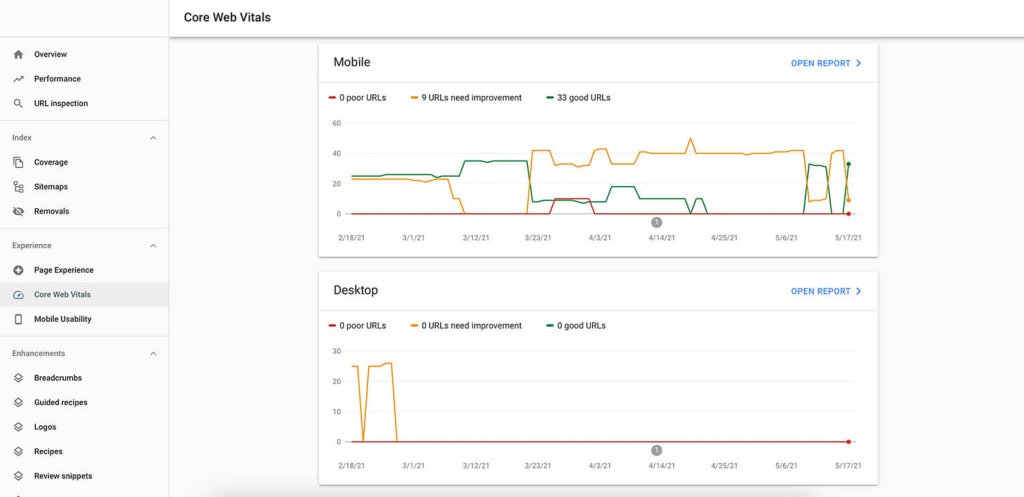
Google Search Console (GSC)

Google Search Console offers a Core Web Vitals report that shows how your site performs on desktop and mobile devices. It highlights affected pages and groups them by performance – Good, Needs Improvement, or Poor.

Screenshot from Google Search Console's Core Web Vitals report showing the mobile & desktop versions of a website and how they are performing in terms of Core web vitals.

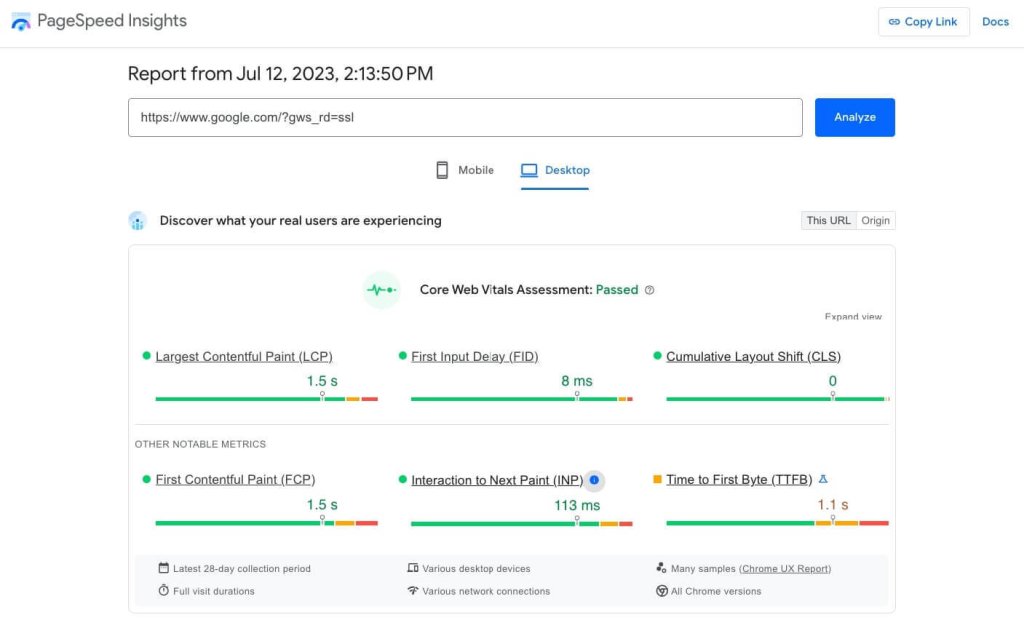
PageSpeed Insights

PageSpeed Insights analyzes individual web pages and provides detailed insights into their Core Web Vitals performance. It offers suggestions for improving page speed and site performance. 

Screenshot of PageSpeed Insights and its Core Web Vitals results & assessment of a web page.

You should look into both desktop and mobile scores, as they might differ. At the top of the report, PageSpeed Insights clearly indicates whether your page meets the thresholds for a good experience based on the site’s Core Web Vitals. 

Chrome UX Report (CrUX) 

The Chrome User Experience Report (CrUX) provides real-world performance data from Chrome users. It shows how users experience your site on both mobile and desktop devices. The Chrome UX Report focuses on website loading performance. It measures Core Web Vitals, metrics like Time to First Byte (TTFB), and more.

Web Vitals Chrome Еxtension 

The Web Vitals extension allows you to track Core Web Vitals directly in your Chrome browser as you browse your site. It’s a free tool that provides instant feedback on Core Web Vitals metrics. 

Screenshot from Google Chrome browser, while having opened the Web Vitals Chrome extension, showing the Core Web Vitals metrics of a tested web page

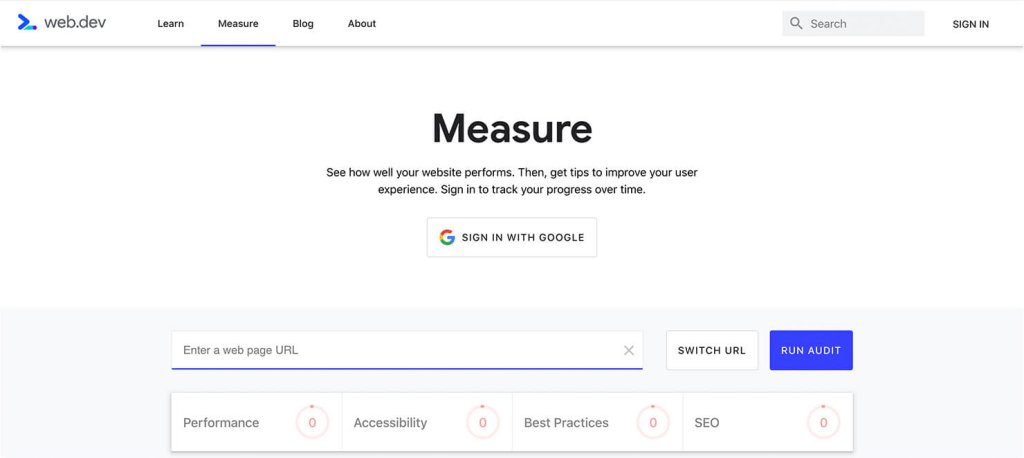
Web.dev 

Web.dev offers a free measurement tool to run a performance audit on your site. Moreover, you can check your site’s performance across different areas and get tips on improving metrics like the site’s performance, progressive web app status, accessibility, use of best practices, and SEO. It also supports the Core Web Vitals metrics.

Overview of web.dev's "Measure page" for website performance audits

Lab Tools

This refers to conducting tests in a controlled environment and seeing how a potential user will experience your website. Unlike field tools, lab tools work with simulated data, with predefined device and network specifications. They are useful in reproducing and debugging possible website performance issues, but don’t give you real user experience information.

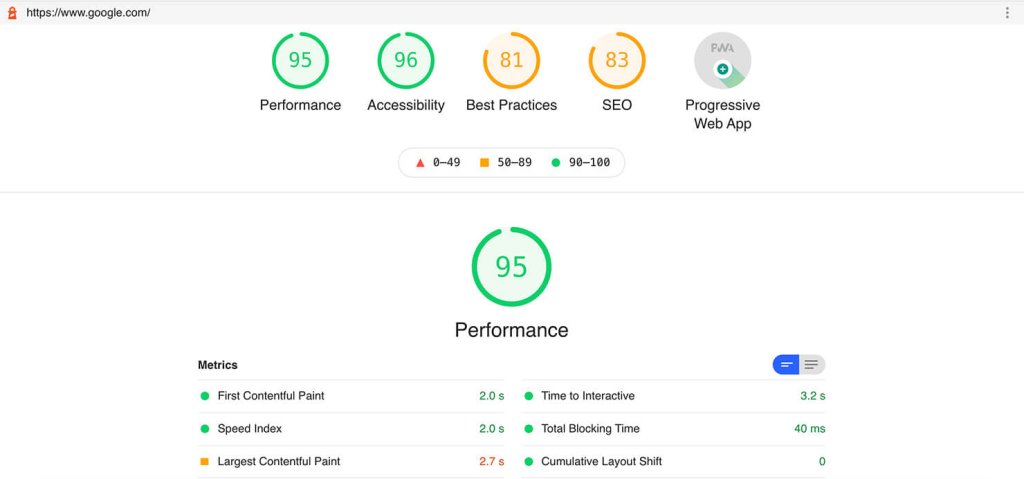
Lighthouse

Lighthouse is an open-source, automated website auditing tool that helps developers diagnose issues and improve the quality of web pages. 

Overview of Lighthouse and the performance score and results of Core Web Vitals metrics of a tested page

A lab tool like Lighthouse can’t measure Interaction to Next Paint (INP), because it requires real user interaction. However, you can monitor Total Blocking Time (TBT), which measures the total amount of time between First Contentful Paint and Time To Interactive. By improving your TBT, you’ll most likely improve your INP as well.

WebPageTest.org 

This is a free, open-source tool that measures your site speed performance. It loads your page in a real browser, helping you identify specific site sections that need more time to load.

Overview of webpagetest.org and its comprehensive performance results regarding Core Web Vitals metrics

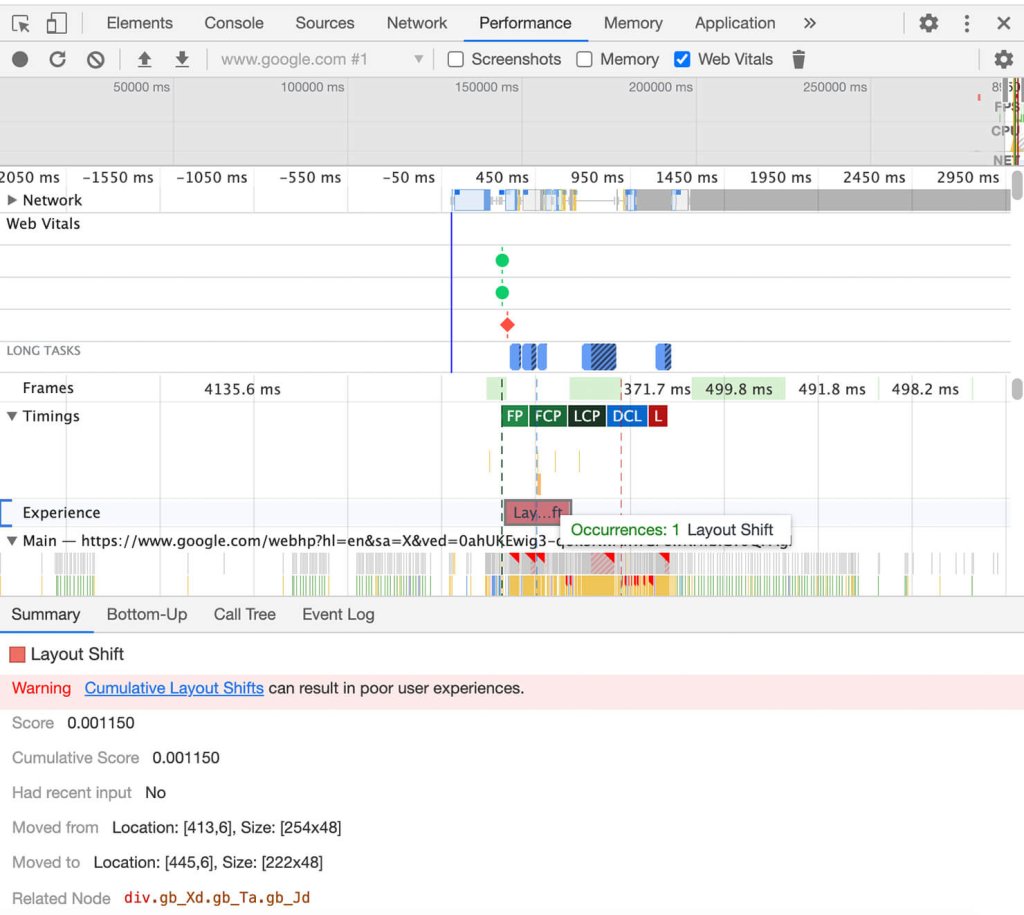
Chrome DevTools Performance Panel

With the Chrome DevTools, you have the Performance option, which includes Core Web Vitals. The Performance panel also has an Experience section where you can detect unexpected layout shifts. Therefore, you can identify and fix any visual instability and improve your Cumulative Layout Shift metric.

In order to access the Chrome DevTools Performance Panel, Open Google Chrome (use incognito mode so there’s no browser cache) and press Command+Option+I (Mac) or Control+Shift+I (Windows, Linux) to open DevTools. 

Overview of Chrome's DevTools Performance tab on measuring the Core Web Vitals metrics

Select the Layout Shift to view its details in the Summary tab.

Keep in mind that depending on which tool you use (based on field or lab data), the Core Web Vitals metrics might show different results.

How to Improve Core Web Vitals

The good news is that most of the tips for improving your Core Web Vitals are already part of the good practices for optimizing website performance. 

How to Improve Largest Contentful Paint (LCP)

Enable full-page caching

When you enable full-page caching, your site’s pages will be stored on the server after the first time they are loaded. Only the first visitor will load the entire page content from the database. All the rest will get the page output directly from the server’s memory, making your site much faster, and ultimately improving your LCP metric.

SiteGround users take advantage of our unique full-page caching solution, called Dynamic caching, enabled for all sites by default. Depending on the type of site, we see up to 5 times faster page loading.

Choose Fast and Reliable Web Hosting 

One of the most common reasons for a bad LCP is a slow server response time. First, check your Time to First Byte (TTFB) – how long it takes for the browser to receive the first byte of content from the server. The faster your server responds, the better your website will perform. 

SiteGround offers a highly optimized hosting environment, powered by Google Cloud. We implement a unique UltraFast PHP, a custom MySQL database setup, and a strong defense system against potential threats. 

Use a CDN

Besides the server that hosts your site, you can use a content delivery network (CDN) to speed up all your visitors’ loading time. The CDN will cache your content across a global network of servers and load your website from the one closest to the visitor, thus enhancing their experience with your page.

SiteGround has developed its own CDN infrastructure to increase website performance and security for all of its users. 

Optimize images

Optimizing images will improve your Largest Contentful Paint score since they are often the largest page element.

Always compress your images and scale them correctly. It is recommended to serve images in next-gen formats such as WebP, to improve performance.

An effective way to optimize your media is to take advantage of our Speed Optimizer plugin. It has features for media optimization such as image compression, conversion to WebP format and lazy loading media. 

Optimize JavaScript and CSS

Reducing CSS and JavaScript that slow down the page load can improve your overall Core Web Vital score and user interaction.

  • Defer JavaScript

While the browser is loading JavaScript, users cannot interact with the web page. That’s why sometimes you can see the term “Render-blocking JavaScript.” Deferring your JavaScrips means the browser will process and load JS files only after parsing the HTML document. 

In other words, rendering your website will be much faster because there won’t be anything to block the process. 

  • Minify CSS and JS files

For easier readability, developers often leave characters such as spacing, indentation, or comments in CSS and JS files. However, all these characters in the code are not essential for the browser. 

Minification optimizes your code by removing any unnecessary characters, resulting in improved render time and faster websites. 

How to Improve Interaction to Next Paint (INP)

Remove large page elements and long tasks

Reducing long tasks prevents delays in responding to user interactions. A long task refers to any piece of JavaScript code that takes more than 50 milliseconds to execute. Large page elements like videos or background images can slow down code execution and impact INP.

Instead of using a high-resolution image for the background (e.g., a 4MB JPEG), consider using an optimized WebP image that reduces the file size significantly (e.g., 400KB). Similarly, videos can be lazy-loaded or replaced with static images for initial load, deferring the heavy media until after user interaction. 

Use Web Workers

Using Web Workers allows heavy tasks to run in the background, preventing them from blocking the main thread. This reduces delays in user input and page load, optimizing the INP score and overall performance.

Instead of having large tasks run directly in the browser’s main thread (causing the page to freeze), the processing can be offloaded to a Web Worker. This lets the user continue interacting with the site without any noticeable lag, while the background task completes.

Optimize Event Handlers 

Optimized event handlers reduce input delay and improve site speed, contributing to better Core Web Vitals metrics.

For example, when a user clicks a button, the event handler first logs the button click and defers the calculation to a less critical time when the browser’s main thread is idle. This ensures the interaction is smooth and the user doesn’t experience delays. 

Reduce third-party scripts 

It is strongly recommended to remove any third-party scripts which don’t bring any clear value. If your site includes multiple third-party scripts for analytics, ads, or social media widgets, evaluate whether they are necessary. Removing non-essential scripts, such as a redundant chat widget or ad tracker that isn’t used for your core audience, can significantly improve both your Largest Contentful Paint (LCP) and Interaction to Next Paint (INP) score.

How to Improve Cumulative Layout Shift (CLS) 

Set size attributes

Setting size attribute dimensions will tell the user’s browser exactly how much space that element needs. Let’s use an image element as an example.

If you don’t set the width and height attributes for an image, the browser won’t know the exact size this image will occupy until it fully loads, which can cause a layout shift. 

<img src="image.jpg" width="600" height="400" alt="A scenic view of mountains">

By specifying the width and height, you allow the browser to calculate the aspect ratio of the image and reserve appropriate space for it. This will minimize Cumulative Layout Shifts. 

Preload fonts

Fonts improve the readability of your page, and convey your brand image.  However, each font you use is an additional resource that may slow down your website. Preloading fonts is recommended to prevent layout shifts and flashes of invisible text.

To preload fonts, you use the <link rel=”preload”> tag in the <head> of your HTML document. You need to specify the as=”font” attribute and include crossorigin if the font is being loaded from an external source (like a CDN). 

By doing this, you’ll improve your CLS metric score.

Our Speed Optimizer is also developed to help you in that area. Our dedicated Web Fonts Optimization functionality improves your render time resulting in better site performance.

Reserve Space for Ads

Ads have a dynamic nature which can lead to unexpected layout shifts. This can have a negative effect on your CLS score. If you don’t reserve sufficient space for the ads on your site, they can pop up unexpectedly and ruin user experience.

Use CSS transform for Animations

Layout shifts during animations often disrupt the user’s experience and can significantly impact your Cumulative Layout Shift (CLS) score. By using the CSS transform property for animations, you can avoid causing elements on the page to move unpredictably. 

Transform animations, such as scale or translate, help maintain the position of other content on the page. This leads to a more stable experience on your site.

Minimize Dynamically Injected Content: 

Dynamically injected content, such as ads, images, or videos that load after the initial webpage, often causes layout shifts. These shifts can negatively affect the Cumulative Layout Shift (CLS) score. 

To improve visual stability, it’s important to pre-allocate space for dynamically loaded content. There are multiple techniques for that, like setting size dimensions in your CSS, JavaScript, or using Aspect Ratio boxes or Placeholders. You can see an example of setting size dimensions before injecting content dynamically with JavaScript below:

<div id="dynamic-content" class="ad-container"></div>

<script>
    const adContainer = document.getElementById('dynamic-content');
    adContainer.style.width = '300px';  // Fixed width
    adContainer.style.height = '250px'; // Fixed height

    // Dynamically inject content
    adContainer.innerHTML = '<p>Ad will appear here</p>';
</script>

This minimizes the impact on the user experience while also improving performance metrics related to your layout shift score.   

Why are Core Web Vitals important?

The tips above are both recommended best practices for website optimization and also positively affect the page experience signals measured by Google’s Core Web Vitals.

As a website owner, it is important to understand these metrics. This can help you offer a positive user experience, and improve your search engine rankings and overall web page performance. 

It’s important to note that Google’s ranking algorithm is continuously updated. Regularly monitoring your Core Web Vitals with tools like PageSpeed Insights or Search Console can help you make necessary adjustments, even as user expectations and Google’s ranking algorithms evolve. This way, you’re setting your site up for long-term success. 

For more expert tips on website optimization, you can download our WordPress Speed Optimization ebook or watch our video guide and learn how to build a high-performance website. 

Updated: October 2024

[subscribe_cta]